升级指引
对于不需要额外操作的 SDK 版本,下载最新版本的 SDK 并用新的 SDK 文件替换旧的 SDK 文件,同时保留旧版本的所有配置。
对于需要额外操作的 SDK 版本,参考每个版本单独的升级指引。
Player Network SDK V1.17 之前的版本升级说明,请联系 Player Network 助手。
按照指引升级完成后,请对照本文中的清单进行检查。
检查配置
建议使用比较工具(例如 "Beyond Compare")比较新旧版本,并逐个更新配置。
INTLConfig.ini
INTLConfig.ini 在工程中的路径为:
- Unity
- Unreal Engine
| 1.17.00 | 1.16.05 |
|---|---|
INTLSDK/Scripts/INTLConfig/Editor/Resources/INTLConfig.ini | Android: /Plugins/Android/assets/INTLConfig.iniiOS: /Plugins/iOS/INTLSDK/INTLCore/INTLSDK.bundle/INTLConfig.iniWindows, PS5: /Plugins/x86_64/INTLConfig.ini Nintendo: /Plugins/Switch/INTLConfig.ini |
| 1.17.00 | 1.16.05 |
|---|---|
INTLSDK/Source/INTLConfig/Configs/Resources/INTLConfig.ini | Android: INTLSDKPlugin/Source/INTLSDKPlugin/INTLSDK/Android/assets/INTLConfig.ini iOS: INTLSDKPlugin/Source/INTLSDKPlugin/INTLSDK/iOS/INTLCore/INTLSDK.bundle/INTLConfig.ini Windows, PS5: INTLSDKPlugin/Source/INTLSDKPlugin/INTLSDK/resources/INTLConfig.ini Nintendo: INTLSDKPlugin/Source/INTLSDKPlugin/INTLSDK/Switch/INTLConfig.ini |
建议比较每个字段,以确保 INTLConfig.ini 文件中的每个配置都是正确的。
Firebase 配置
Firebase 配置文件的路径是:
Android:Assets/Plugins/Android/google-services.json
iOS:Assets/Plugins/iOS/INTLSDK/INTLFirebase/ThirdSDK/GoogleService-Info.plist
确保对应平台的 Firebase 配置文件未被删除,并且所有配置项都正确。
Gradle 配置
Gradle 配置文件的路径是:
- Unity
- Unreal Engine
Unity 2018.x 及之前版本:\Plugins\Android\mainTemplate.gradle
Unity 2018.x 及之后版本:
\Plugins\Android\baseProjectTemplate.gradlelauncherTemplate.gradlemainTemplate.gradle
/Plugins/INTLSDKPlugin/Source/INTLSDKPlugin/INTLSDK/Android/INTLCore_UPL.xml
确保配置文件中的 ID 和其他值没有被覆盖。
Info.plist
- Unity
- Unreal Engine
INTL{Plugin}Kit.projmods 是 Player Network SDK 的 Info.plist 配置文件。Player Network SDK 会读取 INTLSDK/Editor/XUPorter/Mods 目录中的 INTL{Plugin}Kit.projmods 文件,并在 Xcode 中添加导入的 bundle、框架和其他依赖包。
由于每个 INTL{Plugin}Kit.projmods文件都对应一个 SDK 插件,因此打包前要检查并更新所有 .projmods 文件中的占位符。
对于 Player Network SDK V1.18 及更高版本,检查 INTLSDK/Source/INTLConfig/Configs/iOS/Plist/ 目录中的所有 .plist 文件是否配置正确。
对于早期版本的 Player Network SDK,请检查 Unreal Engine > Settings > Project Settings > Platforms > iOS > Extra PList Data 是否配置正确。
关于每个渠道的正确配置,请参见配置登录鉴权服务的 教程。
Swift 配置
如果插件包使用 Swift SDK,将出现 iOS Swift 和 Objective-C 的混编问题。按照以下步骤操作创建桥接层,使两种编程语言的类名保持一致:
Facebook 和 LINE 插件使用 Swift,在 Xcode 中打包时需特别注意此配置。
- Unity
- Unreal Engine
对于 Unity 2019.x,请跳过步骤 1 到步骤 4。
-
创建一个 Swift File 类型的新文件。
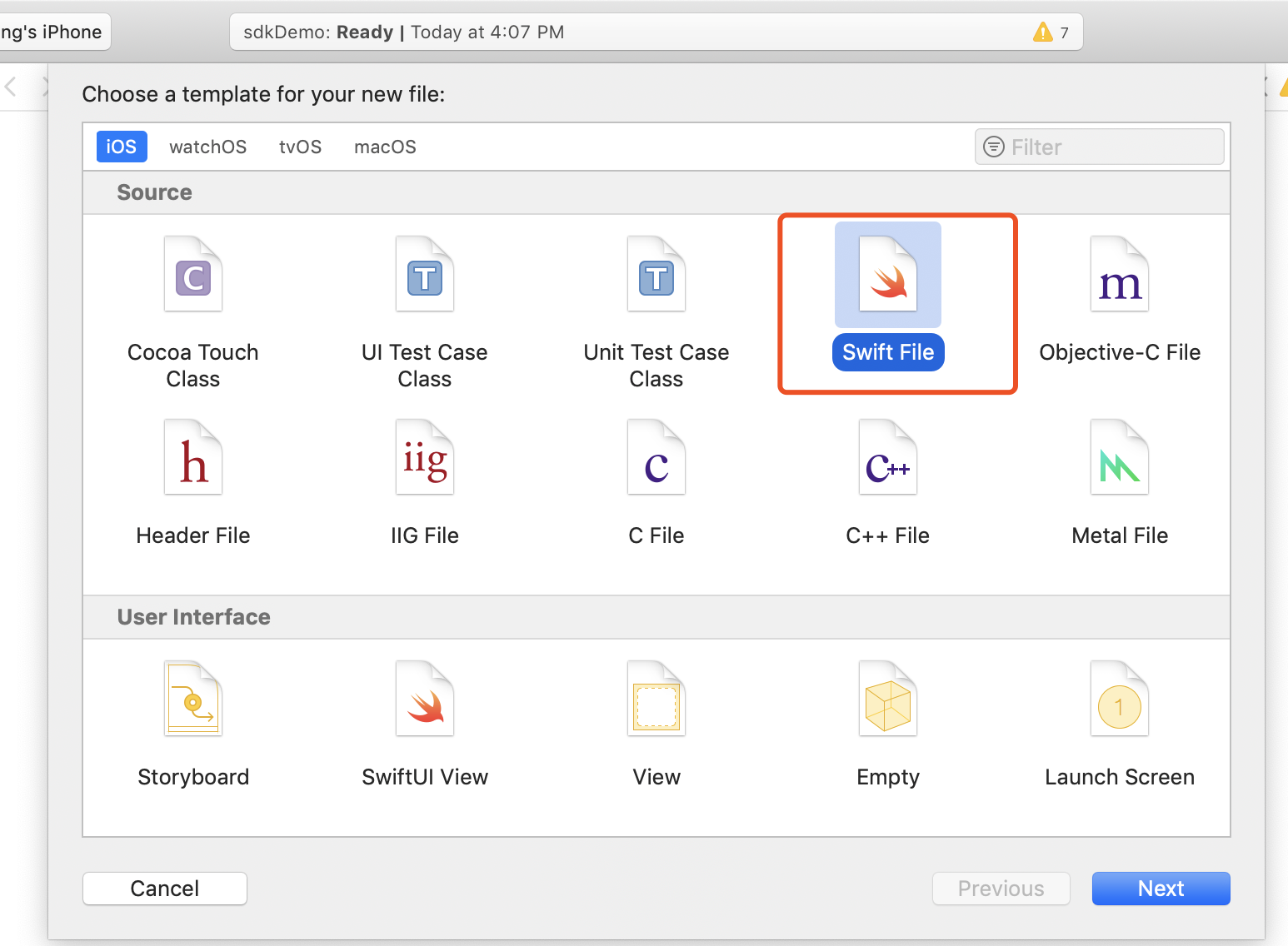
-
将文件名设为以
.swift为扩展名,然后点击 Create。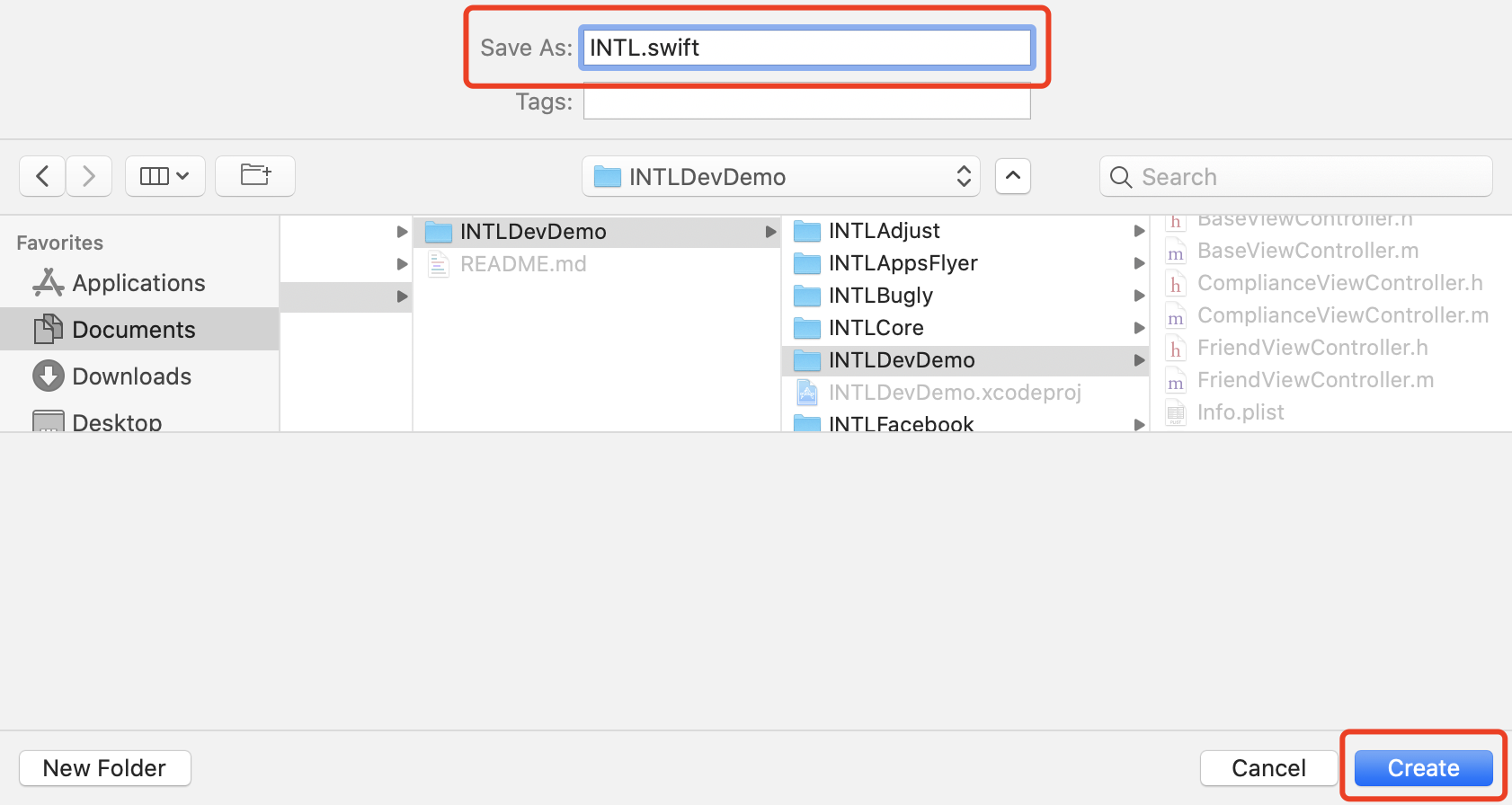
-
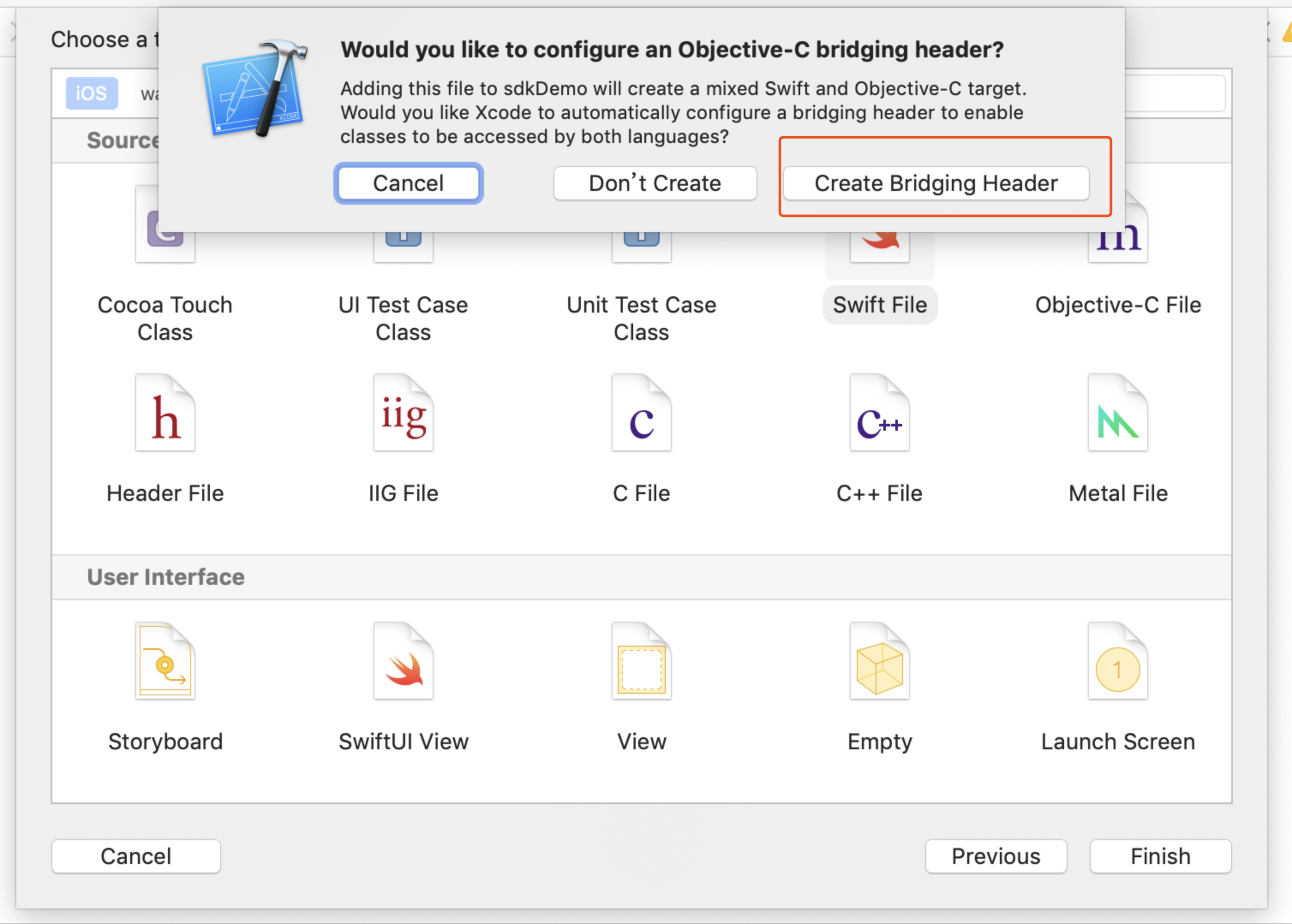
点击 Create Bridging Header。
请务必点击 Create Bridging Header。否则 Xcode 不会创建 bridging header。
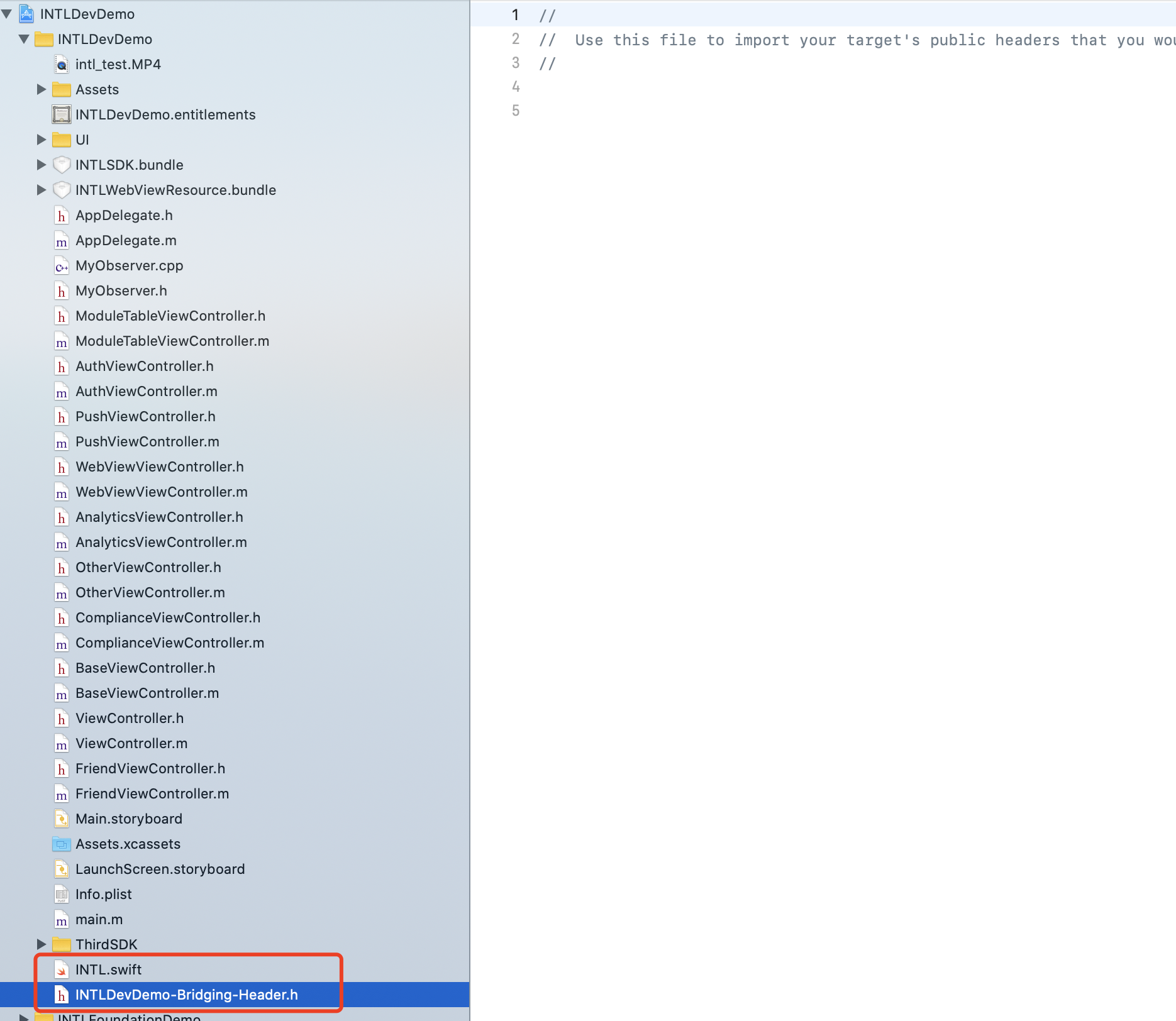
- 检查 Xcode 工程中是否生成了两个文件(一个是步骤 2 中创建的
.swift文件,另一个是自动生成的project_name-Bridging-Header.h文件)。
不要修改文件内容。
-
在 Xcode 中,进入 UnityFramework,并在右上角搜索框输入 Library Search Paths。
-
在搜索结果页面,为 Library Search Paths 添加以下配置:
(Keep the order consistent)
$(SDKROOT)/usr/lib/swift
$(TOOLCHAIN_DIR)/usr/lib/swift/$(PLATFORM_NAME)
$(TOOLCHAIN_DIR)/usr/lib/swift-5.0/$(PLATFORM_NAME}
-
在右上角搜索框输入 Other Linker Flags。
-
在 Other Linker Flags 中添加
-lswiftCompatibility51。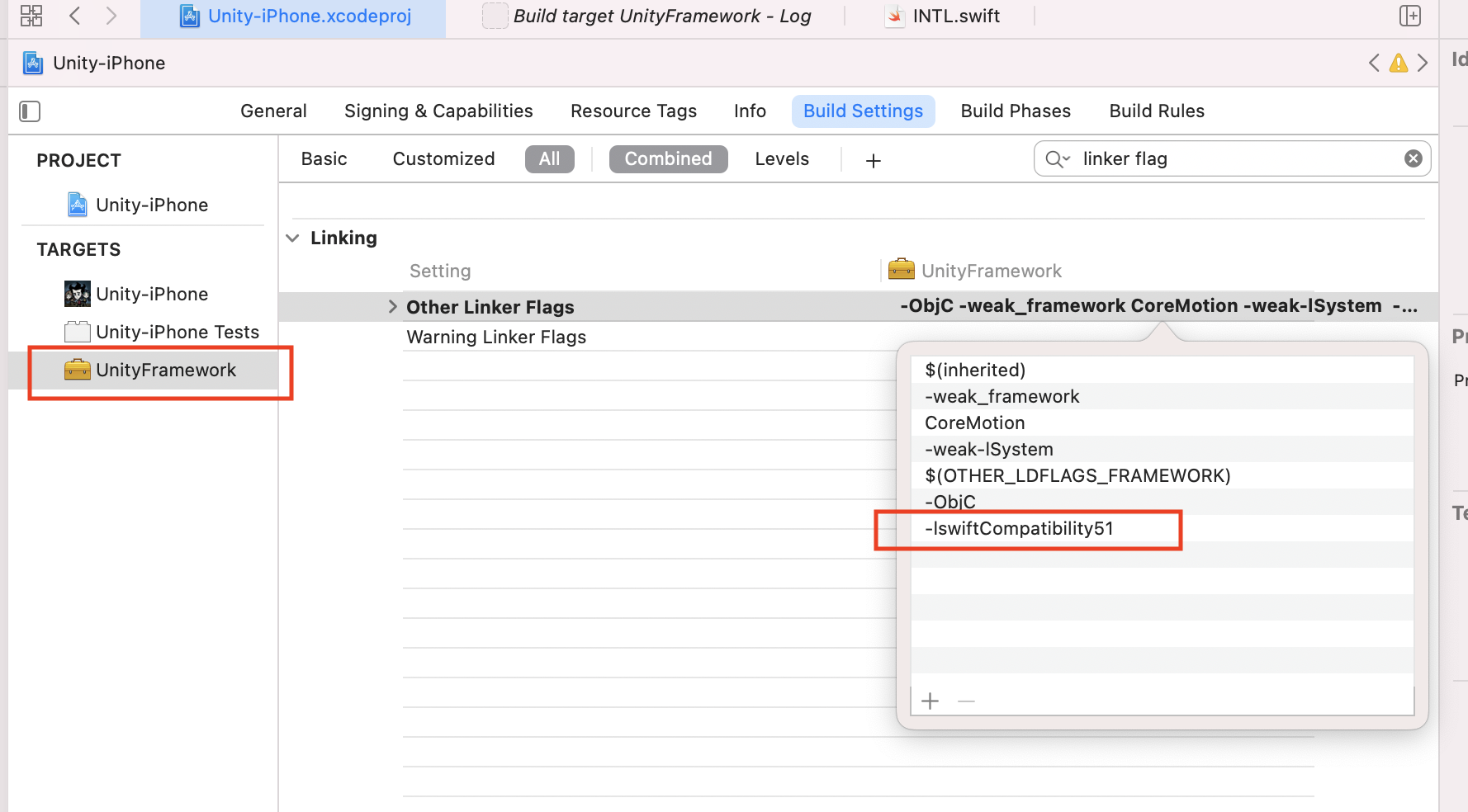
-
创建一个 Swift File 类型的新文件。
-
将文件名设为
.swift扩展名,然后点击 Create。 -
点击 Create Bridging Header.
请务必点击 Create Bridging Header。否则 Xcode 不会创建 bridging header。
- 检查 Xcode 工程中是否生成两个文件(步骤 2 中创建的
.swift文件,以及自动创建的project_name-Bridging-Header.h文件)。
不要修改文件内容。
-
在使用 Xcode 12 或更高版本时,在
/Plugins/INTLSDK/Source/INTLCore/INTLCore.Build.cs中添加以下代码:PublicSystemLibraryPaths.Add("/Applications/Xcode.app/Contents/Developer/Toolchains/XcodeDefault.xctoolchain/usr/lib/swift/iphoneos");
PublicSystemLibraryPaths.Add("/Applications/Xcode.app/Contents/Developer/Toolchains/XcodeDefault.xctoolchain/usr/lib/swift-5.0/iphoneos");
Player Network SDK 已经包含必要代码。但在使用 Xcode 12 或更高版本的 Swift 库编译 Unreal Engine 时仍会出现以下错误。若使用 Xcode 12 之前的版本可跳过此步骤。

-
由于 iOS Swift 模块不能直接加入 Unreal Engine,你必须修改本地 Unreal Engine 源码。
-
在
/Your_UE_Installation_Path/Engine/Source/Programs/UnrealBuildTool/ProjectFiles/Xcode/XcodeProject.cs的private void AppendProjectBuildConfiguration(StringBuilder Content, string ConfigName, string ConfigGuid)函数中加入以下代码:// Enable Swift
Content.Append("\t\t\t\tCLANG_ENABLE_MODULES = YES;" + ProjectFileGenerator.NewLine);
Content.Append("\t\t\t\tSWIFT_VERSION = 5.0;" + ProjectFileGenerator.NewLine);
Content.Append("\t\t\t\tLIBRARY_SEARCH_PATHS = \"$(TOOLCHAIN_DIR)/usr/lib/swift/$(PLATFORM_NAME)\";" + ProjectFileGenerator.NewLine);
if (ConfigName == "Debug")
{
Content.Append("\t\t\t\tSWIFT_OPTIMIZATION_LEVEL = \"-Onone\";" + ProjectFileGenerator.NewLine);
}
Content.Append("\t\t\t\tALWAYS_EMBED_SWIFT_STANDARD_LIBRARIES = YES;" + ProjectFileGenerator.NewLine);
Content.Append("\t\t\t\tEMBEDDED_CONTENT_CONTAINS_SWIFT = YES;" + ProjectFileGenerator.NewLine);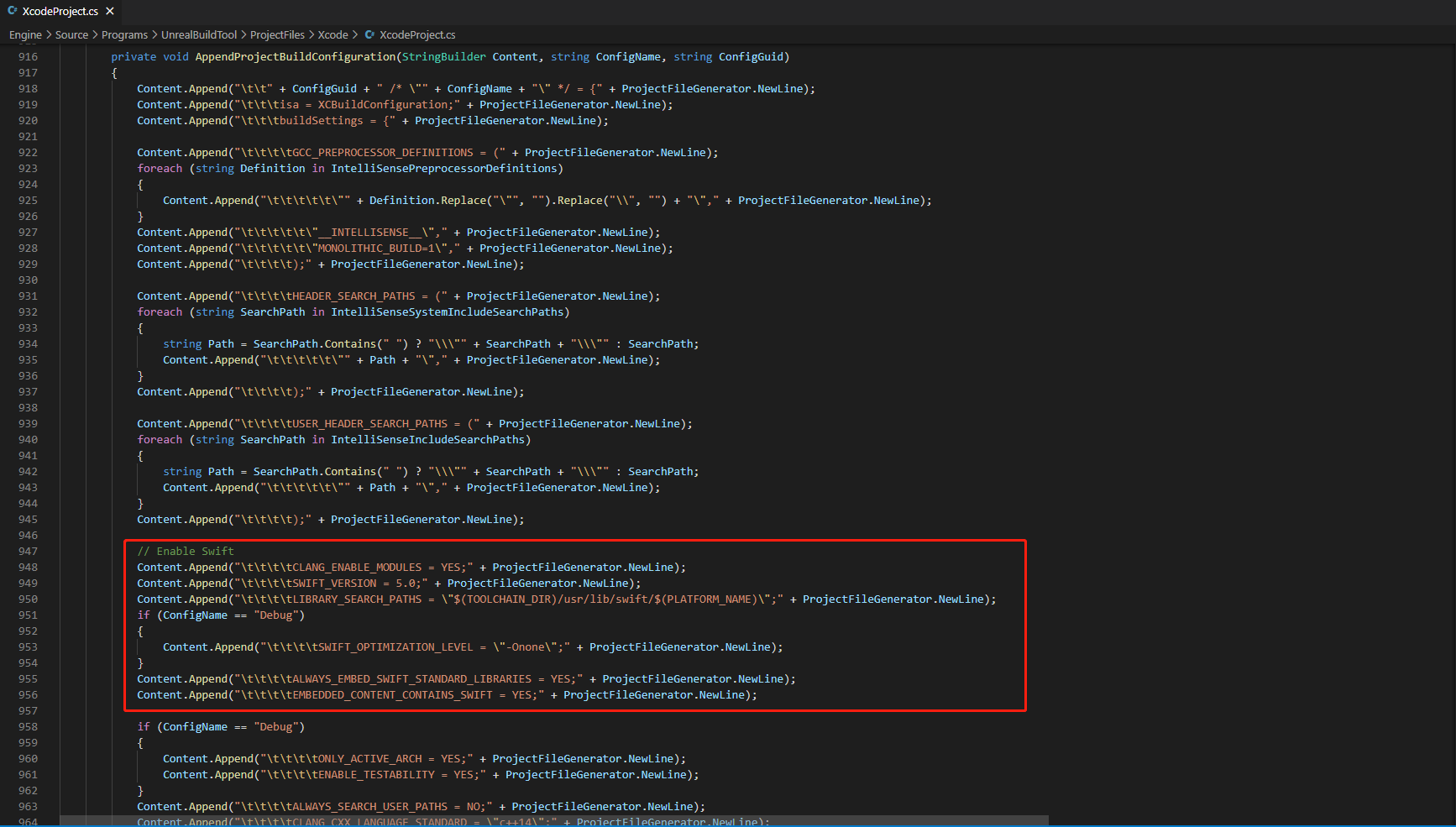
-
在
/Your_UE_Installation_Path/Engine/Source/Programs/UnrealBuildTool/Platform/IOS/IOSToolChain.cs中的string GetLinkArguments_Global(LinkEnvironment LinkEnvironment)函数加入以下代码:- Before XCode 12
- XCode 12 and later
// enable swift support
Result += " -rpath \"/usr/lib/swift\"";
Result += " -rpath \"@executable_path/Frameworks\"";
// /Applications/Xcode.app/Contents/Developer/Platforms/iPhoneOS.platform/Developer/SDKs/iPhoneOS.sdk/usr/lib/swift/
String swiftLibPath = String.Format(" -L {0}Platforms/{1}.platform/Developer/SDKs/{1}{2}.sdk/usr/lib/swift",
                            Settings.Value.XcodeDeveloperDir, bIsDevice? Settings.Value.DevicePlatformName : Settings.Value.SimulatorPlatformName, Settings.Value.IOSSDKVersion);
Result += swiftLibPath;
Log.TraceInformation("Add swift lib path : {0}", swiftLibPath);
///Applications/Xcode.app/Contents/Developer/Toolchains/XcodeDefault.xctoolchain/usr/lib/swift/iphoneos
swiftLibPath = String.Format(" -L {0}Toolchains/XcodeDefault.xctoolchain/usr/lib/swift/{1}",
                            Settings.Value.XcodeDeveloperDir, bIsDevice? Settings.Value.DevicePlatformName.ToLower() : Settings.Value.SimulatorPlatformName.ToLower());
Result += swiftLibPath;
Log.TraceInformation("Add swift lib path : {0}", swiftLibPath);
///Applications/Xcode.app/Contents/Developer/Toolchains/XcodeDefault.xctoolchain/usr/lib/swift-5.0/iphoneos
swiftLibPath = String.Format(" -L {0}Toolchains/XcodeDefault.xctoolchain/usr/lib/swift-5.0/{1}",
                            Settings.Value.XcodeDeveloperDir, bIsDevice? Settings.Value.DevicePlatformName.ToLower() : Settings.Value.SimulatorPlatformName.ToLower());
Result += swiftLibPath;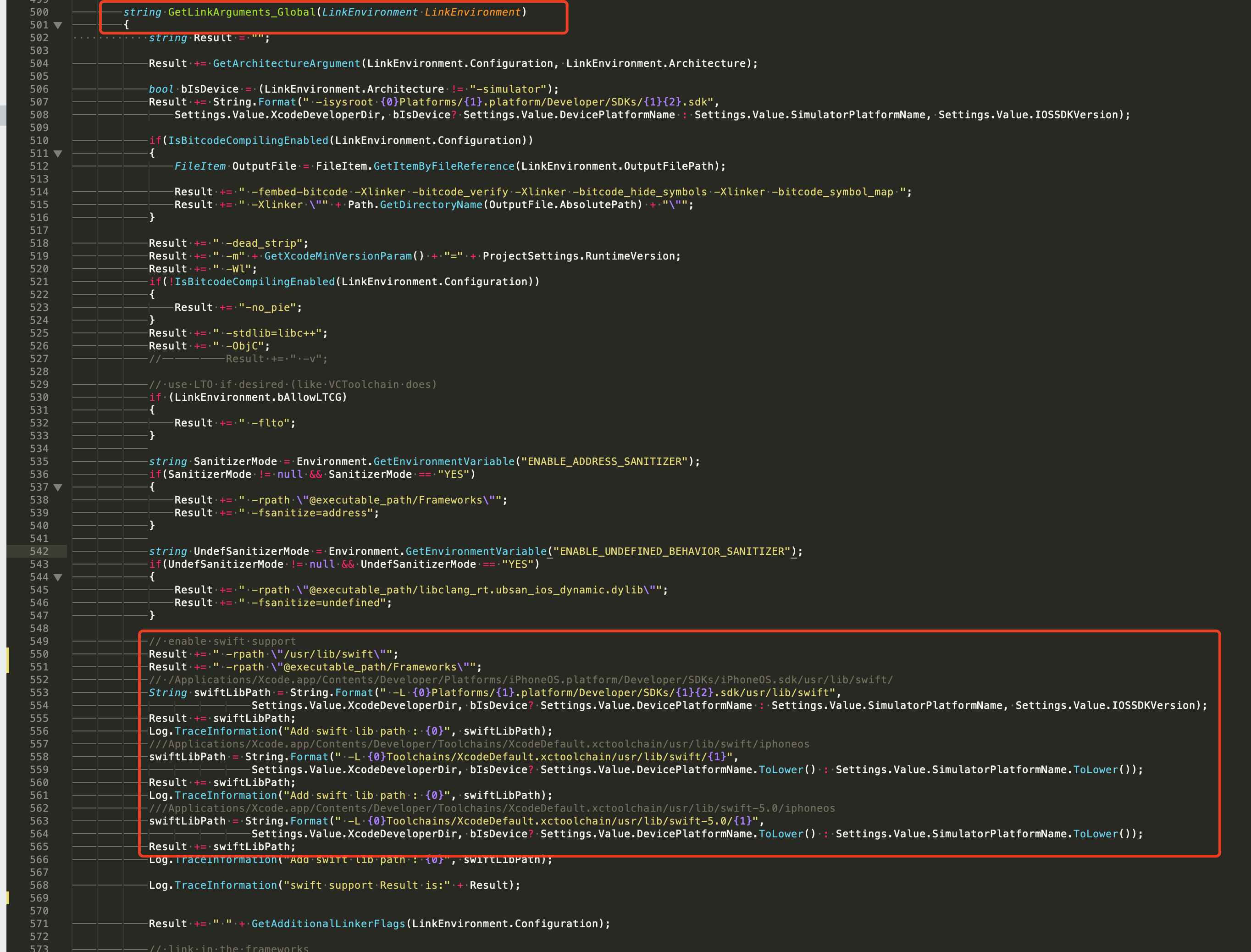
// This line of code must be prepended (see the sample image below for the position of the prepended code)
// enable swift support, make sure '/usr/lib/swift' goes before '@executable_path/Frameworks'
Result += " -rpath \"/usr/lib/swift\"";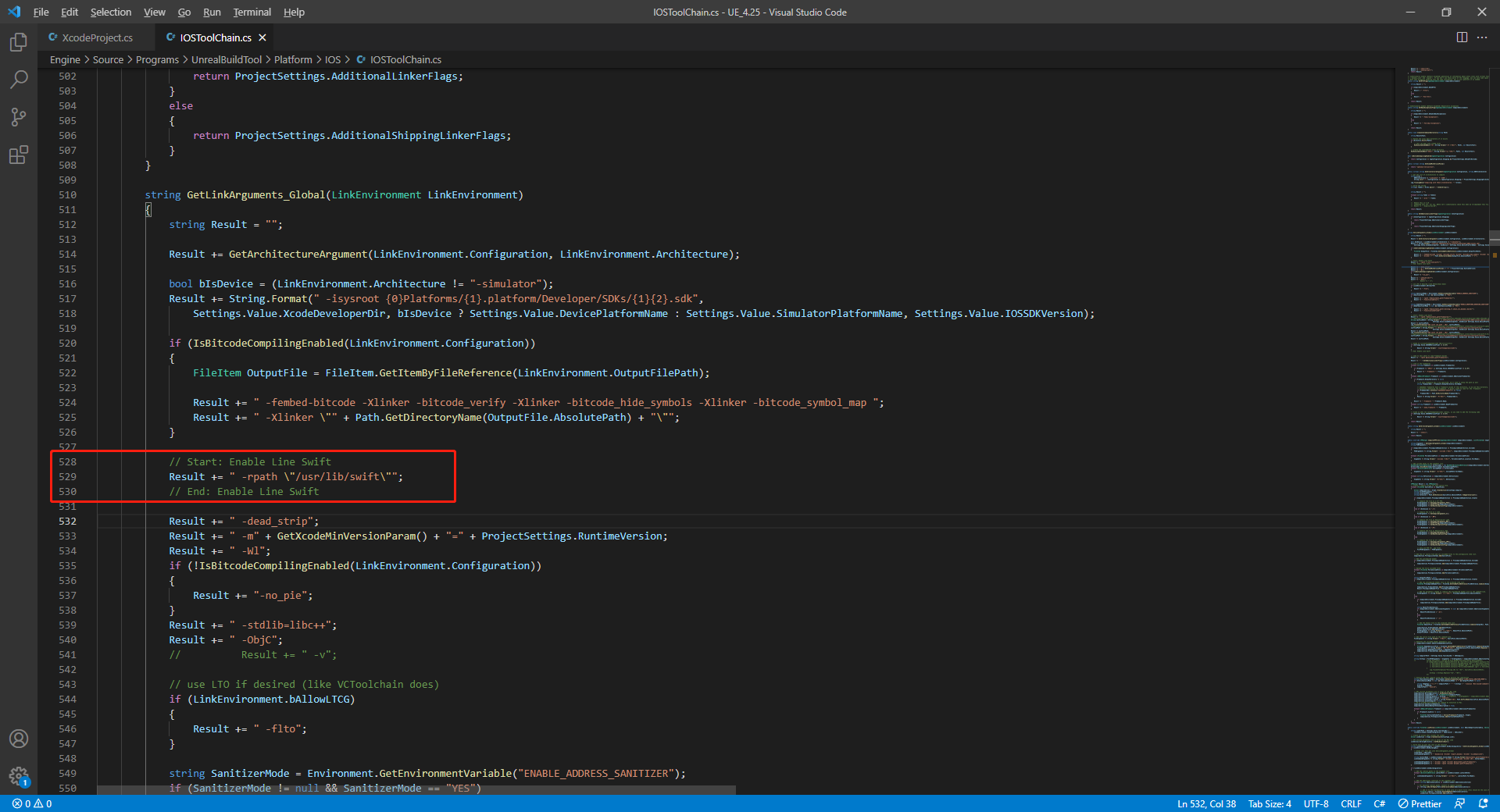
// enable swift support
Result += " -rpath \"@executable_path/Frameworks\"";
// /Applications/Xcode.app/Contents/Developer/Platforms/iPhoneOS.platform/Developer/SDKs/iPhoneOS.sdk/usr/lib/swift/
String swiftLibPath = String.Format(" -L {0}Platforms/{1}.platform/Developer/SDKs/{1}{2}.sdk/usr/lib/swift",
                            Settings.Value.XcodeDeveloperDir, bIsDevice? Settings.Value.DevicePlatformName : Settings.Value.SimulatorPlatformName, Settings.Value.IOSSDKVersion);
Result += swiftLibPath;
Log.TraceInformation("Add swift lib path : {0}", swiftLibPath);
///Applications/Xcode.app/Contents/Developer/Toolchains/XcodeDefault.xctoolchain/usr/lib/swift/iphoneos
swiftLibPath = String.Format(" -L {0}Toolchains/XcodeDefault.xctoolchain/usr/lib/swift/{1}",
                            Settings.Value.XcodeDeveloperDir, bIsDevice? Settings.Value.DevicePlatformName.ToLower() : Settings.Value.SimulatorPlatformName.ToLower());
Result += swiftLibPath;
Log.TraceInformation("Add swift lib path : {0}", swiftLibPath);
///Applications/Xcode.app/Contents/Developer/Toolchains/XcodeDefault.xctoolchain/usr/lib/swift-5.0/iphoneos
swiftLibPath = String.Format(" -L {0}Toolchains/XcodeDefault.xctoolchain/usr/lib/swift-5.0/{1}",
                            Settings.Value.XcodeDeveloperDir, bIsDevice? Settings.Value.DevicePlatformName.ToLower() : Settings.Value.SimulatorPlatformName.ToLower());
Result += swiftLibPath;

// Xcode 12 adds the swiftCompatibility51 library, so you need to add the following code
if (Settings.Value.IOSSDKVersionFloat >= 14.0f)
{
        Result += String.Format(" -lswiftCompatibility51");
}
-
-
打开解决方案并重新编译
/Users/intl/UE4/UE_4.25/Engine/Source/Programs/UnrealBuildTool/UnrealBuildTool.sln.
各渠道配置
关于每个渠道的正确配置,请参见配置登录鉴权服务的 教程。

