Player Network SDK Integration - Unreal
Prerequisites
The versions of every SDK plugin used in the game (including the version used by the game launcher) must remain consistent.If the game needs to access multiple versions of the Player Network SDK at the same time or only one component needs to be upgraded, please contact the Player Network assistant.
Enter the PlayerNetwork SDK Download Page and choose the appropriate engine and platform to download the PlayerNetwork SDK.For more details, refer to the PlayerNetwork SDK Download Guide.
Step 1: Install the SDK
- Android
- iOS
- Windows
- Console
- SDK 1.26 and later versions
- SDK 1.26 之前的版本
UE4.21 ~ UE4.27 & UE5 ~ UE5.5
androidx
minSdkVersion: 21
targetSdkVersion: 34
compileSdkVersion: 34
If you integrate with LINE, minSdkVersion must be upgraded to 24.
If you integrate with Discord, minSdkVersion must be upgraded to 23.
Note before project submission for review: Starting from SDK V1.24.00, Google has added foreground service permissions declaration.If this declaration is not approved by Google, resubmitting for review may take about a week.For more information, see Specify Foreground Service Types.
UE4.21 ~ UE4.27 & UE5 ~ UE5.4
androidx
minSdkVersion: 16
targetSdkVersion: 34
compileSdkVersion: 34
If you integrate with LINE, minSdkVersion must be upgraded to 19.
If you integrate with Firebase, minSdkVersion must be upgraded to 19; Android Gradle must be upgraded to V6.7.1 or above; Android Gradle Plugin must be upgraded to V4.2.0 or above.
If you integrate with VK, minSdkVersion must be upgraded to 21.
If you integrate with Discord, minSdkVersion must be upgraded to 23.
If you integrate with Adjust, minSdkVersion must be upgraded to 18.
1. Add Player Network SDK to your project
-
Extract the SDK package.
-
Copy the
INTLSDKfolder to the project'sPluginsfolder.
If the project does not have aPluginsfolder, please create one. -
Open your project's
{ProjectName}.Build.csfile and add Player Network SDK to Unreal Engine as shown in the example.public INTLSample(ReadOnlyTargetRules Target) : base(Target)
{
PrivateDependencyModuleNames.AddRange(new string[] {
"INTLCore",
"INTLFoundation",
"INTLConfig",
});
}
Player Network SDK package
├─INTLSDK
│  ├─INTLSDK.uplugin    // Description files for Player Network SDK plugins
│  ├─Resources          // Player Network SDK resources
│  └─Source             // Player Network SDK plugin modules. Each module contains its own Build.cs file, libraries, and interfaces.
│    ├─INTLApple
│    ├─INTLConfig       // Player Network SDK configurations
│    ├─INTLCore         // Core module of Player Network SDK
│    ├─INTLDiscord
│    ├─INTLEpic
│    ├─INTLFacebook
│    ├─INTLFoundation
│    ├─INTLGoogle
│    ├─INTLKakao
│    ├─INTLLine
│    ├─INTLSteam
│    ├─INTLTwitter
│    └─INTLVK
├─LevelInfinite     // LI PASS APIs
└─Symbols           // Symbol table *.so files for Player Network SDK
INTLSDK/Source/INTLCore
└─INTLSDK
   ├─INTLSDK.uplugin
   ├─Resources
   └─Source
     ├─INTLConfig
     ├─INTLCore
     |  ├─INTLCore.Build.cs // INTLCore Build.cs file
     |  ├─Libs              // INTLCore libraries for different platforms which contain dll, lib, and other binary files.
     |  |  ├─Android
     |  |  ├─include
     |  |  ├─iOS
     |  |  ├─MacOS
     |  |  └─Win
     |  ├─Private           // Player Network SDK private folder
     |  └─Public            // Player Network SDK public interfaces
     |                      // INTLSDKAPI.h: Player Network SDK APIs
     |                      // INTLSDKPluginObserver.h: Player Network SDK observer classes
     |                      // INTLSDKPluginDefine.h: Player Network SDK data types
     |                      // INTLSDKOutputUtility.h: Player Network SDK utility to process callbacks
     |                      // INTLSDKBaseUserWidget.h: Player Network SDK base class for UserWidget which includes registration and deregistration APIs
     ├─INTLCustomer
     ├─INTLDiscord
     ├─INTLEpic
INTLSDK/Source/INTLConfig
└─INTLSDK
   ├─INTLSDK.uplugin
   ├─Resources
   └─Source
     ├─INTLConfig
     |  ├─Configs       // Player Network SDK configurations for different platform
     |  |  ├─Android
     |  |  |  └─INTLConfig_APL.xml  // Player Network SDK Android gradle configuration file
     |  |  ├─iOS
     |  |  |  └─INTLConfig_UPL.xml
     |  |  ├─Resources
     |  |  |  ├─APASConfig.ini      // APAS device level configuration file
     |  |  |  └─INTLConfig.ini      // Player Network SDK main configuration file
     |  ├─Encrypt
     |  ├─INTLConfig.Build.cs
     |  ├─INTLConfig.uplugin
     |  ├─Private
     |  ├─Public
     |  └─Resources
     ├─INTLCore
2. Loading required permissions and plug-ins
Add the Player Network SDK code for loading libraries and registering the Player Network SDK lifecycle to INTLCore_APL.xml located at INTLSDK/Source/INTLCore/Libs/Android (the Gradle configuration file for Android games).
Load dynamic permissions
Add dynamic permissions via code
Find the function definition for RequestDynamicPermissions() in INTLCore_APL.xml, then add the required dynamic permissions:
private void RequestDynamicPermissions()
{
    List<String> permissions = new ArrayList<String>();

    permissions.add(Manifest.permission.INTERNET);
    //permissions.add(Manifest.permission.ACCESS_COARSE_LOCATION); // <--- Add permission here

    this.INTLRequestPermission(this, permissions, INTLPermissionRequestCode);
}
Notched screen compatibility settings
After Android P, Android provides a standard API for notched screens.However, for Android O devices, different vendors have different implementation logics.Player Network SDK provides unified C++ API and Java API to support various Android O devices such as Xiaomi, Huawei, Samsung, VIVO, and OPPO.
For Unreal Engine, the game can use UPL to call Java APIs.For more information, refer to Asynchronous Cutout Info Reading.
Generally, the full screen aspect ratio of mobile phones is greater than 2.1.To avoid black borders, users must set android.max_aspect to greater than 2.1.
For Huawei and Xiaomi phones using the Android Oreo operating system, users must configure the AndroidManifest.
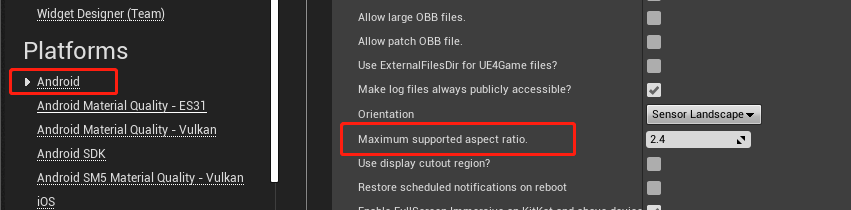
To avoid conflicts when merging the AndroidManifest in Unreal Engine 4, go to Project Settings > Android > Max Supported Aspect Ratio and set the maximum supported aspect ratio to 2.4.
<androidManifestUpdates>
  <log text="INTL-Sample-UPL AndroidManifestUpdates finish" />
    <addElements tag="application">
        <meta-data android:name="notch.config" android:value="portrait|landscape"/>
        <meta-data android:name="android.notch_support" android:value="true"/>
    </addElements>
</androidManifestUpdates>
For games that use Android API to obtain notched screen safe area information, please add the following configuration:
Add the following configuration in INTLCore_APL.xml.
<gameActivityImportAdditions>
    <insert>

    // ... other code

    import com.intlgame.core.cutout.DisplayCutoutManager;
    import com.intlgame.foundation.Singleton;
    </insert>
</gameActivityImportAdditions>
<gameActivityClassAdditions>
    <insert>

    // ... other code

    // Use the cutout area
    private void setFullScreen()
    {
        Log.debug("INTL::setFullScreen");
        getWindow().setFlags(WindowManager.LayoutParams.FLAG_FULLSCREEN,
        WindowManager.LayoutParams.FLAG_FULLSCREEN);// Set full screen
        int systemUiVisibility = this.getWindow().getDecorView().getSystemUiVisibility();
        int flags = View.SYSTEM_UI_FLAG_LAYOUT_FULLSCREEN
            | View.SYSTEM_UI_FLAG_HIDE_NAVIGATION
            | View.SYSTEM_UI_FLAG_FULLSCREEN;
        systemUiVisibility |= flags;
        getWindow().getDecorView().setSystemUiVisibility(systemUiVisibility);
        // P version is allowed to use notch area
        if (Build.VERSION.SDK_INT >= Build.VERSION_CODES.P) {
            WindowManager.LayoutParams lp = this.getWindow().getAttributes();
            lp.layoutInDisplayCutoutMode = WindowManager.LayoutParams.LAYOUT_IN_DISPLAY_CUTOUT_MODE_SHORT_EDGES;
            this.getWindow().setAttributes(lp);
        }
    }
  </insert>
</gameActivityClassAdditions>
<gameActivityOnCreateAdditions>
    <insert>
    setFullScreen();
    INTLSDK.initialize(this);

    // ...Other game code

    // The following uses Android’s native call method
    if (Build.VERSION.SDK_INT >= Build.VERSION_CODES.KITKAT_WATCH) {
      getWindow().getDecorView().setOnApplyWindowInsetsListener(new View.OnApplyWindowInsetsListener() {
          @Override
          public WindowInsets onApplyWindowInsets(View v, WindowInsets insets)
          {
              Context mContext = getApplicationContext();
              DisplayCutoutManager displayCutoutManager = Singleton.getSingleton(DisplayCutoutManager.class);
              // Whether the device has a notched display
              if (displayCutoutManager.hasCutoutSupport(mContext, insets))
              {
                  // Get notched display safe areas
                  Rect safeRect = displayCutoutManager.getSafeDisplay(mContext, insets);
                  // Get notched display notch area
                  List<Rect> rects = displayCutoutManager.getCutoutSize(mContext, insets);
                  // Game business logic, can use native call to pass notched display information
              }
              return insets;
          }
      });
    }
    </insert>
</gameActivityOnCreateAdditions>
3. Generate AAR package
Player Network SDK uses Gradle to generate AAR packages.The Gradle configuration files include third-party SDK version numbers as well as the dependencies required by Player Network SDK and third-party channels.Games need to add the necessary dependencies according to the required plug-ins.
The INTLConfig_APL.xml file is the Player Network SDK Gradle configuration file.Update the Gradle configuration according to the game requirements.Replace the {placeholder} text with the values in the INTLConfig.ini configuration file.
<?xml version="1.0" encoding="utf-8"?>

<root xmlns:android="http://schemas.android.com/apk/res/android"
    xmlns:tools="http://schemas.android.com/tools">

    <init>
        <log text="INTLConfig-APL init"/>
    </init>

    <prebuildCopies>
        <log text="INTLConfig-APL Start prebuildCopies ...$S(PluginDir)" />
    </prebuildCopies>

    <resourceCopies>
        <log text="INTLConfig-APL Start resourceCopies...$S(PluginDir)" />
        <copyFile src="$S(PluginDir)/../Resources/APASConfig.ini" dst="$S(BuildDir)/assets/APASConfig.ini"/>
        <log text="INTLConfig-APL copy APASConfig.ini from $S(PluginDir) to $S(BuildDir) end" />

        <setBoolFromProperty result="bEncrypted" ini="Engine" section="/Script/INTLSDK.Settings" property="bEnableConfigIniEncryption" default="false"/>
        <if condition="bEncrypted">
            <true>
                <copyFile src="$S(PluginDir)/../Encrypted/Android/INTLConfig.ini.new" dst="$S(BuildDir)/assets/INTLConfig.ini.new"/>
            </true>
            <false>
                <copyFile src="$S(PluginDir)/../Resources/INTLConfig.ini" dst="$S(BuildDir)/assets/INTLConfig.ini"/>
            </false>
        </if>
        <log text="INTLConfig-APL copy INTLConfig.ini from $S(PluginDir) to $S(BuildDir) end" />
    </resourceCopies>


    <buildGradleAdditions>
        <insert>
<![CDATA[
android{

    defaultConfig {
        manifestPlaceholders += [
            "FACEBOOK_APPID"                : "{INTL_FACEBOOK_APP_ID}",
            "FACEBOOK_CLIENT_TOKEN"         : "{INTL_FACEBOOK_CLIENT_TOKEN}",
            "GOOGLE_APPID"                  : '{INTL_GOOGLE_APP_ID}',
            'GOOGLEPGS_APPID'               : '{INTL_GOOGLEPGS_APPID}',
            'VK_APPID'                      : '{INTL_VK_APP_ID}',
            'GARENA_APP_ID'                 : '{INTL_GARENA_APP_SDK_ASSIGN_ID}',
            'QQ_APPID'                      : '{INTL_QQ_APP_ID}',
            'GOOGLE_CLIENT_ID'              : '{INTL_GOOGLE_CLIENT_KEY_ANDROID}',
            'DISCORD_APP_ID'                : '{INTL_DISCORD_APP_ID}',
            'DISCORD_REDIRECT_SCHEME'       : '{INTL_DISCORD_REDIRECT_SCHEME}',
            'DISCORD_REDIRECT_HOST'         : '{INTL_DISCORD_REDIRECT_HOST}',
            'DISCORD_REDIRECT_PATH'         : '{INTL_DISCORD_REDIRECT_PATH}',
            'DMM_LOGIN_ACTIVITY_DATA_SCHEME': '{INTL_DMM_LOGIN_ACTIVITY_DATA_SCHEME}',
            'WEBVIEW_TASK_AFFINITY'         : '',
            'DEEPLINK_INTL_SCHEME'          : '{INTL_DEEPLINK_INTL_SCHEME}',
            'VNG_GG_APP_ID'                 : '{INTL_VNG_GG_APP_ID}',
            'VNG_GG_CLIENT_TOKEN'           : '{INTL_VNG_GG_CLIENT_TOKEN}',
        ]
    }

    compileOptions {
        sourceCompatibility JavaVersion.VERSION_1_8
        targetCompatibility JavaVersion.VERSION_1_8
    }
}
]]>
        </insert>
    </buildGradleAdditions>

</root>
4. Player Network SDK Configuration
When manually modifying the INTLConfig.ini configuration, please contact the Player Network Assistant to confirm whether your changes meet the expected requirements. For details, see SDK Config Notes.
Please configure according to the instructions in INTLConfig.ini.
5. Initialize Player Network SDK
Player Network SDK must be initialized before integrating third-party channels. For more details, see Initialize SDK.For more details, see Initialize SDK.
#include "INTLSDKAPI.h" // Include the INTL header file

void UExample::Init()
{
    UINTLSDKAPI::Init();
}
- SDK 1.26 and later versions
- Versions prior to SDK 1.26
UE4.21 ~ UE4.27 & UE5 ~ UE5.5
UE4.21 ~ UE4.27 & UE5 ~ UE5.4
Due to the submission requirements of App Store Connect stating that Xcode 15 must be used, the minimum supported iOS version is iOS 12.
To integrate Facebook from SDK V1.27 and later versions, Xcode 16 or above is needed.
If you integrate LINE, the iOS SDK needs to be updated to version 13 or above.
1. Add Player Network SDK to your project
-
Extract the SDK package.
-
Copy the
INTLSDKfolder to the project'sPluginsfolder.
If the project does not have aPluginsfolder, please create one. -
Open your project's
{ProjectName}.Build.csfile and add Player Network SDK to Unreal Engine as shown in the example.public INTLSample(ReadOnlyTargetRules Target) : base(Target)
{
PrivateDependencyModuleNames.AddRange(new string[] {
"INTLCore",
"INTLFoundation",
"INTLConfig",
});
}
Player Network SDK package
├─INTLSDK
│  ├─INTLSDK.uplugin    // Description files for Player Network SDK plugins
│  ├─Resources          // Player Network SDK resources
│  └─Source             // Player Network SDK plugin modules. Each module contains its own Build.cs file, libraries, and interfaces.
│    ├─INTLApple
│    ├─INTLConfig       // Player Network SDK configurations
│    ├─INTLCore         // Core module of Player Network SDK
│    ├─INTLDiscord
│    ├─INTLEpic
│    ├─INTLFacebook
│    ├─INTLFoundation
│    ├─INTLGoogle
│    ├─INTLKakao
│    ├─INTLLine
│    ├─INTLSteam
│    ├─INTLTwitter
│    └─INTLVK
├─LevelInfinite     // LI PASS APIs
└─Symbols           // Symbol table *.so files for Player Network SDK
INTLSDK/Source/INTLCore
└─INTLSDK
   ├─INTLSDK.uplugin
   ├─Resources
   └─Source
     ├─INTLConfig
     ├─INTLCore
     |  ├─INTLCore.Build.cs // INTLCore Build.cs file
     |  ├─Libs              // INTLCore libraries for different platforms which contain dll, lib, and other binary files.
     |  |  ├─Android
     |  |  ├─include
     |  |  ├─iOS
     |  |  ├─MacOS
     |  |  └─Win
     |  ├─Private           // Player Network SDK private folder
     |  └─Public            // Player Network SDK public interfaces
     |                      // INTLSDKAPI.h: Player Network SDK APIs
     |                      // INTLSDKPluginObserver.h: Player Network SDK observer classes
     |                      // INTLSDKPluginDefine.h: Player Network SDK data types
     |                      // INTLSDKOutputUtility.h: Player Network SDK utility to process callbacks
     |                      // INTLSDKBaseUserWidget.h: Player Network SDK base class for UserWidget which includes registration and deregistration APIs
     ├─INTLCustomer
     ├─INTLDiscord
     ├─INTLEpic
INTLSDK/Source/INTLConfig
└─INTLSDK
   ├─INTLSDK.uplugin
   ├─Resources
   └─Source
     ├─INTLConfig
     |  ├─Configs       // Player Network SDK configurations for different platform
     |  |  ├─Android
     |  |  |  └─INTLConfig_APL.xml  // Player Network SDK Android gradle configuration file
     |  |  ├─iOS
     |  |  |  └─INTLConfig_UPL.xml
     |  |  ├─Resources
     |  |  |  ├─APASConfig.ini      // APAS device level configuration file
     |  |  |  └─INTLConfig.ini      // Player Network SDK main configuration file
     |  ├─Encrypt
     |  ├─INTLConfig.Build.cs
     |  ├─INTLConfig.uplugin
     |  ├─Private
     |  ├─Public
     |  └─Resources
     ├─INTLCore
2. Loading required permissions and plug-ins
Open the INTLSDK/Scripts/INTLConfig/Editor/Resources/INTLConfig.ini file and add the Player Network SDK configuration.Replace the placeholders with the corresponding values configured for the game.
    [INTL environment]
    # WARNING: You should change this URL to the production environment when you release your game.
    INTL_URL = https://test.intlgame.com
    GAME_ID = {INTL_GAME_ID}
    SDK_KEY = {INTL_SDK_KEY}
    [INTL Log]
    LOG_LEVEL = 1
    LOG_CONSOLE_OUTPUT_ENABLE = 1
    LOG_FILE_OUTPUT_ENABLE = 1
    LOG_ENCRYPT_ENABLE = 0
    LOG_COMPRESS_ENABLE = 0
    [Facebook channel configuration]
    FACEBOOK_APP_ID = {INTL_FACEBOOK_APP_ID}
    FACEBOOK_DISPLAYNAME = {INTL_APP_NAME}
iOS Usage Instructions
During integration, users can modify the content according to their needs, and confirm content compliance with the legal team.If not modified, please replace INTLSample with the game name.
According to iOS permission requirements, when applying for sensitive permissions, fill in Purpose Description when the system prompts users to provide information.
-
In
Plugins/INTLSDK/Source/INTLConfig/Configs/iOS/Plist/INTLCore.plist, the following permissions have been escalated:<key>NSPhotoLibraryUsageDescription</key>
<key>NSCameraUsageDescription</key>
<key>NSLocationWhenInUseUsageDescription</key>
<key>NSPhotoLibraryAddUsageDescription</key>
<key>NSMicrophoneUsageDescription</key> -
In
Plugins/INTLSDK/Source/INTLConfig/Configs/iOS/Plist/INTLADTracking.plist, the following permissions have been escalated:<key>NSUserTrackingUsageDescription</key>
3) Swift SDK Compatibility Settings
Unreal Engine 5.2 and above has a built-in Swift module, the following steps are only applicable for Unreal Engine versions below 5.2.
The iOS Swift module cannot be directly added to Unreal Engine and must be modified in engine configuration first.
-
Modify the local Unreal Engine source code.
In the function
private void AppendProjectBuildConfiguration(StringBuilder Content, string ConfigName, string ConfigGuid)of /Your_UE_Installation_Path/Engine/Source/Programs/UnrealBuildTool/ProjectFiles/Xcode/XcodeProject.cs, add the following code.// Enable Swift
Content.Append("\t\t\t\tCLANG_ENABLE_MODULES = YES;" + ProjectFileGenerator.NewLine);
Content.Append("\t\t\t\tSWIFT_VERSION = 5.0;" + ProjectFileGenerator.NewLine);
Content.Append("\t\t\t\tLIBRARY_SEARCH_PATHS = \"$(TOOLCHAIN_DIR)/usr/lib/swift/$(PLATFORM_NAME)\";" + ProjectFileGenerator.NewLine);
if (ConfigName == "Debug")
{
Content.Append("\t\t\t\tSWIFT_OPTIMIZATION_LEVEL = \"-Onone\";" + ProjectFileGenerator.NewLine);
}
Content.Append("\t\t\t\tALWAYS_EMBED_SWIFT_STANDARD_LIBRARIES = YES;" + ProjectFileGenerator.NewLine);
Content.Append("\t\t\t\tEMBEDDED_CONTENT_CONTAINS_SWIFT = YES;" + ProjectFileGenerator.NewLine);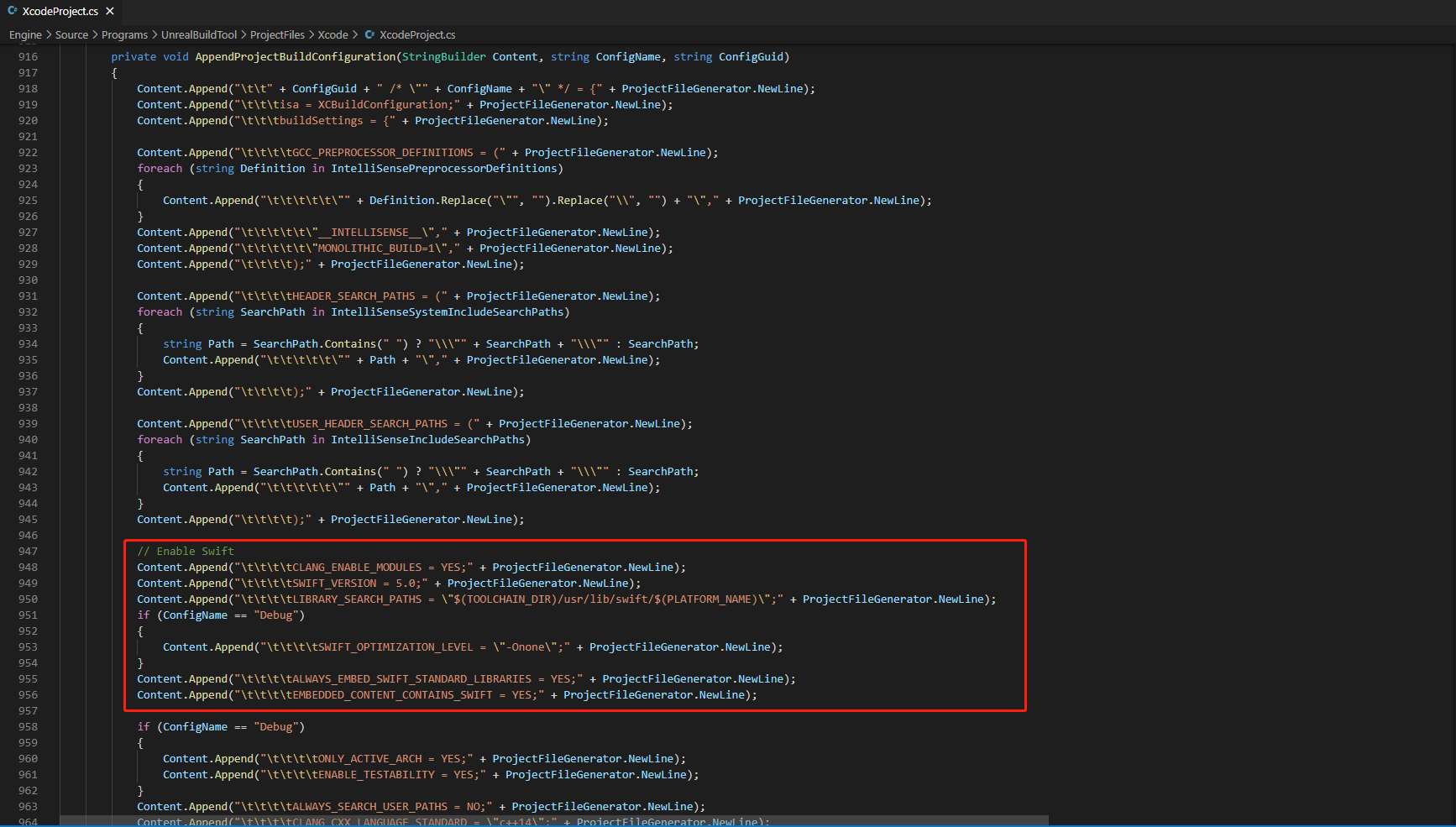
-
In the function
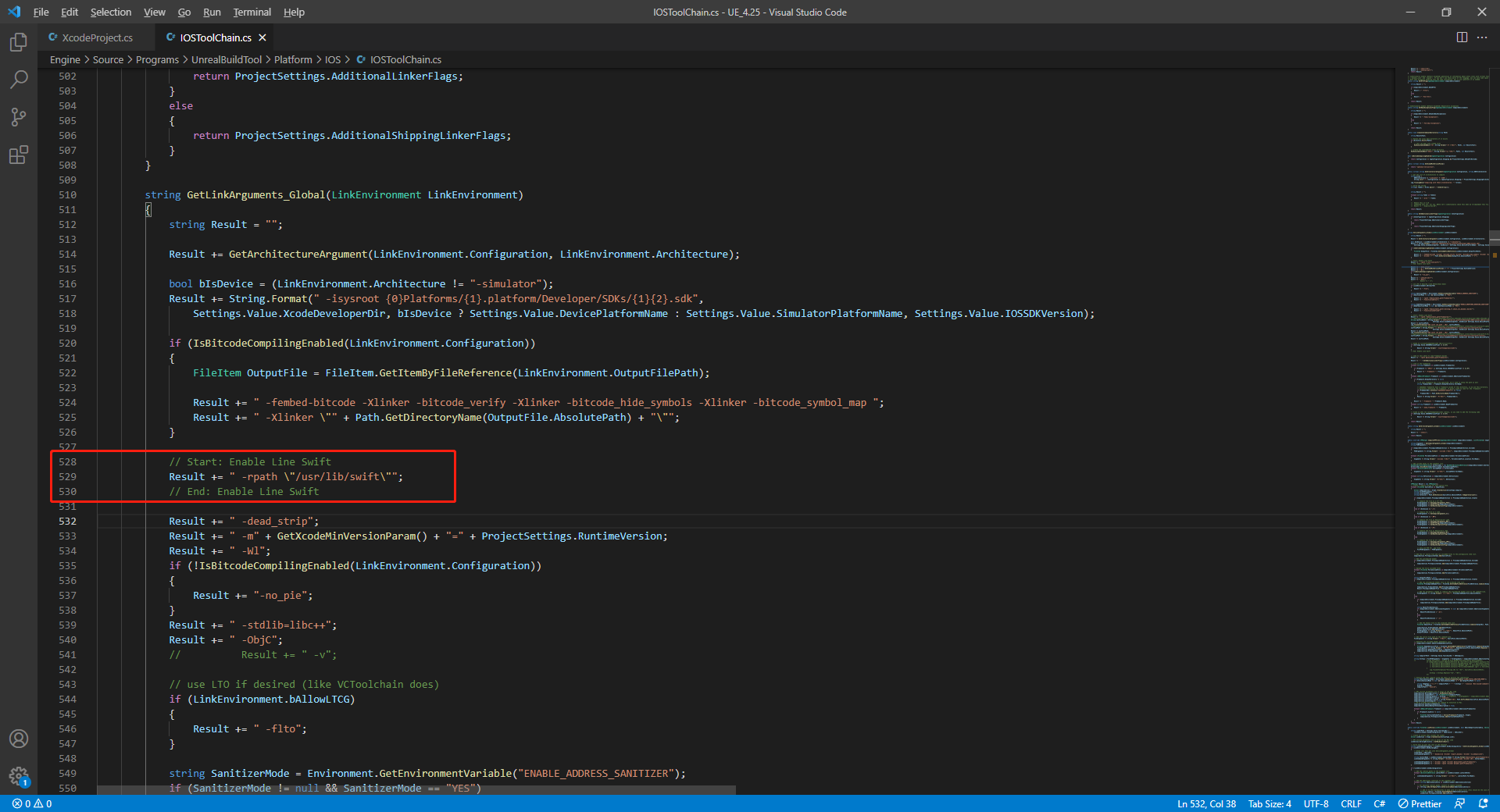
string GetLinkArguments_Global(LinkEnvironment LinkEnvironment)of /Your_UE_Installation_Path/Engine/Source/Programs/UnrealBuildTool/Platform/IOS/IOSToolChain.cs, add the following code.
- Before XCode 12
- XCode 12 and later
// enable swift support
Result += " -rpath \"/usr/lib/swift\"";
Result += " -rpath \"@executable_path/Frameworks\"";
// /Applications/Xcode.app/Contents/Developer/Platforms/iPhoneOS.platform/Developer/SDKs/iPhoneOS.sdk/usr/lib/swift/
String swiftLibPath = String.Format(" -L {0}Platforms/{1}.platform/Developer/SDKs/{1}{2}.sdk/usr/lib/swift",
    Settings.Value.XcodeDeveloperDir,
    bIsDevice? Settings.Value.DevicePlatformName : Settings.Value.SimulatorPlatformName,
    Settings.Value.IOSSDKVersion);
Result += swiftLibPath;
Log.TraceInformation("Add swift lib path : {0}", swiftLibPath);
///Applications/Xcode.app/Contents/Developer/Toolchains/XcodeDefault.xctoolchain/usr/lib/swift/iphoneos
swiftLibPath = String.Format(" -L {0}Toolchains/XcodeDefault.xctoolchain/usr/lib/swift/{1}",
    Settings.Value.XcodeDeveloperDir,
    bIsDevice? Settings.Value.DevicePlatformName.ToLower() : Settings.Value.SimulatorPlatformName.ToLower());
Result += swiftLibPath;
Log.TraceInformation("Add swift lib path : {0}", swiftLibPath);
///Applications/Xcode.app/Contents/Developer/Toolchains/XcodeDefault.xctoolchain/usr/lib/swift-5.0/iphoneos
swiftLibPath = String.Format(" -L {0}Toolchains/XcodeDefault.xctoolchain/usr/lib/swift-5.0/{1}",
    Settings.Value.XcodeDeveloperDir,
    bIsDevice? Settings.Value.DevicePlatformName.ToLower() : Settings.Value.SimulatorPlatformName.ToLower());
Result += swiftLibPath;
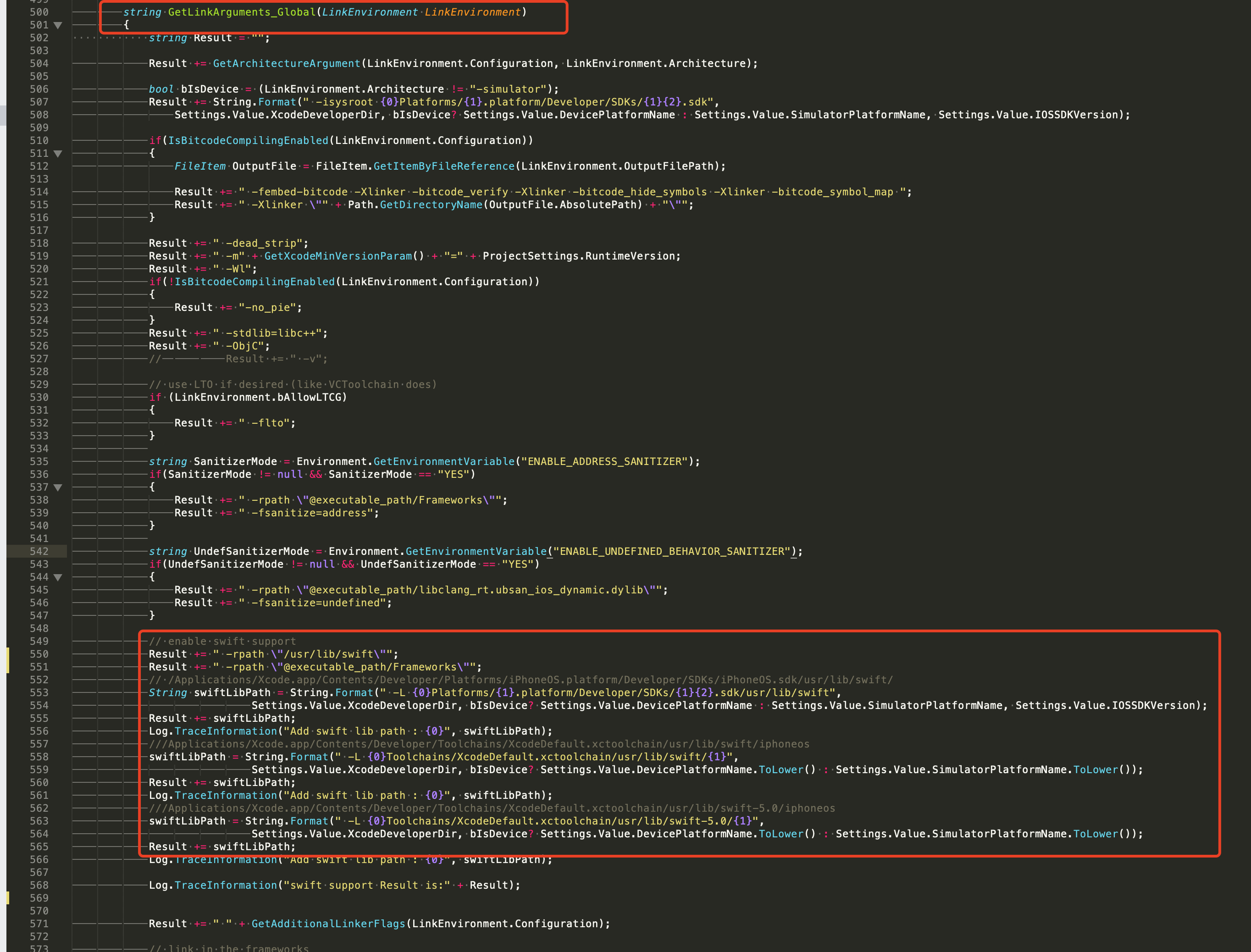
// This line of code must be prepended (see the sample image below for the position of the prepended code)
// enable swift support, make sure '/usr/lib/swift' goes before '@executable_path/Frameworks'
Result += " -rpath \"/usr/lib/swift\"";
// enable swift support
Result += " -rpath \"@executable_path/Frameworks\"";
// /Applications/Xcode.app/Contents/Developer/Platforms/iPhoneOS.platform/Developer/SDKs/iPhoneOS.sdk/usr/lib/swift/
String swiftLibPath = String.Format(" -L {0}Platforms/{1}.platform/Developer/SDKs/{1}{2}.sdk/usr/lib/swift",
    Settings.Value.XcodeDeveloperDir,
    bIsDevice? Settings.Value.DevicePlatformName : Settings.Value.SimulatorPlatformName, Settings.Value.IOSSDKVersion);
Result += swiftLibPath;
Log.TraceInformation("Add swift lib path : {0}", swiftLibPath);
///Applications/Xcode.app/Contents/Developer/Toolchains/XcodeDefault.xctoolchain/usr/lib/swift/iphoneos
swiftLibPath = String.Format(" -L {0}Toolchains/XcodeDefault.xctoolchain/usr/lib/swift/{1}",
    Settings.Value.XcodeDeveloperDir,
    bIsDevice? Settings.Value.DevicePlatformName.ToLower() : Settings.Value.SimulatorPlatformName.ToLower());
Result += swiftLibPath;
Log.TraceInformation("Add swift lib path : {0}", swiftLibPath);
///Applications/Xcode.app/Contents/Developer/Toolchains/XcodeDefault.xctoolchain/usr/lib/swift-5.0/iphoneos
swiftLibPath = String.Format(" -L {0}Toolchains/XcodeDefault.xctoolchain/usr/lib/swift-5.0/{1}",
    Settings.Value.XcodeDeveloperDir,
    bIsDevice? Settings.Value.DevicePlatformName.ToLower() : Settings.Value.SimulatorPlatformName.ToLower());
Result += swiftLibPath;

// Xcode 12 adds the swiftCompatibility51 library, so you need to add the following code
if (Settings.Value.IOSSDKVersionFloat >= 14.0f)
{
        Result += String.Format(" -lswiftCompatibility51");
}
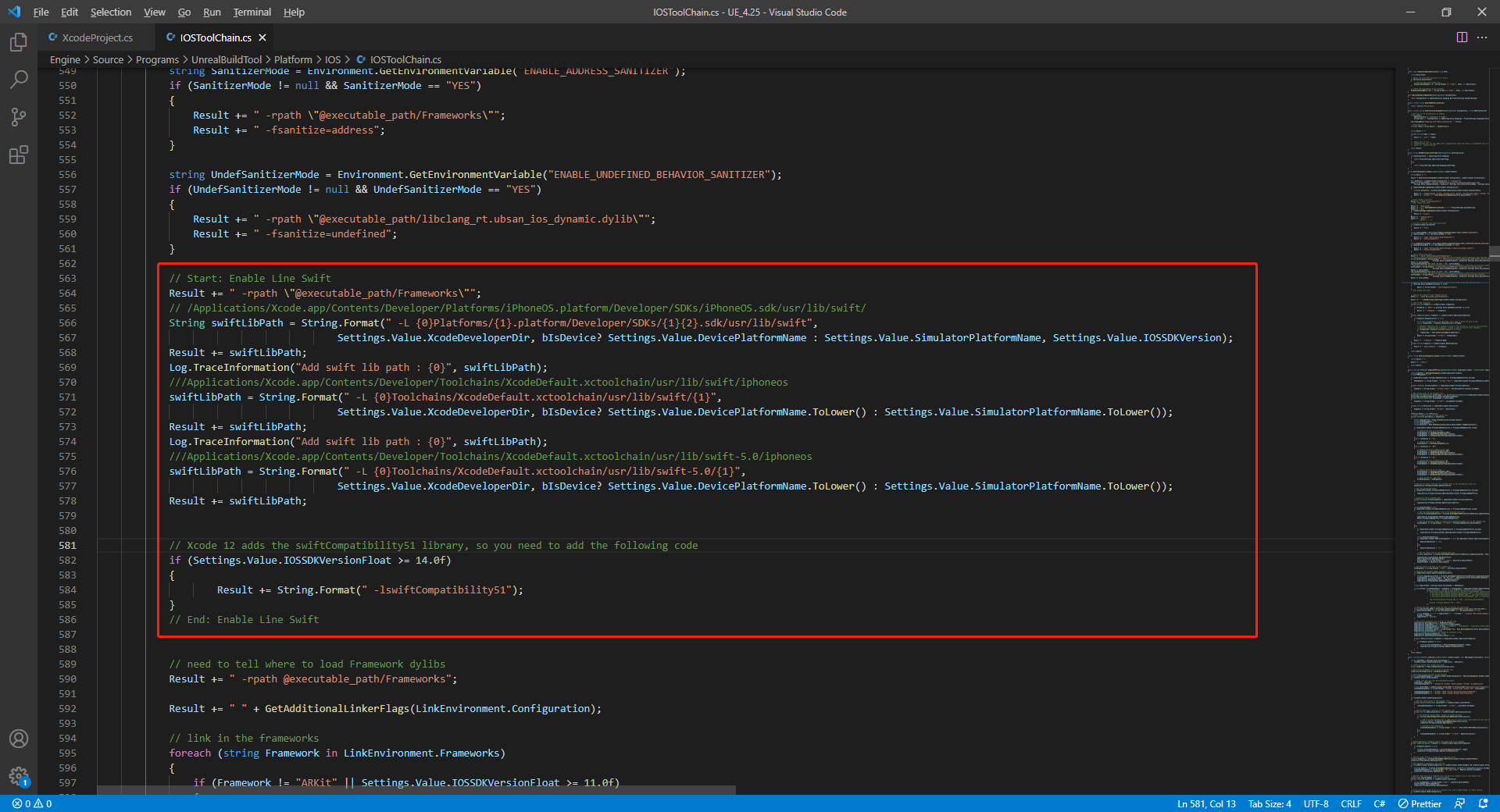
- Open the solution and recompile
/Users/intl/UE4/UE_4.25/Engine/Source/Programs/UnrealBuildTool/UnrealBuildTool.sln.
4) Merge privacy manifest
Version requirements: Player Network SDK V1.22 and above
Starting from Spring 2024, applications that need to be updated or uploaded to Apple App Store Connect must clearly specify the reason for use in order to demonstrate how the app uses required reason APIs (APIs for which a reason for use must be submitted).For more information, see Upcoming Third-party SDK Requirements.
For affected Player Network SDK plug-ins, manual merging is required for INTLFoundation, INTLCore, and INTLGarena. INTLGarena only needs to be configured if Garena integration is confirmed for the project.
Additionally, INTLLine is automatically integrated by Player Network SDK without extra action.
Since privacy manifests from other third-party SDKs have not been released yet, the Player Network SDK privacy manifest does not currently include the corresponding content.To view the list of plugins not yet released, see iOS 17 Privacy Manifest.
Steps
- Locate the privacy manifest
PrivacyInfo.xcprivacyfor the required plugin within the Player Network SDK product directory.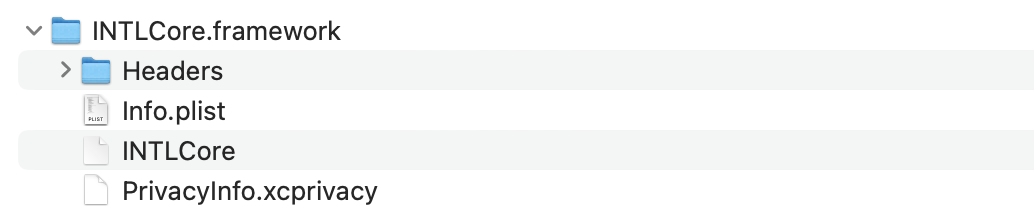
- Unity
- Unreal Engine
| Plugin | Path |
|---|---|
| INTLFoundation | /Plugins/iOS/INTLSDK/INTLFoundation/INTLFoundation.framework/PrivacyInfo.xcprivacy |
| INTLCore | /Plugins/iOS/INTLSDK/INTLCore/INTLCore.framework/PrivacyInfo.xcprivacy |
| INTLGarena | /Plugins/iOS/INTLSDK/INTLGarena/INTLGarena.framework/PrivacyInfo.xcprivacy |
| Plugin | Path |
|---|---|
| INTLFoundation | /INTLSDK/Source/INTLFoundation/Libs/iOS/INTLFoundation/INTLFoundation.embeddedframework/INTLFoundation.framework/PrivacyInfo.xcprivacy |
| INTLCore | /INTLSDK/Source/INTLCore/Libs/iOS/INTLCore/INTLCore.embeddedframework/INTLCore.framework/PrivacyInfo.xcprivacy |
| INTLGarena | /INTLSDK/Source/INTLGarena/Libs/iOS/INTLGarena/INTLGarena.embeddedframework/INTLGarena.framework/PrivacyInfo.xcprivacy |
-
Use the 4 nodes in
PrivacyInfo.xcprivacywithin the Player Network SDK to compare with corresponding content in the game project'sPrivacyInfo.xcprivacy, and merge based on the following conditions.

-
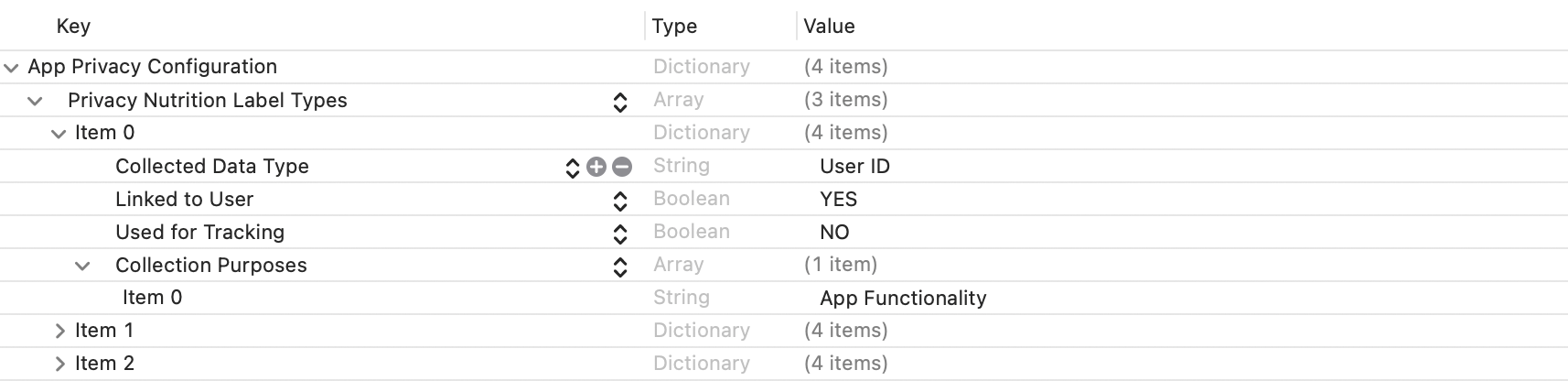
Privacy Nutrition Label Types (NSPrivacyCollectedDataTypes)is the node describing types of data usage:
Compare eachitem'sCollected Data Type (NSPrivacyCollectedDataType), if different values exist, add them to the game project file.
If identical values exist, compareCollection Purposes (NSPrivacyCollectedDataTypePurposes), if different values exist, add them to the game project file.
-
Privacy Tracking Domains (NSPrivacyTrackingDomains)is the node for domain tracking list:
Compare each related node, if different values exist, add them to the game project file. -
Privacy Tracking Enabled (NSPrivacyTracking)describes whether the App Tracking Transparency feature is enabled:
Compare each node, if the Player Network SDK's privacy manifest's value isYES, modify the game project file. -
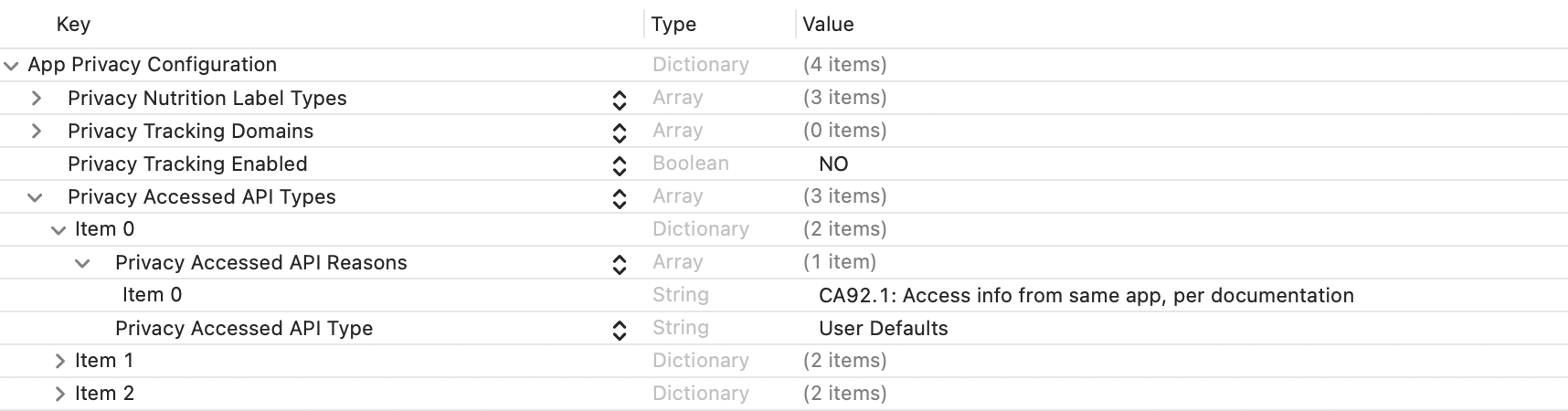
Privacy Accessed API Types (NSPrivacyAccessedAPITypes)is the node describing types of interface usage:
Compare eachitem'sPrivacy Accessed API Type (NSPrivacyAccessedAPIType), if different values exist, add them to the game project file.
If identical values exist, comparePrivacy Accessed API Reasons (NSPrivacyAccessedAPITypeReasons), if different values exist, add them to the game project file.
-
-
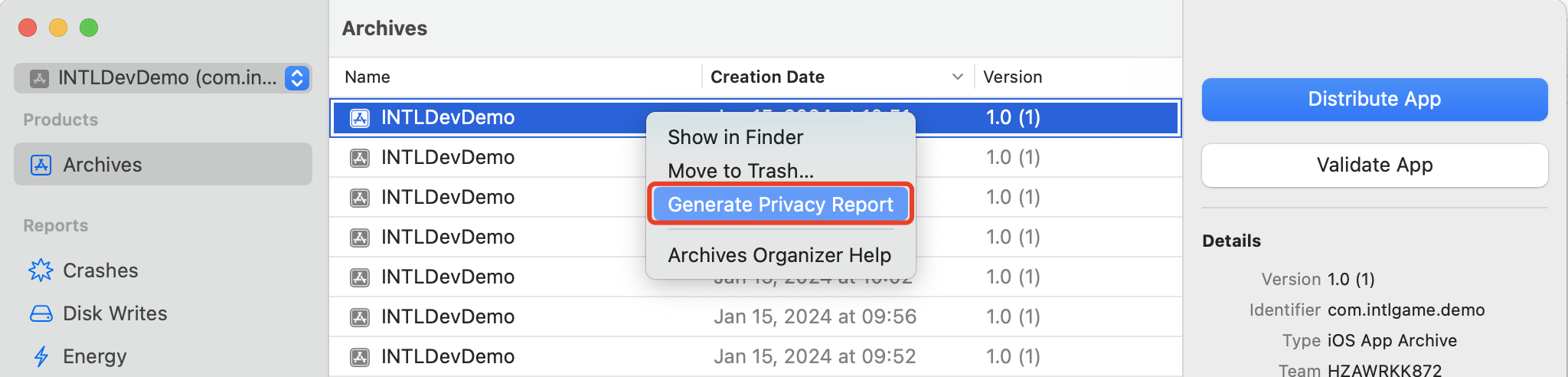
Generate a privacy report via Xcode 15 to verify it meets expectations.
5) Player Network SDK Configuration
When manually modifying the INTLConfig.ini configuration, please contact the Player Network Assistant to confirm whether your changes meet the expected requirements. For details, see SDK Config Notes.
Please configure according to the instructions in INTLConfig.ini.
6. Initialize Player Network SDK
Player Network SDK must be initialized before integrating third-party channels. For more details, see Initialize SDK.For more details, see Initialize SDK.
#include "INTLSDKAPI.h" // Include the INTL header file

void UExample::Init()
{
    UINTLSDKAPI::Init();
}
- SDK 1.26 and later versions
- SDK 1.26 之前的版本
UE4.21 ~ UE4.27 & UE5 ~ UE5.5
UE4.21 ~ UE4.27 & UE5 ~ UE5.4
Supports 64-bit Windows 7, Windows 10, Windows 11 operating systems.
Due to the characteristics of the Windows platform, the game's installation directory cannot contain an English character semicolon (;), otherwise the game will not be able to find the necessary DLL, resulting in game failure.
If the Windows platform integrates Google, Facebook, LINE, Apple, and other channels, WebView needs to be introduced.
Recommended to run based on the Microsoft Visual C++ Redistributable 2015-2022 compiler.
-
Windows 7:
- Install Microsoft Visual C++ Redistributable packages and add the command
VC_redist.x64.exe /install /quiet /norestartto the installation script. - Install Windows 7 Security Update (KB3063858).
- Install Microsoft Visual C++ Redistributable packages and add the command
-
Windows 8 and Windows 8.1:
Install Microsoft Visual C++ Redistributable packages and add the command
VC_redist.x64.exe /install /quiet /norestartto the installation script.
1. Add Player Network SDK to your project
-
Extract the SDK package.
-
Copy the
INTLSDKfolder to the project'sPluginsfolder.
If the project does not have aPluginsfolder, please create one. -
Open your project's
{ProjectName}.Build.csfile and add Player Network SDK to Unreal Engine as shown in the example.public INTLSample(ReadOnlyTargetRules Target) : base(Target)
{
PrivateDependencyModuleNames.AddRange(new string[] {
"INTLCore",
"INTLFoundation",
"INTLConfig",
});
}
Player Network SDK package
├─INTLSDK
│  ├─INTLSDK.uplugin    // Description files for Player Network SDK plugins
│  ├─Resources          // Player Network SDK resources
│  └─Source             // Player Network SDK plugin modules. Each module contains its own Build.cs file, libraries, and interfaces.
│    ├─INTLApple
│    ├─INTLConfig       // Player Network SDK configurations
│    ├─INTLCore         // Core module of Player Network SDK
│    ├─INTLDiscord
│    ├─INTLEpic
│    ├─INTLFacebook
│    ├─INTLFoundation
│    ├─INTLGoogle
│    ├─INTLKakao
│    ├─INTLLine
│    ├─INTLSteam
│    ├─INTLTwitter
│    └─INTLVK
├─LevelInfinite     // LI PASS APIs
└─Symbols           // Symbol table *.so files for Player Network SDK
INTLSDK/Source/INTLCore
└─INTLSDK
   ├─INTLSDK.uplugin
   ├─Resources
   └─Source
     ├─INTLConfig
     ├─INTLCore
     |  ├─INTLCore.Build.cs // INTLCore Build.cs file
     |  ├─Libs              // INTLCore libraries for different platforms which contain dll, lib, and other binary files.
     |  |  ├─Android
     |  |  ├─include
     |  |  ├─iOS
     |  |  ├─MacOS
     |  |  └─Win
     |  ├─Private           // Player Network SDK private folder
     |  └─Public            // Player Network SDK public interfaces
     |                      // INTLSDKAPI.h: Player Network SDK APIs
     |                      // INTLSDKPluginObserver.h: Player Network SDK observer classes
     |                      // INTLSDKPluginDefine.h: Player Network SDK data types
     |                      // INTLSDKOutputUtility.h: Player Network SDK utility to process callbacks
     |                      // INTLSDKBaseUserWidget.h: Player Network SDK base class for UserWidget which includes registration and deregistration APIs
     ├─INTLCustomer
     ├─INTLDiscord
     ├─INTLEpic
INTLSDK/Source/INTLConfig
└─INTLSDK
   ├─INTLSDK.uplugin
   ├─Resources
   └─Source
     ├─INTLConfig
     |  ├─Configs       // Player Network SDK configurations for different platform
     |  |  ├─Android
     |  |  |  └─INTLConfig_APL.xml  // Player Network SDK Android gradle configuration file
     |  |  ├─iOS
     |  |  |  └─INTLConfig_UPL.xml
     |  |  ├─Resources
     |  |  |  ├─APASConfig.ini      // APAS device level configuration file
     |  |  |  └─INTLConfig.ini      // Player Network SDK main configuration file
     |  ├─Encrypt
     |  ├─INTLConfig.Build.cs
     |  ├─INTLConfig.uplugin
     |  ├─Private
     |  ├─Public
     |  └─Resources
     ├─INTLCore
2. Change cache directory
By default, the cache directory generated by Player Network SDK PC users and applications is:
C:/ProgramData/INTLC:/Users/{name}/AppData/Local/INTL/local/INTL.
Before calling InitSDK, game developers must set the cache directory.For more information, see Change User Data Folder Directory API.
// For example, game id is 11, and the game application name is INTLSDKDemo.
// Then the game invokes the interface like this:
UINTLSDKAPI::SetDefaultUserStorageDirectory("D:\\game_data\\")
// The data cache path for Player Network SDK will be D:\game_data\11\INTLSDKDemo\.
3. Player Network SDK Configuration
When manually modifying the INTLConfig.ini configuration, please contact the Player Network Assistant to confirm whether your changes meet the expected requirements. For details, see SDK Config Notes.
Please configure according to the instructions in INTLConfig.ini.
4. Initialize Player Network SDK
Player Network SDK must be initialized before integrating third-party channels. For more details, see Initialize SDK.For more details, see Initialize SDK.
#include "INTLSDKAPI.h" // Include the INTL header file

void UExample::Init()
{
    UINTLSDKAPI::Init();
}
Due to most console games being developed using Windows, the game's installation directory must not contain the semicolon ';' character, as it will cause the game to fail to locate necessary DLLs, resulting in a game launch failure.
For the Nintendo Switch platform, Switch Nintendo SDK >= 18.3.1, Unreal Engine version >= UE5.5
For the PlayStation 5 platform, PS5 SDK >= 9.00.00, Unreal Engine version >= UE5.5
For the Xbox Series X|S platform, GDK version >= 231003, Unreal Engine version >= UE5.5
For the WinGDK platform, GDK version >= 202504, Unreal Engine version >= UE5.6
1. Add Player Network SDK to your project
-
Extract the SDK package.
-
Copy the
INTLSDKfolder to the project'sPluginsfolder.
If the project does not have aPluginsfolder, please create one. -
Open your project's
{ProjectName}.Build.csfile and add Player Network SDK to Unreal Engine as shown in the example.public INTLSample(ReadOnlyTargetRules Target) : base(Target)
{
PrivateDependencyModuleNames.AddRange(new string[] {
"INTLCore",
"INTLFoundation",
"INTLConfig",
});
}
Player Network SDK package
├─INTLSDK
│  ├─INTLSDK.uplugin    // Description files for Player Network SDK plugins
│  ├─Resources          // Player Network SDK resources
│  └─Source             // Player Network SDK plugin modules. Each module contains its own Build.cs file, libraries, and interfaces.
│    ├─INTLApple
│    ├─INTLConfig       // Player Network SDK configurations
│    ├─INTLCore         // Core module of Player Network SDK
│    ├─INTLDiscord
│    ├─INTLEpic
│    ├─INTLFacebook
│    ├─INTLFoundation
│    ├─INTLGoogle
│    ├─INTLKakao
│    ├─INTLLine
│    ├─INTLSteam
│    ├─INTLTwitter
│    └─INTLVK
├─LevelInfinite     // LI PASS APIs
└─Symbols           // Symbol table *.so files for Player Network SDK
INTLSDK/Source/INTLCore
└─INTLSDK
   ├─INTLSDK.uplugin
   ├─Resources
   └─Source
     ├─INTLConfig
     ├─INTLCore
     |  ├─INTLCore.Build.cs // INTLCore Build.cs file
     |  ├─Libs              // INTLCore libraries for different platforms which contain dll, lib, and other binary files.
     |  |  ├─Android
     |  |  ├─include
     |  |  ├─iOS
     |  |  ├─MacOS
     |  |  └─Win
     |  ├─Private           // Player Network SDK private folder
     |  └─Public            // Player Network SDK public interfaces
     |                      // INTLSDKAPI.h: Player Network SDK APIs
     |                      // INTLSDKPluginObserver.h: Player Network SDK observer classes
     |                      // INTLSDKPluginDefine.h: Player Network SDK data types
     |                      // INTLSDKOutputUtility.h: Player Network SDK utility to process callbacks
     |                      // INTLSDKBaseUserWidget.h: Player Network SDK base class for UserWidget which includes registration and deregistration APIs
     ├─INTLCustomer
     ├─INTLDiscord
     ├─INTLEpic
INTLSDK/Source/INTLConfig
└─INTLSDK
   ├─INTLSDK.uplugin
   ├─Resources
   └─Source
     ├─INTLConfig
     |  ├─Configs       // Player Network SDK configurations for different platform
     |  |  ├─Android
     |  |  |  └─INTLConfig_APL.xml  // Player Network SDK Android gradle configuration file
     |  |  ├─iOS
     |  |  |  └─INTLConfig_UPL.xml
     |  |  ├─Resources
     |  |  |  ├─APASConfig.ini      // APAS device level configuration file
     |  |  |  └─INTLConfig.ini      // Player Network SDK main configuration file
     |  ├─Encrypt
     |  ├─INTLConfig.Build.cs
     |  ├─INTLConfig.uplugin
     |  ├─Private
     |  ├─Public
     |  └─Resources
     ├─INTLCore
2. Player Network SDK Configuration
When manually modifying the INTLConfig.ini configuration, please contact the Player Network Assistant to confirm whether your changes meet the expected requirements. For details, see SDK Config Notes.
Please configure according to the instructions in INTLConfig.ini.
3. Initialize Player Network SDK
Player Network SDK must be initialized before integrating third-party channels. For more details, see Initialize SDK.For more details, see Initialize SDK.
#include "INTLSDKAPI.h" // Include the INTL header file

void UExample::Init()
{
    UINTLSDKAPI::Init();
}
Step 2: Verify successful Player Network SDK integration
- Modify the configuration under the
INTL Lognode in the INTLConfig.ini file.
[INTL Log]
LOG_LEVEL = 1
LOG_ENCRYPT_ENABLE = 0
LOG_COMPRESS_ENABLE = 0
LOG_CONSOLE_OUTPUT_ENABLE = 1
LOG_FILE_OUTPUT_ENABLE = 1
- Run the program. If the log shows
Init INTL SDK success., integration is successful.

