Parental Authentication for Minors
LI PASS provides a standardized compliance solution package, allowing businesses to directly configure compliance services without needing to integrate the interfaces mentioned in this document once integrated with LI PASS.For businesses integrating LI PASS, you can contact the Player Network assistant for more details.
For businesses not using the standard LI PASS compliance solution, this document aims to introduce the interfaces provided by Player Network for compliance services and how to use these interfaces.
Prerequisites
- Integrate SDK.
- Access the Player Network login authentication service.
- Fill in the Minor Services backend configuration according to Country or Region Configuration and submit it to the Compliance team.
Example URL:
English Terms of Service: https://www.example.com/TermsofService.html?lang_type=en
Simplified Chinese Privacy Policy: https://www.example.com/PrivacyPolicy.html?lang_type=zh-Hans
Configure Age Authentication Service for Game Application
Process Callback
Add the following callback for age authentication services.
- Unity
- Unreal Engine
| Endpoint | Description |
|---|---|
| AddComplianceResultObserver | Add ComplianceResult callback to manage callbacks for ComplianceQueryUserInfo, ComplianceMultiSetStatusWithAdultCheckStatus, ComplianceMultiSetStatusWithAge, ComplianceMultiSetStatusWithBirthday, ComplianceSetParentCertificateStatus, ComplianceSendEmail, ComplianceVerifyCreditCard, ComplianceVerifyRealName. |
| RemoveComplianceResultObserver | Remove ComplianceResult callback. |
| Endpoint | Description |
|---|---|
| SetComplianceResultObserver | Set the age authentication service's ComplianceResult callback. |
| GetComplianceResultObserver | Retrieve the age authentication service's ComplianceResult callback. |
| OnComplianceResult_Implementation | Manage callbacks for ComplianceResult to handle ComplianceQueryUserInfo, ComplianceMultiSetStatusWithBirthday, ComplianceMultiSetStatusWithAdultCheckStatus, ComplianceMultiSetStatusWithAge callbacks, ComplianceSetParentCertificateStatus, ComplianceSendEmail, ComplianceVerifyCreditCard, ComplianceVerifyRealName callbacks. |
Set Player Configuration Information
Due to varying compliance requirements across regions, such as age of majority and data protection laws, developers first need to set the player's user profile to determine the specific compliance process required for each player.Therefore, developers should prompt players to submit their regional information.
Businesses can call ComplianceInitWithParams and provide the game ID, OpenID, token, and channel ID as input parameters to set the player's user profile.Businesses can retrieve the age of majority in the player's region based on previously submitted compliance region configurations and player regional information in the user profile.Based on the player's actual age, the business can determine whether the player needs parental certification or real-name certification.
- Unity
- Unreal Engine
bool succ = INTLAPI.ComplianceInitWithParams(gameID, openID, token, channelID);
bool succ = UINTLSDKAPI::ComplianceInitWithParams(gameID, openID, token, channelID);
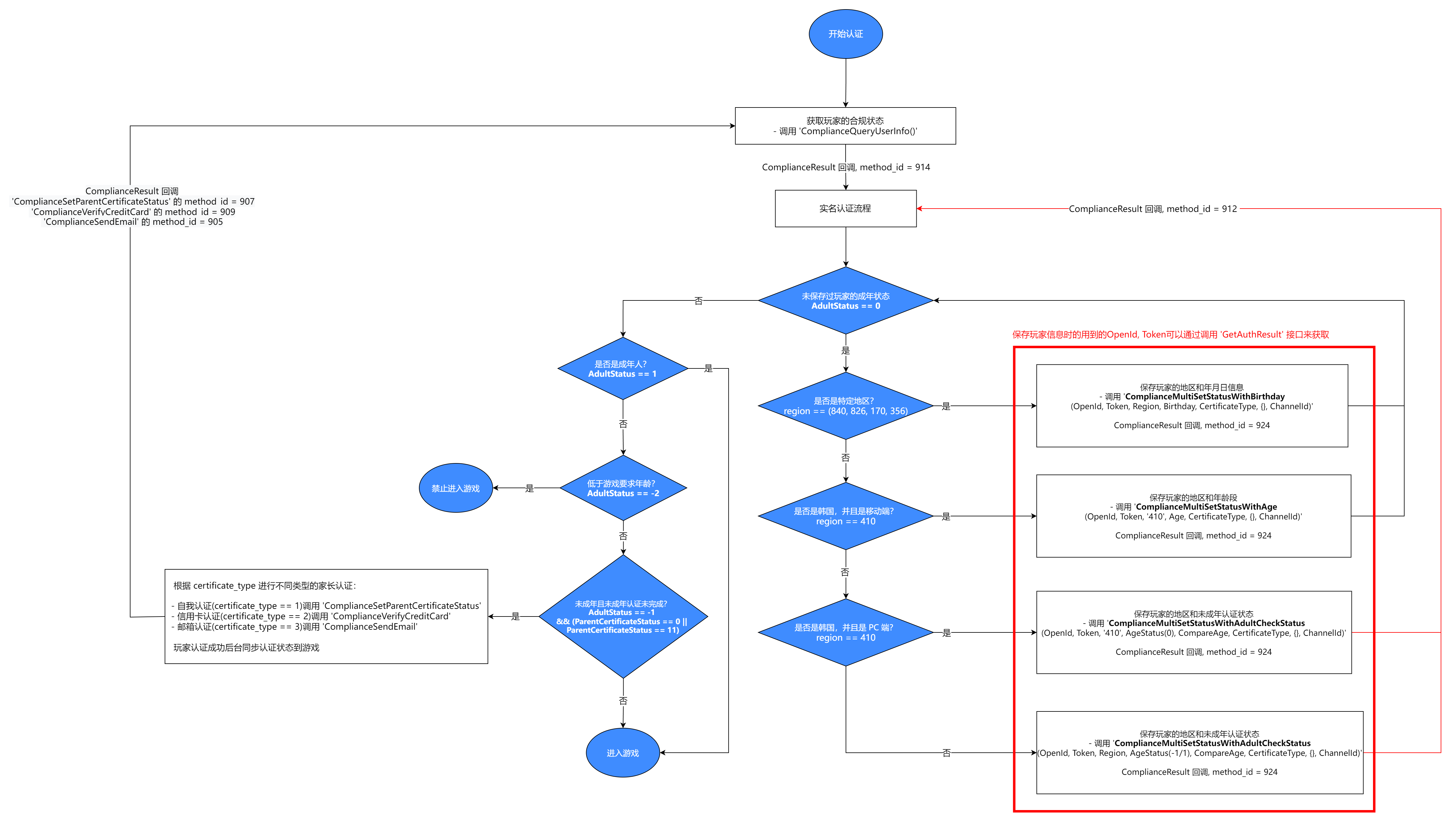
Set Region and Player Age Status
The player's adult status is set differently depending on their country or region.
For countries or regions with country codes 840 (USA), 826 (UK), 170 (Colombia), and 356 (India), developers should prompt players to enter their birthdays and then call ComplianceMultiSetStatusWithBirthday to save region and date information.The player's adult status will be determined by their birthday and the legal age of majority in their region.
- Unity
- Unreal Engine
string openID = "123456789";
string token = "qwewerasd123456789qwewer";
string region = "413",
string birthday = "1970-01-01",
int certificate_type = 1;
int channelID = 131
INTLAPI.ComplianceMultiSetStatusWithBirthday(openID,token,region,birthday,certificate_type,"{}", channelID);
FString openID = "123456789";
FString token = "qwewerasd123456789qwewer";
FString region = "413",
FString birthday = "1970-01-01",
int certificate_type = 1;
int channelID = 131
UINTLSDKAPI::ComplianceMultiSetStatusWithBirthday(openID,token,region,birthday,certificate_type,"{}", channelID);
For mobile platforms with country code 410 (Korea), certification needs to be based on the player's age group. Use ComplianceMultiSetStatusWithAge to save the player's region and pass specific ages of 13, 16, or 20 for age groups: under 14, 14-18, and over 18.The player's adult status will be determined by their specific age and the legal age of majority in their region.
- Unity
- Unreal Engine
string openID = "123456789";
string token = "qwewerasd123456789qwewer";
string region = "410",
int age = 18,
int certificate_type = 1;
int channelID = 131
ComplianceApiCall.Instance.ComplianceMultiSetStatusWithAge(openID,token,region,age,certificate_type,"{}", channelID);
FString openID = "123456789";
FString token = "qwewerasd123456789qwewer";
FString region = "410",
int age = 18,
int certificate_type = 1;
int channelID = 131
UINTLSDKAPI::ComplianceMultiSetStatusWithAge(openID,token,region,age,certificate_type,"{}", channelID);
For PC platforms with country code 410 (Korea), real-name certification is required following Korean compliance requirements. Use ComplianceMultiSetStatusWithAdultCheckStatus according to the player's region, and a default unknown value should be passed for adult status.Retrieve the player's actual age through Real-Name Certification, with the adult status determined by their actual age and the legal age of majority in their region.
- Unity
- Unreal Engine
string openID = "123456789";
string token = "qwewerasd123456789qwewer";
string region = "410",
int adult_check_status = 0,
int compare_age = 18,
int certificate_type = 1;
int channelID = 131
INTLAPI.ComplianceMultiSetStatusWithAdultCheckStatus(openID,token,region,adult_check_status,compare_age,certificate_type,"{}", channelID);
FString token = "qwewerasd123456789qwewer";
FString region = "410",
int adult_check_status = 0,
int compare_age = 18,
int certificate_type = 1;
int channelID = 131
UINTLSDKAPI::ComplianceMultiSetStatusWithAdultCheckStatus(openID,token,region,adult_check_status,compare_age,certificate_type,"{}", channelID);
For other countries or regions, businesses can choose to prompt players to self-confirm their adult status, then use ComplianceMultiSetStatusWithAdultCheckStatus to directly set it based on player choice.
- Unity
- Unreal Engine
string openID = "123456789";
string token = "qwewerasd123456789qwewer";
string region = "410",
int adult_check_status = 1,
int compare_age = 18,
int certificate_type = 1;
int channelID = 131
INTLAPI.ComplianceMultiSetStatusWithAdultCheckStatus(openID,token,region,adult_check_status,compare_age,certificate_type,"{}", channelID);
FString token = "qwewerasd123456789qwewer";
FString region = "410",
int adult_check_status = 1,
int compare_age = 18,
int certificate_type = 1;
int channelID = 131
UINTLSDKAPI::ComplianceMultiSetStatusWithAdultCheckStatus(openID,token,region,adult_check_status,compare_age,certificate_type,"{}", channelID);
Query Player Configuration Information
The compliance process required varies by region.Businesses should call ComplianceQueryUserInfo to return the ComplianceResult data structure, which is used to confirm the compliance process applicable to the player.
For example, each country has its legal age of majority, and each game has a minimum age limit based on its rating.Businesses can call ComplianceQueryUserInfo to return the logged-in player's ComplianceResult.This information can be used to check if the player's country or region has any age restrictions for the game.If there are no age restrictions in the region, the player can proceed directly into the game.Otherwise, continue to verify whether the player is an adult according to the region's age of majority.If the player is under the game's rating age, exit the game immediately.If the player is of legal age, they can directly enter the game.If the player is a minor but above the game's rating age, they need to complete Parental Consent in the respective country or region to enter the game.
Parental Consent
For minor players, Player Network provides parents with three different methods to confirm their identity and grant parental consent.The authentication method can be determined by the certificate_type in the AuthResult interface from Unity SDK or Unreal Engine SDK.
Self-Certification
For minor players choosing self-certification, businesses should prompt a confirmation window to ensure parents have agreed to allow minors to participate in the game.
If parental consent is granted, call ComplianceSetParentCertificateStatus to set the parental certification status as received.After parental consent, the player's status will be updated, and the game can call the ComplianceQueryUserInfo interface to query the player's latest status to determine if entry into the game is possible.
If parental consent is denied, exit the game.
Email Certification
For minor players choosing email certification for parental consent, businesses should prompt the player to enter the parent's name and email address, then call the ComplianceSendEmail interface to send a certification email for parents to verify identity and consent to the player entering the game.
If consent is granted, LI PASS will update the player's status, and the game can call the ComplianceQueryUserInfo interface to query the player's latest status and determine whether to start a new compliance process.
If consent is denied, LI PASS will call EnterGameFailed to set retCode == INTLErrorCode.CANCEL in INTLAuthResult, notifying the game of certification failure, and players will receive a refusal notification and wait time upon login.It is recommended that businesses take subsequent actions based on the platform used:
- Mobile, PC (independent launcher): Reopen the login interface.
- PC (Steam/Epic), console: Exit game.
For more information on error codes like INTLErrorCode.CANCEL, refer to the INTLErrorCode.cs file.
Credit Card Certification
For minor players choosing credit card certification, businesses need to call ComplianceVerifyCreditCard to open the credit card certification web page and continue certification.
If certification is successful, set the parental certification status to received and proceed directly into the game.
If certification fails, exit the game.
Sync LI PASS Compliance Status
建议业务采用标准的 LI PASS 合规流程。如果业务坚持开发自己的合规流程,但没有采用下文提到的步骤,可能会出现问题。具体来说,当玩家在没有完成 LI PASS 合规流程的情况下尝试将自己的账号绑定到 LI PASS 时,他们的 LI PASS 合规状态可能会覆盖游戏的合规状态,因此导致 LI PASS 合规状态与游戏合规状态发生冲突,需要业务手动解决。
It is worth noting that LI PASS compliance parameters may differ significantly from the game's compliance parameters.INTLAuthResult or FINTLAuthResult contains all authentication parameters, including those related to compliance status.For more information, contact the Player Network business interface.
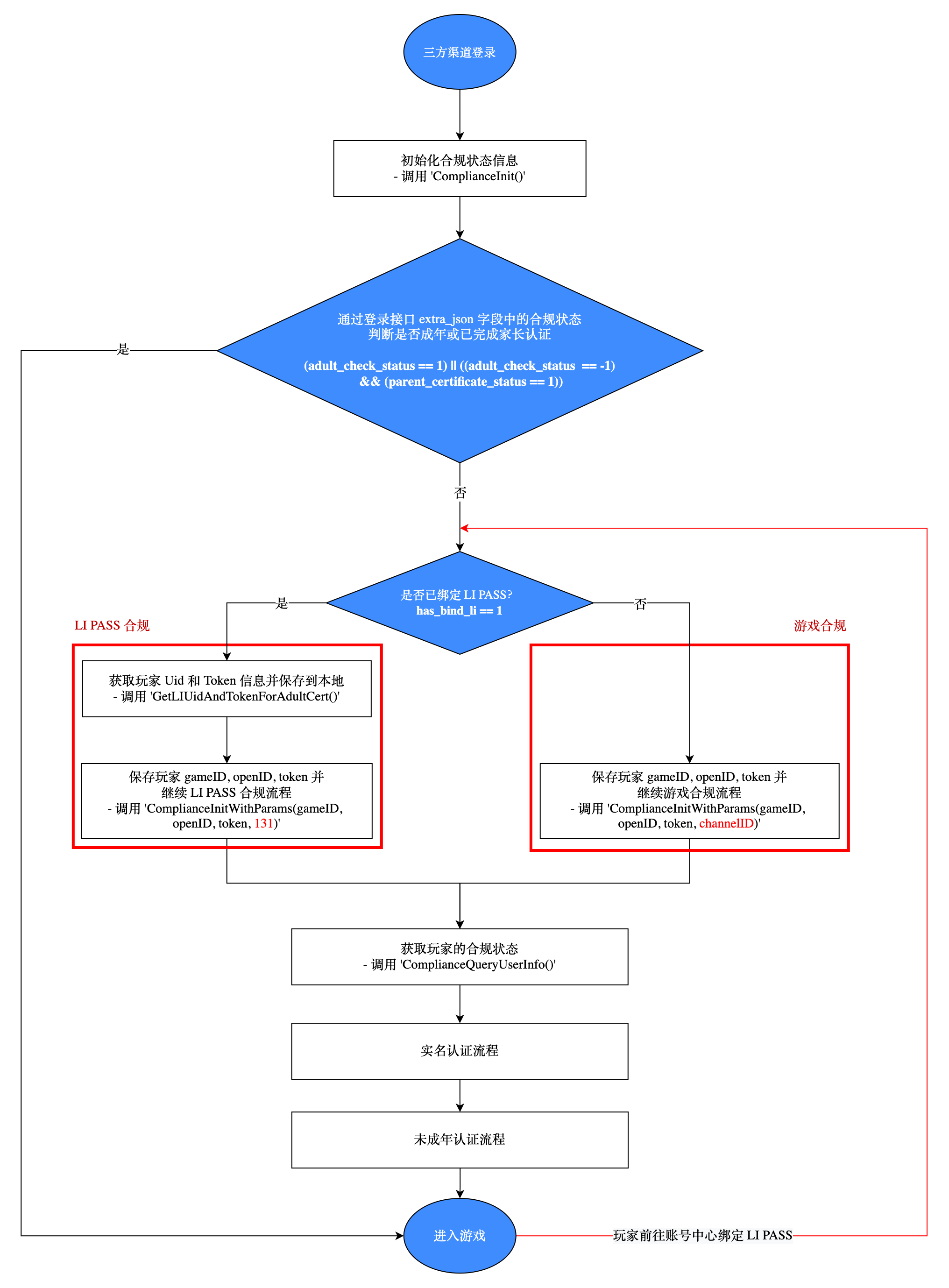
If the business fully customizes the compliance process without using any SDK interfaces but still allows players to bind LI PASS, the following steps must be integrated into the customized compliance process.The following steps exemplify parental certification, similar logic can be added for other compliance processes.
After player login, check if their account is bound to LI PASS and if the LI PASS parental authentication process for minors is completed.In other words, has_bind_li is true, and the player is identified as an adult or as a minor who has completed the parental authentication process, i.e., parent_certificate_status is 1.These attributes can be found in the AuthResult under need_notify_rsp and get_status_rsp in the extra_json.
If has_bind_li is false, the player can proceed directly into the game's customized compliance process.However, if has_bind_li is true, indicating the account is bound to LI PASS, it is necessary to check the LI PASS majority status.For players identified as "minors," their parental certification status must be checked.
- If
parent_certificate_statusis -1, parental certification was declined, and the player cannot bind LI PASS, continuing with the current third-party or guest account to play. - If
parent_certificate_statusis 1, parental certification is successful, and the player's account is successfully bound to LI PASS. - If
parent_certificate_statusis 0 or 10, it indicates the player has not started or completed the parental certification program.Therefore, the game needs to initiate or continue the parental certification program.First, callGetLIUidAndTokenForAdultCertto set LI PASS UID and token for the current login channel, then callComplianceInitWithParamsto save the player's game ID, OpenID, token, and channel ID.In theComplianceInitWithParamsinterface, thechannelIDparameter needs to be set to either the third-party channel ID or 131 (LI PASS channel ID) depending on the situation.Before parental certification, the game needs to callComplianceMultiSetStatusWithBirthday,ComplianceMultiSetStatusWithAdultCheckStatus, orComplianceMultiSetStatusWithBirthdayto save the player's region, birthday, or minor status based on the player's region.Once this information is saved, the game can proceed to the Parental Consent for the respective region after receiving the callback.
Configure Age Authentication Service for Web Pages
Step 1: Introduce SDK
During the project joint debugging phase, introduce the SDK debugging version package, which is only for integration testing.For project launch, introduce the SDK formal version package.
Currently, npm package method and CDN method are supported.
- npm
- CDN
$ npm install @intlsdk/compliance-api
// SDK debugging version package
<script src="https://test-common-web.intlgame.com/sdk-cdn/compliance-api/index.umd.js"></script>

// SDK formal version package
<script src="https://common-web.intlgame.com/sdk-cdn/compliance-api/index.umd.js"></script>
Step 2: Use the SDK
During integration testing, set env to the test environment https://test.intlgame.com; upon game launch, set env to the corresponding production environment.
const complianceApi = new IntlgameComplianceApi({
  env: "test",
});
| Parameter | Type | Description | Remarks |
|---|---|---|---|
| env | string | SDK Environment For more information, see Obtain deployment cluster information. | Required |
Step 3: Implement Age Verification Functionality
Set the Player Login State
Because the age of majority varies by region, the application must first prompt the player to enter their region information, then call the setUserProfile interface to set this information.
Save Player Status
To verify the player's legal age status, the system should prompt the player for their birthday and then call the commitBirthday interface to save this information.The saved information will be used to calculate the player's actual age and compare it with the age of majority in the player's region to determine whether the player is considered an adult.
Query Player Status
Each country has its own legal age of majority, and each game has a minimum age restriction corresponding to its rating.Call queryUserStatus and use the returned information to verify whether there is an age restriction for playing games in the player's country/region.If there is no age restriction in the country/region, the player can enter the game directly.Otherwise, the game needs to verify whether the player is an adult or a minor based on the legal age of majority in the player’s country/region.If the player has reached or exceeded the legal age of majority, they can enter the game.If the player is under the legal age, the game must verify parental consent to determine if the player can enter the game.

