iOS
Step 1: Configure Web Server
The Passkey feature requires server configuration, and can only be used after coordinating and completing setup with Player Network developers.
For more information, please contact your Player Network representative.
Step 2: Configure Associated Domains
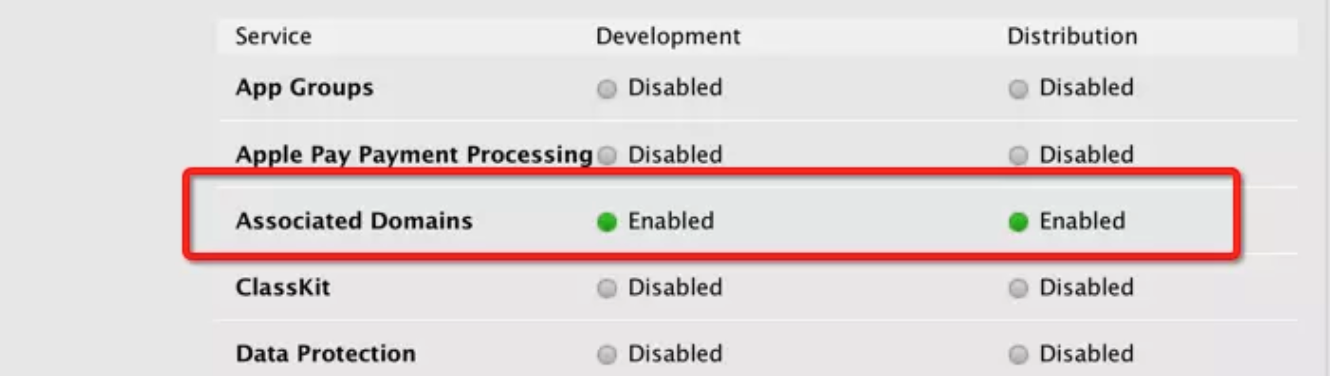
- To enable the Association domain feature please contact your Feature Administrator to apply for permissions.For more information, please refer to Supporting Associated Domains.
-
Enable Association domain to generate a new signed profile.
-
Configure Xcode features.In your Xcode project, under "Signing & Capabilities," enable "Associated Domains" and add
webcredentials:account.levelinfinite.comto the "Domains" list.
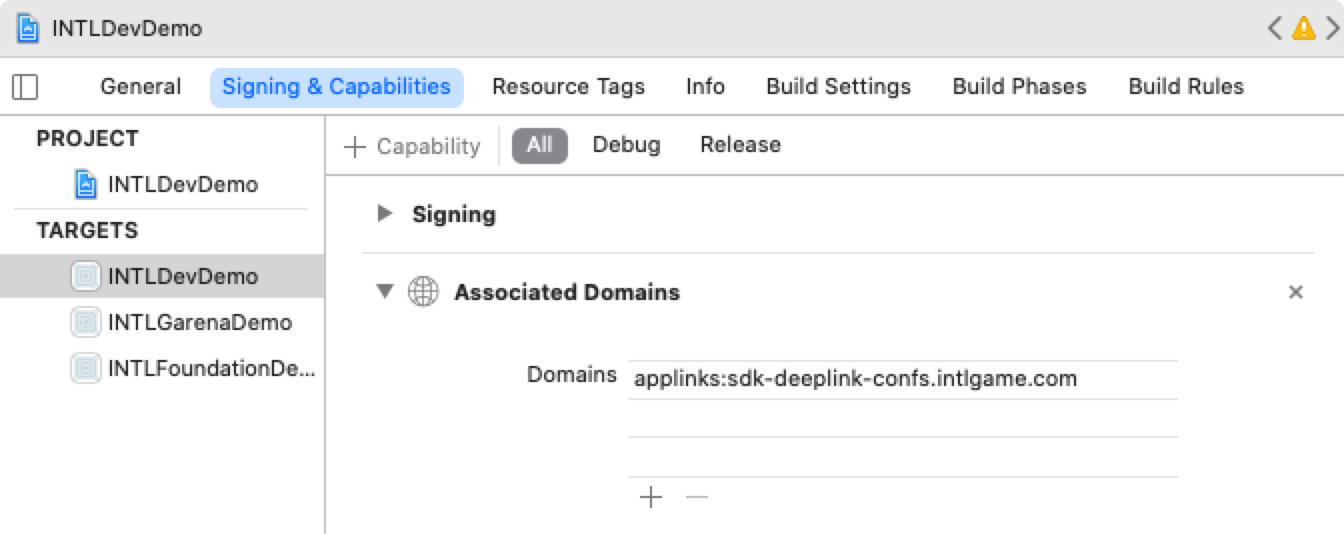
Confirmed: Passkey root domain is webcredentials:account.levelinfinite.com.
The game can also use the following code to automatically add and enable "Associated Domains".
- Unity
- Unreal Engine
Add the following code in PostProcess:
#if UNITY_2019_3_OR_NEWER

var capManager = new UnityEditor.iOS.Xcode.ProjectCapabilityManager(projPath, entitlementsFilePath, targetGuid: targetProjectName);

#else

var capManager = new UnityEditor.iOS.Xcode.ProjectCapabilityManager(projPath, entitlementsFilePath, targetProjectName);

#endif

capManager.AddAssociatedDomains(new string[] { "your_link1", "your_link2", "your_link3" });
- By modifying the following file in the Unreal Engine directory, add
Entitlementto UE4:/Your_UE_Installation_Path/Engine/Source/Programs/UnrealBuildTool/Platform/IOS/IOSExports.cs
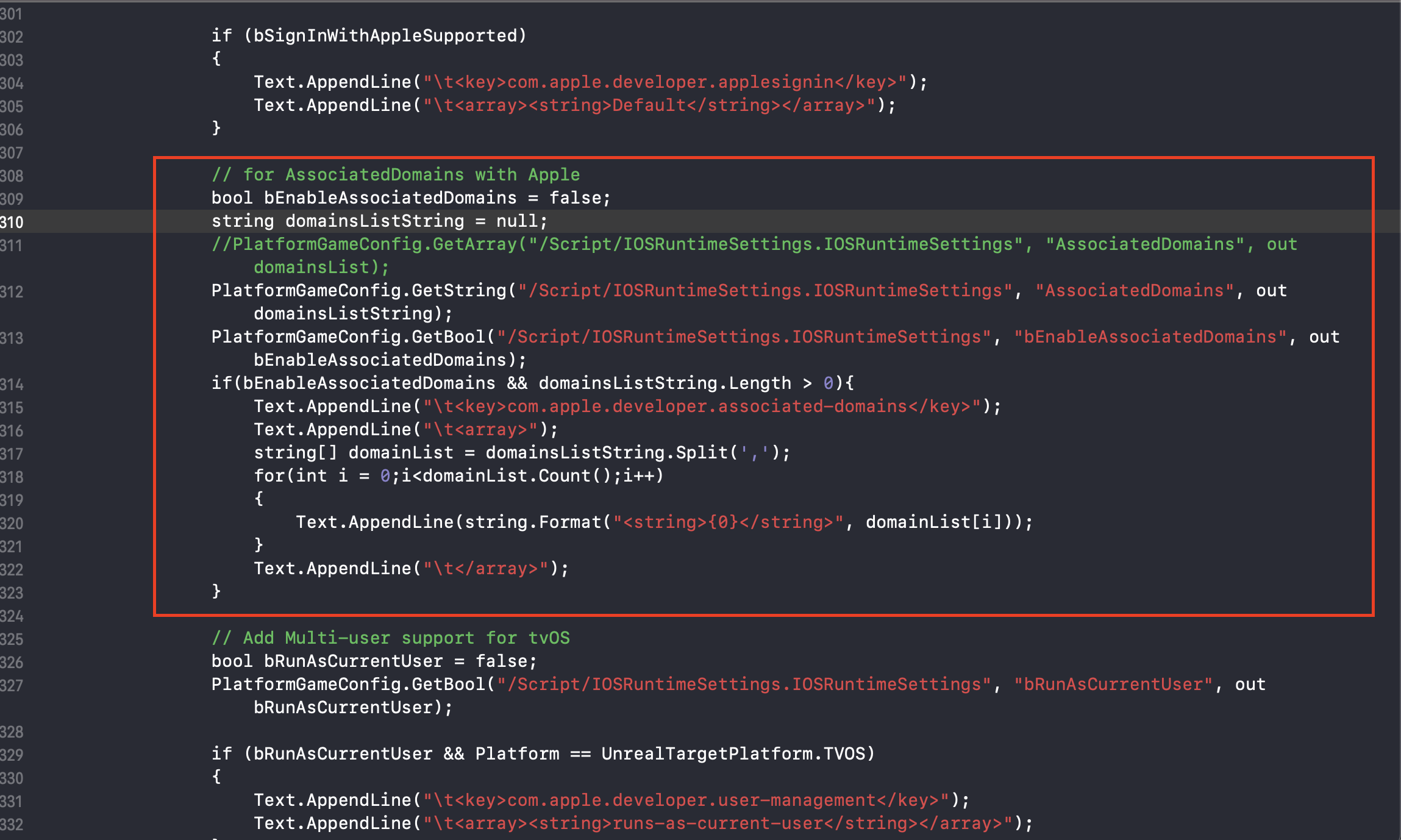
This method is used to set up one or multiple universal link domains.It is recommended to use array format to retrieve links and write them to the appropriate position.After configuring, users must run UnrealBuildTool.sln again and generate a new solution.Users can modify AssociatedDomains, bEnableAssociatedDomains, and other parameter names as needed.
// For Apple's AssociatedDomains

bool bEnableAssociatedDomains = false;

string domainsListString = null;

PlatformGameConfig.GetString("/Script/IOSRuntimeSettings.IOSRuntimeSettings", "AssociatedDomains", out domainsListString);

PlatformGameConfig.GetBool("/Script/IOSRuntimeSettings.IOSRuntimeSettings", "bEnableAssociatedDomains", out bEnableAssociatedDomains);

if(bEnableAssociatedDomains && domainsListString.Length > 0){

Text.AppendLine("\t<key>com.apple.developer.associated-domains</key>");

Text.AppendLine("\t<array>");

string[] domainList = domainsListString.Split(',');

for(int i = 0;i<domainList.Count();i++)

{
Text.AppendLine(string.Format("<string>{0}</string>", domainList[i]));

}

Text.AppendLine("\t</array>");

}
- In the
DefaultEngine.inifile, find/Script/IOSRuntimeSettings.IOSRuntimeSettingsand add the following configuration:
bEnableAssociatedDomains=True

AssociatedDomains=your_link1,your_link2,your_link3

Step 3: Configure Passkey in Player Network SDK
iOS apps need to configure the Player Network SDK first. Please refer to Configure Player Network SDK for detailed steps.
In the INTLConfig.ini file, add PASSKEY_ENABLE = 1 to enable Passkey. For more details, see PASSKEY_ENABLE.
Step 4: Test the Passkey feature
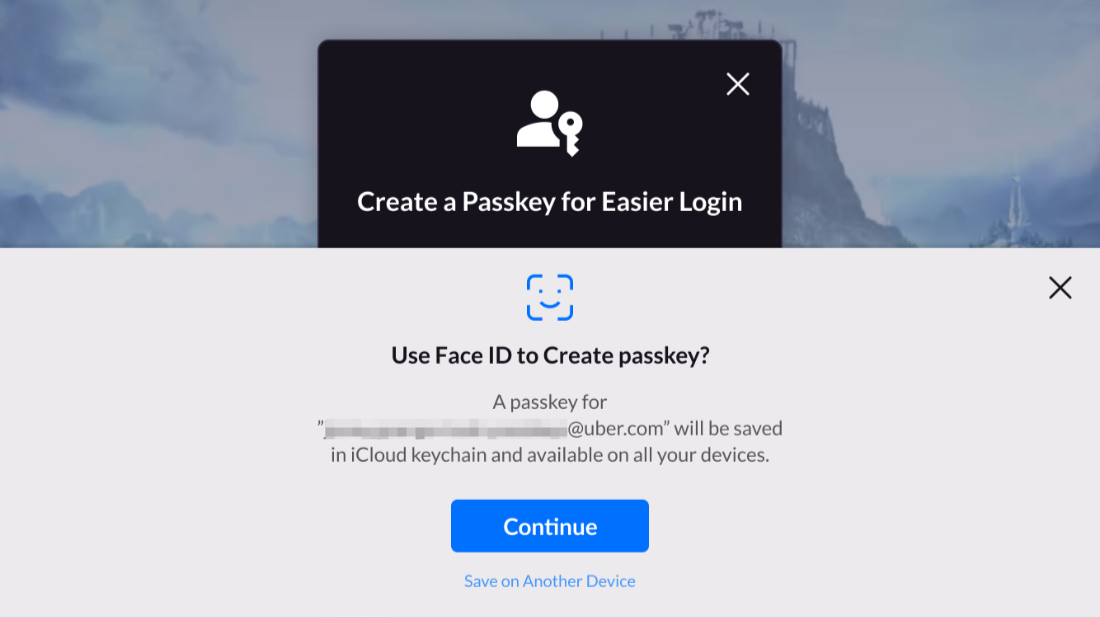
After repackaging, click Passkey on the LI PASS login panel to confirm that the Passkey interface displays normally.