Configure Sign in with Apple
- Developers must compile using Xcode 11 to integrate Apple Login.This feature works on iOS 13 and later versions; for older versions, login will return error code 7 (NOT_SUPPORT).
- Player Network SDK supports Apple login via web for Android platform since version V1.19.03. Configuration references can be found at Windows.
The channel ID assigned to Apple login in Player Network is 15. In Unity engine, it's defined as INTLChannel.Apple, and in Unreal Engine as EINTLLoginChannel::kChannelApple.Player Network supports Apple Login on the following platforms:
UI Guide
Apple has outlined specific UI requirements in the Human Interface Guidelines.
Games should consider the button settings.
Button Appearance
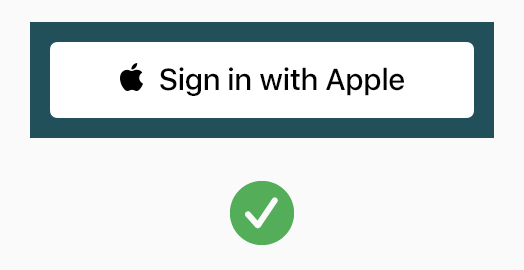
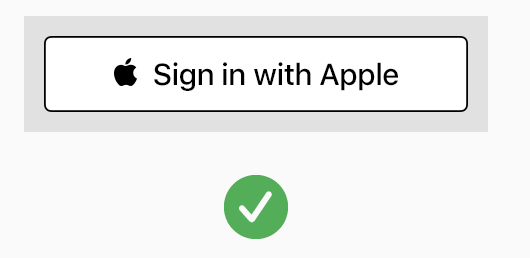
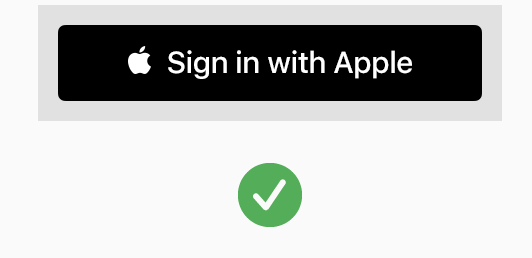
Apple provides three appearance options for the Sign In with Apple button. It's advised to choose the appearance that best matches the button display background:
- White
- Outlined White
- Black
White: For use on dark or colorful backgrounds when contrast is sufficient.
Outlined White: For light or white backgrounds where the white button lacks contrast.
Black: Used on white or light backgrounds when contrast is sufficient.
Button Position
- The Sign In with Apple button should not be smaller than other login buttons.
- Ensure users don't need to scroll the page to view the button.
- Ensure the button maintains correct proportions and is not stretched or compressed (the default design is rounded corners).
- The button position must be above other login methods.
Others
Apple provides Sign In with Apple and Continue with Apple for button titles (Objective-C and Swift UI components).Based on the platform the content is running on, select an appropriate button title. Buttons are automatically translated into the device's specified language.

