Web
This article aims to introduce how to set up Apple authentication so that your webpage can use the Player Network login authentication service to log in through the Apple channel.
Prerequisites
1. Configure iOS Application on Apple Developer
1. Create Services ID
If you are using an existing Services ID, click the corresponding Services ID on the Identifiers page, under Edit your Services ID Configuration turn on the Sign in with Apple option, then click Configure and proceed to step 6.
-
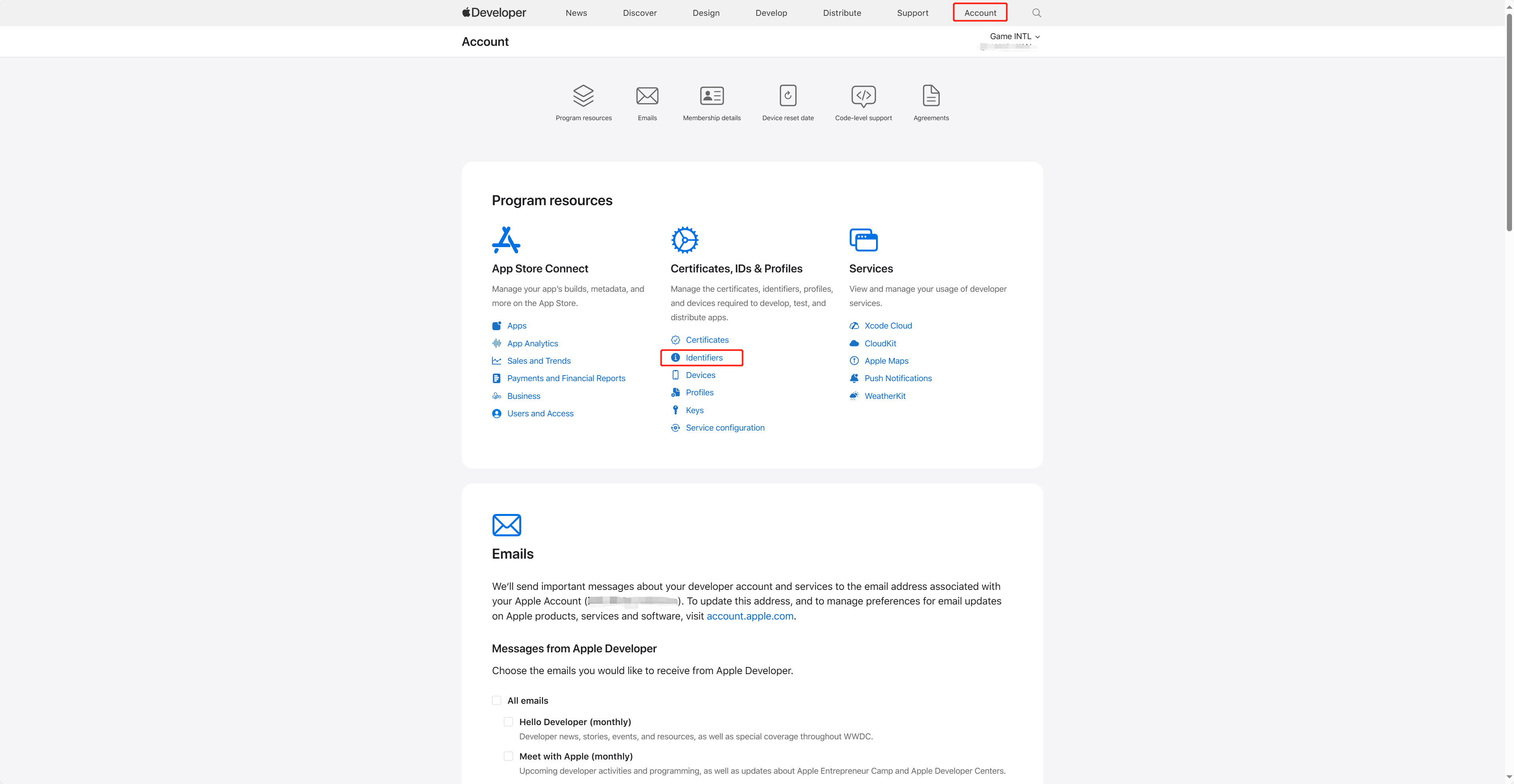
Log in to Apple Developer and click Account on the top navigation bar, then select Identifiers under Certificates, IDs & Profiles.
-
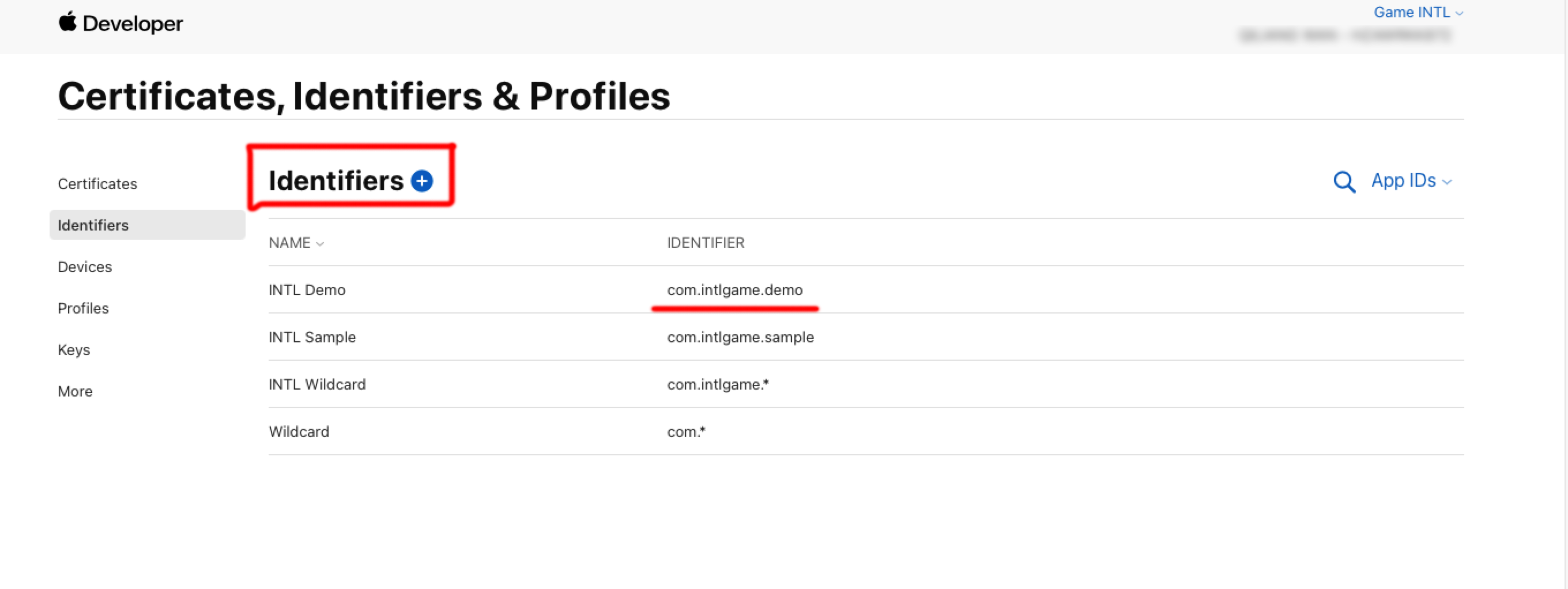
Click the blue add icon (+).
-
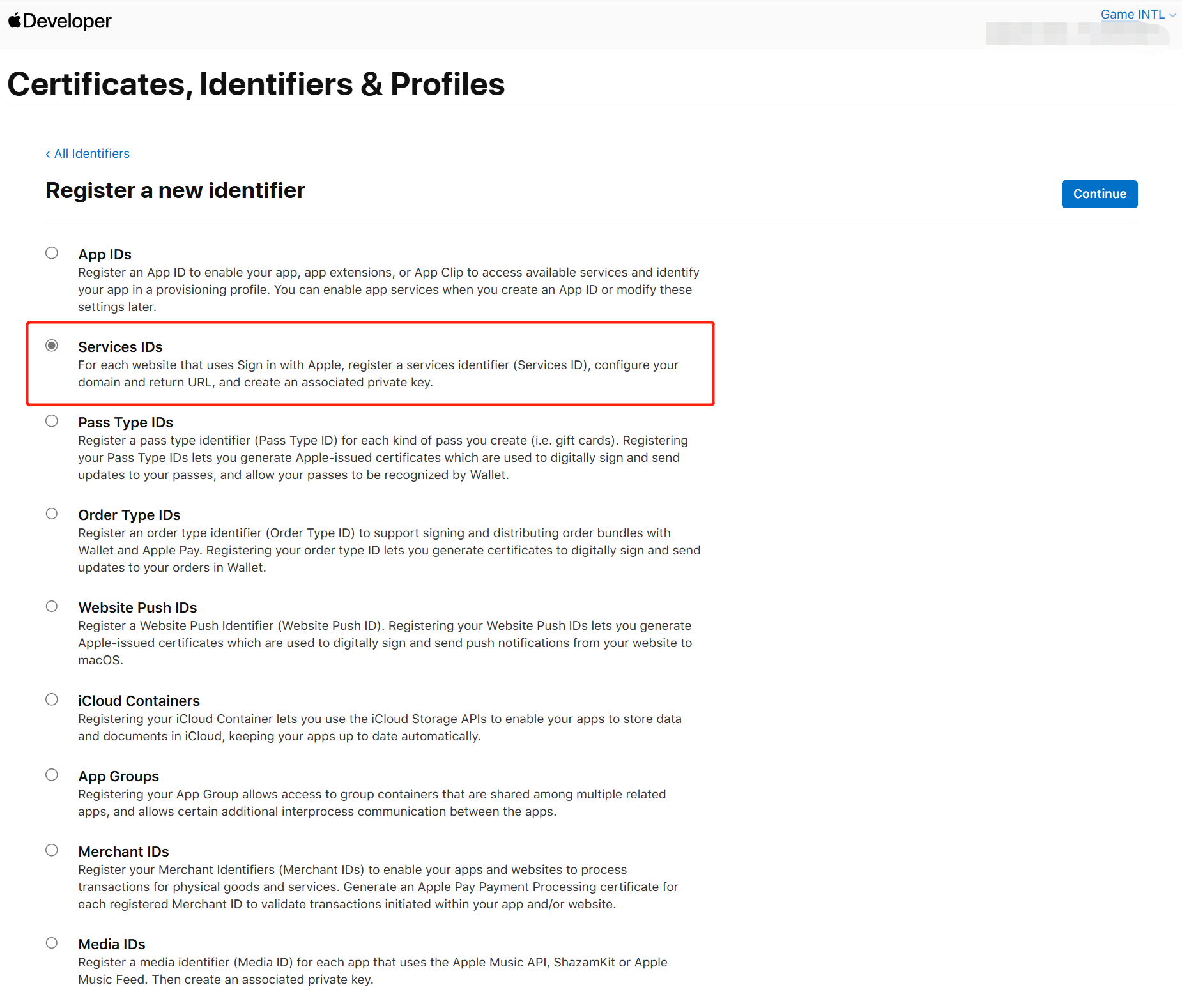
Select Services IDs and then click Continue.
-
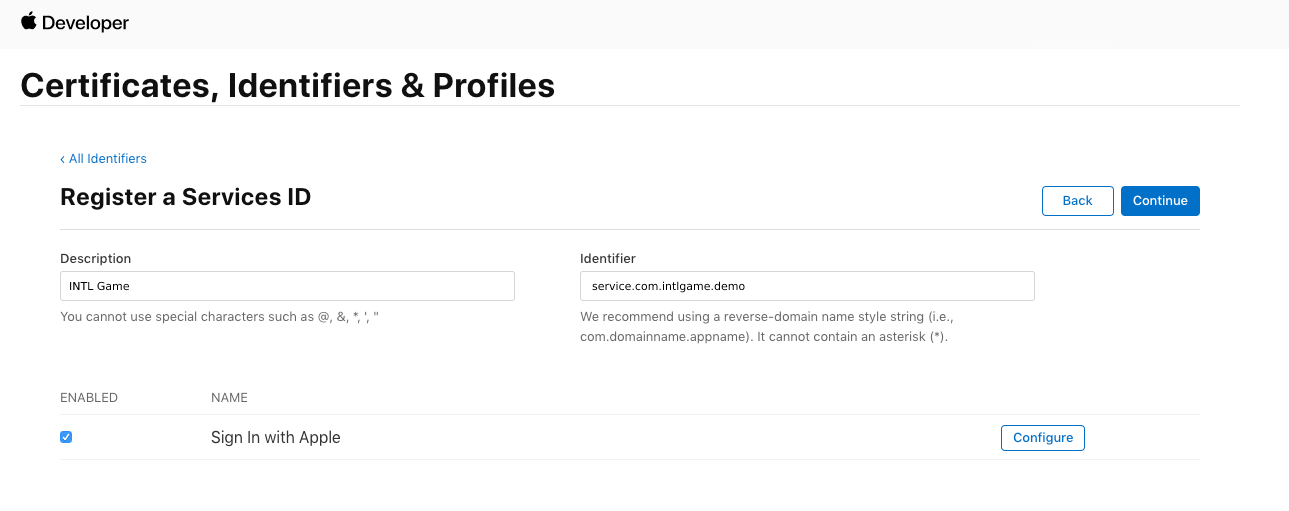
Enter Description and Identifier.
- Description: The name or description of the game application.
- Identifier: The unique identifier for the web application.
-
Under Capabilities, open the Sign in with Apple option and click Configure.
-
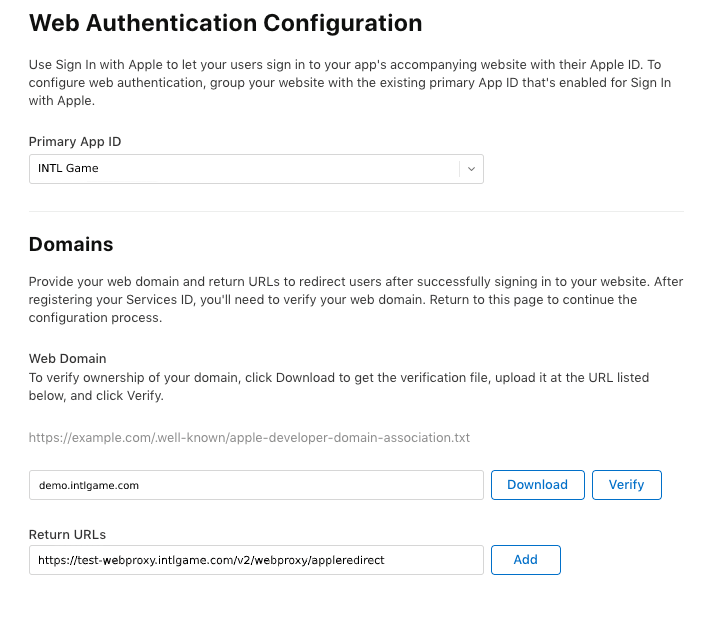
Under Return URLs, add the redirect links provided by Player Network and then click Save.
- North America: https://na-webproxy.intlgame.com/v2/webproxy/appleredirect
- Singapore and other regions: https://sg-webproxy.intlgame.com/v2/webproxy/appleredirect
- Testing: https://test-webproxy.intlgame.com/v2/webproxy/appleredirect
- aws-North America: https://aws-na-webproxy.intlgame.com/v2/webproxy/appleredirect
-
Click Continue > Register to create the web login Services ID.
2. Create a Key for Service Access
Create a key and corresponding Key ID for computing the client_secret.
-
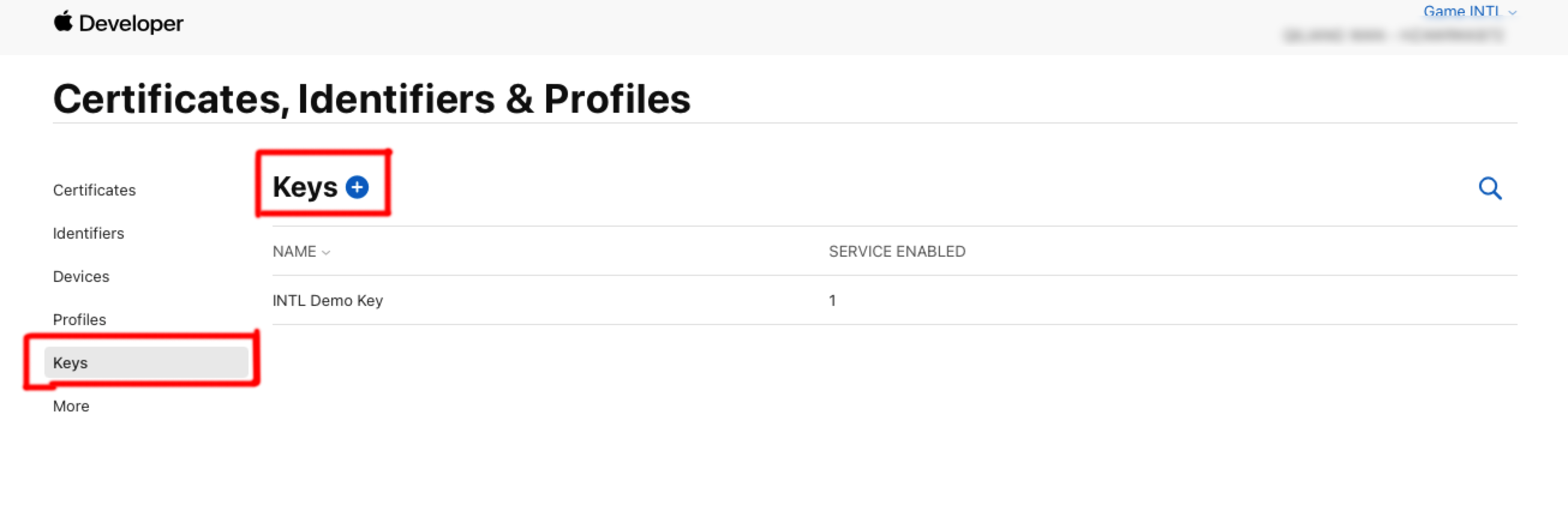
In the Certificates, Identifiers & Profiles sidebar, click Keys.
-
Click the blue add icon (+).
-
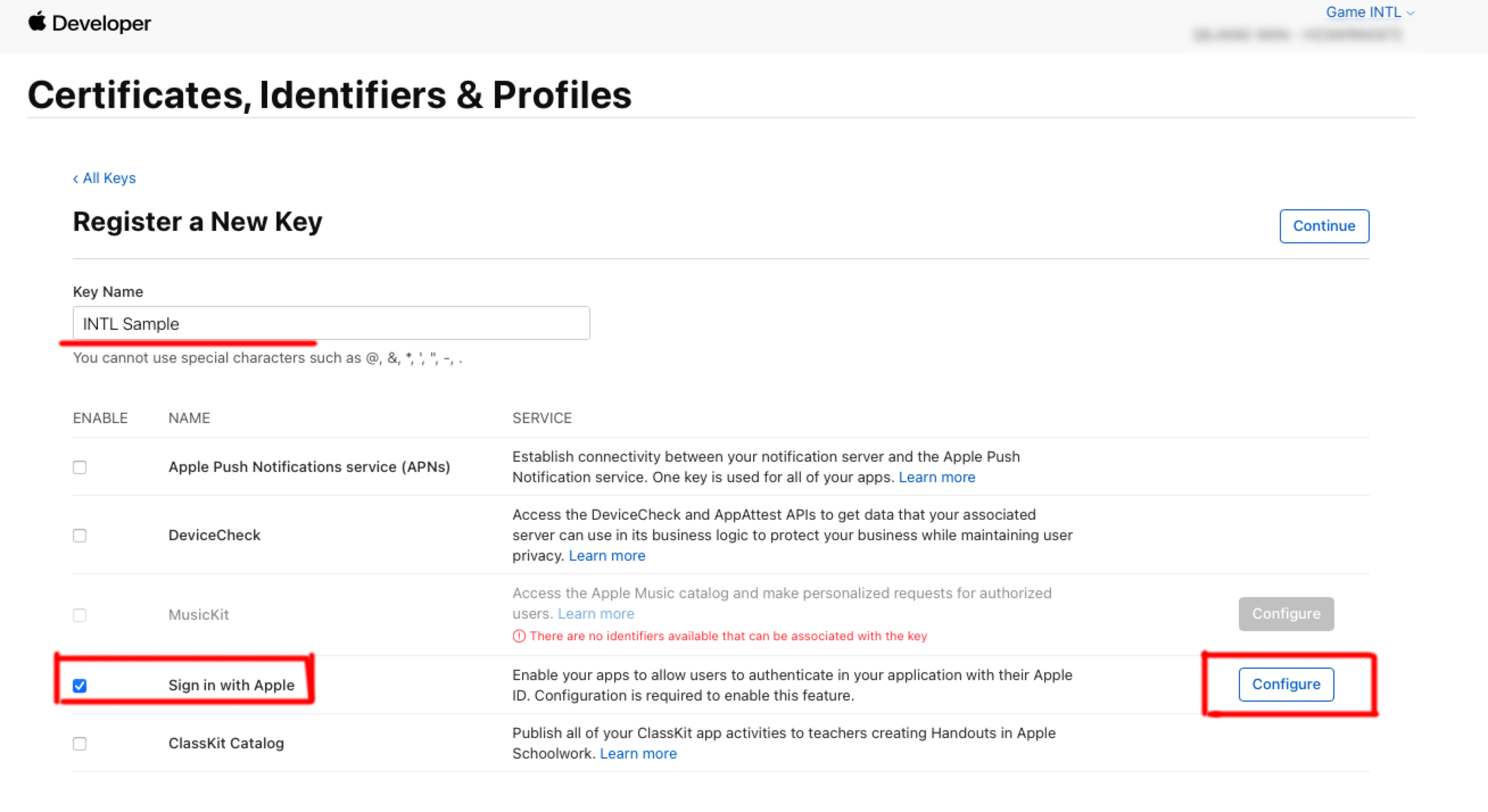
Under Key Name, enter the unique name for the key.
-
Check the box next to Sign in with Apple and then click Configure.
-
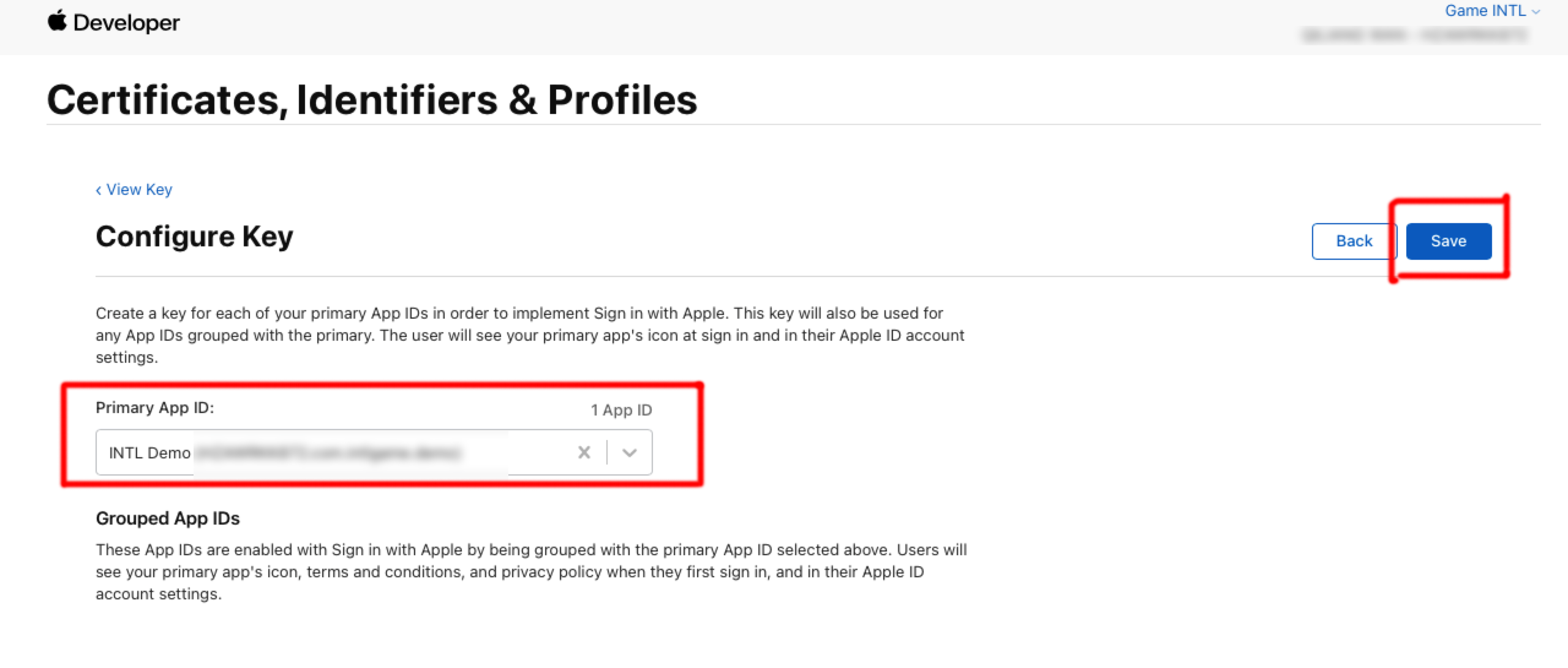
Under Primary App ID, select the Service ID you created in the previous step, then click Save.
-
Click Continue.
-
Click Register to generate the key and note down the Key ID.
-
Click Download to download the key file (can only be downloaded once, do not lose it), which is saved as a text file with the .p8 file extension.
3. Obtain Team ID
-
Log in to Apple Developer.
-
In the top navigation bar, click Account, scroll down to find Membership details to view Team ID.
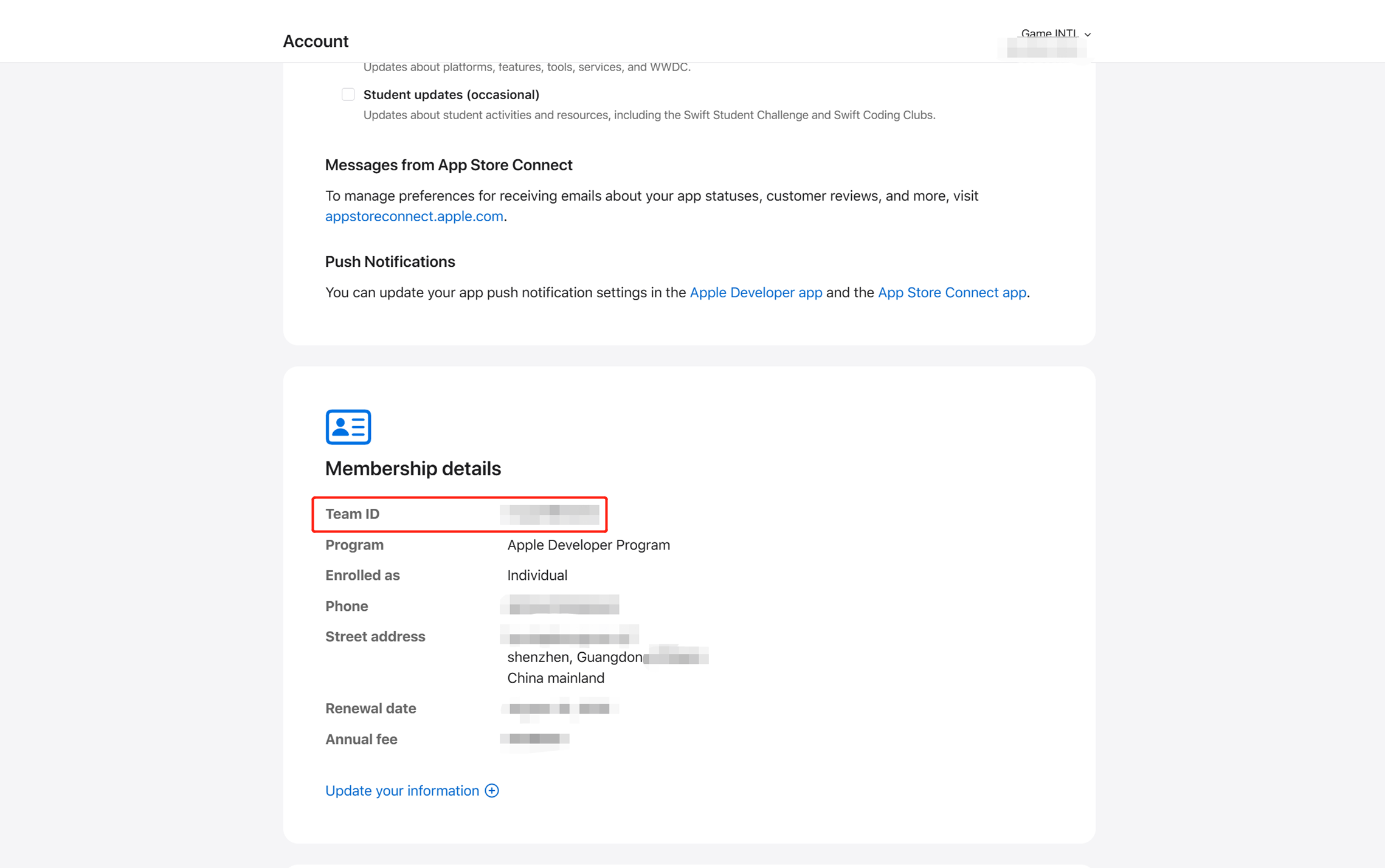
For more information on Apple Developer configurations, see What the Heck is Sign In with Apple?.
- Obtain Player Network Console login account.
- Create a new project for your game, or join an existing one.
- Add Apple as a login authentication method in Player Network Console.
For more information about integrating other third-party channels into the SDK, see JavaScript SDK.
Step 1: Introduce JavaScript SDK
During the project joint debugging phase, introduce the SDK debugging version package, which is only for integration testing.For project launch, introduce the SDK formal version package.
Currently, npm package method and CDN method are supported.
- npm
- CDN
$ npm install @intlsdk/account-api
// SDK debugging version package
<script src="https://test-common-web.intlgame.com/sdk-cdn/account-api/latest/index.umd.js"></script>
// SDK formal version package
<script src="https://common-web.intlgame.com/sdk-cdn/account-api/latest/index.umd.js"></script>
Step 2: Use the SDK
During integration testing, set env to test environment; Set env to the corresponding official environment when the project goes live.
const accountApi = new IntlgameAccountApi({
  env: "test", // SDK environment
  gameID: 11,
});
| Parameter | Type | Description | Remark |
|---|---|---|---|
| env | string | SDK environment For more information, see Obtain deployment cluster information. | Required |
| gameID | number | Unique Game ID in Player Network | Required |
Step 3: Implement Web Login
After instantiating the accountApi component, call the thirdAuthorize interface to request the Apple channel access token.
accountApi.thirdAuthorize({
    third_type: 'apple',
    extra: {
        appleAppId: 'xxxxx', // Required for apple login
    }
}).then(
(res) => {
    console.log(res);
});
After Apple returns the access token, call the intlAuthorize API to obtain Player Network SDK OpenID and token to log in to the website.
accountApi.intlAuthorize({
    third_type: 'apple',
    channel_info: {
        code: "EAAI2lTrXAZBwBAC"
        user_name: "EAAI2lTrXAZBwBAC"
    }
}).then(
(res) => {
    console.log(res);
});
Call the intlLogout API to log out from the website.
accountApi.intlLogout({
    token: '4567xsdfsd',
    openid: 'xxxxxxxx',
    channel_id: 11,
}).then(
(res) => {
    console.log(res);
});

