Windows
This document aims to introduce how to set up Apple authentication to enable your game to log in and authenticate through the Apple channel using Player Network services.
Prerequisites
1. Configure iOS Applications on Apple Developer
1. Create Services ID
If you are using an existing Services ID, click the corresponding Services ID on the Identifiers page, open the Sign in with Apple option under Edit your Services ID Configuration, and click Configure. Continue to step 6.
-
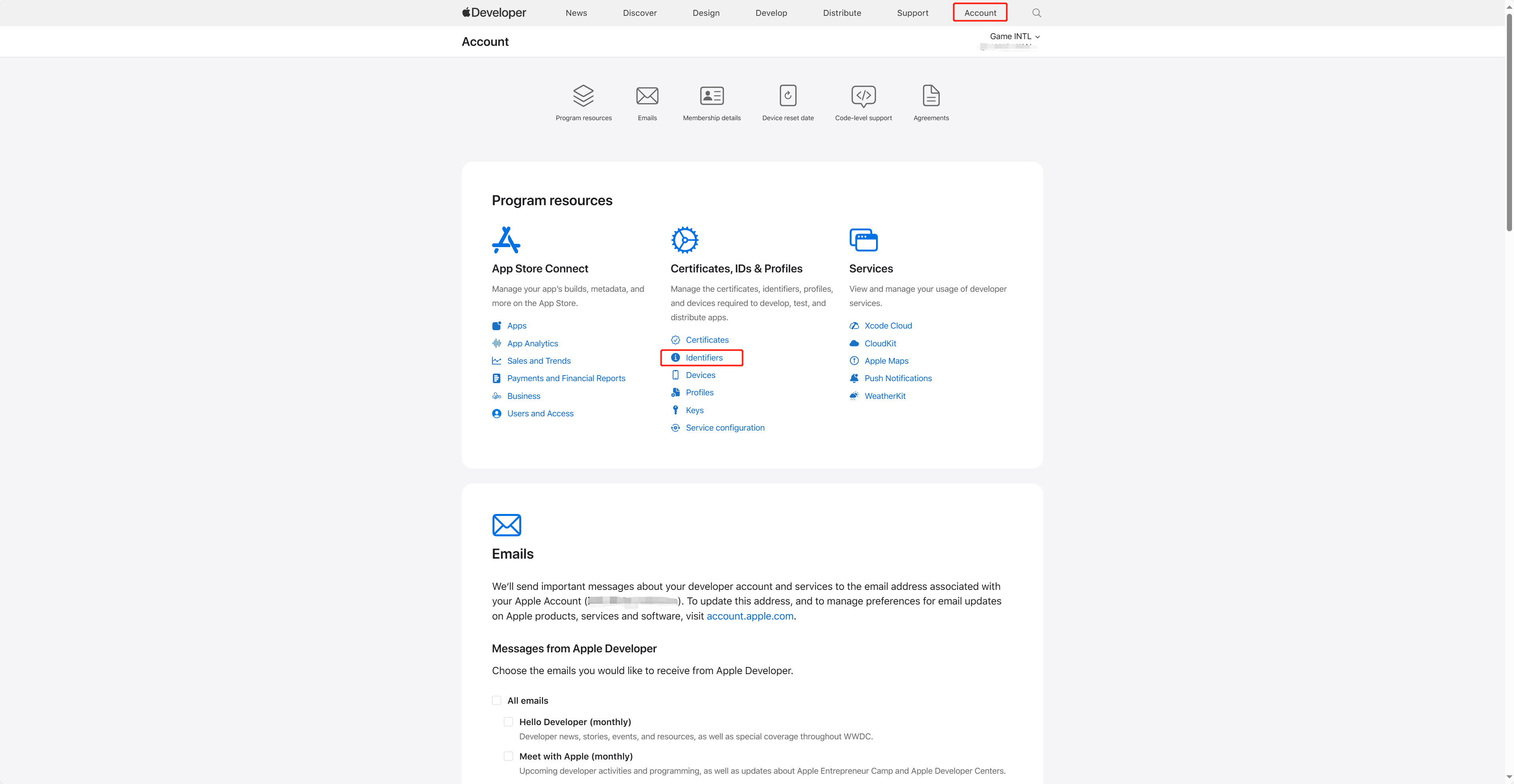
Log in to Apple Developer, click Account in the top navigation bar, and select Identifiers under Certificates, IDs & Profiles.
-
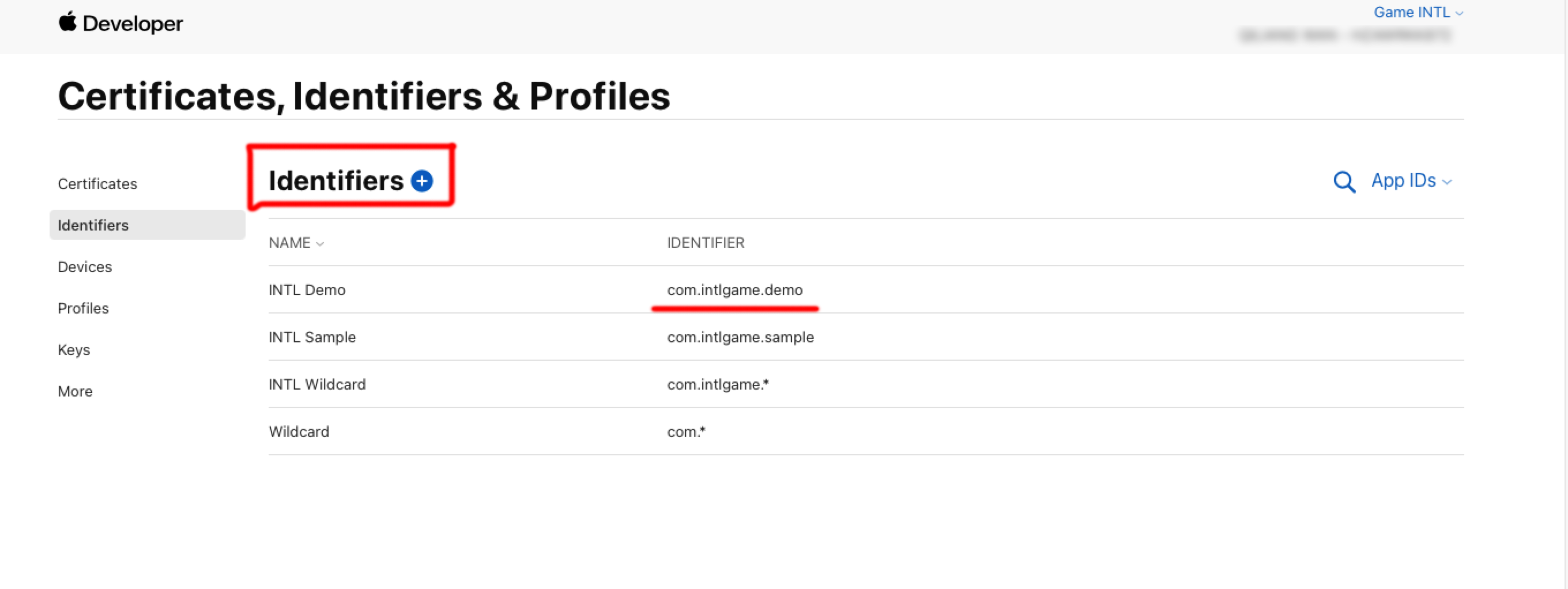
Click the blue add icon (+).
-
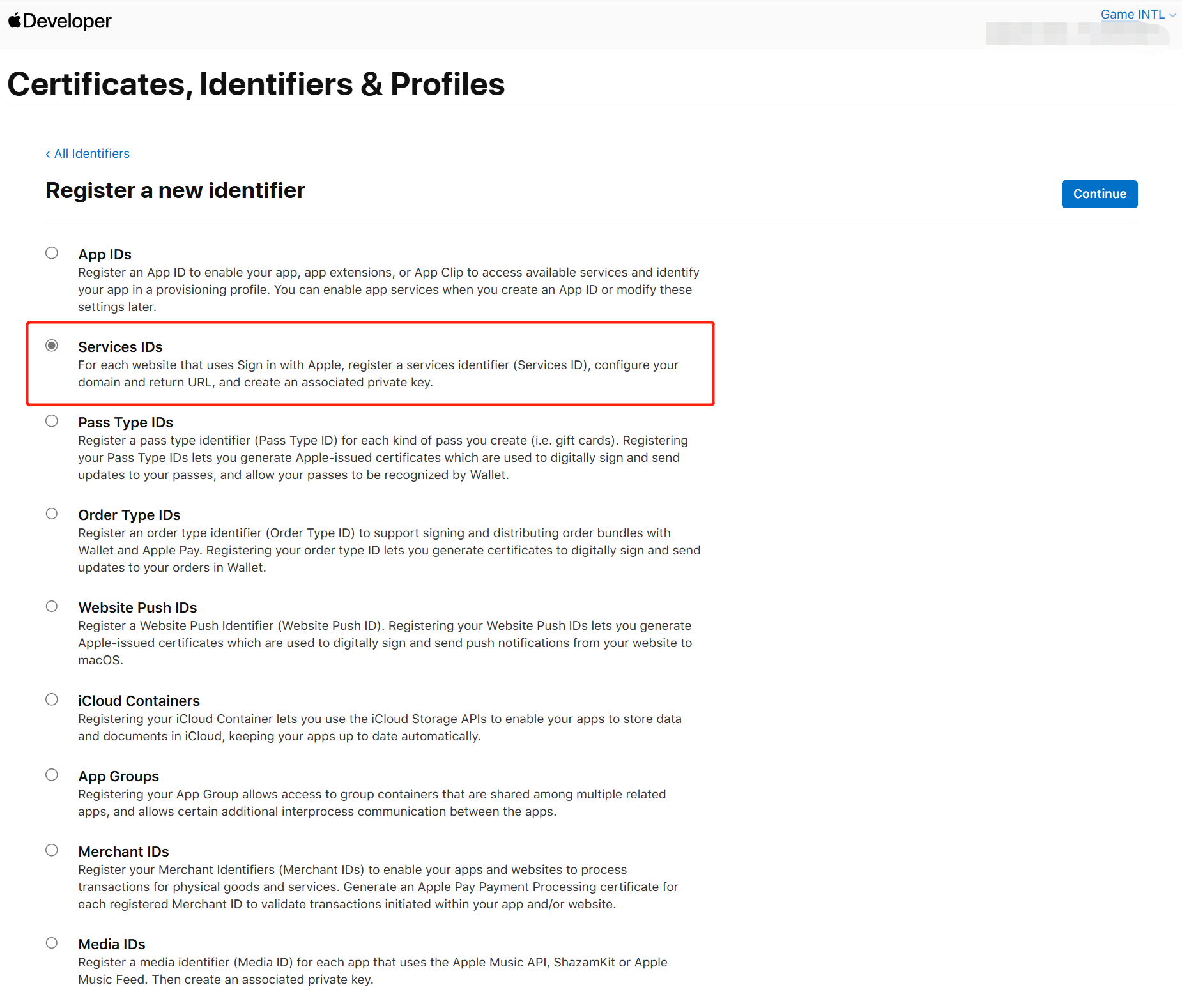
Select Services IDs and click Continue.
-
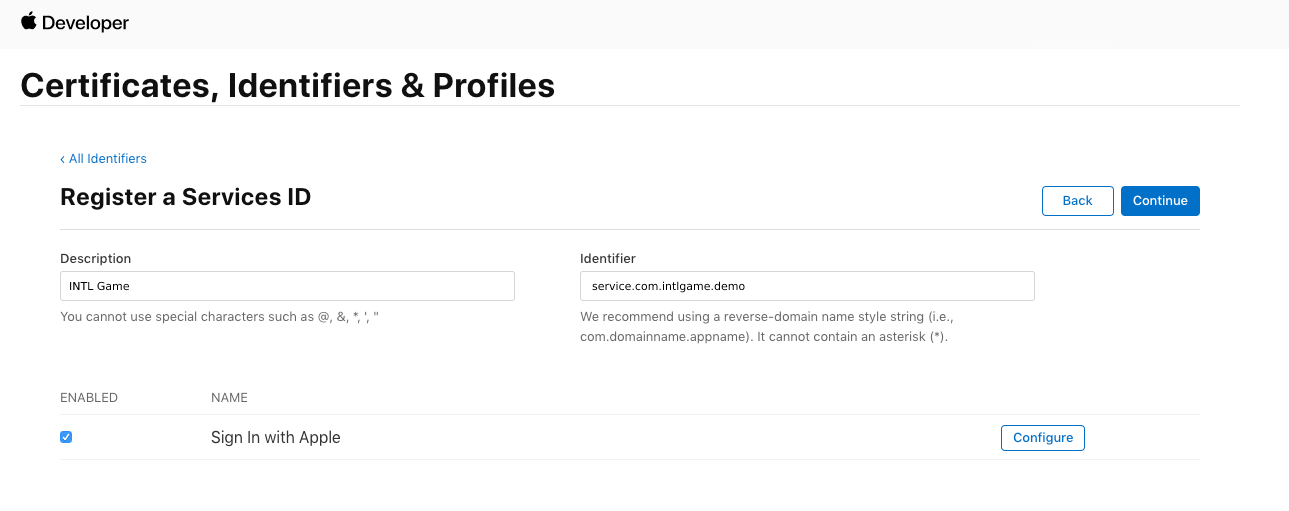
Enter Description and Identifier.
- Description: The name or description of the game application.
- Identifier: Unique identifier.
-
Under Capabilities, open the Sign in with Apple option, then click Configure.
-
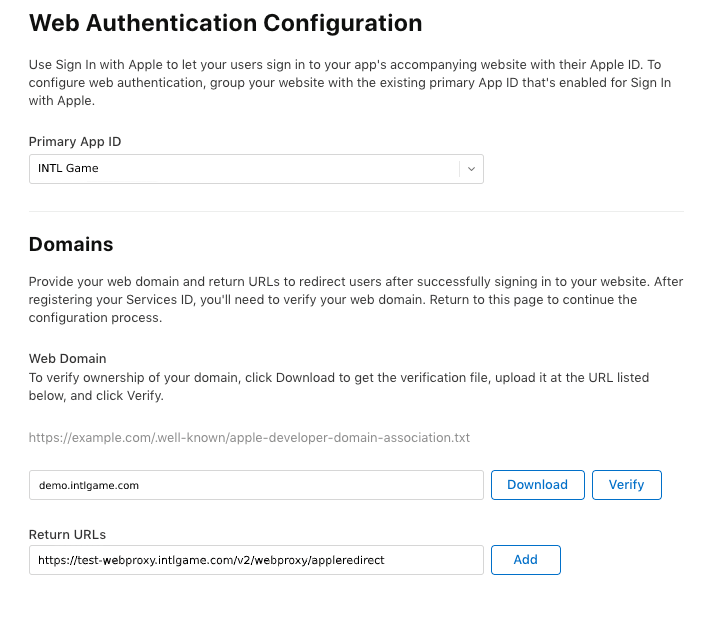
Under Return URLs, add the redirect link provided by Player Network, then click Save.
- North America: https://na-webproxy.intlgame.com/v2/webproxy/appleredirect
- Singapore and other regions: https://sg-webproxy.intlgame.com/v2/webproxy/appleredirect
- Testing: https://test-webproxy.intlgame.com/v2/webproxy/appleredirect
- aws-North America: https://aws-na-webproxy.intlgame.com/v2/webproxy/appleredirect
-
Click Continue > Register to create a Services ID.
2. Create a Key for Accessing Services
Create a key for calculating client_secret and the corresponding Key ID.
-
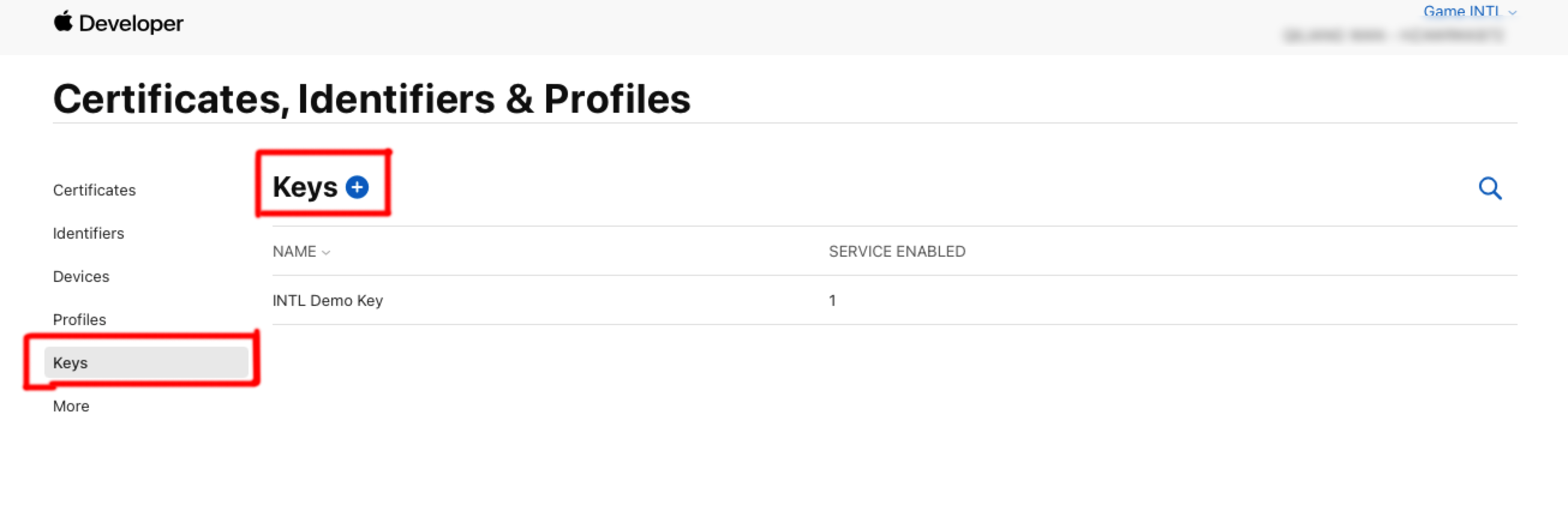
In the Certificates, Identifiers & Profiles sidebar, click Keys.
-
Click the blue add icon (+).
-
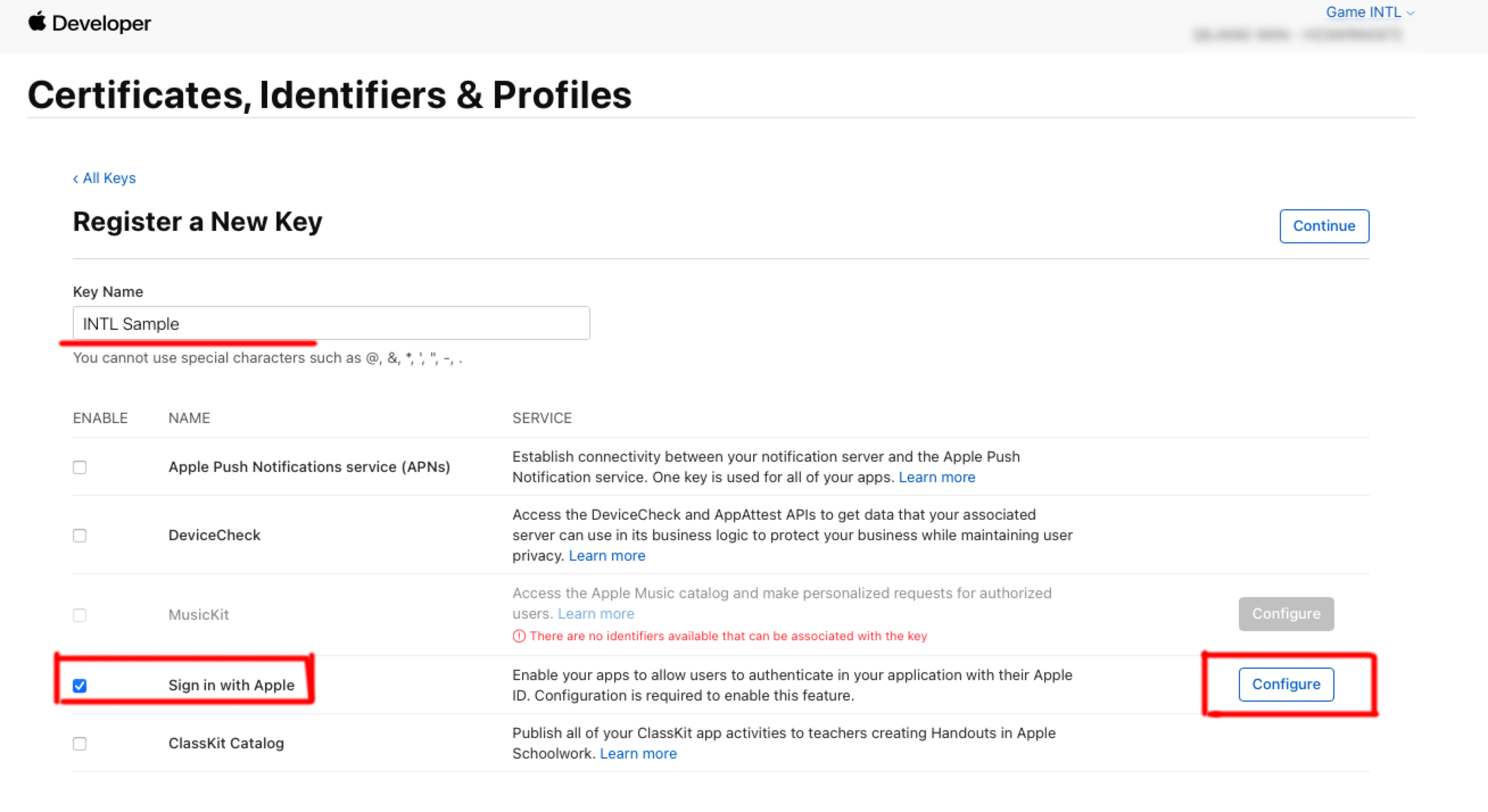
Enter a unique name for the key under Key Name.
-
Select the checkbox next to Sign in with Apple and then click Configure.
-
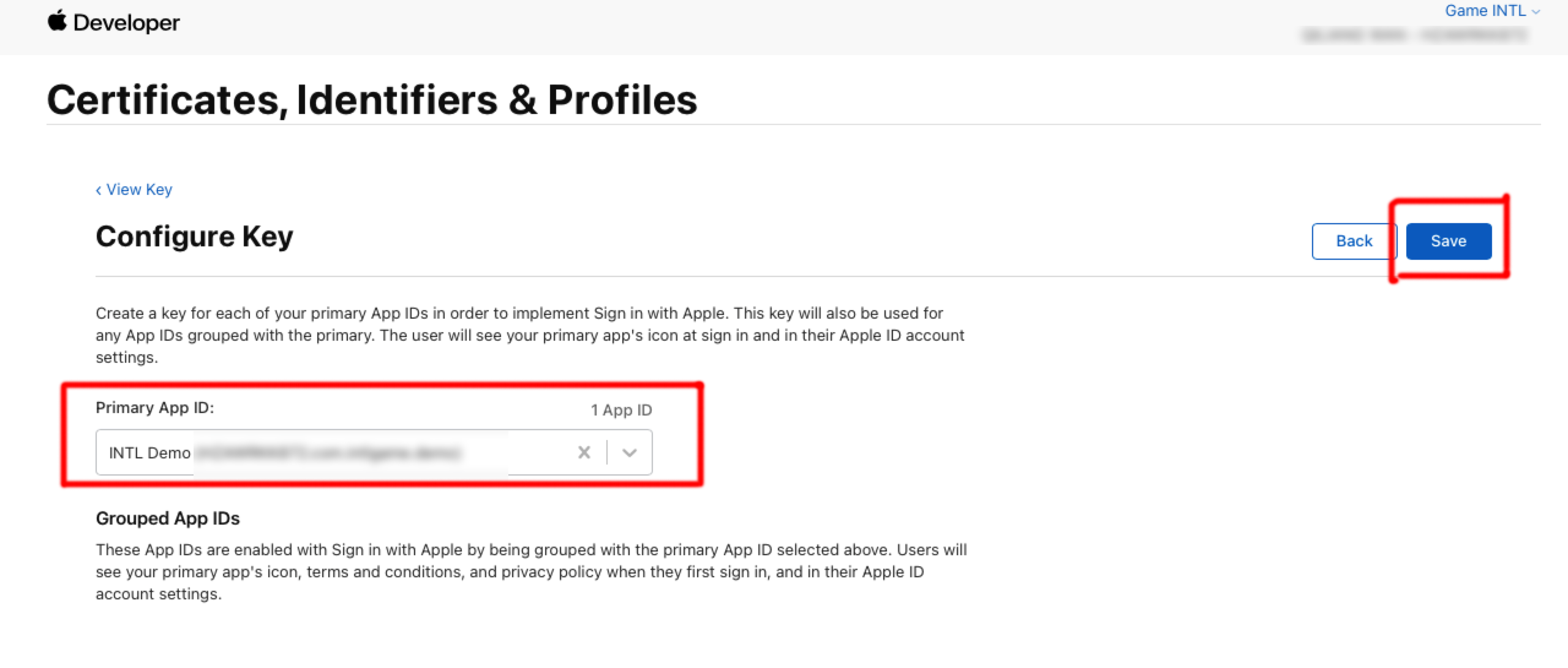
Under Primary App ID, select the App ID created in the previous step, then click Save.
-
Click Continue.
-
Click Register to generate the key, and note down the Key ID.
-
Click Download to download the key file (can only be downloaded once, do not lose it), saved as a text file with a .p8 extension.
3. Obtain Team ID
-
Log in to Apple Developer.
-
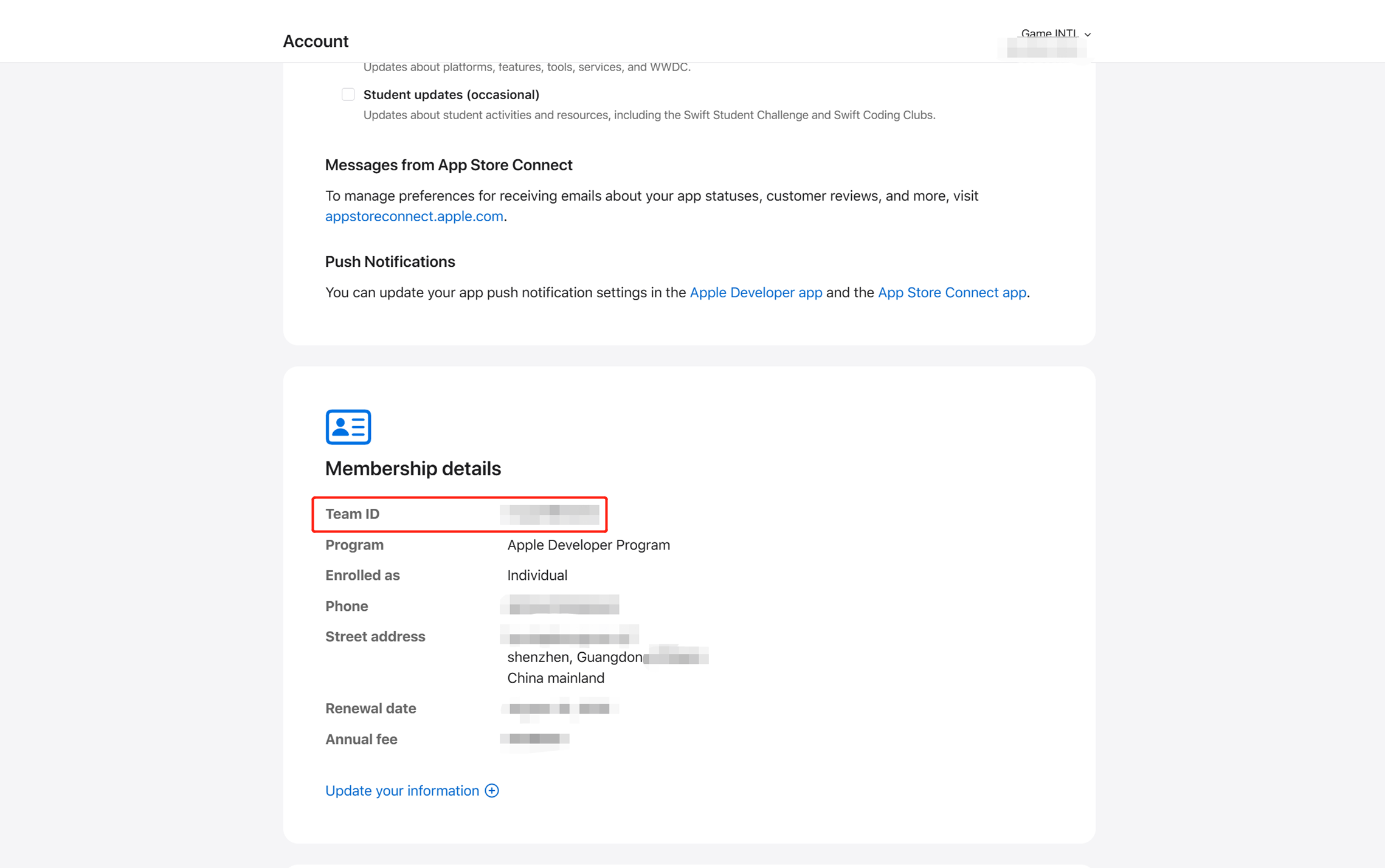
In the top navigation bar, click Account and scroll down to find Membership details to view Team ID.
For more information on Apple Developer configuration, see What the Heck is Sign In with Apple?.
- Obtain Player Network Console login account.
- Create a new project for your game, or join an existing one.
- Download SDK.
- Integrate SDK.
- Add Apple as a login authentication method in Player Network Console.
Step 1: Configure SDK for Apple Login
Open your project's INTLConfig.ini file:
[Apple]
APPLE_WEB_APP_ID = {INTL_APPLE_WEB_APP_ID}
Replace {INTL_APPLE_WEB_APP_ID} with the game's Apple Web APPLICATION ID.
Step 2: Add Apple Login
- Apple login cannot be tested with re-signed packages, it is recommended to use TestFlight or Dev packaging.
- Apple login does not provide
PictureUrl(user avatar URL).For more information, see INTLAuthResult for Unity engine or FINTLAuthResult for Unreal Engine.
Login interface permission parameter passes email and fullName:
- On the first login screen, there are options to edit the username and hide the email (Fig 2).In the callback,
emailandfullNamecan be obtained.- If the player chooses to hide the email, the obtained email will be a random email address.
- If the player chooses to share the email, the user's real email address will be obtained.
- On subsequent logins,
emailandfullNamewill not be obtained, and the login screen (Fig 2) will not have options to edit the username or hide the email. - If the player stops using the app with Apple ID and logs in again, the options shown in Fig 1 will be displayed.
Players can choose Settings > [Your Username] > Password & Security > Use Apple ID > [App Name] > Stop Using Apple ID to stop the app from continuing to use Apple ID login.
When passing an empty string for the login interface permission parameters, the login screen will not have options to edit the username or hide the email (Fig 2).In callback, email and fullName are empty.
Fig 1:

Fig 2: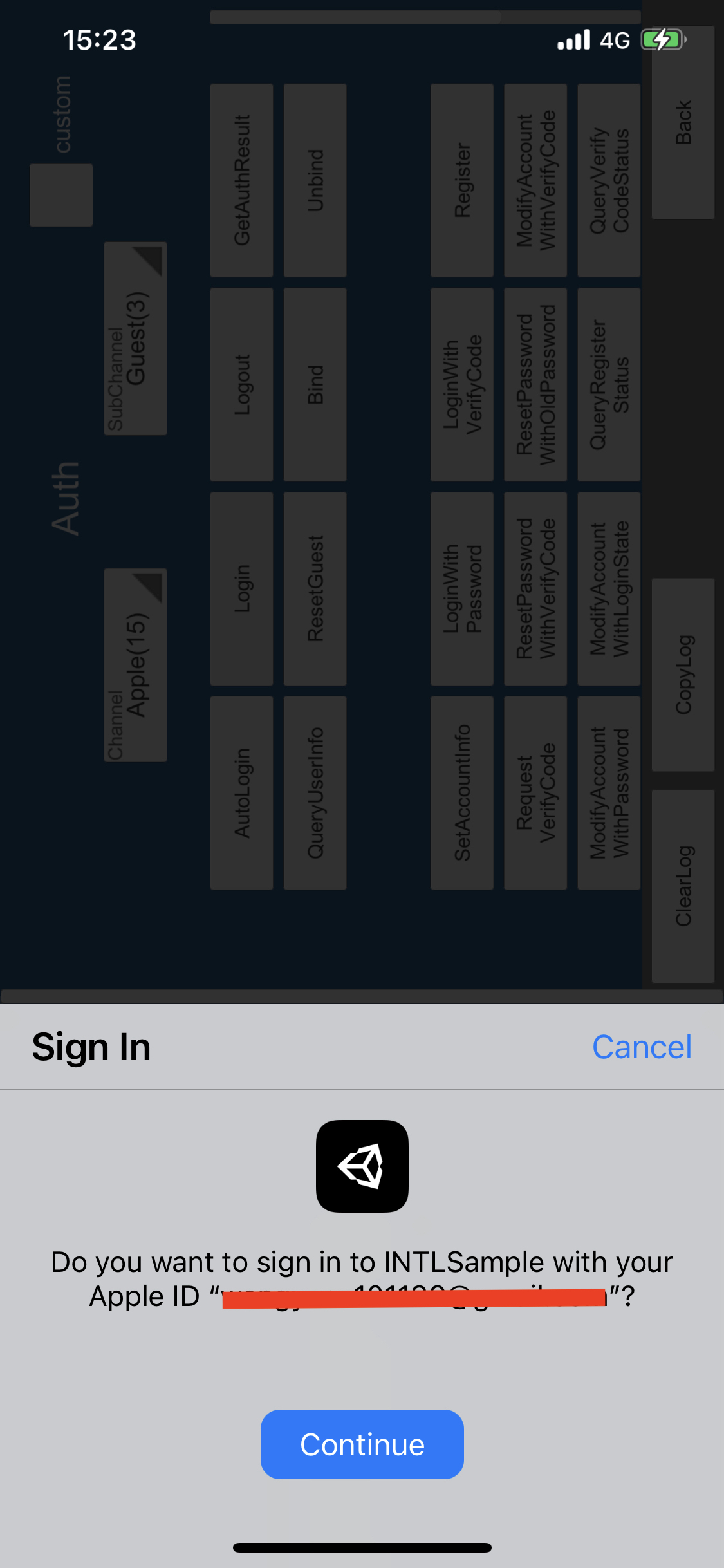
- Register login related callbacks.
- Unity
- Unreal Engine
// Add callbacks
public void AddAuthObserver()
{
 INTLAPI.AddAuthResultObserver(OnAuthResultEvent);
}

// Remove callbacks
public void RemoveAuthObserver()
{
 INTLAPI.RemoveAuthResultObserver(OnAuthResultEvent);
}

// Process the INTLAuthResult callback
public void OnAuthResultEvent(INTLAuthResult ret)
{
 Debug.Log($"MethodID: {ret.MethodId}");

 string methodTag = "";
 if (authRet.MethodId == (int)INTLMethodID.INTL_AUTH_LOGIN)
 {
 methodTag = "Login";
 }
 else if (authRet.MethodId == (int)INTLMethodID.INTL_AUTH_BIND)
 {
 methodTag = "Bind";
 }
 else if (authRet.MethodId == (int)INTLMethodID.INTL_AUTH_AUTOLOGIN)
 {
 methodTag = "AutoLogin";
 }
 else if (authRet.MethodId == (int)INTLMethodID.INTL_AUTH_QUERY_USER_INFO)
 {
 methodTag = "QueryUserInfo";
 }
 else if (authRet.MethodId == (int)INTLMethodID.INTL_AUTH_GET_AUTH_RESULT)
 {
 methodTag = "GetAuthResult";
 }
}
C++ Event Handling (above v1.15)
//configure callback
FINTLAuthEvent authEvent;
authEvent.AddUObject(this, &OnAuthResult_Implementation);
UINTLSDKAPI::SetAuthResultObserver(authEvent);
// Remove callbacks
UINTLSDKAPI::GetAuthResultObserver().Clear();
void OnAuthResult_Implementation(FINTLAuthResult ret)
{
 UE_LOG(LogTemp, Warning, TEXT("MethodID: %d"), ret.MethodId);
}
Unreal Event Handling
void OnAuthResult_Implementation(FINTLAuthResult ret)
{
 UE_LOG(LogTemp, Warning, TEXT("MethodID: %d"), ret.MethodId);
}
- Call the
AutoLoginmethod for automatic login.
- Unity
- Unreal Engine
INTLAPI.AutoLogin();
UINTLSDKAPI::AutoLogin();
- If automatic login fails, call the
Loginmethod to let players log in manually.
- Unity
- Unreal Engine
INTLAPI.Login(INTLChannel.Apple);
UINTLSDKAPI::Login(EINTLLoginChannel::kChannelApple);
- Synchronize client authentication status with the game backend, waiting for final validation results.
[Optional] Set email permission
Apple requires player authorization to obtain player email; if authorization is denied, the player email cannot be obtained. See Passing email and fullName in Login interface for details.
To obtain the player's email during Apple login, set the corresponding permissions first. Once enabled, email is returned in ChannelInfo of AuthResult.
- For compliance considerations, masking of returned
emailfor specific origins can be done. Please contact Player Network Assistant to enable it if needed. - In the background log, you can report the hash of
base64(sha256(email)). Contact Player Network Assistant if needed. - Can be used to verify whether the player's information or the binding list contains
emailinformation. Contact Player Network Assistant if needed.
-
When calling the Login interface, add the
emailpermission in thepermissionsparameter. -
Enable the email return feature in the Player Network Console by setting return_email to YES. For details, see Third-Party Channel Configuration.
Step 3: Acceptance Test for Login Functionality
Search for the keyword "AuthResult" in the Player Network SDK logs to confirm whether the channel name and OpenID are returned correctly.If correct, it means the integration configuration is successful, and login functionality has been successfully added.
If you encounter problems during the integration process, please refer to Frequently Asked Questions.

