Windows
The purpose of this article is to describe how to set up Facebook authentication so that your game can be logged in through the Facebook channel using the Player Network login authentication service.
Prerequisites
1. Configure the app on the Facebook Developer platform
1. Register an Account
Before configuring the platform for your app, sign up for a Facebook developer account and create an app in the Facebook App Dashboard.
-
Register for an account at Facebook and follow the prompts to complete account verification (Email or cell phone verification).
-
Activate a developer account at Meta for Developers.

-
Agree to the agreement and continue.
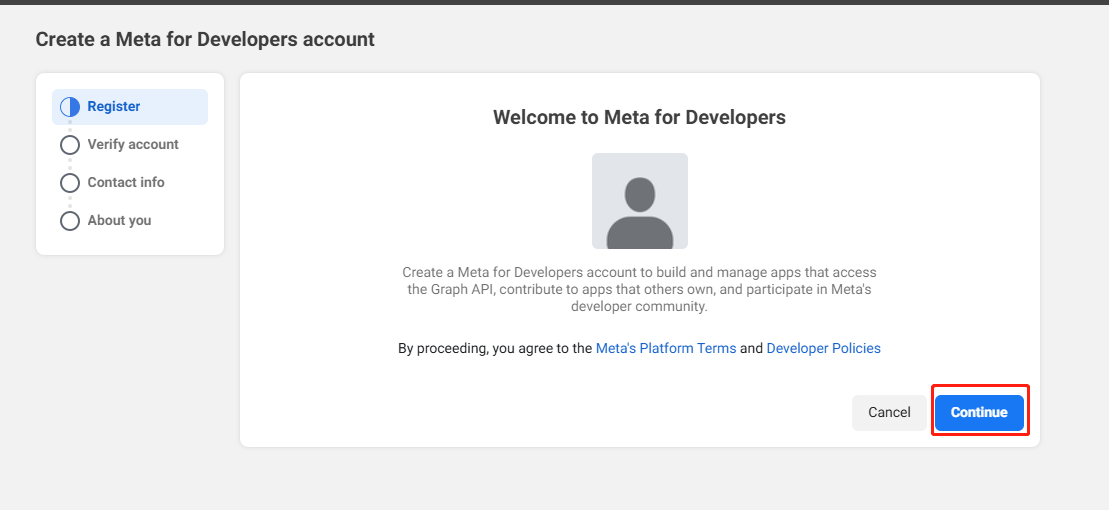
-
Complete the cell phone verification.
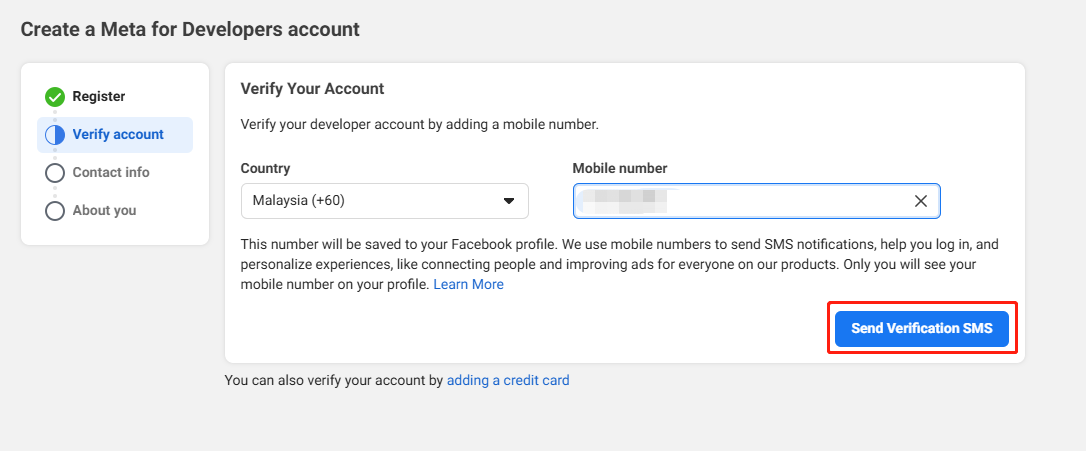
-
Confirm Email.
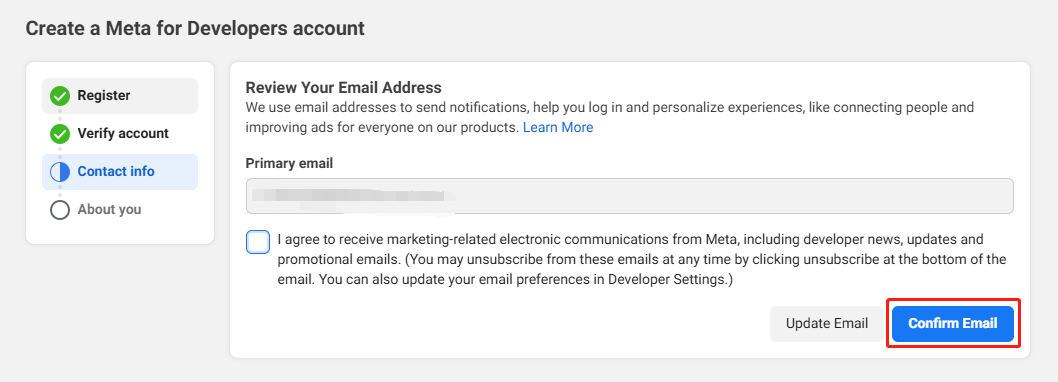
-
Complete the registration.
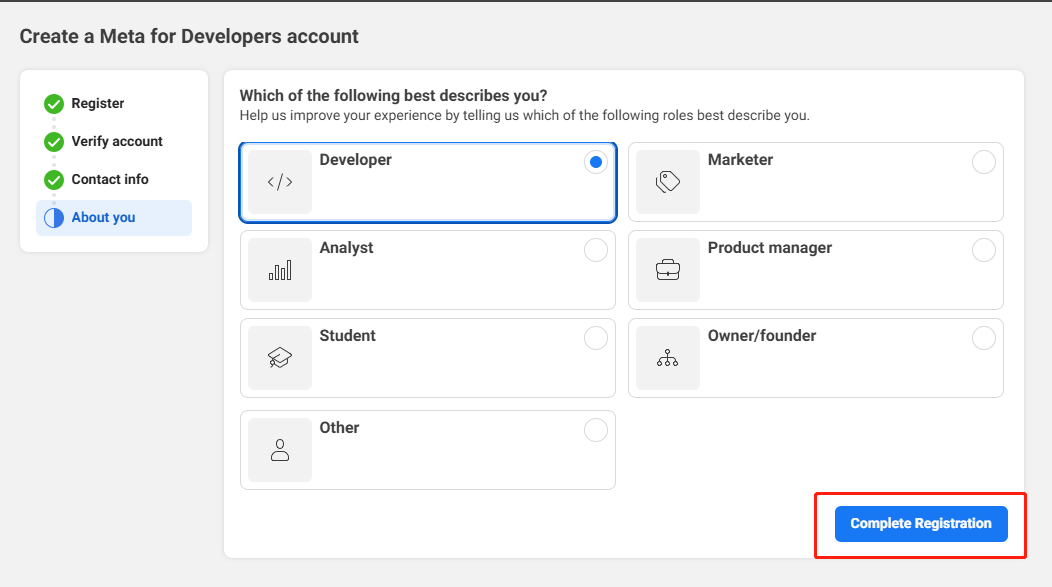
-
Add the Facebook SDK to your project at Meta for Developers.
2. Create an Application
-
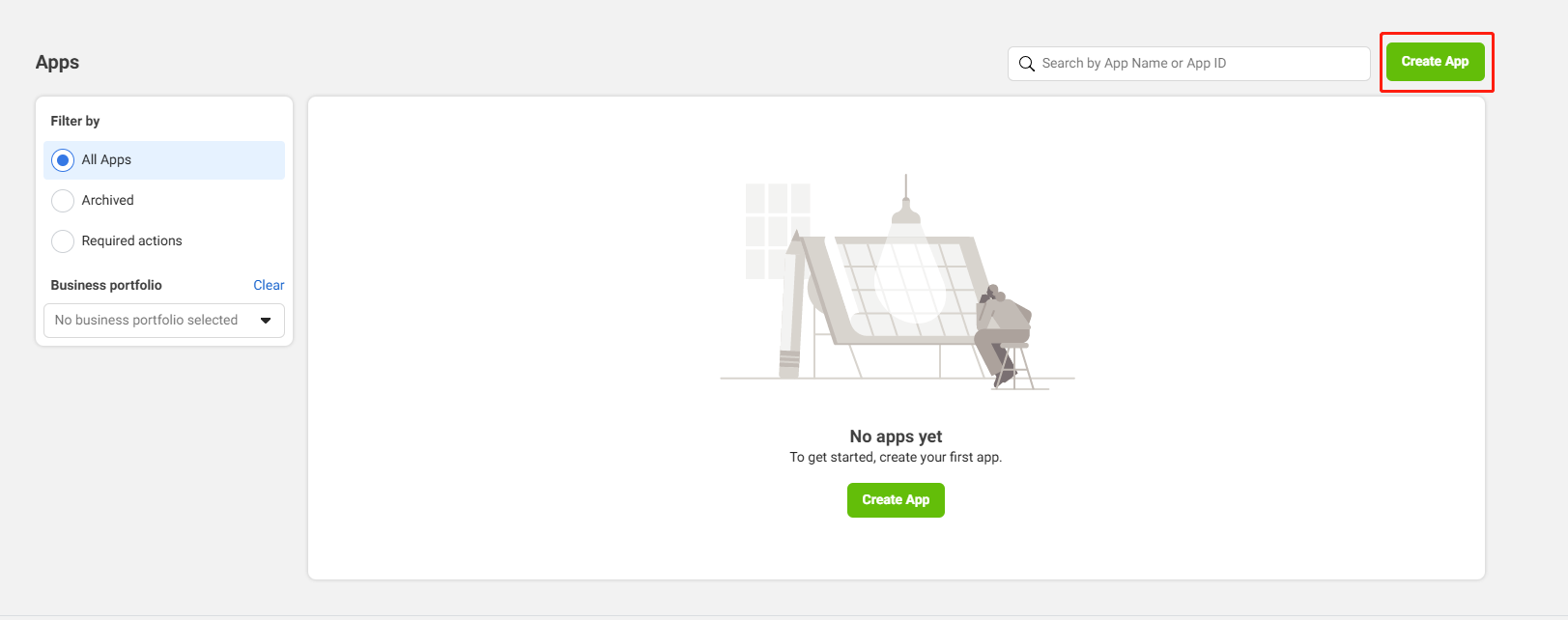
Click Create App in the upper right corner.
-
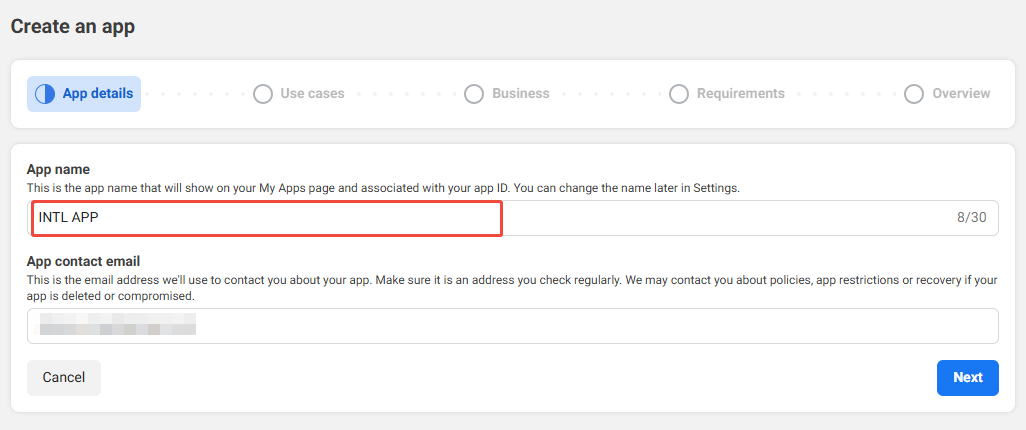
Fill out basic information:
- App name -
FACEBOOK_DISPLAYNAMEin the INTLConfig.ini configuration file. - App contact email - The primary contact email for receiving notifications from Facebook about the app.
- App name -
-
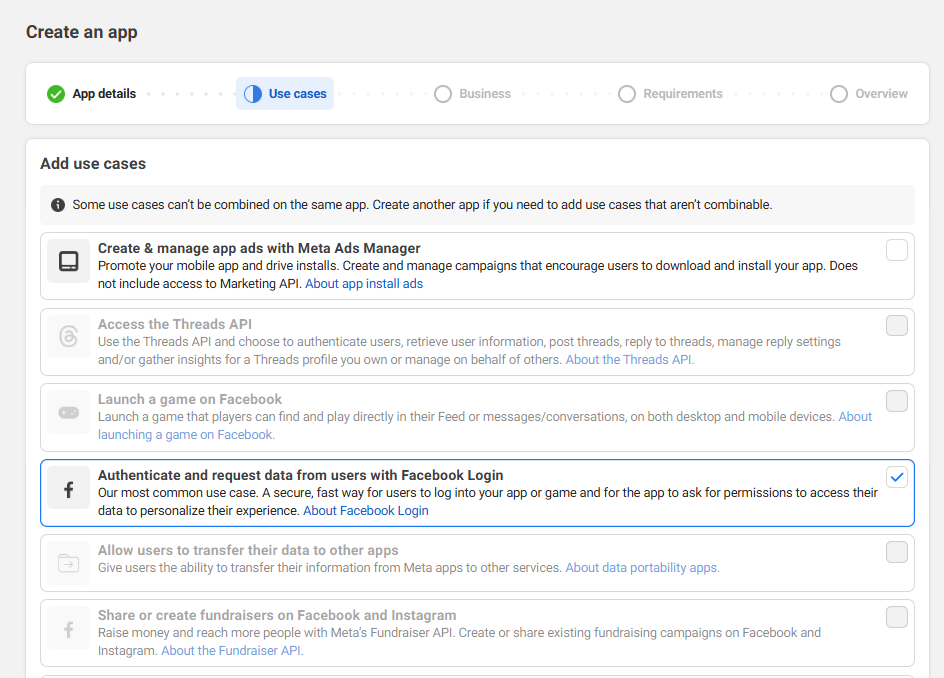
The application type is selected as Authenticate and request data from users with Facebook Login.
-
Select Business and continue to the next step if not shown.

-
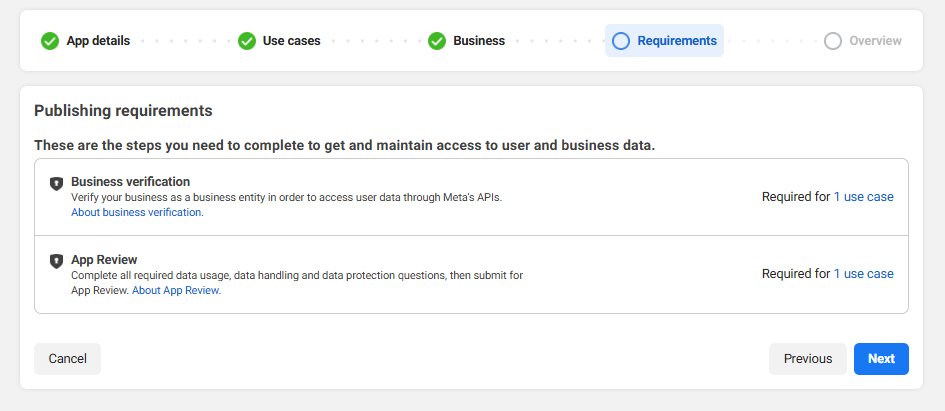
Agreed and continued.
-
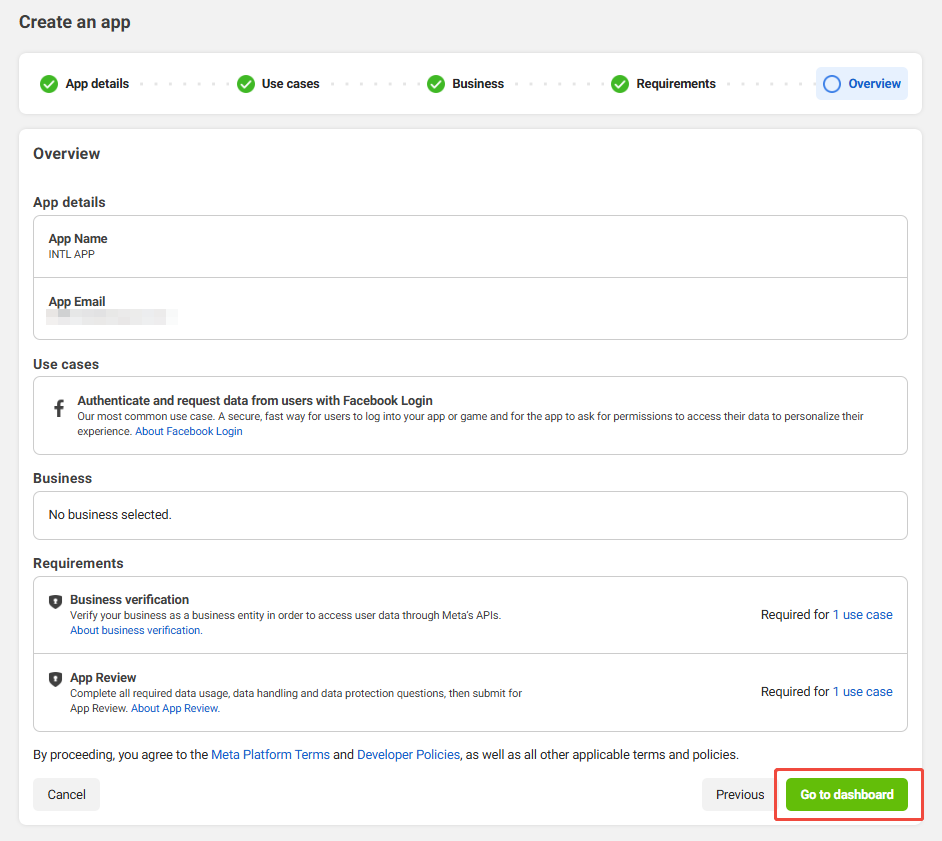
Check the overview, and click Go to Dashboard to complete app creation.
3. Configure Application
Enter the Privacy Agreement URL, User Data Deletion, and Terms of Service URLs according to Facebook specifications.If you do not comply with the Facebook Code, Facebook may disable your app after it is published.
Apps that have been submitted to Facebook can continue to use Facebook Login For Gaming, new apps that have not been submitted can only use Facebook Login.For more information, see Facebook Login For Gaming.
-
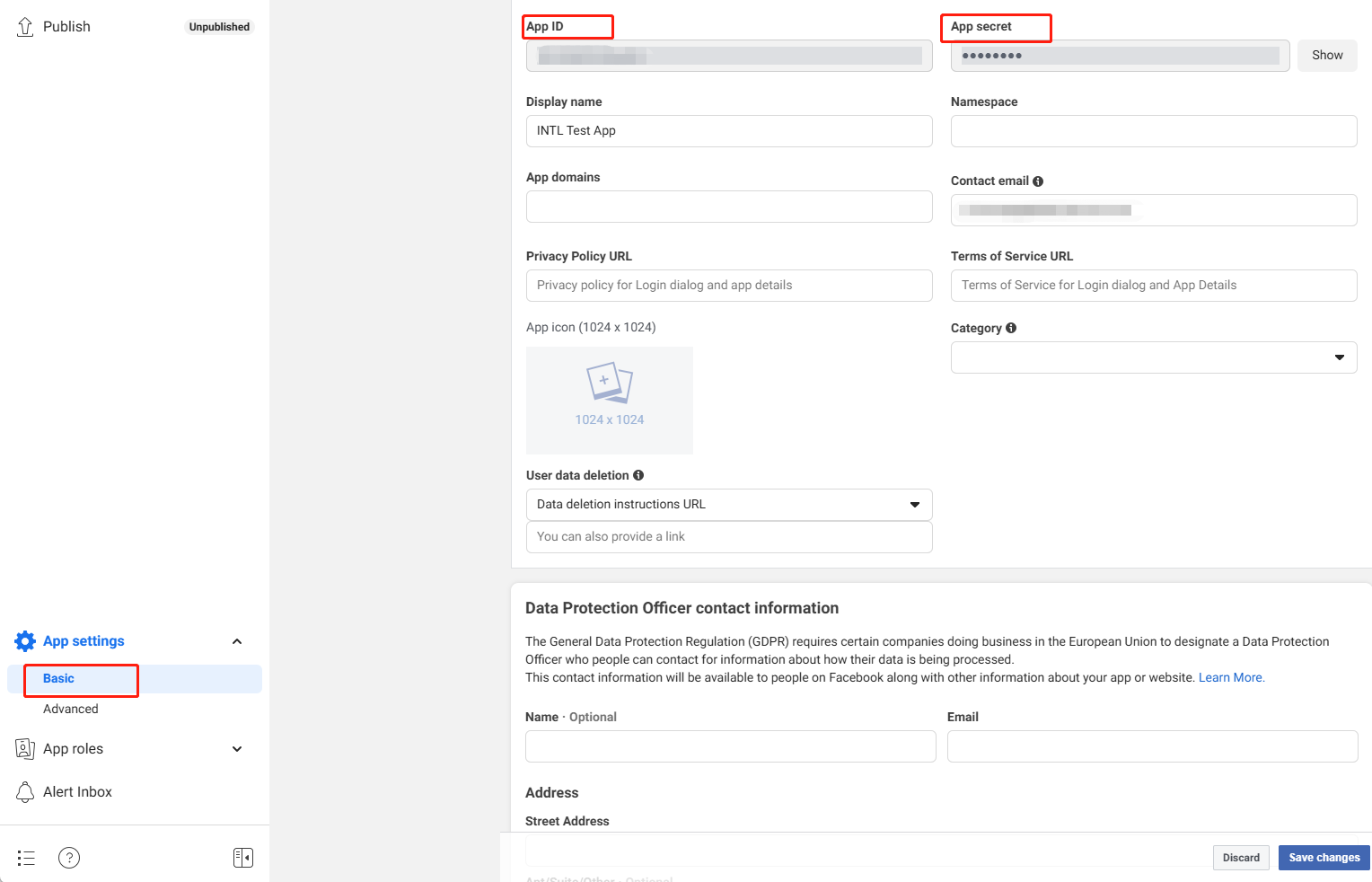
In the left navigation bar, click App Settings > Basic to view basic information about the application, such as App ID and App secret.
-
In the Privacy Policy URL field, enter the URL of the privacy agreement.
-
In the User Data Deletion field, select the Data Deletion Description URL and enter the URL based on the user's data deletion description.
-
In the Terms of Service field, enter the URL of the Terms of Service page.
-
Click Add Platform and select Add Windows Application.

-
Enter the configuration directly, or click Quick Start in the upper right corner of the platform configuration screen to set up the configuration according to the guide.

-
Click Save Changes to save the configuration.
Configuring Facebook Login
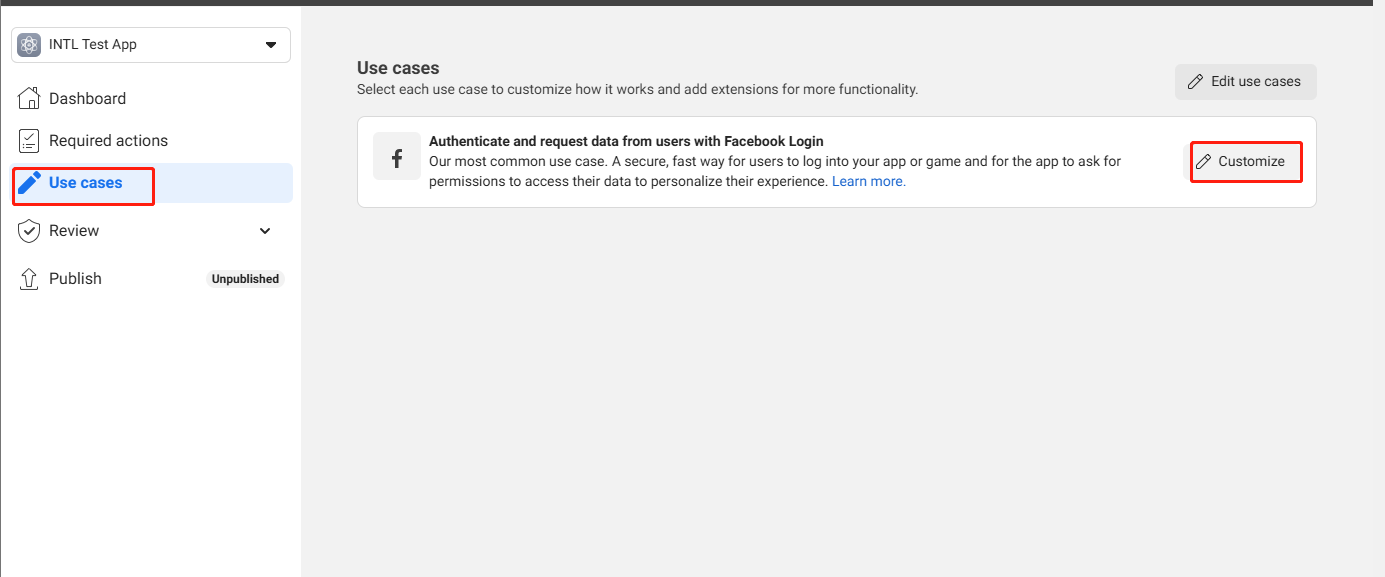
- In the Facebook App Dashboard, click Use cases > Customize.
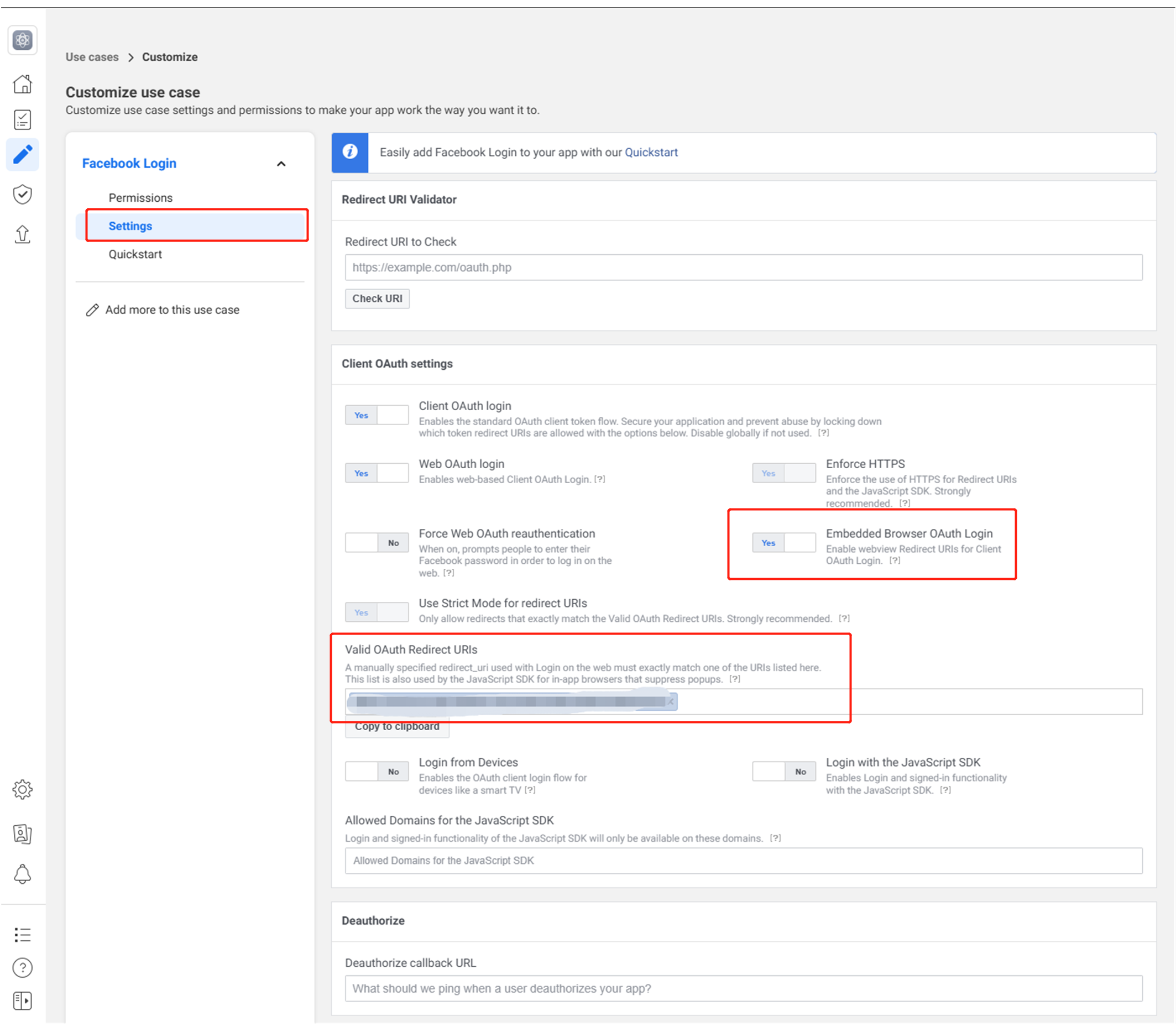
- Under Facebook Login select Settings.
- At Valid OAuth Redirect URIs, fill in
https://common-web.intlgame.com/jssdk/facebooklogincallback.htmlandhttps://test-common-web.intlgame .com/jssdk/facebooklogincallback.html. - In Allowed Domains for the JavaScript SDK, fill in
https://common-web.intlgame.com/andhttps://test-common-web.intlgame.com/. - Open Embedded Browser OAuth Login.
- Click Save changes at the bottom of the page to save the configuration.
4. Adding tester privileges
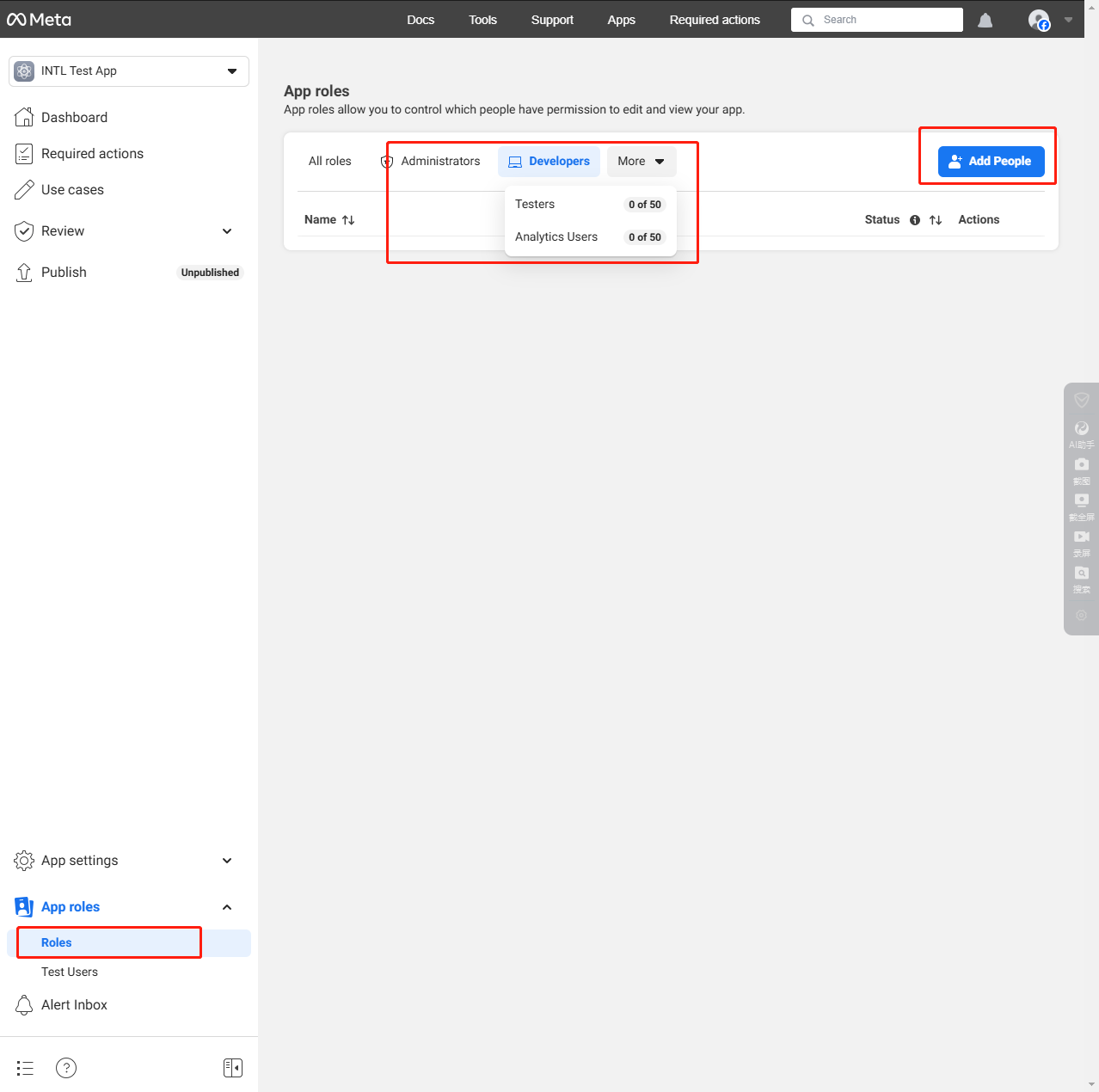
Until the app is released, only test users or users who have been added to a permission list can access Facebook features.
- In the Facebook App Dashboard, click Roles.
- Click Add Administrators/Add Developers/Add Testers to add each role.
5. Completion of Facebook Business Certification
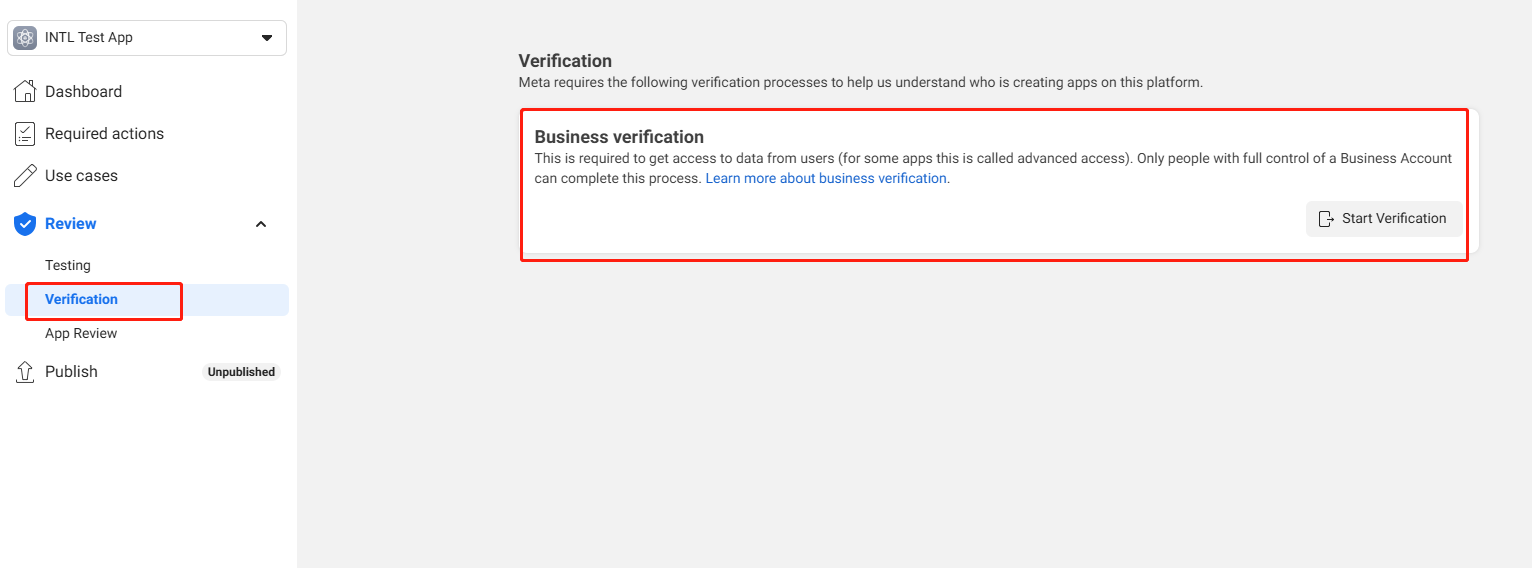
Certain Meta technologies or features require Meta Commerce certification before they can be used.For business accreditation, please contact the Player Network assistant.
- Obtain Player Network Console login account.
- Create a new project for your game, or join an existing one.
- Download SDK.
- Integrate the SDK.
- Add Facebook as a login authentication method for business in the Player Network console.
Step 1:Configure SDK for Facebook Login
Open your project's INTLConfig.ini file:
[INTL environment]
# WARNING: You should change this URL to the production environment when you release your game.
INTL_URL = https://test.intlgame.com
GAME_ID = {INTL_GAME_ID}
SDK_KEY = {INTL_SDK_KEY}
[INTL Log]
LOG_LEVEL = 1
LOG_CONSOLE_OUTPUT_ENABLE = 1
LOG_FILE_OUTPUT_ENABLE = 1
LOG_ENCRYPT_ENABLE = 0
LOG_COMPRESS_ENABLE = 0
[Facebook]
FACEBOOK_WEBVIEW_LOGIN_ENABLE = 0
FACEBOOK_CLIENT_REDIRECT_URL = {INTL_FACEBOOK_CLIENT_REDIRECT_URL}
- Set the SDK backend environment to
INTL_URL = https://test.intlgame.com. - Replace
{INTL_GAME_ID}and{INTL_SDK_KEY}with theGAME_IDandSDK_KEYvalues assigned by the Player Network console. - Set
LOG_LEVEL = 1,LOG_CONSOLE_OUTPUT_ENABLE = 1,LOG_FILE_OUTPUT_ENABLE = 1,LOG_ENCRYPT_ENABLE = 0andLOG_COMPRESS_ENABLE = 0to output console logs and log files without encrypting or compressing the output without encrypting or compressing the output. - Sets the value of
FACEBOOK_WEBVIEW_LOGIN_ENABLE.The default value is 0, which means that the Windows platform uses the system browser to log in.If the user sets this value to 1, the Windows platform will use WebView login. - Replace
{INTL_FACEBOOK_CLIENT_REDIRECT_URL}with the page you are redirected to after logging in.
If FACEBOOK_WEBVIEW_LOGIN_ENABLE in INTLConfig is set to 1, integration of the INTLWebView plugin is required, otherwise the login will not succeed.
Step 2:Add Facebook Login
Using a browser login returns data to the system using the loopback IP address.There is no need to configure Windows Firewall because the data does not leave the system and does not need to pass through Windows Firewall.
Games on the Windows platform that require the player to sign in via Facebook require a Facebook sign-in page.Developers can open the web client for login in two ways:
- To open a Facebook login page using the Player Network SDK's built-in WebView, set
extraJsonto"webview_login":truewhen calling the login API. - To open the Facebook login page using a system browser, set
extraJsonto"webview_login":falsewhen calling the login API.
In addition to this, developers can configure the default way to open Facebook login pages by using the FACEBOOK_WEBVIEW_LOGIN_ENABLE value in the INTLConfig configuration file.
Player Network also supports "Sign in to the Gaming Platform using Facebook".For more information, see the [Technical Implementation] (https://developers.facebook.com/docs/games/acquire/login-for-gaming#technical-implementation) section of the official Facebook documentation.
- Register login-related callbacks.
- Unity
- Unreal Engine
// Add callbacks
public void AddAuthObserver()
{
    INTLAPI.AddAuthResultObserver(OnAuthResultEvent);
}

// Remove callbacks
public void RemoveAuthObserver()
{
    INTLAPI.RemoveAuthResultObserver(OnAuthResultEvent);
}

// Process the INTLAuthResult callback
public void OnAuthResultEvent(INTLAuthResult ret)
{
    Debug.Log($"MethodID: {ret.MethodId}");

    string methodTag = "";
    if (authRet.MethodId == (int)INTLMethodID.INTL_AUTH_LOGIN)
    {
        methodTag = "Login";
    }
    else if (authRet.MethodId == (int)INTLMethodID.INTL_AUTH_BIND)
    {
        methodTag = "Bind";
    }
    else if (authRet.MethodId == (int)INTLMethodID.INTL_AUTH_AUTOLOGIN)
    {
        methodTag = "AutoLogin";
    }
    else if (authRet.MethodId == (int)INTLMethodID.INTL_AUTH_QUERY_USER_INFO)
    {
        methodTag = "QueryUserInfo";
    }
    else if (authRet.MethodId == (int)INTLMethodID.INTL_AUTH_GET_AUTH_RESULT)
    {
        methodTag = "GetAuthResult";
    }
}
C++ Event Handling (above v1.15)
//configure callback
FINTLAuthEvent authEvent;
authEvent.AddUObject(this, &OnAuthResult_Implementation);
UINTLSDKAPI::SetAuthResultObserver(authEvent);
// Remove callbacks
UINTLSDKAPI::GetAuthResultObserver().Clear();
void OnAuthResult_Implementation(FINTLAuthResult ret)
{
    UE_LOG(LogTemp, Warning, TEXT("MethodID: %d"), ret.MethodId);
}
Unreal Event Handling
void OnAuthResult_Implementation(FINTLAuthResult ret)
{
    UE_LOG(LogTemp, Warning, TEXT("MethodID: %d"), ret.MethodId);
}
- Call the
AutoLogininterface to log in automatically.
- Unity
- Unreal Engine
INTLAPI.AutoLogin();
UINTLSDKAPI::AutoLogin();
-
If automatic login fails, call the
Logininterface to let the player log in manually.- General Facebook Login
- Unity
- Unreal Engine
// taking Facebook as example
INTLAPI.Login(INTLChannel.Facebook);
// taking Facebook as example
UINTLSDKAPI::Login(EINTLLoginChannel::kChannelFacebook);
-
Sign in to the Gaming Platform with Facebook
Call the
Logininterface with the following parameters to get a Facebook social avatar.For more information, see Requesting a User's Avatar.
- Unity
- Unreal Engine
// Add a `gaming_user_picture` permission to the original permissions string, something like this:`"email,public_profile,gaming_user_picture"`
public static void Login(string channel, string permissions = "gaming_profile,gaming_user_picture", string extraJson = "{}");
// Add a `gaming_user_picture` permission to the original permissions string, something like this:`"email,public_profile,gaming_user_picture"`
UFUNCTION(BlueprintCallable, Category = "INTLSDKAPI") static bool Login( const EINTLLoginChannel Channel, const FString Permissions = "gaming_profile,gaming_user_picture") Category = "INTLSDKAPI")
static bool Login(
const EINTLLoginChannel Channel,
const FString Permissions = "gaming_profile,gaming_user_picture",
const FString ExtraJson = "{}");
- Synchronize client authentication status with the game backend and wait for the final verification result.
Cancel Login
On the Windows platform, when logging into a three-way channel using the system browser, if the user closes the login screen, the game will not receive the cancel login message in a timely manner.The game triggers the timeout callback only when the login times out.
To solve the above problem, it is recommended that a cancel login button be added to the login screen when logging in using the system browser.Users can actively cancel the login operation by clicking this button.In this case, the game needs to call the CancelLogin interface of the Player Network SDK to ensure that it can respond in a timely manner if the user actively cancels the login.
- Unity
- Unreal Engine
INTLAPI.CancelLogin(INTLChannel.Facebook);
UINTLSDKAPI::CancelLogin(EINTLLoginChannel::kChannelFacebook);
[Optional] Set email permission
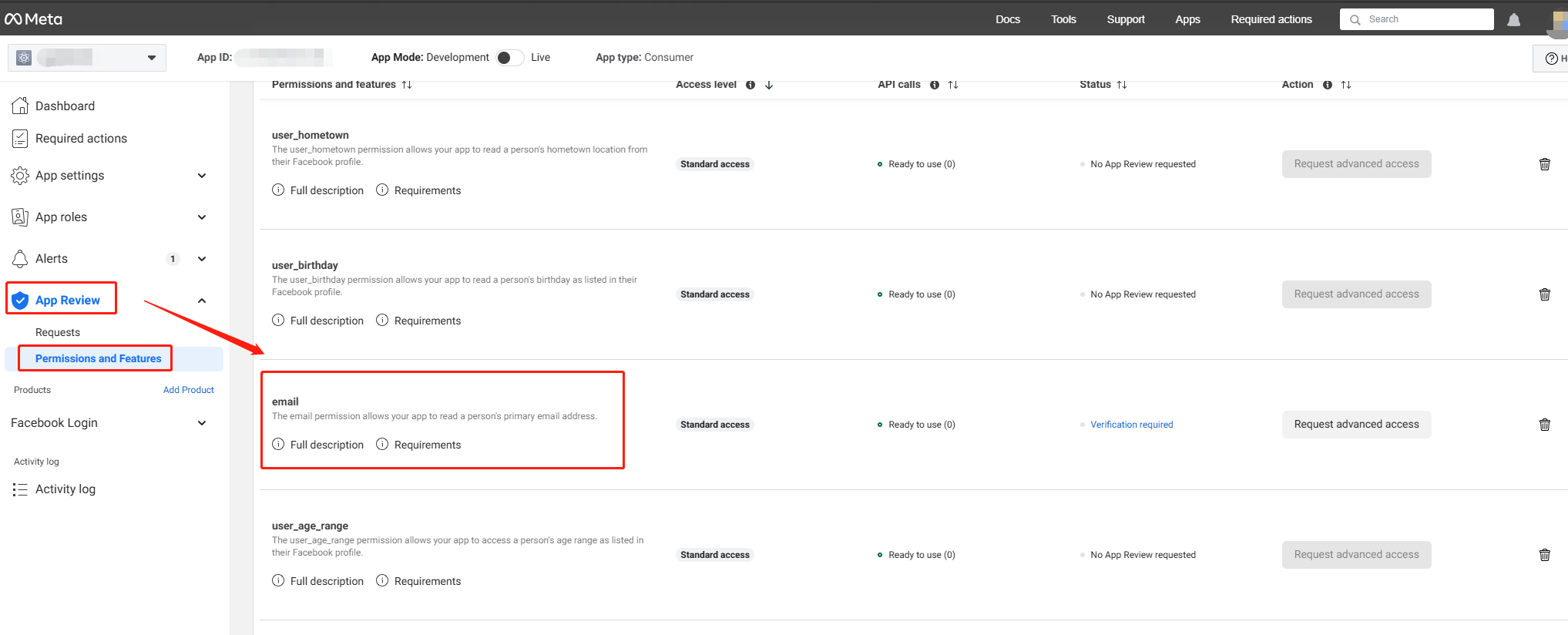
To get the player's email when logging in to Facebook, you need to set the permission, which will return email in the ChannelInfo of the AuthResult when it's enabled.
- For compliance considerations, masking of returned
emailfor specific origins can be done. Please contact Player Network Assistant to enable it if needed. - In the background log, you can report the hash of
base64(sha256(email)). Contact Player Network Assistant if needed. - Can be used to verify whether the player's information or the binding list contains
emailinformation. Contact Player Network Assistant if needed.
-
Configure email permission on Meta for Developers.email permission requires Advanced Access Level to allow all apps to obtain the player's email.
-
When calling the Login interface, add the
emailpermission in thepermissionsparameter.The Player Network SDK will addemailpermissions if thepermissionsparameter is not passed or is empty when calling theLogininterface. -
Enable the email return feature in the Player Network Console by setting return_email to YES. For details, see Third-Party Channel Configuration.
Step 3: Acceptance testing for login functionality
Search for the keyword "AuthResult" in the Player Network SDK logs to confirm whether the channel name and OpenID are returned correctly.If correct, it means the integration configuration is successful, and login functionality has been successfully added.
If you encounter problems during the integration process, please refer to Frequently Asked Questions.

