PS5
This document introduces how to set up PS5 authentication, allowing your game to use Player Network's login authentication service to sign in via the PS5 channel.
PS5 development is generally not open to individual developers; PS5 development rights must be granted by Sony through a business contact with your company.
Prerequisites
1. Set up your game in PlayStation5 DevNet
Apply for Client ID and Client Secret
After becoming a developer, you need to register the corresponding game application in PlayStation5 DevNet.
-
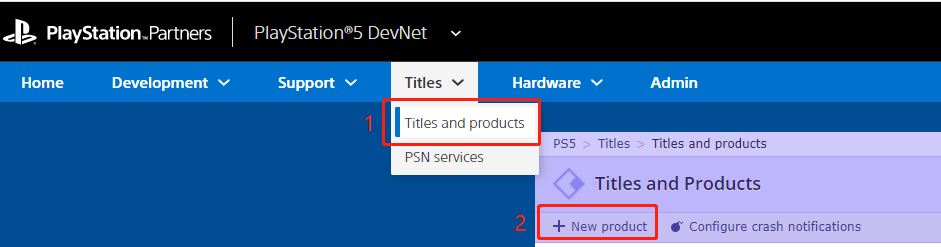
On PlayStation5 DevNet, click Titles > Titles and products at the top of the page to open the Titles and Products page.
-
Click New product at the top left of the page.
-
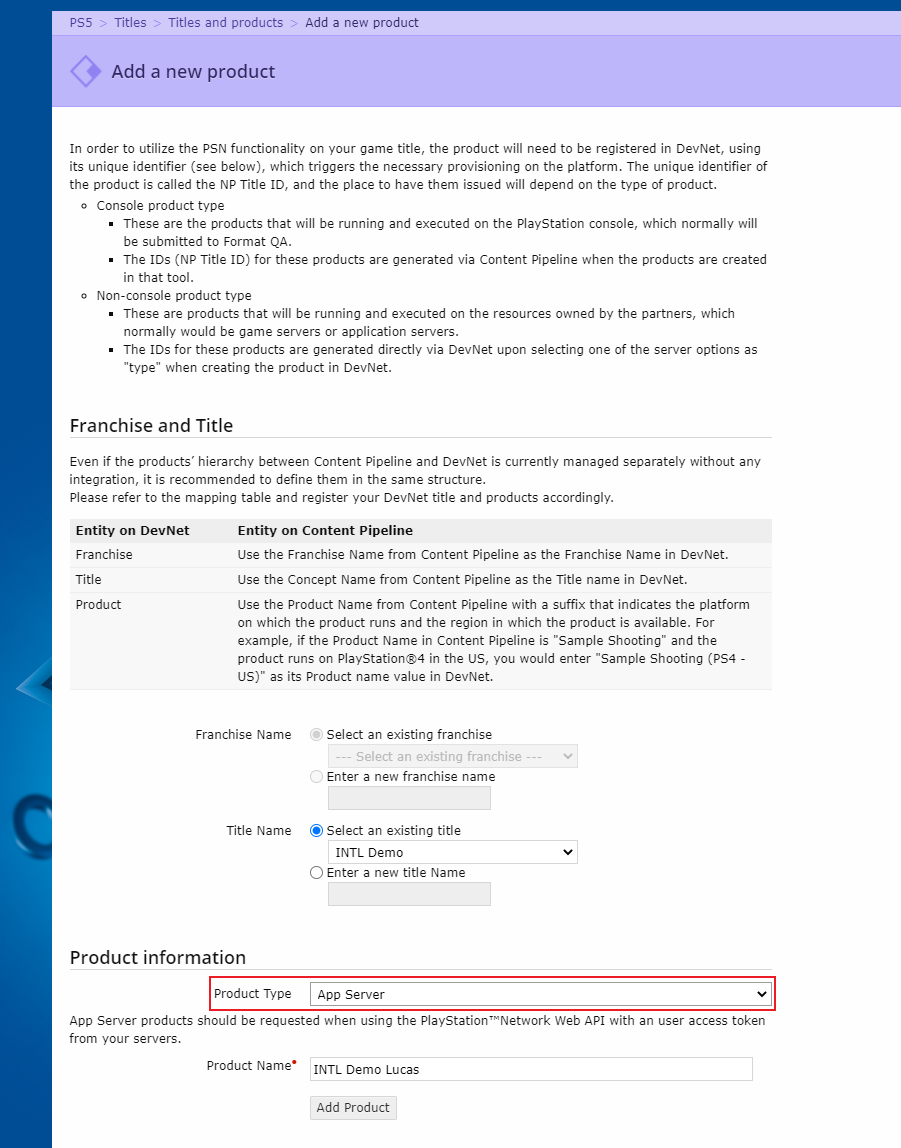
In the Add a new product popup, enter the basic product information.
Select App Server as the Product type.
-
Click Add Product to add a new product.
The Add a New Service page will appear after the product is added successfully. -
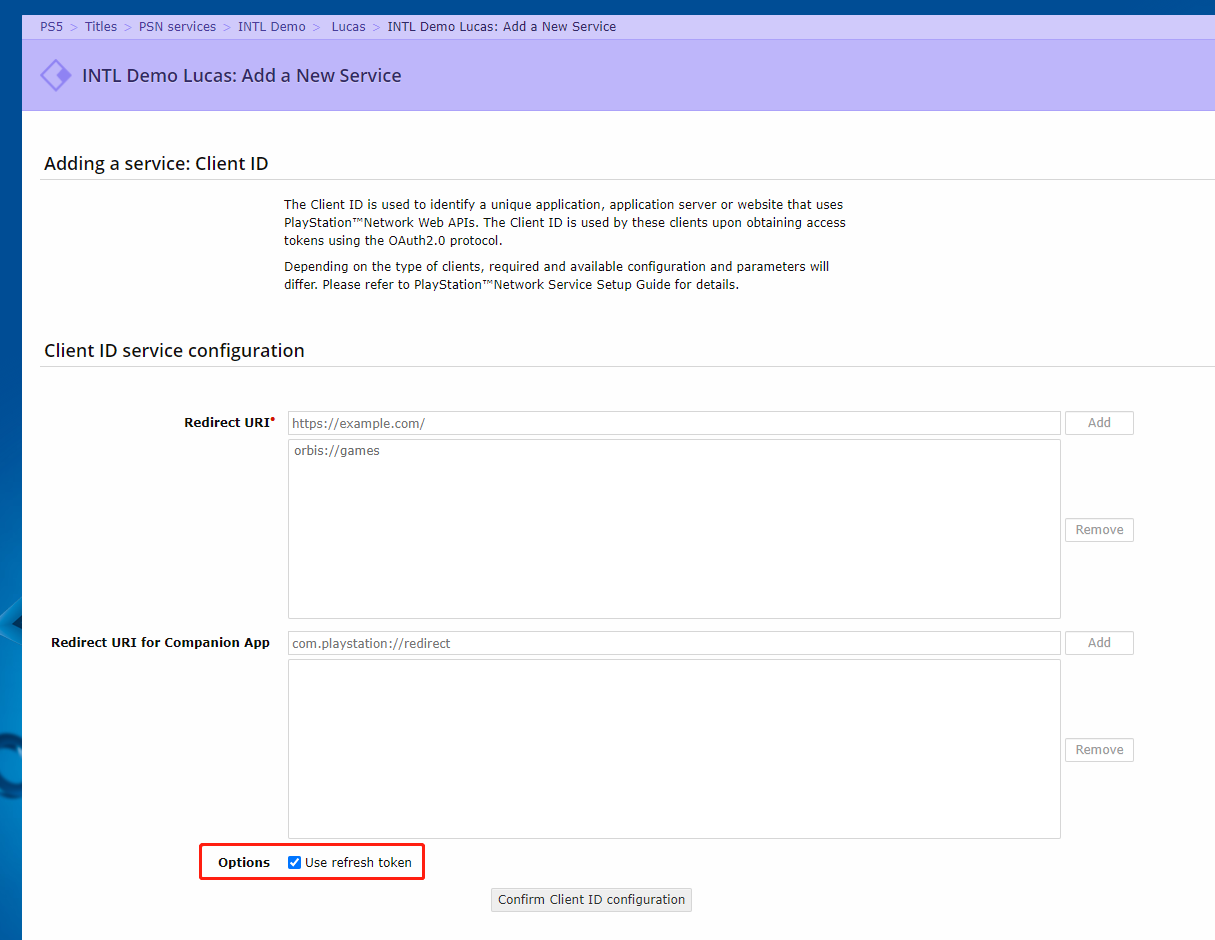
Since Player Network SDK uses refresh token to update the PS5 token, check the use refresh token option on the Client ID service configuration page.
-
Click Confirm Client ID configuration.
The Client ID service configuration page will be refreshed to confirm the Client ID information. -
Click Request Client ID to complete the new product registration process.
Sony needs time to create the product.After backend processing is completed, the page for the registered product will be displayed.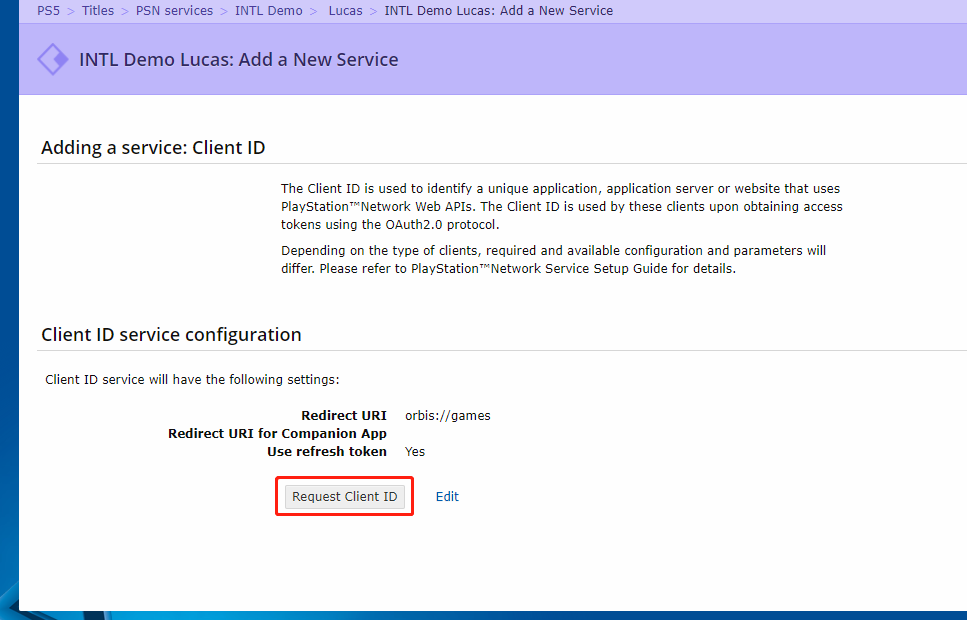
-
Click Download Client Secret to download the product's
Client Secret.Send theClient IDandClient Keyto Player Network for backend configuration.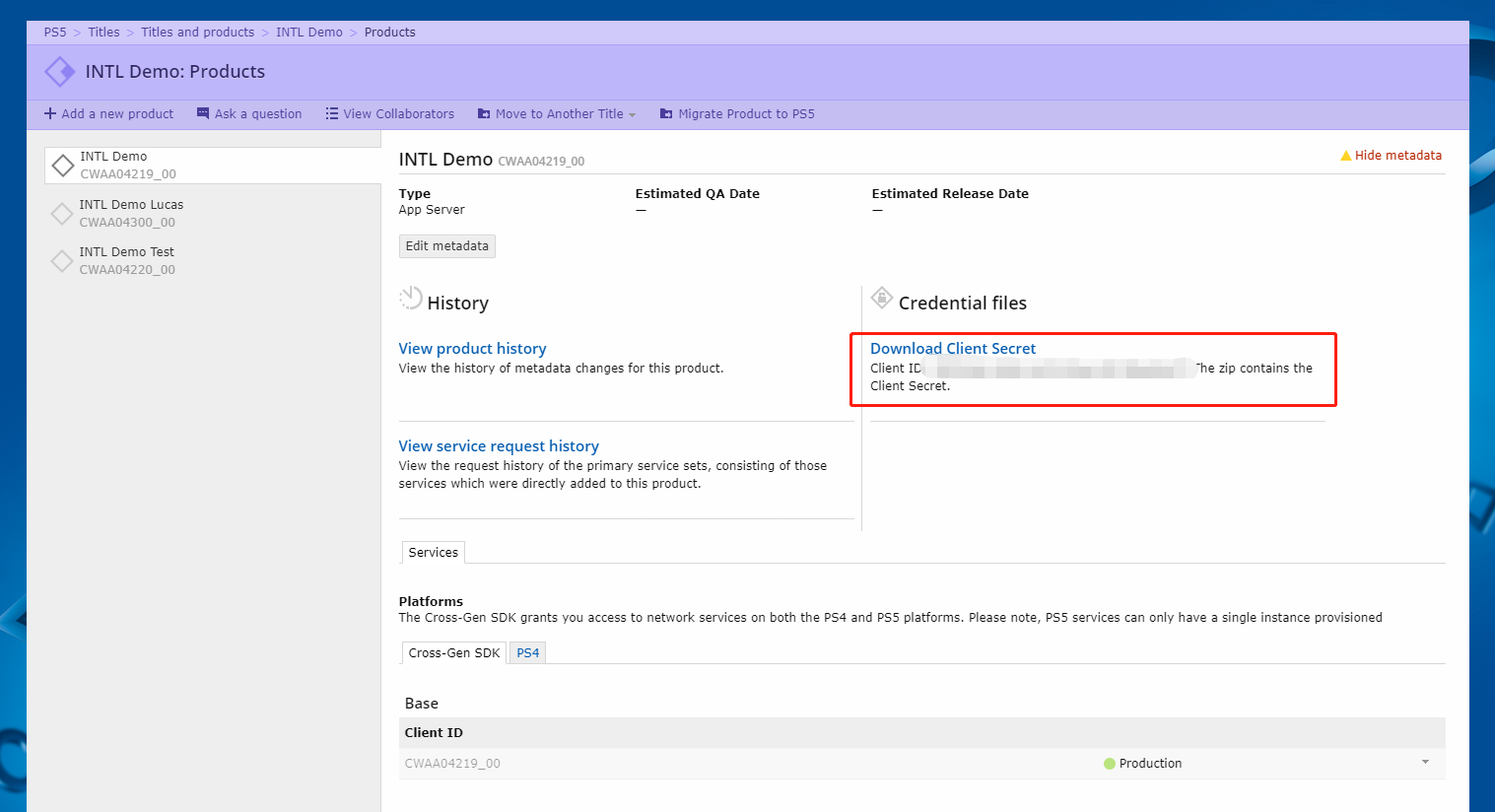
[Optional] Enable DUID
DUID (Device Unique ID) is a unique ID that identifies PS5 devices, unrelated to the login user.To use DUID, you need to enable the permission. The game must manually submit a ticket application to enable it:
https://game.develop.playstation.net/support/newissue/gdtg-tokyo
Starting from Player Network SDK V1.22, Player Network supports obtaining DUID.If your game has enabled DUID permission, you can obtain DUID through the GetDeviceInfo API.
- Obtain Player Network Console login account.
- Create a new project for your game, or join an existing one.
- Download SDK.
- Integrate the SDK.
- Add PS5 as a login authentication method in Player Network Console.
Step 1: Configure the SDK for PS5 login
Configure the PS5_CLIENT_ID field in the INTLConfig.ini file using the Client ID obtained from PlayStation5 DevNet.
Player Network SDK will obtain DUID by default. If your game does not need to use DUID, you can disable it by changing the INTL_PS5_DUID_ENABLE field.For more details, see Enable DUID.
[INTL PS5]
PS5_CLIENT_ID = {INTL_PS5_CLIENT_ID}
INTL_PS5_DUID_ENABLE = 0 //1: Enable DUID, 0: Disable DUID
Step 2: Add PS5 login
PS5 Account Service
The PS5 system software allows multiple users to log into the system simultaneously and makes it easy to create multiplayer games.PlayStation divides games into three types based on the number of players: local single-player login games, local multiplayer login games, and games that require users to take turns playing if the number of local logins exceeds the number of controllers.
For local single-player login games, you do not need to handle complex PS account login flows. You can mark the initial user who launched the game as the current game's login user.If a user wants to switch their account to log into the game, the current account must be logged out and the game application restarted.
Currently, Player Network SDK only supports local single-player games.
Login permissions
PS5 game login will call the Login interface or the Player Network SDK's LoginWithMappedChannel method.When logging in to the game, you need to fill in the scope for obtaining player information in the permissions field.Scope specifies the range of player information that the server can obtain.
It is recommended to use psn:s2s openid id_token:psn.basic_claims for scope.
PS5 Configuration
To ensure Player Network SDK functions properly, set the following in param.json:
-
Since Player Network SDK supports single-player login, please ensure the
InitialUserAlwaysLoggedInflag is turned on. -
Since download data area is used to save data, set
downloadDataSizeto at least 1MB.
Obtain the user ID within the PS5 system
After a successful login, Unity's INTLAuthResult and UE's FINTLAuthResult data structures will provide userId in the ChannelInfo.
"{\"code\":\"v3.g21b1B\",\"issuerId\":1,\"userId\":281231663,\"map_info\":{\"sacc_uid\":\"56908591234\",\"sacc_token\":\"3RY3JXA2nT9gJlsi5J8S7SKklLQ@1U_ILn1234563ejYPBzH1o81OYAJNXsgVSSZCkwYjl_m1nOF6ZwfUzHalw==\",\"sacc_account_plat_type\":25},\"access_token\":\"d6013ba2-679c-4f21-99ca-3b57123456b4\",\"uid\":\"4574198251123456590\",\"expire_ts\":1637329774,\"refresh_token\":\"7470a803-51a1-4120-ad29-e488c2111199\"}"
- Register login-related callbacks.
- Unity
- Unreal Engine
// Add callbacks
public void AddAuthObserver()
{
    INTLAPI.AddAuthResultObserver(OnAuthResultEvent);
}

// Remove callbacks
public void RemoveAuthObserver()
{
    INTLAPI.RemoveAuthResultObserver(OnAuthResultEvent);
}

// Process the INTLAuthResult callback
public void OnAuthResultEvent(INTLAuthResult ret)
{
    Debug.Log($"MethodID: {ret.MethodId}");

    string methodTag = "";
    if (authRet.MethodId == (int)INTLMethodID.INTL_AUTH_LOGIN)
    {
        methodTag = "Login";
    }
    else if (authRet.MethodId == (int)INTLMethodID.INTL_AUTH_BIND)
    {
        methodTag = "Bind";
    }
    else if (authRet.MethodId == (int)INTLMethodID.INTL_AUTH_AUTOLOGIN)
    {
        methodTag = "AutoLogin";
    }
    else if (authRet.MethodId == (int)INTLMethodID.INTL_AUTH_QUERY_USER_INFO)
    {
        methodTag = "QueryUserInfo";
    }
    else if (authRet.MethodId == (int)INTLMethodID.INTL_AUTH_GET_AUTH_RESULT)
    {
        methodTag = "GetAuthResult";
    }
}
C++ Event Handling (above v1.15)
//configure callback
FINTLAuthEvent authEvent;
authEvent.AddUObject(this, &OnAuthResult_Implementation);
UINTLSDKAPI::SetAuthResultObserver(authEvent);
// Remove callbacks
UINTLSDKAPI::GetAuthResultObserver().Clear();
void OnAuthResult_Implementation(FINTLAuthResult ret)
{
    UE_LOG(LogTemp, Warning, TEXT("MethodID: %d"), ret.MethodId);
}
Unreal Event Handling
void OnAuthResult_Implementation(FINTLAuthResult ret)
{
    UE_LOG(LogTemp, Warning, TEXT("MethodID: %d"), ret.MethodId);
}
- Call the
AutoLogininterface to log in automatically.
- Unity
- Unreal Engine
INTLAPI.AutoLogin();
UINTLSDKAPI::AutoLogin();
- If automatic login fails, call the
Logininterface to let the player log in manually.
- Unity
- Unreal Engine
INTLAPI.Login(INTLChannel.PS5,"psn:s2s openid id_token:psn.basic_claims","{}");
UINTLSDKAPI::Login(EINTLLoginChannel::kChannelPS5,"psn:s2s openid id_token:psn.basic_claims","{}");
- Synchronize client authentication status with the game backend and wait for the final verification result.
Step 3: Acceptance testing for login functionality
Search for the keyword "AuthResult" in the Player Network SDK logs to confirm whether the channel name and OpenID are returned correctly.If correct, it means the integration configuration is successful, and login functionality has been successfully added.
If you encounter problems during the integration process, please refer to Frequently Asked Questions.

