Windows
This article aims to introduce how to set up Steam authentication so that your game can use Player Network login and authentication services to log in via the Steam channel.
Players must install the Steam client on their device and log into their Steam account to log in to your Windows game using Steam.
Prerequisites
1. Configure Steam application on the official Steam website
1. Register Steamworks developer account
-
When you first register as a Steamworks developer, you will need to complete a series of digital documents.One step involves paying the Steam Direct fee.You can pay using any Steam-supported payment method based on your country/region.
The payment process will be completed in the Steam store, after which you will return to the Steamworks website to continue filling in other documents.For more information, refer to Preparing for Steamworks Registration.
-
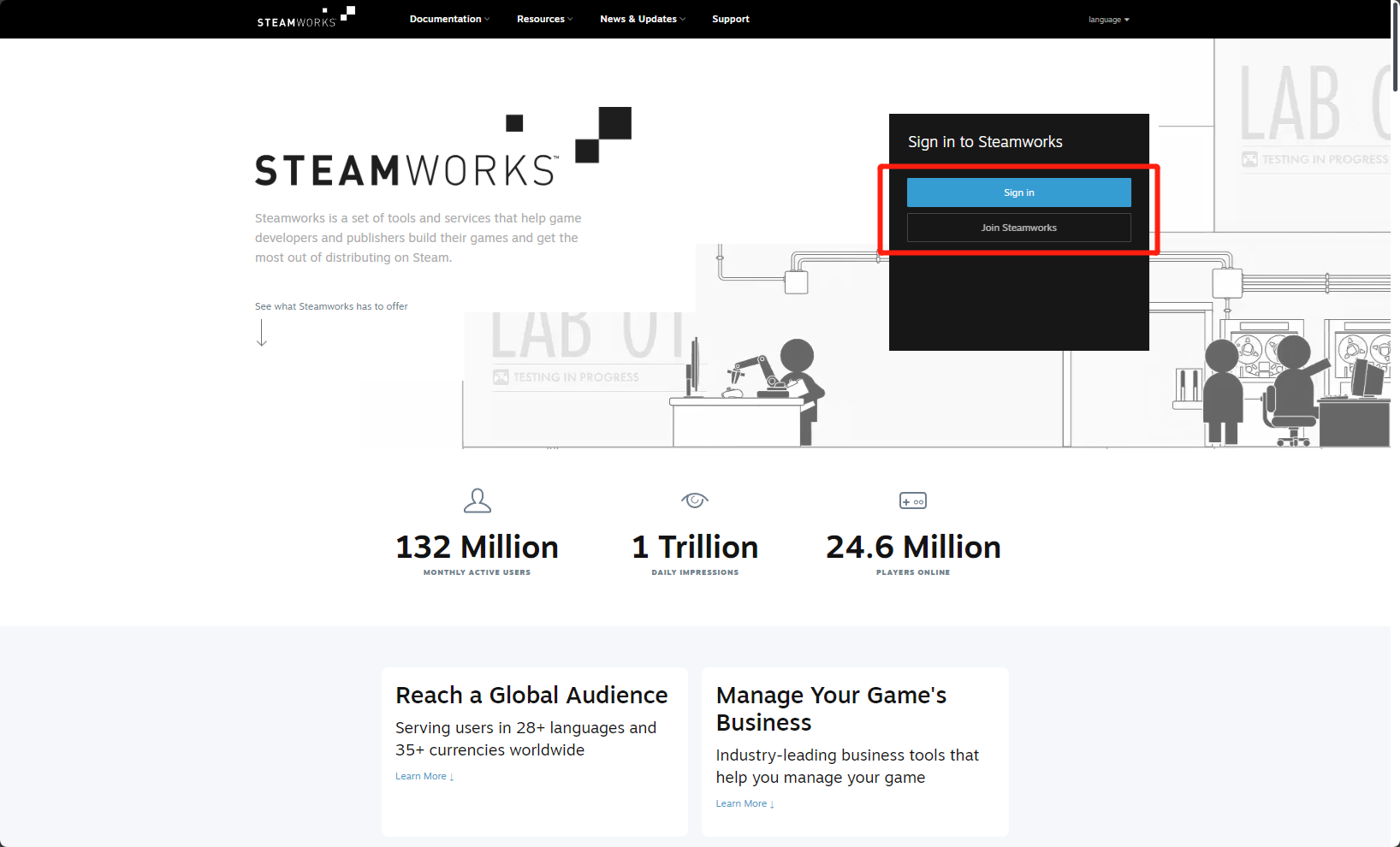
Log in to Steamworks.
2. Create Steam application
-
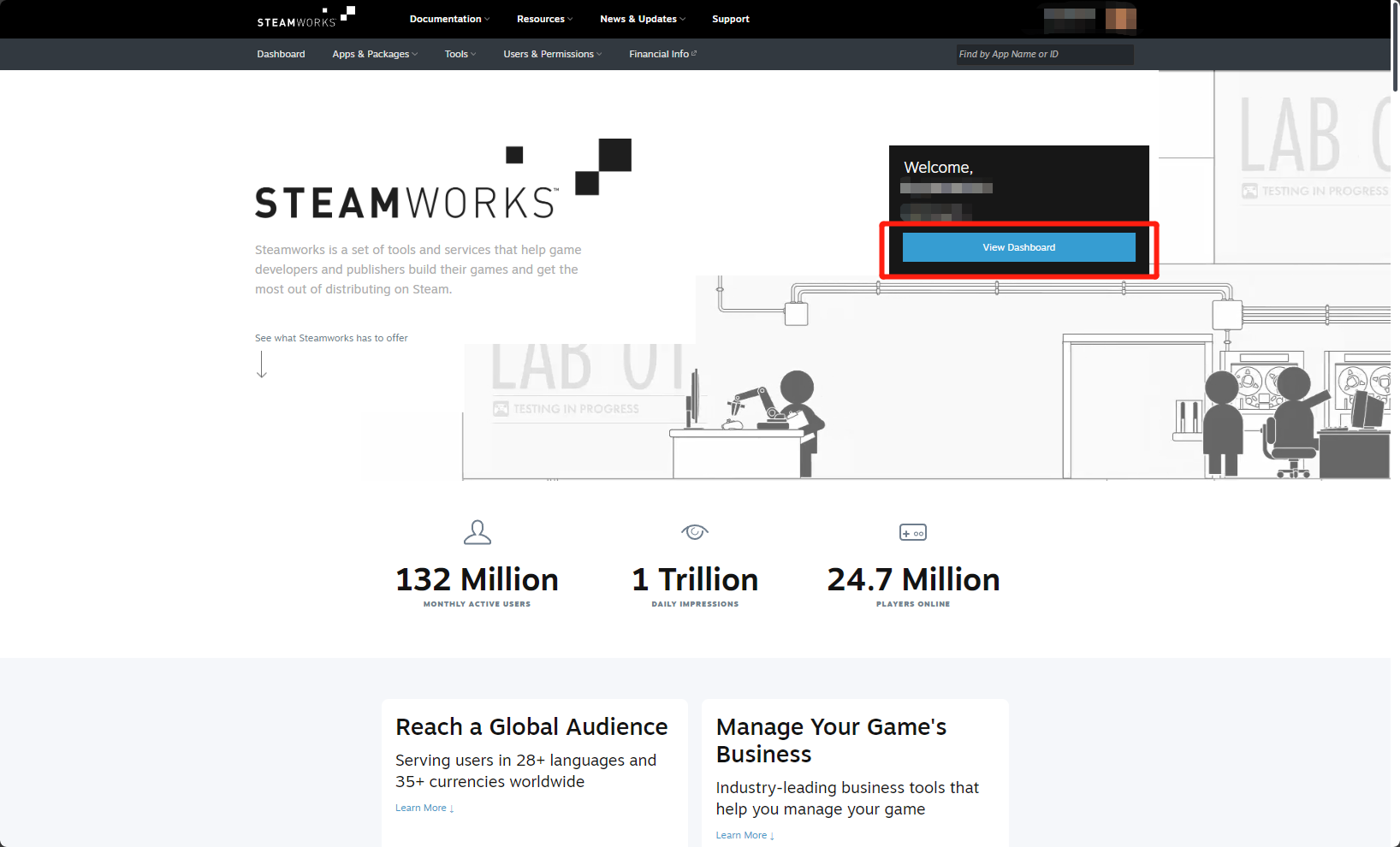
After logging in to Steamworks, click View Dashboard on the main page to enter the Dashboard page.
-
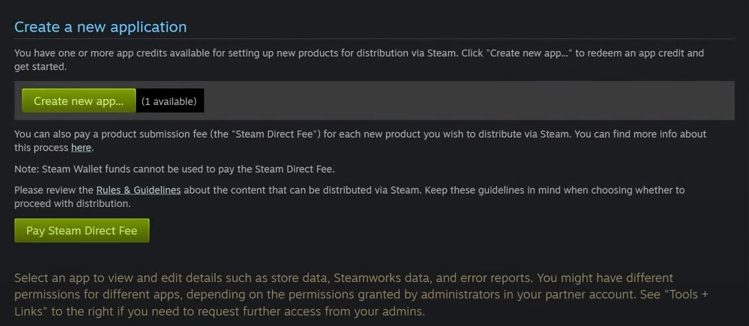
Make sure you have enough app credit (App Credit), then click Create new app....
-
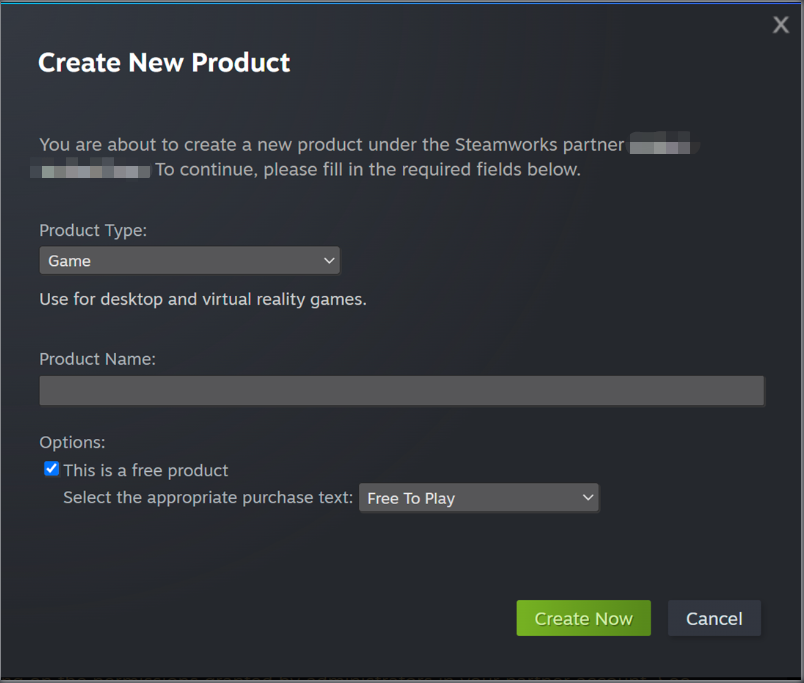
Refer to Steam Applications to fill in the basic information of your game.
-
Click Create Now and confirm in the popup that the application has been created successfully.
3. Obtain App ID
-
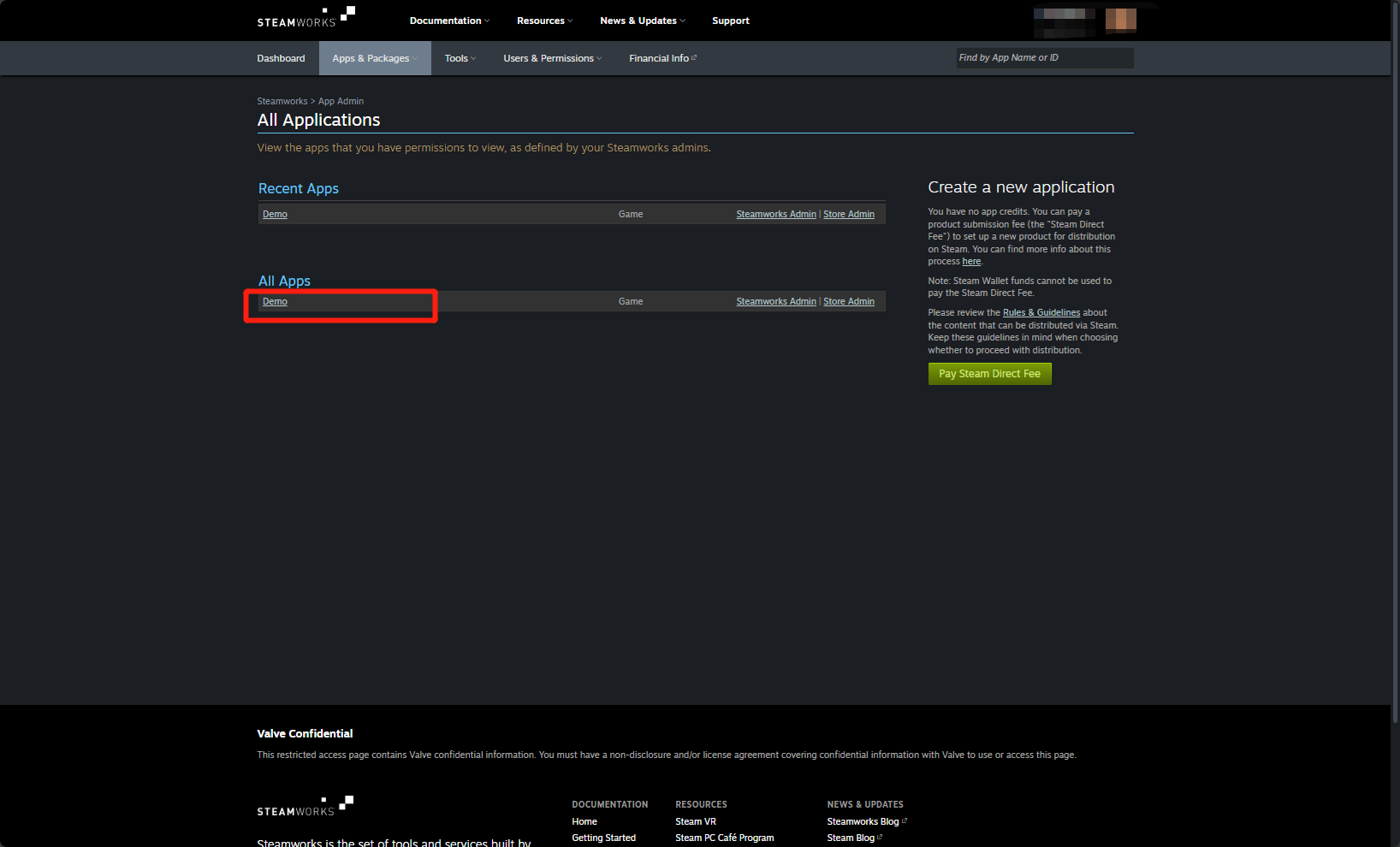
After successfully creating your application in Steamworks, click View All Apps on the Dashboard page.

-
Click the application you created to enter its homepage.
-
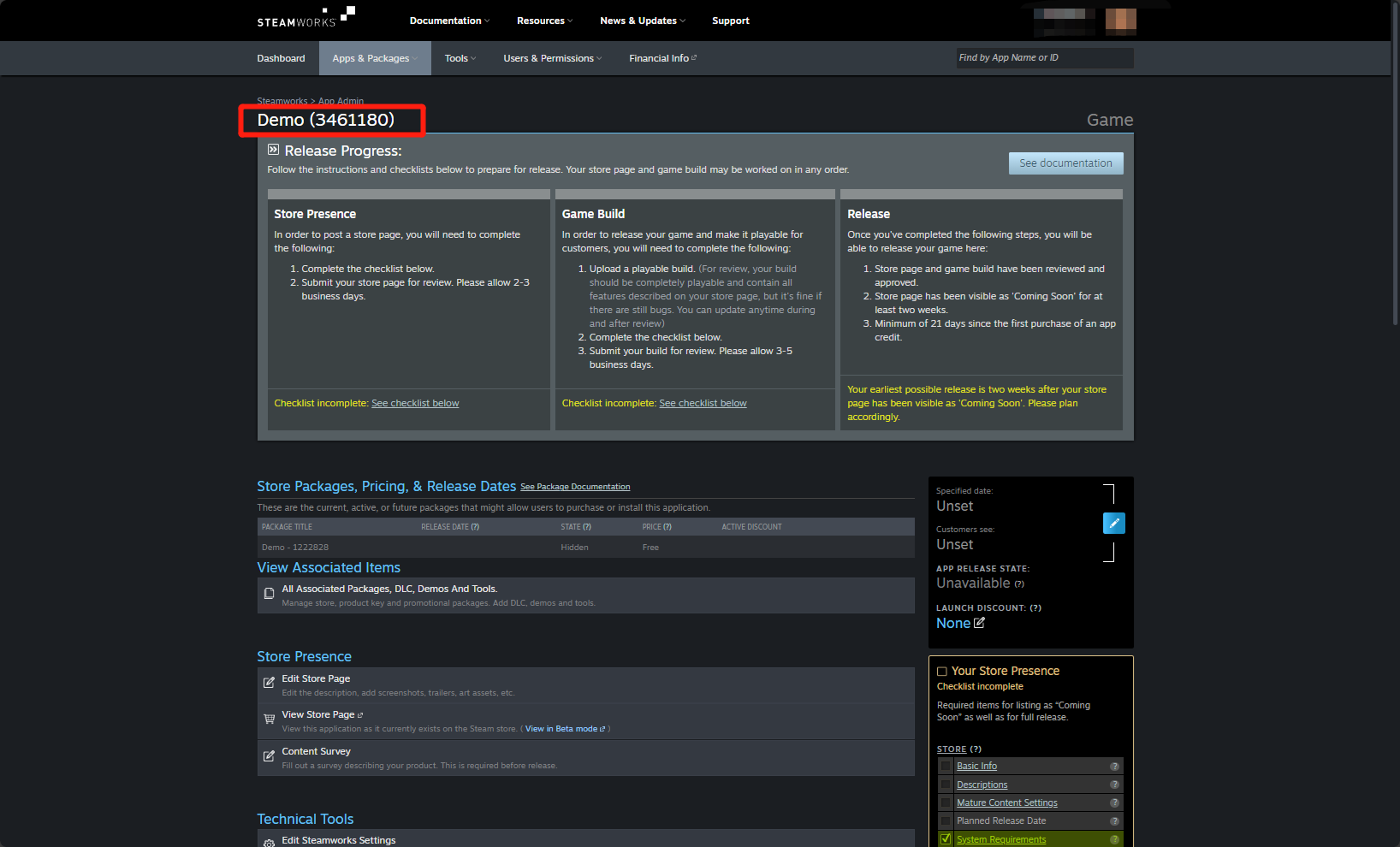
The App ID will be displayed next to the game title, such as "3461180" in the figure below.
Each application has a unique ID, called the App ID.
4. Obtain Steam Web API Key
-
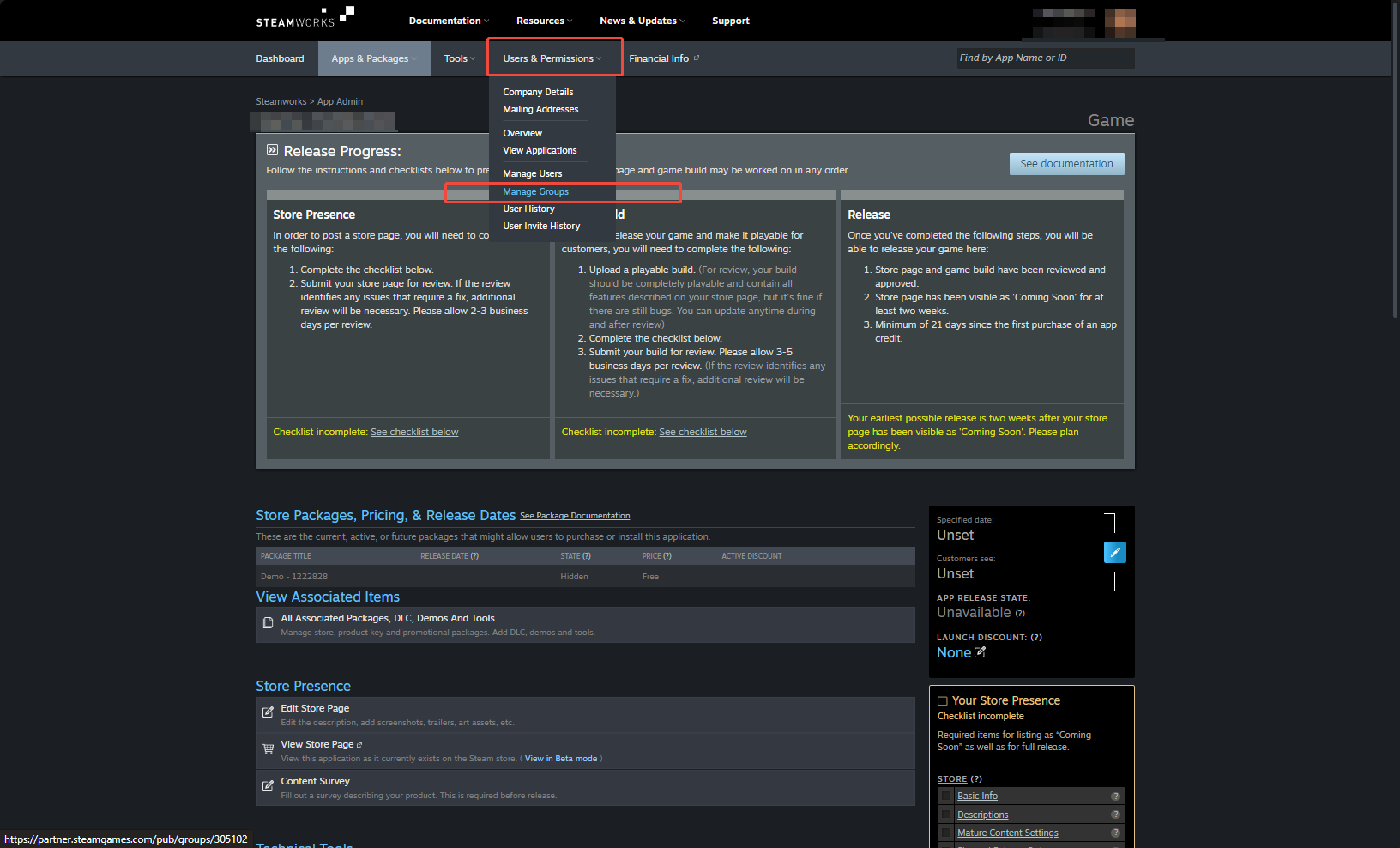
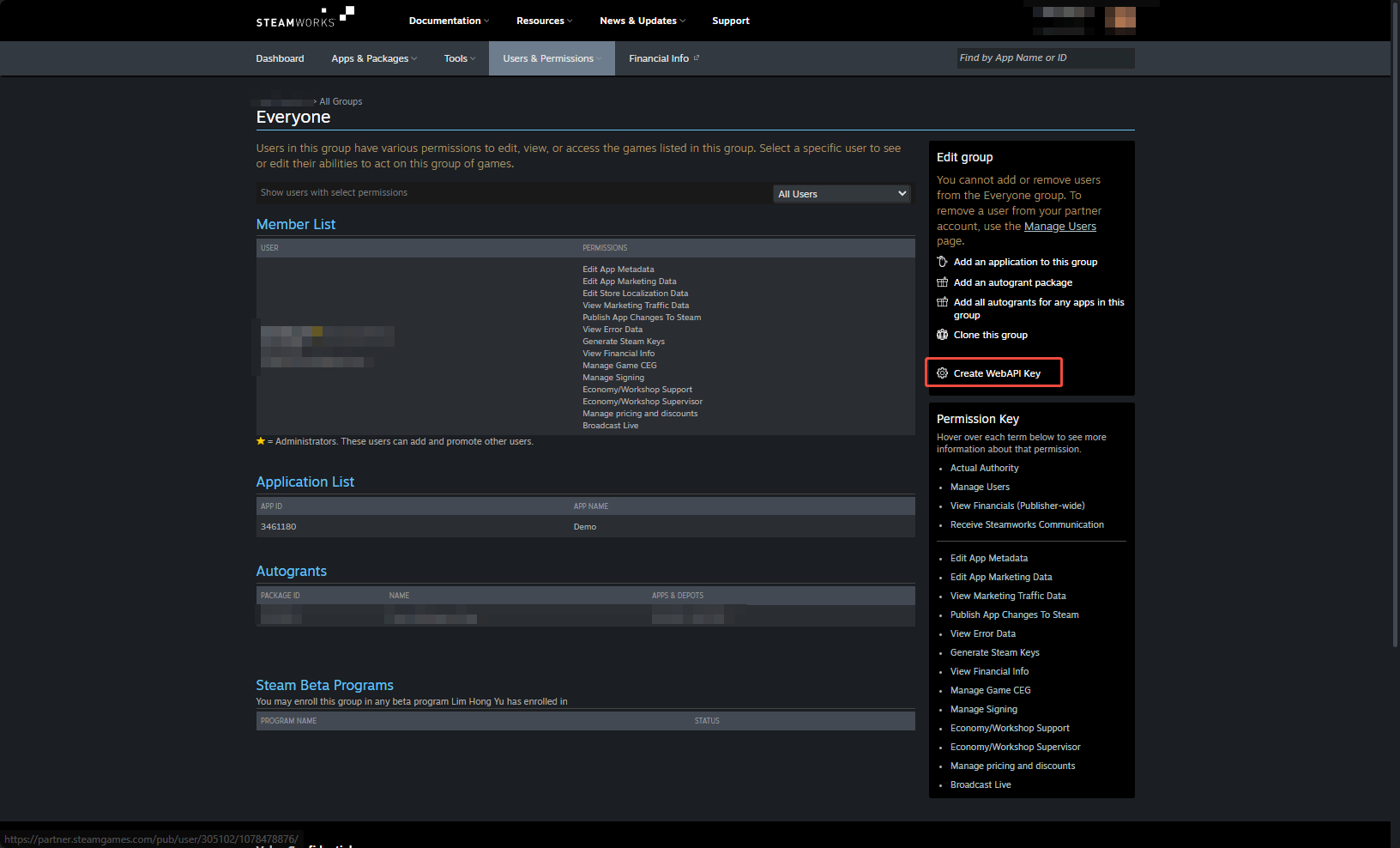
After logging into Steamworks with an account with administrator permissions, click Users & Permissions > Manage Groups.
-
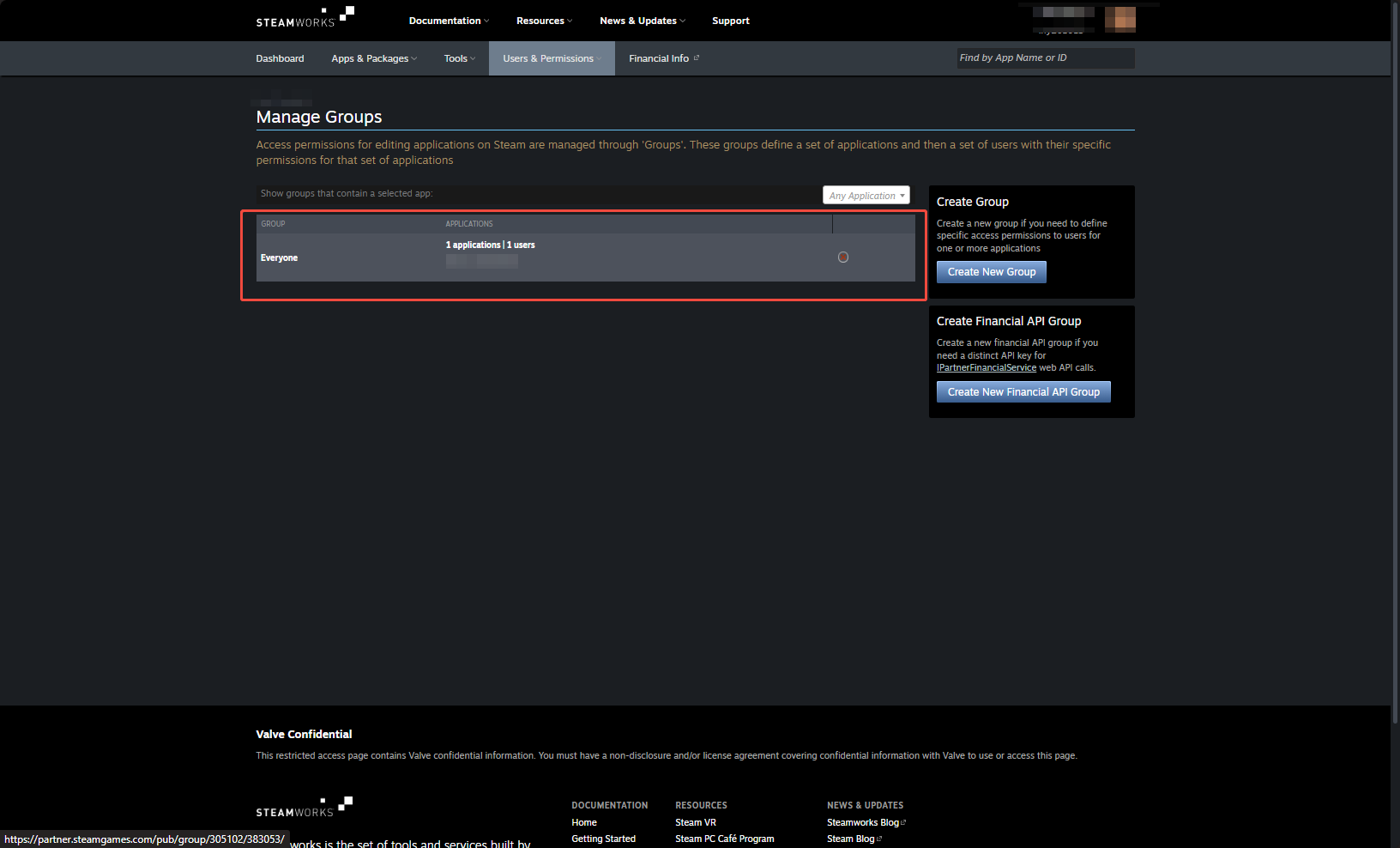
Select Everyone.
-
Under Edit group, click Create WebAPI Key to generate a key.
- Enter the Player Network Console to create a new project for your game, or join an existing one.
- Download SDK.
- Integrate SDK.
- Add Steam as a login authentication method in Player Network Console.
Step 1: Configure SDK for Steam Login
During the game development stage, Steam account information, including STEAM_APPID, does not need to be configured in INTLConfig.ini.
1. Create steam_appid.txt file
During game development, if your game has not yet been approved for release in Steamworks Console, you need to create a steam_appid.txt file containing 480 and place it in the executable file directory.Generally, the directory is the Binaries/Win64/ folder of the game. If you're using Unreal Engine, place the file in the same directory as UE4Editor.exe (or UnrealEditor.exe), i.e., yourEnginePath/Engine/Binaries/Win64.
The contents of steam_appid.txt should only contain 480. There should be no other characters or blank lines.When the game is set to Coming Soon in Steamworks, please delete the steam_appid.txt file.
For more information, see Initialization and Shutdown in the Steamworks API Overview.
2. Select Steam login method
Player Network SDK V1.16 and later versions add support for logging in to Steam using INTLWebView.
Starting from Player Network SDK V1.21, logging in via system browser is supported.
- SDK 1.16 and later versions
- Versions before SDK 1.16
- If your game is going to be released on Steam, it is recommended to log in by connecting to the Steam client.Since Player Network SDK needs to call the Steam client for authentication, users must have the Steam application open and logged in before performing Player Network SDK authentication.
If logging in to your Steam account prompts "SteamAPI_Init failed. Please check your Steam client status", please check whether the Steam client has started and is logged in.
- If your game is released on channels other than Steam, it is recommended to log in with
INTLWebViewor a system browser (supported in Player Network SDK V1.21 and later).When usingINTLWebViewor a system browser for Steam login, users do not need to open the Steam client.
Using INTLWebView to log in to Steam in Editor mode on PC may cause crashes.This issue only occurs in Editor mode. It will not appear in the packaged PC version.
To enable INTLWebView or browser login for Steam, configure INTLConfig.ini as shown below:
# For INTLWebView login
STEAM_WEBVIEW_LOGIN_ENABLE = 1
# For system browser login
STEAM_BROWSER_LOGIN_ENABLE = 1
- If both
STEAM_WEBVIEW_LOGIN_ENABLEandSTEAM_BROWSER_LOGIN_ENABLEare set to 1, onlySTEAM_WEBVIEW_LOGIN_ENABLEwill take effect,INTLWebViewwill be used to log in to Steam. - If neither
STEAM_WEBVIEW_LOGIN_ENABLEnorSTEAM_BROWSER_LOGIN_ENABLEare set (or both are set to 0), Player Network SDK will connect to the Steam client for login.
Player Network SDK needs to call the Steam client for authentication.Therefore, users must open and log in to the Steam application before performing Player Network SDK authentication.
If logging in to a Steam account prompts "SteamAPI_Init failed. Please check your Steam client status", please check whether the Steam client has started and is logged in.
Step 2: Add Steam Login
-
Register login-related callbacks.
- Unity
- Unreal Engine
// Add callbacks
public void AddAuthObserver()
{
    INTLAPI.AddAuthResultObserver(OnAuthResultEvent);
}

// Remove callbacks
public void RemoveAuthObserver()
{
    INTLAPI.RemoveAuthResultObserver(OnAuthResultEvent);
}

// Process the INTLAuthResult callback
public void OnAuthResultEvent(INTLAuthResult ret)
{
    Debug.Log($"MethodID: {ret.MethodId}");

    string methodTag = "";
    if (authRet.MethodId == (int)INTLMethodID. LOGIN)
    {
        methodTag = "Login";
    }
    else if (authRet.MethodId == (int)INTLMethodID.INTL_AUTH_BIND)
    {
        methodTag = "Bind";
    }
    else if (authRet.MethodId == ( int)INTLMethodID.INTL_AUTH_AUTOLOGIN)
    {
        methodTag = "AutoLogin";
    }
    else if (authRet.MethodId == (int)INTLMethodID.INTL_AUTH_QUERY_USER_INFO)
    {
        methodTag = "QueryUserInfo";
    }
    else if (authRet.MethodId == (int)INTLMethodID.INTL_AUTH_GET_AUTH_RESULT)
    {
        methodTag = "GetAuthResult";
    }
}
C++ Event Handling (above v1.15)
//configure callback
FINTLAuthEvent authEvent;
authEvent.AddUObject(this, &OnAuthResult_Implementation);
UINTLSDKAPI::. SetAuthResultObserver(authEvent);
// Remove callbacks
UINTLSDKAPI::GetAuthResultObserver().Clear();
void OnAuthResult_Implementation(FINTLAuthResult ret)
{
UE_LOG(LogTemp, Warning, TEXT("MethodID: %d"), ret.MethodId);
}Unreal Event Handling
void OnAuthResult_Implementation(FINTLAuthResult ret)
{
    UE_LOG(LogTemp, Warning, TEXT("MethodID: %d"), ret.MethodId);
} -
Call the
AutoLogininterface to log in automatically.- Unity
- Unreal Engine
INTLAPI.AutoLogin();UINTLSDKAPI::AutoLogin(); -
If automatic login fails, call the
Logininterface to let the player log in manually.- Unity
- Unreal Engine
INTLAPI.Login(INTLChannel.Steam).UINTLSDKAPI::Login(EINTLLoginChannel::kChannelSteam); -
After logging in via Steam, fetch the avatar from
ChannelInfoin the returnedAuthResult.channelInfo : {"picture_path":"/path/to/image.png"}Set
STEAM_AVATAR_RAW_RGBA_ENABLEto 1 inINTLConfig.inito return RAW RGBA data.channelInfo : {"picture_path":"/path/to/image.json"} -
Synchronize client authentication status with the game backend and wait for the final verification result.
Step 3: Acceptance of login functionality
Search for the keyword "AuthResult" in the Player Network SDK logs to confirm whether the channel name and OpenID are returned correctly.If correct, it means the integration configuration is successful, and login functionality has been successfully added.
If you encounter problems during the integration process, please refer to Frequently Asked Questions.
Step 4: Release the game
For more information on releasing your game on the Steam platform, see the Steamworks Developer Program.
-
Delete
steam_appid.txtfrom the game's executable file directory, otherwise it may affect the game's login to the Steam platform. -
Modify Steam channel
AppIDin Player Network console to game's App ID,AppKeyto Steam account's Steam Web API Key, then Player Network SDK will correctly initiate Steam login. -
[Optional] After downloading the SDK, modify configuration in the Player Network Console. Changes will not be synchronized to the
INTLConfig.inifile.To ensure the game is launched from the Steam client, configure theSTEAM_APPIDfield inINTLConfig.ini. For details, seeSteamAPI_RestartAppIfNecessary.
After configuring this field, start the game:- If the game is not started from the installed directory via Steam client, Steam-related initialization will fail.
- If the Steam client is not launched, it will be started and directed to the corresponding game page.
- If prompted with "Please launch app by Steam Client" at login, it means the game was not launched from the Steam client. You may delete the
STEAM_APPIDfield and try again.
[Steam]
STEAM_APPID = {INTL_STEAM_APP_ID}
Replace {INTL_STEAM_APP_ID} with the Steam app ID you applied for for your service.

