Android
This article aims to introduce how to set up WeChat authentication, allowing your game to use Player Network login authentication service to log in via the WeChat channel.
Prerequisites
1. Set up your game on the WeChat Open Platform
1. Create WeChat application
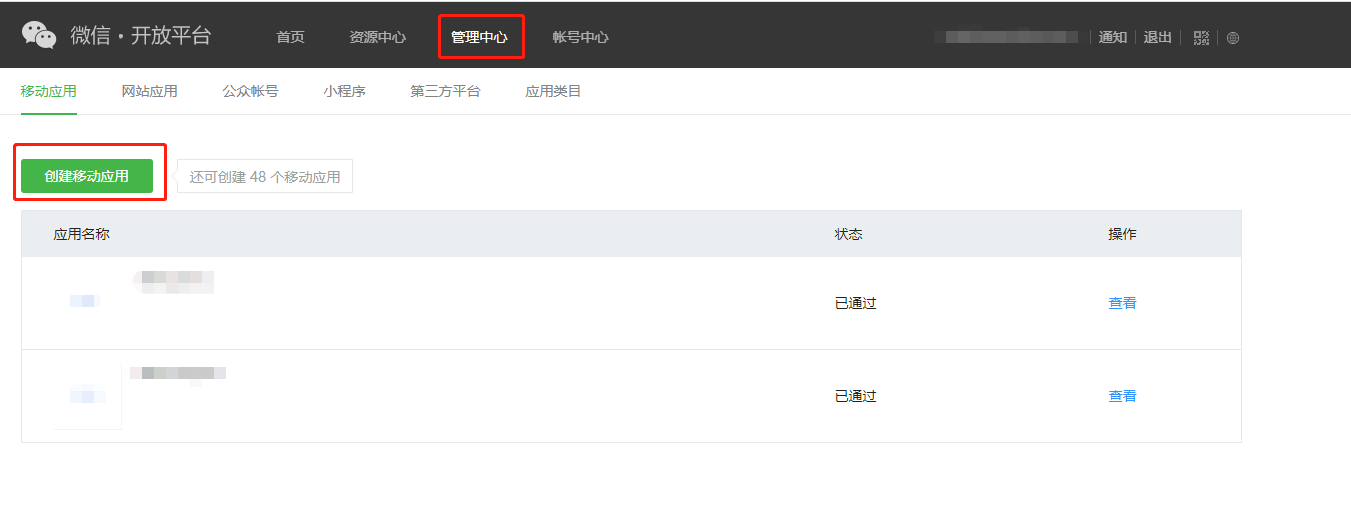
Register an account on the WeChat Open Platform, and create a mobile application in Management Center following the prompts.
2. Obtain application information
-
Log in to the WeChat Open Platform.
-
In the top navigation bar, click Management Center.
-
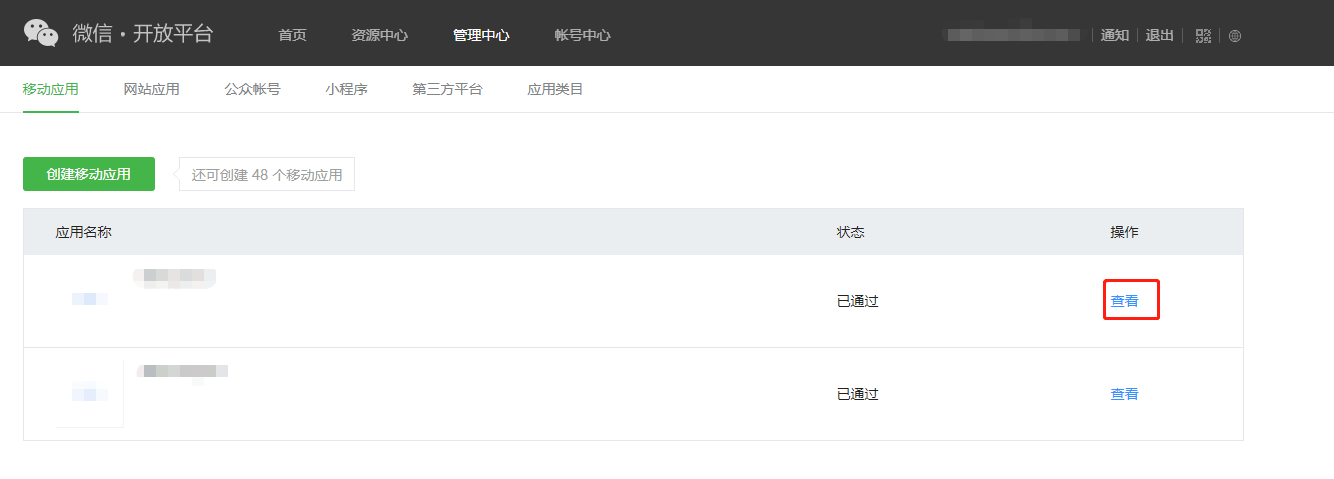
On the Mobile Applications tab, click View in the Actions column of the corresponding app.
-
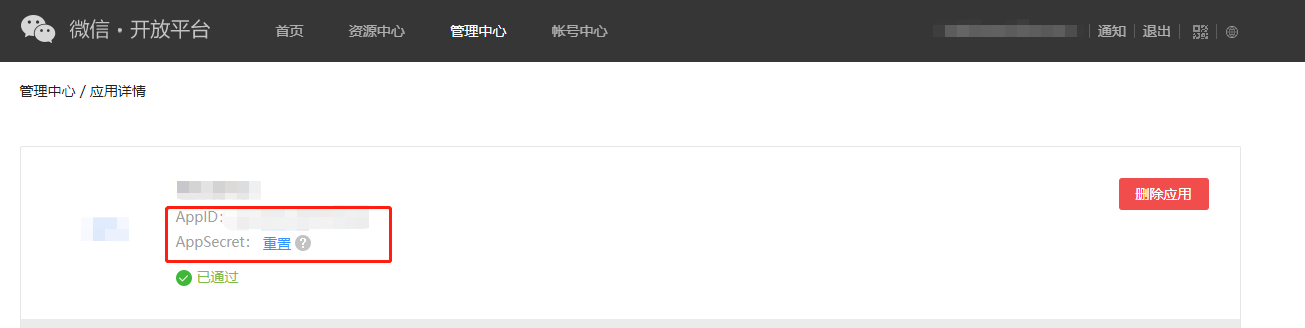
On the application details page, check AppID and AppSecret.
3. Apply for business permission to obtain AppName
When configuring a single WeChat channel, AppName is optional.If you plan to add multiple WeChat channels, AppName is required; you must complete the following application process to obtain the AppName:
The application requires Tencent internal permissions. If your team does not have Tencent internal members, you may contact the Player Network representative for assistance with the application.
-
Log in to the WeChat Open Platform internal interface management system.
-
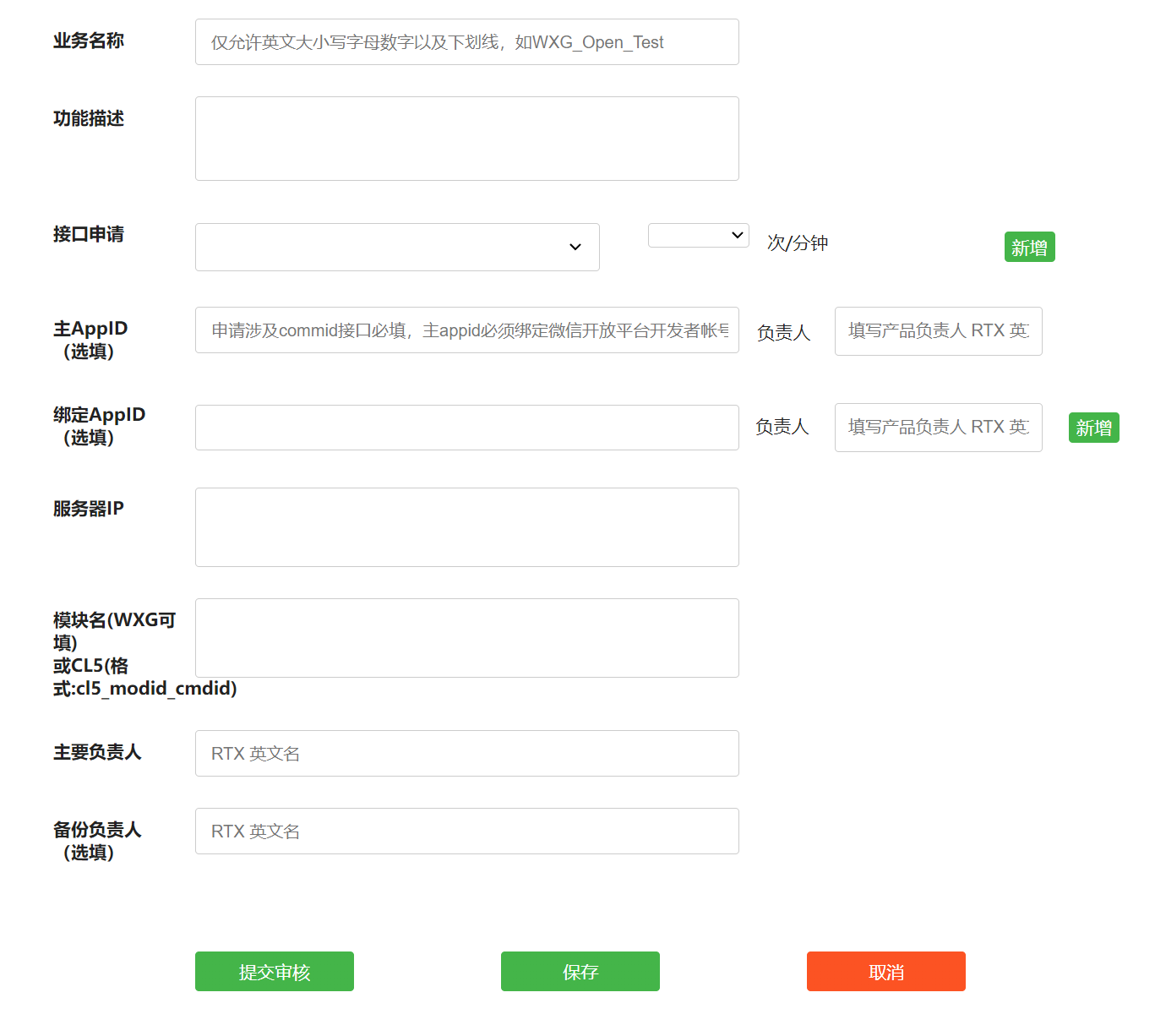
Refer to the application guide to fill in the application form, ensuring all information is accurate.
-
Submit the application and patiently await approval.
-
After approval, please accurately fill in the Business Name from the application form to the AppName field in the Player Network Console to complete the configuration.
- Obtain Player Network Console login account.
- Create a new project for your game, or join an existing one.
- Download SDK.
- Integrate the SDK.
- Add WeChat as a login authentication method in Player Network Console.
Step 1: Configure SDK for WeChat login
-
Open your project's INTLConfig.ini file:
INTLConfig.ini[INTL environment]
# WARNING: You should change this URL to the production environment when you release your game.
INTL_URL = https://test.intlgame.com
GAME_ID = {INTL_GAME_ID}
SDK_KEY = {INTL_SDK_KEY}
[INTL Log]
LOG_LEVEL = 1
LOG_CONSOLE_OUTPUT_ENABLE = 1
LOG_FILE_OUTPUT_ENABLE = 1
LOG_ENCRYPT_ENABLE = 0
LOG_COMPRESS_ENABLE = 0
[Android LifeCycle]
LIFECYCLE = WeChat
[WeChat]
WECHAT_APP_ID = {INTL_WECHAT_APP_ID}- Set the SDK backend environment to
INTL_URL = https://test.intlgame.com. - Replace
{INTL_GAME_ID}and{INTL_SDK_KEY}with theGAME_IDandSDK_KEYvalues assigned by the Player Network Console. - Set
LOG_LEVEL = 1,LOG_CONSOLE_OUTPUT_ENABLE = 1,LOG_FILE_OUTPUT_ENABLE = 1,LOG_ENCRYPT_ENABLE = 0andLOG_COMPRESS_ENABLE = 0to output console logs and log files without encrypting or compressing the output without encrypting or compressing the output. - Add WeChat in
LIFECYCLE.For more information, please see SDK Environment. - Replace
{INTL_WECHAT_APP_ID}with the AppID assigned by WeChat.
- Set the SDK backend environment to
Step 2: Add WeChat login
Pass in the permissions when calling INTLAPI.Login.Known permission list for WeChat iOS/Android is as follows (the official documentation does not explicitly specify permissions):
| Permissions | Description |
|---|---|
| snsapi_userinfo | Obtain user information (default permission for Player Network SDK) |
| snsapi_friend | Obtain friend list |
| snsapi_message | Send message |
- Register login-related callbacks.
- Unity
- Unreal Engine
// Add callbacks
public void AddAuthObserver()
{
    INTLAPI.AddAuthResultObserver(OnAuthResultEvent);
}

// Remove callbacks
public void RemoveAuthObserver()
{
    INTLAPI.RemoveAuthResultObserver(OnAuthResultEvent);
}

// Process the INTLAuthResult callback
public void OnAuthResultEvent(INTLAuthResult ret)
{
    Debug.Log($"MethodID: {ret.MethodId}");

    string methodTag = "";
    if (authRet.MethodId == (int)INTLMethodID.INTL_AUTH_LOGIN)
    {
        methodTag = "Login";
    }
    else if (authRet.MethodId == (int)INTLMethodID.INTL_AUTH_BIND)
    {
        methodTag = "Bind";
    }
    else if (authRet.MethodId == (int)INTLMethodID.INTL_AUTH_AUTOLOGIN)
    {
        methodTag = "AutoLogin";
    }
    else if (authRet.MethodId == (int)INTLMethodID.INTL_AUTH_QUERY_USER_INFO)
    {
        methodTag = "QueryUserInfo";
    }
    else if (authRet.MethodId == (int)INTLMethodID.INTL_AUTH_GET_AUTH_RESULT)
    {
        methodTag = "GetAuthResult";
    }
}
C++ Event Handling (above v1.15)
//configure callback
FINTLAuthEvent authEvent;
authEvent.AddUObject(this, &OnAuthResult_Implementation);
UINTLSDKAPI::SetAuthResultObserver(authEvent);
// Remove callbacks
UINTLSDKAPI::GetAuthResultObserver().Clear();
void OnAuthResult_Implementation(FINTLAuthResult ret)
{
    UE_LOG(LogTemp, Warning, TEXT("MethodID: %d"), ret.MethodId);
}
Unreal Event Handling
void OnAuthResult_Implementation(FINTLAuthResult ret)
{
    UE_LOG(LogTemp, Warning, TEXT("MethodID: %d"), ret.MethodId);
}
- Call the
AutoLogininterface to log in automatically.
- Unity
- Unreal Engine
INTLAPI.AutoLogin();
UINTLSDKAPI::AutoLogin();
- If automatic login fails, call the
Logininterface to let the player log in manually.
- Unity
- Unreal Engine
INTLAPI.Login(INTLChannel.WeChat, "", "");
UINTLSDKAPI::Login(EINTLLoginChannel::kChannelWeChat, "", "");
- Synchronize client authentication status with the game backend and wait for the final verification result.
Scan code login
Player Network SDK V1.26.00 supports WeChat QR code login on Android and iOS platforms starting from this version.
By default, if the phone has the WeChat app installed, it will directly launch the WeChat app for login; if WeChat app is not installed, it will automatically switch to QR code login.If you need to modify the default behavior, you can specify the qrcode_mode parameter in extraJson:
| qrcode_mode | Explanation |
|---|---|
| auto | Auto mode (default): Prioritizes logging in via WeChat app; uses QR code login when the WeChat app is not installed. |
| force_app | Force WeChat app login: If the WeChat app is not installed, login will result in an error. |
| force_qrcode | Force QR code login: No matter whether the WeChat app is installed or not, login will always use QR code. |
- Unity
- Unreal Engine
string permissions = "";
string extraJson = "{\"qrcode_mode\" : \"force_qrcode\"}";
INTLAPI.Login(INTLChannel.WeChat, permissions, extraJson);
FString Permissions = TEXT("");
FString Extra_JSON = TEXT("{\"qrcode_mode\" : \"force_qrcode\"}");
UINTLSDKAPI::Login(EINTLLoginChannel::kChannelWeChat);
Step 3: Acceptance testing for login functionality
Search for the keyword "AuthResult" in the Player Network SDK logs to confirm whether the channel name and OpenID are returned correctly.If correct, it means the integration configuration is successful, and login functionality has been successfully added.
If you encounter problems during the integration process, please refer to Frequently Asked Questions.

