Web
WinGDK platform only supports Xbox account login. The login and authentication methods are the same as XSX, and the configuration steps are also identical.
This document introduces how to set up Xbox Series X|S authentication, allowing your web page to use Player Network's login authentication service to sign in via the Xbox channel.
Xbox Series X|S development is generally not open to individual developers and requires the company's business to contact Microsoft to enable Xbox Series X|S development permissions.
Prerequisites
1. Set up the game in Azure Portal
Use the application registration interface in Azure Active Directory to register your game on the Microsoft platform.
-
Log in to Azure Portal with your developer account and register your game in Azure Active Directory.
-
Select App Registration > + New Registration.
-
Name your game and select Supported account types as Personal Microsoft accounts only.
-
Under Redirect URI, select Web and enter
https://test-common-web.intlgame.com/jssdk/xboxlogincallback.htmlto set the URI redirect after successful authorization.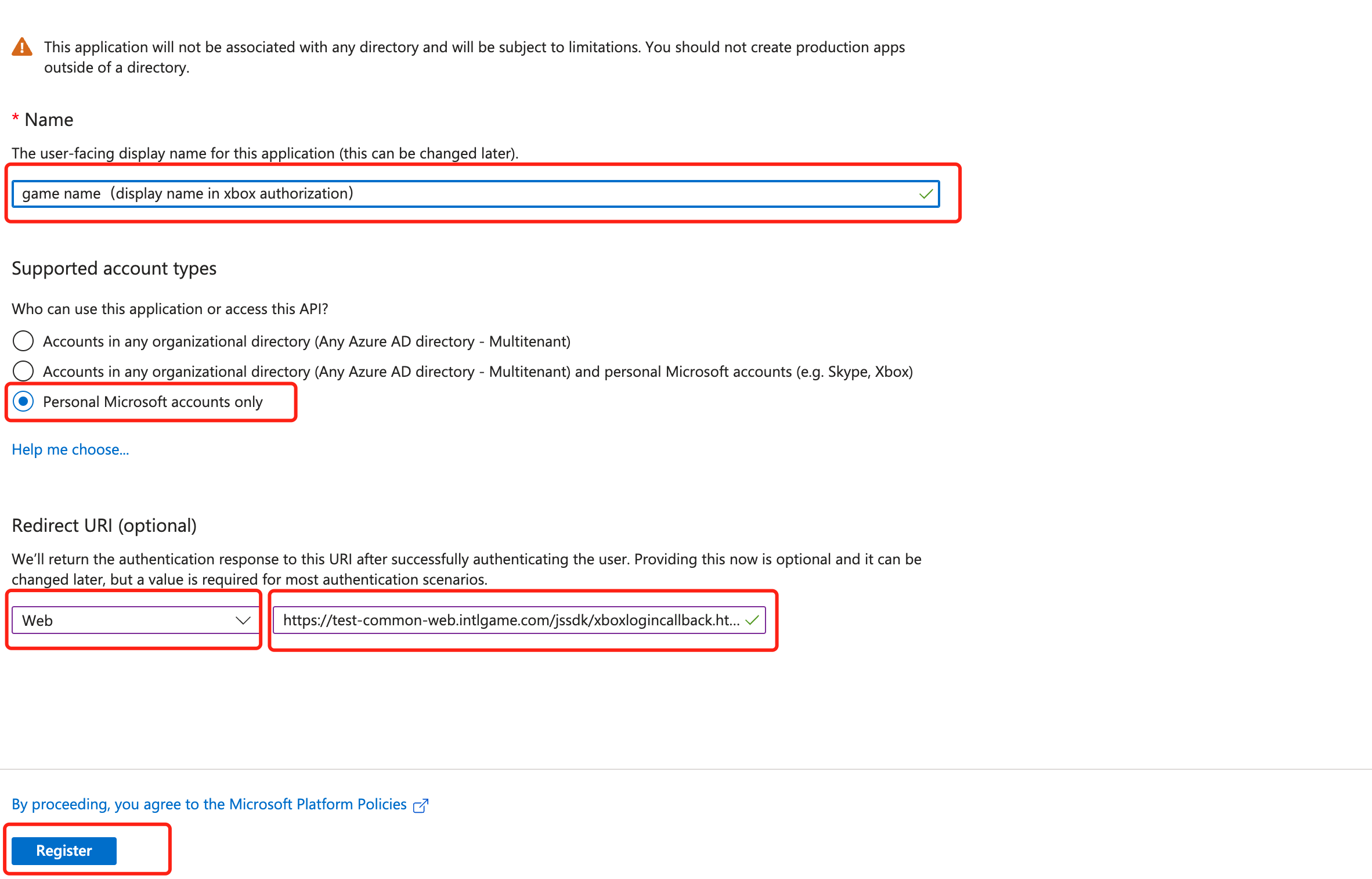
-
Click Register to complete the registration.
-
In Manage under Authentication, click Add URI under Web.

-
Enter
https://common-web.intlgame.com/jssdk/xboxlogincallback.htmlas the URI and then click Save. -
In Manage under Certificates & secrets, click + New client secret under Client secrets.
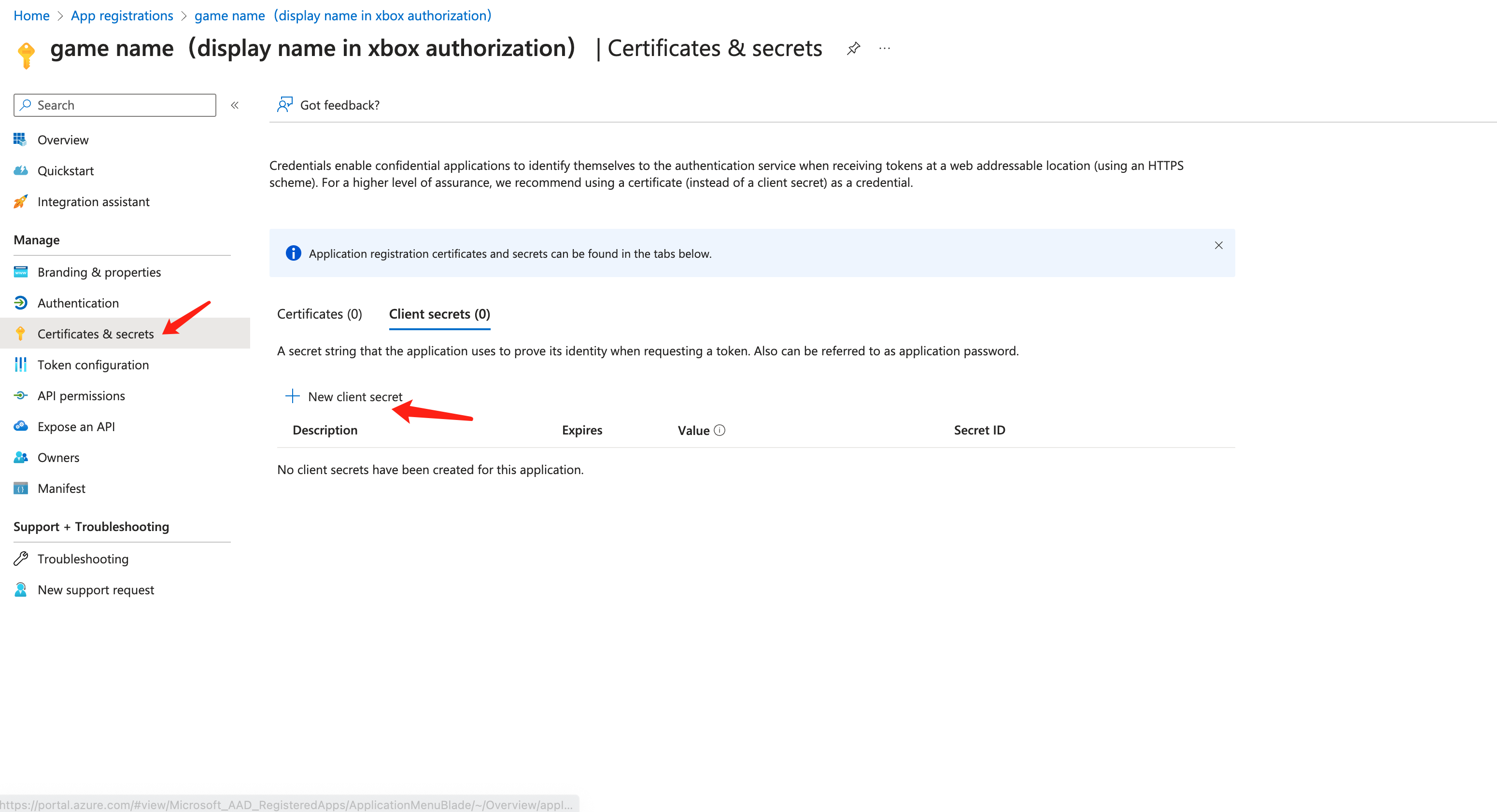
-
Fill out the required fields and click Add to add the secret.
\n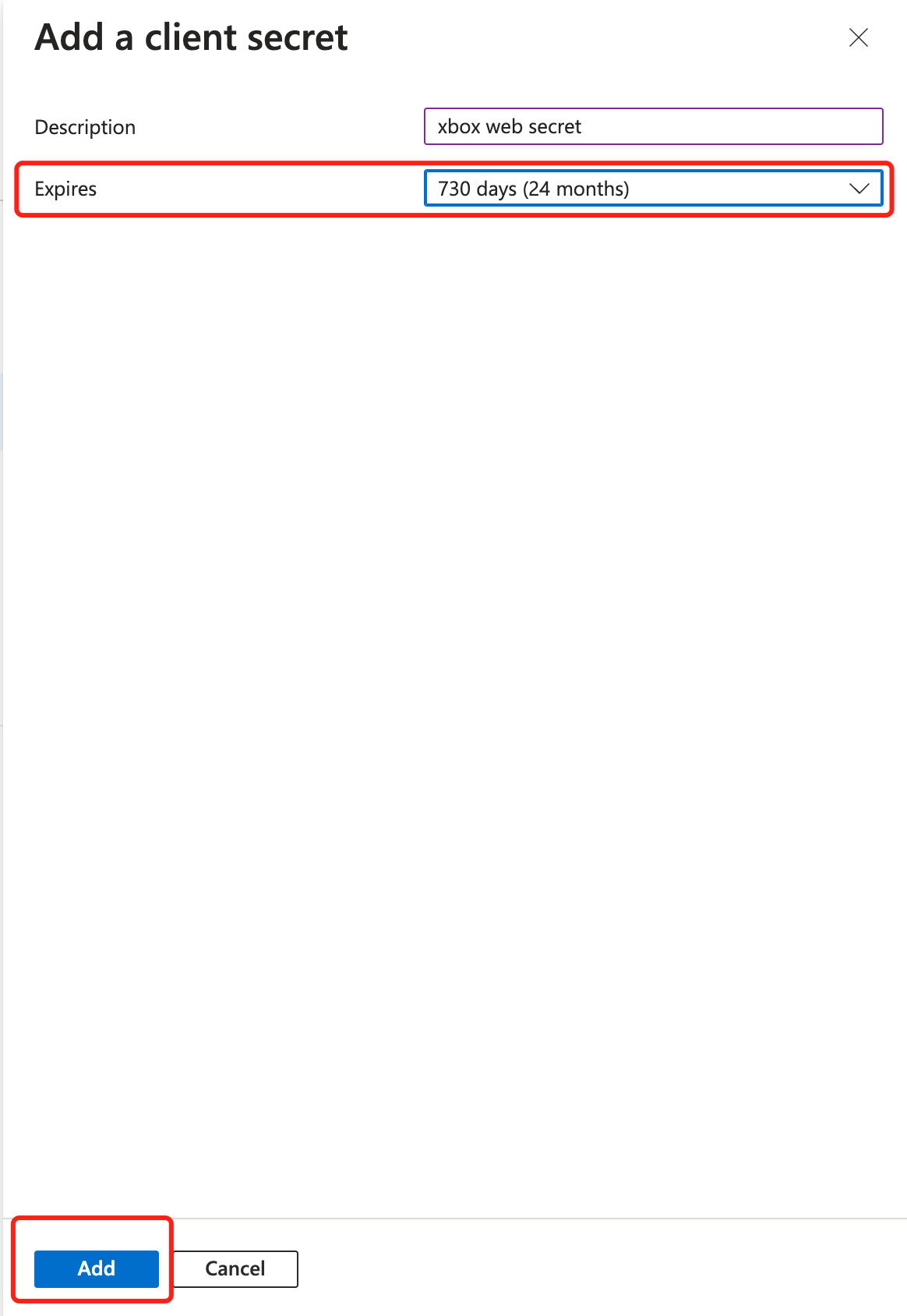
- Description: Enter a description for the secret.
- Expires: Select the expiration time for the secret, with a maximum validity of two years.Before the secret expires, you must create a new secret in Azure Portal and configure it in the Player Network Console.
-
Write down the secret's Value, as this can only be viewed during creation.

客户端 ID 和密钥值为 Player Network 控制台配置的必填项,客户端 ID 可从游戏的 Overview 页面中 Essentials 下的 Application (client) ID 字段确认。
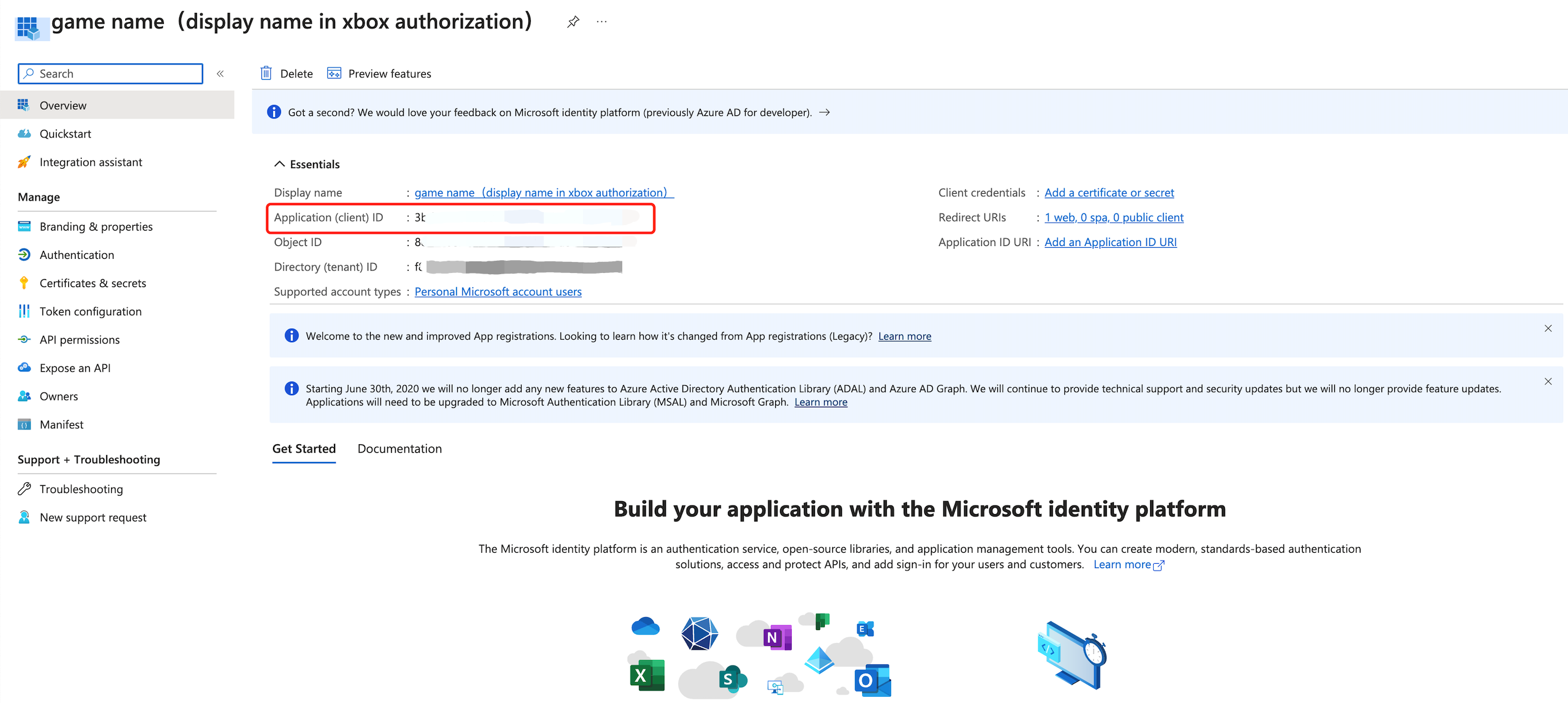
- Obtain Player Network Console login account.
- Create a new project for your game, or join an existing one.
- Add Xbox Series X|S as a login authentication method in Player Network Console.
For more information about integrating other third-party channels into the SDK, see JavaScript SDK.
Step 1: Introduce JavaScript SDK
During project integration testing, import the debugging SDK package, which is intended only for integration testing.For project launch, the official SDK package must be imported.
Currently, both npm package method and CDN method are supported.
- npm
- CDN
$ npm install @intlsdk/account-api
// SDK debug version package
<script src="https://test-common-web.intlgame.com/sdk-cdn/account-api/latest/index.umd.js"></script>
// SDK official version package
<script src="https://common-web.intlgame.com/sdk-cdn/account-api/latest/index.umd.js"></script>
Step 2: Use SDK
During integration testing, set env to test environment; when the project goes live, set env to the corresponding official environment.
const accountApi = new IntlgameAccountApi({
  env: "test", // SDK environment
  gameID: 11,
});
| Parameters | Type | Description | Note |
|---|---|---|---|
| env | string | SDK environment For more information, see Obtain deployment cluster information. | Mandatory |
| gameID | number | Player Network unique game ID | Mandatory |
Step 3: Implement Web Login
After instantiating the accountApi component, call the thirdAuthorize interface to request the Microsoft channel login authorization token.
accountApi.thirdAuthorize({
    third_type: 'xbox',
}).then(
(res) => {
    console.log(res);
});
When Microsoft returns the login authorization token, call the intlAuthorize interface to obtain the Player Network SDK OpenID and token to login to the website.
accountApi.intlAuthorize({
    third_type: 'xbox',
    channel_info: {
        auth_token: "XBL3.0 x: xxxx",
        xuid: "xxxx"
    }
}).then(
(res) => {
    console.log(res);
});
Call the intlLogout API to log out from the website.
accountApi.intlLogout({
    token: 'xxxx',
    openid: 'xxxxxxxx',
    channel_id: 27,
}).then(
(res) => {
    console.log(res);
});

