Client Integration
This article introduces how to implement Player Network SDK's authentication feature in the game client, listing relevant APIs and their usage guide. Please select the corresponding integration method based on the game engine you are using.
Before using the login authentication API, you must already have integrated the Player Network SDK. For details, refer to Player Network SDK Integration - Unity or Player Network SDK Integration - Unreal.
Login flow
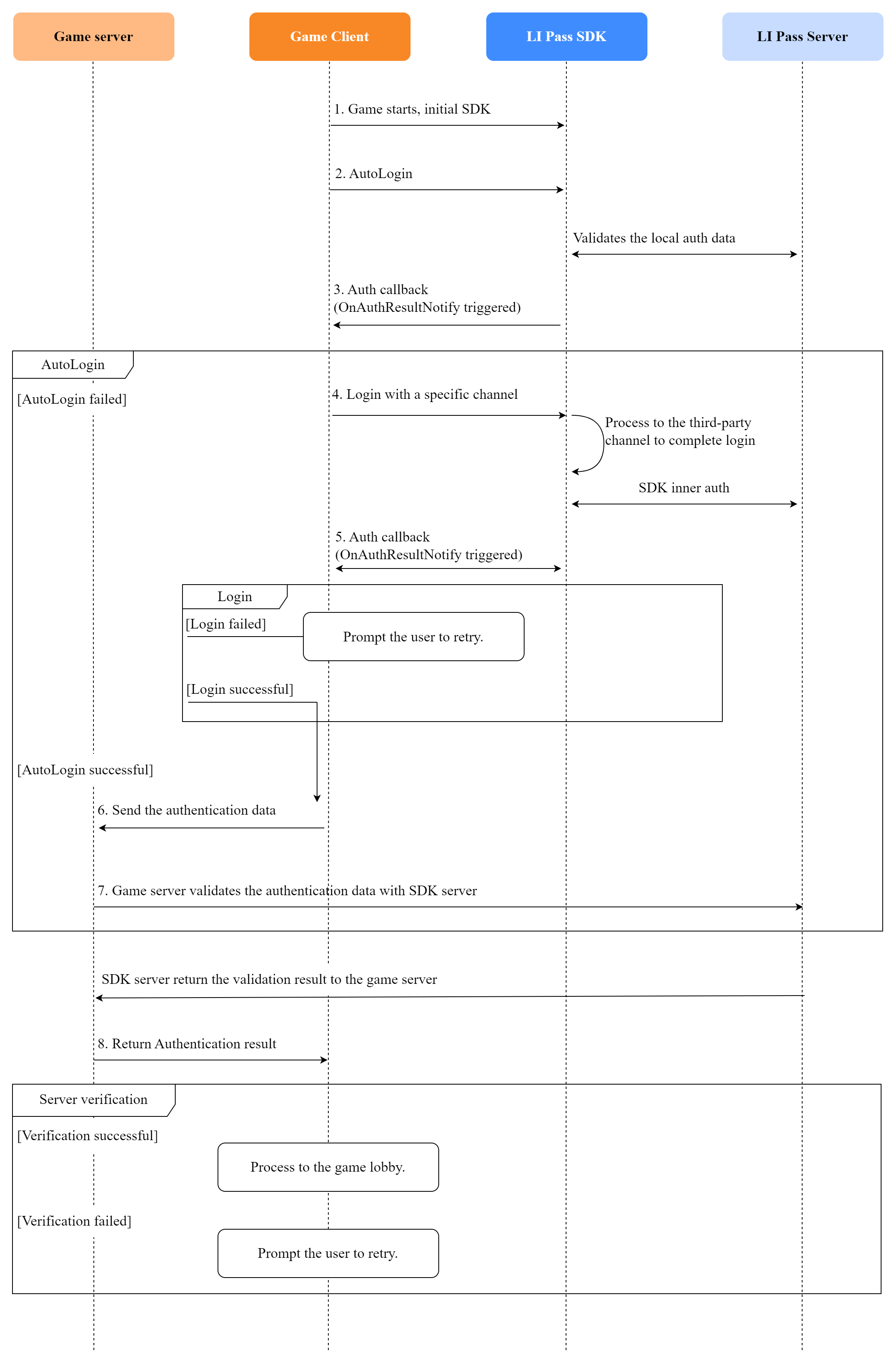
Client Integration In the flowchart, steps 1, 2, 3, 4, and 5 need to be completed by the game client, including:
- Step 1: Integrate and initialize SDK
- Step 2: Call the auto-login API
- Step 3: Handle auto-login callback
- Step 4: Manually call a specific channel to log in
- Step 5: Handle manual login callback
Backend Integration Step 6 in the flowchart needs to be completed by game development, including:
- Step 6: The game client passes the login data to the game backend. The game backend authenticates with the PNTSDK backend and processes the authentication results returned by the game backend.For backend-to-PNTSDK authentication steps, refer to Backend Integration Guide. For calling authentication APIs, refer to /v2/auth/verify_login.
Automatic Login
Developers can achieve automatic player login by calling the AutoLogin API.This API uses the login state stored in local cache. It compares this login state with backend information to verify player identity.If there is no login state in the local cache, or the backend cannot verify the submitted login state, automatic login fails.In the event of automatic login failure, developers need to call the Login API to allow players to log in manually.
- Unity
- Unreal Engine
INTLAPI.AutoLogin();
For detailed usage, see Unity Auto Login
UINTLSDKAPI::AutoLogin();
For detailed usage, see UE Auto Login
Manual Login
Manual login can be divided into two modes: third-party channel login and guest login.Third-party channel login means players log into the game with their social account. Guest login means players can access the game without registering an account.
Manual login requires calling the Login API. When calling this API, you need to pass the login channel, permissions required by the login channel, and any other information required by the login channel as input parameters.For the permission requirements and extra parameter information of each login channel, see Integration guide for each login channel.
Third-Party Channel Login
Channel login invokes the Login API to open the third-party channel page, requiring the player to provide third-party identity information to complete the login.After successful login, there is usually an authorization page requiring the player to permit the game to access their third-party account information (such as username, avatar, email, etc.).If the player consents to authorization, the third-party channel will return the user's UID and other information to Player Network SDK for authentication, enabling the player to log in to the game.
Player Network SDK encapsulates the access logic for mainstream third-party social platforms, supporting quick authentication and extraction of user information, shielding the integration differences between channels and greatly reducing integration costs.The game team can freely configure supported channels and their display order based on business needs.
The following code uses Facebook channel login as an example.
- Unity
- Unreal Engine
INTLAPI.Login(INTLChannel.Facebook);
For detailed usage, see Unity Login
UINTLSDKAPI::Login(EINTLLoginChannel::kChannelFacebook);
For detailed usage, see UE Login
For more information about the channels supported by Player Network SDK, see Third-Party Channel Integration Guide.
Guest Login
Guest login is popular in some markets (such as Japan). Guest login allows players to quickly experience game content without registering, lowering the entry barrier.However, guest accounts are unstable and may lead to game data loss. They are also inconvenient for account searches or for customer service to assist with account issues.It is recommended that the game remind players to bind social accounts during subsequent game processes.
- Unity
- Unreal Engine
INTLAPI.Login(INTLChannel.Guest);
UINTLSDKAPI::Login(EINTLLoginChannel::kChannelGuest);
Player Network SDK allows guest accounts to transfer from one device to another without losing any game data by using a transfer code.For instance, players log into the game on Device A using OpenID A, set the game account password, and generate a transfer code.
- Unity
- Unreal Engine
INTLAPI.GenerateTransferCode("password");
UINTLSDKAPI::GenerateTransferCode("password");
Then, enter the password and transfer code on Device B.This way, players can log in to the game on Device B, effectively transferring the guest account.Now, the game account on Device B is bound to OpenID A, indicating a successful transfer.
- Unity
- Unreal Engine
INTLAPI.TransferAccount("transferCode","password");
UINTLSDKAPI::TransferAccount("transferCode","password");
For the technical implementation logic and further details about guest accounts, refer to Guest Account.
Account Binding and Unbinding
Account linking
When players log in via guest channel, the game can recommend players to link a social channel account to avoid loss of the guest account.When players log in via a third-party social channel, they can also link other social channel accounts.Binding relationships exist between channels and openid, maintained within the game itself and not across games.
The following diagram illustrates the account linking logic:
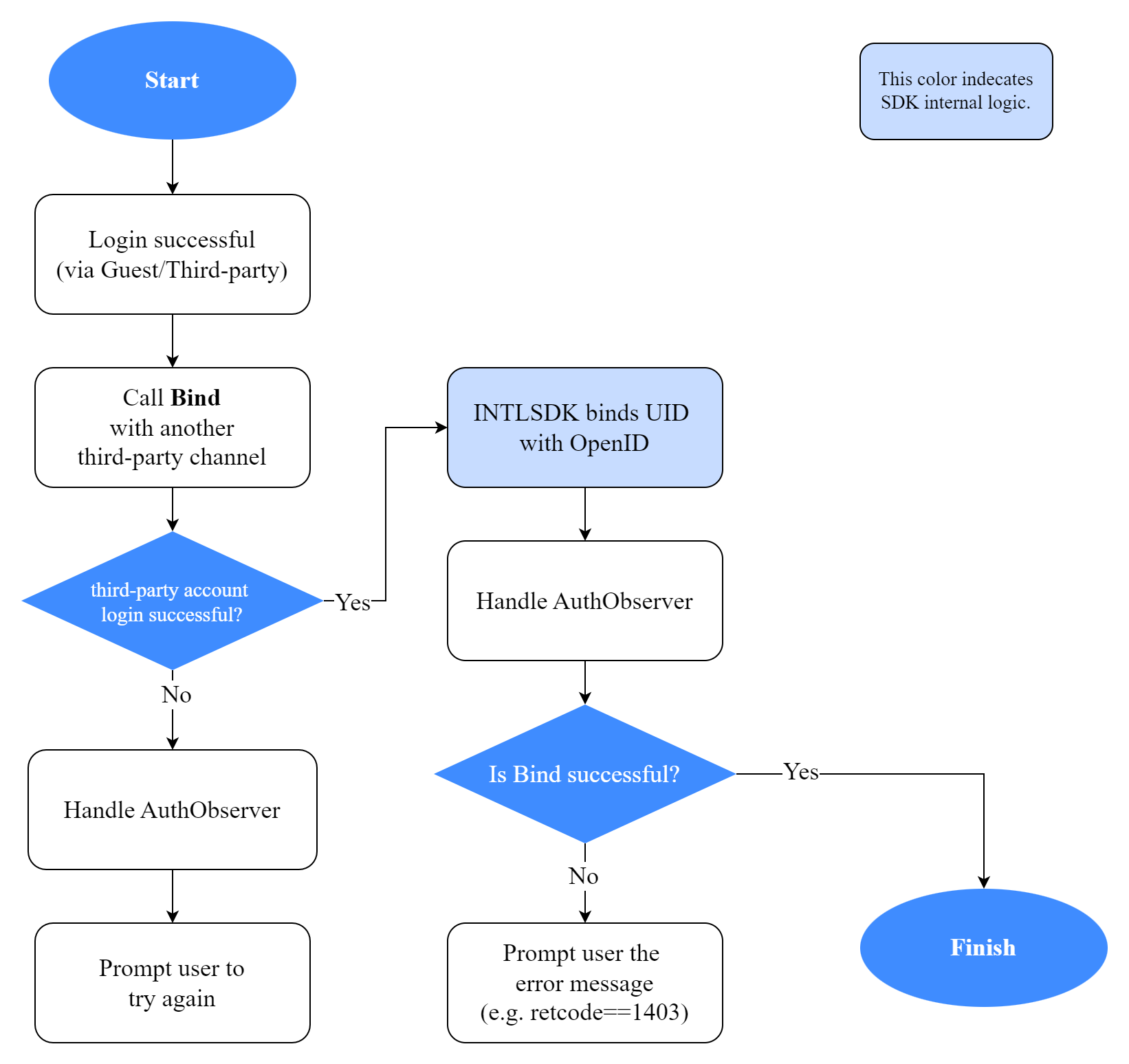
To link an account, the player must first successfully log in to the game.Then, developers call the Bind API.The input parameters for this API include the channel definition of the login channel the player wishes to link, permissions required by the linked channel, and specified extra information.For each channel's required permissions and extra information, refer to Integration guide for each login channel.
Only one UID can be linked to one OpenID in the same channel.For example, one OpenID cannot be linked to two different Facebook UIDs, nor can one Facebook UID be linked to two different OpenIDs.If the linked account returns a UID that cannot be linked to the OpenID, Player Network backend will return an error code.This error code may mean
- The UID returned by the linked account is already linked to another OpenID
- The OpenID of the login account is already linked to another UID of the same channel
When calling the Bind method, if the current login channel is a guest account, this guest account can be linked to any other login channel.However, if the player is not logged in as a guest account, then the account can only be linked to other non-guest account login channels and cannot be linked to guest channels.
The following code example uses Facebook as an example.
- Unity
- Unreal Engine
INTLAPI.Bind(INTLChannel.Facebook);
For detailed usage, see Unity Bind
UINTLSDKAPI::Bind(EINTLLoginChannel::kChannelFacebook);
For detailed usage, see UE Bind
Account unlinking
Developers can unlink OpenID from the login channel.Once successfully unlinked, players cannot use the unlinked account to log in to the game anymore.The next time players attempt to log in with the unlinked account, a new OpenID will be generated.
To unlink a player account, developers need to call the Unbind API and provide the channel ID to unlink, plus two optional parameters: the UID of the channel to unlink and any other data required by the channel.
The following code example uses unlinking the Facebook channel as an example.
- Unity
- Unreal Engine
INTLAPI.Unbind(4);
For detailed usage, see Unity Unbind
UINTLSDKAPI::Unbind(EINTLLoginChannel::kChannelFacebook);
For detailed usage, see UE Unbind
Logout
Developers can provide an option for players to log out from their current login channel by calling the Logout API.After logging out from the current channel, the login state stored in the local cache will be cleared. When players log in next time, they cannot log in automatically and must log in manually.
- Unity
- Unreal Engine
INTLAPI.Logout();
For detailed usage, see Unity Logout
UINTLSDKAPI::Logout();
For detailed usage, see UE Logout
Example code
The following code demonstrates how to add/remove authentication-related callbacks in the game client, and how to handle login, autologin, bind, logout, and unbind callback results. For reference only.
- Unity
- Unreal Engine
// Suggestion : Add observers when the game starts
public void AddObserver()
{
    INTLAPI.AddAuthBaseResultObserver(OnAuthBaseResultEvent);
    INTLAPI.AddAuthResultObserver(OnAuthResultEvent);
}

public void RemoveObserver()
{
    INTLAPI.RemoveAuthBaseResultObserver(OnAuthBaseResultEvent);
    INTLAPI.RemoveAuthResultObserver(OnAuthResultEvent);
}

// Process the callback of AuthResultObserver, including login, autologin, bind
private void OnAuthResultEvent(INTLAuthResult AuthResult)
{
    switch (AuthResult.MethodId)
    {
        case (int)INTLMethodID.INTL_AUTH_LOGIN:
            if(AuthResult.RetCode == (int)ERROR_CODE.SUCCESS) {
                Debug.Log("Login success");
            }
            break;
        case (int)INTLMethodID.INTL_AUTH_AUTOLOGIN:
            if(AuthResult.RetCode == (int)ERROR_CODE.SUCCESS) {
                Debug.Log("Autologin success");
            } else {
                Debug.Log("Autologin failed, ret_code = " + AuthResult.RetCode + ", ret_msg = " + AuthResult.RetMsg);
                // Call login after autologin failed
                INTLAPI.Login(INTLChannel.Guest);
            }
            break;
        case (int)INTLMethodID.INTL_AUTH_BIND:
            if(AuthResult.RetCode == (int)ERROR_CODE.SUCCESS) {
                Debug.Log("Bind success");
            }
            break;
        default:
            break;
    }
}

// Process the callback of AuthBaseResultObserver, including logout, unbind
public void OnAuthBaseResultEvent(INTLBaseResult ret)
{
    if (ret.MethodId == (int)INTLMethodID.INTL_AUTH_LOGOUT) {
        Debug.Log("Logout success");
    } else if (ret.MethodId == (int)INTLMethodID.INTL_AUTH_UNBIND) {
        Debug.Log("Unbind success");
    }
}
// Suggestion : Add observers when the game starts
void AddObserver()
{
    FINTLAuthBaseEvent authBaseObserver;
    FINTLAuthEvent authObserver;

    authObserver.AddUObject(this, &UAuthWindow::OnAuthResult_Implementation);
    authBaseObserver.AddUObject(this, &UAuthWindow::OnAuthBaseResult_Implementation);

    UINTLSDKAPI::SetAuthBaseResultObserver(authBaseObserver);
    UINTLSDKAPI::SetAuthResultObserver(authObserver);
}

void RemoveObserver()
{
    UINTLSDKAPI::GetAuthBaseResultObserver().Clear();
    UINTLSDKAPI::GetAuthResultObserver().Clear();
}

// Process the callback of AuthResultObserver, including login, autologin, bind
void OnAuthResult_Implementation(FINTLAuthResult ret)
{

    switch(ret.MethodId)
    {
        case (int32)kMethodIDAuthLogin:
            if(ret.RetCode == INTL_NAMESPACE::ErrorCode::SUCCESS) {
                UE_LOG(LogTemp, Warning, TEXT("Login success"));
            }
            break;
        case (int32)kMethodIDAuthAutoLogin:
            if(ret.RetCode == INTL_NAMESPACE::ErrorCode::SUCCESS) {
                UE_LOG(LogTemp, Warning, TEXT("Autologin success"));
            } else {
                UE_LOG(LogTemp, Warning, TEXT("Autologin failed, ret_code = %d, ret_msg = %s"), ret.RetCode, *ret.RetMsg);
                // Call login after autologin failed
                UINTLSDKAPI::Login(EINTLLoginChannel::kChannelGuest);
            }
            break;
        case (int32)kMethodIDAuthBind:
            if(ret.RetCode == INTL_NAMESPACE::ErrorCode::SUCCESS) {
                UE_LOG(LogTemp, Warning, TEXT("Bind success"));
            }
            break;
        default:
            break;
    }
}

// Process the callback of AuthBaseResultObserver, including logout, unbind
void OnAuthBaseResult_Implementation(FINTLBaseResult ret)
{
    if (ret.MethodId == (int32)kMethodIDAuthLogout) {
        UE_LOG(LogTemp, Warning, TEXT("Logout success"));
    } else if (ret.MethodId == (int32)kMethodIDAuthUnbind) {
        UE_LOG(LogTemp, Warning, TEXT("Unbind success"));
    }
}

