Configure Adjust reporting
This document aims to introduce how to set up the Adjust analytics platform so that your game can directly report analytics data to Adjust.
Prerequisites
Adjust supports multi-store channel packs, allowing multiple app IDs to be created under the same developer account.Create additional game applications on the Adjust site and complete the configuration of additional game applications by repeating the following steps.
- Create an Adjust account and set up and configure your application in the Adjust dashboard.
2. Obtain app token (ID)
-
Enter the Adjust dashboard.
-
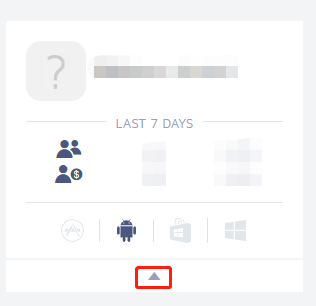
Click the options icon (▲) for the corresponding app.
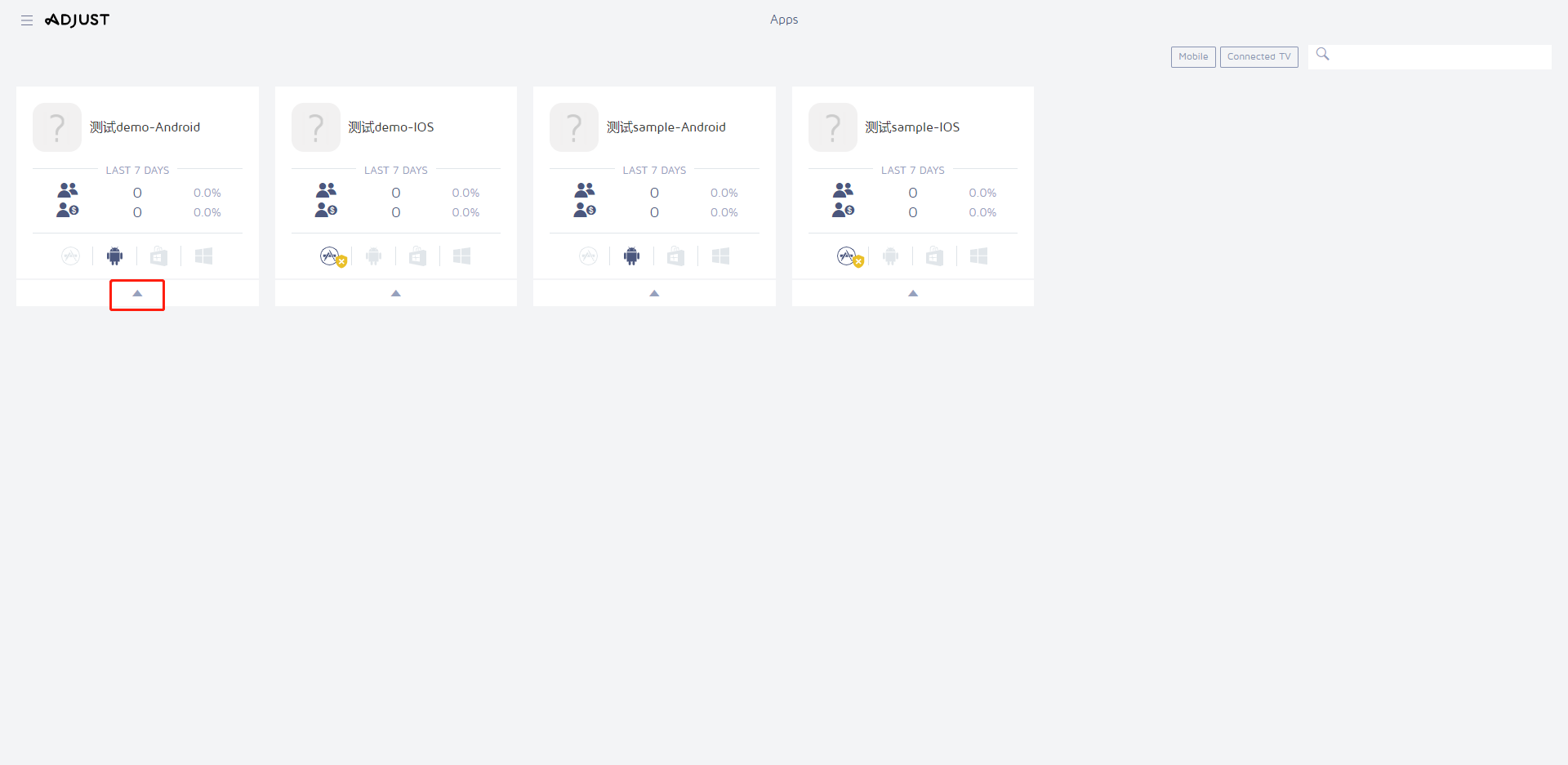
-
View the APP TOKEN information of the application.
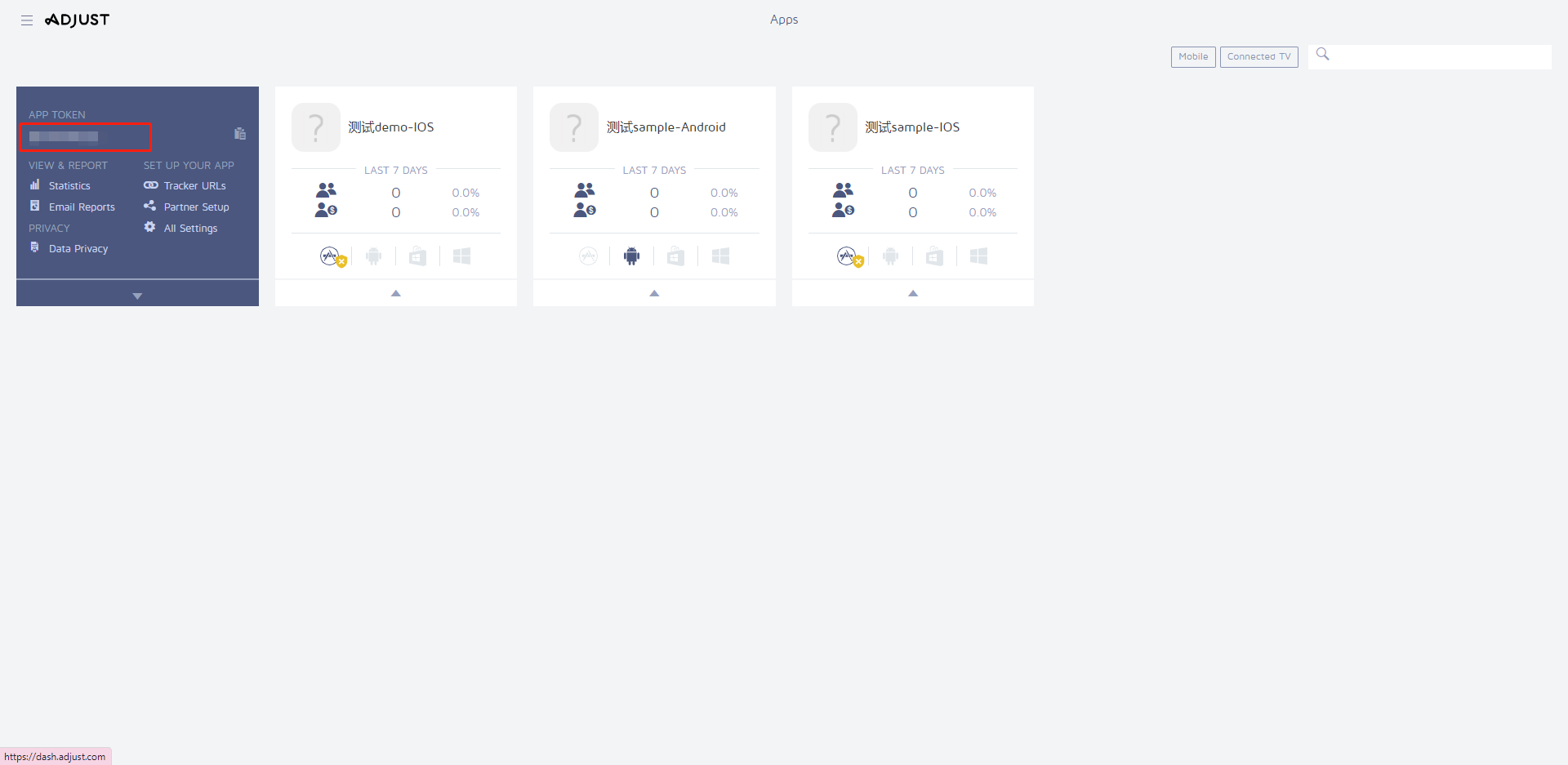
App token is generally a string of characters; iOS and Android have their own different app tokens.
3. Create tracking link
After creating the tracking link, it takes more than 3 hours to view related data in the Adjust control panel.
-
Enter the Adjust dashboard, and click the options icon (▲) for the corresponding app.
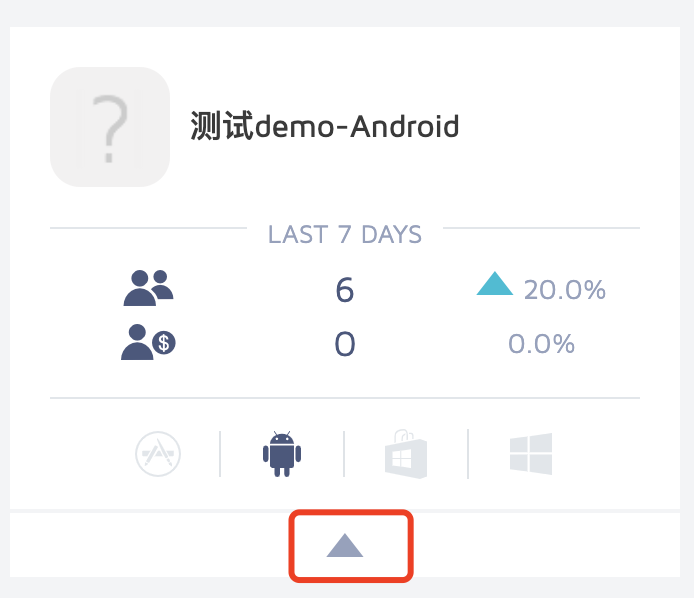
-
Click Tracker URLs.
-
In the Manage Network Trackers interface, fill in the tracking link name and click QUICK CREATE.
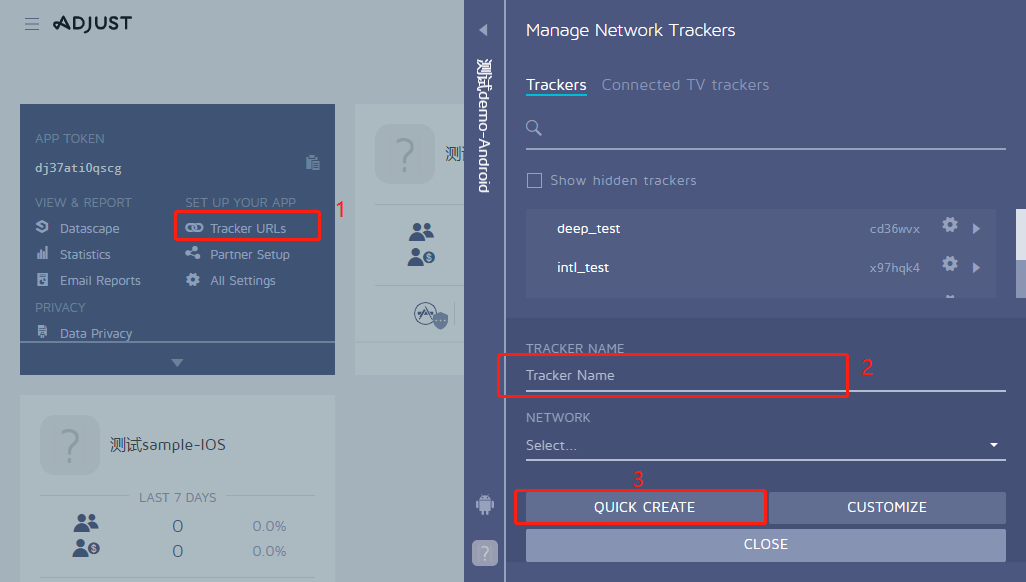
-
Click the settings icon on the right of the newly created tracking link.
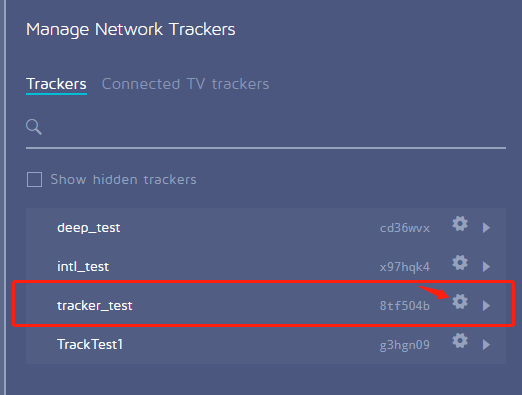
-
Save the tracking token, which is the 6 or more digit alphanumeric characters following the Adjust interface.
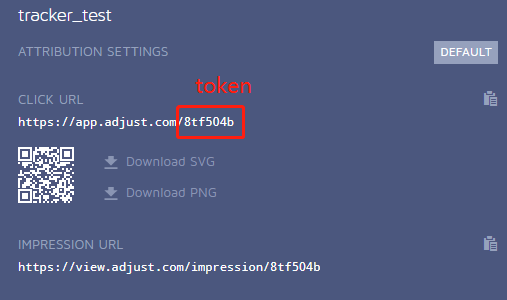
Obtain the tracker token by creating a tracker link, add it to the APK package, and open the application to view related data.
Step 1: Permissions and project configuration
Android
User Permissions
Adjust requires access to network and WiFi state permissions.
<uses-permission android:name="android.permission.INTERNET" />\n<uses-permission android:name="android.permission.ACCESS_NETWORK_STATE" />
The receiver configuration is used to track the installation source.Player Network SDK has integrated the configuration, the service can check within the SDK package.
<receiver android:name="com.adjust.sdk.AdjustReferrerReceiver" android:exported="true" >
  <intent-filter>
      <action android:name="com.android.vending.INSTALL_REFERRER" />
  </intent-filter>
</receiver>
Adjust does not provide an interface to manually control the collection of the Mac address, relying solely on ACCESS_WIFI_STATE permission.
Due to compliance requirements, Mac addresses cannot be collected, and Player Network SDK does not apply for WiFi state permissions by default for Adjust.At the same time, all plugins within the Player Network SDK do not apply for this permission by default.
<uses-permission android:name="android.permission.ACCESS_WIFI_STATE" />
Project Configuration
Add the following configuration in the INTLConfig.ini file:
[Adjust Debug Mode]
DEBUG_CHANNEL = Adjust
[Android LifeCycle]
LIFECYCLE = Adjust
[Adjust Configurations]
ADJUST_OPEN_DEEPLINK_ENABLE = 0
ADJUST_APP_TOKEN_ANDROID = {ADJUST_APP_TOKEN_ANDROID}
ADJUST_REGISTER_EVENT_TOKEN_ANDROID = {REGISTER_TOKEN}
ADJUST_LOGIN_EVENT_TOKEN_ANDROID = {LOGIN_TOKEN}
ADJUST_APPSECRET_ANDROID = {ADJUST_SECRET_ID}
ADJUST_INFO1_ANDROID = {INFO_01}
ADJUST_INFO2_ANDROID = {INFO_02}
ADJUST_INFO3_ANDROID = {INFO_03}
ADJUST_INFO4_ANDROID = {INFO_04}
ADJUST_SUB_DOMAIN = {ADJUST_SUBDOMAIN}
ADJUST_URL_STRATEGY_ANDROID = {ADJUST_URL_STRATEGY_ANDROID}
ADJUST_SIGNATURE_VERSION_ANDROID = {ADJUST_SIGNATURE_VERSION_ANDROID}
ADJUST_CHANNEL_START_EVENT_TOKEN_ANDROID = {ADJUST_CHANNEL_START_EVENT_TOKEN_ANDROID}
-
Set the Adjust channel in
DEBUG_CHANNEL, which indicates the activation of Adjust debug mode. -
Add Adjust in
LIFECYCLE.For more information, please see SDK Environment. -
ADJUST_OPEN_DEEPLINK_ENABLEsets whether to enable deep linking functionality, default is 0 to disable. -
Fill in the value of the Android App Token obtained from the management terminal in
{ADJUST_APP_TOKEN_ANDROID}. -
[Optional] If you want to have a registration event, you can create a registration event and use the event token to set
{REGISTER_TOKEN}. -
[Optional] If you want to have a login event, you can create a login event and use the corresponding event token to set
{LOGIN_TOKEN}. -
{ADJUST_SECRET_ID}is configured for anti-Tamper, supported by Adjust SDK 4.12.0 or later versions.{INFO_01},{INFO_02},{INFO_03},{INFO_04}configurations are only valid after{ADJUST_SECRET_ID}is set.
Configure as per the instructions in SDK Signature. -
{ADJUST_SUBDOMAIN}can be configured for the Adjust report relay server; leave it empty if not needed. -
{ADJUST_URL_STRATEGY_ANDROID}can configure the region where Adjust data resides; leave it empty if not needed.For more information, see Adjust Channel Configuration. -
{ADJUST_SIGNATURE_VERSION_ANDROID}can configure Adjust's signature version, 1 for v1 signature, 2 for v2 signature. -
Replace
{ADJUST_CHANNEL_START_EVENT_TOKEN_ANDROID}with Adjust custom start event token.
iOS
Project Configuration
Add configuration in the INTLConfig.ini file:
[Adjust Debug Mode]
DEBUG_CHANNEL = Adjust
[Adjust Configurations]
ADJUST_OPEN_DEEPLINK_ENABLE = 0
ADJUST_APP_TOKEN_IOS = {ADJUST_APP_TOKEN_IOS}
ADJUST_REGISTER_EVENT_TOKEN_IOS = {REGISTER_TOKEN}
ADJUST_LOGIN_EVENT_TOKEN_IOS = {LOGIN_TOKEN}
ADJUST_APPSECRET_IOS = {ADJUST_SECRET_ID}
ADJUST_INFO1_IOS = {INFO_01}
ADJUST_INFO2_IOS = {INFO_02}
ADJUST_INFO3_IOS = {INFO_03}
ADJUST_INFO4_IOS = {INFO_04}
ADJUST_SUB_DOMAIN = {ADJUST_SUBDOMAIN}
ADJUST_URL_STRATEGY_IOS = {ADJUST_URL_STRATEGY_IOS}
ADJUST_SIGNATURE_VERSION_IOS = {ADJUST_SIGNATURE_VERSION_IOS}
ADJUST_CHANNEL_START_EVENT_TOKEN_IOS = {ADJUST_CHANNEL_START_EVENT_TOKEN_IOS}
- Set the Adjust channel in
DEBUG_CHANNEL, indicating the activation of Adjust debug mode. ADJUST_OPEN_DEEPLINK_ENABLEsets whether to enable deep linking functionality, default is 0 to disable.- Fill in the value of the iOS App Token obtained from the management terminal in
{ADJUST_APP_TOKEN_IOS}. - [Optional] If you want to have a registration event, you can create a registration event and use the event token to set
{REGISTER_TOKEN}. - [Optional] If you want to have a login event, you can create a login event and use the corresponding event token to set
{LOGIN_TOKEN}. {ADJUST_SECRET_ID}is configured for anti-Tamper as numeric.{INFO_01},{INFO_02},{INFO_03},{INFO_04}configurations are only valid after{ADJUST_SECRET_ID}is set.Please contact Tencent internal Adjust account administrator for INFO values, contact person: [kchuang] Jiaqi Huang.{ADJUST_SUBDOMAIN}can be configured for the Adjust report relay server; leave it empty if not needed.{ADJUST_URL_STRATEGY_IOS}can configure the region where Adjust data resides; leave it empty if not needed.For more information, see Adjust Channel Configuration.{ADJUST_SIGNATURE_VERSION_IOS}can be configured to Adjust's signature version, 1 for v1 signature, 2 for v2 signature.- Replace
{ADJUST_CHANNEL_START_EVENT_TOKEN_IOS}with Adjust custom start event token.
[Optional] Unity engine export to Xcode
When Unity exports to Xcode project, you need to configure the .projmods file.
The game needs to check the configuration written by INTLCoreKit.projmods.
{
    "group": "INTL",
    "libs": ["libz.tbd", "libsqlite3.tbd"],
    "frameworks": ["AdSupport.framework", "iAd.framework", "CoreTelephony.framework", "SystemConfiguration.framework"],
    "files": [],
    "folders": [],
    "excludes": [],
    "headerpaths":[],
    "build_settings":{},
    "system_capabilities": {},
    "Info.plist":{}
}
[Optional] Deep Linking
Configure iOS 8 and earlier, iOS 9 and later, and add the following code in AppDelegate.m:
- (BOOL)application:(UIApplication *)application continueUserActivity:(NSUserActivity *)userActivity restorationHandler:(void (^)(NSArray * _Nullable))restorationHandler
To support deferred deep linking application jump functionality, you need to enable the switch under Adjust in app.plist.
Step 2: Configure Adjust V2
Contact Adjust to provide the signature plugin AdjustSigSdk.aar, AdjustSigSdk.framework, and the signature verification tool adjust_sig_doctor.
Android
- Unity
- Unreal Engine
Place the obtained AdjustSigSdk.aar in the plugins directory of Player Network SDK Android \Assets\Plugins\Android\AdjustSigSdk.aar.
- Place the obtained
AdjustSigSdk.aarinPlugins\INTLSDK\Source\INTLAdjust\Libs\Android\libs\AdjustSigSdk.aar. - Modify
Plugins\INTLSDK\Source\INTLAdjust\Libs\Android\INTLAdjust_APL.xml
and copyAdjustSigSdk.aarinto the target directory.
{/* Copy file or directory to Intermediate/Android/APK */}
<resourceCopies>
{/* INTLAdjust_Start */}
<copyFile src="$S(PluginDir)/AdjustSigSdk.aar" dst="$S(BuildDir)/libs/AdjustSigSdk.aar"/>
{/* INTLAdjust_End */}
</resourceCopies>
iOS
- Unity
- Unreal Engine
- Create a file named
INTLAdjustSigKit.projmodsin the game directoryUnity5/Asses/INTLSDK/Editor/XUPorter/Modswith the following contents:
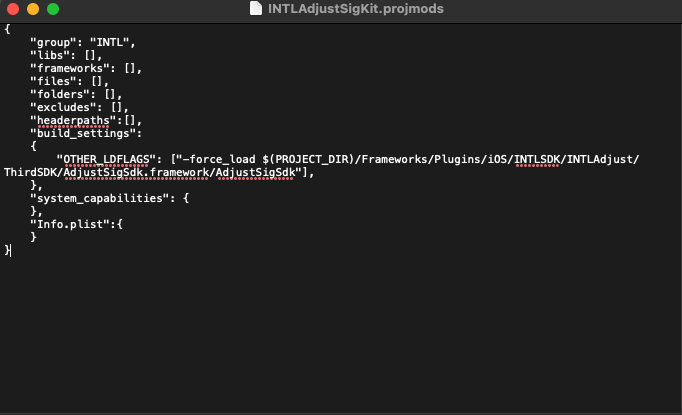
{
  "group":"INTL",
  "libs": [],
  "frameworks": [],
  "files": [],
  "folders": [],
  "excludes": [],
  "headerpaths": [],
  "build_settings":
  {
    "OTHER_LDFLAGS": ["-force_load ${PROJECT_DIR}/Frameworks/Plugins/iOS/INTLSDK/INTLAdjust/ThirdSDK/AdjustSigSdk.framework/AdjustSigSdk"],
  },
  "system_capabilities": {
  },
  "Info.plist": {
  },
}
- Put the
AdjustSigSdk.frameworksignature library into.../Plugins/iOS/INTLSDK/INTLAdjust/ThirdSDKdirectory.
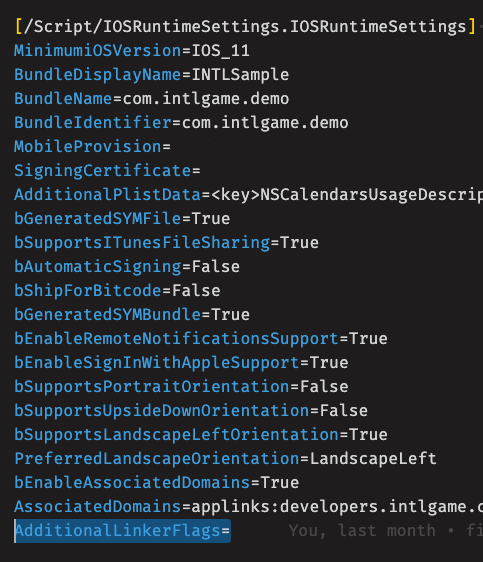
- Add
AdditionalLinkerFlags=to the configuration[/Script/IOSRuntimeSettings.IOSRuntimeSettings]in{game project directory}/Config/DefaultEngine.ini.
- Add
PreBuildStepstoINTLPlugin.upluginfollowing the content below:
  "PreBuildSteps": {
      "Win64": [],
      "Mac": [
          "echo 'PreBuildSteps start!'",
          "pwd",
          "echo EngineDir = $(EngineDir)",
          "echo ProjectDir = $(ProjectDir)",
          "echo TargetName = $(TargetName)",
          "echo TargetPlatform = $(TargetPlatform)",
          "echo TargetConfiguration = $(TargetConfiguration)",
          "echo TargetType = $(TargetType)",
          "echo ProjectFile = $(ProjectFile)",
          "echo PluginDir = $(PluginDir)",
          "[ -d $(PluginDir)/Source/INTLAdjust/Libs/iOS/INTLAdjust ] && sed -i '' 's#AdditionalLinkerFlags=.*#AdditionalLinkerFlags=-force_load $(PluginDir)/Source/INTLAdjust/Libs/iOS/INTLAdjust/AdjustSigSdk.framework/AdjustSigSdk#g' $(ProjectDir)/Config/DefaultEngine.ini",
          "echo 'PreBuildSteps end!'"
      ]
  }
- Put the
AdjustSigSdk.frameworksignature library into$(PluginDir)/Source/INTLSDKPlugin/INTLSDK/iOS/INTLAdjustdirectory.
Integrate Sig
The steps for Sig verification are introduced using Windows platform as an example:
- Open
adjust_sig_doctorfolder. - Open
windows_386. - Execute
adjust_sig_doctor.exe. - Enter app token.

- Choose the corresponding APK and confirm.
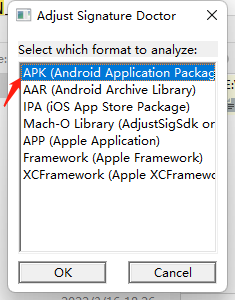
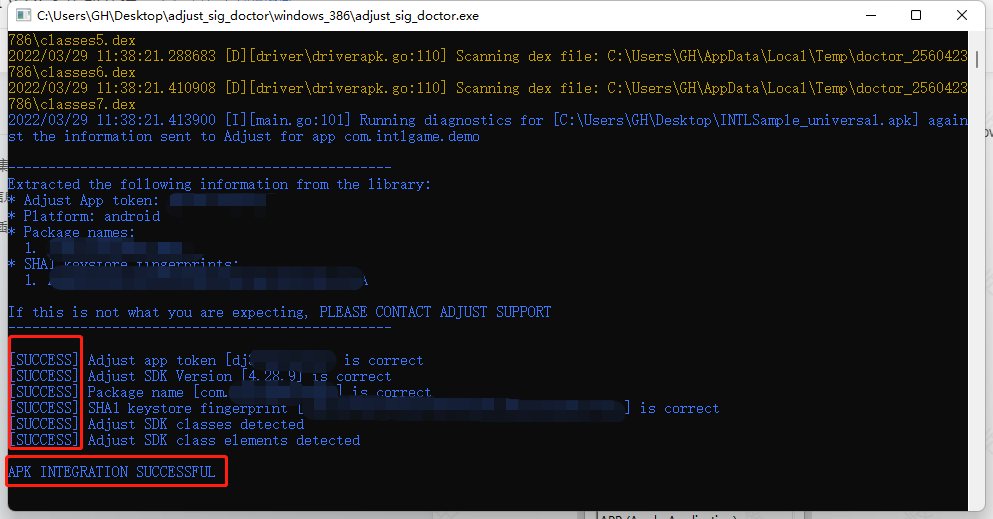
- CLI displays
APK INTEGRATION SUCCESSFUL, indicating successful integration.
Configure INTLConfig.ini
In INTLConfig.ini, set both ADJUST_SIGNATURE_VERSION_ANDROID and ADJUST_SIGNATURE_VERSION_IOS to 2.
ADJUST_SIGNATURE_VERSION_ANDROID = 2
ADJUST_SIGNATURE_VERSION_IOS = 2
Step 3: Add tracking token to APK package
Adjust tracker user behavior attributes adjusted to the source camp.Adjust automatically assigns a unique tracker token for each tracker.For more information, see Adjust Links.
Must support Adjust V2 signature.
-
Customize Gradle plugin and create a task.
project.afterEvaluate {
    ChannelMaker channelMaker = project.tasks.create("assemble${variantName}Channels", ChannelMaker);
    channelMaker.targetProject = project;
    channelMaker.variant = variant;
    channelMaker.setup();

    // task add dependencies
    if (variant.hasProperty('assembleProvider')) {
        channelMaker.dependsOn variant.assembleProvider.get()
    } else {
        channelMaker.dependsOn variant.assemble
    }
} -
Handle tracking token logic in the created task.
1. the data is in big-endian mode.
2. protocol header is fixed new byte[]{-6, -106}.
1. Retrieve incoming data

    ```cs
    // get the input data
    byte[] encode() throws IOException {
        ByteArrayOutputStream out = new ByteArrayOutputStream();
        // write protocol header
        out.write(new byte[]{-6, -106});
        String s = "adjustTrackerToken=${tracek_token}";
        byte[] bytes = s.getBytes("UTF-8");
        out.write(new ZipShort(bytes.length).getBytes());
        out.write(bytes);
        return out.toByteArray();
    }
public final class ZipShort implements Cloneable {
    private int value;

    public ZipShort(byte[] bytes) {
        this(bytes, 0);
    }

    public ZipShort(byte[] bytes, int offset) {
        this.value = bytes[offset + 1] << 8 & '\uff00';
        this.value += bytes[offset] & 255;
    }

    public ZipShort(int value) {
        this.value = value;
    }

    public boolean equals(Object o) {
        if (o != null && o instanceof ZipShort) {
            return this.value == ((ZipShort)o).getValue();
        } else {
            return false;
        }
    }

    public byte[] getBytes() {
        byte[] result = new byte[]{(byte)(this.value & 255), (byte)((this.value & '\uff00') >> 8)};
        return result;
    }

    public int getValue() {
        return this.value;
    }

    public int hashCode() {
        return this.value;
    }
}
- Use blockid
0x717874to write data toAPKSigningBlock.
3. Build Gradle package using `./gradlew assemble${variantName}Channels`.
4. In the log view, enter `set default tracker : ${tracker_token}` to check if the Gradle build is successful.

## Step 4: Configure Event Reporting \{#EventReporting}
### Auto-report Events
If [`ANALYTICS_AUTH_REPORT_ENABLE`](/docs/resources/SDKConfigurations/ConfigSDK#INTLAnalytics) is enabled and [Adjust's registration and login tokens](/docs/resources/SDKConfigurations/ConfigSDK#Adjust) are set within the [INTLConfig.ini](/docs/resources/SDKConfigurations/ConfigSDK) file, Player Network SDK will automatically report the following events:
- `completed_registration`: When the user logs in to the game for the first time
- `login`: When the user logs in to the game subsequently
### Report events manually
<details id="AddNew">
<summary>1. Create New Event</summary>
<div>
1. Enter [Adjust dashboard](https://dash.adjust.com/#/).
2. Click on the option icon (▲) for the respective application.
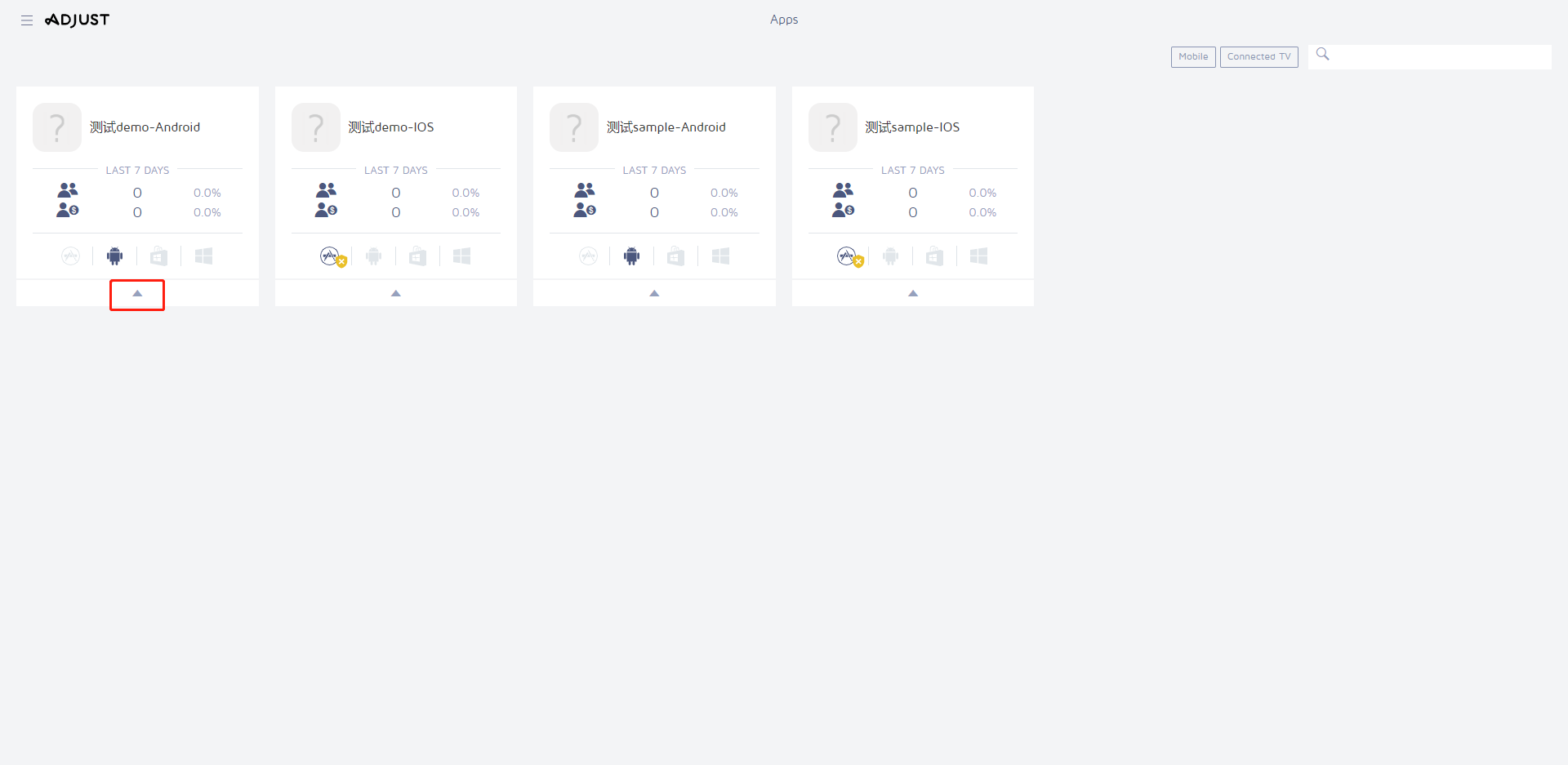
3. Click **All Settings**.
4. Click **Events**.
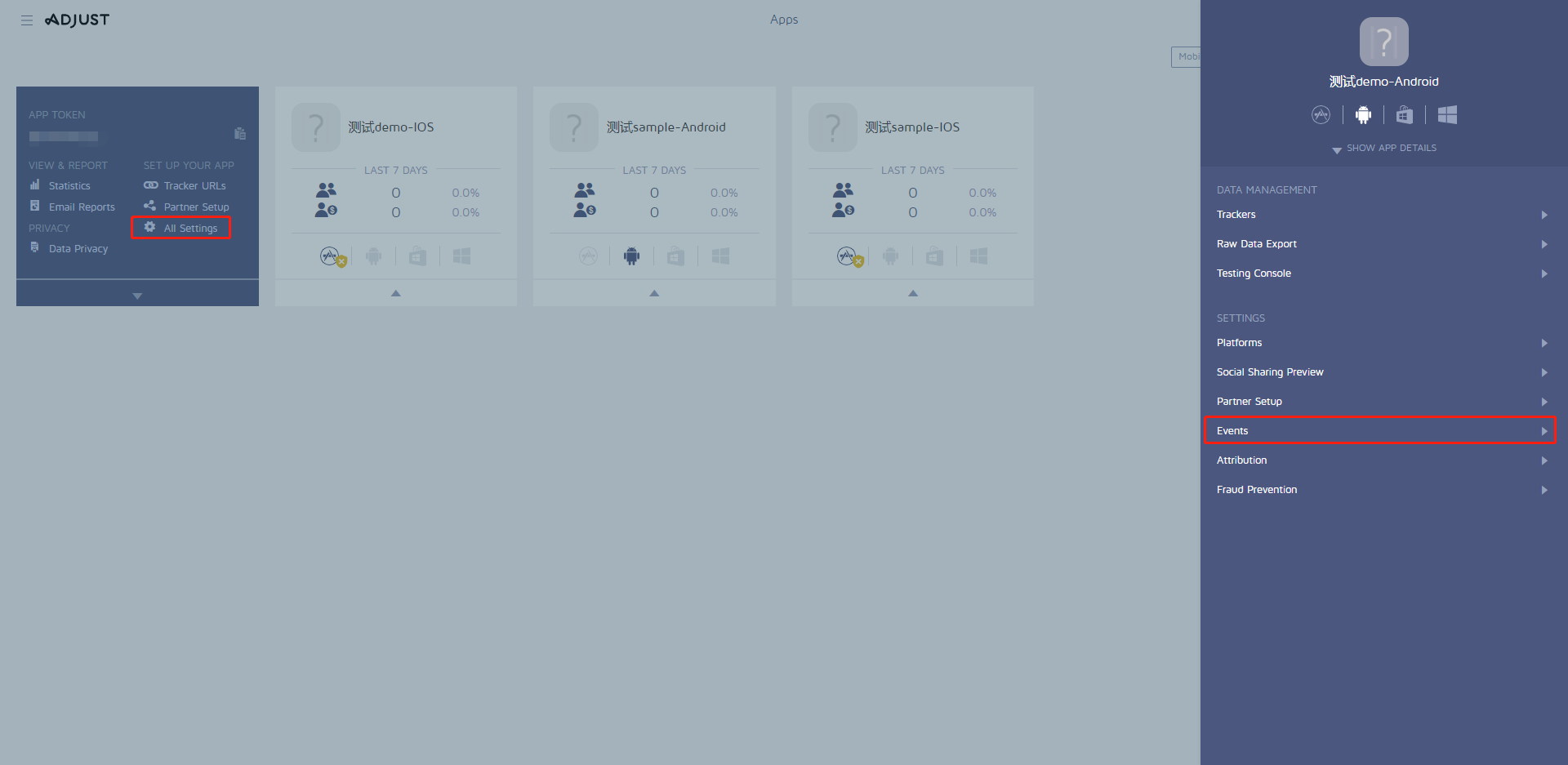
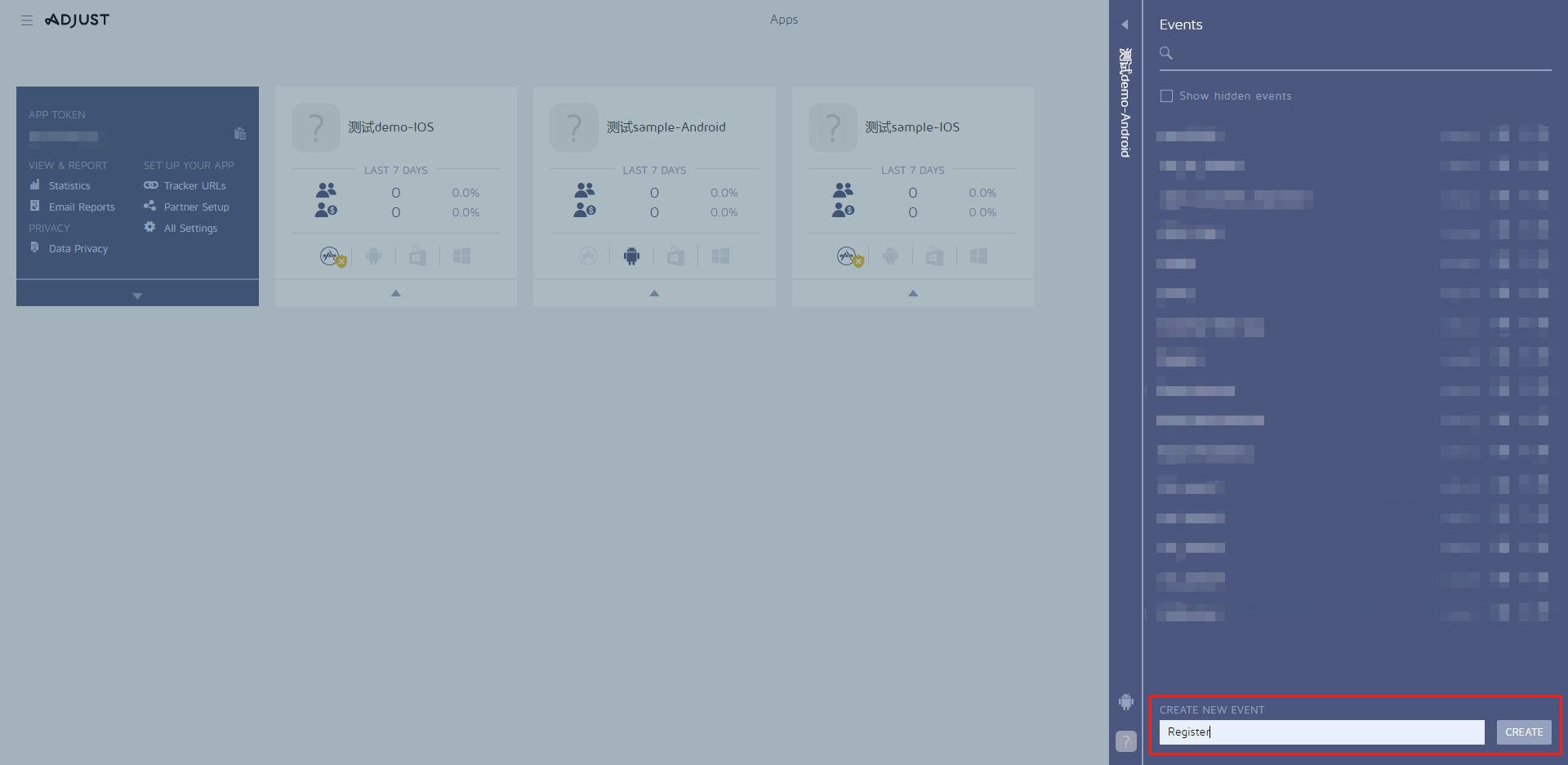
5. Enter the event name at the bottom of the event page and click **CREATE** to create a new event.
</div>
</details>
<details id="EventToken">
<summary>2. Obtain Event Token (ID)</summary>
<div>
1. Enter [Adjust dashboard](https://dash.adjust.com/#/).
2. Click on the option icon (▲) for the respective application.

3. Click **All Settings**.
4. Click **Events**.

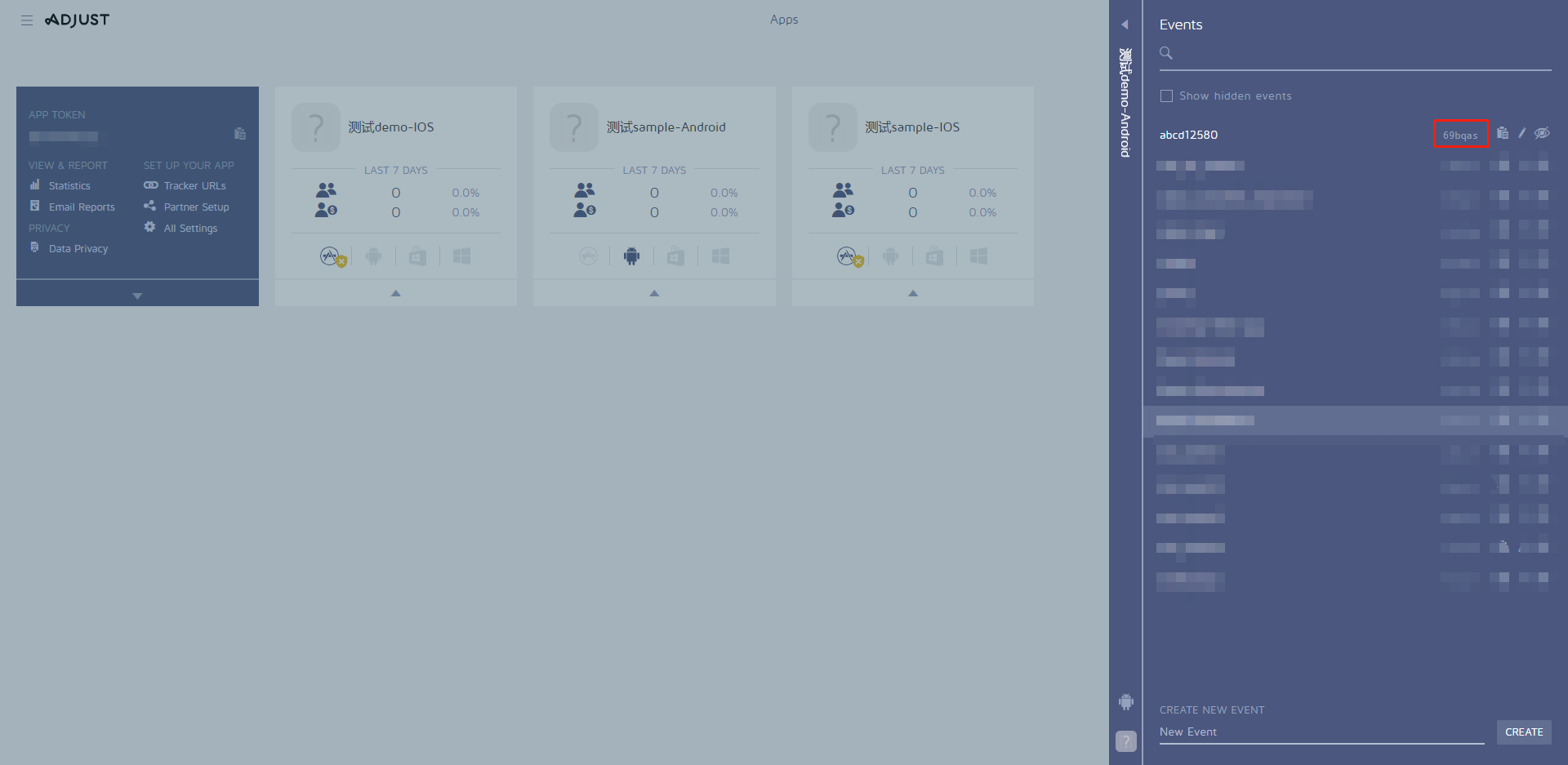
5. View the event token on the right side of the corresponding event.<br />In the event list, add, delete, and modify events according to business needs.
:::note
During event reporting, the fields to be reported must be configured on the console first, and then the corresponding token field assigned by the console must be reported in the code.
:::
</div>
</details>
<details>
<summary>3. Set Event Uniqueness</summary>
<div>
When registering an event, you can select event uniqueness, so that the event will be counted only once per device upon reporting.
1. Enter [Adjust dashboard](https://dash.adjust.com/#/).
2. Click on the option icon (▲) for the respective application.

3. Click **All Settings**.
4. Click **Events**.

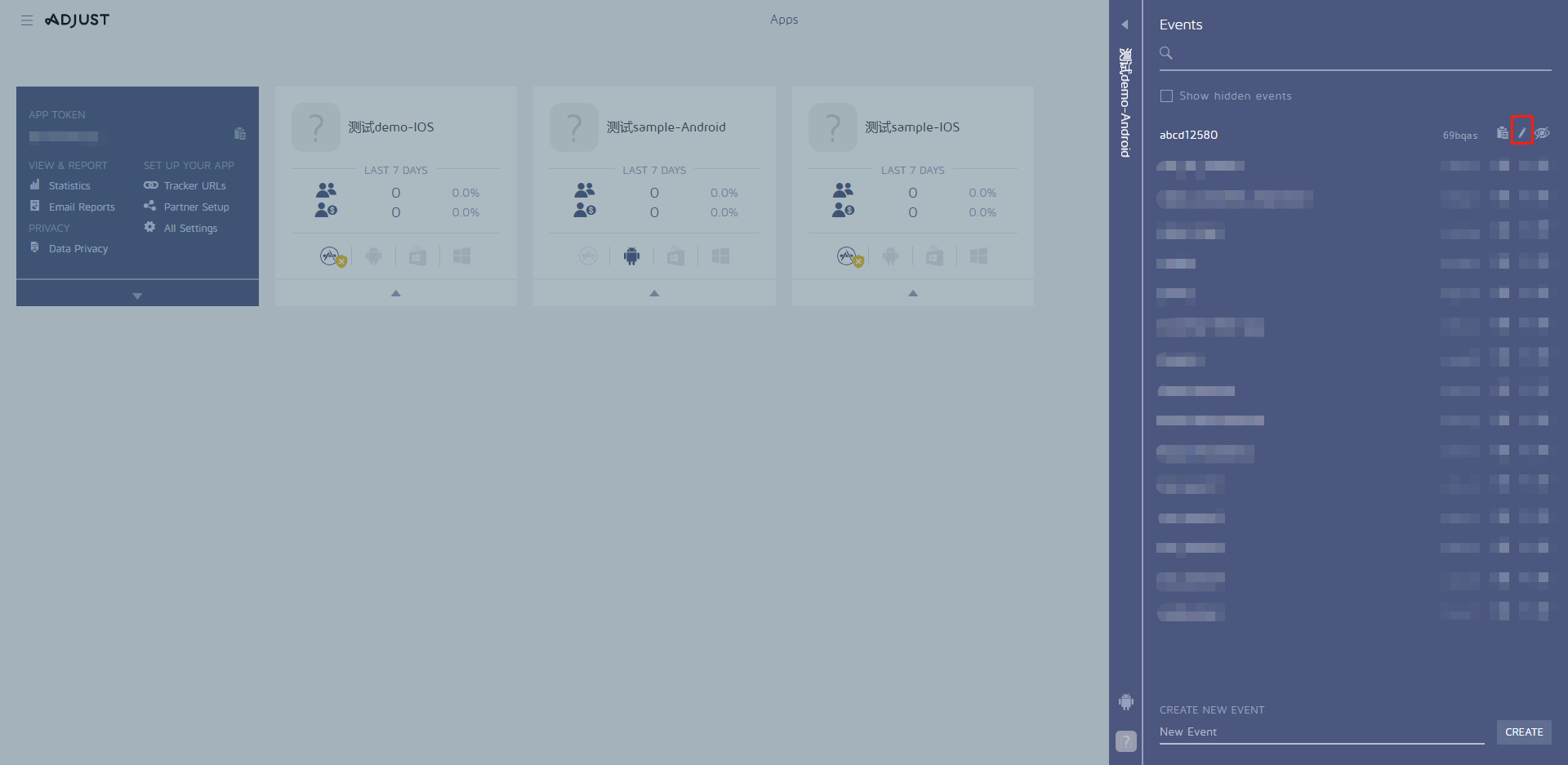
5. Click the edit button (pencil icon) on the right side of the respective event.
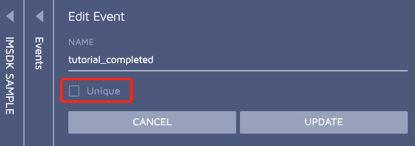
6. On the event editing page, select **Unique** and click **UPDATE** to complete setting the event's uniqueness.
For more details, see [Add Events](https://help.adjust.com/zh/article/add-events).
</div>
</details>
- If Adjust partner parameter is used, add parameters in `extraJson`:<br />`"{\"isPartnerParameters\":true}"`
- If the `extraJson` field is empty, or `isPartnerParameters` is set to `false`, the reporting parameters will be set in Adjust's `callback_params`.
- `EventName` must fill in the event token to track the event.For details, see [Adjust Event Tracking](https://help.adjust.com/zh/article/event-tracking-android-sdk).
For more information, see [Analytics](/docs/operationtools/datainsight/Telemetry/platform-reporting/Send-events).
### Funnel Events \{#FunnelReporting}
:::note
Supported since Player Network SDK V1.20.
:::
In [INTLConfig.ini](/docs/resources/SDKConfigurations/ConfigSDK), increase the required funnel events and corresponding tokens to be reported in Adjust channels in the `ADJUST_REPORT_FUNNEL_EVENTS_TOKEN_IOS` (iOS platform) and `ADJUST_REPORT_FUNNEL_EVENTS_TOKEN_ANDROID` (Android platform) configurations, formatted as `event1:token1,event2:token...`.
```ini
[Adjust]
ADJUST_REPORT_FUNNEL_EVENTS_TOKEN_IOS = app_launch:your_token,confirm_login_channel:your_token,channel_auth_success:your_token,login_auth_success:your_token,query_complicance:your_token,select_region_and_age:your_token,agree_privacy_policy:your_token,privacy_auth_sucess:your_token,show_server_list:your_token,submit_area:your_token,confirm_area:your_token,connect_svr_success:your_token,show_user_agreement:your_token,finish_user_agreement:your_token,check_for_updates:your_token,download_updates:your_token,unzip_files:your_token,complete_updates:your_token,show_enter_game:your_token,click_into_game:your_token,enter_lobby_success:your_token,authentication:your_token,pull_up_the_list_of_goods:your_token,pull_up_price_list:your_token,start_order:your_token,successful_order:your_token,start_payment:your_token,successful_payment:your_token,start_delivery:your_token,successful_delivery:your_token,register_success:your_token
ADJUST_REPORT_FUNNEL_EVENTS_TOKEN_ANDROID = app_launch:your_token,confirm_login_channel:your_token,channel_auth_success:your_token,login_auth_success:your_token,query_complicance:your_token,select_region_and_age:your_token,agree_privacy_policy:your_token,privacy_auth_sucess:your_token,show_server_list:your_token,submit_area:your_token,confirm_area:your_token,connect_svr_success:your_token,show_user_agreement:your_token,finish_user_agreement:your_token,check_for_updates:your_token,download_updates:your_token,unzip_files:your_token,complete_updates:your_token,show_enter_game:your_token,click_into_game:your_token,enter_lobby_success:your_token,authentication:your_token,pull_up_the_list_of_goods:your_token,pull_up_price_list:your_token,start_order:your_token,successful_order:your_token,start_payment:your_token,successful_payment:your_token,start_delivery:your_token,successful_delivery:your_token,register_success:your_token
In the INTLConfig.ini configuration for ANALYTICS_REPORT_FUNNEL_CHANNEL add the Adjust channel. Player Network SDK will synchronize reporting of funnel events to the Adjust channel.
[ANALYTICS]
ANALYTICS_REPORT_FUNNEL_CHANNEL = Adjust
Refer to Data Query to view reported events.
Step 5: Initialize the analytics module
- Unity
- Unreal Engine
Initialize the analytics module, then call ReportEvent to start reporting data to Adjust.
Initialize the analytics module, then call ReportEvent to start reporting data to Adjust.
Reporting Data Acceptance
Document Reference
Data Dimension
Adjust events are categorized as:
- InstallEvent (UnInstallEvent/ReInstallEvent)
- InAppEvent
For more information about event data attributes, see Adjust Event Attributes.
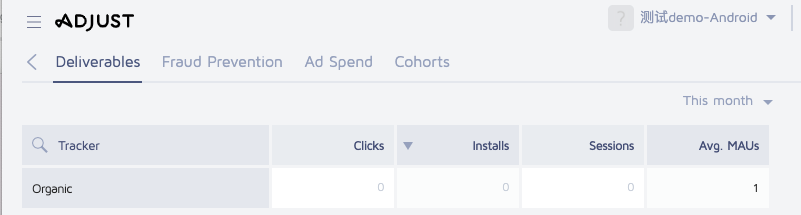
View Reported Events from Management Console
Events are not reported in real-time, with a delay of over 1 hour.
-
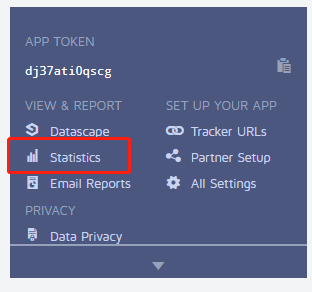
Enter Adjust dashboard, click the option icon (▲) for the respective application.
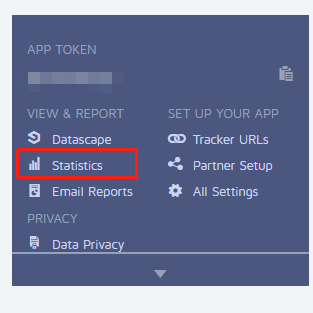
-
Click Statistics.
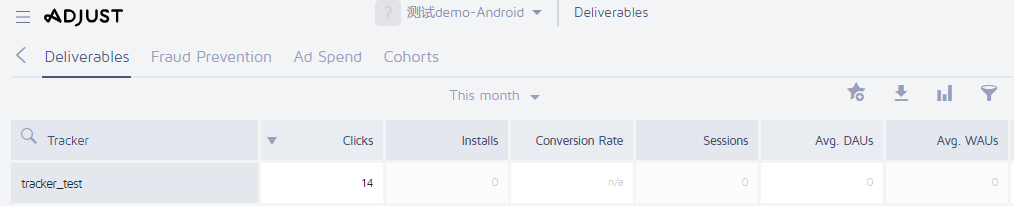
-
View tracking data.
Enable Sandbox Mode to View Reported Events
In Sandbox Mode, delay is about 10 minutes.
Report data to Adjust Sandbox Mode:
- Add Adjust in the
DEBUG_CHANNELconfiguration in INTLConfig.ini. - Set
LOG_LEVEL = 1orLOG_LEVEL = 0in the INTLConfig.ini.
When publishing your game and reporting data to the official Adjust environment, set LOG_LEVEL = 3.
To report data to the official Adjust environment, remove Adjust from the DEBUG_CHANNEL in the configured INTLConfig.ini.
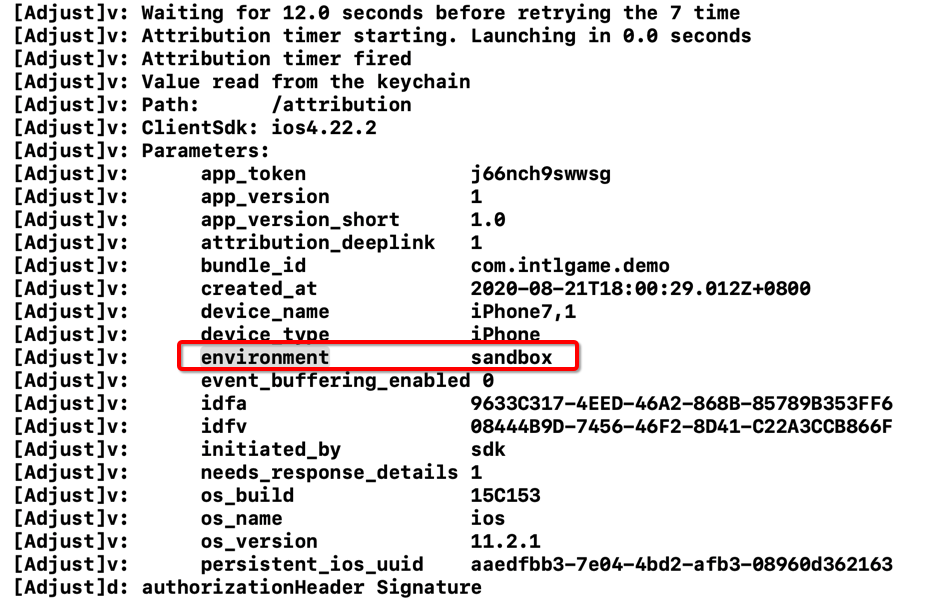
When data is successfully reported to Sandbox Mode, the log file appears as follows:
- Enter Adjust dashboard, click the option icon (▲) for the respective application.
- Choose All Settings > Test Console.
- Enter AD ID.
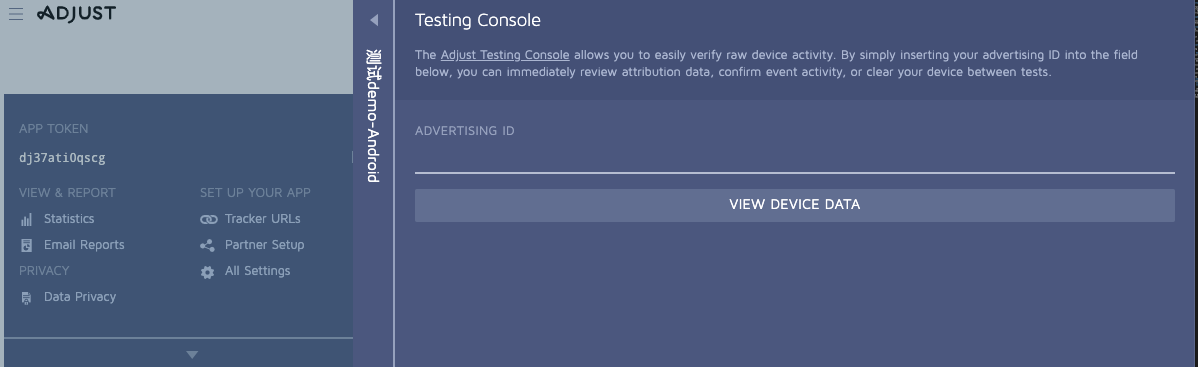
- Click View Device Data to view the test data on the console.
- [Optional] For multiple tests of install events or unique events on the same device, choose Forget Device to delete the application on the test device.
Adjust records an installation the first time an app is opened from an unrecognized device.This means an install can only occur once per device.
Thus, to test install events or unique events multiple times on the same device, use Forget Device in the test console to erase the device from Adjust, thereby removing the device's AD ID and activity history.The Forget Device feature erases a device based on a single application.In other words, all activities of this application previously tracked on the device will be removed.
Query Data
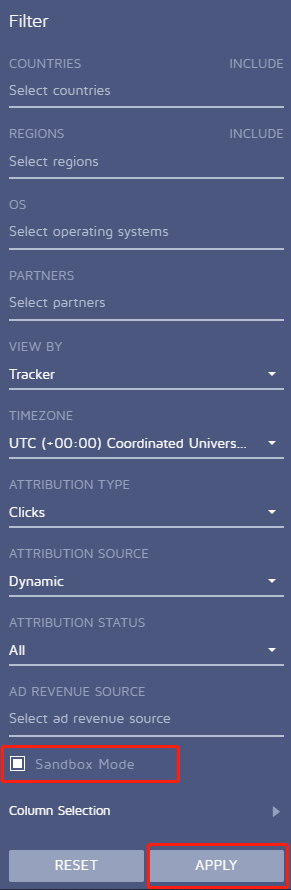
- Configure INTLConfig.ini to enable client Sandbox Mode for data reporting.
- Adjust Admin, enable Sandbox Mode to query data.

View advertising ID
- Android
- iOS
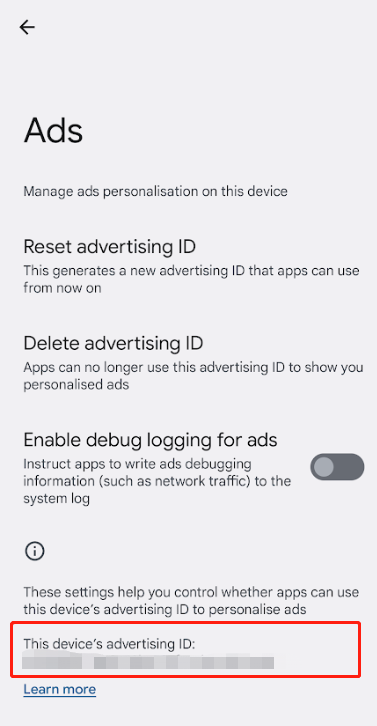
On your device, select Settings > Google > Ads to view the advertising ID for this device.
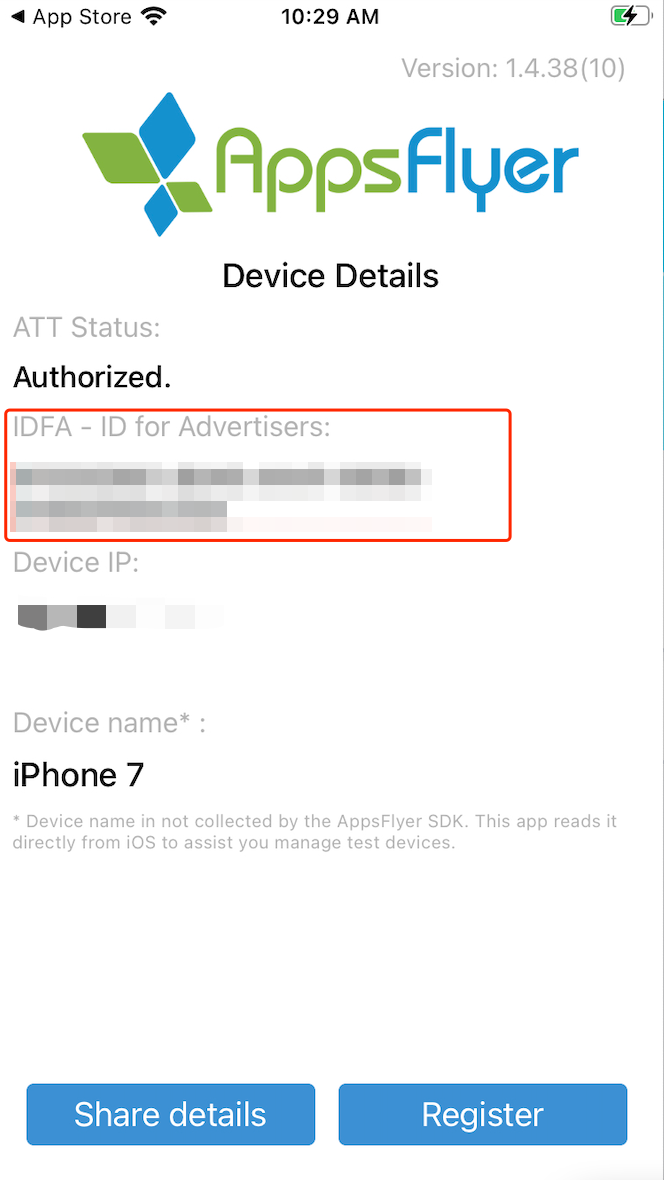
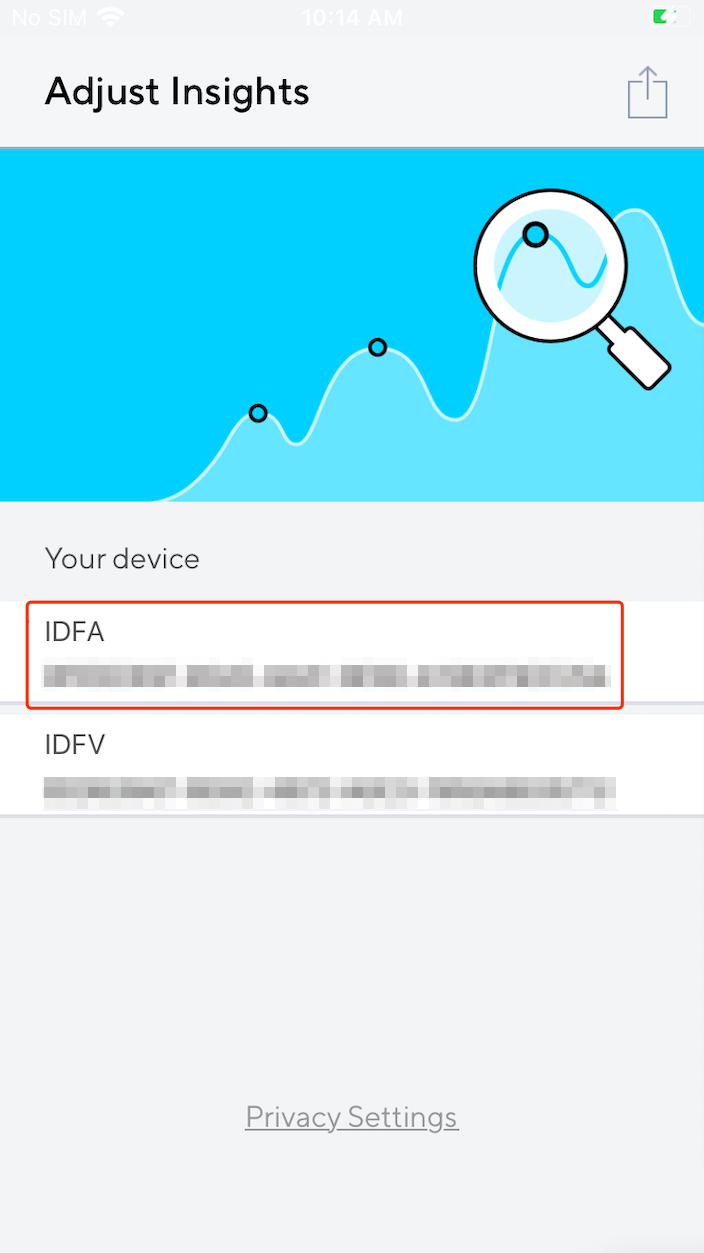
To view Apple IDFA, use a third-party tool. There are numerous apps available with this function on the App Store.A few common iOS apps that display device IDFA to users are listed below:
-
My Device ID by AppsFlyer
-
Adjust Insights by Adjust
-
Open the app on the device, initialize Player Network SDK, and upload events to obtain the string corresponding to
gps_adidon the control panel.
Acceptance Case 1
- Sub-function Module: Reporting
- Feature: Event Reporting
- Test Point: Guest login, first login, check Adjust login report
- Prerequisite: Initialize the analytics module
- Operation Steps/Input
- First-time guest login
- Log out
- Log in again with the same account
- Export data on the management end to view reported events
- Expected output information reported successfully, check as follows:
- View on the management console:
- Report registration event for first-time guest login (adjust_complete_registration): Reported count +1
- Log in with the same account and report login event (adjust_login): Reported count +1
- Data export verification: contact [killuachen] and pull logs into the group for final confirmation.
- Report registration event for first-time guest login (adjust_complete_registration): Reported count +1
- Log in with the same account and report login event (adjust_login): Reported count +1
- Player Network SDK OpenID carried in event parameters
- View on the management console:
Acceptance Test Case 2
- Sub-feature module: Reporting
- Feature point: Event Reporting
- Test Point: Facebook login, not the first login, check Adjust login reporting
- Prerequisite: Initialize analytics module
- Operation Steps/Input
- Use Facebook for first-time login
- Log out
- Log in again with the same account
- Export data on the management end to view reported events
- Expected output information reported successfully, check as follows:
- Management end view:
- Report registration event for first-time guest login (adjust_complete_registration): Reported count +1
- Log in with the same account and report login event (adjust_login): Reported count +1
- Data export verification: contact [killuachen] and pull logs into the group for final confirmation.
- Report registration event for first-time guest login (adjust_complete_registration): Reported count +1
- Log in with the same account and report login event (adjust_login): Reported count +1
- Player Network SDK OpenID carried in event parameters
- Management end view:
Acceptance Test Case 3
- Sub-feature module: Reporting
- Feature point: Event Reporting
- Test Point: Facebook login, first-time and subsequent logins, check Adjust login reporting
- Prerequisite: Initialize analytics module
- Operation Steps/Input
- First-time Facebook login
- Log out
- Log in again with the same account
- Export data on the management end to view reported events
- Expected output information reported successfully, check as follows:
- Management end view:
- Report registration event for first-time guest login (adjust_complete_registration): Reported count +1
- Log in with the same account and report login event (adjust_login): Reported count +1
- Export data verification:
- Report registration event for first-time guest login (adjust_complete_registration): Reported count +1
- Log in with the same account and report login event (adjust_login): Reported count +1
- Customer User ID matches Player Network SDK OpenID
- Management end view:
Acceptance Case 4
- Sub-feature module: Reporting
- Feature point: Event Reporting
- Test Point: Successful Adjust event reporting
- Prerequisite: Initialize analytics module
- Operation steps/inputs
- Request Report Event
- eventName =
Report_Event, paramsDic-key1=k1, paramsDic-value1=v1, paramsDic-key2=k2, paramsDic-value2=v2, spChannels=Adjust - Uninstall and install SDK and start the game
- View reported data on the management end and export INSTALL data table
- Expected output information reporting success, check the following:
- Management end view:
- Custom Event: Adjust can find reported custom
Report_Eventevent count +1 - Installation Event: View the number of reported INSTALL events for uninstalling and installing increased by 1 (only reported once without clearing the device)
- Custom Event: Adjust can find reported custom
- Export Data Verification: Contact [killuachen] to pull the group and export the log for final confirmation.
- Custom Event: Corresponding reporting data is correct (management terminal exports data that can correspond)
install_time={installed_at}comparison, check if it is installation time.event_name={event_name}Custom Event. - Installation Event: Uninstall and install INSTALL data table installation Installs report count +1 (only reported once without clearing the device)
activity_kind={activity_kind}will add a new installation.
- Custom Event: Corresponding reporting data is correct (management terminal exports data that can correspond)
- Management end view:
Acceptance Case 5
- Sub-module: ReportRevenue
- Feature: Adjust Payment Event Reporting
- Test Point: Query reported events after requesting
ReportRevenue(Adjust) - Prerequisite: Network connection normal
- Operation steps/inputs
- Request
ReportRevenue - eventName = (customizable), spChannels =
Adjust, Currency =USD, Revenue = 100 - Query reported events in Adjust
- DD Platform query
AnalyticsReportRevenueevents
- Request
- Expected output information reporting success, check the following:
- View
ReportRevenueevent +1 in Adjust delivery data.ReportRevenue(revenue) event amount +100. - Export Data Verification (2-4 Hours): Exported data includes revenue events, amount data
- DD platform successfully queries
methodNameasAnalyticsReportRevenueandmethod_id=715event reports.
- View
Acceptance Case 6
- Sub-module: ReportRevenue
- Feature: Adjust Payment Event Reporting
- Test Point: Query reported events after requesting
ReportRevenuein a disconnected network state (Adjust) - Prerequisite: Disconnect network state
- Operation steps/inputs
- Request
ReportRevenue - eventName = (customizable), spChannels =
Adjust, Currency =USD, Revenue = 1000 - Reconnect to the network
- Query reported events in Adjust
- DD Platform query
AnalyticsReportRevenueevents
- Request
- Expected output information reporting success, check the following:
- After reconnecting to the network
- View
ReportRevenueevent +1 in Adjust delivery data.ReportRevenue(revenue) event amount +1000. - Export Data Verification (2-4 Hours): Exported data includes revenue events, amount data
- DD platform successfully queries
methodNameasAnalyticsReportRevenueandmethod_id=715event reports.
Frequently Asked Questions
For more information, see FAQ.
Error Codes
For more information, see Adjust Help Center.

