Configure AppsFlyer Reporting
This document aims to introduce how to set up the AppsFlyer analytics platform so that your game can directly report analytics data to AppsFlyer.
Prerequisites
AppsFlyer supports Multiple Store Channel Packages. You can create multiple app IDs under the same developer account.Create additional game apps in AppsFlyer and complete the configuration for each by repeating the following steps.
1. Register an Account
AppsFlyer is a paid platform. You need to apply for an account and configure the basic information yourself.
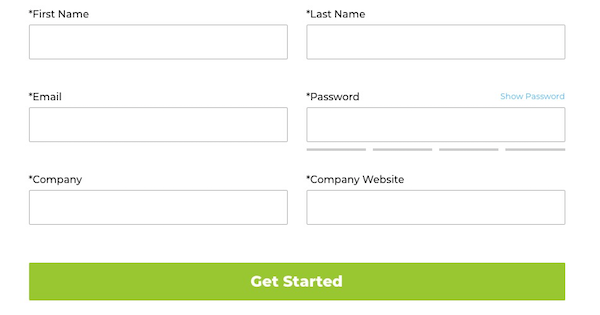
2. Create an Application
To add a new application, see Adding an app in AppsFlyer Admin.
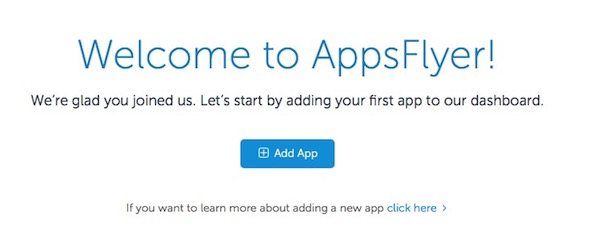
3. Obtain Application Configuration Information
-
Go to AppsFlyer.
-
Check iOS App ID.
The iOS App ID is the number after id.
-
In the left navigation bar, select Configuration > App Settings.
-
View the SDK Dev Key for iOS and Android.
SDK Dev Key is the App Key.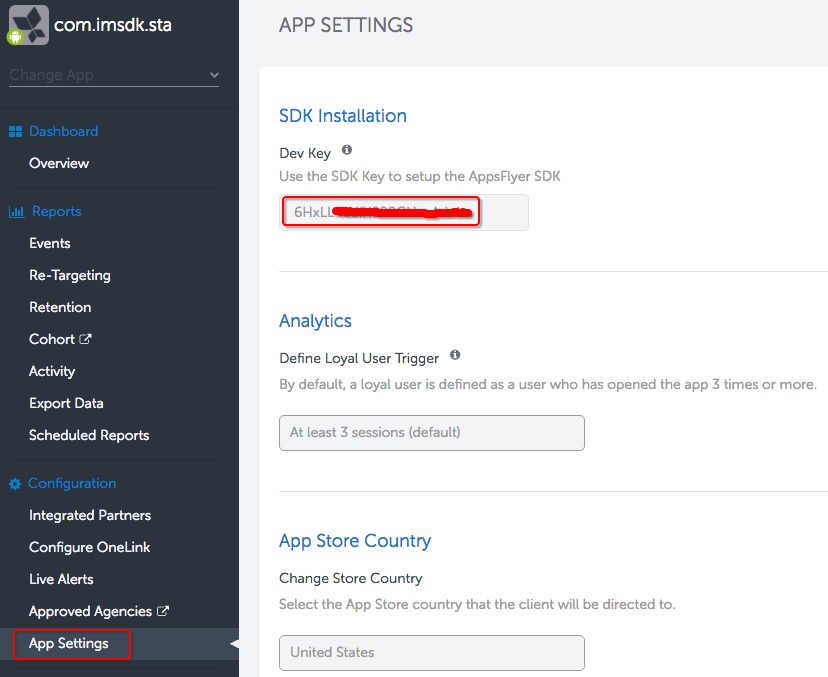
Step 1: Permissions and Project Configuration
Android
User Permissions
Required permissions list; the Player Network SDK has already configured them. You can check in the exported APK package.
<uses-permission android:name="android.permission.INTERNET" />
<uses-permission android:name="android.permission.ACCESS_NETWORK_STATE" />
Optional permissions are sensitive permissions mainly used to obtain and track Android hardware device information; use is not recommended. If needed, you can add them yourself to the AndroidManifest.xml file.
<uses-permission android:name="android.permission.READ_PHONE_STATE" />
By default, AppsFlyer does not apply for WiFi state permission. This permission is optional and is not applied by default to prevent Adjust from collecting the Mac address after merging AndroidManifest.xml.
<uses-permission android:name="android.permission.ACCESS_WIFI_STATE"/>
AppsFlyer does not apply for the WAKE_LOCK permission by default.
<uses-permission android:name="android.permission.WAKE_LOCK" />
AD_ID collection is enabled by default. If you want to revoke the permission, you can add it yourself to the AndroidManifest.xml.
<uses-permission android:name="com.google.android.gms.permission.AD_ID" tools:node="remove" />
Project Configuration
For details, see Android SDK Integration for Developers.
Add the following configuration in the INTLConfig.ini file:
[AppsFlyer Debug Mode]
DEBUG_CHANNEL = AppsFlyer
[Android LifeCycle]
LIFECYCLE = AppsFlyer

[AppsFlyer Configuration]
APPSFLYER_APP_KEY_ANDROID={YOUR_APPSFLYER_KEY}
- Replace
{YOUR_APPSFLYER_KEY}with your business App Key, which can be found in AppsFlyer Admin. - Add AppsFlyer in
LIFECYCLE.For more information, see SDK Environment. - Replace
{DEBUG_CHANNEL}with AppsFlyer to enable AppsFlyer Debug.
[Optional] Track Uninstall Information
This feature relies on Google Push Services:
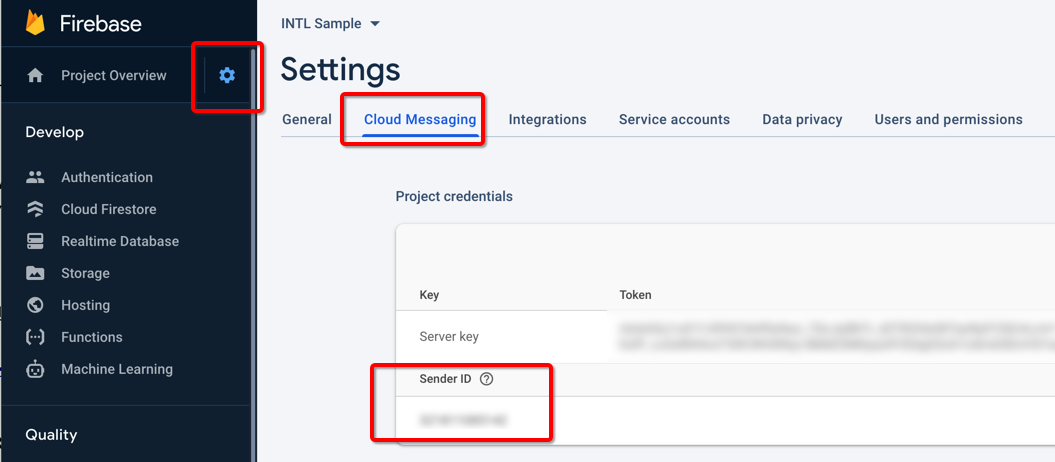
- Add FCM Sender ID in the Firebase console.
Add the following configuration in the INTLConfig.ini file.
[AppsFlyer Configuration]
FIREBASE_SENDER_ID={YOUR_FIREBASE_SENDER_ID}
Replace {YOUR_FIREBASE_SENDER_ID} with your business's Firebase Sender ID.
- Obtain Push Token and call AppsFlyer API.
For details, see Uninstall Measurement.
[Optional] IMEI Configuration
Since acquiring IMEI requires the READ_PHONE_STATE permission, AppsFlyer does not acquire IMEI by default.However, if you need to report it, you can add configuration in the project file INTLConfig.ini.
[AppsFlyer Configuration]
APPSFLYER_APP_IMEI_ENABLE=1
[Optional] Obtain ANDROID_ID
Since ANDROID_ID is important for reporting and does not require the READ_PHONE_STATE permission, AppsFlyer collects ANDROID_ID by default.However, if you do not need to report it, you can add configuration in the project file INTLConfig.ini.
[AppsFlyer Configuration]
APPSFLYER_APP_ANDROID_ID_ENABLE=0
iOS
Project Configuration
Add the following configuration in the INTLConfig.ini file:
[AppsFlyer Debug Mode]
DEBUG_CHANNEL = AppsFlyer
[AppsFlyer Channel Configuration]
APPSFLYER_APP_ID_IOS = {YOUR_APPSFLYER_APPID}
APPSFLYER_APP_KEY_IOS = {YOUR_APPSFLYER_KEY}
- Replace
{DEBUG_CHANNEL}with AppsFlyer to enable AppsFlyer Debug. - Replace
{YOUR_APPSFLYER_APPID}with your business App ID, which can be found in AppsFlyer Admin. - Replace
{YOUR_APPSFLYER_KEY}with your business App Key, which can be found in AppsFlyer Admin.
[Optional] Unity Engine Export Xcode
When exporting Xcode project from Unity, you need to configure the .projmods file.
Player Network SDK has already written these configurations in the INTLCoreKit.projmods file. Just check it as needed.
{
    "group": "INTL",
    "libs": [],
    "frameworks": ["AdSupport.framework", "iAd.framework"],
    "files": [],
    "folders": [],
    "excludes": [],
    "headerpaths":[],
    "build_settings":{},
    "system_capabilities": {},
    "Info.plist":{}
}
[Optional] Strict-mode SDK
This toggle controls whether to enable the AppsFlyer SDK's AdSupport and iAD framework functions (disabling it means minimal data collection). The default value is enabled.For details, see Strict-mode SDK.
Add the following configuration in the INTLConfig.ini file.
[AppsFlyer Configuration]
APPSFLYER_ADSUPPORT_AND_IAD_ENABLE = 0
[Optional] Anonymize Data
This toggle controls whether to enable AppsFlyer SDK's anonymized data feature. The default value is disabled.For details, see Anonymizing User Data.
Add the following configuration in the INTLConfig.ini file.
[AppsFlyer Configuration]
APPSFLYER_ANONYMIZE_USER_ENABLE = 1
[Optional] Deep Linking
To support deep link reporting, you need to enable Universal Links for the App.For more information, see OneLink Links and User Experience.
Step 2: Configure Event Reporting
Automatic Event Reporting
If ANALYTICS_AUTH_REPORT_ENABLE is enabled in INTLConfig.ini, Player Network SDK will automatically report the following events:
af_complete_registration: when the user logs into the game for the first timeaf_login: when the user logs into the game subsequently
Manual Event Reporting
For data reporting, see Event Reporting Module.
AppsFlyer recommends using only lowercase alphanumeric characters (a-z, 0-9) for in-app event names (EventName). See Rich In-App Events.
Funnel Events
Supported from Player Network SDK V1.20.
Add AppsFlyer channel in the ANALYTICS_REPORT_FUNNEL_CHANNEL configuration of INTLConfig.ini. Player Network SDK will synchronize funnel events to the AppsFlyer channel.
[ANALYTICS]
ANALYTICS_REPORT_FUNNEL_CHANNEL = AppsFlyer
You can refer to View Reported Events in Admin to view reported events.
Step 3: Initialize Analytics Module
- Unity
- Unreal Engine
Initialize analytics module, and then call ReportEvent to start data reporting to AppsFlyer.
Initialize analytics module, and then call ReportEvent to start data reporting to AppsFlyer.
Data Reporting Acceptance
Documentation Reference
- AppsFlyer Login Portal
- Android SDK Integration Guide / iOS SDK Integration Guide
- Android SDK Reference / iOS SDK Reference
- Data Export Page
Data Dimensions
AppsFlyer Events:
- Install Event: Whitelist verification added.
- Organic Install: AppsFlyer excludes installs not from connected channels.
- Non-organic Install: AppsFlyer can detect install events from channel sources.
- Custom Event: Events are distinguished by EventName in the console.
View Reported Events in Admin
Event reporting is not in real time, with a delay of about 10 minutes.
1. Register Test Device
Register test devices to prevent AppsFlyer from recording install/app events on test devices as duplicate installs.
AppsFlyer provides the following two methods:
-
Download the My Device ID by AppsFlyer App and register the test device within the app.
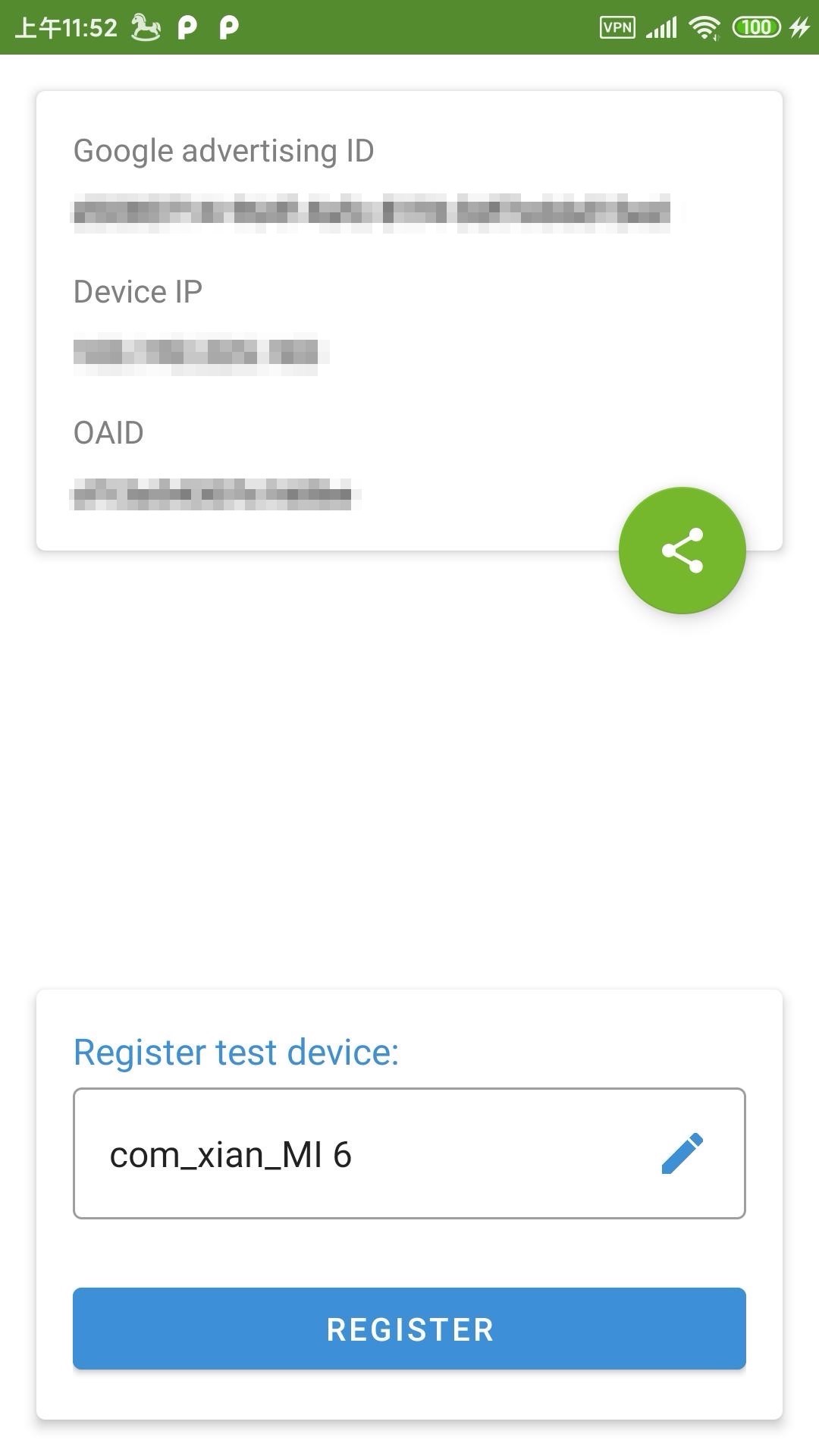
-
Register the test device manually in AppsFlyer.
After registration succeeds, view added test devices in the console.

For more information, see Registering Test Devices.
2. Test Events
- Install the app on the registered test device for testing and allow tracking.
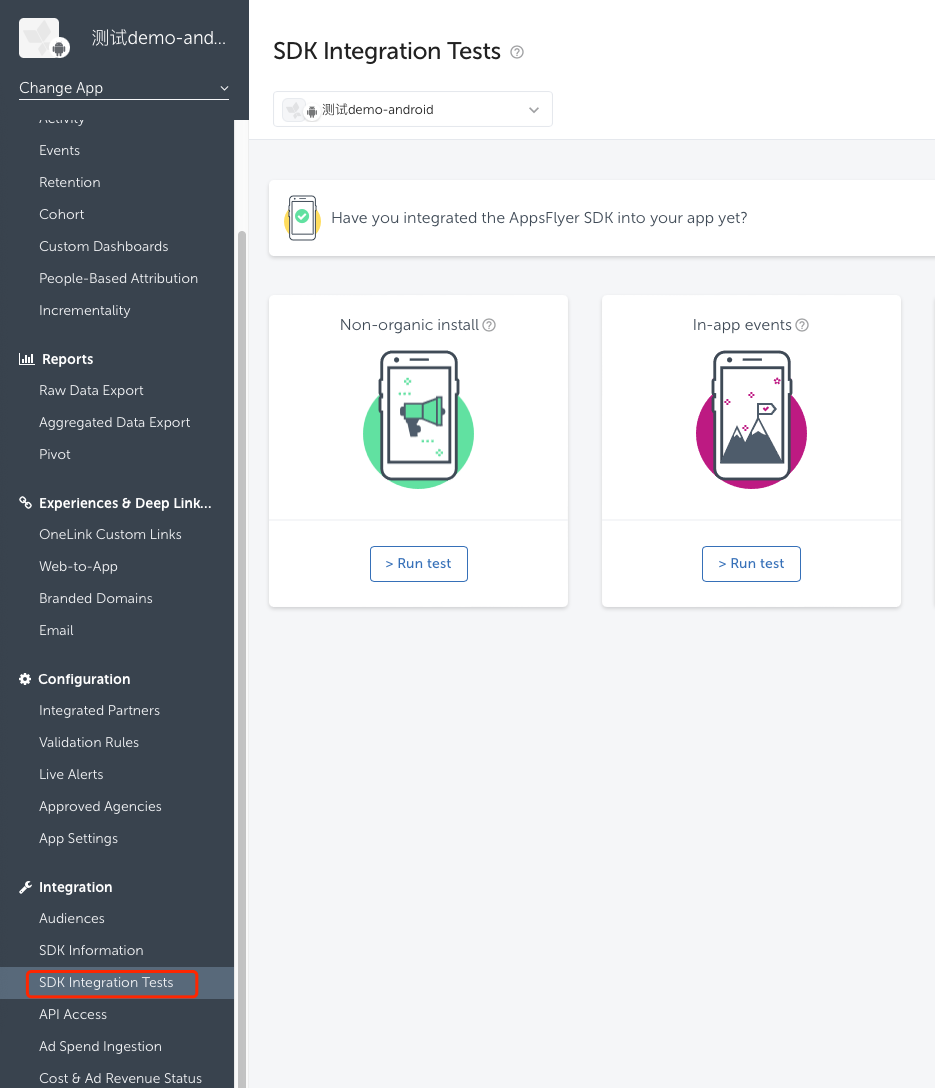
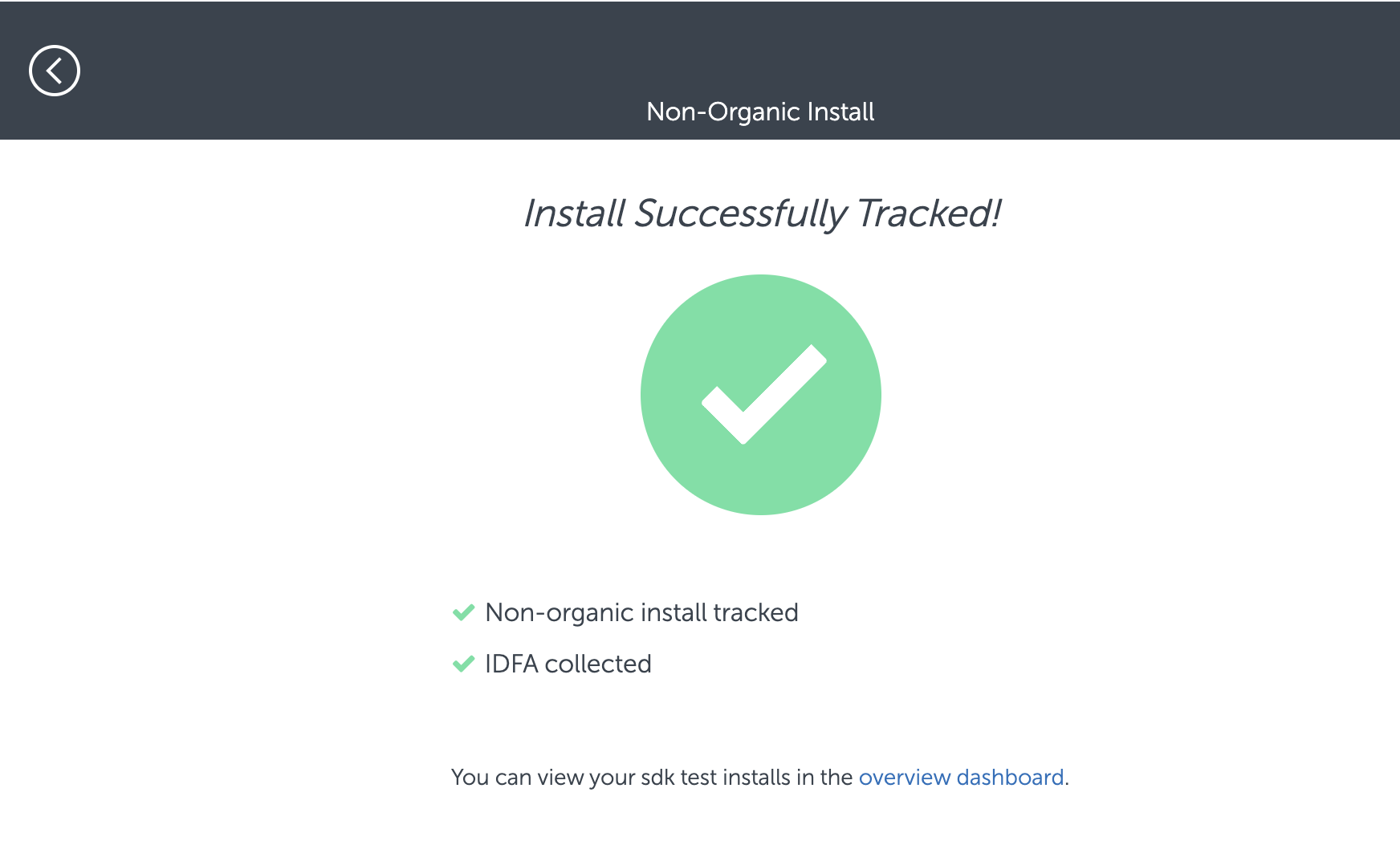
- After installation succeeds, return to AppsFlyer Console, which will indicate that the install event was successfully tracked.
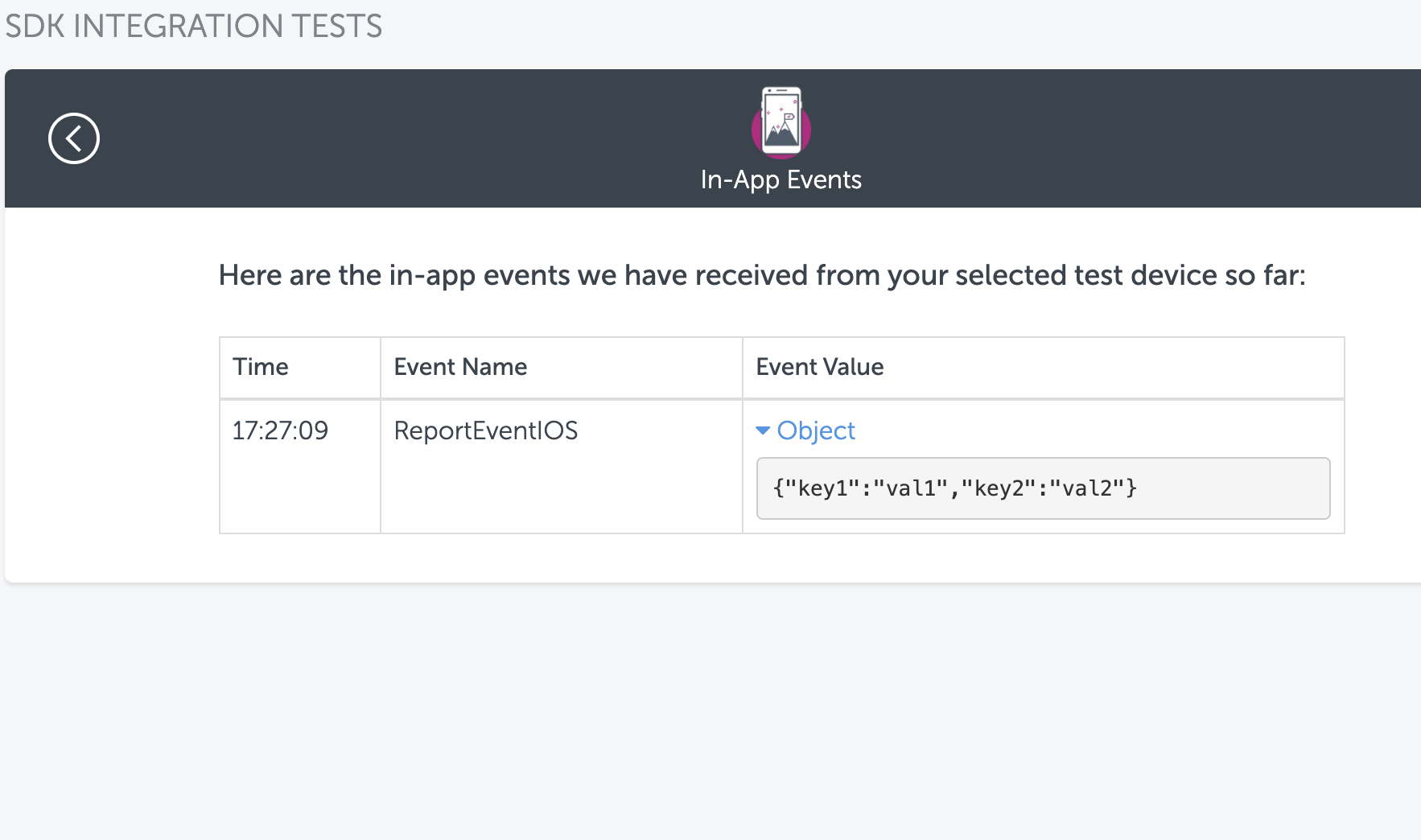
- Click In-app Events and on the test device click ReportEvent.
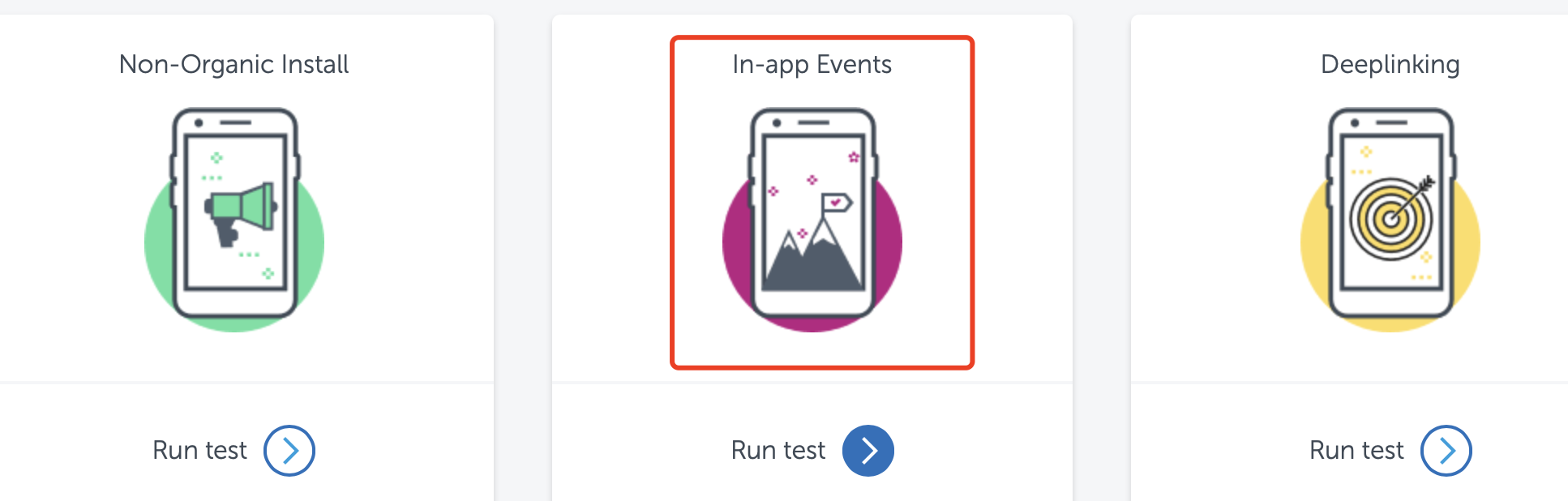
- Return to AppsFlyer Console to see tracked app events.
3. Export Data
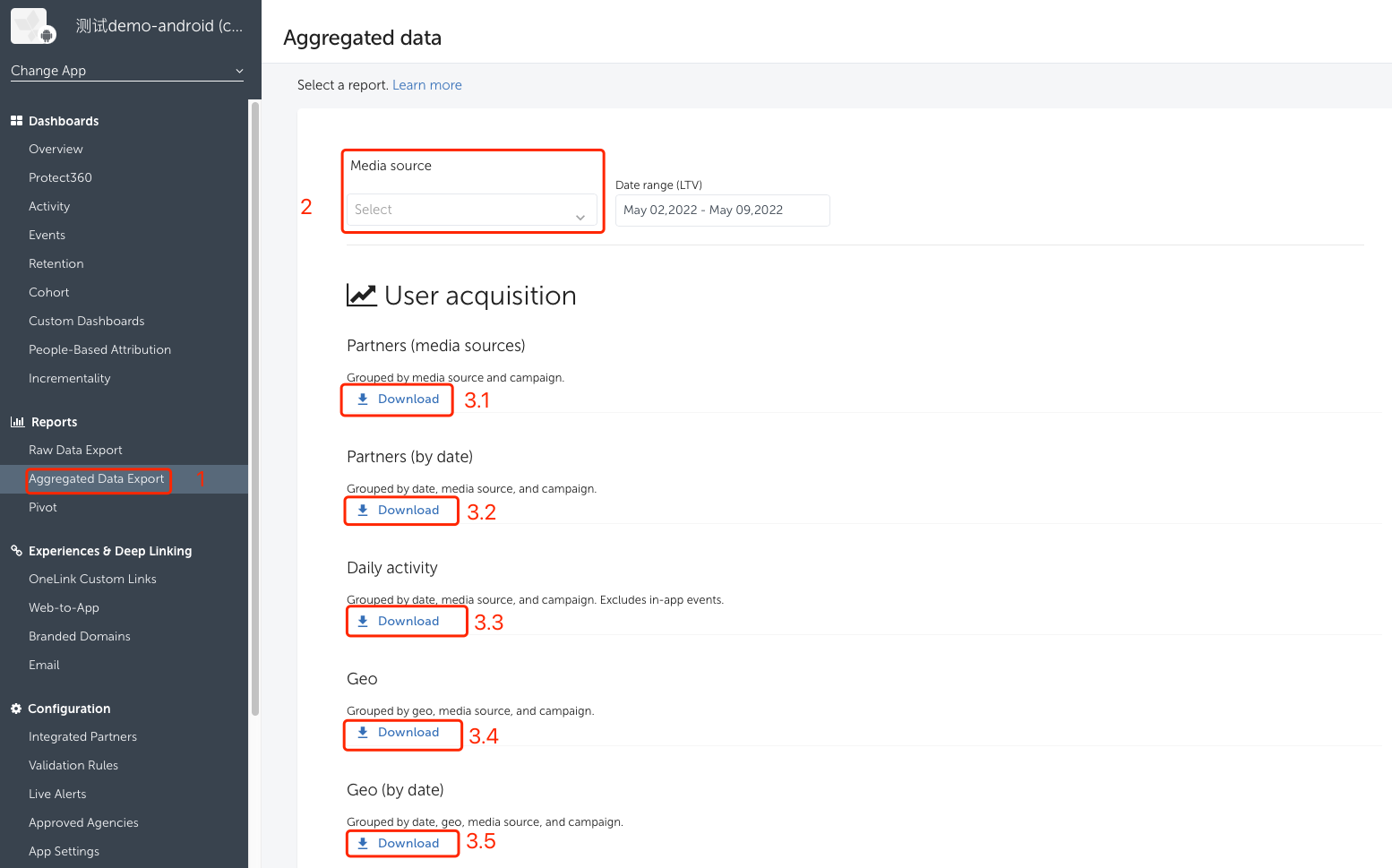
- Export Data
- Select event type: Activation/In-app Event
- Select time period
- Export event data
4. View InAppEvents Event
In the AppsFlyer left menu, select Dashboard > Event Report to view in-app events.
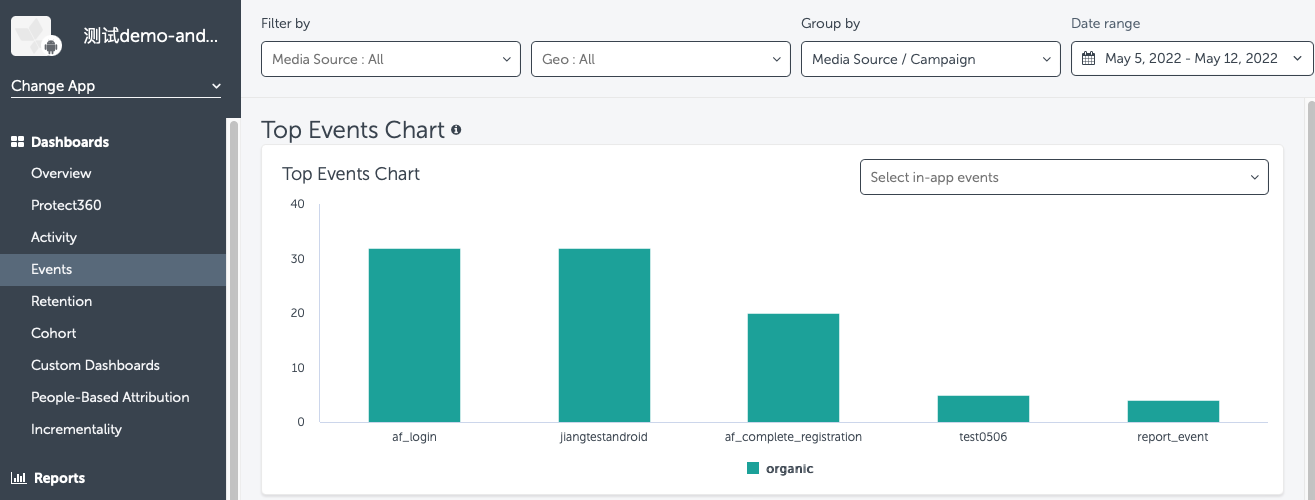
- Non-organic Event
- Organic Event
5. View InstallEvent Event
In AppsFlyer left menu, select Dashboard > Data Overview > Media Channels to view app installs.You can view organic or non-organic installs by channel.
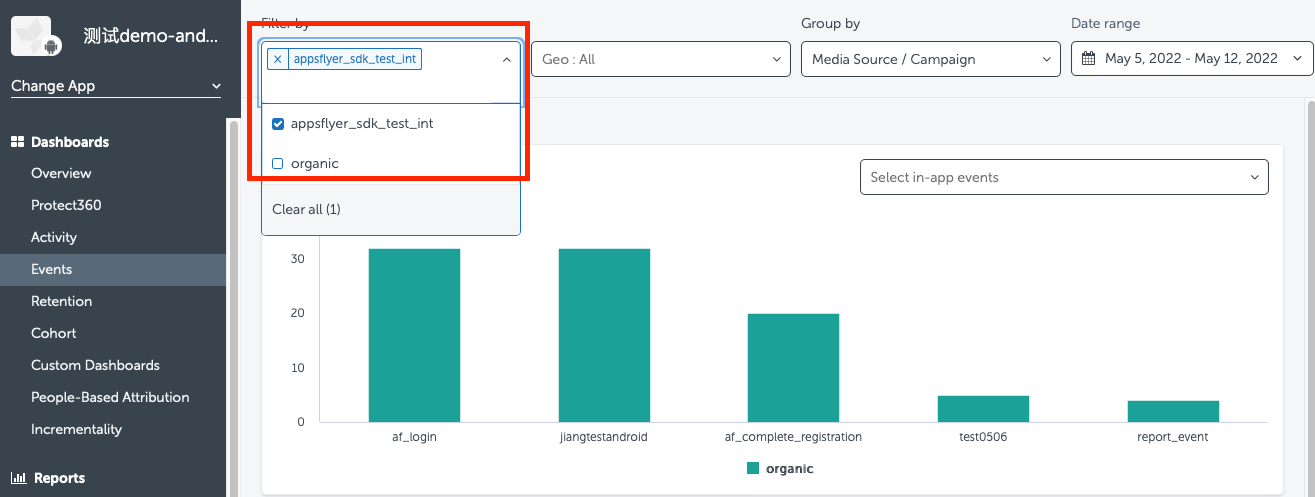
- Select channel
- View app install volume
6. Verify Test Data
-
Overall Preview Data

-
Point Reported Event Data
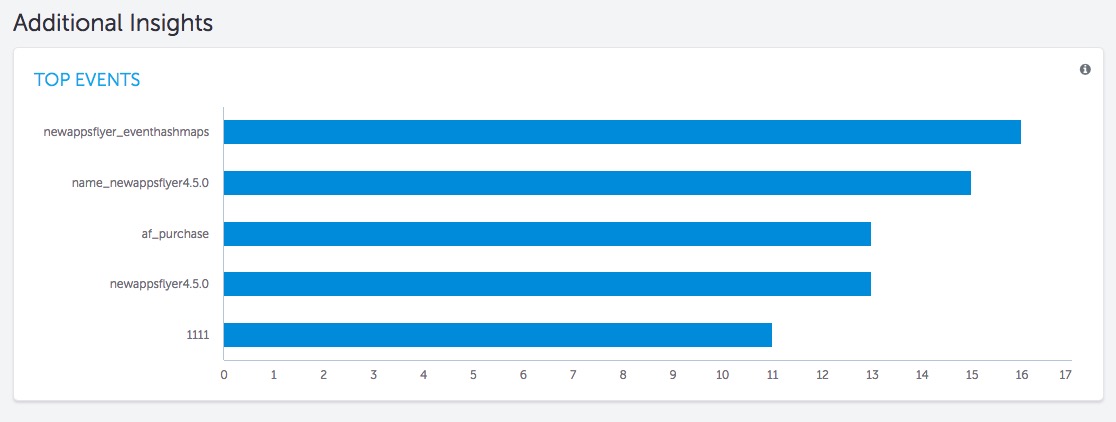
-
Export Data
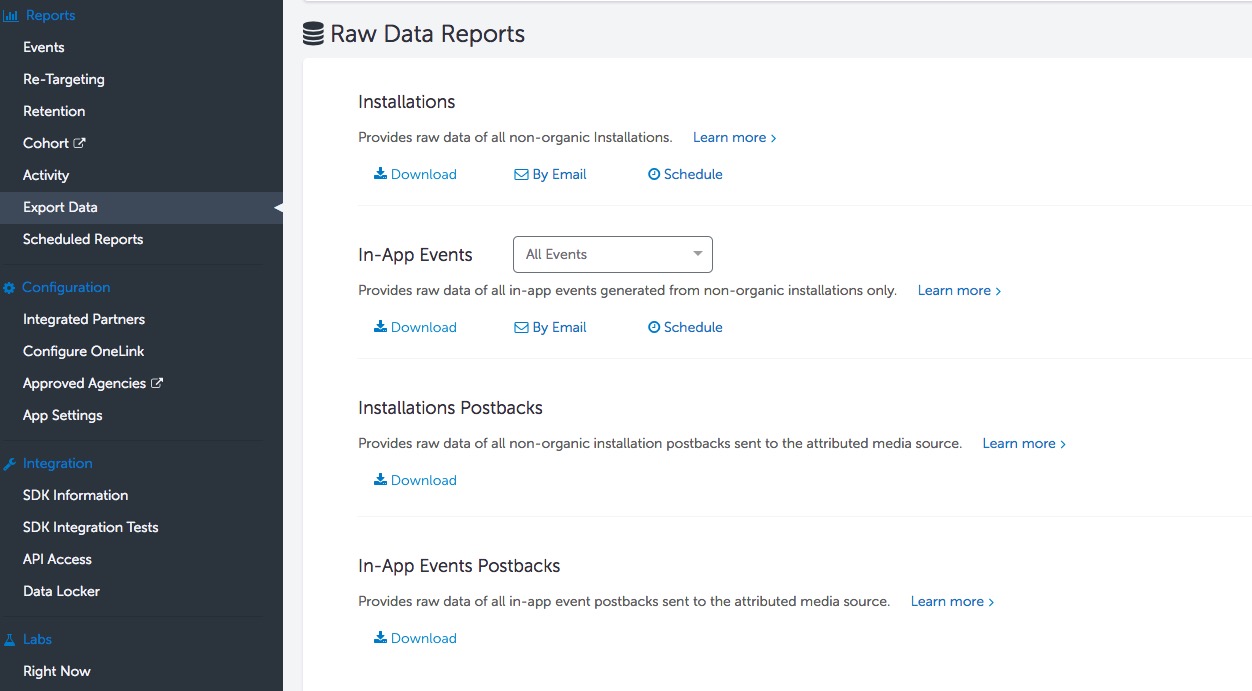
Acceptance Test Case 1
- Submodule: Reporting
- Feature: Event Reporting
- Test point: Log in to the game, check AppsFlyer login reporting on first and subsequent logins
- Prerequisite: Initialize analytics module
- Operation Steps/Input
- Log in as guest for the first time
- Log out
- Log in again with the same account
- In Admin, export data to view reported events
- Expected output: Reporting successful, check as follows:
- In Admin:
- Guest login for the first time triggers registration event report (af_complete_registration): number reported +1
- Log in again with the same account triggers login event report (af_login): number reported +1
- Exported data validation:
- Guest login for the first time triggers registration event report (af_complete_registration): number reported +1
- Log in again with the same account triggers login event report (af_login): number reported +1
- Event parameters contain Player Network SDK OpenID
- In Admin:
Acceptance Test Case 2
- Submodule: Reporting
- Feature: Event Reporting
- Test point: Facebook login, not first time, check AppsFlyer login reporting
- Prerequisite: Initialize analytics module
- Operation Steps/Input
- Login with Facebook for the first time
- Log out
- Log in again with the same account
- In Admin, export data to view reported events
- Expected output: Reporting successful, check as follows:
- In Admin:
- Guest login for the first time triggers registration event report (af_complete_registration): number reported +1
- Log in again with the same account triggers login event report (af_login): number reported +1
- Exported data validation: contact [killuachen], create a group and export logs to confirm finally.
- Guest login for the first time triggers registration event report (af_complete_registration): number reported +1
- Log in again with the same account triggers login event report (af_login): number reported +1
- Customer User ID matches Player Network SDK OpenID
- In Admin:
Acceptance Test Case 3
- Submodule: Reporting
- Feature: Event Reporting
- Test point: Old device, AppsFlyer event reporting successful
- Prerequisite: add the old device with the installed game in AppsFlyer admin, report for the second time
- Operation Steps/Input
- Request Report Event
- eventName =
Report_Event, paramsDic-key1=k1, paramsDic-value1=v1, paramsDic-key2=k2, paramsDic-value2=v2, spChannels =AppsFlyer - Uninstall SDK and start the game
- Filter condition
appsflyer_sdk_test_int - View reported data and export INSTALL data table in Admin
- Expected output: Reporting successful, check as follows:
- In Admin:
- Custom Event: AppsFlyer can find the reported custom
Report_Eventevent number +1, unique users will not increase.(Admin only supports viewing the current 1 detailed reported data). - Install event: Install event: view
reported install events+1
- Custom Event: AppsFlyer can find the reported custom
- Exported data validation:
- Custom event
- app-event data table: Install Time, Event Time, Event Name, Event Value correspond to reported data correctly
- app-event data table:
- Install Event:
- INSTALL data table: Install Time, Event Time, Event Name correspond to displayed data correctly
- Uninstall INSTALL data table report number +1
- Custom event
- In Admin:
Acceptance Test Case 4
- Submodule: Reporting
- Feature: Event Reporting
- Test point: New device, AppsFlyer event reporting successful
- Prerequisite: add the new device with the installed game in AppsFlyer admin, report for the first time
- Operation Steps/Input
- Request
Report Event - eventName =
Report_Event, paramsDic-key1=k1, paramsDic-value1=v1, paramsDic-key2=k2, paramsDic-value2=v2, spChannels =AppsFlyer - Uninstall SDK and start the game
- Filter condition
appsflyer_sdk_test_int - View reported data and export INSTALL data table in Admin
- Request
- Expected output: Reporting successful, check as follows:
- In Admin, AppsFlyer can:
- Query Report_Event, +1 to custom
Report_Eventsand +1 to unique users (multiple reports only require +1). - Install event: view install event report number +1
- Query Report_Event, +1 to custom
- Exported data validation:
- Custom event
- app-event data table: Install Time, Event Time, Event Name, Event Value correspond to reported data correctly
- app-event data table:
- Install Event:
- INSTALL data table: Install Time, Event Time, Event Name correspond to displayed data correctly
- Uninstall INSTALL data table report number +1
- Custom event
- In Admin, AppsFlyer can:
Acceptance Test Case 5
- Sub-feature module: ReportRevenue
- Feature: AppsFlyer Payment Event Reporting
- Test point: Query reporting after requesting
ReportRevenue(AppsFlyer) - Prerequisite: Normal network connection
- Operation Steps/Input
- Request
ReportRevenue - eventName = (customizable), spChannels =
AppsFlyer, Currency =USD, Revenue = 100 - Query reported events in AppsFlyer
- Query
AnalyticsReportRevenueevent in DD platform
- Request
- Expected output: Reporting successful, check as follows:
- In Admin:
- View AppsFlyer Events on the left side
- After networking, AppsFlyer related event statistics +1; click event details to show USD100 value
- Exported data validation (2-4 hours):
- Export data from AppsFlyer on the left, select in-app event
- Exported data has a 2~4 hour delay
- Exported data contains revenue event and amount data.
- DD platform successfully queries event reports with
methodNameasAnalyticsReportRevenueandmethod_id=715.
- In Admin:
Acceptance Test Case 6
- Sub-feature module: ReportRevenue
- Feature: AppsFlyer Payment Event Reporting
- Test point: Query reporting after requesting
ReportRevenuein offline state (AppsFlyer) - Prerequisite: Disconnected network state
- Operation Steps/Input
- Request
ReportRevenue - eventName = (customizable), spChannels =
AppsFlyer, Currency =USD, Revenue = 1000 - Reconnect to the network
- Query reported events in AppsFlyer
- DD Platform query
AnalyticsReportRevenueevent
- Request
- Expected output: information reported successfully. Check the following:
- After reconnecting to the network
- View on the management console:
- View Events on the left panel of AppsFlyer
- After connecting to the network, AppsFlyer-related event statistics increase by 1; click event details to view the relevant USD1000 value.
- Export data validation (2-4 hours):
- Export data from the AppsFlyer left panel and select in-app events
- There is a 2~4 hour delay in exported data.
- Exported data includes revenue events and amount data.
- DD Platform successfully queries events with
methodNameasAnalyticsReportRevenueandmethod_id=715reported.
Features
Uninstall and Install
Android integration usage:
The uninstall and install feature of AppsFlyer depends on FireBase push notifications. The business needs to use its own push component to obtain the push token.
To enable the AppsFlyer uninstall and install feature, the game needs to call the SetPushToken API of the AppsFlyer extension:
YOUR_PUSH_TOKEN is the FireBase push token obtained by the push component.
Listener time for system tracking authorization (WaitForATTUserAuthorizationWithTimeoutInterval)
- Unity
- Unreal Engine
string extraJson =  "{\"timeoutInterval\": \"60\"}";
INTLAPI.ExtendInvoke("AppsFlyer", "waitForATTUserAuthorizationWithTimeoutInterval", extraJson);
FString extraJson =  "{\"timeoutInterval\": \"60\"}";
UINTLSDKAPI::ExtendInvoke(EINTLLoginChannel::kChannelAppsFlyer, "waitForATTUserAuthorizationWithTimeoutInterval", extraJson);
The listener time parameter timeoutInterval (in seconds) is passed through extraJson.
如果 INTLConfig.ini 中配置了 APPSFLYER_WAITFORATT_TIMEOUT 参数(单位: 秒, 必须是非 int 数值),此 API 将在应用程序启动时触发。否则不会触发。
To obtain IDFA data in IDFA reports, this API must be used with RequestTrackingAuthorization and authorization must be completed within the listener time.
FAQ
For more information, see FAQ.

