QR Code Plugin
Feature Introduction
The QR Code Plugin provides complete QR code manipulation functionality for your application, including the ability to:
- Launch QR code scanner
- Display QR code image with custom content
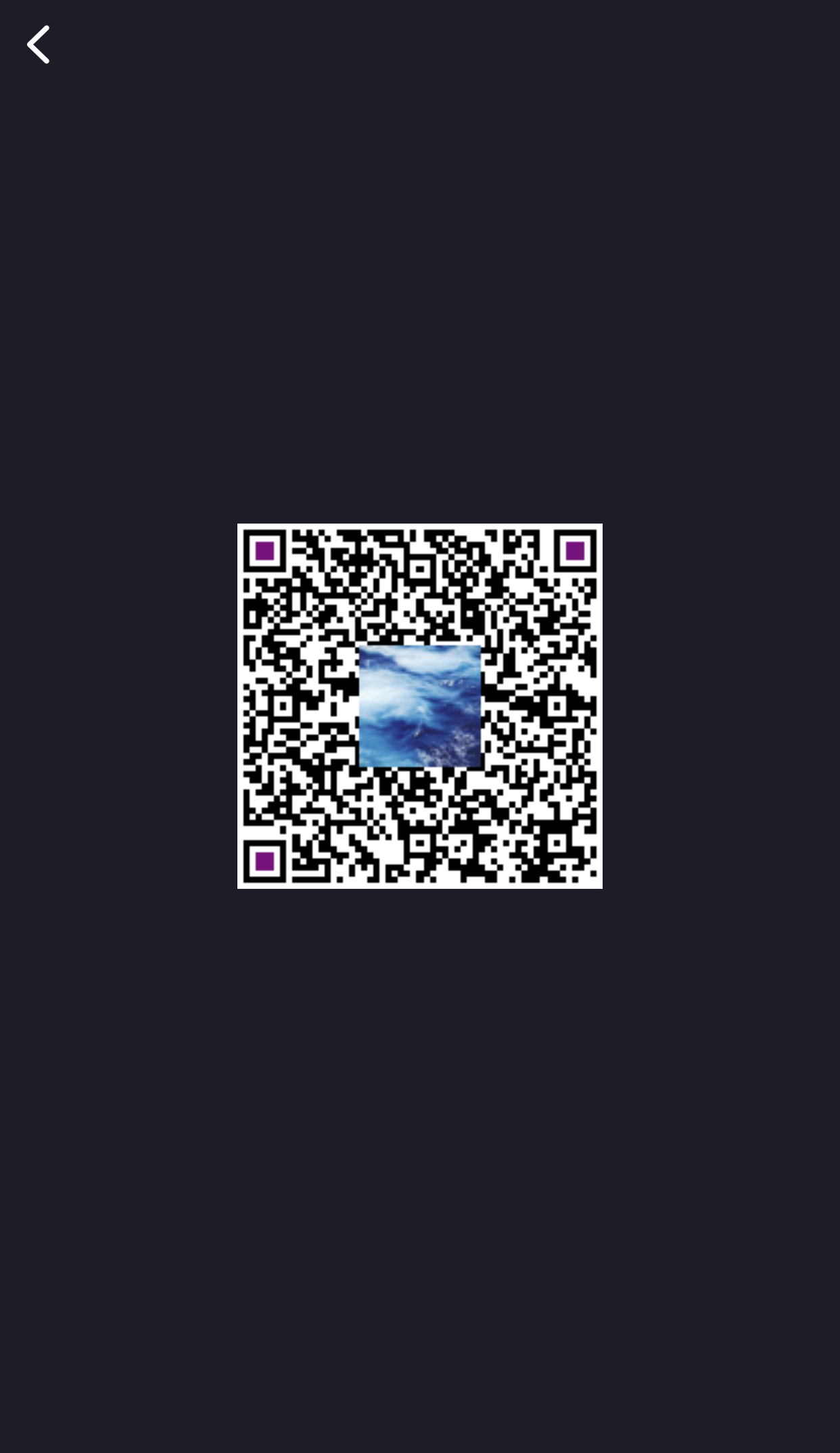
- Customize QR Code Center Icon
- Setting the QR code position marker color
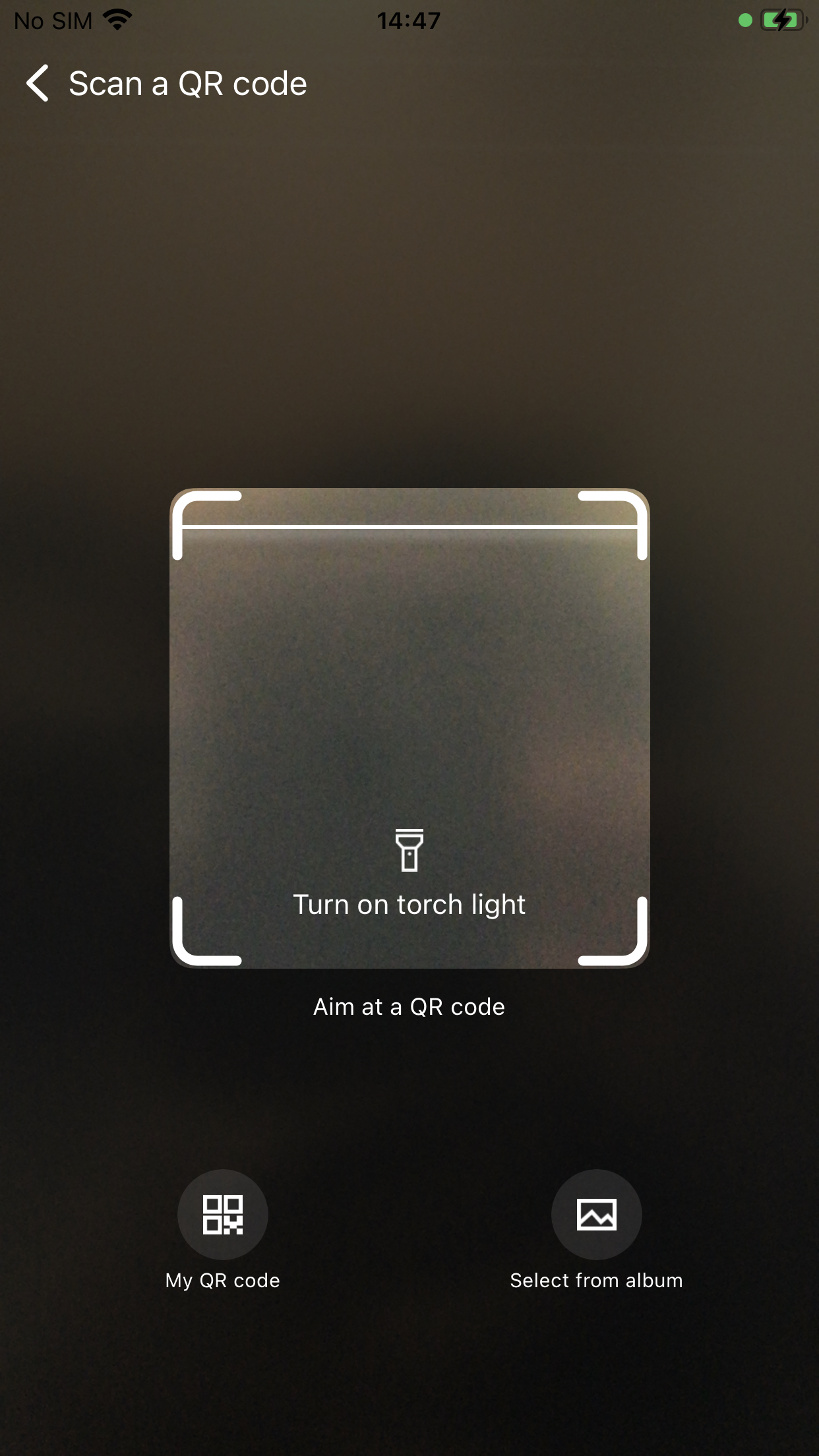
The QR code scanner interface contains three main sections:
- My QR Code:Generate and display a QR code containing personal information.
- Album:Selects a QR code image from the system album for recognition.
- Touch to illuminate:Turn on the device flashlight to assist with scanning in low light conditions.
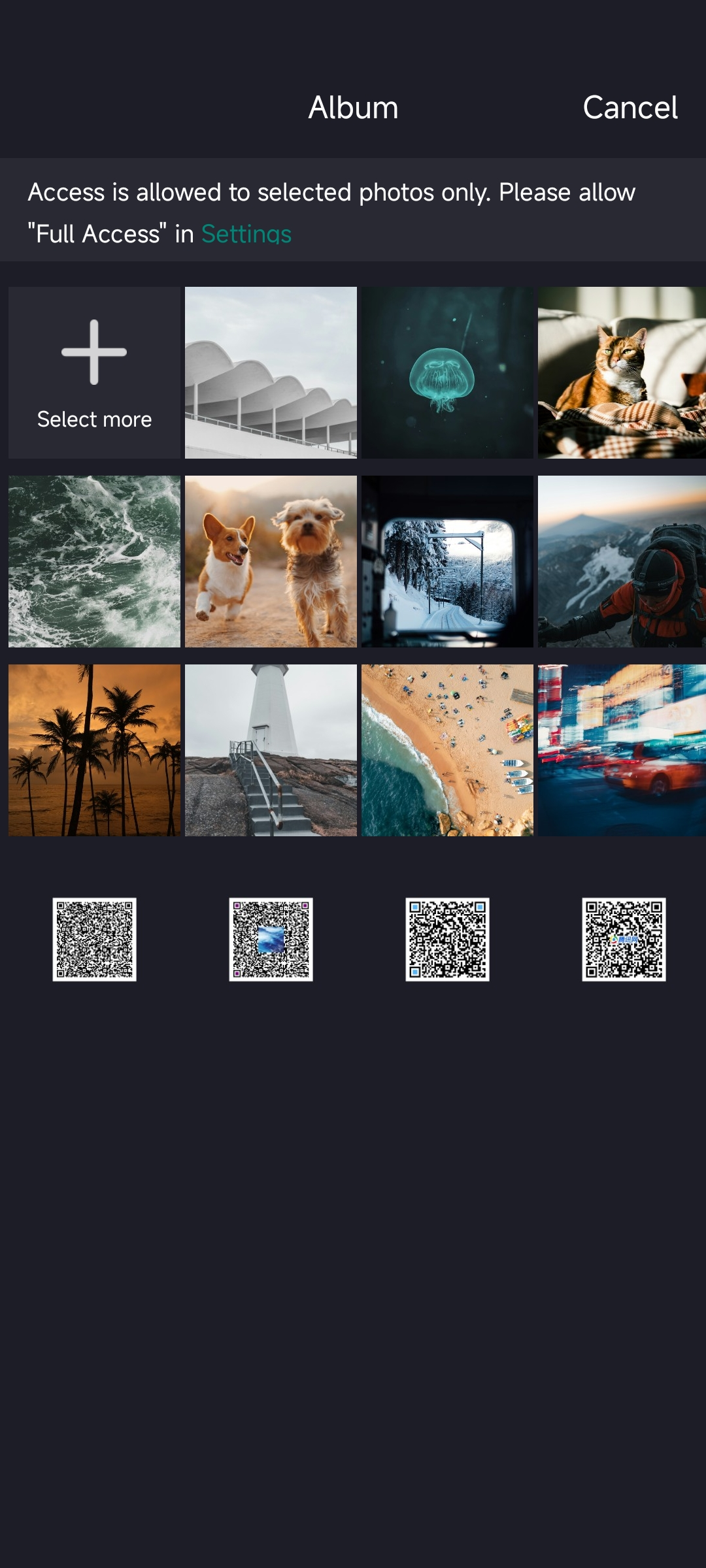
在 iOS 14.0+ 和 Android 14+ 的设备上,如果应用访问系统相册受到限制,点击 相册 后仅显示用户授权访问的照片。下图为受限访问的相册界面:
Prerequisites
2. iOS Configuration
For iOS applications using Unity, please complete the Game Center configuration before implementing QR code plugin functionality.
Add the following key-value pair to the project's Info.plist file:
-
UISupportsRightToLeft: Enable support for right-to-left languages. -
CFBundleAllowMixedLocalizations:Allows applications to use mixed language localizations. -
PHPhotoLibraryPreventAutomaticLimitedAccessAlert:Prevents the popup of the "Limited Photo Access" alert. -
NSPhotoLibraryUsageDescription:Description of why the application accesses the photo library. -
NSCameraUsageDescription:Description of why the application uses the camera<plist version="1.0">
<dict>
<key>UISupportsRightToLeft</key>
<true/>
<key> CFBundleAllowMixedLocalizations</key>
<true/>
<key> PHPhotoLibraryPreventAutomaticLimitedAccessAlert</key>
<true/>
<key> NSPhotoLibraryUsageDescription</key>
<string> This application requires access to your photo library in order to upload and share photos.</string>
<key> NSCameraUsageDescription</key>
<string> This application needs access to your camera to take photos or videos for profile or content publishing.</string>
</dict>
</plist>
Register Callback Functions
Add the following callback handling:
- Unity
- Unreal Engine
// Add callback function
public void AddQRCodeObserver()
{
    INTLAPI.AddQRCodeResultObserver(OnQRCodeResultEvent);
}

// Remove callback function
public void RemoveQRCodeObserver()
{
    INTLAPI.RemoveQRCodeResultObserver(OnQRCodeResultEvent);
}

// Handle INTLQRCodeResult callback event
private void OnQRCodeResultEvent(INTLQRCodeResult qrCodeRet)
{
    Debug.Log("OnQRCodeResultEvent");

    string methodTag = "";

    if (qrCodeRet.MethodId == (int)INTLMethodID.INTL_QRCODE_OPEN_SCANNER)
    {
        methodTag = "OpenQRScanner";
    }
    else if (qrCodeRet.MethodId == (int)INTLMethodID.INTL_QRCODE_SHOW)
    {
        methodTag = "ShowQRCode";
    }
    else if (qrCodeRet.MethodId == (int)INTLMethodID.INTL_QRCODE_SET_ICON)
    {
        methodTag = "SetIcon";
    }
    else if (qrCodeRet.MethodId == (int)INTLMethodID.INTL_QRCODE_SET_POSITION_MARKER_COLOR)
    {
        methodTag = "SetPositionMarkerColor";
    }
}
// Add callback function
FINTLQRCodeEvent QRCodeEvent;
QRCodeEvent.AddUObject(this, &UQRCodeWindow::OnQRCodeResult_Implementation);
UINTLSDKAPI::SetQRCodeResultObserver(QRCodeEvent);

// Remove callback function
UINTLSDKAPI::GetQRCodeResultObserver().Clear();

// Handle FINTLQRCodeResult callback event
void UQRCodeWindow::OnQRCodeResult_Implementation(FINTLQRCodeResult qrCodeRet)
{
    UE_LOG(LogTemp, Log, TEXT("==== OnQRCodeResultEvent"));

    FString methodTag;

    if (qrCodeRet.MethodId == INTL_QRCODE_OPEN_SCANNER)
    {
		methodTag = TEXT("OpenQRScanner");
    }
    else if (qrCodeRet.MethodId == INTL_QRCODE_SHOW)
    {
		methodTag = TEXT("ShowQRCode");
    }
    else if (qrCodeRet.MethodId == INTL_QRCODE_SET_ICON)
    {
		methodTag = TEXT("SetIcon");
    }
    else if (qrCodeRet.MethodId == INTL_QRCODE_SET_POSITION_MARKER_COLOR)
    {
		methodTag = TEXT("SetPositionMarkerColor");
    }
}
OpenQRScanner
Open the QR code scanner according to the specified parameters.
qrCodeContent: JSON string containing information required to generate QR code, customizable as needed
- Unity
- Unreal Engine
string qrCodeContent = "{\
    \"deeplink\": \"https://example.com/path\", \
    \"openid\": \"user-12345\", \
    \"additionalKey1\": \"value1\"\
}";

INTLAPI.OpenQRScanner(qrCodeContent);
FString qrCodeContent = TEXT("{\"deeplink\":\"https://example.com/path\", "
                             "\"openid\":\"user-12345\", "
                             "\"additionalKey1\":\"value1\"}");

UINTLSDKAPI::OpenQRScanner(qrCodeContent);
ShowQRCode
Display the specified QR code content.The default style of QR codes varies slightly across platforms.
qrCodeContent: JSON string containing information required to generate QR code, customizable according to game needs
- Unity
- Unreal Engine
string qrCodeContent = "{\
    \"deeplink\": \"https://example.com/path\", \
    \"openid\": \"user-12345\", \
    \"additionalKey1\": \"value1\"\
}";

INTLAPI.ShowQRCode(qrCodeContent);
FString qrCodeContent = TEXT("{\"deeplink\":\"https://example.com/path\", "
                             "\"openid\":\"user-12345\", "
                             "\"additionalKey1\":\"value1\"}");

UINTLSDKAPI::ShowQRCode(qrCodeContent);
Android system default QR code display: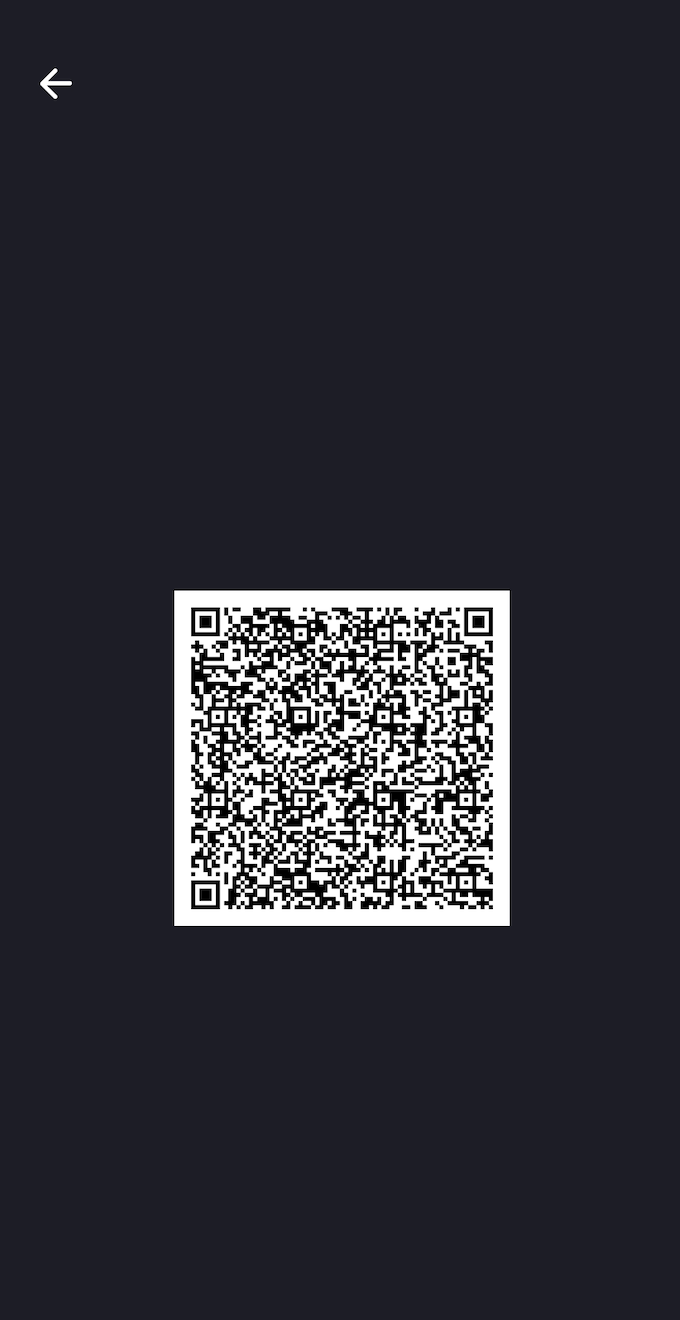
iOS system default QR code display: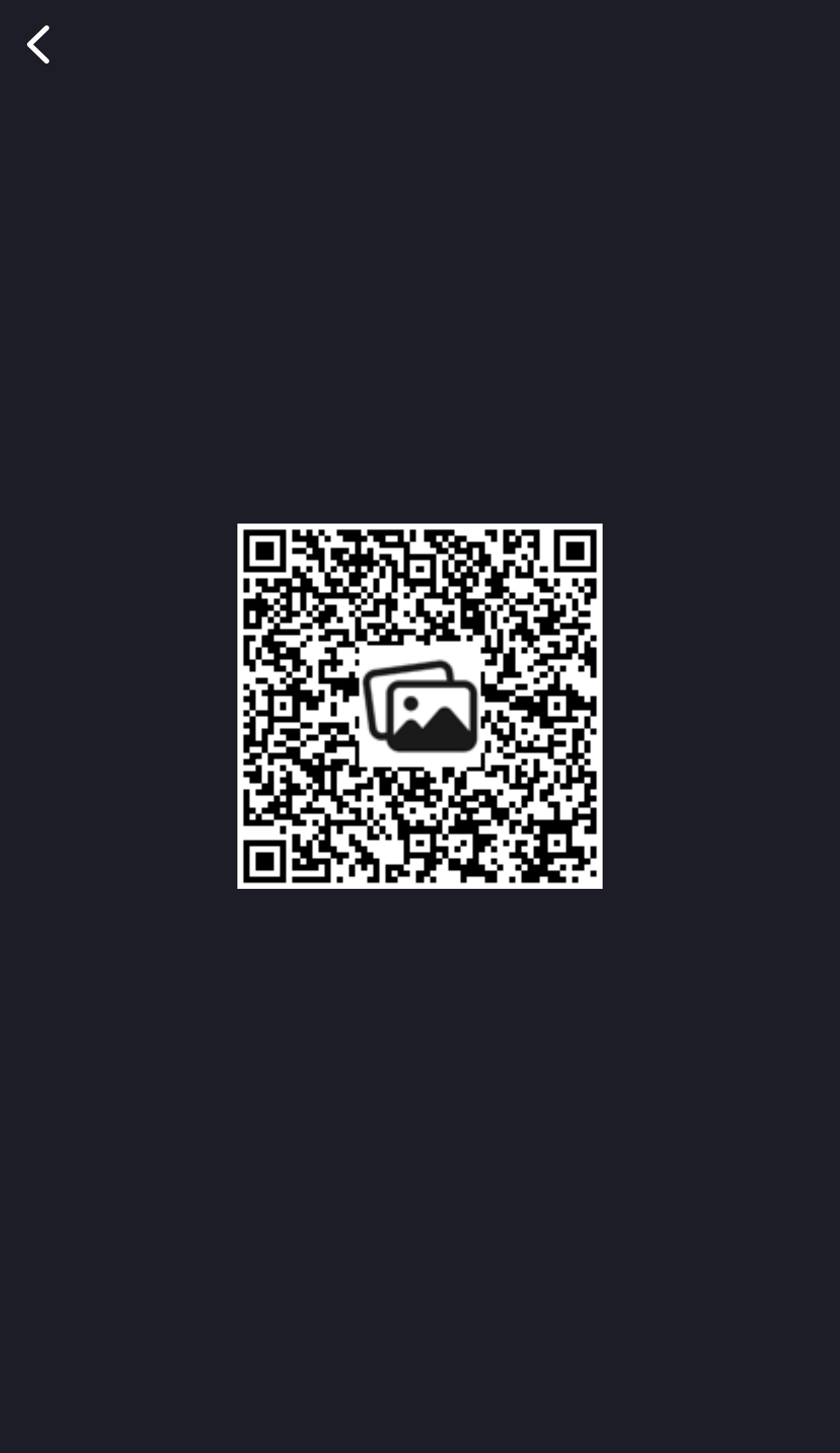
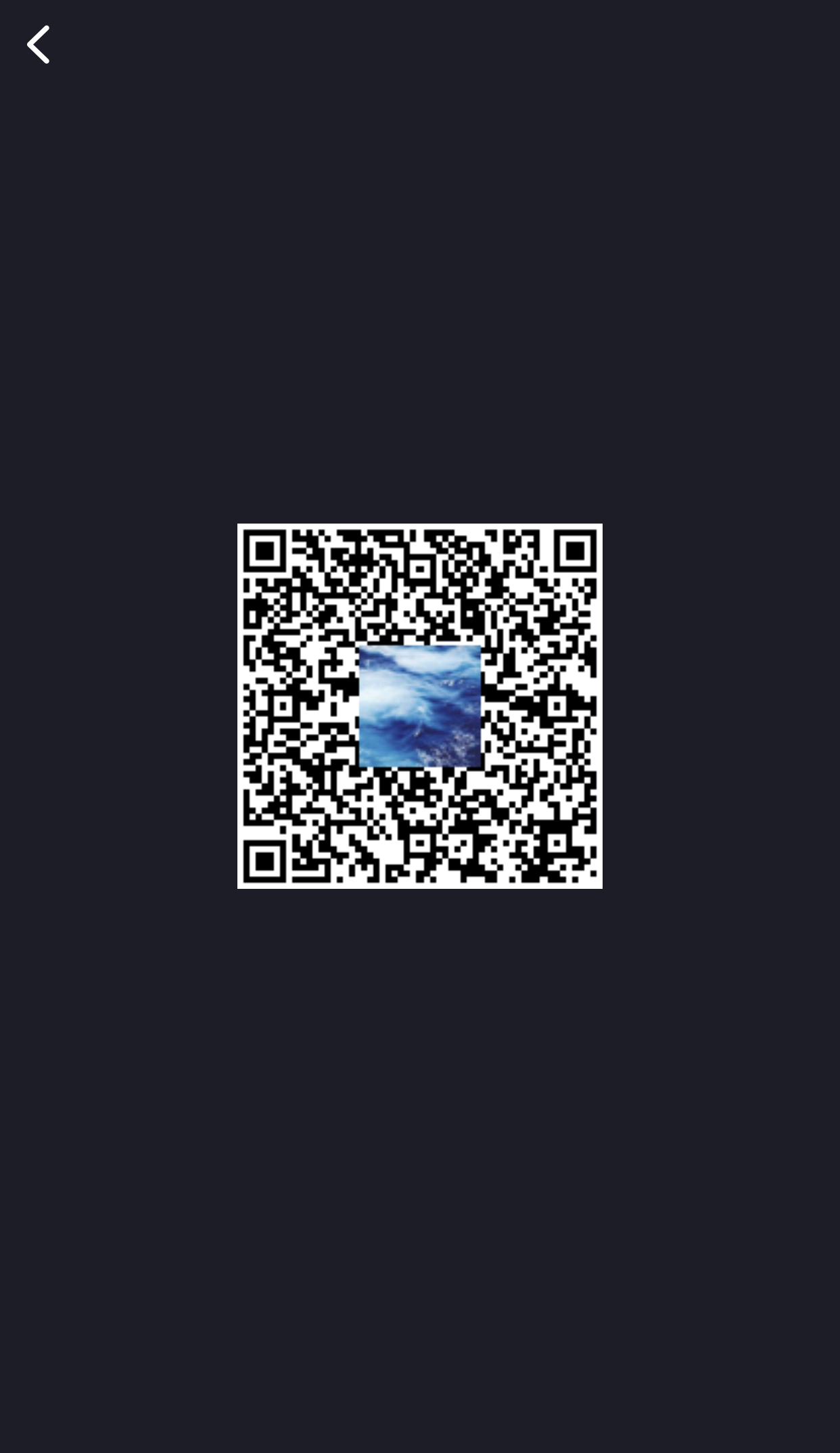
SetIcon
Set a custom icon in the QR code.
imageURL: URL of the icon
- Unity
- Unreal Engine
string imageURL = "https://example.com/icon.png";

INTLAPI.SetIcon(imageURL);
FString imageURL = TEXT("https://example.com/icon.png");

UINTLSDKAPI::SetIcon(imageURL);
SetPositionMarkerColor
Set the position marker color in the QR code.
hexCode: Hexadecimal string of locator color, e.g.,#FF5733
- Unity
- Unreal Engine
string hexCode = "#FF5733";

INTLAPI.SetPositionMarkerColor(hexCode);
FString hexCode = TEXT("#FF5733");

UINTLSDKAPI::SetPositionMarkerColor(hexCode);