INTLConfig Encryption Function
This function encrypts the INTLConfig.ini file into a INTLConfig.ini.new file during packaging to ensure that the configurations in the INTLConfig.ini file are not easily cracked by users.This feature is enabled by default.
Version Requirement: Player Network SDK V1.15
Unity
-
Open the
EncryptConfig.inifile.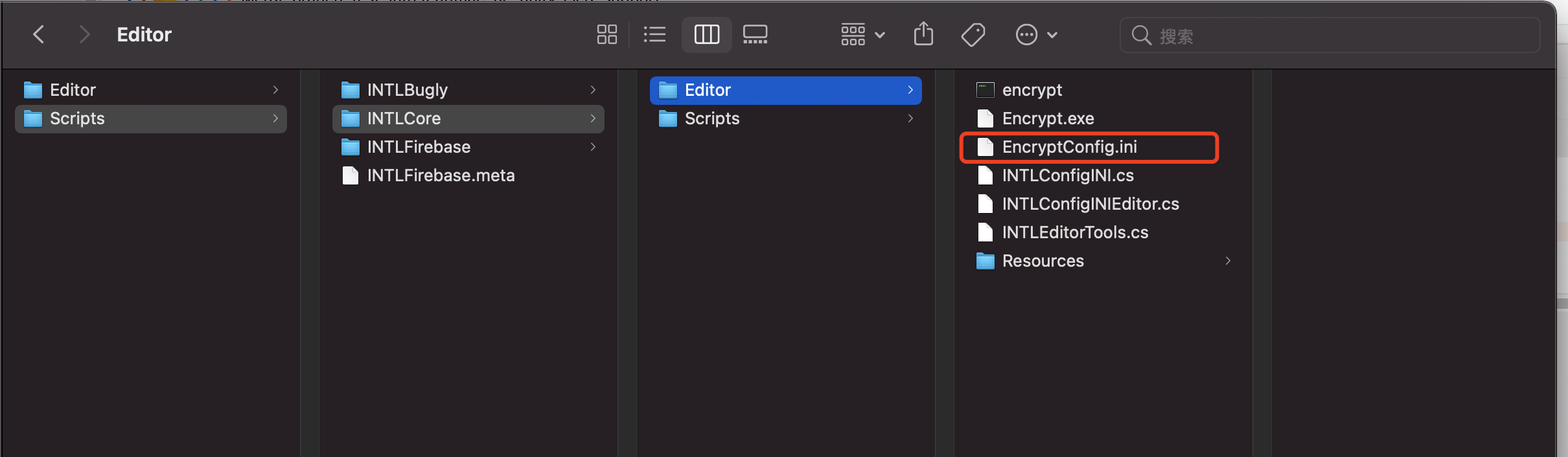
-
Check the value corresponding to
ENABLE.
The default is 1, which means this feature is enabled.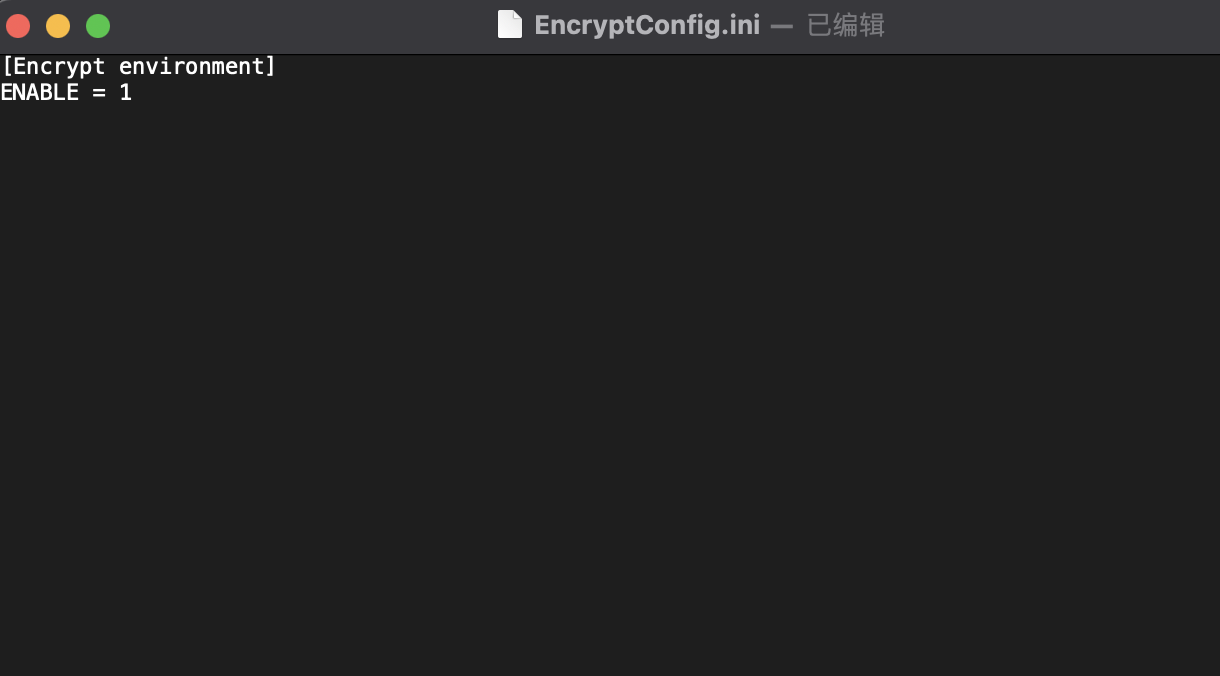
-
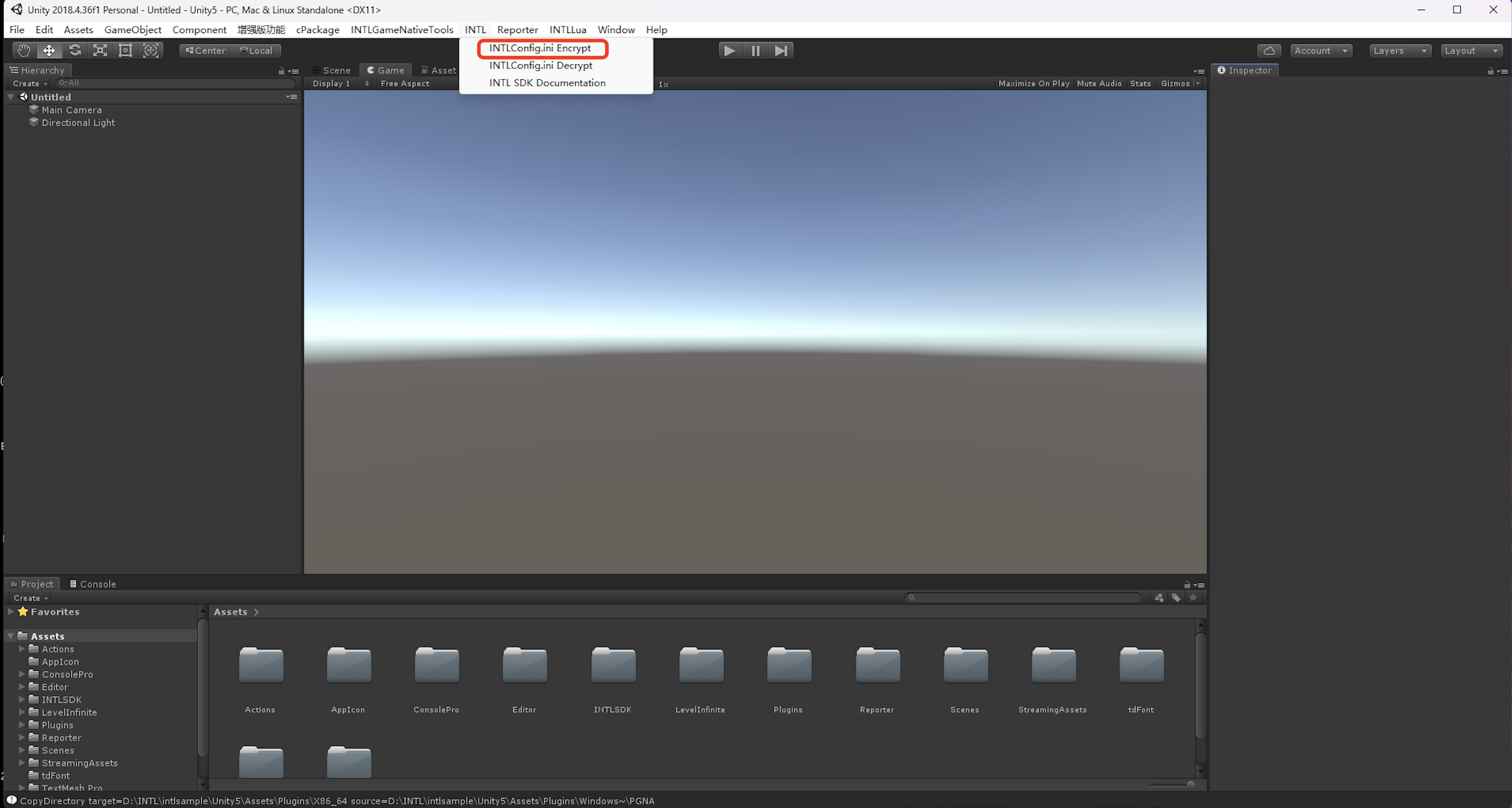
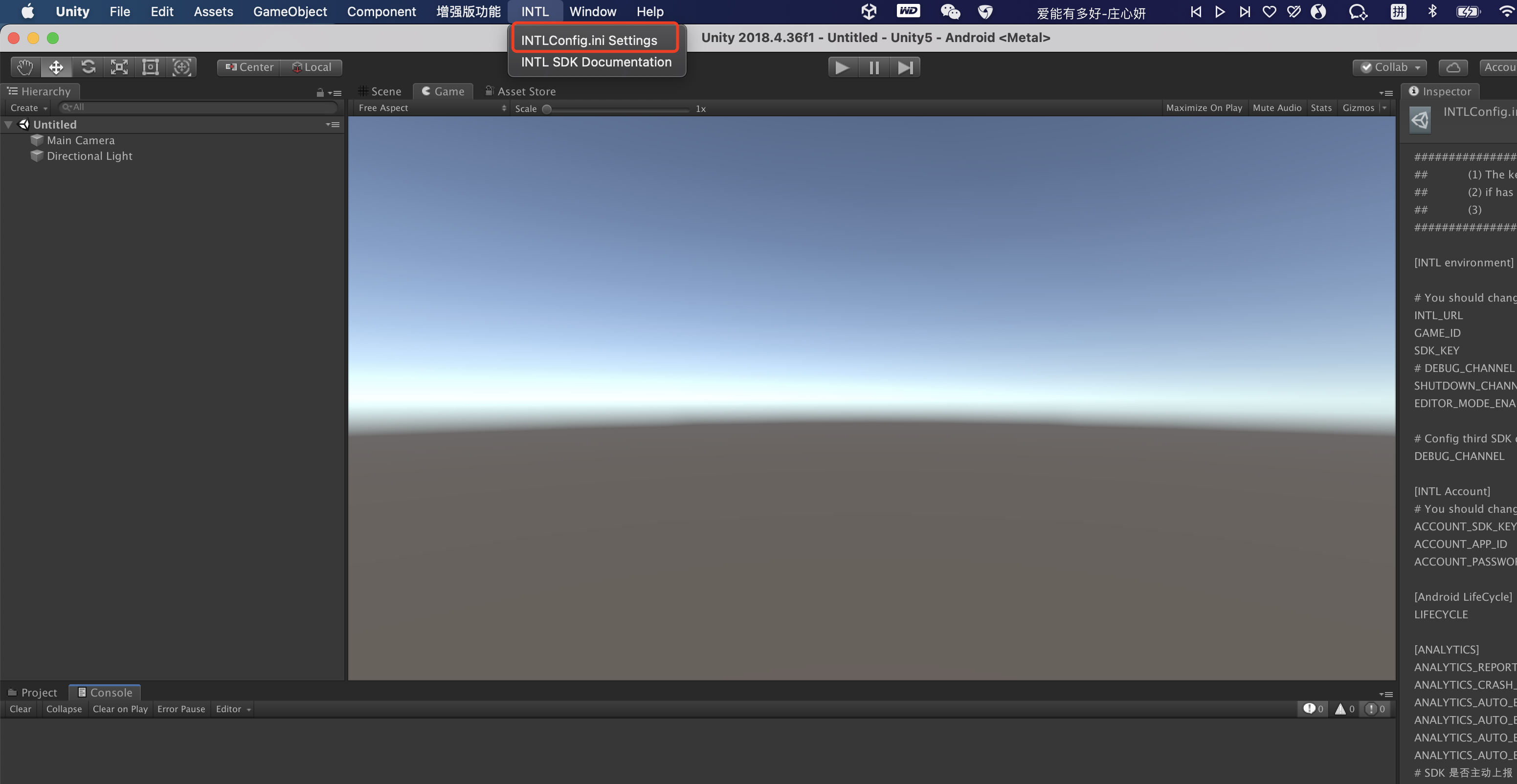
Click the encrypt button in the Unity engine.
- SDK 1.19
- SDK 1.18.00 or earlier
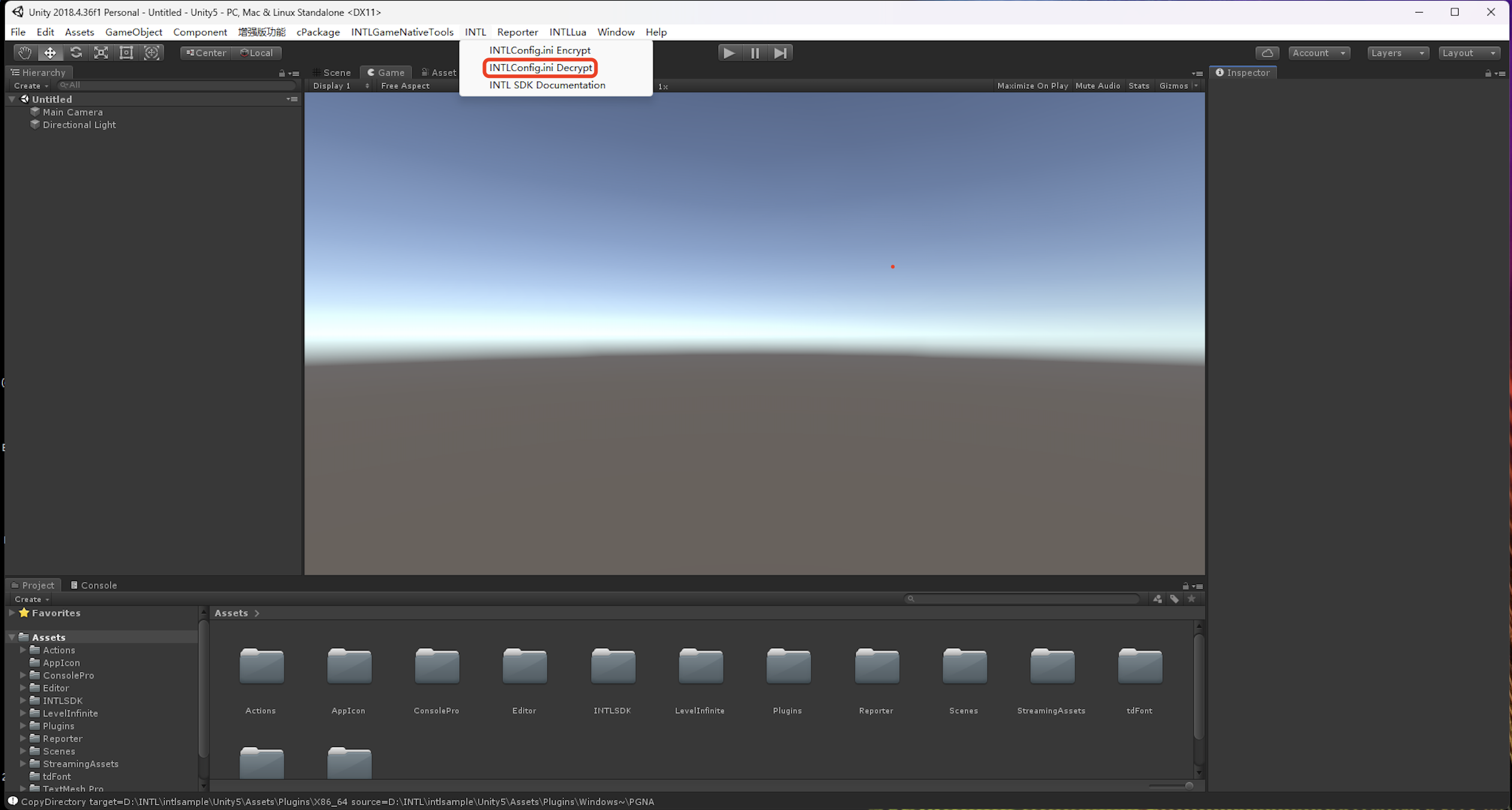
INTL > INTLConfig.ini Encrypt
INTL > INTLConfig.ini Settings
-
Check the size of the
INTLConfig.ini.newfile in the folder containingINTLConfig.ini.
If the file content is not 0KB, encryption succeeded.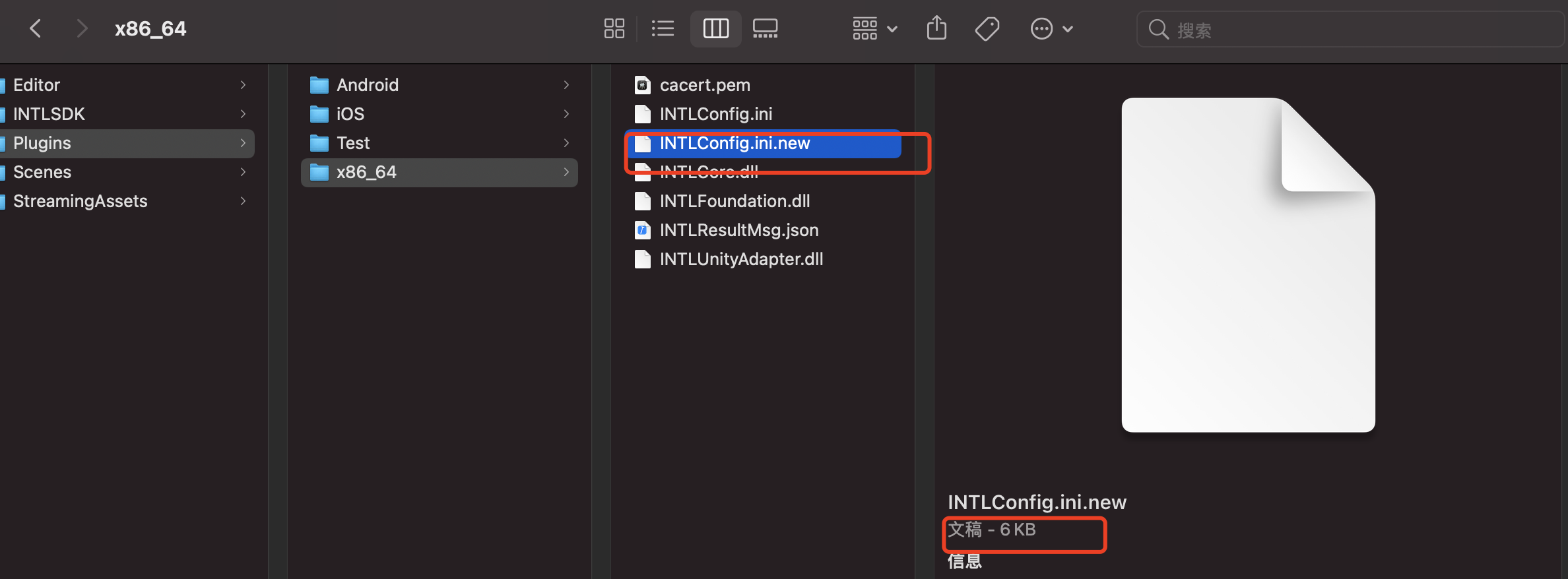
Select INTL > INTLConfig.ini Decrypt in the Unity engine and look for the INTLConfig.ini.new_decrypt decrypted file in the folder containing INTLConfig.ini.new.
Unreal Engine
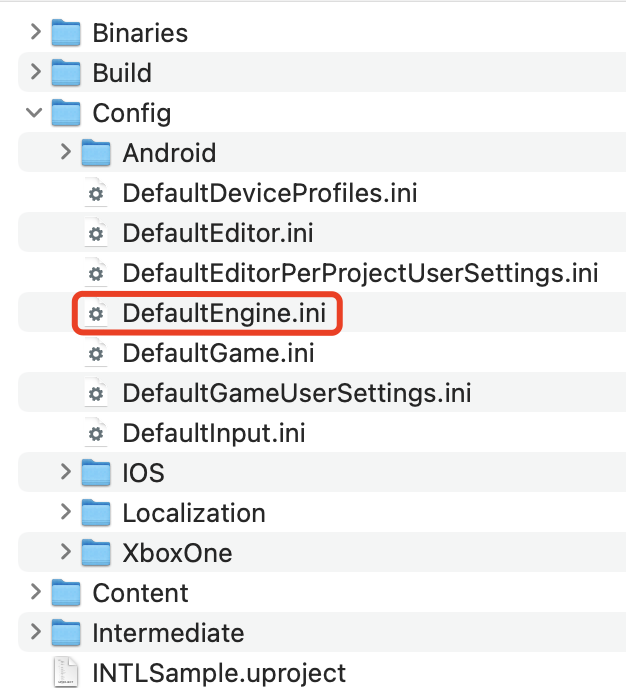
- Open the
DefaultEngine.inifile.
-
Set the configuration value for
bEnableConfigIniEncryptiontoTrueto enable encryption, or toFalseto disable encryption.DefaultEngine.ini[/Script/INTLSDK.Settings]
bEnableConfigIniEncryption=True -
Click the encrypt button in Unreal Engine to check if encryption was successful.
- SDK 1.19
- SDK 1.18.00 or earlier
INTLEncrypt > Encrypt
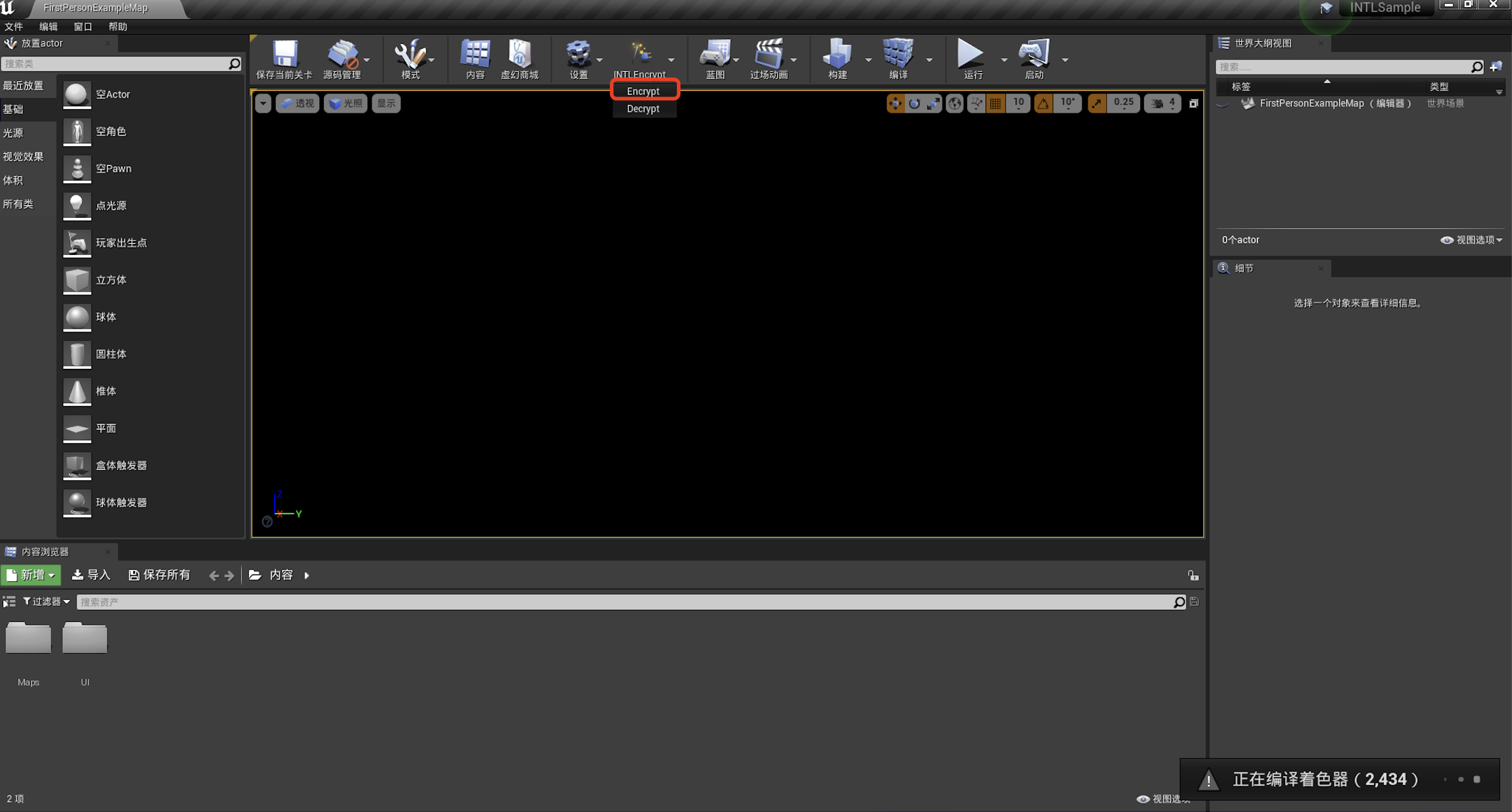
INTLEncrypt
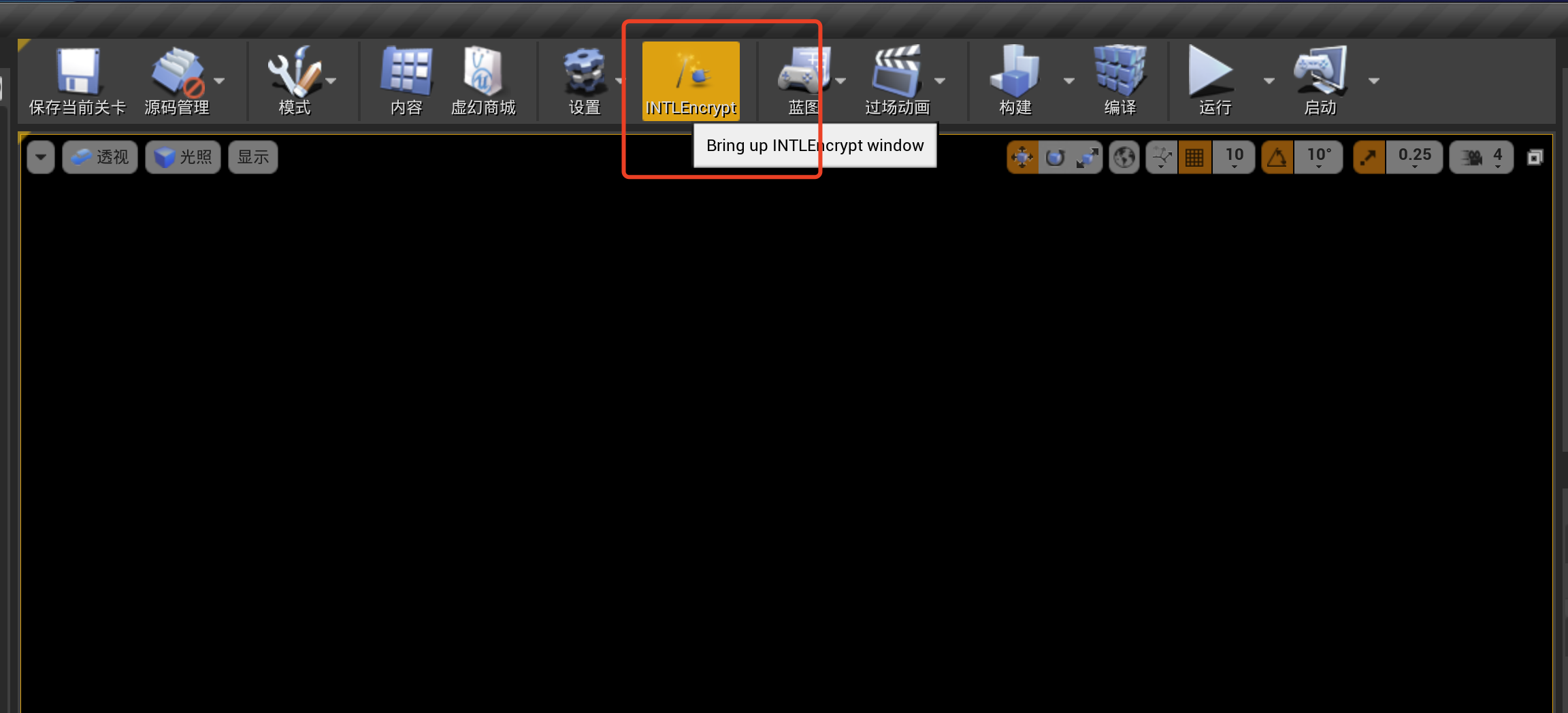
- Check the size of the
INTLConfig.ini.newfile. If the file content is not 0KB, encryption succeeded.
| Platform | Path |
|---|---|
| Windows | INTLSDK/Source/INTLConfig/Configs/Encrypted/Windows/INTLConfig.ini.new |
| Android | INTLSDK/Source/INTLConfig/Configs/Encrypted/Android/INTLConfig.ini.new |
| iOS | INTLSDK/Source/INTLConfig/Configs/Encrypted/iOS/INTLConfig.ini.new |
Select INTLEncrypt > Dncrypt in Unreal Engine and look for the INTLConfig.ini.new_decrypt decrypted file in the folder containing INTLConfig.ini.new.
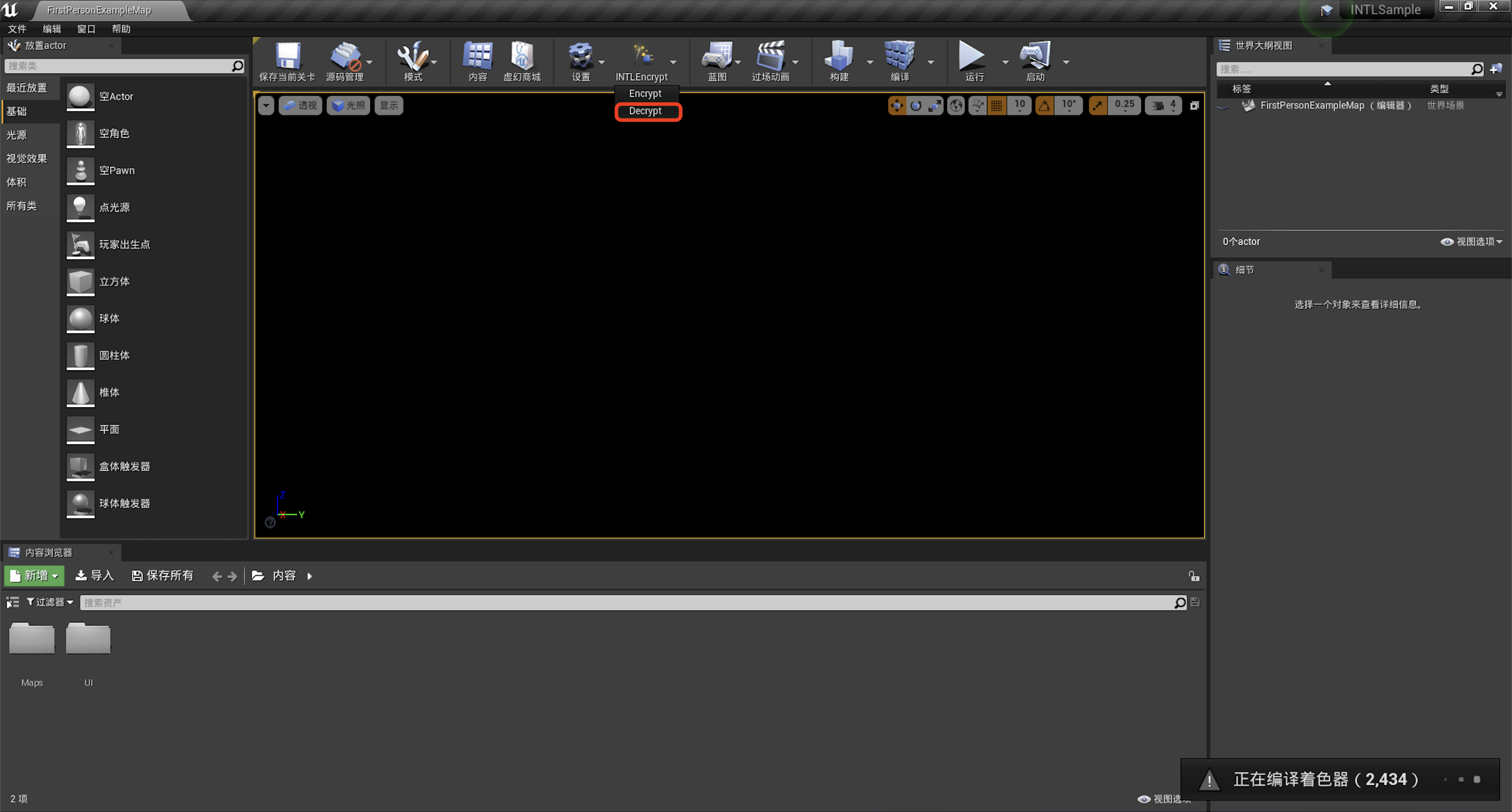
Unreal Engine versions earlier than V1.17
-
Open the
EncryptConfig.inifile.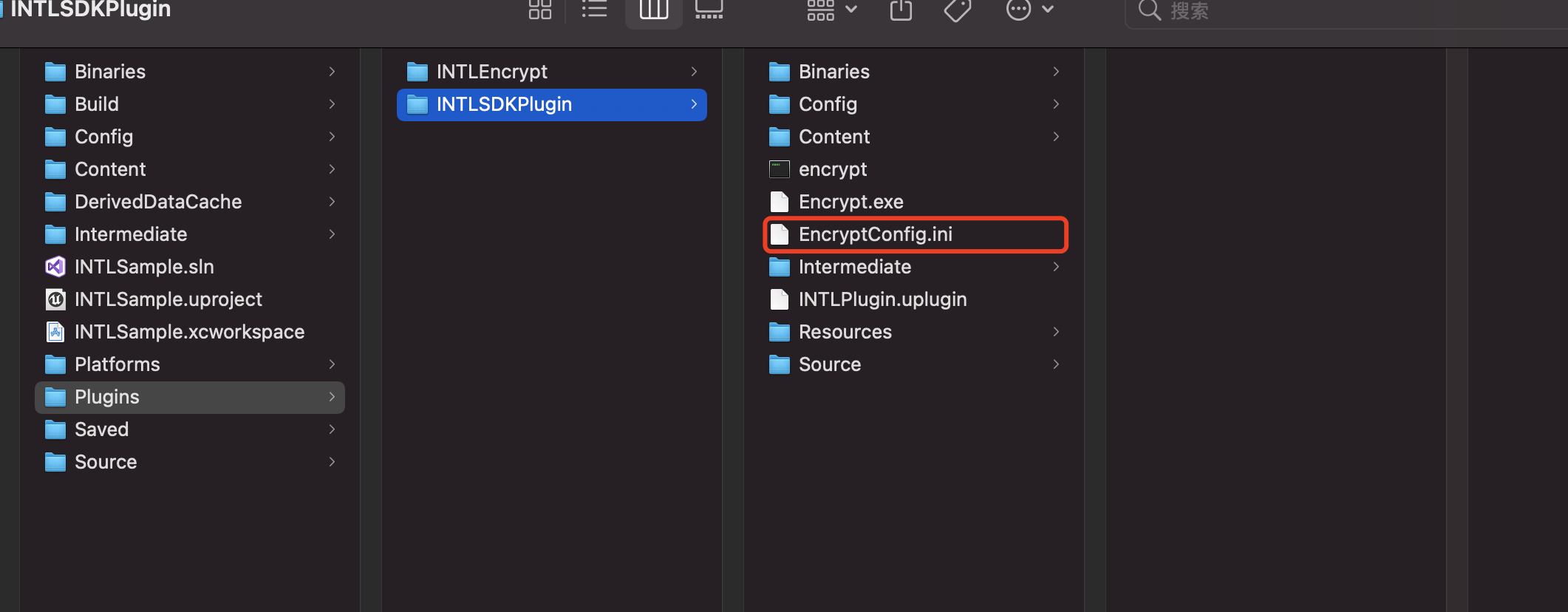
-
Check the value corresponding to
ENABLE.
The default is 0, which means this feature is disabled.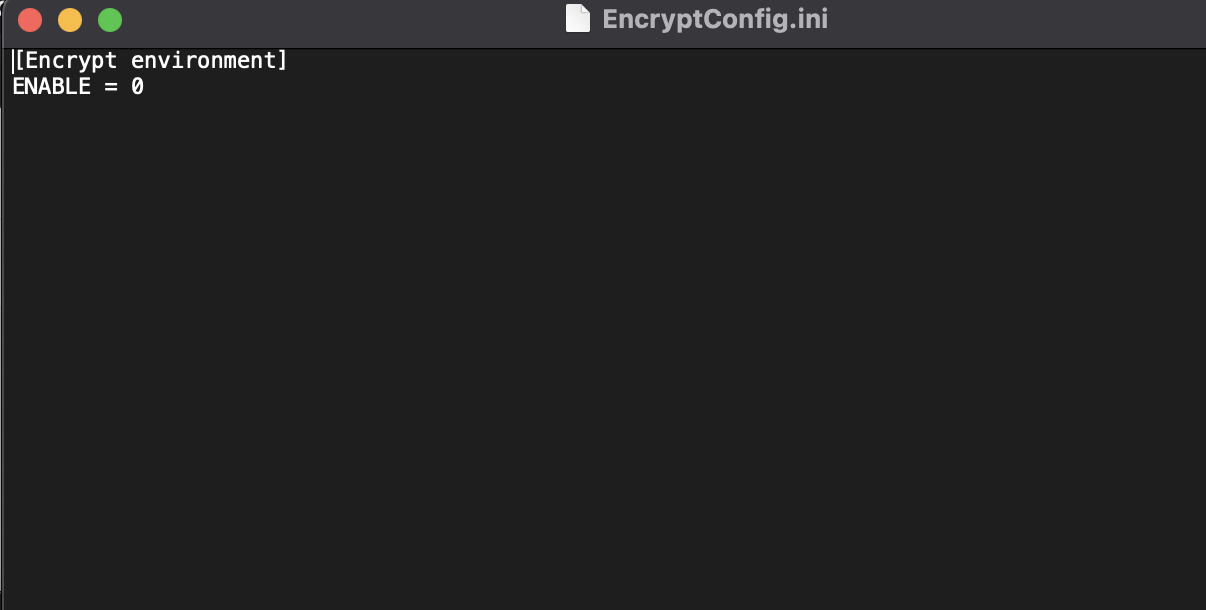
-
To enable encryption, change the value for
ENABLEto 1, i.e.,ENABLE = 1. -
Click INTLEncrypt in Unreal Engine to check if encryption was successful.
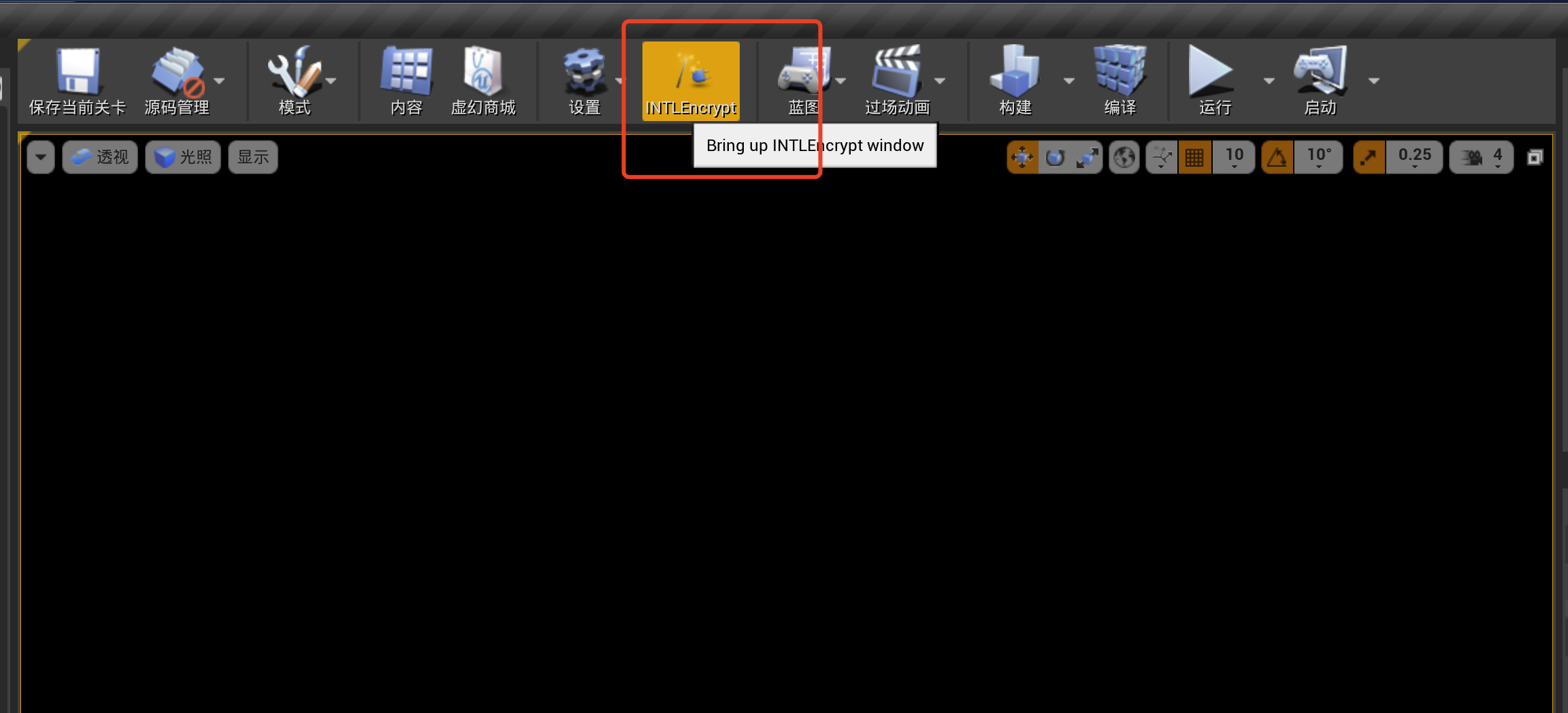
-
Check the size of the
INTLConfig.ini.newfile in the folder containingINTLConfig.ini.
If the file content is not 0KB, encryption succeeded.
You do not need to manually delete INTLConfig.ini; during scripting for packaging, INTL will only copy the INTLConfig.ini.new file.

