LI PASS PAK Build Tool (Unreal Editor)
LI PASS supports hot updates. By packaging resource files into a PAK, online issues can be quickly fixed seamlessly.
When building a PAK, encryption signatures are usually enabled, and the necessary keys are sensitive and generally not provided externally. Other configuration options in the project also affect PAK building. Therefore, LI PASS has introduced a dedicated Unreal Editor tool module in the plugin, allowing users to build hot-update resource packages independently in Unreal Editor after integrating the LI PASS plugin.After the PAK is built, deliver the output to the relevant LI PASS staff for configuration and validation.
Operating steps
-
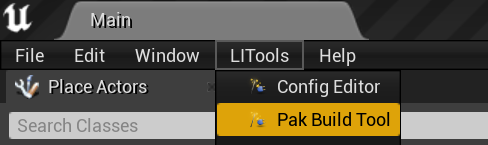
Open the tool interface via the editor toolbar LITools > Pak Build Tool.
-
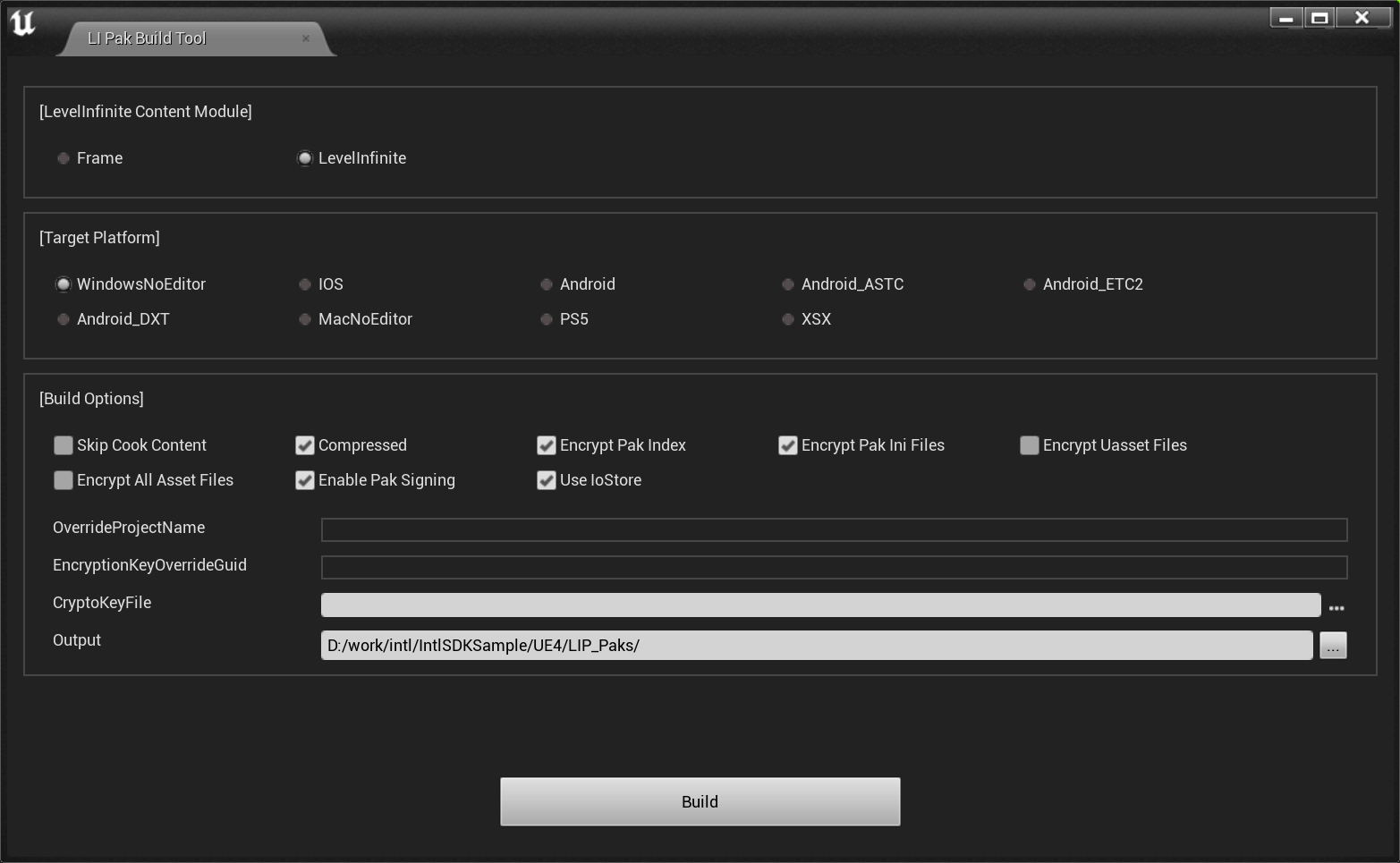
Set relevant build options according to the requirements of this build.For more details about the options, please refer to Build Options.
-
Click
Buildto start executing the build task.A progress bar is displayed at the bottom of the tool interface, and a notification bar will also appear at the bottom right corner of the editor.
-
After the build is complete, the progress bar will disappear and a completion notification bar will appear at the bottom right corner of the editor.

-
Click
Show in Exploreron the notification bar to locate the output.
You can close the tool interface while a build task is running.If you reopen the tool interface while a build task is running, the interface build parameters will be displayed according to the currently executing task settings.
Build Options
LevelInfinite Content Module: LI PASS hot update resource module
Target Platform: The target platform for building the PAK
Build Options:
| Option | Description |
|---|---|
| Skip Cook Content | Whether to forcibly skip resource cooking and directly build the PAK. |
| Compressed | Whether to compress resources. By default, uses the project configuration. |
| Encrypt Pak Index | Whether to encrypt the PAK index. By default, uses the project configuration. |
| Encrypt Pak Ini Files | Whether to encrypt .ini files in the PAK. By default, uses the project configuration. |
| Encrypt Uasset Files | Whether to encrypt .uasset files in the PAK. By default, uses the project configuration. |
| Encrypt All Asset Files | Whether to encrypt all asset files in the PAK. By default, uses the project configuration. |
| Enable Pak Signing | Whether to enable PAK signing. By default, uses the project configuration. |
| Use IoStore | Whether IoStore is enabled. By default, uses the project configuration. |
| OverrideProjectName | Configure the project name in the PAK file mount path; if left empty, current project name is used by default. |
| EncryptionKeyOverrideGuild | If the PAK has encryption-related functionality and a subkey is required, enter the corresponding subkey Guid. |
| CryptoKeyFile | If encryption or signing features are enabled, you must select a Crypto.json key configuration file. |
| Output | Output directory for the produced files, which defaults to the LIP_Paks folder under the project root directory. |
Some features are temporarily unsupported in lower engine versions. Unsupported options will be disabled in the build tool interface.

