Create New Project
Enter Player Network Console
Before using Player Network to manage login channels, an account is required. Tencent employees may Log in with an iOA account, while non-Tencent employees are required to Create a Player Network account first before they can Log in with a Player Network account.
Create a Player Network account
-
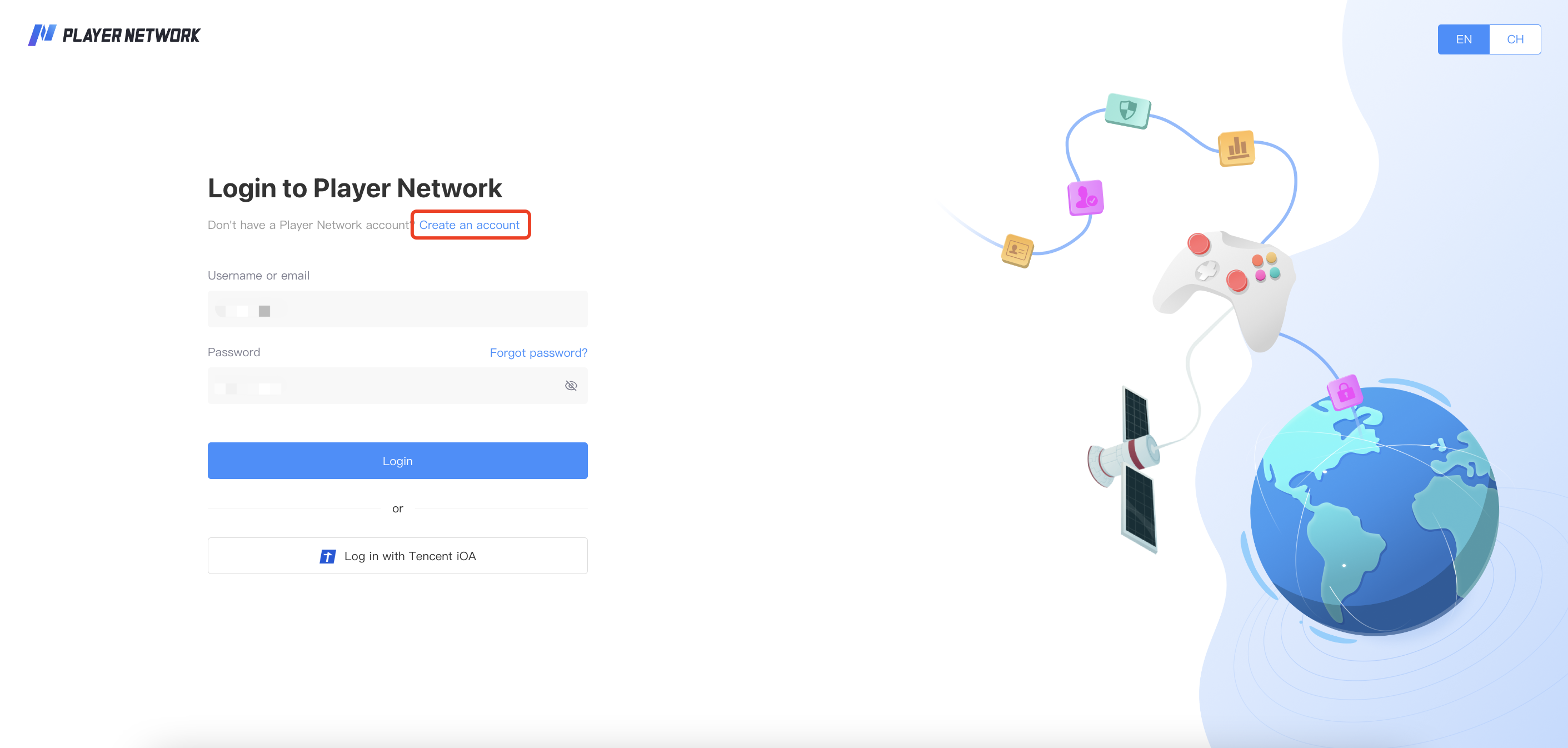
From the Player Network Console login page, click Create an account.
-
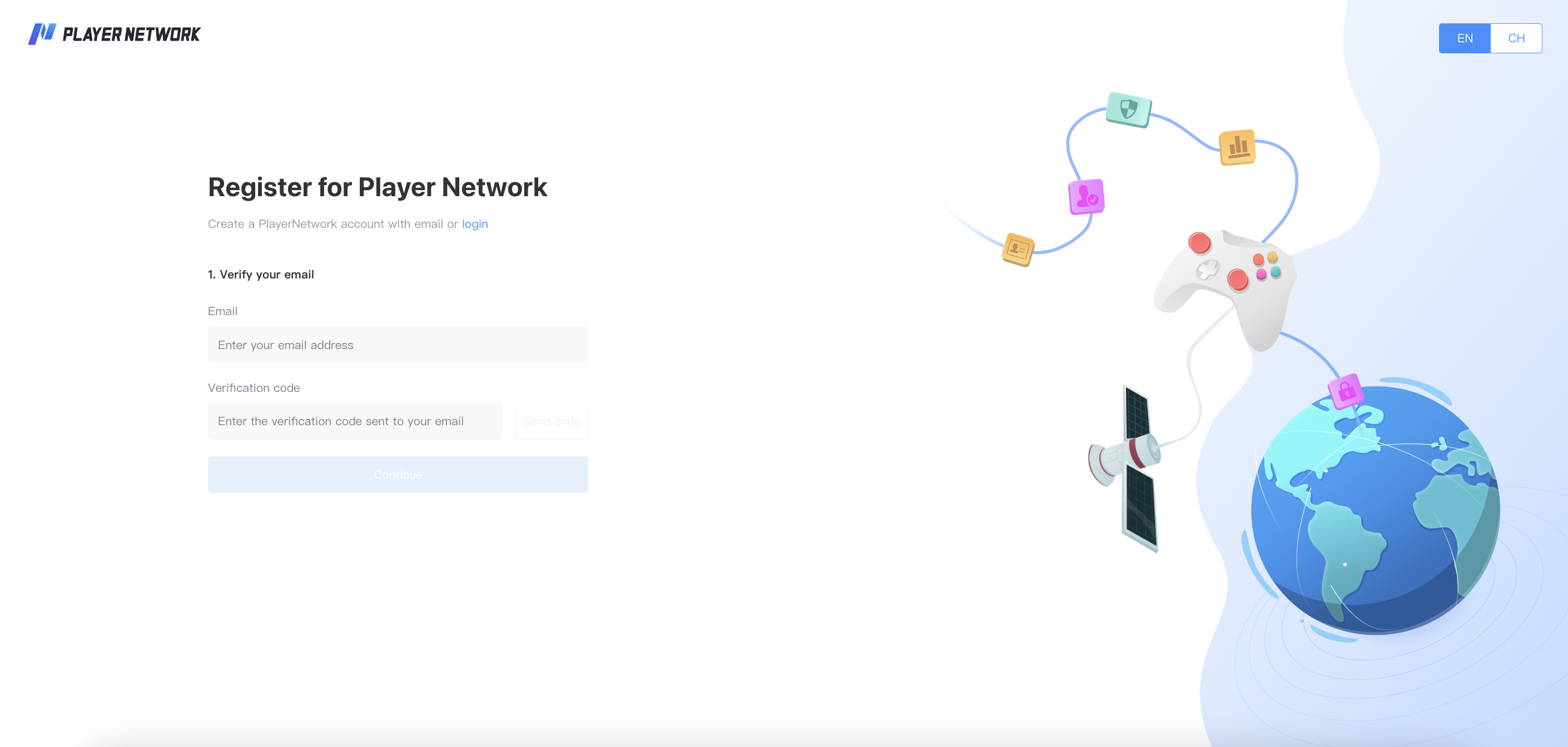
On the registration page, enter your email and complete the verification, then click Continue.
-
After completing the email verification, set your Player Network account username and password, then click Register.
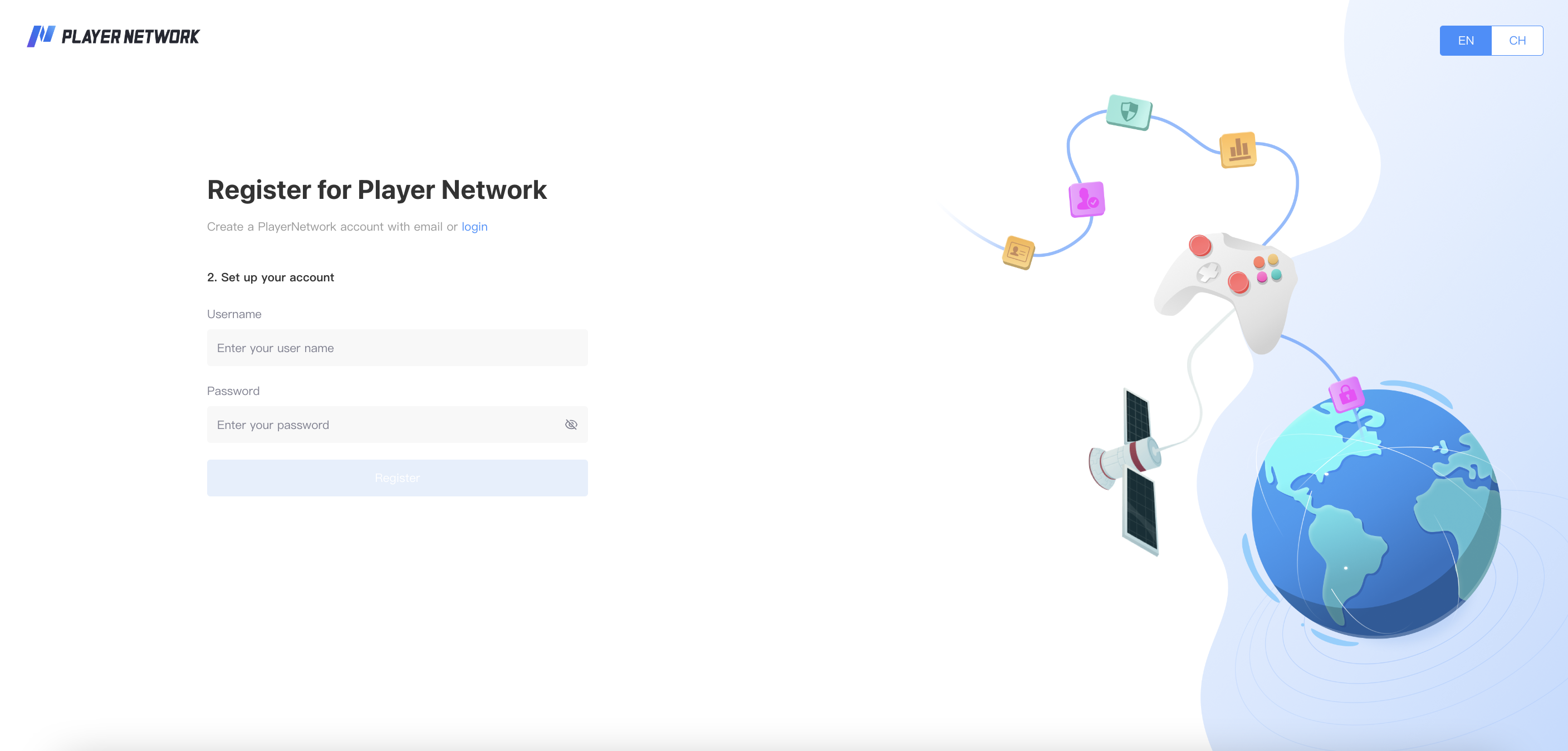
- Username requirements: Only letters, numbers, and underscores are allowed. English letters are case-sensitive.
- Password requirements: Contains at least 1 lowercase character, 1 uppercase character, 1 number, and is at least 8 characters long.
- After successfully registering, you may now log in to your account from the Player Network Console login page.
Log in with a Player Network account
- From the Player Network Console login page, enter your registered username or email address, followed by the corresponding login password.
- Click Login.
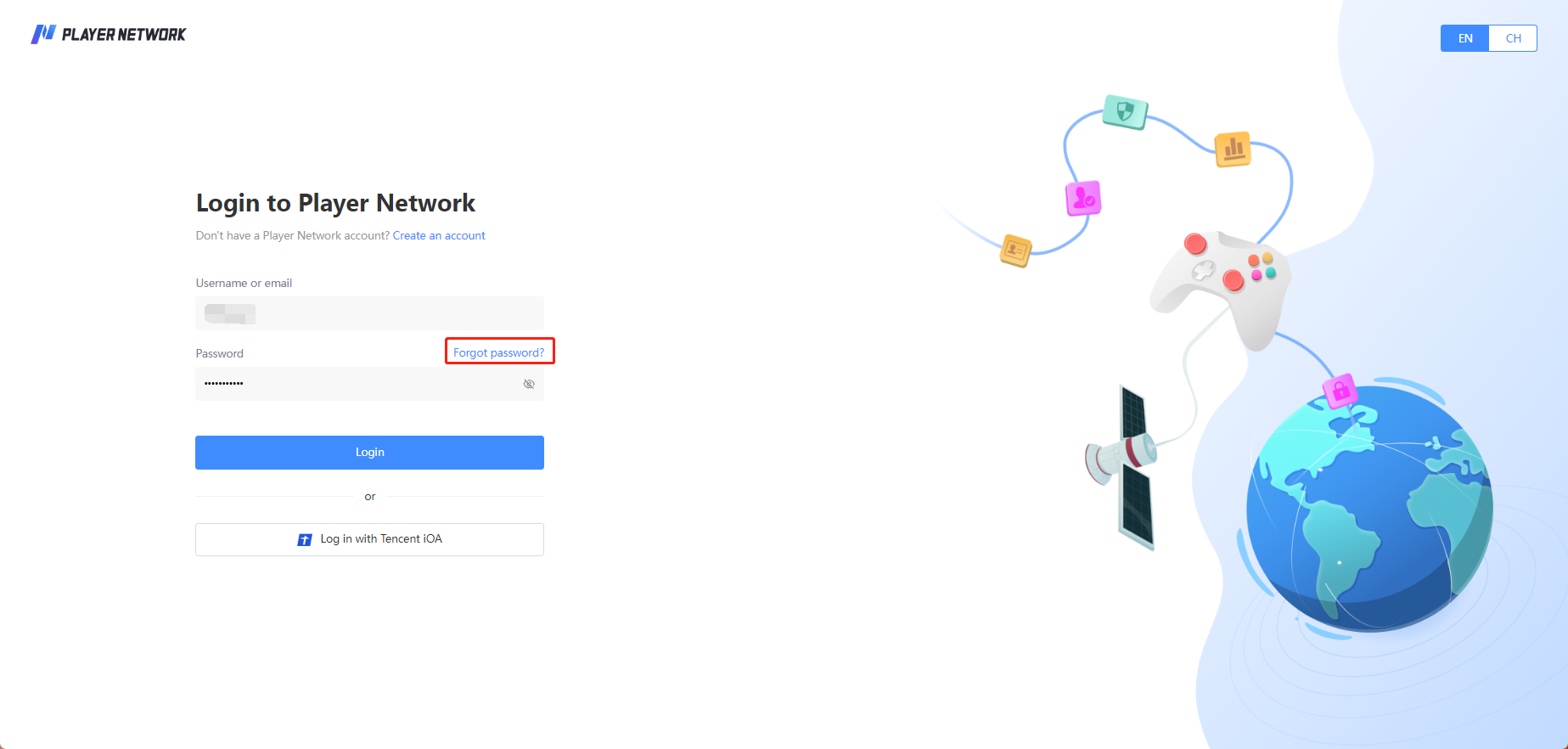
If you have forgotten your Player Network login password, you may reset it from the Player Network Console login page.
- Click Forgot Password? from the login page.
- Enter your email address, then click Send code to verify your email address.
- Enter the verification code received in the email, then click Continue.
- Enter your new password, then click Confirm.
After the password reset is successful, return to Player Network Console to log in with your new password.
Log in with an iOA account
-
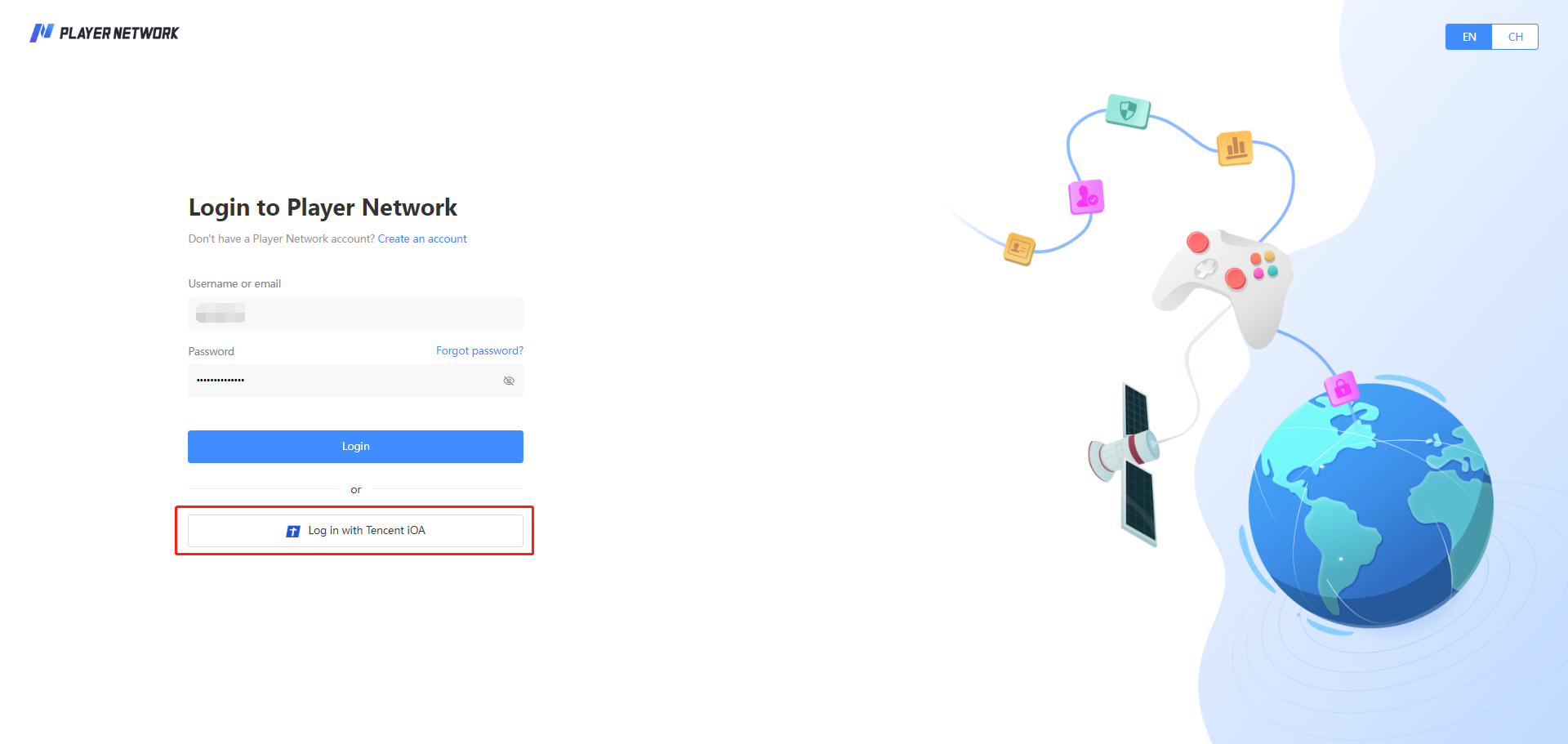
From the Player Network Console login page, click Log in with Tencent iOA.
-
From the iOA authorization page, click Quick login to be redirected back to Player Network Console.
Create a new project
-
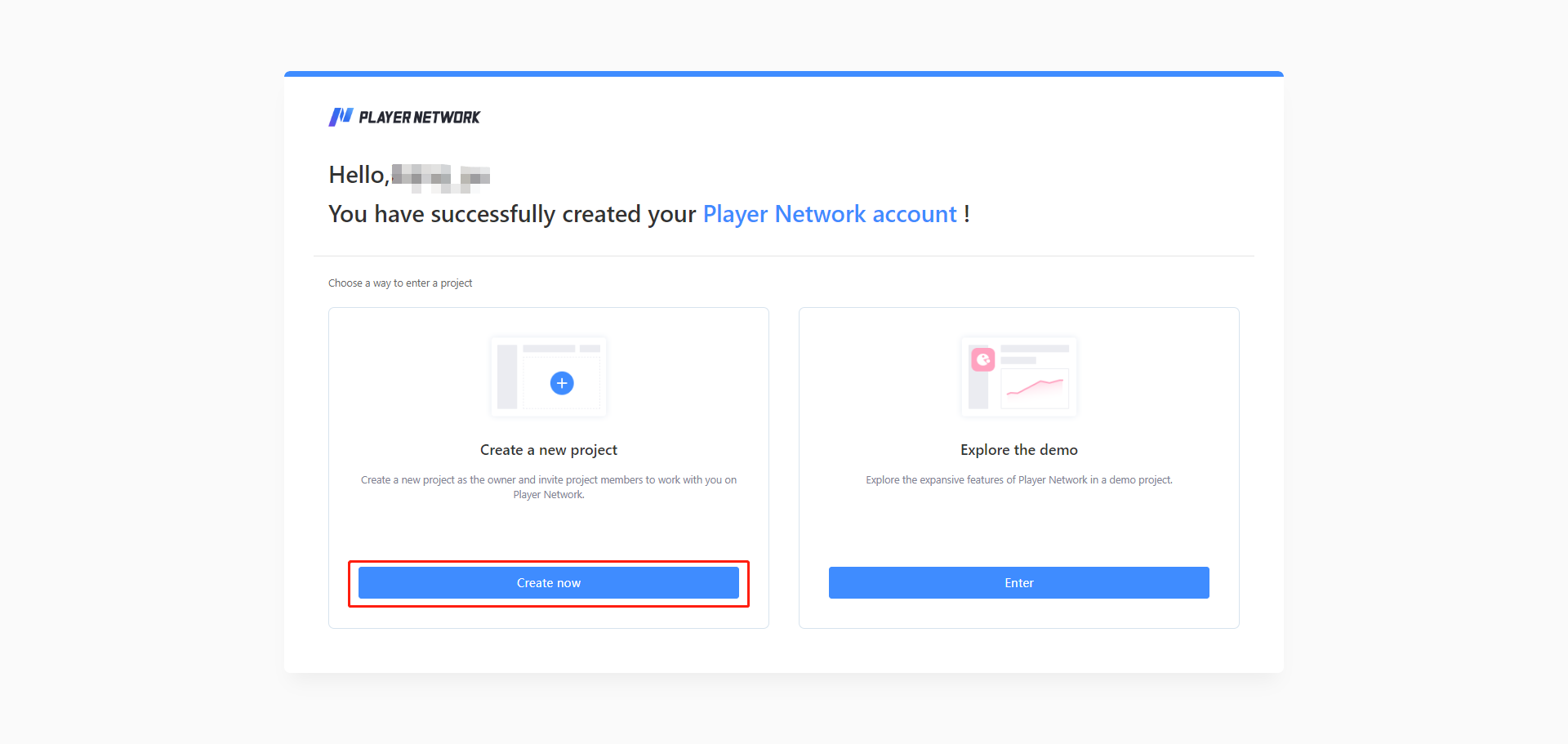
After successfully creating your account, click Create now in the Create a new project card to enter the Game registration page.
-
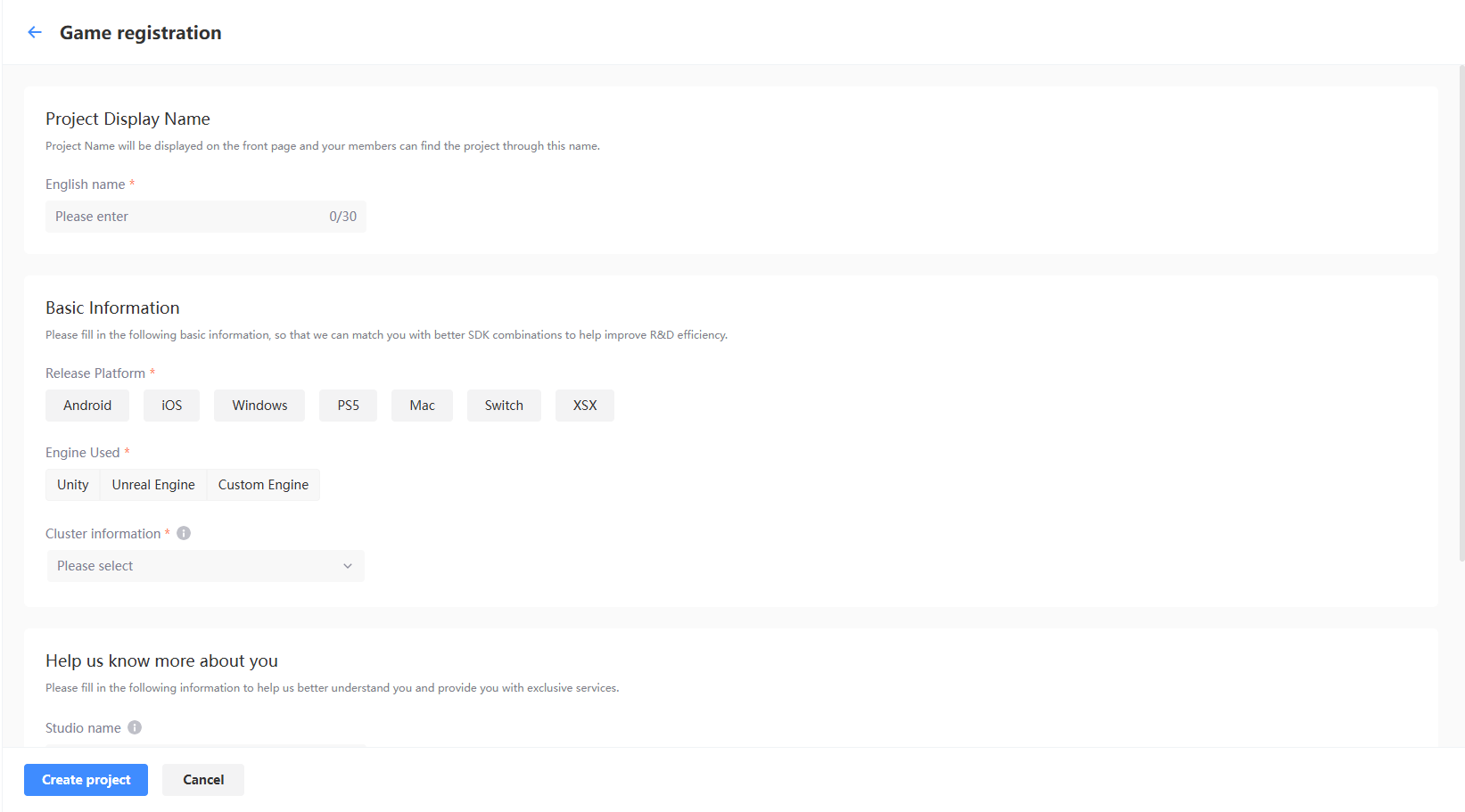
After entering the basic information of the project, click Submit. Registration will be complete only after an administrator approves it.
-
View the approval status of the created project from Review projects in Account Center.

-
An email notification will be sent out once the project is Approved/Rejected, and the results can also be seen from the notifications within Player Network. If your application was approved, switch to your project by selecting your project name from the top left corner of the page.
If the project registration is successful, the user who submitted the application will automatically be granted the Owner role.
For more information regarding the project approval process, reach out to the Player Network representative.
Explore the Home page
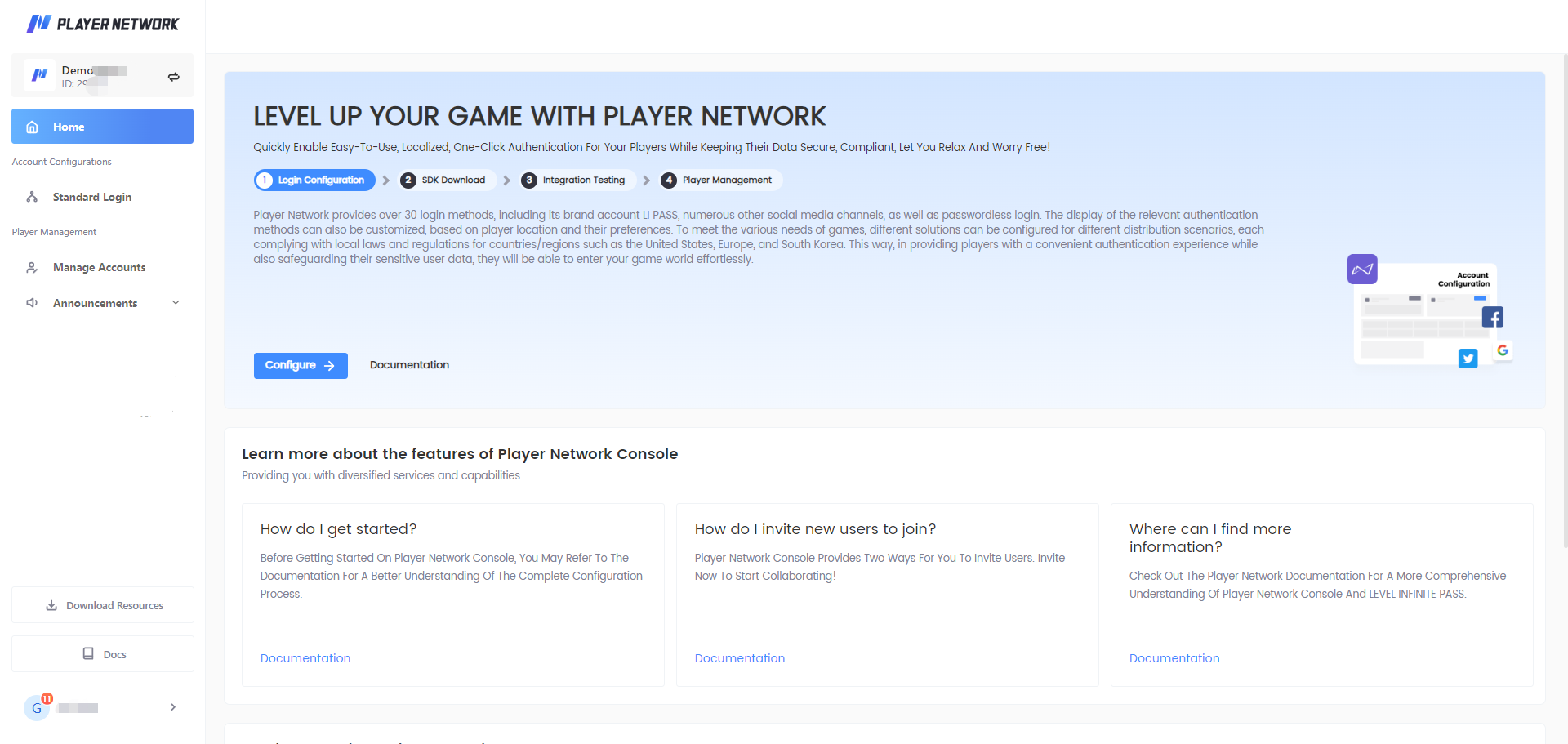
After registering for an account and entering a project, you may view the various functionalities of Player Network from the Home page, or directly access these functions by clicking on the corresponding buttons to configure your project or view the relevant guides available.