LI PASS Configuration
Through the LI PASS configuration feature, the service quickly creates multiple login methods to meet players' login and registration needs in various scenarios.
Login configurations that have been set up in the Test Environment or Production Environment can be quickly imported using the Import Login Configuration feature.
LI PASS login component configuration in Player Network Console takes precedence over SDK configuration files, which means that configurations in Player Network Console will override those with the same key in INTLConfig.ini.
General configuration
Review Basic Parameters, or configure Game Name, Account Security, and SmartLink Authorization.Globally apply configurations for all Login settings.
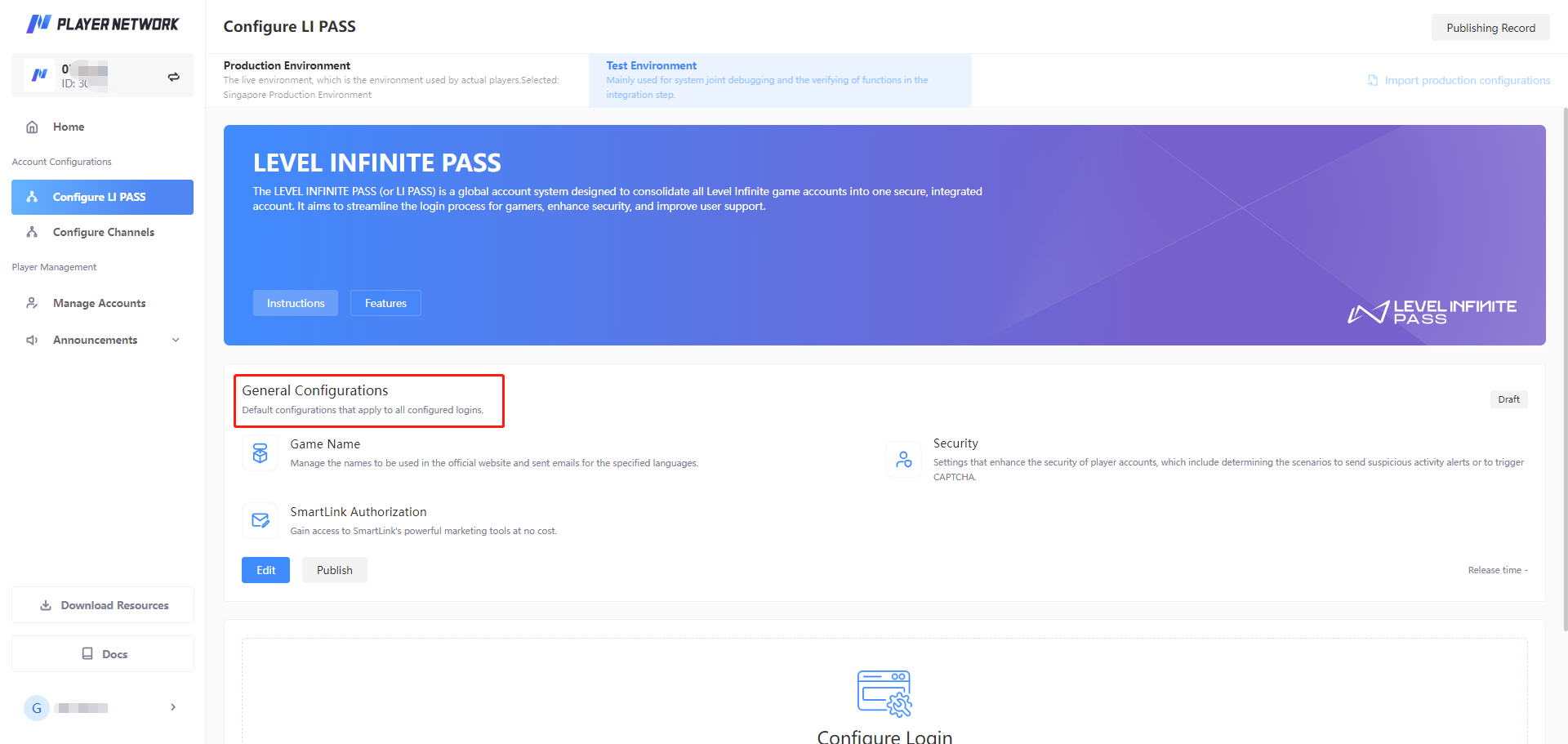
Account Security
LEVEL INFINITE PASS account security policies.

-
Account linking restrictions - Restricts players from linking their LEVEL INFINITE PASS account for a period of time after logging in with a new device, to prevent malicious linking due to device loss or account theft.
Once the switch is enabled, more related settings can be configured.

- When logging in from a new device, the account cannot be linked to a third-party channel or LI PASS within X hours.: X being an integer between 1 to 99, the actual value determined by your security policy.
Domain configuration
LI PASS Domain configuration is only required for LI PASS Web services.
Only after you add and publish permitted domains will the created web login interface work properly.
Support adding multiple domains to meet scenarios where a Project has multiple web interfaces.

Manage JavaScript SDK APIs
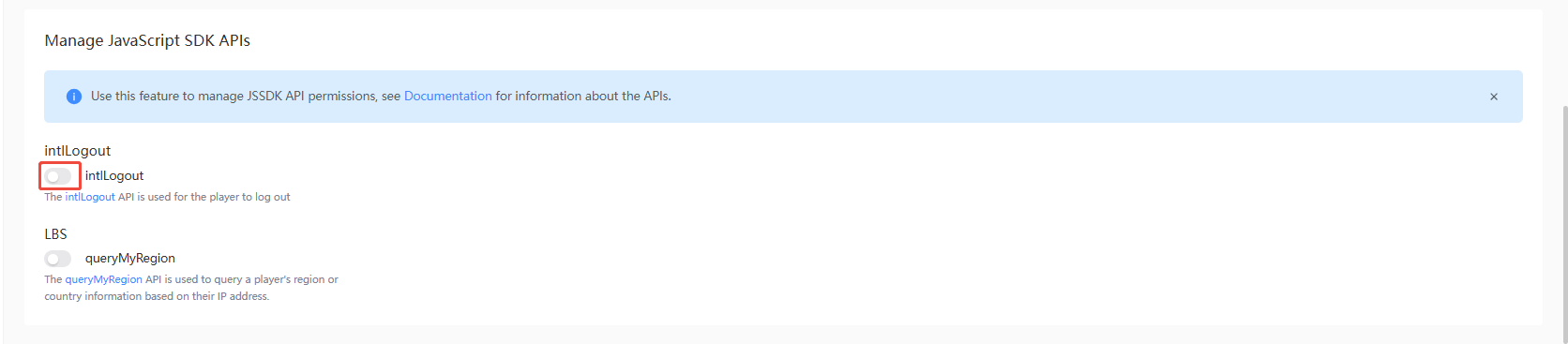
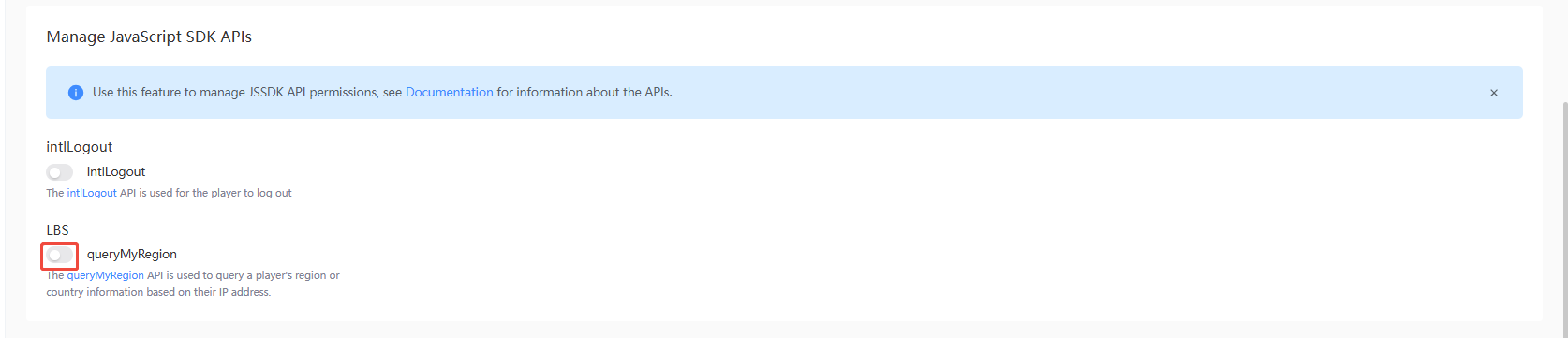
Currently, API permissions can only be enabled through Player Network Console. To disable the permissions, reach out to the Player Network representative.If closure is required, please contact your Player Network contact for handling.
-
intlLogout - intlLogout API, used for logging out players.
-
LBS - queryMyRegion API, used to query a player's region or country information based on their IP address.
Publish general configurations
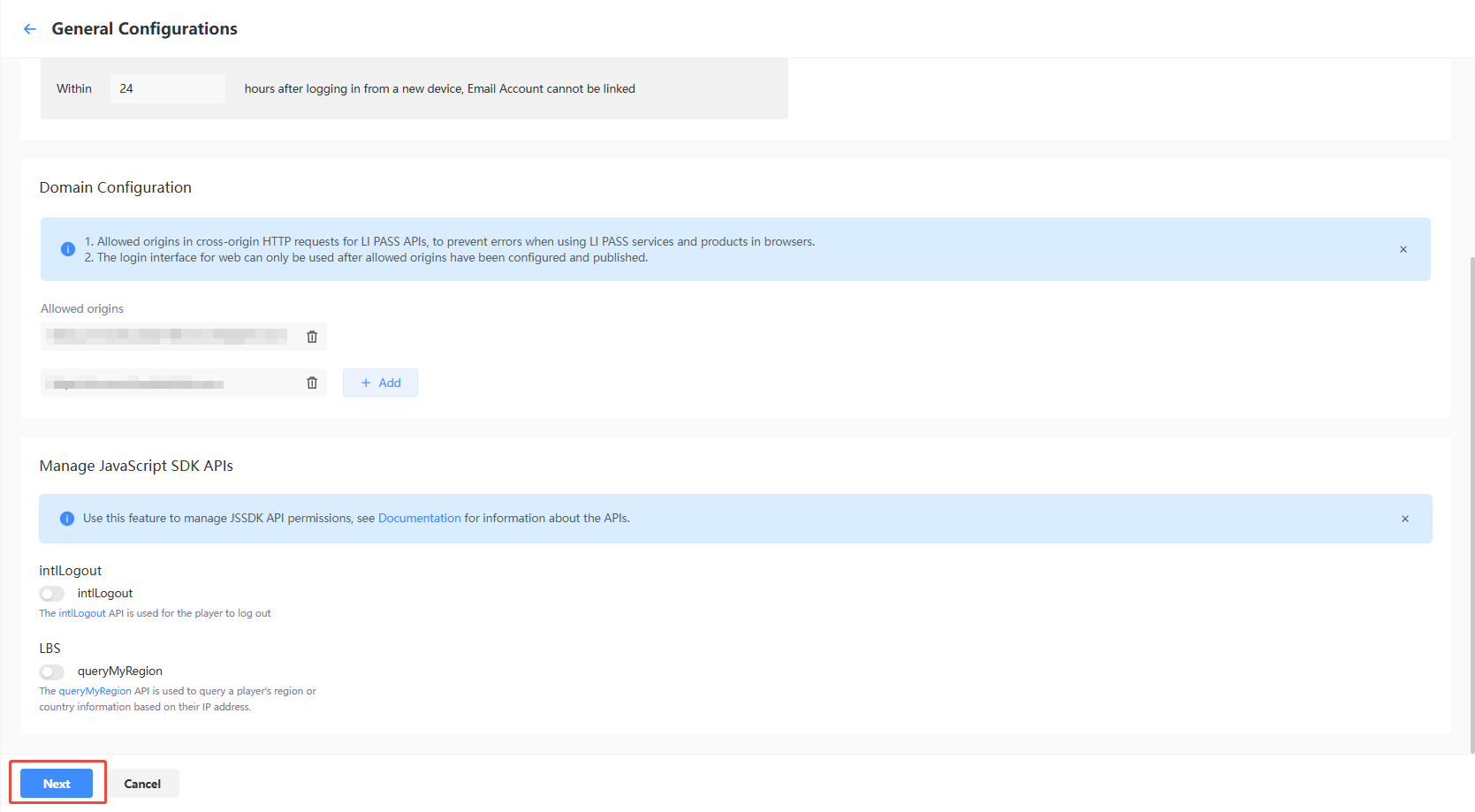
Once the configurations are ready, click Next at the bottom of the General Configurations page to begin publishing.
-
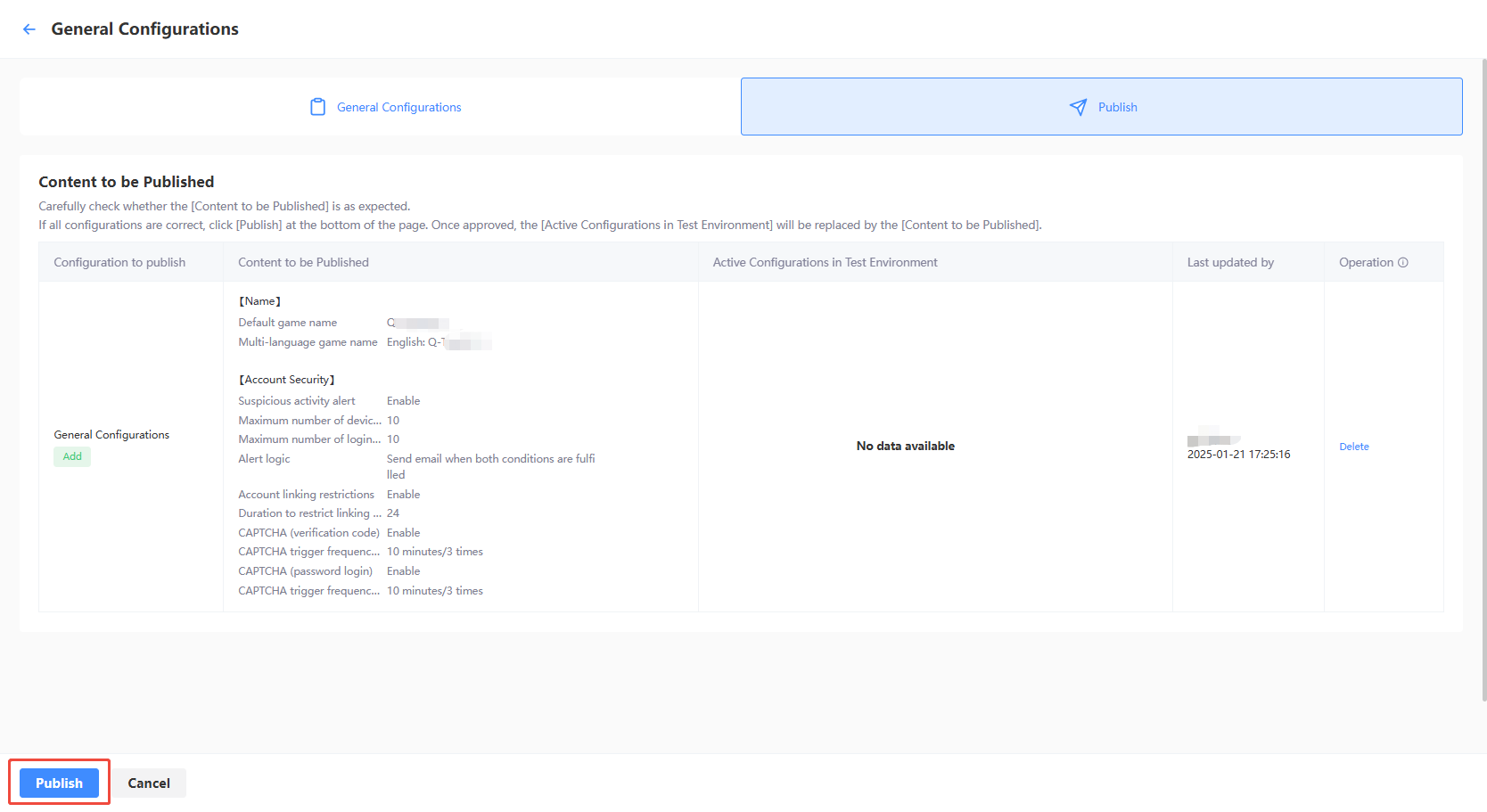
On the Publish page, verify the configurations to be published.
-
If all configurations are correct, check the channels to publish as needed and click the button at the bottom left of the page.
- Test environment: Click Publish to Test Environment to publish the selected configurations to the test environment.
- Production environment: Click Submit for Production Environment Release Approval. The selected configurations will automatically sync to the production environment after review by the audit personnel.
Since it involves manual review, the review process for releasing to the Production environment takes about 3 to 4 hours.For expedited requests, consult the Player Network contact for assistance.
-
In the secondary confirmation pop-up, click Confirm.

Create LI PASS for client
-
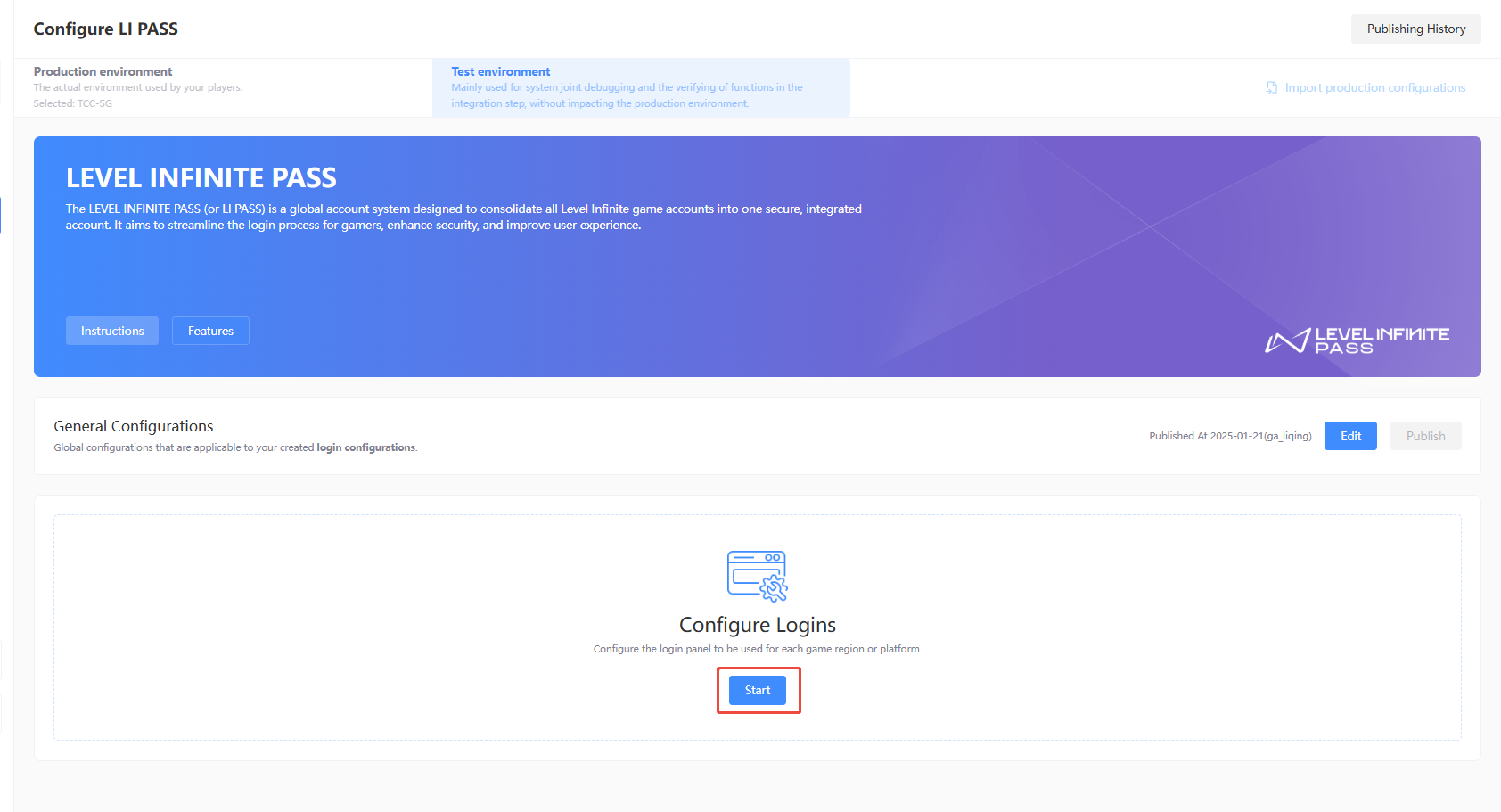
Log in to Player Network Console, and select LI PASS Configuration under Account Configuration in the left sidebar.
-
Under Login Configuration, click Start Configuration.
-
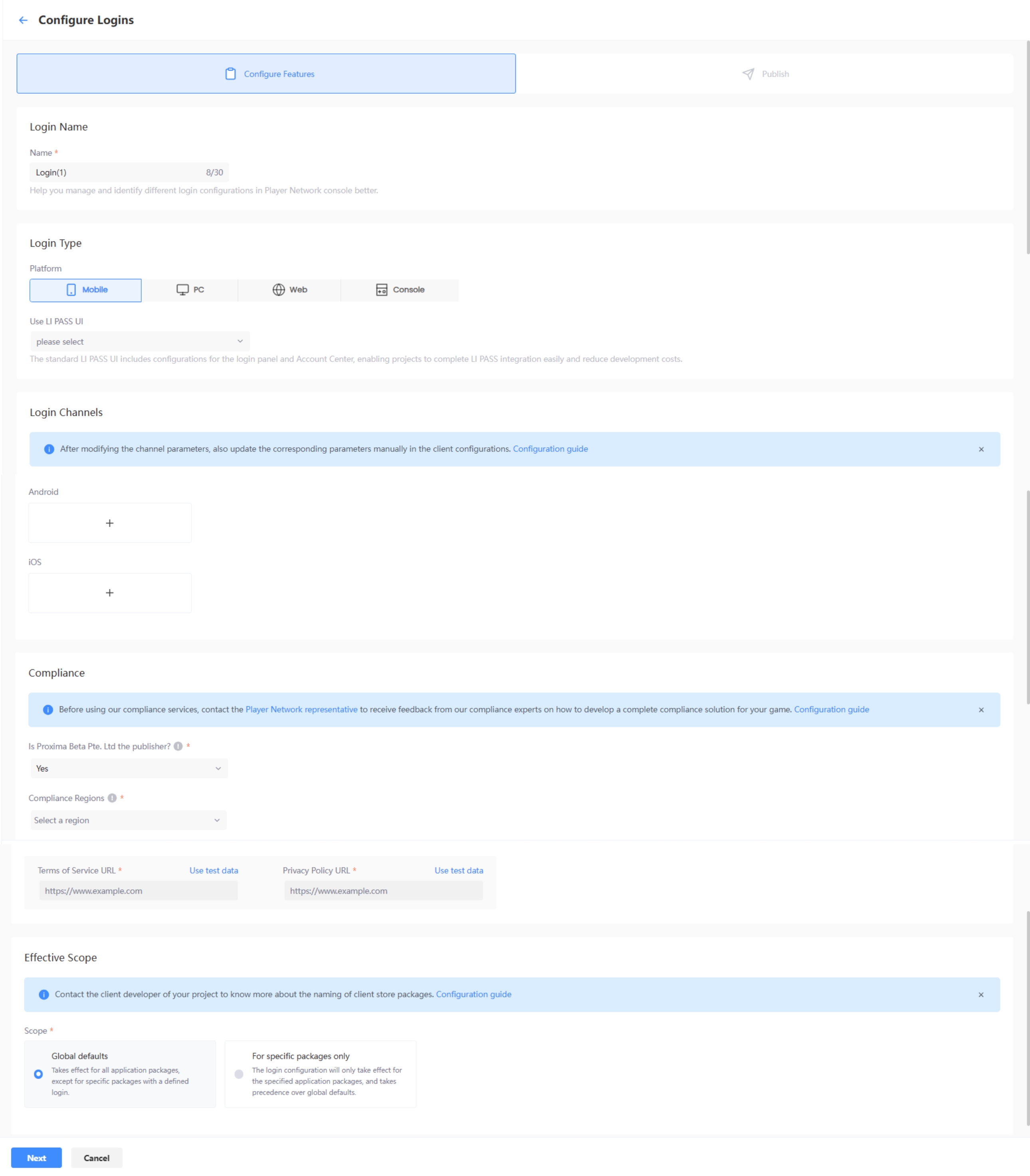
Fill in the login configuration name for distinguishing different login configurations.

Account Login Configuration
Account Login Configuration is used to create and manage login configuration schemes, supporting multi-terminal access, and integrating compliance Authentication and permission control to help quickly build a secure, compliant user Login system.
Login Configuration Type
Select Mobile, PC, or Console to start login configuration.Only one platform can be selected for each login panel. To configure for other login types, you may continue to add more after completing configurations for this login panel.
- Mobile: For release on Android/iOS, with support for adding third-party channels for login.
- PC: For release on PC, select between Steam/Epic Release, or Standalone Client Release. Third-party channels for login can only be added for Standalone Client Release
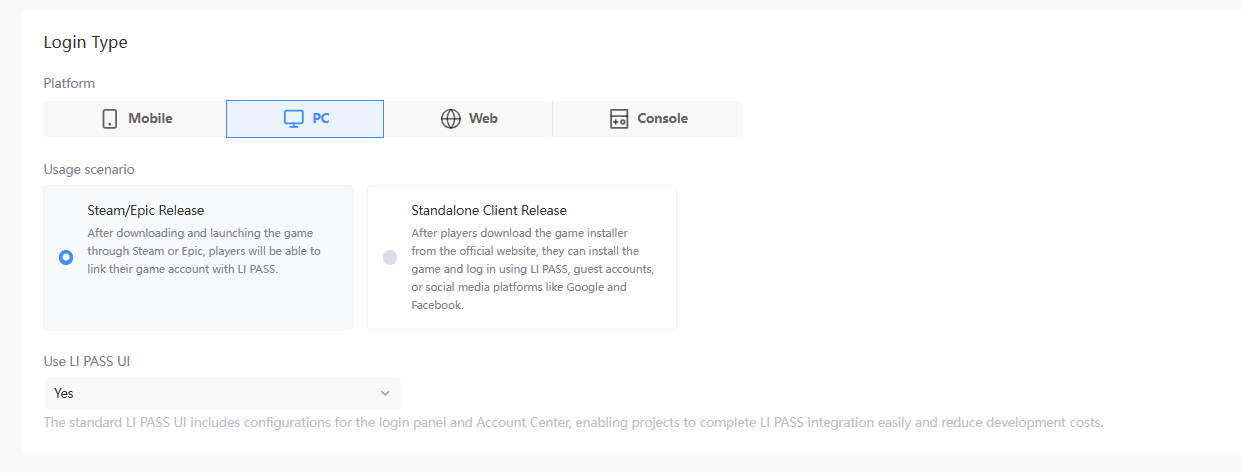
For more information about Steam/Epic Release, see LoginChannelWithLIPass.
See OpenLoginPanel for more interface details related to standalone client distribution.
- Console: For release on Xbox or PlayStation.
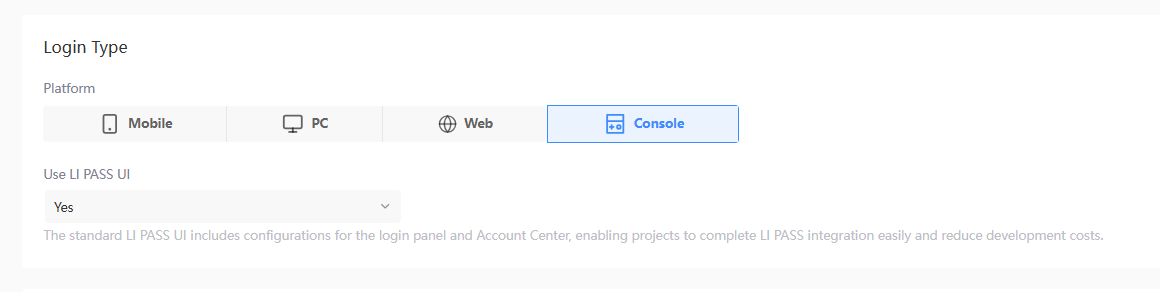
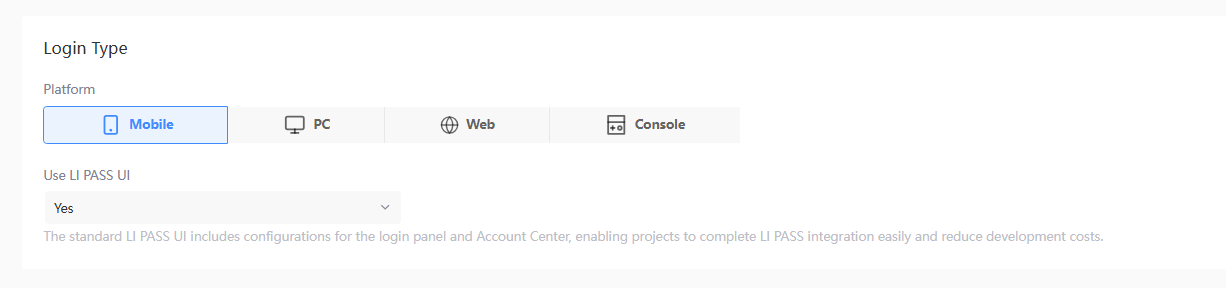
Decide whether to use LI PASS UI based on Project requirements.Choose to use the standard LI PASS UI for areas such as the LI PASS login screen and Account Center, enabling LI PASS integration to be completed easily and reducing development costs.
LI PASS UI completely integrates login, registration, compliance, and security-related front-end interactions, supporting direct use.
- Yes: The LI PASS UI will be used for the login screen and Account Center, and configurations can be managed from Configure UI
- No: Developers will have to design and configure the UI for the login screen and Account Center for their project separately
Login channels
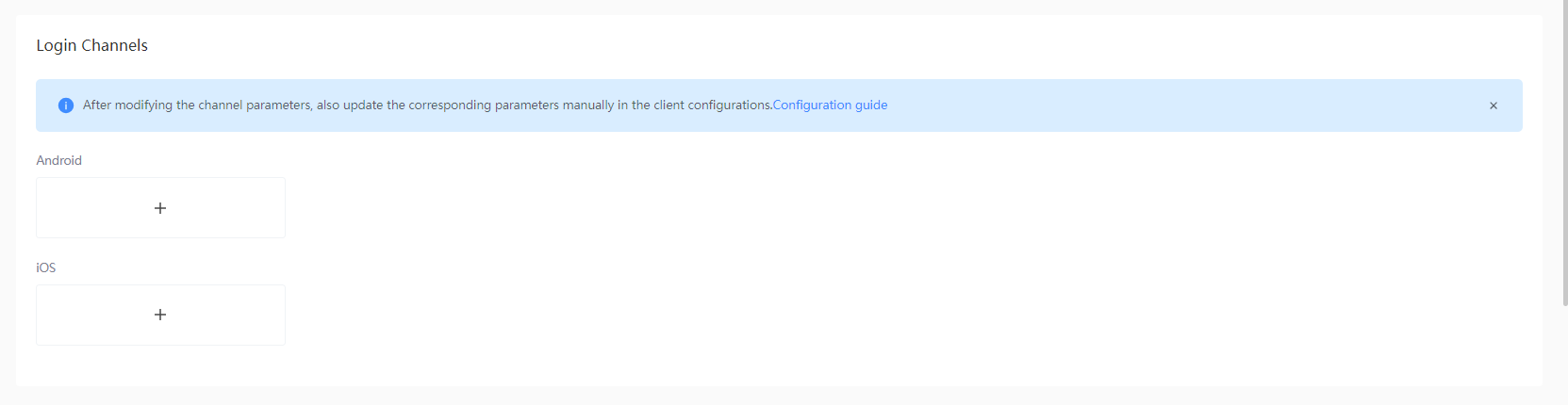
Third-party channels can be added as authentication methods for the Mobile platform or for Standalone Client Release on the PC platform.
For detailed configuration information for each third-party channel, see Third-party Channel Configuration
-
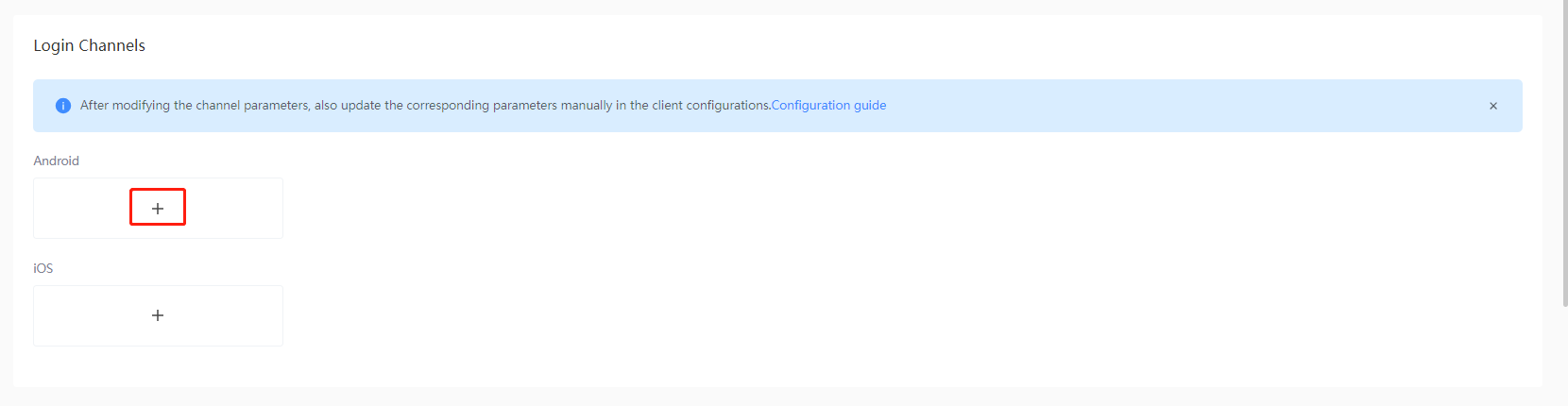
Click + (add) to display the Select Channel list.
-
Choose the third-party channel you need to add.Select the third-party channel to be added.
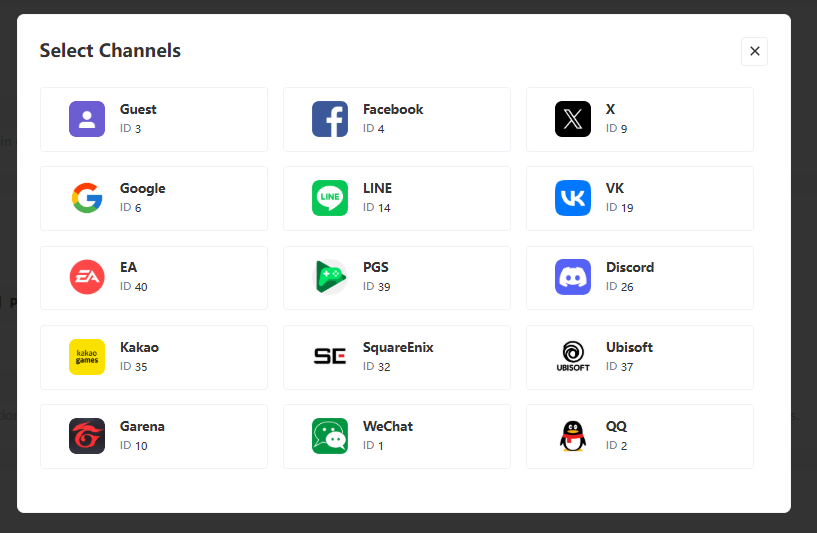
-
After completing required fields, click Save. Information for required fields can be obtained from the channel administrator.
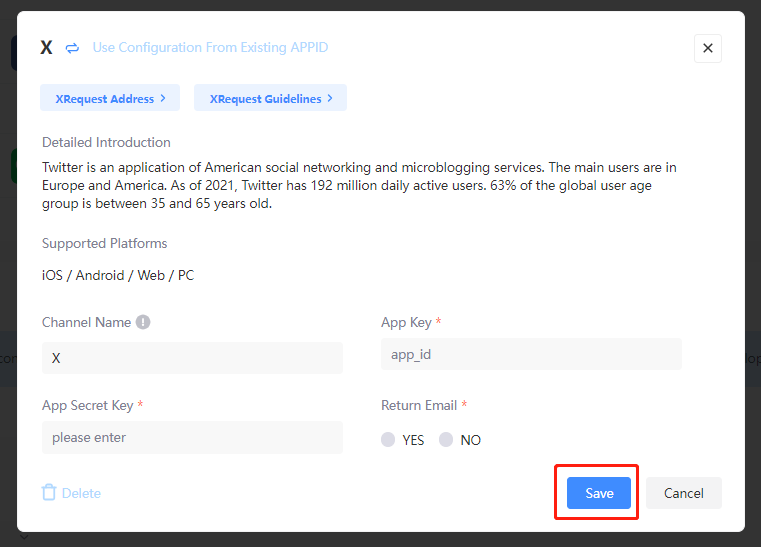
-
[Optional] If the same third-party channel has been configured before, click Use Configuration From Existing APPID, then select the configuration to be used in the popup.
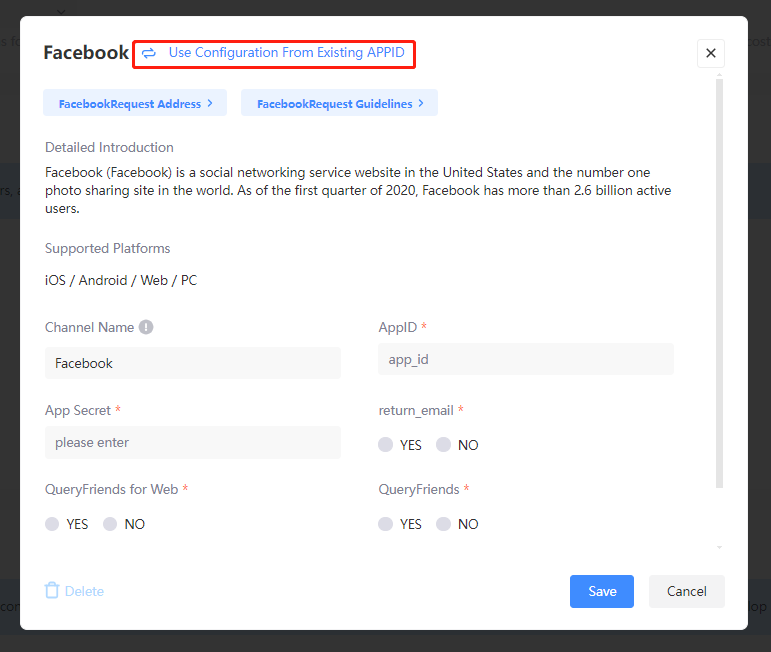
To delete a configured login channel or channel configuration, click Delete from the channel configuration popup.
-
Delete login channel - After clicking Confirm, players will be unable to use this channel for authentication while this login configuration is active.
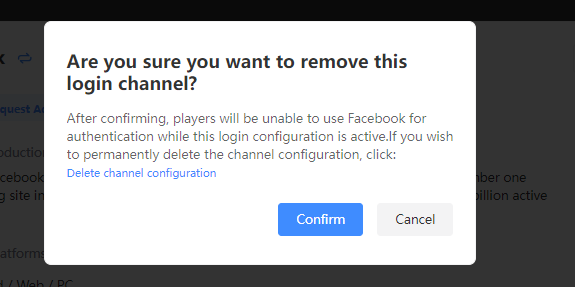
-
Completely delete channel configuration - Click Delete Channel Configuration, then click Confirm in the displayed popup.If a published channel configuration is deleted, players will no longer be able to log in to the same game account through this channel.
 If the current Login configuration has been published, you need to republish the configuration for the deletion to take effect.
Publishing platforms
If PC > Steam/Epic Release is selected, at least one publishing platform out of Steam and Epic will have to be configured.
If Console is selected, at least one publishing platform out of PlayStation Network and Xbox Series X|S will have to be configured.
-
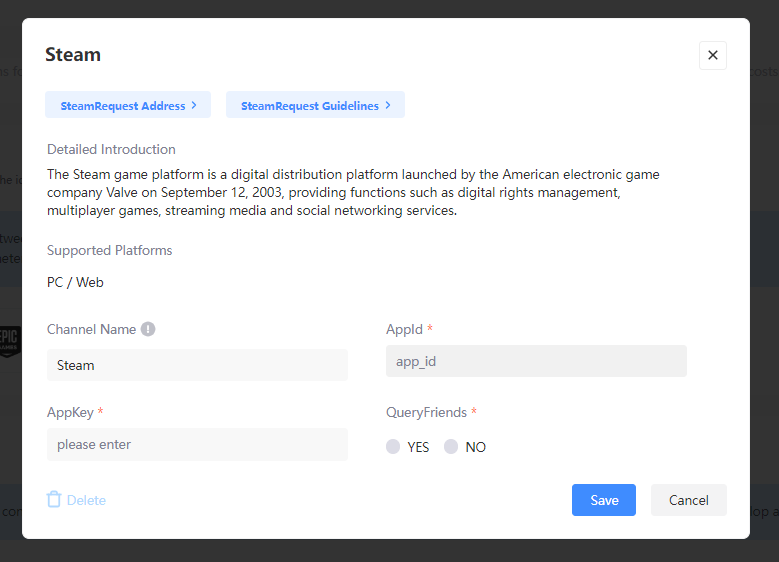
Click the pencil icon for the corresponding publishing platform.

-
Complete the required fields, using information that can be found from the management platform of the respective channel.
-
Click Save to complete the platform configuration.
Compliance
Before employing the login for actual use, we recommend contacting the Player Network representative to obtain a comprehensive compliance solution.
Starting with V1.9, when the LEVEL INFINITE PASS channel configurations are first saved, Player Network will also automatically set up player age verification for the corresponding environment according to standard compliance configurations, for ease of login integration for your project.
Players will be able to view the configured Terms of Service and Privacy Policy when logging in for the first time or during registration.

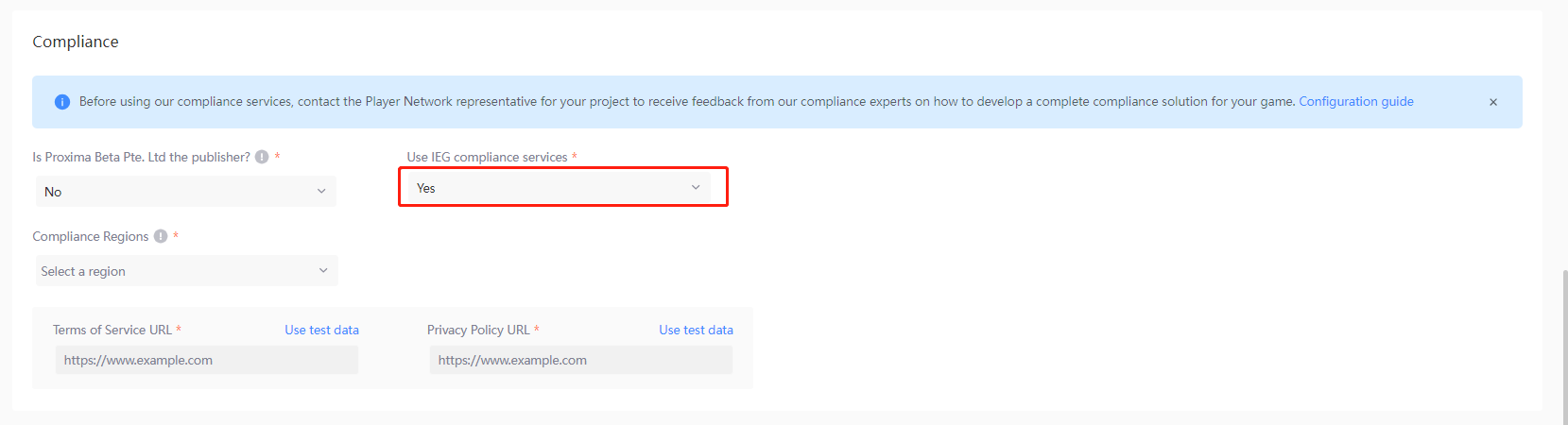
- Is the publisher Proxima Beta Pte. Ltd.? - Set whether the Project is published by Proxima Beta.
Depending on the publisher, the legal terms and agreements the player needs to agree to might differ.For games published by Proxima Beta, players must agree to the game's Terms of Service, Privacy Policy, the LEVEL INFINITE PASS Privacy Policy, and Data Transfer Agreement.For products not published by Proxima Beta, players also need to agree to the LEVEL INFINITE PASS Terms of Service, as indicated in the figure.
-
**Whether to use IEG Compliance Services?Whether to use IEG compliance service? - When the game is not published by Proxima Beta, set whether the game uses IEG compliance service.
- Yes: Contact the Player Network representative to obtain a compliance solution.
- No: The business side ensures the completeness of Compliance Services. After this feature is turned off, players will automatically skip the compliance process during registration/Login on the client
- Compliance Regions - The compliance regions that players can select during authentication, based on the project release region.
- Default - Once Compliance Regions have been configured, the default compliance region can be set.During registration, the compliance region is first displayed according to the player's IP address. If the region is not one of the configured compliance regions, the default region is displayed instead.
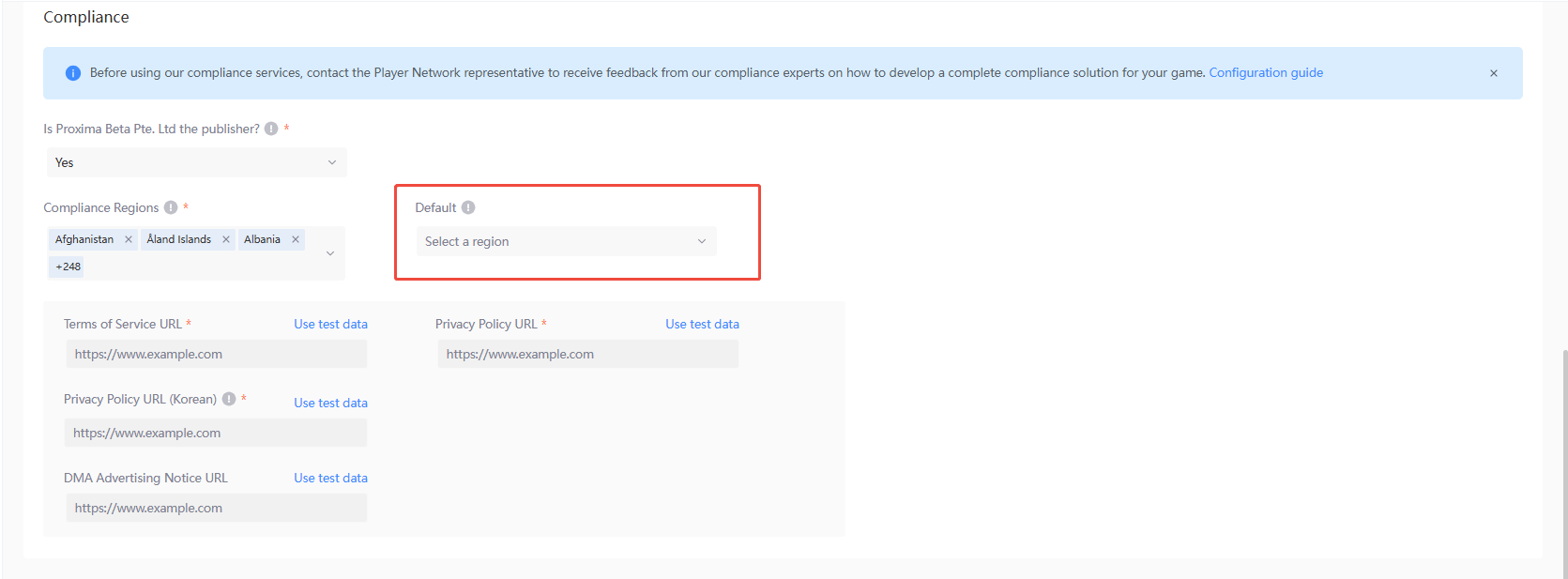
- Terms of Service URL, Privacy Policy URL - The redirect URLs for the respective agreements as part of the compliance process, to be completed according to recommendations from the compliance team or by entering your existing URLs.
Before confirming the compliance scheme, to facilitate the login configuration experience, you can click Use Test Data to test using the test data provided by the Player Network Console.
To meet EU compliance requirements, when the selected region includes applicable areas (EEA/UK), you need to additionally complete the DMA ad notification URL.
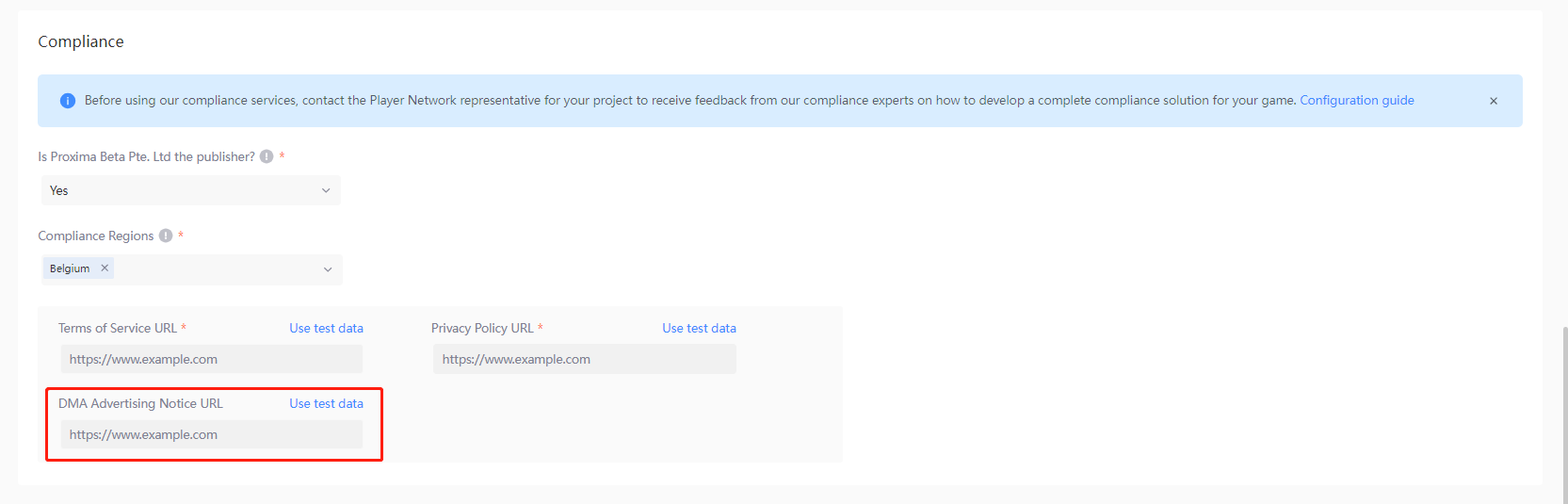
In order to meet Korean compliance requirements, if Korea has been selected, the **Privacy Policy URL (Korean)** will also have to be specified.<br />
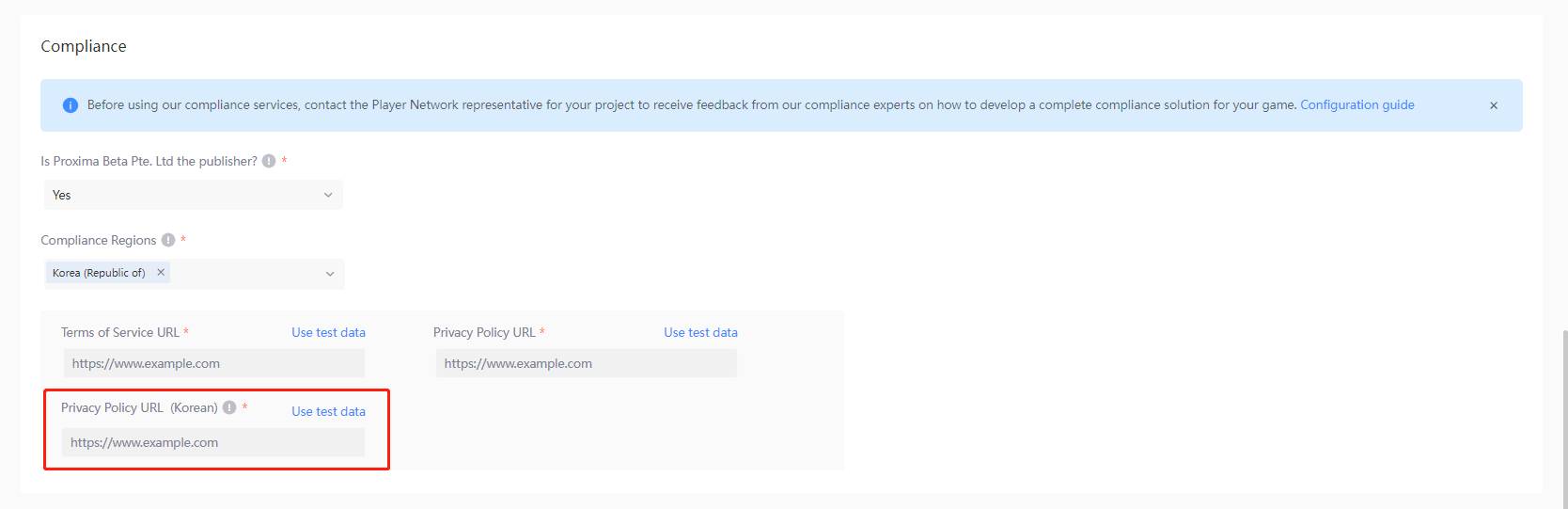
Player Network Console supports redirecting to the corresponding protocol URL based on the client language. Multilingual protocol URLs must be configured in advance. For details, see [Configuring Multilingual Protocol URLs](/docs/account/assemble/compliance/AgeVerificationSDKIntegration/).
Effective scope
Set the application scope mode for the login configuration to meet business usage needs.
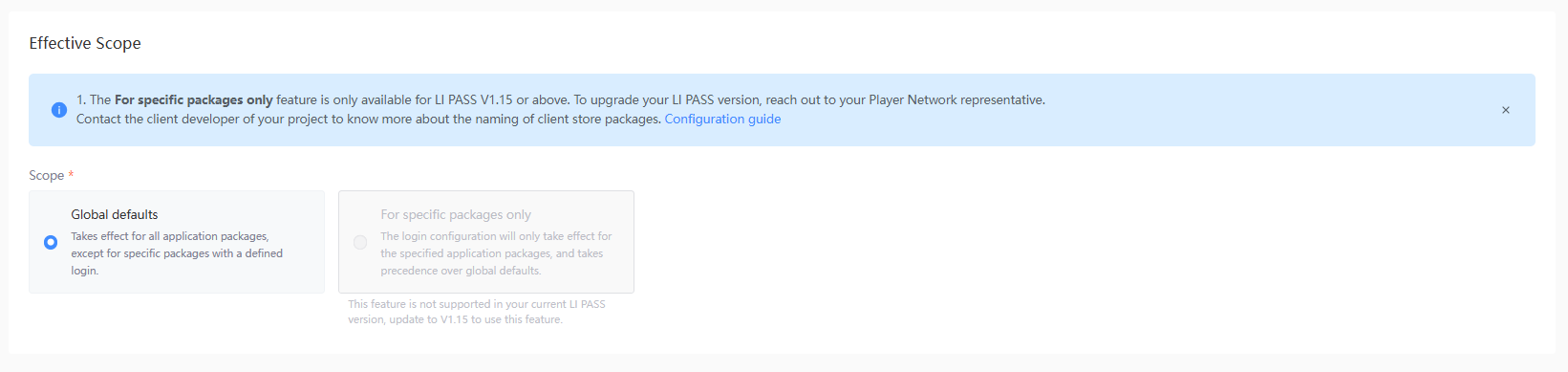
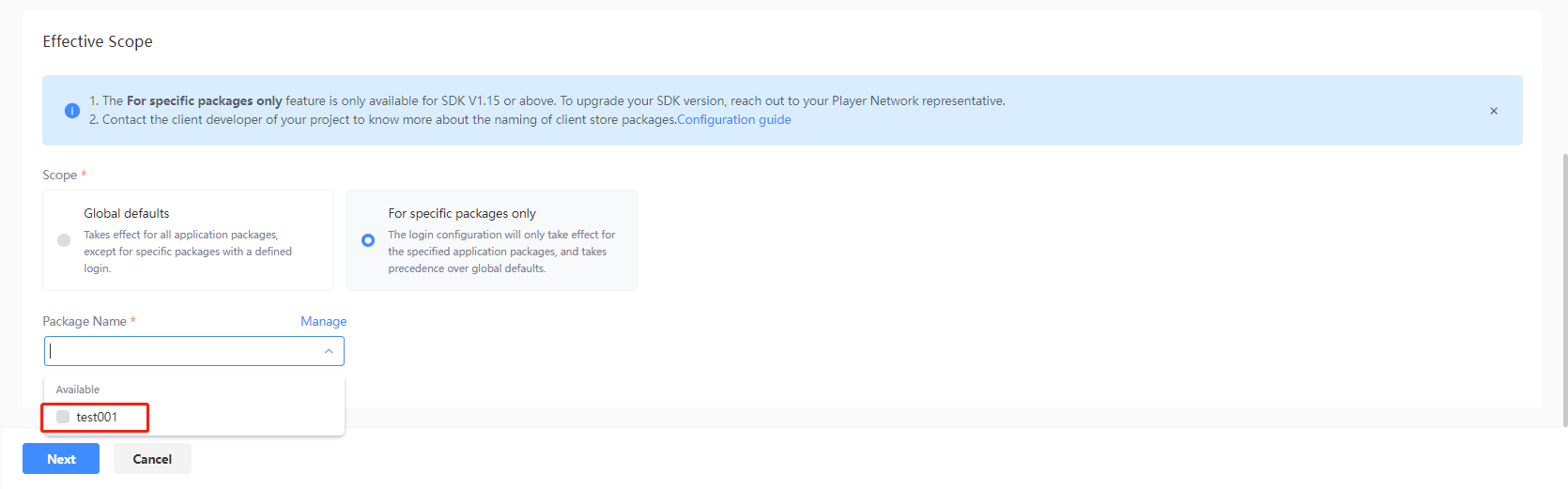
- Global defaults - Takes effect for all application packages, except for specific packages with a defined login
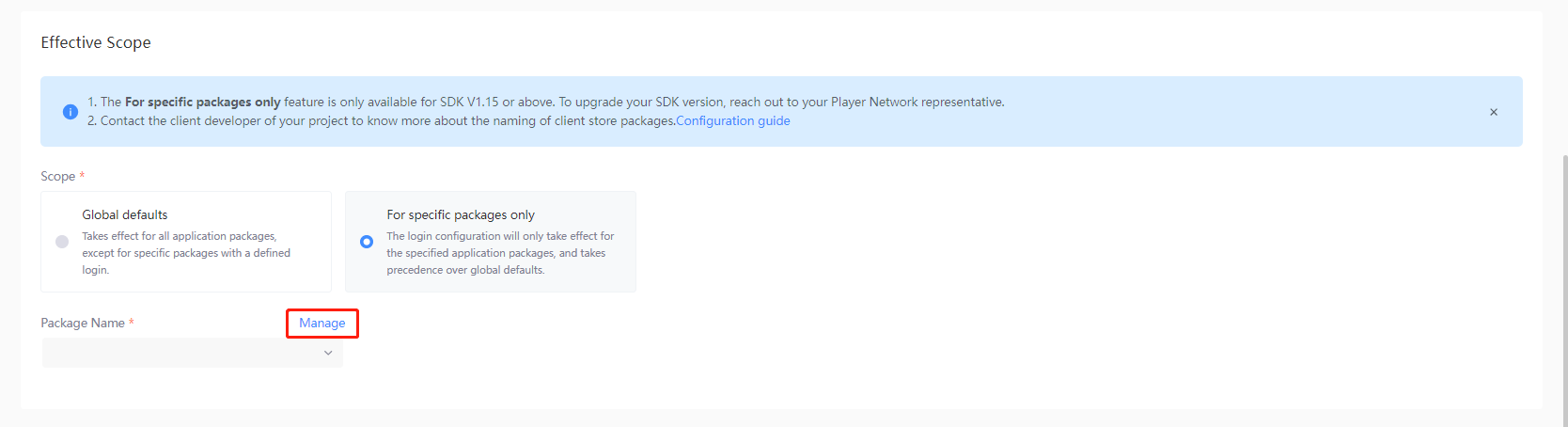
- For specific packages only - The login configuration will only take effect for the specified application packages, and takes precedence over global defaults
Since LI PASS V1.15, support has been added to retrieve configuration rules with the application package name. The package name of the application is used for Android, the bundle ID of the application is used for iOS, while the application package names for PC and Console platforms will have to be configured with INTL_PACKAGE_NAME in INTLConfig.ini.
Only one login configuration can be defined as the global default for each project. To configure more than one, such as for different login types, specify the application packages that they will be used for.
To define application packages for your login:
-
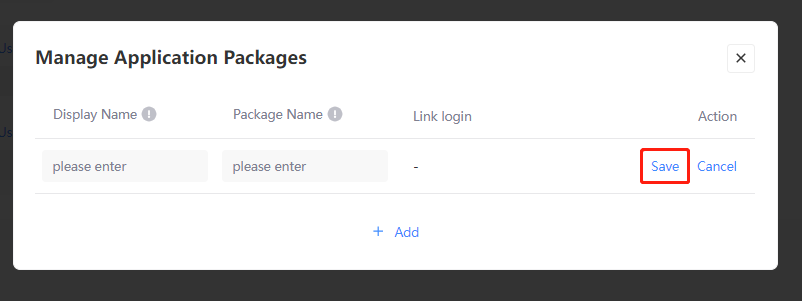
[Optional] If your application package is not listed under the Package Name drop-down list, click Manage to open the Manage Application Packages popup.Otherwise, continue with Step 4.
-
Click Add to insert a blank row and complete the information for the specified application package.
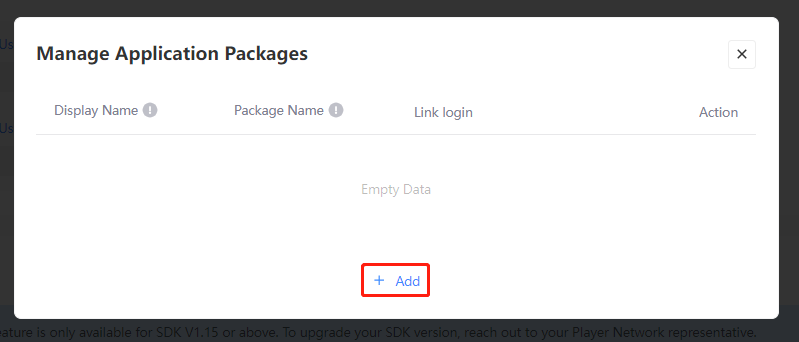
- Display Name: A unique name to identify and differentiate between packages
- Package Name: Client-side name for the application package, contact the game developer for more details
-
Click Save.You can repeat steps 2 to 3 as needed. After finishing, close the popup window.
-
Under the Package Name drop-down list, select the application packages to take effect for your login configuration.
Configure UI
If LI PASS UI is enabled for Mobile, PC, or Console, detailed configurations for LI PASS UI will become available when Next is clicked after completing feature configurations. The effects each configuration has on the UI can be previewed by clicking the preview icon.Click the preview icon to preview the effect after configuration.
Login panel
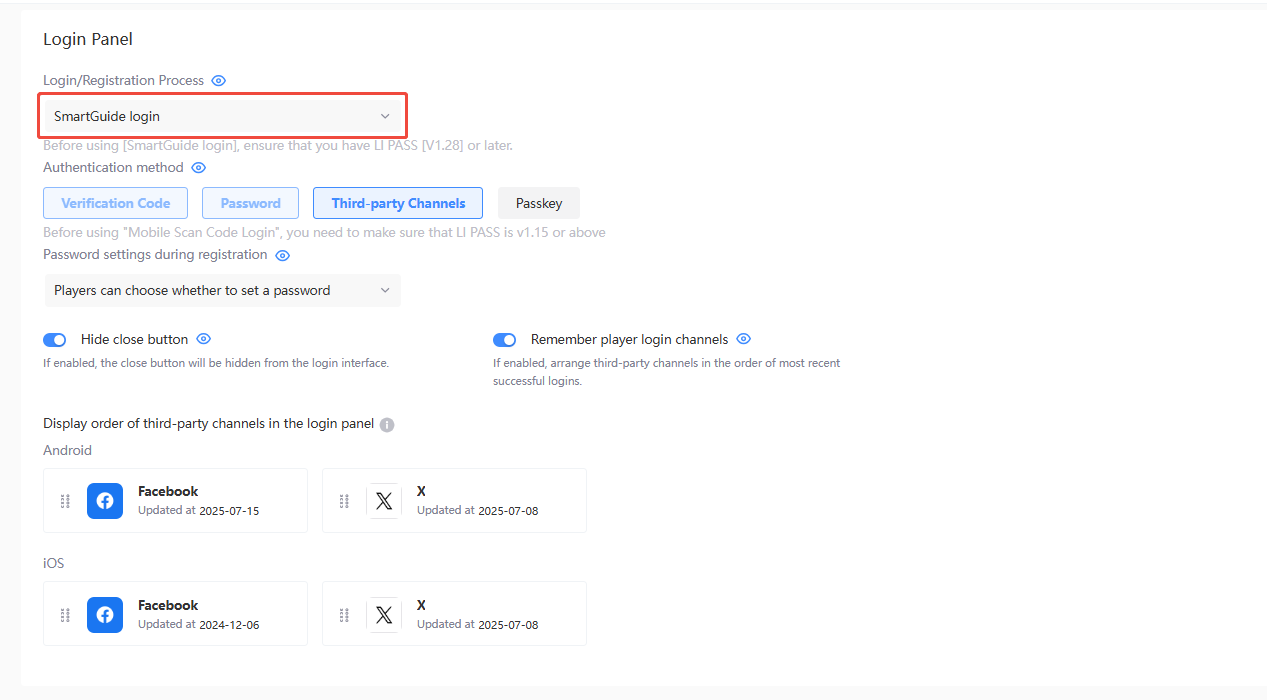
- Login/Registration Process
Only applicable to the Login/Registration Process on Mobile & PC platforms.
- **SmartGuide login**: The optimal login method will be automatically displayed according to the player's account status<br />
Mobile & PC - Standard login
-
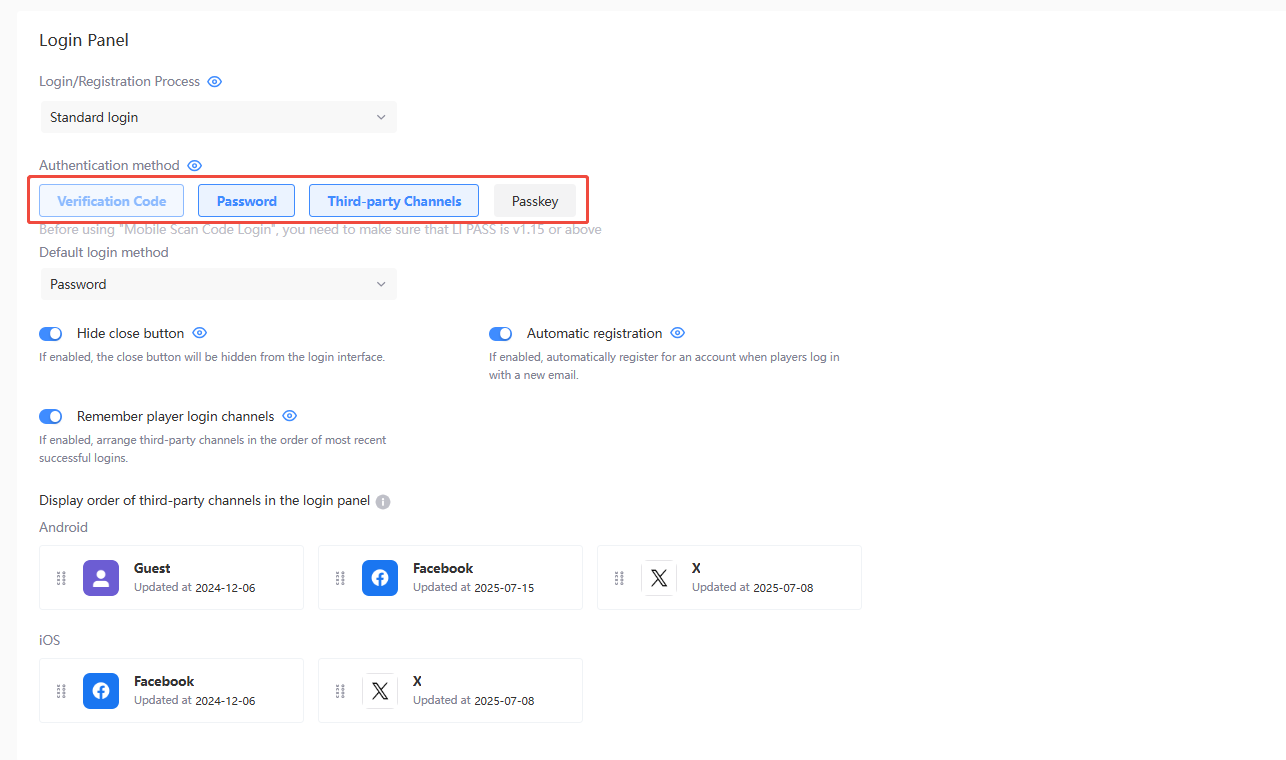
Authentication method - The authentication methods available in the login panel, to be selected according to the needs of your players.
- [Required] Verification Code: An email containing a verification code will be sent to the entered email address, players can then use this code to log in to the game
- [Optional] Password: Players enter their registered email address and corresponding password to log in to the game
- [Optional] Third-party Channels: Players click the registered third-party channel to log in to the game through the channel
- [Optional, mobile only] Passkey: Players create a Passkey on their current device
-
Default Login Method - Used to set the default authentication method displayed by the login configuration.
This option is only displayed when both Verification Code and Password are enabled as Authentication method.- Verification Code: When players first enter the login screen, verification code login is displayed as the default authentication method
- Password: When players first enter the login screen, password login is displayed as the default authentication method

-
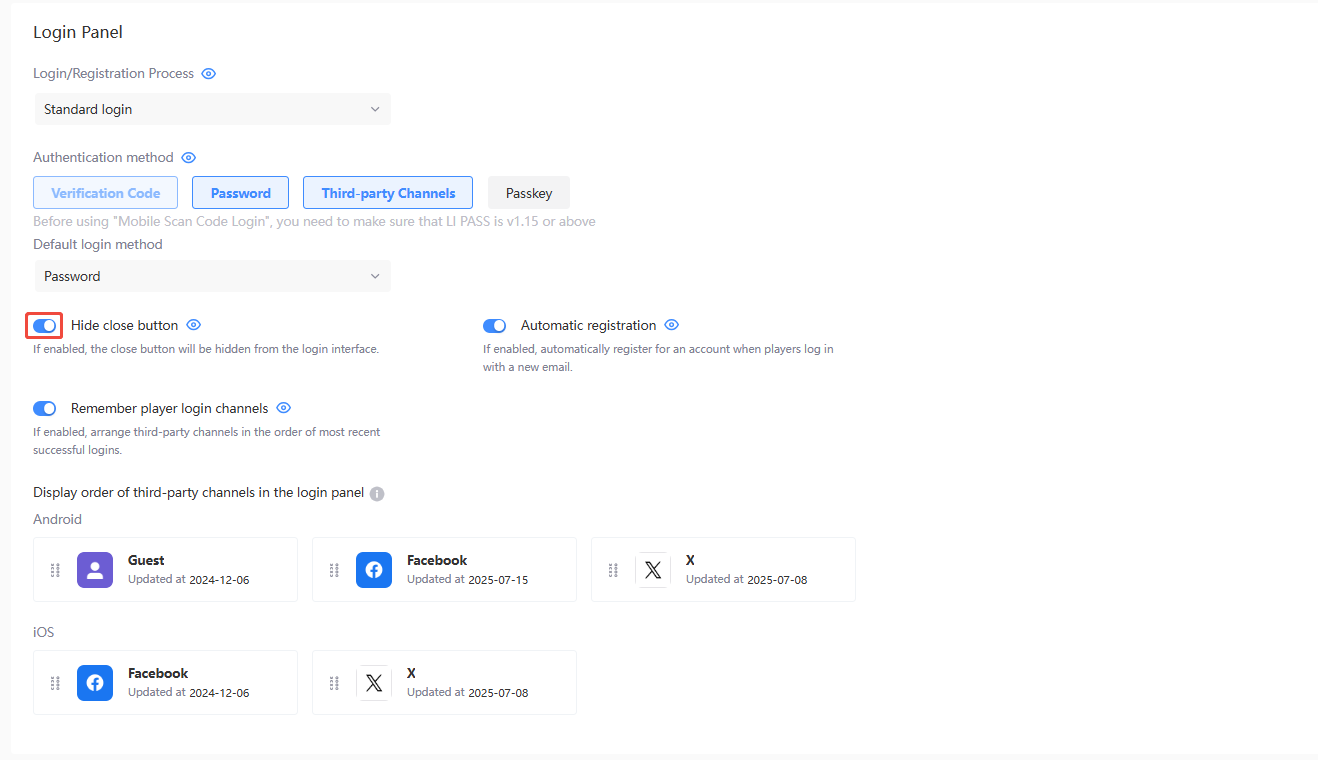
Hide close button
- Enable: Display the Close button on the login panel
- Disable: Hide the Close button from the login panel
-
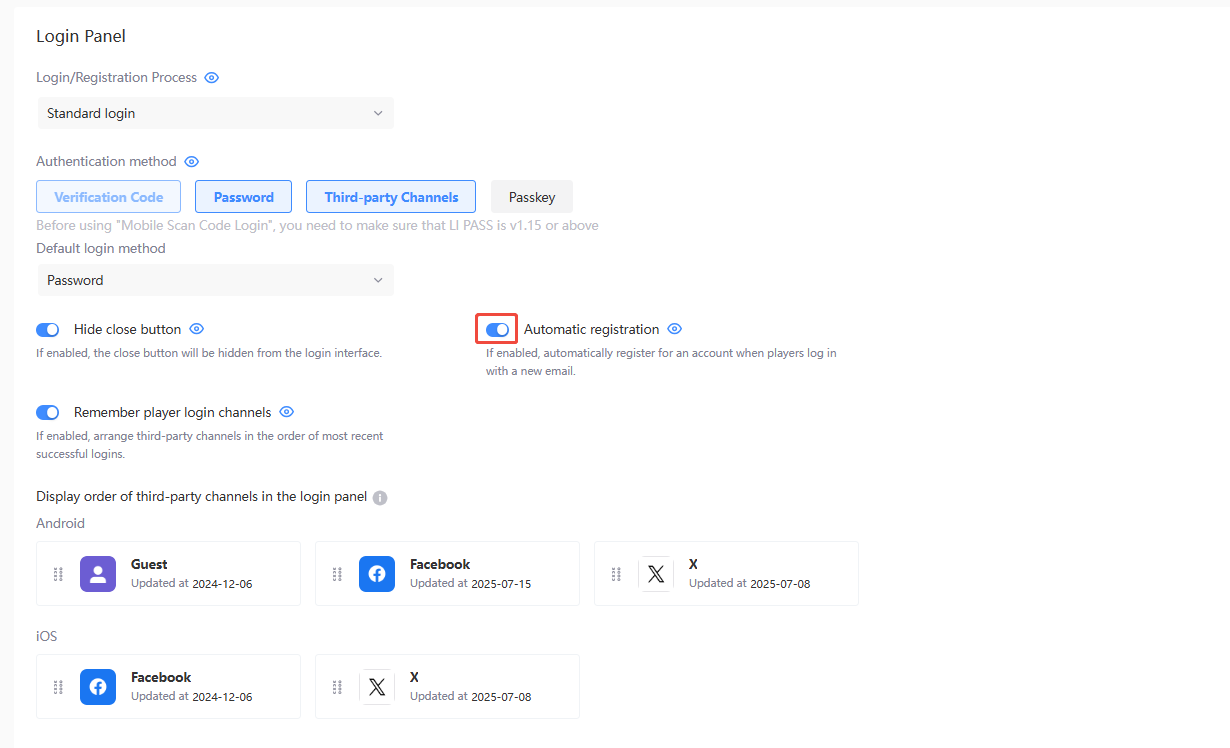
Automatic registration
- Enable: The button to manually register will be hidden from the verification code interface, the account registration process will be triggered automatically when players use a new email to log in
- Disable: The button to manually register will be displayed in the verification code interface, new players will have to manually register for an LI PASS before they can log in.
-
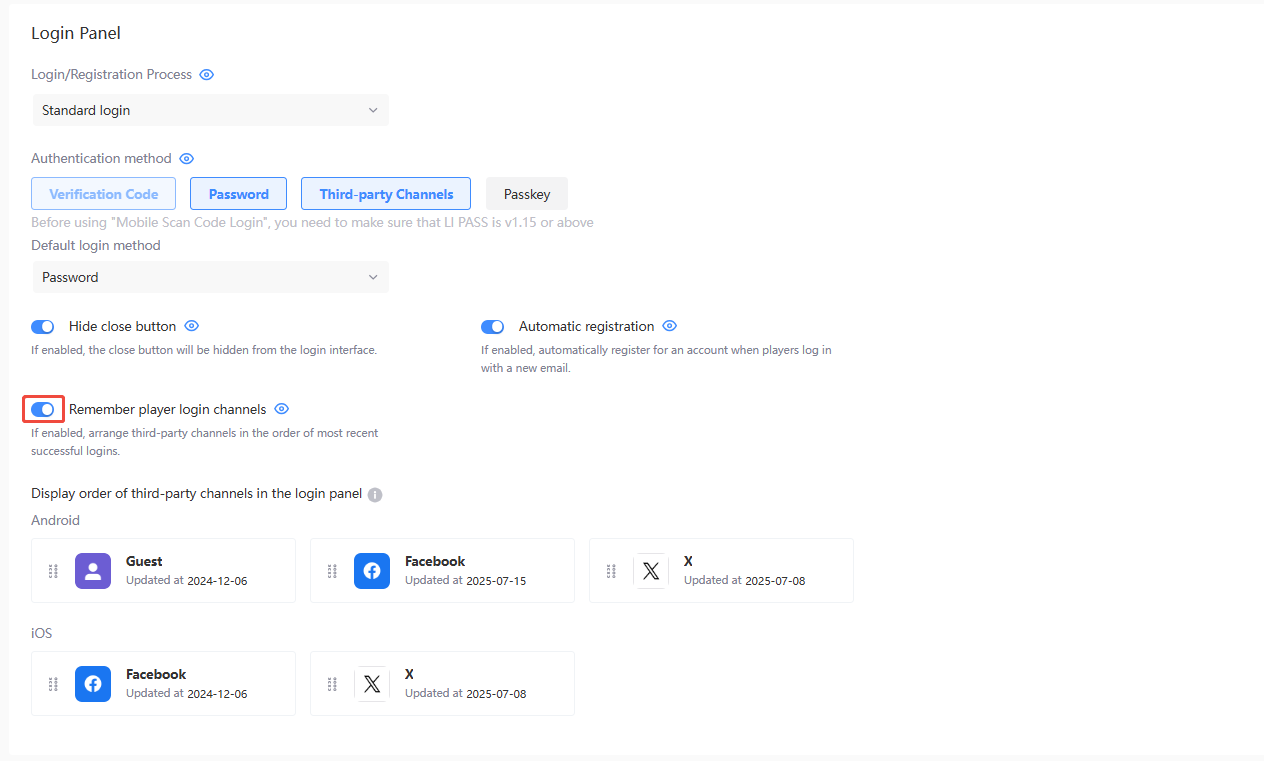
Remember player login channels
- Enable: Third-party channels are displayed according to a player's login records, in the order of last successful login arranged from left to right
- Disabled: Third-party channels on the login interface are arranged in the default order
-
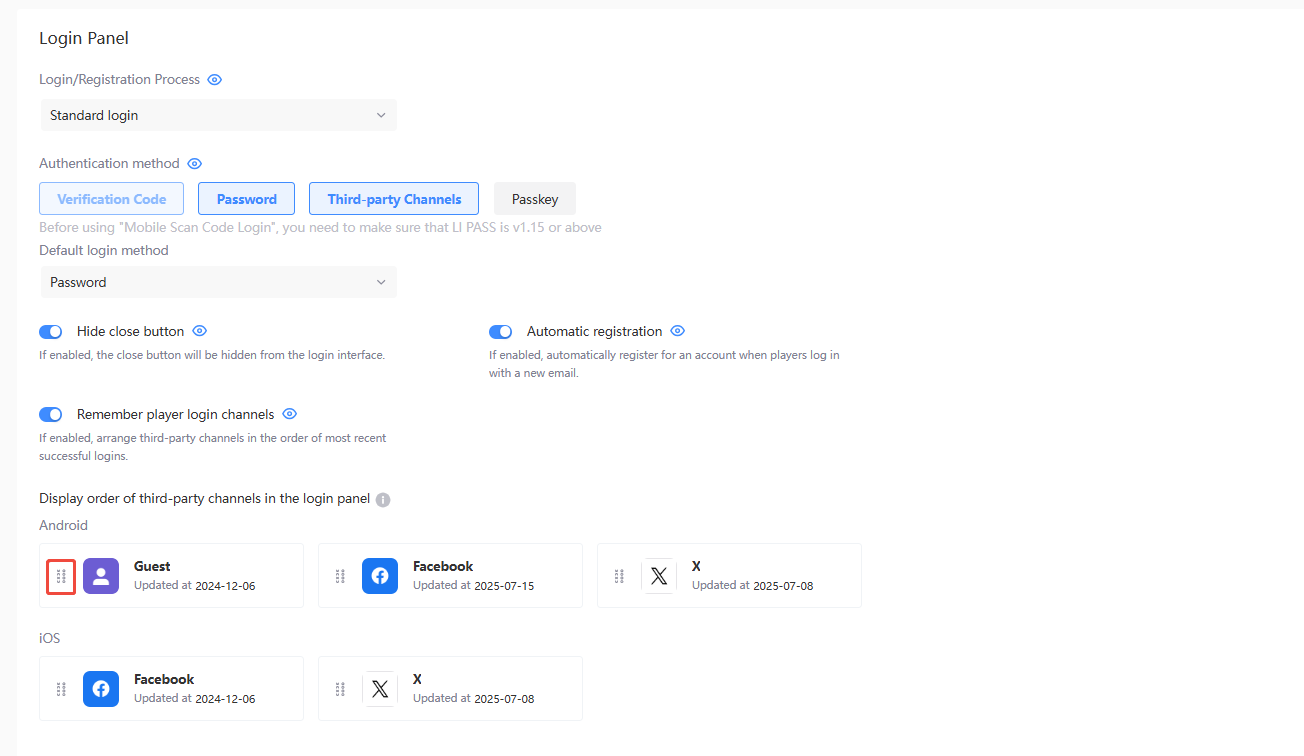
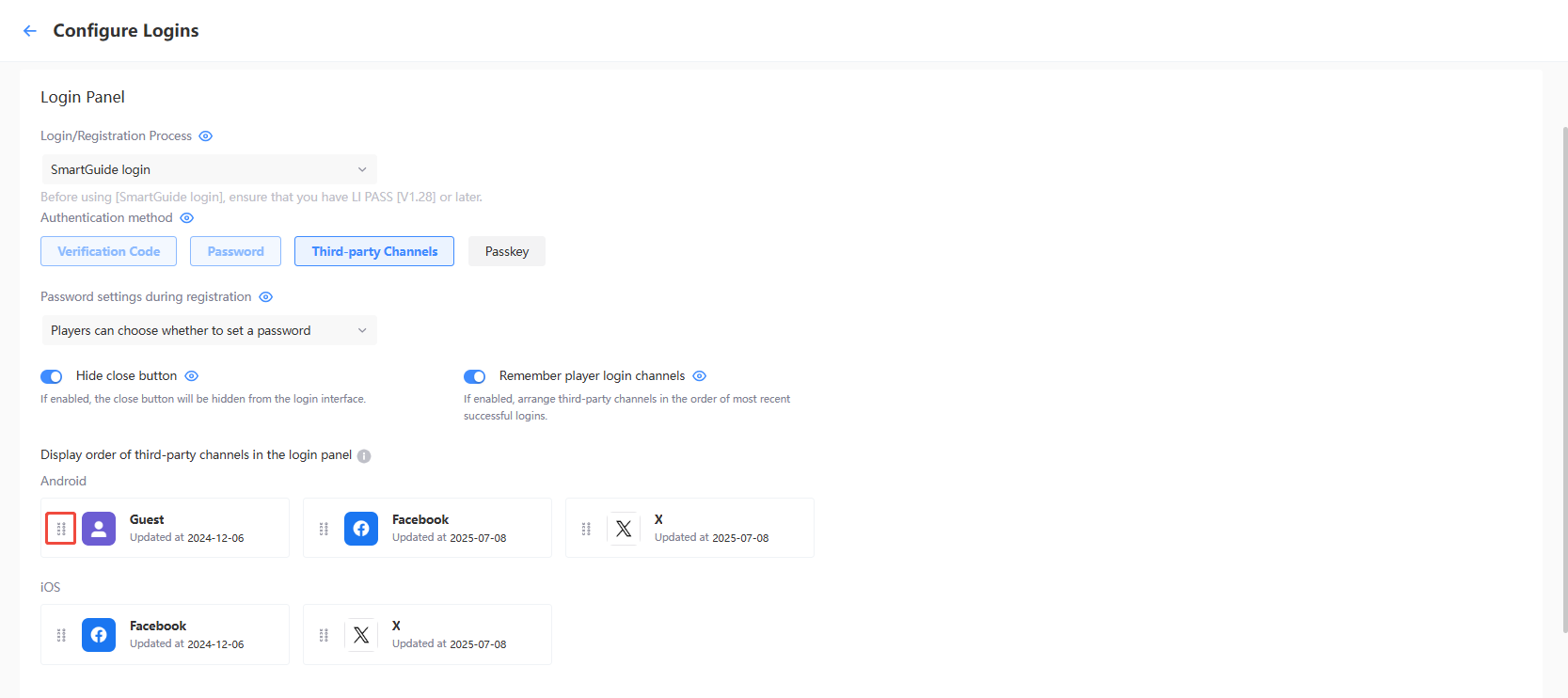
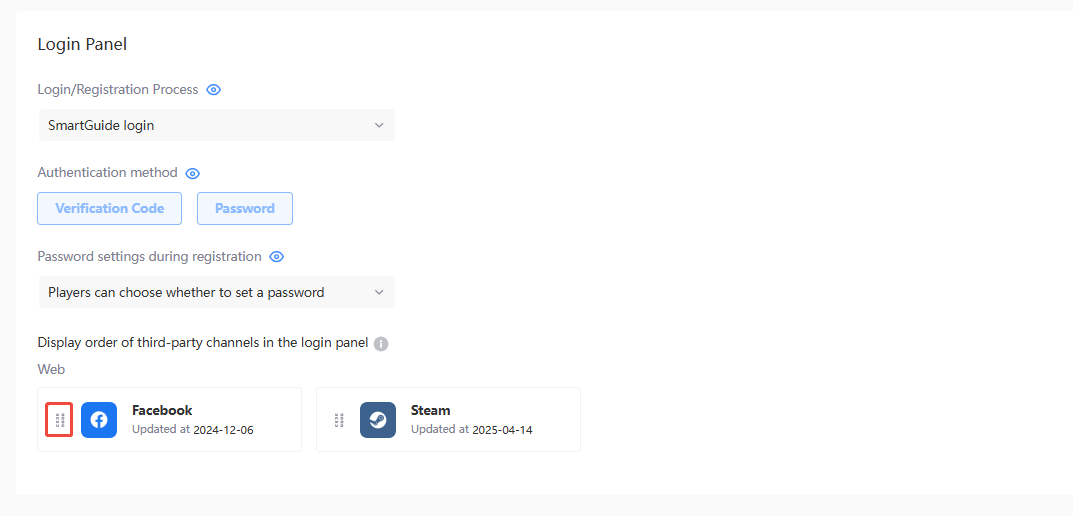
Display order of third-party channels in the login panel - Drag and drop the icons to adjust the display order of third-party channels in the login screen.
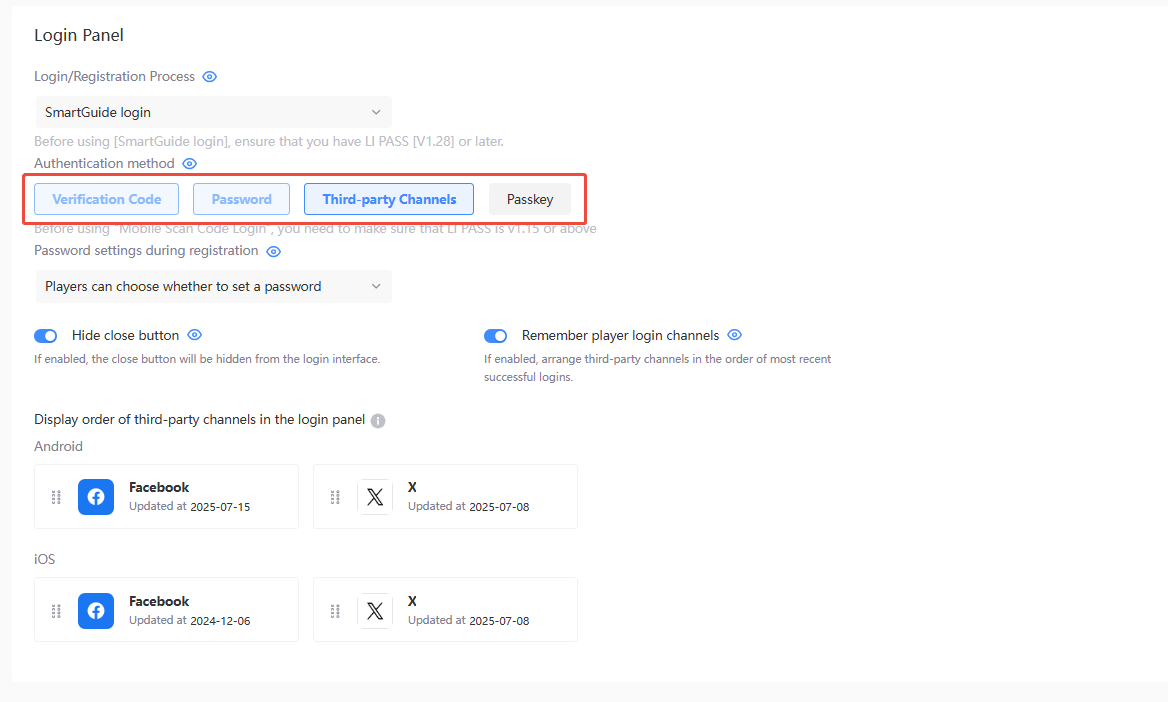
Mobile & PC - SmartGuide login
-
Authentication method - Required for SmartGuide login. The optimal login method will be automatically displayed according to the player's account status.
- [Required] Verification Code: An email containing a verification code will be sent to the entered email address, players can then use this code to log in to the game.
- [Required] Password: Players enter their registered email address and corresponding password to log in to the game
- [Optional] Third-party Channels: Players click the registered third-party channel to log in to the game through the channel
- [Optional, mobile only] Passkey: Players create a Passkey on their current device
-
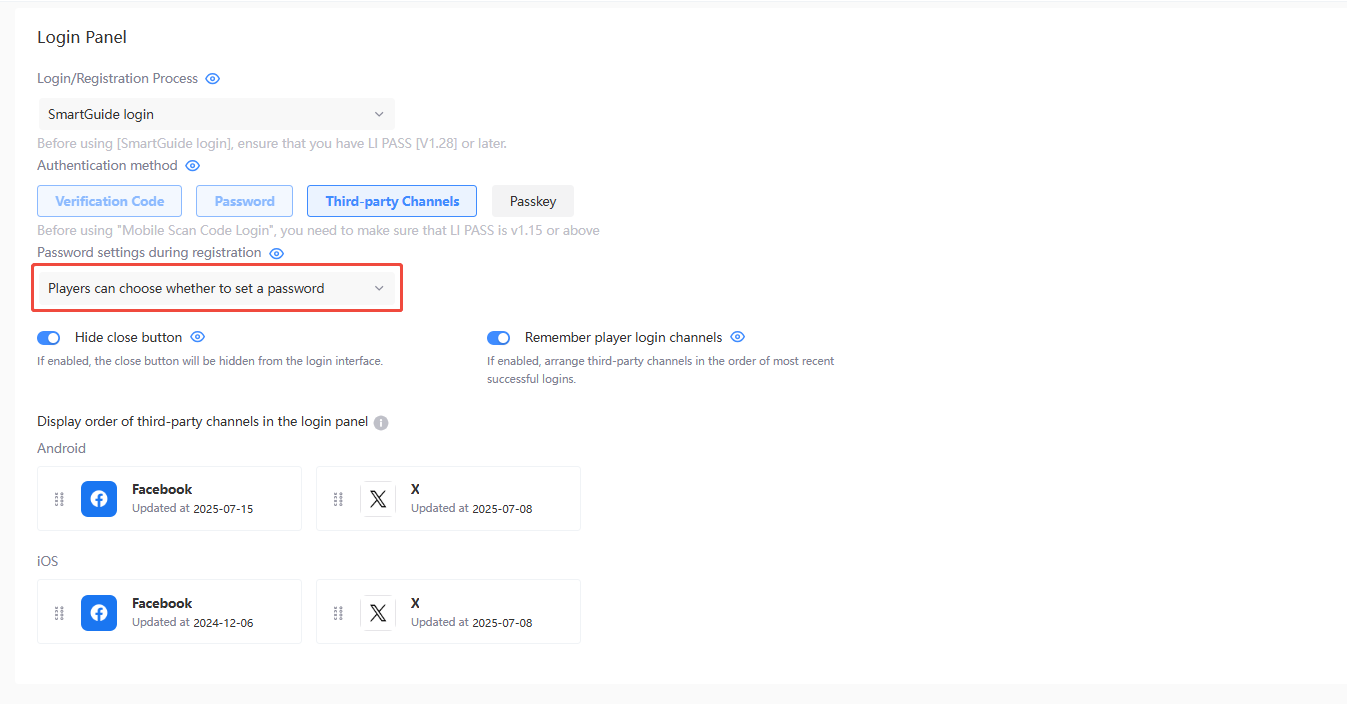
Password settings during registration
- Players can choose whether to set a password: During registration, prompt the player to set a password. The player can also choose to skip this step by clicking the skip button at the bottom
- Players are not required to set a password, which is not part of the registration process: During registration, skip the password setting step to log in to the game directly
 /Images2/pntconsole/ConfigureLIPASS/SmartGuidelogin03.png
 -
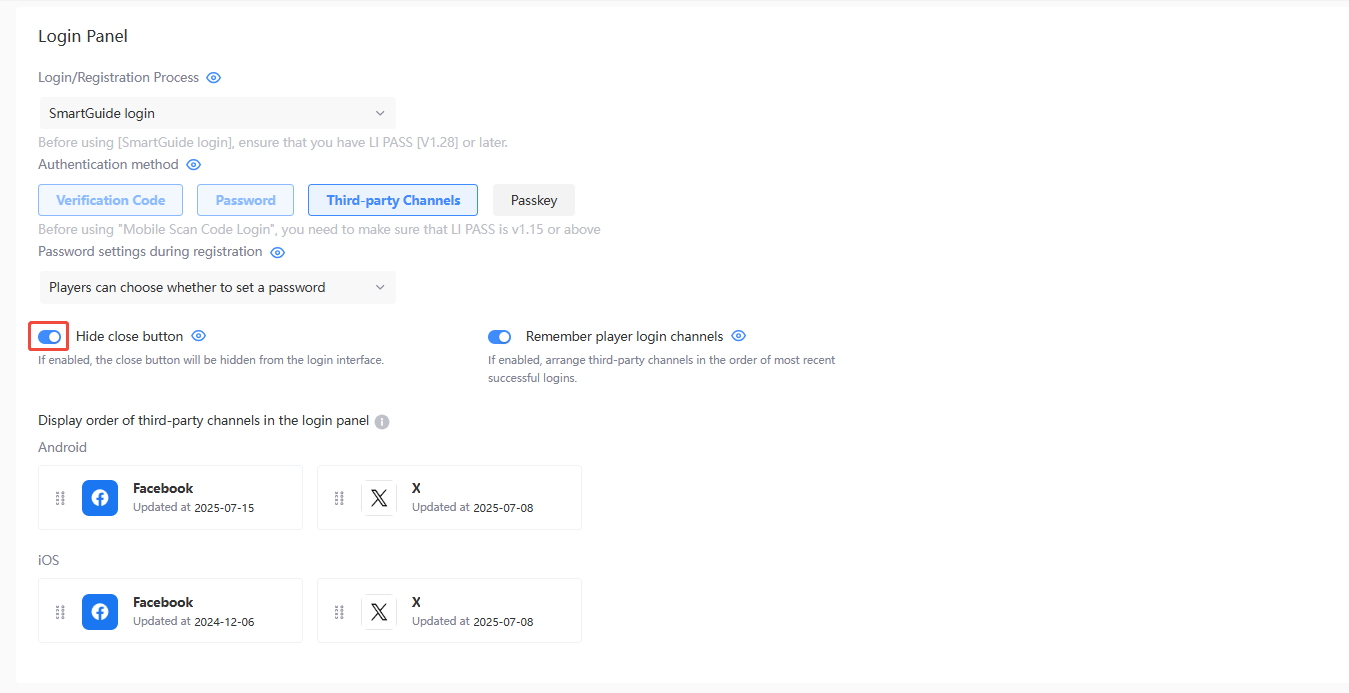
Hide close button
- Enable: Display the Close button on the login panel
- Disable: Hide the Close button from the login panel
-
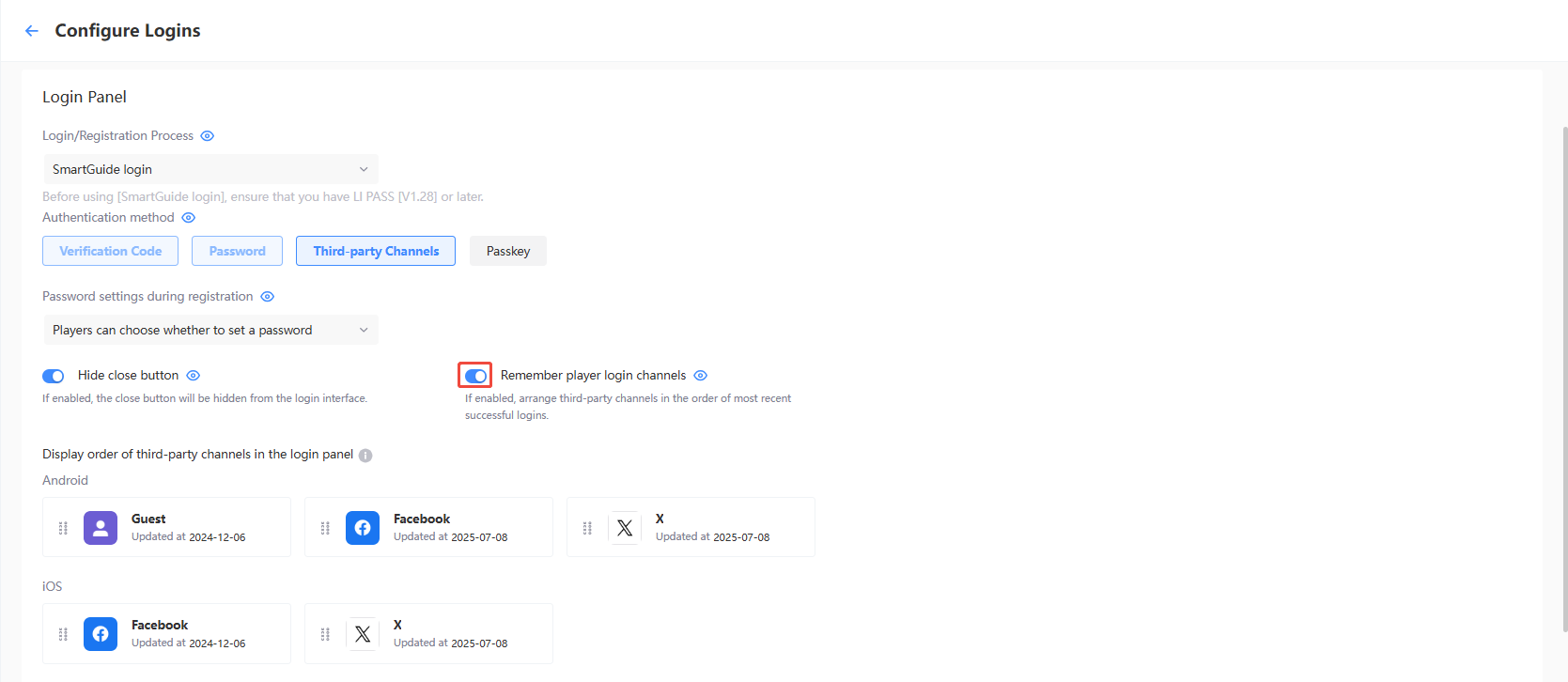
Remember player login channels
- Enable: Third-party channels are displayed in the order of last successful login
- Disabled: Third-party channels on the login interface are arranged in the default order
-
Display order of third-party channels in the login panel - Drag and drop the icons to adjust the display order of third-party channels in the login screen.
Console
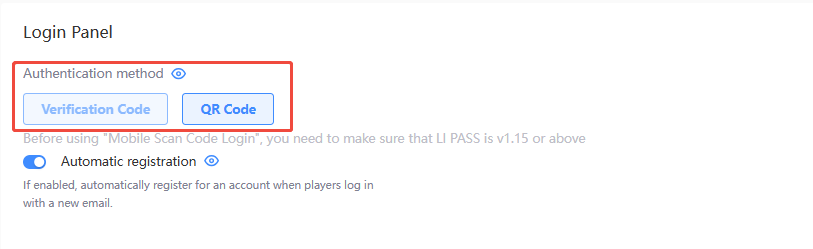
- Authentication method - The authentication methods available in the login panel, to be selected according to the needs of your players.
- [Required] Verification Code: An email containing a verification code will be sent to the entered email address, players can then use this code to log in to the game
- [Optional] QR Code: Players can log in by scanning a QR code with their mobile phones.
The QR Code method is supported in LI PASS V1.15 or later.
-
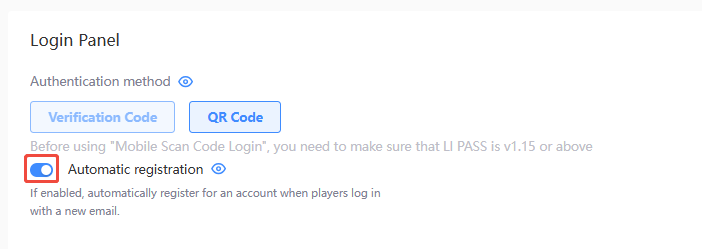
Automatic registration
- Enable: The button to manually register will be hidden from the verification code interface, the account registration process will be triggered automatically when players use a new email to log in
- Disable: The button to manually register will be displayed in the verification code interface, new players will have to manually register for an LI PASS before they can log in.
Account Center
Only applicable to Mobile & PC platforms.
-
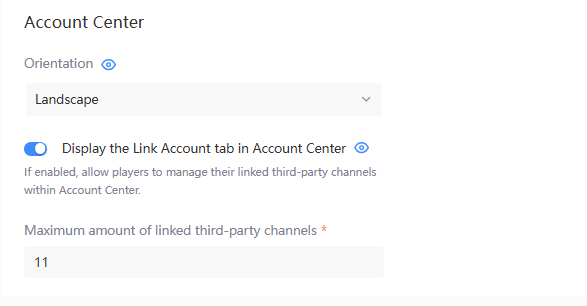
Orientation - For Mobile only, the orientation of the Account Center can be changed to match the orientation of the game.
- Landscape: Account Center will be displayed horizontally
- Portrait: Account Center will be displayed vertically
-
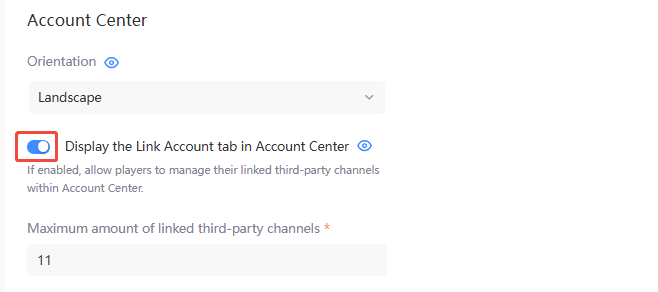
Display the Link Account tab in the Account Center
- Enable: Players will be able to manage the third-party channels used to log in from the Account Center
- Disable: The Link Account tab will be hidden from the Account Center
- Maximum amount of linked third-party channels: The maximum amount of third-party channels that can be displayed in the Link Account tab, recommended to be set to 11
Publish client configurations
Once the configurations are ready, click Next at the bottom of either the Configure Features or Configure UI page to begin publishing.On the Publish page, details about completed login configurations are displayed, and configurations that have yet to be published can be published.
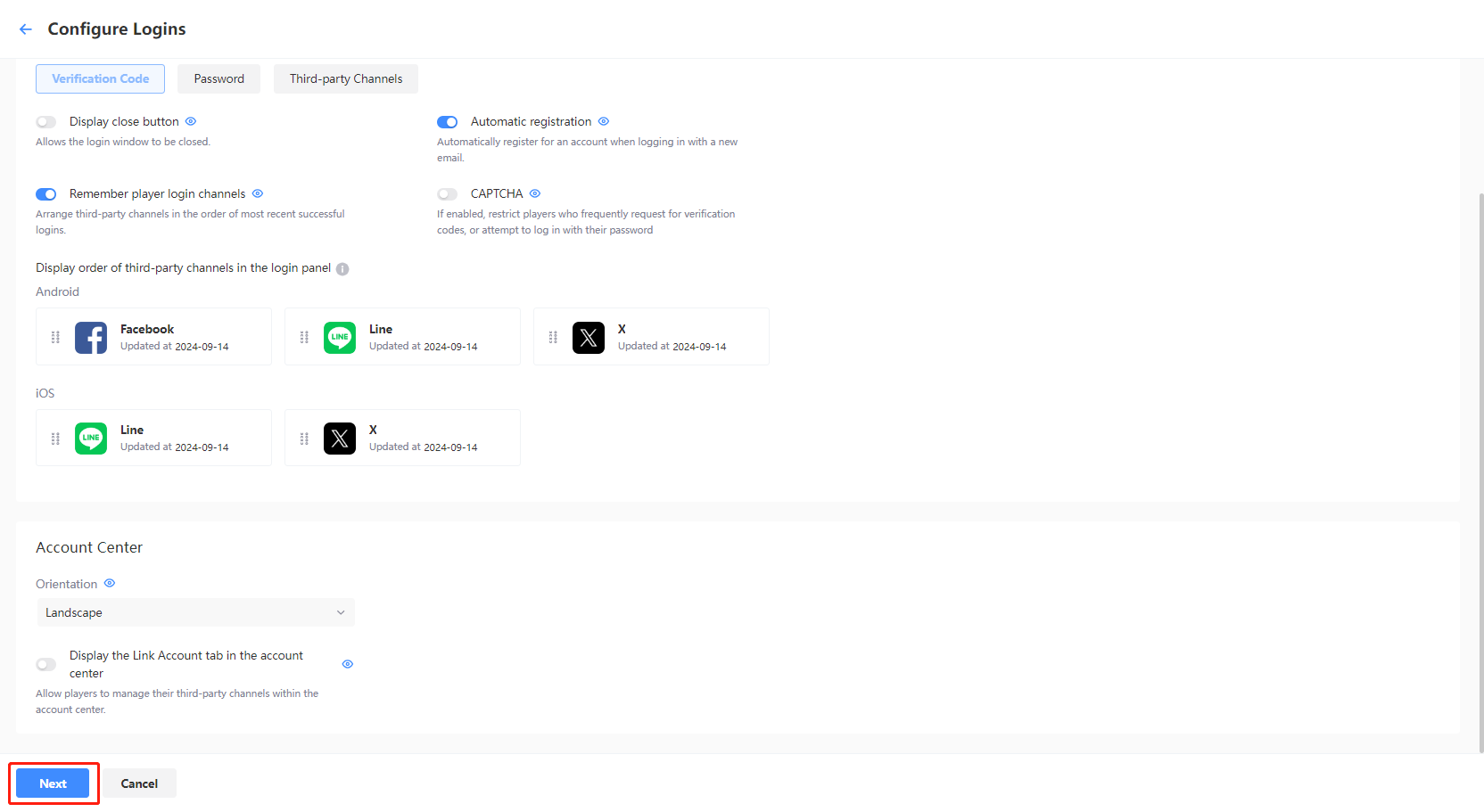
- On the Publish page, verify the configurations to be published.
The parameters highlighted in red need special attention. They are the differences between the content to be released and the real-time configuration of the current environment.
-
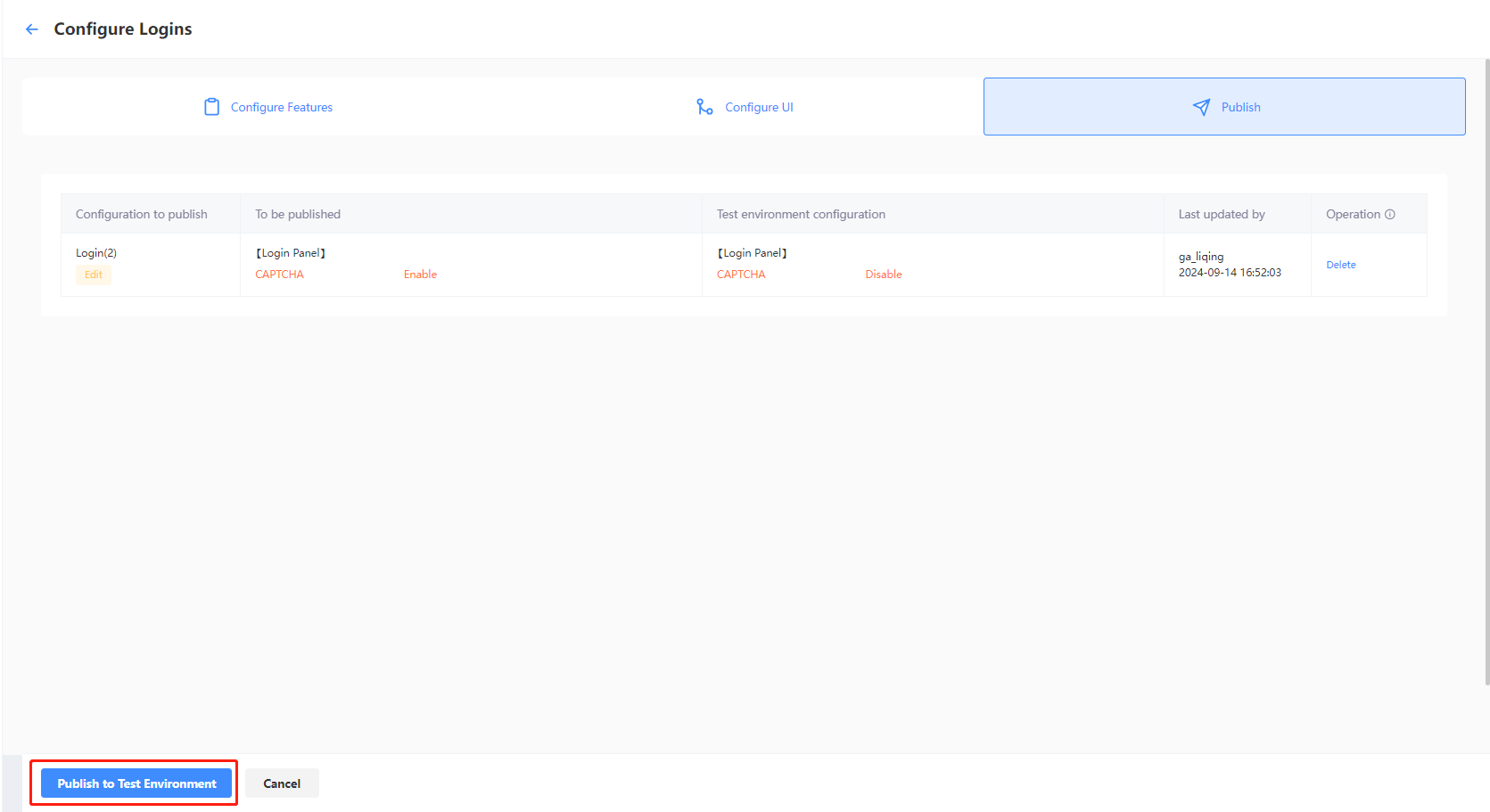
If all configurations are correct, click the button located at the bottom left of the page.
- Test environment: Click Publish to Test Environment to publish the selected configurations to the test environment.
- Production environment: Click Submit for Production Environment Release Approval. The selected configurations will automatically sync to the production environment after review by the audit personnel.
Since it involves manual review, the review process for releasing to the Production environment takes about 3 to 4 hours.If you need to expedite the process, please contact your Player Network representative for handling.
-
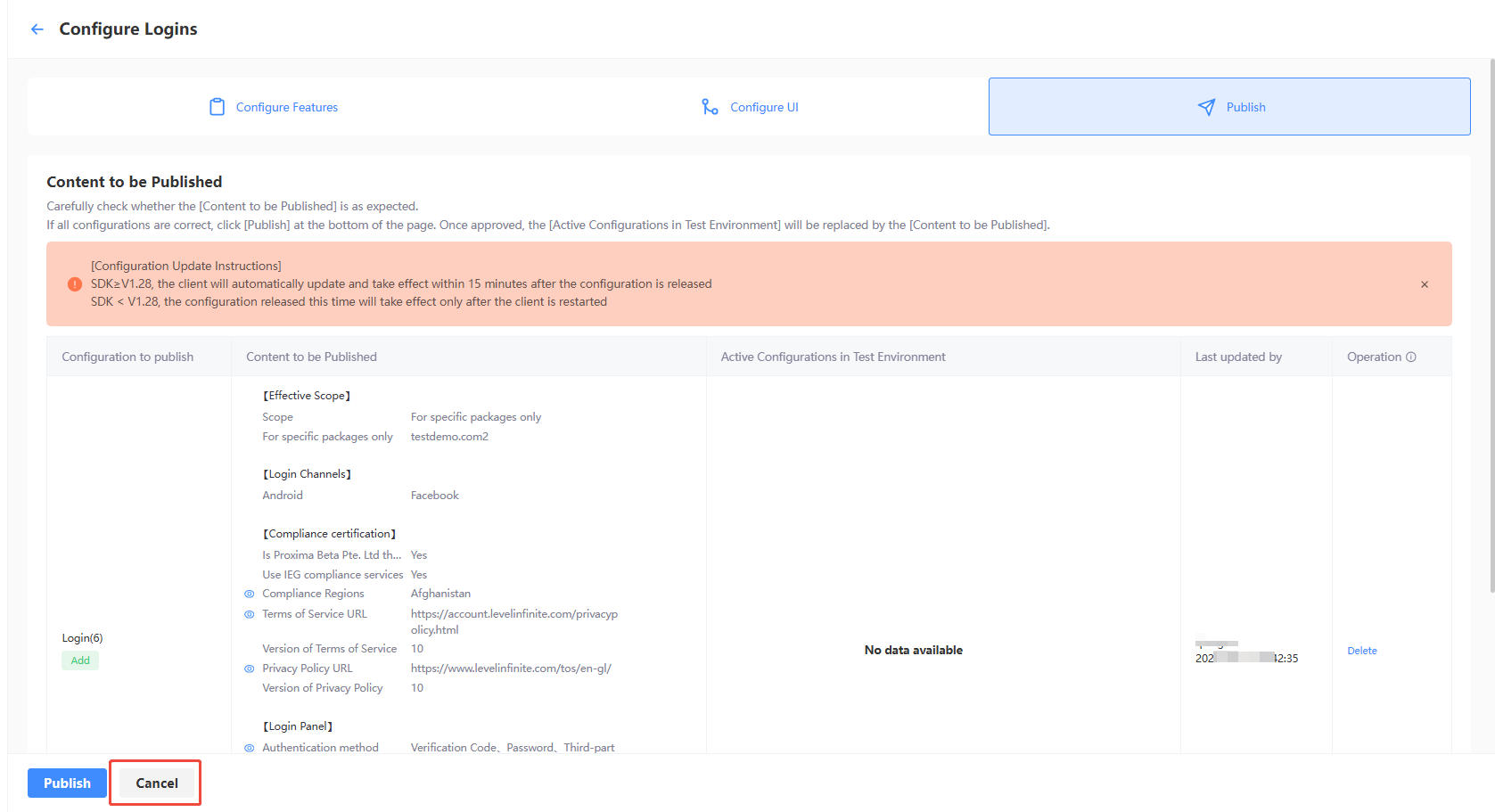
[Optional] To publish the LI PASS configurations at a later time, click Cancel to save the LI PASS configurations as a draft.
Create LI PASS for Web
-
Log in to Player Network Console, and select LI PASS Configuration under Account Configuration in the left sidebar.
-
Under Login Configuration, click Start Configuration.
-
Fill in the login configuration name for distinguishing different login configurations.
Configure features
Login type
Select Web to start the login configuration.Select either Mobile, PC, or Console to begin configuring, only one platform can be selected for each login panel. To configure for other login types, you may continue to add more after completing configurations for this login panel.
- Web: For Web scenarios in the game or platform, such as fulfilling account login on the official game website and HTML5 webpages.
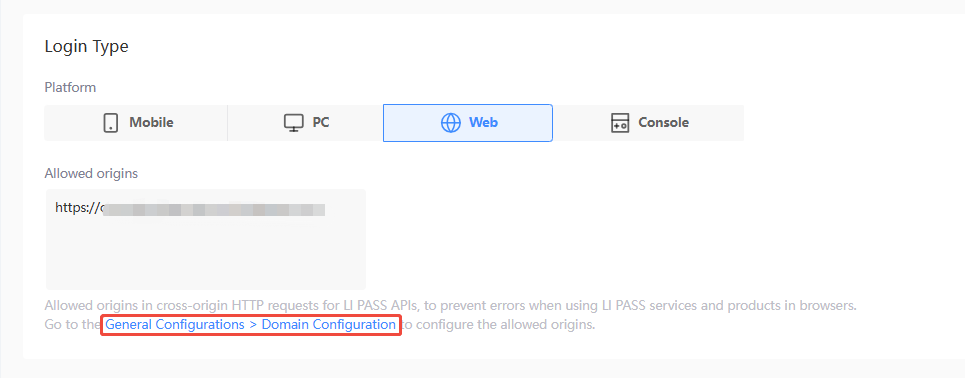
Configure Allowed origins for cross-origin HTTP requests for LI PASS APIs, to prevent errors when using LI PASS services and products in browsers.
Before starting web configuration, complete domain configuration in General Configuration and publish it.
Login channels
You can add third-party channels as login authentication methods for Web games.

When configuring LI PASS for Web, third-party channel configurations cannot be created, edited, or deleted, and only existing configurations can be selected.
To modify third-party channel configurations, see Configure Third-party Channels.Only members with Manager, Admin, or higher permissions can use this feature.
-
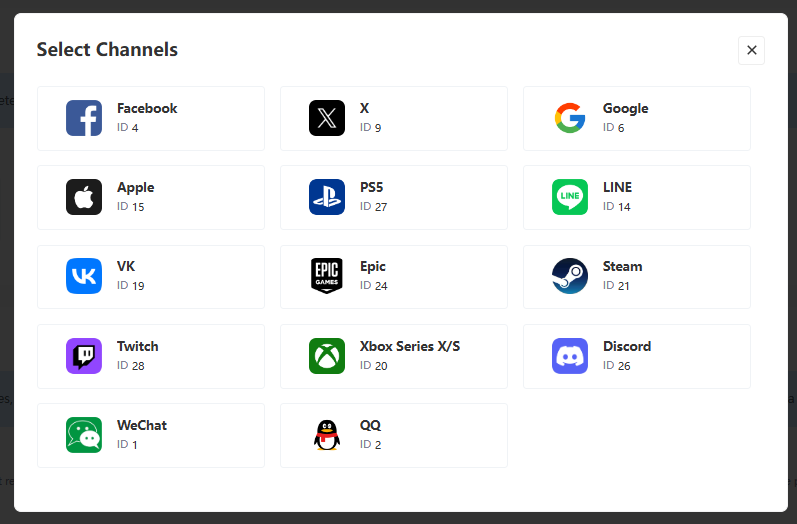
Click + (add) to display the Select Channels list.

-
Select the third-party channel to be added.
Compliance
Before employing the login for actual use, we recommend contacting the Player Network representative to obtain a comprehensive compliance solution.For more information about the countries and regions for compliance, see Country or Region Configurations.
Starting with V1.9, when the LEVEL INFINITE PASS channel configurations are first saved, Player Network will also automatically set up player age verification for the corresponding environment according to standard compliance configurations, for ease of login integration for your project.
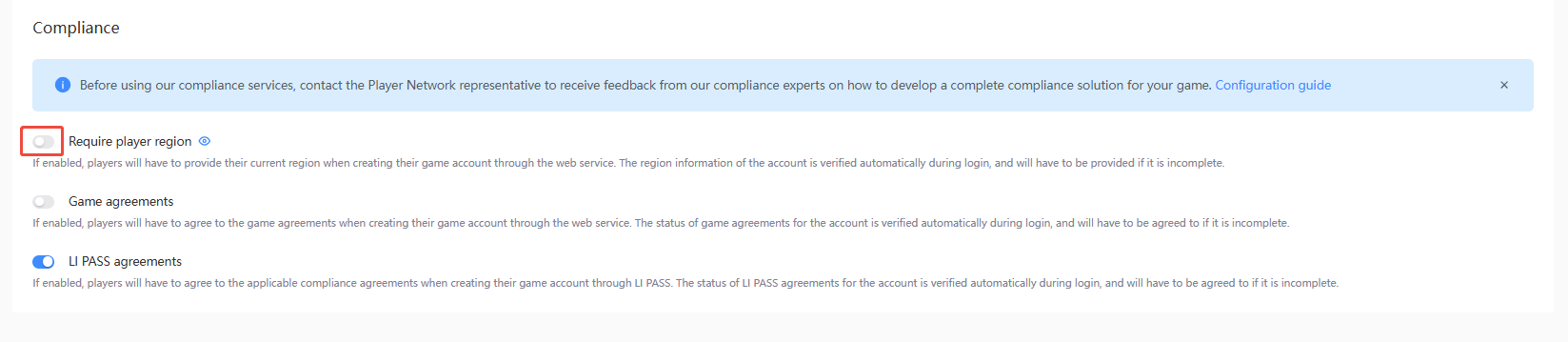
- Require player region
- Enable: Players will have to provide their current location during registration, or be asked to supplement the information during login if it has not been provided before, in order to trigger the compliance process for the specified region.
The regions that are available for player selection are required to be configured, see Country or Region Configuration for the list of available regions.
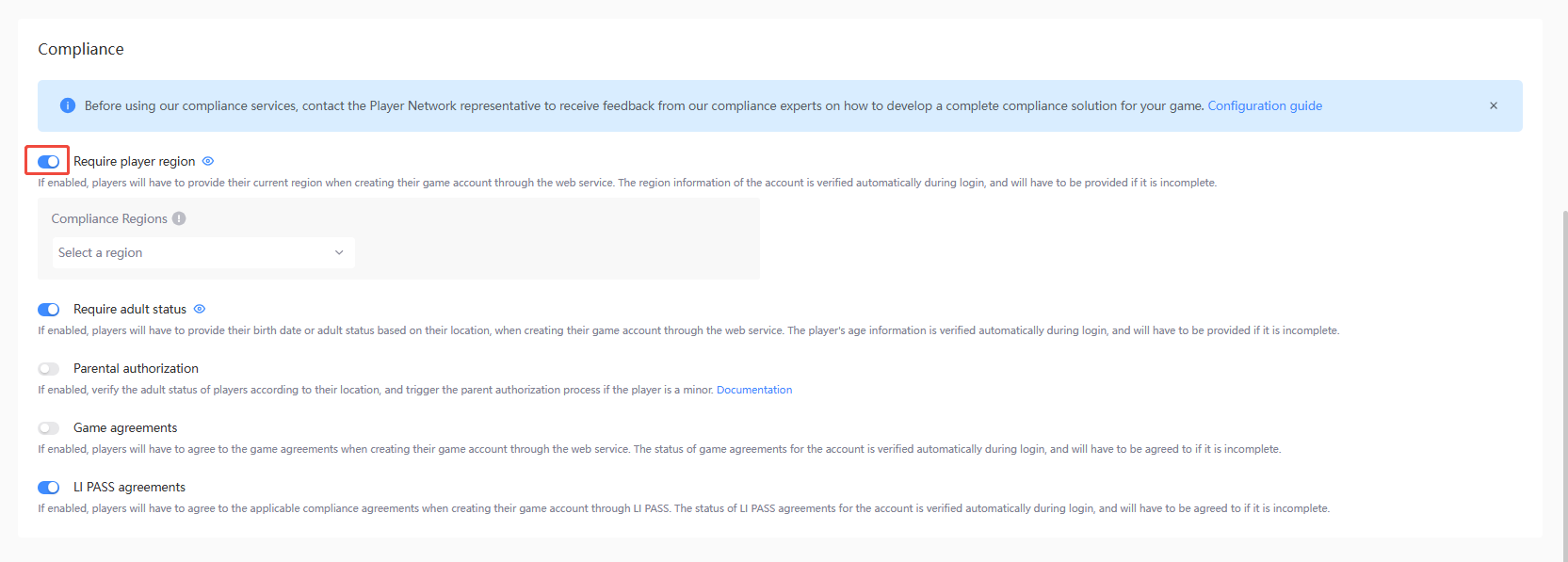
- Enable: Players will have to provide their current location during registration, or be asked to supplement the information during login if it has not been provided before, in order to trigger the compliance process for the specified region.
After completing the configuration of the regional list, you can configure the Default Compliance Certification Region.
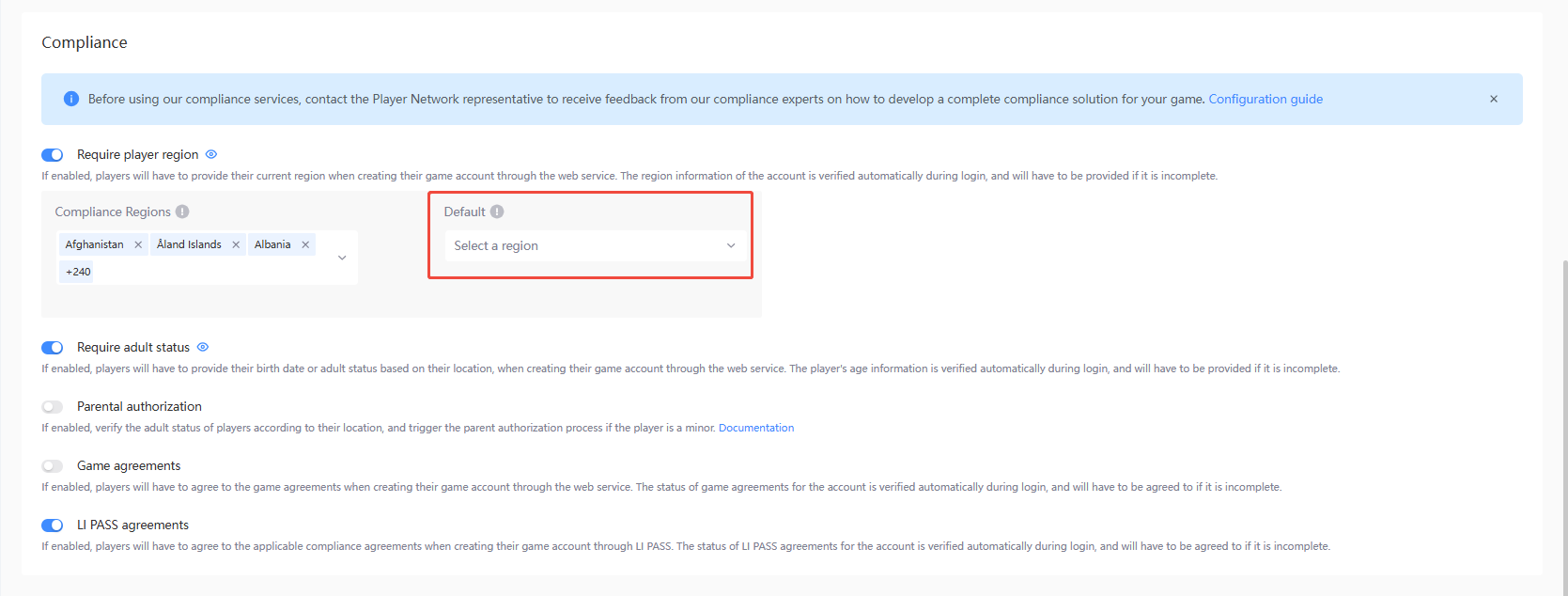
During player registration, the Web component will prioritize matching the registration compliance region based on the player's IP address.If the region is not one of the configured compliance regions, the Web widget will display the default region instead.If the default region is not configured, players will need to manually select their compliance region if their current region is not one of the configured compliance regions.
-
Disable: Player region will not be obtained, and will be unable to trigger the compliance process, please proceed with caution.
-
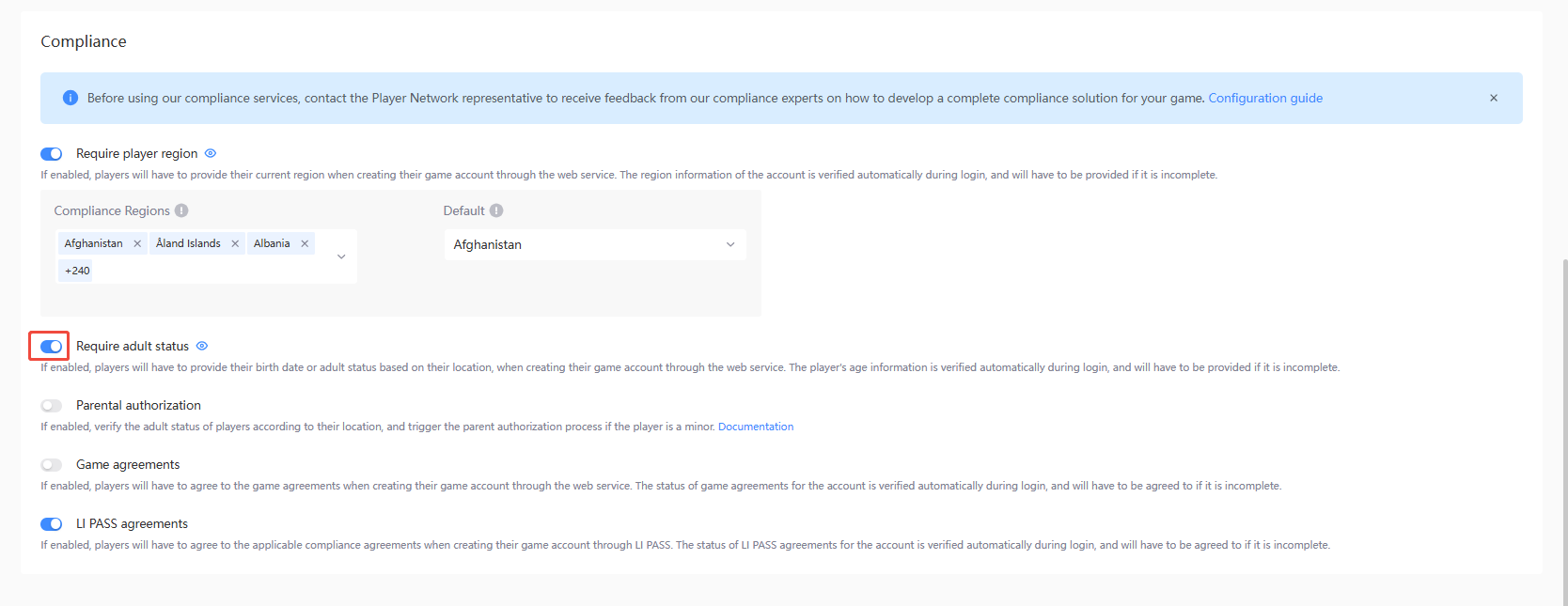
Require adult status - Can be toggled when Require player region is enabled.
- Enable: Players will have to provide their birthdate or confirm if they are above the legal age during registration, or be asked to supplement the information during login if it has not been provided before, based on their current location.
- Disable: Players' adult status will not be obtained, which could lead to compliance issues. Proceed with caution.
-
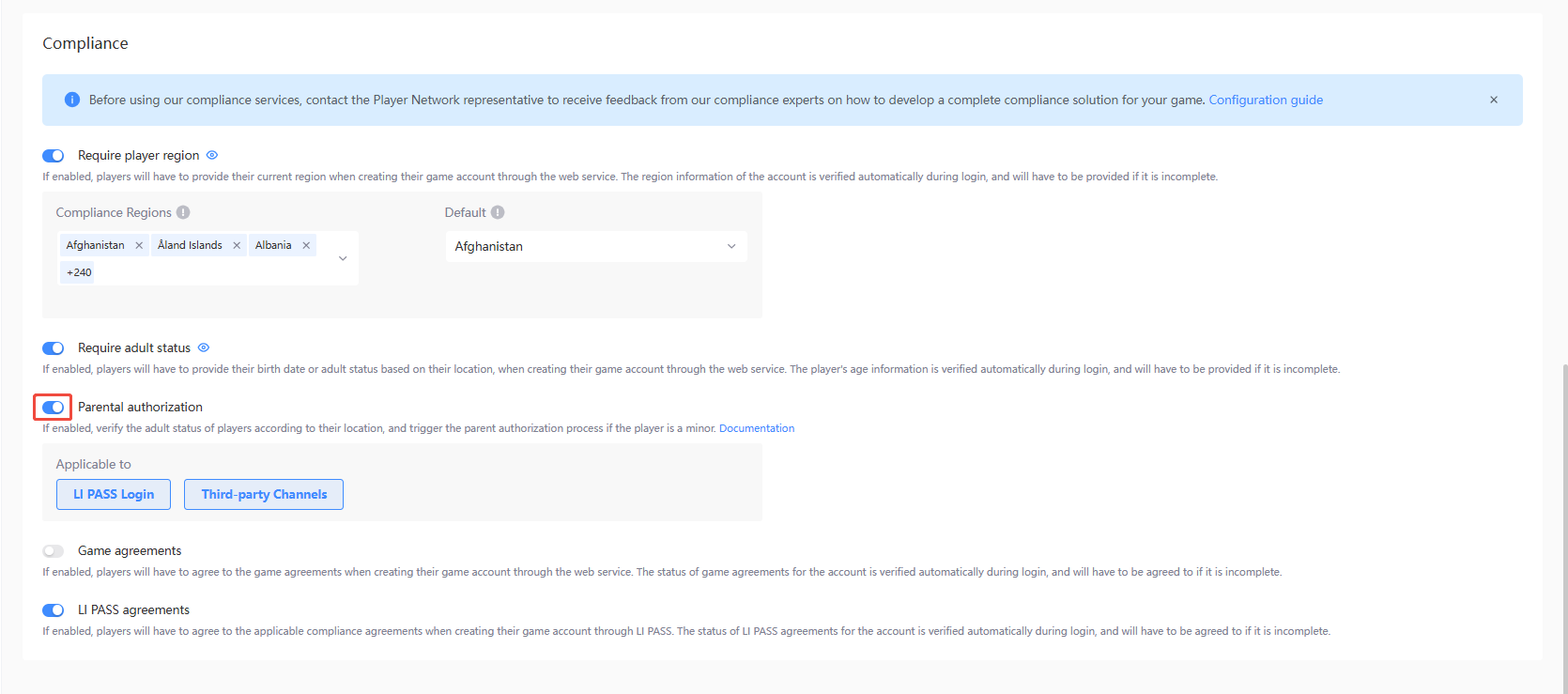
Parental authorization - Can be toggled when both Require player region and Require adult status are enabled.
- Enable: Verify the adult status of players according to their location, and trigger the parental authorization process if the player is a minor.Can be toggled on or off for each applicable login scenario.
- Disable: The parental authorization process will not be triggered for the player and may lead to compliance issues, please proceed with caution.
-
Game agreements
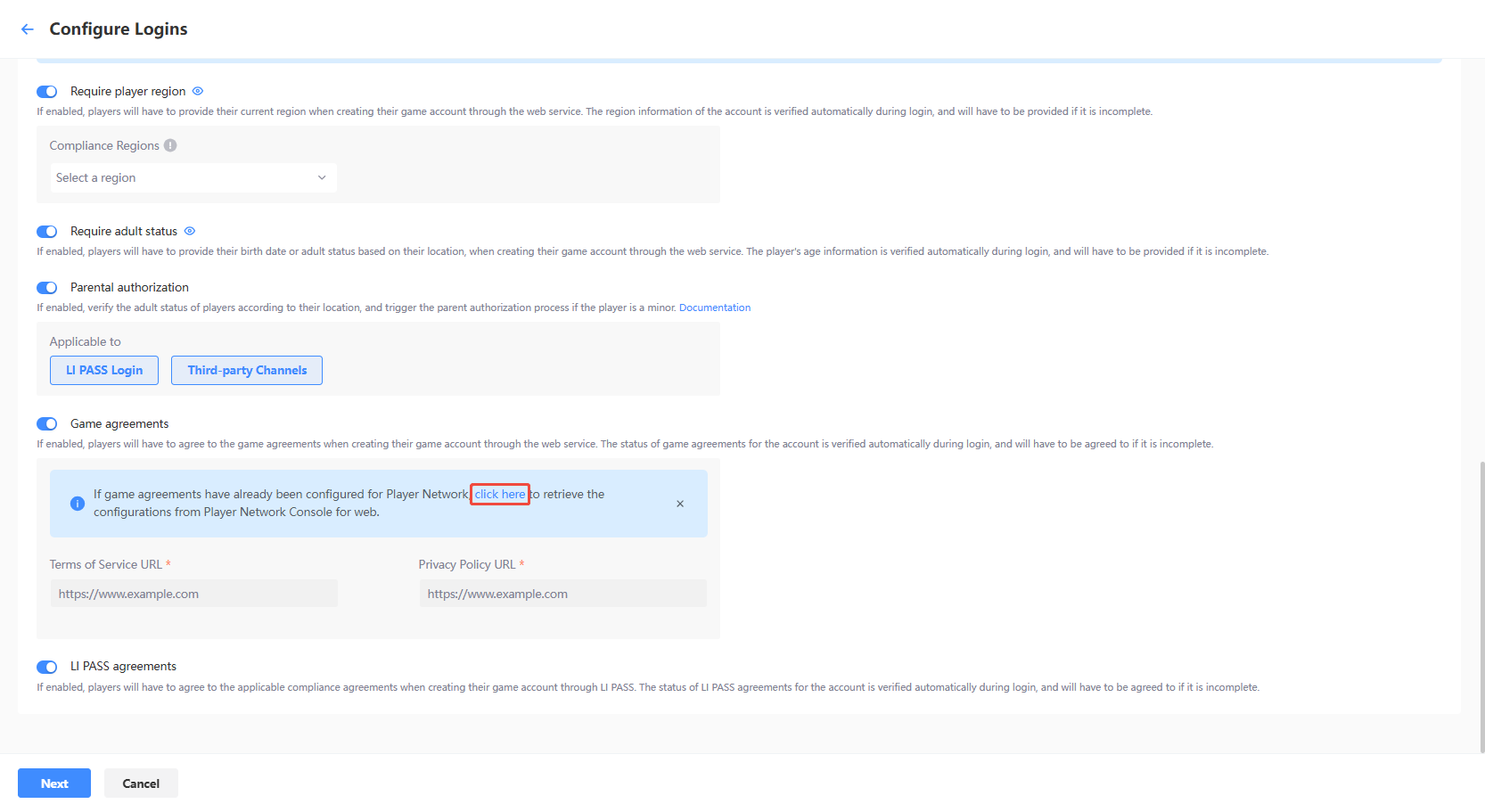
- Enable: If enabled, players will have to agree to the game agreements when creating their game account through the web service.The status of game agreements for the account is verified automatically during login, and will have to be agreed to if it is incomplete.
- Disable: The status of game agreements will not be verified and may lead to compliance issues, please proceed with caution.
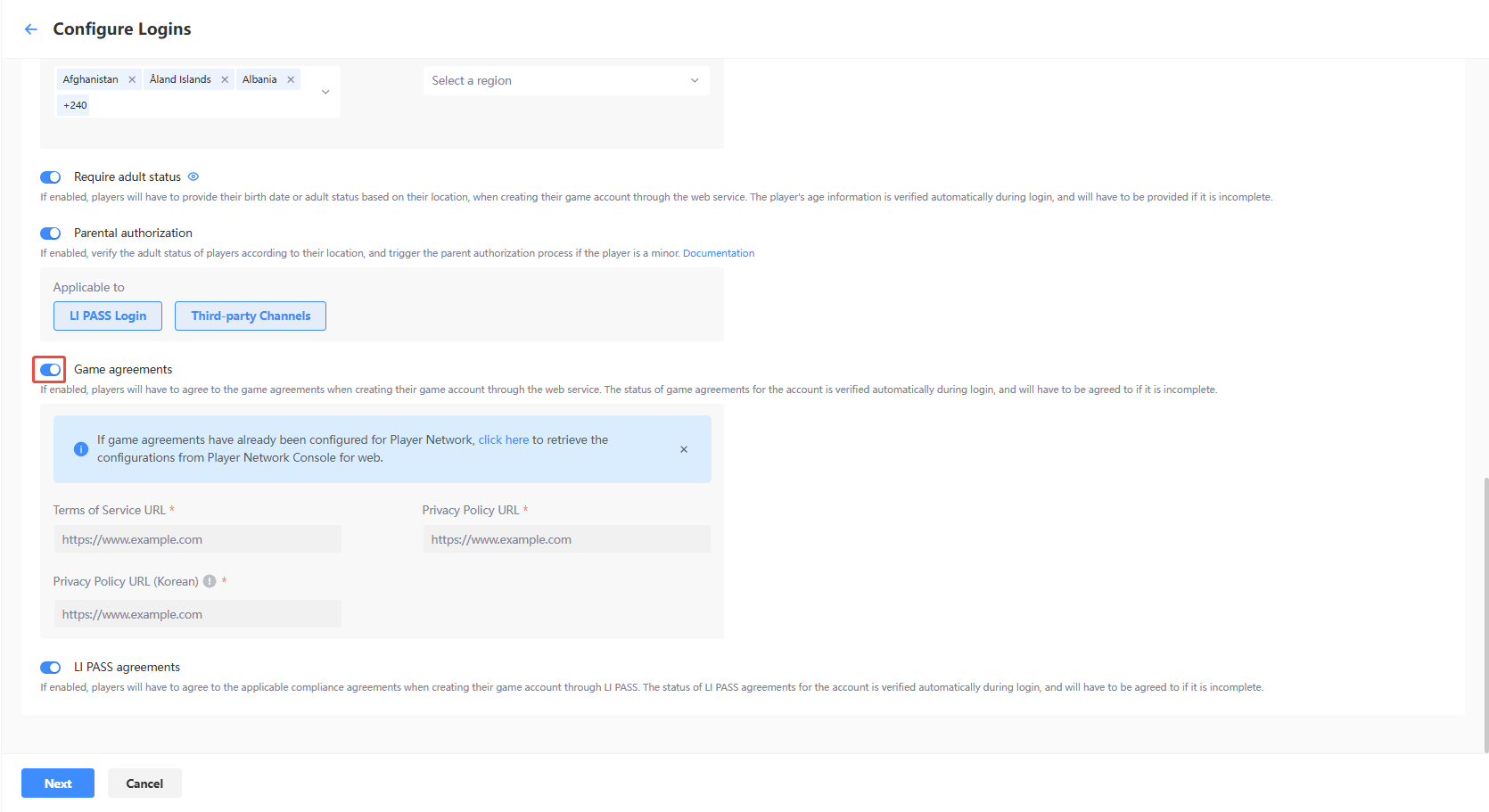
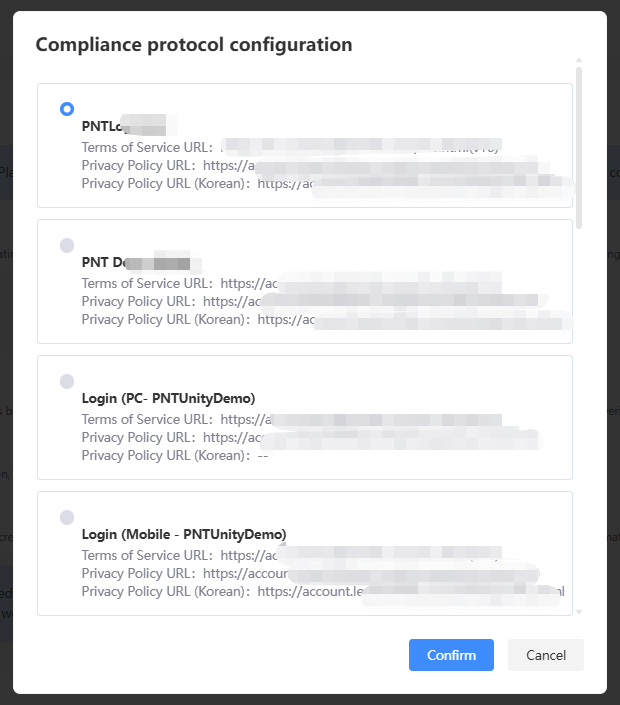
If game agreements have already been configured for Player Network, you may retrieve the configurations from Player Network Console for Web through the popup after clicking on the text button.
- LI PASS agreements
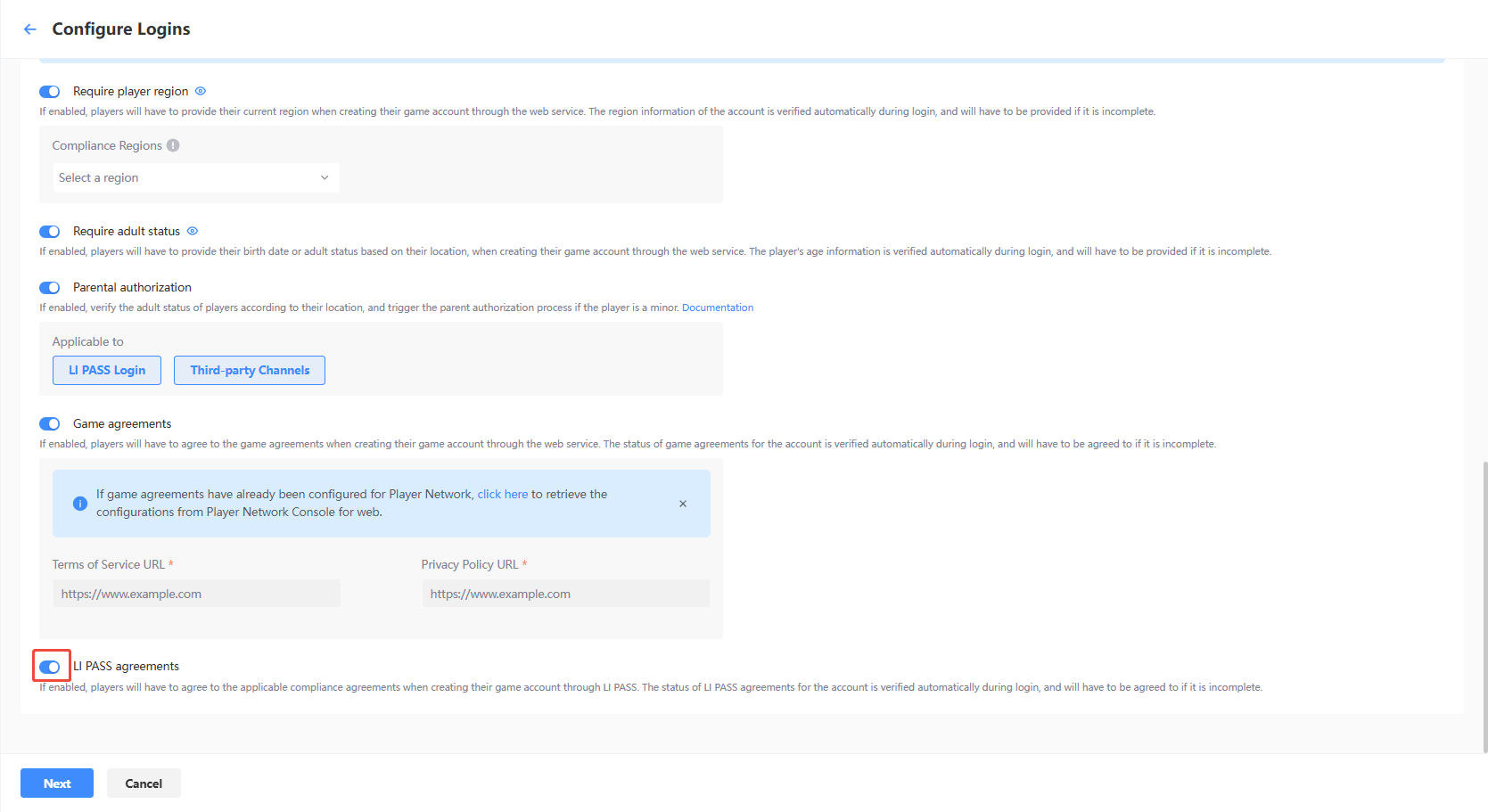
- Enable: If enabled, players will have to agree to the applicable compliance agreements when creating their game account through LI PASS.The status of LI PASS agreements for the account is verified automatically during login, and will have to be agreed to if it is incomplete.
- Disable: LI PASS agreements will not be displayed in the login screen and may lead to compliance issues, please proceed with caution.
Login panel
Basic interaction
-
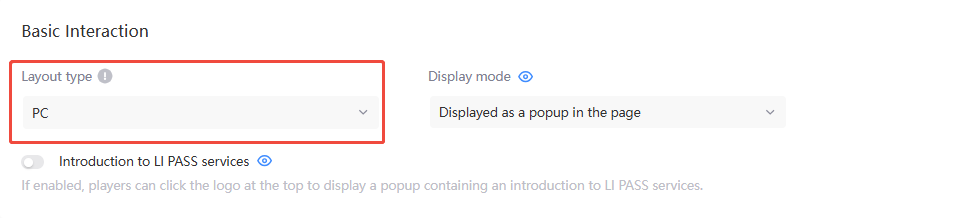
Layout type
- Mobile/PC side: The popup is slightly larger on PC than on mobile, while functions and interactions remain the same
- Custom configuration: Implementation is to be completed by the Web developer through modifying the source code
-
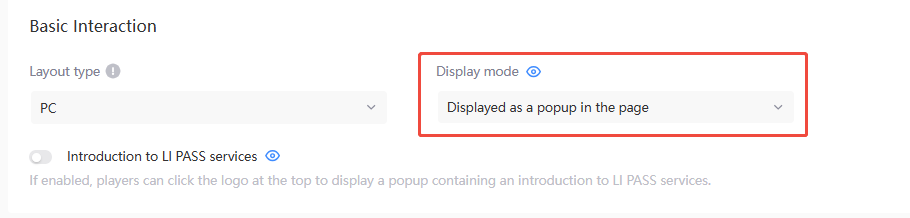
Interaction Method - The two forms only differ in style, with no functional differences.
- Embedded in the content page
- Displayed as a popup in the content page
-
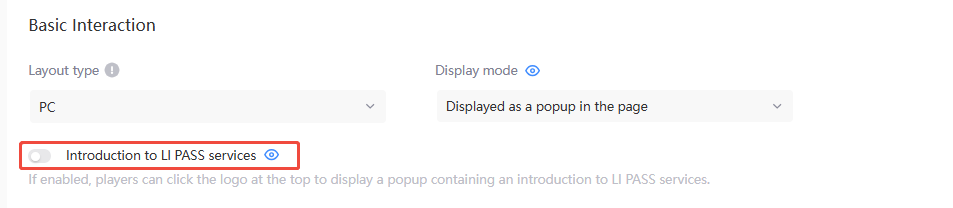
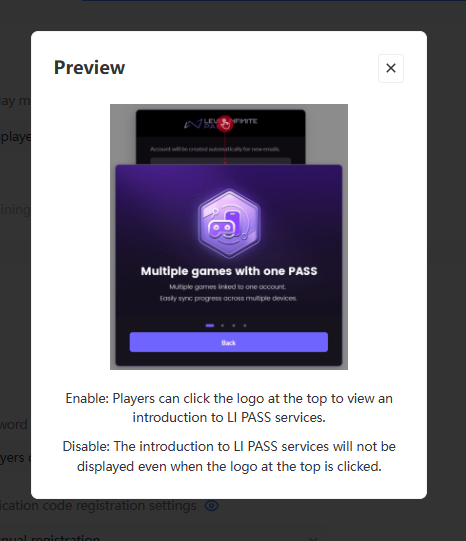
Introduction to LI PASS services
- Enable: Players can click the LEVEL INFINITE PASS logo at the top to view an introduction to LI PASS services
- Disable: The introduction to LI PASS services will not be displayed even when the LEVEL INFINITE PASS logo at the top is clicked
Login panel
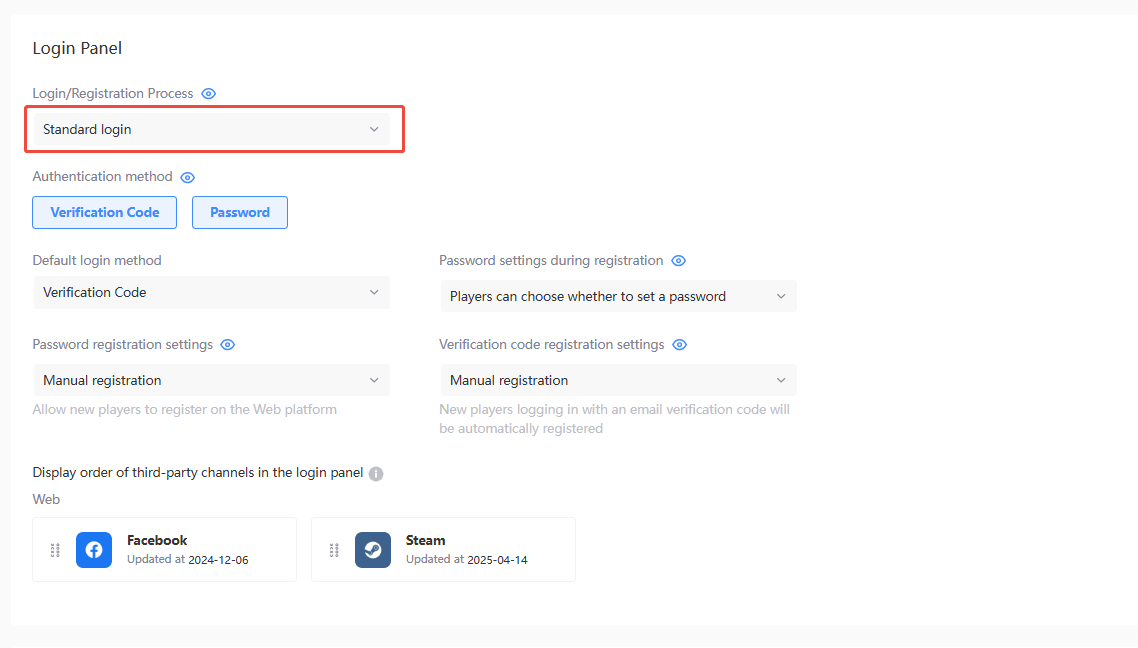
- Login/Registration Process
-
Standard Login: Players will have to manually select the login method, or to register for an account.
-
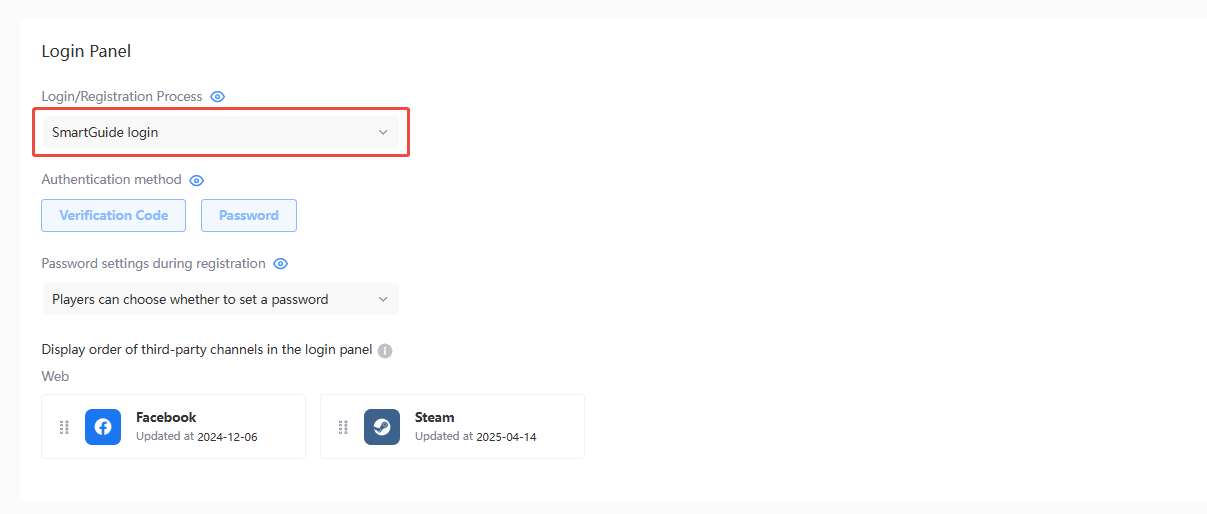
SmartGuide login: The optimal login method will be automatically displayed according to the player's account status.
-
Web - Standard login
-
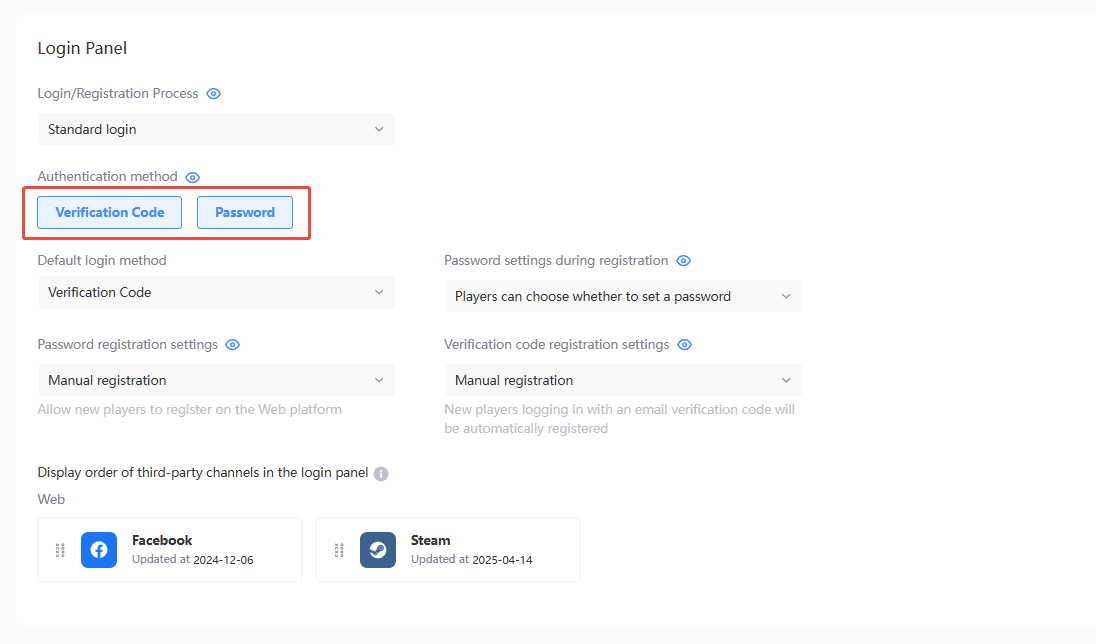
Authentication method - The authentication methods available in the login panel, to be selected according to the needs of your players.
- Verification Code: An email containing a verification code will be sent to the entered email address, players can then use this code to log in to the game
- Password: Players enter their registered email address and corresponding password to log in to the game
-
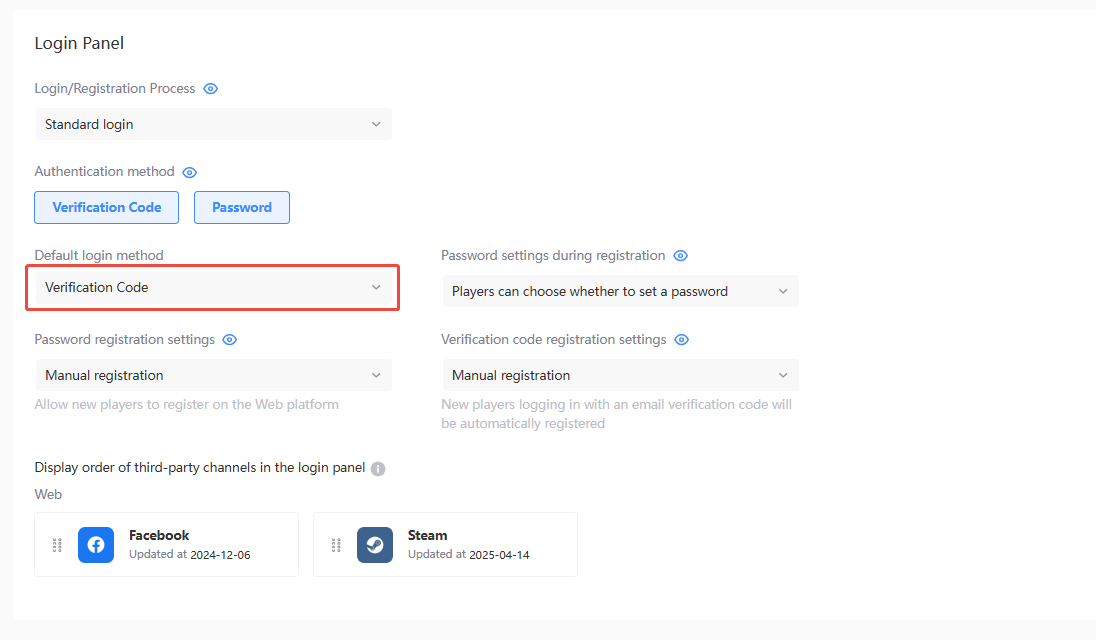
Default Method - The default authentication method displayed in the login panel.
-
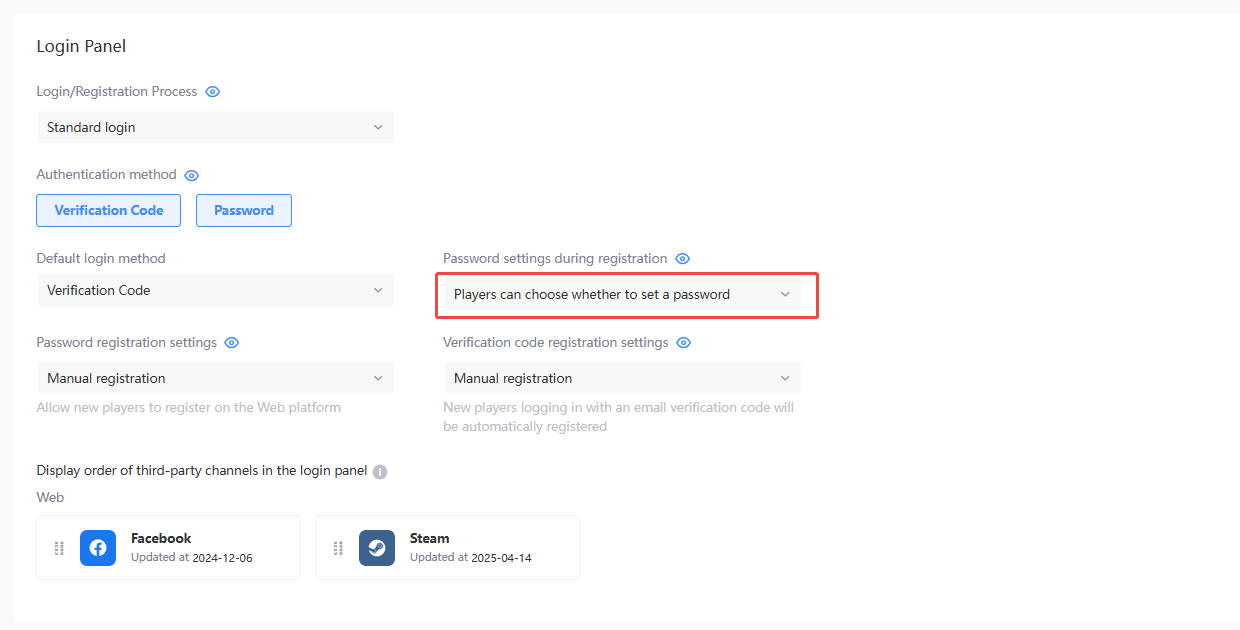
Password Setting Method - Players can choose whether to set a password during registration.When players attempt to log in with their password, a popup prompt will be shown if no password has been set for the account. For more information, see Prompt to set a password.
-
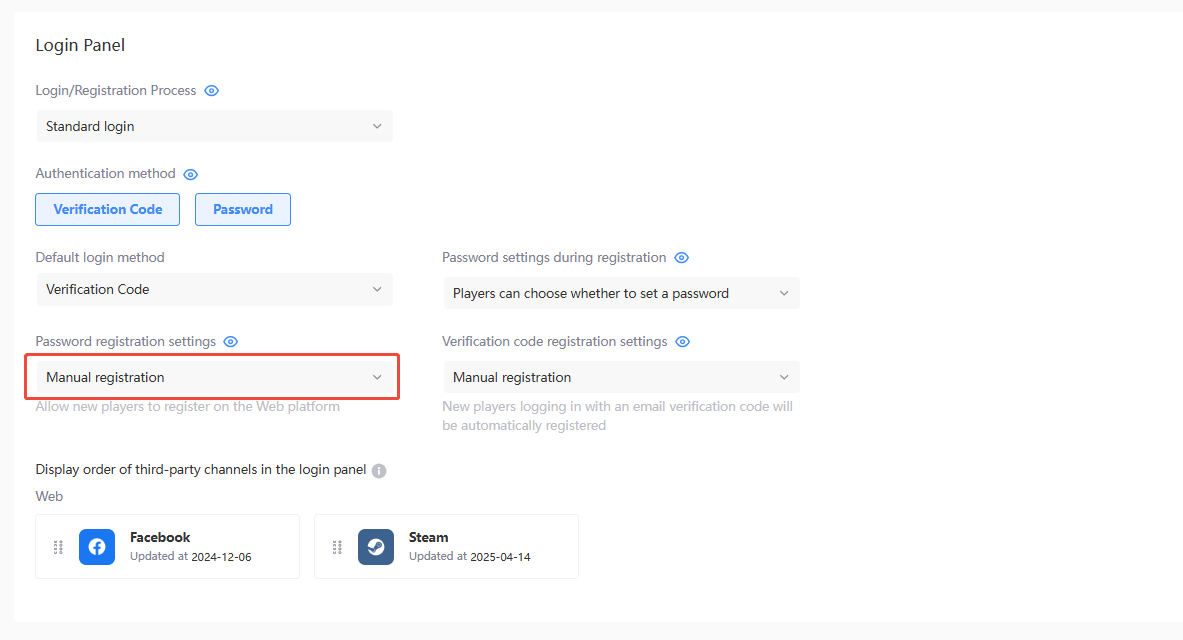
Password registration settings
- Manual registration: The button to manually register will be displayed in the password interface, new players will have to manually register for an LI PASS before they can log in
- Close: The button to manually register will be hidden from the password interface, only existing players will be able to log in
-
Verification code registration settings
- Manual registration: The button to manually register will be displayed in the verification code interface, new players will have to manually register for an LI PASS before they can log in
- Close: The button to manually register will be hidden from the verification code interface, only existing players will be able to log in
- Automatic registration: The button to manually register will be hidden from the verification code interface, the account registration process will be triggered automatically when players use a new email to log in

-
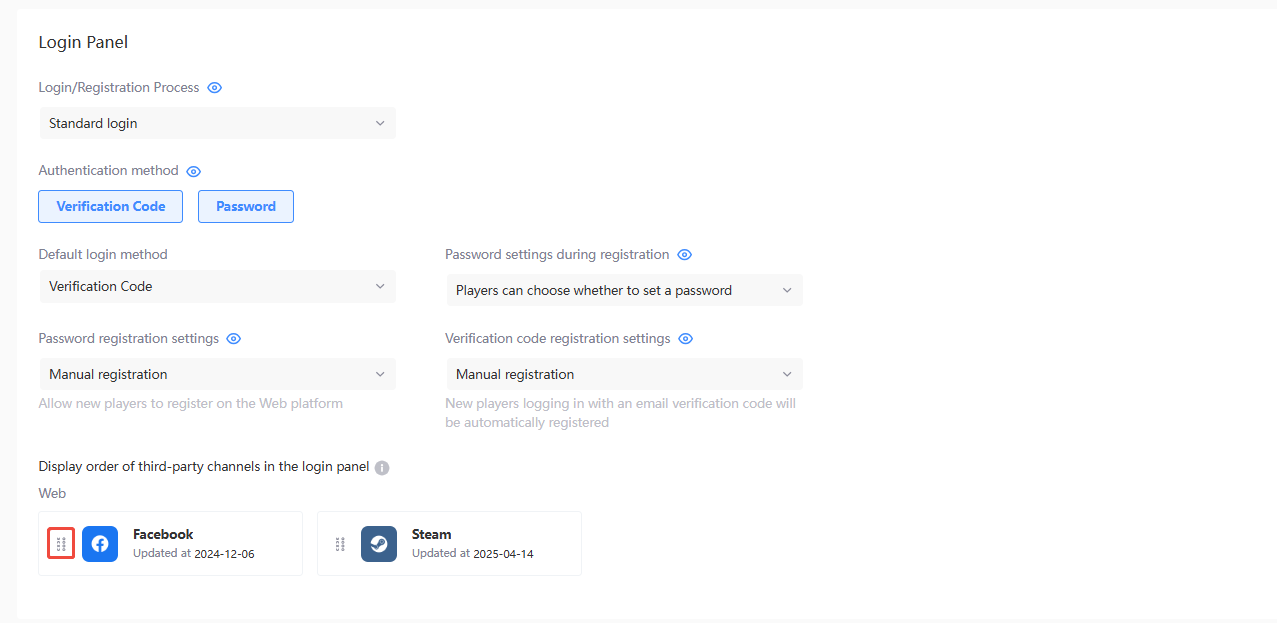
Display order of third-party channels in the login panel - Drag and drop the icons to adjust the display order of third-party channels in the login screen.
Web - SmartGuide login
-
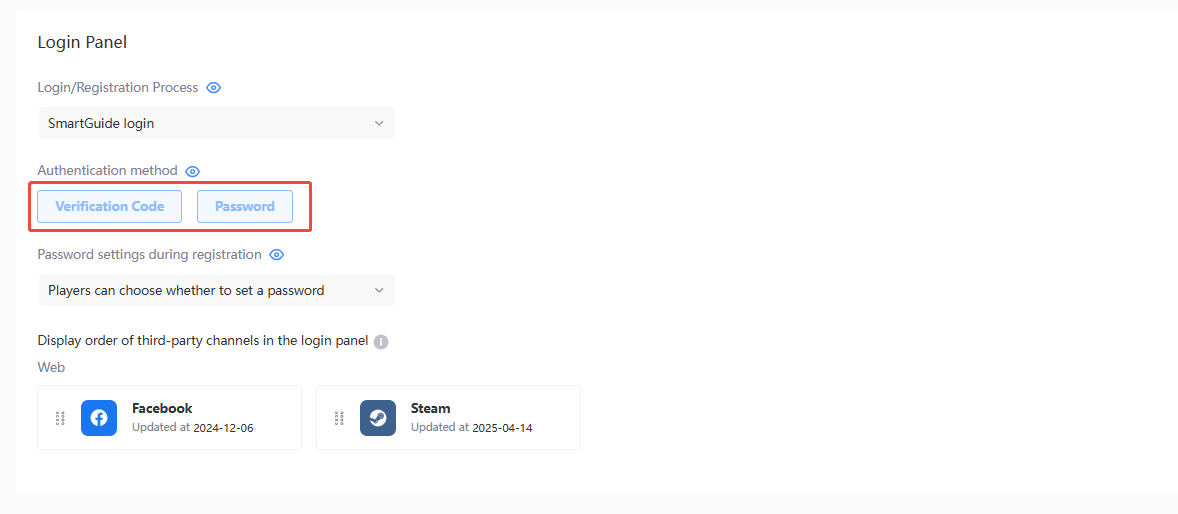
Authentication method: Required for SmartGuide login. The optimal login method will be automatically displayed according to the player's account status.
- Verification Code: An email containing a verification code will be sent to the entered email address, players can then use this code to log in to the game
- Password: Players enter their registered email address and corresponding password to log in to the game
-
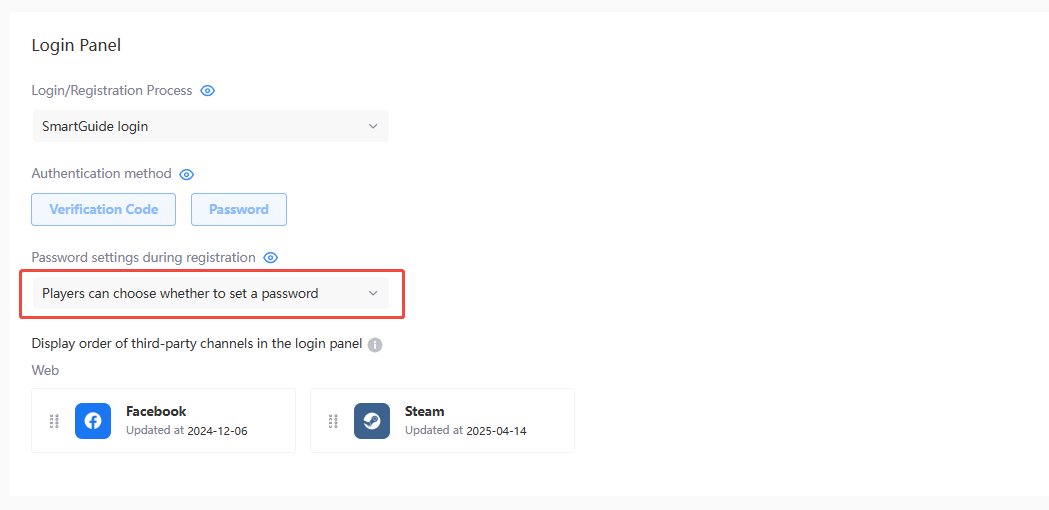
Password settings: Players can choose whether to set a password during registration.When a player uses password authentication to log in, if the account has not set a password, a popup will prompt the player to set one. See Password Not Set Prompt.
-
Display order of third-party channels in the login panel - Drag and drop the icons to adjust the display order of third-party channels in the login screen.
Account linking strategy
-
Prompt players to link to LI PASS with their email - For players logging in through third-party channels and have not linked to LI PASS with their email address, they will be prompted to link to LI PASS.
Enabling will display the following switches and options, disabling will not support players logging in through third-party channels to bind LI PASS.-
Trigger during player login - For players who have not linked to LI PASS, automatically trigger the link process for LI PASS when logging in through third-party channels.
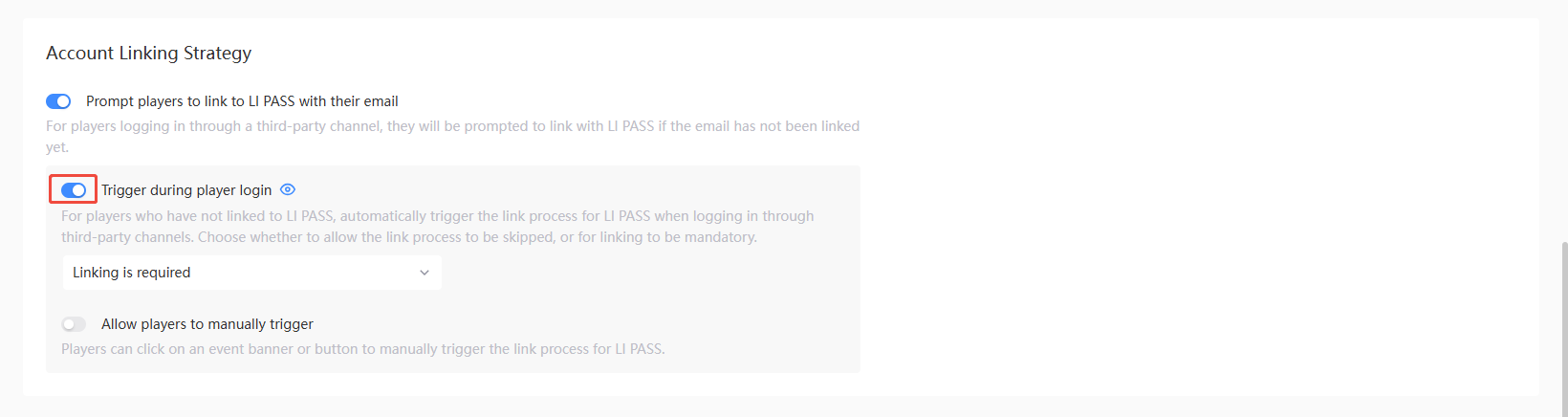
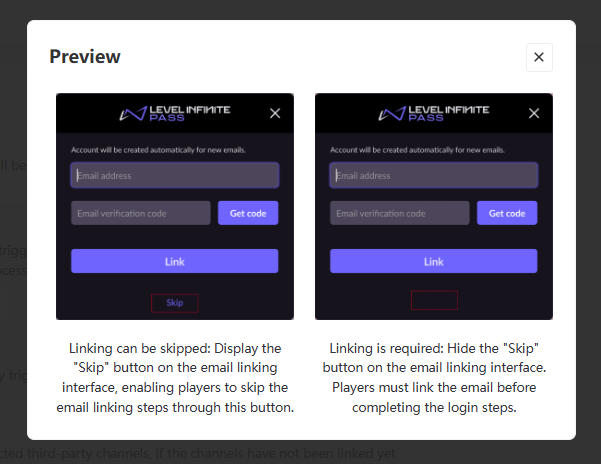
- Linking can be skipped: The Skip button is displayed in the email linking interface, allowing players to skip the email linking step
- Linking is required: The Skip button is hidden from the email linking interface, players are required to link their email during login
-
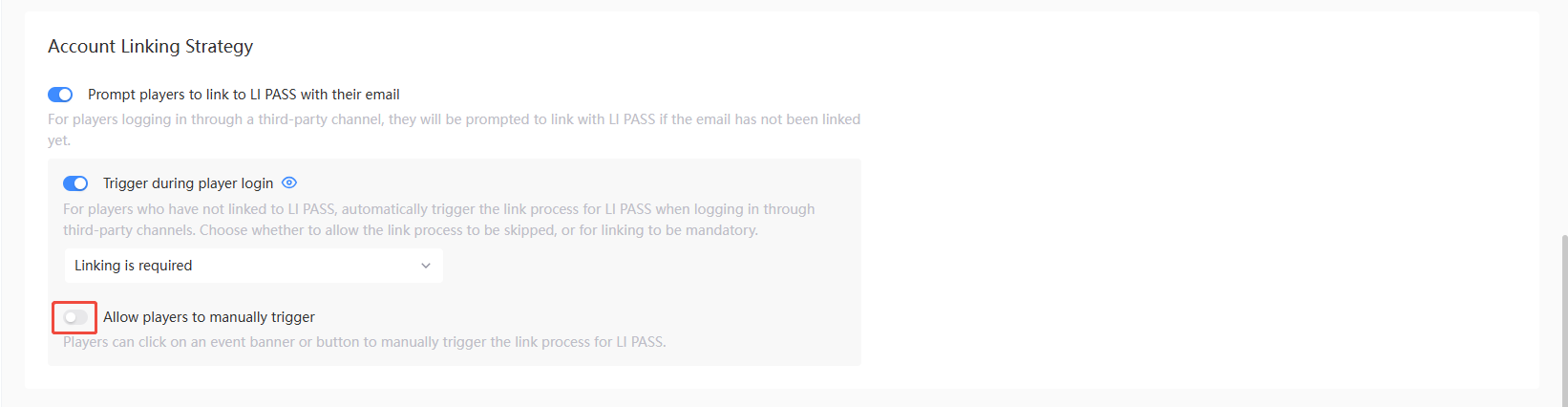
Allow players to manually trigger
- On: Players can click on an event banner or button to manually trigger the link process for LI PASS
- Off: Players will be unable to manually trigger the link process for LI PASS
-
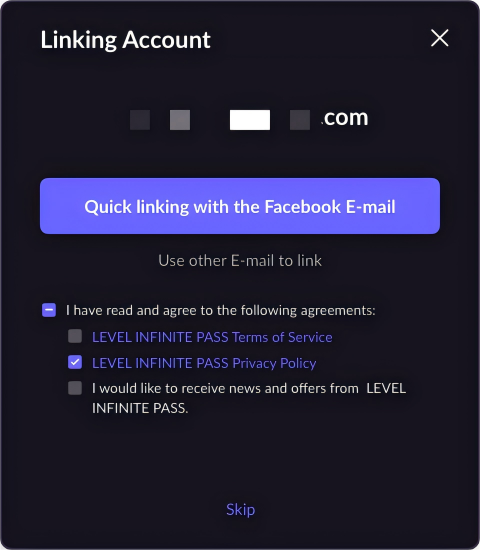
After enabling Trigger during player login, if the player is using Facebook, Google, Apple, or X to log in, and Return Email is enabled from third-party channels configurations, the quick registering feature can be used to allow player to quickly link their email address during LI PASS registration.
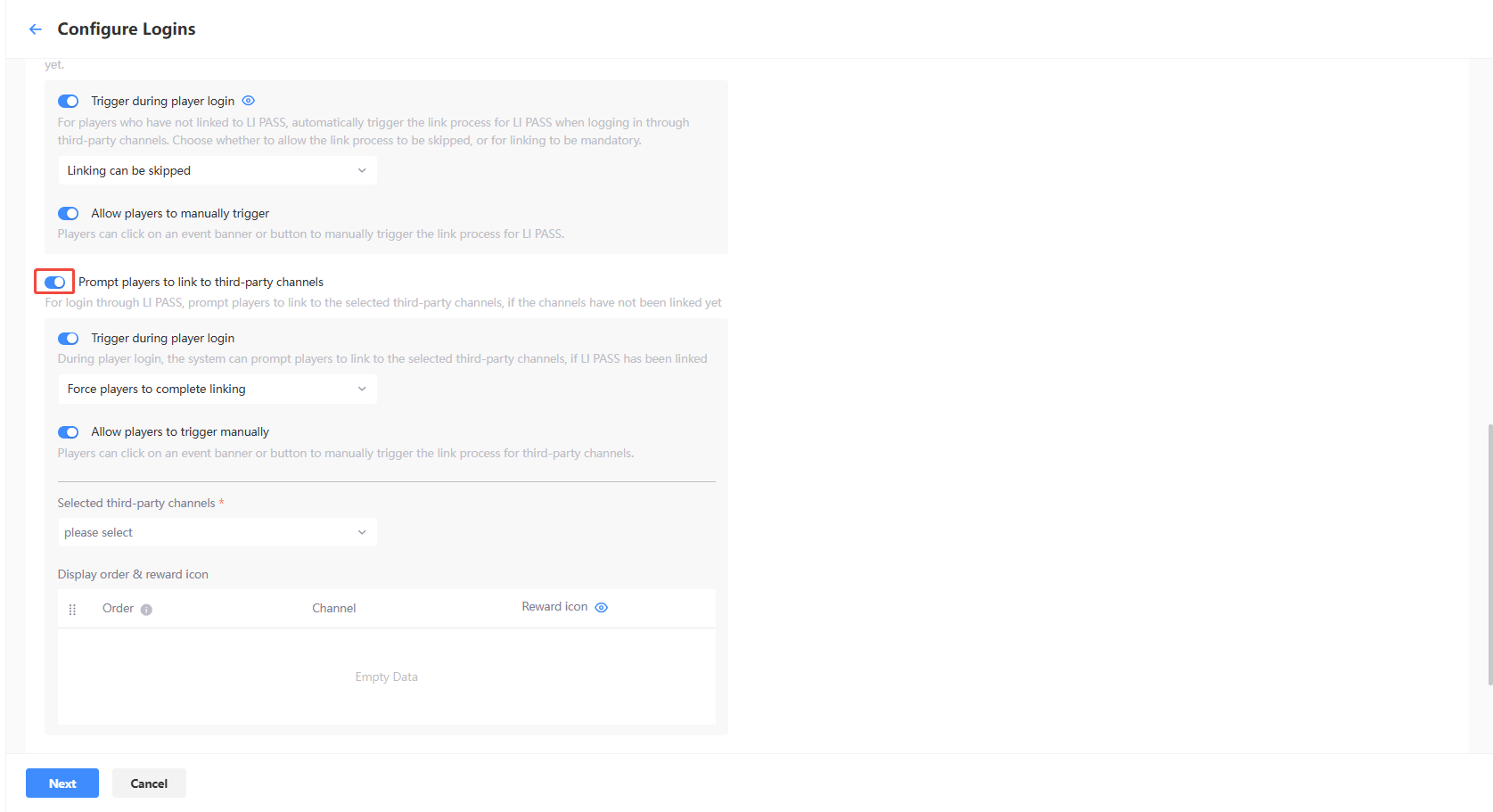
- Prompt players to link to third-party channels - For login through LI PASS, prompt players to link to the selected third-party channels if the channels have not been linked yet.
- Trigger during player login - During player login, the system can prompt players to link to the selected third-party channels if LI PASS has been linked.If players haven't bound LI PASS, this binding process will be skipped.
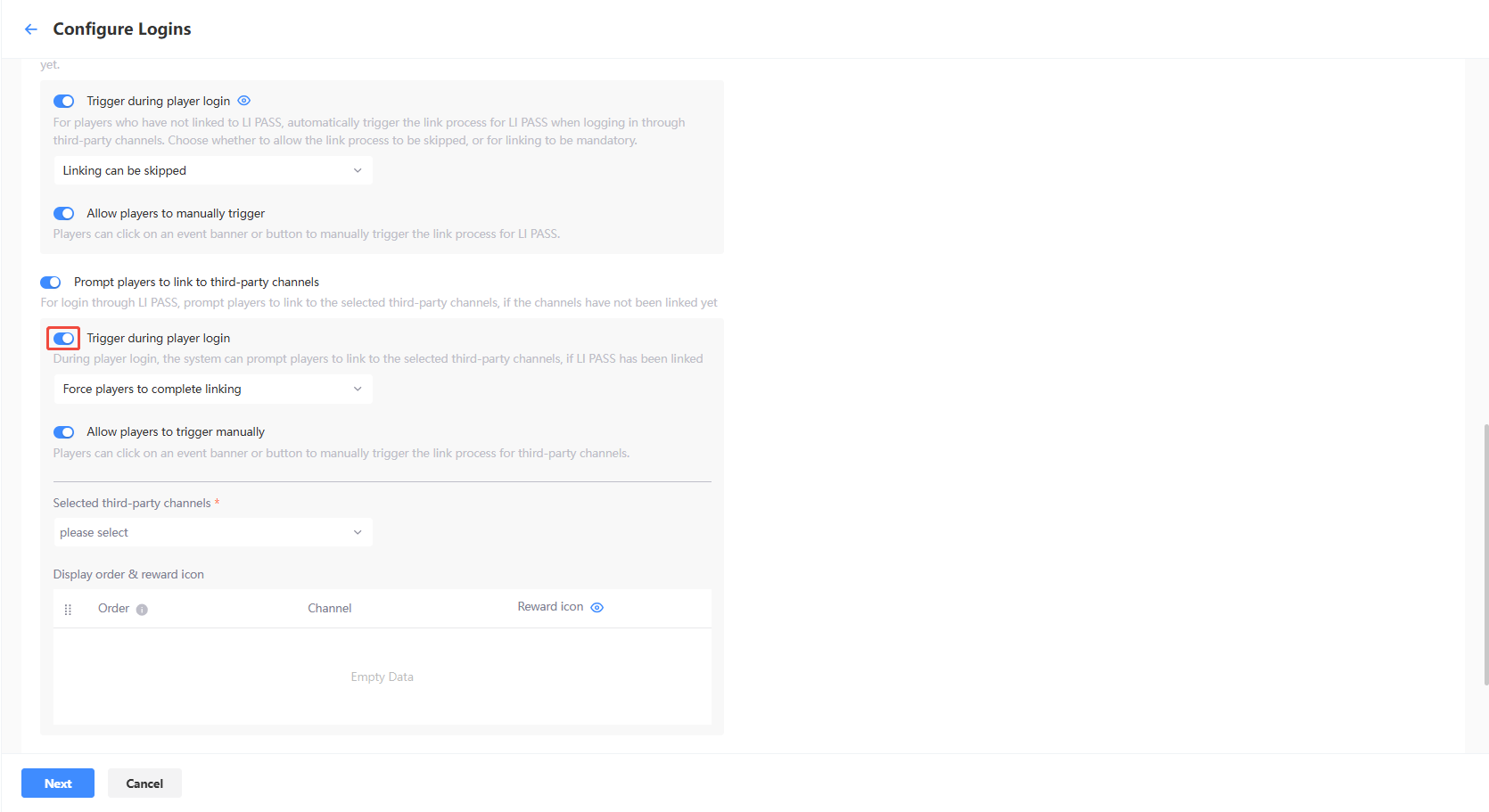
- Allow players to skip linking: Prompt players to link to the selected third-party channels, with support to skip this process
- Force players to complete linking: Players are required to link to the selected third-party channels by following the system prompts
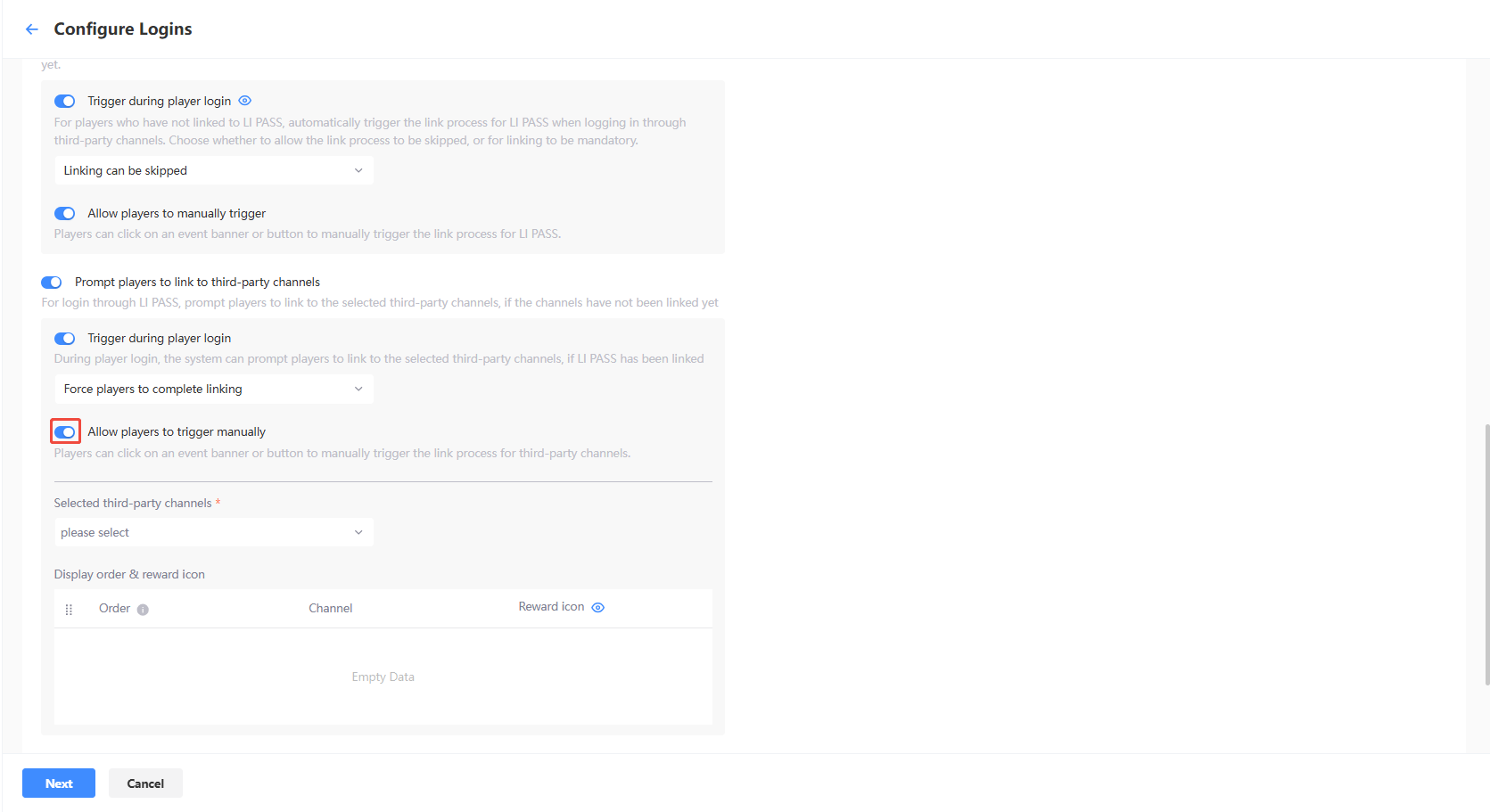
- Allow players to trigger manually - Players can click on an event banner or button to manually trigger the link process for LI PASS.
- Third-party Channel Binding Scope - Supports setting the scope of third-party channels that players can choose to bind.
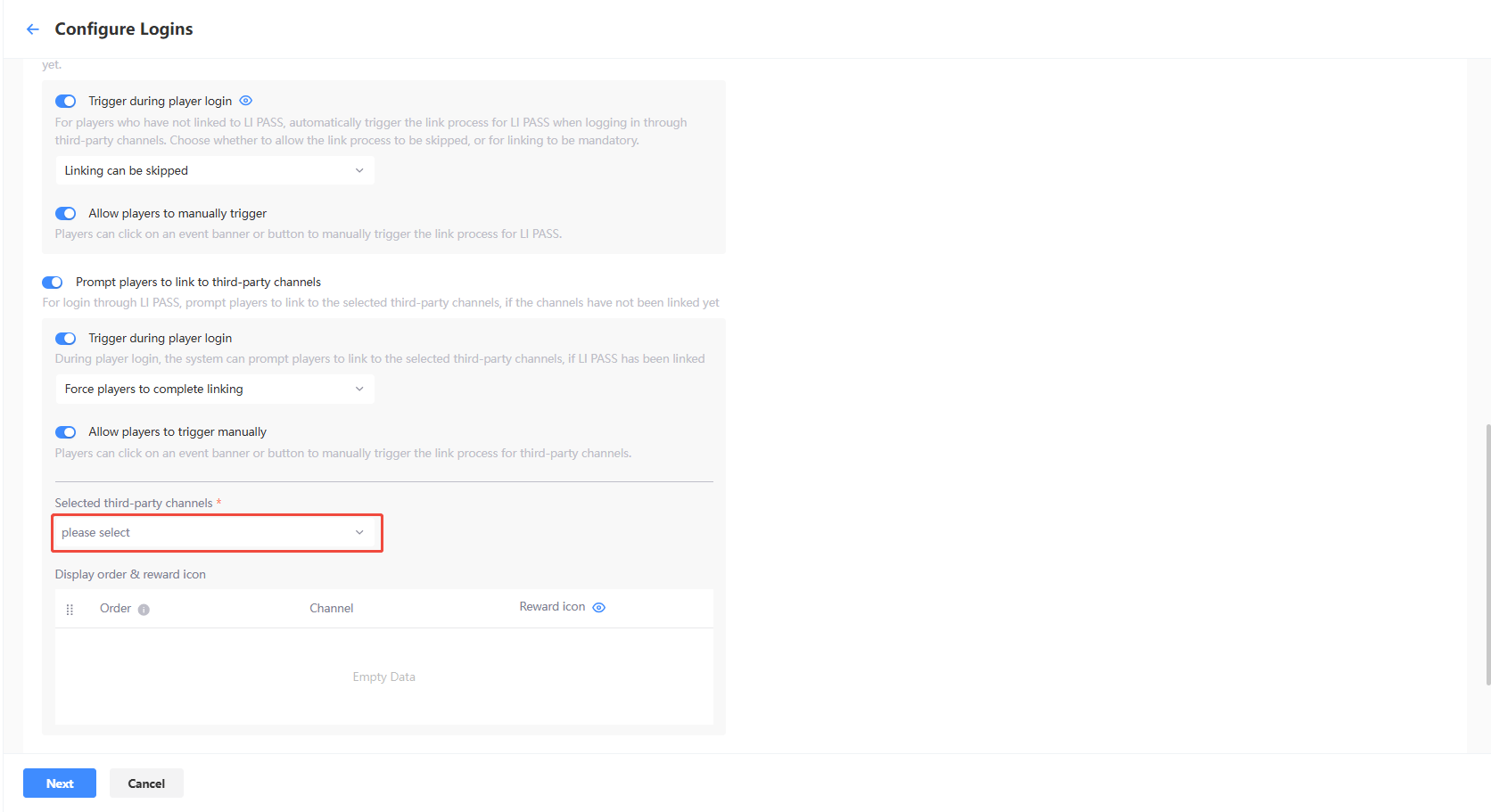
- Display order & reward icon - Linking rewards can be set to encourage players to link to the selected third-party channels. The order of the displayed channels can be modified via drag and drop, and the reward icon can be toggled on or off.
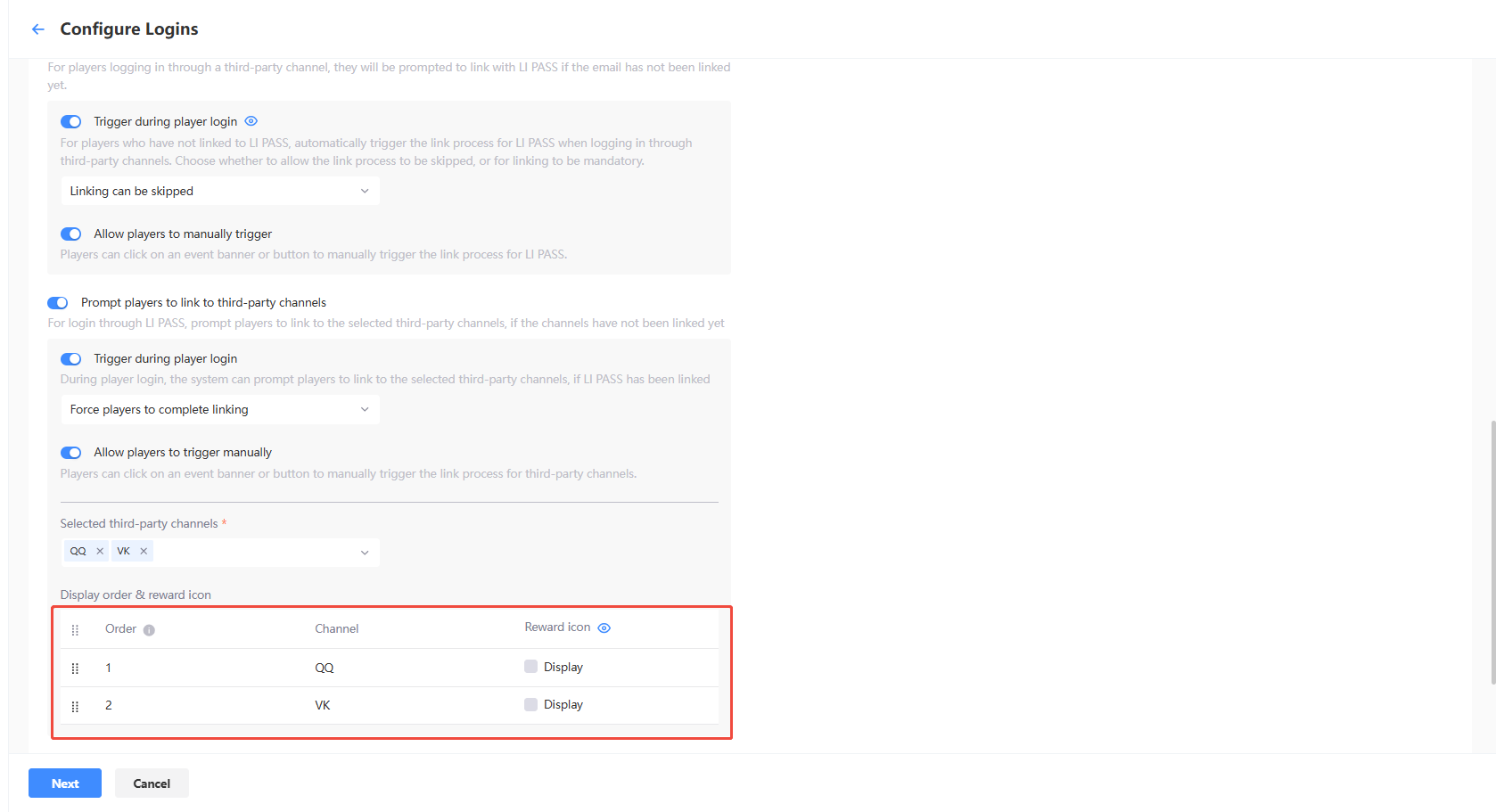
- Trigger during player login - During player login, the system can prompt players to link to the selected third-party channels if LI PASS has been linked.If players haven't bound LI PASS, this binding process will be skipped.
Web UI Configuration
-
Customize web UI
- Off: Use the default UI
- On: Use the LI PASS UI Editor for Web to customize UI for various scenarios

-
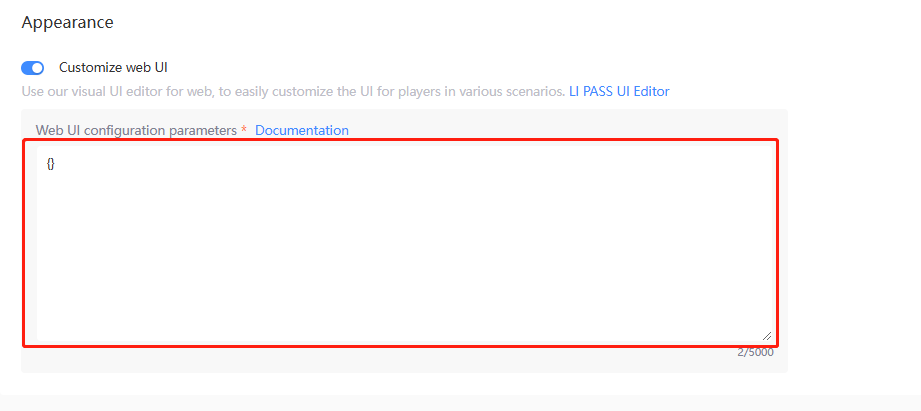
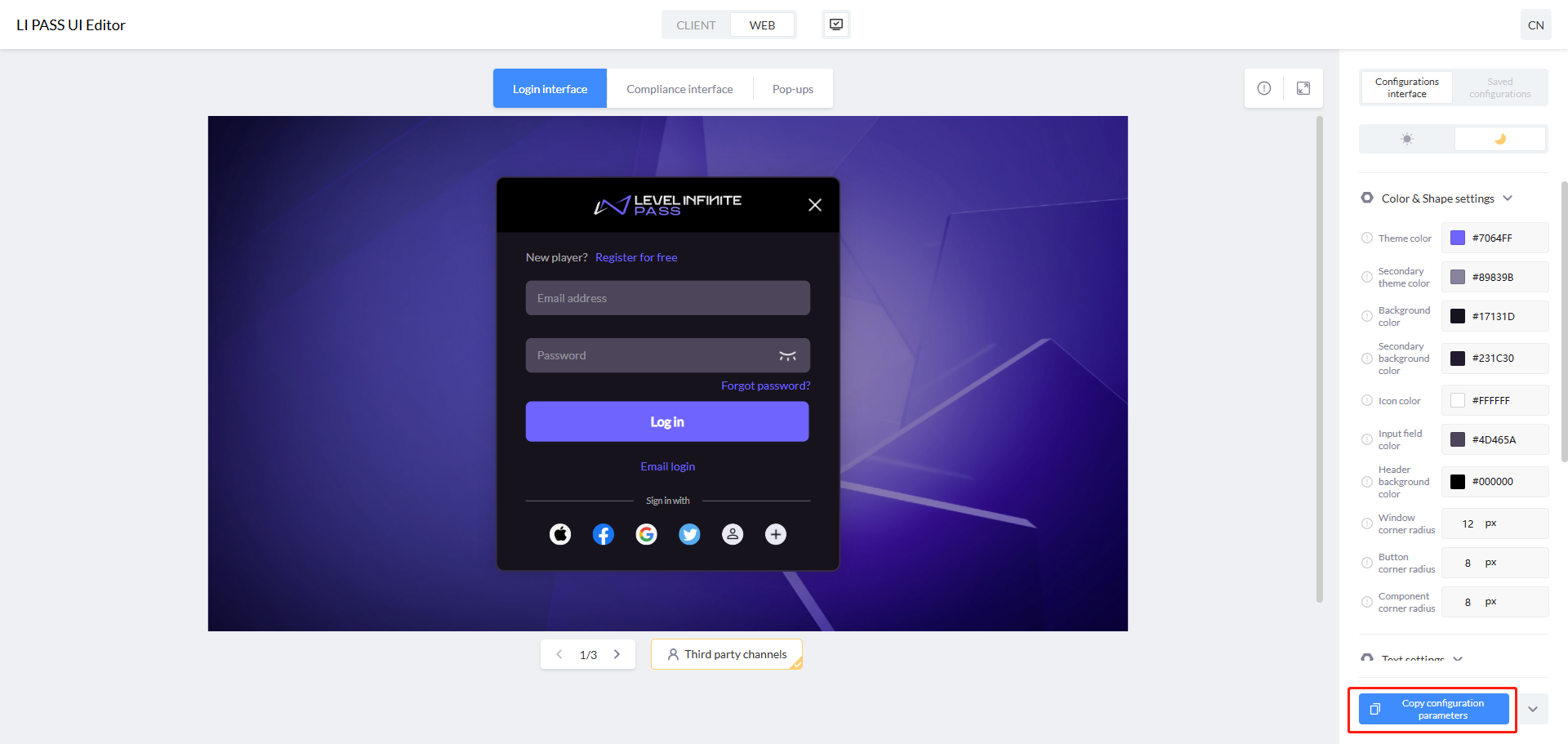
Web UI configuration parameters - Customize Appearance using the LI PASS UI Editor for Web according to your requirements, then paste the parameters into the input box.
Publish Web configurations
Once the configurations are ready, click Next at the bottom of the Configure UI page to begin publishing.On the Publish page, details about completed login configurations are displayed, and configurations that have yet to be published can be published.
- On the Publish page, verify the configurations to be published.
The parameters highlighted in red need special attention. They are the differences between the content to be released and the real-time configuration of the current environment.
-
If all configurations are correct, click the button located at the bottom left of the page.
- Test environment: Click Publish to Test Environment to publish the selected configurations to the test environment.
- Production environment: Click Submit for Production Environment Release Approval. The selected configurations will automatically sync to the production environment after review by the audit personnel.
Since it involves manual review, the review process for releasing to the Production environment takes about 3 to 4 hours.To expedite the approval, reach out to the Player Network representative.
-
[Optional] To publish the LI PASS configurations at a later time, click Cancel to save the LI PASS configurations as a draft.
After publishing, the generated WEB_ID will become available for quick integration.For more detailed procedures, click Quick Integration at the published Web login panel from the Configure LI PASS page.
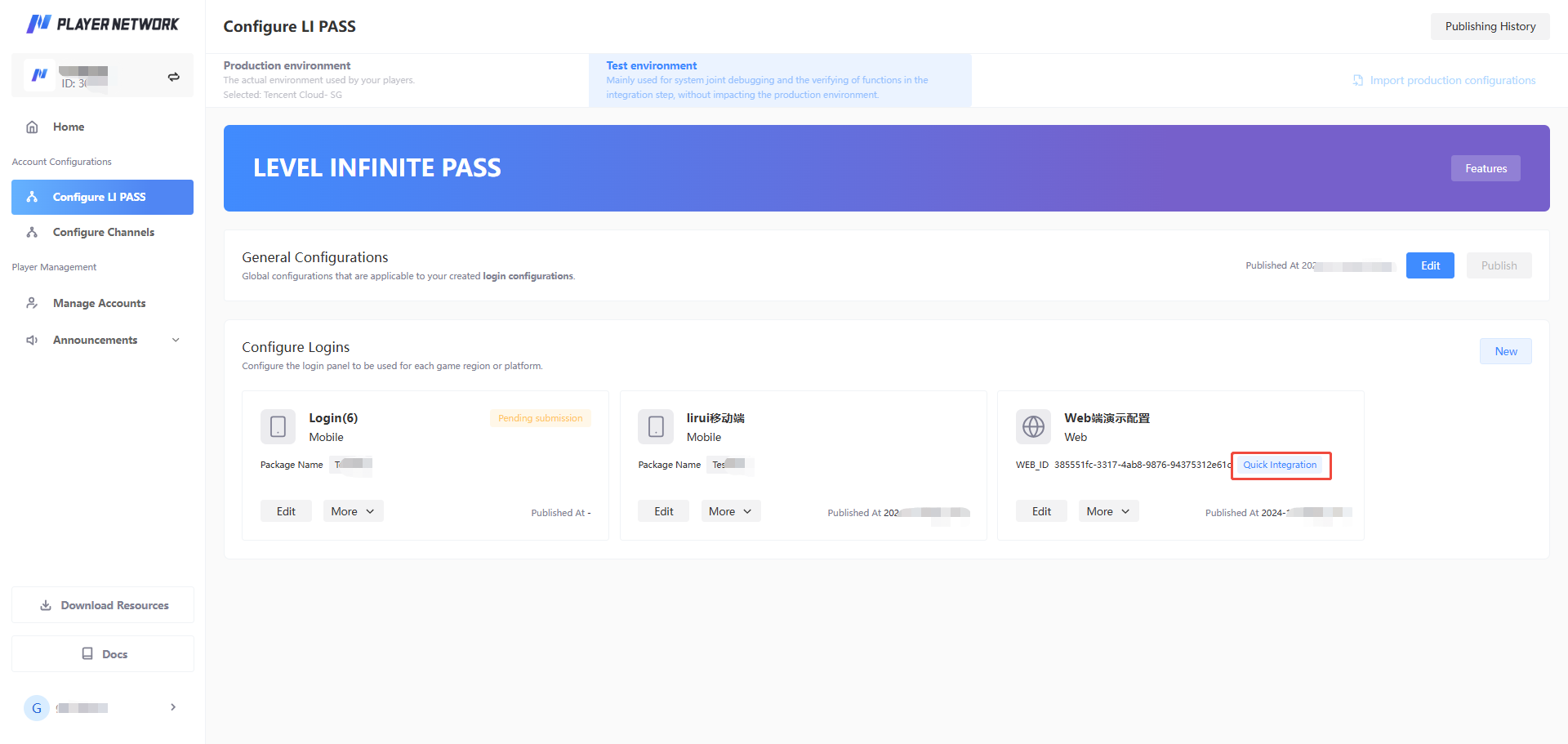
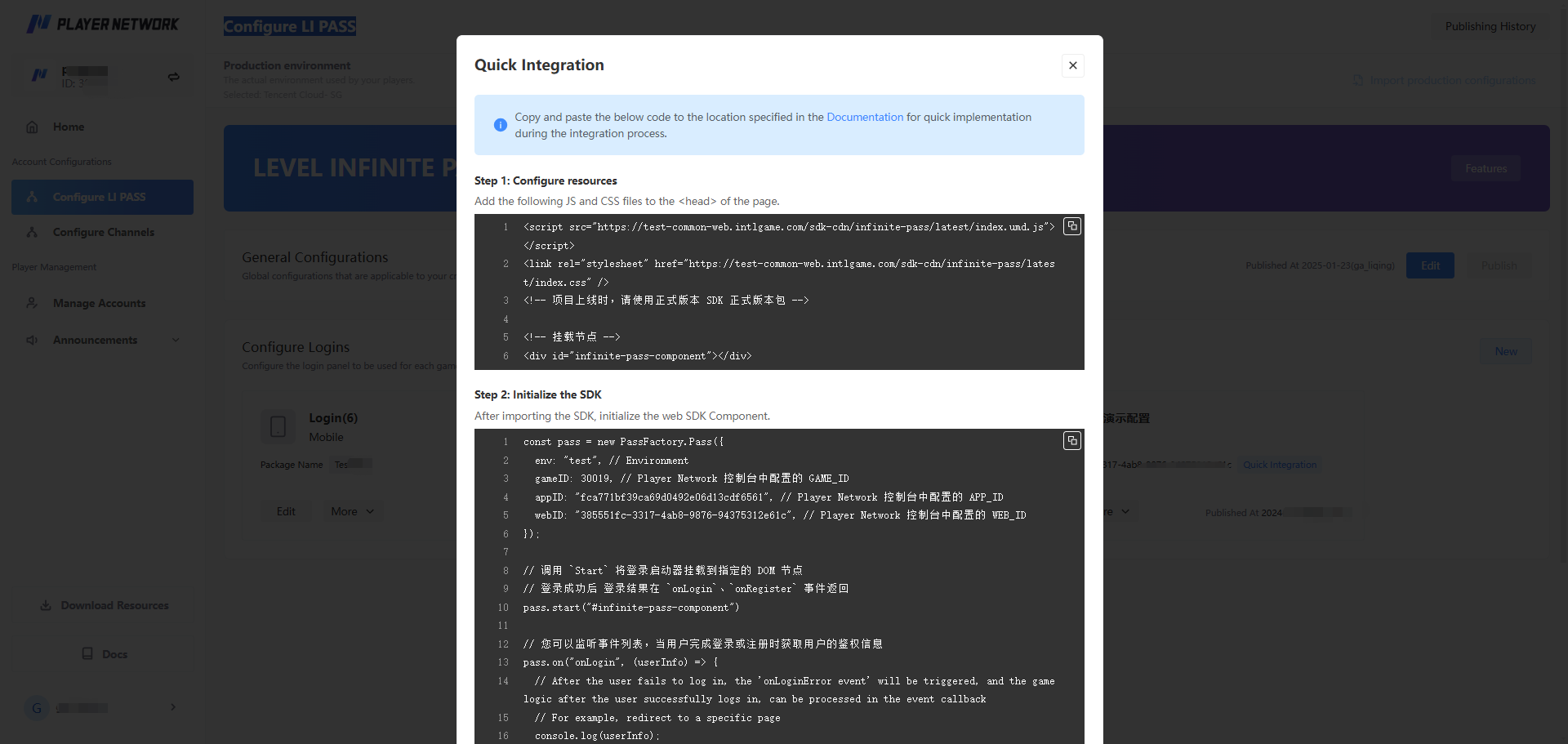
Edit LI PASS configurations
-
Log in to Player Network Console, and select LI PASS Configuration under Account Configuration in the left sidebar.
-
Click Edit under the LI PASS configuration that needs to be edited.
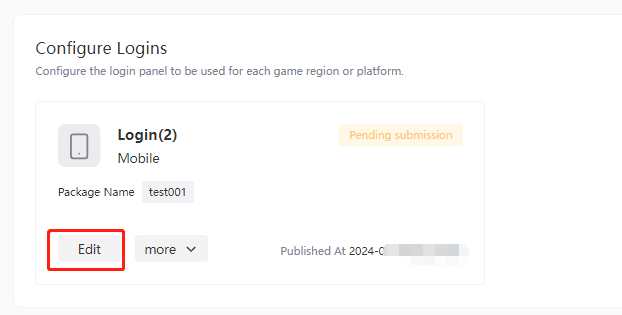
After editing, the login configuration will change to the Pending submission state, and the operation will take effect after publication.
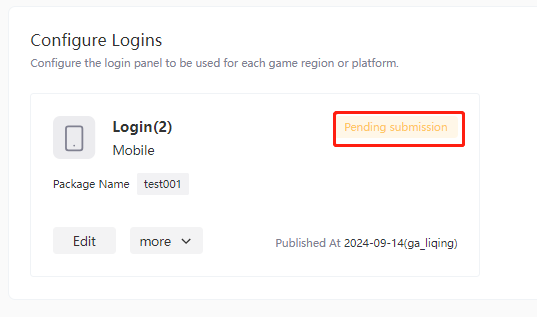
Delete configurations
-
Click Edit under the LI PASS configuration that needs to be deleted.
-
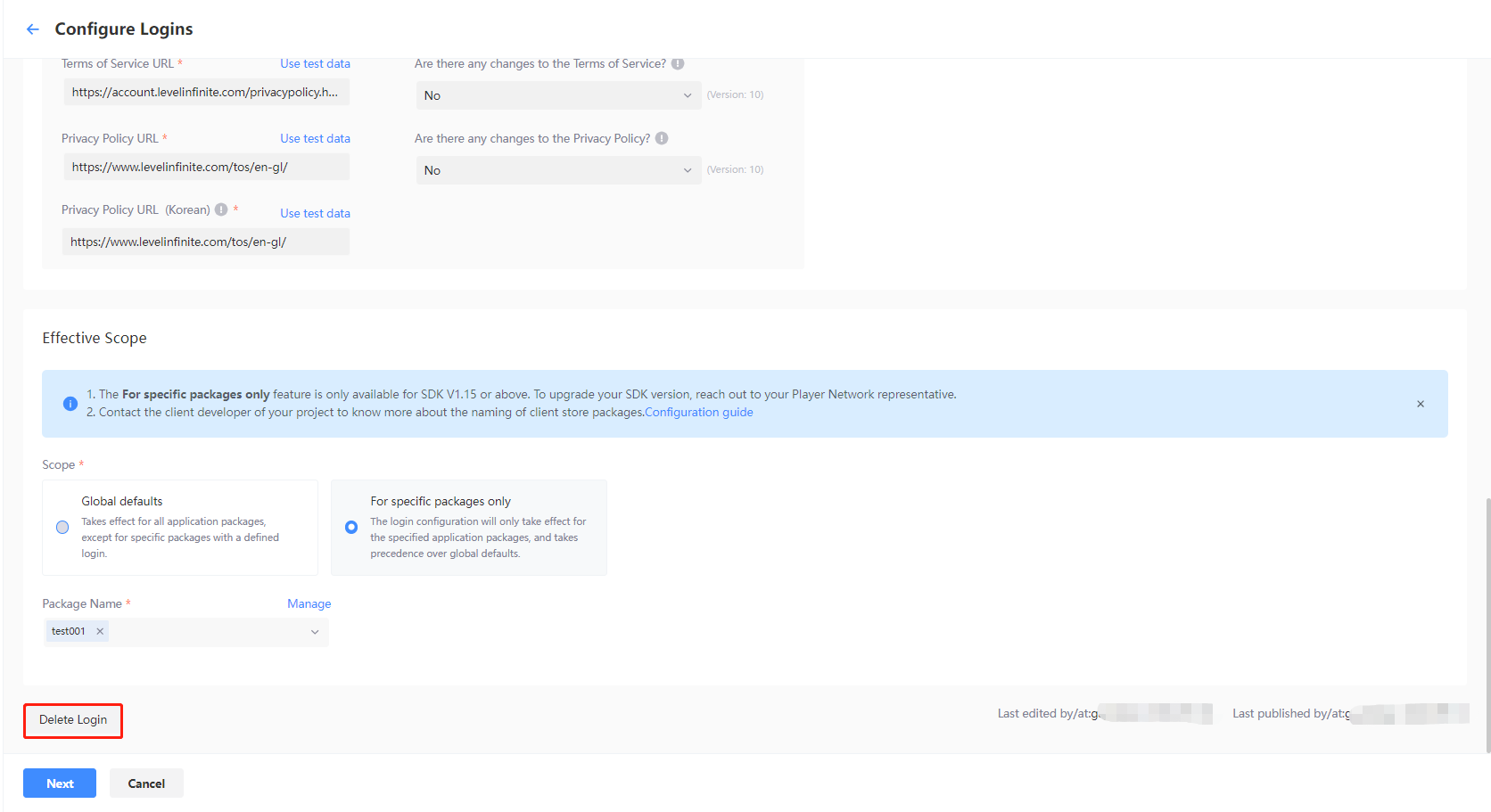
Click Delete Login at the bottom of the Configure Features page.
-
Click Confirm in the confirmation popup.

Copy configurations
-
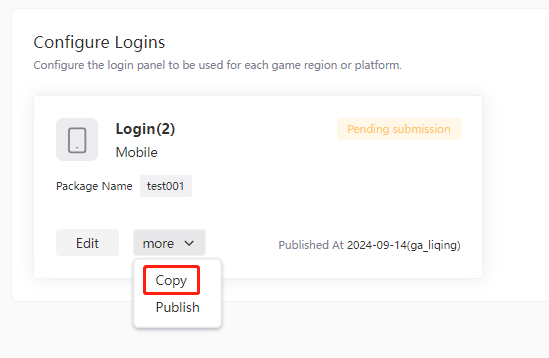
Click More > Copy under the LI PASS configuration that needs to be edited.
-
[Optional] After adding details, click More > Publish to proceed to the publishing process.
Import LI PASS configurations
Projects are able to use this feature to import completed configurations from Player Network Console to the test or production environments.
Test environment
-
On the LI PASS Configuration page, click Import Production Environment Configuration.

-
A popup will be displayed after clicking on import, confirm if the channel configurations in the current environment need to be imported, then select the channel configurations to be imported.
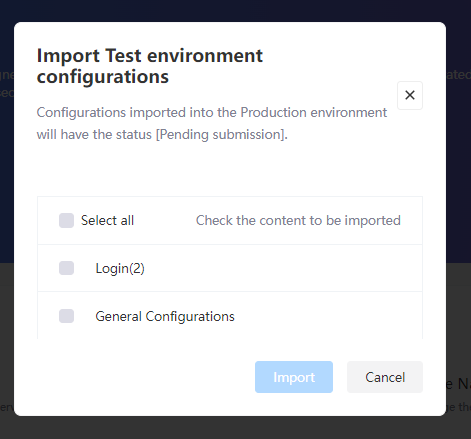
-
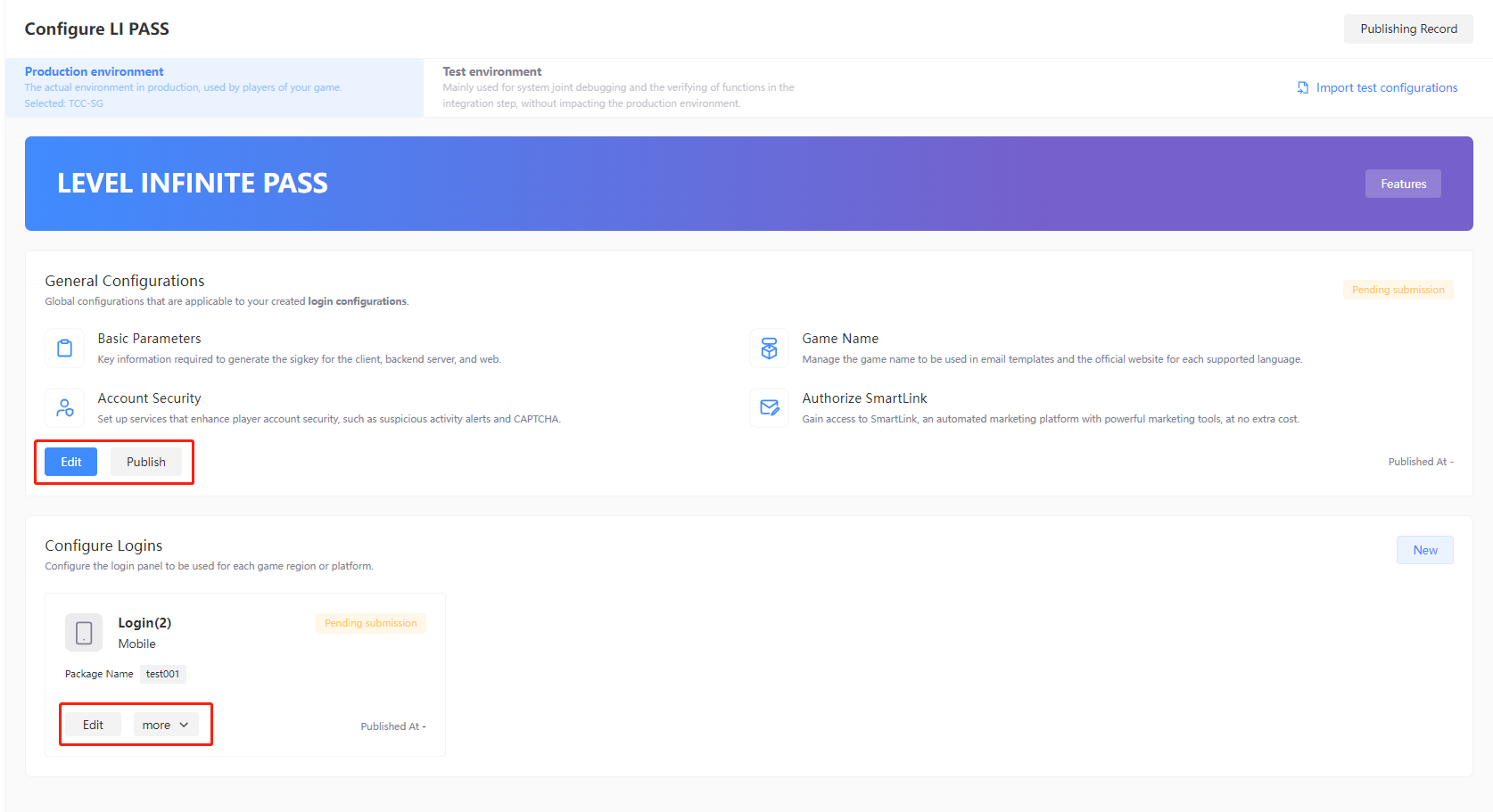
After a successful import, you can view and further edit or directly publish the test environment in LI PASS Configuration.
Production Environment
-
Click Import test configurations on the Configure LI PASS page.

-
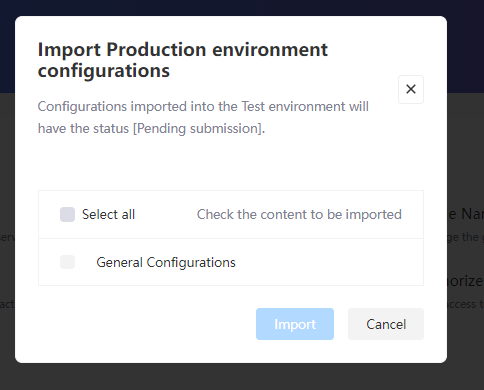
A popup will be displayed after clicking on import, confirm if the channel configurations in the current environment need to be imported, then select the channel configurations to be imported.
-
After a successful import, you can view, edit, or publish in LI PASS Configuration. Once approved by auditors, publishing will automatically sync to the production environment.
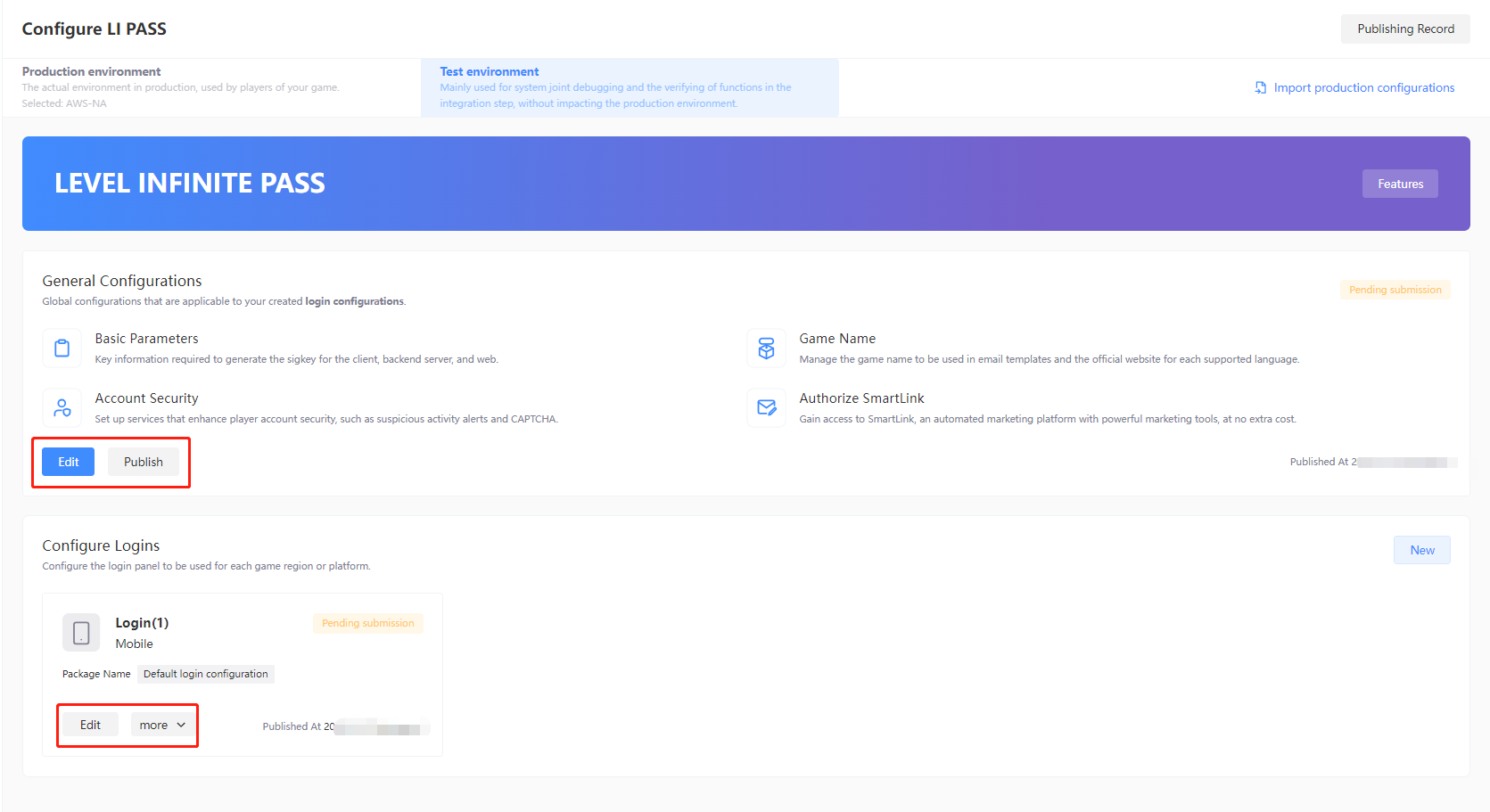
Due to manual review, the audit process for publishing to the production environment takes approximately 3 to 4 hours.If you need to expedite the process, please contact your Player Network representative for handling.

