Upgrade to V1.17
Player Network SDK 1.17 integrates LI PASS SDK to support LI PASS features.This upgrade adds support for Unity 2022 and Unreal Engine 5.1, and streamlines the file structure to facilitate future upgrades.
For complete version update details, see V1.17 Release Notes.
Upgrade Impact
This version is compatible with Unity 2022 and Unreal Engine 5.1, and the INTLConfig plugin folder contains all the basic SDK configurations.For UE 5.1, each plugin folder independently manages its own resources and configurations.For Unity 2022, each plugin’s Android library manages the Android platform configuration specific to that plugin.This arrangement streamlines the SDK folder structure and simplifies the upgrade process for future SDK versions.
Therefore, projects planning to upgrade the game engine or intending to upgrade to a future SDK version—whether to integrate new features or fix issues—should consider upgrading to this SDK version.In addition, this upgrade integrates the LI PASS SDK, supporting all LI PASS functionality. Therefore, for projects intending to adopt LI PASS, this upgrade is essential.
Upgrade Contents
- Unity
- Unreal Engine
File Structure Reorganization:
- A new
INTLConfigfolder has been created to store all the basic SDK configurations, including theEncryptfolder, theINTLConfig.iniconfiguration file, and theINTL{Plugin}{Platform}PostProcess.csscripts. - A new
Plugins/Android/Gradlefolder was created to store Gradle build instructions for Android.The Gradle build instructions for each plugin have been separated and moved toPlugins/Android/INTL{Plugin}.androidlib.
Therefore, the configuration has been adjusted:
- Regardless of the platform the project runs on, SDK configurations are stored in the
INTLConfig.inifile, which includes multi-channel package configurations. - The build instructions for Player Network SDK are stored in
Plugins/Android/Gradle/INTLCore.mainTemplate.gradle. - Build instructions related to plugins have been separated into each plugin’s
Plugins/Android/INTL{Plugin}.androidlibfolder.
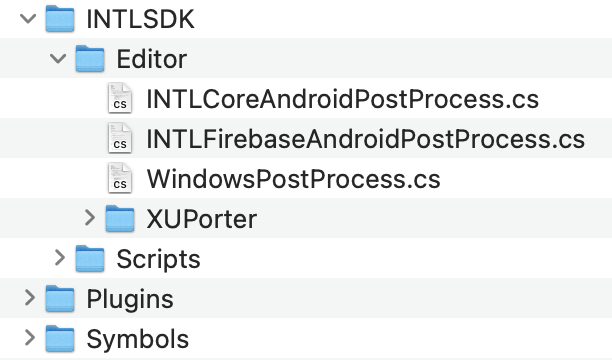
The Player Network SDK folder name has been changed from INTLSDKPlugin to INTLSDK, and the following changes have been made:
- The
INTLSDKPlugin/Source/INTLSDKPluginfolder was split into multiple plugin folders.These include theINTLCore,INTLConfig, andINTLFoundationfolders.Downloaded plugins will include these folders. - All basic configurations of the Player Network SDK have been moved to the new INTLConfig folder, including the
INTLConfig.iniconfiguration file, the SDK’s encryption features, Android Gradle configuration files, iOS property list files, and UPL XML files used to modify the iOS plist files. - The
INTLSDKPlugin/Source/INTLSDKPlugin/INTLPlugin.Build.csfile has been split, so each plugin folder now contains its own build script:INTLSDK/Source/INTL{Plugin}/INTL{Plugin}.Build.cs.For example,INTLSDK/Source/INTLConfig/INTLConfig.Build.cs.
Encryption Features
- Unity
- Unreal Engine
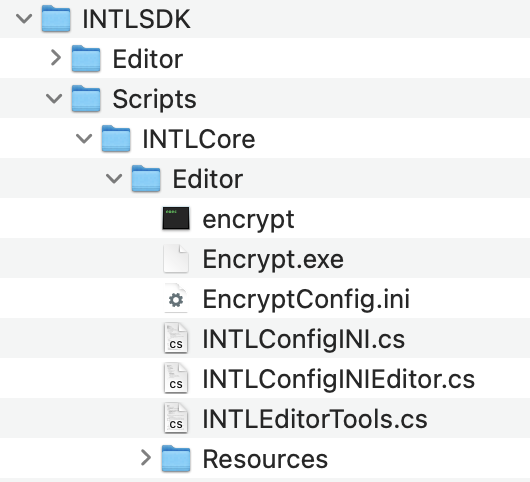
Before Update
There was no Encrypt folder, and files related to encryption were scattered in the Editor folder along with other editor configuration files, as shown below:
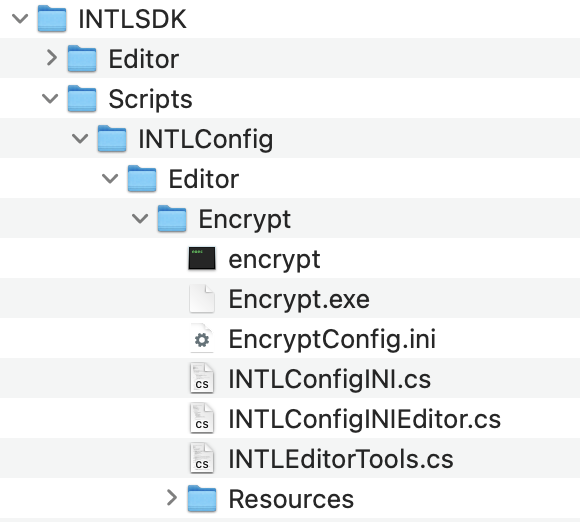
After Update
All files related to encryption features have been moved to the INTLSDK/Scripts/INTLConfig/Editor/Encrypt folder, as shown below:
Before Update
There was no Encrypt folder, and files related to encryption were scattered in the INTLSDKPlugin folder. The configuration file was EncryptConfig.ini.
After Update
The INTLSDK/Source/INTLConfig/Encrypt folder contains the executable files for the encryption feature, with the configuration file DefaultEngine.ini.
Configuration Files
- Unity
- Unreal Engine
Before Update
The configuration file path varies by platform:
- Android:
Assets/Plugins/Android/assets/INTLConfig.ini - iOS :
Assets/Plugins/iOS/INTLSDK/INTLCore/INTLSDK.bundle/INTLConfig.ini - Windows & PS5:
Assets/Plugins/x86_64/INTLConfig.ini
After Update
The configuration file path is consistent across all platforms: INTLSDK/Scripts/INTLConfig/Editor/Resources/INTLConfig.ini
Before Update
The configuration file path varies by platform:
- Android:
INTLSDKPlugin/Source/INTLSDKPlugin/INTLSDK/Android/assets/INTLConfig.ini - iOS :
INTLSDKPlugin/Source/INTLSDKPlugin/INTLSDK/iOS/INTLCore/INTLSDK.bundle/INTLConfig.ini - Windows & PS5:
INTLSDKPlugin/Source/INTLSDKPlugin/INTLSDK/resources/INTLConfig.ini
After Update
The configuration file path is consistent across all platforms: INTLSDK/Source/INTLConfig/Configs/Resources/INTLConfig.ini
Android Gradle Files
- Unity
- Unreal Engine
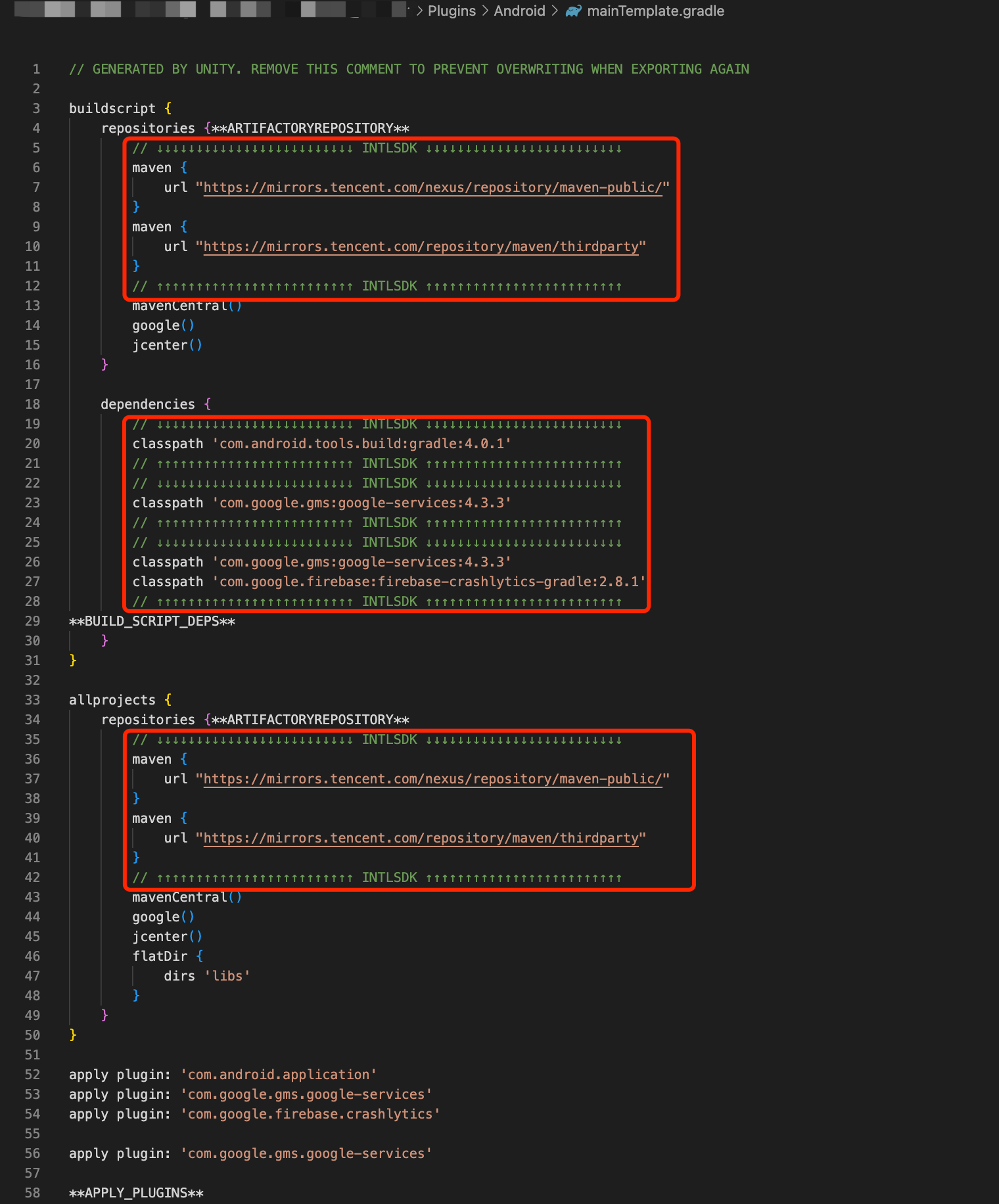
Gradle project files differ between Unity 2019 and earlier versions.Therefore, the changes for Unity 2018 and earlier and Unity 2019 and later will be described separately.
Unity 2018 and earlier versions
Before Update
All build instructions are specified in the Assets/Plugins/Android/mainTemplate.gradle file.
After Update
The Plugins/Android/mainTemplate.gradle file contains general build instructions, while plugin-specific instructions are split into each INTL{Plugin}.mainTemplate.gradle file.
Unity 2019 and later versions
Before Update
All Gradle project build instruction files:
Plugins/Android/mainTemplate.gradlePlugins/Android/baseProjectTemplate.gradlePlugins/Android/launcherTemplate.gradle
After Update
- General Gradle project build instruction files:
Plugins/Android/mainTemplate.gradlePlugins/Android/baseProjectTemplate.gradlePlugins/Android/launcherTemplate.gradle
- Plugin-related Gradle project build instruction files:
Plugins/Android/Gradle/INTL{Plugin}.mainTemplate.gradlePlugins/Android/Gradle/INTL{Plugin}.baseProjectTemplate.gradlePlugins/Android/Gradle/INTL{Plugin}.launcherTemplate.gradle
Before Update
All build instructions are specified in the INTLSDKPlugin/INTLSDK/Android/INTLCore_UPL.xml file.
After Update
The INTLSDK/Source/INTLConfig/Configs/Android/INTLConfig_APL.xml file contains general build instructions, while plugin-specific instructions are split into each INTLSDK/Source/INTL{Module}/Libs/Android/INTL{Module}_APL.xml file.
iOS Information Property List
- Unity
- Unreal Engine
C# Scripts
- Unity
- Unreal Engine
Upgrade Guide
- Unity
- Unreal Engine
-
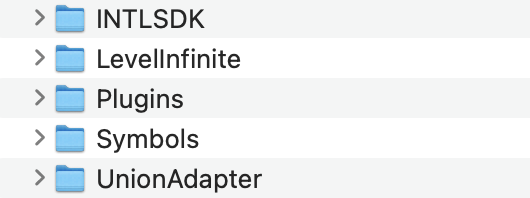
Download and unzip Player Network SDK V1.17 as instructed in Download Resources. The folder structure is as follows:
-
Replace the
INTLSDK/Scripts/INTLConfig/Editor/Resources/INTLConfig.iniconfiguration file with the version in your project that contains the correct settings.The previous version of the configuration file can be found at the following paths:
- Android:
Assets/Plugins/Android/assets/INTLConfig.ini - iOS:
Assets/Plugins/iOS/INTLSDK/INTLCore/INTLSDK.bundle/INTLConfig.ini - Windows:
Assets/Plugins/x86_64/INTLConfig.ini
- Android:
-
For Android, update the Gradle configuration files according to your Unity engine version.
Unity 2018 and earlier versions
-
Replace the placeholder configuration in the
Plugins/Android/Gradle/INTLCore.mainTemplate.gradlefile with the configuration from your project'sAssets/Plugins/Android/mainTemplate.gradlefile.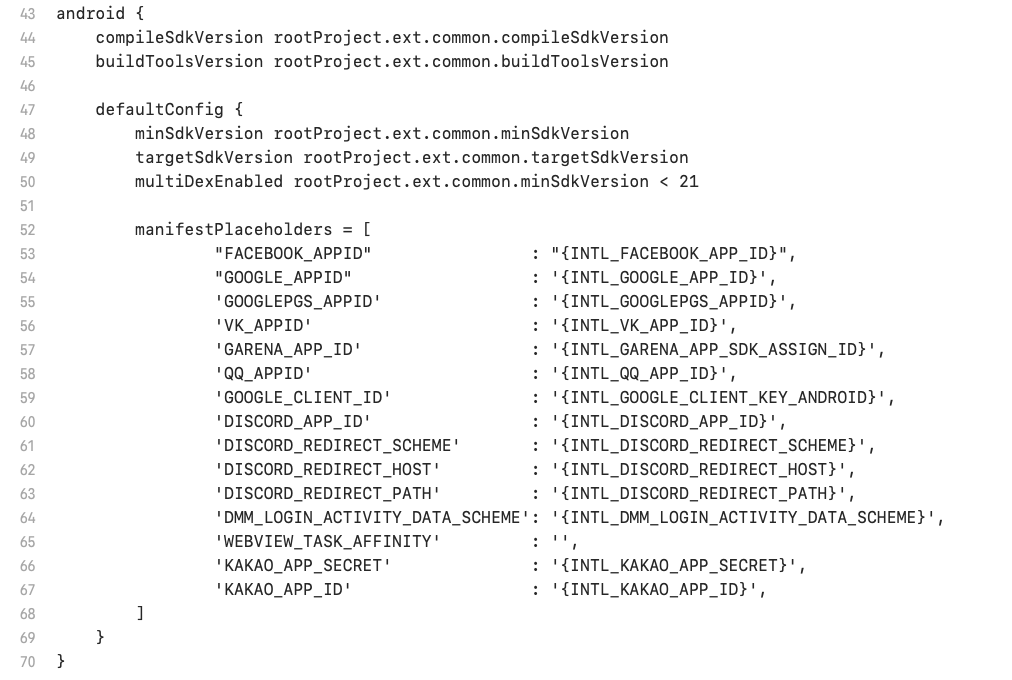
-
Merge your project's
Assets/Plugins/Android/mainTemplate.gradlefile into thePlugins/Android/mainTemplate.gradlefile in Player Network SDK V1.17.Player Network SDK configurations must be preserved.
Unity 2019 and later versions
-
Replace the placeholder configuration in the
Plugins/Android/Gradle/INTLCore.launcherTemplate.gradlefile with the configuration from your project'sAssets/Plugins/Android/launcherTemplate.gradlefile.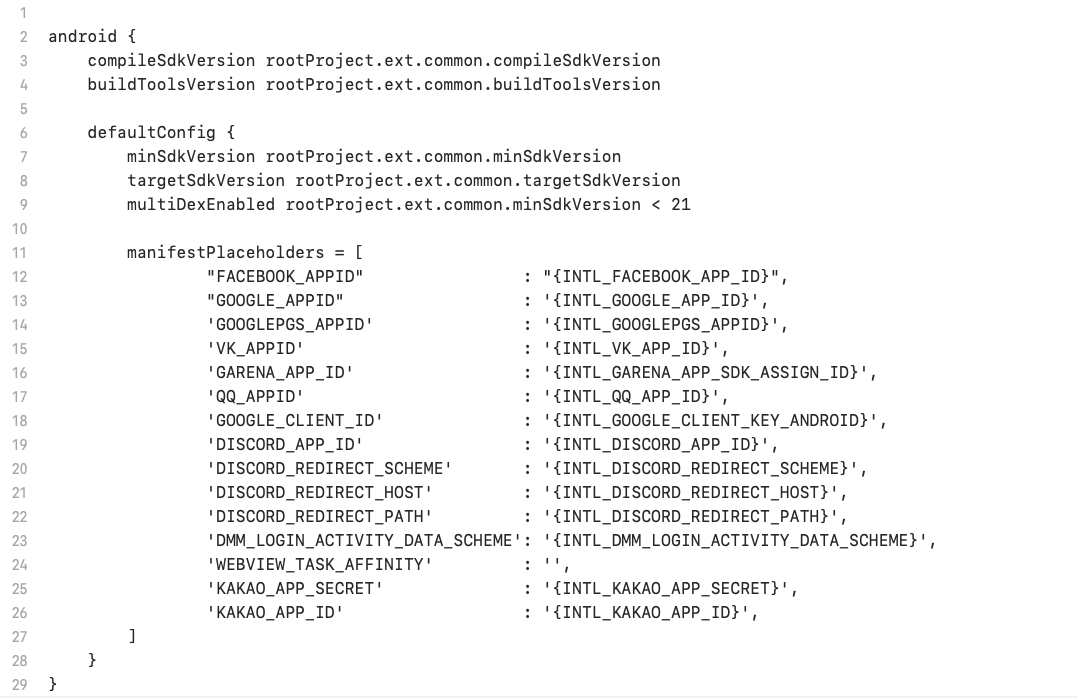
-
Merge the following files from your project into the corresponding files in Player Network SDK V1.17:
- Merge
Assets/Plugins/Android/mainTemplate.gradleintoPlugins/Android/Gradle/INTLCore.mainTemplate.gradle; - Merge
Assets/Plugins/Android/baseProjectTemplate.gradleintoPlugins/Android/Gradle/INTLCore.baseProjectTemplate.gradle; - Merge
Assets/Plugins/Android/launcherTemplate.gradleintoPlugins/Android/Gradle/INTLCore.launcherTemplate.gradle.
Player Network SDK configurations must be preserved.
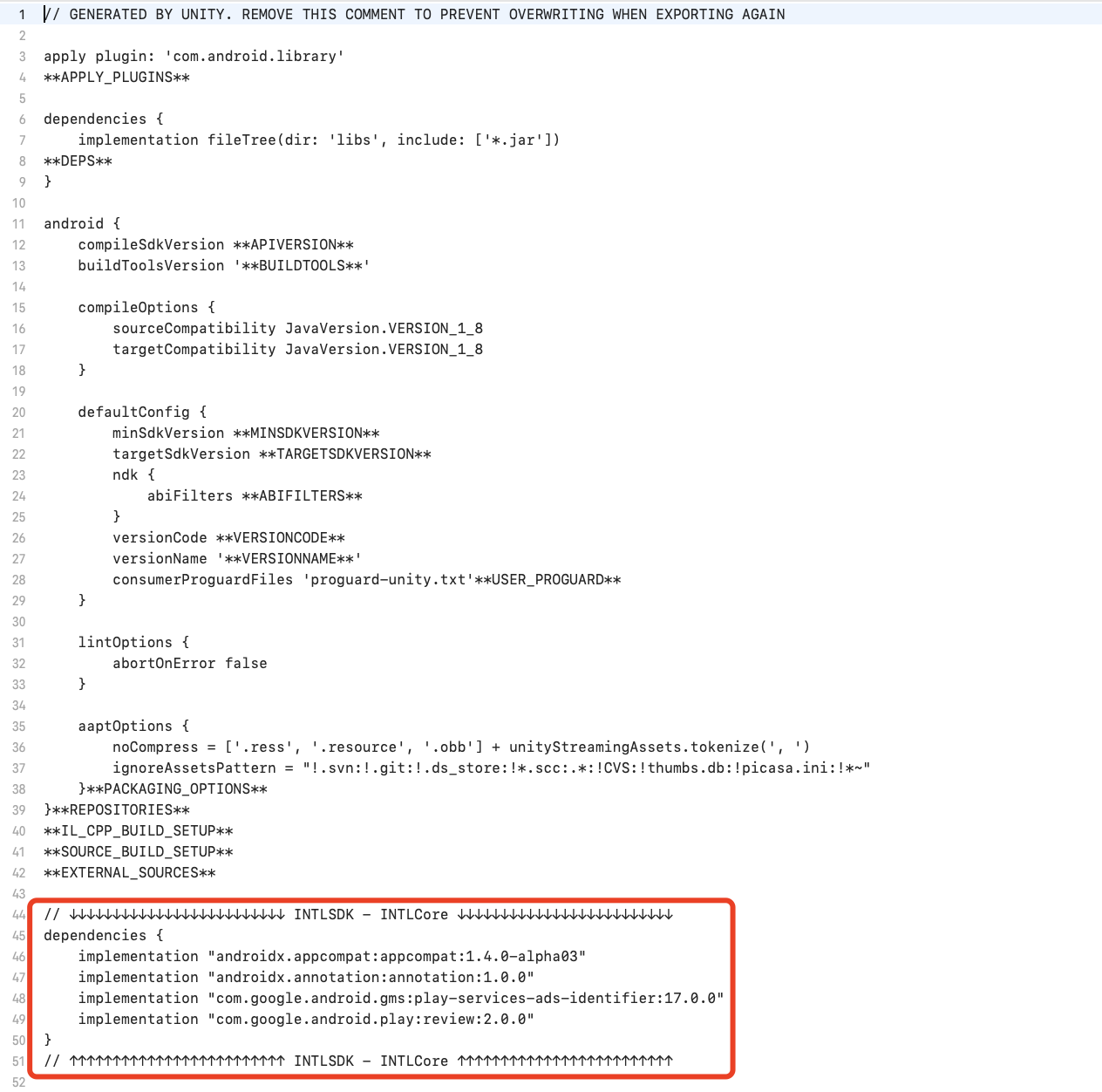
- Merge
-
Delete the
Assets/INTLSDKfolder from your project and replace it with theINTLSDKfolder from Player Network SDK V1.17. -
Delete files in the
Assets/Pluginsfolder related to the Player Network SDK.Example of files to delete:
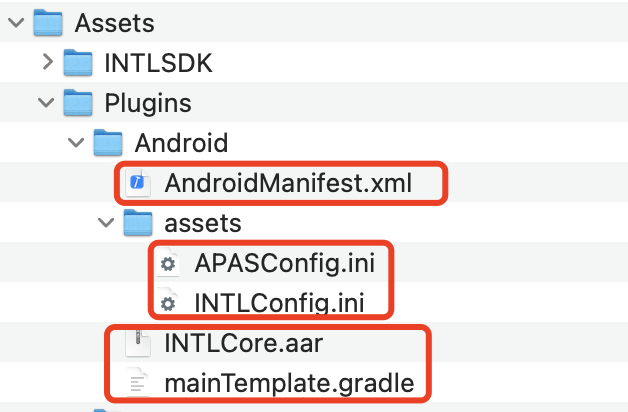
-
Merge the
Pluginsfolder from Player Network SDK V1.17 into your project'sAssets/Pluginsfolder.
-
Download and extract Player Network SDK V1.17 according to the instructions in Download resources. The folder structure is as follows:
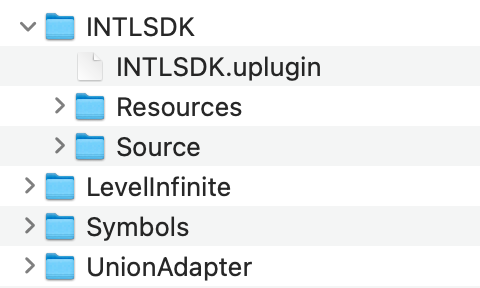
-
Replace the
INTLSDK/Source/INTLConfig/Configs/Resources/INTLConfig.iniconfiguration file with the version in your project that contains the correct settings.The previous version of the configuration file can be found at the following paths:
- Android:
Plugins/INTLSDKPlugin/Source/INTLSDKPlugin/INTLSDK/Android/assets/INTLConfig.ini - iOS:
Plugins/INTLSDKPlugin/Source/INTLSDKPlugin/INTLSDK/iOS/INTLCore/INTLSDK.bundle/INTLConfig.ini - Windows:
Plugins/INTLSDKPlugin/Source/INTLSDKPlugin/INTLSDK/resources/INTLConfig.ini
- Android:
-
For Android, replace the placeholder configurations in
INTLCDK/Source/INTLConfig/Configs/Android/INTLConfig_APL.xmlwith the configurations from your project’sINTLCore_UPL.xmlfile.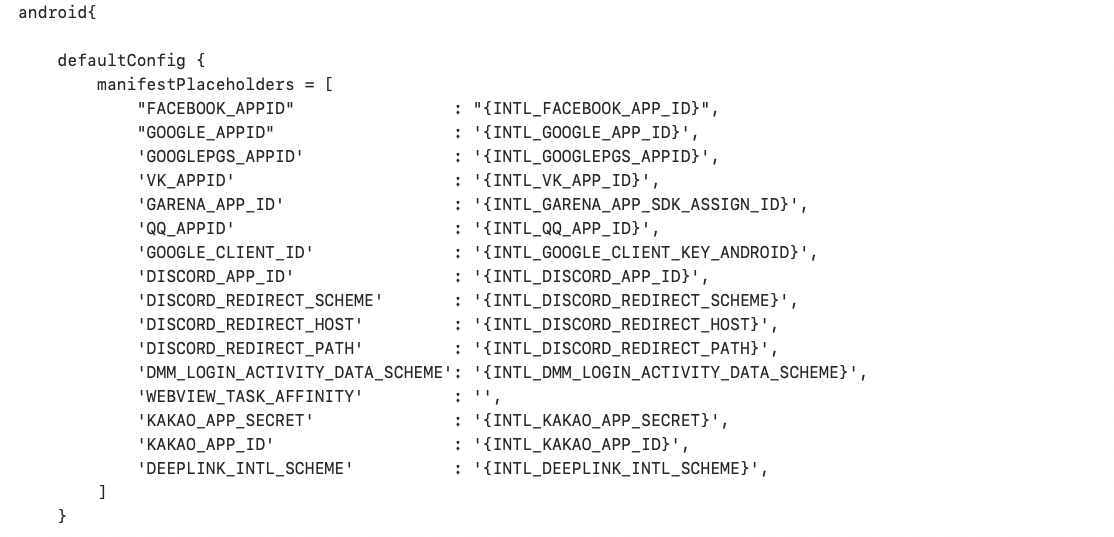
-
For iOS, replace the placeholder configuration in the
INTLSDK/Source/INTLPlugin/Libs/iOS/INTLPlugin_UPL.xmlfile with the configuration fromINTLSDKPlugin/Source/INTLSDKPlugin/INTLSDK/iOS/iOS_UPL.xmlin your project. -
Backup the
/Plugins/INTLSDKPlugin/Source/INTLSDKPlugin/INTLSDK/Android/googleservices.jsonand/Plugins/INTLSDKPlugin/Source/INTLSDKPlugin/IOS/iOS/GoogleService-Info.plistfiles. -
Delete the
Plugins/INTLEncryptandPlugins/INTLSDKPluginfolders from the project. -
Place the V1.17 version of the
INTLSDKfolder, with configurations updated to match your project, into the project’sPluginsfolder. -
Save the files backed up in step 5 as
/Plugins/INTLSDK/Source/INTLFirebase/Libs/Android/googleservices.jsonand/Plugins/INTLSDK/Source/INTLFirebase/Libs/iOS/GoogleService-Info.plist. -
Open the
{Project}.Build.csfile and update thePrivateDependencyModuleNames.AddRange(new string[] { "INTLPlugin" });section to:PrivateDependencyModuleNames.AddRange(new string[] {
"INTLCore",
"INTLFoundation"
});
Notes
-
To avoid dependency conflicts with the Android
com.google.android.play.corelibrary, split the dependency libraries and rename the task packages according to the instructions in Migrating from Play Core Java and Kotlin libraries.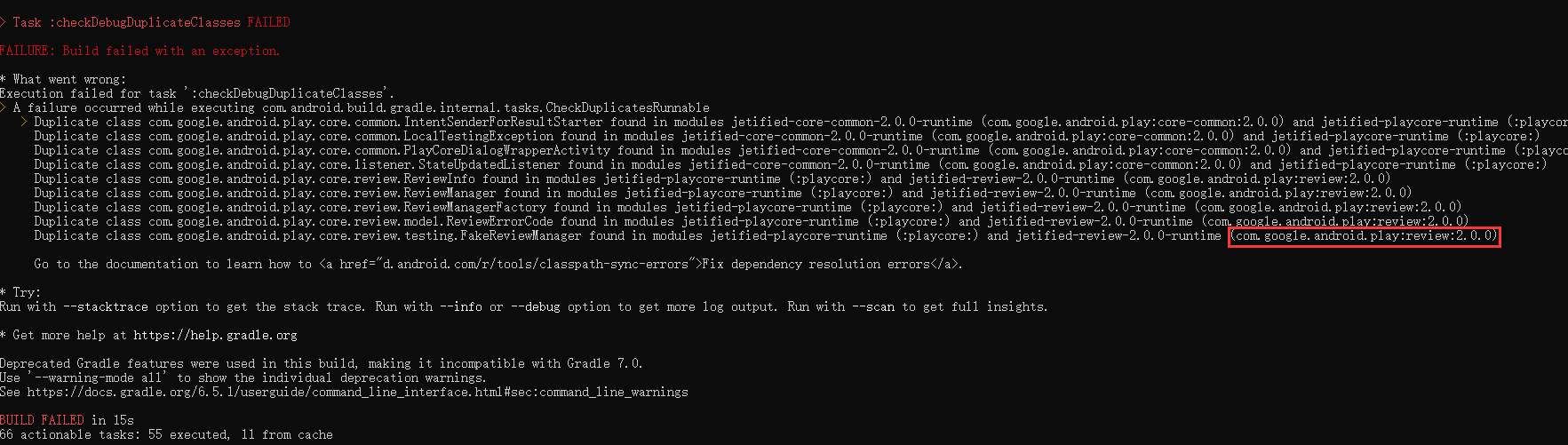
-
In Player Network SDK 1.17, the
extfield for Android projects has been moved toINTLCore.mainTemplate.Gradle, which includes the line:apply from: "$rootDir/INTL.Gradle/INTLCore.mainTemplate.gradle".Therefore, theextfield is still valid.However,commonVersionsis no longer valid, and onlycommoncan be used within theextfield.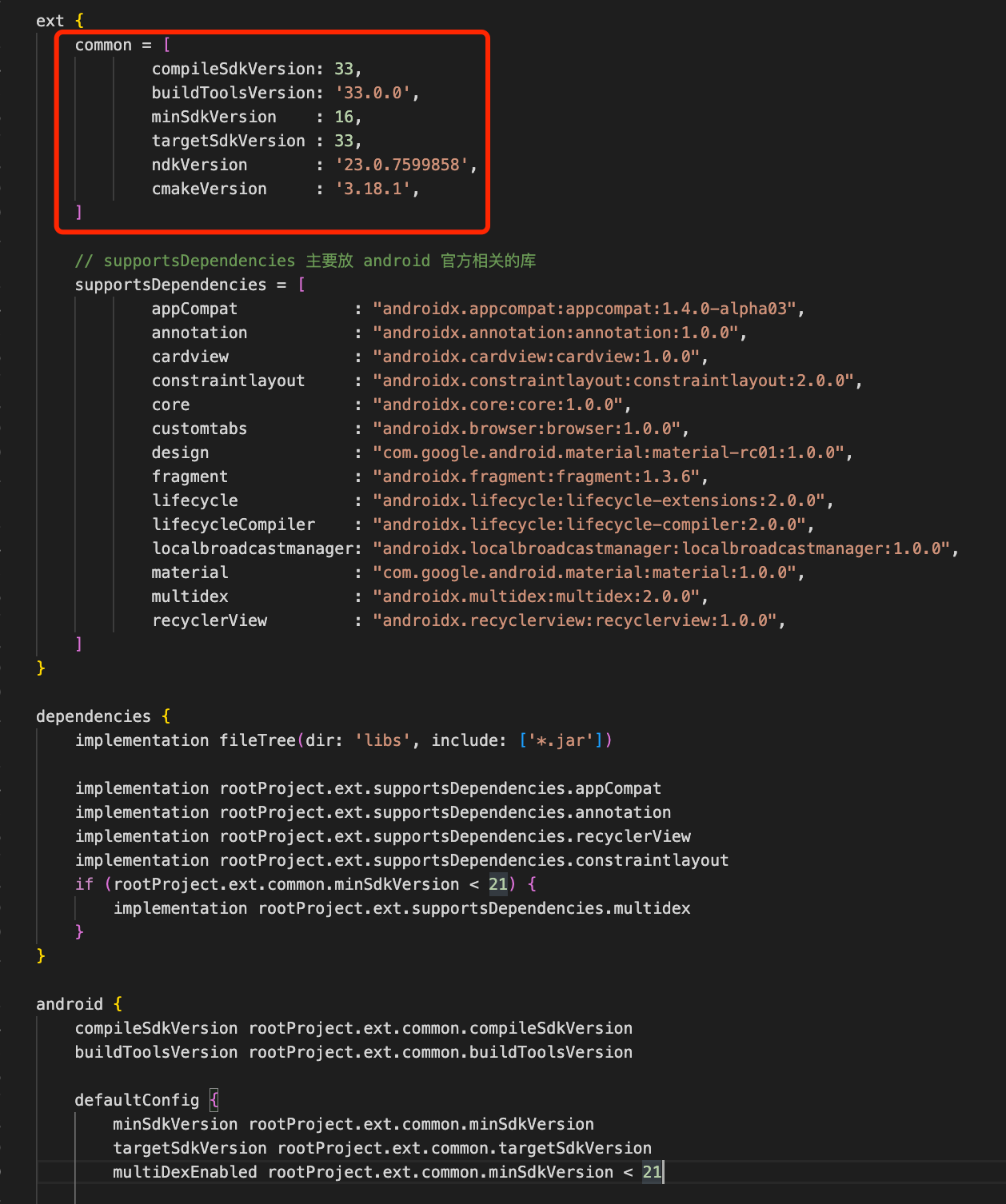
-
The
compileSdkVersion,buildToolsVersion,minSdkVersion, andtargetSdkVersionin the Android Gradle fileext.commonfield are upgraded according to Google Play requirements.If your project does not need to be published on Google Play, you can revert to the previous versions. -
Two new versions are specified in the
ext.commonfield:ndkVersionandcmakeVersion.If your project does not require them, these can be left unconfigured. -
For
minSdkVersion 23and above, the newly addedoverrideLibraryinAndroidManifest.xmlis not required.These fields were added to the SDK because the defaultminSdkVersionis 16, but specifying plugin package names that are not used does not affect the project’s functionality.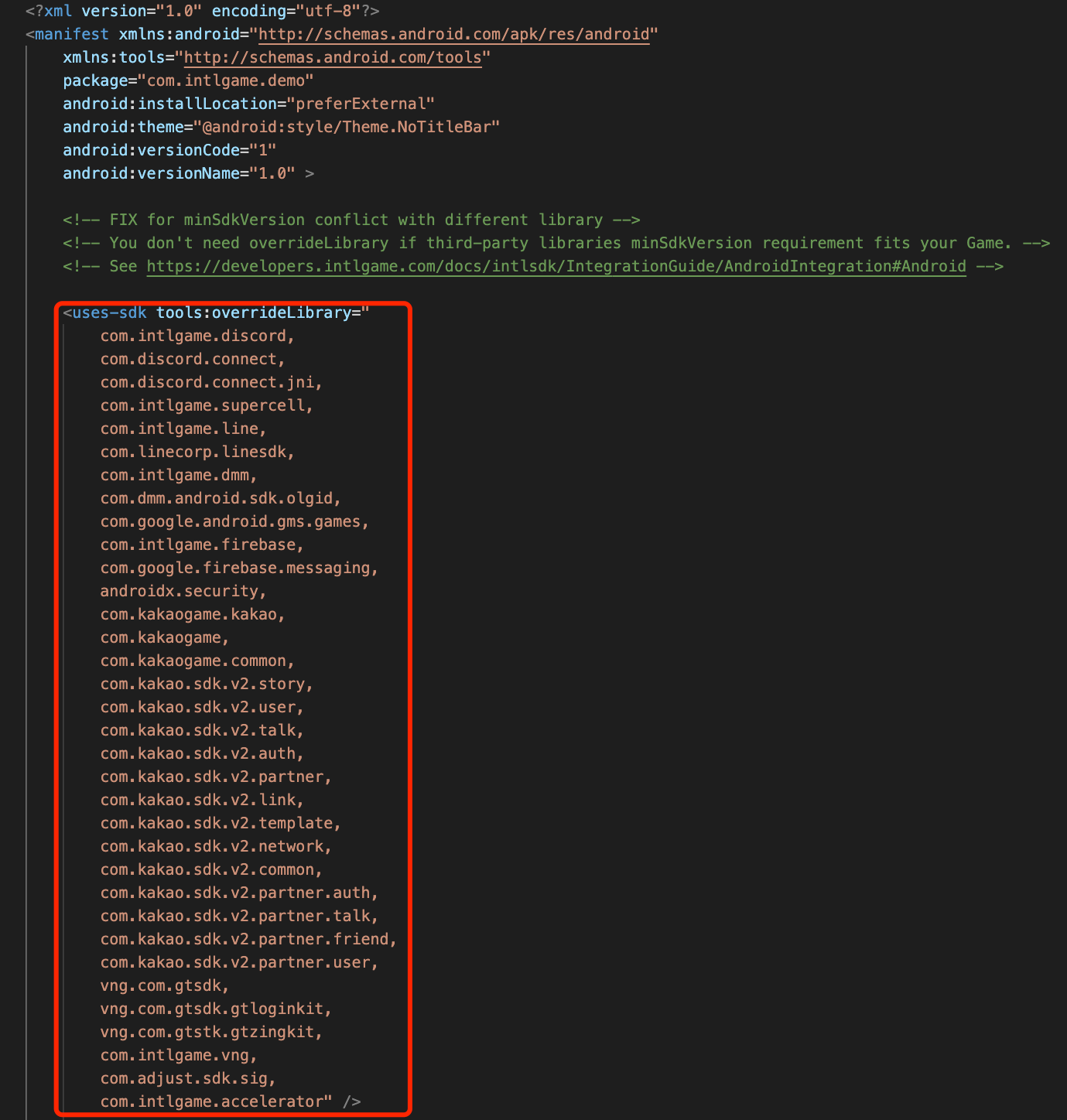
-
For
targetSdkVersion: 33, required system permissions must be updated.-
To enable push notifications, add
<uses-permission android:name="android.permission.POST_NOTIFICATIONS"/>in the manifest file. -
Replace
android.permission.READ_EXTERNAL_STORAGEandandroid.permission.WRITE_EXTERNAL_STORAGEwith the following permissions:<uses-permission android:name="android.permission.READ_MEDIA_IMAGES" />
<uses-permission android:name="android.permission.READ_MEDIA_AUDIO" />
<uses-permission android:name="android.permission.READ_MEDIA_VIDEO" />
-
-
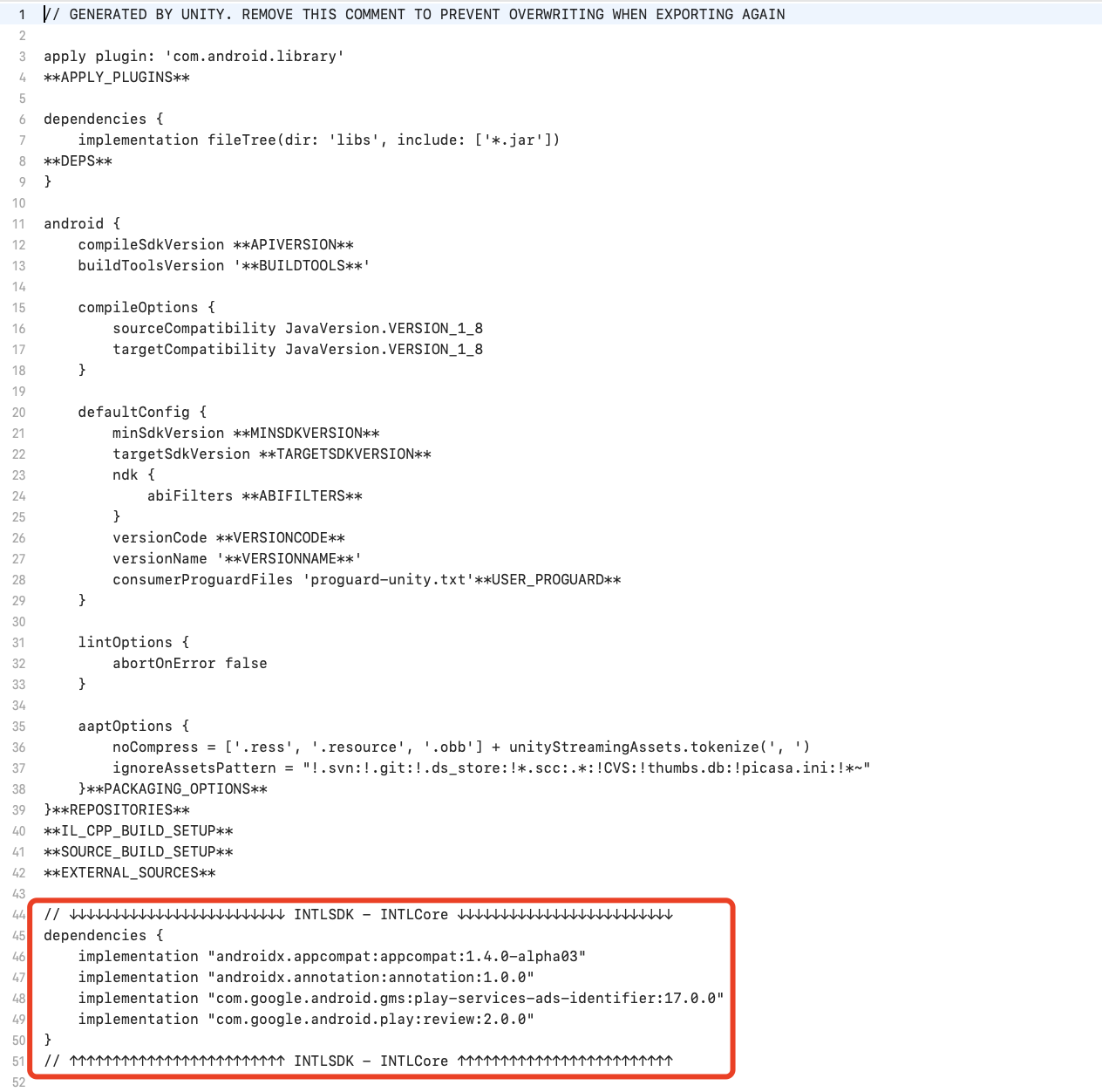
If you need to update dependencies in Android Gradle, change:
compile fileTree(dir:'libs',include:['*.jar'])toimplementation fileTree(dir:'libs',include:['*.jar']). Then copy the Gradle modifications indicated by the arrows in the figure to the corresponding files.