Upgrade to V1.18
SDK V1.18 now supports iOS permission requirements. When requesting sensitive permissions, provide a usage description.When permissions are requested, the system will display a popup informing the user of the purpose of the sensitive permission request.Additionally, this update simplifies the iOS information property list files in the Unreal Engine version of the INTLConfig plugin, making the configuration process easier.
For the complete update details, see V1.18 Update Log.
Upgrade Impact
If your project requests sensitive permissions but does not provide usage descriptions, it will fail Apple’s App Review.Therefore, for projects aiming to release on iOS, it is necessary to upgrade to this SDK version to provide usage descriptions for sensitive permissions requested by the SDK.
Upgrade Content
- Unity
- Unreal Engine
The following keys have been added for usage descriptions:
The following keys have been added for usage descriptions:
NSPhotoLibraryUsageDescriptionNSCameraUsageDescriptionNSLocationWhenInUseUsageDescriptionNSPhotoLibraryAddUsageDescriptionNSMicrophoneUsageDescriptionNSUserTrackingUsageDescription
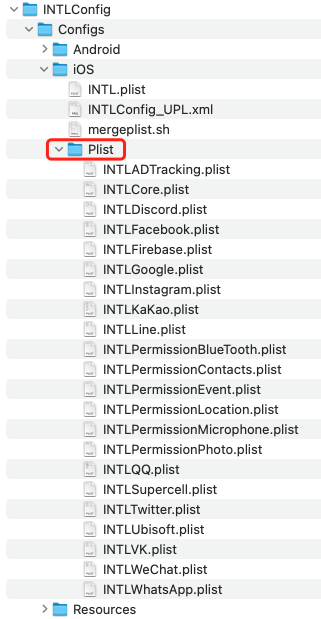
The iOS information property list files are located in the INTLSDK/Source/INTLConfig/Configs/iOS/Plist directory.Each INTL{Plugin}.plist is the Info.plist configuration file for the corresponding iOS Player Network SDK plugin.Projects should modify the values in these files according to the plugin configuration.
Upgrade Guide
Before changing the default usage descriptions, consult your legal team to ensure the content is compliant.If the default usage descriptions already match the purpose of the game accessing sensitive permissions, simply replace INTLSample with the corresponding game name.
- Unity
- Unreal Engine
-
In
Assets/INTLSDK/Editor/XUPorter/Mods~/INTLCoreKit.projmods, modify the following key values to reflect the actual purpose displayed, or directly replace INTLSample with the corresponding game name."NSPhotoLibraryUsageDescription"
"NSCameraUsageDescription"
"NSLocationWhenInUseUsageDescription"
"NSPhotoLibraryAddUsageDescription"
"NSMicrophoneUsageDescription" -
In
Assets/INTLSDK/Editor/XUPorter/Mods~/INTLADTrackingKit.projmods, modify the following key values to reflect the actual purpose displayed, or directly replace INTLSample with the corresponding game name."NSUserTrackingUsageDescription"
-
In
Plugins/INTLSDK/Source/INTLConfig/Configs/iOS/Plist/INTLCore.plist, modify the following key values to reflect the actual purpose displayed, or directly replace INTLSample with the corresponding game name.<key>NSPhotoLibraryUsageDescription</key>
<key>NSCameraUsageDescription</key>
<key>NSLocationWhenInUseUsageDescription</key>
<key>NSPhotoLibraryAddUsageDescription</key>
<key>NSMicrophoneUsageDescription</key> -
In
Plugins/INTLSDK/Source/INTLConfig/Configs/iOS/Plist/INTLADTracking.plist, modify the following key values to reflect the actual purpose displayed, or directly replace INTLSample with the corresponding game name.<key>NSUserTrackingUsageDescription</key> -
Open Unreal Engine > Settings > Project Settings > Platforms > iOS > Extra Plist Data, and copy and save its configuration.
-
In the
INTLSDK/Source/INTLConfig/Configs/iOS/Plistdirectory, locate theINTL{Plugin}.plistfiles and replace the{placeholder}values with the configuration saved in the previous step.The example below uses
INTLFacebook.plist, where the values inside braces should be replaced with actual configuration.To allow the SDK scripts to automatically merge configurations for all plugins, ensure that each plugin has a correspondingINTL{Plugin}.plistfile.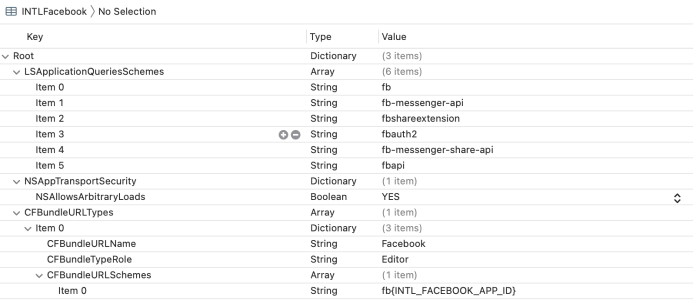
Notes
Ensure that usage descriptions provided when requesting sensitive permissions comply with regulations.

