Hot Update Integration
Introduction to Hot Update
LIPASS includes a cross-engine hot update framework, supporting Unity and Unreal, mainly solving the issue of LIPASS content updates after the game goes live. Once the hot update is released, the game doesn't need to be repackaged, simply restarting will update the LIPASS content.
Hot Update Process
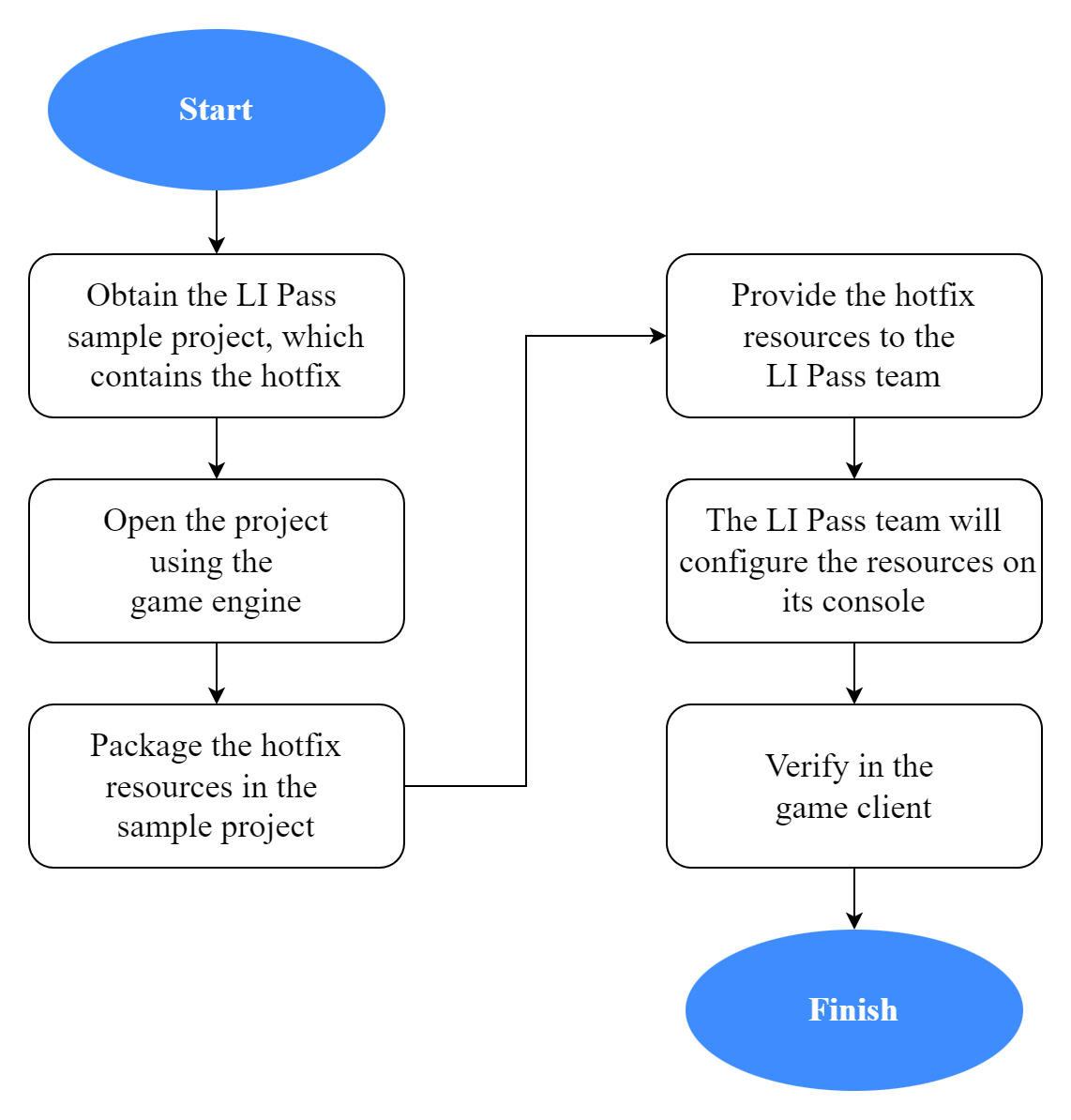
- Unity
- Unreal Engine
The Unity engine is closed-source. The game project team only needs to initialize LIPASS according to the format required by the LIPASS team and provide the corresponding game package, after which the LIPASS team will handle the hot update package creation and validation process.
The Unreal engine is open-source. The game project team will modify parts of the engine source code as needed. The Unreal hot update file Pak packaging relies on the local engine environment of the game project team. LIPASS provides tools to assist the Unreal game project team in quickly creating Pak files for LIPASS content.
Hot Update Steps
- Obtain the
Sample Project, before opening, ensure that the critical pluginsINTLSDKandLevelInfinitepaths are consistent with the game project, and if consistent, open theSample Projectusing the engine used by the game.
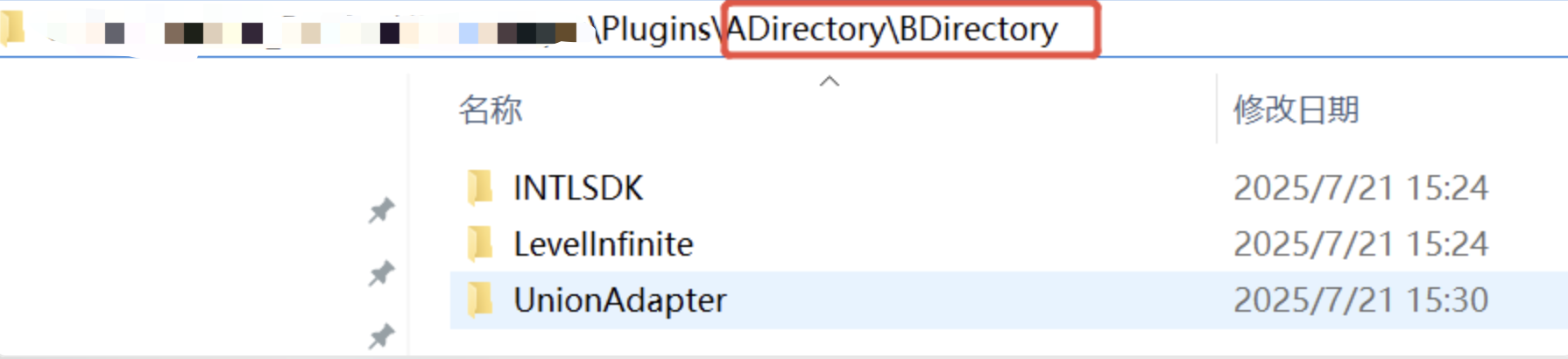
As shown in the image above, for example, if INTLSDK and LevelInfinite under the game project are placed in the Plugins/ADirectory/BDirectory directory, then INTLSDK and LevelInfinte inside the Sample Project should also be placed in the Plugins/ADirectory/BDirectory directory to maintain consistency.
- In the menu, find LITools -> Pak Build Tool menu, and open it.

After opening, you will see the following interface:
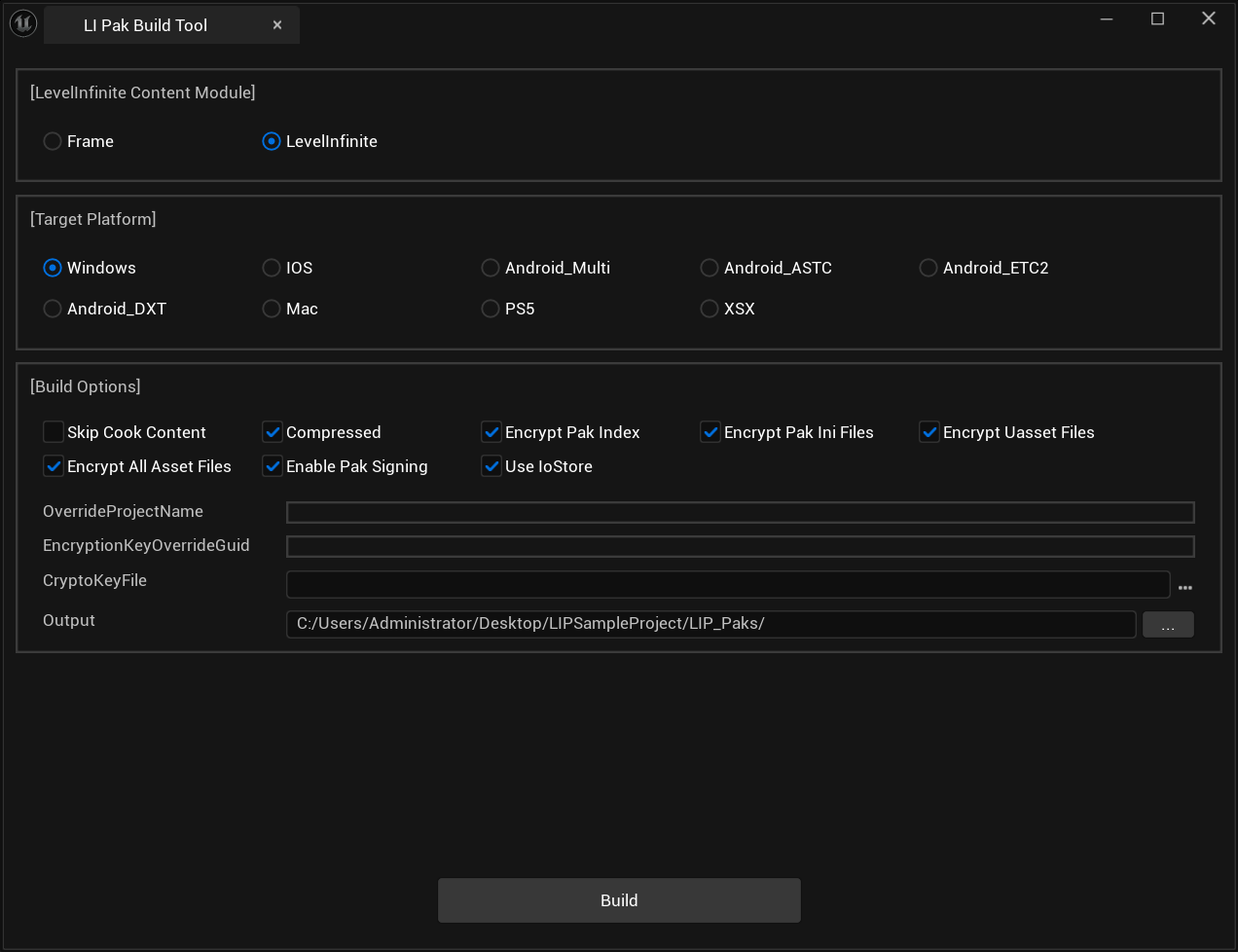
LevelInfinite Content Module: Default check LevelInfinite to include the main content of LIPASS, including image resources, interface blueprints, Lua files, etc.Corresponds to the LevelInfinite folder in the Content directory of the LevelInfinite plugin.
Target Platform: Check the required platforms as needed, currently does not support multi-selection.
- Configure encryption/signature parameters
Games generally perform Pak package encryption or signing. Please synchronize the packaging configuration from the game project to the Sample Project.The simplest way is by replacing the DefaultCrypto.ini file.
Steps: Use the game's file GameProject\Config\DefaultCrypto.ini to copy and replace the Sample Project\Config\DefaultCrypto.ini file.
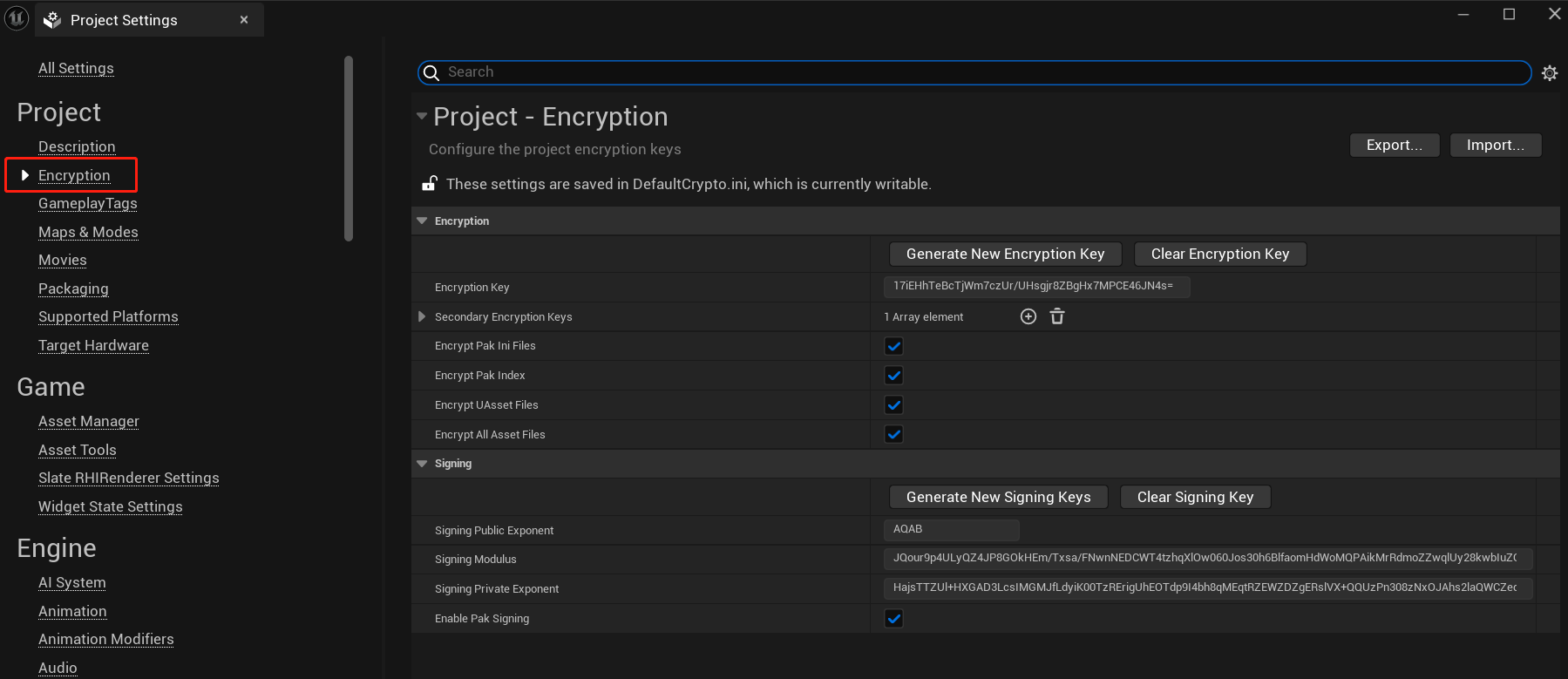
To ensure correct replacement, you can compare parameters through Editor\Project Settings\Encryption.
- Configure the
UseIoStoreparameter
IoStore is part of the new loading system implemented in UE 4.25 that can store IO information, improve IO performance, and accelerate loading.
The Sample Project must maintain consistency with the UseIoStore parameter of the game project.
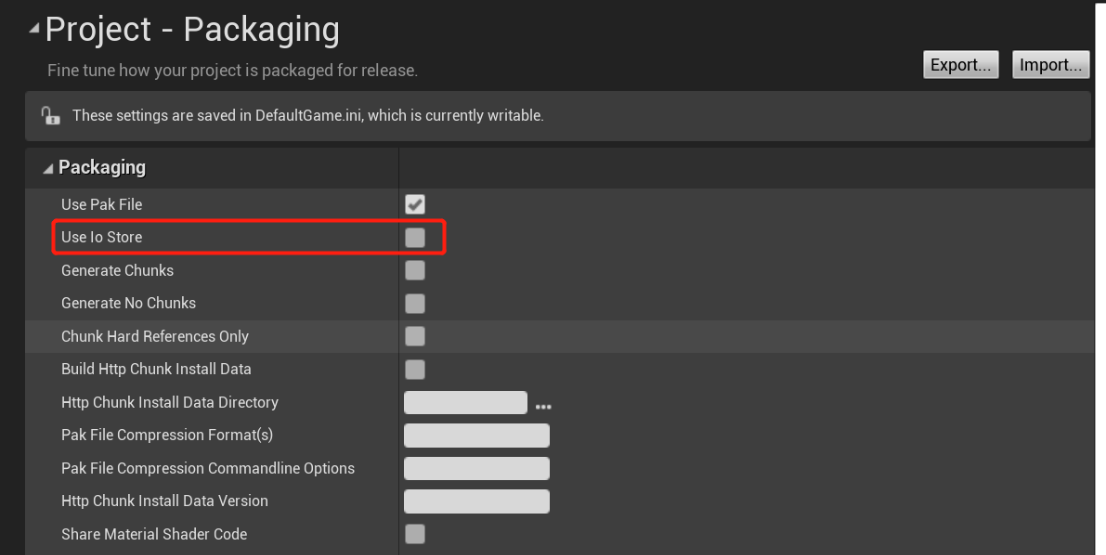
After enabling IoStore, when building pak files, three files will be generated: .pak, .utoc, .ucas.
- Configure the
OverrideProjectNameparameter:
Configure OverrideProjectName to ensure consistent MountPoint for successful hot update loading.
This parameter should be OverrideProjectName, for example, if the game project's file name is GameProject.uproject, then this parameter is GameProject.
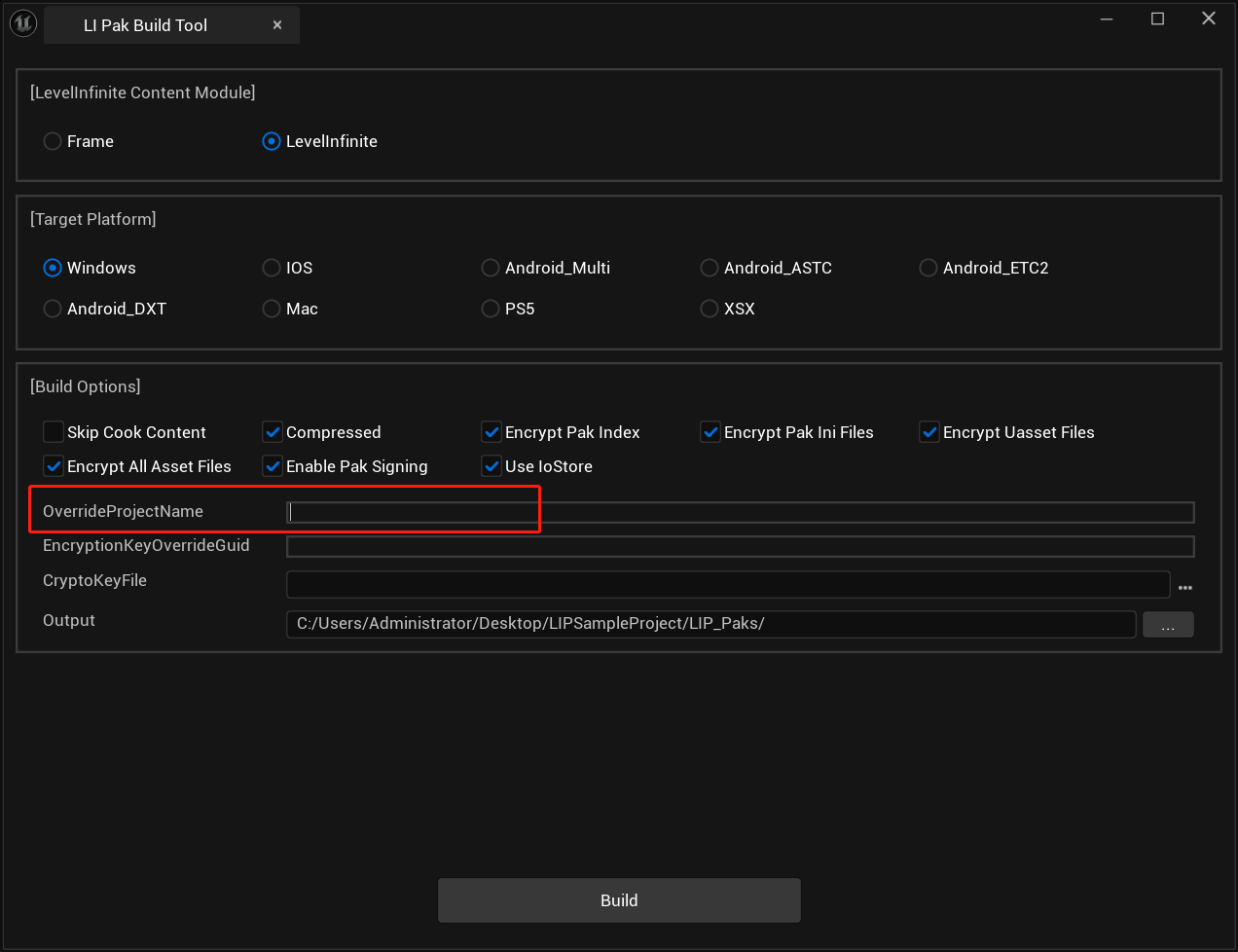
- Click Build to package:
During the packaging process, the project will be cooked and the packaged files are located in the Output directory.
- Please check the files in the
Outputdirectory according to the verification steps.
Verification
- The game project team uses
UnrealViewer.exeto check whether the internal structure and MountPoint of the generated Pak files are normal.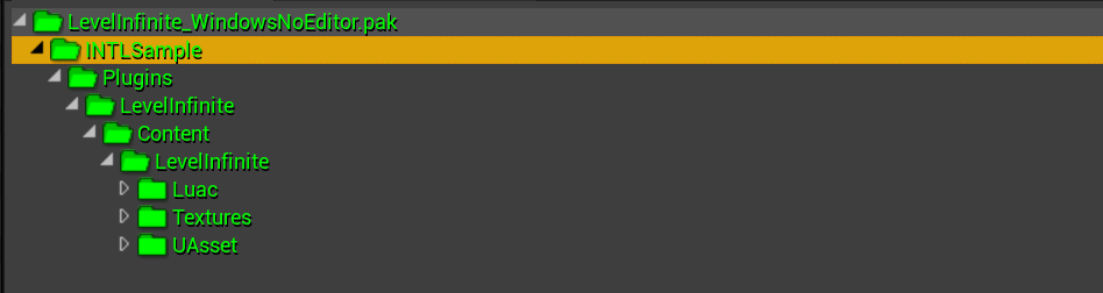
- After the Pak files and game installation package are sent to the LIPASS team, the LIPASS team performs function acceptance.

