Release Production Environment
Overview
When the game is facing external players (including: CBT, OBT, EL, and SL), regardless of how many external players participate, it's necessary to switch the environment from testing to production.
Tasks for switching to production environment:
- Switch client and backend request URLs to the production environment URLs.
- Check and update INTLConfig.ini file configurations, such as disabling logs.
- LI Pass functionality check.
- Third-party channel configuration check.
Switch Production Environment
During development, TEST environment (https://test.intlgame.com) is used.
When the business goes live, obtain the production environment cluster information based on the server Get Production Environment Cluster Info.
Contact Player Network Assistant one week in advance to switch to the production environment and check each item in the checklist below.
The environments of the client and backend must match.
Client
LI PASS Package
Basic Check
| Checklist Items | Operation Steps |
|---|---|
| Check LI PASS Initialization Interface | Confirm the game uses the latest initialization interface initLIP (LI PASS V1.16.00 and later versions) |
| Game Screen Orientation Support | Confirm whether the game is landscape or portrait upon launch, and whether screen orientation switching is required You can switch the interface orientation using the configuration LEVEL_INFINITE_ACTIVITY |
| UpdateConfig API | Confirm whether the game code uses the UpdateConfig interface. Note: The configuration set by this interface has the highest priority and will override the settings delivered by cloud control. It is recommended to use it only in special cases. |
| Environment Address | Unzip the package and check the INTL_URL field to confirm it is the production environment address. |
| Log Switch | Unzip the package and check the LOG_LEVEL field, and verify whether the Player Network console has any "[INTL]" related output. |
Compliance Terms Check
| Checklist Items | Operation Steps |
|---|---|
| Terms of Service URL | Confirm whether to enable and configure GAME_TOS_URL in INTLConfig.ini |
| Privacy Agreement URL | Confirm whether to enable and configure GAME_PP_URL in Player Network Console |
INTLConfig.ini File Configuration
| Field | Description | Modification Content |
|---|---|---|
| INTL_URL | Player Network SDK backend service URL configured for different environments. | Modify to Production Environment Address for the business. |
| LOG_LEVEL | Log Level | Set to 0 during the first round of production environment acceptance, and after acceptance, it is recommended to use 2 or 3 When LOG_LEVEL > 1, DEBUG_CHANNEL becomes invalid. |
| LOG_CONSOLE_OUTPUT_ENABLE | Log output to console | Set to 1 during the first round of production environment acceptance, and after acceptance can be set to 0. |
| LOG_FILE_OUTPUT_ENABLE | Log output to file | Set to 1 during the first round of production environment acceptance, and after acceptance can be set to 0. |
| LOG_ENCRYPT_ENABLE | Encrypt Logs | If LOG_CONSOLE_OUTPUT_ENABLE and LOG_FILE_OUTPUT_ENABLE are not 0, this item must be 1. |
| ACCOUNT_URL | LI PASS backend service URL, optional for LI PASS V1.16 and later versions. | Set the production environment service URL. |
| ACCOUNT_SDK_KEY | LI PASS Information | Must correspond with the value on the Player Network console. |
| ACCOUNT_APP_ID | LI PASS Information | Must correspond with the value on the Player Network console. |
| GAME_PP_URL | Game Privacy Agreement URL, displayed in the region selection interface and personal center legal terms interface. | Set the Privacy Agreement URL. |
| GAME_TOS_URL | Game Terms of Service URL, displayed in the region selection interface and personal center legal terms interface. | Set the Terms of Service URL. |
| COMPLIANCE_NEW_CREDIT_CARD_VERIFY | Switch Credit Card Verification URL Configuration, supported from LI PASS V1.17.01 and later versions. | Default value: 0 |
| COUNTRY_ALLOW_LIST | Country whitelist, need to configure COUNTRY_BLOCK_LIST | Display the corresponding countries, using values that comply with the ISO 3166-1 standard. If the field is empty, display all countries. |
| COUNTRY_BLOCK_LIST | Country list blacklist, COUNTRY_ALLOW_LIST must be configured | Do not display the corresponding countries, using values that comply with the ISO 3166-1 standard. If the field is empty, no action will be taken. |
For more information, see SDK Configuration.
Multilanguage
| Checklist Items | Operation Steps |
|---|---|
| Publishing Countries | Confirm the published and blocked countries, and configure the COUNTRY_ALLOW_LIST and COUNTRY_BLOCK_LIST according to the ISO 3166-1 standard. |
| Multilanguage Support | Confirm which languages need to be supported on launch, and list supported languages according to Language Type Definition You can switch using the SetLanguage interface |
Special Features
Confirm whether the business supports the following features:
- Hotfix
- PC gamepad adaptation
- Underage Messaging
- Cross-Platform Login
- Gift Package
- Console QR Code Scan
If support is needed, contact the Player Network Assistant for functionality testing and configuration verification.
Unity C# Log Switch
Disable Unity C# logs when releasing to production.
INTLAPI.isDebug = false;
Server
Do not perform stress testing in the Player Network SDK production environment.If the game needs to perform stress testing on its own module, it is recommended to simulate authentication requests from the Player Network SDK.If stress testing of account services is needed, contact the Player Network Assistant in advance.
Modify the backend to use the Player Network SDK production environment domain name address for requests.Domain name address needs to be configured according to Published Regions, contact the Player Network Assistant for details.
Account
Account Cancellation
When switching to production environment, if the business is not deleting the account through the service center, then the corresponding production environment URL and intl_cluster need to be replaced in the deletion interface.
Third-party Channel Release Configuration
Limited to certain channels and cannot cover all platforms, for details please refer to individual platform guidelines.
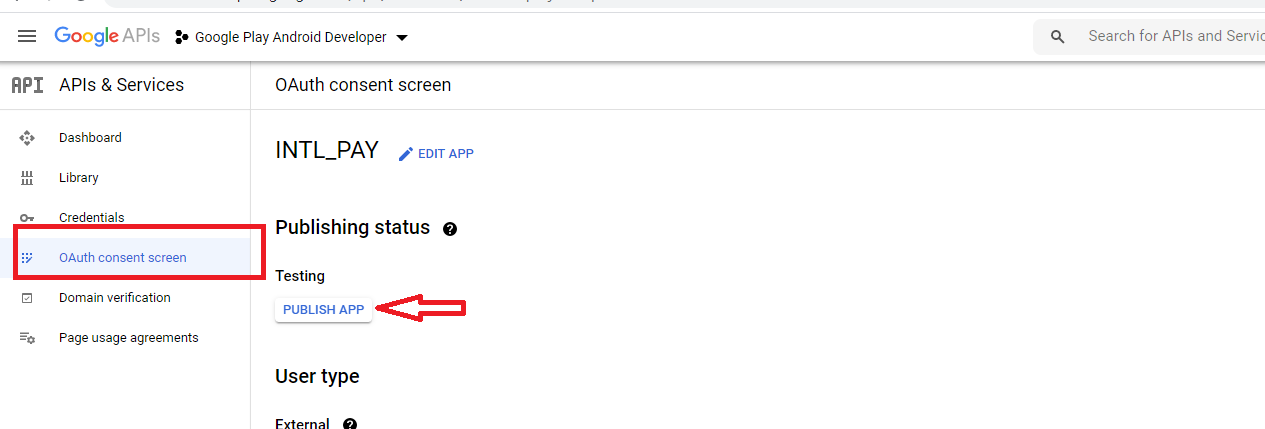
Google Configuration
Modify Publishing status to PUBLISH APP.
Facebook Configuration
Modify App Mode to Live.

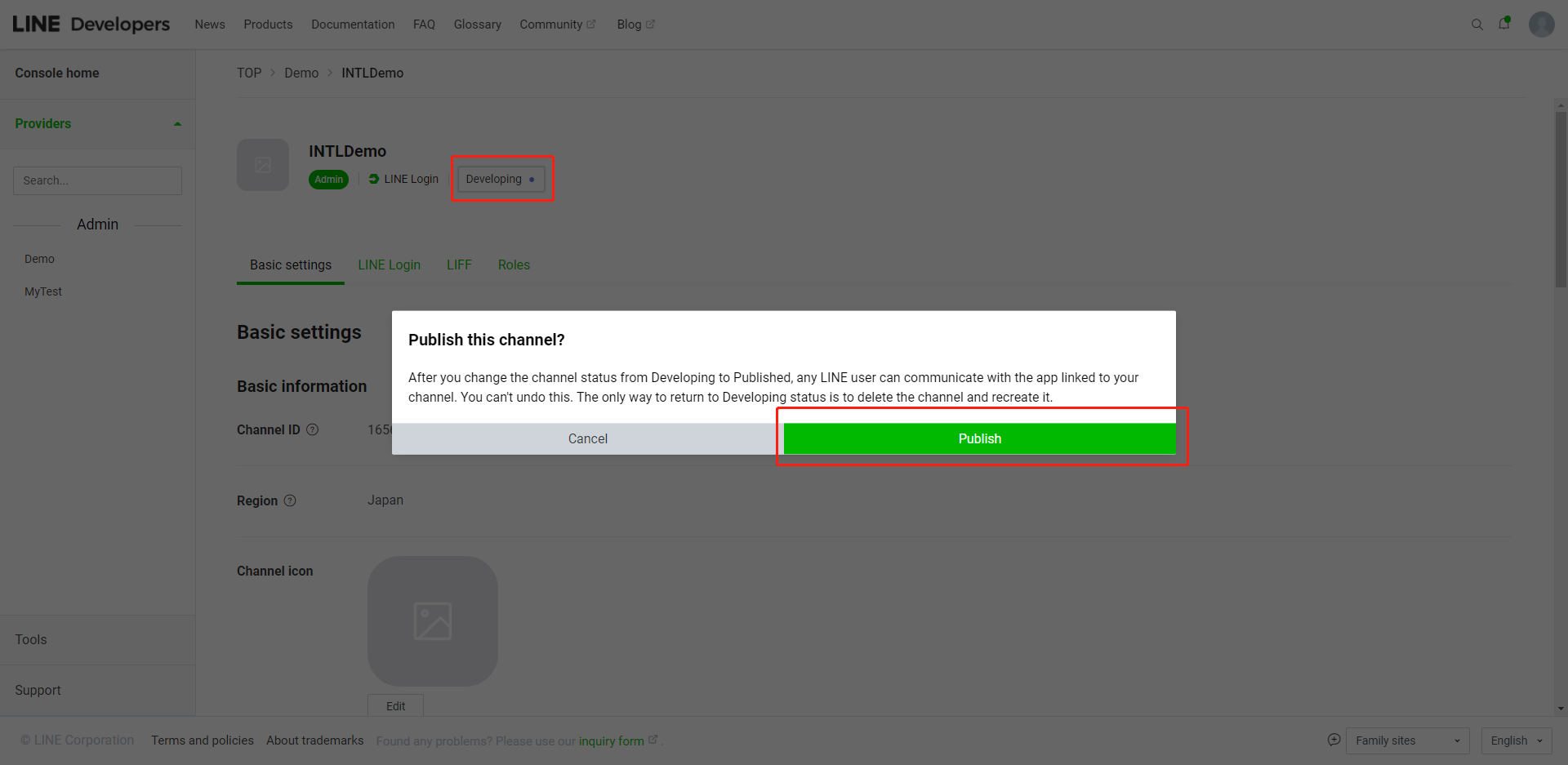
Line Configuration
To enable LINE login function for players, set the channel to Published.
Steam Configuration
- Delete
steam_appid.txtfrom the game executable file directory, otherwise it may affect the game's login to the Steam platform. - Modify Steam channel
AppIDin Player Network console to game's App ID,AppKeyto Steam account's Steam Web API Key, then Player Network SDK will correctly initiate Steam login. - (Optional) After the game is fully released, configure the
STEAM_APPIDfield in the INTLConfig.ini file.If this field is configured, Steam platform will check whether the game was launched from Steam, if not, it will restart the game and attempt to launch it from Steam.
[Steam]
STEAM_APPID = {INTL_STEAM_APP_ID}
Replace {INTL_STEAM_APP_ID} with the Steam app ID applied for the business.

