Custom UI Scaling
From the perspective of UI design for games, it is required that the LEVEL INFINITE PASS interface can change its scaling ratio. This section introduces the method of setting using SetUICustomScale.
Currently, LEVEL INFINITE PASS only supports UI scaling adjustments in Unreal Engine games.
LI PASS UI resolution:
Android, iOS (Landscape): 1334x750
Android, iOS (Portrait): 750x1334
PC, PS5, XSX: 1920x1080
Switch: 1280x720
Background
Based on the game's design resolution and the LEVEL INFINITE PASS design resolution, a scaling ratio is specified based on the short edge, which is also SetUICustomScale's parameter. Unreal Engine then adapts this to different screen resolutions through the DPI scaling curve.
Taking mobile as an example, the game's design resolution is usually 1920x1080, while LEVEL INFINITE PASS mobile is 1336x750:
Specify a scaling ratio by the short edge, with the expected value of 1080/750 = 1.44, so set the parameter for SetUICustomScale to 1.44.
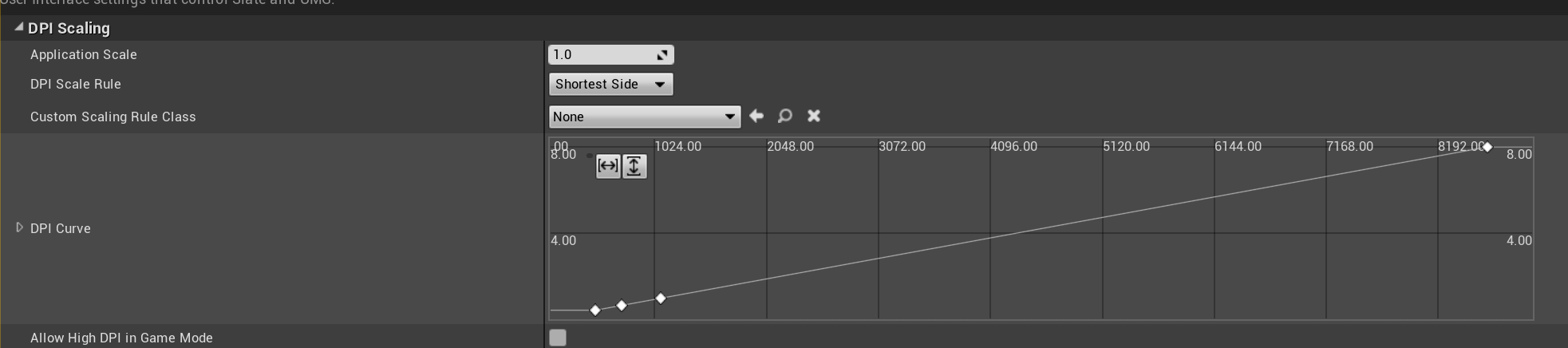
If SetUICustomScale is not invoked by the business, LEVEL INFINITE PASS cannot know the game's design resolution. The inverse of the DPI scaling value at the LEVEL INFINITE PASS design resolution on the DPI scaling curve serves as this specified scaling ratio.
Therefore, the expected trend of the LEVEL INFINITE PASS DPI scaling curve should resemble the below graph, which is a straight line with a relatively fixed slope.The closer the game's DPI scaling curve trend is to the expected trend, the closer the expected value is to the inverse of the scaling value in the DPI scaling curve (mobile being 1/750).
Function Definition
UFUNCTION(BlueprintCallable, Category = "LevelInfinite")
static void SetUICustomScale(const float scale);
Input Parameters
| Parameters | Type | Description |
|---|---|---|
| scale | float | UI scaling ratio |
Code sample
// set UI custom scale
ULevelInfiniteAPI::SetUICustomScale(1.44f);

