Login integration
Client Login Integration
The following steps continue from Step Five
Step Six. Set Publishing Region
The LI PASS login component includes a default compliance process which requires developers to call UpdateCountryList with allowList and blockList arrays as parameters.The allowList array should contain the ISO 3166-1 numeric codes of countries/regions that need to be displayed on the LI PASS country/region selection page, while the blockList array should contain the codes of countries/regions that should not be displayed.
The specified countries and regions here will be used in the internal compliance workflow of the LI PASS login component.
- Unity
- Unreal Engine
TArray<FString> allowList;
allowList.Add(TEXT("496"));
allowList.Add(TEXT("400"));
TArray<FString> blockList;
blockList.Add(TEXT("400"))

ULevelInfiniteAPI::UpdateCountryList(allowList,blockList);
string[] allowArray = new string[] {"496","400"};
string[] blockArray = new string[] {"400"};

LevelInfinite.UpdateCountryList(allowArray,blockArray);
Step Seven. Add LI PASS Functionality
- Login Component Add the LI PASS login component to implement functions like account registration, login, logout, account management, etc.
LI PASS provides the OpenLoginPanel method suitable for mobile games and Windows games with their own launchers. This interface is suitable for games published on mobile platforms (especially iOS and Android) and those with their own launchers on Windows.Games can support player login through LI PASS and over 30 other channels.Games can support player login through LI PASS and over 30 other channels.
- Unity
- Unreal Engine
Call the AutoLogin API to verify the player's identity using the login status stored in the local cache.If auto login is successful, the player enters the game.If auto login fails, you need to call the OpenLoginPanel API to open the LI PASS login component.This login component can complete LI PASS registration, login, and compliance processes.
Add the following code in the AuthResultObserver callback to handle the result of auto-login.
if (AuthResult.MethodId == (int32)LIEnterGameMethodId::kLIAutoLoginEnterGame) {
 if(AuthResult.RetCode == INTL_NAMESPACE::ErrorCode::SUCCESS) {
 UE_LOG(LogTemp, Warning, TEXT("LI Autologin success"));
 } else {
 UE_LOG(LogTemp, Warning, TEXT("LI Autologin failed, ret_code = %d, ret_msg = %s"), AuthResult.RetCode, *AuthResult.RetMsg);
 ULevelInfiniteAPI::OpenLoginPanel();
 }
}
Call the AutoLogin API to verify the player's identity using the login status stored in the local cache.If auto login is successful, the player enters the game.If auto login fails, you need to call the OpenLoginPanel API to open the LI PASS login component.This login component can complete LI PASS registration, login, and compliance processes.
Add the following code in the AuthResultObserver callback to handle the result of auto-login.
if (AuthResult.MethodId == (int)INTLMethodID.LI_AUTOLOGIN_ENTER_GAME) {
 if(AuthResult.RetCode == (int)ERROR_CODE.SUCCESS) {
 Debug.Log("LI Autologin success");
 } else {
 Debug.Log("LI Autologin failed, ret_code = " + AuthResult.RetCode + ", ret_msg = " + AuthResult.RetMsg);
 LevelInfinite.OpenLoginPanel();
 }
}
This interface's default login component supports new players creating an LI PASS, logging into the game using LI PASS account and password or email verification code, logging in via other channels (including guest accounts), and password reset functionality.As shown in the image:
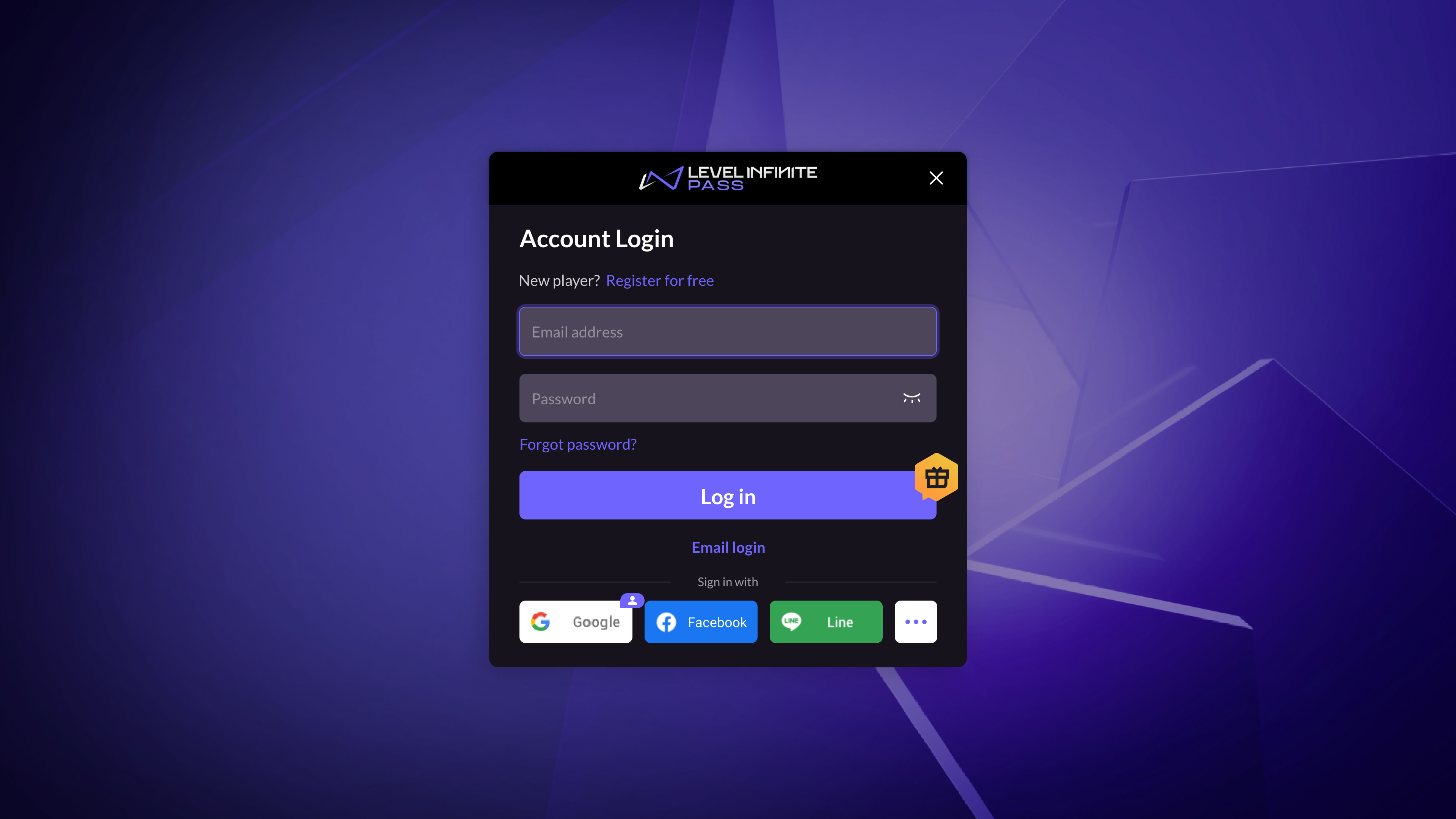 As shown in the image:
To customize the features supported by the login component, see LI PASS Configuration.
-
Gift Package Configure LI PASS gift package activities.
-
Account Binding LI PASS account center, includes functions such as account binding, unbinding, and personal information.

