Security Module
This article aims to explain the default standard user security process for LEVEL INFINITE PASS.
Account Unbinding Verification
The LI PASS account center by default supports unbinding third-party accounts, requiring no further configuration upon integration.
- The player opens the LI PASS account center interface and selects Bind Account.

- The player selects the third-party channel account to unbind, and the system sends a verification code to the player's LI PASS registered email for verification.

- After email verification, the channel account is successfully unbound.
Abnormal Login Alert
When a player logs into their game account from an unusual location or using an untrusted device, the system will automatically send an abnormal login alert email to the email address linked to their LI PASS account. This email will inform the player of potential security risks and provide corresponding handling measures.
This feature allows for the configuration of trigger conditions for abnormal login alerts. It must be enabled through the Player Network backend. To enable this function, please contact the Player Network representative dedicated to your project.

CAPTCHA Verification
To protect accounts from automated attacks and malicious scripts, LI PASS implemented a CAPTCHA verification feature, also applicable to Web components.If CAPTCHA detection conditions are met, the system triggers CAPTCHA verification, requiring the player to pass the verification before logging into the game.
For example scenarios:
- When players request to send a verification code (including registration, password change, etc.), CAPTCHA ensures requests come from real users, not automation.
- When players login using a password, CAPTCHA prevents brute-force and unauthorized login attempts.
- A player using a single account requests multiple verification codes or password logins within a short time.
LI PASS Client: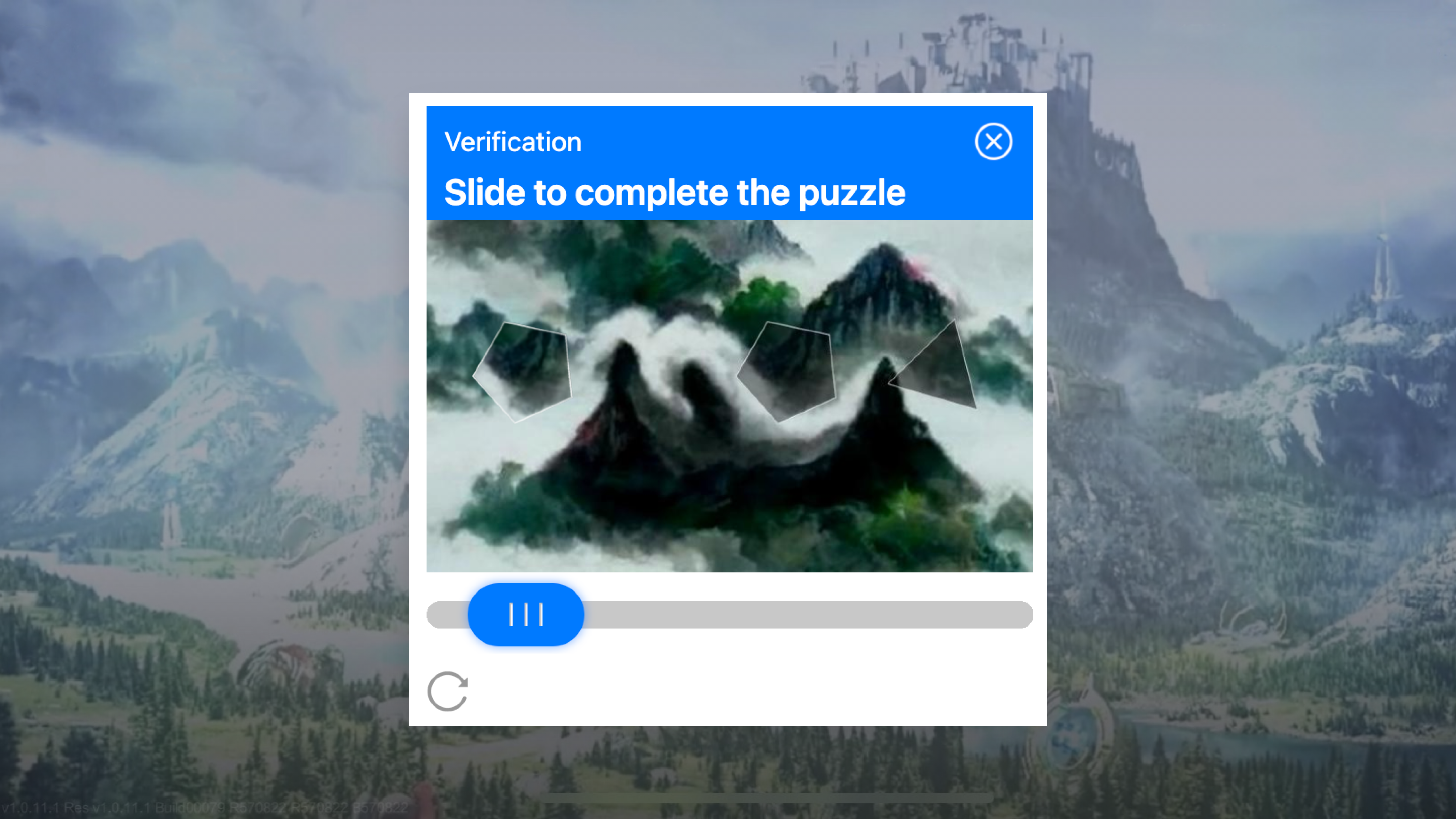
LI PASS Web: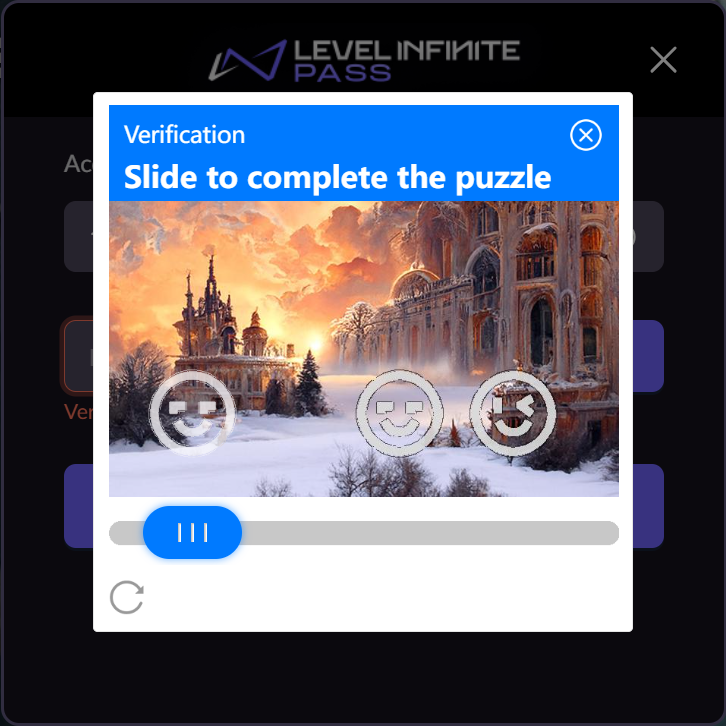
Account Binding Restrictions
After enabling account binding restrictions in the Player Network console, if the player attempts binding actions within the set restriction timeframe using new devices, a pop-up alert is triggered.
-
The player logs into the game account using a new device.
-
The player attempts to bind their account to another third-party channel in the LI PASS account center.
-
Once operation meets configured detection prerequisites, the system triggers a binding restriction alert.

Two-Factor Authentication (2FA)
After enabling 2FA in the account center, when players use non-code login methods on new devices, 2FA triggers, requiring verification via email code to log in.
- Players login using a password on a new device.
- System triggers 2FA, requiring successful verification before logging into the game.

Players can enable features on the Security Settings page of the LI PASS account center.After enabling features, if players log in without verification code, an additional email verification is required, preventing unauthorized device access, securing player data.
- Enable 2FA: Players may enable 2FA on the **Security Settings** page of the LI PASS account center. If not yet bound with LI PASS, following prompts guide account binding beforehand.
- Disable 2FA: Players may disable 2FA on the **Security Settings** page. Once disabled, email second verification ceases during login attempts.

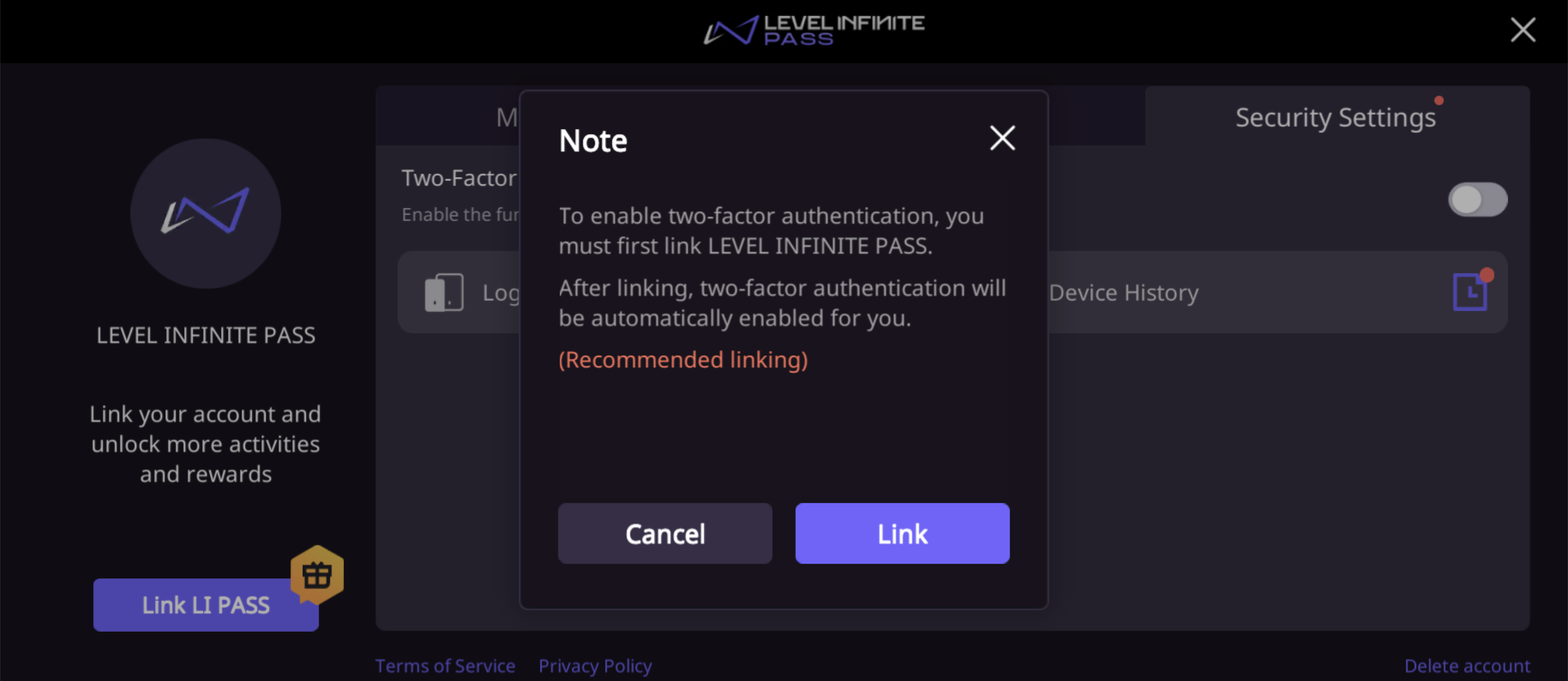
Device History
Players can monitor login behavior in real-time on the Device History page in the account center, taking immediate action if abnormalities are found.By viewing device history, players can supervise all login activities, ensuring only authorized devices access their accounts.If players detect unauthorized devices, immediate actions can be taken.
This page includes the following information:
- Device Type and Model: Records each device type (e.g., mobile, tablet, or computer) and specific model
- Login Times: Displays latest login times per device, aiding players in identifying abnormal login activities
- For new device login records, a red dot prompt appears, reminding players to pay attention
- The player opens the LI PASS account center interface and selects Security Settings.

- The player clicks Device Management.

Log out All Devices
The log out all devices feature lets players quickly end sessions on all logged-in devices except the current one.
Function aims to allow players, upon detection of abnormal login or device loss, to immediately safeguard accounts from unauthorized access.If players suspect account theft, or upon device loss or transfer, one-click logout allows instant disconnection from all active sessions.
- The player opens the LI PASS account center interface and selects Security Settings, click Device Management.
- At the bottom of the page, click Log out of all devices.

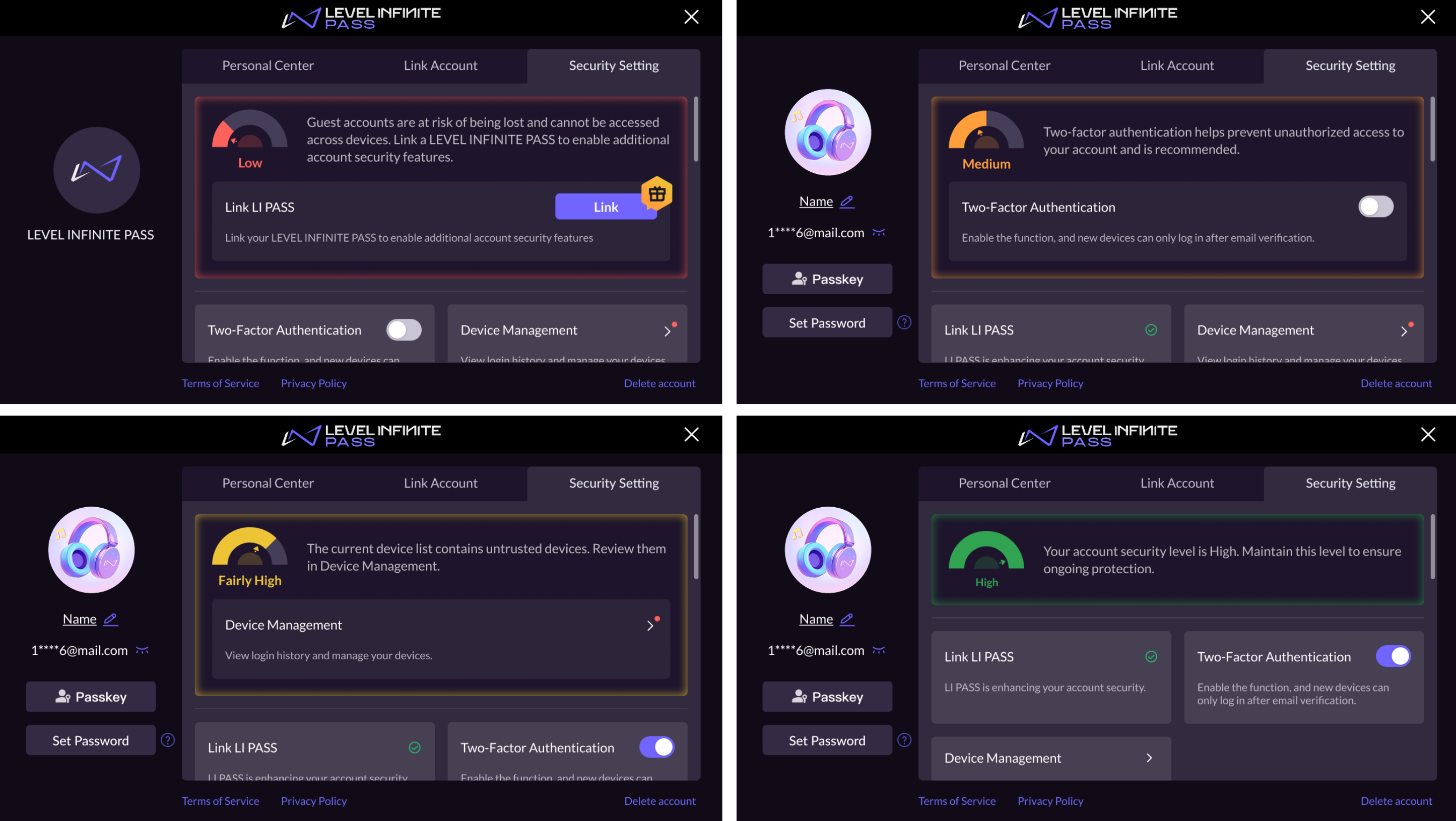
Security Level
The Security Level feature helps players actively strengthen their account protection. It clearly displays the current security level and provides guidance on how to enhance it.
- Low Security Level: LI PASS account not linked (e.g., guest accounts or accounts linked only to social media).
- Medium Security Level: LI PASS account linked.
- Fairly High Security Level: LI PASS account linked and two-factor authentication (2FA) enabled, with untrusted devices detected in the device history.
- High Security Level: LI PASS account linked and two-factor authentication (2FA) enabled, with all devices in the history marked as trusted.