Android
This document introduces how to set up QQ authentication, allowing your game to use Player Network's login authentication service to sign in via the QQ channel.
Prerequisites
1. Set up your game on the QQ Connect platform
1. Create a QQ Application
-
Log in to QQ Connect。
-
In the sidebar, click App Management.
-
Click Create Application.

-
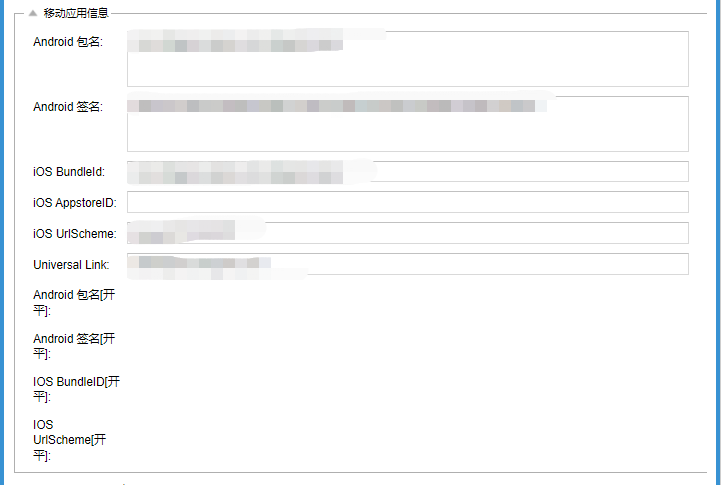
Under Mobile App Information, enter your Android application information.
- Android package name: Similar to
com.intlgame.demo - Android signature: Remove the colons (:) from the MD5 signature and convert all letters to lowercase.For example, for
MD5=A1:B2..., entera1b2....
- Android package name: Similar to
The Android signature needs to be obtained using the AppManage tool provided by QQ, and the actual value to input is the MD5 value of the signature file.
For more information, see Android Common Issues.
When configuring multiple package names and signatures for Android in the QQ Connect management console, separate them with an English semicolon (;)
2. Obtain Application Information
-
Log in to QQ Connect。
-
In the sidebar, click App Management.
-
In the Actions column of the corresponding application, click Edit.

-
On the application edit page, confirm the QQ application's AppID and AppKey.

3. Apply for QQ Connect OpenAPI is_login Permission
If the application is not approved, even if QQ app login authorization succeeds, the Player Network SDK backend will return an error app has no privilege to use this api.
Please send an email to apply for permission using the template below:
- To: archerkang@tencent.com; lexyhuangg@tencent.com
- Ccfarisfeng@tencent.com; peikunzhou@tencent.com; neilluo@tencent.com; neilluo@tencent.com; maytang@tencent.com; lexyhuang@tencent.com; phoebeshao@tencent.com; lunama@tencent.com (Business Product Leader); (Technical Leader); (Business Related Colleague)
- Subject: [QQ Connect Capability Application] is_login Interface —— XXX Business
-
邮件内容
- QQ Connect appid:
- Application name:
- Company name: (If the company is not Tencent or a wholly-owned subsidiary, please attach the authorization letter regarding publishing and development relations)
- Entry/Scenario for invocation: (Attach interaction diagrams if necessary)
- Timing of invocation:
- Reason for invocation:
- Method for obtaining accesstoken/openkey:
- Invocation volume (unit: per minute):
- Person in charge: (Product owner Work WeChat; Developer Work WeChat)
For more information, see is_login。
- Enter Player Network Console, create a new project for your game, or join an existing one.
- Download SDK.
- Integrate SDK.
- Add QQ as a login authentication method for your business in the Player Network Console.
Step 1: Configure SDK for QQ Login
-
Open your project's INTLConfig.ini file:
INTLConfig.ini[INTL environment]
# WARNING: You should change this URL to the production environment when you release your game.
INTL_URL = https://test.intlgame.com
GAME_ID = {INTL_GAME_ID}
SDK_KEY = {INTL_SDK_KEY}
[INTL Log]
LOG_LEVEL = 1
LOG_CONSOLE_OUTPUT_ENABLE = 1
LOG_FILE_OUTPUT_ENABLE = 1
LOG_ENCRYPT_ENABLE = 0
LOG_COMPRESS_ENABLE = 0
[Android LifeCycle]
LIFECYCLE = QQ
[QQ]
QQ_APP_ID = {INTL_QQ_APP_ID}- Set the SDK backend environment to
INTL_URL = https://test.intlgame.com. - Replace
{INTL_GAME_ID}and{INTL_SDK_KEY}with the values ofGAME_IDandSDK_KEYassigned by the Player Network Console. - Set
LOG_LEVEL = 1,LOG_CONSOLE_OUTPUT_ENABLE = 1,LOG_FILE_OUTPUT_ENABLE = 1,LOG_ENCRYPT_ENABLE = 0andLOG_COMPRESS_ENABLE = 0to output console logs and log files without encrypting or compressing the output without encrypting or compressing the output. - Add QQ in
LIFECYCLE.For more information, please see SDK Environment. - Replace
{INTL_QQ_APP_ID}with the AppID assigned by QQ.
- Set the SDK backend environment to
-
In the gradle file, define
manifestPlaceholdersand replace{INTL_QQ_APP_ID}with QQ AppID.
- Unity
- Unreal Engine
android {
 defaultConfig {
 manifestPlaceholders = ["QQ_APPID":"{INTL_QQ_APP_ID}"]
 }
}
<buildGradleAdditions>
 <insert>
 <![CDATA[
 android{
 defaultConfig {
 manifestPlaceholders = ["QQ_APPID":"{INTL_QQ_APP_ID}"]
 }
 }]]>
 </insert>
</buildGradleAdditions>
-
Declare permissions and activities in the
AndroidManifest.xmlfile as shown below.AndroidManifest.xml<manifest ... >
<uses-permission android:name="android.permission.INTERNET" />
<uses-permission android:name="android.permission.ACCESS_NETWORK_STATE"/>
<uses-permission android:name="android.permission.WRITE_EXTERNAL_STORAGE"/>
...
<application ... >
<activity android:name="com.example.myapp.MainActivity" ... >
...
</activity>
...
<activity
android:name="com.tencent.connect.common.AssistActivity"
android:configChanges="orientation|keyboardHidden"
android:screenOrientation="behind"
android:theme="@android:style/Theme.Translucent.NoTitleBar" />
<activity
android:name="com.tencent.tauth.AuthActivity"
android:launchMode="singleTask"
android:noHistory="true" >
<intent-filter>
<action android:name="android.intent.action.VIEW" />
<category android:name="android.intent.category.DEFAULT" />
<category android:name="android.intent.category.BROWSABLE" />
<data android:scheme="tencent{INTL_QQ_APP_ID}" />
</intent-filter>
</activity>
...
</application>
...
</manifest>Replace
{INTL_QQ_APP_ID}with the AppID assigned by QQ.
Step 2: Add QQ Login
Pass the permission when calling INTLAPI.Login.It is recommended to pass in "all" to indicate having all the permissions applied for on the platform side.If no permission is passed, Android defaults to using the get_simple_userinfo permission.
| Permissions | Description |
|---|---|
| get_simple_userinfo | QQ login permission (mobile side obtains QQ user information) |
- Register login-related callbacks.
- Unity
- Unreal Engine
// Add callbacks
public void AddAuthObserver()
{
 INTLAPI.AddAuthResultObserver(OnAuthResultEvent);
}

// Remove callbacks
public void RemoveAuthObserver()
{
 INTLAPI.RemoveAuthResultObserver(OnAuthResultEvent);
}

// Process the INTLAuthResult callback
public void OnAuthResultEvent(INTLAuthResult ret)
{
 Debug.Log($"MethodID: {ret.MethodId}");

 string methodTag = "";
 if (authRet.MethodId == (int)INTLMethodID.INTL_AUTH_LOGIN)
 {
 methodTag = "Login";
 }
 else if (authRet.MethodId == (int)INTLMethodID.INTL_AUTH_BIND)
 {
 methodTag = "Bind";
 }
 else if (authRet.MethodId == (int)INTLMethodID.INTL_AUTH_AUTOLOGIN)
 {
 methodTag = "AutoLogin";
 }
 else if (authRet.MethodId == (int)INTLMethodID.INTL_AUTH_QUERY_USER_INFO)
 {
 methodTag = "QueryUserInfo";
 }
 else if (authRet.MethodId == (int)INTLMethodID.INTL_AUTH_GET_AUTH_RESULT)
 {
 methodTag = "GetAuthResult";
 }
}
C++ Event Handling (above v1.15)
//configure callback
FINTLAuthEvent authEvent;
authEvent.AddUObject(this, &OnAuthResult_Implementation);
UINTLSDKAPI::SetAuthResultObserver(authEvent);
// Remove callbacks
UINTLSDKAPI::GetAuthResultObserver().Clear();
void OnAuthResult_Implementation(FINTLAuthResult ret)
{
 UE_LOG(LogTemp, Warning, TEXT("MethodID: %d"), ret.MethodId);
}
Unreal Event Handling
void OnAuthResult_Implementation(FINTLAuthResult ret)
{
 UE_LOG(LogTemp, Warning, TEXT("MethodID: %d"), ret.MethodId);
}
- Call the
AutoLogininterface to log in automatically.
- Unity
- Unreal Engine
INTLAPI.AutoLogin();
UINTLSDKAPI::AutoLogin();
- If automatic login fails, call the
Logininterface to let the player log in manually.
- Unity
- Unreal Engine
INTLAPI.Login(INTLChannel.QQ, "all", "");
UINTLSDKAPI::Login(EINTLLoginChannel::kChannelQQ, "all", "");
- Synchronize client authentication status with the game backend and wait for the final verification result.
Scan code login
Player Network SDK V1.26.00 supports QQ QR code login for both Android and iOS platforms.
By default, if the phone has QQ app installed, it will launch the QQ app for login. If QQ app is not installed, it will automatically switch to QR code login.To modify the default behavior, specify the qrcode_mode parameter in extraJson.
| qrcode_mode | Description |
|---|---|
| auto | Auto mode (default): Prefer to use QQ app login; if QQ app is not installed, QR code login will be used. |
| force_app | Force QQ app login: If QQ app is not installed, login will return an error. |
| force_qrcode | Force QR code login: Regardless of whether QQ app is installed, QR code login will be used. |
- Unity
- Unreal Engine
string permissions = "";
string extraJson = "{\"qrcode_mode\" : \"force_qrcode\"}";
INTLAPI.Login(INTLChannel.QQ, permissions, extraJson);
FString Permissions = TEXT("");
FString Extra_JSON = TEXT("{\"qrcode_mode\" : \"force_qrcode\"}");
UINTLSDKAPI::Login(EINTLLoginChannel::kChannelQQ);
Step 3: Acceptance testing for login functionality
Search for the keyword "AuthResult" in the Player Network SDK logs to confirm whether the channel name and OpenID are returned correctly.If correct, it means the integration configuration is successful, and login functionality has been successfully added.
If you encounter problems during the integration process, please refer to Frequently Asked Questions.

