Android
This article aims to introduce how to set up X authentication so your game can use the Player Network login authentication service to log in through the X channel.
Prerequisites
1. Set up your game on the X developer website
1. Create X application
It is recommended to use a Tencent email address to register your account, as this can improve the success rate of future applications.
Follow the instructions on the X developer website to register a team developer account or a personal developer account.Once you have a developer account, you can create an application on the Developer Portal.
-
Create a new project.
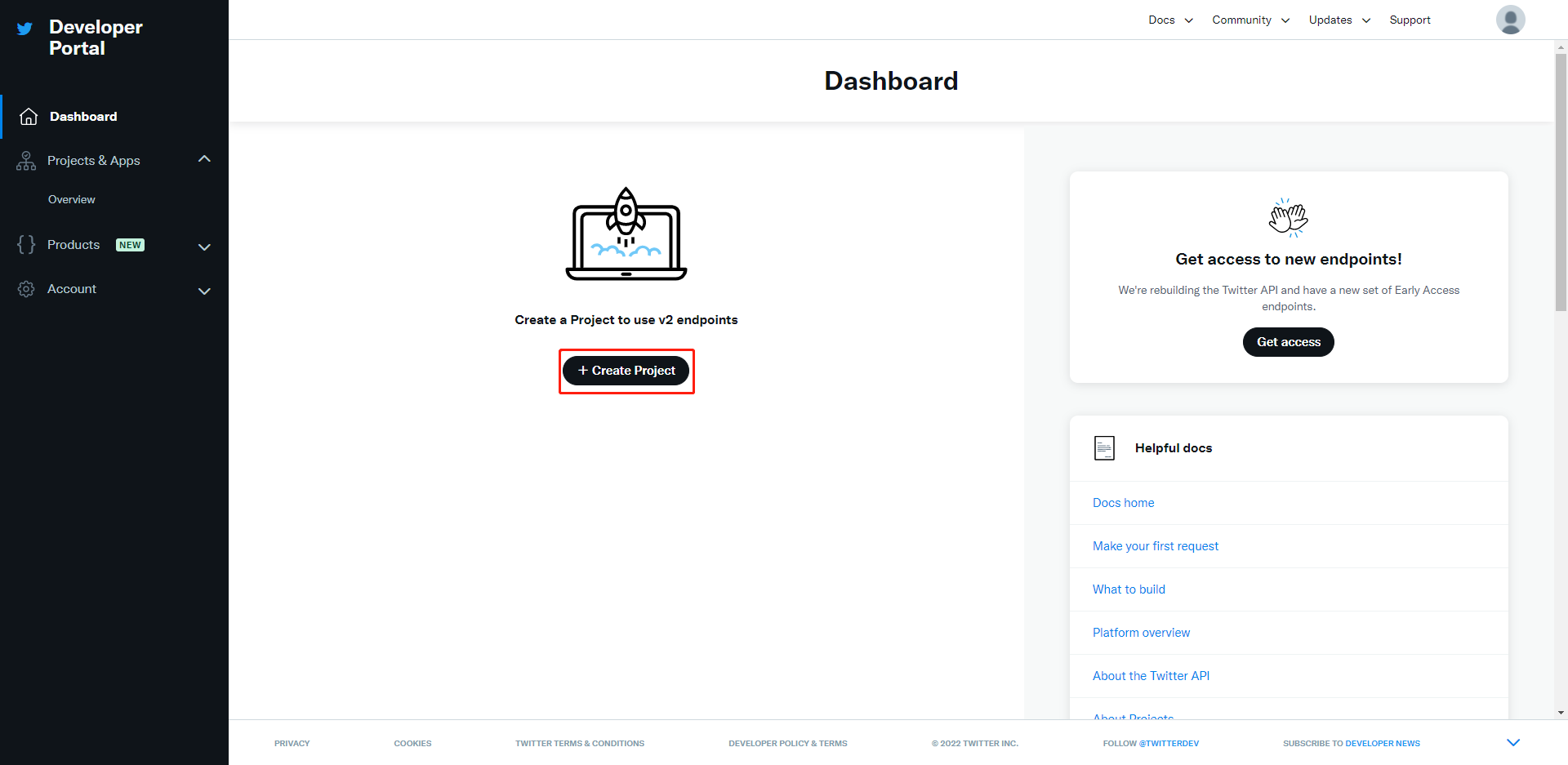
-
Choose a use case.Click Next.
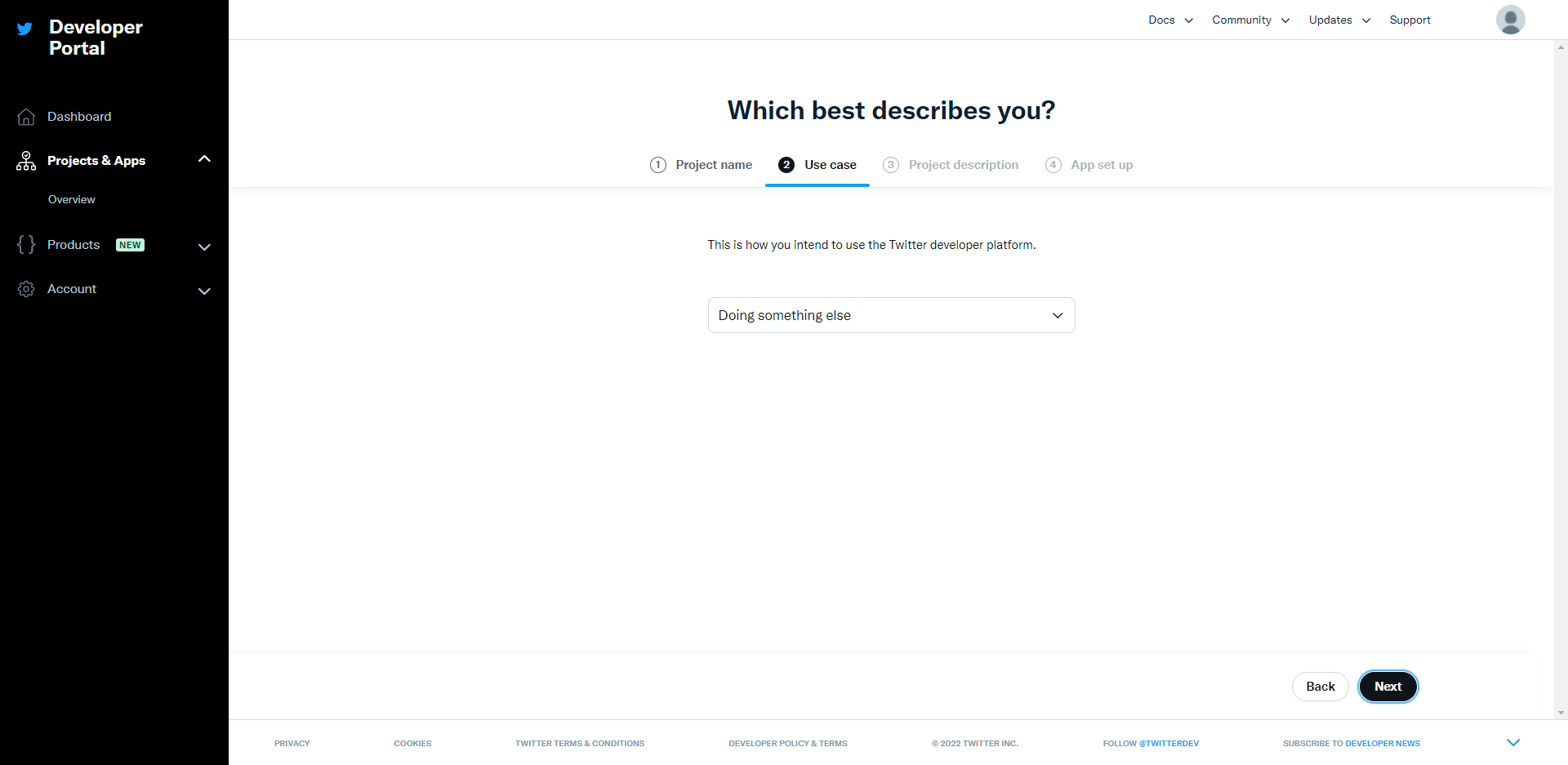
-
Enter the project description.Click Next.
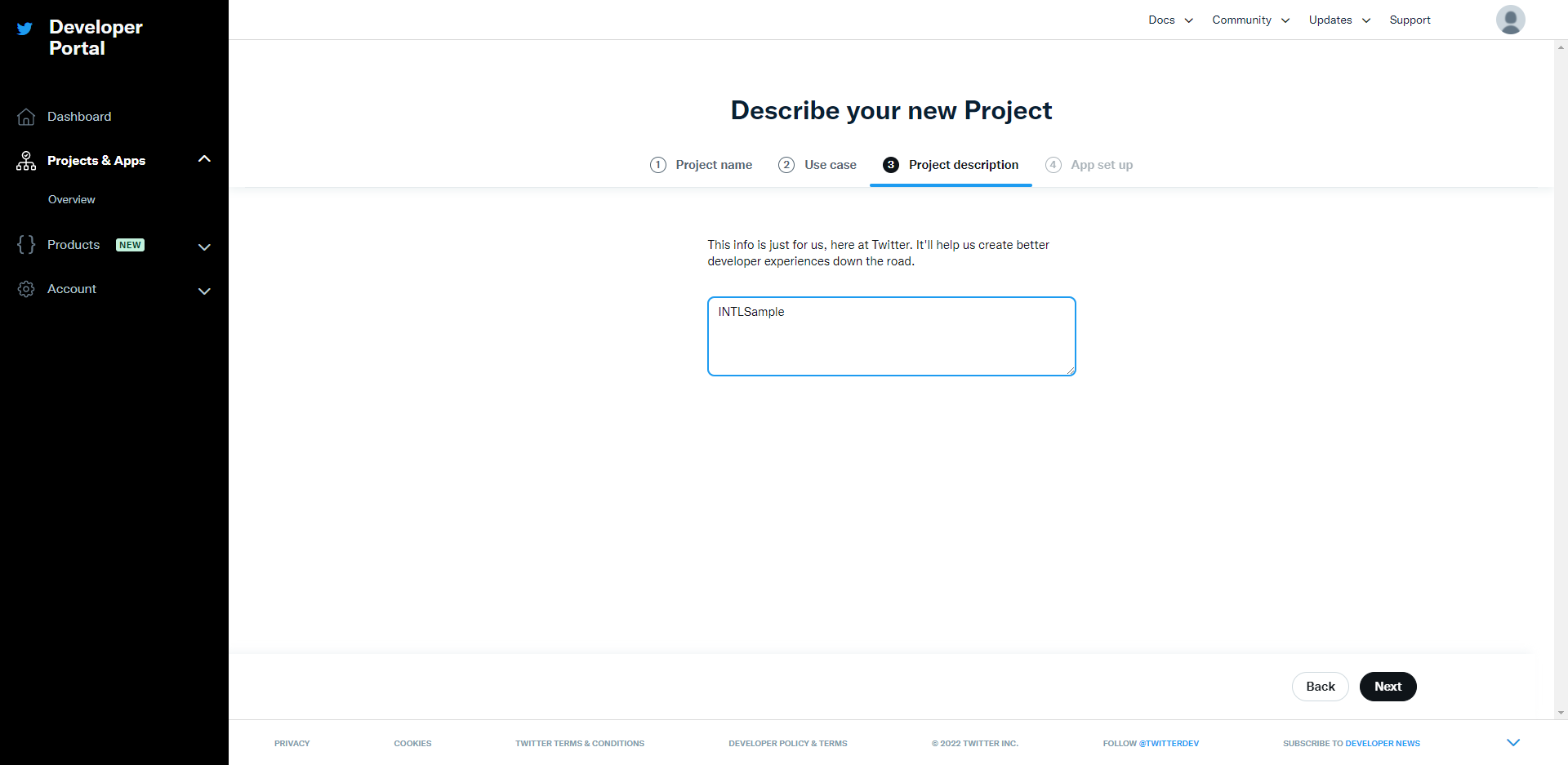
-
Select the application environment.Click Save.
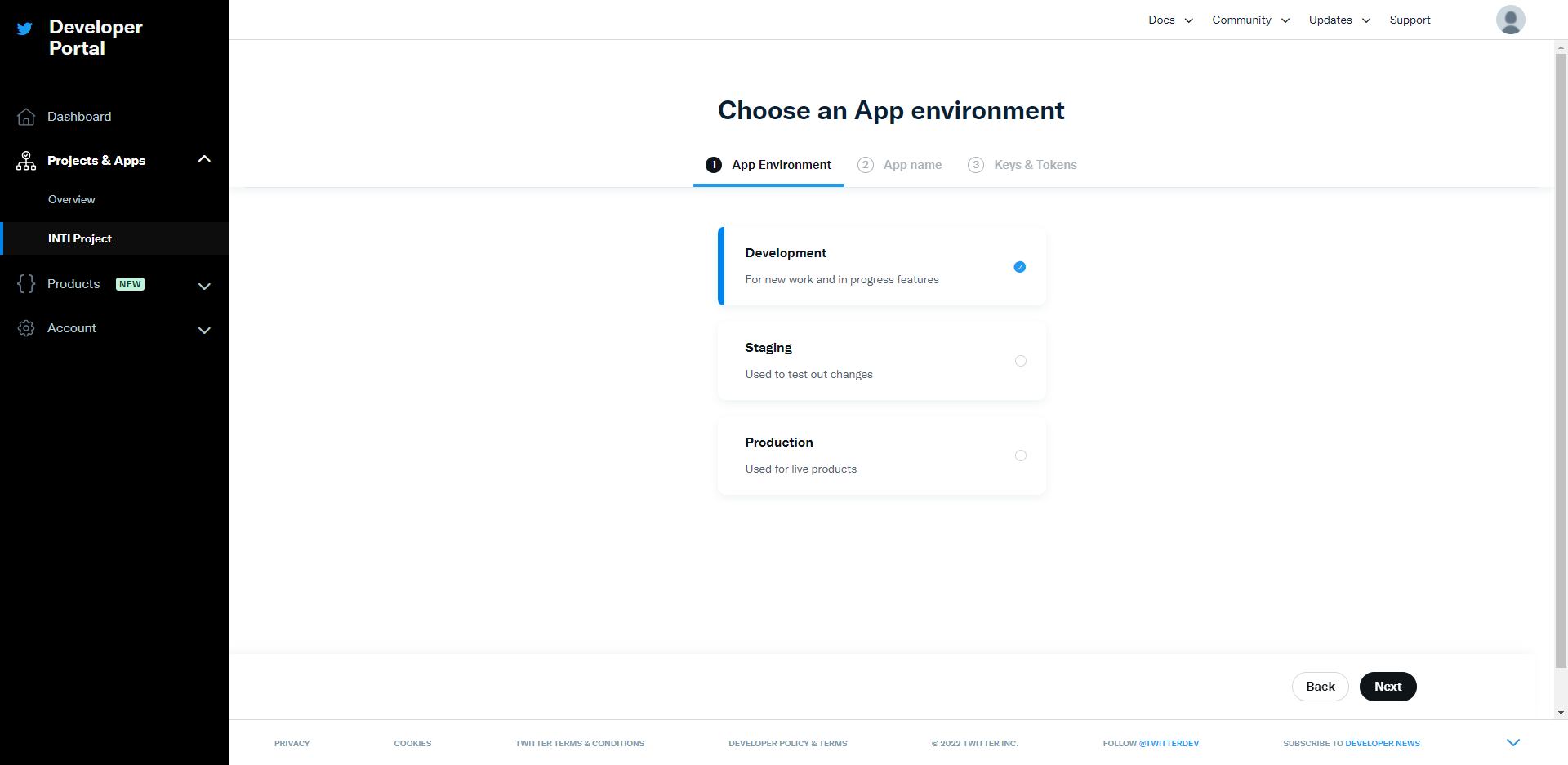
-
Enter the application name.Click Save.
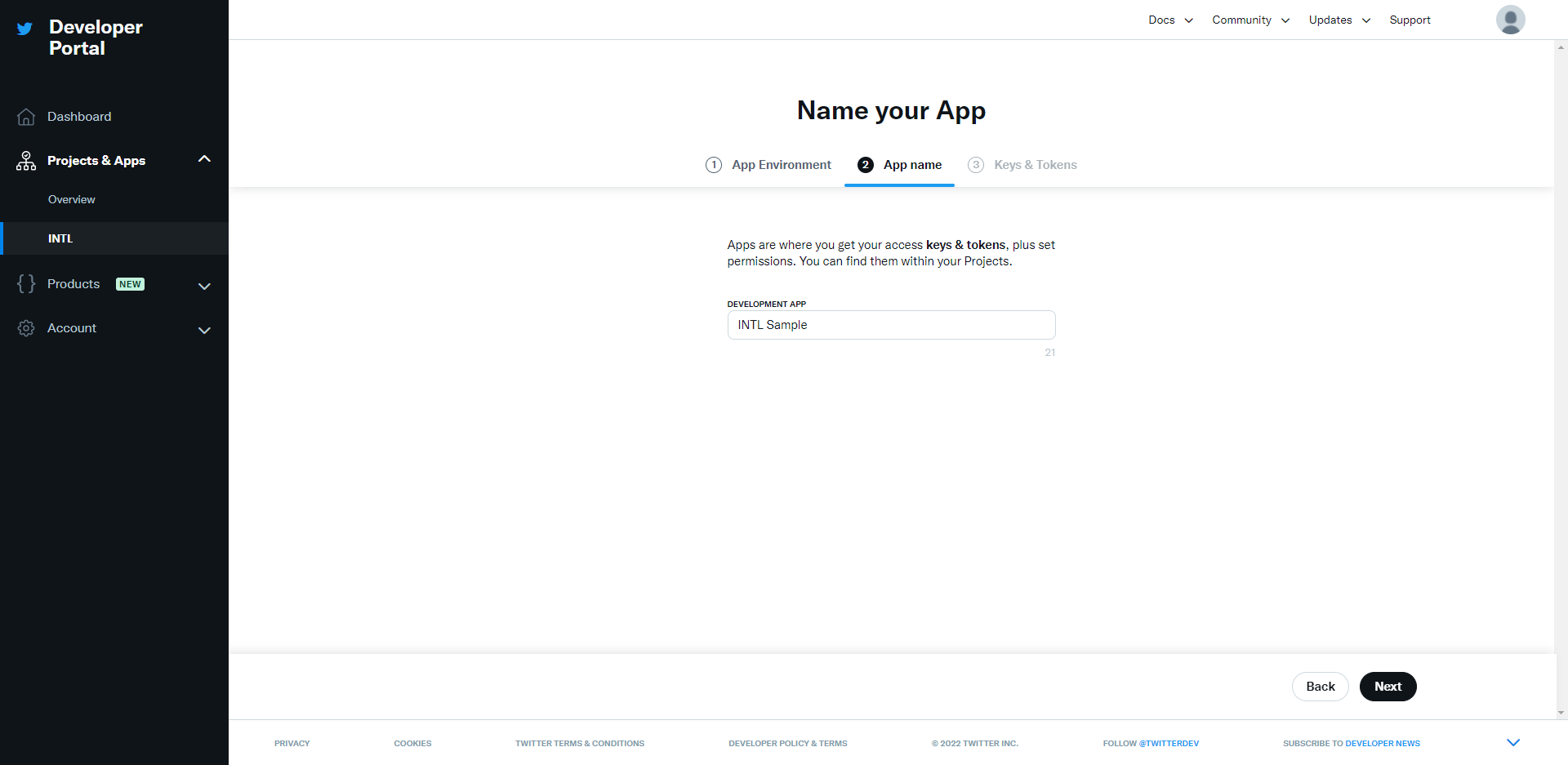
-
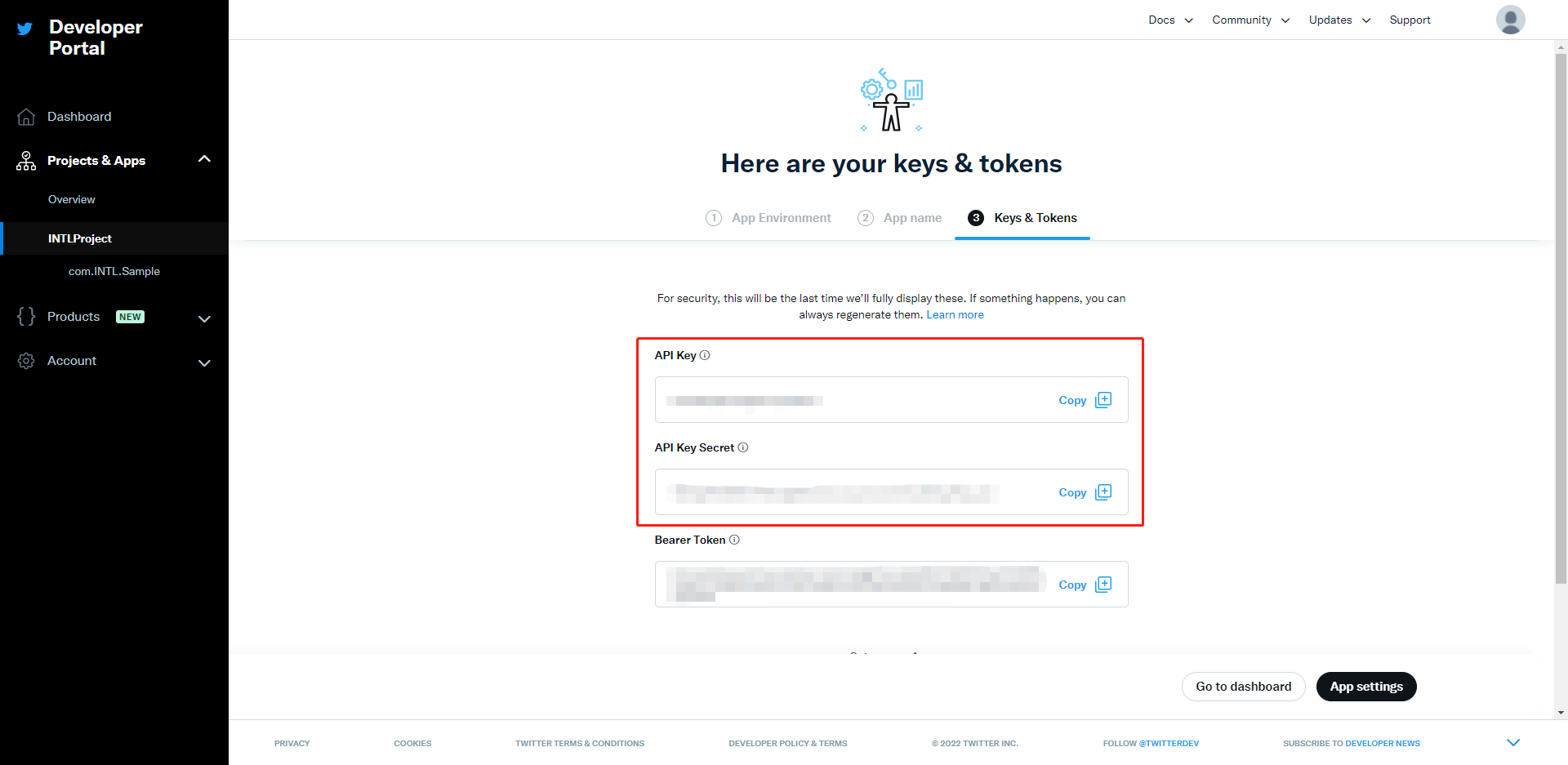
After creating the application, obtain the API key and API secret key.Store this information.Click App Settings.
This page will not be displayed again, so be sure to save this information.
 7. Click Set up.
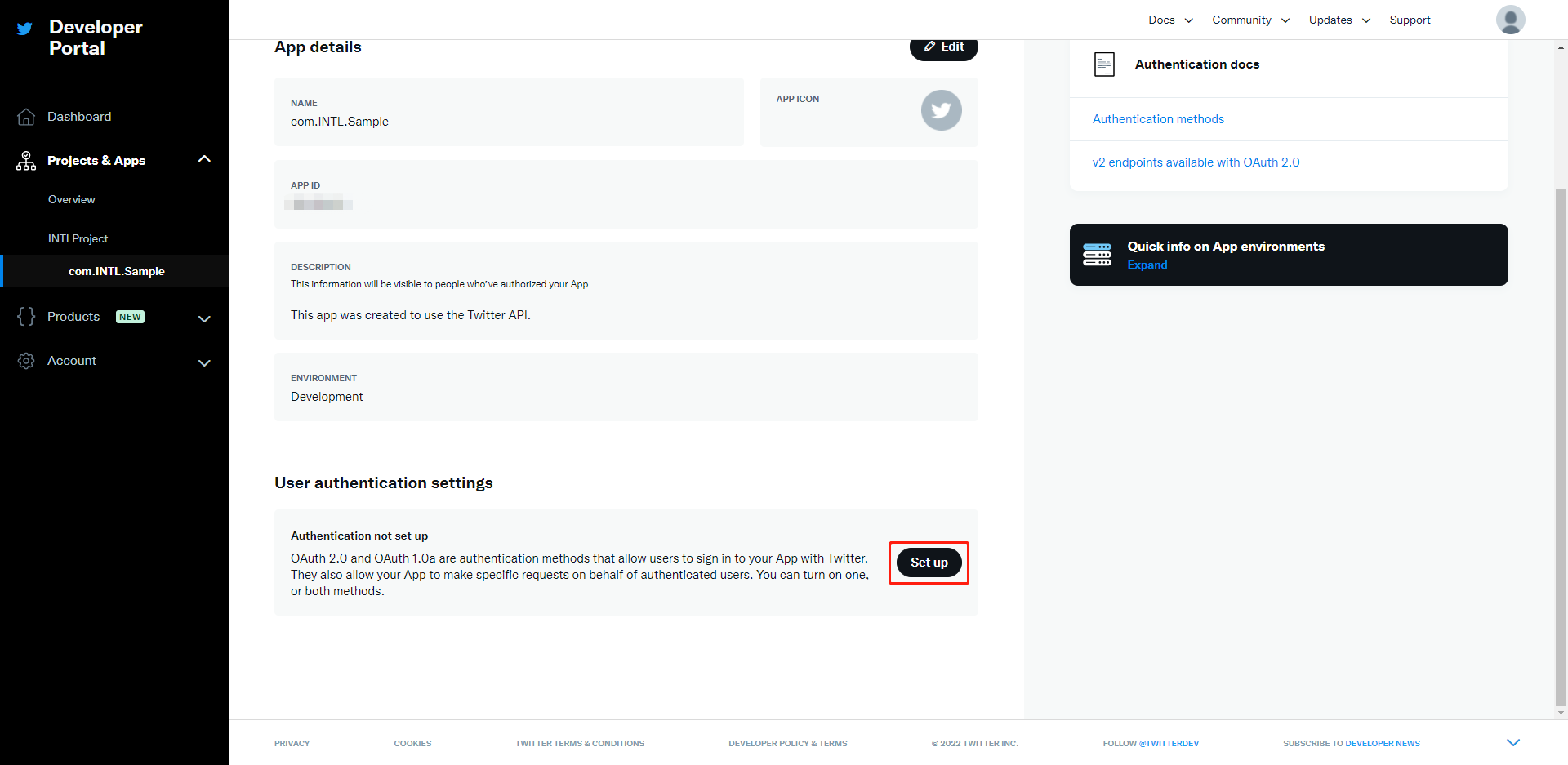 8. Enable OAuth2.0 and OAuth1.0a.Select Web App as the application type.
 9. Select Read And Write in application permissions.
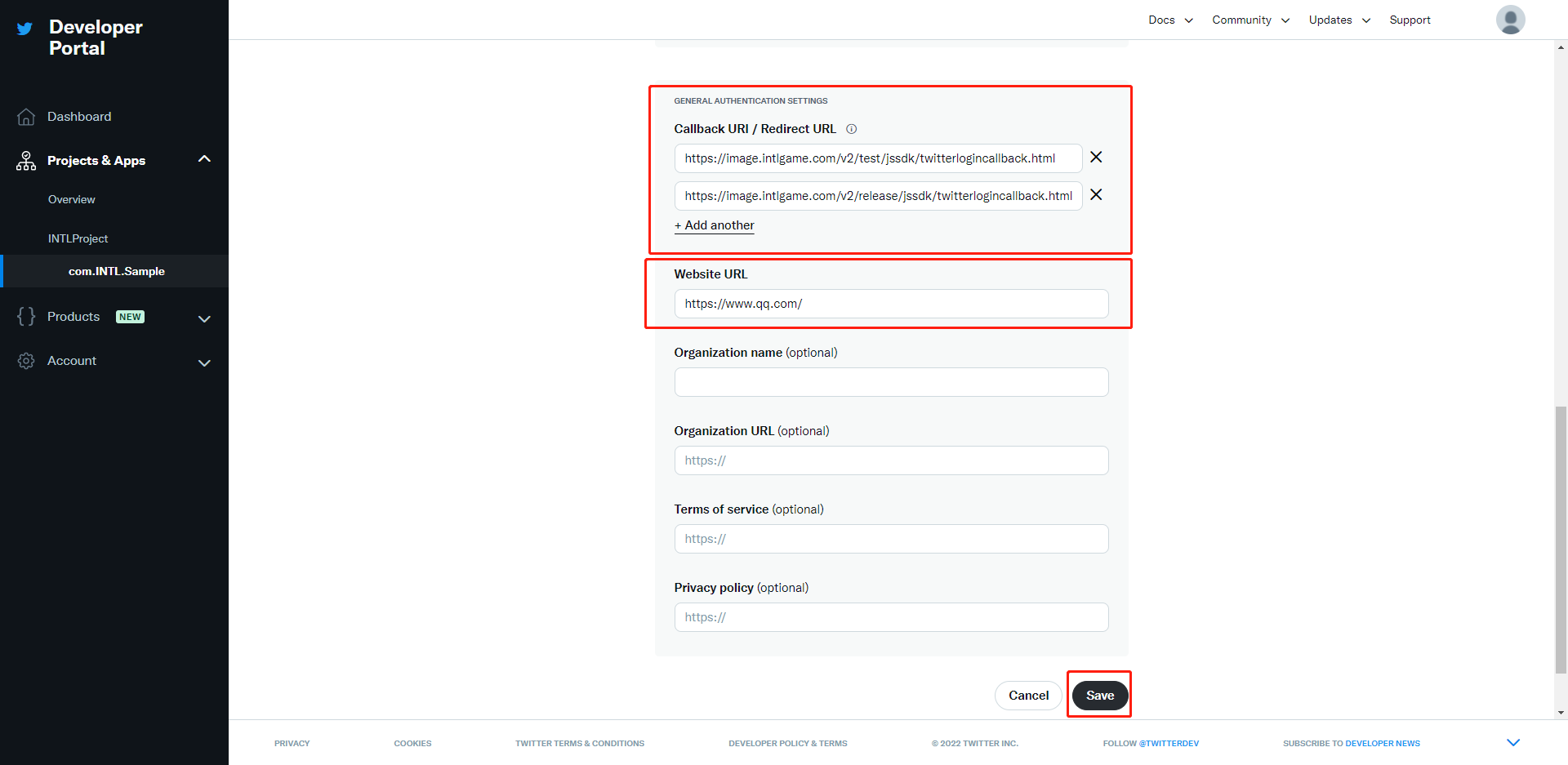
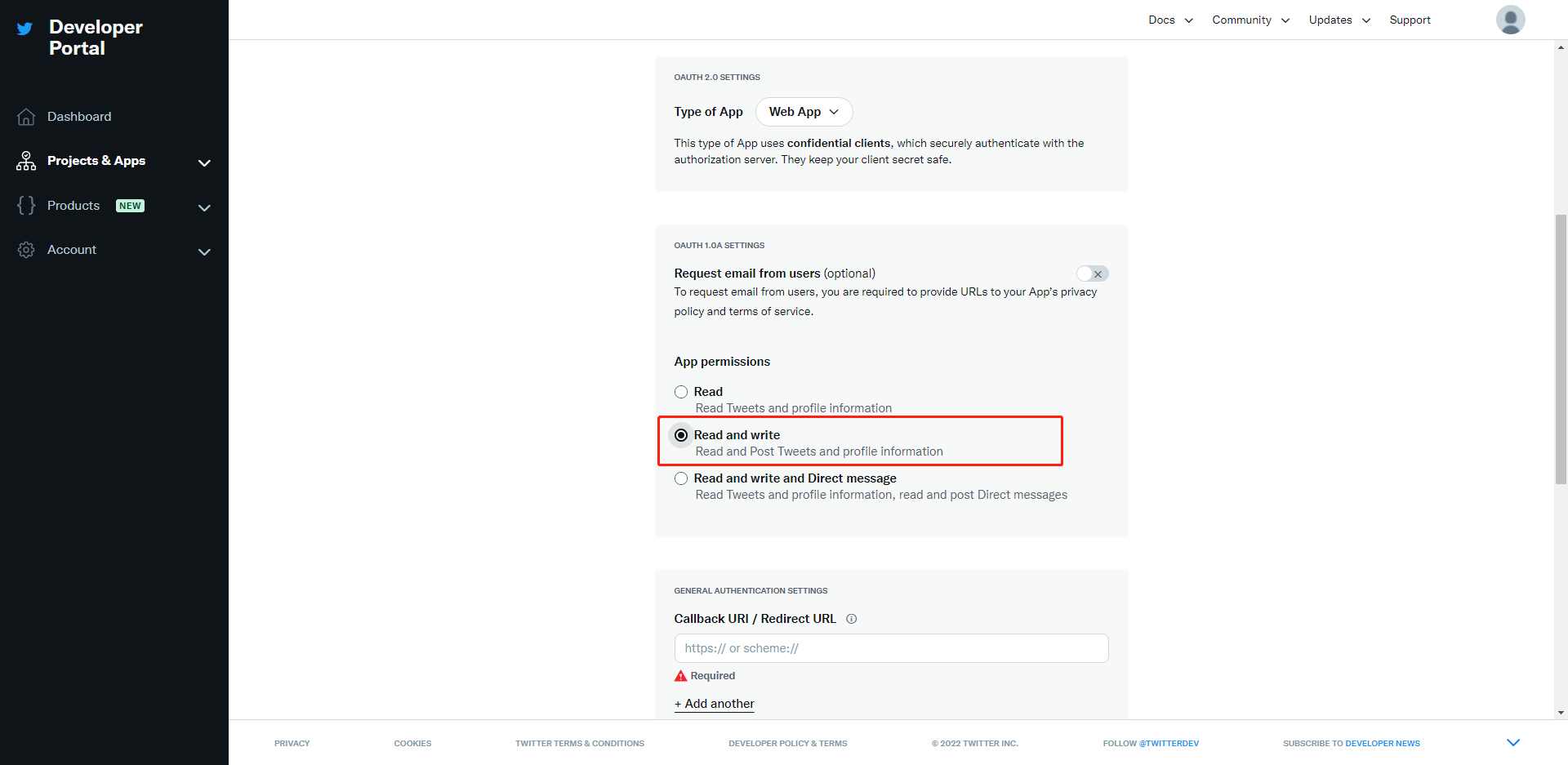 10. Enter the test and production environment URLs for the callback URL.You will be redirected to the official website of the game.Click Save.
If the game is already live, you cannot delete the existing callback URL, only add new ones.
Applicable for Player Network SDK V1.15 and earlier versions
https://image.intlgame.com/v2/test/jssdk/twitterlogincallback.html
https://image.intlgame.com/v2/release/jssdk/twitterlogincallback.html
Applicable for Player Network SDK V1.16 and later versions
https://test-common-web.intlgame.com/jssdk/twitterlogincallback.html
https://common-web.intlgame.com/jssdk/twitterlogincallback.html
When TWITTER_CONSUMER_USE_SDK is set to 1, to use X SDK login in INTLConfig.ini, please add the following callback URLs:
twittersdk://
twitterkit-{API Key}://
Replace {API Key} with your game's API Key, excluding the curly brackets .
2. Retrieve application information
You need the X app ID and secret to add X login channel in Player Network.
- Go to the Player Network Console to create a new project for your game, or join an existing one.
- Download the SDK.
- Integrate SDK.
- Add X as a login authentication method for your business in the Player Network Console.
Step 1: Configure the SDK for X login
-
Open your project's INTLConfig.ini file:
INTLConfig.ini[INTL environment]
# WARNING: You should change this URL to the production environment when you release your game.
INTL_URL = https://test.intlgame.com
GAME_ID = {INTL_GAME_ID}
SDK_KEY = {INTL_SDK_KEY}
[INTL Log]
LOG_LEVEL = 1
LOG_CONSOLE_OUTPUT_ENABLE = 1
LOG_FILE_OUTPUT_ENABLE = 1
LOG_ENCRYPT_ENABLE = 0
LOG_COMPRESS_ENABLE = 0
[Android LifeCycle]
LIFECYCLE = Twitter
[X]
TWITTER_CONSUMER_KEY = {INTL_TWITTER_CONSUMER_KEY}
TWITTER_CONSUMER_SECRET = {INTL_TWITTER_CONSUMER_SECRET}- Set the SDK backend environment to
INTL_URL = https://test.intlgame.com. - Replace
{INTL_GAME_ID}and{INTL_SDK_KEY}with the values ofGAME_IDandSDK_KEYassigned by the Player Network Console. - Set
LOG_LEVEL = 1,LOG_CONSOLE_OUTPUT_ENABLE = 1,LOG_FILE_OUTPUT_ENABLE = 1,LOG_ENCRYPT_ENABLE = 0, andLOG_COMPRESS_ENABLE = 0to output console logs and log files without encryption or compression. - Add Twitter to the
LIFECYCLE.For more information, see SDK environment. - Replace
{INTL_TWITTER_CONSUMER_KEY}and{INTL_TWITTER_CONSUMER_SECRET}with the X API key and API Key Secret.
- Set the SDK backend environment to
Step 2: Add X login
After the user logs in, select the X channel to bind.If the user uses an already bound X account, a server error will be prompted.Calling the Bind interface again will require the user to log in to X again.
- Register login-related callbacks.
- Unity
- Unreal Engine
// Add callbacks
public void AddAuthObserver()
{
    INTLAPI.AddAuthResultObserver(OnAuthResultEvent);
}

// Remove callbacks
public void RemoveAuthObserver()
{
    INTLAPI.RemoveAuthResultObserver(OnAuthResultEvent);
}

// Process the INTLAuthResult callback
public void OnAuthResultEvent(INTLAuthResult ret)
{
    Debug.Log($"MethodID: {ret.MethodId}");

    string methodTag = "";
    if (authRet.MethodId == (int)INTLMethodID.INTL_AUTH_LOGIN)
    {
        methodTag = "Login";
    }
    else if (authRet.MethodId == (int)INTLMethodID.INTL_AUTH_BIND)
    {
        methodTag = "Bind";
    }
    else if (authRet.MethodId == (int)INTLMethodID.INTL_AUTH_AUTOLOGIN)
    {
        methodTag = "AutoLogin";
    }
    else if (authRet.MethodId == (int)INTLMethodID.INTL_AUTH_QUERY_USER_INFO)
    {
        methodTag = "QueryUserInfo";
    }
    else if (authRet.MethodId == (int)INTLMethodID.INTL_AUTH_GET_AUTH_RESULT)
    {
        methodTag = "GetAuthResult";
    }
}
C++ Event Handling (above v1.15)
//configure callback
FINTLAuthEvent authEvent;
authEvent.AddUObject(this, &OnAuthResult_Implementation);
UINTLSDKAPI::SetAuthResultObserver(authEvent);
// Remove callbacks
UINTLSDKAPI::GetAuthResultObserver().Clear();
void OnAuthResult_Implementation(FINTLAuthResult ret)
{
    UE_LOG(LogTemp, Warning, TEXT("MethodID: %d"), ret.MethodId);
}
Unreal Event Handling
void OnAuthResult_Implementation(FINTLAuthResult ret)
{
    UE_LOG(LogTemp, Warning, TEXT("MethodID: %d"), ret.MethodId);
}
- Call the
AutoLogininterface to log in automatically.
- Unity
- Unreal Engine
INTLAPI.AutoLogin();
UINTLSDKAPI::AutoLogin();
- If automatic login fails, call the
Logininterface to allow players to log in manually.
- Unity
- Unreal Engine
INTLAPI.Login(INTLChannel.Twitter);
UINTLSDKAPI::Login(EINTLLoginChannel::kChannelTwitter);
- Synchronize client authentication status with the game backend and wait for the final verification result.
[Optional] Set email permissions
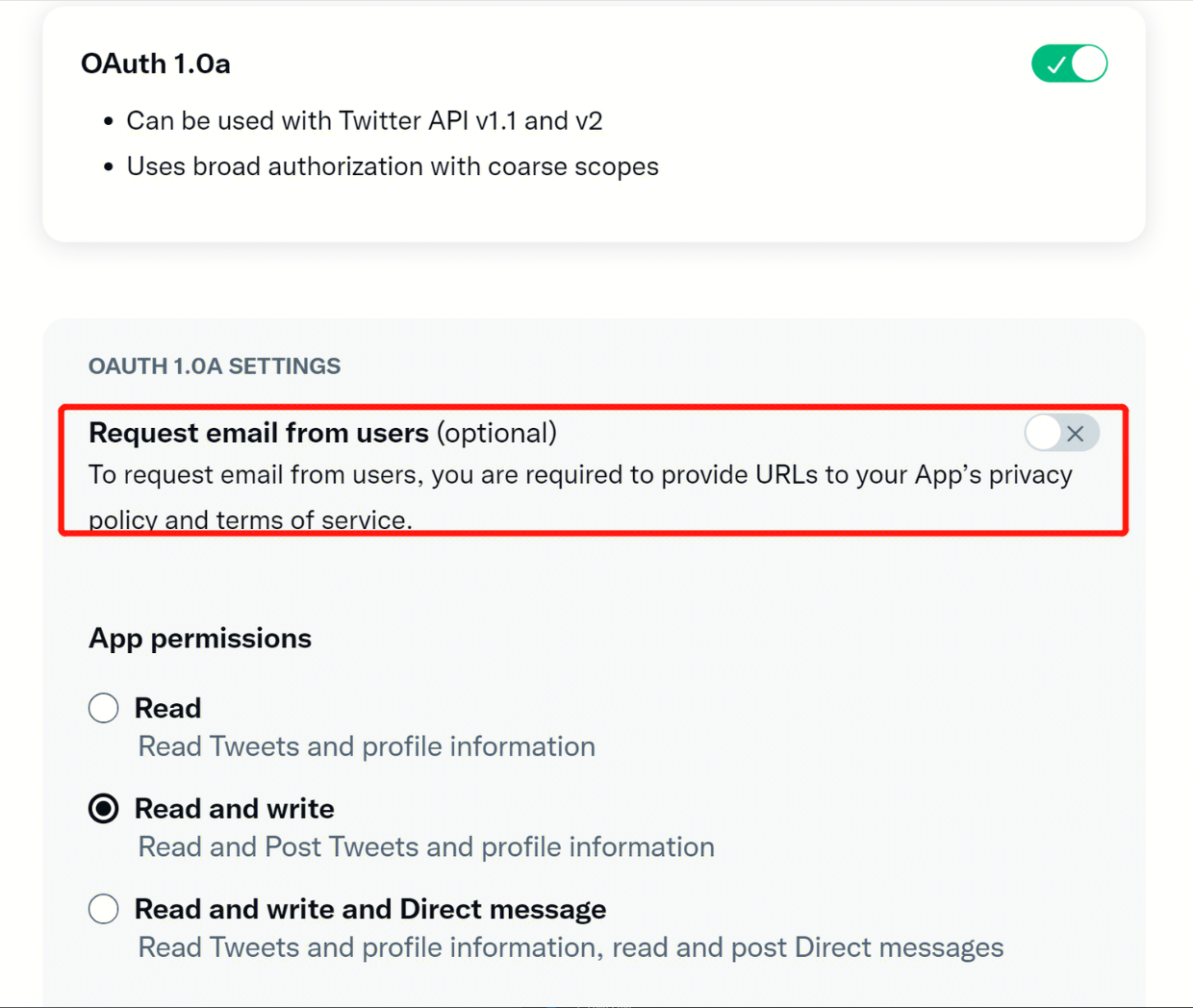
To obtain the player's email when logging in through X, you need to set the corresponding permission first. Once enabled, email will be returned in the ChannelInfo of the AuthResult.
- For compliance reasons, you can mask the returned
emailfor specific sources. If needed, please contact Player Network assistant to enable it. - You can report
base64(sha256(email))after hashing the email in the backend pipeline logs. If needed, please contact Player Network assistant to enable it. - Can be used to verify player information or if the binding list includes
emailinformation. If needed, please contact Player Network assistant to enable it.
-
In User authentication settings on the X Developer Platform, check Request email from users.
-
Enable the email return function in the Player Network Console by setting return_email to YES. For detailed steps, see Third-party channel configuration.
Step 3: Acceptance of the login function
Search for the keyword "AuthResult" in the Player Network SDK logs to confirm the channel name and OpenID are returned correctly.If correct, it means the integration and configuration are successful and the login function has been successfully added.
If you encounter problems during integration, refer to FAQs.

