Windows
This article aims to introduce how to set up X authentication so that your game can use the Player Network login authentication service for login via the X channel.
Prerequisites
1. Set up your game on the X developer website
1. Create X application
It is recommended to register your account with a Tencent email address to increase the success rate of subsequent applications.
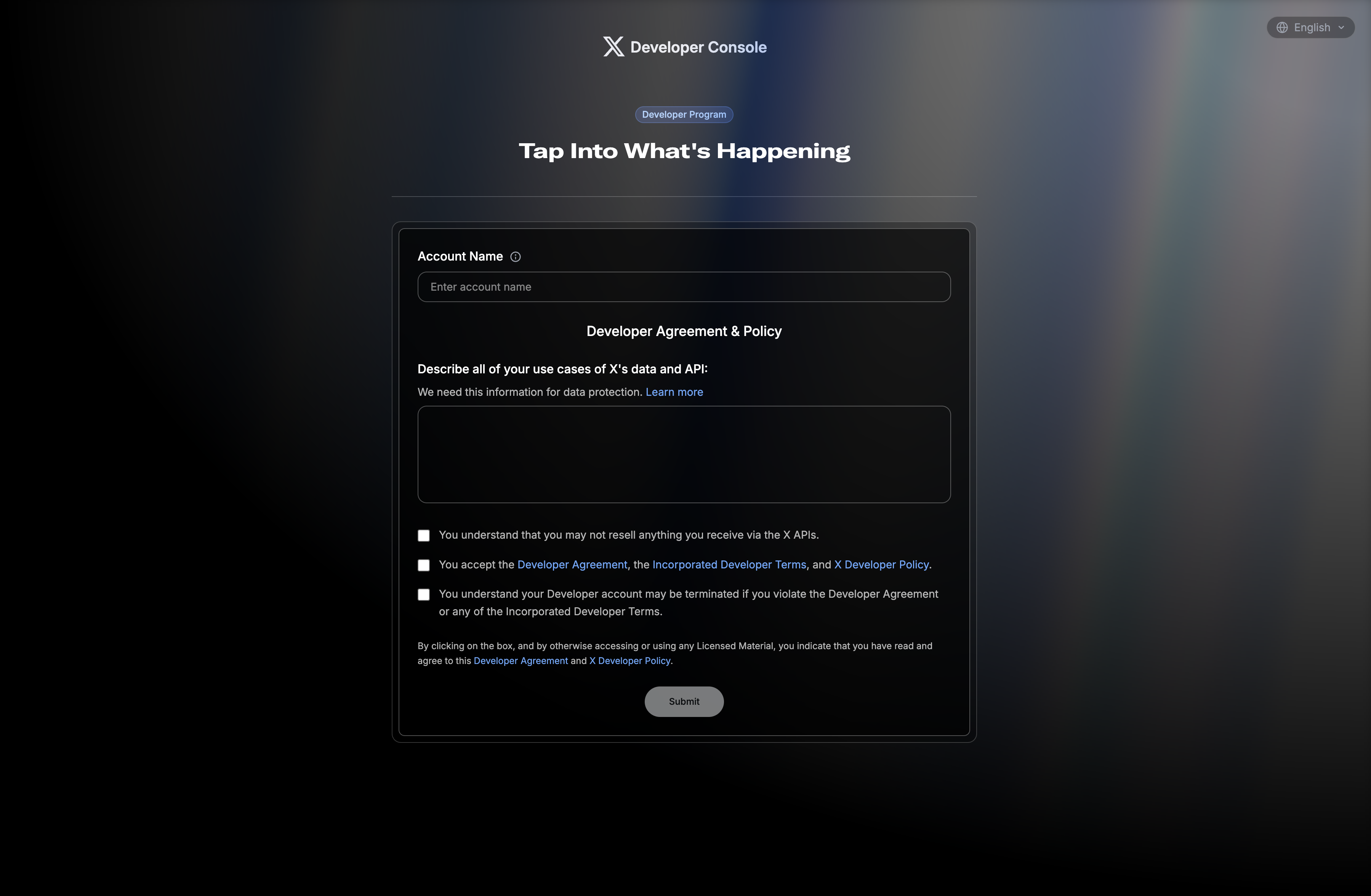
Follow the prompts to register a team developer account or individual developer account on the X developer website.With a developer account, you can create applications on the Developer Portal.
-
Create a new project as instructed.
-
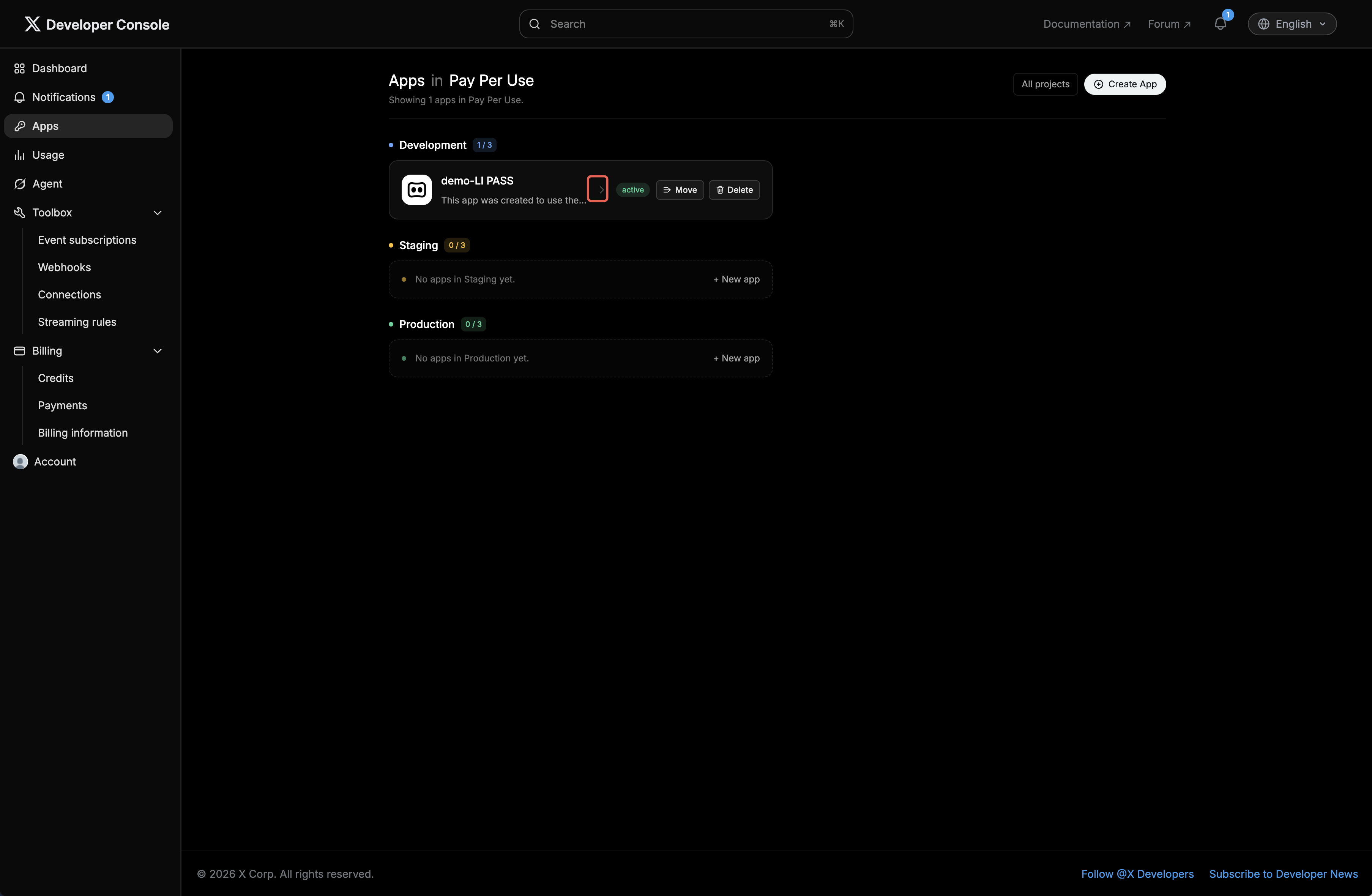
Click the application you created.
-
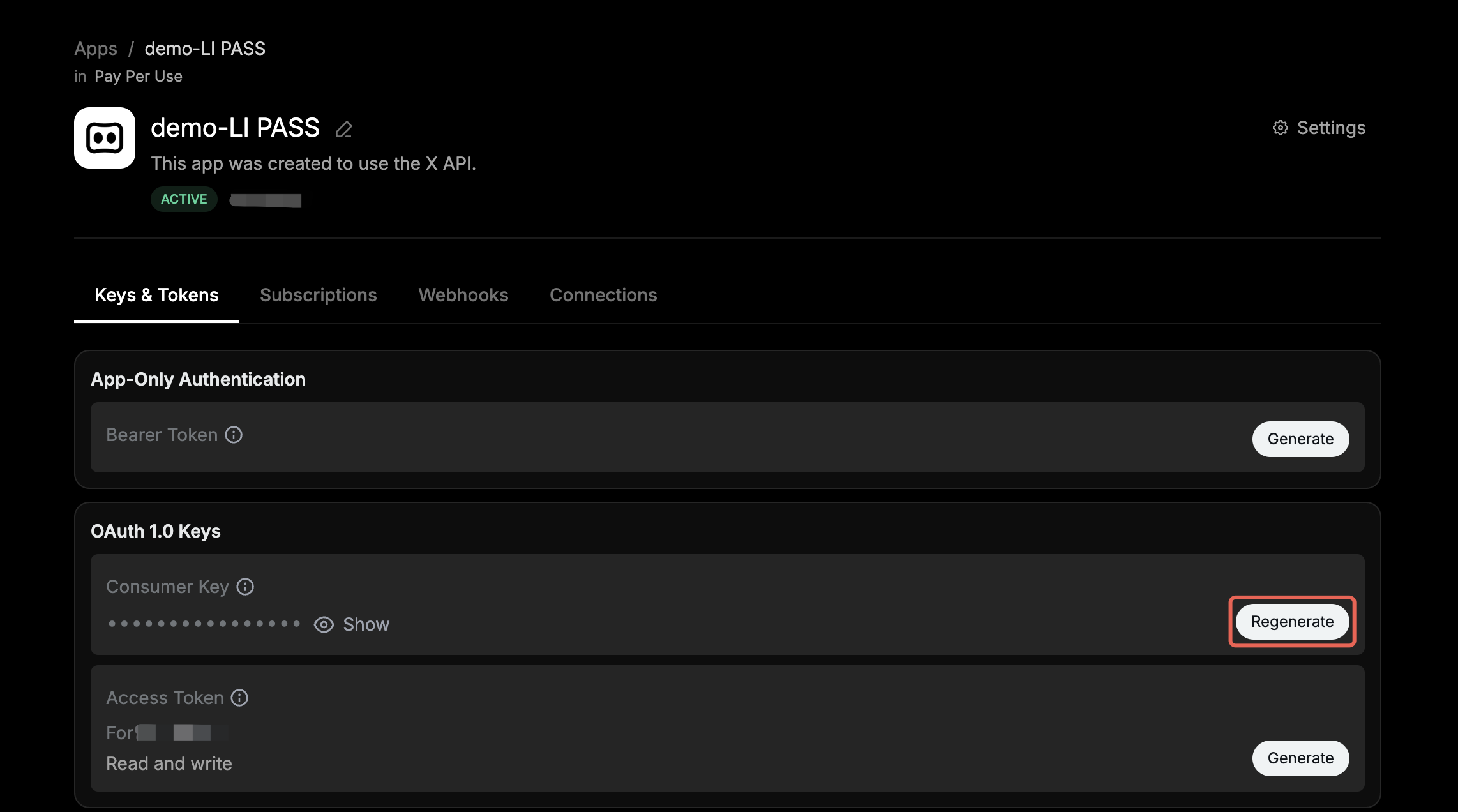
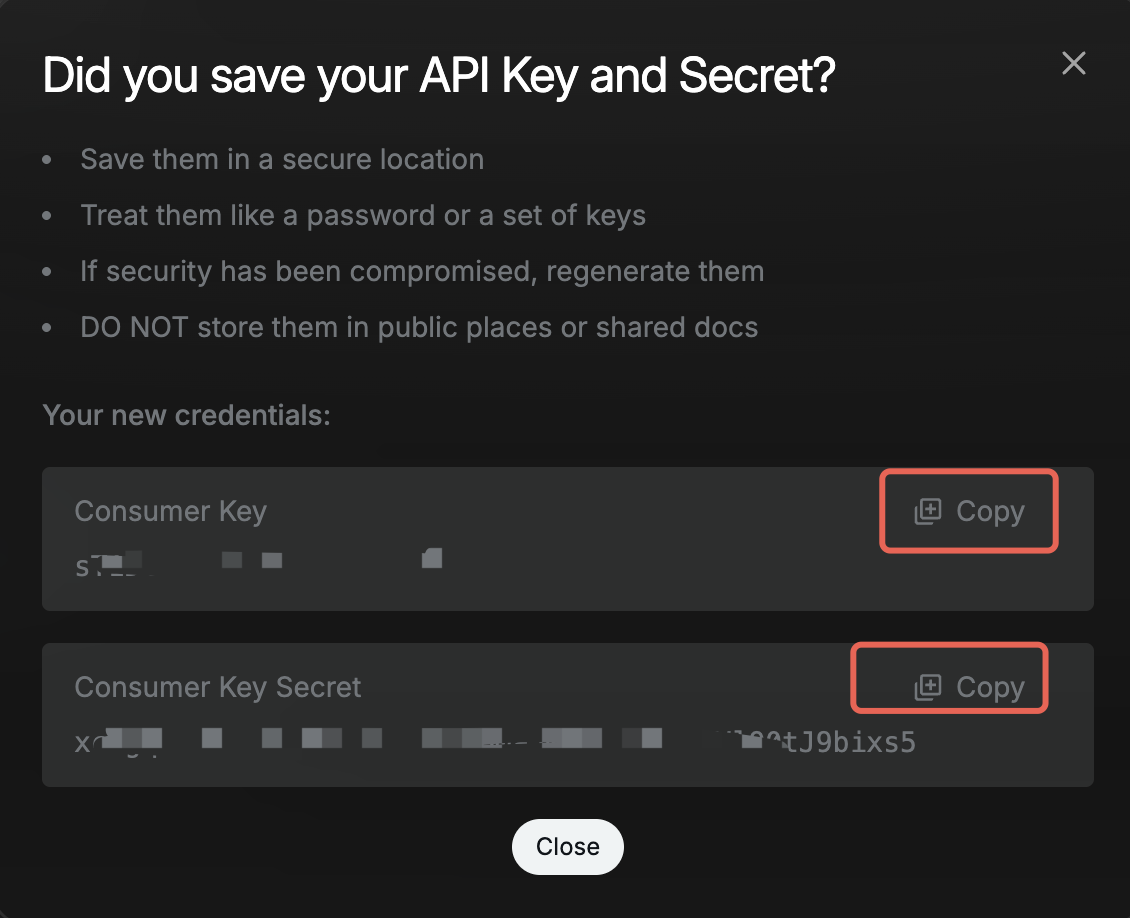
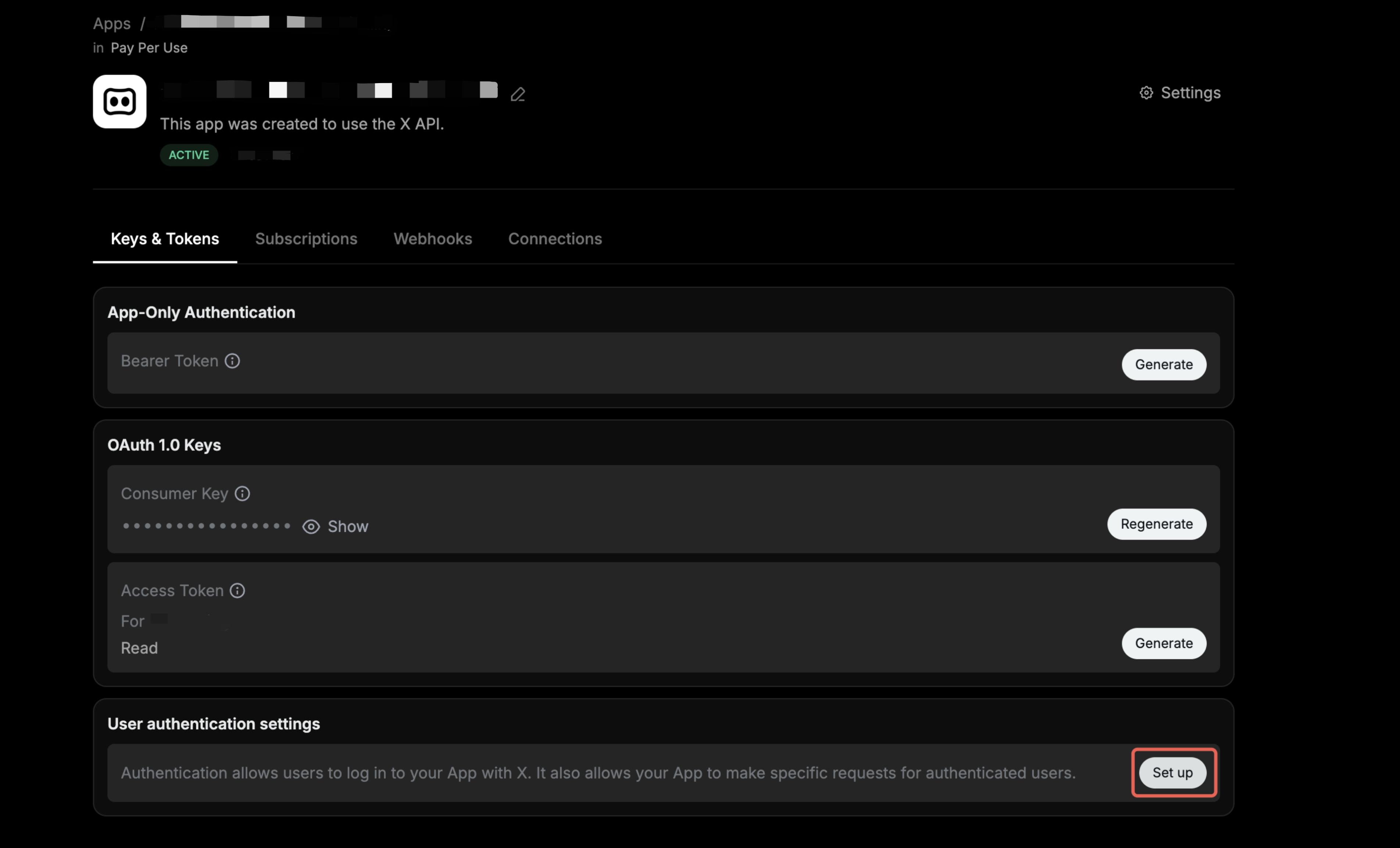
Click Regenerate to obtain the API Key and API Secret Key.
This page will not appear again, so please be sure to save this information.
-
Click Set up.
-
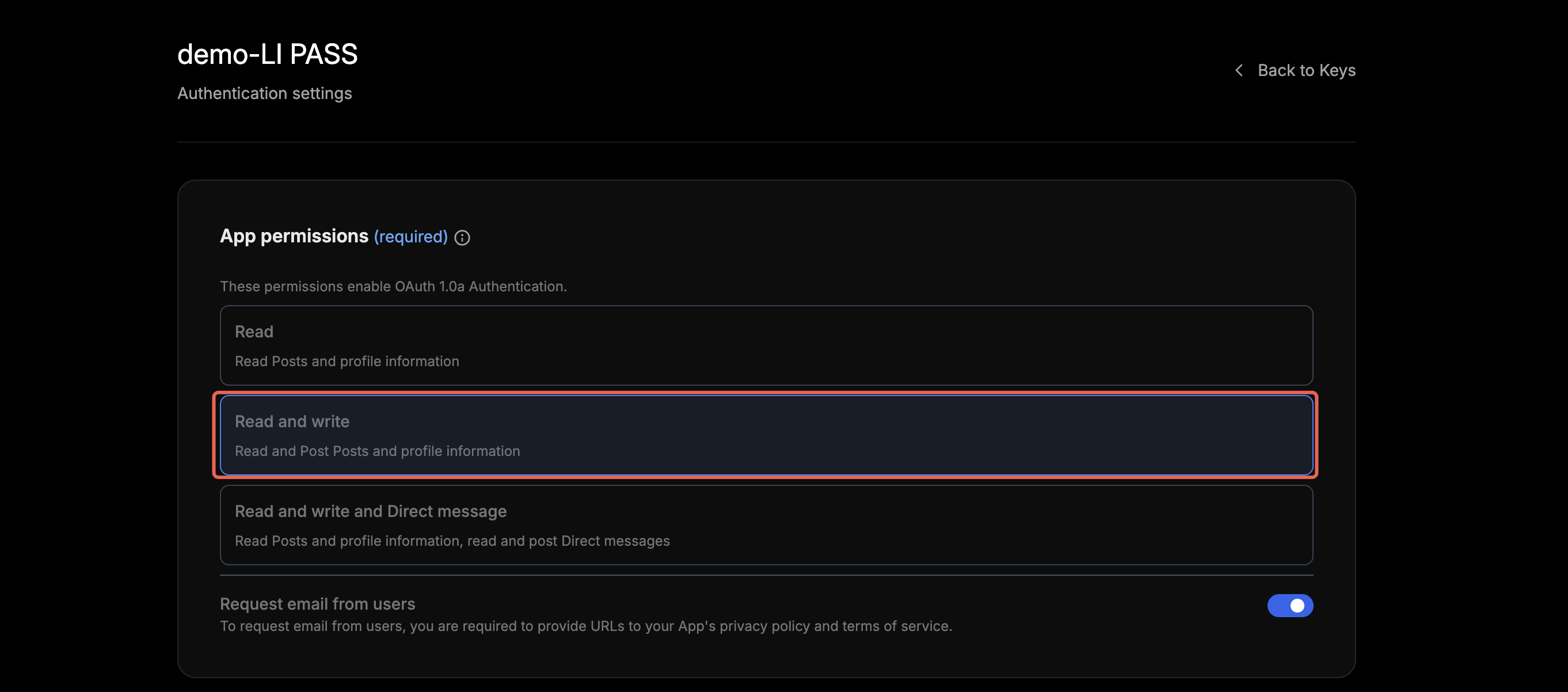
Select Read And Write.
-
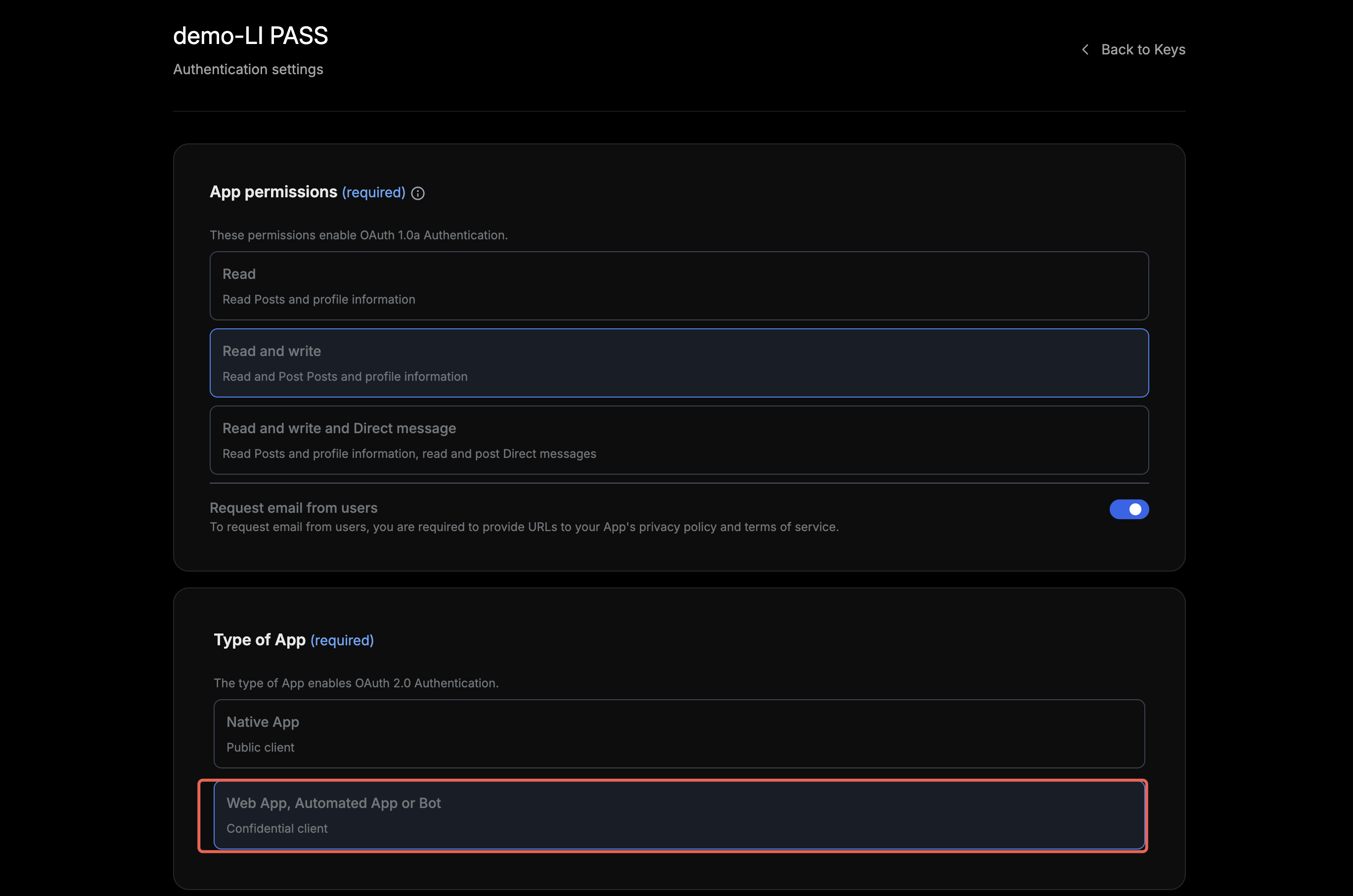
Select Web App for the application type.
-
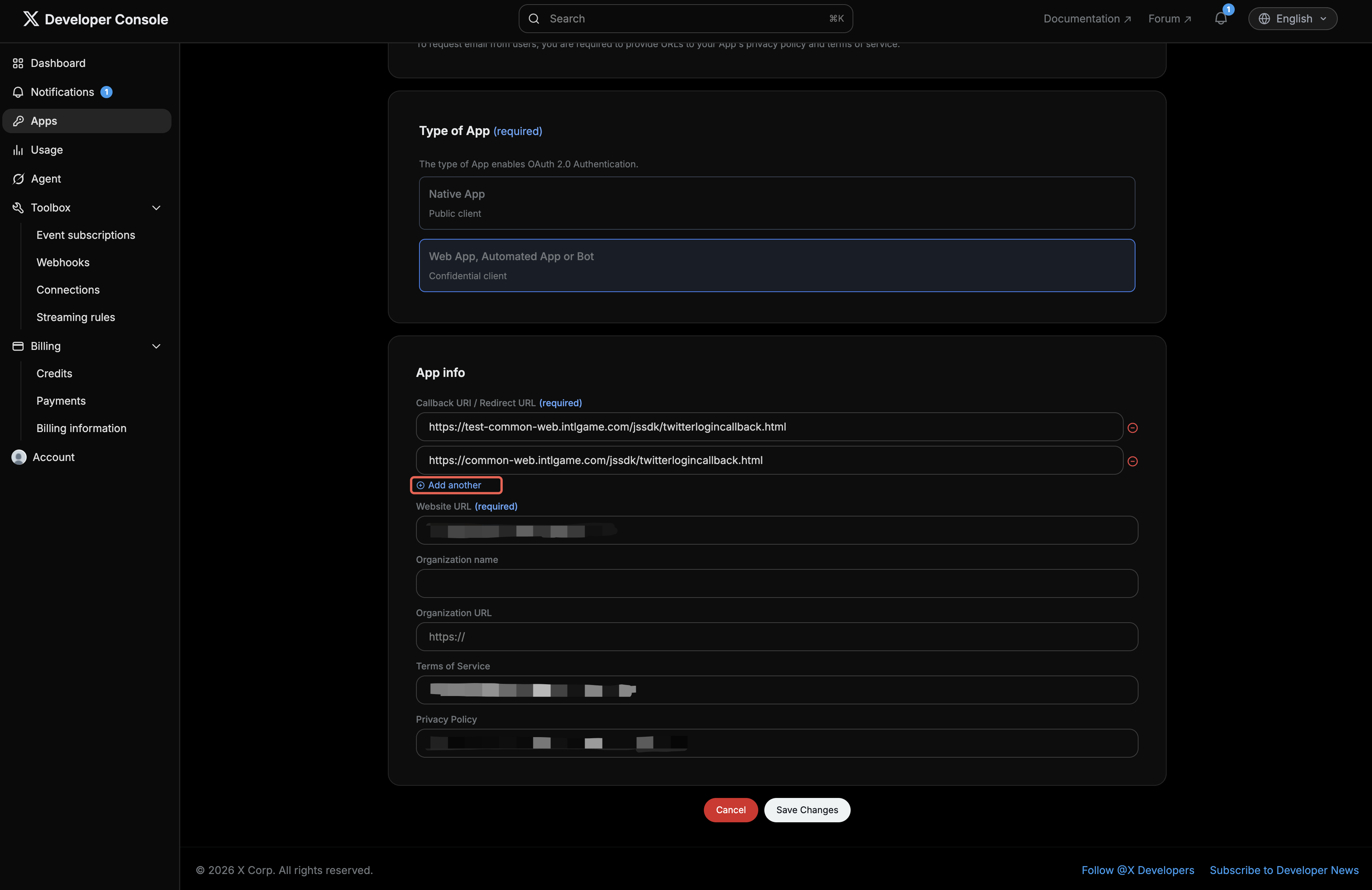
Add the test environment and production environment URLs as the callback URL.You will be redirected to the game’s official website.Click Save Changes.
If the game is already live, you cannot delete the existing callback URL, only add new ones.
For Android/iOS platforms using Player Network SDK V1.15 and earlier
https://image.intlgame.com/v2/test/jssdk/twitterlogincallback.html
https://image.intlgame.com/v2/release/jssdk/twitterlogincallback.html
For Android/iOS and Windows platforms using Player Network SDK V1.16 and later
https://test-common-web.intlgame.com/jssdk/twitterlogincallback.html
https://common-web.intlgame.com/jssdk/twitterlogincallback.html
2. Retrieve application information
You need the X API Key and API Secret Key to add X Login channel in Player Network.
- Go to Player Network Console to create a new project for your game or join an existing project.
- Download SDK.
- Integrate SDK.
- Add X as a login authentication method for your business in Player Network Console.
Step 1: Configure SDK for X login
-
Open the project's INTLConfig.ini file:
INTLConfig.ini[INTL environment]
# WARNING: You should change this URL to the production environment when you release your game.
INTL_URL = https://test.intlgame.com
GAME_ID = {INTL_GAME_ID}
SDK_KEY = {INTL_SDK_KEY}
[INTL Log]
LOG_LEVEL = 1
LOG_CONSOLE_OUTPUT_ENABLE = 1
LOG_FILE_OUTPUT_ENABLE = 1
LOG_ENCRYPT_ENABLE = 0
LOG_COMPRESS_ENABLE = 0
[X]
TWITTER_CONSUMER_KEY = {INTL_TWITTER_CONSUMER_KEY}
TWITTER_CONSUMER_SECRET = {INTL_TWITTER_CONSUMER_SECRET}- Set SDK backend environment to
INTL_URL = https://test.intlgame.com. - Replace
{INTL_GAME_ID}and{INTL_SDK_KEY}with the values ofGAME_IDandSDK_KEYassigned by the Player Network Console. - Set
LOG_LEVEL = 1,LOG_CONSOLE_OUTPUT_ENABLE = 1,LOG_FILE_OUTPUT_ENABLE = 1,LOG_ENCRYPT_ENABLE = 0, andLOG_COMPRESS_ENABLE = 0to output console and log files without encryption or compression. - Replace
{INTL_TWITTER_CONSUMER_KEY}and{INTL_TWITTER_CONSUMER_SECRET}with X API key and API Key Secret.
- Set SDK backend environment to
Step 2: Add X login
- Register login-related callbacks.
- Unity
- Unreal Engine
// Add callbacks
public void AddAuthObserver()
{
    INTLAPI.AddAuthResultObserver(OnAuthResultEvent);
}

// Remove callbacks
public void RemoveAuthObserver()
{
    INTLAPI.RemoveAuthResultObserver(OnAuthResultEvent);
}

// Process the INTLAuthResult callback
public void OnAuthResultEvent(INTLAuthResult AuthResult)
{
    Debug.Log($"MethodID: {AuthResult.MethodId}");

    string methodTag = "";
    switch (AuthResult.MethodId)
    {
        case (int)INTLMethodID.INTL_AUTH_LOGIN:
            methodTag = "Login";
            break;
        case (int)INTLMethodID.INTL_AUTH_BIND:
            methodTag = "Bind";
            break;
        case (int)INTLMethodID.INTL_AUTH_AUTOLOGIN:
            methodTag = "AutoLogin";
            break;
        case (int)INTLMethodID.INTL_AUTH_QUERY_USER_INFO:
            methodTag = "QueryUserInfo";
            break;
        case (int)INTLMethodID.INTL_AUTH_GET_AUTH_RESULT:
            methodTag = "GetAuthResult";
            break;
    }
}
C++ Event Handling (above v1.15)
//configure callback
FINTLAuthEvent authEvent;
authEvent.AddUObject(this, &OnAuthResult_Implementation);
UINTLSDKAPI::. SetAuthResultObserver(authEvent);
// Remove callbacks
UINTLSDKAPI::GetAuthResultObserver().Clear();
void OnAuthResult_Implementation(FINTLAuthResult ret)
{
 UE_LOG(LogTemp, Warning, TEXT("MethodID: %d"), ret.MethodId);
}
Unreal Event Handling
void OnAuthResult_Implementation(FINTLAuthResult ret)
{
 UE_LOG(LogTemp, Warning, TEXT("MethodID: %d"), ret.MethodId);
}
- Call the
AutoLogininterface for automatic login.
- Unity
- Unreal Engine
INTLAPI.AutoLogin();
UINTLSDKAPI::AutoLogin();
- If automatic login fails, call the
Loginmethod to let players log in manually.
- Unity
- Unreal Engine
INTLAPI.Login(INTLChannel.Twitter);
UINTLSDKAPI::Login(EINTLLoginChannel::kChannelGuest);
- Synchronize client authentication status with the game backend, waiting for final validation results.
[Optional] Set email permissions
To obtain player email during X login, you must first enable the corresponding permission. Once enabled, email will be returned in the ChannelInfo of AuthResult.
- For compliance reasons, the returned
emailcan be masked for specific sources. If needed, please contact the Player Network assistant to enable it. - You can report the hash of the email as
base64(sha256(email))in the backend transaction logs; please contact Player Network Assistant to enable this if required. - This is used to verify whether the player information or binding list contains
emailinformation; please contact Player Network Assistant to enable this if required.
-
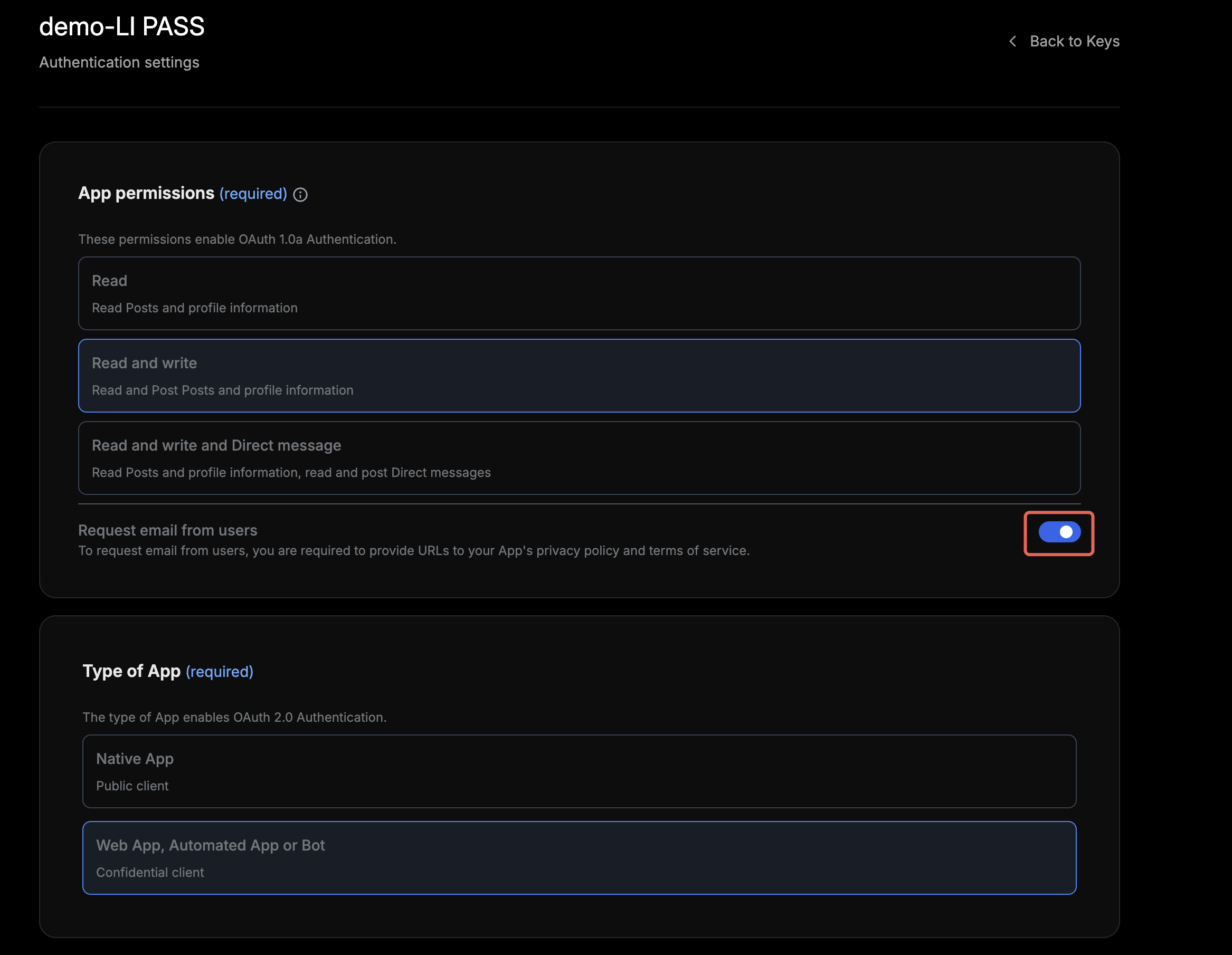
In X Developer Platform, under OAuth 2.0 keys > Edit settings, select Request email from users.
-
Enable the email return function in the Player Network Console by setting return_email to YES. For detailed steps, see Third-party channel configuration.
Step 3: Acceptance test for login function
Search for the keyword "AuthResult" in the Player Network SDK logs to verify whether the channel name and OpenID have been correctly returned.If correct, the integration was successful and the login function has been added.
If you encounter issues during integration, please refer to FAQs.

