Web
LI PASS has implemented a standard compliance solution that games can directly use without additional operations.For games connecting to LI PASS, refer to the migration guide in the LI PASS documentation.For games connecting only to third-party channels and guest accounts, implement the age verification service as described in this article.
Step 1: Import SDK
During the project tuning phase, you can import the SDK debug version package, which is only used for integration testing.When the project goes online, the official version package of the SDK must be imported.
Users can install the SDK from npm or CDN.
- npm
- CDN
$ npm install @intlsdk/compliance-api
// Test environment SDK package
<script src="https://test-common-web.intlgame.com/sdk-cdn/compliance-api/index.umd.js"></script>

// Production environment SDK package
<script src="https://common-web.intlgame.com/sdk-cdn/compliance-api/index.umd.js"></script>
Step 2: Instantiate SDK
:::警告
Set env to the test environment during integration testing, and set env to the corresponding production environment when launching the game.
:::
const complianceApi = new IntlgameComplianceApi({
  env: "test",
});
| Parameters | Type | Description | Notes |
|---|---|---|---|
| env | String | SDK environment For more information, see SDK Environment (env). | Required |
Step 3: Set player information
- Leave the country/region code blank and use
setUserProfileto set player information. - Call
queryUserStatusto return information containing the player's adult status. - Let players choose on the page or use the returned information to obtain the player's country/region information.
- Use the obtained country/region information and call
setUserProfileagain to set player information.
Step 4: Verify age certification status
Each country has its legal age of maturity. Games also have rating corresponding minimum age limits.Call queryUserStatus to query whether the player's country/region has age restrictions for the game.If there are no age restrictions in the region, the player can proceed directly into the game.Otherwise, continue to verify whether the player is an adult according to the region's age of majority.If the age of maturity is less than or equal to the player's age, parental consent is bypassed, allowing entry into the game.If the player's age is below the age of maturity, parental consent is required through the minor parental compliance certification before entering the game.
-
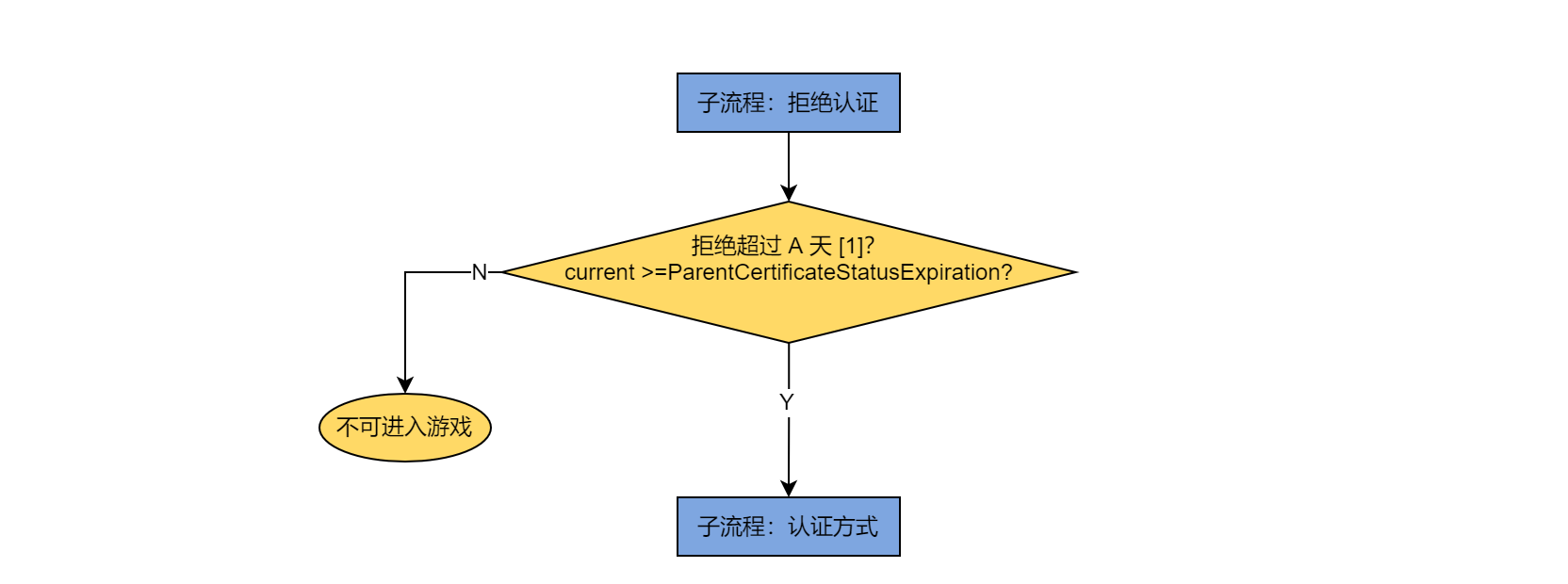
If the parent refused the minor parental compliance certification, verify if the refusal time exceeds 7 days. The 7-day cooling-off period is to prevent the player from attempting certification again.If so, restart the Parental Consent; otherwise, exit the game.
-
If minor parental compliance certification has not been started, verify the player's adult status.If the adult status is unclear, prompt the player to input birth date and call
commitBirthdayto record the player's information in the system, then re-verify adult status.If the player is under the game's rating age, exit the game immediately.If the player is of legal age, they can directly enter the game.If the player is a minor but above the game's rating age, seek parental consent before entering the game.When a player enters the game for the first time or the minor status cannot be determined, prompt the player to input birth date, check maturity status, and determine if certification is needed.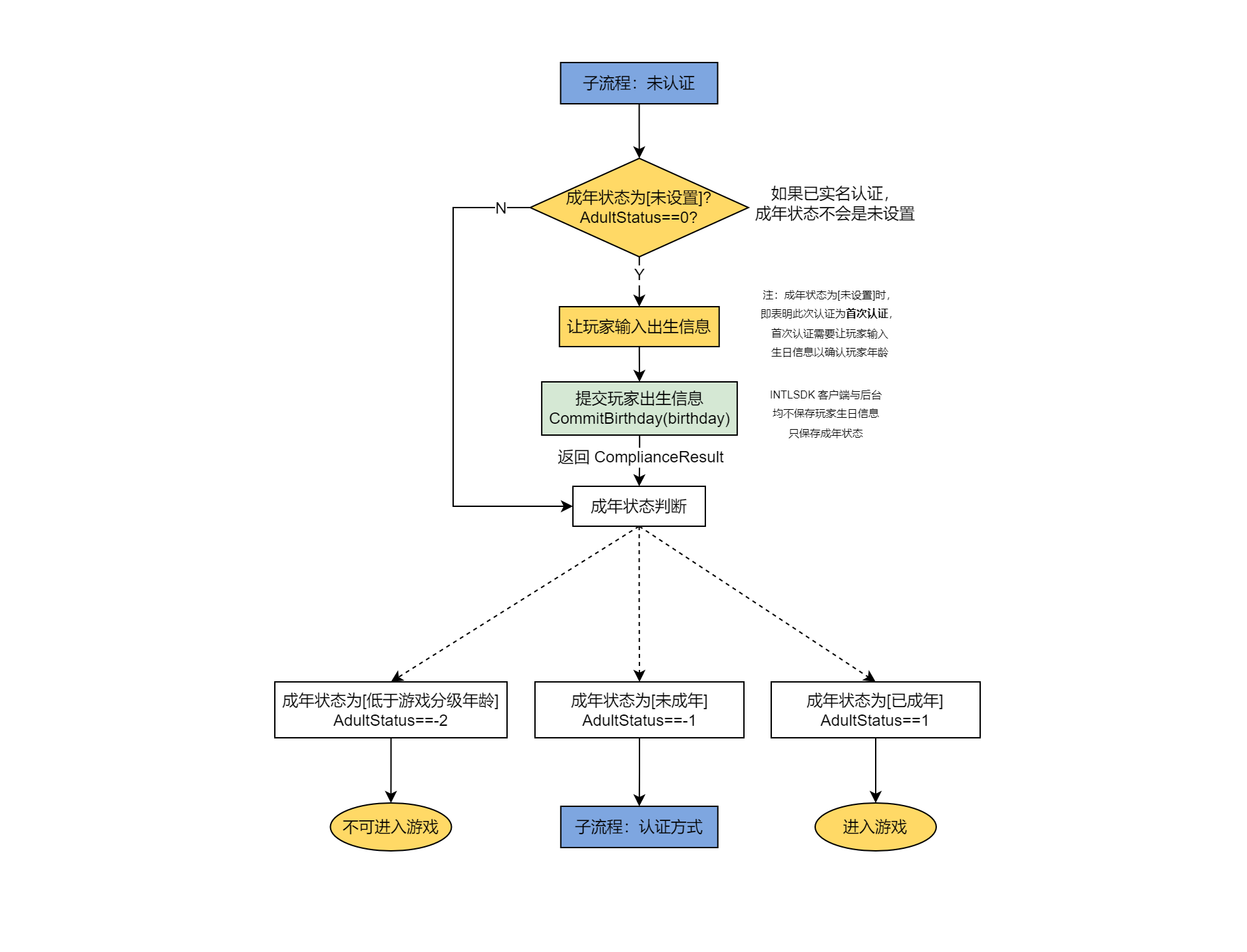
-
If minor parental compliance certification has begun, ask the player if they want to change the email.If so, restart Parental Consent with the new email; otherwise, send a reminder email and call
queryUserStatusagain to confirm parental consent has been received.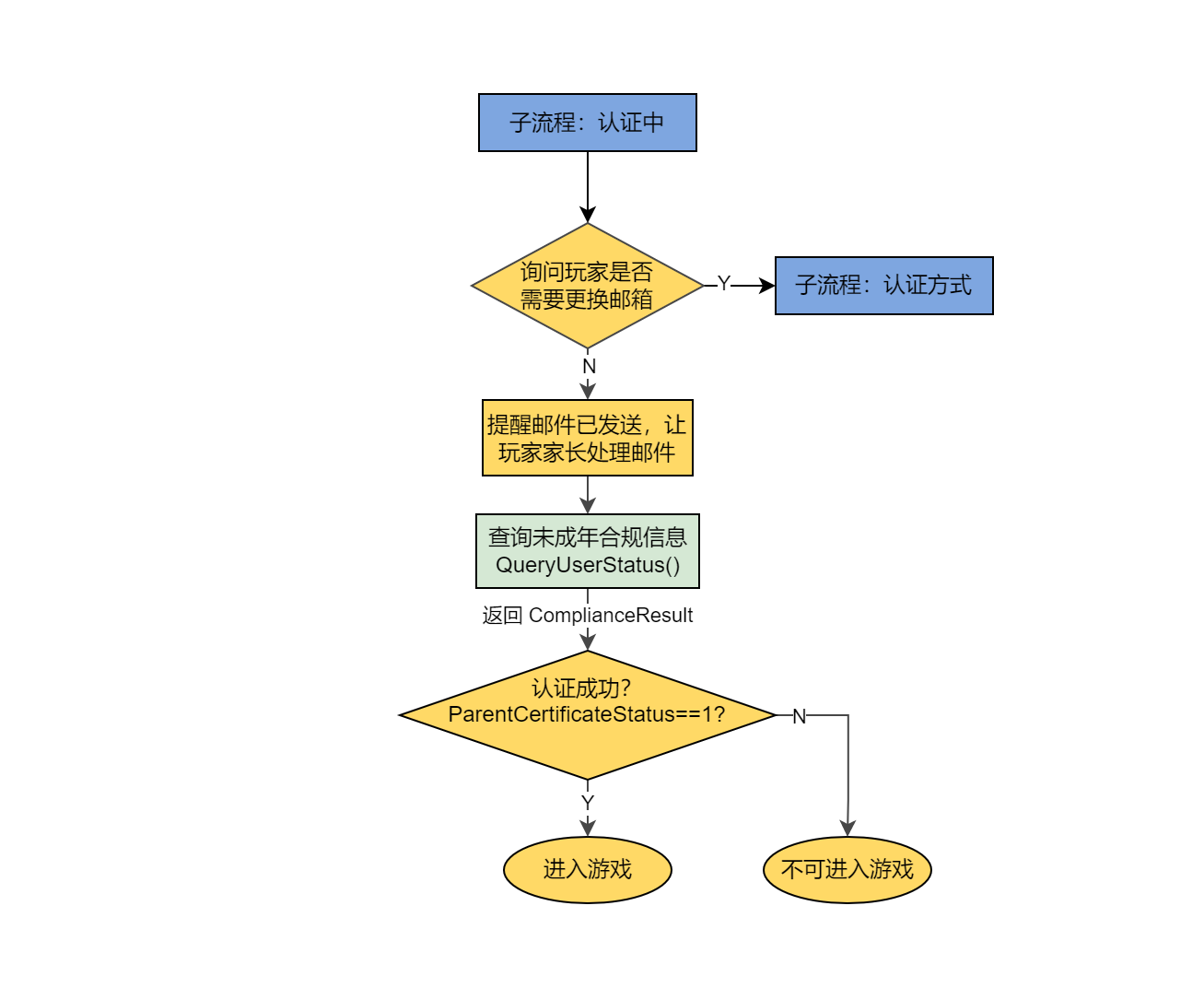
-
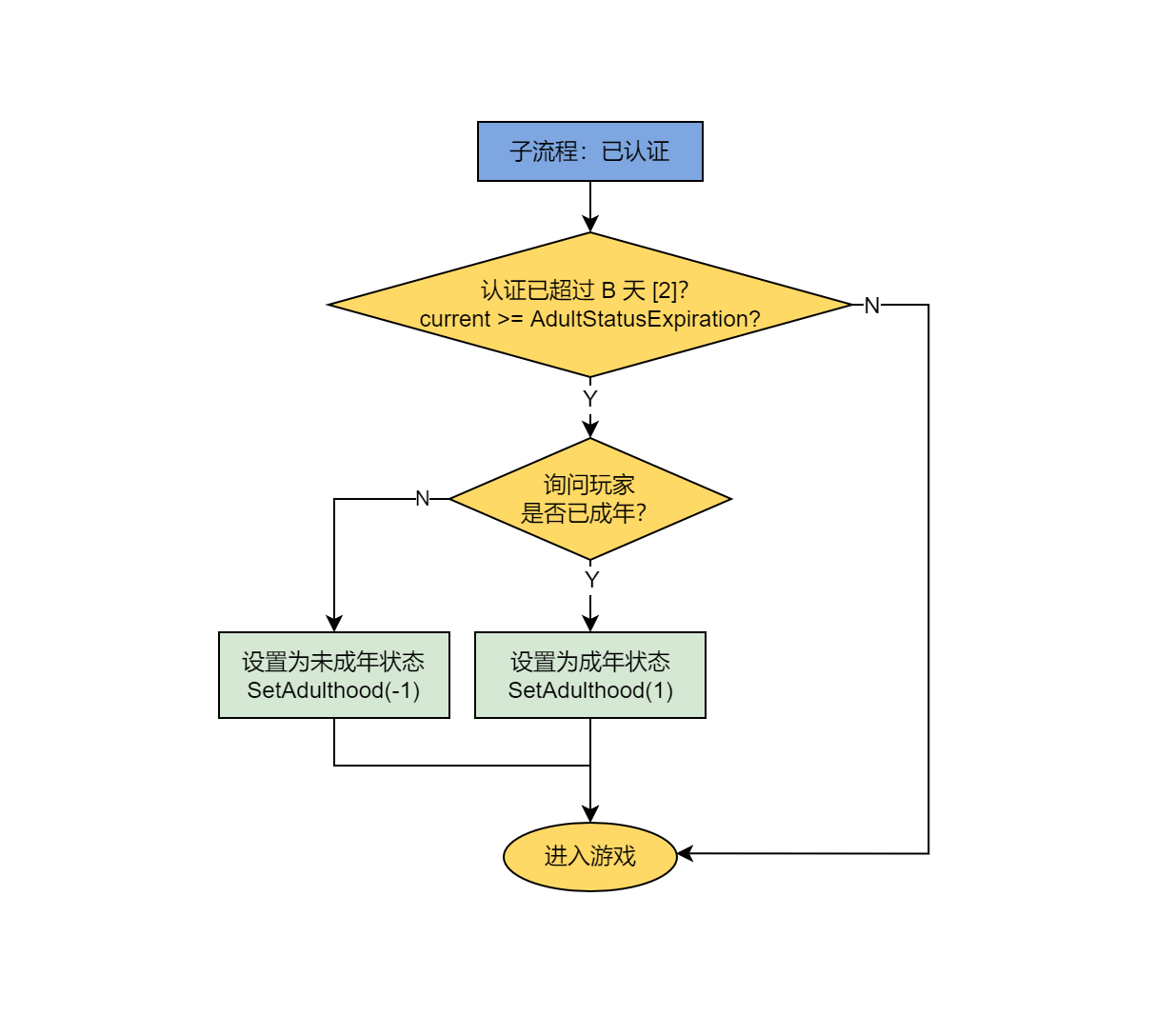
If parental consent has been received, verify if the reception time has exceeded B days. B is the interval for the certification status timeout (e.g., 365 days).If less than B days, the player can directly enter the game.Otherwise, ask the player to confirm age again before entering the game and update the player's maturity status.
The test environment is configured as 900s, which is 15 minutes.
Seek parental consent
Player Network provides three different ways for parents to confirm their identity and grant parental consent.
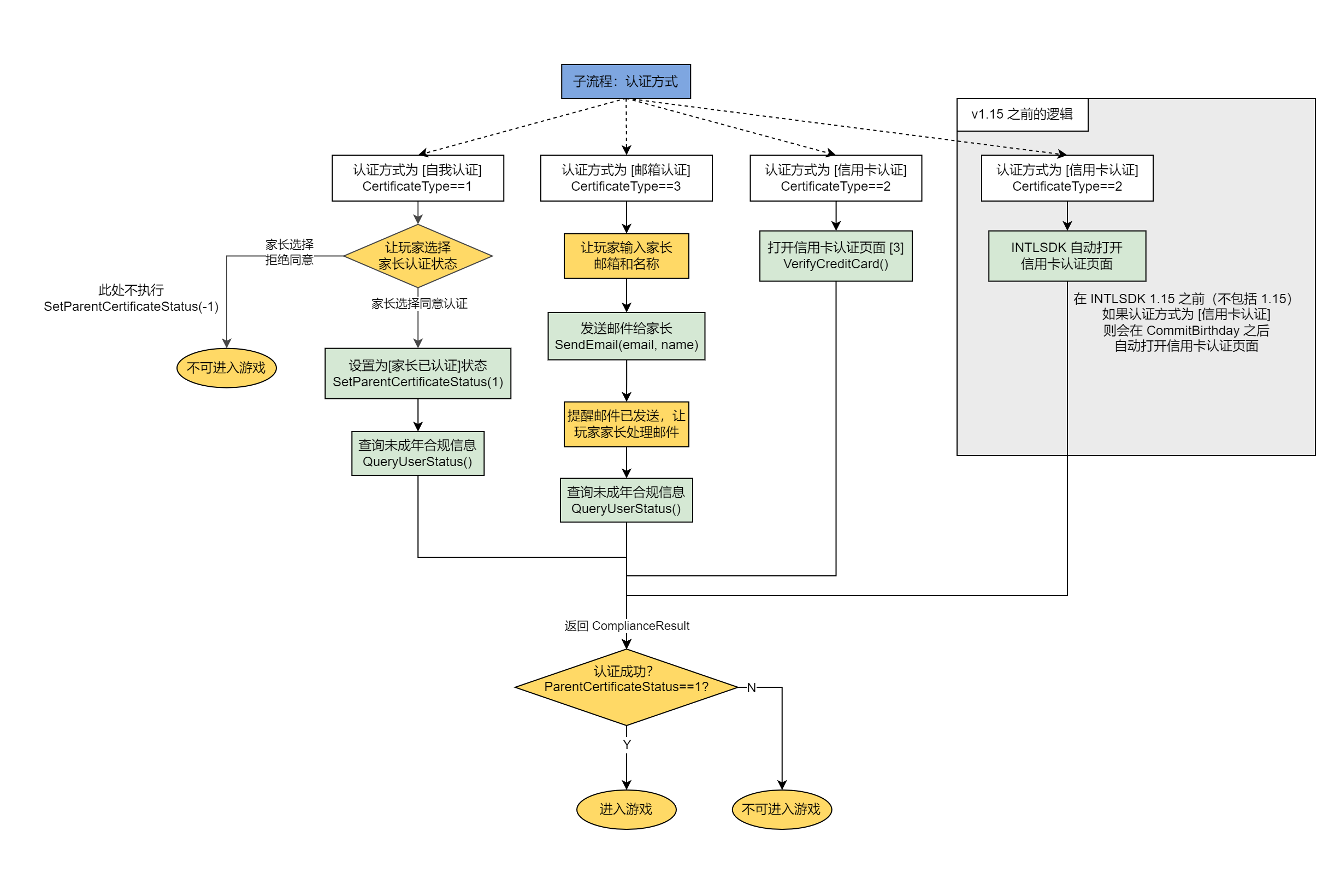
Self-certification
A prompt on the device allows parents to confirm their identity and grant consent for minors to play games.If consent is refused, set parental consent status to refused and exit the game.If parental consent is obtained, set the consent status to obtained and callback queryUserStatus to confirm the player may enter the game, then enter directly.
Email certification
A prompt allows the player to input the parent's name and email.Player Network then callbacks queryUserStatus to start certification again.
Credit Card Authentication
Call VerifyCreditCard to open the credit card verification page to continue certification.If certification fails, exit the game. If successful, set parental consent status to obtained and enter the game directly.
Step 5: Start integration testing
Submit an integration test request to the compliance team and specify your configuration clearly, then wait for the compliance team to schedule and start integration testing.

