Configure Firebase reporting
This document introduces how to set up the Firebase analytics platform, allowing your game to directly report analytics data to Firebase.
Before building the project, please ensure you follow the Firebase setup steps below to prevent application crashes upon startup.
Firebase needs to run on Android 4.0 and above, and the device must also have Google Play Services version 11.0.2 or above installed.
Prerequisites
Firebase supports Multi-store channel package, allowing multiple apps to be created under the same developer account.Simply fill in the new channel package name and corresponding signature configuration under the same Firebase project, and complete additional game application configuration by repeating the following steps.
1. Register Firebase Project
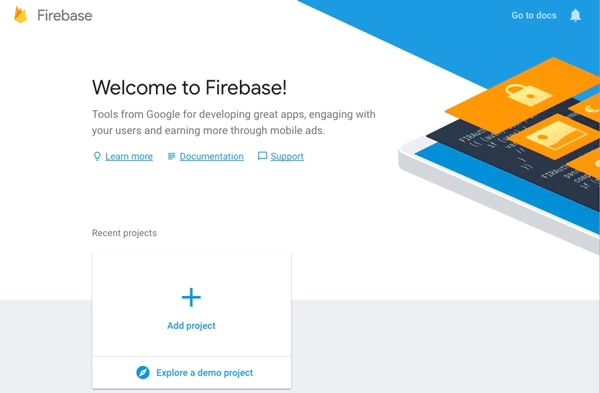
Register the Firebase project according to prompts on the Firebase Console.
2. Add Application
Firebase supports Multi-store channel package, allowing multiple apps to be created under the same developer account.Simply fill in the new channel package name and corresponding signature configuration under the same Firebase project, and complete additional game application configuration by repeating the following steps.
-
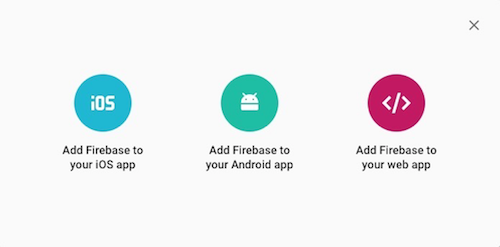
In the Project Overview page of the Firebase Console, add the Firebase application for the corresponding platform.
-
Add the relevant information according to prompts.
-
Add Android application.
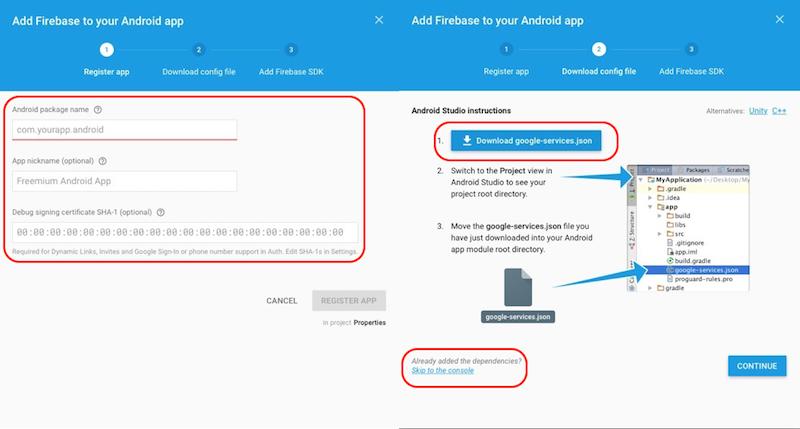
- After filling in the information, click REGISTER APP.
If some fields are uncertain, they can be supplemented later in settings. - Download the
google-services.jsonfile for backup, and it can be re-downloaded from the Firebase Console later. - Skip other steps.
- After filling in the information, click REGISTER APP.
-
Add iOS application.
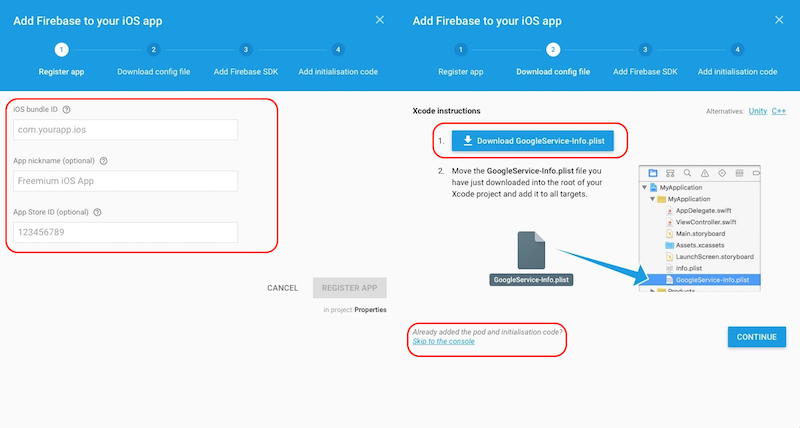
- After filling in the information, click REGISTER APP.
If some fields are uncertain, they can be supplemented later in settings. - Download the
google-services.jsonfile for backup, and it can be re-downloaded from the Firebase Console later. - Configure APN certificates for push functionality.
- After filling in the information, click REGISTER APP.
3. Upload iOS APNs Certificate
-
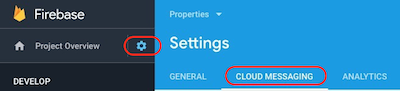
On the Settings page, click CLOUD MESSAGING and find the iOS project.
-
Add Development Certificate and Production Certificate separately.
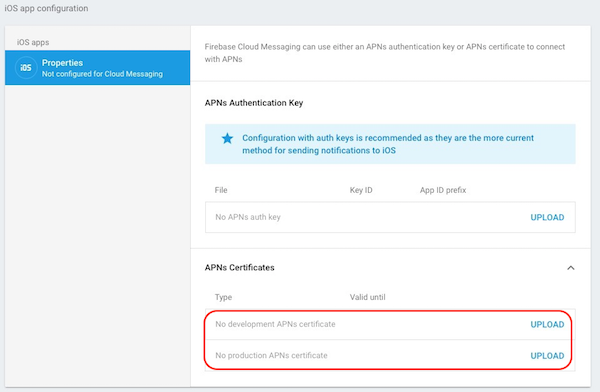
For more details, refer to Set up Apple Platform Client.
4. Project Configuration
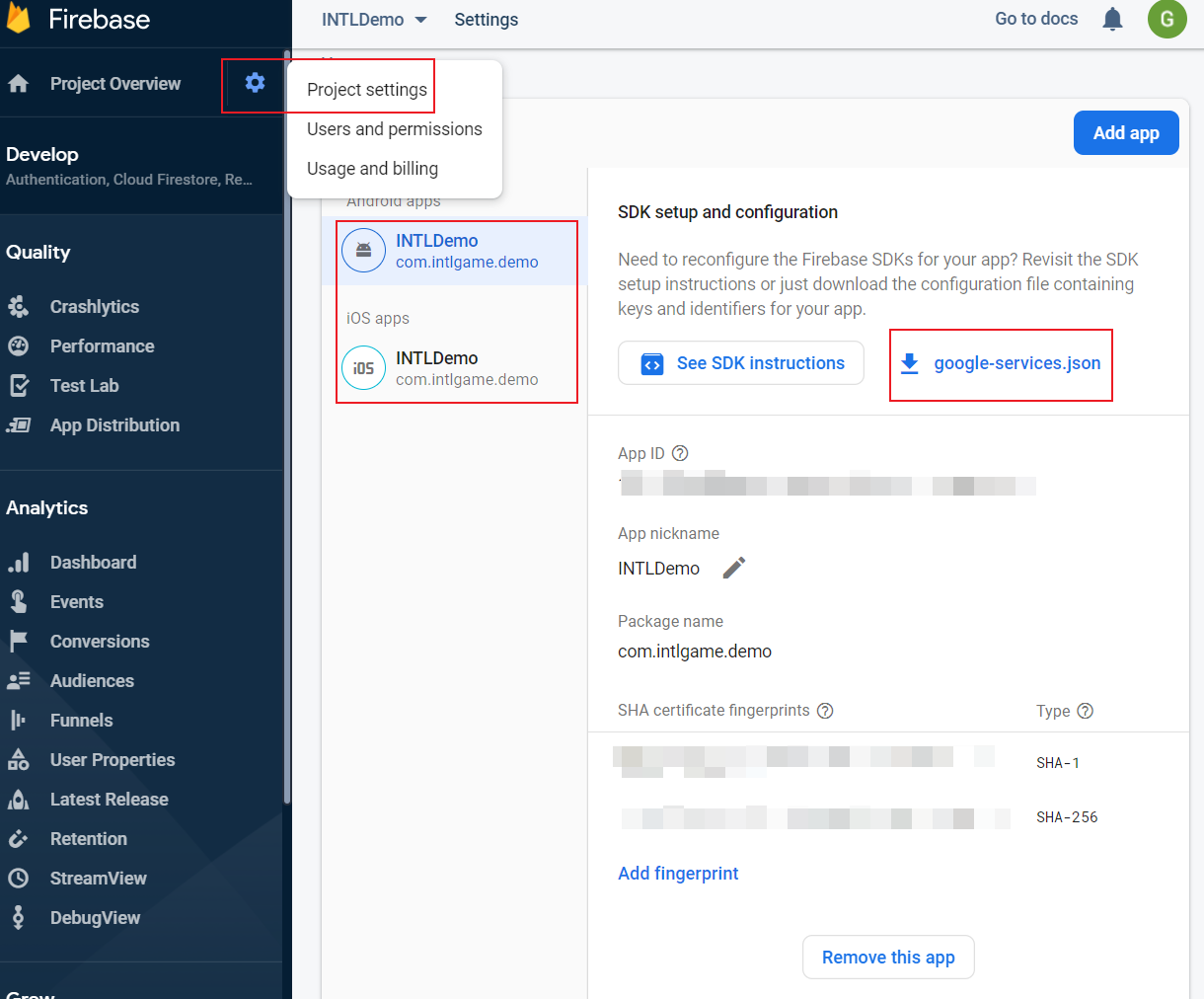
In Project settings, continue setting project information, download google-services.json and GoogleService-Info.plist, or configure Android certificate fingerprint.
Step 1: Permissions and Project Configuration
Android
User Permissions
Since Firebase SDK is only compatible with minSdkVersion >= 19, running on systems below Android 4.2 may have issues, requiring the game to set minSdkVersion >= 19.
Firebase requires network access permission.
<uses-permission android:name="android.permission.WAKE_LOCK" />
<uses-permission android:name="android.permission.INTERNET"/>
<uses-permission android:name="android.permission.ACCESS_NETWORK_STATE"/>
Project Configuration
Configure Android client key in INTLConfig.ini file.
[Google]
GOOGLE_CLIENT_KEY_ANDROID = {YOUR_CLIENT_KEY_ANDROID}
- Replace
{YOUR_CLIENT_KEY_ANDROID}with the Web client key required by Player Network SDK, the client ID corresponding to webpage client when configuring API OAuth in the Credentials page.This is the Server Client ID established in the OAuth operations configured at the backend of OAuth 2.5.
google-services.json
Missing google-services.json file will cause packaging failure.
Gradle packaging method supports directly reading content from google-services.json file, converting it into the corresponding app/build/generated/res/google-services/{build_type}/values/values.xml configuration file.
- Unity
- Unreal Engine
For more details on adding the google-services.json file to the project's Assets/Plugins/Android/ directory, see The Google Services Gradle Plugin.
For more details on adding the google-services.json file to the project's Assets/Plugins/Android/ directory, see The Google Services Gradle Plugin.
iOS
Project Configuration
Firebase Plist
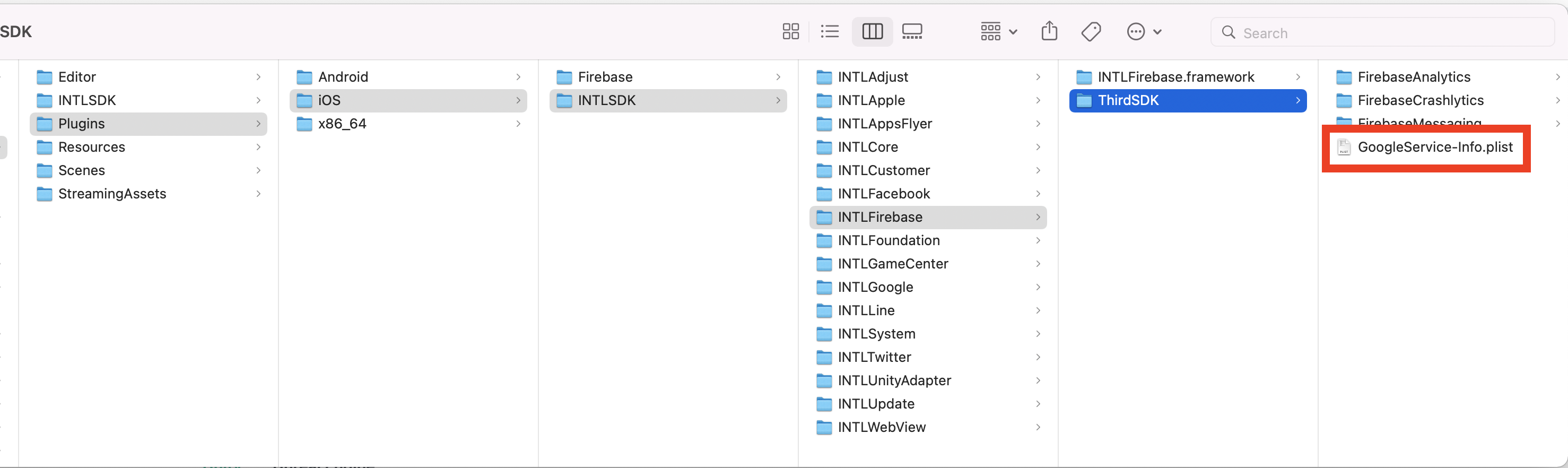
Missing GoogleService-info.plist file will cause startup crashes.
Place the configuration file GoogleService-info.plist in the Assets/Plugins/iOS/INTLSDK/INTLFirebase/ThirdSDK/ directory.
[Optional] Unity Engine exports Xcode
Before exporting the Xcode project, you need to first complete the configuration of the .projmods file.
The Player Network SDK has already written the following configuration into the INTLFirebaseKit.projmods file, you only need to ensure the information is correct.
{
    "group": "INTL",
    "libs": [],
    "frameworks": [],
    "files": [
        "Plugins/iOS/INTLSDK/INTLFirebase/GoogleService-Info.plist"
    ],
    "folders": [],
    "excludes": [],
    "headerpaths":[],
    "build_settings": {},
    "system_capabilities": {"com.apple.Push":"TRUE"},
    "Info.plist":{},
}
For more information about exporting Xcode projects, see Player Network SDK XUPorter Solution.
[Optional] Private Set Membership
Private Set Membership (PSM) is a cryptographic technique that can be used to verify whether user data is contained in a large dataset held by another party without revealing the data itself or learning anything else about the dataset, enhancing the observable conversion rate for iOS app advertisements.
Starting from Player Network SDK V1.19.00, the iOS client supports Google PSM to provide more accurate player signals and improve advertising acquisition effectiveness.
PSM functionality is closed by default, to enable the function, permissions for obtaining the login player email for each channel must first be enabled.The following third-party login channels in the Player Network SDK support PSM functionality:
After obtaining permission, add the following configuration under the Firebase node in the INTLConfig.ini file:
ANALYTICS_FIREBASE_REPORT_EMAIL = 1
When the PSM function is enabled, the player's email will be reported to Google's server through the Firebase provided interface when logging into a new account, and Google's backend will calculate ad conversion rates.To verify the PSM function, refer to Acceptance Case 4.
For more information on PSM, refer to Measure Google Ads conversion rates of iOS app campaigns.
Step 2: Asynchronously Get instanceId
Since instanceID acquisition by Firebase is asynchronous, calling getInstanceID might return null.It is recommended to acquire instanceId asynchronously.
- Unity
- Unreal Engine
INTLAPI.ExtendInvoke("Firebase", "getInstanceIDAsync", "");
INTLAPI.AddExtendResultObserver(OnExtendEvent);
void OnExtendEvent(INTLExtendResult ret)
{
   //Extend Callback
}
INTLWrapper::Instance()->ExtendInvoke("Firebase", "getInstanceIDAsync", "").c_str();

//Must be implemented in subclasses
AnalyticsWindow.h
virtual void UAnalyticsWindow::OnExtendResult_Implementation(FINTLExtendResult ret) {
   //Extend Callback
}
Step 3: Configure Event Reporting
Firebase collects the Android ID of player devices.For instructions on disabling Android ID collection, refer to Disable SSAID collection.
Events are important events in the game that you want to measure. Each game can report up to 500 different types of events, and associate up to 25 unique parameters with each event type.You can customize event types for your game.
Each event type is identified by a unique name.Event names can be up to 40 characters in length, can only contain alphanumeric characters and underscores ("_"), and must start with an alphabetic character.The prefixes "firebase_", "google_", and "ga_" are reserved and should not be used.
For more information, refer to FirebaseAnalytics.Event Documentation.
Manual Event Reporting
Register custom key-value parameters in the reported events, and on the Firebase Management Console, click Manage Custom Definitions.
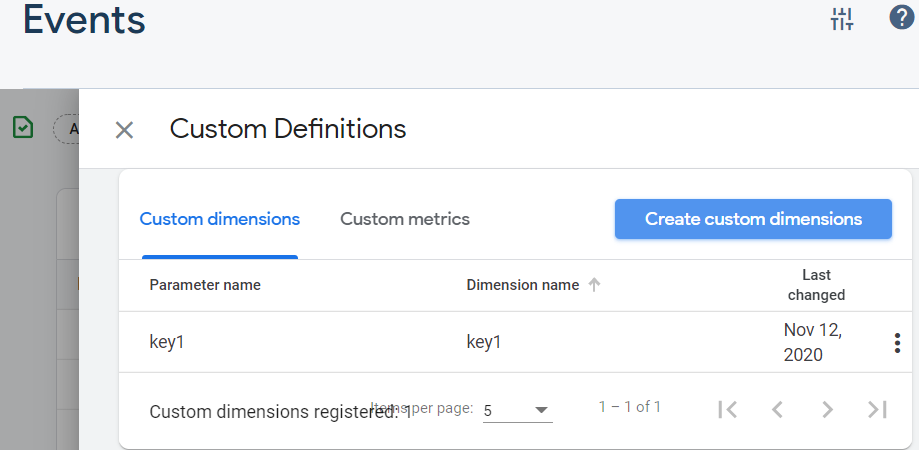
After the successful registration of custom parameters, the display effect is as follows:
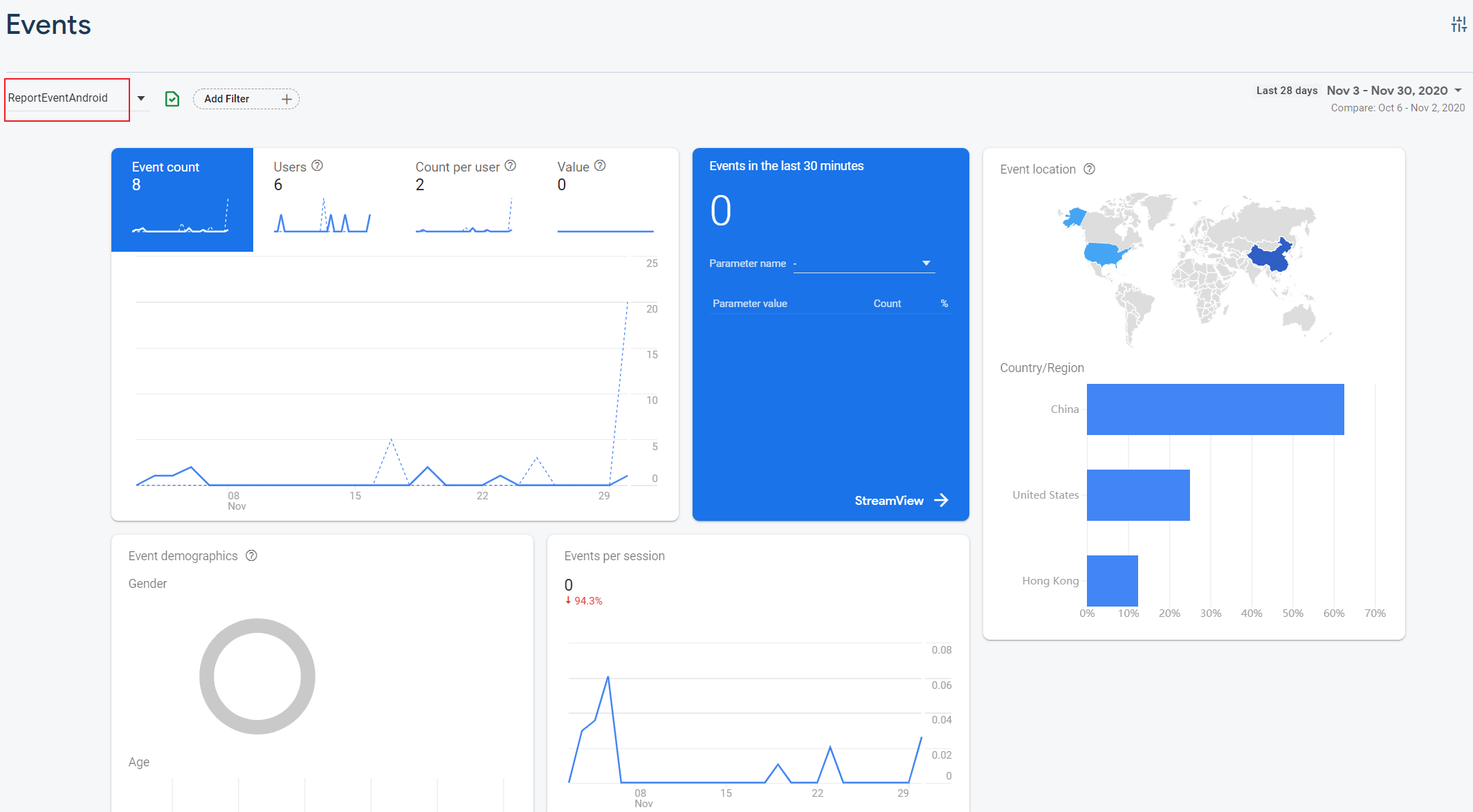
Funnel Events
Supported from Player Network SDK V1.20.
Add the Firebase channel in the ANALYTICS_REPORT_FUNNEL_CHANNEL configuration of INTLConfig.ini. Player Network SDK will synchronize funnel event reporting to the Firebase channel.
[ANALYTICS]
ANALYTICS_REPORT_FUNNEL_CHANNEL = Firebase
You can refer to View reported events in management console to see reported events.
Crash Viewing
Not supported from Player Network SDK V1.17 or above.
Step 4: Initialize Analytics Module
- Unity
- Unreal Engine
Initialize the Analytics module, then call ReportEvent to start reporting data to Firebase.
Initialize the Analytics module, then call ReportEvent to start reporting data to Firebase.
Data Reporting Acceptance
Document Reference
- Firebase Login Entrance
- Getting Started Guide (Android Edition) / Getting Started Guide (iOS Edition)
- Testing Mode
Data Dimensions
Firebase Events:
- Automatically collected events:
first_open,session_start,screen_view, etc. - Recommended events:
level_start,level_end
Adding these events to your website or mobile application can help you measure other features or behaviors and generate more useful reports.Because these events require additional context to be meaningful, they will not be automatically sent by global site tags. - Custom events:
ReportEvent
Events with custom eventname via API
For more information, see Events and Properties.
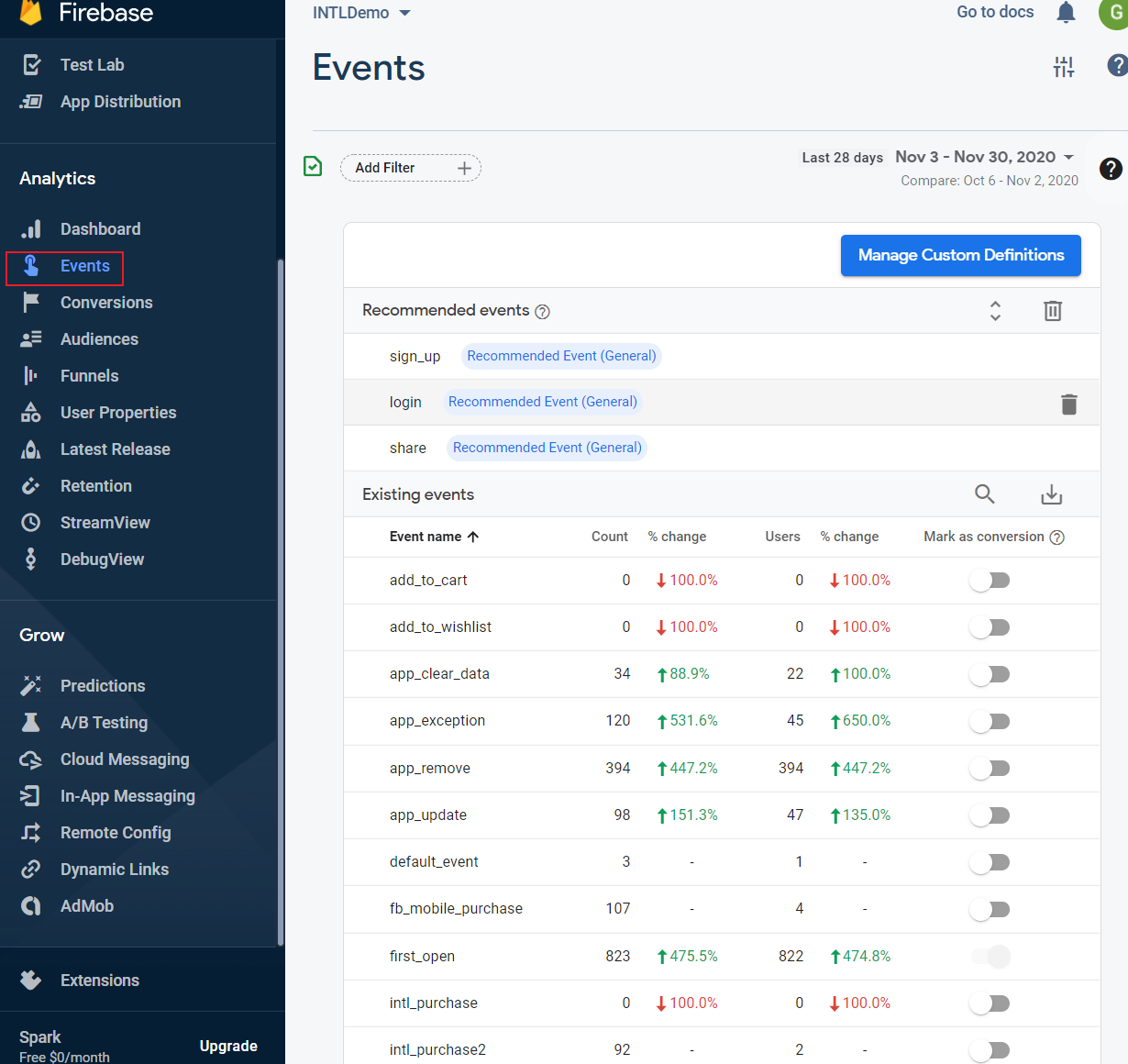
View Reported Events in Management Console
Events are not reported in real-time, with a delay of more than 1 hour.
Visit Firebase Management Console to view reported events.
Enable Debugging Mode to View Reported Events
Typically, events recorded by Firebase are grouped approximately every 1 hour for processing and batch uploading.This approach saves power consumption on the end-user devices and reduces network traffic consumption.To verify event reporting with the shortest delay, debugging mode can be enabled on development devices.
For more information on enabling debugging mode, refer to Enable Firebase Debugging.
- iOS
- Android
Delay in testing mode is about 20 seconds.
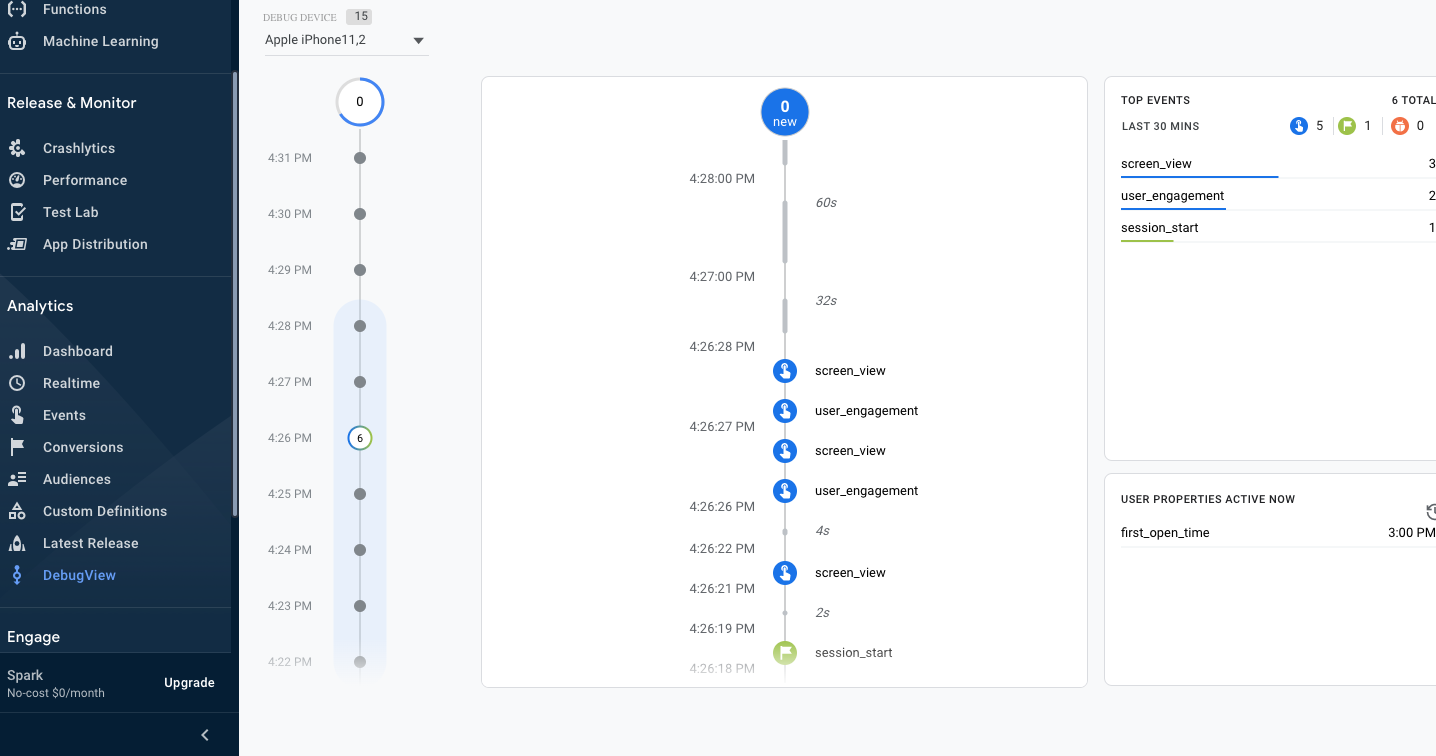
View events in the Firebase console:
- In the Firebase console, select DebugView.
- Select the corresponding device model to view reported events.
View events in the Xcode debug console:
- In Xcode, click Product > Scheme > Edit Scheme.
- Choose Run from the left menu.
- Select the Arguments tab.
- In the Arguments Passed On Launch section, add
-FIRAnalyticsDebugEnabled.
The delay is about 5 seconds in test mode.
- Execute the command
bash adb shell setprop debug.firebase.analytics.app {package_name} - In the Firebase console, select the corresponding device model on the DebugView page
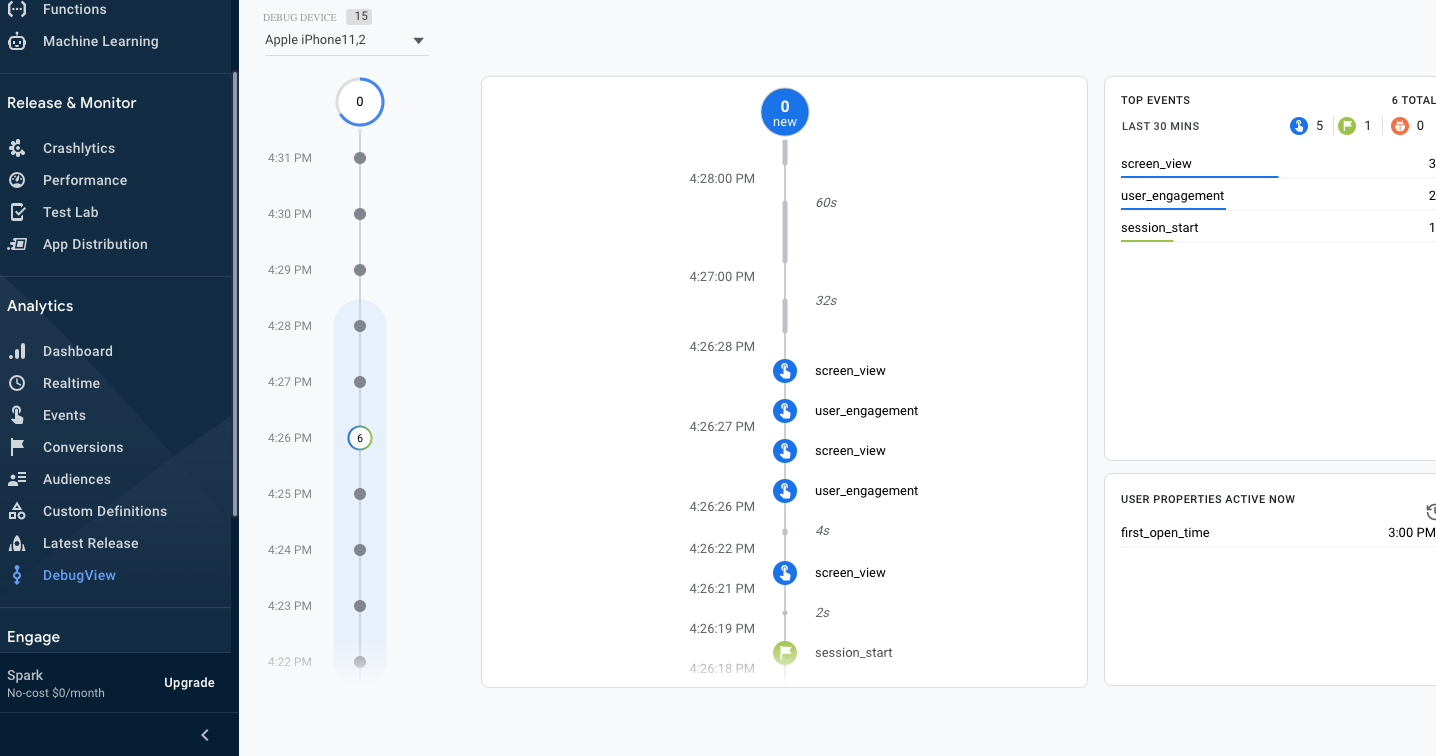
Debug mode will remain enabled until you explicitly disable it via the following command line:
bash adb shell setprop debug.firebase.analytics.app .none.
Acceptance Test Case 1
-
Sub-module: Reporting
-
Feature: Event Reporting
-
Test Point: Firebase event reporting success
-
Prerequisites: Initialize the analytics module
-
Steps/Inputs
- Request
ReportRevenue - eventName =
Report_Event, paramsDic-key1=k1, paramsDic-value1=v1, paramsDic-key2=k2, paramsDic-value2=v2, spChannels=Firebase - Uninstall the SDK and start the game
- Enter the management endpoint and click Events to view the reported
first_open events
- Request
-
Expected output information reports successfully, check as follows:
Admin panel: Firebase shows the reported events and queries the set parameters- Open the app and check session_start events: Reported qty+1
Check: eventName =Report_Event, paramsDic-key1=k1, paramsDic-value1=v1, paramsDic-key2=k2, paramsDic-value2=v2, spChannels =Firebase - Uninstall and install the
first_open eventreport quantity +1, view the check of uninstall and installfirst_open events: Event: Report quantity +1
Check: paramsDic-value2=v2, spChannels =Firebase
- Open the app and check session_start events: Reported qty+1
Acceptance Test Case 2
- Submodule: ReportRevenue
- Feature: Firebase payment event reporting
- Test Point: Query reporting after
ReportRevenuerequest (Firebase) - Prerequisites: Network connection is normal
- Steps/Inputs
- Request
ReportRevenue - eventName = (customizable), spChannels =
Firebase, Currency =USD, Revenue = 100 - Query reported events in Firebase
- DD Platform query
AnalyticsReportRevenueevent
- Expected output is successfully reported, check as follows:
- After connecting to the network, Firebase-related event statistics +1, click event details to display related USD100 value
- DD Platform successfully queries event with
methodNameasAnalyticsReportRevenueandmethod_id=715is reported
Acceptance Test Case 3
- Submodule: ReportRevenue
- Feature: Firebase payment event reporting
- Test Point: Query reporting after a
ReportRevenuerequest in disconnected network status (Firebase) - Prerequisites: Network disconnected status
- Steps/Inputs
- Request
ReportRevenue - eventName = (customizable), spChannels =
Firebase, Currency =USD, Revenue = 1000 - Reconnect the network
- Query reported events in Firebase
- DD Platform query
AnalyticsReportRevenueevent
- Request
- Expected output is successfully reported, check as follows:
- After connecting to the network, Firebase-related event statistics +1, click event details to display related USD100 value
- DD Platform successfully queries event with
methodNameasAnalyticsReportRevenueandmethod_id=715is reported
Acceptance Test Case 4
- Sub-module: Reporting
- Feature: iOS end PSM reporting
- Test Point: Initialize PSM
- Prerequisites: PSM function is enabled
- Steps/Inputs
- Use Xcode to open the game's iOS project and enable debug mode.
- Delete the installed game app from the test phone.
- Use Xcode to reinstall the game app.
- Log into the game using a channel account with email permissions enabled.
- Refer to Using Google Analytics for on-device conversion measurement startup, confirm if PSM has been initialized properly.
- Expected output is successfully reported, check the logs in Xcode for any of the following information:
On-device conversion measurement found a matchOn-device conversion measurement did not find a match.
If multiple login channels require PSM reporting of emails, repeat steps 2 to 5.
Error Code
For more information, refer to Firebase Docs.

