iOS
The purpose of this article is to explain how to set up Google Authentication so that your game can be logged in through the Google channel using the Player Network login authentication service.
Prerequisites
1. Set up your game in the Google Play admin center
For the IEGG project, please contact [miaruan (Ruan Mingjun)] for Google Apps registration and configuration.
1. Create Google Apps
Follow the prompts to register an account on Google Play Console.
Google charges a $25 service fee.Please have your credit card ready in advance.
- Go to Google Play Console.
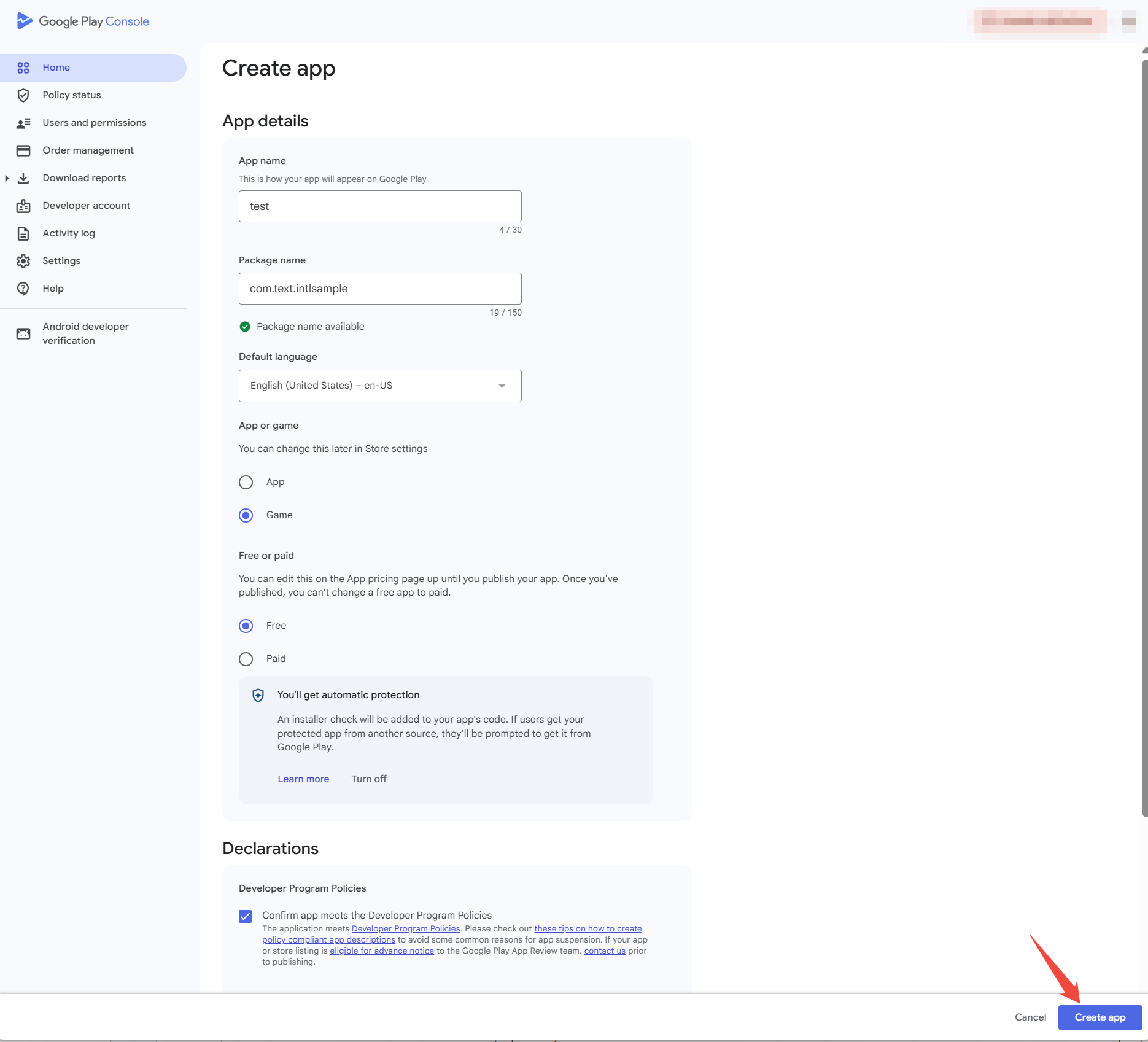
- On the All apps page, click Create app to create the game app.

- Enter the application information.
2. Configuring the Play game service
Set up the Play game service to manage game metadata and automate game production and distribution tasks.
- Go to Google Play Console.
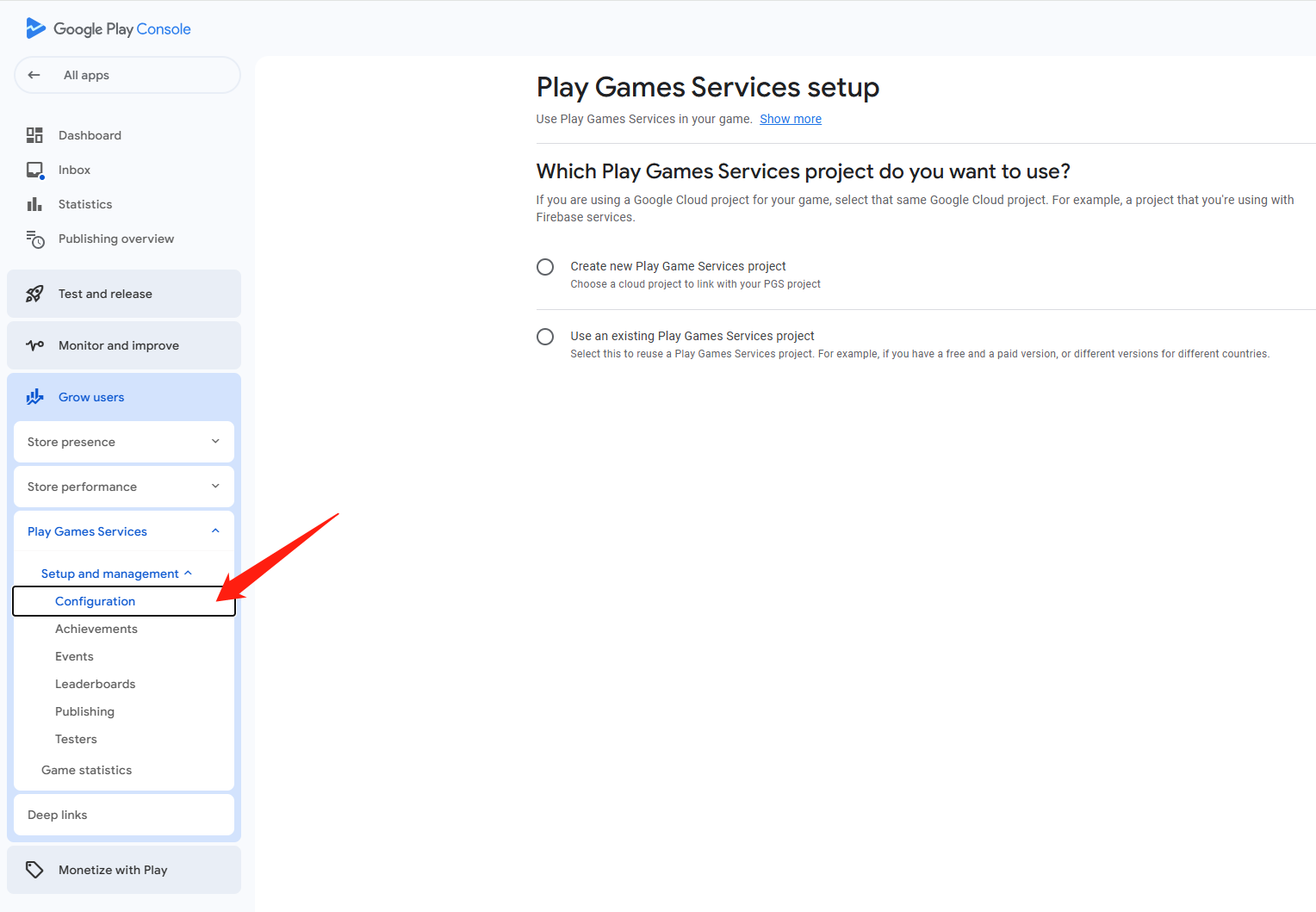
- In the left navigation bar, select Grow users > Play Games Services > Setup and management > Configuration.
- Under Which Play Games Services project do you want to use, select the corresponding option to create a Play Games Services project.
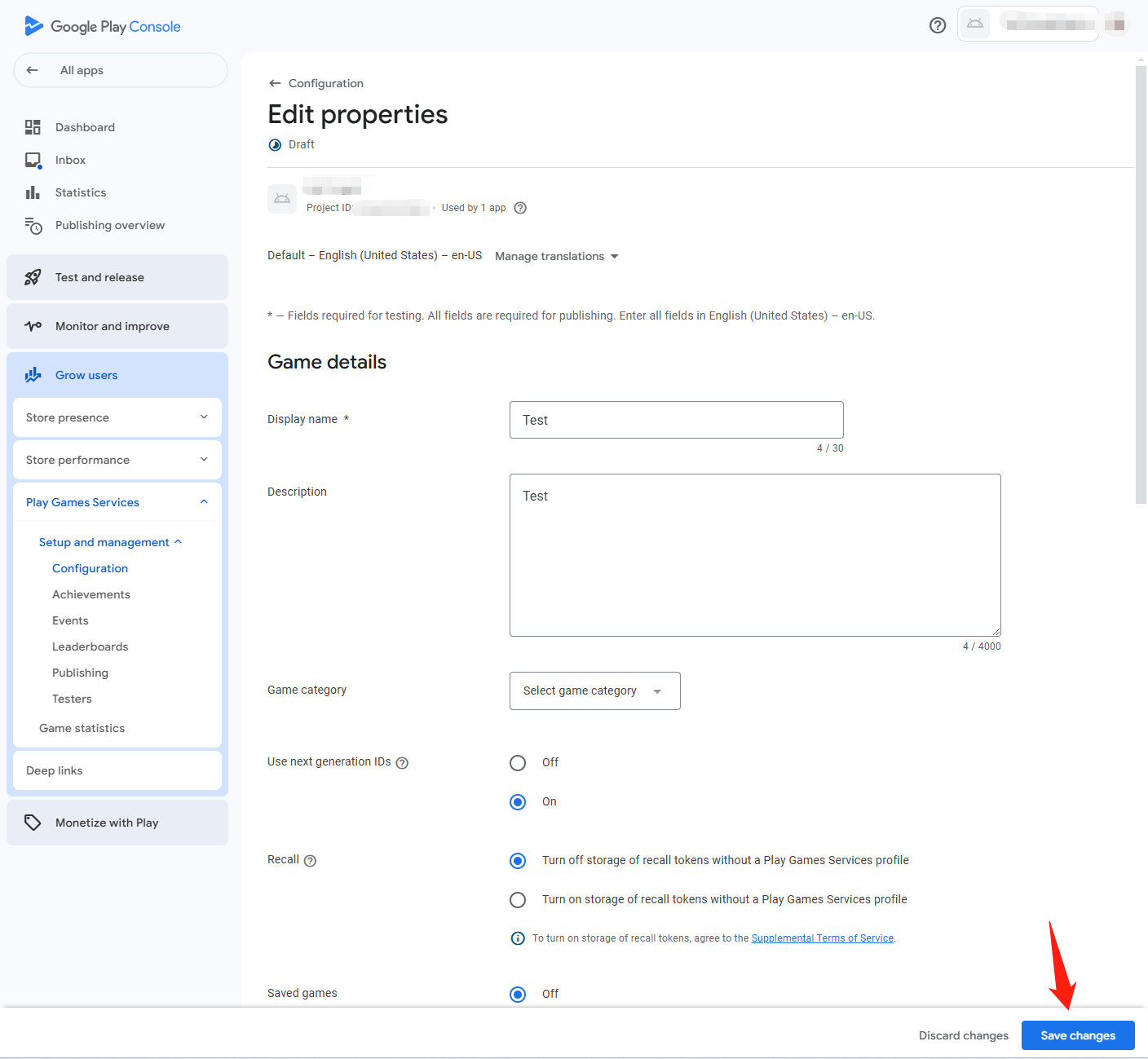
- In the Properties section, click Edit Properties.
- Enter the basic information about the game and click Save changes.
3. add a credential to connect the OAuth 2.0 client ID to the game
- Go to Google Cloud Platform.
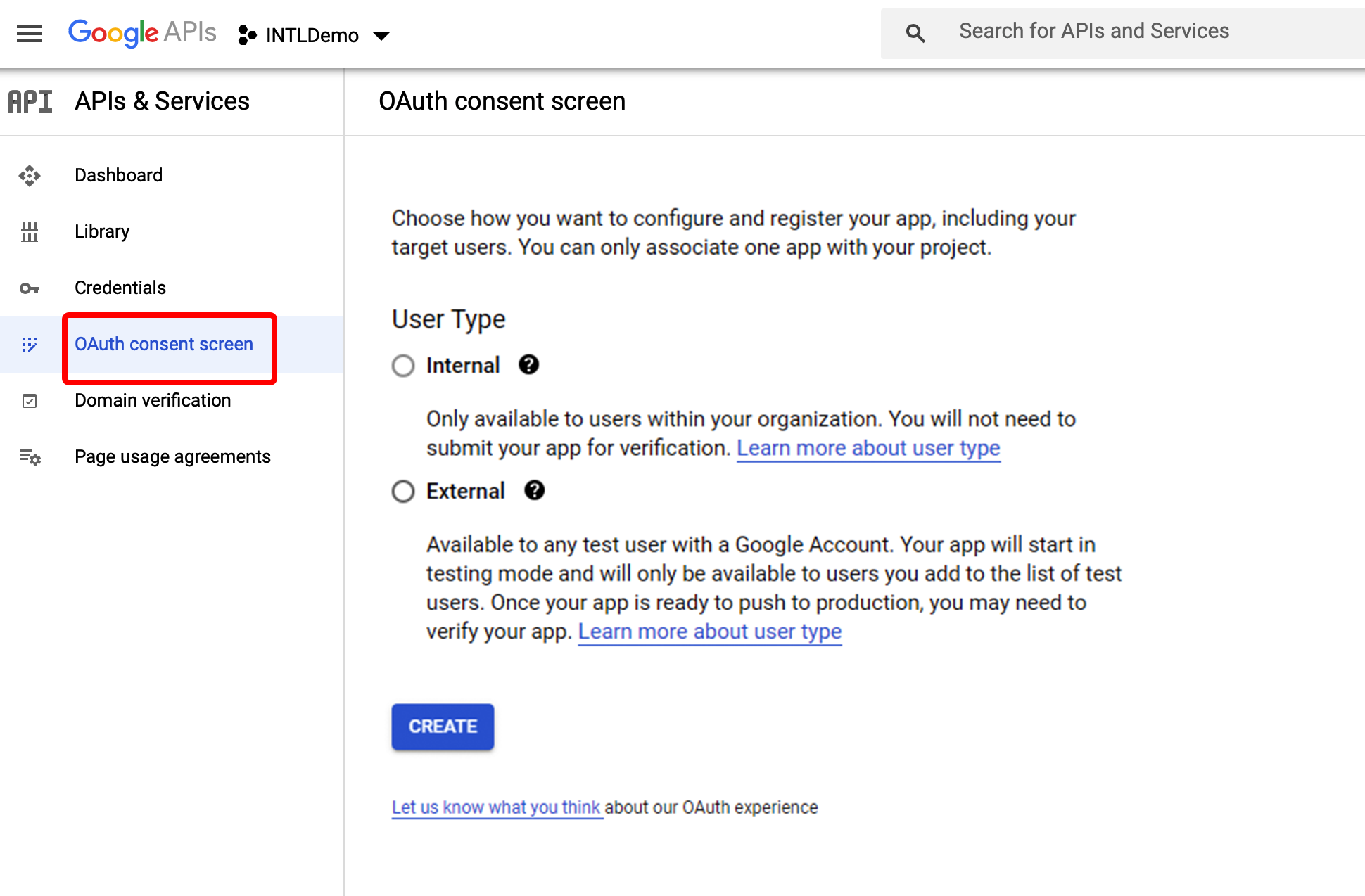
- In the left navigation bar, click OAuth consent screen.
- Follow the instructions to set up the OAuth OAuth consent screen.
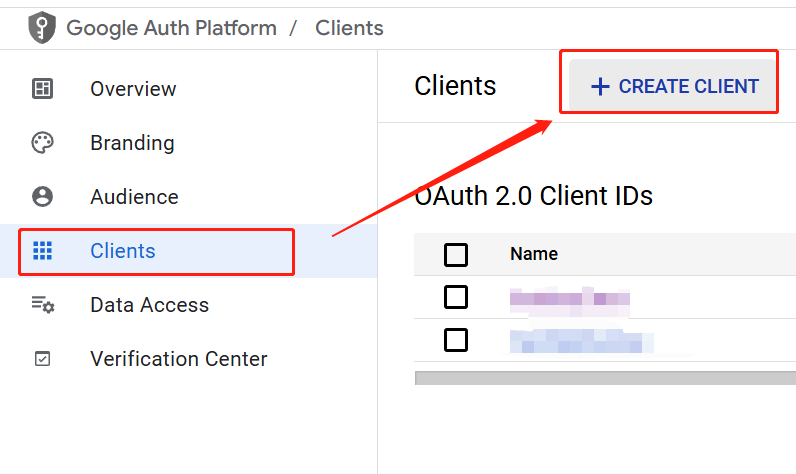
- Click Clients on the left navigation bar.
- On the Clients page, select CREATE CLIENT > Create OAuth Client ID to create an OAuth client ID.
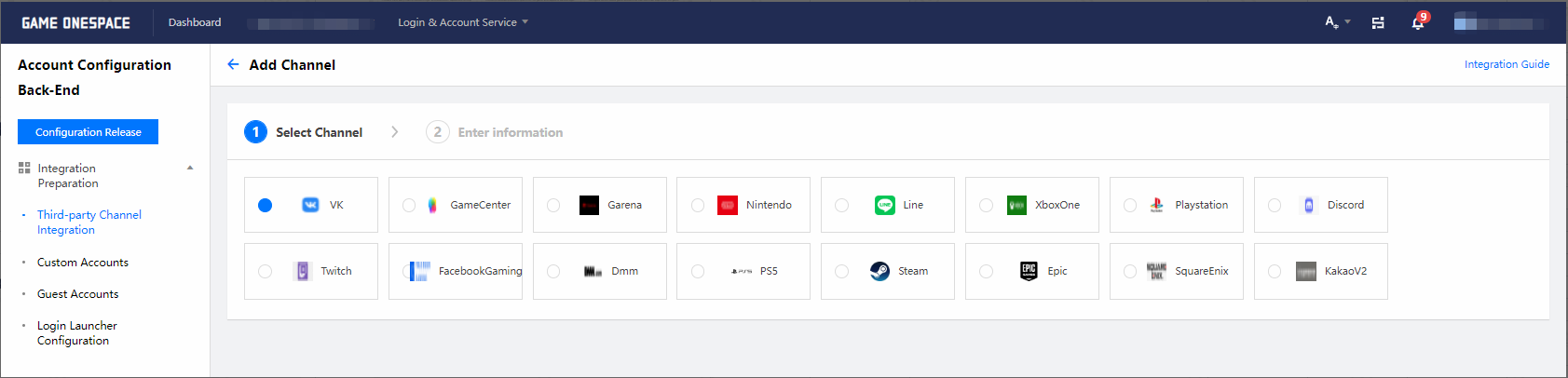
- Add both Android and Web OAuth clients.
- The Android client is used for client login.
- The iOS client is used for client sign-in.

- The Android client is used for client login.
Android
- In the Authentication type list, click Android.
- Enter the client name, and add the following address under Authorized redirect URIs:
https://test-common-web.intlgame.com/jssdk/googlelogincallback.htmlhttps://common-web.intlgame.com/jssdk/googlelogincallback.html
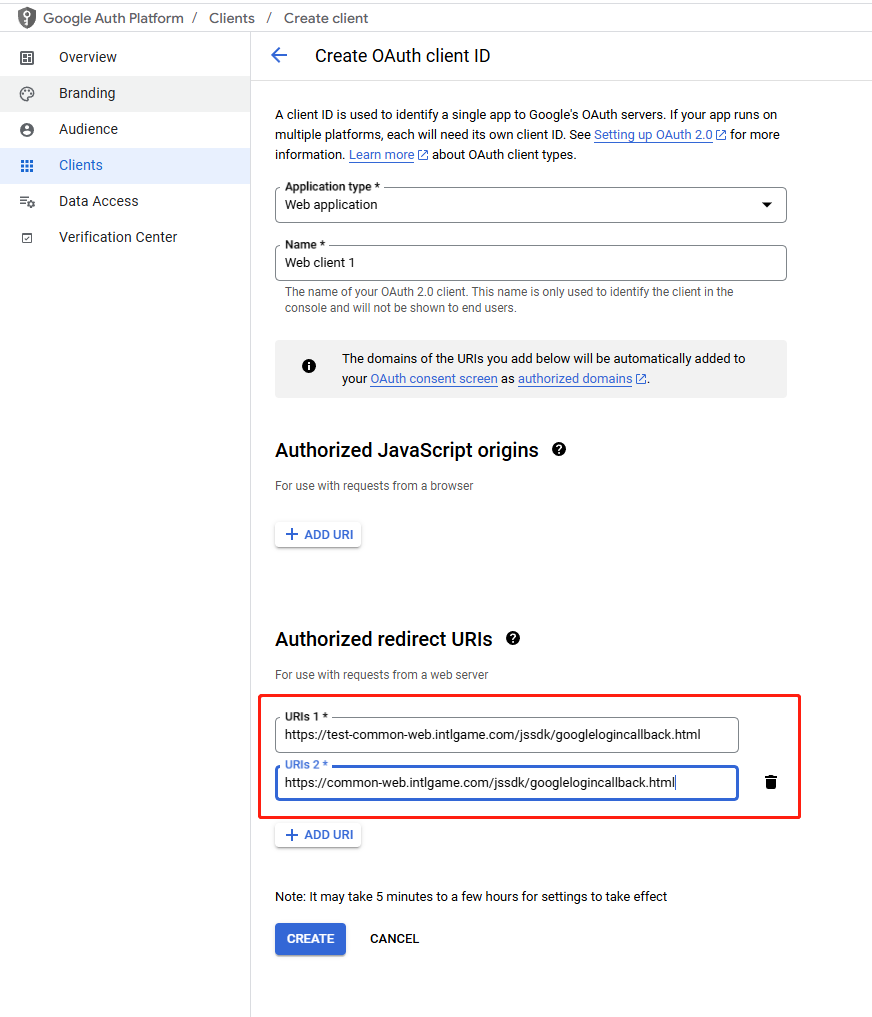
- Click SAVE to complete the configuration.
- After the configuration is complete, obtain the generated Web Client ID and Client Secret. You can obtain them in either of the following ways:
- On the "Creation Successful" page, view and copy the Client ID and Client Secret.
- Download the corresponding JSON file and save it to your computer.
- Go to the details page of this web application to view the Client ID and Client Secret.
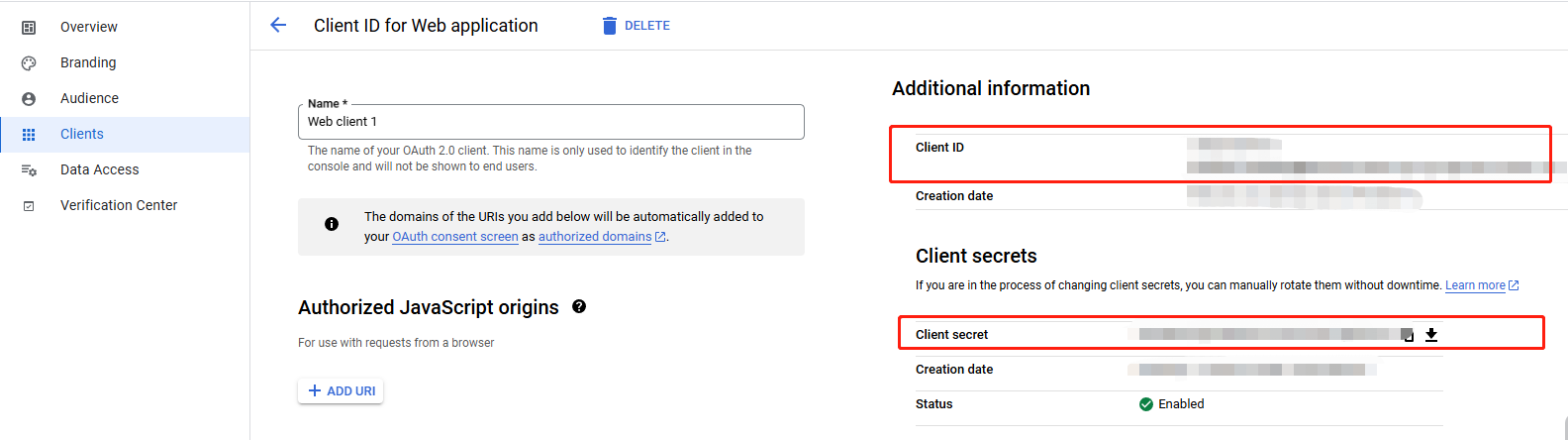
- Go to the Google third-party channel configuration in the Player Network console and fill in the following information:
- Client ID: Fill in the Web Client ID generated in Google Cloud Platform.
- **Client Secret **: Enter the corresponding **Client Secret **.
Web
- In the Authentication type list, click Web.
- Confirm and fill in the information with the development team, including Bundle ID, App Store ID and Team ID.

- Click SAVE to complete the configuration.
- After creation is complete, go to the details page of the iOS app and obtain the generated iOS Client ID.

- Go to the Google third-party channel configuration in the Player Network console and fill in the following information:
- Client ID for iOS: Fill in the iOS Client ID generated in Google Cloud Platform.
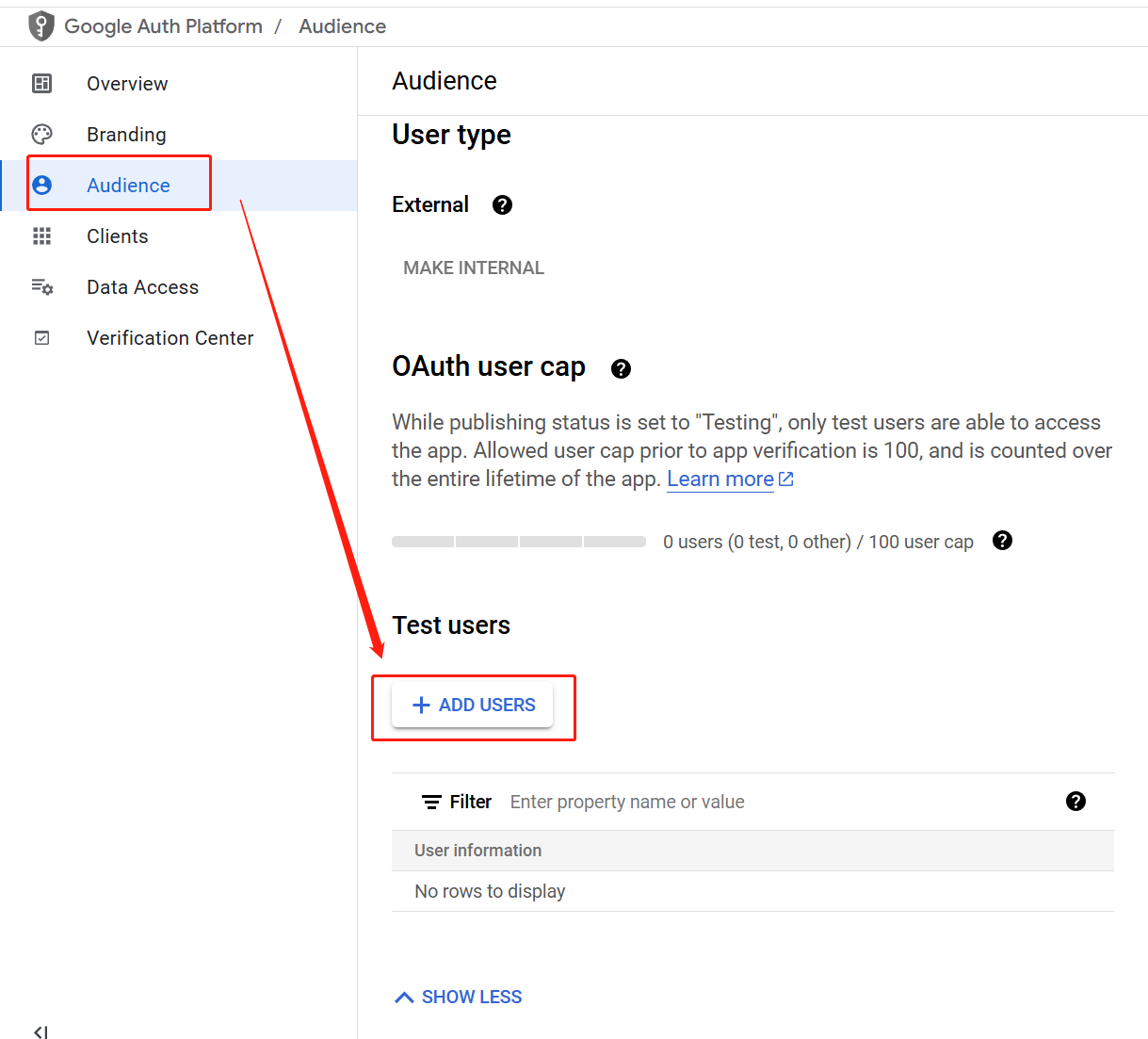
- Click Audience > ADD USERS to add a login test user.
4. Adding tester privileges
- Go to Google Play Console.
- In the left navigation bar, select Grow users > Play Games Services > Setup and management > Testers.
- In the Testers tab, click Add testers to add testers for your game.

Only testers can log in until the game app is released.Make sure that the application is in a test state.
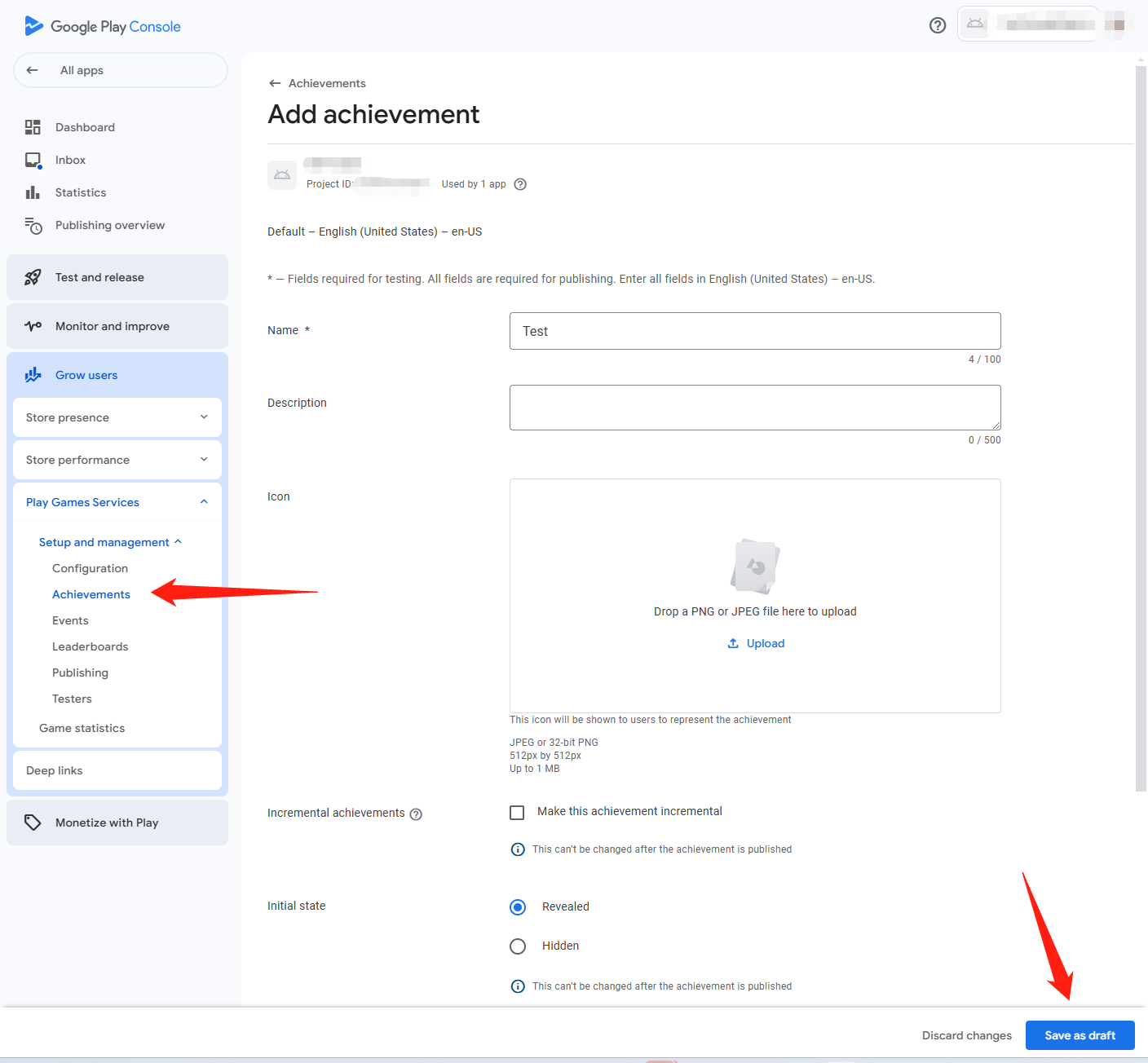
5. Configure achievements and leaderboards
Locate the Achievements and Leaderboards features on the Gaming Services screen and configure them as needed.
6. Obtain Google API ID
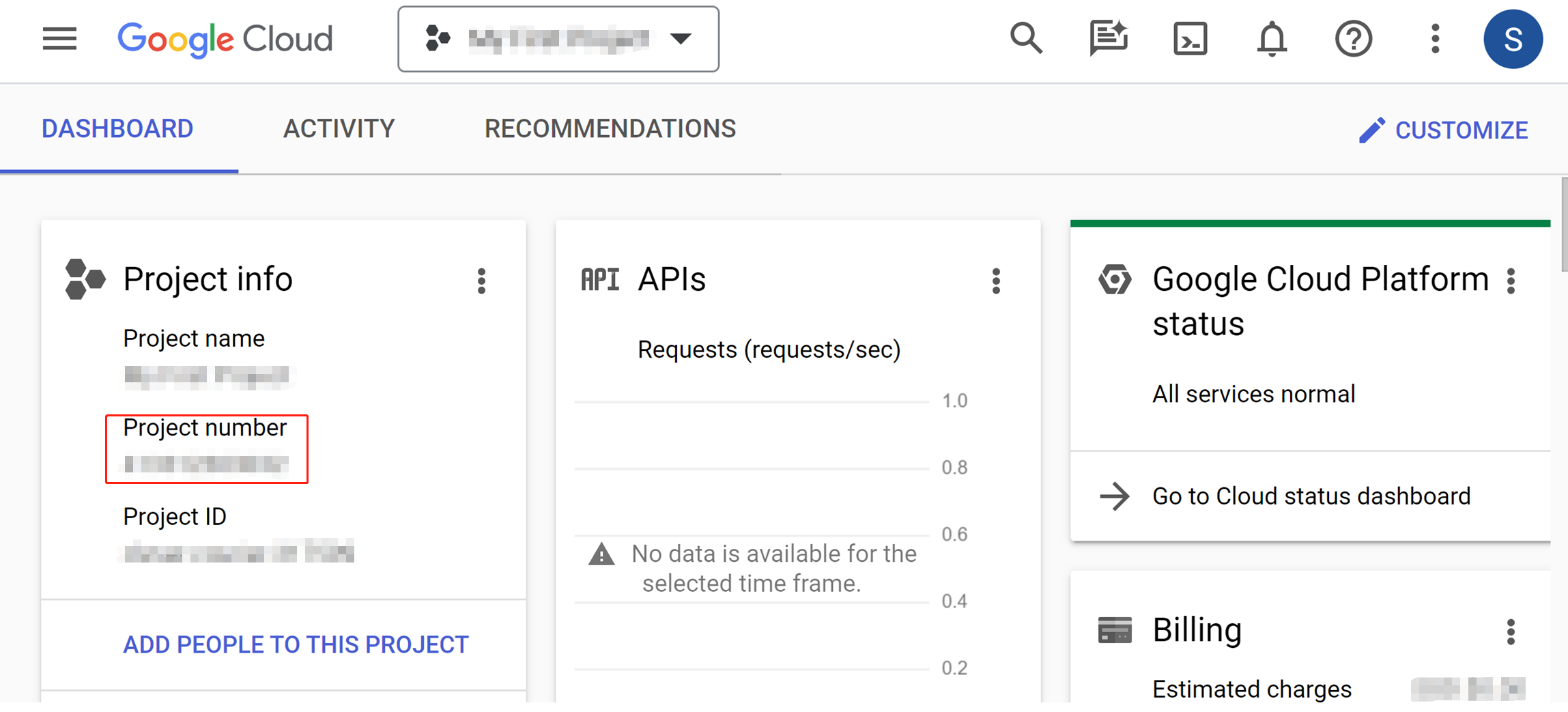
Access the information center from the Google Cloud Platform panel. The Google API ID is the Project No. on this page.
7. Obtain Client ID and Client secret
Follow the steps in 3. Add a credential to link the OAuth 2.0 client ID to your game to obtain the application information.
- Add Google as a business login authentication method in the Player Network Console.
- Create a new project for your game, or join an existing one.
- Download SDK.
- Integrate SDK.
- Add Google as a business login authentication method in the Player Network Console.
Step 1:Configure SDK for Google Sign-in
- Open the INTLConfig.ini file.
[INTL environment]
# WARNING: You should change this URL to the production environment when you release your game.
INTL_URL = https://test.intlgame.com
GAME_ID = {INTL_GAME_ID}
SDK_KEY = {INTL_SDK_KEY}
[INTL Log]
LOG_LEVEL = 1
LOG_CONSOLE_OUTPUT_ENABLE = 1
LOG_FILE_OUTPUT_ENABLE = 1
LOG_ENCRYPT_ENABLE = 0
LOG_COMPRESS_ENABLE = 0
[Google Channel Configuration]
GOOGLE_CLIENT_KEY_IOS = {INTL_GOOGLE_CLIENT_KEY_IOS}
GOOGLE_CLIENT_KEY_ANDROID = {INTL_GOOGLE_CLIENT_KEY_ANDROID}
- Set the SDK backend environment to
INTL_URL = https://test.intlgame.com. - Replace
{INTL_GAME_ID}and{INTL_SDK_KEY}with the values ofGAME_IDandSDK_KEYassigned by the Player Network Console. - Set
LOG_LEVEL = 1,LOG_CONSOLE_OUTPUT_ENABLE = 1,LOG_FILE_OUTPUT_ENABLE = 1,LOG_ENCRYPT_ENABLE = 0andLOG_COMPRESS_ENABLE = 0, so that console logs and log files can be output without encryption or compression. - Replace
{INTL_GOOGLE_CLIENT_KEY_IOS}with iOS client ID. Used to initiate Google Sign-In on iOS.
This is the client ID for the iOS application (with Application type set to iOS) created in the Credentials section of Google Cloud Console. It is different from the Web client ID (Server Client ID) used byGOOGLE_CLIENT_KEY_ANDROID. - Replace
{INTL_GOOGLE_CLIENT_KEY_ANDROID}with Web client ID. Used for backend Server Auth.
This is the client ID of the web application in the Credentials section during the API OAuth configuration process, also called Server Client ID in the API OAuth 2.5 configuration process.
-
Get Google Reverse Client ID
- Open the Google Cloud Console.
- Navigate to **APIs & Services ** > **Credentials **.
- To create a new certificate, select " **" and enter the OAuth client ID: **.
- Select " **" and "iOS ** " as the app type, and enter your iOS app's Bundle ID.
- Once the creation is complete, you will be prompted to download the files **and GoogleService-Info.plist **.
- Open the files **, GoogleService-Info.plist, and **, and copy the values corresponding to the keys
, REVERSED_CLIENT_ID, and.

-
Add Google configuration
- Unity
- Unreal Engine
打开 INTLGoogleKit.projmods 文件,从 Unity 导出 Xcode 项目之前将 {INTL_GOOGLE_REVERSED_CLIENT_ID} 替换为对应的 Google Reverse Client ID。
{
    "group": "INTL",
    "libs": ["libz.tbd", "libsqlite3.0.tbd"],
    "frameworks": ["SafariServices.framework", "LocalAuthentication.framework", "AuthenticationServices.framework"],
    "Info.plist":{
        "CFBundleURLTypes" :
        [
            {
                "CFBundleTypeRole":"Editor",
                "CFBundleURLName":"Google",
                "CFBundleURLSchemes":["{INTL_GOOGLE_REVERSED_CLIENT_ID}"]
            }
        ]
    }
}
- SDK 1.24 and later
- Earlier than SDK 1.24
打开 INTLSDK/Source/INTLGoogle/Libs/iOS/INTLGoogle_UPL.xml 文件,并将 {INTL_GOOGLE_REVERSED_CLIENT_ID} 替换为对应的 Google Reverse Client ID。
<dict>
   <key>CFBundleURLName</key>
   <string>Google</string>
   <key>CFBundleTypeRole</key>
   <string>Editor</string>
   <key>CFBundleURLSchemes</key>
   <array>
       <string>{INTL_GOOGLE_REVERSED_CLIENT_ID}</string>
   </array>
</dict>
打开 INTLSDK/Source/INTLConfig/Configs/iOS/Plist/INTLGoogle.plist 文件,并将 {INTL_GOOGLE_REVERSED_CLIENT_ID} 替换为对应的 Google Reverse Client ID。
<dict>
    <key>CFBundleURLName</key>
    <string>Google</string>
    <key>CFBundleTypeRole</key>
    <string>Editor</string>
    <key>CFBundleURLSchemes</key>
    <array>
        <string>{INTL_GOOGLE_REVERSED_CLIENT_ID}</string>
    </array>
</dict>
Step 2: Implement Google Login
All Google actions require a connection to Google services.
AuthLogin
During automatic sign-in, the device may not be able to connect to Google services.It is therefore recommended to let Player Network SDK connect to Google services during automatic login by default.(Game teams can disable this connection by configuring the GOOGLE_LOGOUT_NEED_CONNECT field in the Google Channel Configuration section of the INTLConfig configuration file.).
Login
Before calling Google Login, the Player Network SDK checks to see if Google Mobile Services (GMS) is available.The login service can only be invoked when GMS is available.If GMS is not available, the Player Network SDK will return the error code sent by Google to the game via the ThirdCode field of INTLAuthResult.
| Return Code | Return value | misdescription |
|---|---|---|
| SERVICE_MISSING | 1 | GMS is not available on the device. |
| SERVICE_VERSION_UPDATE_REQUIRED | 2 | The installed version of GMS is out of date. |
| SERVICE_DISABLED | 3 | GMS is disabled. |
| SERVICE_INVALID | 9 | The version of GMS installed is incorrect. |
| SERVICE_UPDATING | 18 | The GMS on the device is being updated. |
For more information, see Google Docs and Google Frequently Asked Questions
- Register login-related callbacks.
- Unity
- Unreal Engine
// Add callbacks
public void AddAuthObserver()
{
    INTLAPI.AddAuthResultObserver(OnAuthResultEvent);
}

// Remove callbacks
public void RemoveAuthObserver()
{
    INTLAPI.RemoveAuthResultObserver(OnAuthResultEvent);
}

// Process the INTLAuthResult callback
public void OnAuthResultEvent(INTLAuthResult AuthResult)
{
    Debug.Log($"MethodID: {AuthResult.MethodId}");

    string methodTag = "";
    switch (AuthResult.MethodId)
    {
        case (int)INTLMethodID.INTL_AUTH_LOGIN:
            methodTag = "Login";
            break;
        case (int)INTLMethodID.INTL_AUTH_BIND:
            methodTag = "Bind";
            break;
        case (int)INTLMethodID.INTL_AUTH_AUTOLOGIN:
            methodTag = "AutoLogin";
            break;
        case (int)INTLMethodID.INTL_AUTH_QUERY_USER_INFO:
            methodTag = "QueryUserInfo";
            break;
        case (int)INTLMethodID.INTL_AUTH_GET_AUTH_RESULT:
            methodTag = "GetAuthResult";
            break;
    }
}
C++ Event Handling (above v1.15)
//configure callback
FINTLAuthEvent authEvent;
authEvent.AddUObject(this, &OnAuthResult_Implementation);
UINTLSDKAPI::. SetAuthResultObserver(authEvent);
// Remove callbacks
UINTLSDKAPI::GetAuthResultObserver().Clear();
void OnAuthResult_Implementation(FINTLAuthResult ret)
{
 UE_LOG(LogTemp, Warning, TEXT("MethodID: %d"), ret.MethodId);
}
Unreal Event Handling
void OnAuthResult_Implementation(FINTLAuthResult ret)
{
 UE_LOG(LogTemp, Warning, TEXT("MethodID: %d"), ret.MethodId);
}
- Call the
AutoLogininterface for automatic login.
- Unity
- Unreal Engine
INTLAPI.AutoLogin();
UINTLSDKAPI::AutoLogin();
- If automatic login fails, call the
Loginmethod to let players log in manually.
- Unity
- Unreal Engine
INTLAPI.Login(INTLChannel.Google);
UINTLSDKAPI::Login(EINTLLoginChannel::kChannelGoogle);
- Synchronize client authentication status with the game backend, waiting for final validation results.
[Optional] Set email permission
To get the player's email when logging in to Google, you need to set the corresponding permission, which will return email in the ChannelInfo of AuthResult.
- For compliance reasons, the returned
emailcan be masked for specific sources. If needed, please contact the Player Network assistant to enable it. - In the background log, you can report the hash of
base64(sha256(email)). Contact Player Network Assistant if needed. - Can be used to verify whether the player's information or the binding list contains
emailinformation. Contact Player Network Assistant if needed. - Can be used for iOS Firebase's Private Set Membership (PSM) feature. See Firebase iOS Project Configuration.
Enable the email return feature in the Player Network Console by setting return_email to YES. For details, see Third-Party Channel Configuration.
Step 3: Acceptance testing for login functionality
Search for the keyword "AuthResult" in the Player Network SDK logs to confirm whether the channel name and OpenID are returned correctly.If correct, it means the integration configuration is successful, and login functionality has been successfully added.
If you encounter problems during the integration process, please refer to Frequently Asked Questions.
Step 4:Publish the game
Before you are ready to release a production version, create a test version using Android App Bundle.
The nice thing about releasing Beta is that users can download it from Google play, but don't have access to add comments.Specific channels are set up for users to submit feedback.
Creating a production version
-
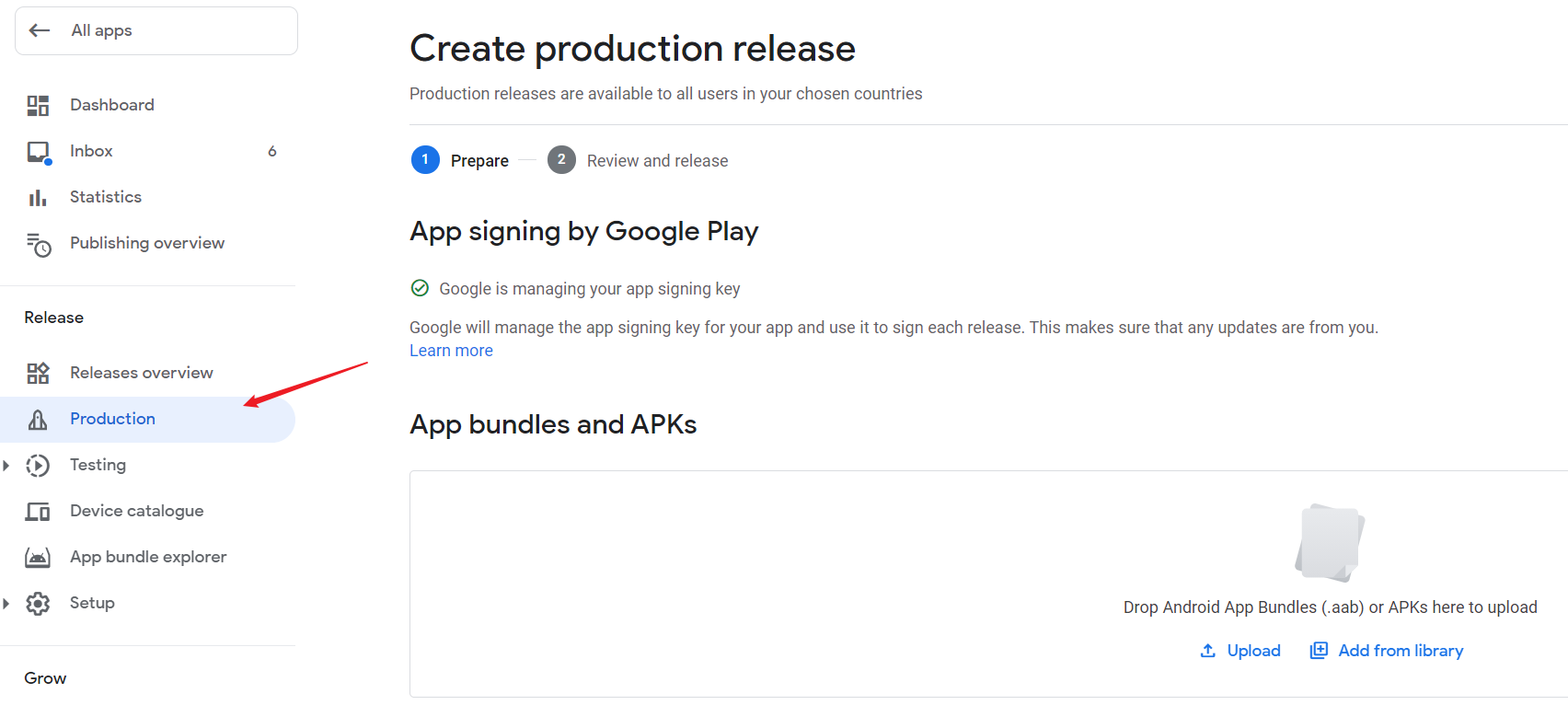
Go to Google Play Console.
-
In the left navigation bar, select Release > Production.
-
Follow the instructions to create a production version.
Changing the Publishing Status
Authentication may fail if the user does not release the application.
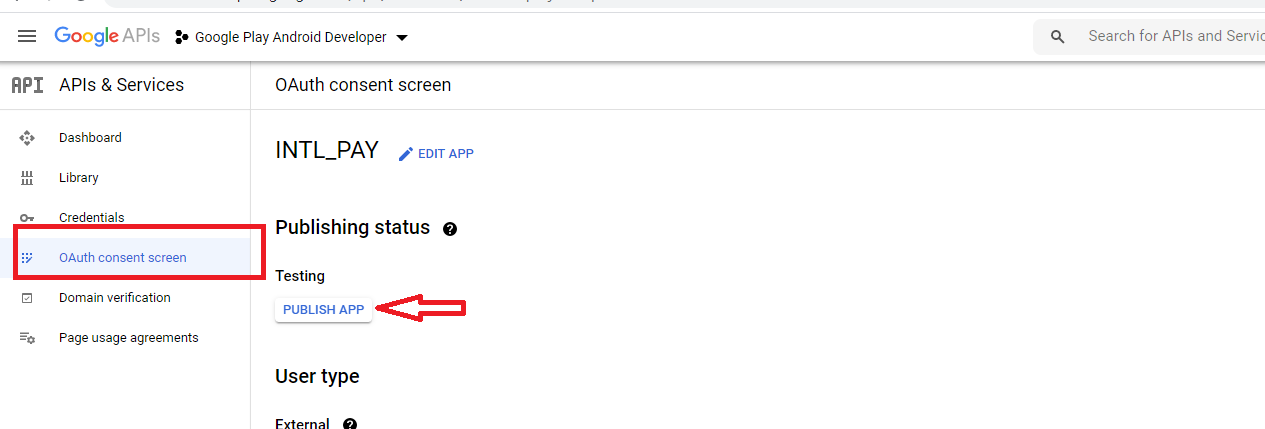
- Go to the OAuth consent screen page of Google Cloud Platform.
- Change PUBLISHING STATUS to PUBLISH APP.