Android
The purpose of this article is to explain how to set up Google Authentication so that your game can be logged in through the Google channel using the Player Network login authentication service.
Prerequisites
1. Set up your game in the Google Play admin center
For the IEGG project, please contact [miaruan (Ruan Mingjun)] for Google Apps registration and configuration.
1. Create Google Apps
Follow the prompts to register an account on Google Play Console.
Google charges a $25 service fee.Please have your credit card ready in advance.
- Go to Google Play Console.
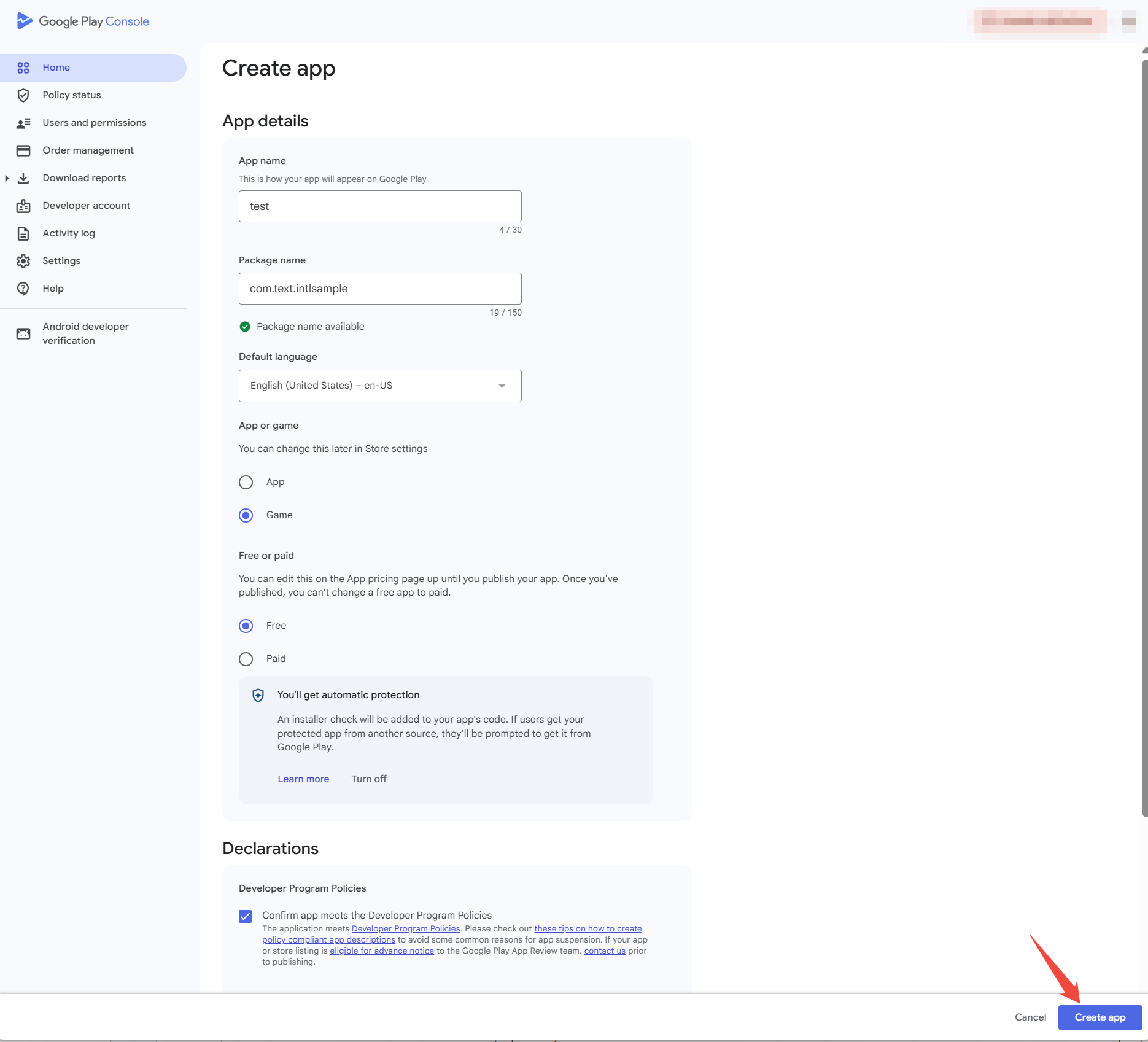
- On the All apps page, click Create app to create the game app.

- Enter the application information.
2. Configuring the Play game service
Set up the Play game service to manage game metadata and automate game production and distribution tasks.
- Go to Google Play Console.
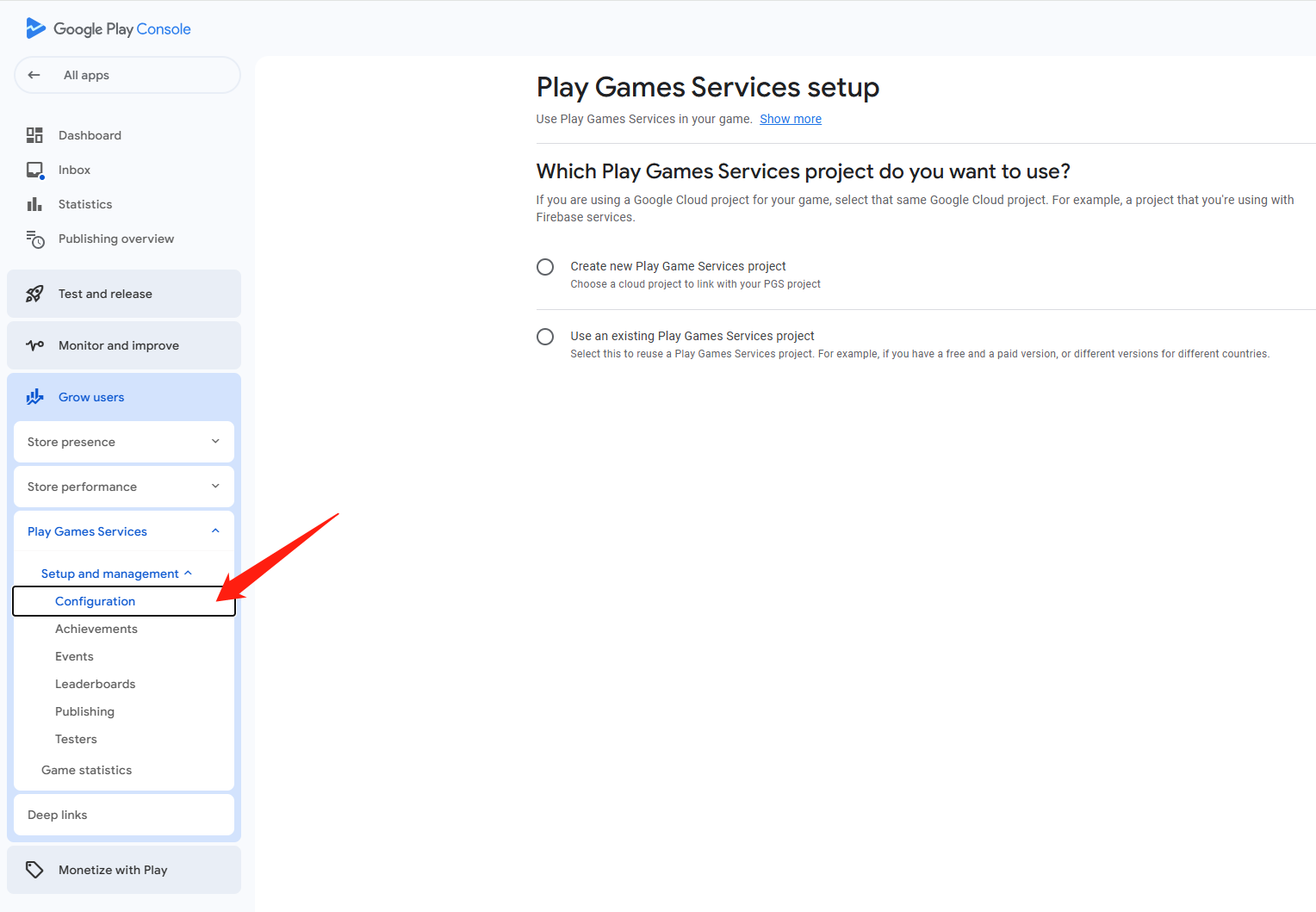
- In the left navigation bar, select Grow users > Play Games Services > Setup and management > Configuration.
- Under Which Play Games Services project do you want to use, select the corresponding option to create a Play Games Services project.
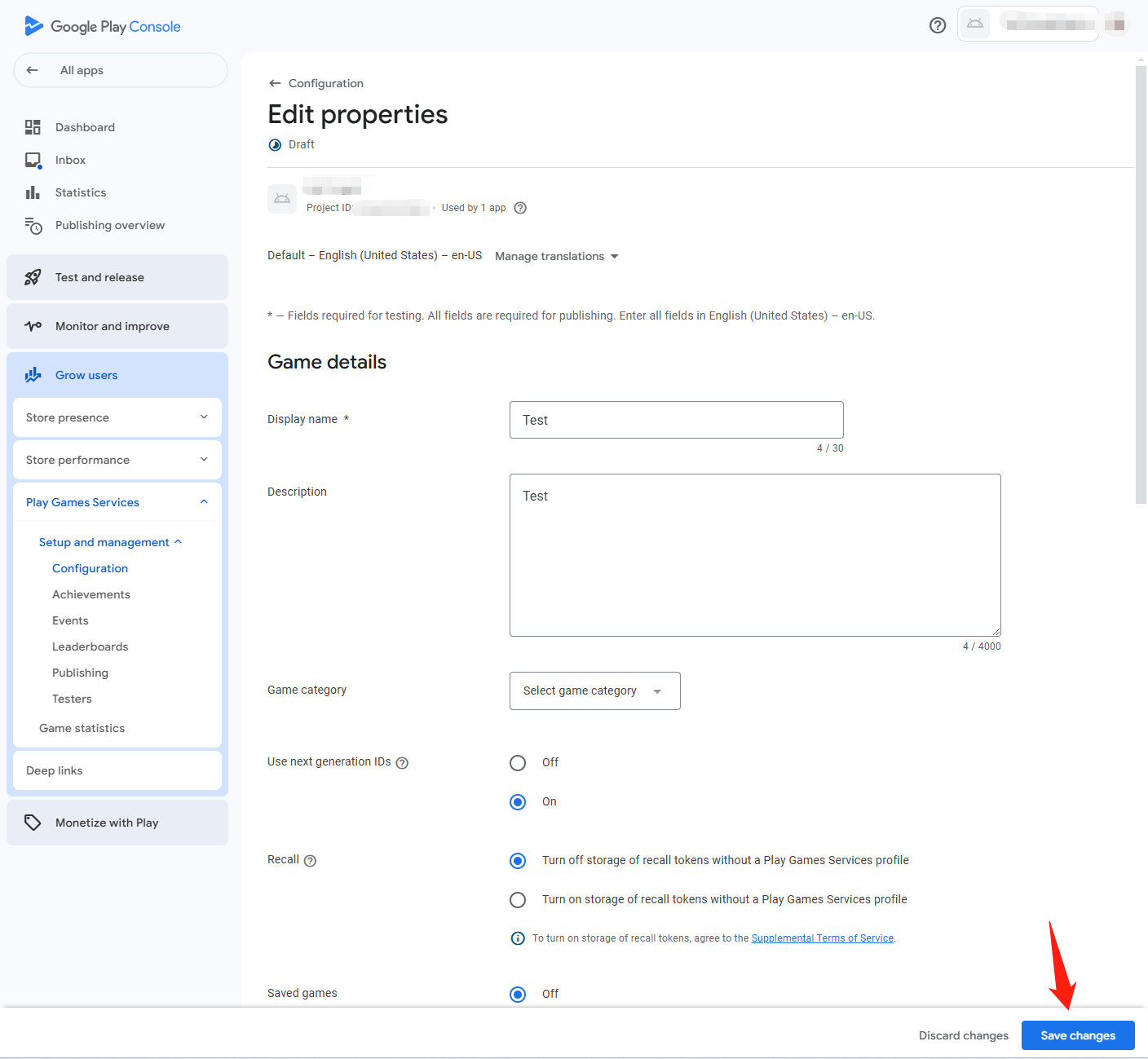
- In the Properties section, click Edit Properties.
- Enter the basic information about the game and click Save changes.
3. Configure the Google OAuth clients
Google login requires both an Android Client ID and a Web Client ID, which are used for different purposes:
- Android Client ID: Used by Google Sign-In to verify the Android app package name and signature. This Client ID does not need to be configured in
AndroidManifest.xmlorINTLConfig.ini, but it must be created in Google Cloud Console. - Web Client ID: Used by the Player Network SDK for Google Server Access authentication. The Google Client ID configured in
INTLConfig.iniand the Player Network Console must both use the Web Client ID.
The following process is divided into three steps:
3.1 Obtain the app signing certificate SHA-1
-
Log in to Google Play Console and select the corresponding app.
-
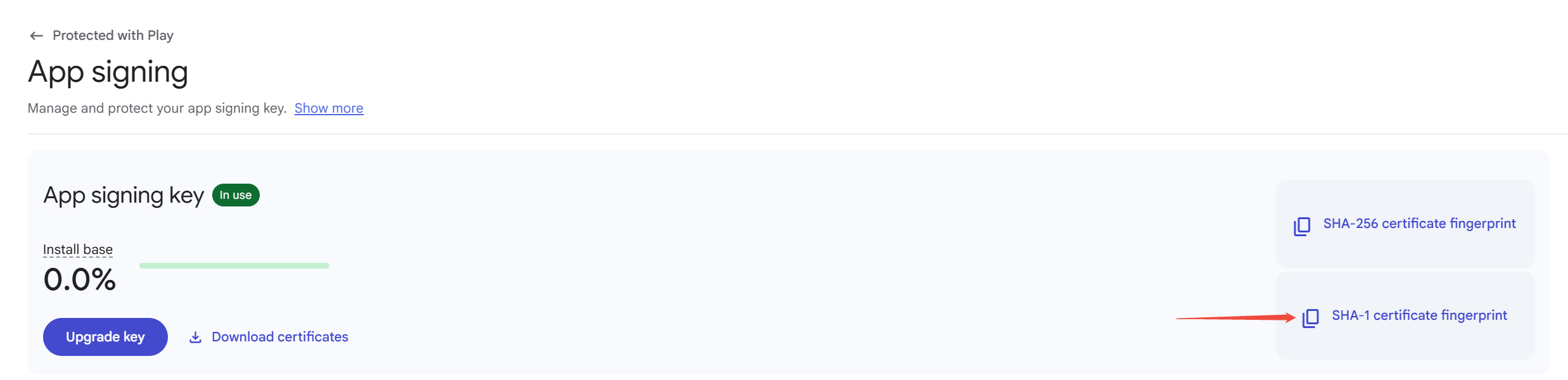
In the left navigation bar, go to Protected with Play > Play Store protection > Protect app signing key, then click Manage Play app signing.
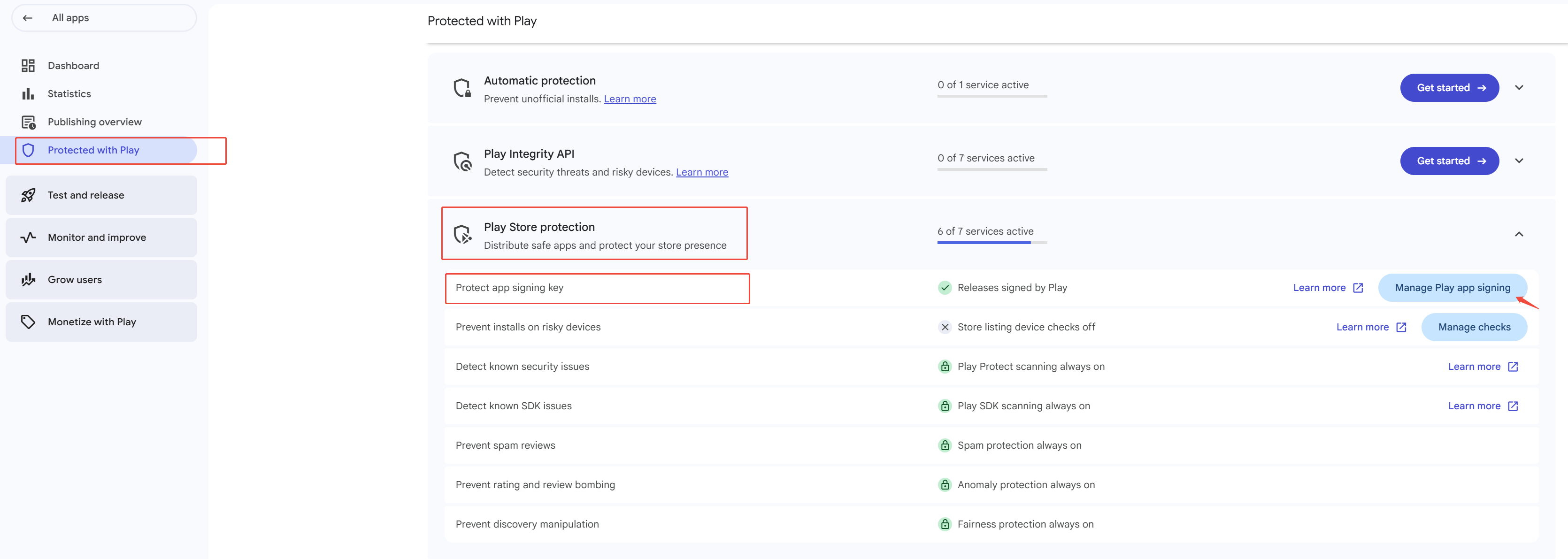
- In the App signing key section, copy the corresponding SHA-1 certificate fingerprint. This signature is used to create or configure the Google Android OAuth Client ID, so Google can verify the Android app that is actually published to user devices.
3.2 Create the Android OAuth Client ID
Before creating an Android OAuth Client ID, go to the Clients page in Google Cloud Platform and confirm whether an Android Client ID already exists for the current app package name and signature. If one already exists, you do not need to create another one.
If it does not exist, create one by following these steps:
-
Go to Google Cloud Platform and select the Google Cloud Project corresponding to the game.
-
In the left navigation bar, click OAuth consent screen.
-
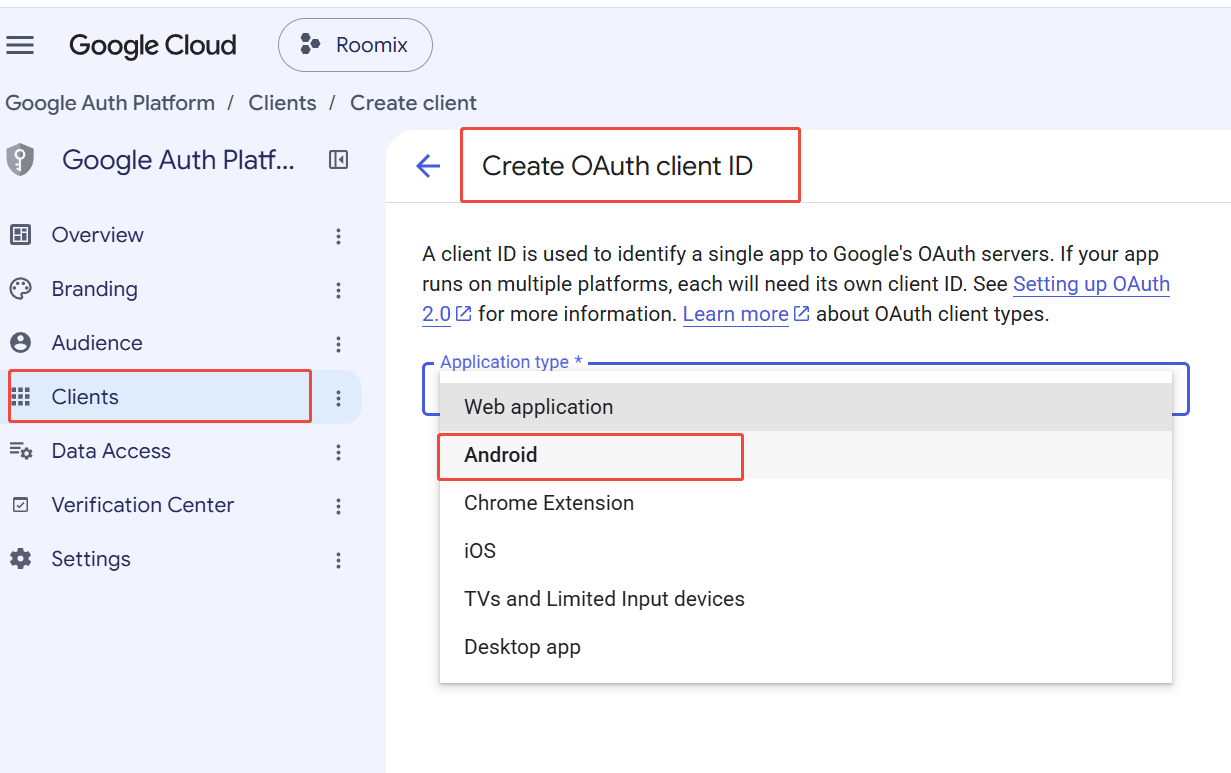
Click Clients on the left navigation bar.
-
On the Clients page, select Create Client > Application type, then select Android app.
-
Fill in the following information:
- Package name: Enter the package name used by the final Android app.
- SHA-1 certificate fingerprint: Enter or paste the app signing certificate SHA-1 obtained in step 3.1.
-
Click Create to complete the configuration.
If the app package name or signing certificate changes, or if there are multiple channel packages, create a corresponding Android OAuth Client ID for each app package name and signing certificate SHA-1 combination that is actually used.
3.3 Create the Web Client ID and configure Player Network
-
In the Application type list, select Web application.
-
Enter the client name, and add the following addresses in Authorized redirect URIs:
https://test-common-web.intlgame.com/jssdk/googlelogincallback.htmlhttps://common-web.intlgame.com/jssdk/googlelogincallback.html
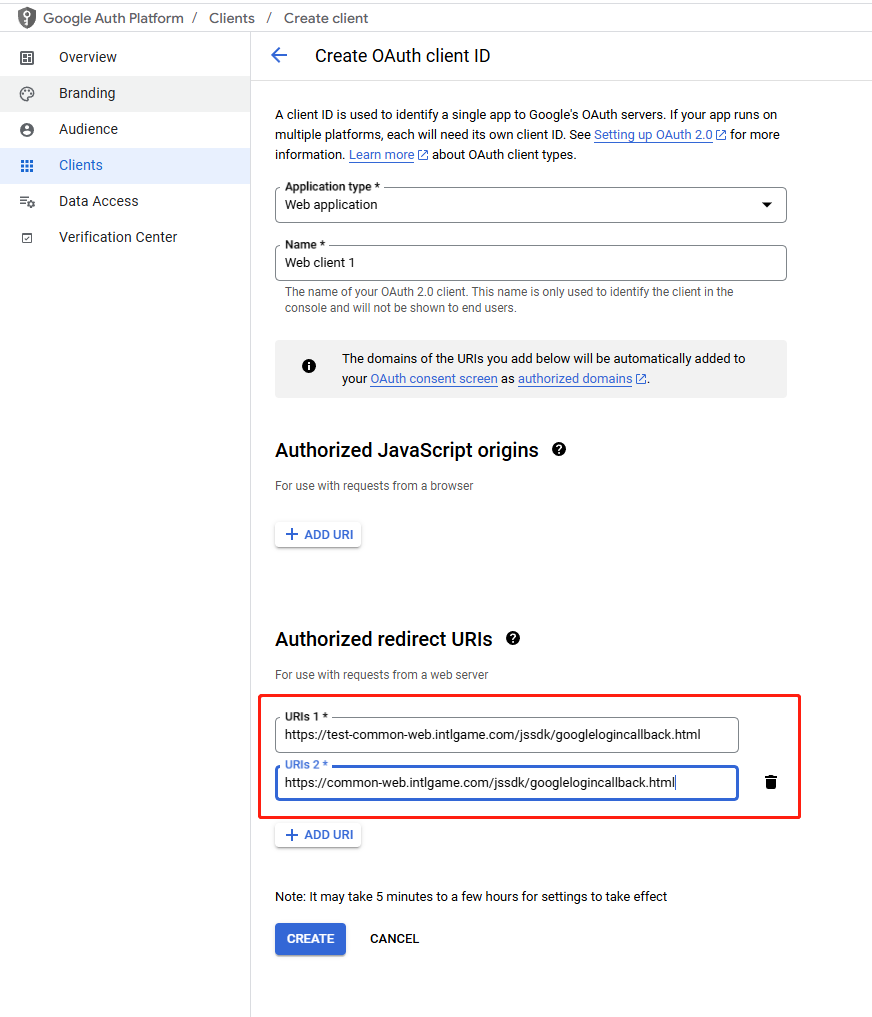
- Click CREATE to complete the configuration.
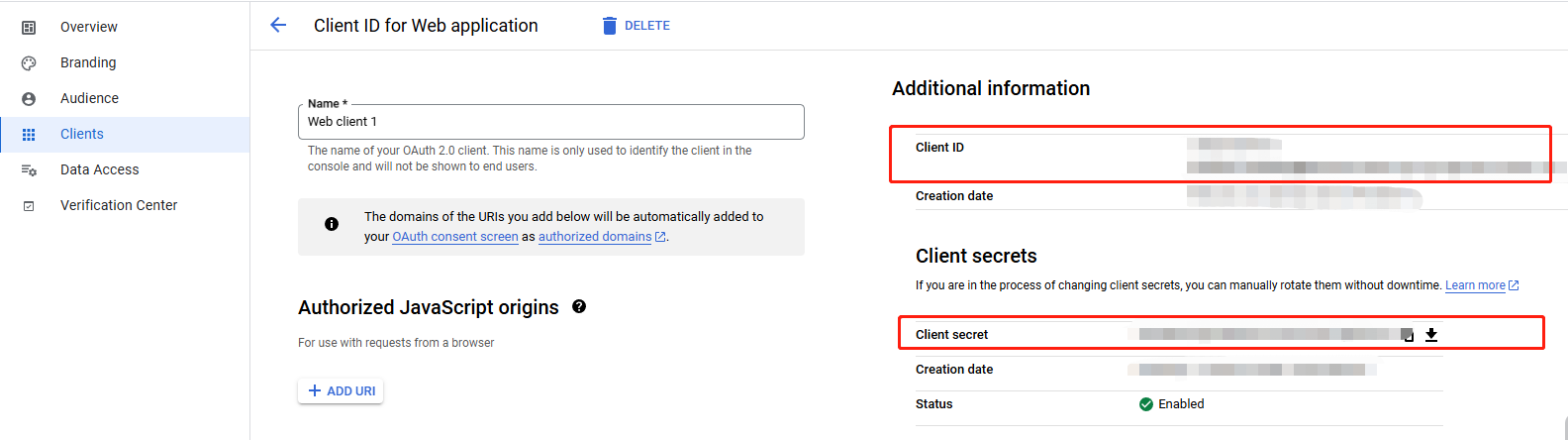
- Obtain the generated Web Client ID and Client Secret.
-
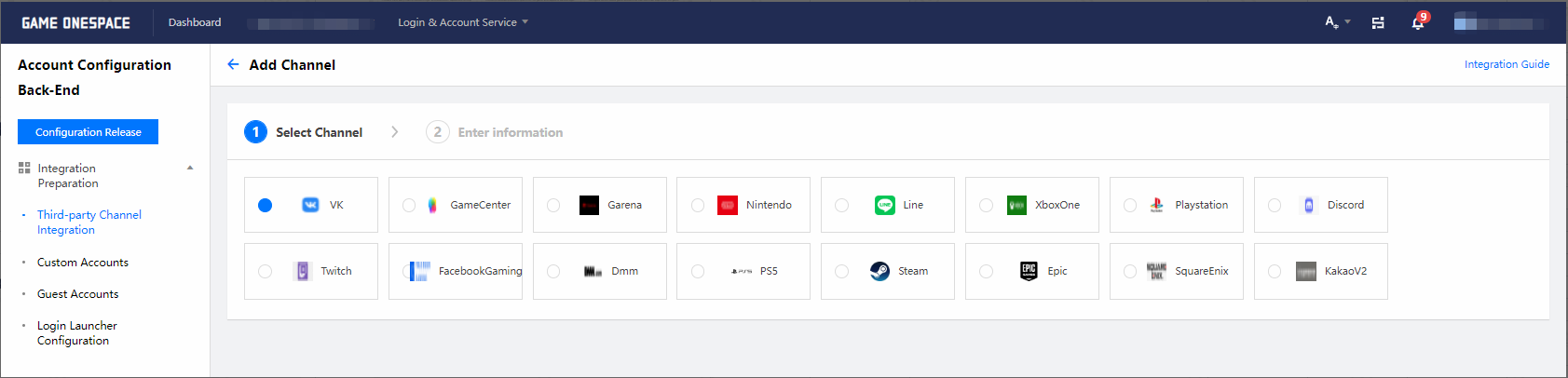
Go to the Google third-party channel configuration in the Player Network Console and fill in the following information:
- Client ID: Enter the Web Client ID generated in Google Cloud Platform.
- Client Secret: Enter the corresponding Client Secret.
-
In INTLConfig.ini, replace
{INTL_GOOGLE_CLIENT_KEY_ANDROID}with the Web Client ID as well.
4. Adding game testers
- Go to Google Play Console.
- In the left navigation bar, select Grow users > Play Games Services > Setup and management > Testers.
- In the Testers tab, click Add testers to add testers to your game.

Until the game app is released, only testers can log in.Make sure the application is in a test state.
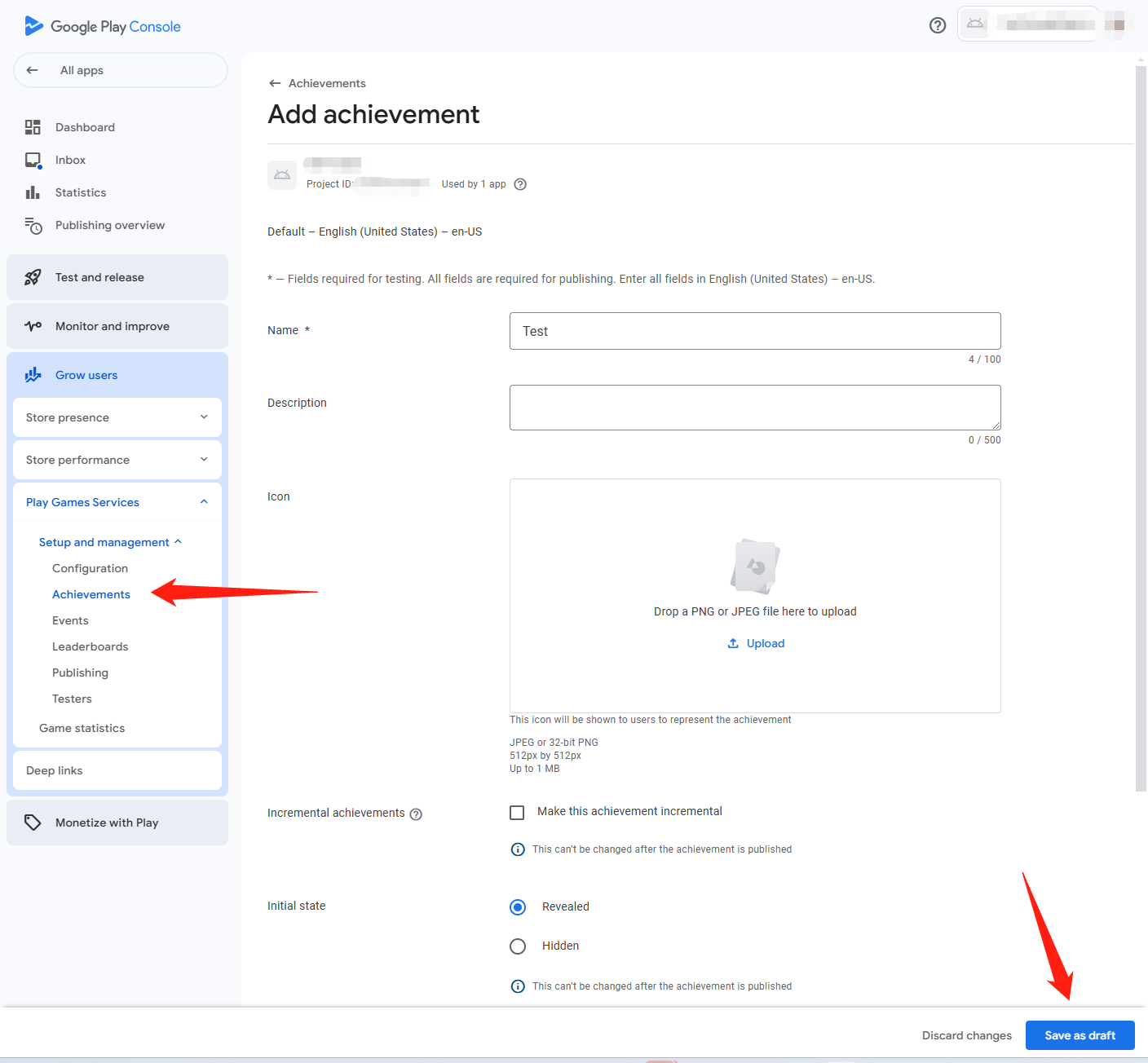
5. Configuring achievements and leaderboards
Find the Achievements and Leaderboards features under the Play Game Services menu and configure them as needed.
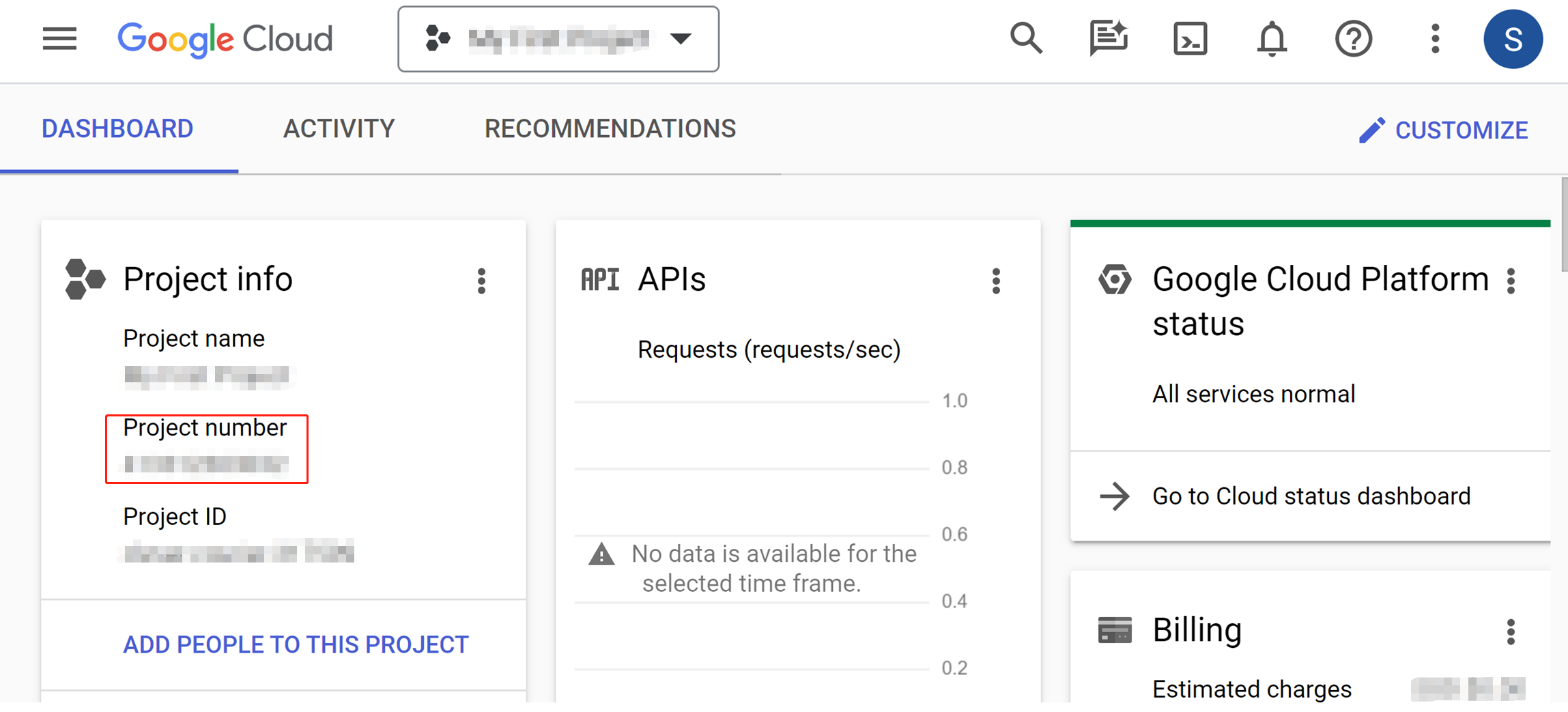
6. Get Google API ID
Access the Info Center from the Google Cloud Platform panel.The Google API ID is the Project No. on this page.
7. Get the Client ID and Client secret.
Follow the steps in 3. Configure the Google OAuth clients to get application information.
- Obtain Player Network Console login account.
- Create a new project for your game, or join an existing one.
- Download SDK.
- Integrate SDK.
- Add Google as a business login authentication method in the Player Network console.
Step 1:Configure SDK for Google Sign-in
- In the
AndroidManifestfile, make sure the required permissions are added.Google needs access to the web.
<uses-permission android:name="android.permission.INTERNET"/>
- Open your project's INTLConfig.ini file:
[INTL environment]
# WARNING: You should change this URL to the production environment when you release your game.
INTL_URL = https://test.intlgame.com
GAME_ID = {INTL_GAME_ID}
SDK_KEY = {INTL_SDK_KEY}
[INTL Log]
LOG_LEVEL = 1
LOG_CONSOLE_OUTPUT_ENABLE = 1
LOG_FILE_OUTPUT_ENABLE = 1
LOG_ENCRYPT_ENABLE = 0
LOG_COMPRESS_ENABLE = 0
[Android LifeCycle]
LIFECYCLE = Google
[Google]
GOOGLE_CLIENT_KEY_ANDROID = {INTL_GOOGLE_CLIENT_KEY_ANDROID}
- Set the SDK backend environment to
INTL_URL = https://test.intlgame.com. - Replace
{INTL_GAME_ID}and{INTL_SDK_KEY}with theGAME_IDandSDK_KEYvalues assigned by the Player Network console. - Set
LOG_LEVEL = 1,LOG_CONSOLE_OUTPUT_ENABLE = 1,LOG_FILE_OUTPUT_ENABLE = 1,LOG_ENCRYPT_ENABLE = 0andLOG_COMPRESS_ENABLE = 0to output console logs and log files without encrypting or compressing the output without encrypting or compressing the output. - Add Google to
LIFECYCLE.For more information, please see SDK Environment. - Replace
{INTL_GOOGLE_CLIENT_KEY_ANDROID}with the Web Client ID.Used for launching Android Google login and backend Server Auth.
This is the client ID of the web application in the Credentials section of the API OAuth configuration process, also referred to as the Server Client ID in the API OAuth 2.5 configuration process.
- Define
manifestPlaceholdersin the gradle file, replacing{INTL_GOOGLE_APP_ID}with Google App ID.
- Unity
- Unreal Engine
android {
    defaultConfig {
      manifestPlaceholders = ["GOOGLE_APPID":"{INTL_GOOGLE_APP_ID}"]
    }
}
For Player Network SDK V1.17 and higher, edit INTLConfig_APL.xml.
For Player Network SDK V1.16.04 and earlier versions, please edit INTLCore_UPL.xml.
<buildGradleAdditions>
    <insert>
    <![CDATA[
    android{
        defaultConfig {
            manifestPlaceholders = ["GOOGLE_APPID":"{INTL_GOOGLE_APP_ID}"]
        }
    }]]>
    </insert>
</buildGradleAdditions>
Step 2: Add Google Login
All Google actions require a connection to Google services.
AuthLogin
During automatic sign-in, the device may not be able to connect to Google services.It is therefore recommended to let Player Network SDK connect to Google services during automatic login by default.(Game teams can disable this connection by configuring the GOOGLE_LOGOUT_NEED_CONNECT field in the Google Channel Configuration section of the INTLConfig configuration file.)
Login
Before calling Google Login, the Player Network SDK checks to see if Google Mobile Services (GMS) is available.The login service can only be invoked when GMS is available.If GMS is not available, the Player Network SDK will return the error code sent by Google to the game via the ThirdCode field of INTLAuthResult.
| Return Code | Return value | misdescription |
|---|---|---|
| SERVICE_MISSING | 1 | GMS is not available on the device. |
| SERVICE_VERSION_UPDATE_REQUIRED | 2 | The installed version of GMS is out of date. |
| SERVICE_DISABLED | 3 | GMS is disabled. |
| SERVICE_INVALID | 9 | The version of GMS installed is incorrect. |
| SERVICE_UPDATING | 18 | The GMS on the device is being updated. |
For more information, see Google Docs and Google Frequently Asked Questions
- Register login-related callbacks.
- Unity
- Unreal Engine
// Add callbacks
public void AddAuthObserver()
{
    INTLAPI.AddAuthResultObserver(OnAuthResultEvent);
}

// Remove callbacks
public void RemoveAuthObserver()
{
    INTLAPI.RemoveAuthResultObserver(OnAuthResultEvent);
}

// Process the INTLAuthResult callback
public void OnAuthResultEvent(INTLAuthResult AuthResult)
{
    Debug.Log($"MethodID: {AuthResult.MethodId}");

    string methodTag = "";
    switch (AuthResult.MethodId)
    {
        case (int)INTLMethodID.INTL_AUTH_LOGIN:
            methodTag = "Login";
            break;
        case (int)INTLMethodID.INTL_AUTH_BIND:
            methodTag = "Bind";
            break;
        case (int)INTLMethodID.INTL_AUTH_AUTOLOGIN:
            methodTag = "AutoLogin";
            break;
        case (int)INTLMethodID.INTL_AUTH_QUERY_USER_INFO:
            methodTag = "QueryUserInfo";
            break;
        case (int)INTLMethodID.INTL_AUTH_GET_AUTH_RESULT:
            methodTag = "GetAuthResult";
            break;
    }
}
C++ Event Handling (above v1.15)
//configure callback
FINTLAuthEvent authEvent;
authEvent.AddUObject(this, &OnAuthResult_Implementation);
UINTLSDKAPI::SetAuthResultObserver(authEvent);
// Remove callbacks
UINTLSDKAPI::GetAuthResultObserver().Clear();
void OnAuthResult_Implementation(FINTLAuthResult ret)
{
    UE_LOG(LogTemp, Warning, TEXT("MethodID: %d"), ret.MethodId);
}
Unreal Event Handling
void OnAuthResult_Implementation(FINTLAuthResult ret)
{
    UE_LOG(LogTemp, Warning, TEXT("MethodID: %d"), ret.MethodId);
}
- Call the
AutoLogininterface to log in automatically.
- Unity
- Unreal Engine
INTLAPI.AutoLogin();
UINTLSDKAPI::AutoLogin();
- If automatic login fails, call the
Logininterface to let the player log in manually.
- Unity
- Unreal Engine
INTLAPI.Login(INTLChannel.Google);
UINTLSDKAPI::Login(EINTLLoginChannel::kChannelGoogle);
- Synchronize client authentication status with the game backend and wait for the final verification result.
[Optional] Set email permission
To get the player's email when logging in to Google, you need to set the corresponding permission, which will return email in the ChannelInfo of AuthResult.
- For compliance considerations, masking of returned
emailfor specific origins can be done. Please contact Player Network Assistant to enable it if needed. - In the background log, you can report the hash of
base64(sha256(email)). Contact Player Network Assistant if needed. - Can be used to verify whether the player's information or the binding list contains
emailinformation. Contact Player Network Assistant if needed.
Enable the email return feature in the Player Network Console by setting return_email to YES. For details, see Third-Party Channel Configuration.
Step 3: Acceptance testing for login functionality
Search for the keyword "AuthResult" in the Player Network SDK logs to confirm whether the channel name and OpenID are returned correctly.If correct, it means the integration configuration is successful, and login functionality has been successfully added.
If you encounter problems during the integration process, please refer to Frequently Asked Questions.
Step 4: Publish the game
Before you are ready to release the official version, create a test version using Android App Bundle.
The nice thing about releasing Beta is that users can download it from Google play, but don't have access to add comments.Specific channels are set up for users to submit feedback.
Creating official releases
-
Go to Google Play Console.
-
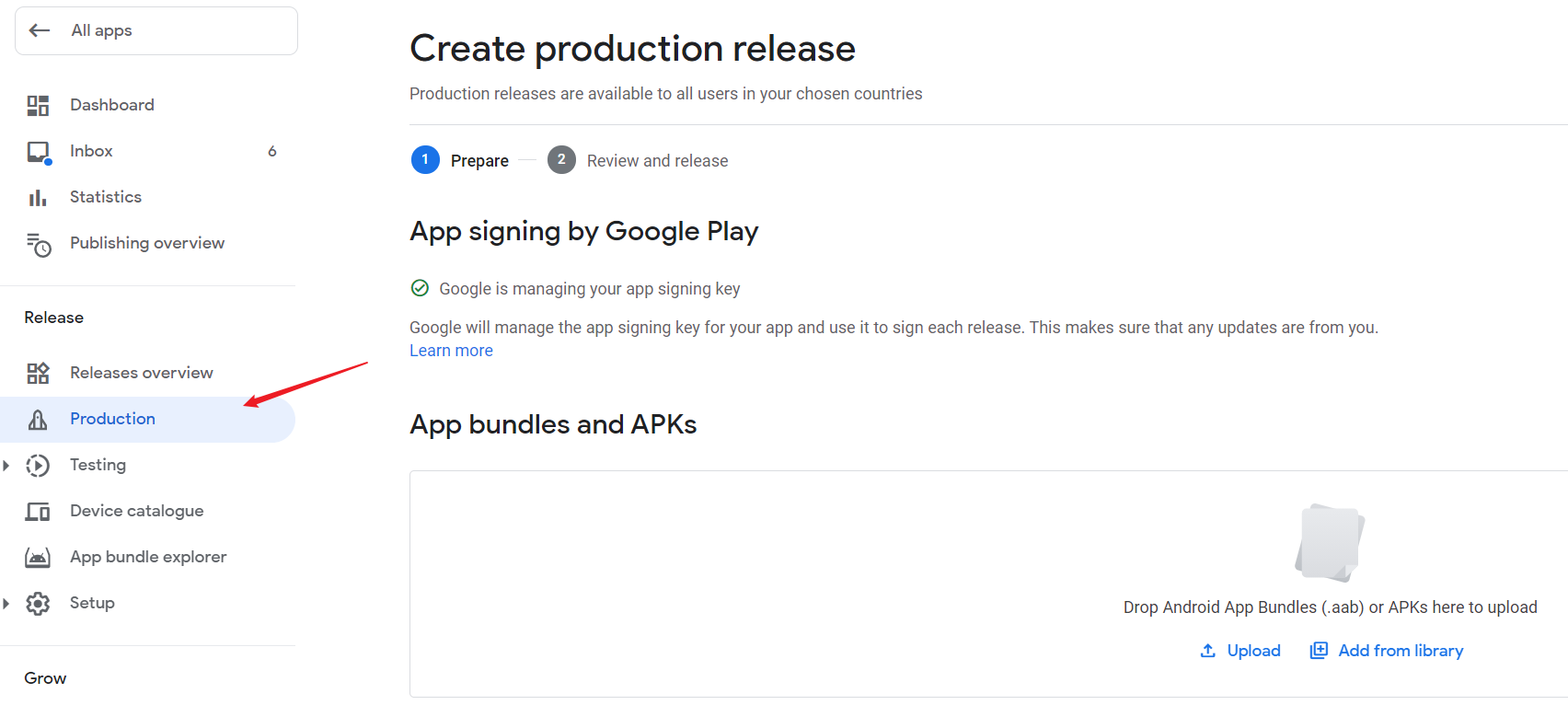
In the left navigation bar, select Release > Production.
-
Follow the instructions to create a production version.
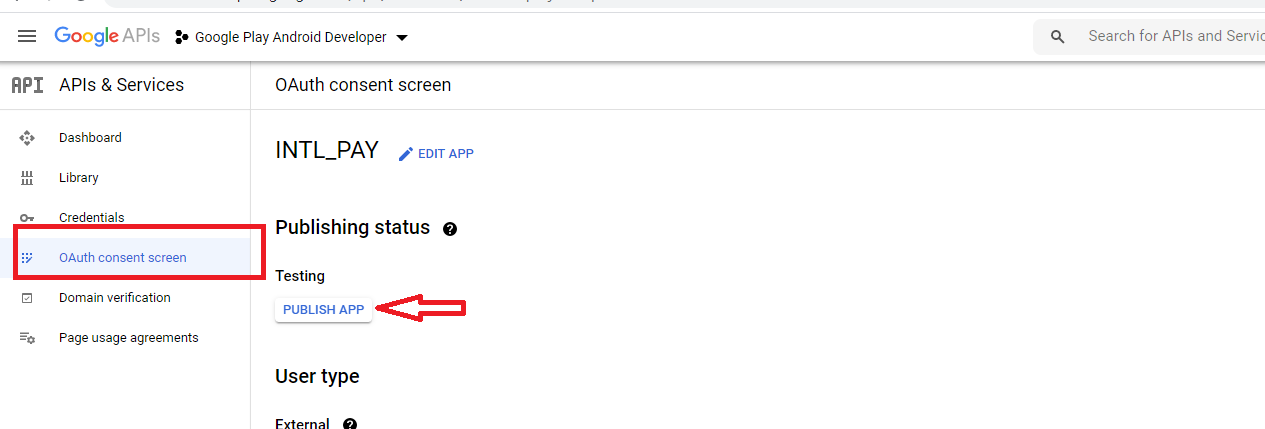
Changing the Publishing Status
Authentication may fail if the user does not release the application.
- Go to the OAuth consent interface page for Google Cloud Platform (https://console.cloud.google.com/apis/credentials/consent).
- Change PUBLISHING STATUS to PUBLISH APP.
Testing Google Login with APK
For more information, see Testing Google Sign-in with APKs.

