pro-lipass-accountcenter
Account Center
The LEVEL INFINITE PASS Account Center provides a unified page for player account management, including the following main modules:
Starting from LI PASS V1.26, the UI layout of the account center has been comprehensively optimized and updated. This document involves interfaces that are the latest UI and may differ from previous versions.
- Account Binding
- Personal Information
- Passkey
- Marketing Center
- Security Settings
- Compliance Clauses
Account Binding
Bind LI PASS
For accounts not yet linked with LI PASS, after accessing the account center, there are two ways to bind LI PASS. Entry to the account center is unrestricted; players can enter after launching the game.
The service can also send gift packages to players whose LI PASS email is bound. For details, see Gift Package.
Binding Popup: After entering the Account Center, click Link in the displayed binding popup to begin the binding process.
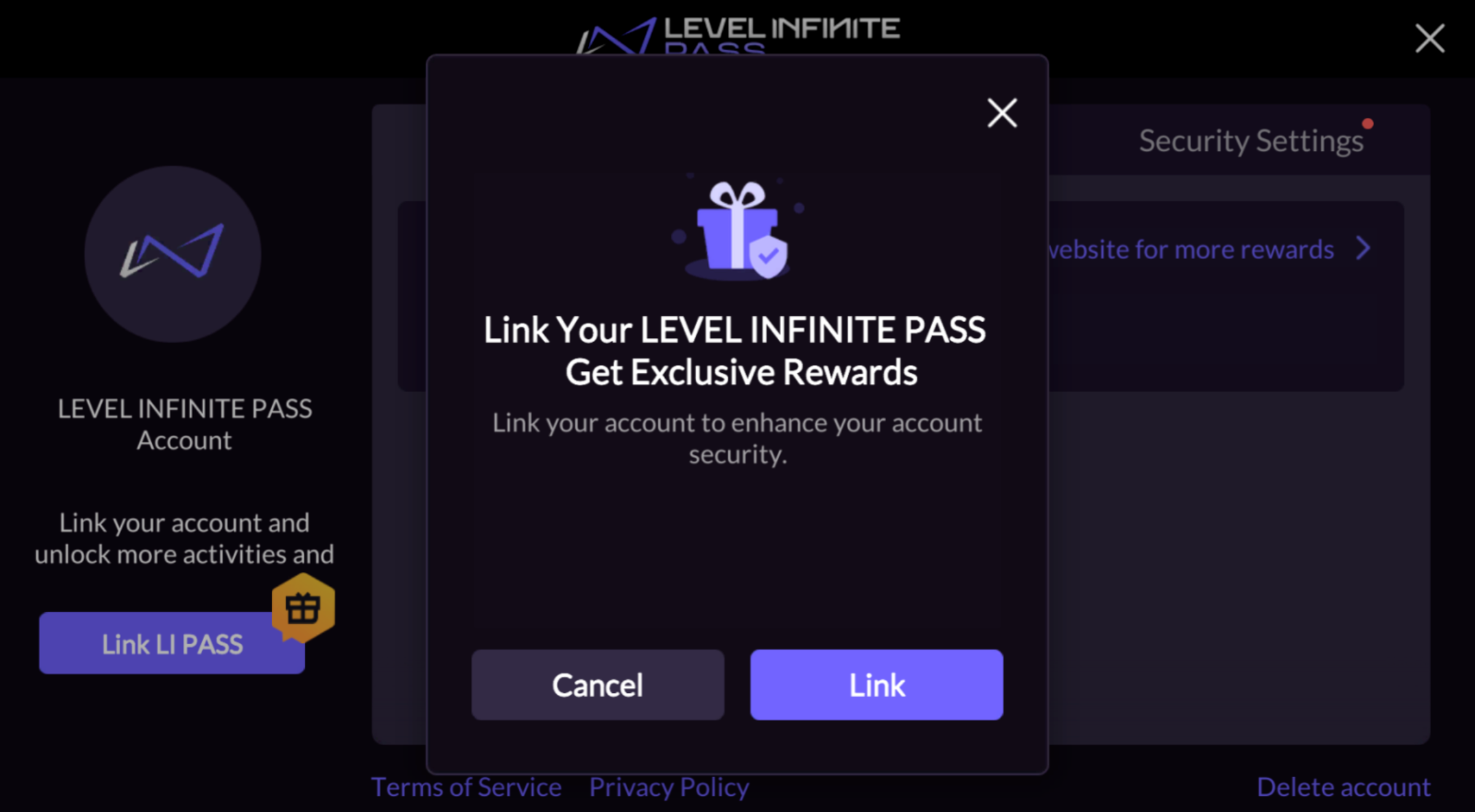
Link Button: Click Link on the right side of personal information to enter the binding process.

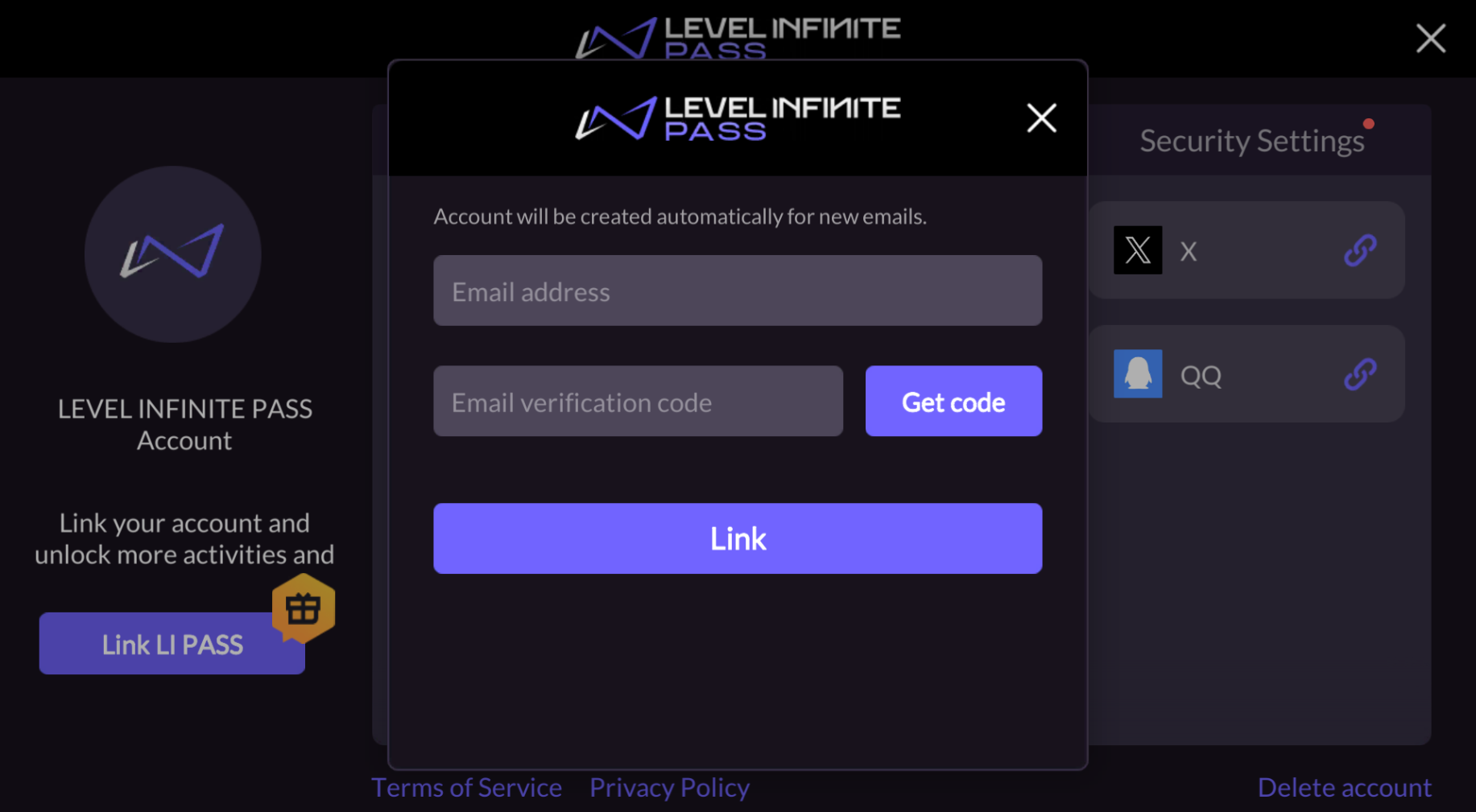
After entering the binding process, players need to verify their LI PASS email first, and only upon successful verification can binding proceed.
Quick Binding:
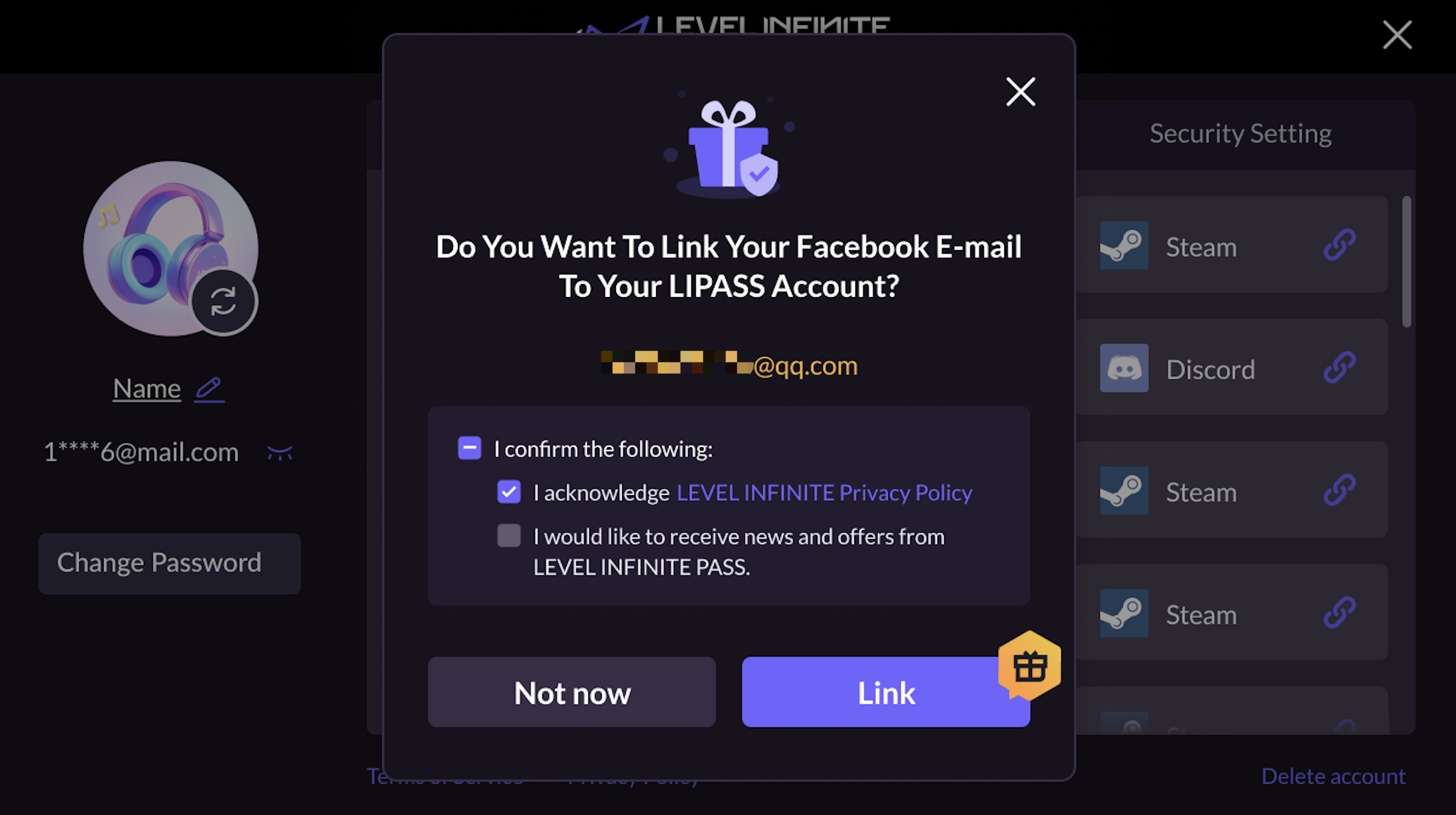
This feature is supported in Player Network SDK V1.25 and above, and can only be used after completing the steps for obtaining the player�27s email when logging in via a third-party channel.
If players log in using Facebook, X, or Google and have not bound LI PASS, upon entering the account center, the corresponding channel email will be automatically acquired after player authorization.
Every 30 days, upon entering the account center, a popup will ask if players want to use the email for LI PASS binding. Players only need up to 2 clicks to quickly create and bind LI PASS.
Bind Third-party Channels
For accounts not linked with LI PASS, LI PASS binding must be completed before linking other third-party channels.
Click the channel to be bound in the third-party binding area to initiate the authorization and binding process for the corresponding account.
Guest Account Binding
Guests entering the account center for account binding can choose to bind LI PASS first by clicking Link on the right side of personal information to start the binding process.
Guests entering the account center for account binding must first complete LI PASS binding if they choose to bind through third-party channels.
Personal Information
After binding LI PASS, players can change their username and login password.
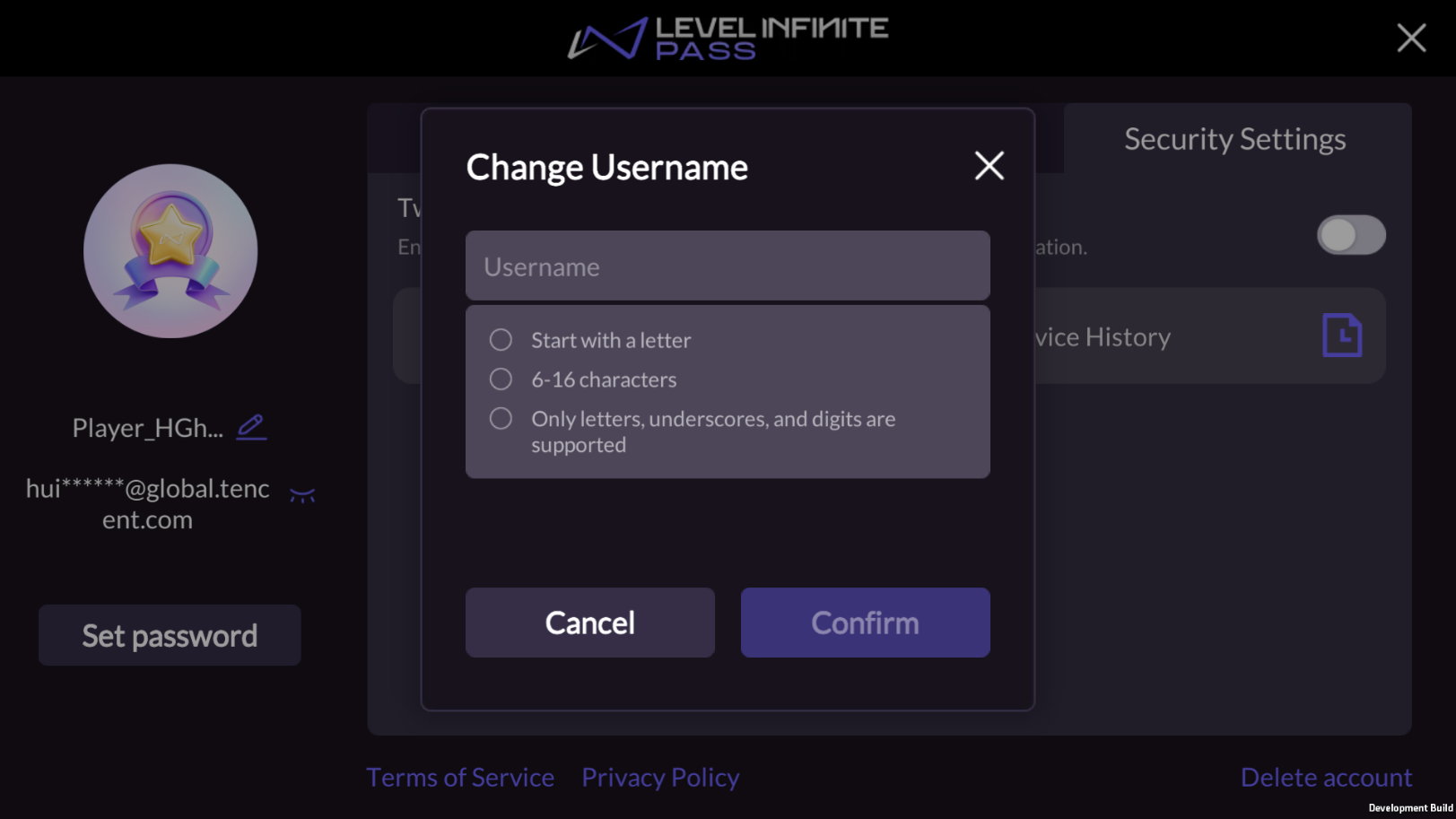
Modify Username
Click the edit icon next to Name to modify LI PASS username. Format restrictions are:
- Start with a letter
- 6~16 characters
- Can only use letters, numbers, and underscores
Change Password
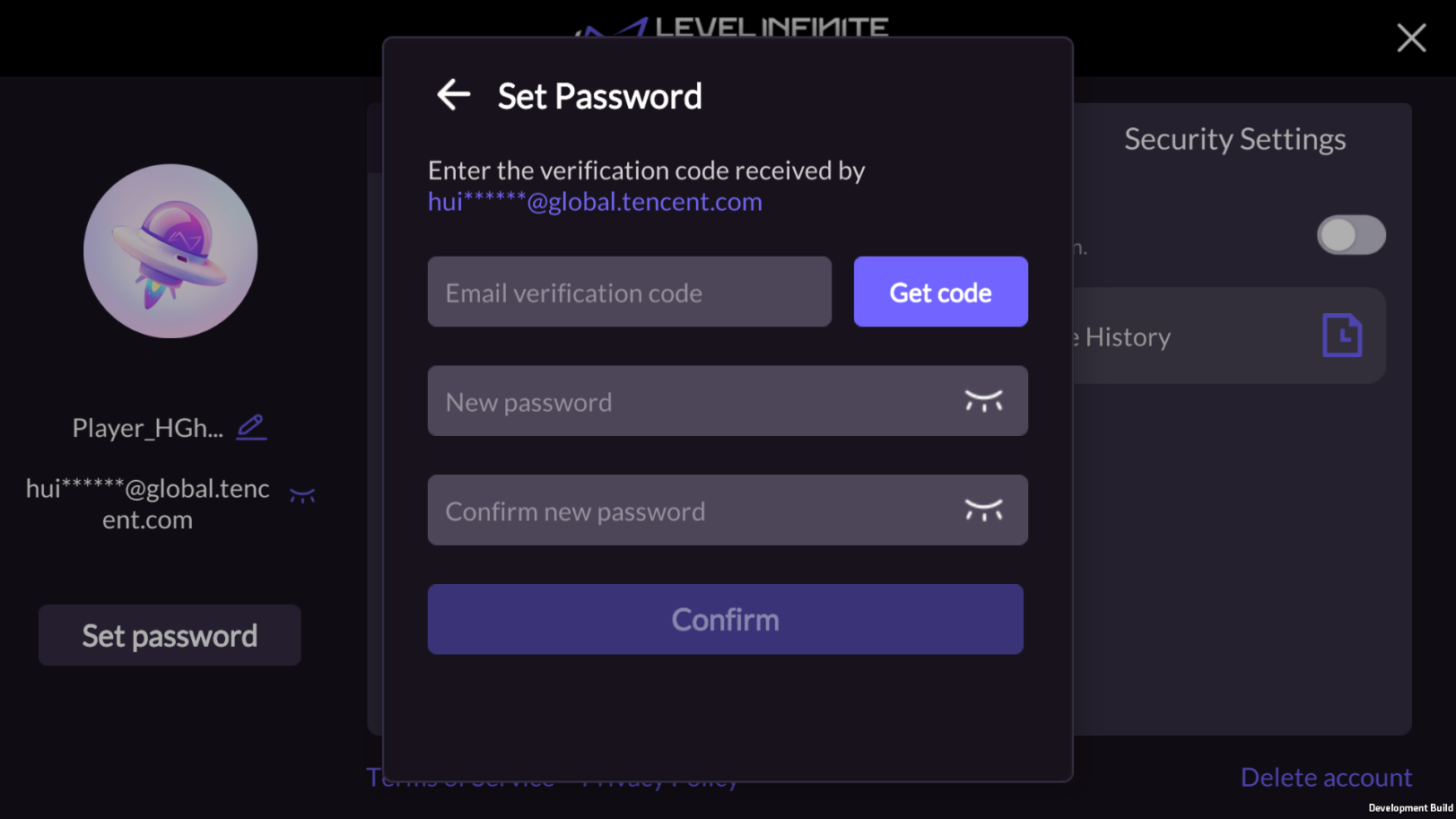
For LI PASS without a set password, click Set Password to create a password.LI PASS with a set password allows users to click Change Password to modify it.Before setting or changing passwords, email verification is necessary. Once verified, players can set a new password.
Changing the password for LI PASS in any game or on the official website will apply to all games, making the password globally unique.
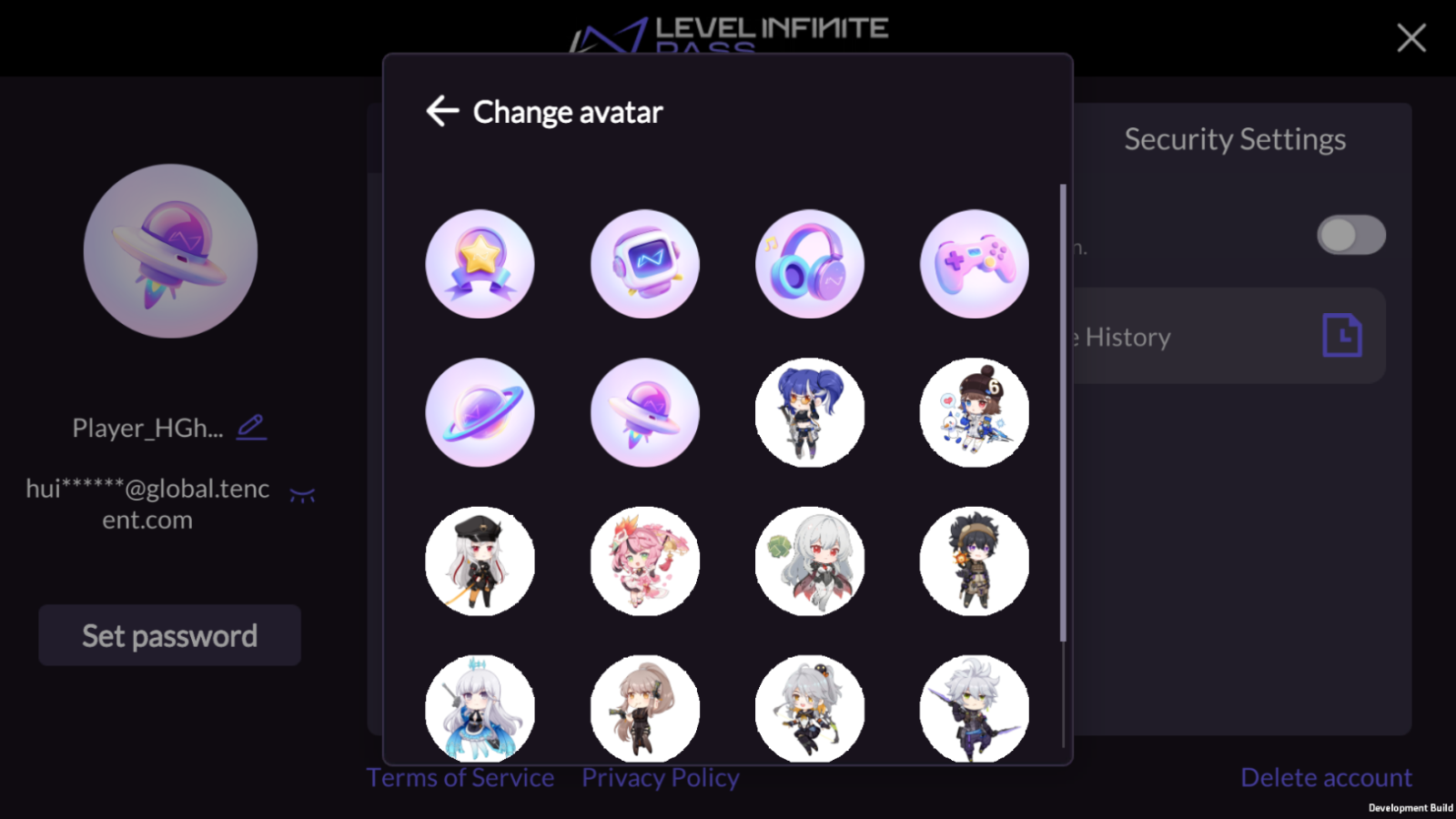
Change Modify Avatar
This function is supported in Player Network SDK V1.26 and above versions.
Click the image at the top left of the user center to open the edit avatar popup and change the avatar.
Passkey
This function is supported in Player Network V1.27 and above versions, currently only supports mobile devices:
- iOS: Supports iOS 16 and above versions
- Android: Supports Android 9.0 and above, requires Google Play Services 20.33 and above.
Manage Passkey
When players enter the Passkey List page, the system will request the server to fetch Passkey information and display the current LI PASS stored Passkey (up to 20).
Display Information:
- Passkey-bound device name
- Passkey creation time
- The last time Passkey login occurred
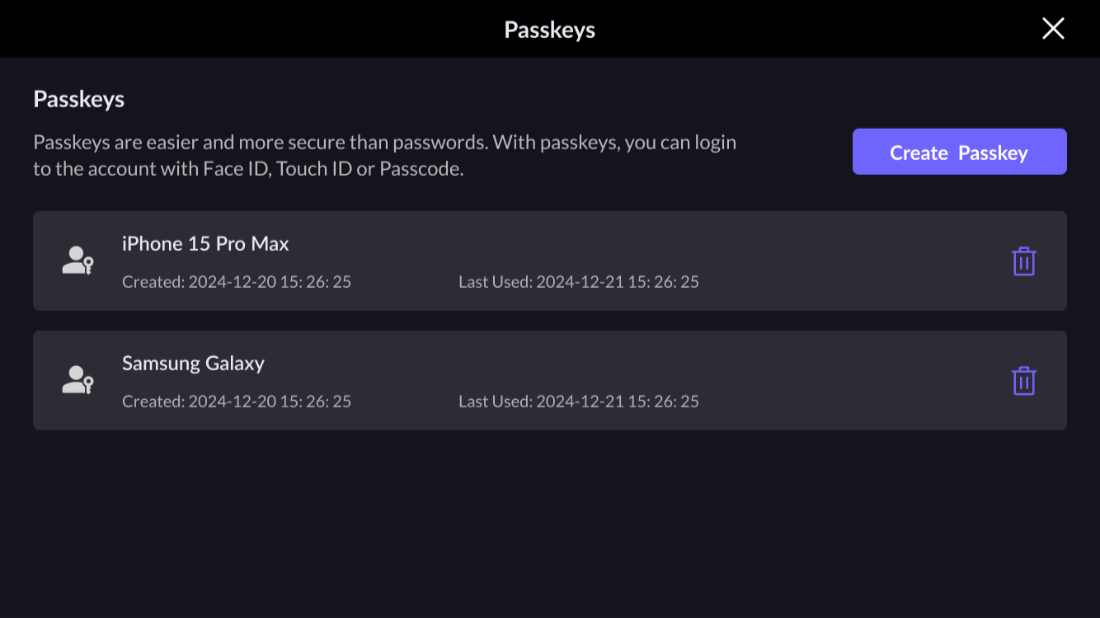
Players can also click Create Passkey to create a new Passkey on the current device.
If the device does not support Passkey, the system will indicate that the device cannot create Passkey.If a Passkey for the account is already stored on the player's device, the system will show A Passkey exists on your device to prevent duplication.
Delete Passkey
Players can delete Passkeys stored on the current device or other devices.
- Enter the Passkey List, confirm the Passkey to be deleted.
- Click the delete icon of the corresponding Passkey, a secondary confirmation popup will be displayed.
- If the current device contains a Passkey, use fingerprint, facial ID, or device PIN code for authentication to complete deletion.
- If the current device does not have a Passkey, the system will send a verification code to the player's bound email. After entering the code, confirm deletion.
- Upon successful deletion, the Passkey list refreshes, removing the deleted Passkey.
Marketing Center
This function is supported in Player Network SDK V1.26 and above versions.
The service must first integrate the LEVEL INFINITE PASS official website's point feature to activate the relevant services of the Marketing Center.For technical support or business cooperation, please contact [kerenyqzhou(周月乔)] for communication and collaboration.
To enhance player engagement and optimize experience, the LI PASS Account Center has added the Marketing Center module, offering LI PASS email subscription functionality, LI PASS website coin management and exchange feature, website and social media browsing capabilities, and the display and access to marketing activities.
The Marketing Center module can be enabled or disabled by configuring SHOW_AS_MARKETING_MODULE.
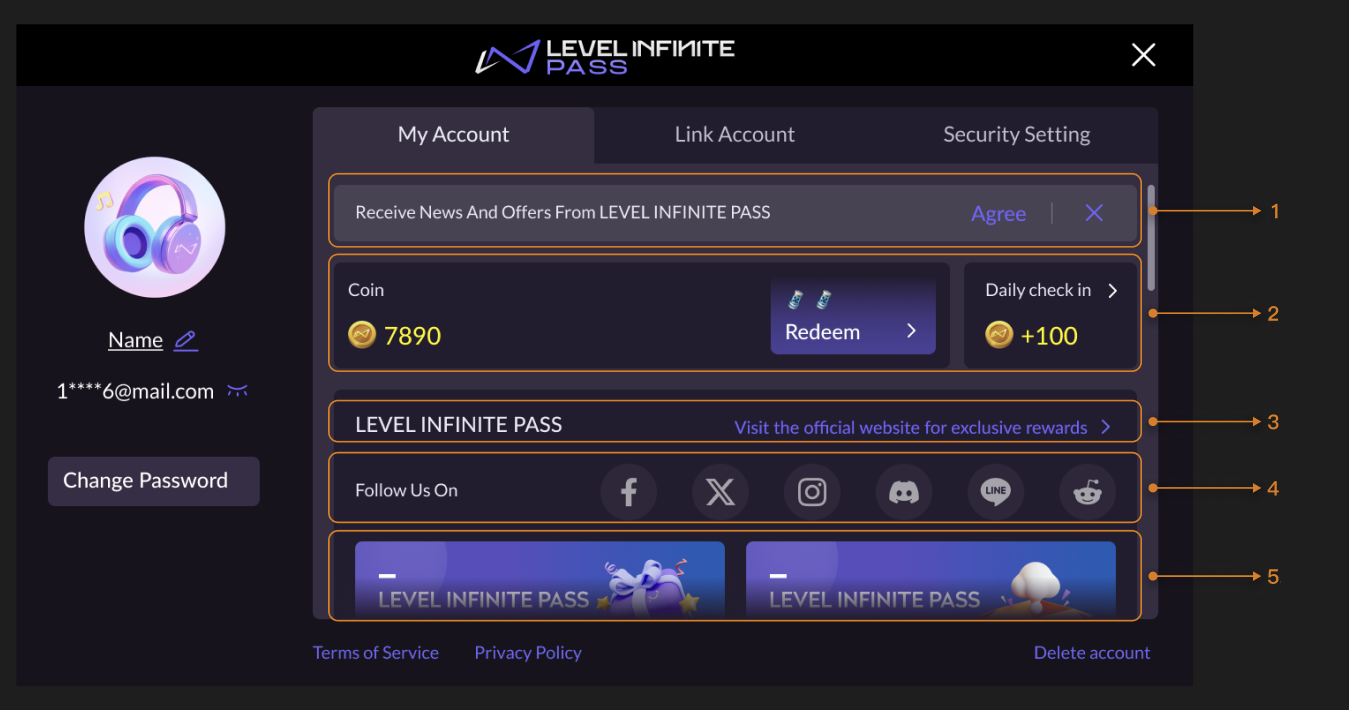
- LI PASS Email Subscription Options
- Coins and Daily Sign-in
- LI PASS Website Redirect
- Social Media Channel Redirect
- Marketing Activity Display Area
LI PASS Email Subscription Options
Click Agree to subscribe to LI PASS emails or click the ✕ button to remain unsubscribed.Email subscription options are only displayed for players not yet subscribed.
Coins and Daily Sign-in
This module displays the player's LI PASS coin balance and provides a link to the LI PASS website for daily sign-ins.
- Coins: Click Exchange to redirect to the LI PASS website and exchange game resources using coins.
- Daily Sign-in: Click the Daily Sign-in module to redirect to the LI PASS website for check-ins and to receive coins.
You can configure to show or hide the module with SHOW_ACTIVE_POINT_EXCHANGE.
The Coins and Daily Sign-in module can also be individually displayed or hidden and supports customizing 0-5 game resource icons, used to show game resources that can be exchanged using coins.The service must provide corresponding icon resources as PNG files with width-to-height ratios of 1x1, no larger than 500KB.For configuration details, please contact Player Network Assistant.
LI PASS Website Redirect
Click Visit the Official Website to get more benefits to quickly jump to the LI PASS website, allowing players to explore exclusive reward activities and the latest news.
Social Media Channel Redirect
Click the social media channel icon to rapidly jump to the official social media account, facilitating player access to more content or community interaction.
Social media channels can be configured via LI_SOCIAL_MEDIA_CHANNELS; up to 6 channels can be displayed.
The redirect URL for the channel can be configured via LI_SOCIAL_MEDIA_URL_[CHANNEL].
Marketing Activity Display Area
The Marketing Activity Display Area shows recent LI PASS marketing activities, and by clicking on activity images, players can jump to the activity page for participation.
Marketing activities support configuration of open/close, activity redirect URL, and custom multi-language image resources.The service must provide corresponding image resources as PNG files with a width-to-height ratio of 419x160, no larger than 500KB.For configuration details, please contact Player Network Assistant.
Security Settings
The Security Settings page supports configuration for the following account security features. For detailed descriptions and setup, please see Account Security.

Two-factor Authentication (2FA)
Players can choose to enable or disable two-factor authentication in the account center.When enabled, players logging in with new devices will require a secondary verification via email when not using a verification code login method to prevent unauthorized device access to player accounts and ensure data security.

Device History
Players can monitor detailed login behaviors of their accounts and immediately take action upon detecting anomalies. Security measures include enabling two-factor authentication (2FA), logging out of all devices through text buttons at the bottom of the page to jump to related pages for security settings operations.

Log Out of All Devices
Players can quickly log out of sessions on all logged devices except the current one.This function ensures players can immediately protect their account from unauthorized access upon discovering suspicious login activities or lost devices.

Compliance Clauses
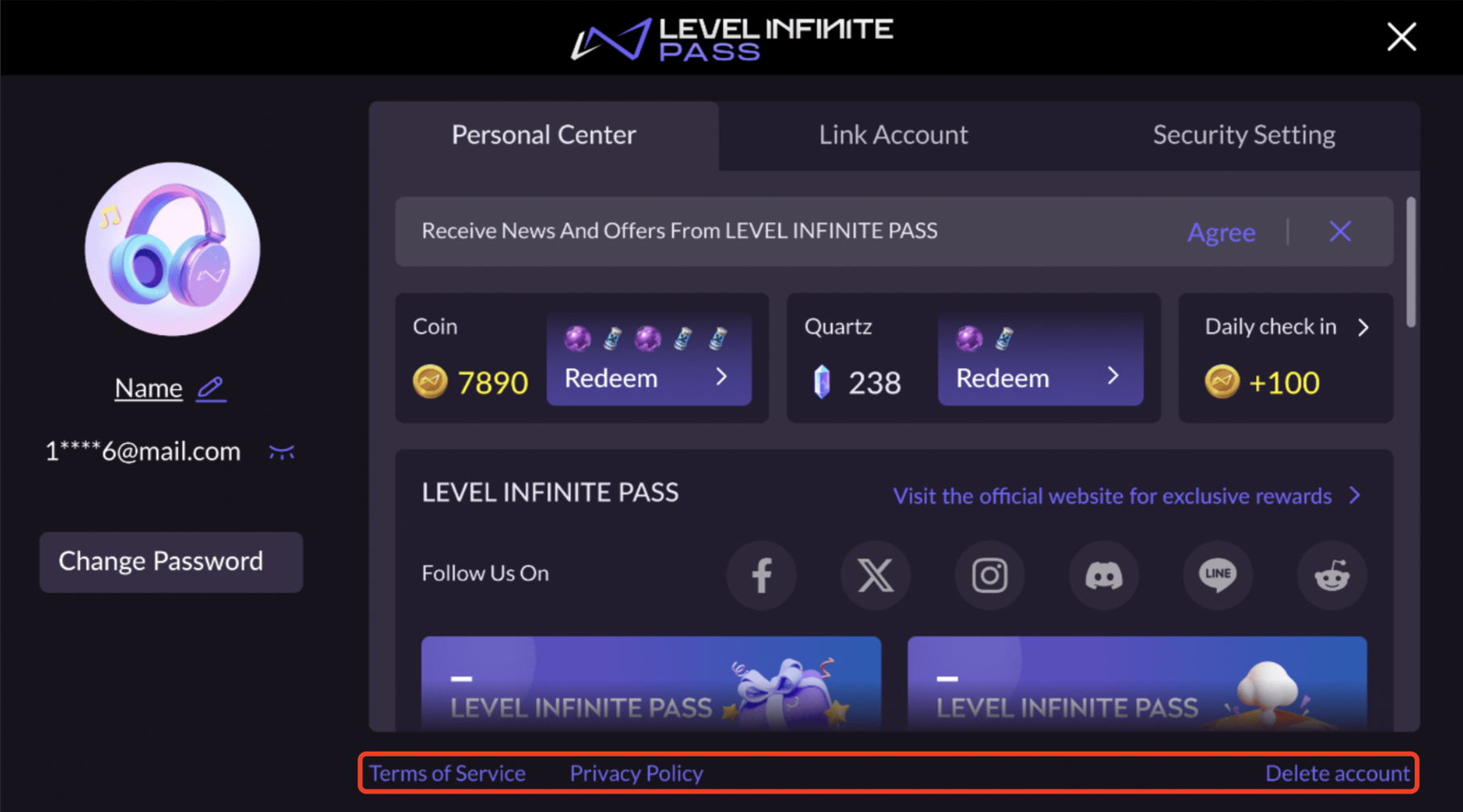
The bottom of the account center provides compliance agreements including:
- Terms of Service: View detailed terms of service
- Privacy Policy: View detailed privacy policy
Additionally, if the game integrates an account center with a delete-account button and the delete option is opened in the configuration, players can initiate the account cancellation process by clicking Delete Account.
Web Binding
Games usually plan binding-related operational activities. Therefore, the Web component supports account binding functionality, allowing efficient, low-cost implementation of your operational activities.
Bind LI PASS
If your game client requires mandatory LI PASS binding, logic should be consistent on the web, enforcing players to bind.Mandatory binding typically applies to PC games distributed on platforms like Steam. Confirm your account strategy with your team beforehand.
Once enabled, players logging in with third-party accounts through a binding popup via LI PASS will complete the binding process.
Automatic Initiation: After logging in through the Web component, if unbound required channel accounts are detected, the binding popup will automatically initiate, requiring players to complete/skip binding per configuration before accessing the webpage.
- Allow players to skip binding - Display a Skip button on the email binding screen, enabling players to skip the email binding step through this button.
- Mandatory player binding - Hide the Skip button on the email binding screen, requiring players to bind an email before completing login steps.
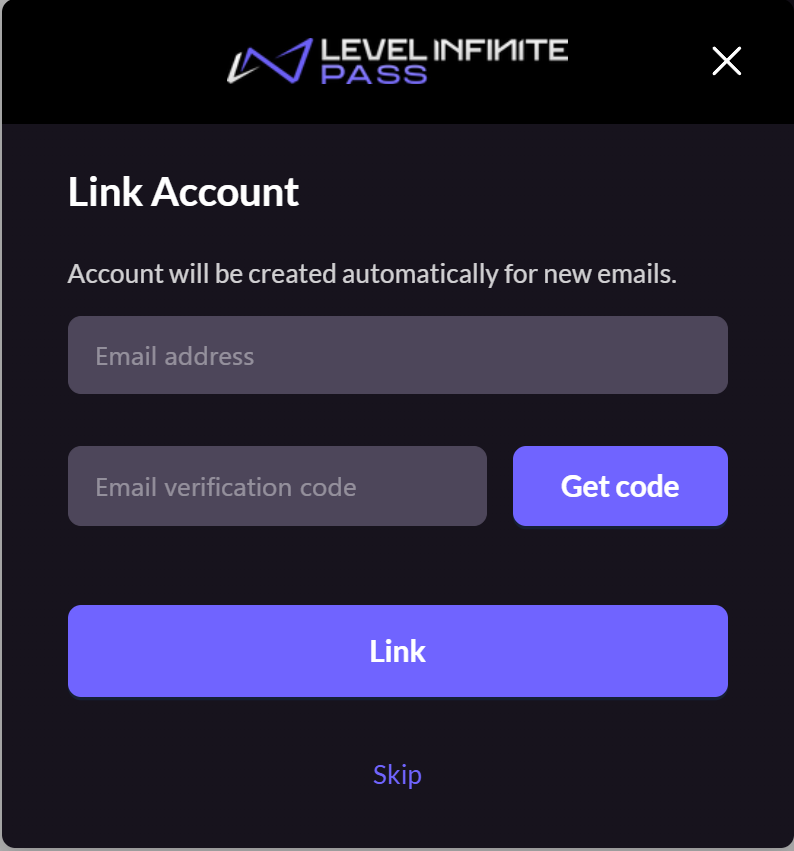
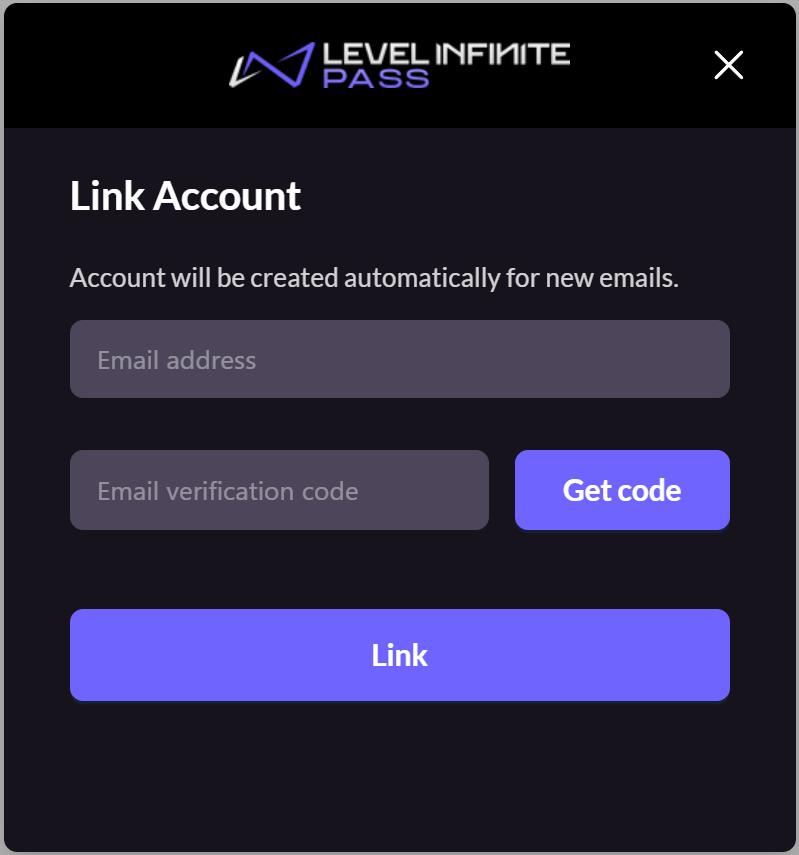
Manual Initiation: Players logged in through the Web component can explore the webpage but can manually invoke the binding popup by clicking embedded buttons/links.
Players who do not wish to bind can close the popup and continue browsing the webpage. This popup does not feature a skip button.
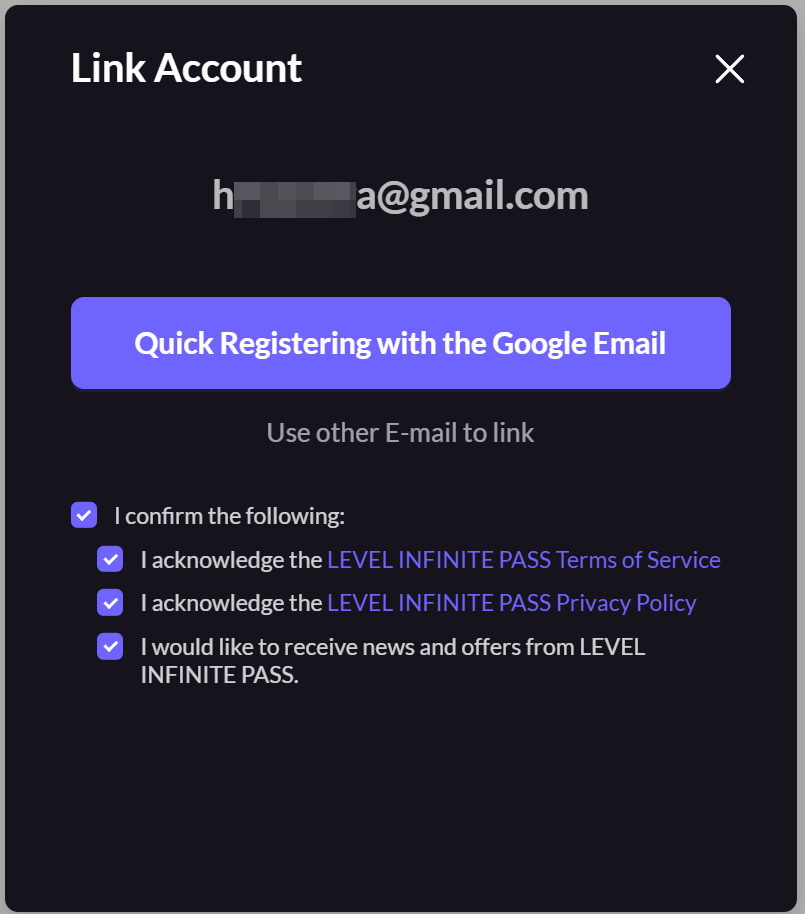
Quick Binding: Some third-party channel accounts allow email transfer. In this scenario, the player's third-party account email is displayed to guide quick binding of an existing/automatically registered LI PASS.
This feature is available only after completing the steps in obtaining the player email during third-party channel login.
- If this email already registers with LI PASS, it will be displayed according to the LI PASS agreement terms checkbox status.
- Players can also choose to bind another LI PASS by manually entering an email and verification code.
Bind Third-party Channels
This function will soon be launched, stay tuned.
Once enabled, players logging in with LI PASS through a binding popup will complete the binding.
Web Pre-registration
Before the official launch of the game, player pre-registration activities are typically conducted on the official website to collect player emails and preferences in advance and subsequently send operational emails.
The LI PASS Web component's pre-registration function is a game reservation solution launched in cooperation with SmartLink.We package the entire process of player account registration, email information registration, and player email management, eliminating the need for self-development of UI and processes related to reservations. A simple configuration is all you need to set up a reservation activity.
After players complete the following steps, their email addresses and form information will automatically be imported into the contact list under your SmartLink project.
-
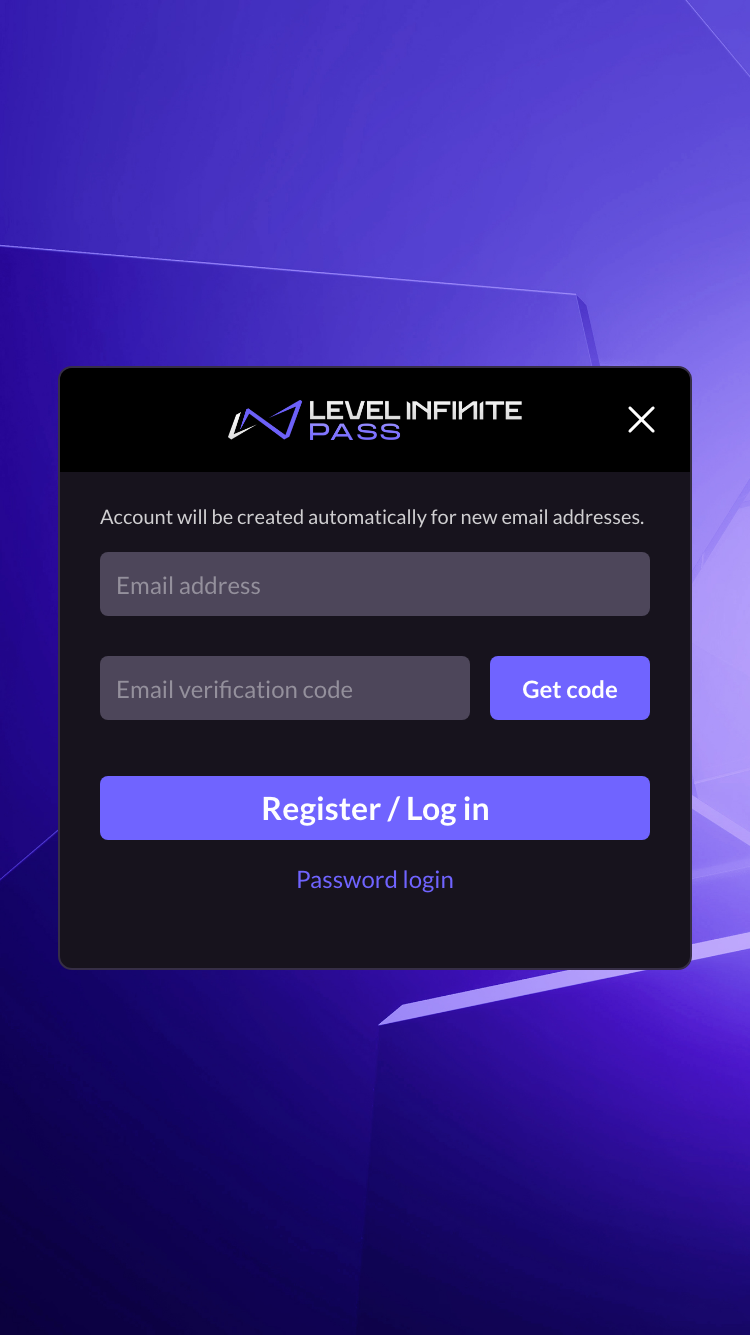
Players click the reservation icon to invoke the LI PASS login/registration component.
-
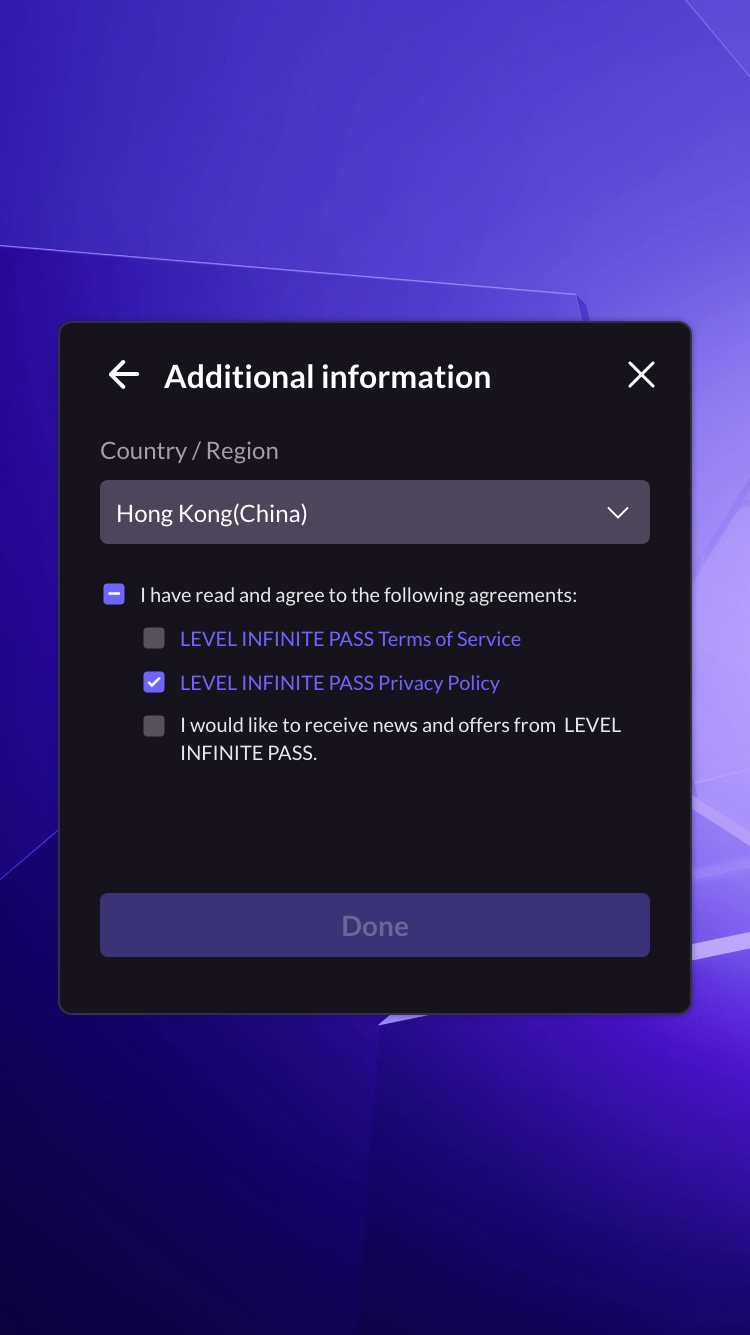
[Optional] If necessary, players need to supplement LI PASS account information.
-
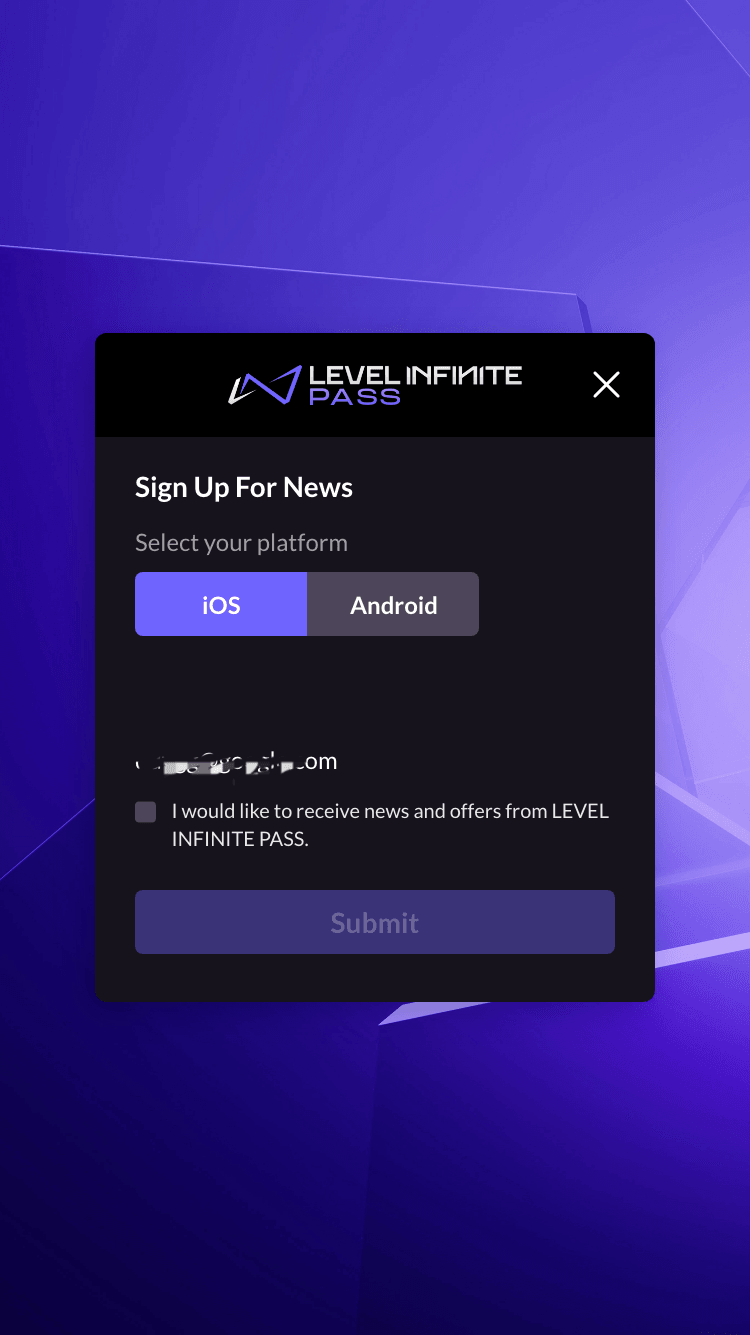
Pull up the reservation popup, players need to complete pre-configured form information in SmartLink.Players not subscribed to email marketing need to complete subscription at this step.
-
The player has successfully pre-registered.