Android App Bundle Adaptation
Overview
Google introduced the Android App Bundle (AAB) as a new release format in 2018.Google Play's latest policy requires that new apps launched after August 2021 must be packaged and released using the Android App Bundle format.Apps that have already been published are temporarily unaffected.
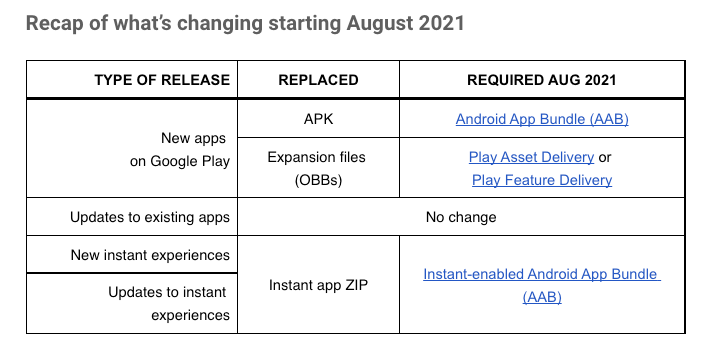
What is Android App Bundle
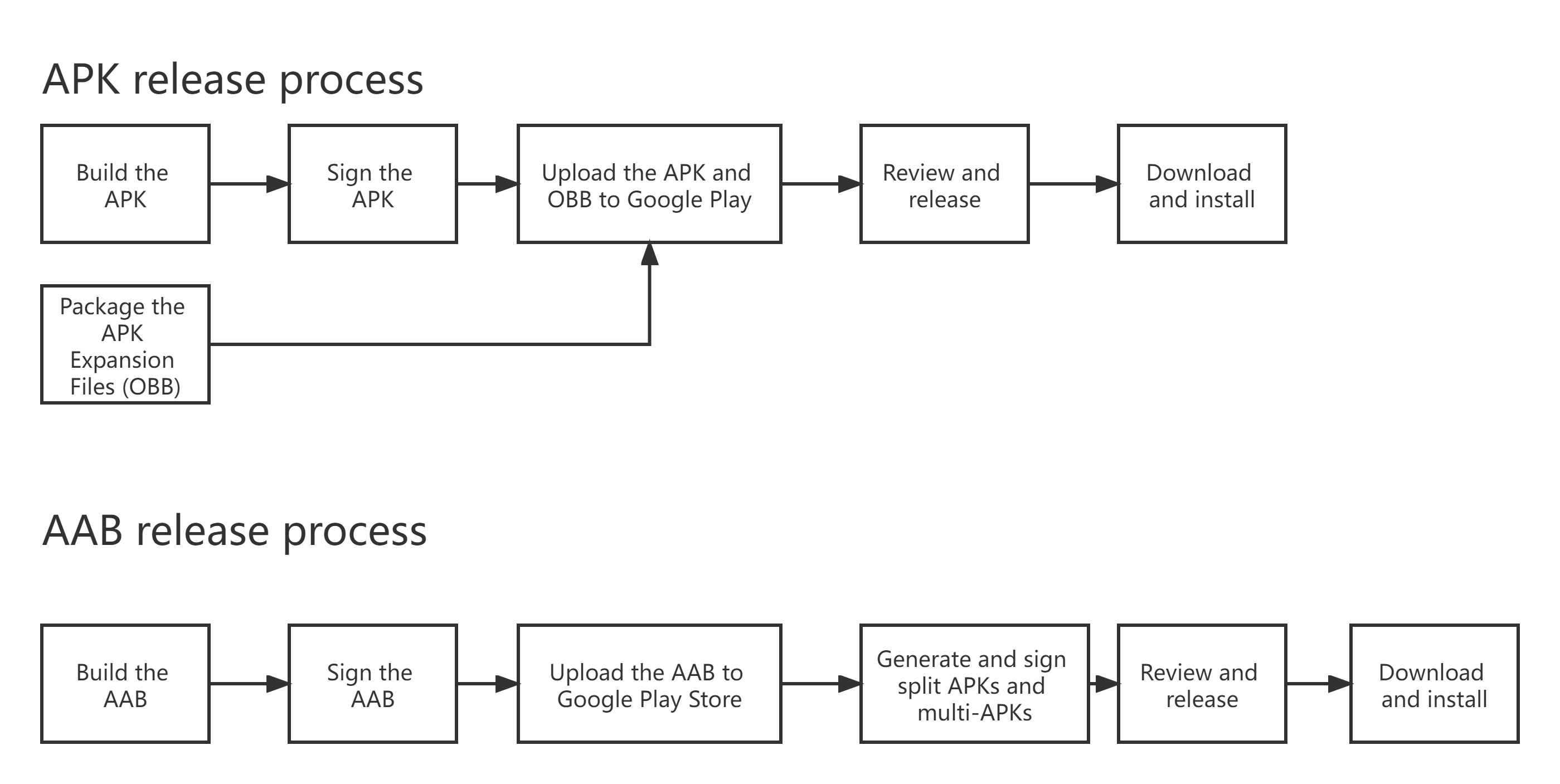
Android App Bundle: A new release format launched by Google.Compared with traditional APKs, Google Play uses AAB to generate APKs in batches for various devices, allowing users to download only the APK suited for their device configuration.This release method can reduce APK size and prevent users from installing unnecessary resources.
Play App Signing: Since APKs are now generated by Google Play, naturally the APK signing is also done by Google Play.
Play Feature Delivery: Google's plugin version.Feature modules contain code and resources, which can be downloaded and used as needed.
Play Asset Delivery: Asset resource segmentation, which replaces the previous APK Expansion File (OBB).Since Google Play has a 100MB APK size limit, previously OBB files were used to solve the issue of large resources.However, OBB files lack signature verification and cannot load different resources for different devices, so Play Asset Delivery exists specifically for asset resource segmentation.
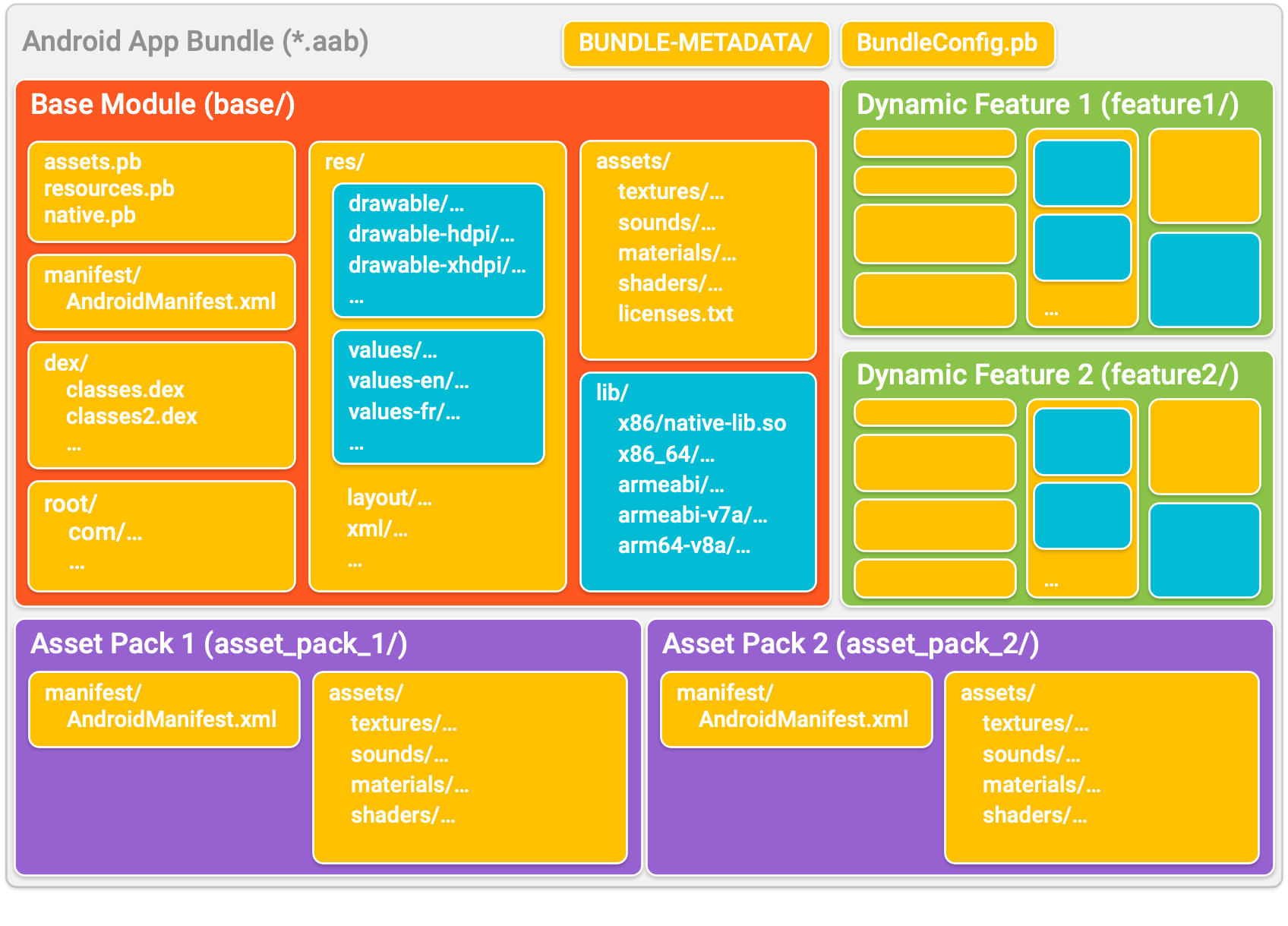
Android App Bundle Format:
- Base Module is the main package.
- Dynamic Feature is Play Feature Delivery.
- Asset Pack is Play Asset Delivery.
Release Process Changes
Project Configuration Requirements
- Android Studio version 3.2 or above
- Gradle plugin version after 3.2.1
- From August 1, 2020, Google Play's new projects only support AAB format files
Notes for publishing AAB format files on Google Play
Google Play officially supports updating APK format files to AAB format files, but you must replace Google Play's auto-generated signature file. After replacing the signature, a new version must be released.
Update AAB File
- For new projects updating to AAB
You can use the Google Play auto-generated signature, or override it with your own signature (Google recommends using Google Play-generated signatures). - Updating to AAB from an existing APK
Use the existing APK to upload the signature file and generate the corresponding signature file to upload, overriding Google Play's auto-generated signature.
Update Google Play Signature File
-
Update the Google Play signature file for a new project
- Go to the Google Play Console.
- Select Testing > Internal testing.
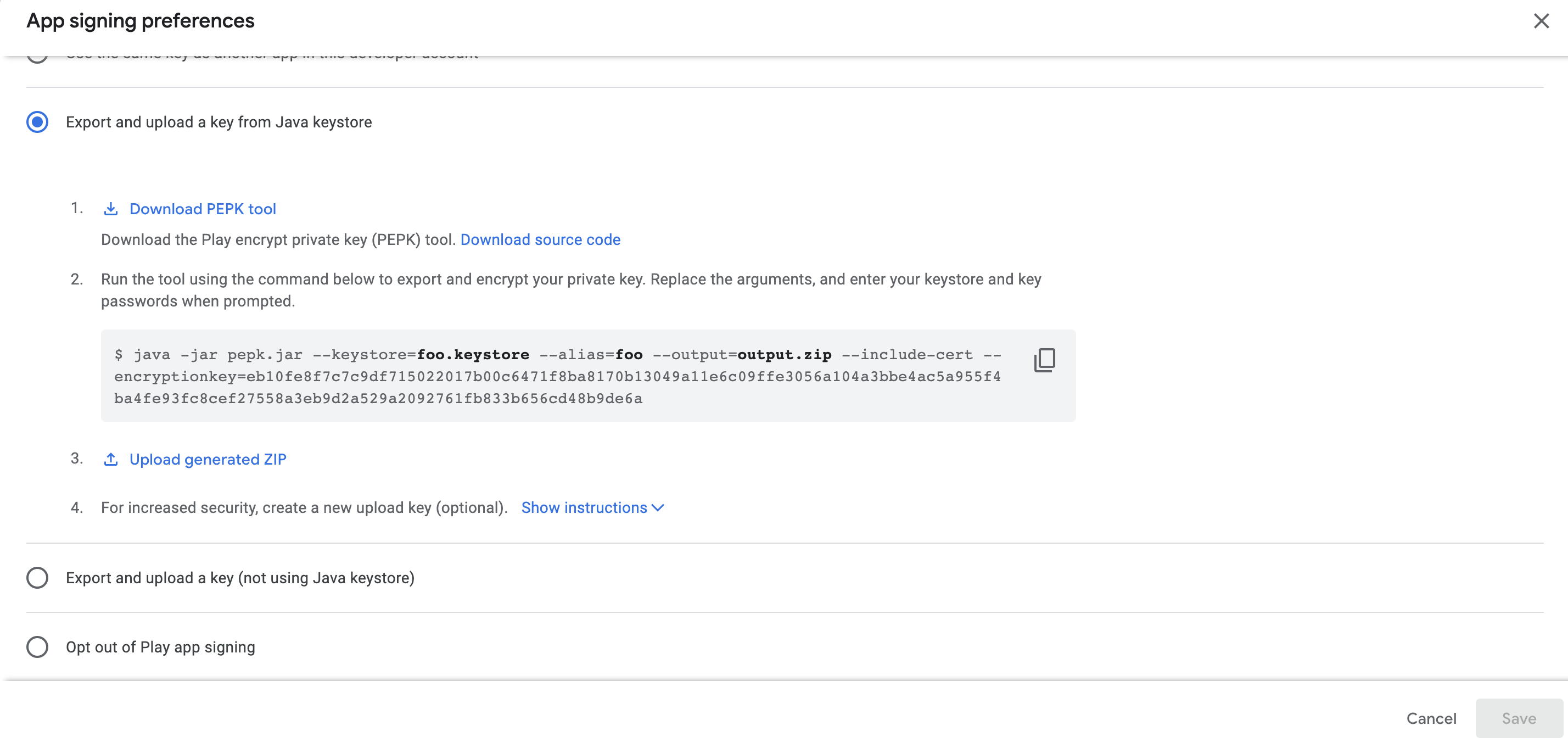
- In the App integrity section, click Change app signing key.
- In the Change app signing key dialog, click Use another key.
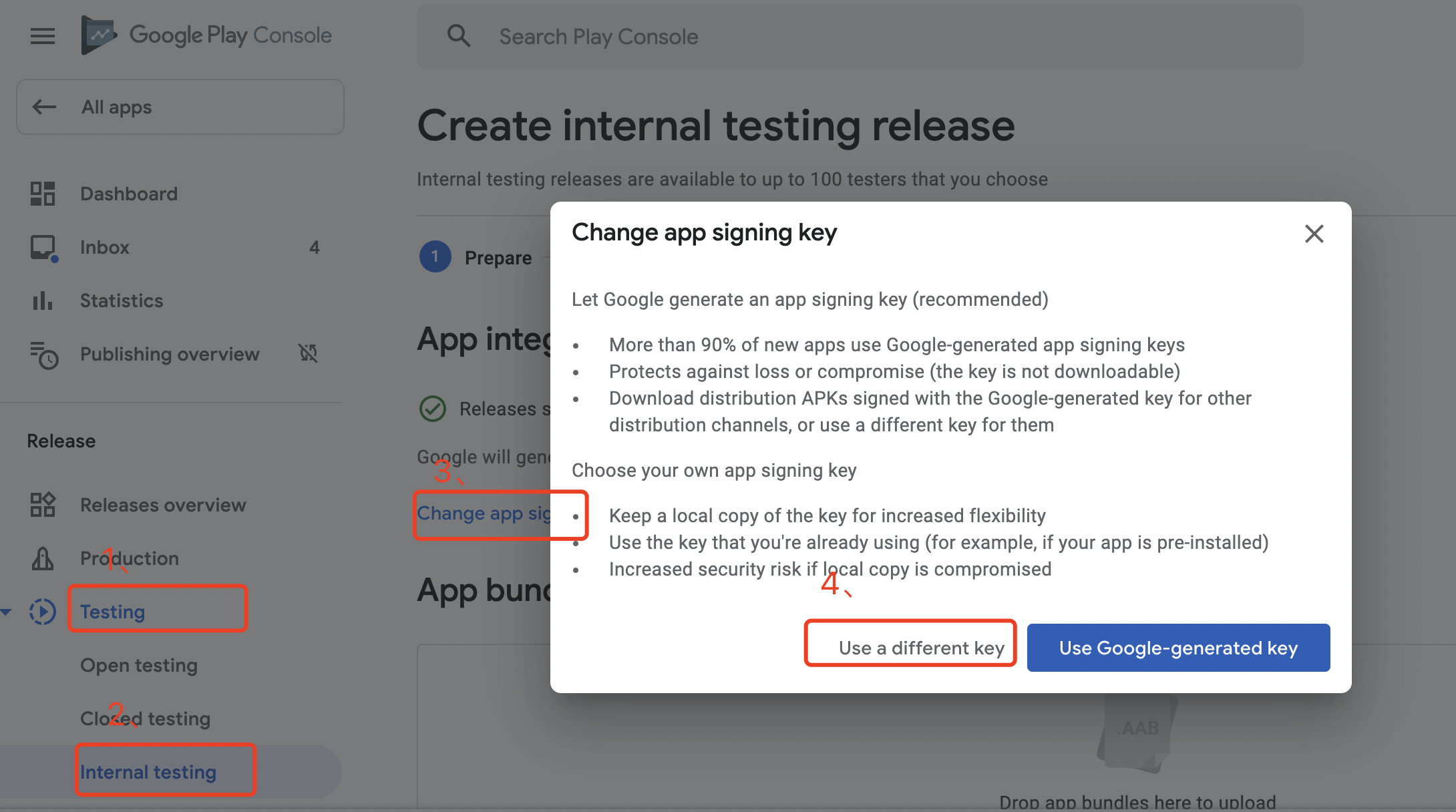
- Select Export and upload a key from Java keystore and follow the on-screen instructions to upload the signature file.
-
Update the Google Play signature file for an already published app
- Go to the Google Play Console.
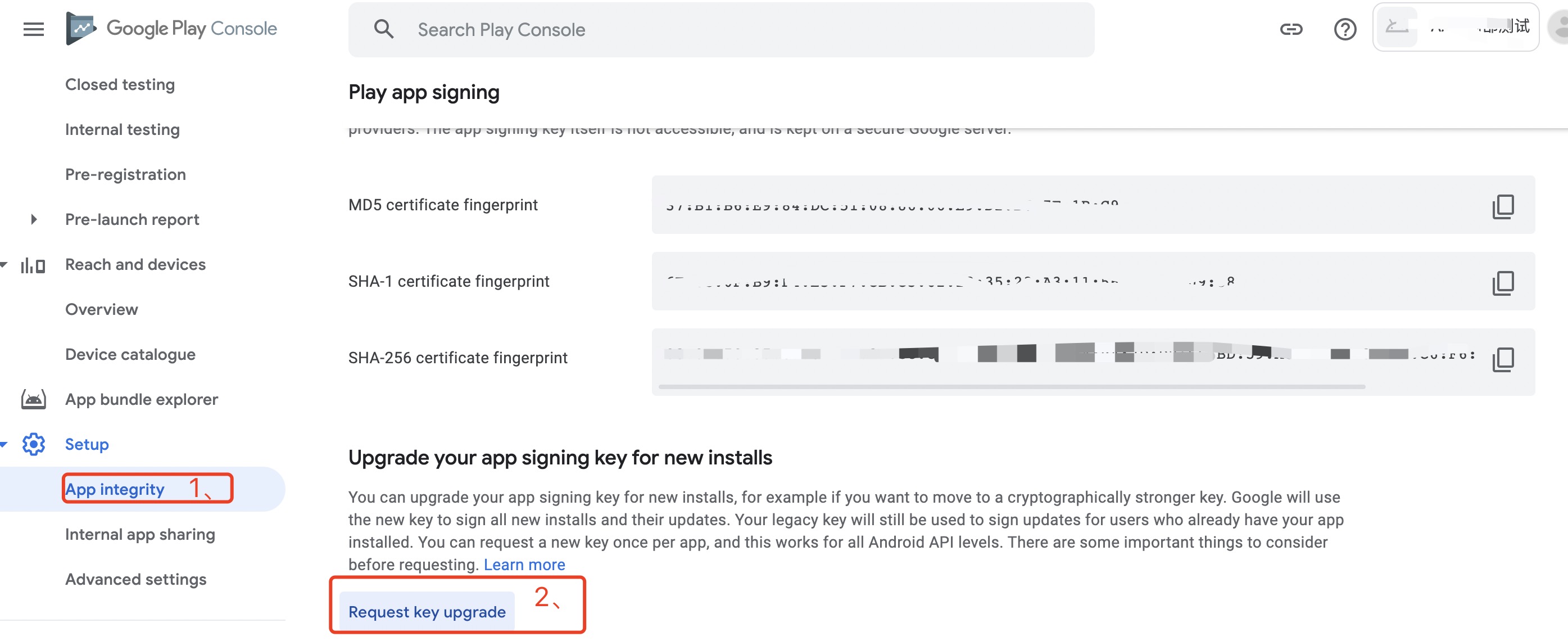
- Select Settings > App integrity.
- In the Upgrade your app signing key for new installs section, click Request key upgrade.
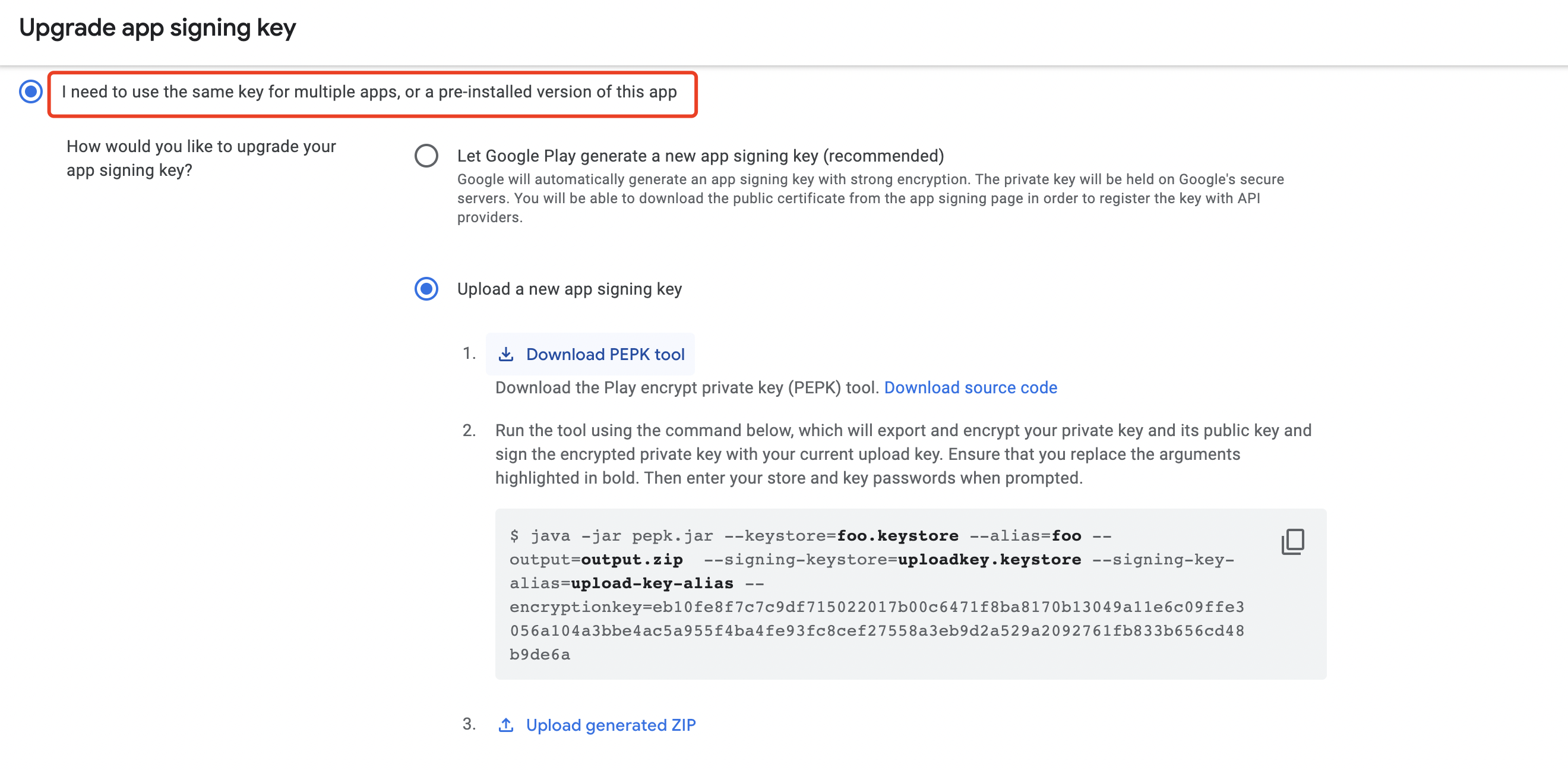
- Select I need to use the same key for multiple versions or pre-installed versions of this app > Upload a new app signing key, and follow the on-screen instructions to upload the signature file.
Adaptation Solutions
-
For apps with a total size of 150MB or less:
Simply select the bundle package option during packaging; no other changes are needed.Since APK Expansion File (OBB) and Android App Bundle are incompatible, if you have previously used OBB, refer to solution 2. -
Apps with OBB files and most of the size coming from resource files:
According to the Asset Library documentation, create a new module to store resources previously in the OBB file.It is best to categorize resources, divide them into different modules, and create separate Asset Packs for on-demand loading.- install-time: Downloads together when the app is downloaded; once the app is installed, the Asset Pack is also available.
- fast-follow: After the app is installed, Google Play immediately continues to download fast-follow type Asset Packs. Usage is not guaranteed; you need to check status before using.
- on-demand: Downloaded by the app only when needed.
-
For larger apps:
Refer to the Asset Library and Feature Library documentation. Divide project modules and choose loading methods based on module usage.- install-time: Downloads together when the app is downloaded; once the app is installed, the Feature Module is also available.
- on-demand: Downloaded by the app only when needed.
- conditional: Downloads together when the app is downloaded based on conditions, usually triggered when the device meets certain hardware/software criteria.Such as device resolution, system API version, OpenGL version, etc.
-
Legacy Support:
API level <= 19 (Android 4.4) does not support segmented installation, but Google Play will handle this appropriately.Google Play will still generate a relatively streamlined APK, not filtering languages but filtering screen resolutions and CPU architectures for user downloads.Note: If any modules are set for on-demand loading, assess whether these modules should be merged. If so, enable the fusing configuration.
Business Adaptation
Ensure that all Player Network SDK modules are included in either the main module or the install-time module.
Additionally, attention should be paid to Feature Module dependencies.Suppose a business chooses to place INTLCore in Feature A and INTLFacebook in Feature B. Before calling Feature B, you must ensure Feature A is loaded; otherwise, a crash may occur due to missing code or resources.

