Mobile Packaging Guide
Mobile integration covers many third-party channels, and platform configurations vary between Android and iOS. Pay special attention during packaging in Unity and Unreal.However, don't worry. This article will guide you step-by-step through the packaging process.
Prerequisites
Please ensure PlayerNetwork SDK is integrated and functioning normally.
- Unity
- Unreal Engine
For details, please refer to Player Network SDK Integration
For details, please refer to Player Network SDK Integration
Android
- Unity
- Unreal Engine
1. Firebase Configuration
The path to the Firebase configuration file is:
Android: Assets/Plugins/Android/google-services.json
Make sure the Firebase configuration file for the corresponding platform has not been deleted and all configuration items are correct.
2. Version-specific Android adaptation documentation
For more version-specific Android adaptation documentation, please refer to:
1. Firebase Configuration
The path to the Firebase configuration file is:
Android: Assets/Plugins/Android/google-services.json
Make sure the Firebase configuration file for the corresponding platform has not been deleted and all configuration items are correct.
2. Version-specific Android adaptation documentation
For more version-specific Android adaptation documentation, please refer to:
iOS
- Unity
- Unreal Engine
1. Merge Privacy Manifest
Version requirement: Player Network SDK V1.22 and above
Starting from Spring 2024, for applications that need to be updated or uploaded to Apple App Store Connect, developers must explicitly state the usage reasons to show how the app uses the required reason API (an API for which a usage reason must be submitted).For more information, see Upcoming Third-party SDK Requirements.
For Player Network SDK plugins affected, those that need to be manually merged include INTLFoundation, INTLCore, and INTLGarena. INTLGarena only needs to be configured when the project confirms integration with Garena.
Additionally, INTLLine is automatically integrated by Player Network SDK and does not require extra steps.
Since privacy manifests for other third-party SDKs have not yet been released, the Player Network SDK privacy manifest currently does not include corresponding entries.To view the list of plugins that have not yet been released, refer to iOS 17 Privacy Manifest.
Steps
- Locate the privacy manifest
PrivacyInfo.xcprivacyof the required plugins in the Player Network SDK product directory.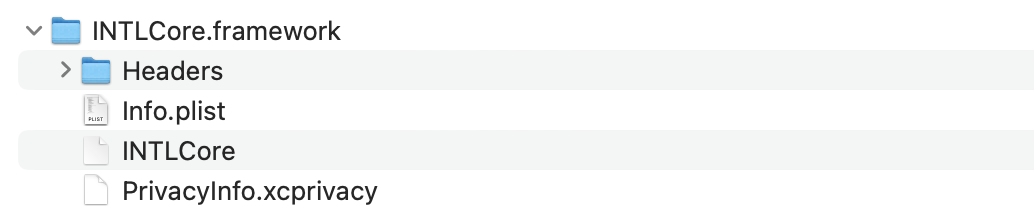
- Unity
- Unreal Engine
| Plugin | Path |
|---|---|
| INTLFoundation | /Plugins/iOS/INTLSDK/INTLFoundation/INTLFoundation.framework/PrivacyInfo.xcprivacy |
| INTLCore | /Plugins/iOS/INTLSDK/INTLCore/INTLCore.framework/PrivacyInfo.xcprivacy |
| INTLGarena | /Plugins/iOS/INTLSDK/INTLGarena/INTLGarena.framework/PrivacyInfo.xcprivacy |
| Plugin | Path |
|---|---|
| INTLFoundation | /INTLSDK/Source/INTLFoundation/Libs/iOS/INTLFoundation/INTLFoundation.embeddedframework/INTLFoundation.framework/PrivacyInfo.xcprivacy |
| INTLCore | /INTLSDK/Source/INTLCore/Libs/iOS/INTLCore/INTLCore.embeddedframework/INTLCore.framework/PrivacyInfo.xcprivacy |
| INTLGarena | /INTLSDK/Source/INTLGarena/Libs/iOS/INTLGarena/INTLGarena.embeddedframework/INTLGarena.framework/PrivacyInfo.xcprivacy |
-
Use the four nodes in
PrivacyInfo.xcprivacyof the Player Network SDK to compare with the corresponding entries in the game's projectPrivacyInfo.xcprivacyfile, and merge based on the following conditions.

-
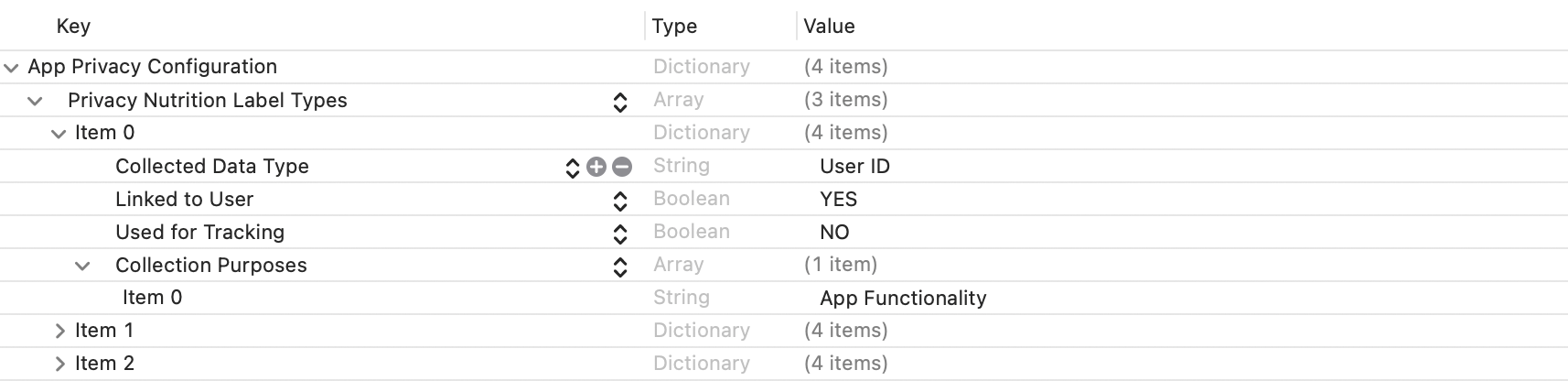
Privacy Nutrition Label Types (NSPrivacyCollectedDataTypes)is the node describing the types of data used:
Compare eachitem'sCollected Data Type (NSPrivacyCollectedDataType), and if there are different values, add them to the game project file.
If there are same values, compare theCollection Purposes (NSPrivacyCollectedDataTypePurposes). If different, add them to the game project file.
-
Privacy Tracking Domains (NSPrivacyTrackingDomains)is the node for the tracked domain list:
Compare the corresponding node; if there are different values, add them to the game project file. -
Privacy Tracking Enabled (NSPrivacyTracking)describes whether the App Tracking Transparency feature is enabled:
Compare the corresponding node, and if the value in Player Network SDK privacy manifest isYES, modify the game project file. -
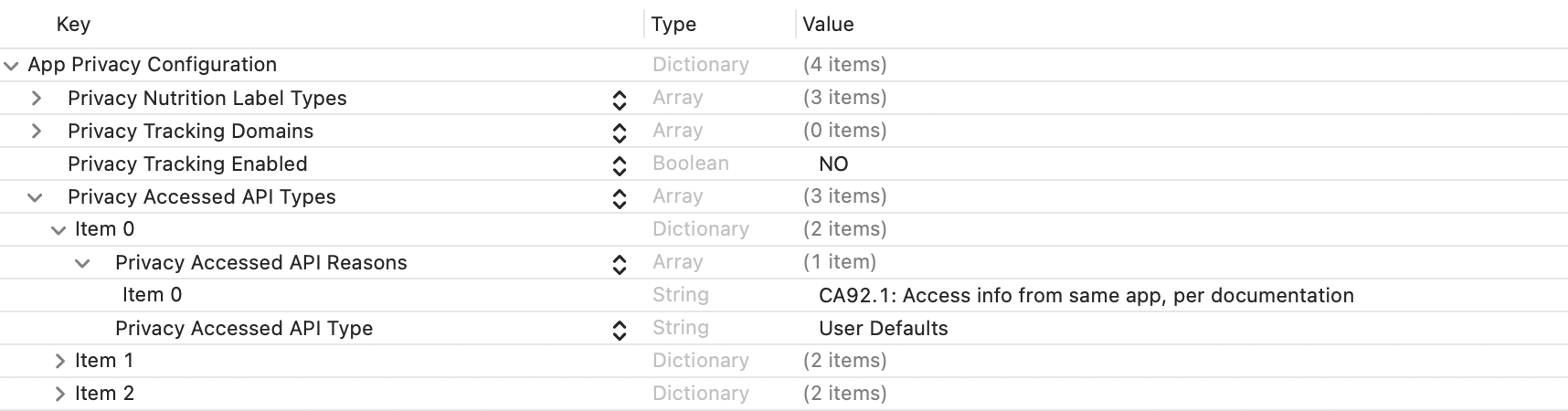
Privacy Accessed API Types (NSPrivacyAccessedAPITypes)is the node describing the types of APIs used:
Compare eachitem'sPrivacy Accessed API Type (NSPrivacyAccessedAPIType), and if there are different values, add them to the game project file.
If there are same values, compare thePrivacy Accessed API Reasons (NSPrivacyAccessedAPITypeReasons). If different, add them to the game project file.
-
-
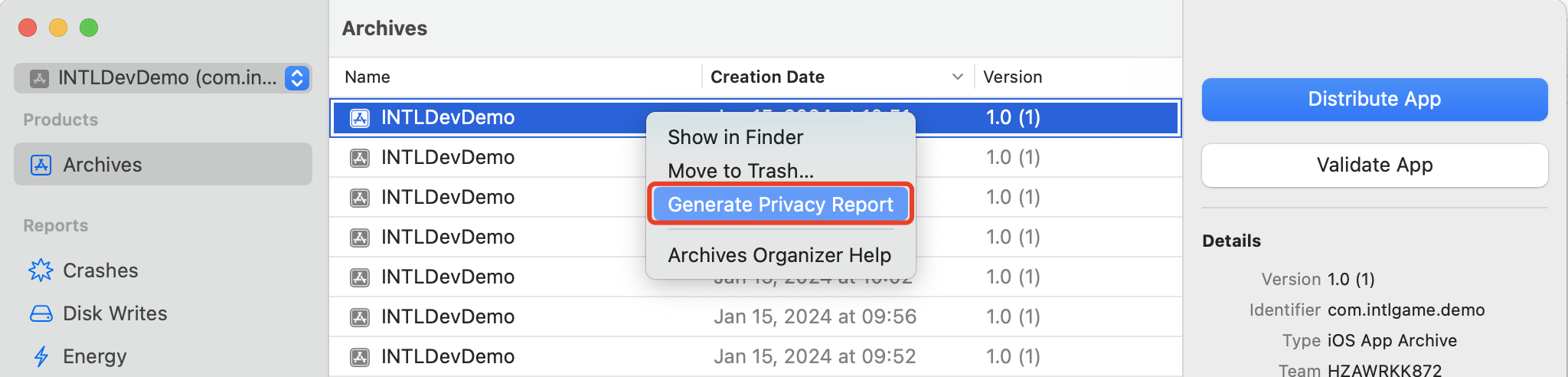
Generate a privacy report with Xcode 15 to verify that everything meets expectations.
2) INTLConfig.ini Configuration
When manually modifying the INTLConfig.ini file, please contact the Player Network support to confirm that the changes are as expected. For details, see SDK Config Instructions.
Please configure according to the instructions in INTLConfig.ini.
3. Firebase Configuration
The path to the Firebase configuration file is:
iOS: Assets/Plugins/iOS/INTLSDK/INTLFirebase/ThirdSDK/GoogleService-Info.plist
Make sure the Firebase configuration file for the corresponding platform has not been deleted and all configuration items are correct.
4. Version-specific iOS adaptation documentation
For more version-specific iOS adaptation documentation, please refer to:
1. Swift SDK Compatibility Settings
Unreal Engine 5.2 and later already has built-in Swift modules. The following steps apply only to Unreal Engine versions below 5.2.
iOS Swift modules cannot be directly added to Unreal Engine and require modifying the engine configuration first.
-
Modify your local Unreal Engine source code.
In the function
private void AppendProjectBuildConfiguration(StringBuilder Content, string ConfigName, string ConfigGuid)of /Your_UE_Installation_Path/Engine/Source/Programs/UnrealBuildTool/ProjectFiles/Xcode/XcodeProject.cs, add the following code.// Enable Swift
Content.Append("\t\t\t\tCLANG_ENABLE_MODULES = YES;" + ProjectFileGenerator.NewLine);
Content.Append("\t\t\t\tSWIFT_VERSION = 5.0;" + ProjectFileGenerator.NewLine);
Content.Append("\t\t\t\tLIBRARY_SEARCH_PATHS = \"$(TOOLCHAIN_DIR)/usr/lib/swift/$(PLATFORM_NAME)\";" + ProjectFileGenerator.NewLine);
if (ConfigName == "Debug")
{
Content.Append("\t\t\t\tSWIFT_OPTIMIZATION_LEVEL = \"-Onone\";" + ProjectFileGenerator.NewLine);
}
Content.Append("\t\t\t\tALWAYS_EMBED_SWIFT_STANDARD_LIBRARIES = YES;" + ProjectFileGenerator.NewLine);
Content.Append("\t\t\t\tEMBEDDED_CONTENT_CONTAINS_SWIFT = YES;" + ProjectFileGenerator.NewLine);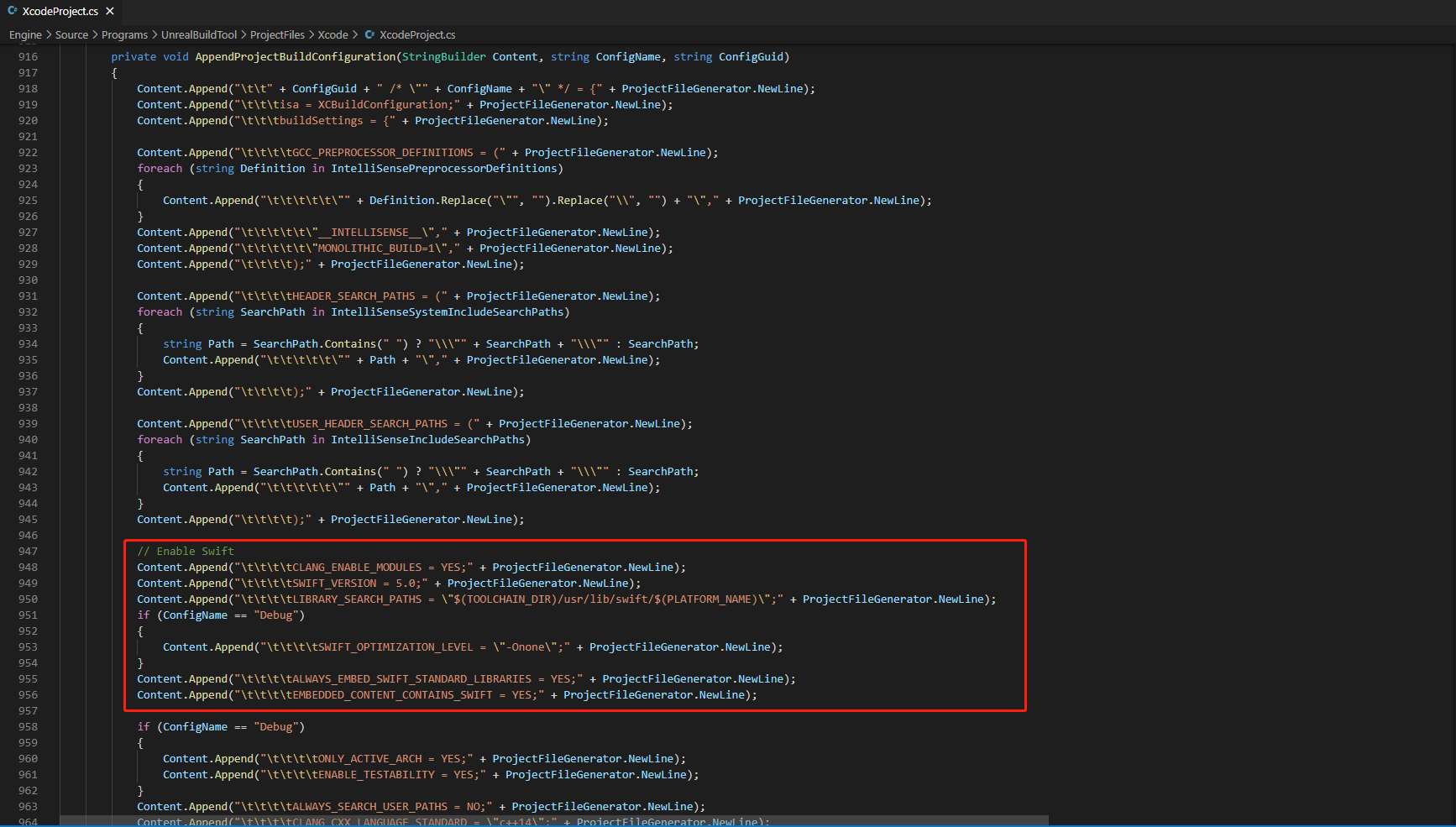
-
In the function
string GetLinkArguments_Global(LinkEnvironment LinkEnvironment)of /Your_UE_Installation_Path/Engine/Source/Programs/UnrealBuildTool/Platform/IOS/IOSToolChain.cs, add the following code.
- Before XCode 12
- XCode 12 and later
// enable swift support
Result += " -rpath \"/usr/lib/swift\"";
Result += " -rpath \"@executable_path/Frameworks\"";
// /Applications/Xcode.app/Contents/Developer/Platforms/iPhoneOS.platform/Developer/SDKs/iPhoneOS.sdk/usr/lib/swift/
String swiftLibPath = String.Format(" -L {0}Platforms/{1}.platform/Developer/SDKs/{1}{2}.sdk/usr/lib/swift",
    Settings.Value.XcodeDeveloperDir,
    bIsDevice? Settings.Value.DevicePlatformName : Settings.Value.SimulatorPlatformName,
    Settings.Value.IOSSDKVersion);
Result += swiftLibPath;
Log.TraceInformation("Add swift lib path : {0}", swiftLibPath);
///Applications/Xcode.app/Contents/Developer/Toolchains/XcodeDefault.xctoolchain/usr/lib/swift/iphoneos
swiftLibPath = String.Format(" -L {0}Toolchains/XcodeDefault.xctoolchain/usr/lib/swift/{1}",
    Settings.Value.XcodeDeveloperDir,
    bIsDevice? Settings.Value.DevicePlatformName.ToLower() : Settings.Value.SimulatorPlatformName.ToLower());
Result += swiftLibPath;
Log.TraceInformation("Add swift lib path : {0}", swiftLibPath);
///Applications/Xcode.app/Contents/Developer/Toolchains/XcodeDefault.xctoolchain/usr/lib/swift-5.0/iphoneos
swiftLibPath = String.Format(" -L {0}Toolchains/XcodeDefault.xctoolchain/usr/lib/swift-5.0/{1}",
    Settings.Value.XcodeDeveloperDir,
    bIsDevice? Settings.Value.DevicePlatformName.ToLower() : Settings.Value.SimulatorPlatformName.ToLower());
Result += swiftLibPath;
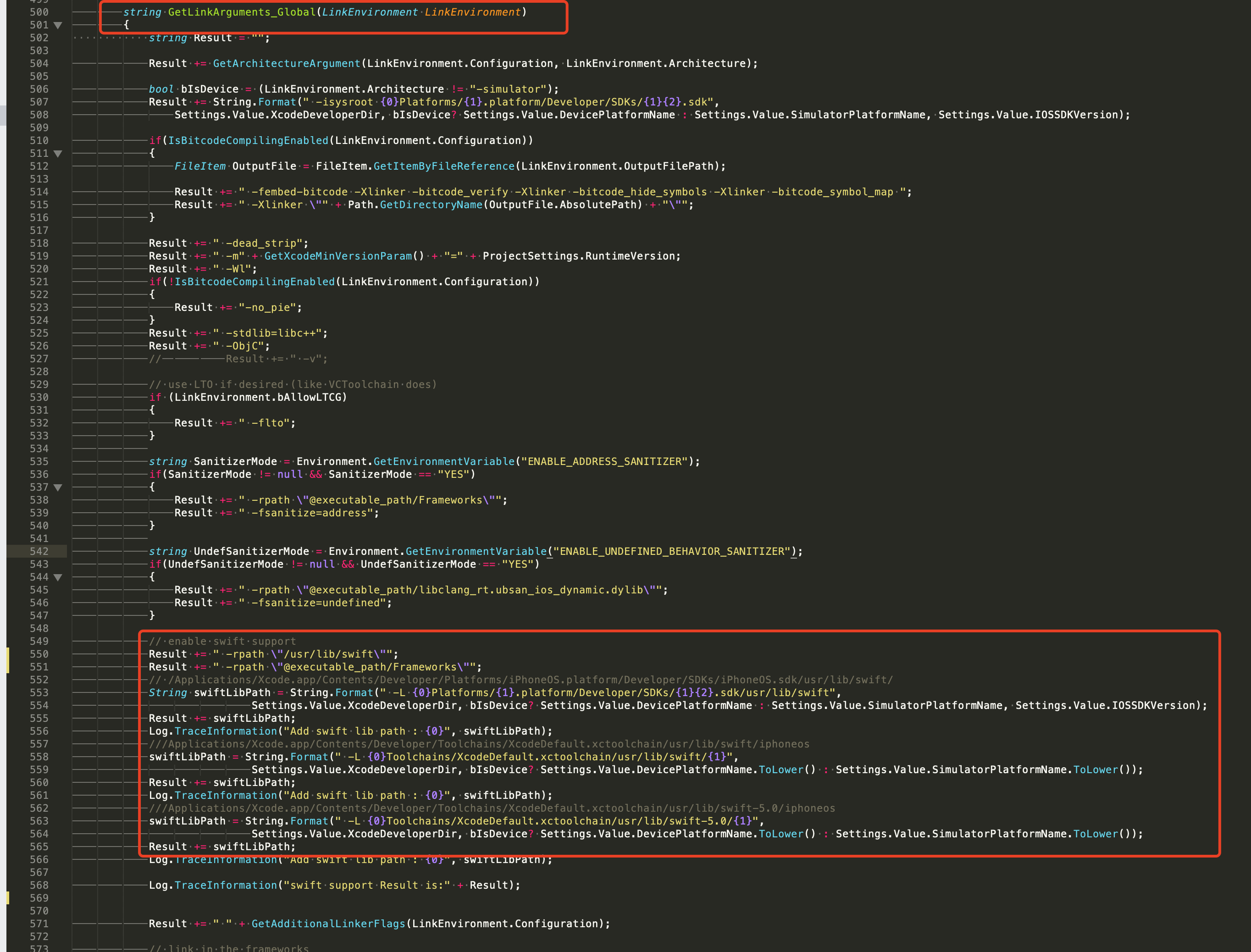
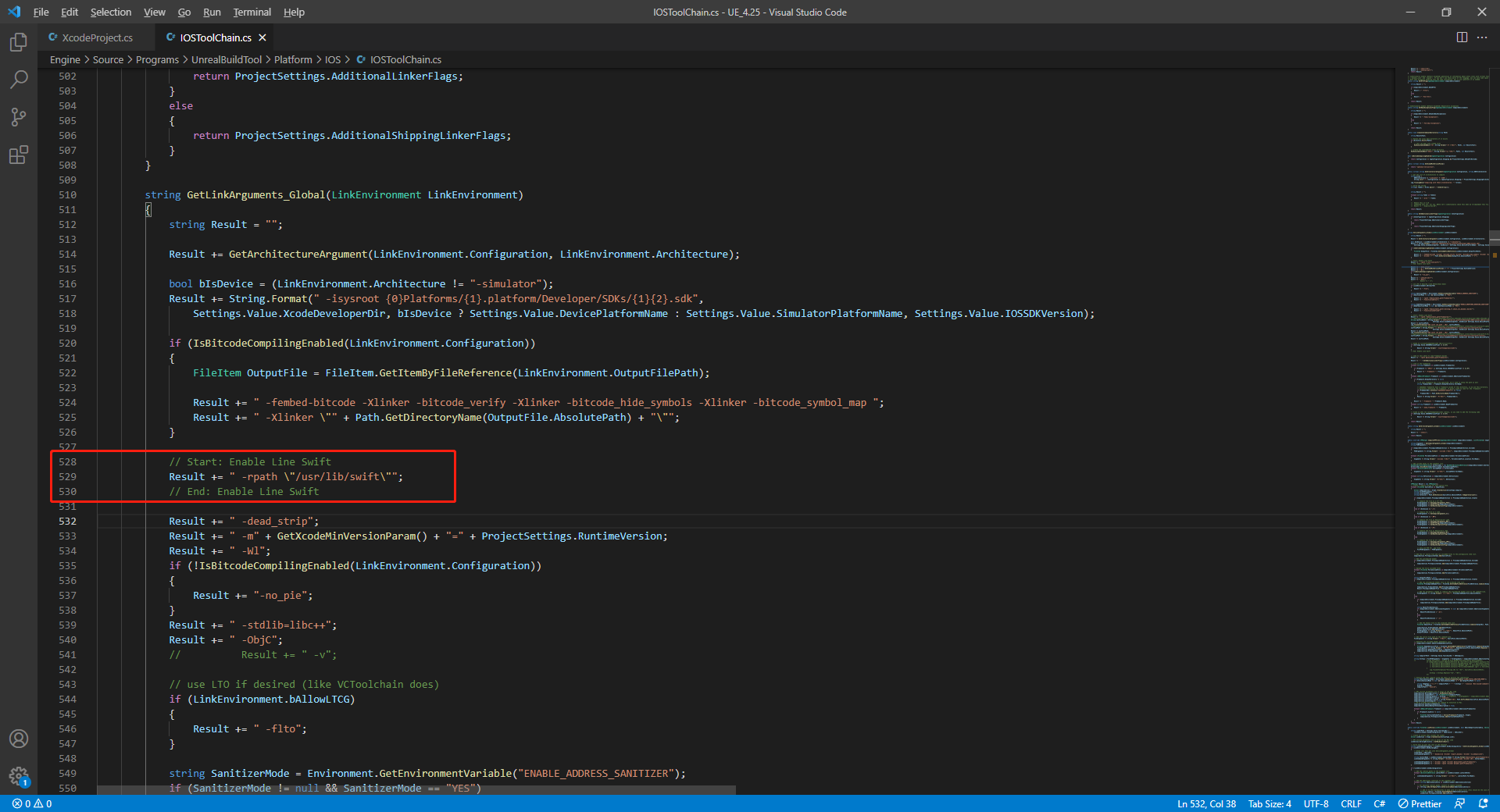
// This line of code must be prepended (see the sample image below for the position of the prepended code)
// enable swift support, make sure '/usr/lib/swift' goes before '@executable_path/Frameworks'
Result += " -rpath \"/usr/lib/swift\"";
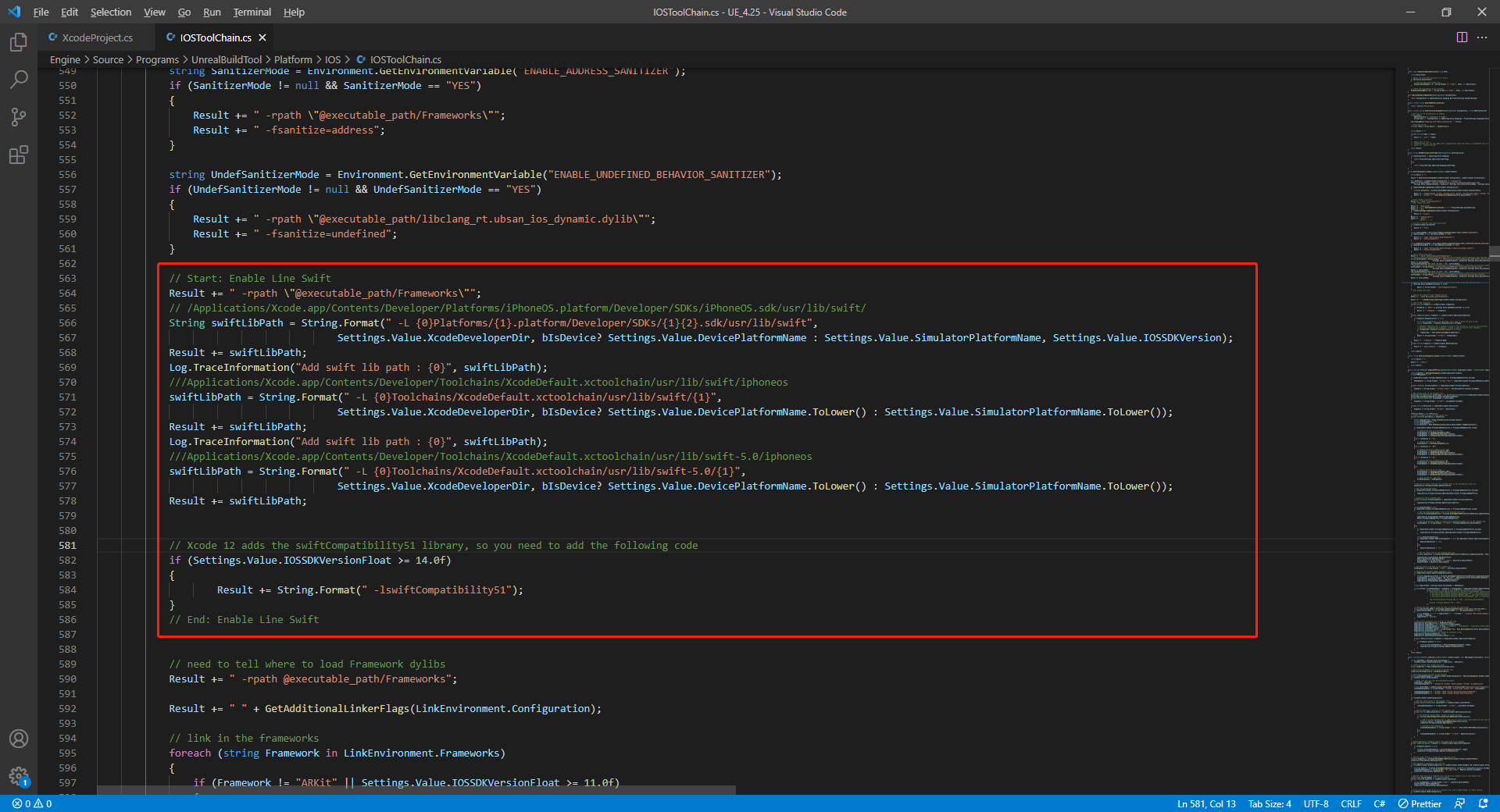
// enable swift support
Result += " -rpath \"@executable_path/Frameworks\"";
// /Applications/Xcode.app/Contents/Developer/Platforms/iPhoneOS.platform/Developer/SDKs/iPhoneOS.sdk/usr/lib/swift/
String swiftLibPath = String.Format(" -L {0}Platforms/{1}.platform/Developer/SDKs/{1}{2}.sdk/usr/lib/swift",
    Settings.Value.XcodeDeveloperDir,
    bIsDevice? Settings.Value.DevicePlatformName : Settings.Value.SimulatorPlatformName, Settings.Value.IOSSDKVersion);
Result += swiftLibPath;
Log.TraceInformation("Add swift lib path : {0}", swiftLibPath);
///Applications/Xcode.app/Contents/Developer/Toolchains/XcodeDefault.xctoolchain/usr/lib/swift/iphoneos
swiftLibPath = String.Format(" -L {0}Toolchains/XcodeDefault.xctoolchain/usr/lib/swift/{1}",
    Settings.Value.XcodeDeveloperDir,
    bIsDevice? Settings.Value.DevicePlatformName.ToLower() : Settings.Value.SimulatorPlatformName.ToLower());
Result += swiftLibPath;
Log.TraceInformation("Add swift lib path : {0}", swiftLibPath);
///Applications/Xcode.app/Contents/Developer/Toolchains/XcodeDefault.xctoolchain/usr/lib/swift-5.0/iphoneos
swiftLibPath = String.Format(" -L {0}Toolchains/XcodeDefault.xctoolchain/usr/lib/swift-5.0/{1}",
    Settings.Value.XcodeDeveloperDir,
    bIsDevice? Settings.Value.DevicePlatformName.ToLower() : Settings.Value.SimulatorPlatformName.ToLower());
Result += swiftLibPath;

// Xcode 12 adds the swiftCompatibility51 library, so you need to add the following code
if (Settings.Value.IOSSDKVersionFloat >= 14.0f)
{
        Result += String.Format(" -lswiftCompatibility51");
}
- Open the solution and recompile
/Users/intl/UE4/UE_4.25/Engine/Source/Programs/UnrealBuildTool/UnrealBuildTool.sln.
2) Merge Privacy Manifest
Version requirement: Player Network SDK V1.22 and above
Starting from Spring 2024, for applications that need to be updated or uploaded to Apple App Store Connect, developers must explicitly state the usage reasons to show how the app uses the required reason API (an API for which a usage reason must be submitted).For more information, see Upcoming Third-party SDK Requirements.
For Player Network SDK plugins affected, those that need to be manually merged include INTLFoundation, INTLCore, and INTLGarena. INTLGarena only needs to be configured when the project confirms integration with Garena.
Additionally, INTLLine is automatically integrated by Player Network SDK and does not require extra steps.
Since privacy manifests for other third-party SDKs have not yet been released, the Player Network SDK privacy manifest currently does not include corresponding entries.To view the list of plugins that have not yet been released, refer to iOS 17 Privacy Manifest.
Steps
- Locate the privacy manifest
PrivacyInfo.xcprivacyof the required plugins in the Player Network SDK product directory.
- Unity
- Unreal Engine
| Plugin | Path |
|---|---|
| INTLFoundation | /Plugins/iOS/INTLSDK/INTLFoundation/INTLFoundation.framework/PrivacyInfo.xcprivacy |
| INTLCore | /Plugins/iOS/INTLSDK/INTLCore/INTLCore.framework/PrivacyInfo.xcprivacy |
| INTLGarena | /Plugins/iOS/INTLSDK/INTLGarena/INTLGarena.framework/PrivacyInfo.xcprivacy |
| Plugin | Path |
|---|---|
| INTLFoundation | /INTLSDK/Source/INTLFoundation/Libs/iOS/INTLFoundation/INTLFoundation.embeddedframework/INTLFoundation.framework/PrivacyInfo.xcprivacy |
| INTLCore | /INTLSDK/Source/INTLCore/Libs/iOS/INTLCore/INTLCore.embeddedframework/INTLCore.framework/PrivacyInfo.xcprivacy |
| INTLGarena | /INTLSDK/Source/INTLGarena/Libs/iOS/INTLGarena/INTLGarena.embeddedframework/INTLGarena.framework/PrivacyInfo.xcprivacy |
-
Use the four nodes in
PrivacyInfo.xcprivacyof the Player Network SDK to compare with the corresponding entries in the game's projectPrivacyInfo.xcprivacyfile, and merge based on the following conditions.
-
Privacy Nutrition Label Types (NSPrivacyCollectedDataTypes)is the node describing the types of data used:
Compare eachitem'sCollected Data Type (NSPrivacyCollectedDataType), and if there are different values, add them to the game project file.
If there are same values, compare theCollection Purposes (NSPrivacyCollectedDataTypePurposes). If different, add them to the game project file.
-
Privacy Tracking Domains (NSPrivacyTrackingDomains)is the node for the tracked domain list:
Compare the corresponding node; if there are different values, add them to the game project file. -
Privacy Tracking Enabled (NSPrivacyTracking)describes whether the App Tracking Transparency feature is enabled:
Compare the corresponding node, and if the value in Player Network SDK privacy manifest isYES, modify the game project file. -
Privacy Accessed API Types (NSPrivacyAccessedAPITypes)is the node describing the types of APIs used:
Compare eachitem'sPrivacy Accessed API Type (NSPrivacyAccessedAPIType), and if there are different values, add them to the game project file.
If there are same values, compare thePrivacy Accessed API Reasons (NSPrivacyAccessedAPITypeReasons). If different, add them to the game project file.
-
-
Generate a privacy report with Xcode 15 to verify that everything meets expectations.
3) INTLConfig.ini Configuration
When manually modifying the INTLConfig.ini file, please contact the Player Network support to confirm that the changes are as expected. For details, see SDK Config Instructions.
Please configure according to the instructions in INTLConfig.ini.
4. Firebase Configuration
The path to the Firebase configuration file is:
iOS: Assets/Plugins/iOS/INTLSDK/INTLFirebase/ThirdSDK/GoogleService-Info.plist
Make sure the Firebase configuration file for the corresponding platform has not been deleted and all configuration items are correct.
5. Version-specific iOS adaptation documentation
For more version-specific iOS adaptation documentation, please refer to:

