How to Acquire SDK Logs
The Player Network SDK team can obtain Player Network SDK logs to help diagnose issues based on the logs.The SDK log naming format is INTL_YYYYMMDDHH.log.For example, a log from June 1, 2021, at 13:00 will be named INTL_2021060113.log.
INTLConfig.ini File Configuration
| Parameter | Description |
|---|---|
| LOG_LEVEL | Log Level 0: Debug 1: Info 2: Warning 3: Error Default: 3 |
| LOG_CONSOLE_OUTPUT_ENABLE | Whether to output console logs 0: Disabled 1: Enabled Default: 0 |
| LOG_FILE_OUTPUT_ENABLE | Whether to output persistent logs 0: Disabled 1: Enabled Default: 0 |
For more information, see Configure SDK Logs.
Enable Unity C# Log Switch
INTLAPI.isDebug = true;
Acquire SDK Logs (Android)
SDK V1.7 and Above
Acquire Logs Using Android Studio
-
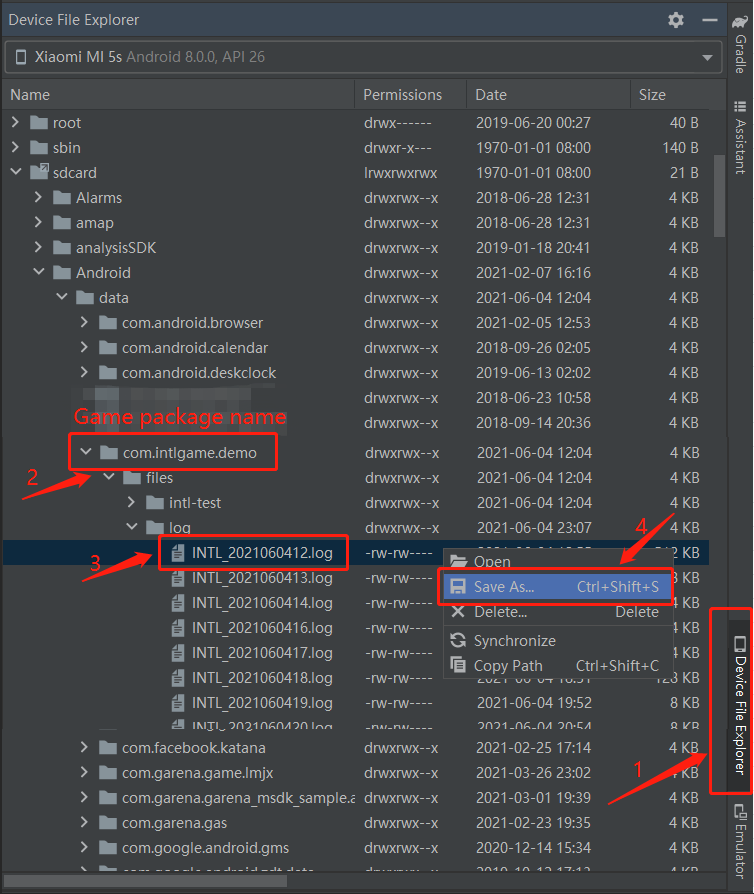
After connecting your mobile device to the computer, open Android Studio.
-
In Android Studio, find the corresponding device in Device File Explorer.
-
Find the corresponding log in
sdcard/Android/data/{package name}/files/logfolder. -
Right-click the desired log file to open the file menu.
-
Click Save As to save the log on your computer.
Acquire logs using adb command line
adb pull "/sdcard/Android/data/{package name}/files/log"
SDK V1.7 and Below
Acquire APK Debug Version Logs
-
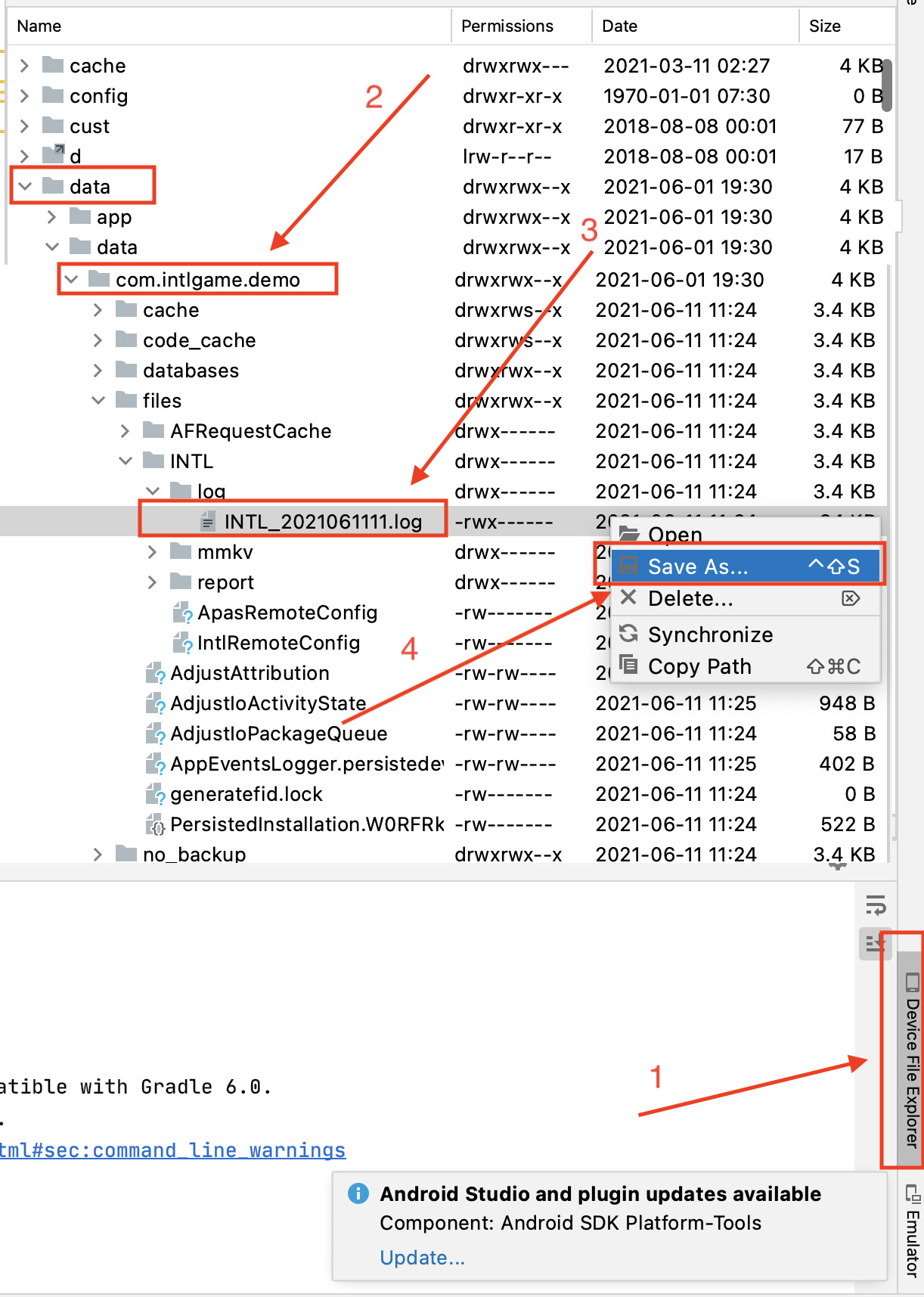
After connecting your mobile device to the computer, open Android Studio.
-
Find the corresponding device in Device File Explorer in Android Studio.
-
Find the corresponding log in
data/data/{package name}/files/INTL/logfolder. -
Right-click the desired log file to open the file menu.
-
Click Save As to save the log on your computer.
Acquire APK Release Version Logs
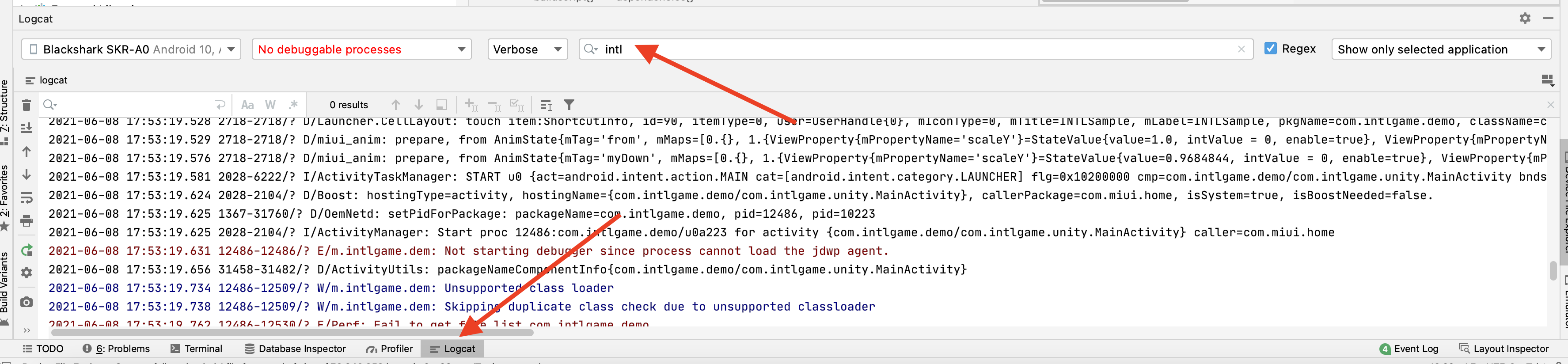
Logs for Release versions cannot be acquired via Device File Explorer.However, you can filter INTL logs in Logcat within Android Studio to obtain real-time runtime logs.
Acquire Logs (iOS)
Acquire logs with Finder (SDK V1.9 and above)
-
After connecting your mobile device to the computer, open Finder.
-
In the sidebar, select the corresponding device.
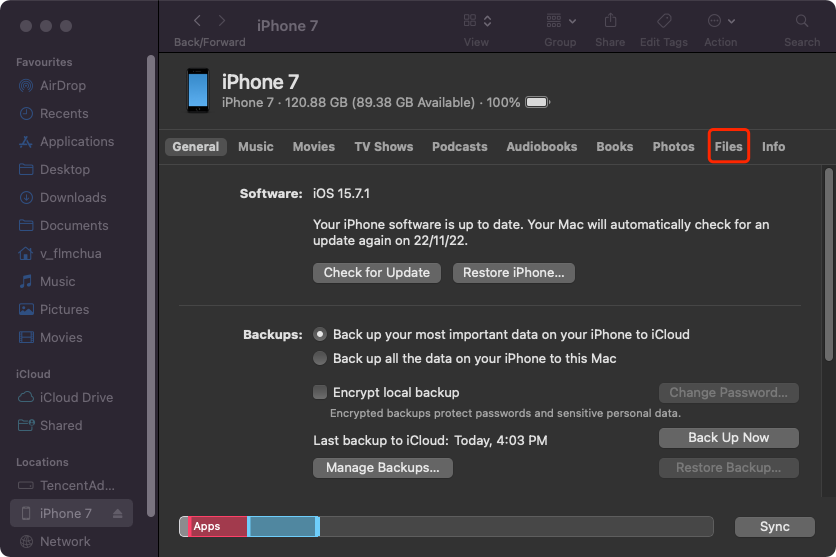
-
Open Files > INTLSample, and copy the INTL folder to your local machine.
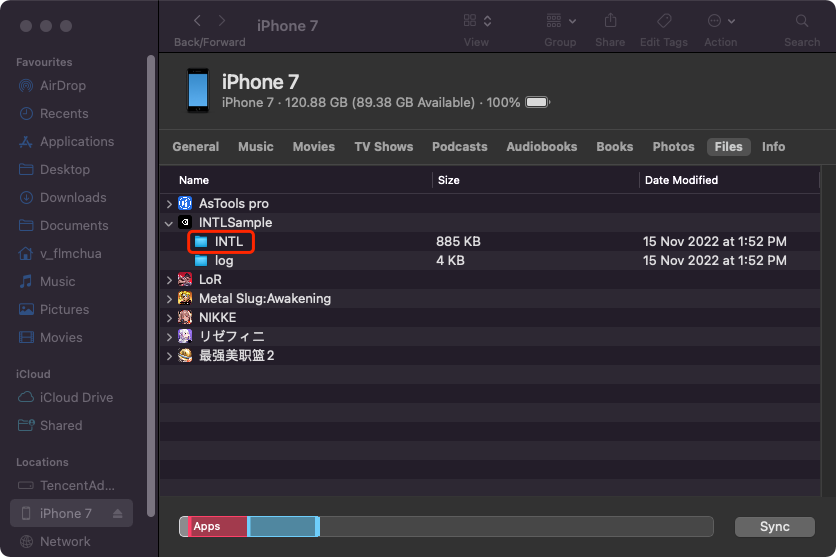
-
Locate logs in the local
/INTL/Logfolder.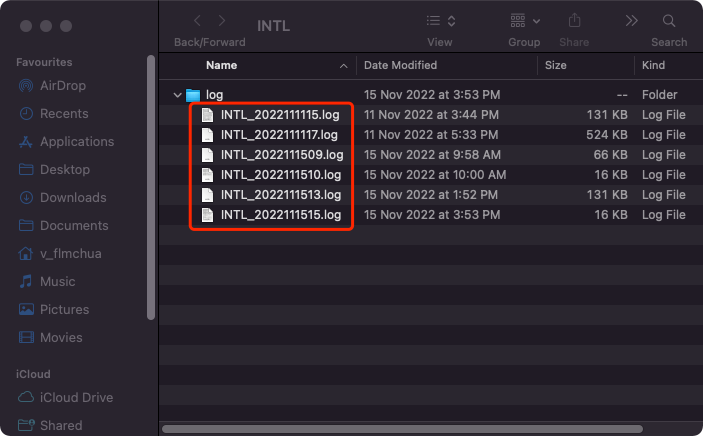
Acquire logs from Xcode
-
After connecting your mobile device to the computer, open Xcode.
-
Find the corresponding device under Window > Devices and Simulator.
-
Click Show Device Console to view logs.
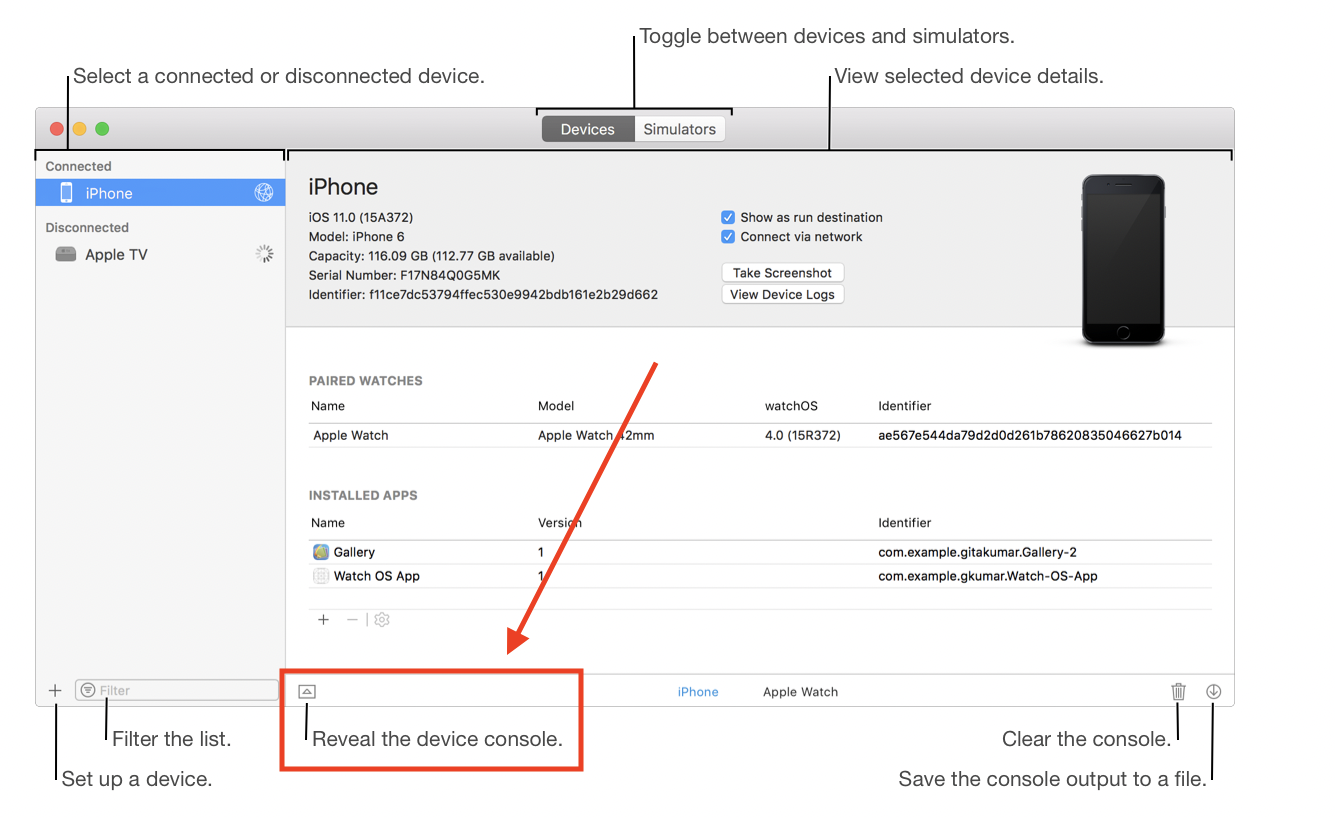
Acquire logs from Console
-
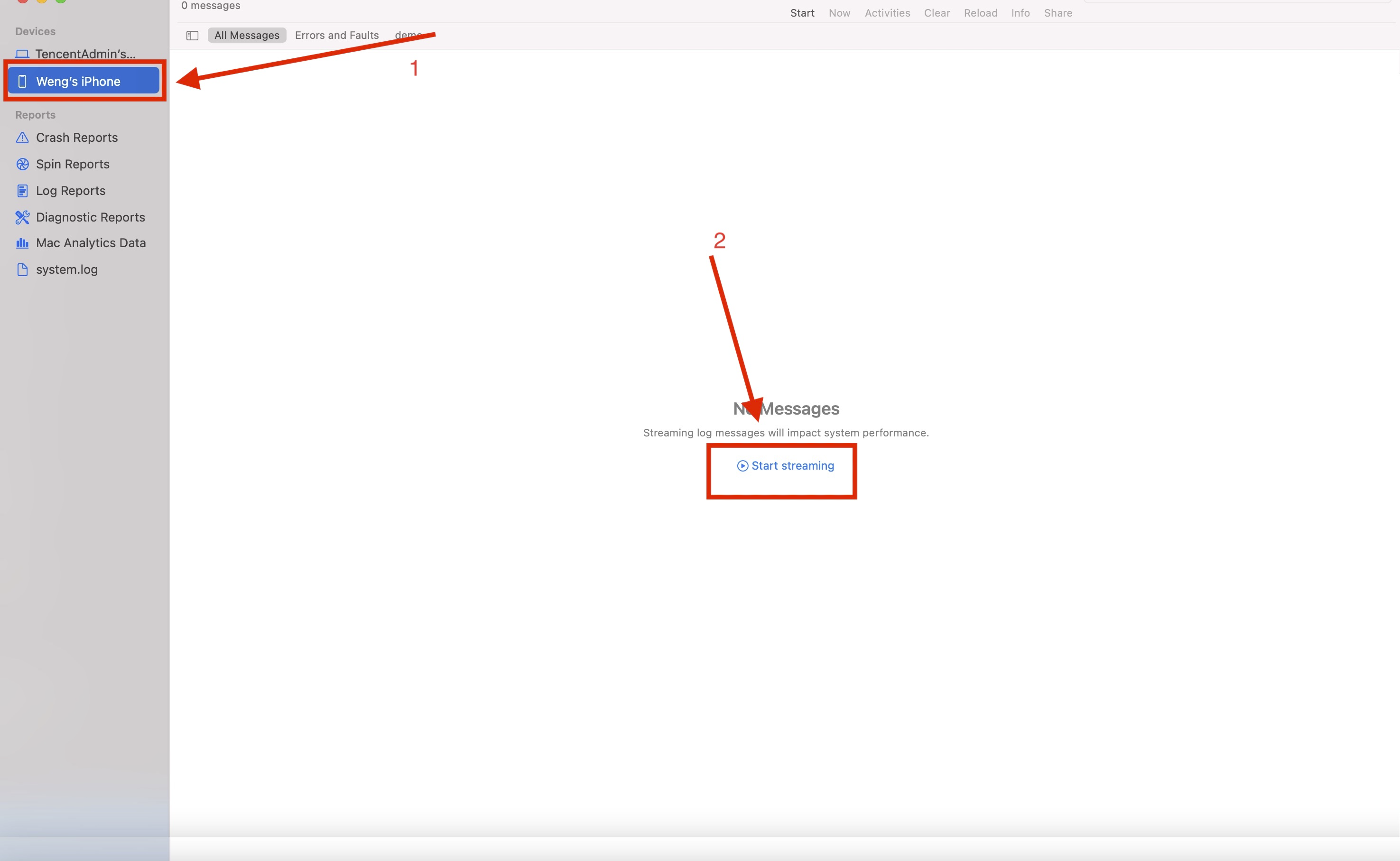
After connecting your mobile device to the computer, open the Console application.
-
After locating the device, click Start streaming to view all logs from the device.
-
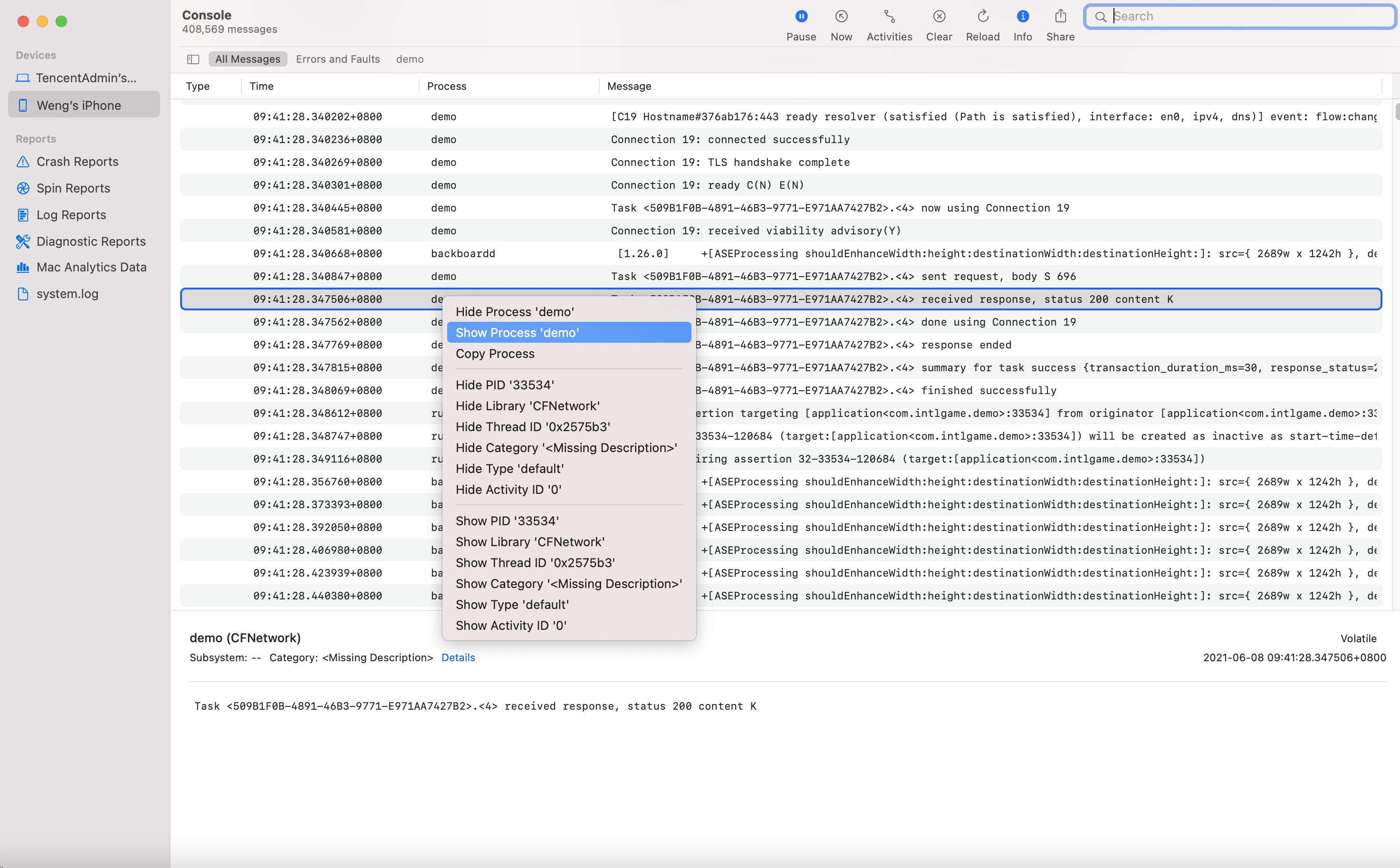
In the Process column, right-click the process name to open the file menu.
-
Right-click Show Process ‘package name’ to filter logs for other apps.
Acquire SDK Logs (Windows)
Acquire SDK logs using Windows Game Engine Editor
Player Network SDK V1.11 and Earlier
- Unity
- Unreal Engine
Log location: Project_Path/INTL/log/
For selected view mode, the log location is:Project_path\Plugins\INTLSDK\Binaries\Win64\INTL\log
For standalone game mode, the log location is:Project_path\Binaries\Win64\INTL\log
Player Network SDK V1.12 and Later
Log location: C:\ProgramData\INTL\log
Acquire logs from Windows Executable Package
Player Network SDK V1.11 and Earlier
- Unity
- Unreal Engine
Log location: your_exe_path\your_project_name_Data\Plugins\INTL\log
Log location: your_exe_path\WindowsNoEditor\your_project_name\Binaries\Win64\INTL\log
Player Network SDK V1.12
Log location: C:\ProgramData\INTL\log
Player Network SDK V1.13 to V1.15
Set log location using Shared Storage in SetDefaultSharedStorage.
If not configured (not recommended), the log will be located at C:\ProgramData\INTL\log.
Player Network SDK V1.16 and Later
The logs will be in the SetDefaultUserStorage of the Shared Data Folder.
If not configured (not recommended), the logs will be located at %ProgramData%\INTL\{game id}\{application name}\.
Acquire Logs (PS5)
Acquire logs from Target Manager
-
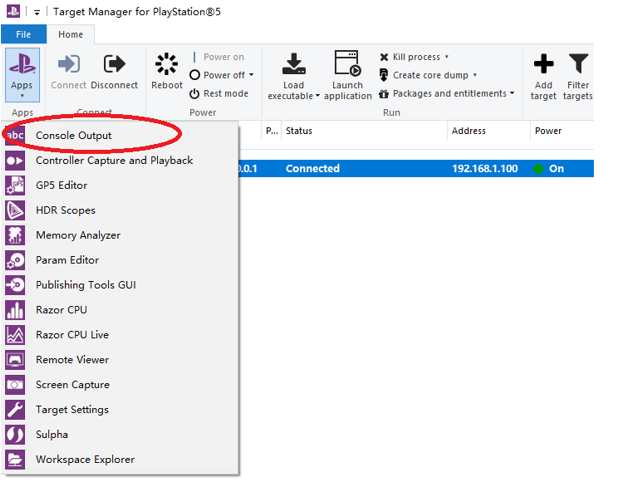
In the Home tab, click Apps > Console Output.
-
Click Open log directory to open the log folder.

Acquire Logs (Xbox)
Acquire logs from Xbox Manager
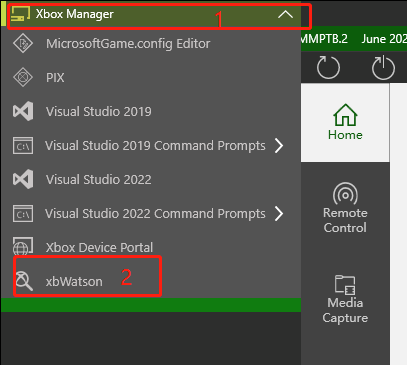
Click xbWatson in the main menu of Xbox Manager to view debug logs.