Login Access
Client Login Access
Proceed with the following steps immediately after Step Five
Step 6: Add Callback Handling
- Unity
- Unreal Engine
-
You need to add AuthResultObserver and LIEventObserver callbacks to handle login component events;
-
The callback data structure is INTLAuthResult, which contains login information and account details, such as OpenID, account binding information, and account deactivation status.
// Add Callbacks
INTLAPI.AddAuthResultObserver(OnAuthResultEvent);
LevelInfinite.AddLIEventObserver(OnLIBaseEventResult);

// Handle AuthResultObserver Callback Result
private void OnAuthResultEvent(INTLAuthResult AuthResult)
{
    switch (AuthResult.MethodId)
    {
        case (int)INTLMethodID.LI_LOGIN_ENTER_GAME:
            if(AuthResult.RetCode == (int)ERROR_CODE.SUCCESS) {
                Debug.Log("LI PASS Login success");
            } else {
                Debug.Log("LI PASS Login failed, ret_code = " + AuthResult.RetCode + ", ret_msg = " + AuthResult.RetMsg);
            }
            break;
        case (int)INTLMethodID.LI_AUTOLOGIN_ENTER_GAME:
            if(AuthResult.RetCode == (int)ERROR_CODE.SUCCESS) {
                Debug.Log("LI PASS Autologin success");
            } else {
                Debug.Log("LI PASS Autologin failed, ret_code = " + AuthResult.RetCode + ", ret_msg = " + AuthResult.RetMsg);
            }
            break;
        default:
            break;
    }
}

// Handle LIEventObserver Callback Result
private void OnLIBaseEventResult(LIBaseEventResult liRet)
    {
        switch (liRet.lIEventType)
        {
            case LIEventType.GN_READY:
                break;
            default:
                break;
        }
    }
-
Add AuthResultObserver and LIEventObserver callbacks to handle login component events;
-
You need to add AuthResultObserver and LIEventObserver callbacks to handle login component events;
-
The callback data structure is INTLAuthResult, which contains login information and account details, such as OpenID, account binding information, and account deactivation status.
// Add Callbacks
AuthResultObserver = UINTLSDKAPI::GetAuthResultObserver().AddUObject(this, &ULevelInfiniteWindow::OnAuthResult_Callback);
// Handle AuthResultObserver Callback Result
void ULevelInfiniteWindow::OnAuthResult_Callback(FINTLAuthResult AuthResult)
{
    if(AuthResult.MethodId == (int32)LIEnterGameMethodId::kLILoginEnterGame)
    {
    }
    else if (AuthResult.MethodId == (int32)LIEnterGameMethodId::kLIAutoLoginEnterGame)
    {
    }
}

// Add Callbacks
FDelegateHandle LIEventObserver;
LIEventObserver = ULevelInfiniteAPI::GetEventDelegate().AddUObject(this, &ULevelInfiniteWindow::OnLIEvent_Callback);

// Handle LIEventObserver Callback Result
void ULevelInfiniteWindow::OnLIEvent_Callback(FLIBaseEvent Event)
{
	FString logStr;
    switch(Event.EventType){
	    case ELIEventType::GN_READY:
		{
			break;
		}
    }
}
Step Eight: Complete the LIPASS Login Process
- Unity
- Unreal Engine
- Call the
AutoLogininterface to verify the player’s identity through login status stored in local cache; - Add the following code in the
AuthResultObservercallback to handle automatic login results.If automatic login succeeds, the player enters the game; - If automatic login fails, you need to call the
OpenLoginPanelinterface to open the LI PASS login component.This login component can complete LI PASS registration, login, and compliance process; - In
LIEventObserver, handle the callback for LI PASS login success to enter the game.
Continue to improve logic in the Observer:
// Handle AuthResultObserver Callback Result
private void OnAuthResultEvent(INTLAuthResult AuthResult)
{
    switch (AuthResult.MethodId)
    {
        case (int)INTLMethodID.LI_LOGIN_ENTER_GAME:
            if(AuthResult.RetCode == (int)ERROR_CODE.SUCCESS) {
                Debug.Log("LI PASS Login success");
                // If LI PASS login is successful, add your go-to lobby code here
            } else {
                LevelInfinite.OpenLoginPanel();
                Debug.Log("LI PASS Login failed, ret_code = " + AuthResult.RetCode + ", ret_msg = " + AuthResult.RetMsg);
            }
            break;
        case (int)INTLMethodID.INTL_AUTH_AUTOLOGIN_FOR_LI:
            if (ret.RetCode == INTLErrorCode.SUCCESS)
            {
                Debug.Log("LI PASS Autologin success");
                // If LI PASS login is successful, add your go-to lobby code here
            }
            else
            {
                LevelInfinite.OpenLoginPanel();
                Debug.Log("LI Autologin failed, ret_code = " + AuthResult.RetCode + ", ret_msg = " + AuthResult.RetMsg);
            }
            break;
        default:
            break;
    }
}
- Call the
AutoLogininterface to verify the player’s identity through login status stored in local cache; - Add the following code in the
AuthResultObservercallback to handle automatic login results.If automatic login succeeds, the player enters the game; - If automatic login fails, you need to call the
OpenLoginPanelinterface to open the LI PASS login component.This login component can complete LI PASS registration, login, and compliance process; - In
LIEventObserver, handle the callback for LI PASS login success to enter the game.
Continue to enhance logic in Observer:
// Handle AuthResultObserver Callback Result
void ULevelInfiniteWindow::OnAuthResult_Callback(FINTLAuthResult AuthResult)
{
    if(AuthResult.MethodId == (int32)LIEnterGameMethodId::kLILoginEnterGame)
    {
        FString logStr;
        if(AuthResult.RetCode == INTL_NAMESPACE::ErrorCode::SUCCESS)
        {
            logStr = TEXT("LI PASS login success");
            // If LI Login success, add your code to go to game lobby

        }else{
            ULevelInfiniteAPI::OpenLoginPanel();
            logStr = FString::Printf(TEXT("LI PASS login failed, ret_code = %d, ret_msg = %s"), AuthResult.RetCode, *AuthResult.RetMsg);
        }
        UE_LOG(LogTemp, Warning, TEXT("%s"), *logStr);
    } else if (AuthResult.MethodId == (int32)LIEnterGameMethodId::kLIAutoLoginEnterGame){
        if(AuthResult.RetCode == INTL_NAMESPACE::ErrorCode::SUCCESS)
        {
            UE_LOG(LogTemp, Warning, TEXT("LI PASS Autologin success"));
            // If LI Autologin success, add your code to go to game lobby

        }else{
            ULevelInfiniteAPI::OpenLoginPanel();
            UE_LOG(LogTemp, Warning, TEXT("LI PASS Autologin failed, ret_code = %d, ret_msg = %s"), AuthResult.RetCode, *AuthResult.RetMsg);
        }
    }
}
Step Nine: More Callback Processing
- Unity
- Unreal Engine
Developers may also add LILuaErrorObserver callbacks to handle Lua errors.
Developers may also add LILuaErrorObserver callbacks to handle Lua errors.
Configure Login Channels
The various login channels below the LI Pass login screen can be displayed by configuring INTLConfig.ini.Different platforms show different channels.The order of channels corresponds to the display order.
ACCOUNT_THIRD_CHANNEL_ANDROID = Guest,Facebook,Google,Twitter,Line
ACCOUNT_THIRD_CHANNEL_IOS = Guest,Facebook,Twitter,Apple,Line
Configure Guest Channel
Using Guest Channel requires two steps:
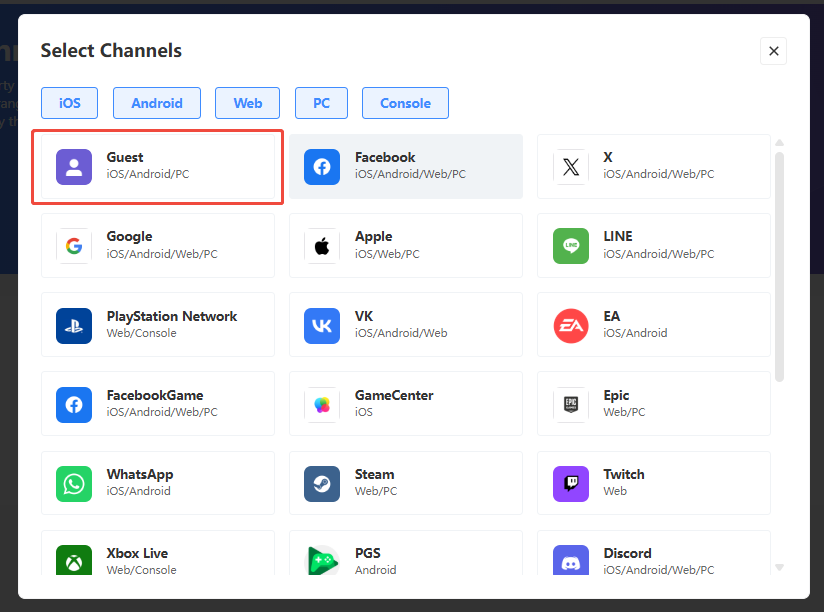
- Turn on the Guest switch in Player Network Console
- Add
Guestto the channel list in INTLConfig.ini as shown in the code above.
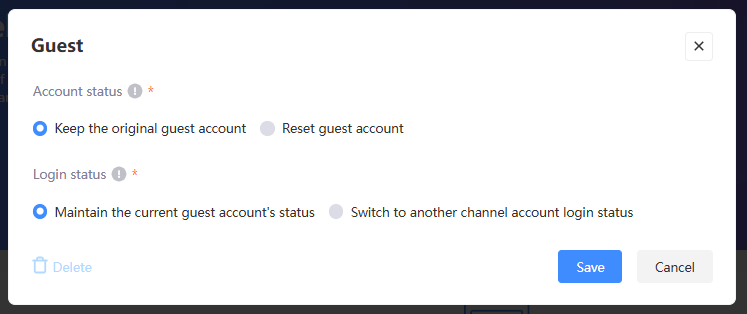
- Account Status: Whether to keep or reset the original guest account after binding other social channels
- Login Status: Whether the original guest account’s login status will be switched to the corresponding social channel after binding other social channels
For more guidance on the Guest channel, please refer to the documentation
Configure Third-Party Login Channels
This article uses the Facebook channel as an example to introduce how to integrate the Facebook channel into LI Pass.Requires three steps:
- Download the INTLFacebook plugin, merge into the project
- Configure Facebook's
APP_ID,APP_KEYinformation in the Player Network Console. - Add
Facebookto the channel list in INTLConfig.ini as shown in the code above. - Configure the AppID and other information for Android and iOS. Refer to the Facebook channel integration method for details.
LI Pass supports multiple mobile third-party channels.Includes (but is not limited to):
You can go to each channel to learn more about integration details.
Backend Login Access
For more information, refer to Backend Integration in the integration overview.
Mobile Build Guide
For more information, refer to Mobile Build Guide in the integration overview.

