iOS
The purpose of this article is to describe how to set up Game Center authentication so that your game can be logged in through the Game Center channel using the Player Network login authentication service.
Prerequisites
1. Configure iOS Applications on Apple Developer
1. Create App ID
-
Register and sign in for an Apple Developer account on the Apple Developer Platform (https://developer.apple.com/account).
-
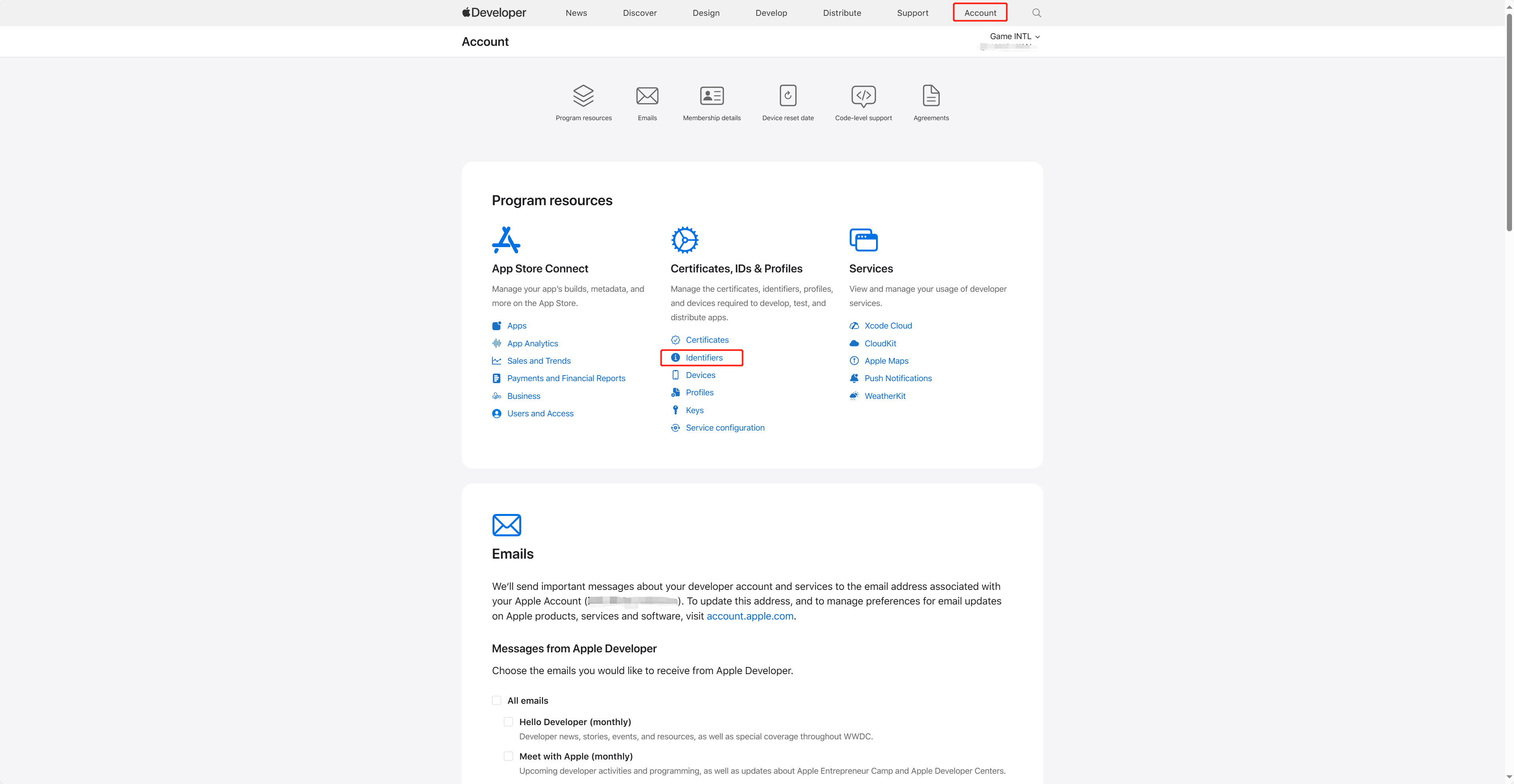
Click Account in the top navigation bar and select Identifiers under Certificates, IDs & Profiles.
-
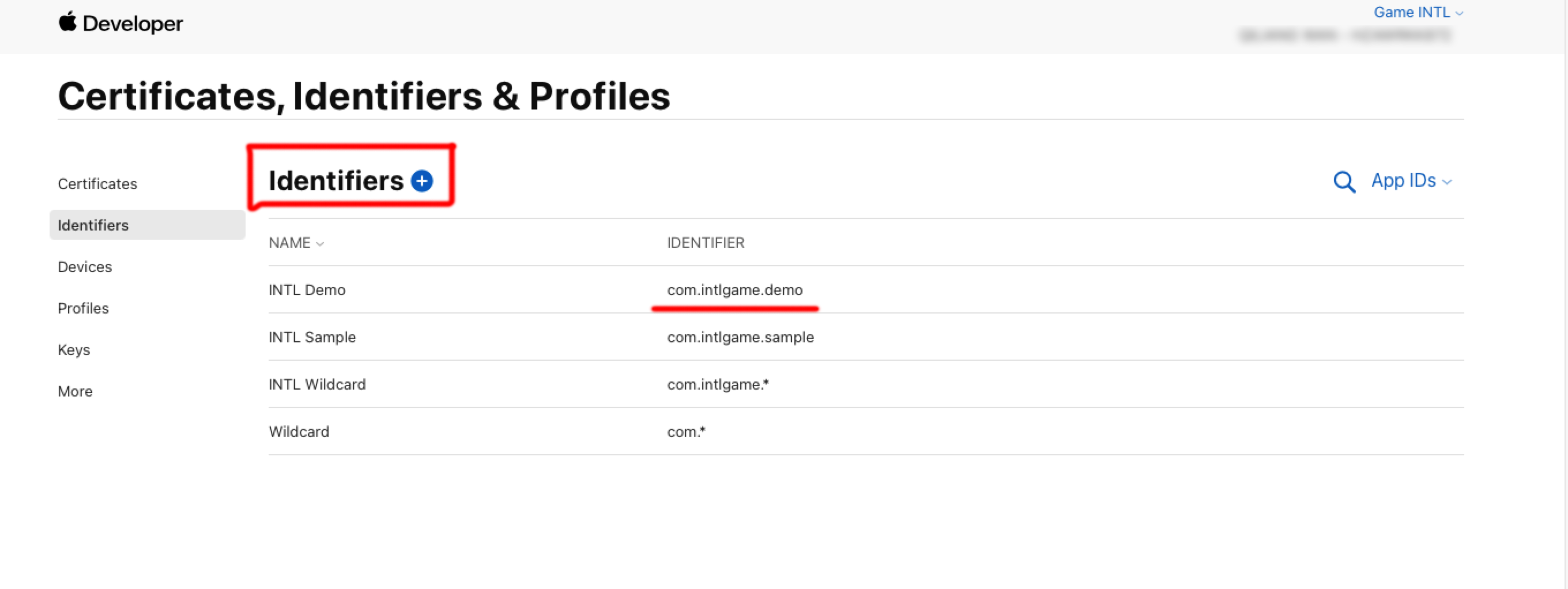
Click the blue add icon (+).
-
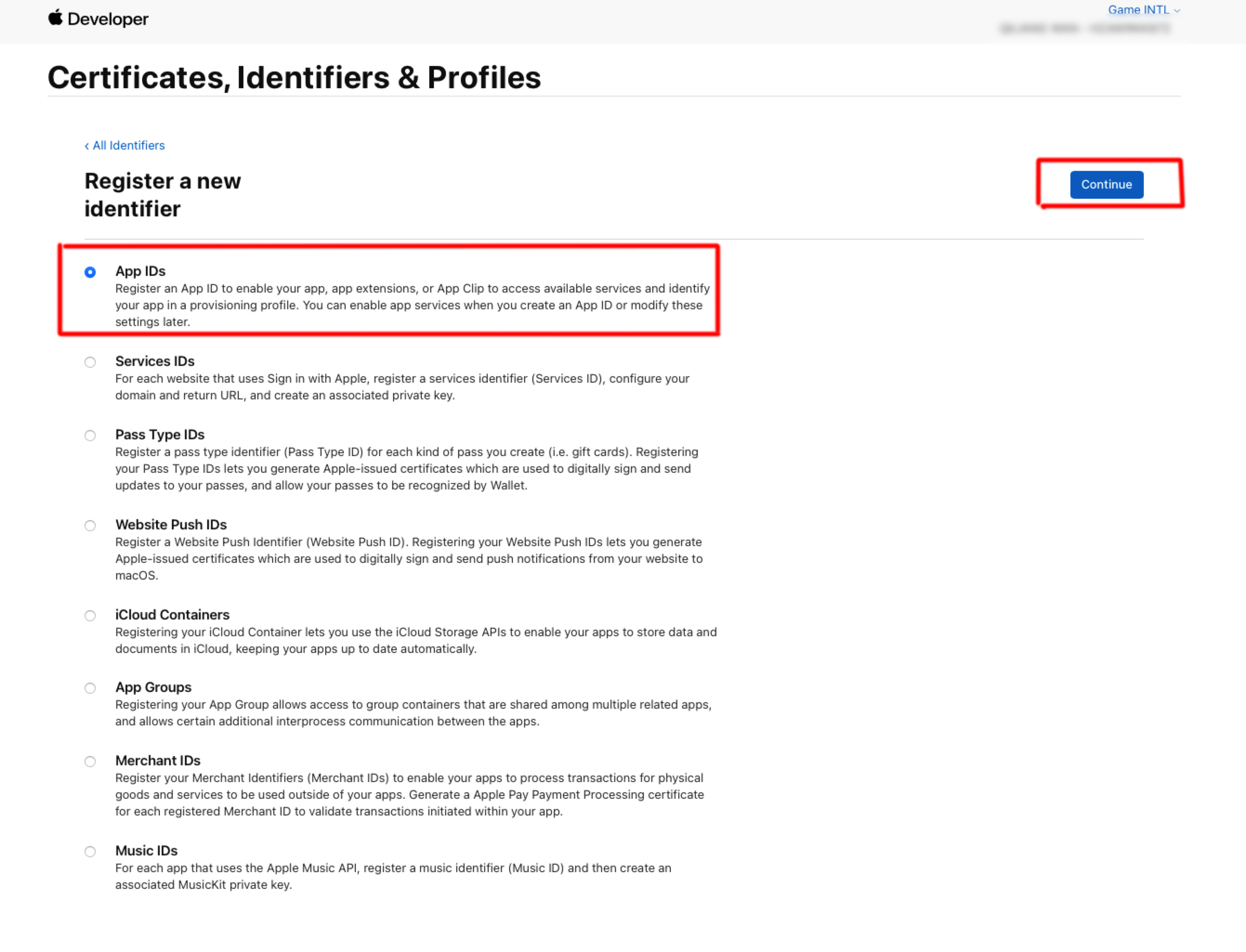
After selecting App IDs, click Continue.
-
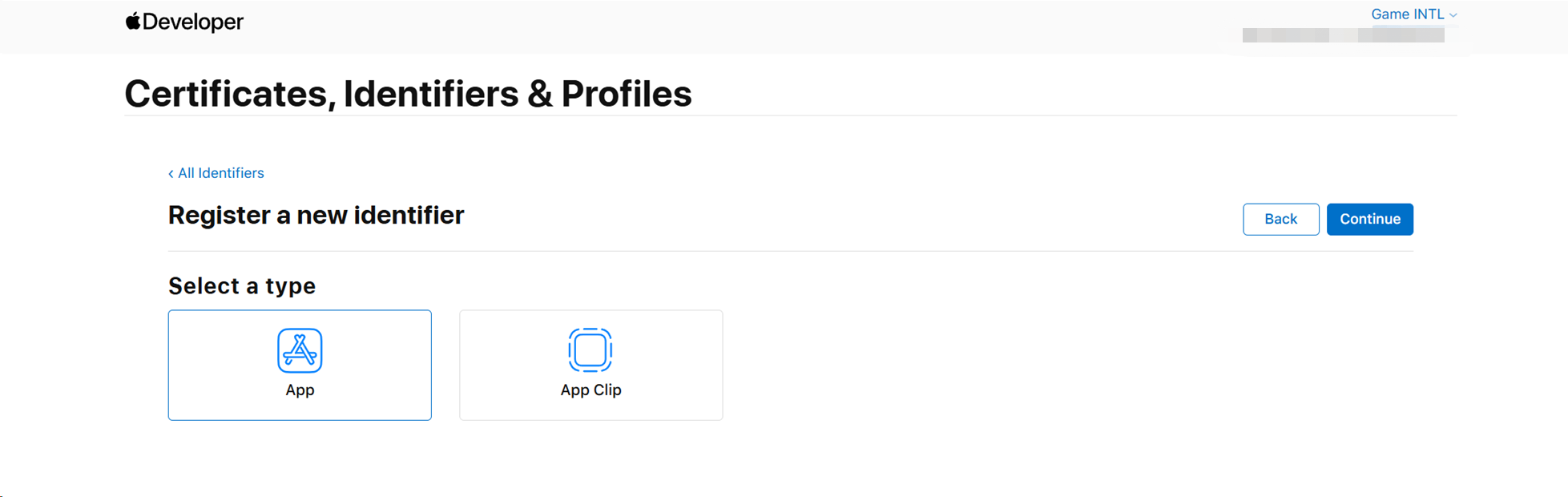
After selecting App, click Continue.
-
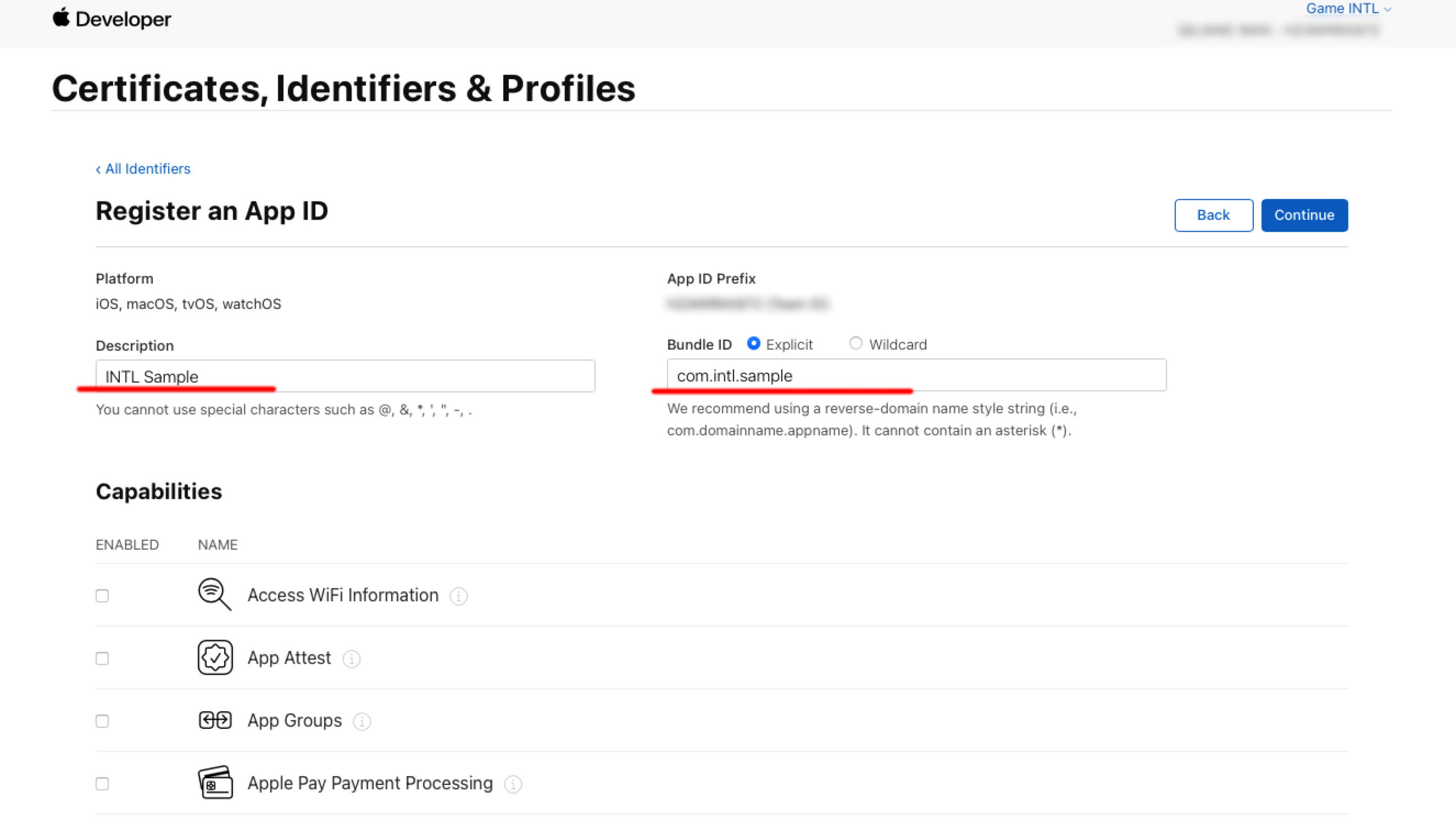
Enter Description and Bundle ID.
- Description: The name or description of the game app.
- Bundle ID: The unique identifier of the game app included in the App ID.
-
Under Capabilities, select Sign in with Apple and click Continue.
-
Click Register to create the App ID.
2. Setting up App Store Connect
-
Log in to [App Store Connect] (https://appstoreconnect.apple.com/).
-
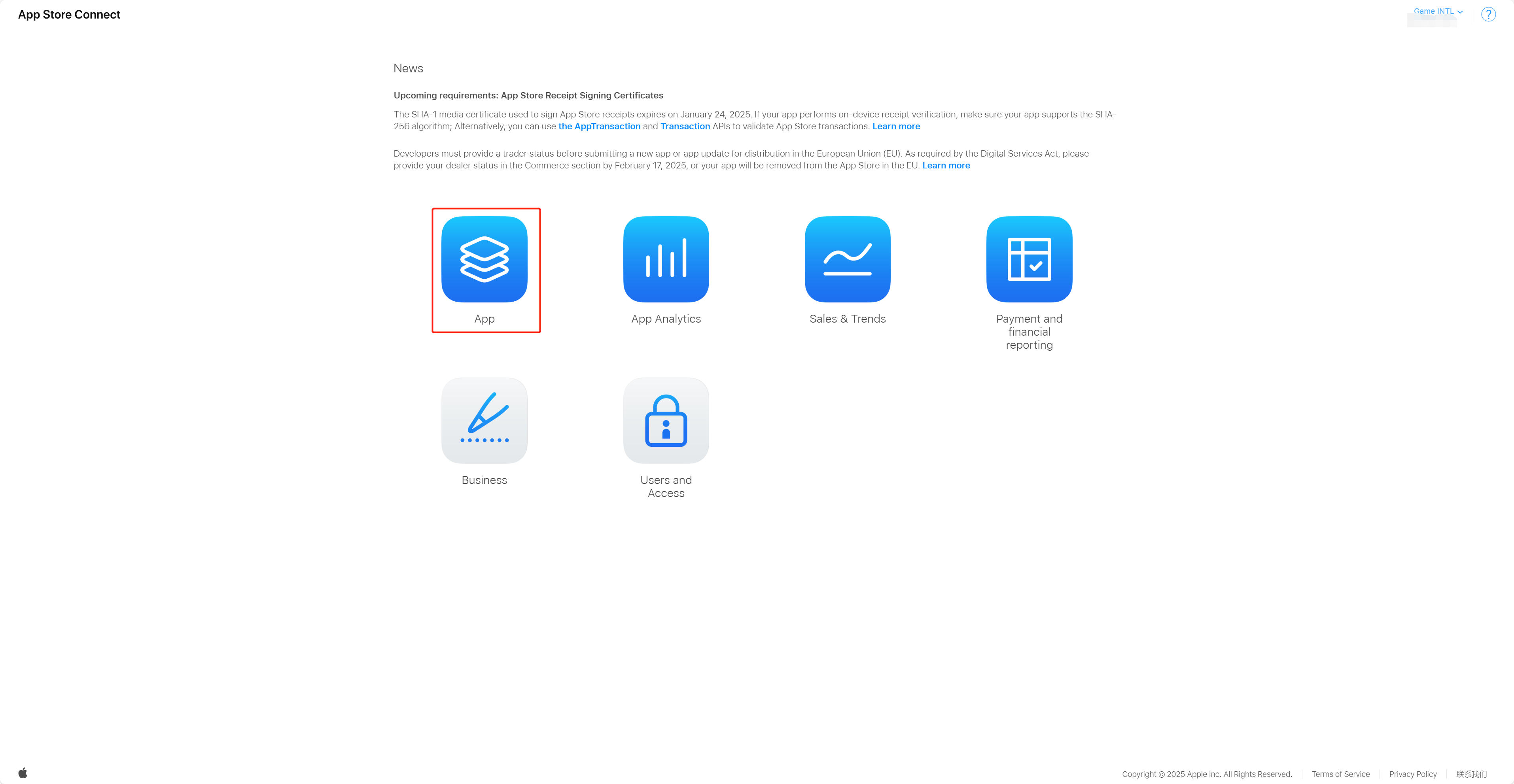
Select App.
-
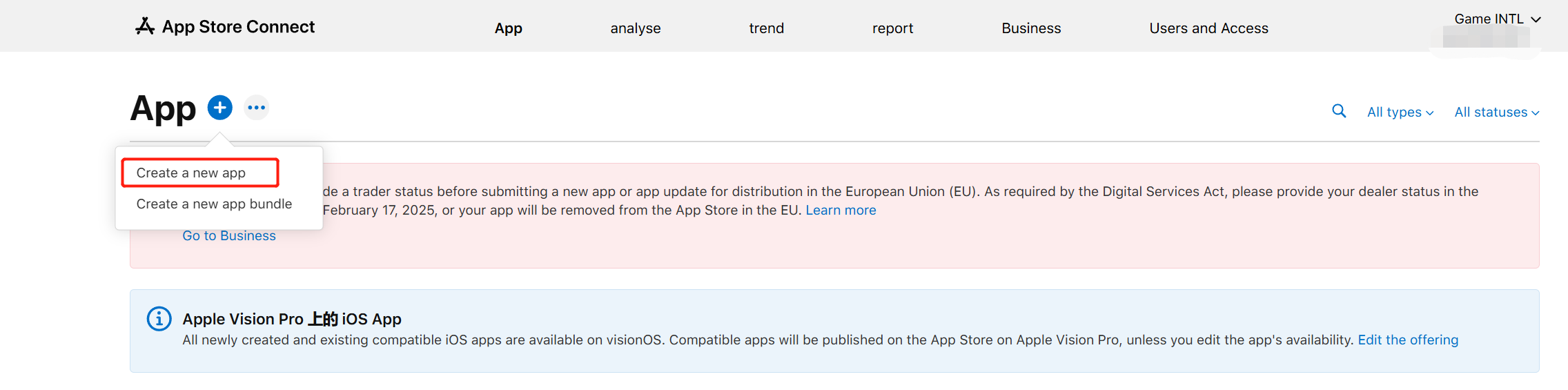
Click App (+) and select Add App.
-
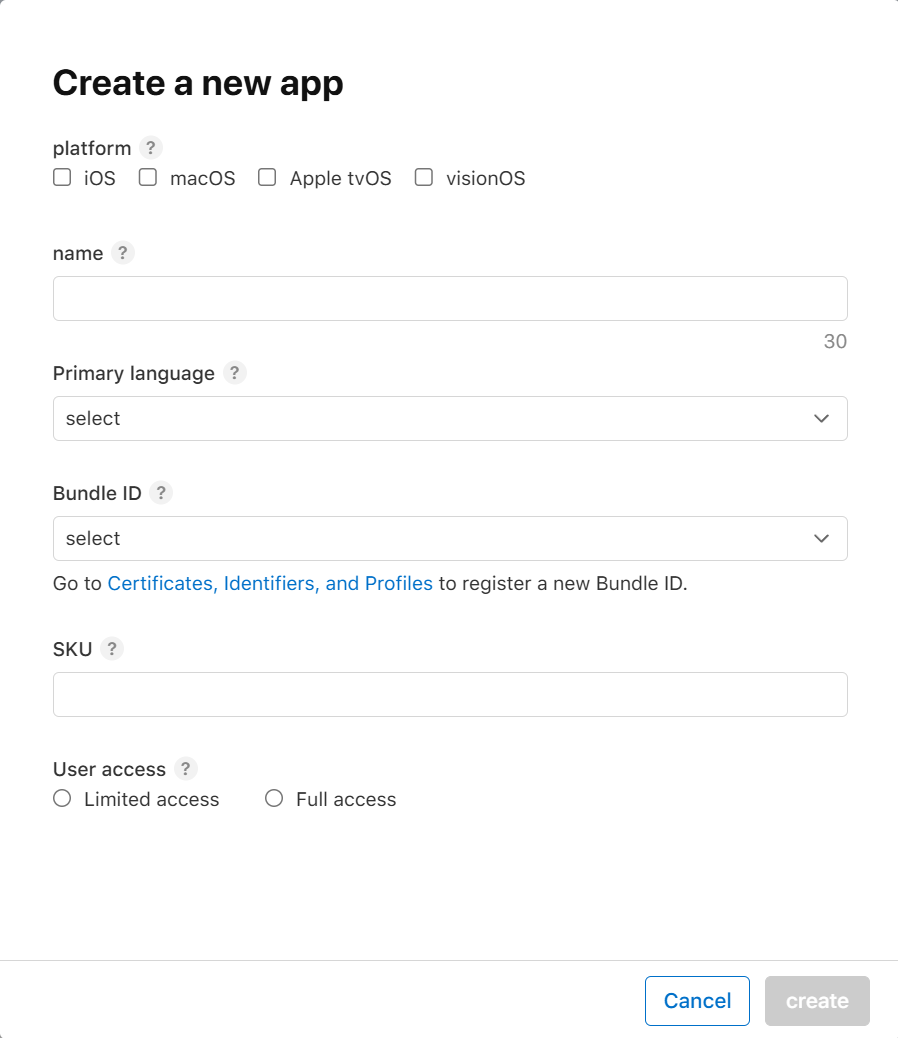
Create an App Store Connect App based on the Bundle ID obtained in step 1.
-
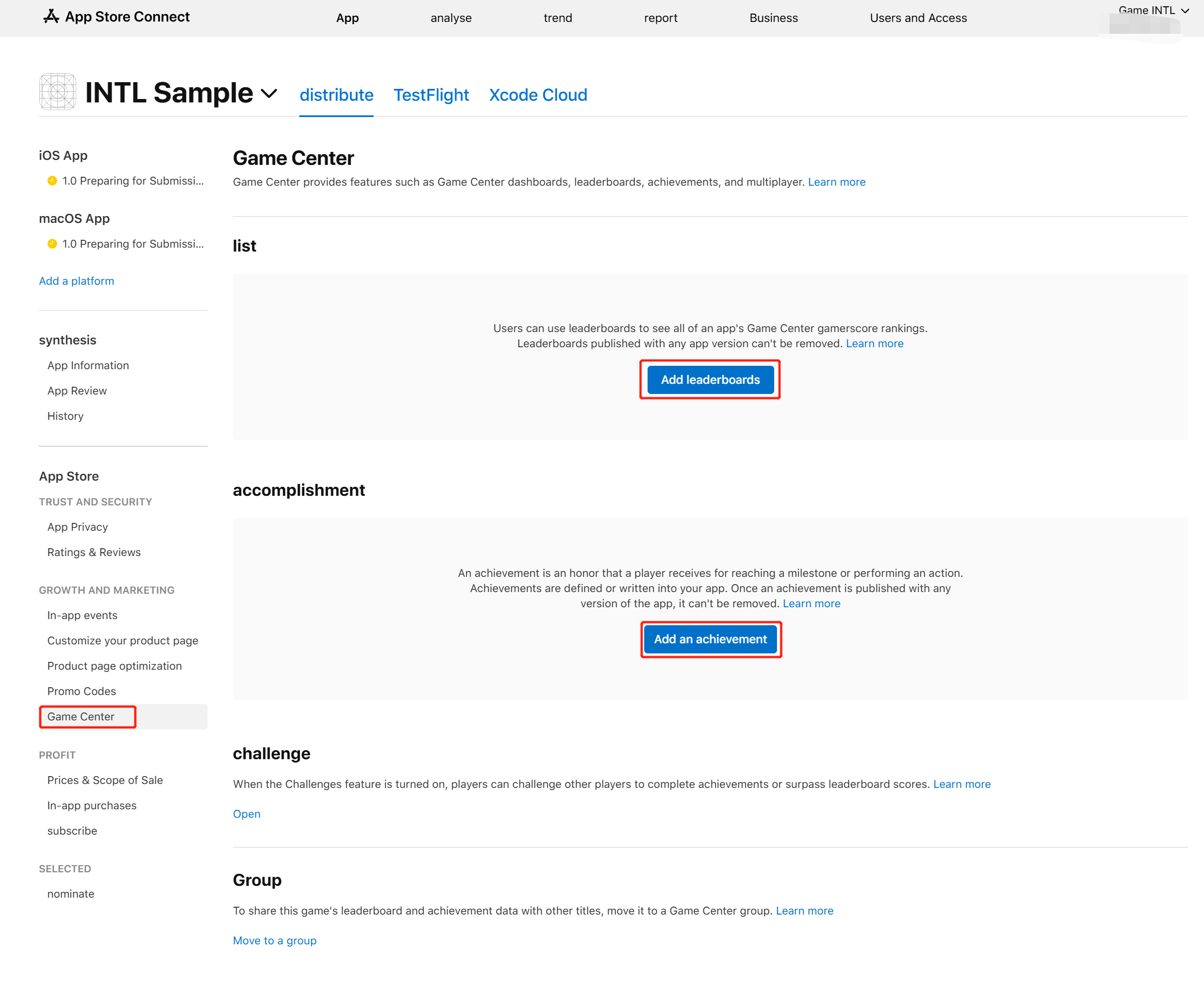
Select Feature > Game Center to enter the Game Center configuration page.
-
Enable the Game Center feature.
For more information, see:https://developer.apple.com/help/app-store-connect/
the charts (of best-sellers)
- Select Game Center in the left navigation bar and on the right side select Add leaderboards to create a new leaderboard or Add an achievement to add an achievement setting.
- Enter details as required.
Click on the question mark (**?) icon next to each field entry box. **) icon, a detailed explanation will be given.
- Click Storage to save the configured leaderboard.
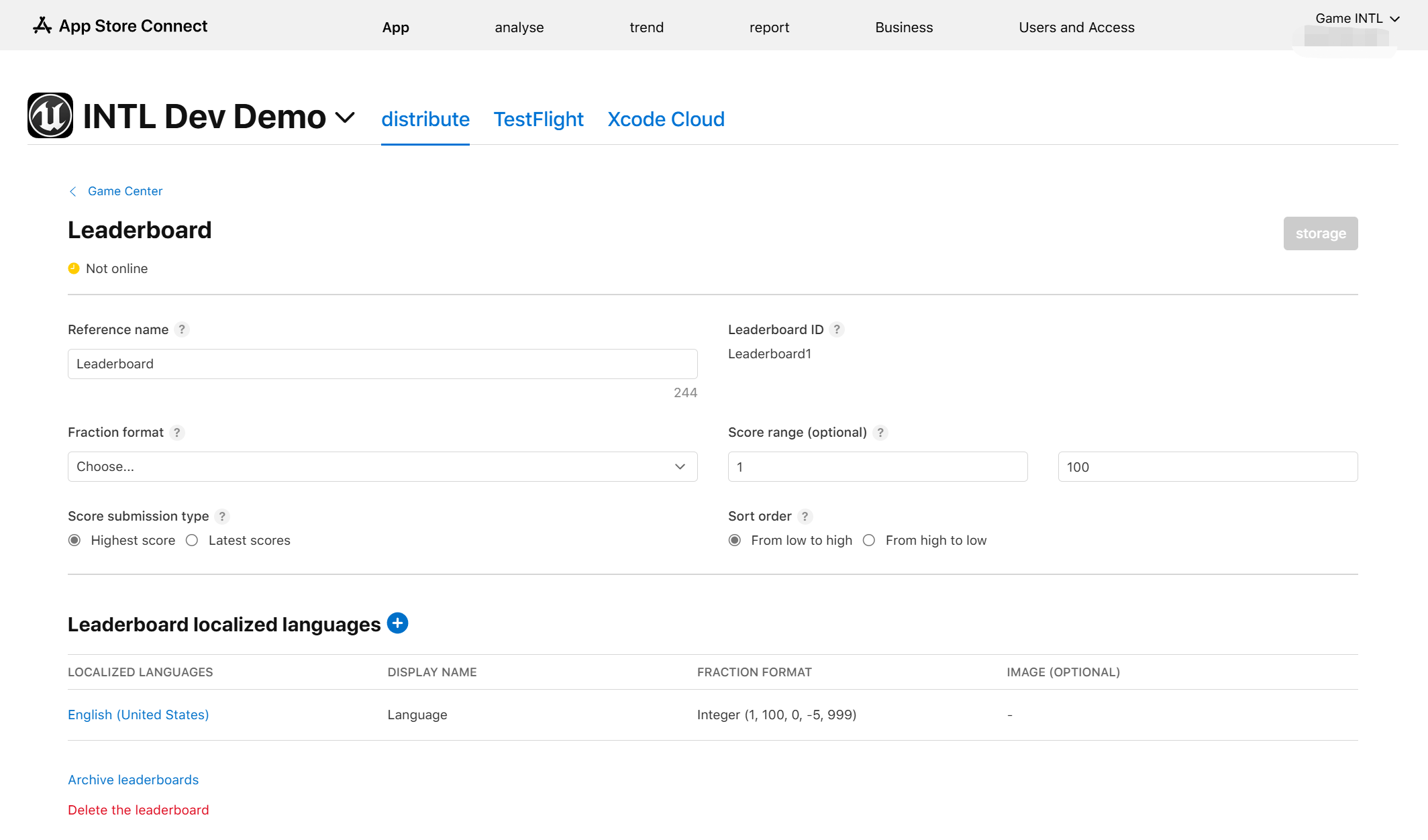
Users can add as many leaderboards as needed.The leaderboard supports multiple languages, each of which must be added separately.Achievement settings are similar to leaderboard settings.
- Get Player Network Console login account.
- Create a new project for your game or join an existing project.
- Download SDK.
- Integrate SDK.
- Add Game Center as the login authentication method for business in the Player Network console.
Step 1:Configure the SDK for Game Center login
-
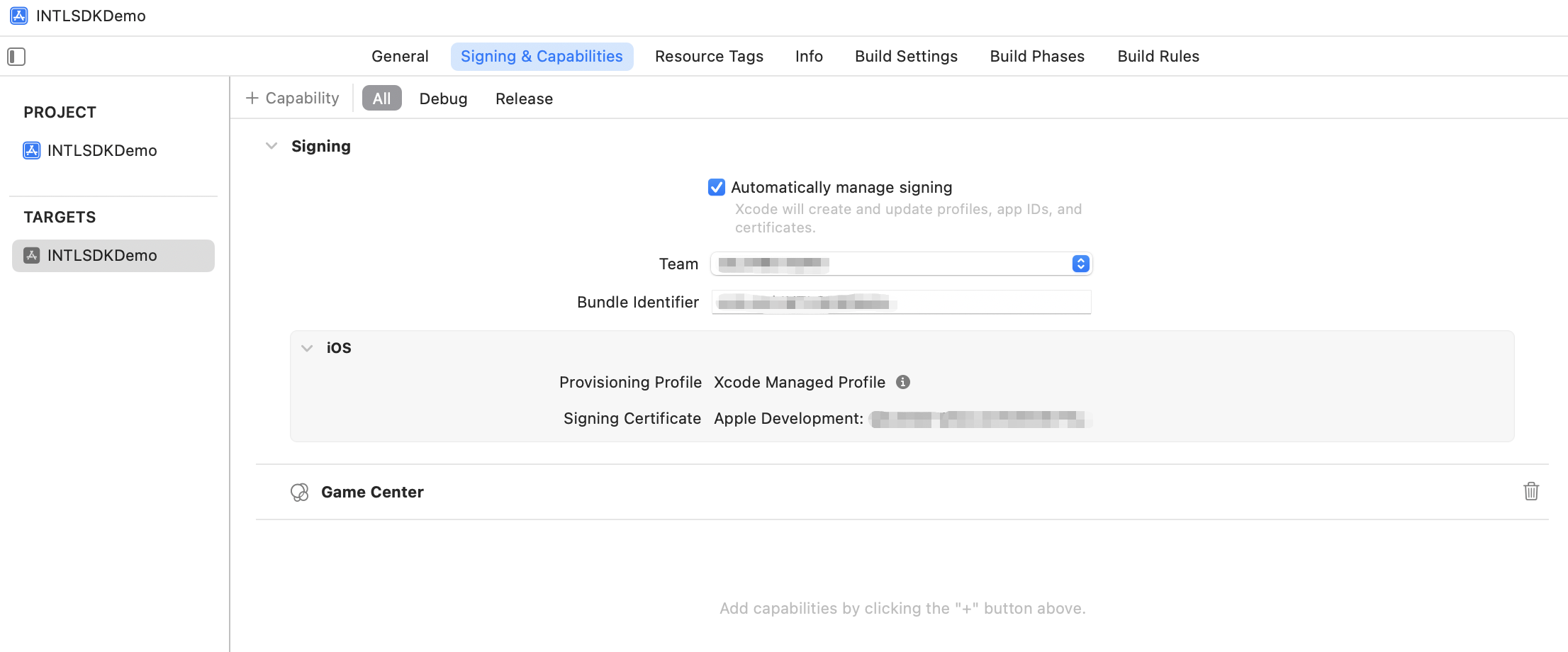
On the Signing & Capabilities page of the target project, the Bundle Identifier must be a registered iOS App app in App Store Connect.
Otherwise, when users log in to Game Center, they will receive an error message indicating that Game Center is not supported. -
On the Signing & Capabilities page of the target project, add + Capability Add Game Center.
The system library dependency GameKit.framework is automatically added to the project dependencies in Xcode.
Step 2:Add Game Center login
In versions after iOS 10, Game Center will continue to exist as a service, but there will no longer be a separate Game Center app on users' devices.Users can go to Settings > Game Center to log in and continue using the features.
There are two main scenarios for users to log into Game Center within a game:
-
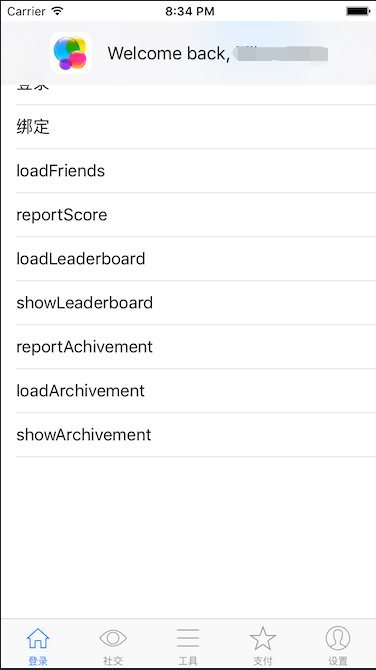
Already performs background login via Settings > Game Center by logging into:and displaying the Welcome back, xxxx banner.The entire login process will not interrupt the game.
-
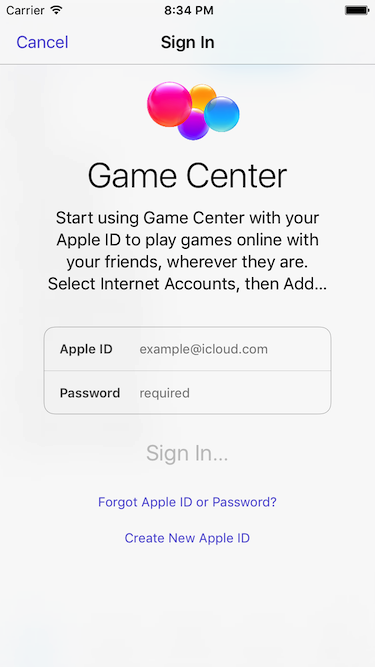
Failed Settings > Game Center Login:A Game Center login box will pop up in-game.If a user cancels their login three times, they will not be able to access the Game Center login box within the game and will need to return to Settings > Game Center to manually login to Game Center.
- Register login-related callbacks.
- Unity
- Unreal Engine
// Add callbacks
public void AddAuthObserver()
{
    INTLAPI.AddAuthResultObserver(OnAuthResultEvent);
}

// Remove callbacks
public void RemoveAuthObserver()
{
    INTLAPI.RemoveAuthResultObserver(OnAuthResultEvent);
}

// Process the INTLAuthResult callback
public void OnAuthResultEvent(INTLAuthResult AuthResult)
{
    Debug.Log($"MethodID: {AuthResult.MethodId}");

    string methodTag = "";
    switch (AuthResult.MethodId)
    {
        case (int)INTLMethodID.INTL_AUTH_LOGIN:
            methodTag = "Login";
            break;
        case (int)INTLMethodID.INTL_AUTH_BIND:
            methodTag = "Bind";
            break;
        case (int)INTLMethodID.INTL_AUTH_AUTOLOGIN:
            methodTag = "AutoLogin";
            break;
        case (int)INTLMethodID.INTL_AUTH_QUERY_USER_INFO:
            methodTag = "QueryUserInfo";
            break;
        case (int)INTLMethodID.INTL_AUTH_GET_AUTH_RESULT:
            methodTag = "GetAuthResult";
            break;
    }
}
C++ Event Handling (above v1.15)
//configure callback
FINTLAuthEvent authEvent;
authEvent.AddUObject(this, &OnAuthResult_Implementation);
UINTLSDKAPI::. SetAuthResultObserver(authEvent);
// Remove callbacks
UINTLSDKAPI::GetAuthResultObserver().Clear();
void OnAuthResult_Implementation(FINTLAuthResult ret)
{
 UE_LOG(LogTemp, Warning, TEXT("MethodID: %d"), ret.MethodId);
}
Unreal Event Handling
void OnAuthResult_Implementation(FINTLAuthResult ret)
{
 UE_LOG(LogTemp, Warning, TEXT("MethodID: %d"), ret.MethodId);
}
- Call the
AutoLogininterface for automatic login.
- Unity
- Unreal Engine
INTLAPI.AutoLogin();
UINTLSDKAPI::AutoLogin();
- If automatic login fails, call the
Loginmethod to let players log in manually.
- Unity
- Unreal Engine
INTLAPI.Login(INTLChannel.GameCenter);
UINTLSDKAPI::Login(EINTLLoginChannel::kChannelGuest);
- Synchronize client authentication status with the game backend, waiting for final validation results.
Step 3: Acceptance testing for login functionality
Search for the keyword "AuthResult" in the Player Network SDK logs to confirm whether the channel name and OpenID are returned correctly.If correct, it means the integration configuration is successful, and login functionality has been successfully added.
If you encounter problems during the integration process, please refer to Frequently Asked Questions.
Player Restrictions
After successfully logging into Game Center, the GKLocalPlayer object will provide restriction status information that the game can use to restrict functionality:
- isUnderage:Determines if the player is a minor.
- isMultiplayerGamingRestricted:Determines if the player can join a multiplayer game.
- isPersonalizedCommunicationRestricted:Determines if the player can use the personalized communication feature on the device.
Game Center Achievements System
The Player Network SDK provides an Achievement module, integrating the Game Center achievement feature on iOS.Games can unlock achievements, increase progress, and display the native achievements interface through this module.
For the design and operation of Game Center achievements, see the Apple official documentation.
Prerequisites
- Completed the Game Center configuration outlined in the prerequisite section of this document, and configured achievements in Game Center within App Store Connect.
- Before calling the achievement API, the player must be logged in to Game Center; otherwise, the API will return a
NEED_LOGINerror via callback.- Players can log in directly through the Game Center channel; if the game uses another channel as the primary login method, you can enable the
GAMECENTER_ENABLE_GCconfiguration (disabled by default). The SDK will automatically complete Game Center authorization after the main channel login succeeds.
- Players can log in directly through the Game Center channel; if the game uses another channel as the primary login method, you can enable the
Register Achievement Callback
Register a callback to receive achievement operation results.
- Unity
- Unreal Engine
// Add achievement callback
INTLAPI.AddAchievementResultObserver(OnAchievementResult);

// Remove achievement callback
INTLAPI.RemoveAchievementResultObserver(OnAchievementResult);

// Handle achievement result
public void OnAchievementResult(INTLAchievementResult ret)
{
    Debug.Log($"Achievement MethodID: {ret.MethodId}, RetCode: {ret.RetCode}, Platform: {ret.Platform}");
}
// Register the achievement callback
FINTLAchievementEvent achievementObserver;
achievementObserver.AddUObject(this, &UMyClass::OnAchievementResult);
UINTLSDKAPI::SetAchievementResultObserver(achievementObserver);

// Remove the achievement callback
UINTLSDKAPI::GetAchievementResultObserver().Clear();
void UMyClass::OnAchievementResult(FINTLAchievementResult ret)
{
    UE_LOG(LogTemp, Log, TEXT("Achievement MethodID: %d, RetCode: %d"), ret.MethodId, ret.RetCode);
}
Unlock Achievement
Unlock a standard achievement by achievement ID.
- Unity
- Unreal Engine
INTLAPI.UnlockAchievement("GameCenter", "achievement_id_here");
UINTLSDKAPI::UnlockAchievement(TEXT("GameCenter"), TEXT("achievement_id_here"), TEXT("{}"));
Increment Achievement Progress
For incremental achievements, increase progress by the specified value.
progress is a percentage increment (0–100), added to the current progress and capped at 100%.For example, if progress is at 30% and you enter 20, it updates to 50%.
- Unity
- Unreal Engine
// Increase achievement progress by 20%
INTLAPI.IncrementAchievement("GameCenter", "achievement_id_here", 20);
// Increase achievement progress by 20%
UINTLSDKAPI::IncrementAchievement(TEXT("GameCenter"), TEXT("achievement_id_here"), 20, TEXT("{}"));
Show achievements interface
Display the native Game Center achievements interface.After Player closes the interface, a callback will return the result.
- Unity
- Unreal Engine
INTLAPI.ShowAchievementsUI("GameCenter");
UINTLSDKAPI::ShowAchievementsUI(TEXT("GameCenter"), TEXT("{}"));
Game Center Leaderboard
The Player Network SDK provides a Leaderboard module, integrating the Game Center leaderboard feature on iOS.Projects can submit scores and display the native leaderboard interface through this module.
For the design and operation of Game Center leaderboards, see the Apple official documentation.
On iOS, SubmitScore and ShowLeaderboardUI rely on the new GKLeaderboard interface, requiring iOS 14.0 or above.When called on a device under iOS 14, the interface will return a NOT_SUPPORT error via callback.
Prerequisites
- Complete the Game Center configuration in the Prerequisites section, and create the leaderboard in App Store Connect under Game Center. Record the Leaderboard ID.
- Before calling the leaderboard API, the player must already be logged into Game Center (same as the Achievement Prerequisites), otherwise the API will return a
NEED_LOGINerror via callback.
Register Leaderboard Callback
Register a callback to receive leaderboard operation results.
- Unity
- Unreal Engine
// Add leaderboard callback
INTLAPI.AddLeaderboardResultObserver(OnLeaderboardResult);

// Remove leaderboard callback
INTLAPI.RemoveLeaderboardResultObserver(OnLeaderboardResult);

// Handle leaderboard result
public void OnLeaderboardResult(INTLLeaderboardResult ret)
{
    Debug.Log($"Leaderboard MethodID: {ret.MethodId}, RetCode: {ret.RetCode}, Platform: {ret.Platform}");
}
// Register leaderboard observer
FINTLLeaderboardEvent leaderboardObserver;
leaderboardObserver.AddUObject(this, &UMyClass::OnLeaderboardResult);
UINTLSDKAPI::SetLeaderboardResultObserver(leaderboardObserver);

// Remove leaderboard observer
UINTLSDKAPI::GetLeaderboardResultObserver().Clear();
void UMyClass::OnLeaderboardResult(FINTLLeaderboardResult ret)
{
    UE_LOG(LogTemp, Log, TEXT("Leaderboard Method ID: %d, Return Code: %d"), ret.MethodId, ret.RetCode);
}
Submit Score
Submit a score to the specified leaderboard.
- Unity
- Unreal Engine
INTLAPI.SubmitScore("GameCenter", "leaderboard_id_here", 1000);
UINTLSDKAPI::SubmitScore(TEXT("GameCenter"), TEXT("leaderboard_id_here"), 1000, TEXT("{}"));
Show leaderboard interface
Display the native Game Center leaderboard interface.After Player closes the interface, a callback will return the result.
When a specific leaderboard ID is provided in leaderboardId, only that leaderboard is displayed. When an empty string ("") is provided, the full list of leaderboards is displayed.
- Unity
- Unreal Engine
// Show specific leaderboard
INTLAPI.ShowLeaderboardUI("GameCenter", "leaderboard_id_here");

// Show all leaderboards
INTLAPI.ShowLeaderboardUI("GameCenter", "");
// Show specific leaderboard
UINTLSDKAPI::ShowLeaderboardUI(TEXT("GameCenter"), TEXT("leaderboard_id_here"), TEXT("{}"));

// Show all leaderboards
UINTLSDKAPI::ShowLeaderboardUI(TEXT("GameCenter"), TEXT(""), TEXT("{}"));

