Windows (computer)
The purpose of this article is to describe how to set up Garena authentication so that your game can be logged in through the Garena channel using the Player Network login authentication service.
Prerequisites
1. Setting up the Garena application
Contact the Garena team at:
- Activate the app and get the app ID and other relevant information.
- Configure the callback URL for Garena login in the Developer Platform:
https://test-common-web.intlgame.com/jssdk/garenalogincallback.htmlhttps://common-web.intlgame.com/jssdk/garenalogincallback.html
- (Optional) Turn on
APP_PLATFORM_BINDto enable platform account binding for Garena.
- Get Player Network Console login account.
- Create a new project for your game or join an existing project.
- Download SDK.
- Integrate SDK.
- Add Garena as a login authentication method for your business in the Player Network Console.
Step 1:Configure SDK for Garena Login
Open your project's INTLConfig.ini file:
[INTL environment]
# WARNING: You should change this URL to the production environment when you release your game.
INTL_URL = https://intlsdk-new-test .iegg.garena.com
GAME_ID = {INTL_GAME_ID}
SDK_KEY = {INTL_SDK_KEY}
[INTL Log]
LOG_LEVEL = 1
LOG_CONSOLE_OUTPUT_ENABLE = 1
LOG_FILE_OUTPUT_ENABLE = 1
LOG_ENCRYPT_ENABLE = 0
LOG_ COMPRESS_ENABLE = 0
[Garena Channel Configurations]
GARENA_WEBVIEW_LOGIN_ENABLE = 1
- Set the Player Network SDK authentication domain to
INTL_URL = https://intlsdk-new-test.iegg.garena.com(contact the Garena team to provide). - Replace
{INTL_GAME_ID}and{INTL_SDK_KEY}with theGAME_IDandSDK_KEYassigned by Player Network Console. - Set
LOG_LEVEL = 1,LOG_CONSOLE_OUTPUT_ENABLE = 1,LOG_FILE_OUTPUT_ENABLE = 1,LOG_ENCRYPT_ENABLE = 0andLOG_COMPRESS_ENABLE = 0to output console logs and log files without encrypting or compressing the output without encrypting or compressing the output. - Sets the value of
GARENA_WEBVIEW_LOGIN_ENABLE.The default value of1indicates that the Windows platform uses WebView login.If the user sets this value to0, the Windows platform will use the system browser to log on.
If GARENA_WEBVIEW_LOGIN_ENABLE in INTLConfig is set to 1, the INTLWebView plugin needs to be integrated, otherwise the login won't succeed.
Step 2:Add Garena Login
- Register login-related callbacks.
- Unity
- Unreal Engine
// Add callbacks
public void AddAuthObserver()
{
    INTLAPI.AddAuthResultObserver(OnAuthResultEvent);
}

// Remove callbacks
public void RemoveAuthObserver()
{
    INTLAPI.RemoveAuthResultObserver(OnAuthResultEvent);
}

// Process the INTLAuthResult callback
public void OnAuthResultEvent(INTLAuthResult AuthResult)
{
    Debug.Log($"MethodID: {AuthResult.MethodId}");

    string methodTag = "";
    switch (AuthResult.MethodId)
    {
        case (int)INTLMethodID.INTL_AUTH_LOGIN:
            methodTag = "Login";
            break;
        case (int)INTLMethodID.INTL_AUTH_BIND:
            methodTag = "Bind";
            break;
        case (int)INTLMethodID.INTL_AUTH_AUTOLOGIN:
            methodTag = "AutoLogin";
            break;
        case (int)INTLMethodID.INTL_AUTH_QUERY_USER_INFO:
            methodTag = "QueryUserInfo";
            break;
        case (int)INTLMethodID.INTL_AUTH_GET_AUTH_RESULT:
            methodTag = "GetAuthResult";
            break;
    }
}
C++ Event Handling (above v1.15)
//configure callback
FINTLAuthEvent authEvent;
authEvent.AddUObject(this, &OnAuthResult_Implementation);
UINTLSDKAPI::. SetAuthResultObserver(authEvent);
// Remove callbacks
UINTLSDKAPI::GetAuthResultObserver().Clear();
void OnAuthResult_Implementation(FINTLAuthResult ret)
{
 UE_LOG(LogTemp, Warning, TEXT("MethodID: %d"), ret.MethodId);
}
Unreal Event Handling
void OnAuthResult_Implementation(FINTLAuthResult ret)
{
 UE_LOG(LogTemp, Warning, TEXT("MethodID: %d"), ret.MethodId);
}
- Call the
AutoLogininterface for automatic login.
- Unity
- Unreal Engine
INTLAPI.AutoLogin();
UINTLSDKAPI::AutoLogin();
- If automatic login fails, call the
Loginmethod to let players log in manually.
Windows supports passing in subchannels. If ExtraJson does not pass a subchannel, it will default to redirecting to the Garena official website for login, and supports all subchannels configured in the Garena developer console.
The input parameters differ across platforms, as shown in the following example.
- Unity
- Unreal Engine
INTLAPI.Login(INTLChannel.Garena, "", "{\"appendix\":\"platform=1\"}");// Login Garena - Garena (1)
INTLAPI.Login(INTLChannel.Garena, "", "{\" appendix\":\"platform=3\"}");// Login Garena - Facebook (3)
INTLAPI.Login(INTLChannel.Garena, "", "{\"appendix\":\"platform=8\"}");// Login Garena - Google (8)
INTLAPI.Login(INTLChannel.Garena, "", "{\"appendix\":\"platform=10\"}");// Login Garena - Apple (10)
INTLAPI.Login(INTLChannel. Garena, "", "{\"appendix\":\"all_platforms=1\"}");// Login Garena - all platforms
INTLAPI.Login(INTLChannel.
UINTLSDKAPI::Login(EINTLLoginChannel::kChannelGarena, "", "{\"appendix\":\"platform=1\"}");// Login Garena - Garena (1)
UINTLSDKAPI::Login( EINTLLoginChannel::kChannelGarena, "", "{\"appendix\":\"platform=3\"}");// Login Garena - Facebook (3)
UINTLSDKAPI::Login(EINTLLoginChannel:. kChannelGarena, "", "{\"appendix\":\"platform=8\"}");// Login Garena - Google (8)
UINTLSDKAPI::Login(EINTLLoginChannel::kChannelGarena, "", "{\ "appendix\":\"platform=10\"}");// Login Garena - Apple (10)
UINTLSDKAPI::Login(EINTLLoginChannel::kChannelGarena, "", "{\"appendix\":\"all_ platforms=1\"}");// Login Garena - all platforms
UINTLSDKAPI::Login(EINTLLoginChannel::kChannelGarena, "", "");// Login Garena - all platforms
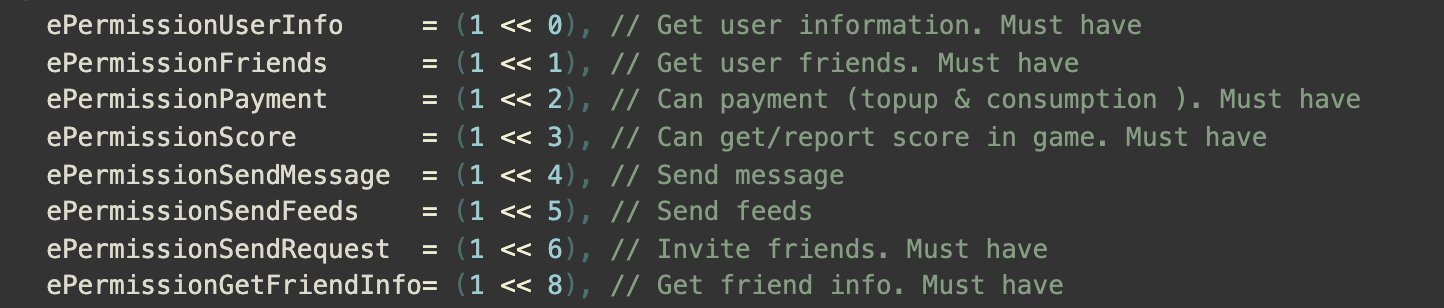
For Garena login, the permission parameter is different from other channels. Users need to enter numeric values in string format, for example, "2" or "4". The permission definitions are as follows:
- Synchronize client authentication status with the game backend, waiting for final validation results.
Step 3: Acceptance testing for login functionality
Search for the keyword "AuthResult" in the Player Network SDK logs to confirm whether the channel name and OpenID are returned correctly.If correct, it means the integration configuration is successful, and login functionality has been successfully added.
If you encounter problems during integration, refer to FAQs.

