Web
The purpose of this article is to describe how to set up Google Authentication so that your web pages can log in through the Google channel using the Player Network login authentication service.
Prerequisites
Setting up your game on Google Developer Platform
For the IEGG project, please contact [miaruan (Ruan Mingjun)] for Google Apps registration and configuration.
1. Create Google Apps
Follow the prompts to register an account on Google Play Console.
Google charges a $25 service fee.Please have your credit card ready in advance.
- Go to Google Play Console.
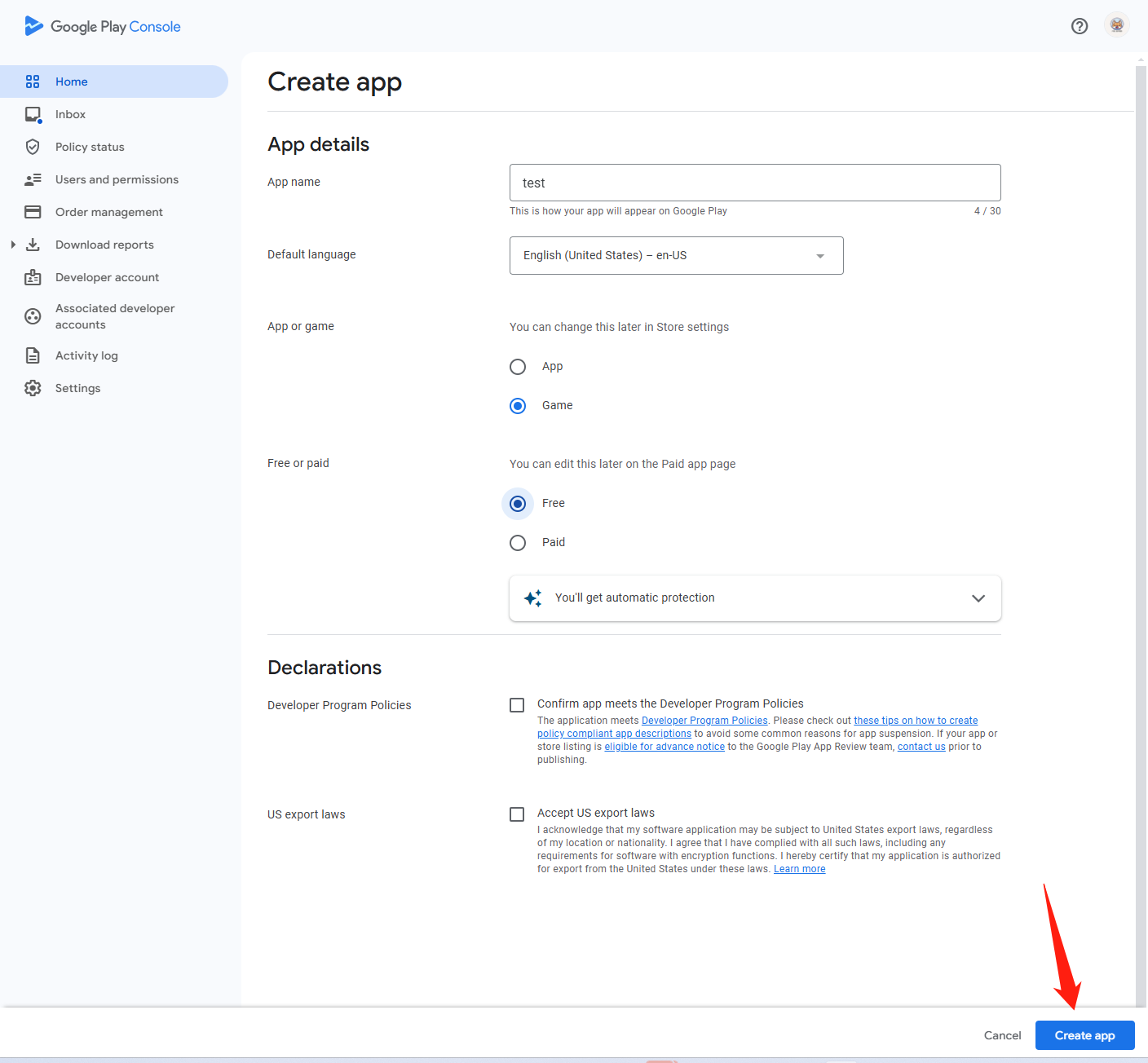
- On the All apps page, click Create app to create the game app.

- Enter the application information.
2) Setting up the Play game service
Set up the Play game service to manage game metadata and automate game production and distribution tasks.
1. Create a Play Games service project
Set up the Play game service to manage game metadata and automate game production and distribution tasks.
- Go to Google Play Console.
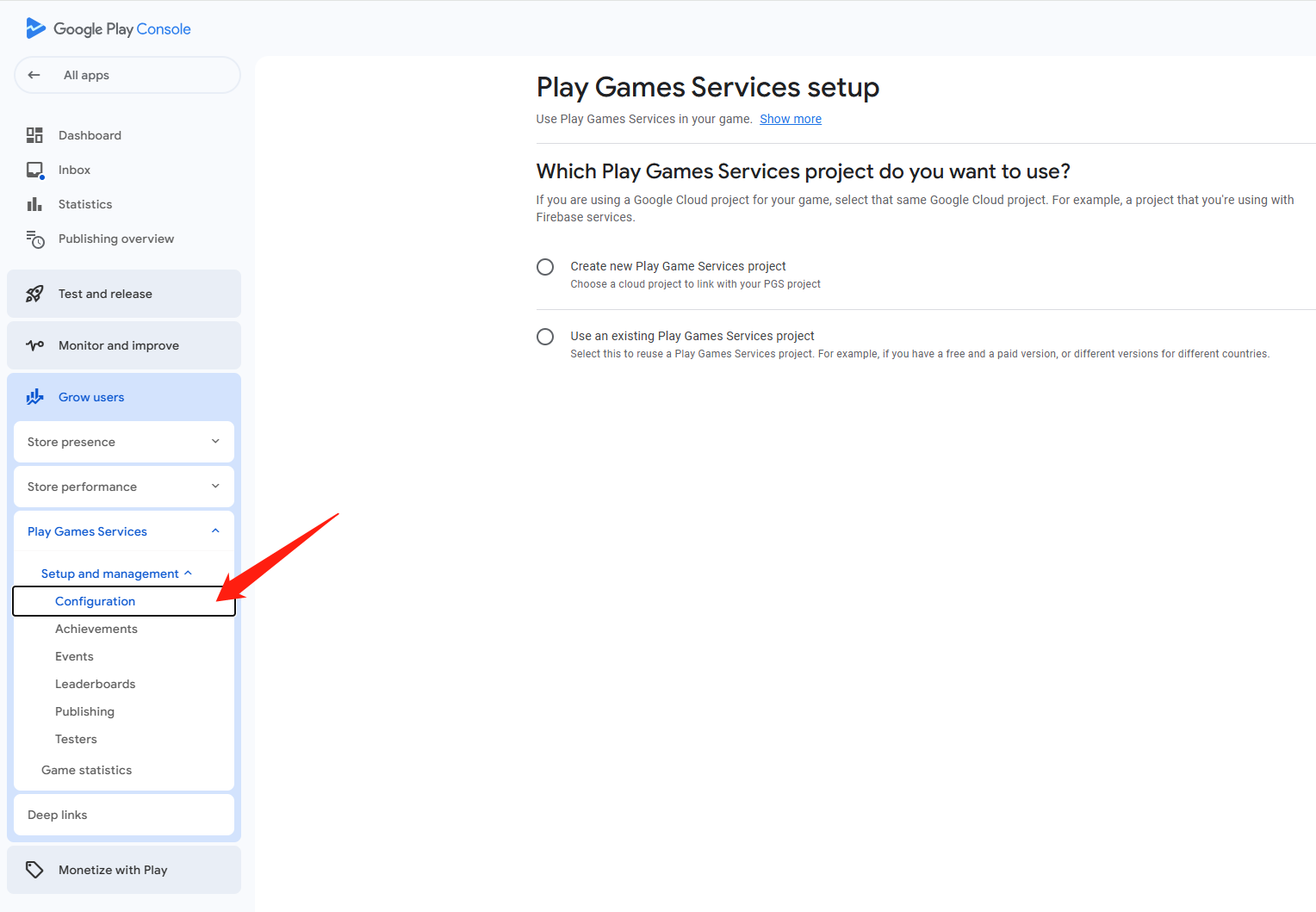
- In the left navigation bar, select Grow users > Play Games Services > Setup and management > Configuration.
- Under Which Play Games Services project do you want to use, select the corresponding option to create a Play Games Services project.
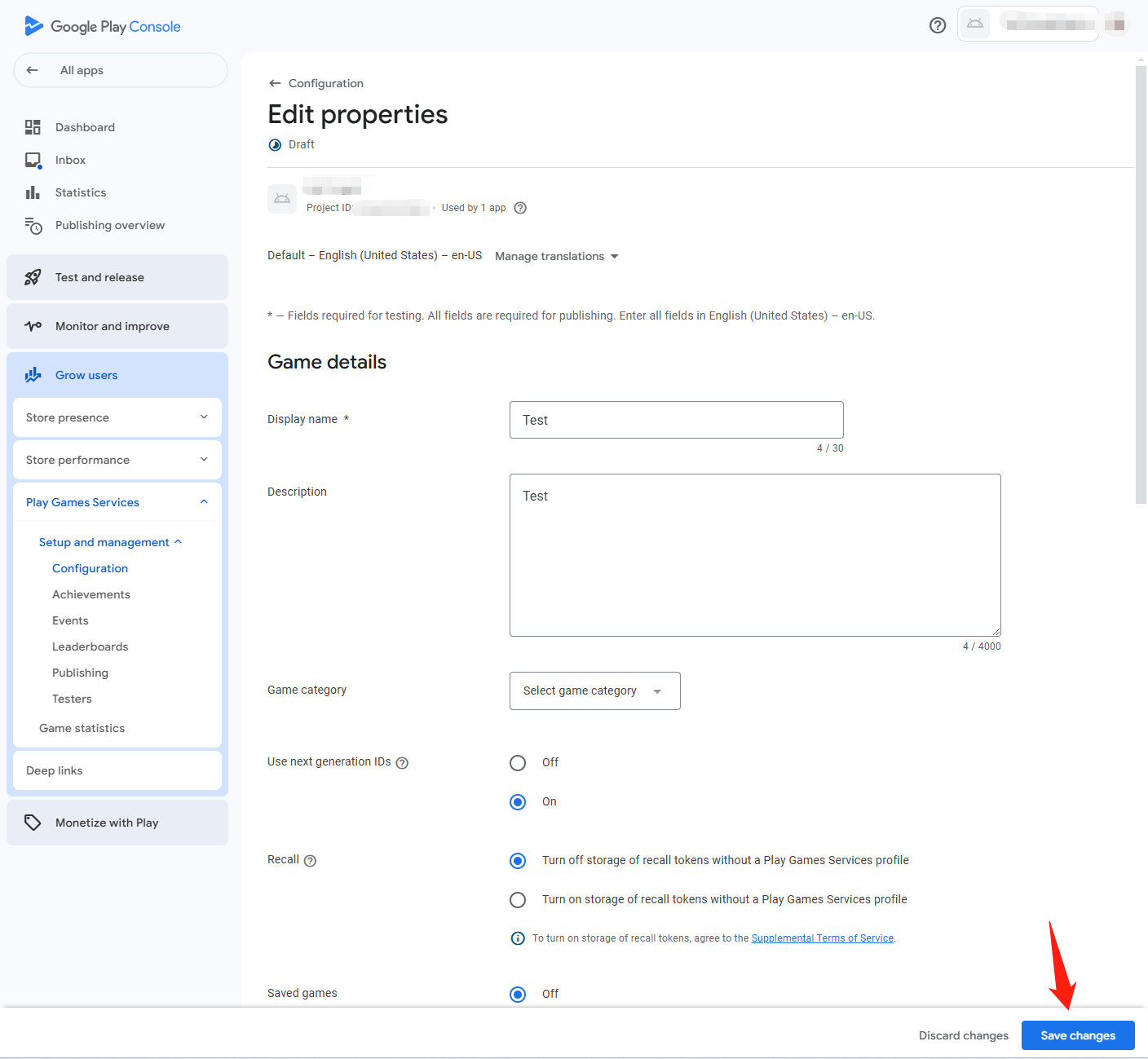
- In the Properties section, click Edit Properties.
- Enter the basic information about the game and click Save changes.
2. Add a credential to connect the OAuth 2.0 client ID to the game
- Go to Google Cloud Platform.
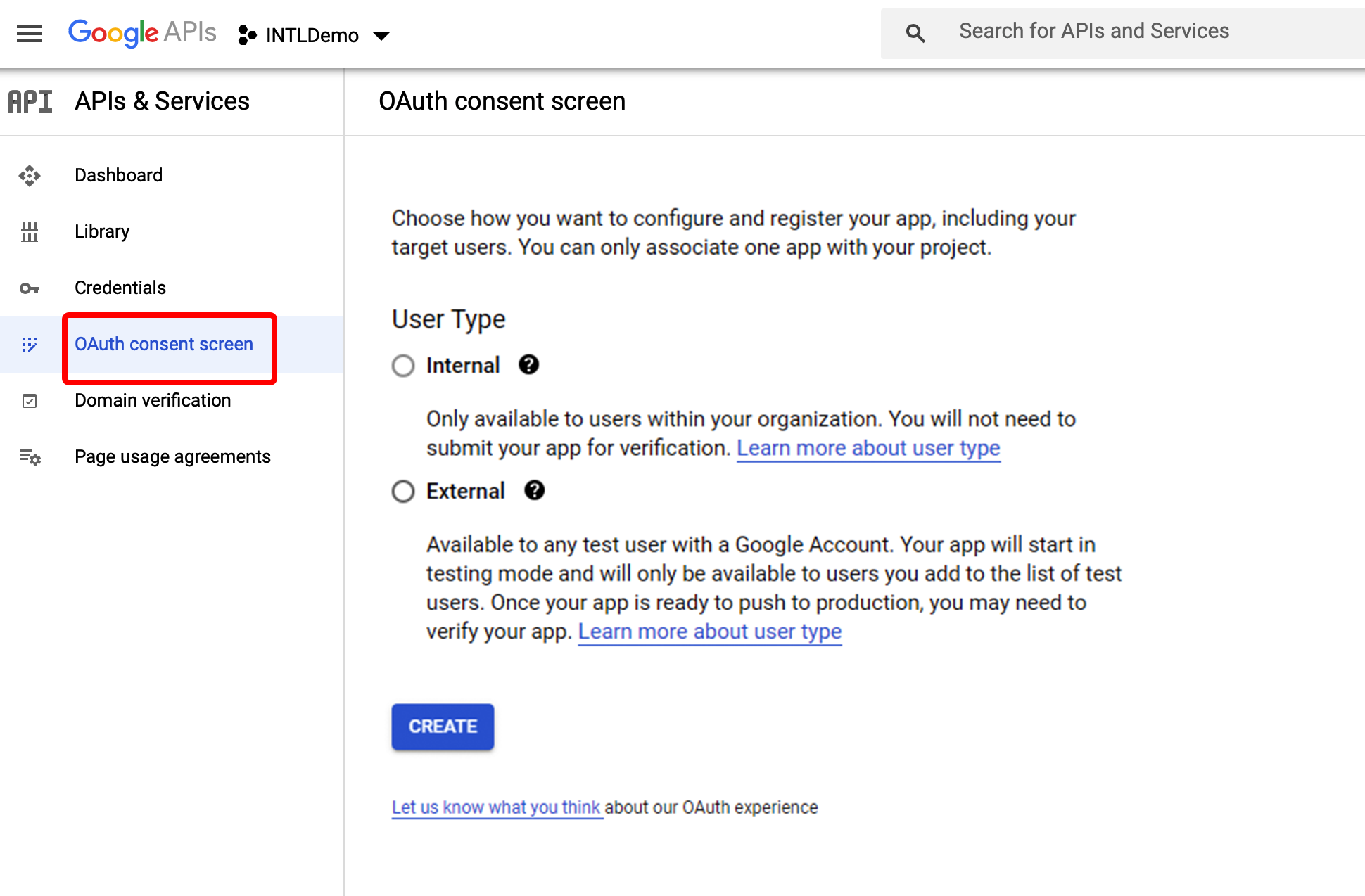
- In the left navigation bar, click OAuth consent screen.
- Follow the instructions to set up the OAuth OAuth consent screen.
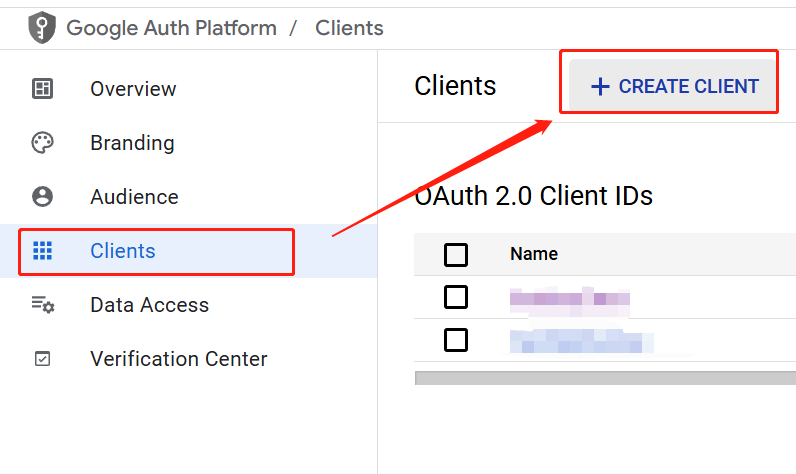
- Click Clients on the left navigation bar.
- On the Clients page, select CREATE CLIENT > Create OAuth Client ID to create an OAuth client ID.
- In the Application type list, click Web.
- Enter the required information.
In the Authorized redirect URLs section of the web application details page, addhttps://test-common-web.intlgame.com/jssdk/googlelogincallback.htmlandhttps://common-web. intlgame.com/jssdk/googlelogincallback.html.
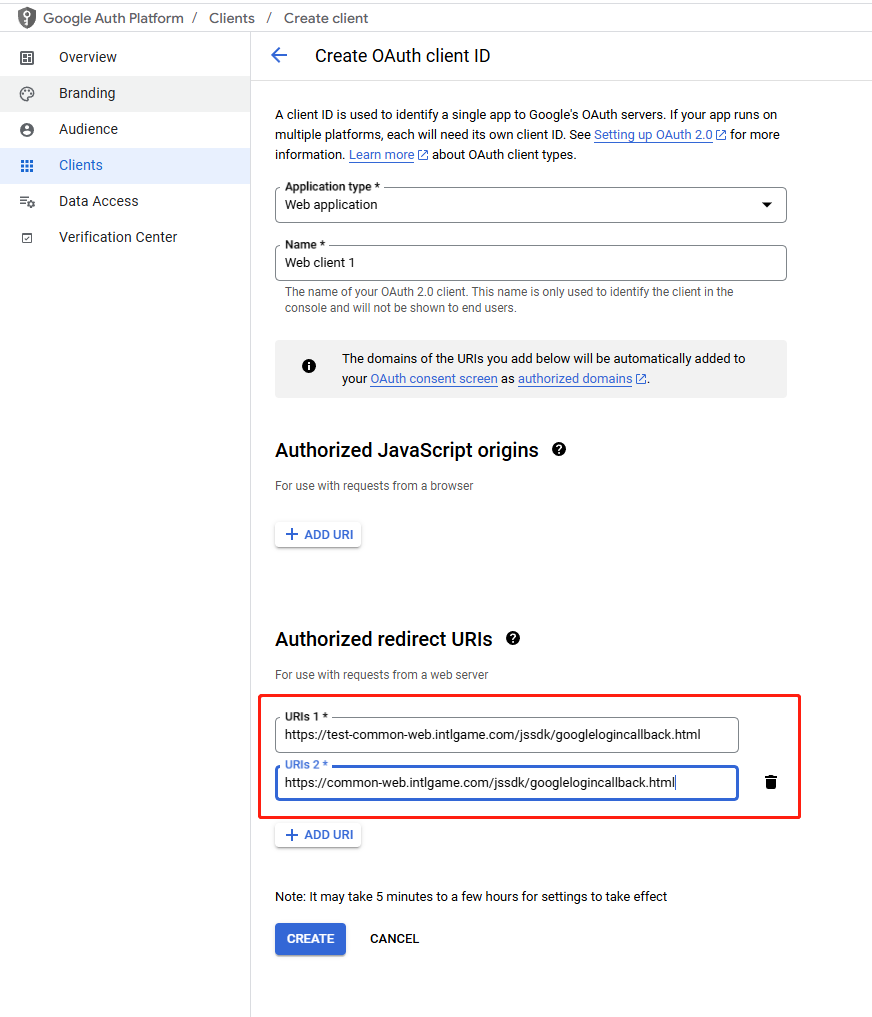
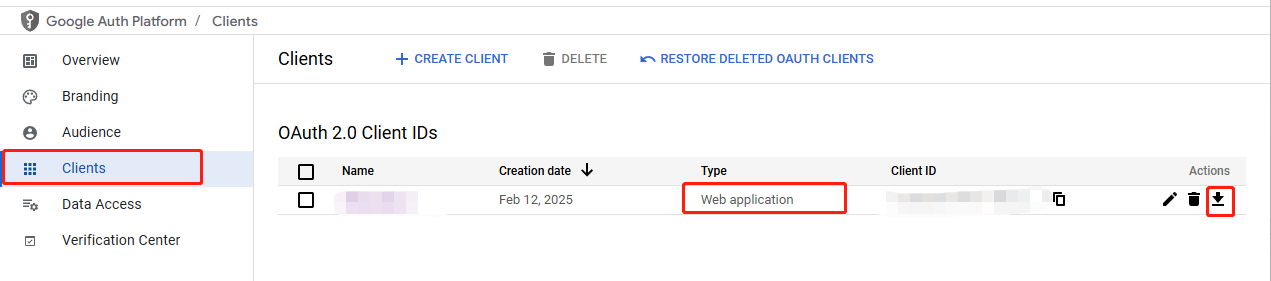
- Click SAVE to complete the configuration.
- Go to the Web application details page.
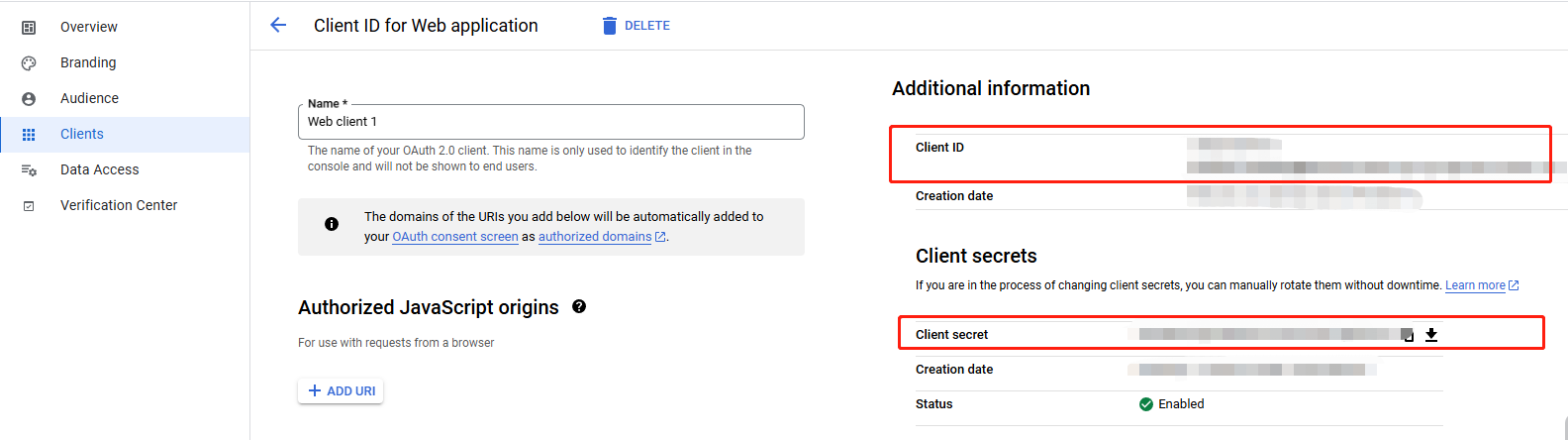
- Locate the Client ID and Client Secret and enter them into the Player Network console's game configuration.
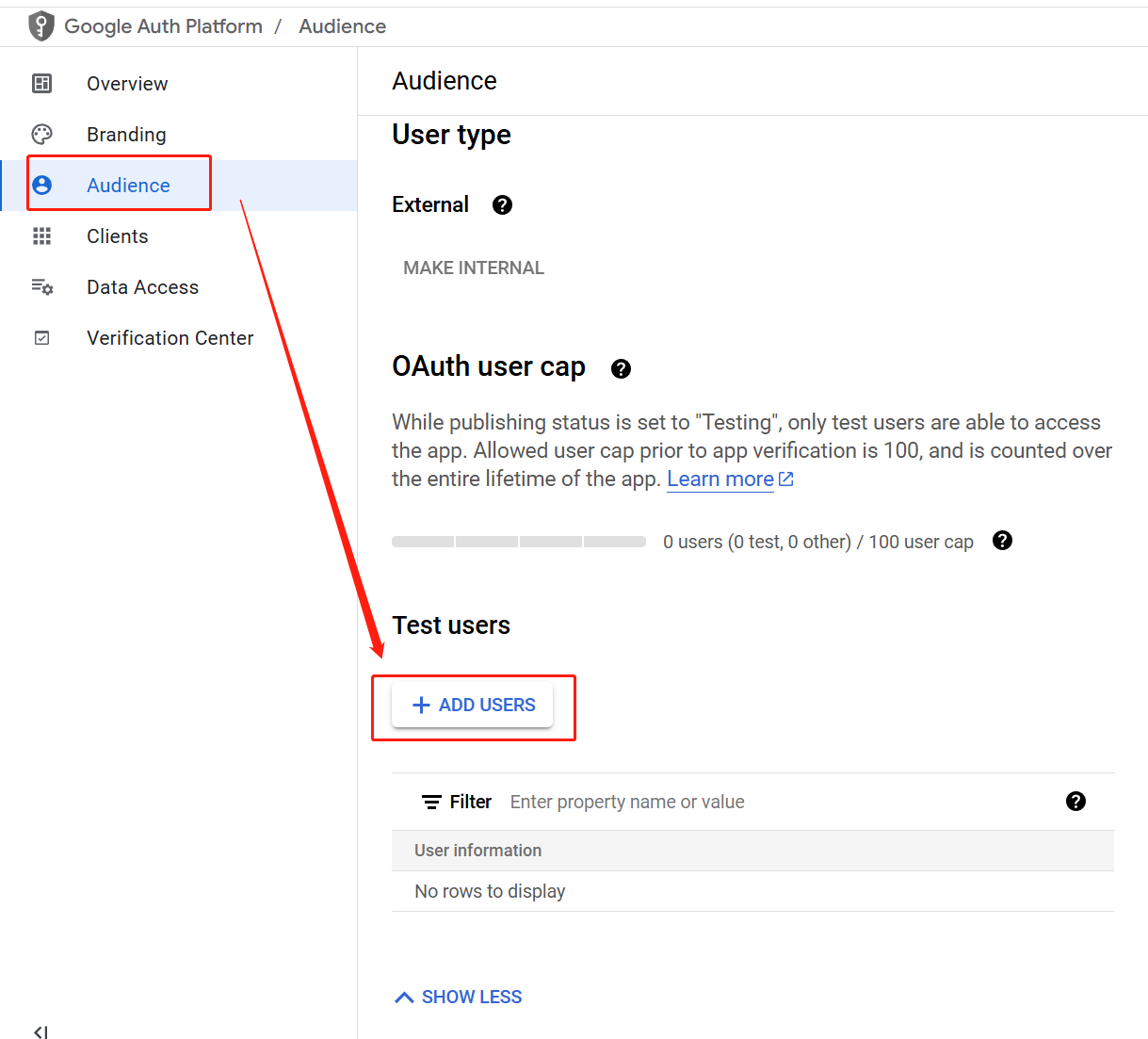
- Click Audience > ADD USERS to add a login test user.
3. Adding game testers
- Go to Google Play Console.
- In the left navigation bar, select Grow users > Play Games Services > Setup and management > Testers.
- In the Testers tab, click Add testers to add testers to your game.

Only testers can log in until the game app is released.Make sure that the application is in a test state.
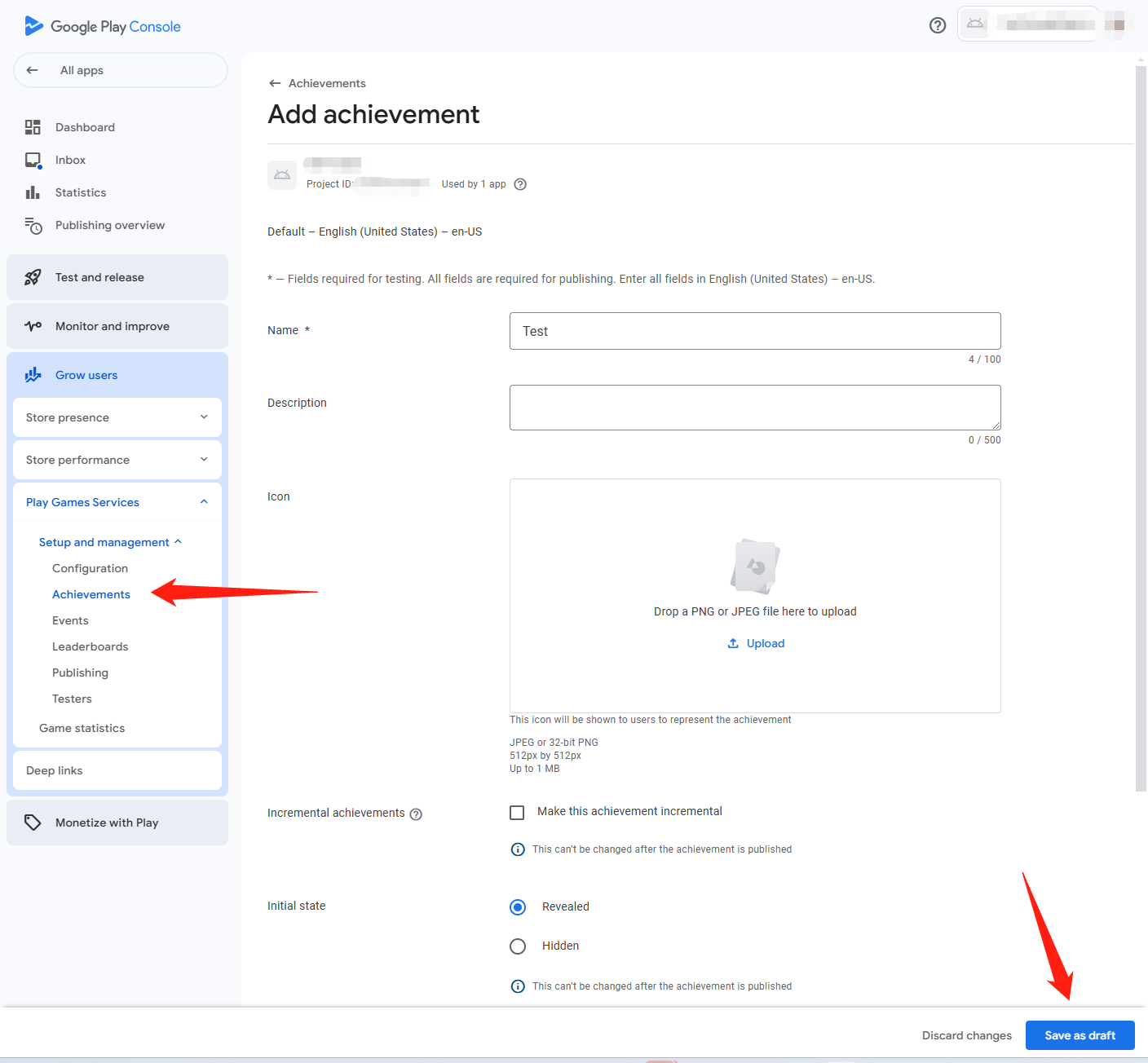
4. Configuring achievements and leaderboards
Locate the Achievements and Leaderboards features on the Gaming Services screen and configure them as needed.
3. Retrieve application information
Find information about Google Apps, configure the Player Network SDK and add Google as a login channel on the Player Network.
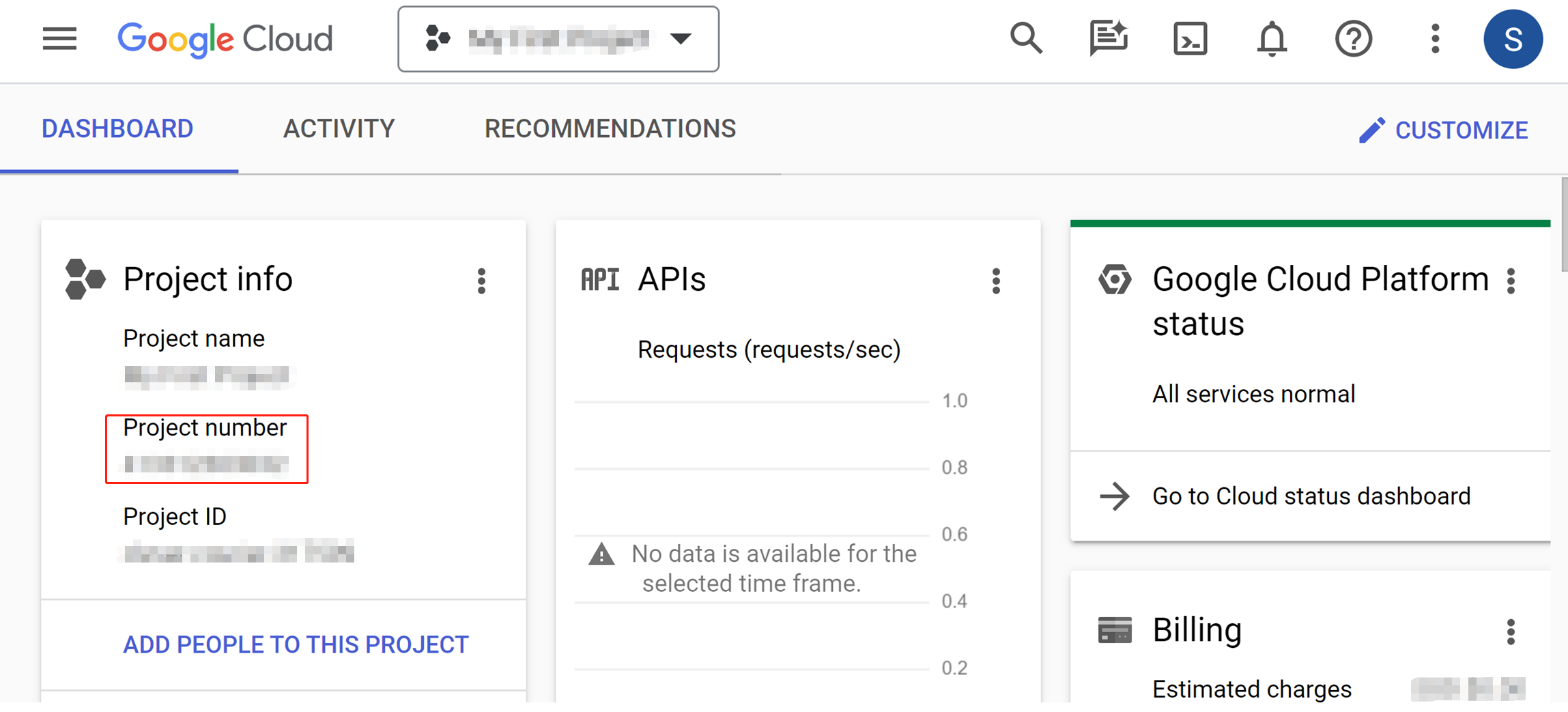
Get Google API ID
Access the Info Center from the Google Cloud Platform panel.The Google API ID is the Project No. on this page.
Get Client ID and Client secret
Follow the steps in Add credentials to link OAuth 2.0 client IDs to the game to get application information.
- Obtain Player Network Console login account.
- Create a new project for your game, or join an existing one.
- Add Google as a business login authentication method in the Player Network Console.
For more information about integrating other third-party channels into the SDK, see JavaScript SDK.
Step 1: Introduce JavaScript SDK
During project integration testing, import the debugging SDK package, which is intended only for integration testing.For project launch, the official SDK package must be imported.
Currently, both npm package method and CDN method are supported.
- npm
- CDN
$ npm install @intlsdk/account-api
// SDK debug version package
<script src="https://test-common-web.intlgame.com/sdk-cdn/account-api/latest/index.umd.js"></script>
// SDK official version package
<script src="https://common-web.intlgame.com/sdk-cdn/account-api/latest/index.umd.js"></script>
Step 2: Use SDK
During integration testing, set env to test environment; when the project goes live, set env to the corresponding official environment.
const accountApi = new IntlgameAccountApi({
  env: "test", // SDK environment
  gameID: 11,
});
| Parameters | Type | Description | Note |
|---|---|---|---|
| env | string | SDK environment For more information, see Obtain deployment cluster information. | Required |
| gameID | number | Player Network unique game ID | Required |
Step 3: Implement Web Login
After instantiating the accountApi component, call the thirdAuthorize interface to request a login authorization token for the Google channel.
accountApi.thirdAuthorize({
    third_type: 'google',
}).then(
(res) => {
    console.log(res);
});
After Google returns the login authorization token, call the intlAuthorize interface to obtain the Player Network SDK OpenID and token to log in to the website.
accountApi.intlAuthorize({
    third_type: 'google',
    channel_info: {
        code: "EAAI2lTrXAZBwBAC"
    }
}).then(
(res) => {
    console.log(res);
});
Call the intlLogout API to log out from the website.
accountApi.intlLogout({
    token: '4567xsdfsd',
    openid: 'xxxxxxxx',
    channel_id: 6,
}).then(
(res) => {
    console.log(res);
});

