Android
The purpose of this article is to explain how to set up TikTok authentication so that your Project can log in through the TikTok Channel using the Player Network login authentication Service.
Prerequisites
1. Configuring the application on the TikTok Developer Platform
1. Register and log in to the TikTok Developer Account
Use email to register and log in at the TikTok Developer Platform.
2. (Optional) Create Company Organization
TikTok recommends creating an organization for easier collaboration and role permission management.
3. Create TikTok App
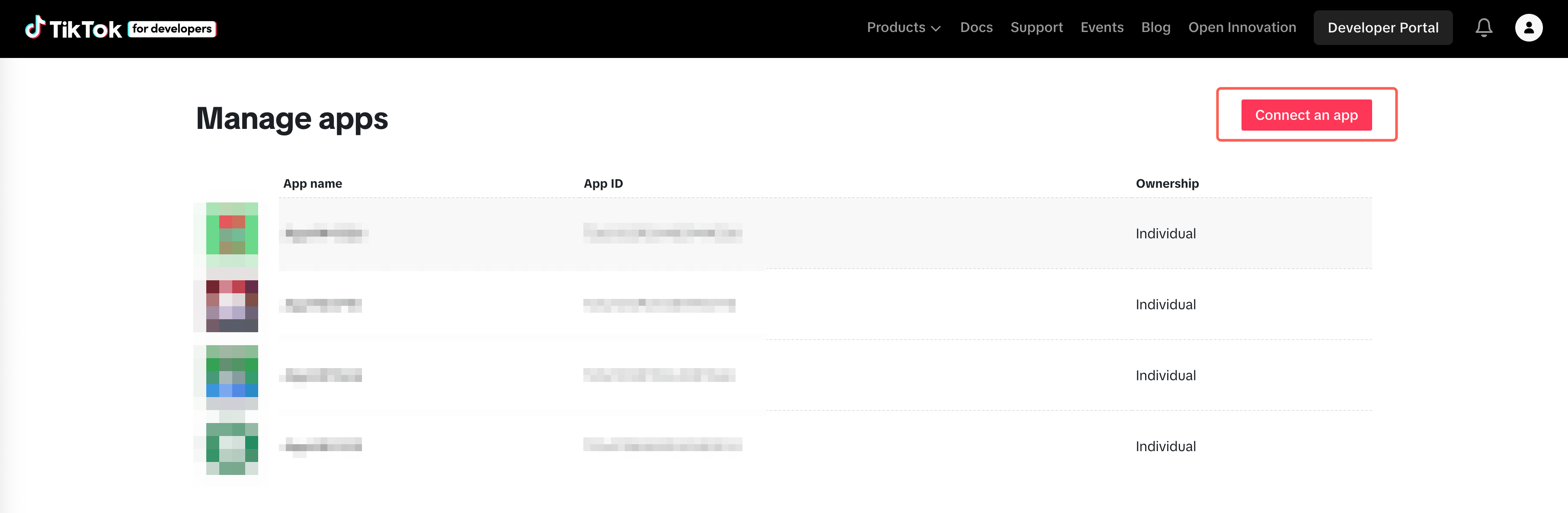
- Open Apps and click Connect an app.
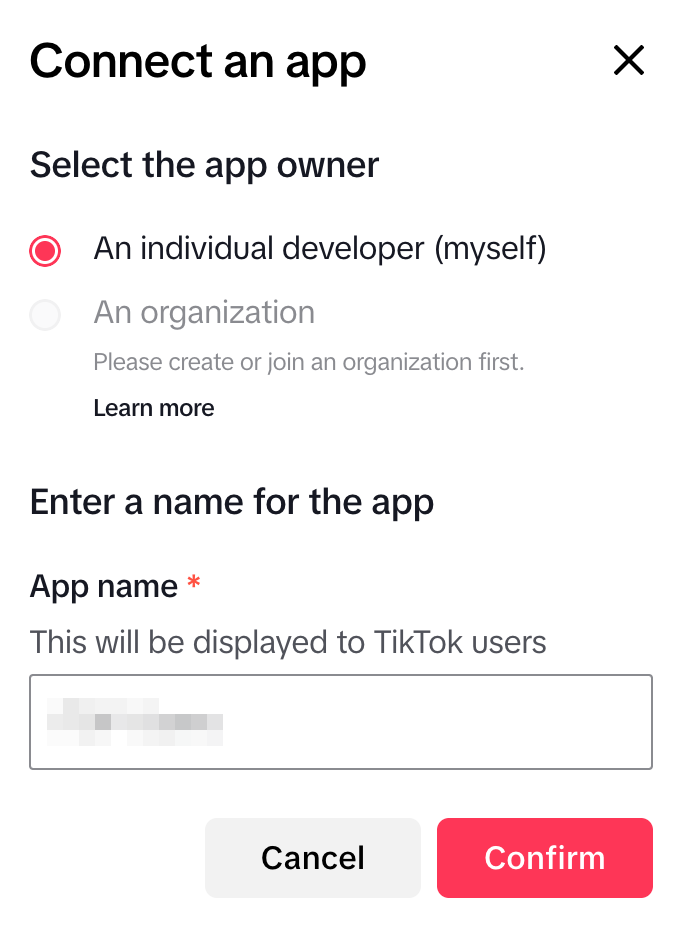
- Select Individual Developer or Company Organization.
- Enter App name, and click Confirm to complete creation.
4. Configure App Basic Information
- Fill in the application basic information: icon, name, app type, description, terms of service, privacy policy.
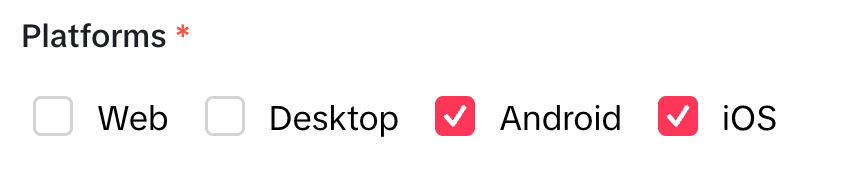
- Check Android under Platforms.
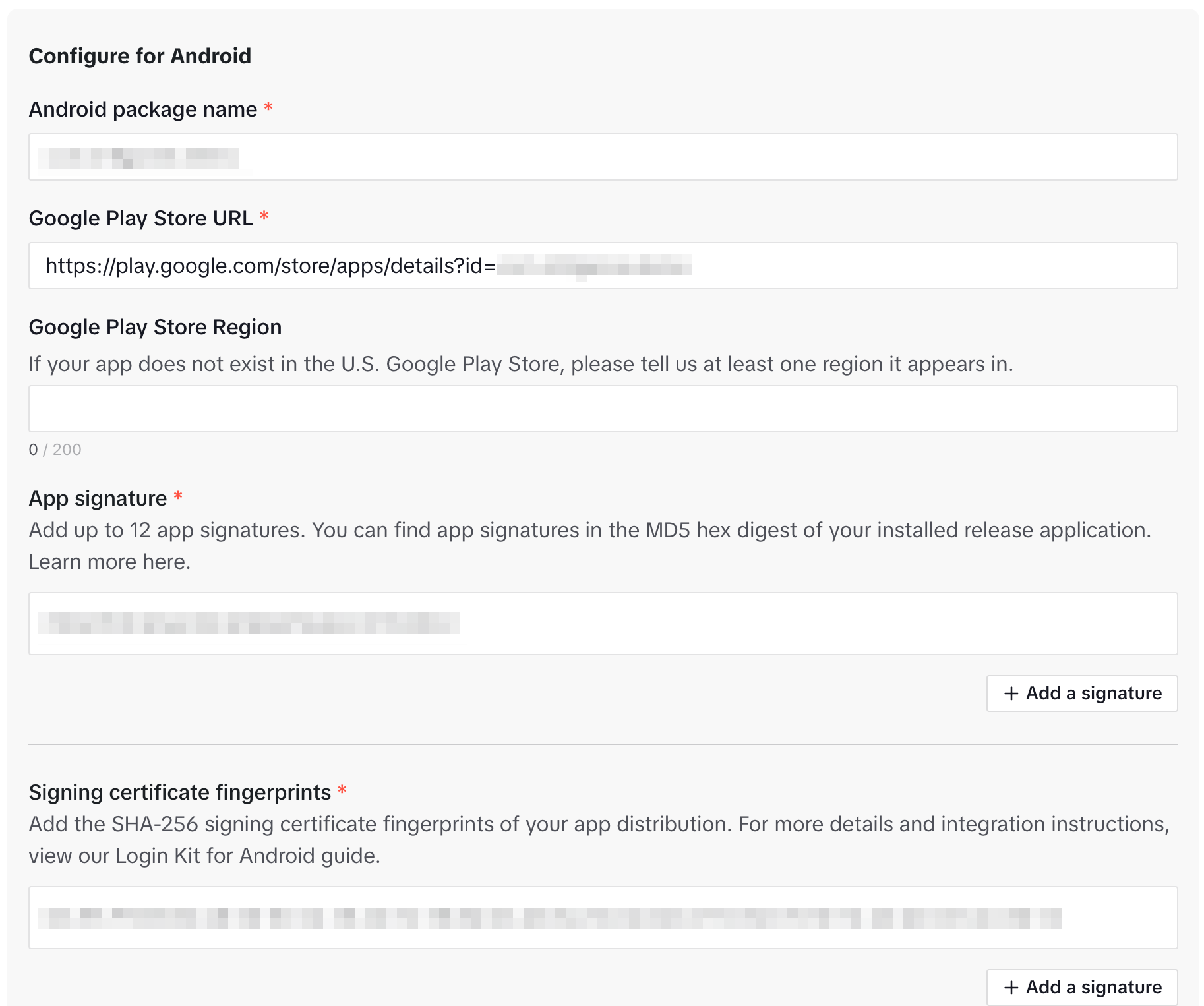
- Under Configure for Android, enter Android package-related information (provided by development team).
5. Terms of Service & Privacy Policy URL Domain Authentication
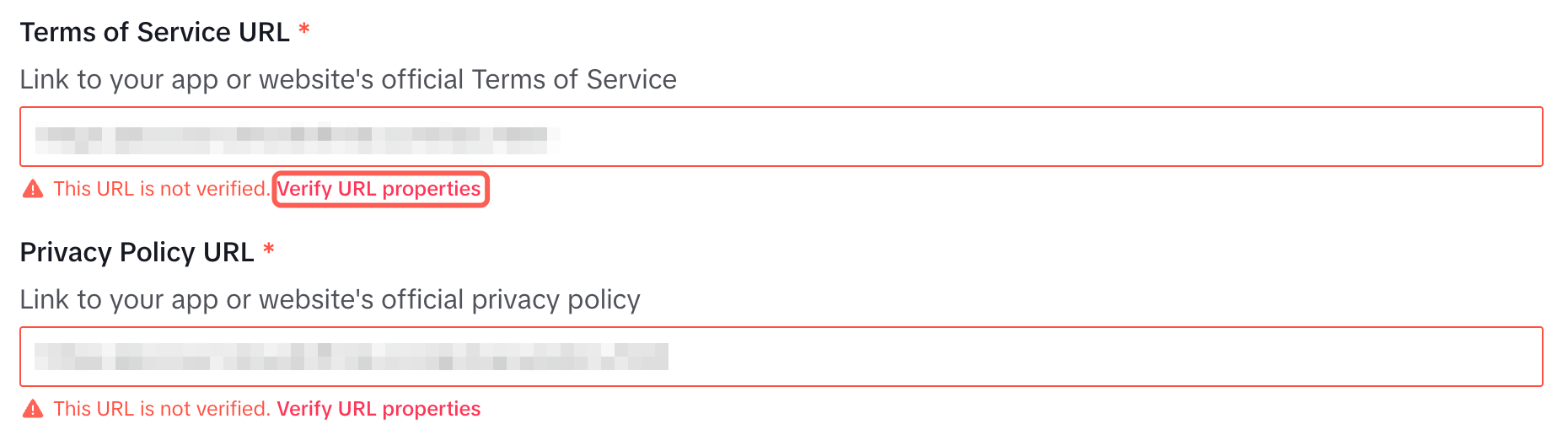
TikTok requires authentication of the domain for your ToS/privacy policy URLs. You must pass this verification to save and submit for review.
- Click Verify URL properties.
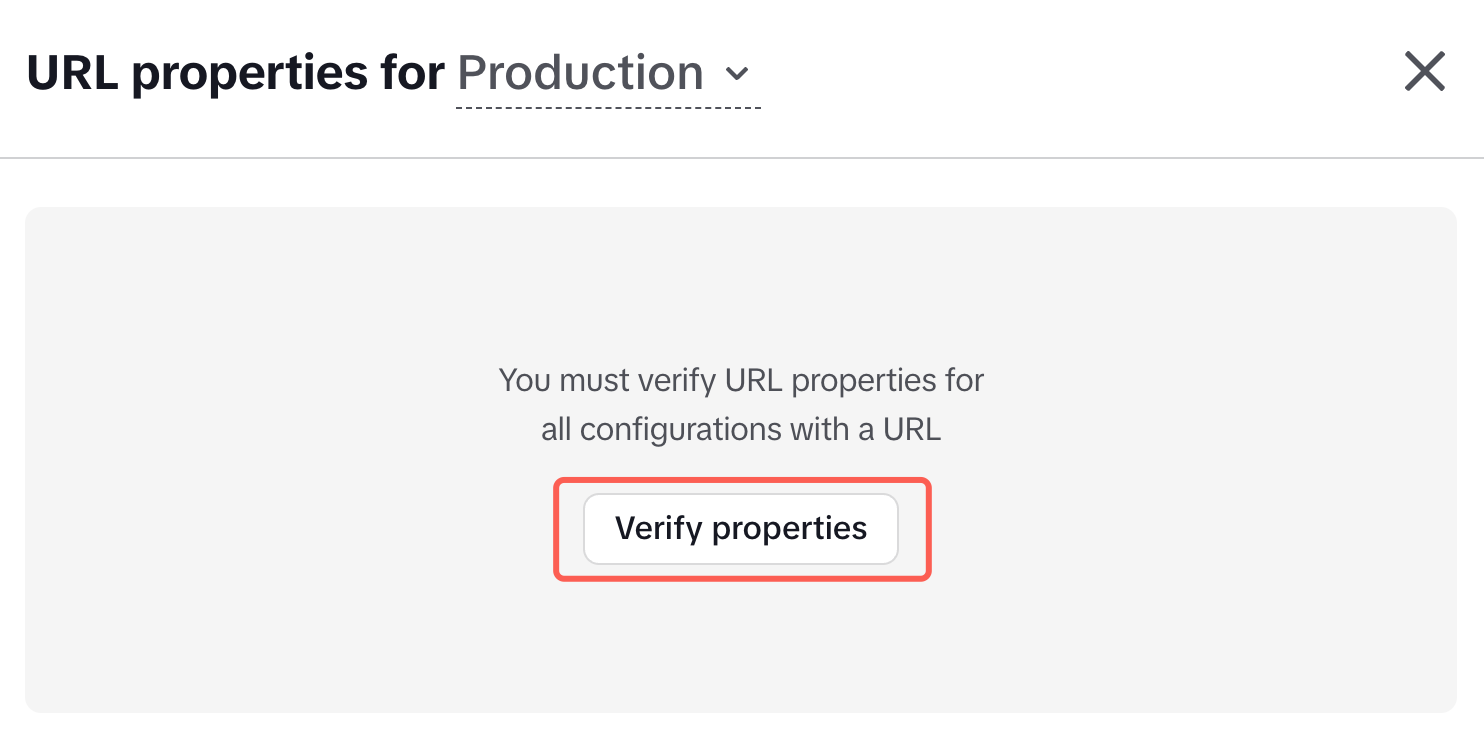
- In the popup, click Verify properties.
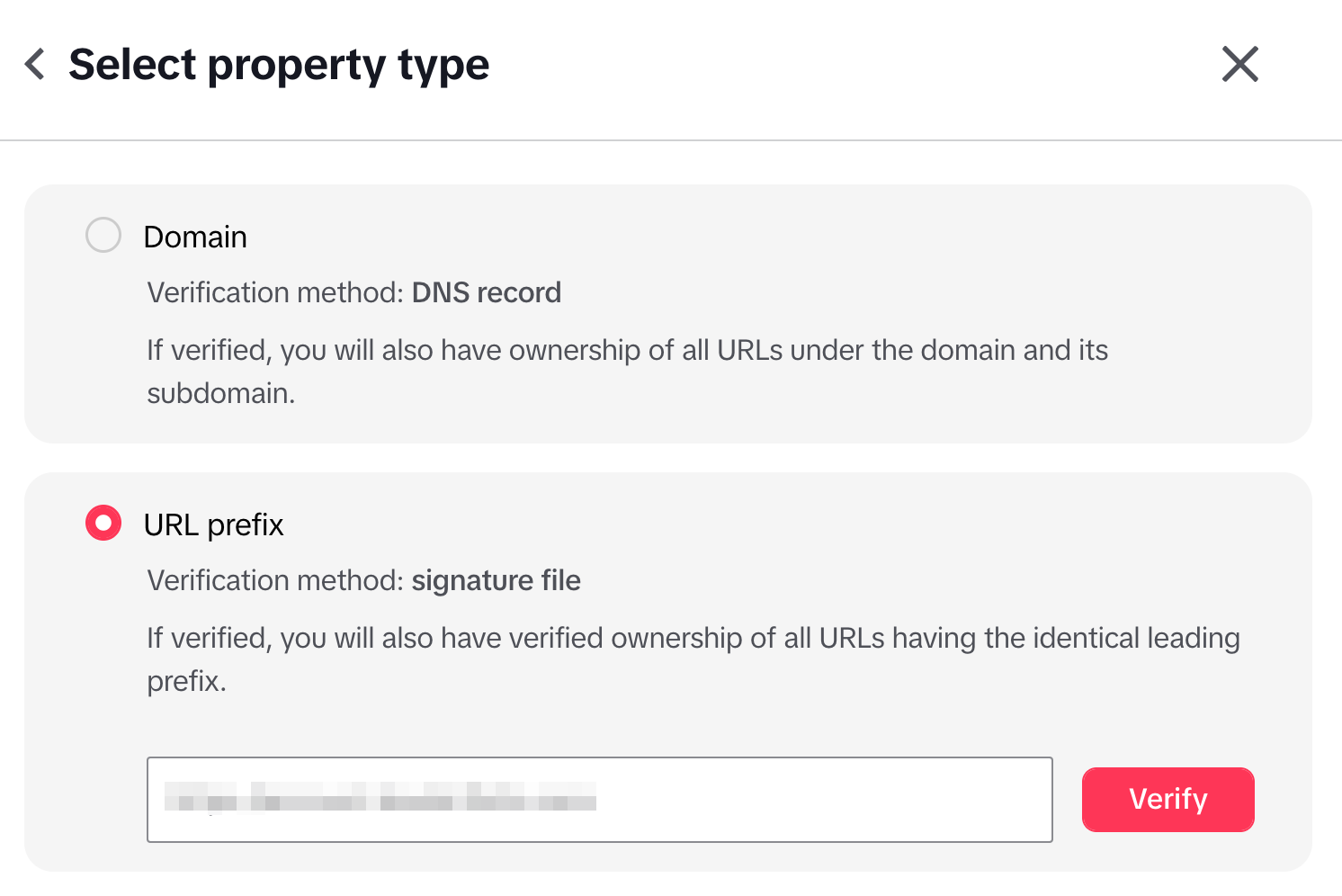
- Choose URL prefix, enter the domain URL, and click Verify.
- Download the signature file generated by TikTok (e.g.,
tiktokxxxx.txt).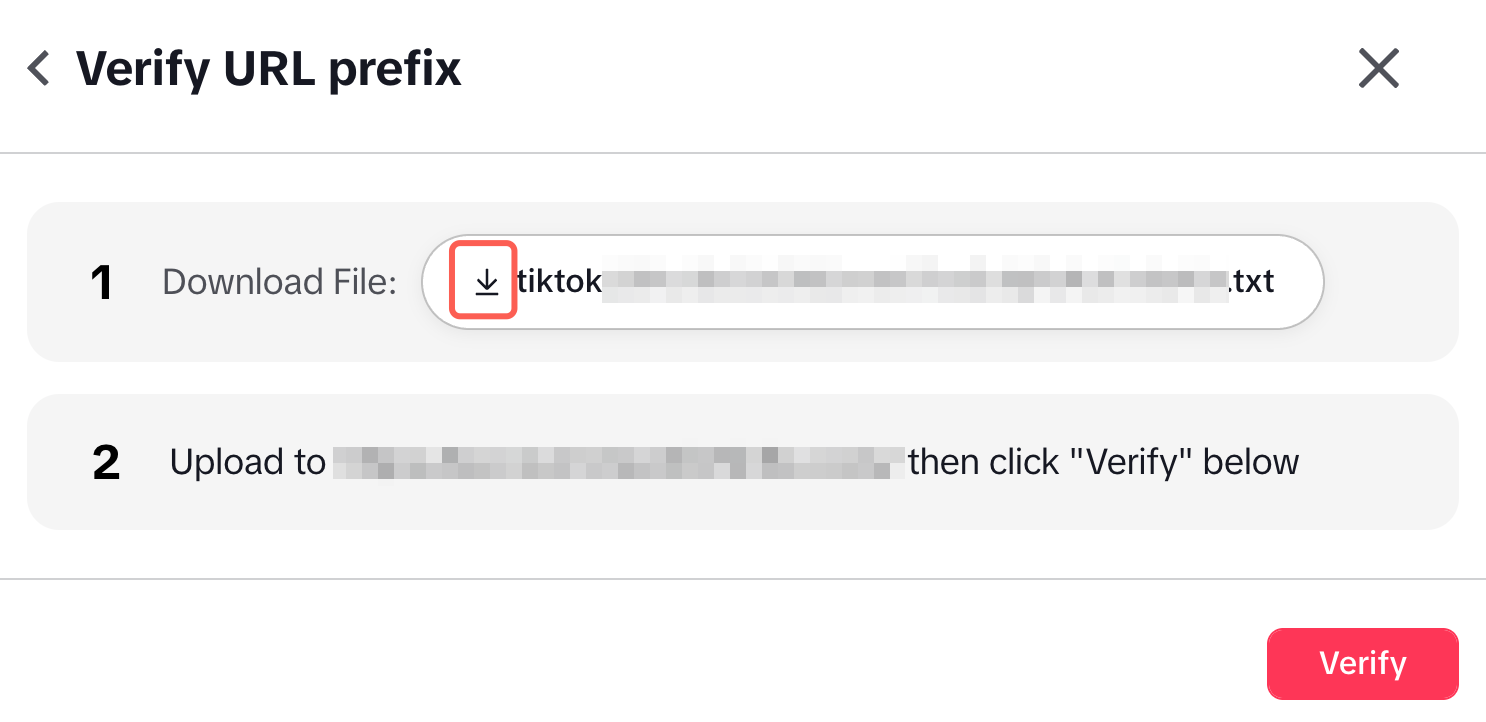
- Contact operations/website team to upload this file to the corresponding domain server so it can be directly downloaded via browser.
- After uploading, return to the TikTok page and click Verify to complete final authentication.
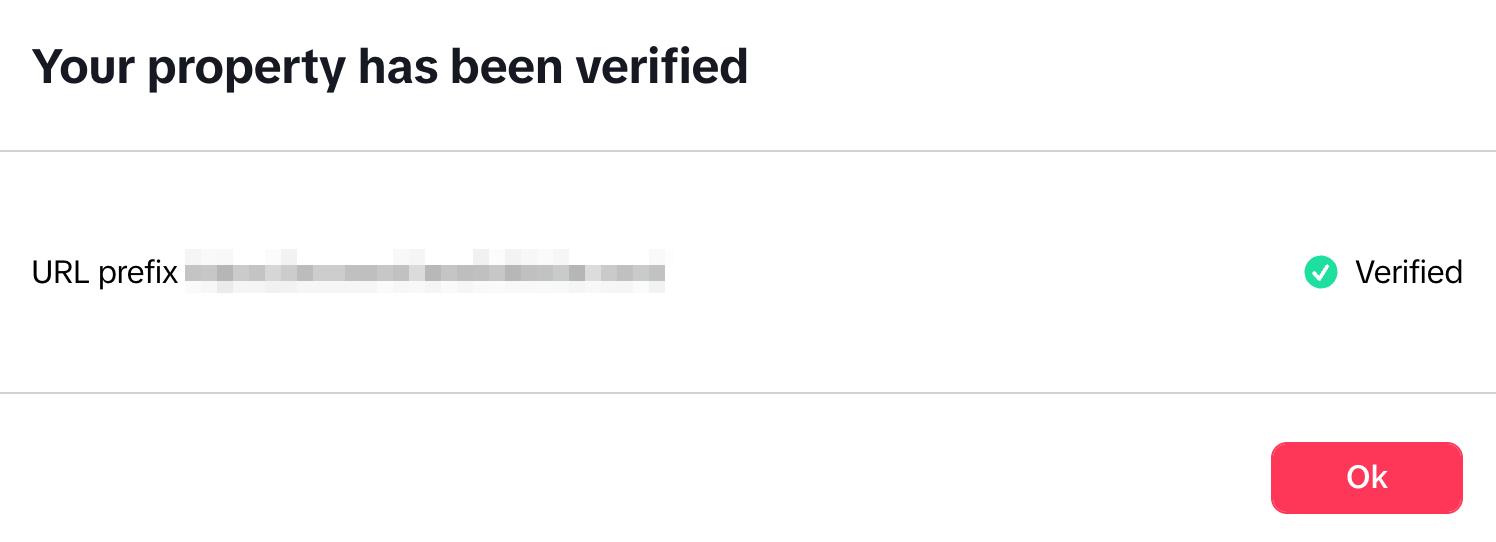
- If failed: please check whether the signature file can be downloaded in the browser (path/permission/CDN cache, etc.).
6. App Review Information
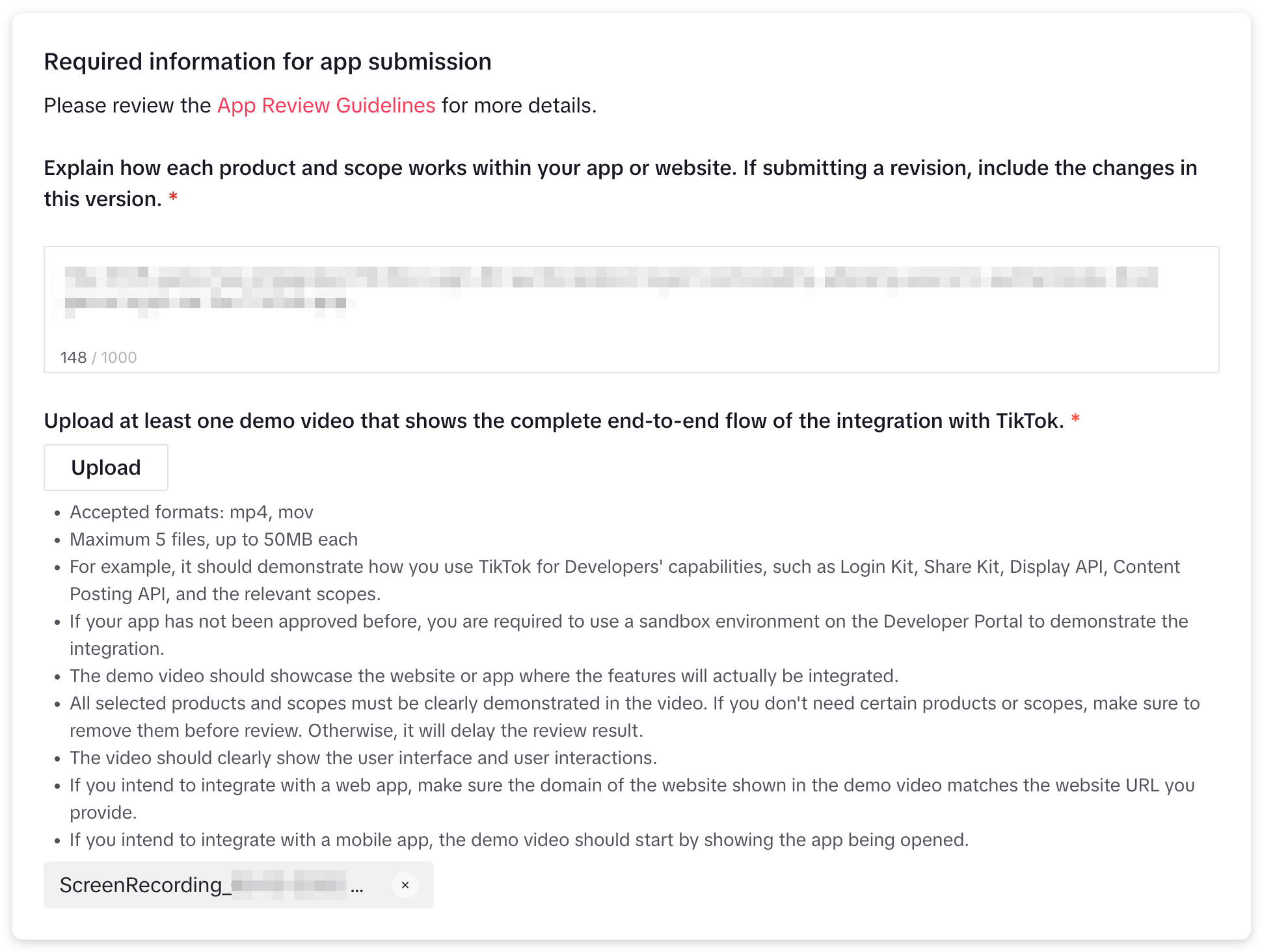
- Describe in detail how the project uses the TikTok Login Kit login feature.
- Record a complete video showing TikTok authentication login in the project. If TikTok integration is not yet complete, you may upload any video for now and replace it when submitting for review later.
7. Configure Products: Enable Login Kit
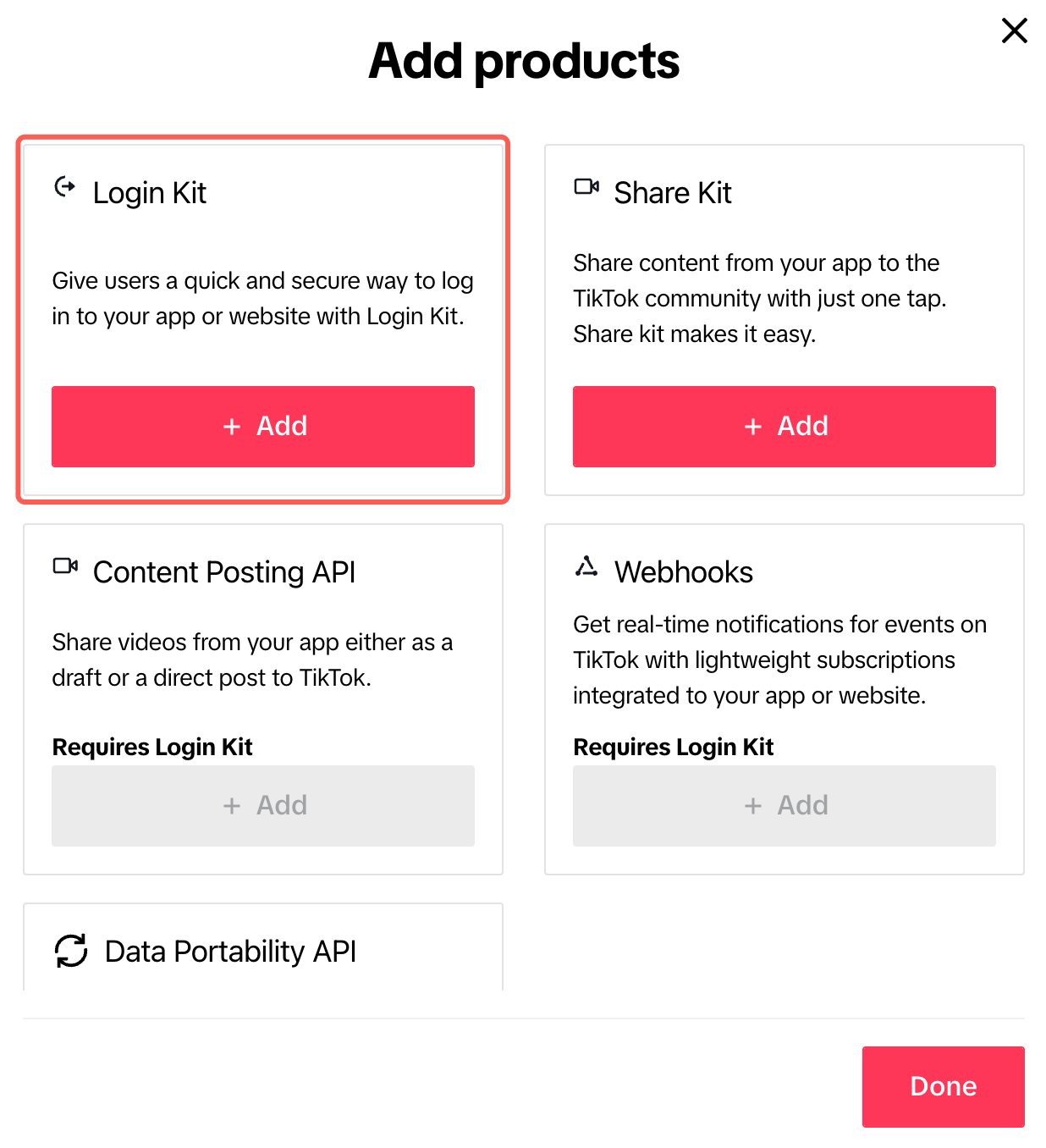
- Go to Products, click Add products.

- Click + Add to add Login Kit.
- Configure for Login Kit:
- Android App Link (provided by development team)
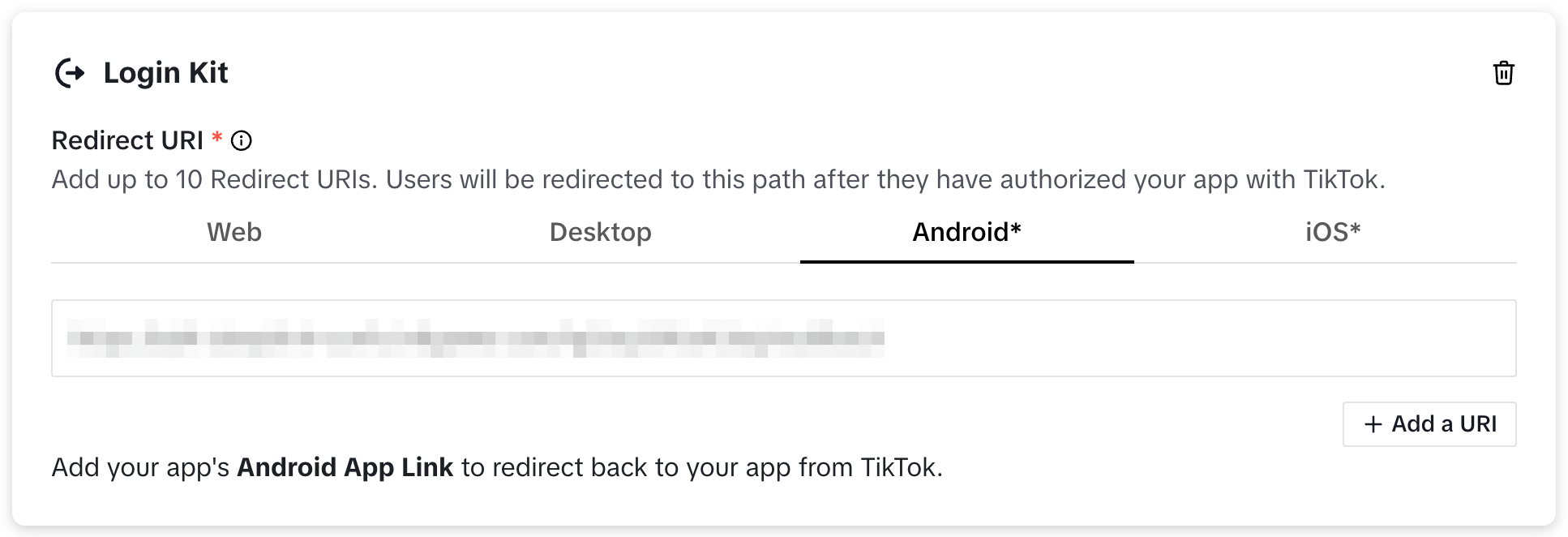
- Android App Link (provided by development team)
- Replace the link with your project's Deep Link, but keep the callback path suffix:
.../pnt/tiktok/logincallback
8. Scopes Configuration
- After adding Login Kit, TikTok will automatically include the
user.info.basicpermission. - Usually, there is no need to add extra scopes unless explicitly required by business needs.
9. Save App Configuration
- Click the top right Save to save configuration.
- As integration and debugging are not completed yet, do not click “Submit for review” for now.
- If saving fails, please complete any required fields indicated by error messages. (All previous steps are generally required.)

10. (Recommended) Create Sandbox and Add Test Users
It is recommended to conduct development and debugging in the Sandbox environment before submitting for review.
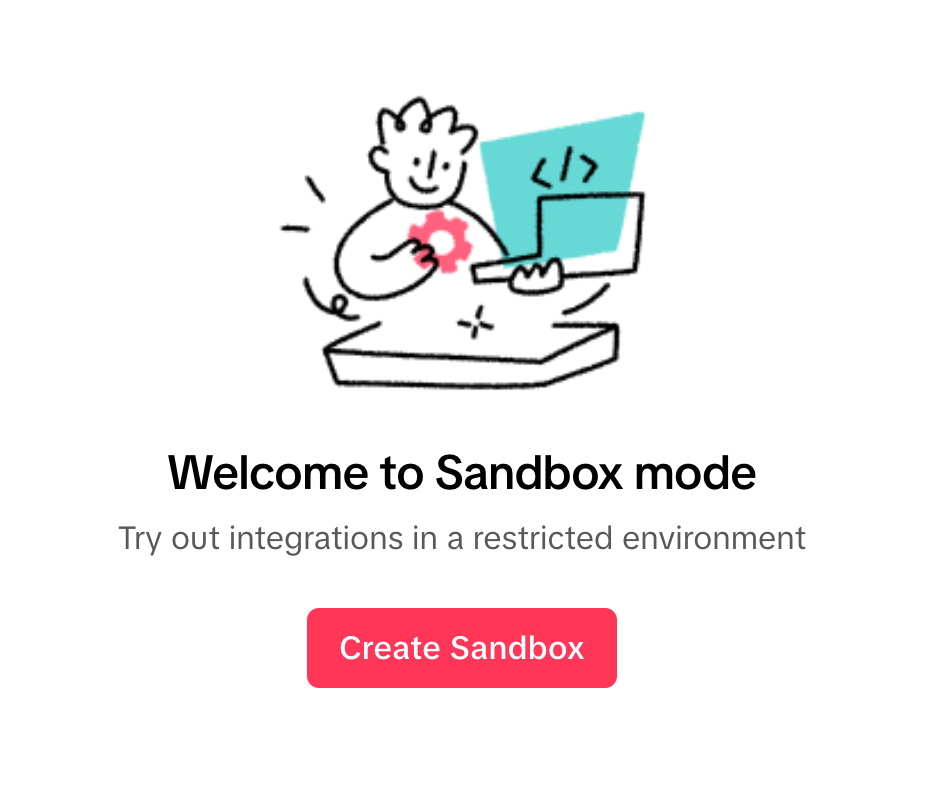
- Switch to Sandbox in the top left corner, click Create Sandbox.

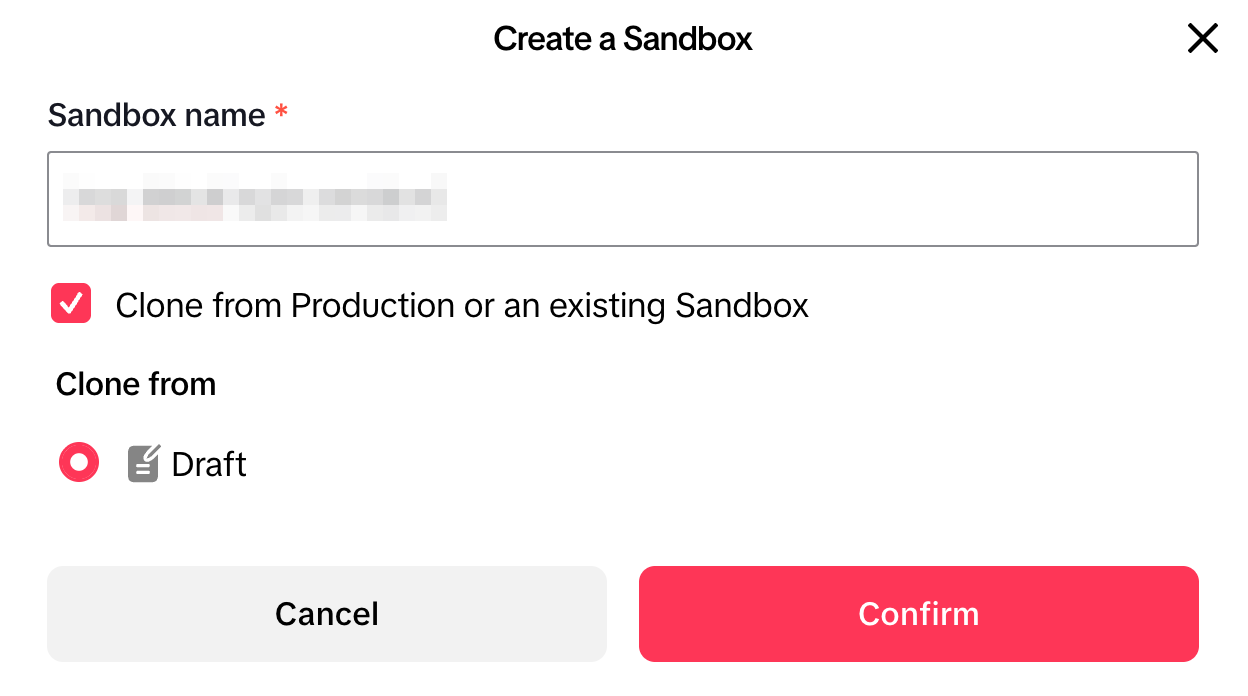
- Enter the Sandbox name, check Clone from Production or an existing Sandbox, and click Confirm.
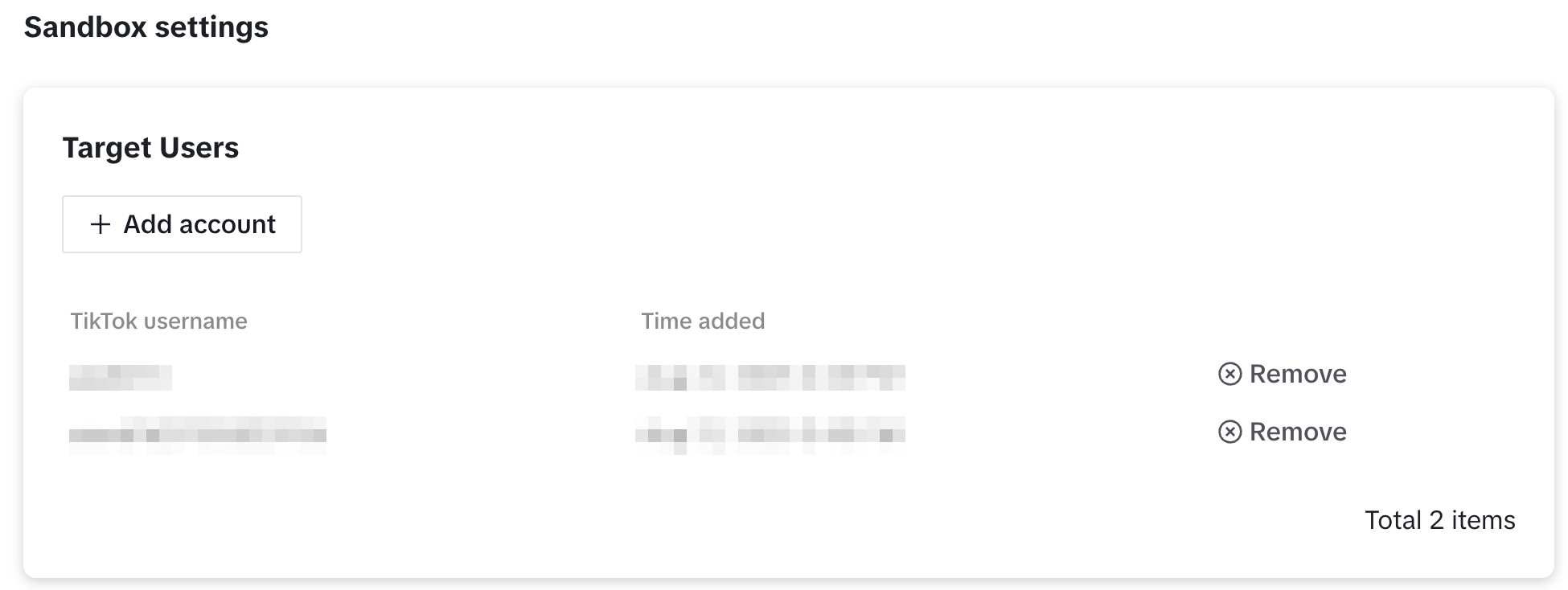
- In Sandbox, click Add account to add test TikTok account:
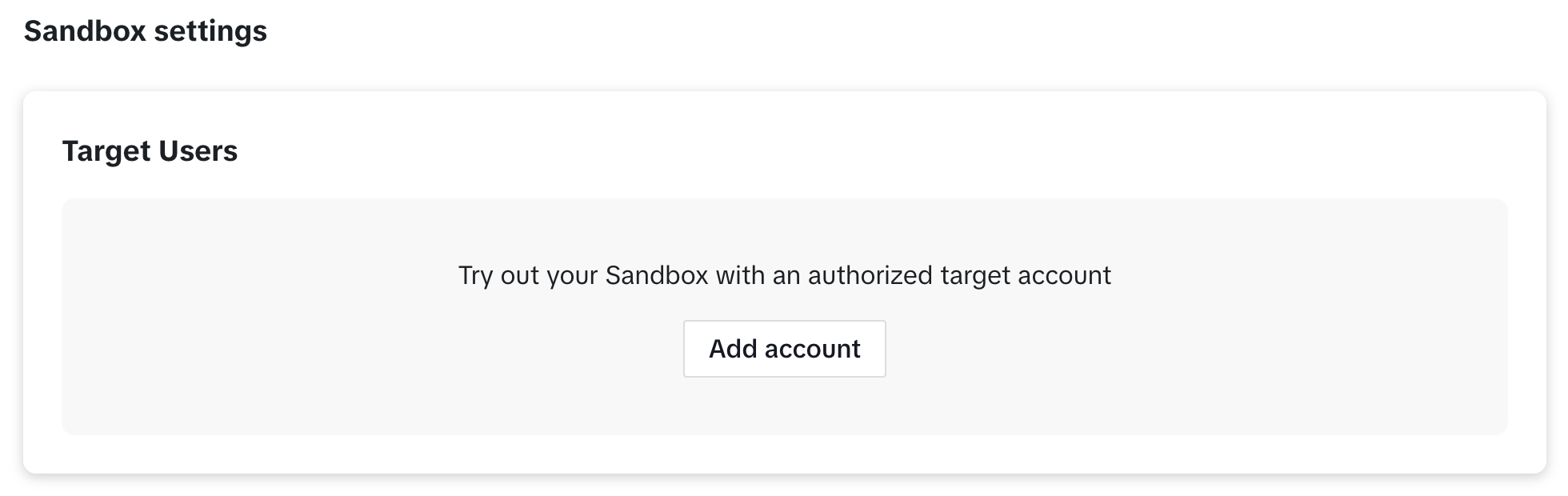
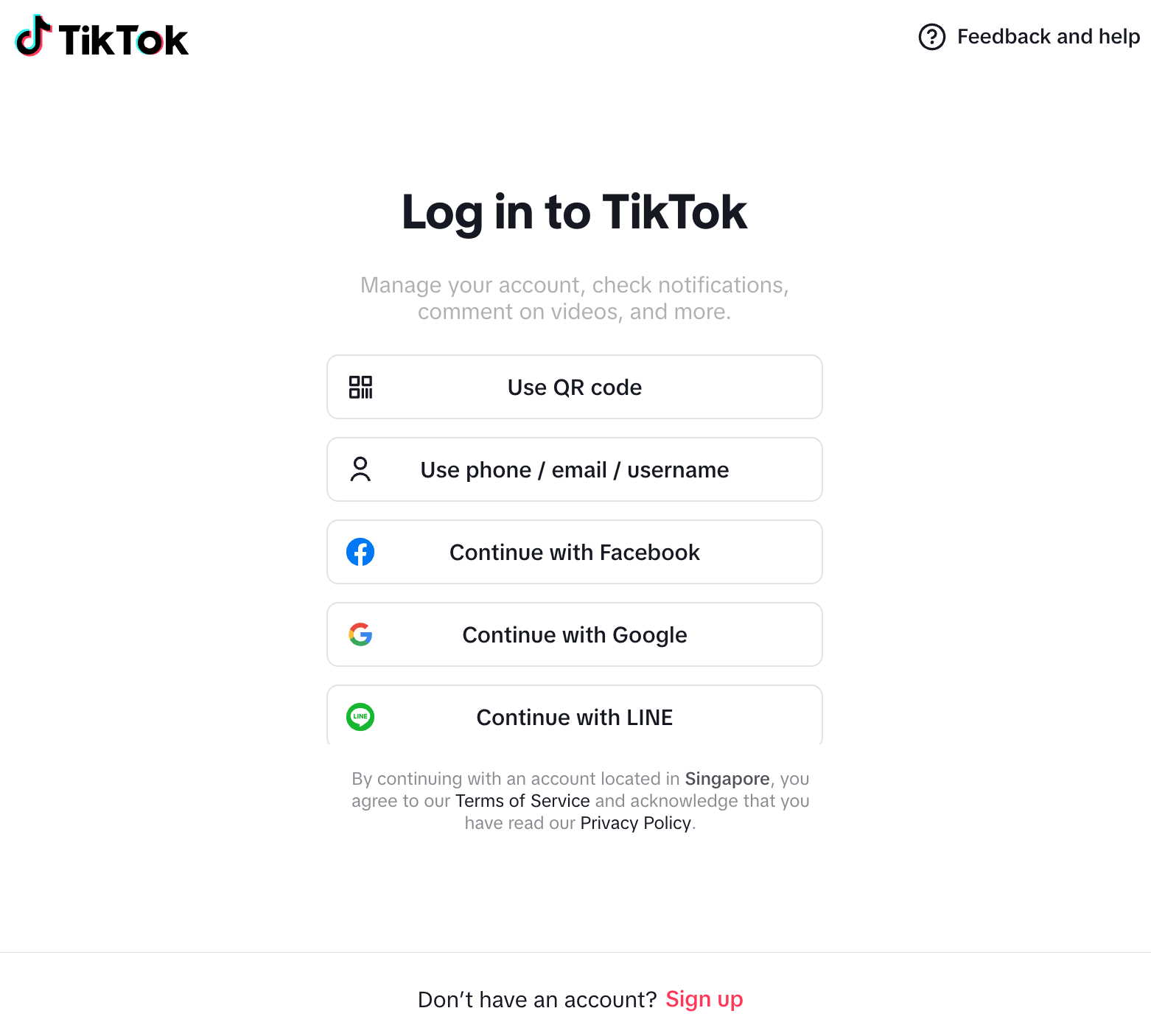
- After login, the account will appear in the Target Users list.
- Only accounts in Target Users can participate in TikTok login testing
- Get Player Network Console login account.
- Create a new project for your game or join an existing one.
- Download SDK.
- Integrate SDK.
- Add TikTok as the login authentication method for business in Player Network Console.
Step 1: Configure SDK for TikTok Login
-
Open the project INTLConfig.ini file:
INTLConfig.ini[INTL environment]
# WARNING: You should change this URL to the production environment when you release your project.
INTL_URL = https://test.intlgame.com
GAME_ID = {INTL_GAME_ID}
SDK_KEY = {INTL_SDK_KEY}
[INTL Log]
LOG_LEVEL = 1
LOG_CONSOLE_OUTPUT_ENABLE = 1
LOG_FILE_OUTPUT_ENABLE = 1
LOG_ENCRYPT_ENABLE = 0
LOG_COMPRESS_ENABLE = 0
[TikTok]
TIKTOK_CLIENT_KEY = {INTL_TIKTOK_CLIENT_KEY}
TIKTOK_REDIRECT_URI = {INTL_TIKTOK_REDIRECT_URI}- Set the SDK backend environment
INTL_URLtohttps://test.intlgame.com. - Replace
{INTL_GAME_ID}and{INTL_SDK_KEY}with theGAME_IDandSDK_KEYvalues assigned by Player Network Console. - Set
LOG_LEVEL = 1,LOG_CONSOLE_OUTPUT_ENABLE = 1,LOG_FILE_OUTPUT_ENABLE = 1,LOG_ENCRYPT_ENABLE = 0, andLOG_COMPRESS_ENABLE = 0to output console and log files without encryption or compression. - Replace
{INTL_TIKTOK_CLIENT_KEY}with the Client Key assigned for this application by TikTok Developer Platform, used to identify the project during the TikTok login flow. - Replace
{INTL_TIKTOK_REDIRECT_URI}with the Redirect URI (Deep Link address) where TikTok will callback to your project after authorization, passing back the login result.
- Set the SDK backend environment
Step 2: Add TikTok Login
Player Network checks the application login status before starting the login process.
- If the TikTok application is installed, Player Network opens the TikTok application for login.
- If the TikTok application is not installed, the Player Network login page will not display the TikTok channel login entry.
- Register login-related callbacks.
- Unity
- Unreal Engine
// Add callbacks
public void AddAuthObserver()
{
    INTLAPI.AddAuthResultObserver(OnAuthResultEvent);
}

// Remove callbacks
public void RemoveAuthObserver()
{
    INTLAPI.RemoveAuthResultObserver(OnAuthResultEvent);
}

// Process the INTLAuthResult callback
public void OnAuthResultEvent(INTLAuthResult ret)
{
    Debug.Log($"MethodID: {ret.MethodId}");

    string methodTag = "";
    if (authRet.MethodId == (int)INTLMethodID.INTL_AUTH_LOGIN)
    {
        methodTag = "Login";
    }
    else if (authRet.MethodId == (int)INTLMethodID.INTL_AUTH_BIND)
    {
        methodTag = "Bind";
    }
    else if (authRet.MethodId == (int)INTLMethodID.INTL_AUTH_AUTOLOGIN)
    {
        methodTag = "AutoLogin";
    }
    else if (authRet.MethodId == (int)INTLMethodID.INTL_AUTH_QUERY_USER_INFO)
    {
        methodTag = "QueryUserInfo";
    }
    else if (authRet.MethodId == (int)INTLMethodID.INTL_AUTH_GET_AUTH_RESULT)
    {
        methodTag = "GetAuthResult";
    }
}
C++ Event Handling (above v1.15)
//configure callback
FINTLAuthEvent authEvent;
authEvent.AddUObject(this, &OnAuthResult_Implementation);
UINTLSDKAPI::SetAuthResultObserver(authEvent);
// Remove callbacks
UINTLSDKAPI::GetAuthResultObserver().Clear();
void OnAuthResult_Implementation(FINTLAuthResult ret)
{
    UE_LOG(LogTemp, Warning, TEXT("MethodID: %d"), ret.MethodId);
}
Unreal Event Handling
void OnAuthResult_Implementation(FINTLAuthResult ret)
{
    UE_LOG(LogTemp, Warning, TEXT("MethodID: %d"), ret.MethodId);
}
- Invoke the
AutoLogininterface to log in automatically.
- Unity
- Unreal Engine
INTLAPI.AutoLogin();
UINTLSDKAPI::AutoLogin();
- If automatic login fails, call the
Logininterface to allow the player to manually log in.
- Unity
- Unreal Engine
INTLAPI.Login(INTLChannel.TikTok);
UINTLSDKAPI::Login(EINTLLoginChannel::kChannelTikTok);
- Synchronize the client's authentication status with the project backend and await the final validation result.
If you encounter issues during integration, see FAQs.

