Android
Do not integrate on your own.The TikTok channel requires formal cooperation with TikTok before you can register an application and obtain the configuration required for integration.If you need to integrate, please consult your business contact first.
The purpose of this article is to explain how to set up TikTok authentication so that your Project can log in through the TikTok Channel using the Player Network login authentication Service.
Prerequisites
1. Configuring the application on the TikTok Developer Platform
1. Register and log in to the TikTok Developer Account
Use email to register and log in at the TikTok Developer Platform.
2. (Optional) Create Company Organization
TikTok recommends creating an organization for easier collaboration and role permission management.
3. Create TikTok App
- Open Apps and click Connect an app.
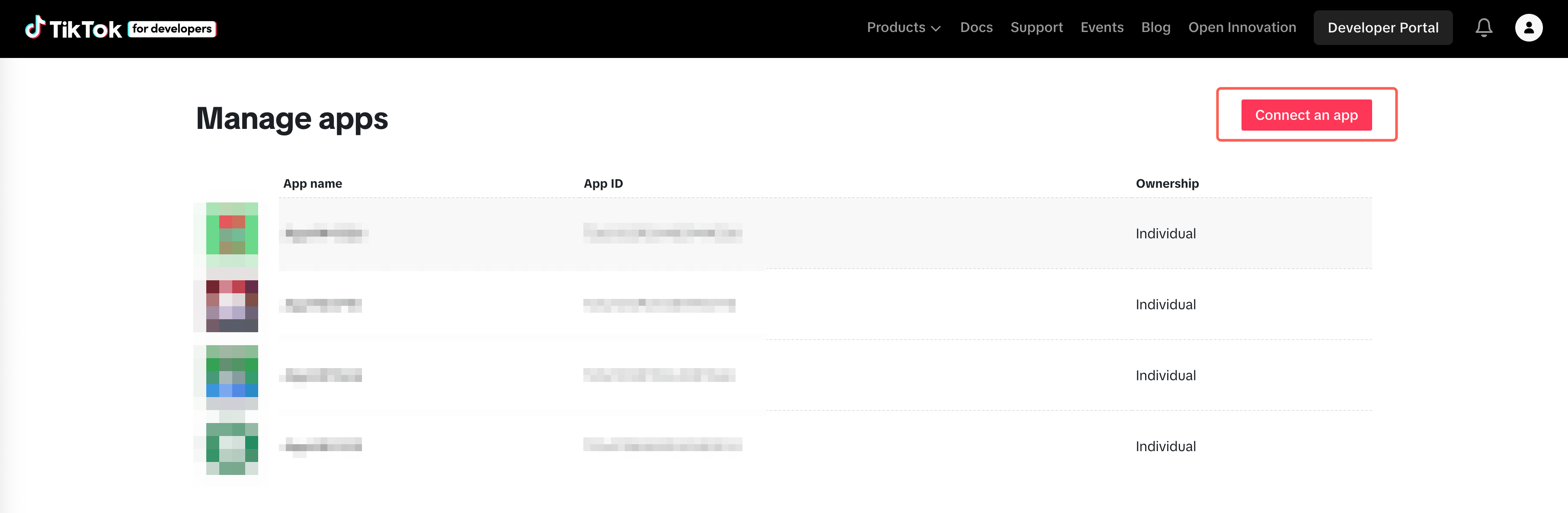
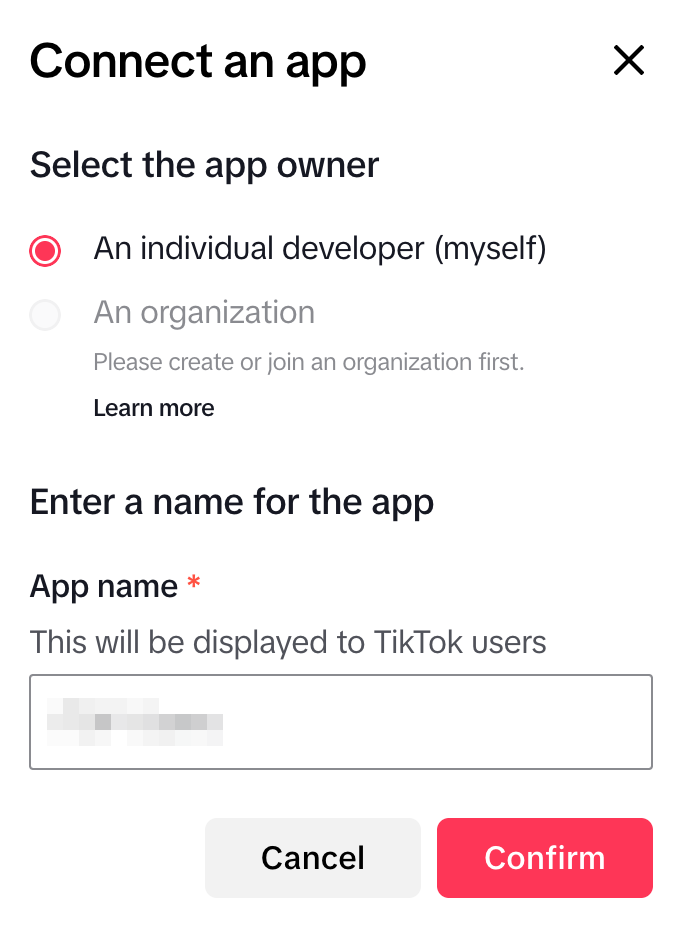
- Select Individual Developer or Company Organization.
- Enter App name, and click Confirm to complete creation.
4. Configure App Basic Information
- Fill in the application basic information: icon, name, app type, description, terms of service, privacy policy.
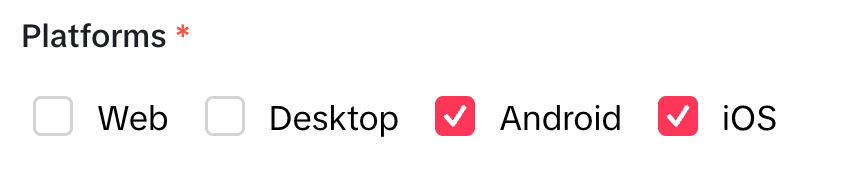
- Check Android under Platforms.
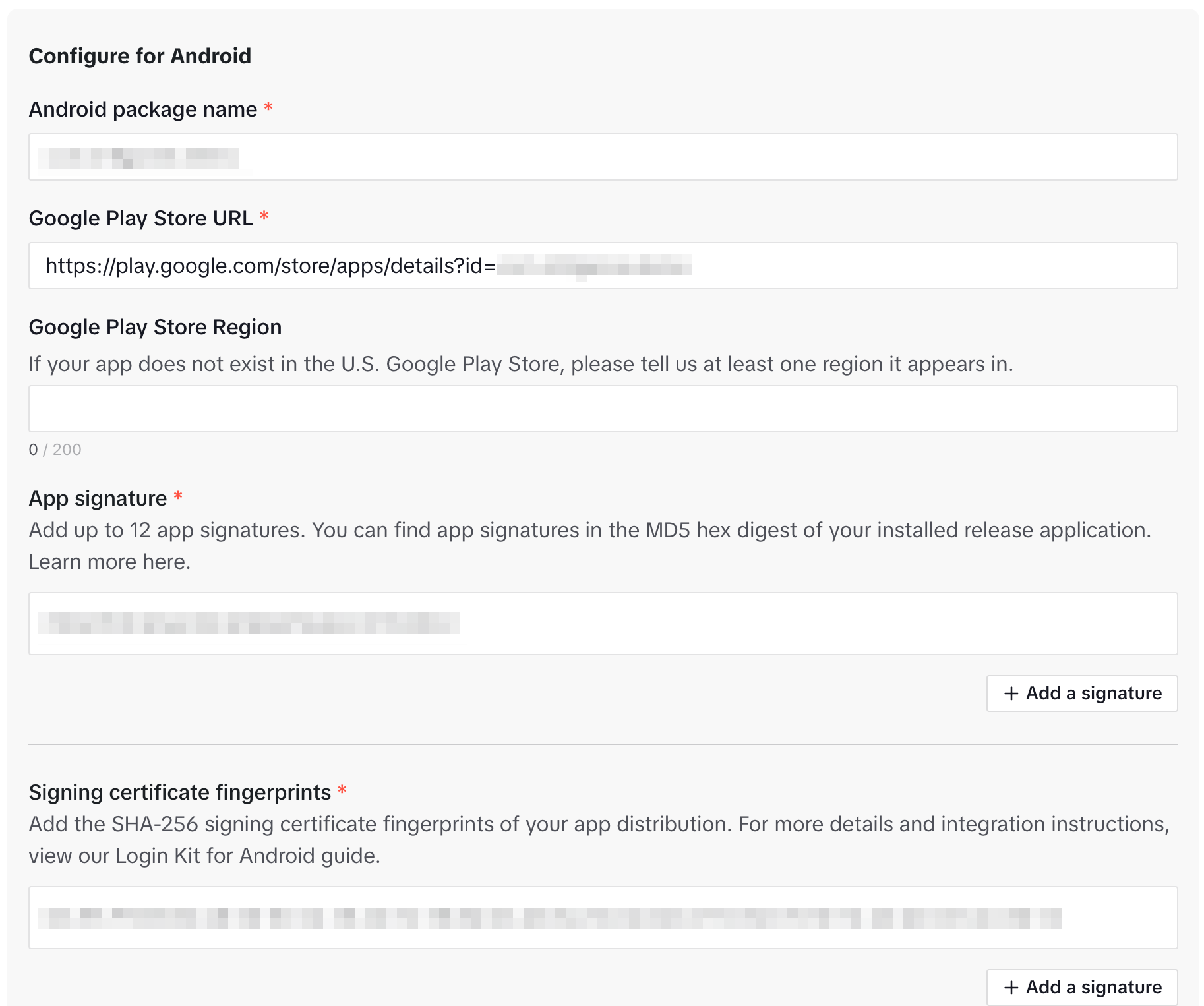
- Under Configure for Android, enter Android package-related information (provided by development team).
5. Terms of Service & Privacy Policy URL Domain Authentication
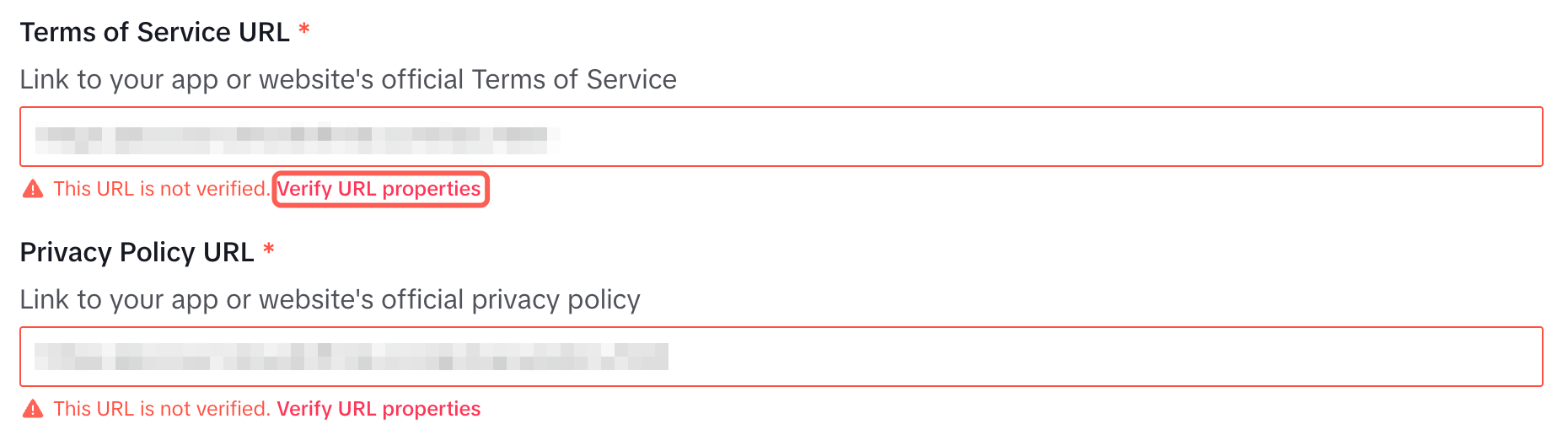
TikTok requires authentication of the domain for your ToS/privacy policy URLs. You must pass this verification to save and submit for review.
- Click Verify URL properties.
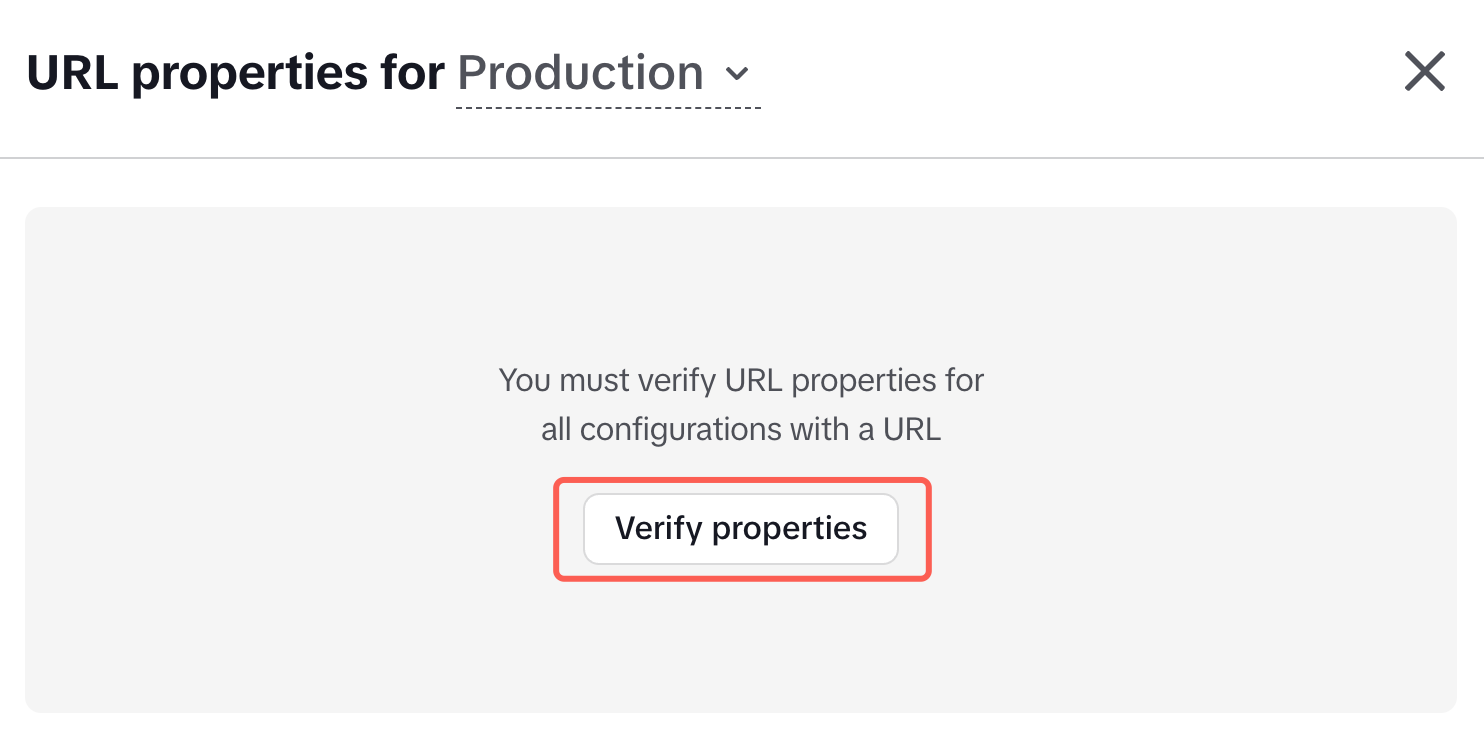
- In the popup, click Verify properties.
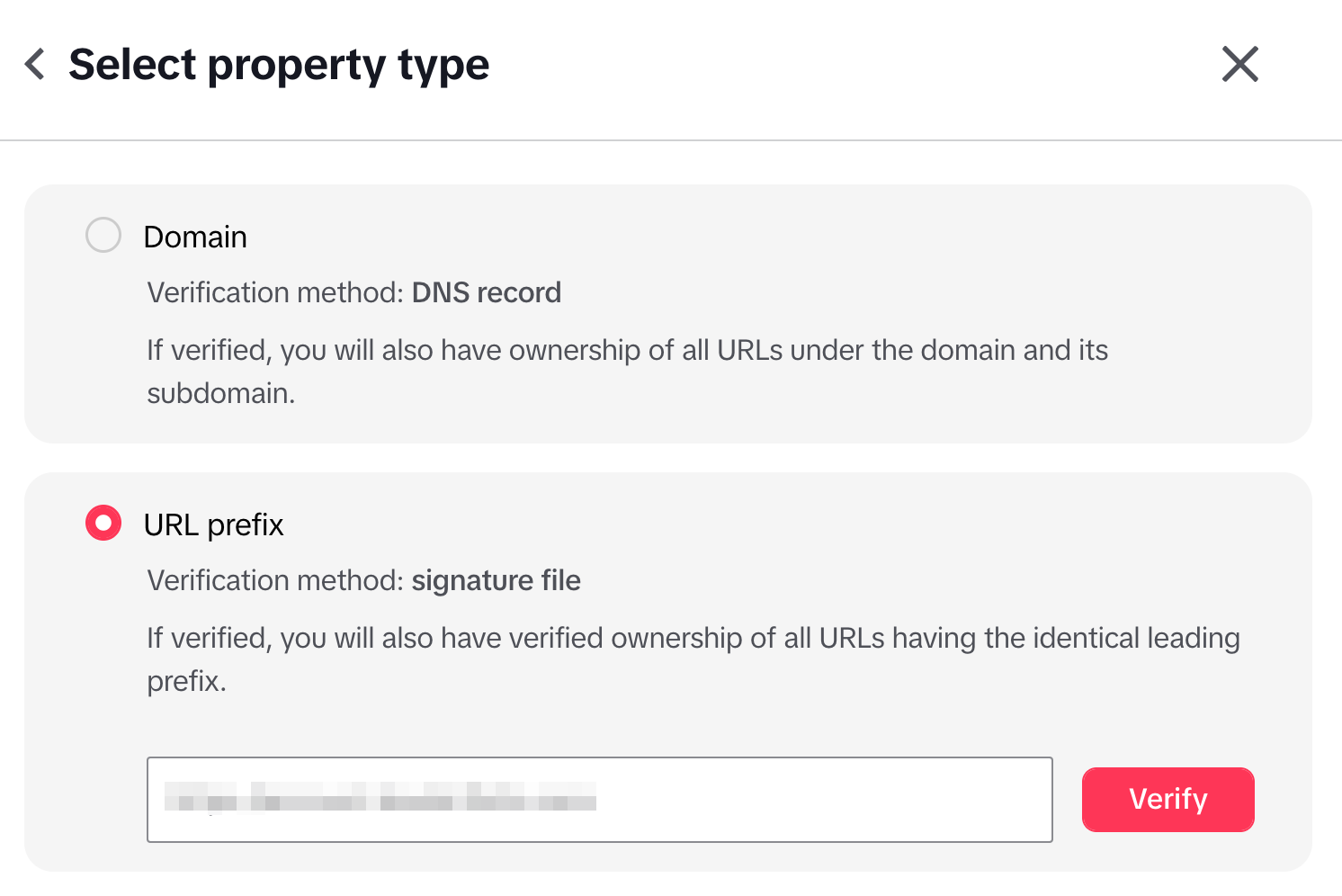
- Choose URL prefix, enter the domain URL, and click Verify.
- Download the signature file generated by TikTok (e.g.,
tiktokxxxx.txt).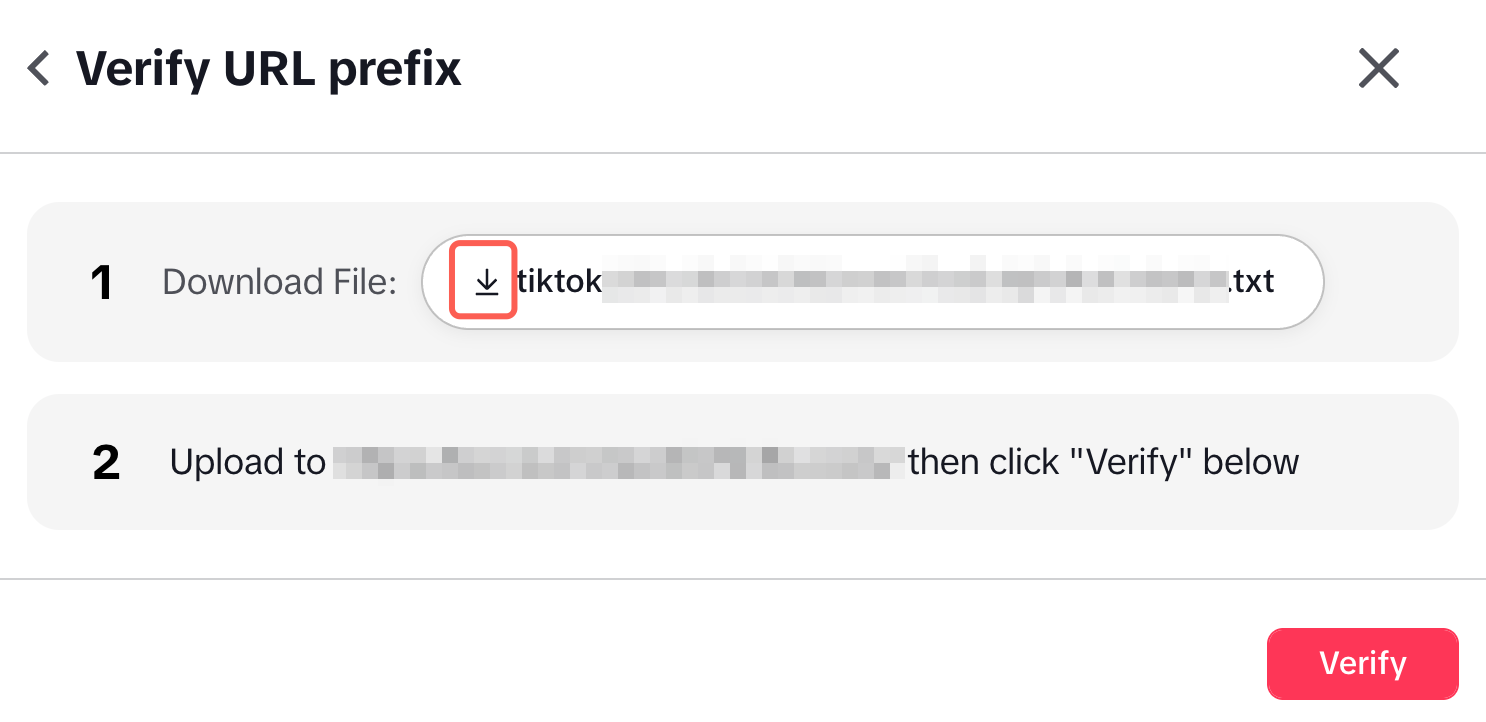
- Contact operations/website team to upload this file to the corresponding domain server so it can be directly downloaded via browser.
- After uploading, return to the TikTok page and click Verify to complete final authentication.
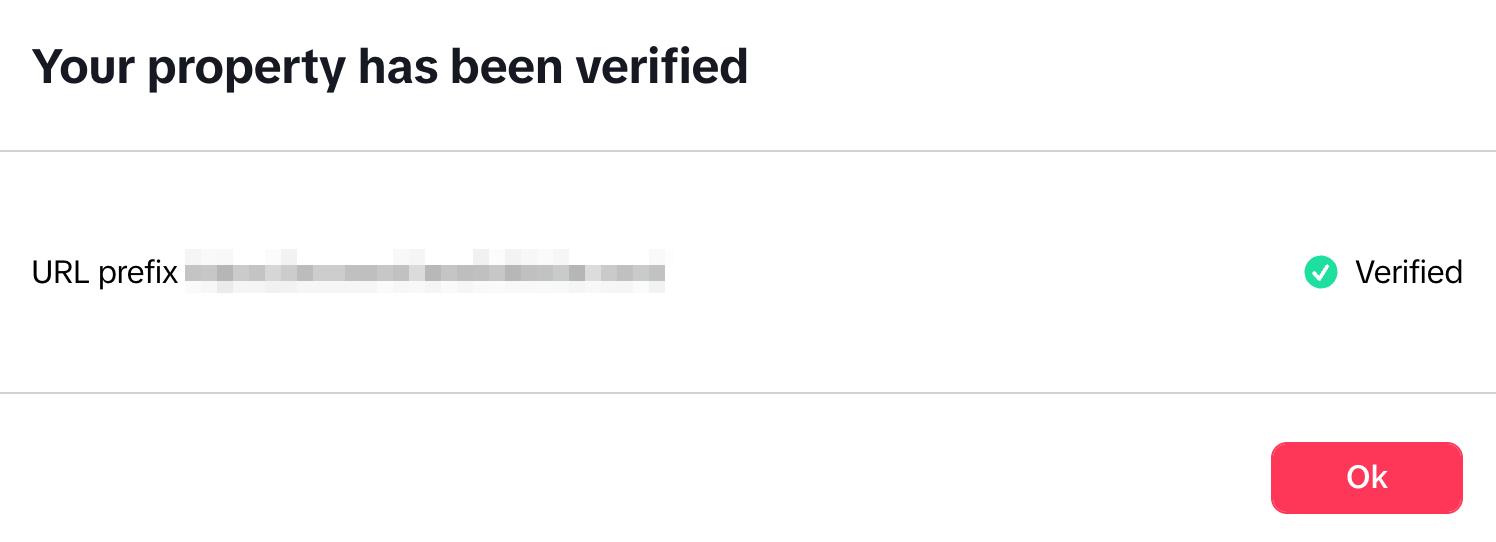
- If failed: please check whether the signature file can be downloaded in the browser (path/permission/CDN cache, etc.).
6. App Review Information
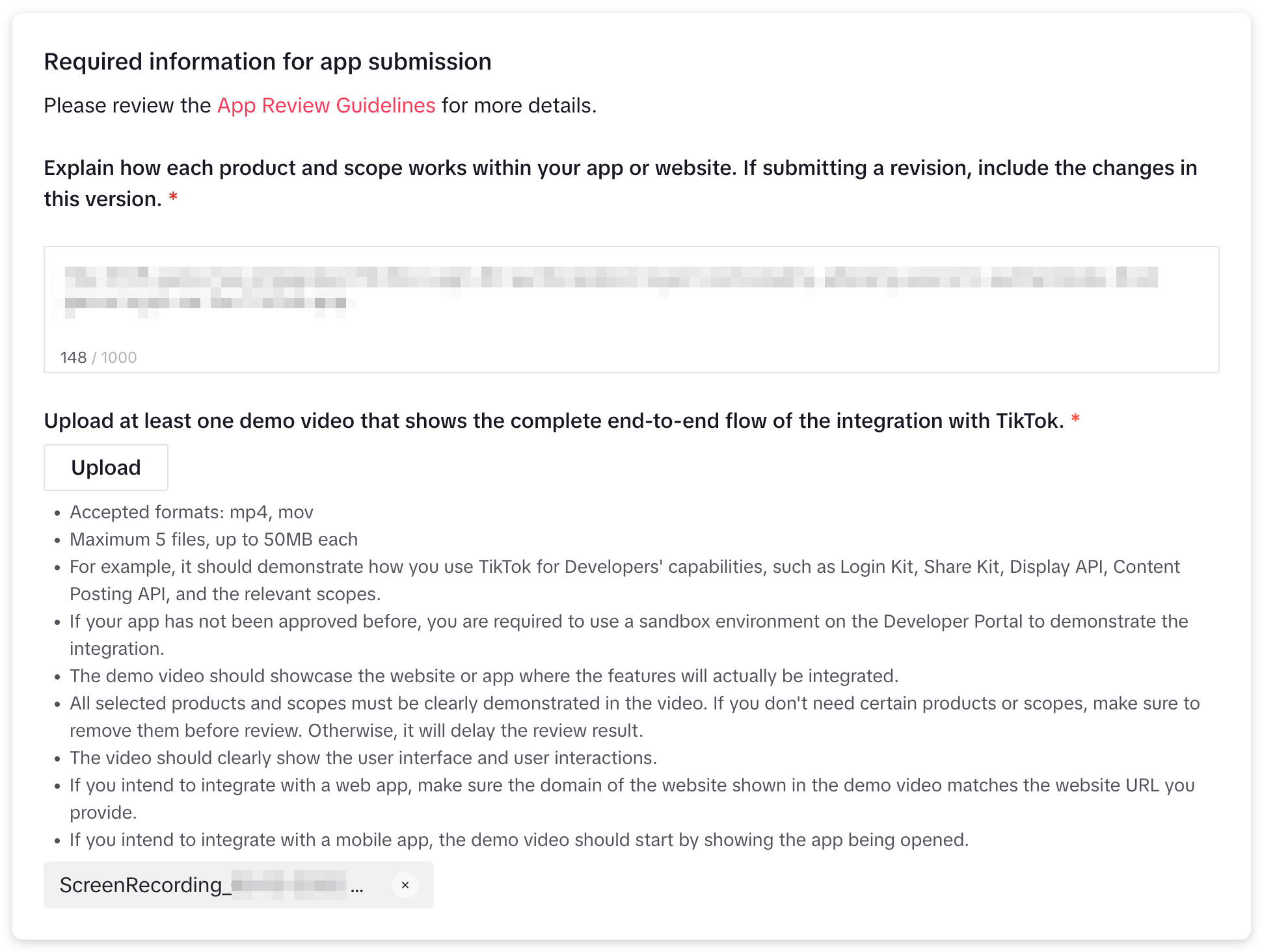
- Describe in detail how the project uses the TikTok Login Kit login feature.
- Record a complete video showing TikTok authentication login in the project. If TikTok integration is not yet complete, you may upload any video for now and replace it when submitting for review later.
7. Configure Products: Enable Login Kit
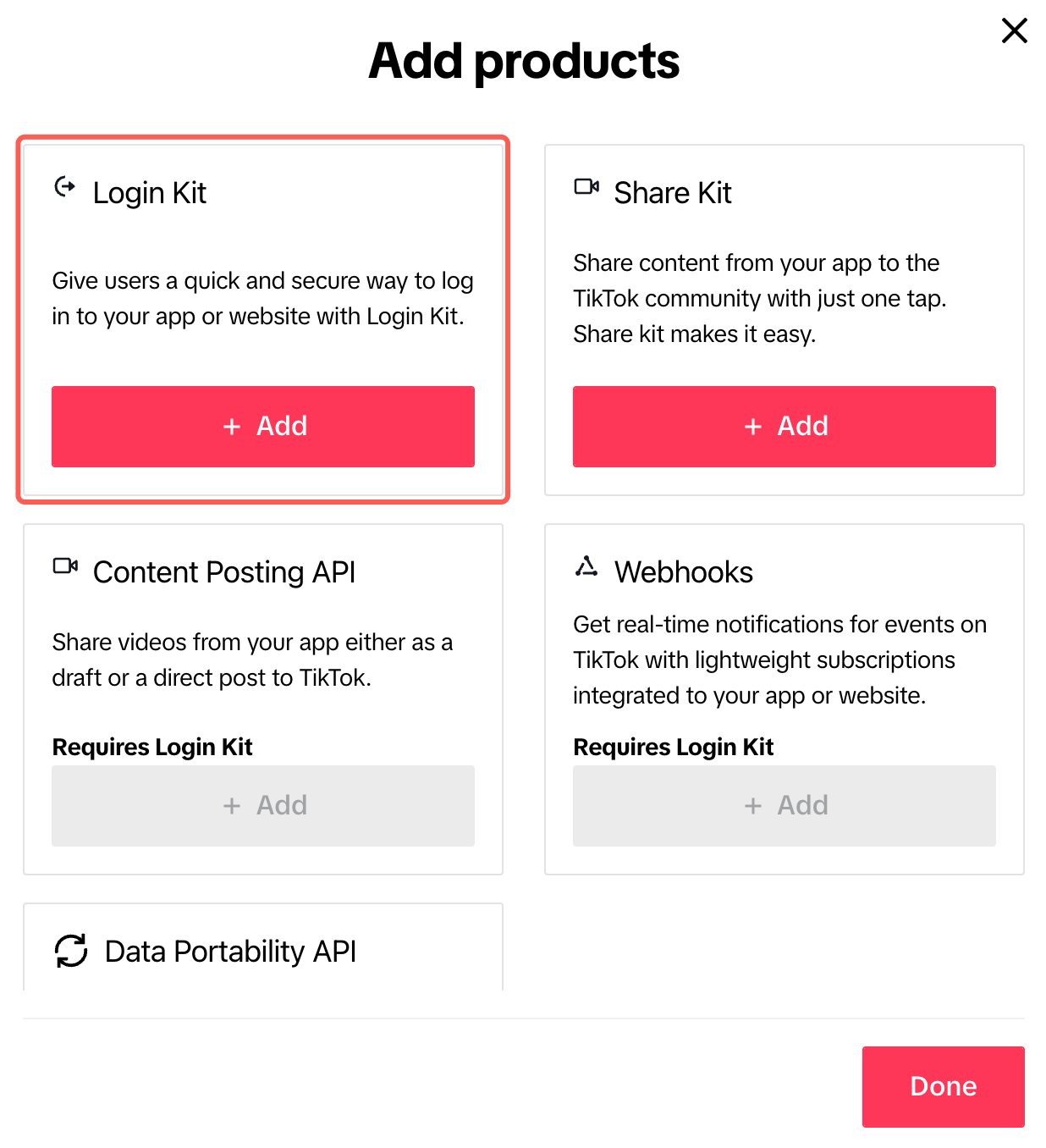
- Go to Products, click Add products.

- Click + Add to add Login Kit.
- Configure for Login Kit:
- Android App Link (provided by development team)
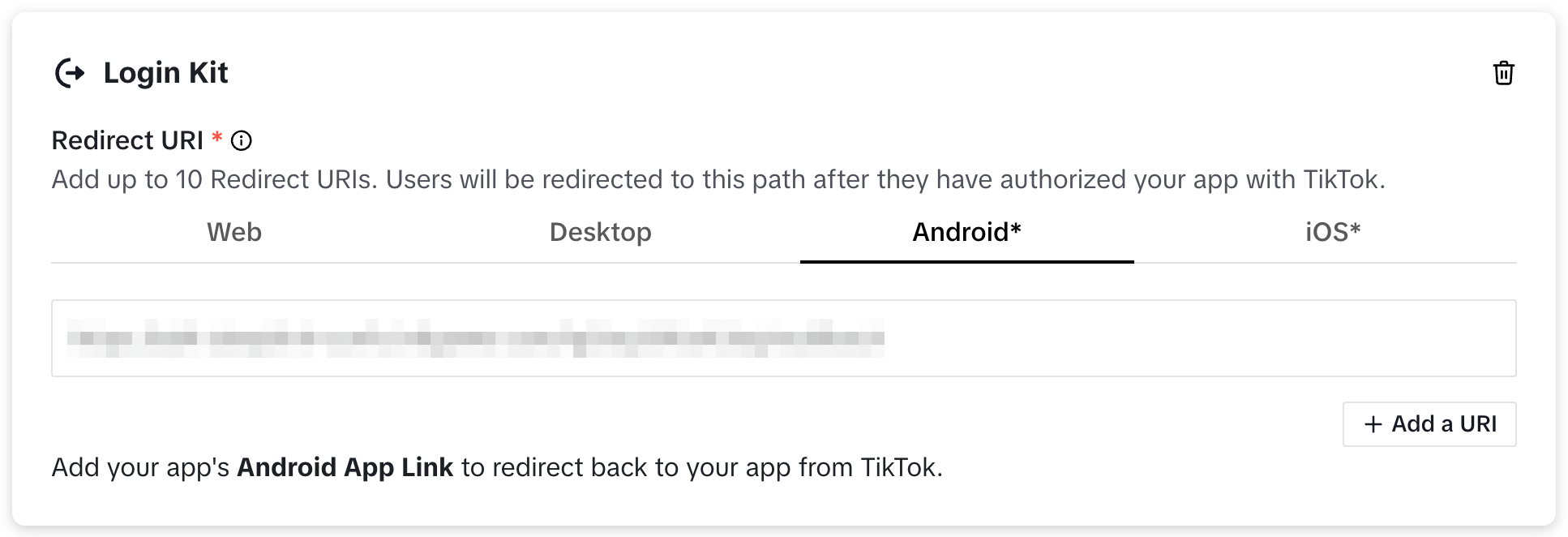
- Android App Link (provided by development team)
- Replace the link with your project's Deep Link, but keep the callback path suffix:
.../pnt/tiktok/logincallback
8. Scopes Configuration
- After adding Login Kit, TikTok will automatically include the
user.info.basicpermission. - Usually, there is no need to add extra scopes unless explicitly required by business needs.
9. Save App Configuration
- Click the top right Save to save configuration.
- As integration and debugging are not completed yet, do not click “Submit for review” for now.
- If saving fails, please complete any required fields indicated by error messages. (All previous steps are generally required.)

10. (Recommended) Create Sandbox and Add Test Users
It is recommended to conduct development and debugging in the Sandbox environment before submitting for review.
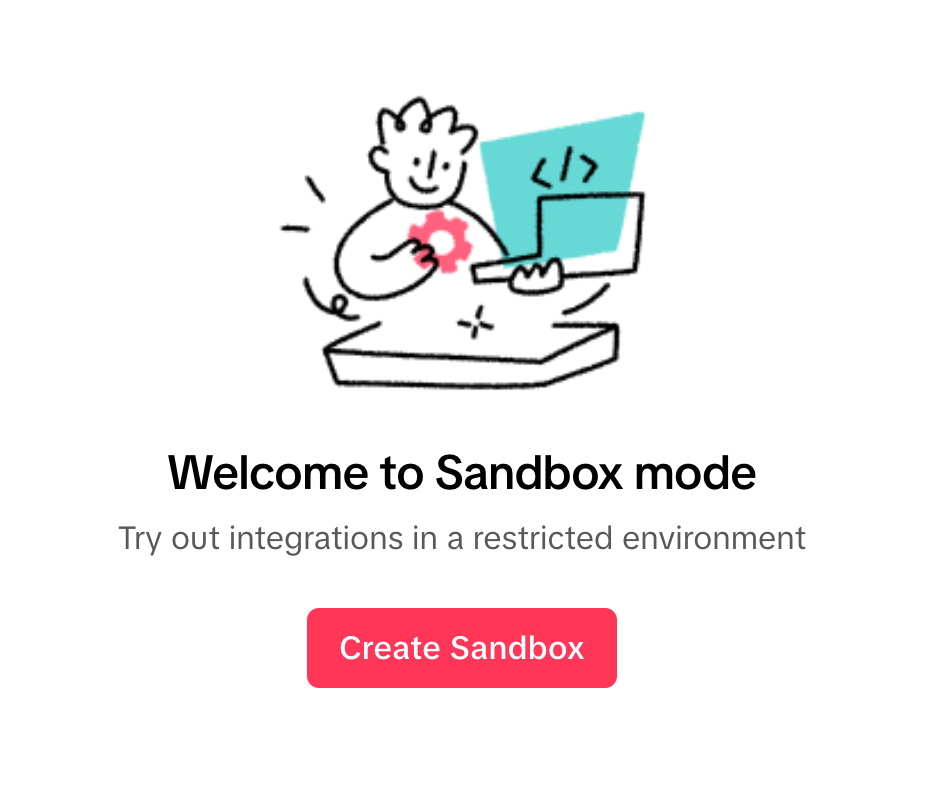
- Switch to Sandbox in the top left corner, click Create Sandbox.

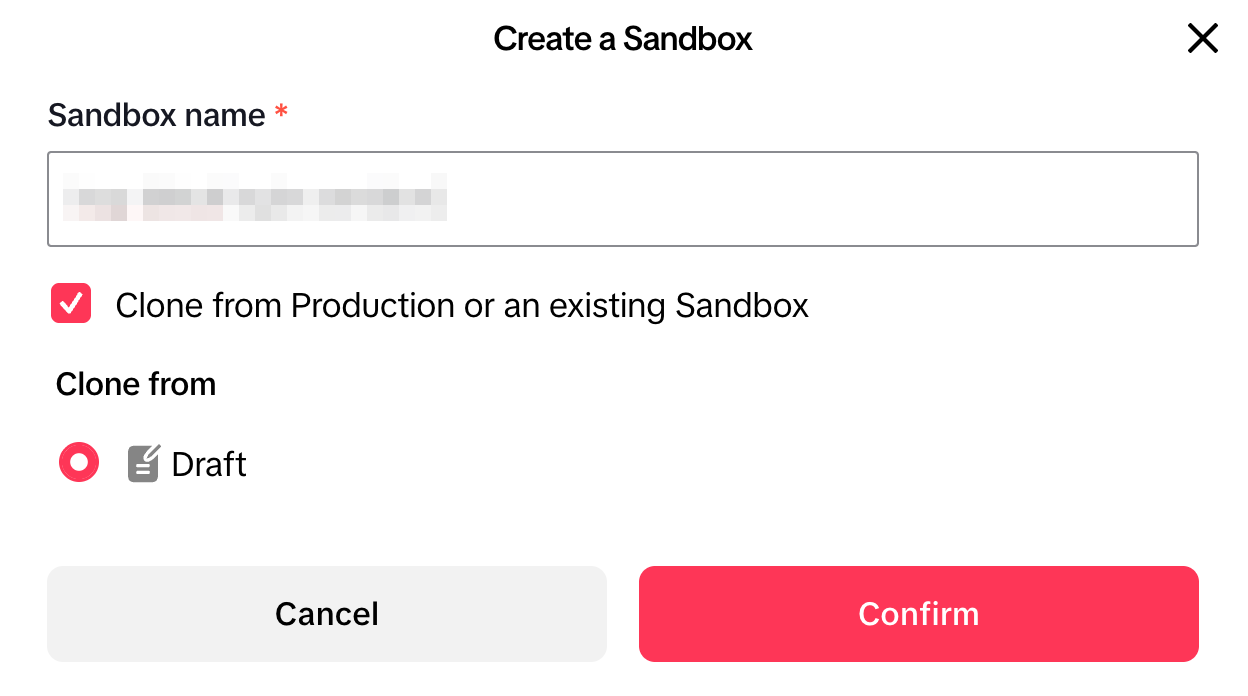
- Enter the Sandbox name, check Clone from Production or an existing Sandbox, and click Confirm.
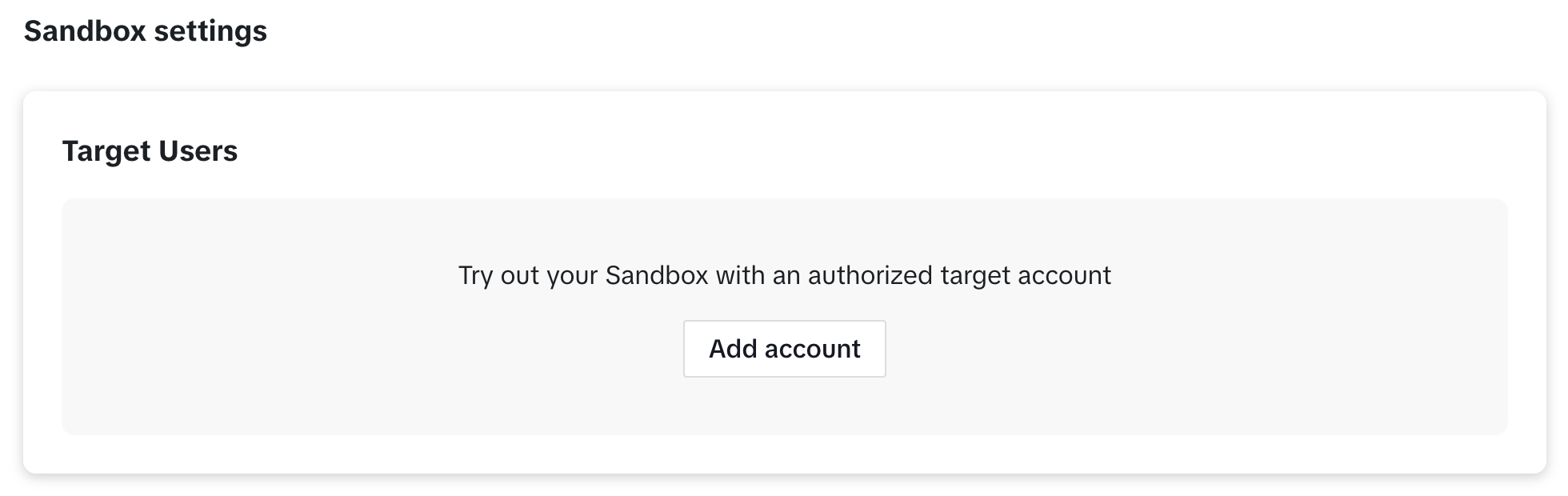
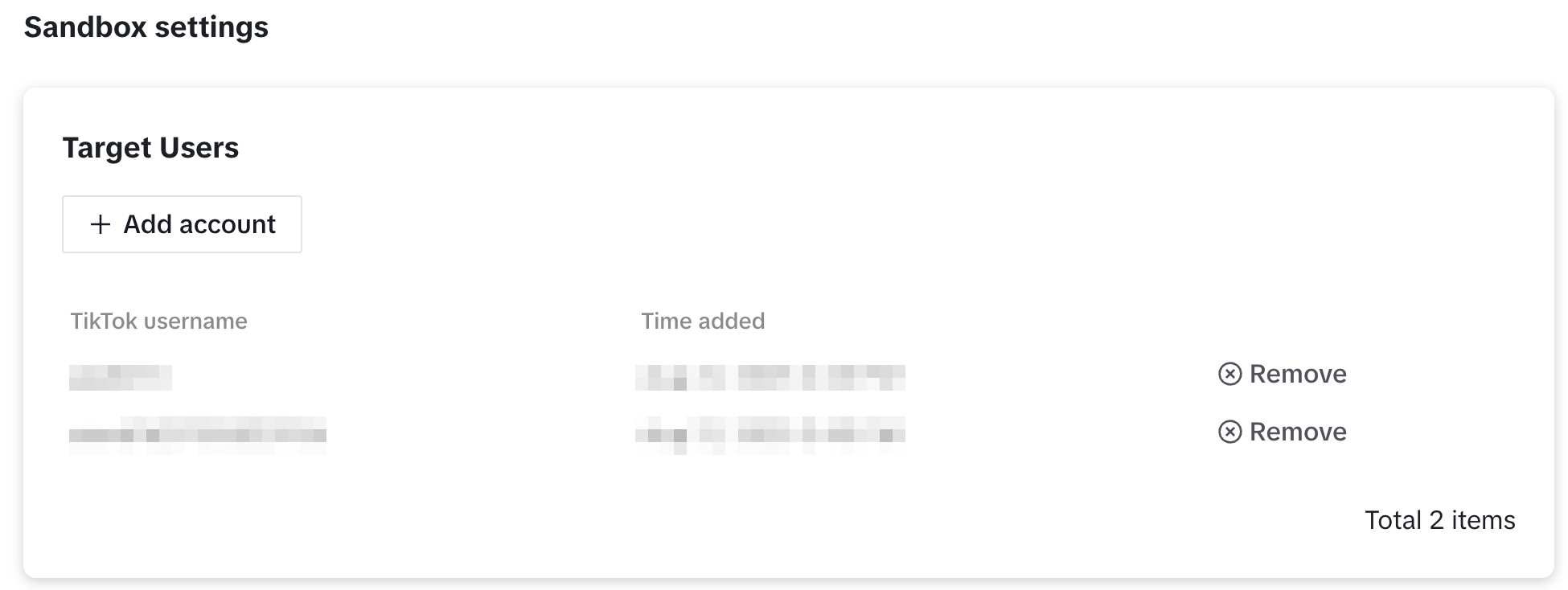
- In Sandbox, click Add account to add test TikTok account:
- After login, the account will appear in the Target Users list.
- Only accounts in Target Users can participate in TikTok login testing
- Get Player Network Console login account.
- Create a new project for your game or join an existing project.
- Download SDK.
- Integrate SDK.
- Add TikTok as the login authentication method for business in Player Network Console.
Step 1: Configure SDK for TikTok Login
-
Open the project INTLConfig.ini file:
INTLConfig.ini[INTL environment]
# WARNING: You should change this URL to the production environment when you release your project.
INTL_URL = https://test.intlgame.com
GAME_ID = {INTL_GAME_ID}
SDK_KEY = {INTL_SDK_KEY}
[INTL Log]
LOG_LEVEL = 1
LOG_CONSOLE_OUTPUT_ENABLE = 1
LOG_FILE_OUTPUT_ENABLE = 1
LOG_ENCRYPT_ENABLE = 0
LOG_COMPRESS_ENABLE = 0
[Android LifeCycle]
LIFECYCLE = TikTok
[TikTok]
TIKTOK_APP_ID = {INTL_TIKTOK_APP_ID}
TIKTOK_CLIENT_KEY = {INTL_TIKTOK_CLIENT_KEY}
TIKTOK_REDIRECT_URI = {INTL_TIKTOK_REDIRECT_URI}
TIKTOK_REWARD_BIND_URI = {INTL_TIKTOK_REWARD_BIND_URI}
TIKTOK_SCOPE = user.info.profile- Set the SDK backend environment
INTL_URLtohttps://test.intlgame.com. - Replace
{INTL_GAME_ID}and{INTL_SDK_KEY}with theGAME_IDandSDK_KEYvalues assigned by Player Network Console. - Set
LOG_LEVEL = 1,LOG_CONSOLE_OUTPUT_ENABLE = 1,LOG_FILE_OUTPUT_ENABLE = 1,LOG_ENCRYPT_ENABLE = 0, andLOG_COMPRESS_ENABLE = 0to output console and log files without encryption or compression. - Add
TikToktoLIFECYCLEso the SDK initializes the TikTok module.For more information, see SDK Environment. - Replace
{INTL_TIKTOK_APP_ID}with the App ID assigned by TikTok. - Replace
{INTL_TIKTOK_CLIENT_KEY}with the Client Key assigned by TikTok, used to identify the project during the TikTok login flow. - Replace
{INTL_TIKTOK_REDIRECT_URI}with the Redirect URI where TikTok will callback to your project after authorization, passing back the login result. The callback path must end with/pnt/tiktok/logincallback. - Replace
{INTL_TIKTOK_REWARD_BIND_URI}with the Reward Bind URI used by the TikTok reward-bind flow.The callback path must end with/pnt/tiktok/rewardsbind.Leave this empty if you are not using reward bind function. - The SDK automatically adds the default scopes
user.info.basic,video.list, andgame.entitlement.managementon mobile.UseTIKTOK_SCOPEonly for additional permissions required by your business, such asuser.info.profile.
- Set the SDK backend environment
-
Configure Android manifest placeholders and the return Activity meta-data.
The INTLSDK TikTok plugin registers two callback activities in its own manifest, but their intent filters rely on placeholders supplied by the host app.Make sure your Android Gradle configuration provides the following placeholders. Unity and Unreal build pipelines normally populate these from
INTLConfig.ini:build.gradleandroid {
defaultConfig {
manifestPlaceholders = [
"TIKTOK_REDIRECT_URI_HOST" : "{INTL_TIKTOK_REDIRECT_URI_HOST}",
"TIKTOK_REDIRECT_URI_PATH" : "{INTL_TIKTOK_REDIRECT_URI_PATH}",
"TIKTOK_REWARD_BIND_URI_HOST" : "{INTL_TIKTOK_REWARD_BIND_URI_HOST}",
"TIKTOK_REWARD_BIND_URI_PATH" : "{INTL_TIKTOK_REWARD_BIND_URI_PATH}",
]
}
}- Replace
{INTL_TIKTOK_REDIRECT_URI_HOST}and{INTL_TIKTOK_REDIRECT_URI_PATH}with the host and path ofTIKTOK_REDIRECT_URI.For example, ifTIKTOK_REDIRECT_URI = https://example.com/pnt/tiktok/logincallback, useexample.comandpnt/tiktok/logincallback. - Replace
{INTL_TIKTOK_REWARD_BIND_URI_HOST}and{INTL_TIKTOK_REWARD_BIND_URI_PATH}with the host and path ofTIKTOK_REWARD_BIND_URI.For example, ifTIKTOK_REWARD_BIND_URI = https://example.com/pnt/tiktok/rewardsbind, useexample.comandpnt/tiktok/rewardsbind.
After the TikTok authorization completes, the SDK returns to the game's main activity.Add the following
<meta-data>inside your<application>tag so the SDK knows which activity to resume:AndroidManifest.xml<application ...>
<meta-data
android:name="INTL_GAME_ACTIVITY_CLASS_NAME"
android:value="com.yourgame.YourMainActivity" />
</application>- Replace
com.yourgame.YourMainActivitywith the fully-qualified class name of your game's main activity.If this meta-data is not provided, the SDK falls back togetLaunchIntentForPackage().
- Replace
Step 2: Add TikTok Login
Player Network checks the application login status before starting the login process.
- If the TikTok application is installed, Player Network opens the TikTok application for login.
- If the TikTok application is not installed, the Player Network login page will not display the TikTok channel login entry.
- Register login-related callbacks.
- Unity
- Unreal Engine
// Add callbacks
public void AddAuthObserver()
{
    INTLAPI.AddAuthResultObserver(OnAuthResultEvent);
}

// Remove callbacks
public void RemoveAuthObserver()
{
    INTLAPI.RemoveAuthResultObserver(OnAuthResultEvent);
}

// Process the INTLAuthResult callback
public void OnAuthResultEvent(INTLAuthResult AuthResult)
{
    Debug.Log($"MethodID: {AuthResult.MethodId}");

    string methodTag = "";
    switch (AuthResult.MethodId)
    {
        case (int)INTLMethodID.INTL_AUTH_LOGIN:
            methodTag = "Login";
            break;
        case (int)INTLMethodID.INTL_AUTH_BIND:
            methodTag = "Bind";
            break;
        case (int)INTLMethodID.INTL_AUTH_AUTOLOGIN:
            methodTag = "AutoLogin";
            break;
        case (int)INTLMethodID.INTL_AUTH_QUERY_USER_INFO:
            methodTag = "QueryUserInfo";
            break;
        case (int)INTLMethodID.INTL_AUTH_GET_AUTH_RESULT:
            methodTag = "GetAuthResult";
            break;
    }
}
C++ Event Handling (above v1.15)
//configure callback
FINTLAuthEvent authEvent;
authEvent.AddUObject(this, &OnAuthResult_Implementation);
UINTLSDKAPI::. SetAuthResultObserver(authEvent);
// Remove callbacks
UINTLSDKAPI::GetAuthResultObserver().Clear();
void OnAuthResult_Implementation(FINTLAuthResult ret)
{
 UE_LOG(LogTemp, Warning, TEXT("MethodID: %d"), ret.MethodId);
}
- Call the
AutoLogininterface for automatic login.
- Unity
- Unreal Engine
INTLAPI.AutoLogin();
UINTLSDKAPI::AutoLogin();
- If automatic login fails, call the
Loginmethod to let players log in manually.
- Unity
- Unreal Engine
INTLAPI.Login(INTLChannel.TikTok);
UINTLSDKAPI::Login(EINTLLoginChannel::kChannelTikTok);
- Synchronize client authentication status with the game backend, waiting for final validation results.
If you encounter problems during the integration process, please refer to Frequently Asked Questions.

