Android
The purpose of this article is to describe how to set up Discord authentication so that your game can be logged in through the Discord channel using the Player Network login authentication service.
As the Discord SDK has stopped maintaining a license method for pulling up Discord Apps, there may be subsequent impacts on Discord App licensing.To ensure that Discord authorization is stable and available, it is recommended to use WebView for web authorization, see Configuring DISCORD_LOGIN_USING_WEB for details.
Prerequisites
1. Configuring the application on the Discord Developer Platform
1. Create Discord Application
Before creating a Discord application, register an account on the official Discord website and follow the prompts to complete account authentication (via email).
- Enter Discord Developer Platform.
The first time a user logs in, they may need to verify that they are not a robot, which can be done after email verification. - In the upper right corner of the Applications page, click New Application.
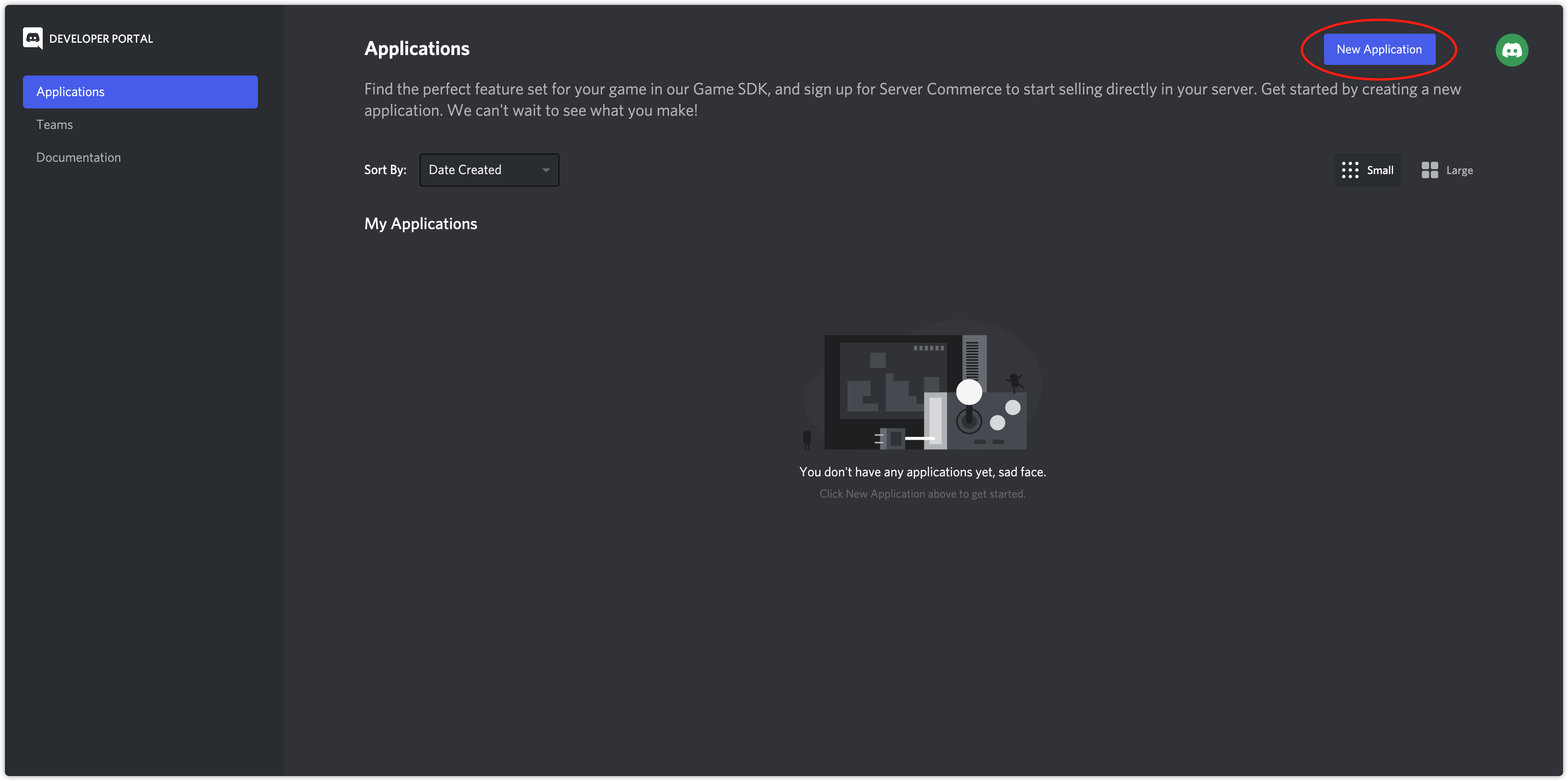
- In the application creation window that pops up, enter the application name and click Create.
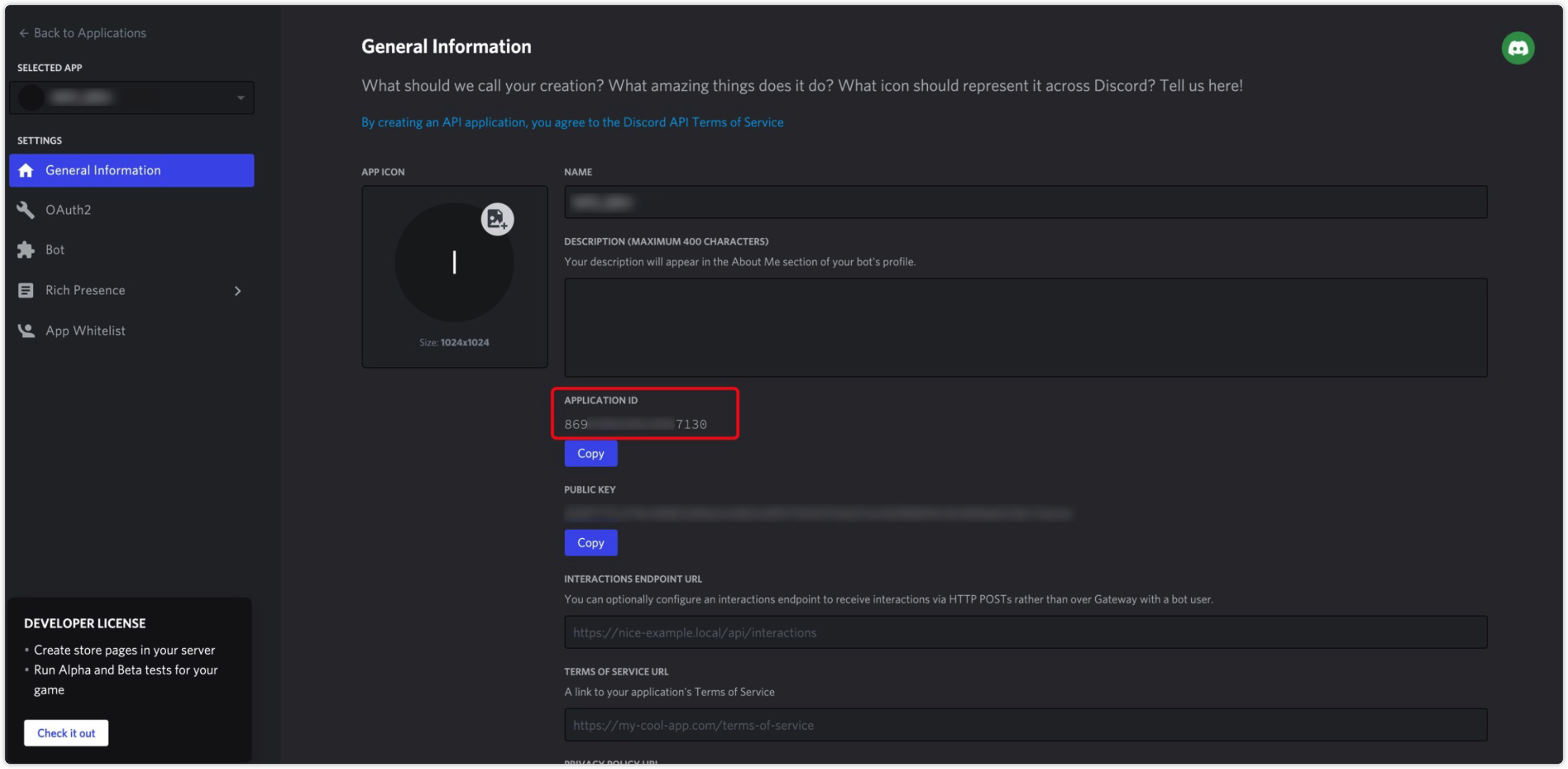
- On the General Information page, view APPLICATION ID.
The user must configure the App ID in the INTLConfig.ini file.
2. Configure Application
-
Go to Discord Developer Platform.
-
Click the application to configure on the Applications page.
-
Click OAuth2 in the left navigation bar and go to OAuth2 > General.
-
Configure the following redirect URLs under Redirects to receive callbacks after authorization on the Discord web page by clicking Add Another to add the cell:
- https://common-web.intlgame.com/jssdk/discordlogincallback.html
- https://test-common-web.intlgame.com/jssdk/discordlogincallback.html
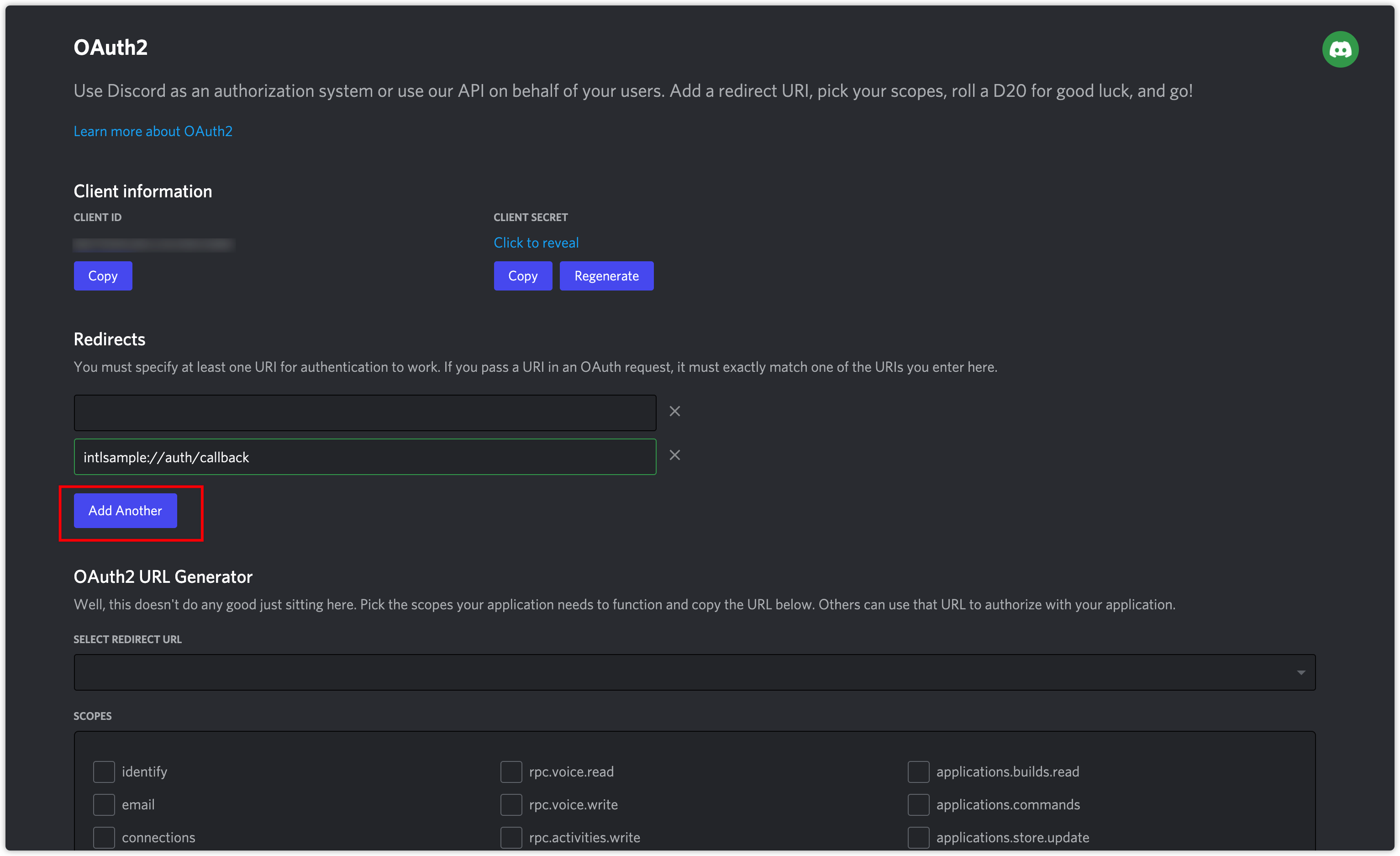
On mobile, if you want to authorize using the Discord app instead of the Discord webpage, you will also need to fill in a redirect URL for the Discord app post-authorization callback. Redirect URL Rules:
- Use all lowercase.
- Programs should begin with "intl".
- The URL should include the host and path.
Example: intlmoba://auth/callback
For multi-store channel packs:
Support for multi-store channel packages requires a separate REDIRECT_URL_SCHEME.An App ID supports 10 redirect URLs (about 4 multi-store channel packs).If the game requires more than 4 multi-store channel packs, please request more App IDs.To use multiple application IDs, the game requires Configure multiple application IDs in INTLConfig.ini and Register multiple Discord applications on Player Network.
-
Click Rich Presence in the left navigation bar and enter Rich Presence Art Assets page.
-
Click Add Image(s) to configure the application's image resources.
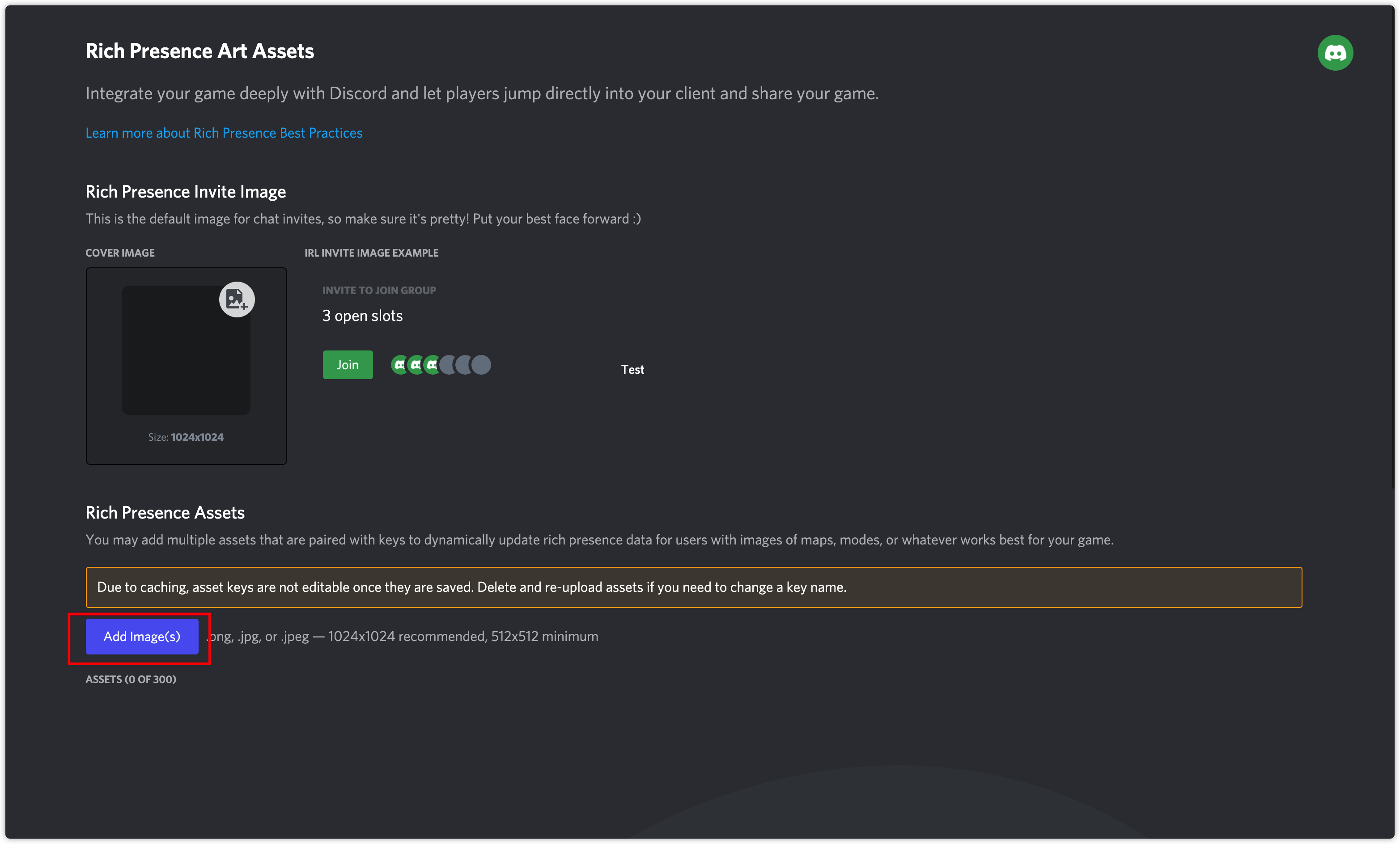
All image resources used in the application must be configured on this page, including the cover photo for friend invitations.
- Obtain Player Network console login account.
- Create a new project for your game, or join an existing project.
- Download SDK.
- Integrate SDK.
- Add Discord as the login authentication method for the service in the Player Network Console.
Step 1:Configure the SDK for Discord Login
Since the Discord SDK is only compatible with minSdkVersion >=23 or higher, running it on Android 6.0 or earlier may cause problems.Please set minSdkVersion >= 23 for the game.
- In the
AndroidManifestfile, make sure the required permissions are added.Discord requires network access.
<uses-permission android:name="android.permission.INTERNET"/>
- Open your project's INTLConfig.ini file:
[Android LifeCycle]
LIFECYCLE = Discord

[Discord]
DISCORD_APP_ID = {INTL_DISCORD_APP_ID}
DISCORD_REDIRECT_URL = {INTL_DISCORD_REDIRECT_URL}
- Add Discord to
LIFECYCLE.For more information, please see SDK Environment. - Replace
{INTL_DISCORD_APP_ID}with the Discord App ID for the game. - Replace
{INTL_DISCORD_REDIRECT_URL}with the Redirect URL configured on the platform.
- Complete the Gradle configuration.
- Unity
- Unreal Engine
In mainTemplate.gradle, add DISCORD_APP_ID, DISCORD_REDIRECT_SCHEME, DISCORD_REDIRECT_HOST, DISCORD_REDIRECT_PATH.
android {
  defaultConfig {
      manifestPlaceholders = [
          "DISCORD_APP_ID":"{INTL_DISCORD_APP_ID}",
          "DISCORD_REDIRECT_SCHEME":"{INTL_DISCORD_REDIRECT_SCHEME}",
          "DISCORD_REDIRECT_HOST":"{INTL_DISCORD_REDIRECT_HOST}",
          "DISCORD_REDIRECT_PATH":"{INTL_DISCORD_REDIRECT_PATH}"
      ]
  }
}
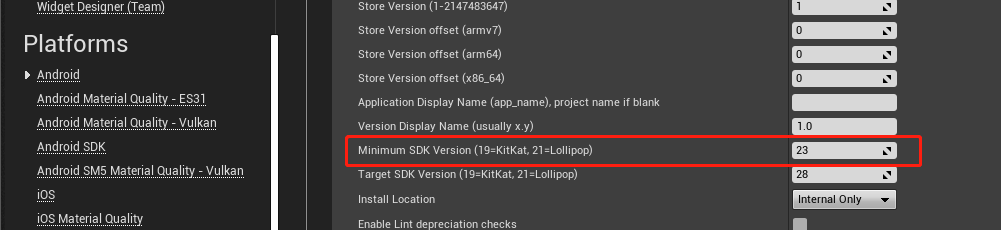
Since Discord requires that the minSdkVersion of an application be at least 23, the UE project must update the minSdkVersion configuration to at least 23 when it is packaged.
In INTLCore_UPL.xml, add DISCORD_APP_ID, DISCORD_REDIRECT_SCHEME, DISCORD_REDIRECT_HOST and DISCORD_REDIRECT_PATH.
<buildGradleAdditions>
    <insert>
    <![CDATA[
    android{
      defaultConfig {
          manifestPlaceholders = [
          "DISCORD_APP_ID":"{INTL_DISCORD_APP_ID}",
          "DISCORD_REDIRECT_SCHEME":"{INTL_DISCORD_REDIRECT_SCHEME}",
          "DISCORD_REDIRECT_HOST":"{INTL_DISCORD_REDIRECT_HOST}",
          "DISCORD_REDIRECT_PATH":"{INTL_DISCORD_REDIRECT_PATH}"
          ]
      }
    }
    ]]>
    </insert>
</buildGradleAdditions>
- Replace
{INTL_DISCORD_APP_ID}with the Discord App ID for the game. - Replace
{INTL_DISCORD_REDIRECT_SCHEME}with the scheme configured in the Redirect URL. - Replace
{INTL_DISCORD_REDIRECT_HOST}with the host of the Redirect URL configured for the game. - Replace
{INTL_DISCORD_REDIRECT_PATH}with the path to the game Redirect URL.
For example, if the Redirect URL configured on the Discord Developer Platform is intlsample://auth/callback:
{INTL_DISCORD_REDIRECT_SCHEME}= intlsample{INTL_DISCORD_REDIRECT_HOST}= auth{INTL_DISCORD_REDIRECT_PATH}= callback
Step 2:Add Discord Login
Discord does not require an application to be installed before logging in.If the app is installed, it will open the app login, otherwise it will open the web page login.With the Discord app installed, if a player tries to log in with Discord but then cancels the login, they will still be redirected to the game because the system cannot immediately respond with "Canceled".Players will need to wait for the login timeout before the system responds with "Timeout".
Discord login permission needs to add identify.If you need to integrate Discord sharing, add relationships.read,activities.write as well.
- Register login-related callbacks.
- Unity
- Unreal Engine
// Add callbacks
public void AddAuthObserver()
{
    INTLAPI.AddAuthResultObserver(OnAuthResultEvent);
}

// Remove callbacks
public void RemoveAuthObserver()
{
    INTLAPI.RemoveAuthResultObserver(OnAuthResultEvent);
}

// Process the INTLAuthResult callback
public void OnAuthResultEvent(INTLAuthResult ret)
{
    Debug.Log($"MethodID: {ret.MethodId}");

    string methodTag = "";
    if (authRet.MethodId == (int)INTLMethodID.INTL_AUTH_LOGIN)
    {
        methodTag = "Login";
    }
    else if (authRet.MethodId == (int)INTLMethodID.INTL_AUTH_BIND)
    {
        methodTag = "Bind";
    }
    else if (authRet.MethodId == (int)INTLMethodID.INTL_AUTH_AUTOLOGIN)
    {
        methodTag = "AutoLogin";
    }
    else if (authRet.MethodId == (int)INTLMethodID.INTL_AUTH_QUERY_USER_INFO)
    {
        methodTag = "QueryUserInfo";
    }
    else if (authRet.MethodId == (int)INTLMethodID.INTL_AUTH_GET_AUTH_RESULT)
    {
        methodTag = "GetAuthResult";
    }
}
C++ Event Handling (above v1.15)
//configure callback
FINTLAuthEvent authEvent;
authEvent.AddUObject(this, &OnAuthResult_Implementation);
UINTLSDKAPI::SetAuthResultObserver(authEvent);
// Remove callbacks
UINTLSDKAPI::GetAuthResultObserver().Clear();
void OnAuthResult_Implementation(FINTLAuthResult ret)
{
    UE_LOG(LogTemp, Warning, TEXT("MethodID: %d"), ret.MethodId);
}
Unreal Event Handling
void OnAuthResult_Implementation(FINTLAuthResult ret)
{
    UE_LOG(LogTemp, Warning, TEXT("MethodID: %d"), ret.MethodId);
}
- Call the
AutoLogininterface to log in automatically.
- Unity
- Unreal Engine
INTLAPI.AutoLogin();
UINTLSDKAPI::AutoLogin();
- If automatic login fails, call the
Logininterface to let the player log in manually.
- Unity
- Unreal Engine
INTLAPI.Login(INTLChannel.Discord, "identify", "");
INTLAPI.Login(INTLChannel.Discord, "identify,relationships.read,activities.write", ""); //Friend functions
UINTLSDKAPI::Login(EINTLLoginChannel::Discord, "identify", "");
UINTLSDKAPI::Login(EINTLLoginChannel::Discord, "identify,relationships.read,activities.write", ""); //Friend functions
- Synchronize client authentication status with the game backend and wait for the final verification result.
Step 3: Acceptance testing for login functionality
Search for the keyword "AuthResult" in the Player Network SDK logs to confirm whether the channel name and OpenID are returned correctly.If correct, it means the integration configuration is successful, and login functionality has been successfully added.
If you encounter problems during the integration process, please refer to Frequently Asked Questions.

