Web
The purpose of this article is to describe how to set up Discord authentication so that your web pages can log in through the Discord channel using the Player Network login authentication service.
Prerequisites
1. Configuring the application on the Discord Developer Platform
1.1. Create an Application
- Register and authenticate your account on the Discord official website
- Go to the Developer Platform and click New Application
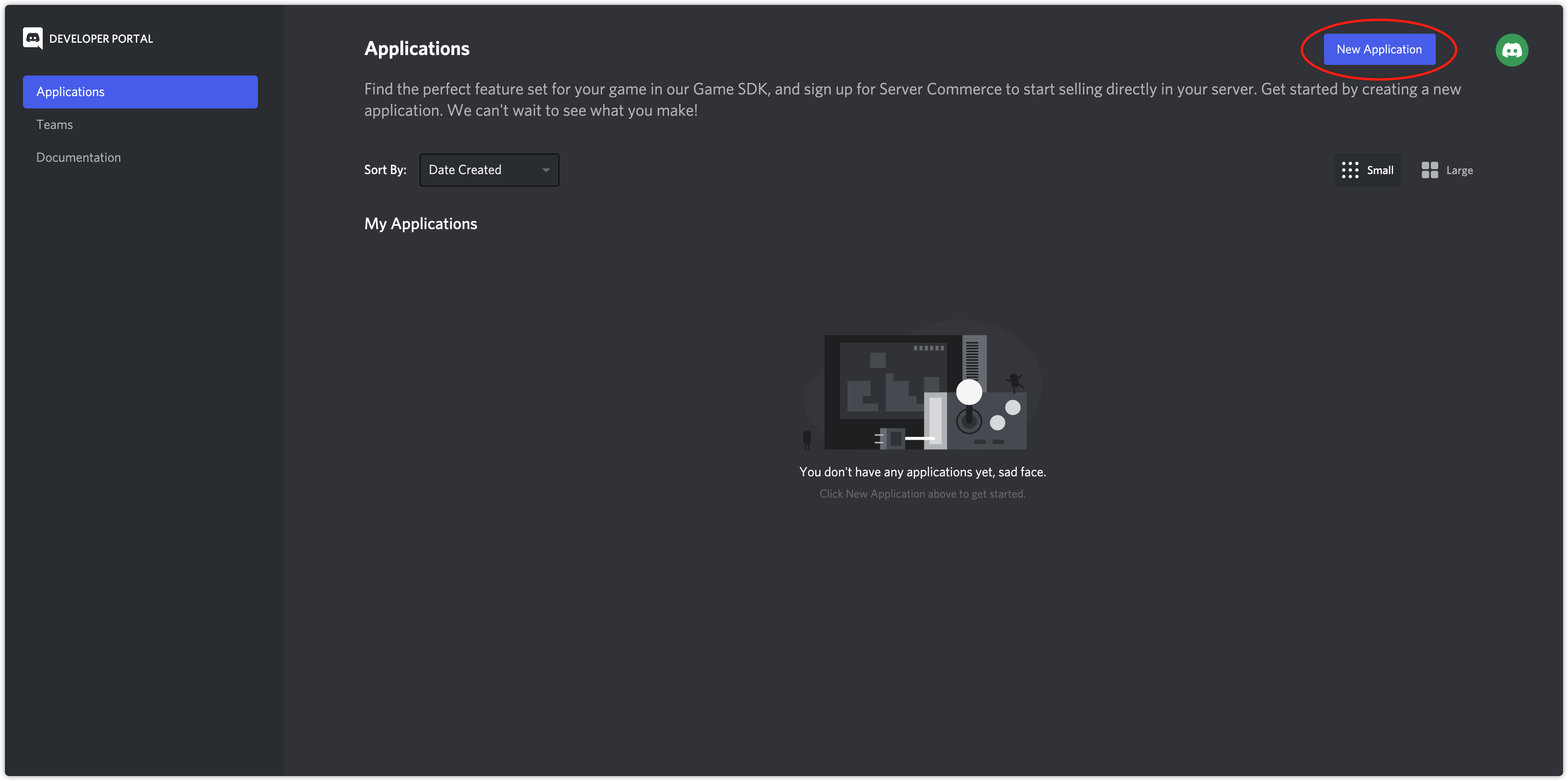
- Enter your application name and click Create
- On the General Information page, obtain the APPLICATION ID
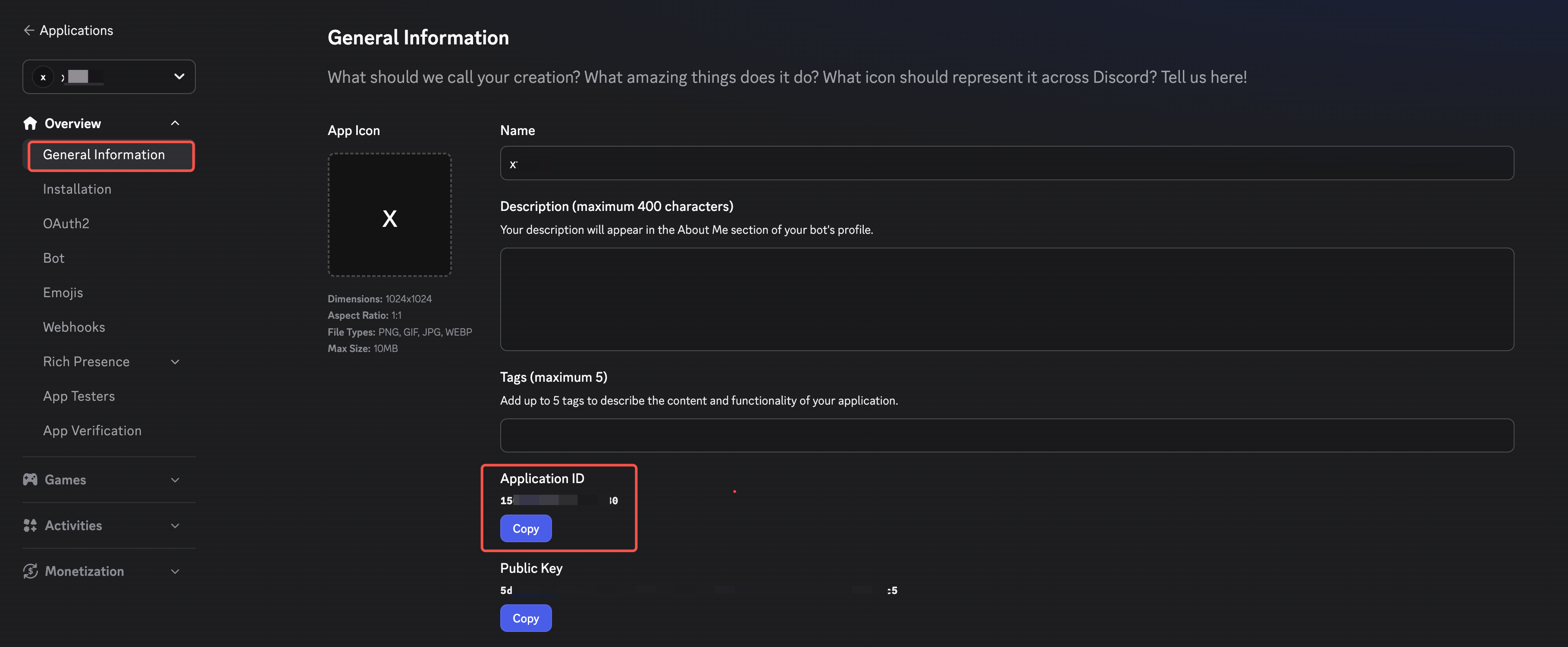
- Configure the Discord App ID in INTLConfig.ini
1.2. Apply for SDK Access
- Go to the Developer Platform
- Click Games - Social SDK, fill out the form, and submit
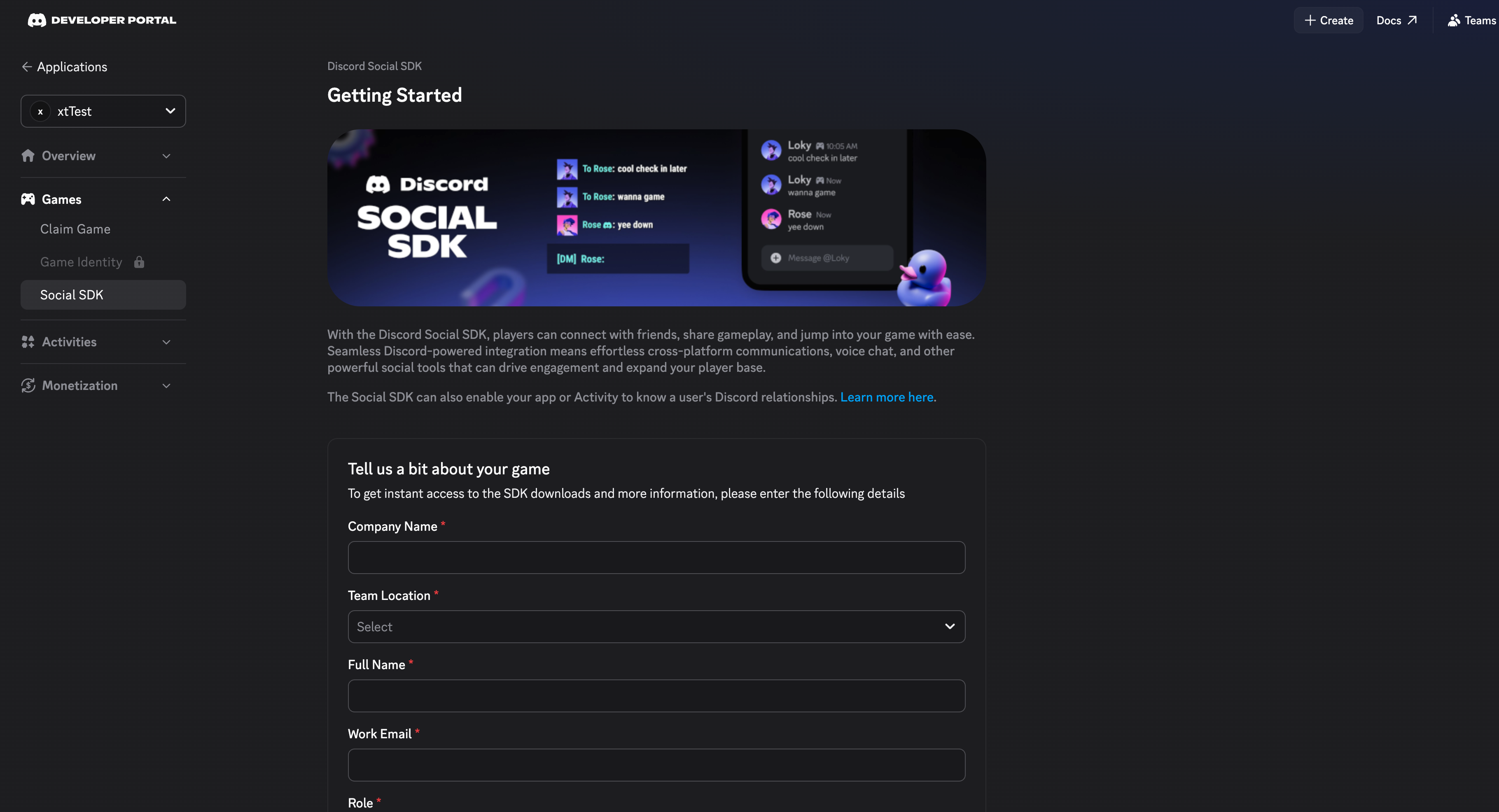
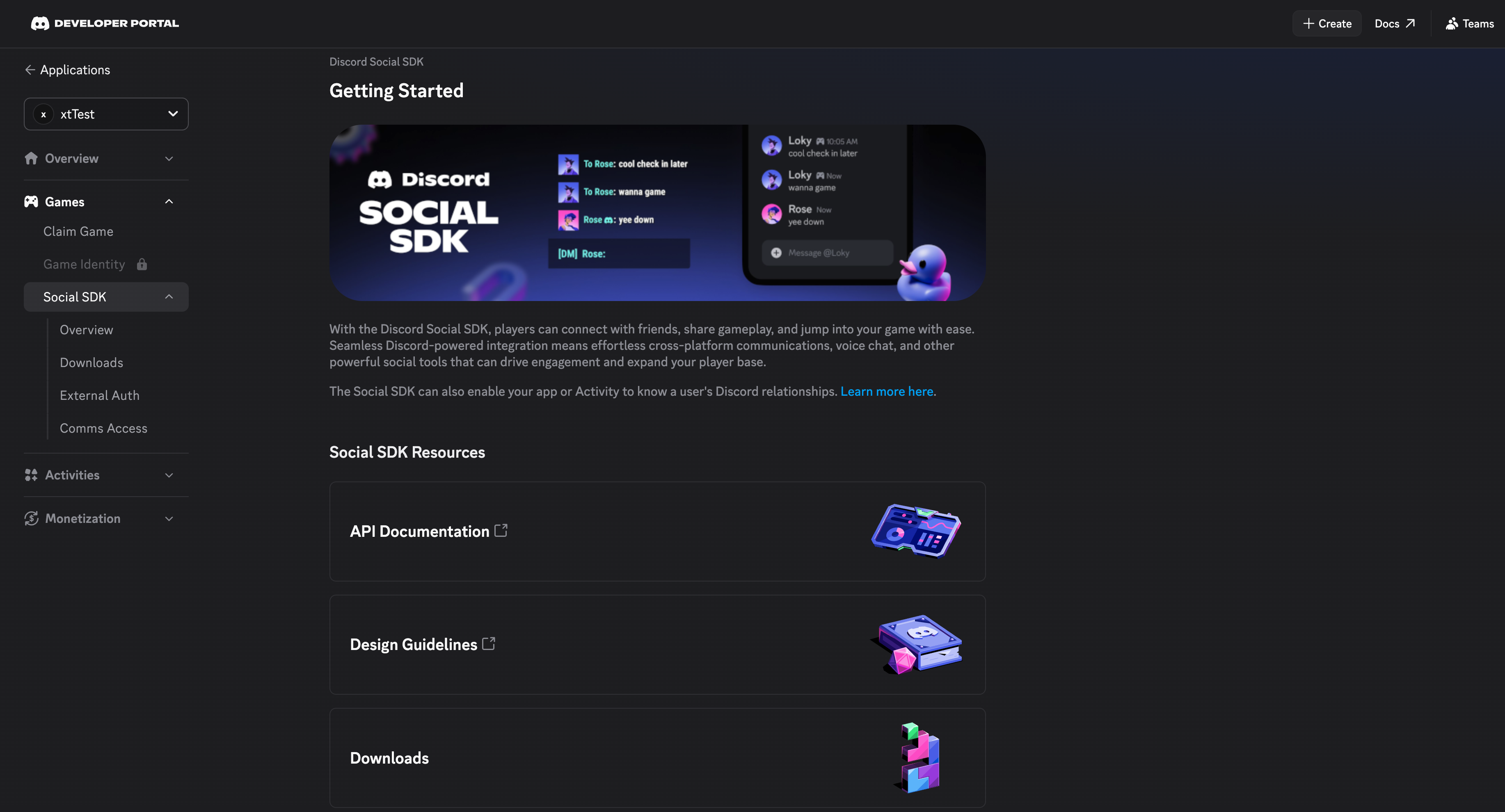
Before the official launch of your game, notify the Discord team in advance to enable production permissions.
1.3. Configure OAuth2
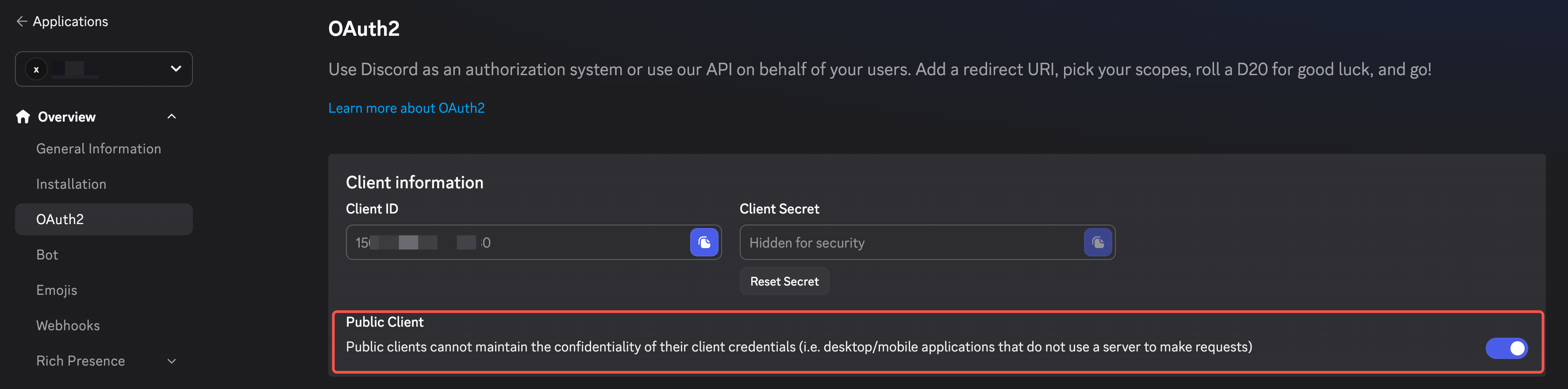
- Click OAuth2 and turn on the PUBLIC CLIENT option
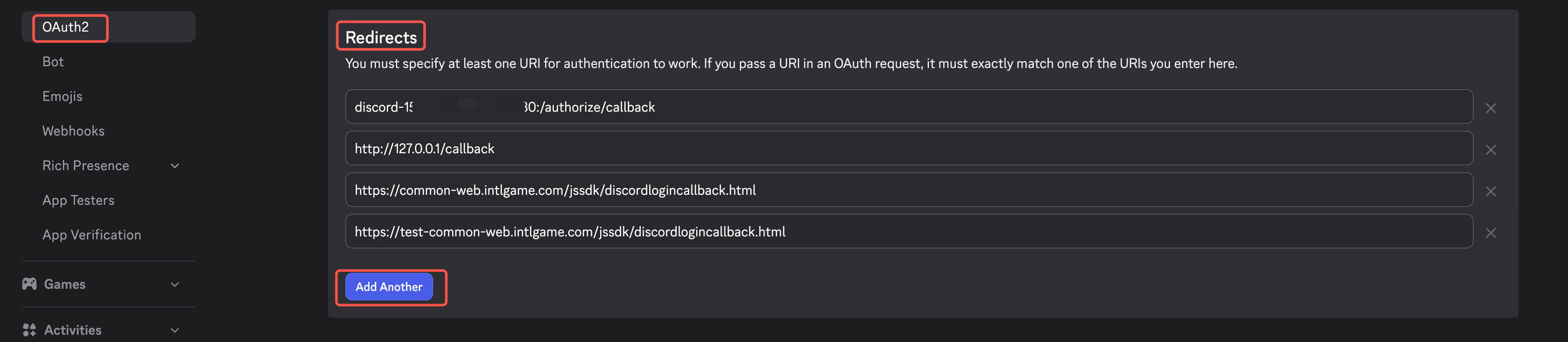
- Configure Redirects:
- Android/iOS:
discord-{YOUR_APP_ID}:/authorize/callback - PC:
http://127.0.0.1/callback - Web:
https://common-web.intlgame.com/jssdk/discordlogincallback.html,https://test-common-web.intlgame.com/jssdk/discordlogincallback.html
- Android/iOS:
1.4. Configure Rich Presence Assets
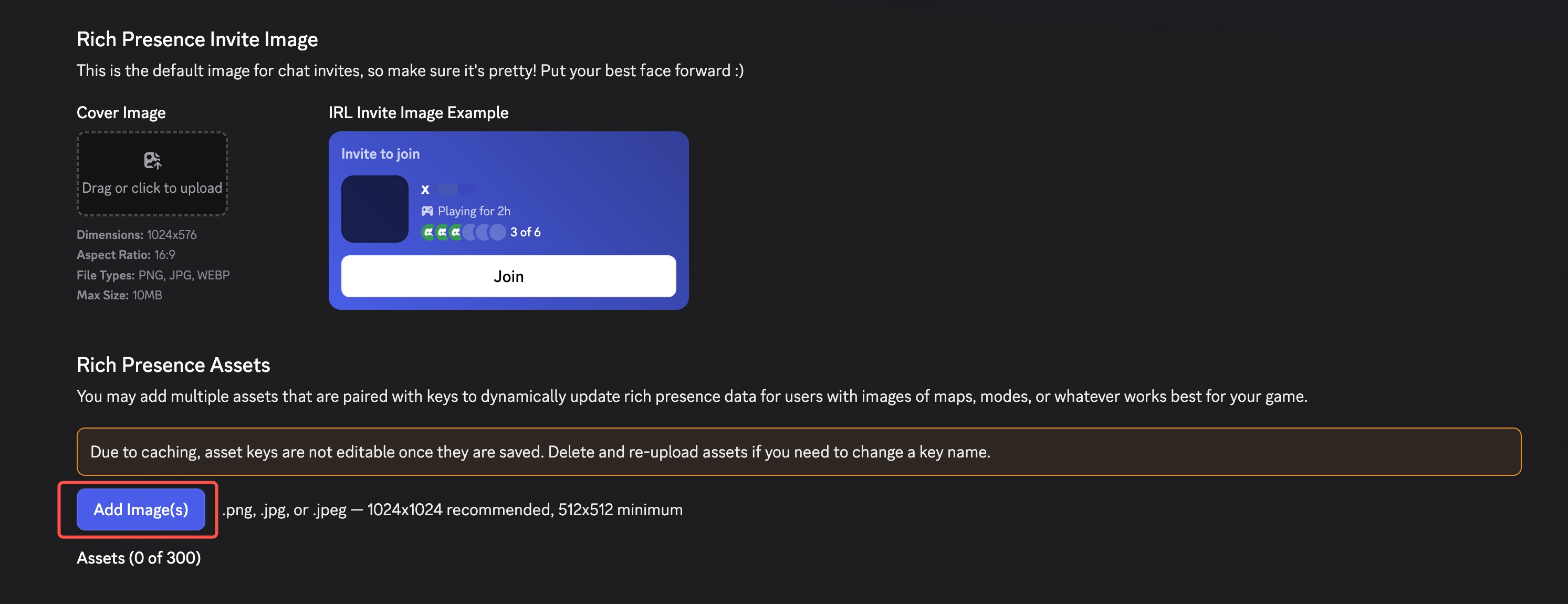
- Click Rich Presence
- Click Add Image(s) to upload image assets
- Obtain Player Network Console login account.
- Create a new project for your game, or join an existing one.
- Add Discord as the login authentication method for the service in the Player Network Console.
For more information about integrating other third-party channels into the SDK, see JavaScript SDK.
Step 1: Introduce JavaScript SDK
During project integration testing, import the debugging SDK package, which is intended only for integration testing.For project launch, the official SDK package must be imported.
Currently, both npm package method and CDN method are supported.
- npm
- CDN
$ npm install @intlsdk/account-api
// SDK debug version package
<script src="https://test-common-web.intlgame.com/sdk-cdn/account-api/latest/index.umd.js"></script>
// SDK official version package
<script src="https://common-web.intlgame.com/sdk-cdn/account-api/latest/index.umd.js"></script>
Step 2: Use SDK
During integration testing, set env to test environment; when the project goes live, set env to the corresponding official environment.
const accountApi = new IntlgameAccountApi({
  env: "test", // SDK environment
  gameID: 11,
});
| Parameter | Type | Description | Remark |
|---|---|---|---|
| env | string | SDK environment For more information, see Obtain deployment cluster information. | Required |
| gameID | number | Player Network unique game ID | Required |
Step 3: Implement Web Login
After instantiating the accountApi component, call the thirdAuthorize interface to request an access token for the Discord channel.
accountApi.thirdAuthorize({
    third_type: 'discord',
}).then(
(res) => {
    console.log(res);
});
When Discord returns the access token, call the intlAuthorize interface to get the Player Network SDK OpenID and token to log into the site.
accountApi.intlAuthorize({
    third_type: 'discord',
    channel_info: {
        access_token: "EAAI2lTrXAZBwBAC"
        refresh_token: "EAAI2lTrXAZBwBAC"
        expires_in: "EAAI2lTrXAZBwBAC"
        redirect_uri: "EAAI2lTrXAZBwBAC"
    }
}).then(
(res) => {
    console.log(res);
});
Call the intlLogout API to log out from the website.
accountApi.intlLogout({
    token: '4567xsdfsd',
    openid: 'xxxxxxxx',
    channel_id: 26,
}).then(
(res) => {
    console.log(res);
});

