Announcement
Targeted at operations, publishing, review, and configuration personnel.
Updated: September 2026.
Player Network Console provides announcement capabilities. Through announcement types such as pre-login announcement, post-login announcement, announcement board announcement, and custom announcement, operations can publish multi-language content to players in specified regions, servers, or player lists. Announcements can be edited, verified in the test environment, and published to the production environment, with the entire workflow and review completed in the Console.
The announcement feature entries are located under the Announcement module in the left navigation of the Console, including Overview, Announcement List, and Announcement Review.
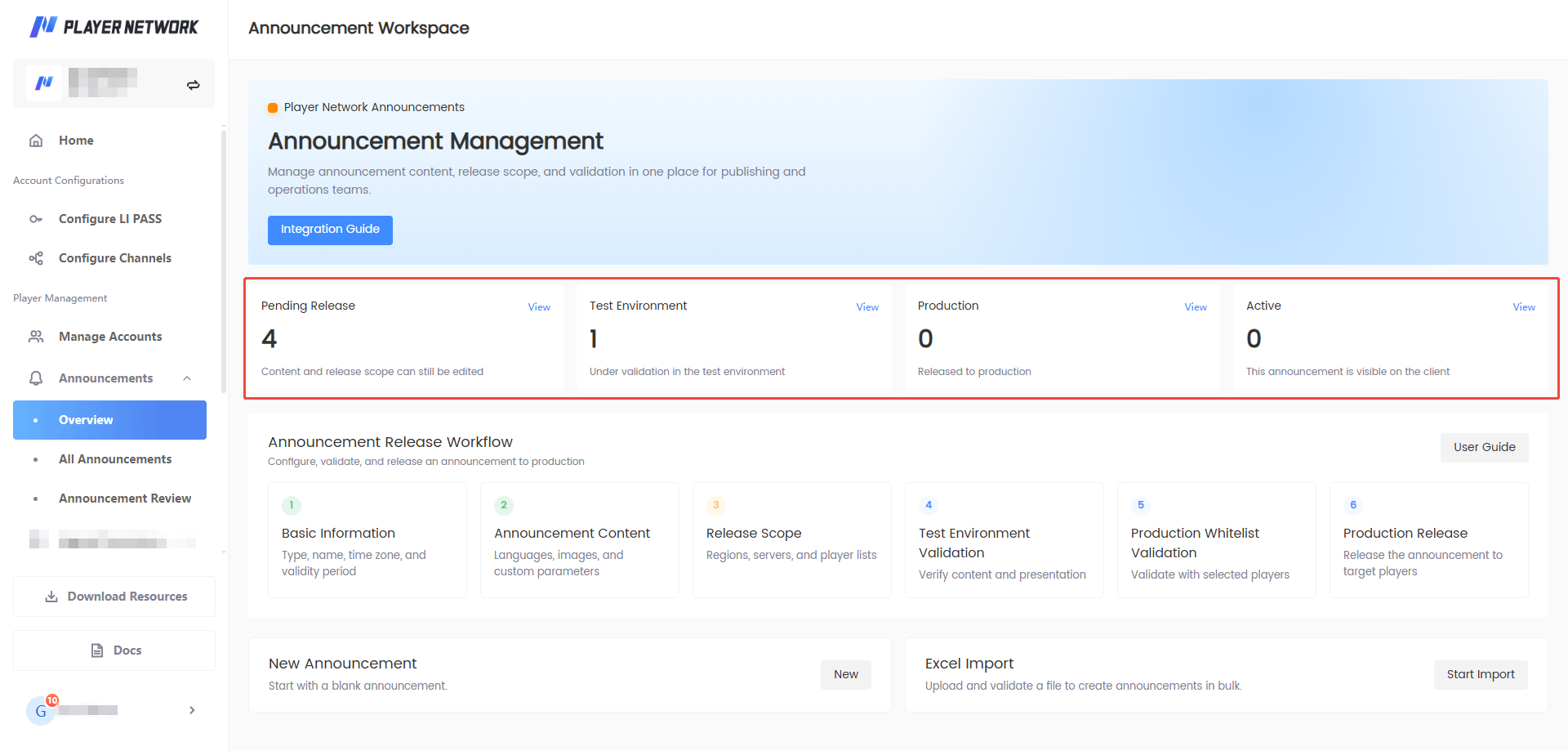
- Overview: View the announcement status and publishing workflow, and quickly enter the filtered announcement list through status cards.
- Announcement List: Create, query, edit, duplicate, publish, take offline, and delete announcements, and manage player lists, publish regions, publish servers, and announcement categories.
- Announcement Review: Handle review requests for production publish or offline.
Announcement publishing workflow
All announcements, from testing to publishing, follow the fixed workflow shown in the figure below.

| Current Publish Phase | Editing | Preview in test environment | Preview in production environment | Publish in production environment |
|---|---|---|---|---|
| Editing | Edit announcement | Preview in test environment before going offline, the status is changed to: Preview in test environment | Preview in production environment before going offline, the status is changed to: Preview in production environment | Publish in production environment before going offline, the status is changed to: Publish in production environment |
| Preview (Test Environment) | No such operation can be conducted, unable to edit before the announcement goes offline. | Preview in test environment before going offline (current status) | Preview in production environment before going offline, the status is changed to: Preview in production environment | Publish in production environment before going offline, and the status is changed to: Publish in production environment |
| Preview (Production environment) | No such operation can be conducted, unable to edit before the announcement goes offline. | No such operation can be conducted | Preview in production environment before going offline, and the status is changed to (current status) | Publish in production environment before going offline, the status is changed to: Publish in production environment |
| Publish (Production Environment) | Reviewers can edit published announcements online. | No such operation can be conducted | No such operation can be conducted | Publish in production environment before going offline (current status) |
"Operation" refers to the operations performed when publishing an announcement in Player Network Console, including editing, duplicating, test environment test, production environment test, publishing in the production environment, and taking offline.
Prerequisites
Before creating an announcement, it is recommended to prepare the following:
| What to prepare | Example | Why it's needed |
|---|---|---|
| Admin announcement name | June version update announcement | For backend query and identification; not directly visible to players as the title |
| Announcement type | Pre-login, post-login, announcement board, or custom | Determines the announcement display location and configurable fields |
| Effective time zone and validity period | UTC+8, start and end time | Determines when the announcement takes effect and expires |
| Titles and body in each language | Chinese, English, Japanese | For displaying to players in different languages |
| Images and redirect links | JPG / PNG, event links | Used when image-text announcements are needed |
| Publish scope | Region, server, player list | Determines which players can see the announcement |
| Custom parameters | reward:diamond_200 | Used when the business or client needs to read extended parameters |
To reuse player lists, regions, servers, or announcement categories, configure them first in Announcement List > More Settings.
Understand the main pages
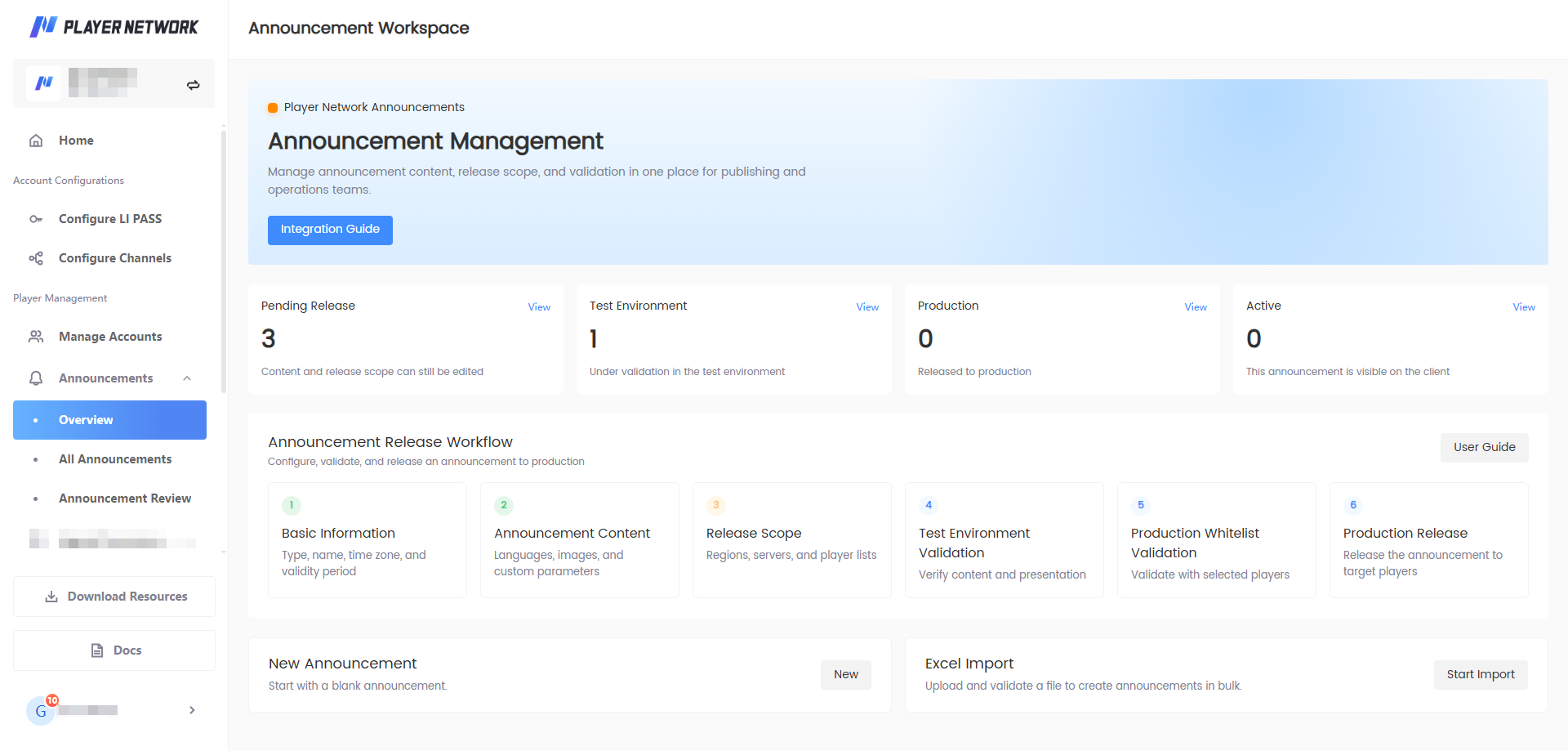
The left navigation contains three main entries:
| Page | Main purpose | Common operations |
|---|---|---|
| Overview | View announcement status and publishing workflow | Click status cards to enter filtered announcement lists; create announcements; start importing |
| Announcement List | Query and manage all announcements | Create, import, edit, publish, duplicate, take offline, manage configurations, view logs |
| Announcement Review | Handle production publish or offline reviews | Approve, reject, view review history, configure reviewers |
The Chinese / EN toggle in the top right corner of the page switches the admin interface language and does not auto-translate announcement body text.
Choose the appropriate announcement type
Confirm the announcement display scenario before creating. The announcement type cannot be changed after saving; if the wrong type is selected, create a new announcement.
| Announcement type | Applicable scenario |
|---|---|
| Pre-login announcement | Maintenance, server downtime, or server opening notices that players must see before logging in |
| Post-login announcement | Operational information or reminders displayed after players successfully log in |
| Announcement board announcement | Long-term or categorized information that players actively open the bulletin board to view |
| Custom announcement | Special display scenarios that require custom images and business parameters |
Quick publish
If you are using this product for the first time, follow these 8 steps to complete the main flow. This section is an overview only; for field descriptions, image requirements, and publish scope details, see Manually create announcements.
-
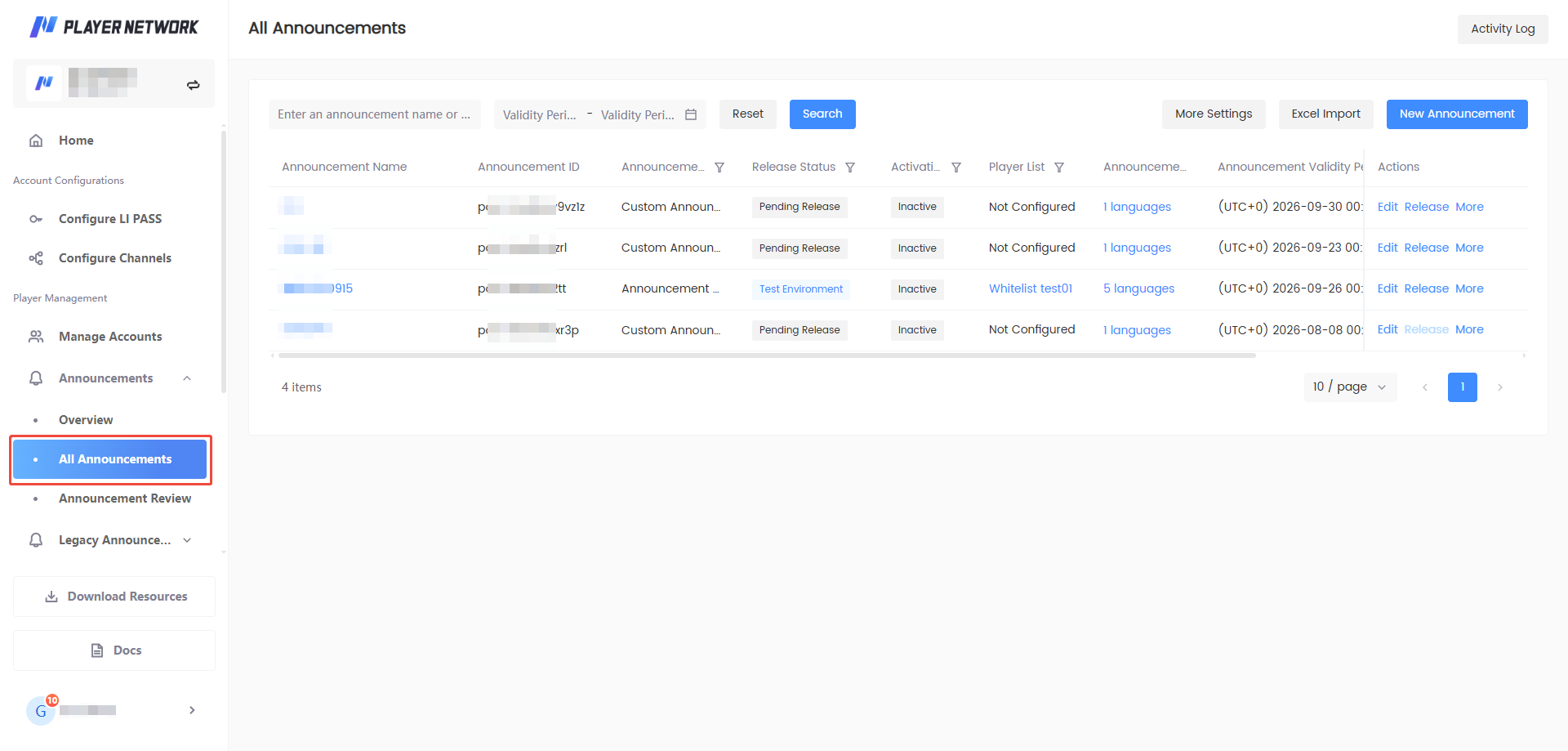
Go to Announcement List in the left navigation.
-
Click Create Announcement in the top right corner.
-
Fill in the announcement name, announcement type, time zone, and validity period.
-
Under Announcement Content, select the language and fill in the title and body for each language.
-
[Optional] To display images, click Add Image to upload images, and fill in redirect links and Key/Value as needed.
-
Click Save & Next. The announcement is saved as Pending Publish and enters Publish Scope Settings.
-
Select Test Environment Publish or Production Environment Publish, and configure the player list, publish region, and publish server.
-
Click Confirm Publish, review the summary and submit. If review is required, wait for the reviewer to process it.
Recommendation: For new users publishing for the first time, select Test Environment Publish first to verify the content and display effect before publishing to the production environment.
Manually create announcements
Enter the new announcement page
Entry 1: In the Overview, click Create in the Create Announcement area.
Entry 2: Go to Announcement List and click Create Announcement in the top right corner.
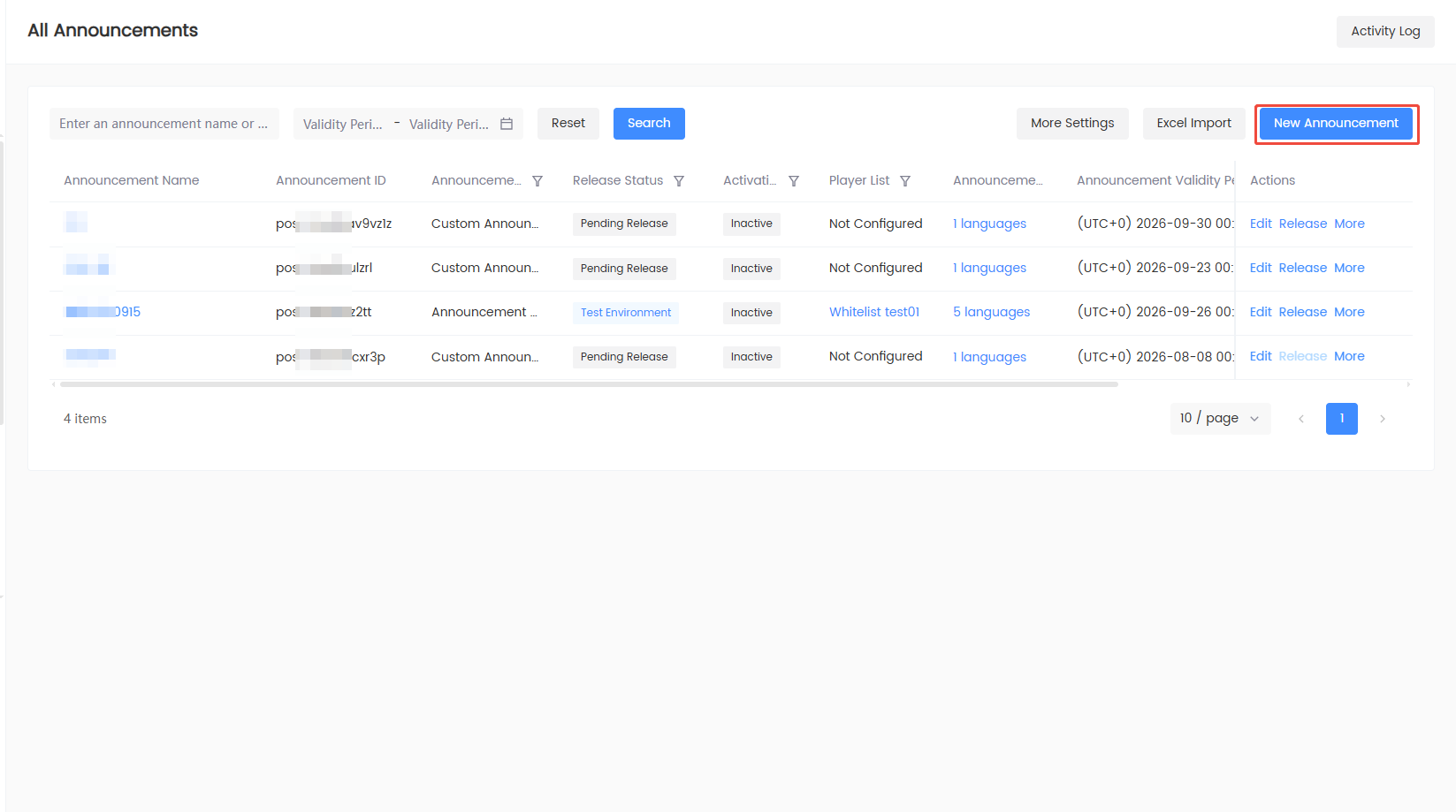
After entering, the page is divided into Basic Information and Announcement Content.
Fill in basic information
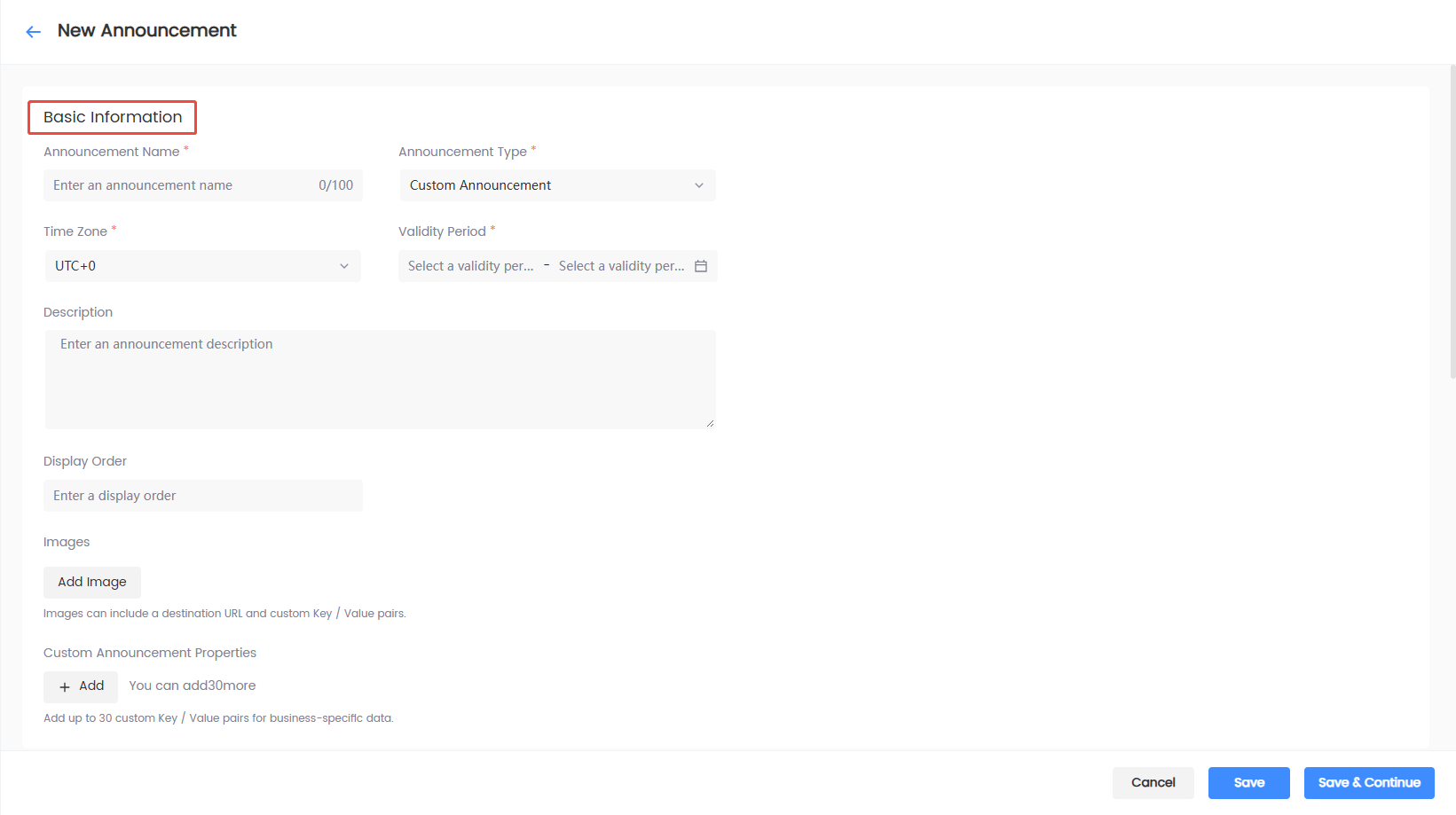
| Field | Required | Filling suggestion |
|---|---|---|
| Announcement name | Yes | For admin identification only; recommended to include date, event, or scenario. Up to 100 characters |
| Announcement type | Yes | Cannot be changed after saving; confirm before the first save |
| Time zone | Yes | Used to indicate which time zone the announcement validity period is calculated in, e.g., UTC+8 Beijing time, UTC+0, UTC+9 Tokyo time |
| Validity period | Yes | Set the start and stop time for the announcement display |
| Description | No | For internal notes; up to 1000 characters |
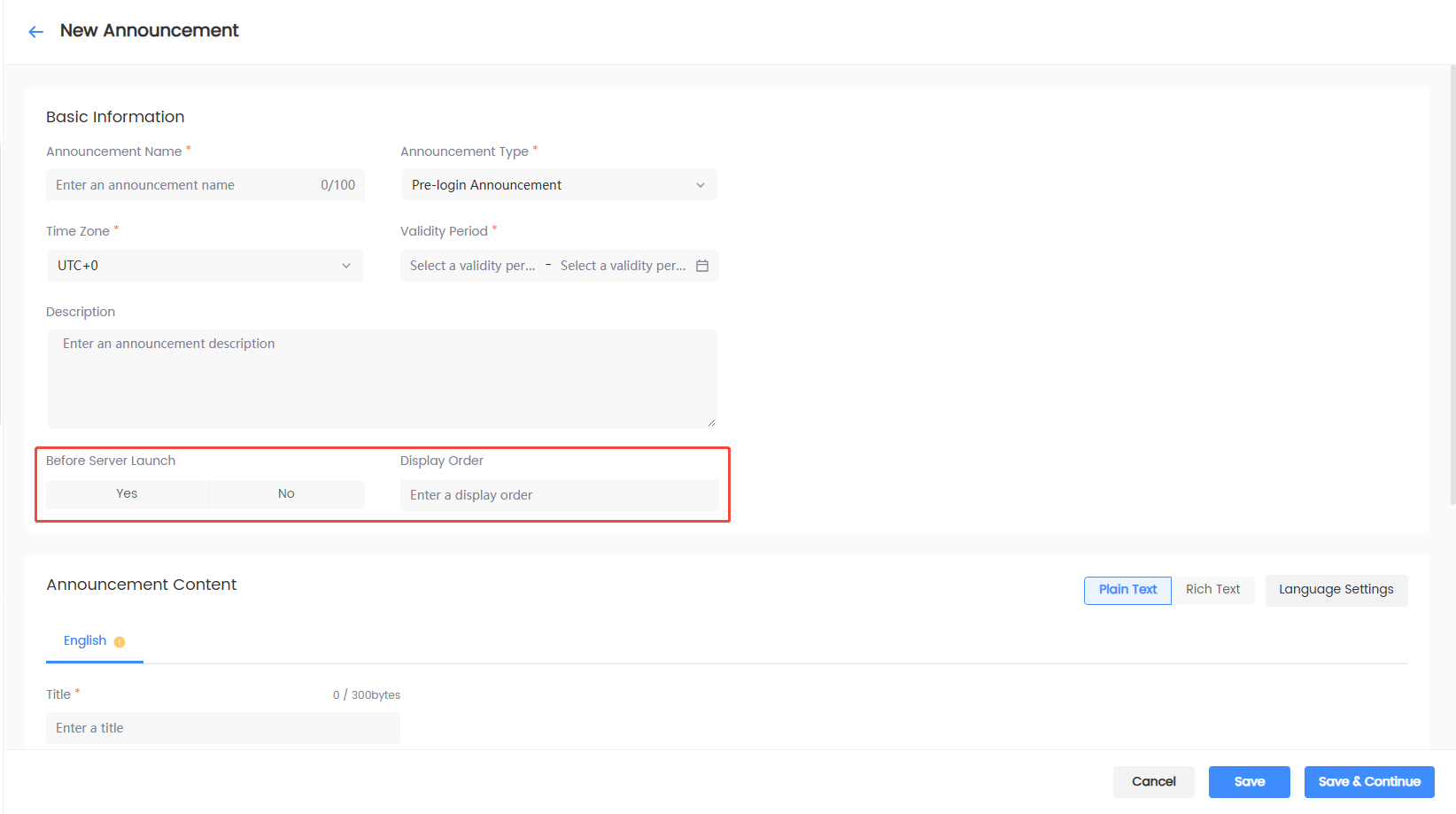
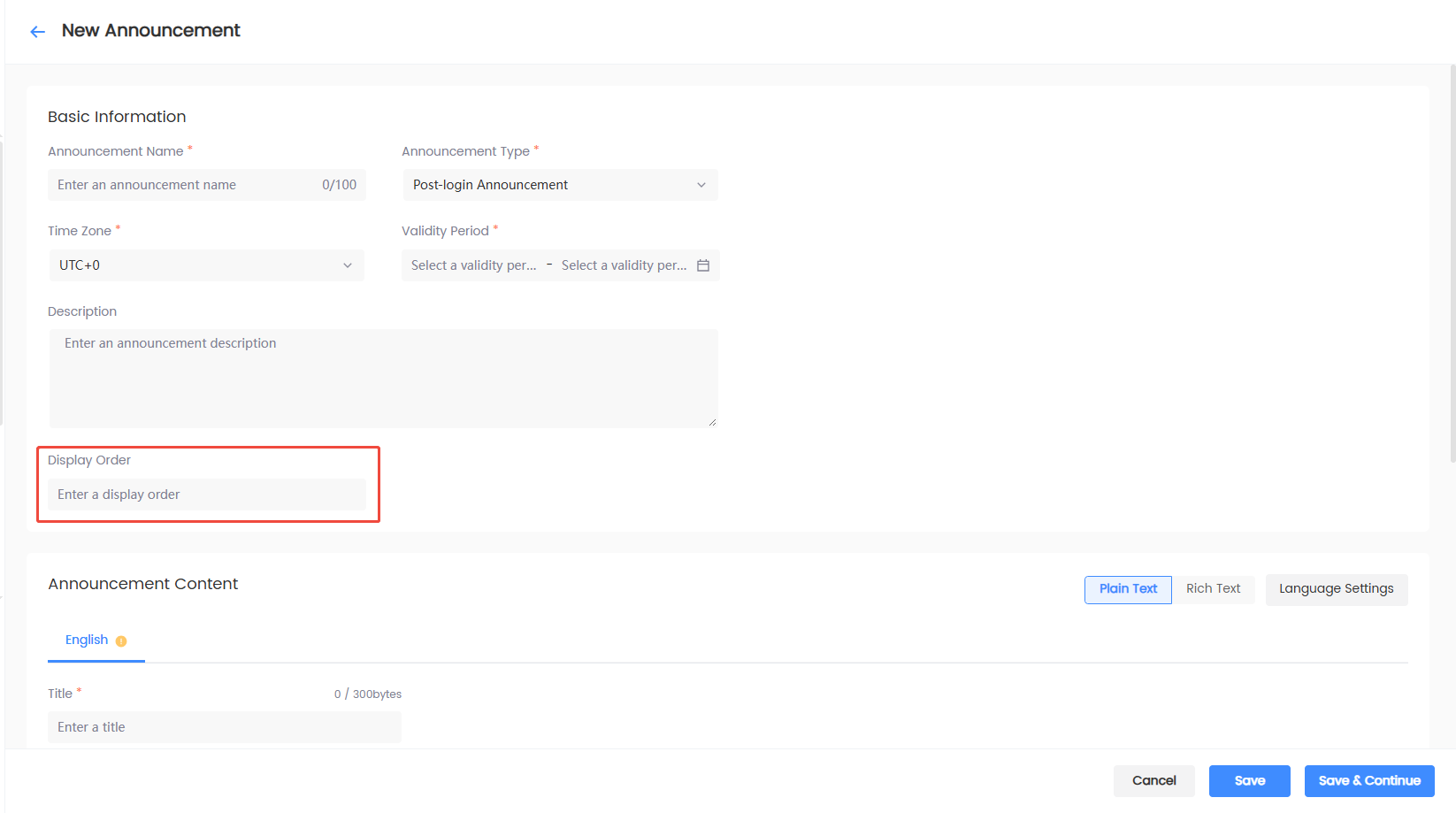
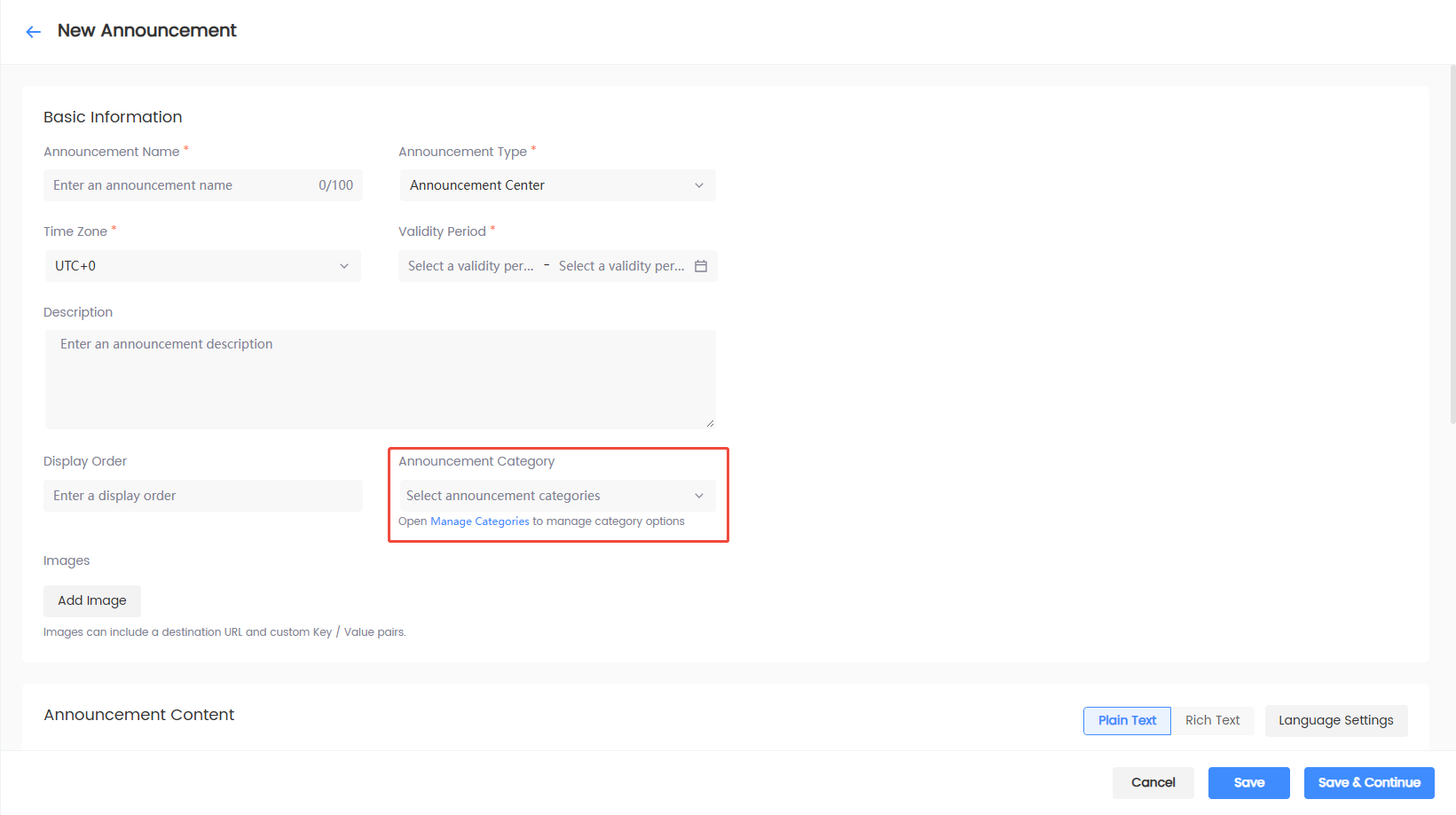
Fill in the additional fields displayed based on the announcement type; for type selection, see Choose the appropriate announcement type.
- Pre-login announcement: Select whether it is a pre-server announcement and fill in the order.
- Post-login announcement: Fill in the order.
- Announcement board announcement: Select the announcement category; if no suitable category exists, click Category Management.
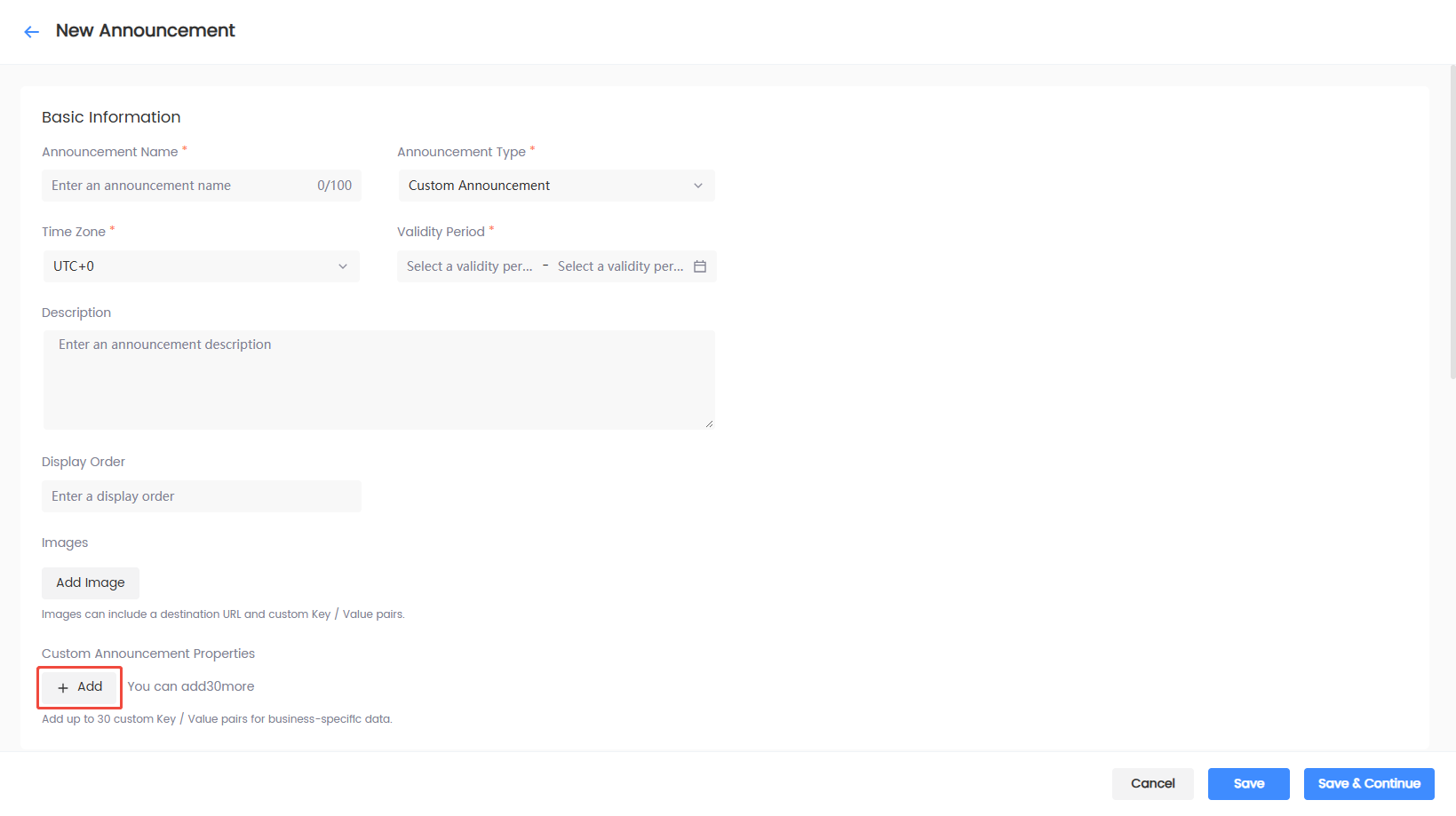
- Custom announcement: Fill in the order, add images and announcement custom attributes as needed, up to 30 Key/Value pairs.
Configure announcement languages
-
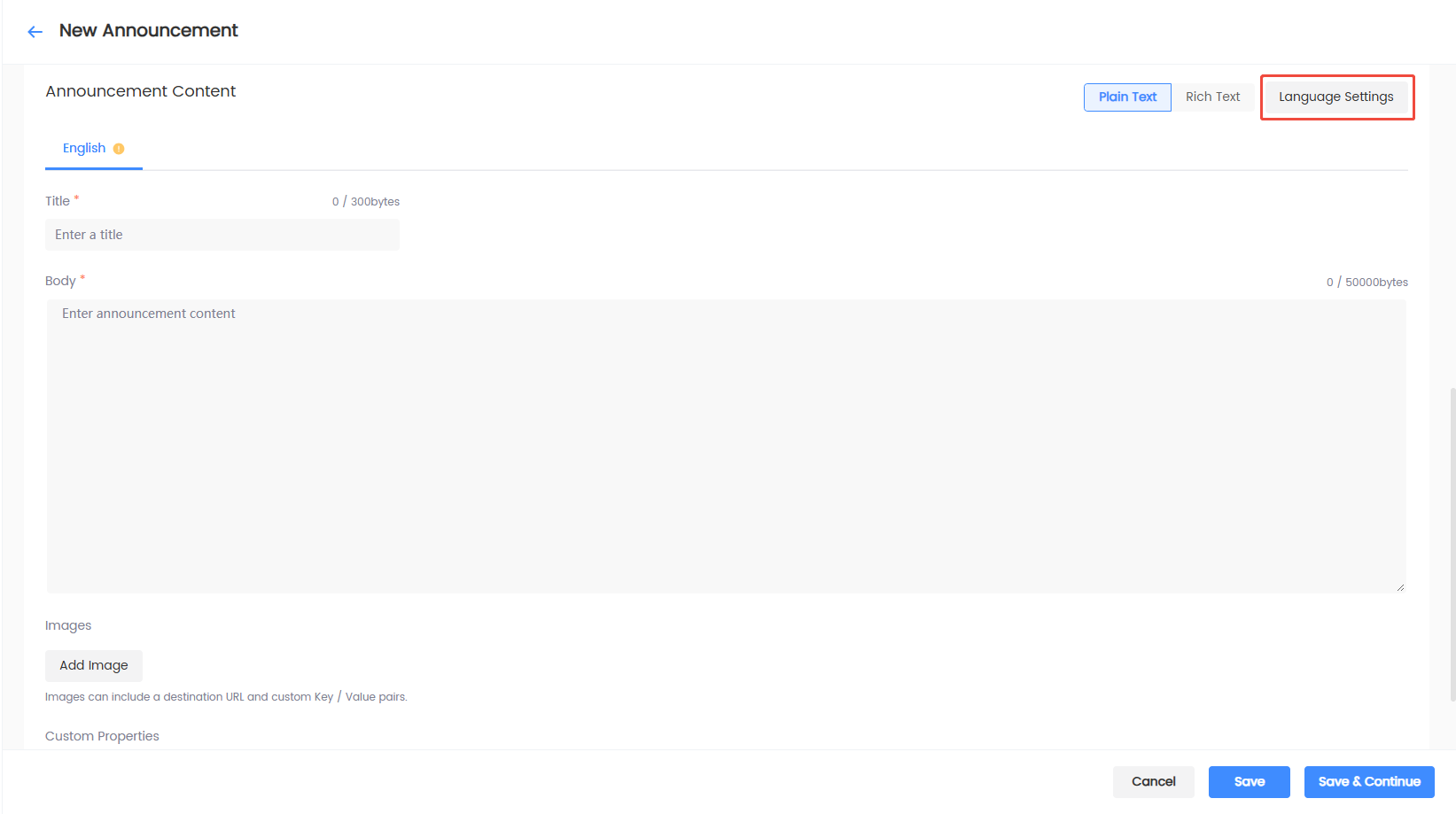
Click Language Settings.
-
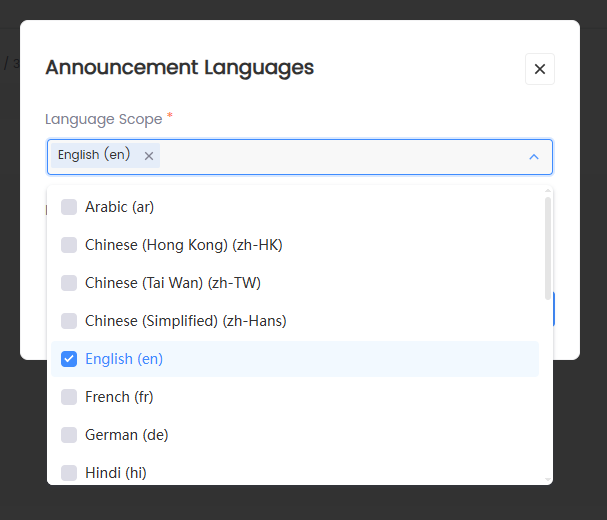
Check the languages this announcement needs to support. Keep at least one language.
-
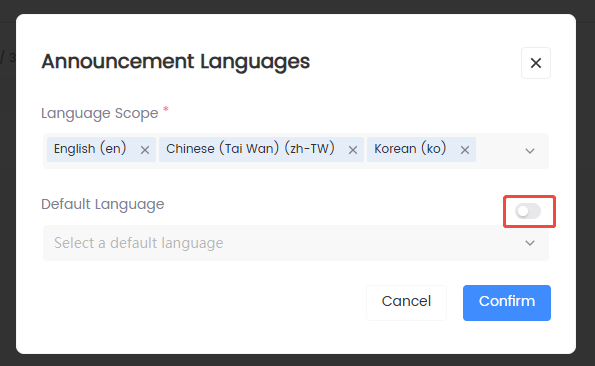
[Optional] Enable the default language, and select one language within the language range as the default language.
-
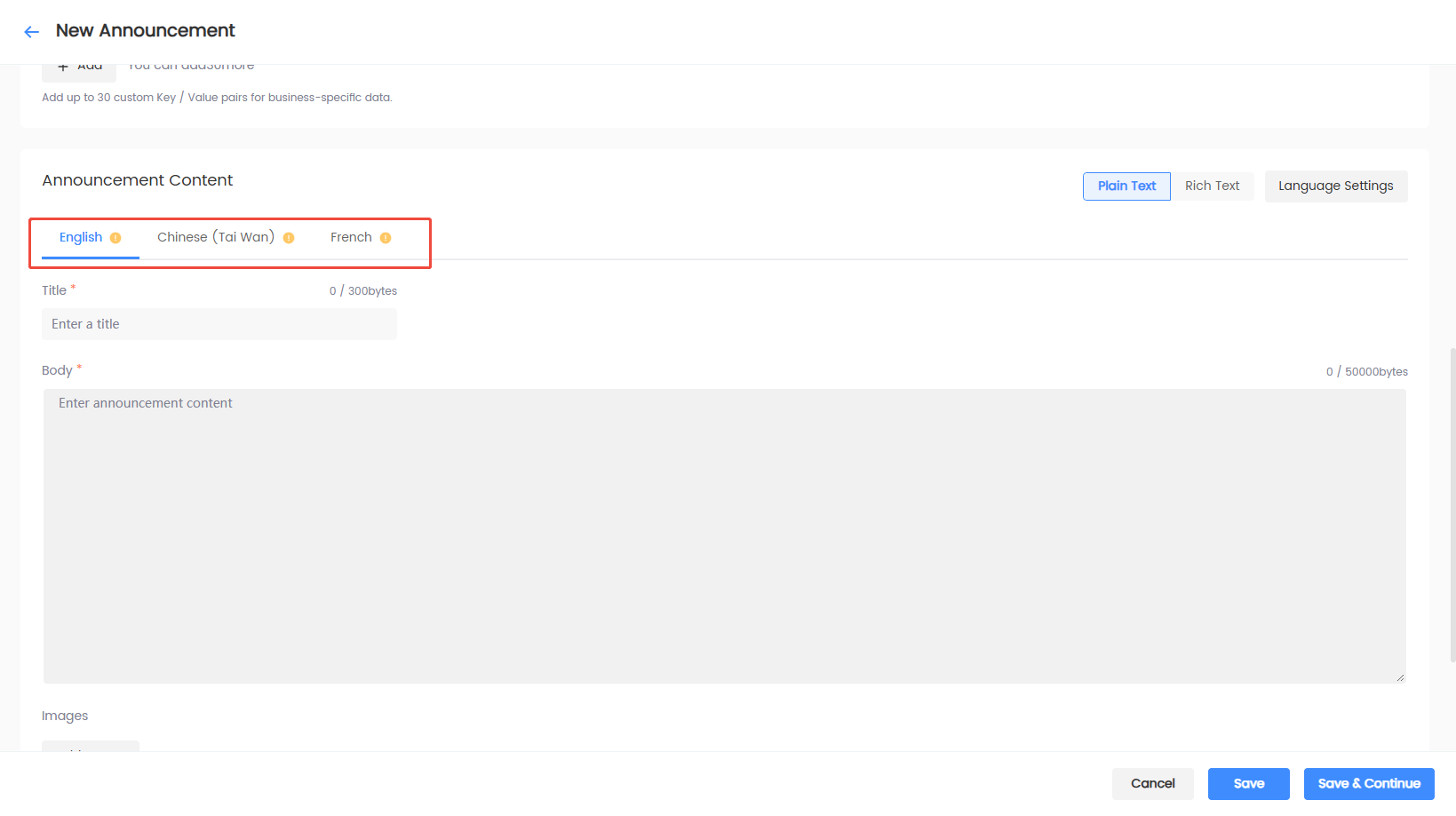
After confirmation, the page generates the corresponding language tabs.
-
Switch between languages and fill in the content. When switching languages, the current input is saved under the corresponding language; titles, body text, images, and parameters are independent across languages.
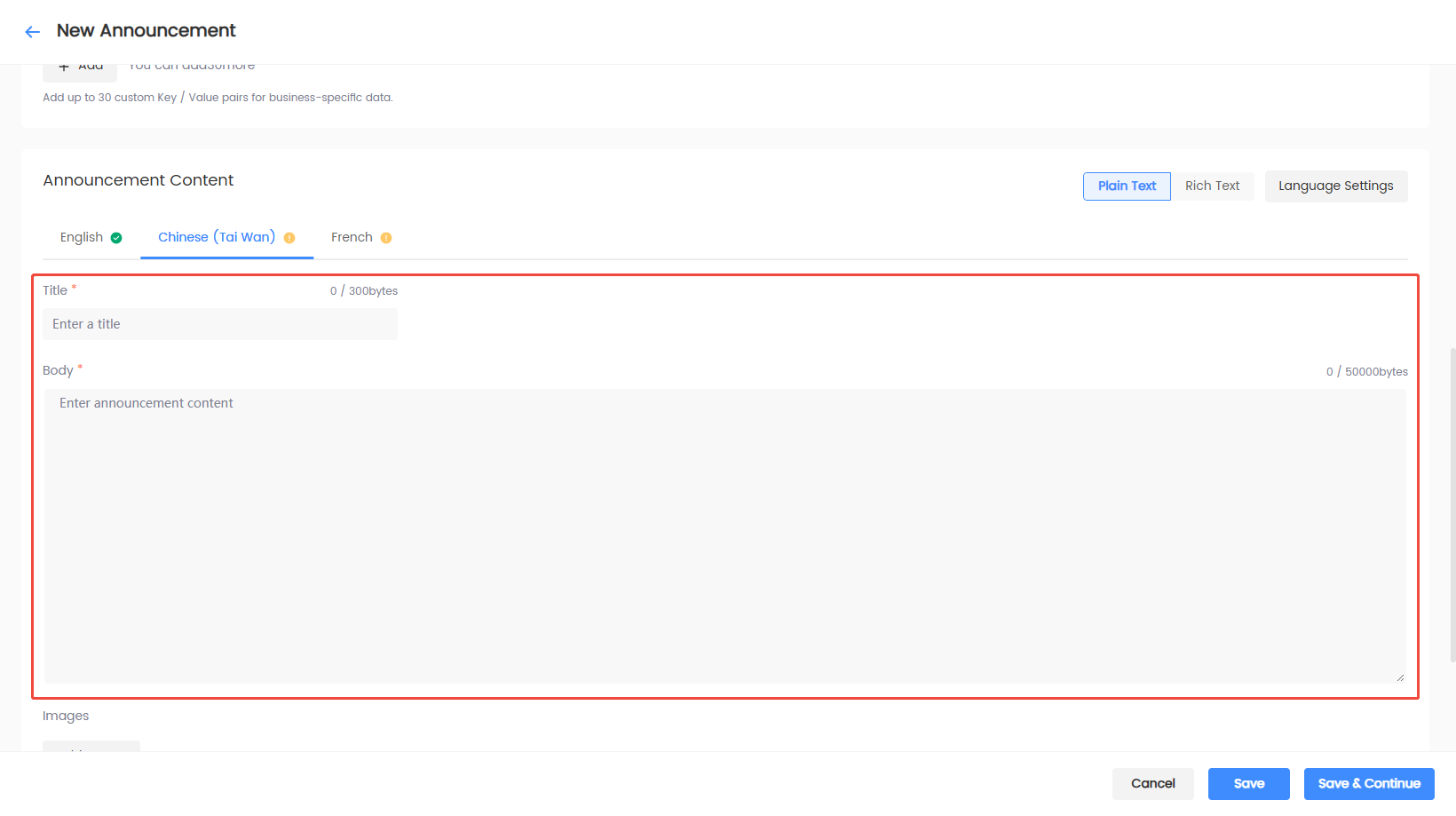
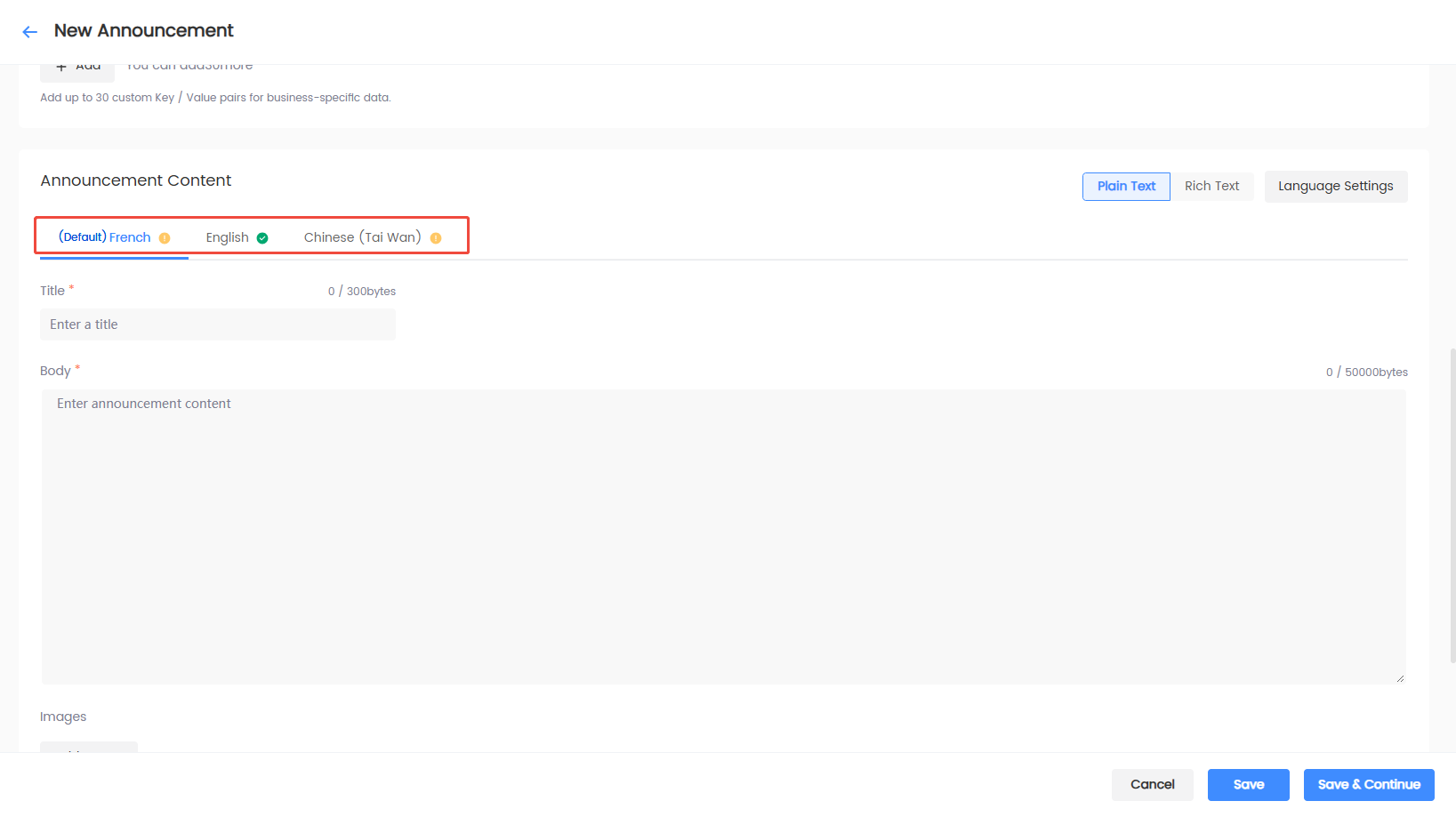
Language tab status meanings:
-
✓: The required content for this language has been filled in.
-
!: This language still has content to be configured or confirmed.
-
Default: The default language of the current announcement.
Fill in title and body
| Content | Required | Operation suggestion |
|---|---|---|
| Title | Yes | The announcement title displayed to users in this language. Up to 300 bytes |
| Body | Yes | The announcement body displayed to users in this language; can contain line breaks and system-supported button tags. Up to 50000 bytes Body supports Plain text and Rich text formats |
Add images and redirect links
-
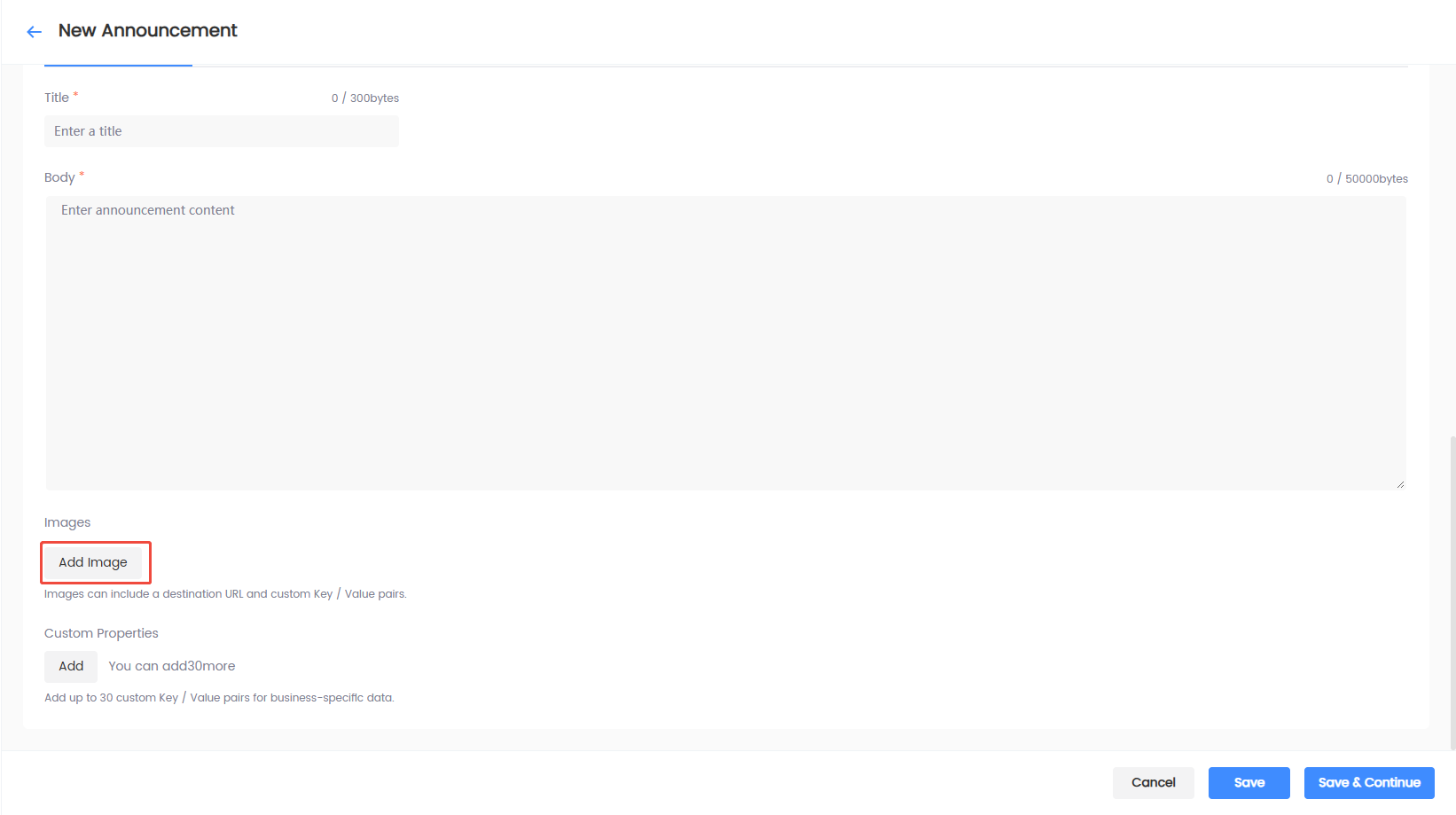
Under the current language content, click Add Image.
-
Complete the image configuration information.
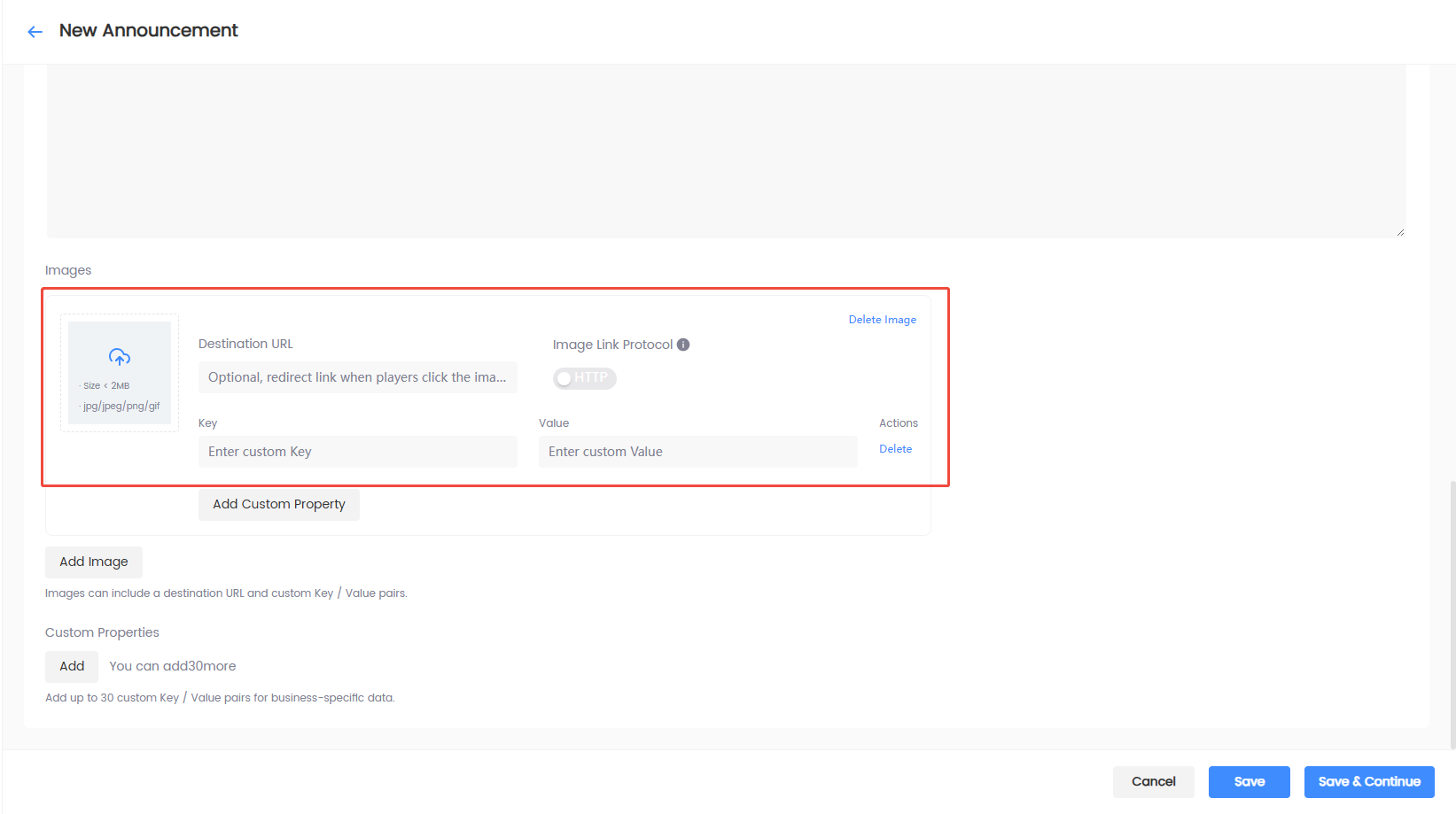
Image requirements:
-
Upload JPG or PNG images, each image less than 2 MB;
-
If clicking the image requires a redirect, fill in the complete redirect link;
-
If the client needs to read image parameters, add Key/Value;
-
Configure separate links and parameters for each image.
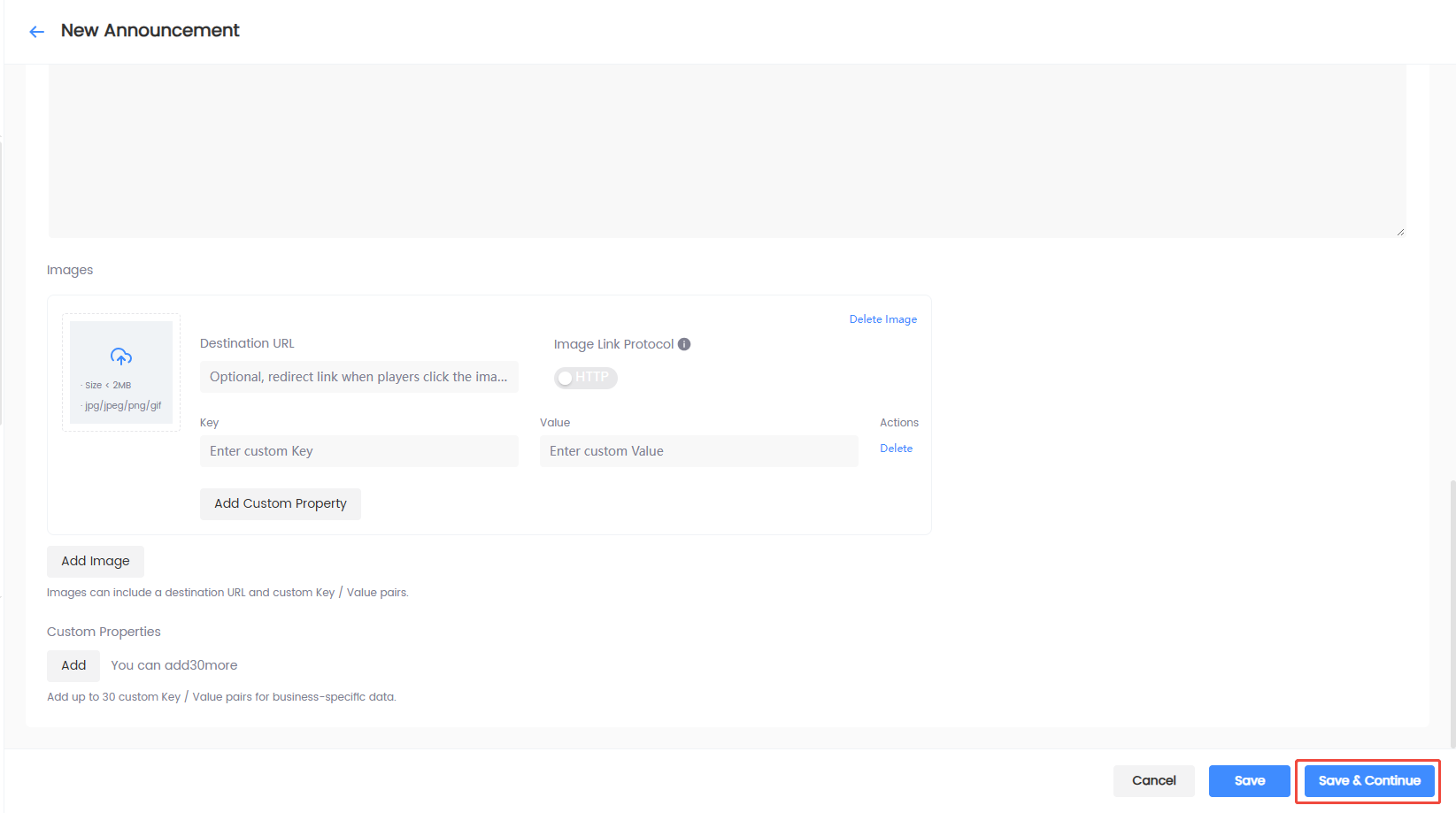
Save announcement
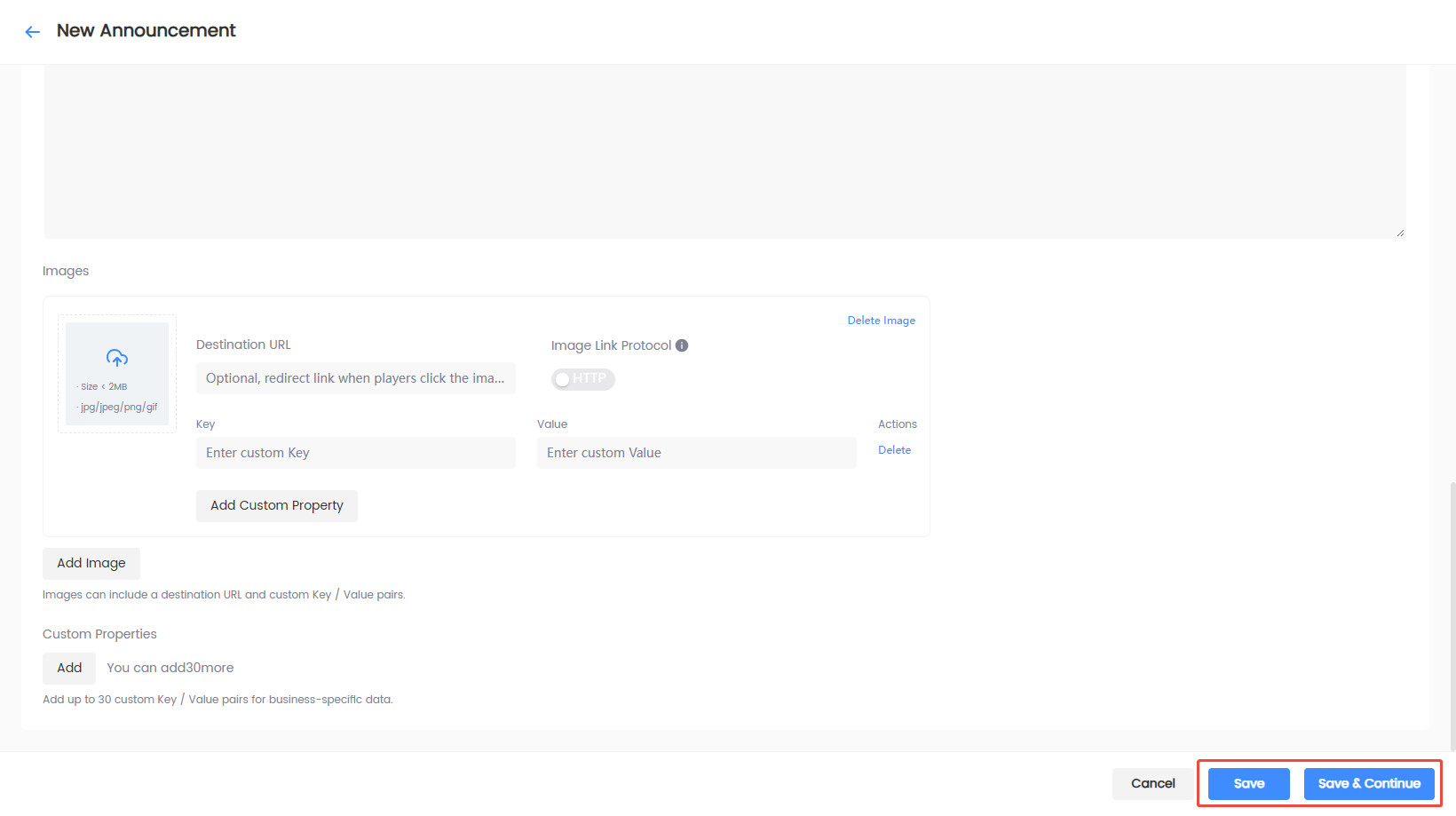
There are three operations at the bottom of the page:
| Operation | Result |
|---|---|
| Cancel | Return to Announcement List without saving current changes |
| Save | Save as Pending Publish and return to Announcement List |
| Save & Next | Save as Pending Publish and enter publish scope settings |
If you are unsure about the publish scope for now, select Save; select Save & Next when ready to continue publishing.
Select publish environment
| Environment | Applicable scenario |
|---|---|
| Test environment publish | Verify announcement content, images, and display effect; recommended for first publish |
| Production environment publish | Publish to production players; may require entering the review process |
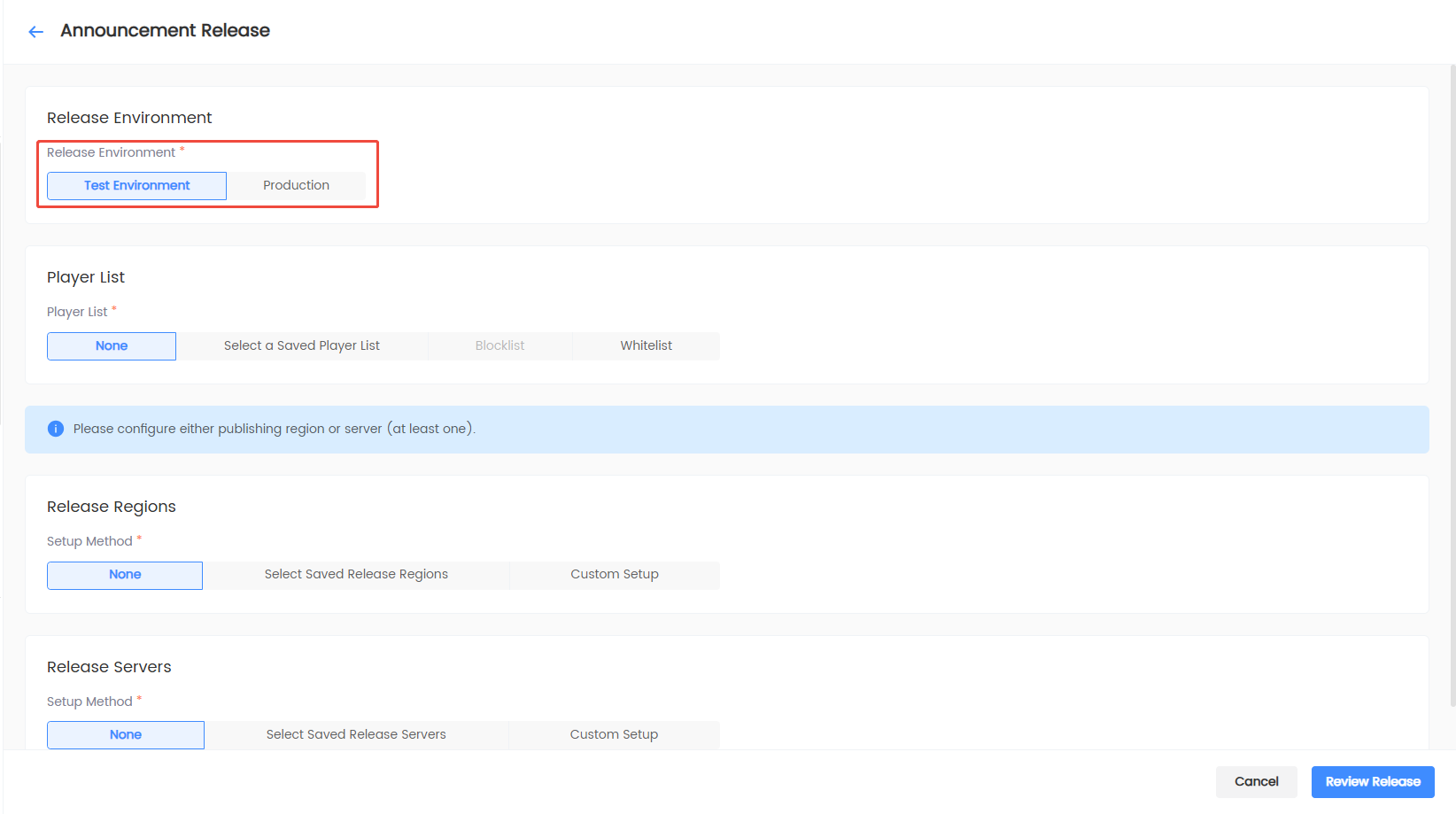
Announcements already published to the production environment cannot be republished to the test environment. To retest, take the announcement offline first according to the actual process.
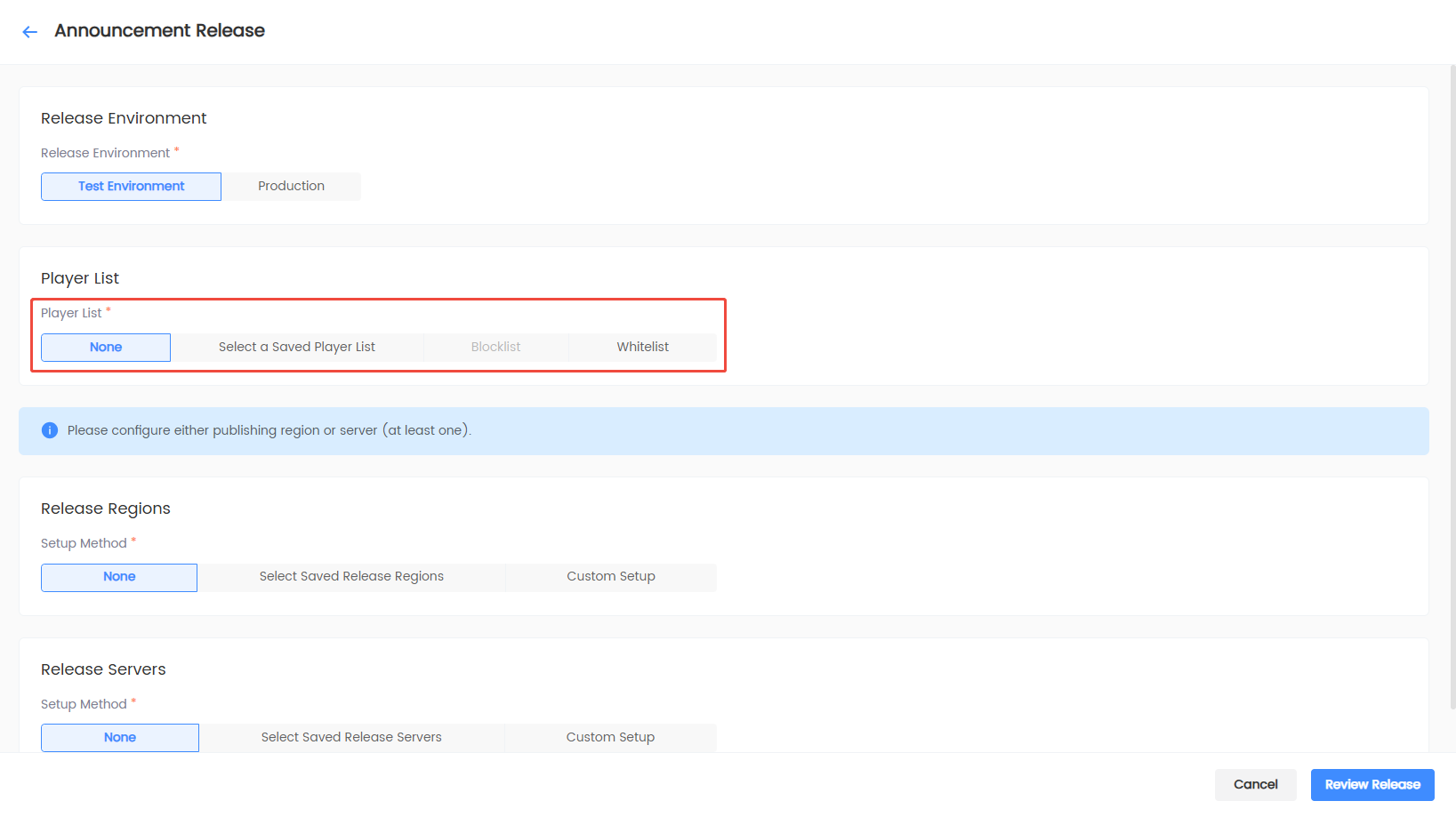
Configure player list
There are four player list options:
| Option | Applicable scenario | Subsequent configuration |
|---|---|---|
| None | Do not restrict players by list | No secondary configuration |
| Select saved player list | Reuse a previously maintained list | Select from dropdown |
| Blocklist | Exclude specified players | Select OpenID or DeviceID, and fill in IDs line by line |
| Allowlist | Only allow specified players | Select OpenID or DeviceID, and fill in IDs line by line |
For lists that need long-term reuse, save them in Player List Management first; temporary lists can be filled in directly on the publish page.
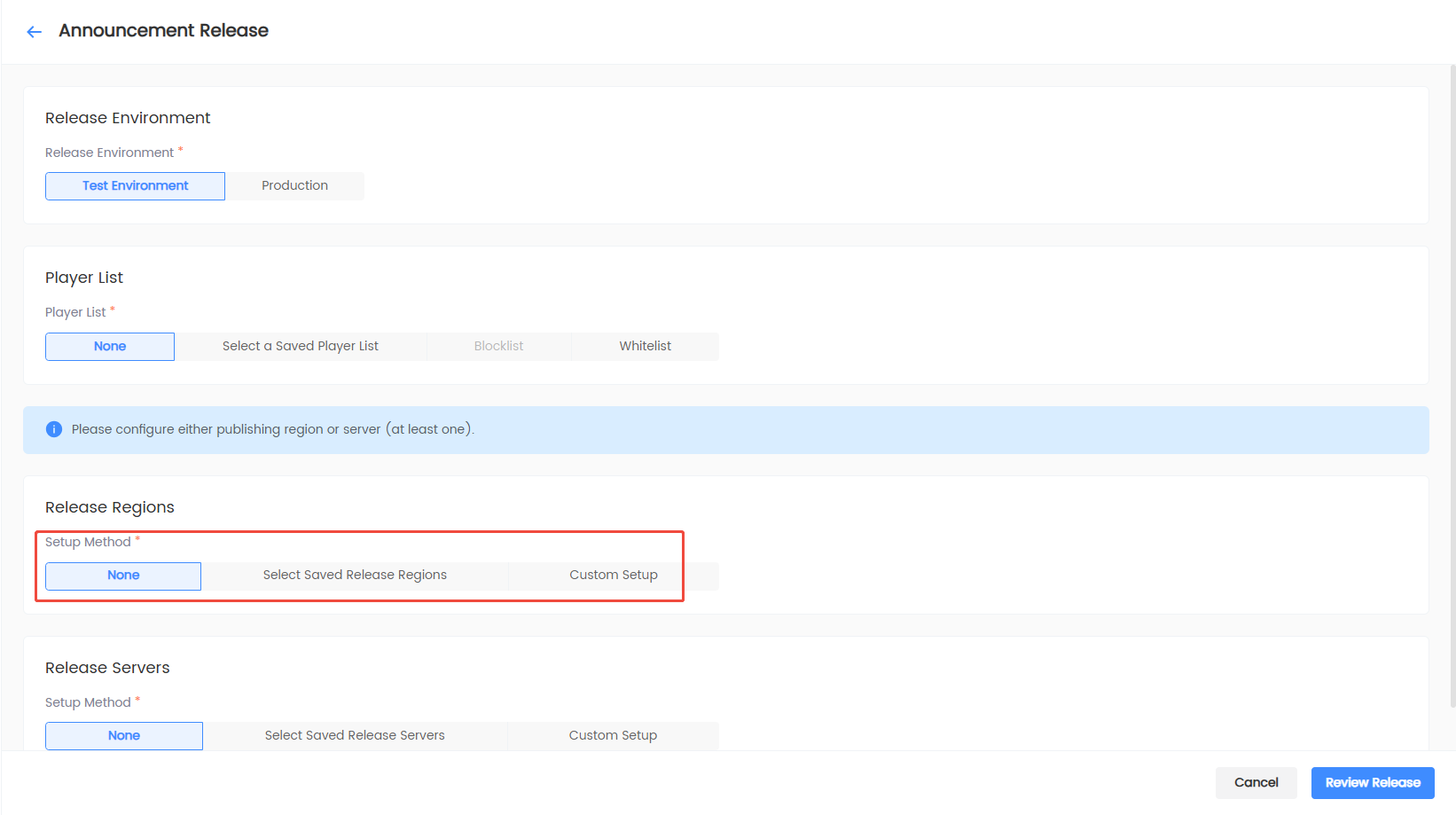
Configure publish region
Publish region options:
-
None: Do not restrict by region this time.
-
Select saved publish region: Reuse admin configuration, e.g., global or key regions.
-
Custom configuration: Temporarily multi-select countries and regions.
Configure publish server
Options:
-
None: Do not restrict by server this time.
-
Select saved publish server: Select a configured server group.
-
Custom configuration: Fill in one server ID per line.
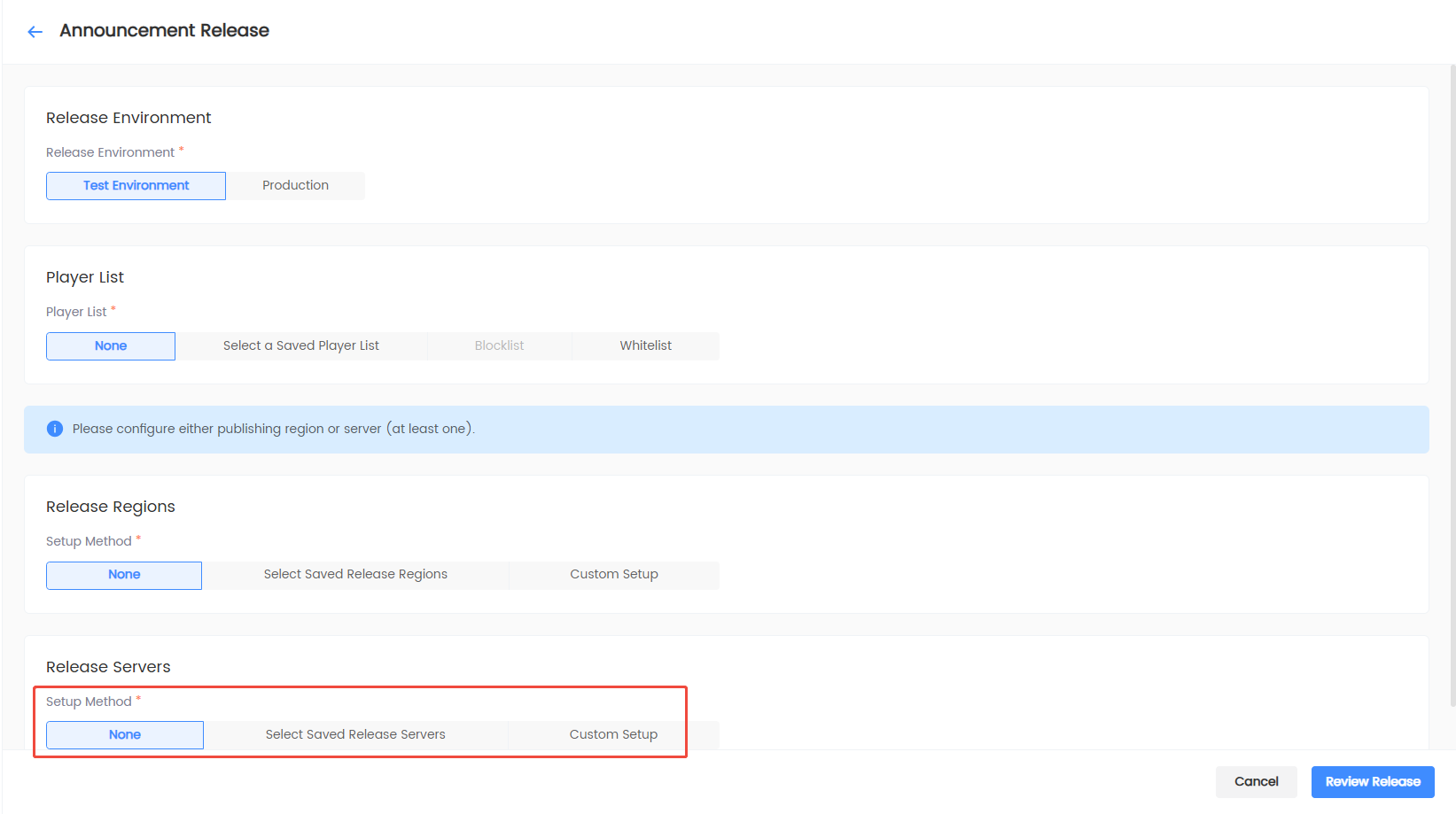
At least one of publish region and publish server must be configured. The current Demo only displays a prompt and does not yet enforce blocking of empty scopes, so manual verification is required before submission.
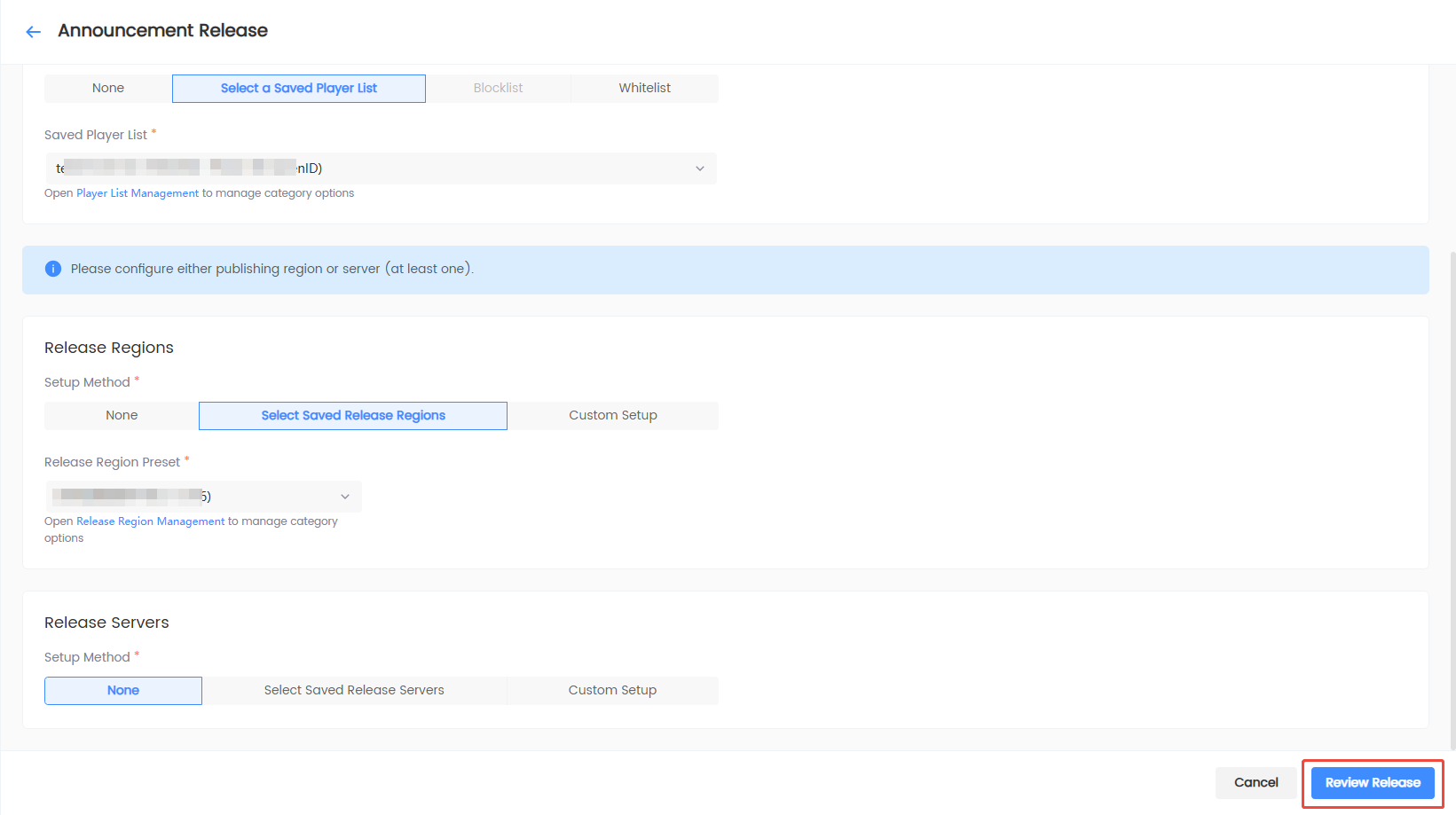
Confirm publish
- Click Confirm Publish.
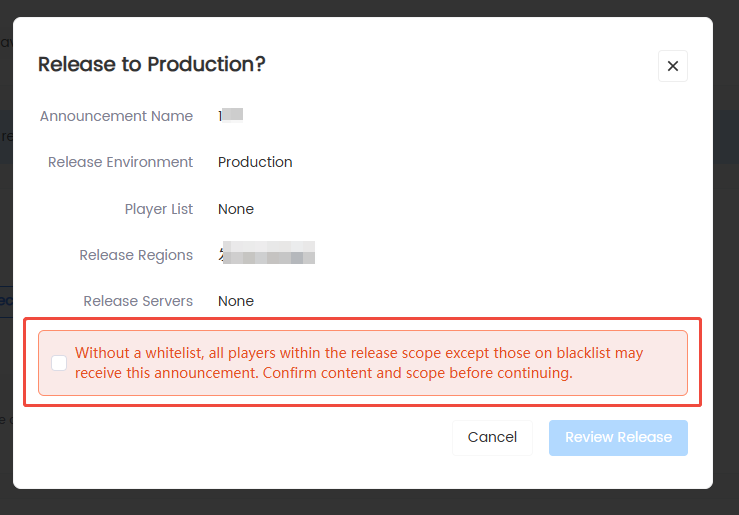
- Review the announcement name, publish environment, player list, publish region, and publish server. Click Confirm Publish after confirming.
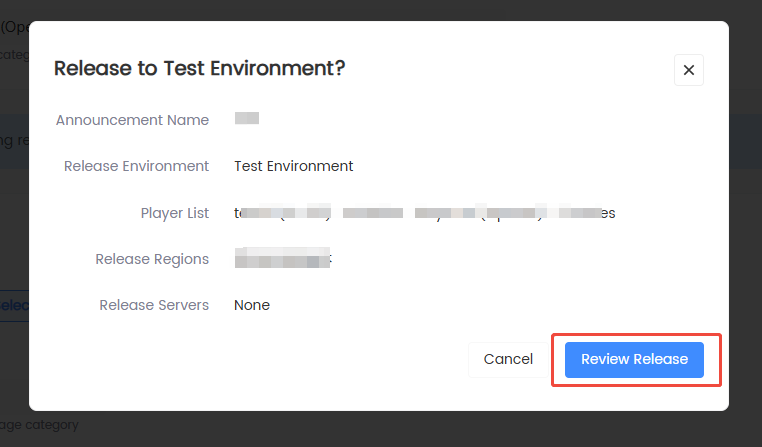
When both of the following conditions are met, the confirmation popup displays an additional risk reminder:
- Select Production Environment Publish;
- Player list is set to None.
In this case, check the No allowlist configured confirmation item, indicating that you are aware that all players in the publish scope except blocklisted players may receive the announcement. Submission is not allowed until checked.
Test environment publish, or production environment with a player list already selected, does not show this additional confirmation item.
Excel bulk import
Suitable for creating multiple announcements at once, up to 30 per import. After import, only Pending Publish announcements are generated; nothing is published to any environment directly.
Import sequence
Complete the following steps in order. The first two steps are hard prerequisites: the template cannot be downloaded until the three settings are complete, and no file can be uploaded until the template is downloaded.
| Step | What to do | Completion / Blocker |
|---|---|---|
| 1 | Set the announcement language, announcement type, and image configuration | Download Dedicated Template becomes available only after all three are complete |
| 2 | Download the dedicated template for this import | Until the template is downloaded, Select Announcement File is unavailable |
| 3 | Fill in announcements using the template | Do not modify the header row; announcement name is required |
| 4 | Select the announcement file and wait for parsing | The system validates each row and shows pass or fail |
| 5 | Select the rows that pass validation in the preview | Rows marked Failed cannot be selected |
| 6 | Generate Pending Publish announcements | New announcements are created with the Pending Publish status |
Configure import content
-
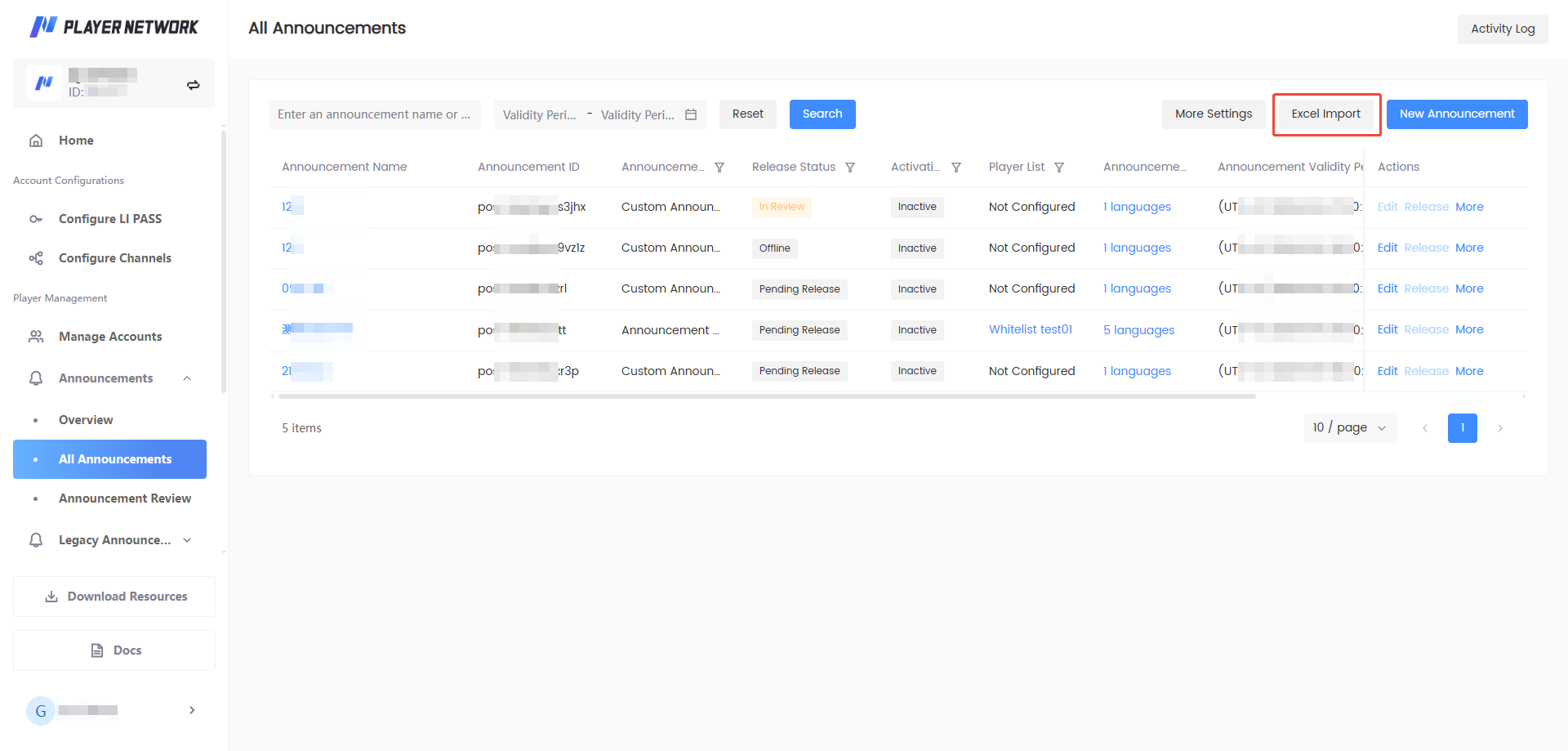
Go to Announcement List and click Excel Import in the top right corner.
-
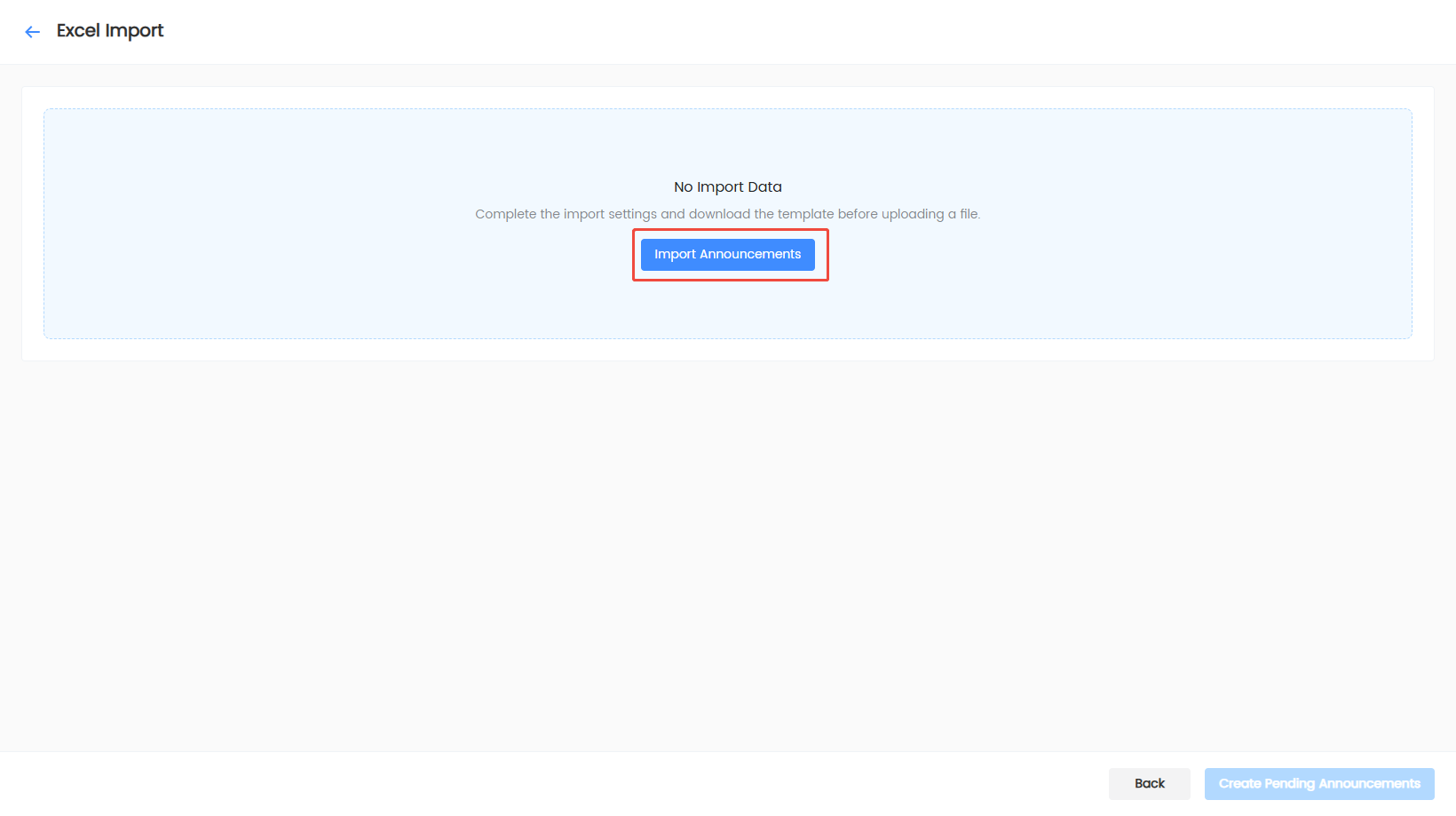
On the Excel Import page, click Import Announcements.
-
In step ① Import Content Settings of the Announcement Import dialog, complete the three required settings.
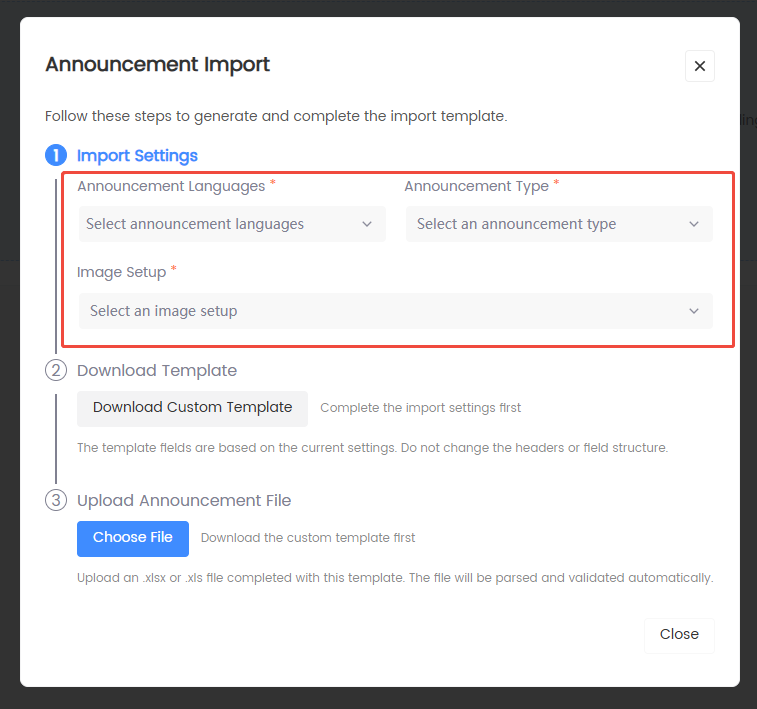
Setting Description Announcement language Select at least one language Announcement type Pre-login, post-login, announcement board, or custom Image configuration No images, shared images for all languages, or separate images for each language -
After all three settings are complete, click Download Dedicated Template under step ② Download Announcement Template. The button is disabled until all settings are complete, with the hint "Complete the import settings first".
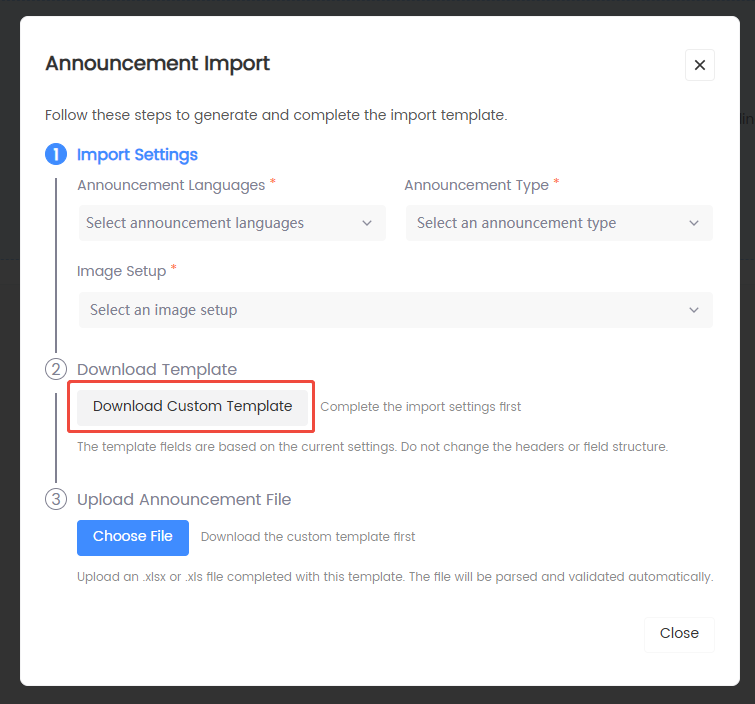
If you change the announcement language, announcement type, or image configuration after downloading the template, download the template again. Template fields are generated from the current settings; uploading a template that does not match the current settings fails validation.
Fill in the import template

Follow these rules when filling in the template:
-
Announcement name is required. The name of each generated announcement comes from the template content.
-
Do not change header names, field order, or symbol structure.
For example, in the header English(en)_Announcement Title, the
(en)_, parentheses, and underscore are recognized by the system and must not be deleted, replaced, or changed to other symbols. -
One row represents one announcement.
-
To add a line break within a cell, insert it inside the same cell instead of splitting the row into multiple rows.
-
Fill in Key / Value according to the template instructions, and do not split one attribute into multiple cells.
-
For player lists, publish regions, and publish servers, enter the IDs generated by the admin configuration, not the names.
-
Fill in time, time zone, image format, and size according to the Instructions sheet of the template.
-
Do not copy the entire header row from an old template; always use the template downloaded with the current settings.
Upload, preview, and generate
-
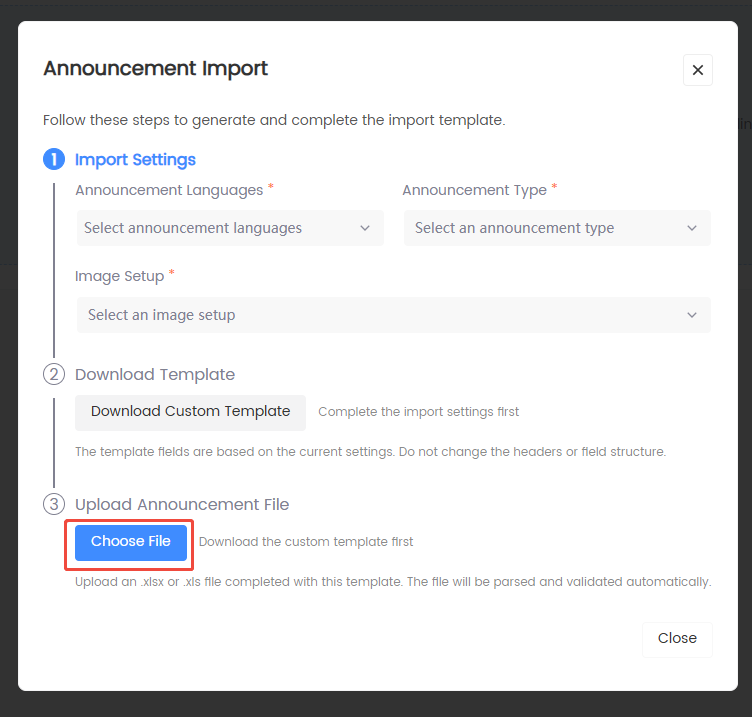
In step ③ Upload Announcement File of the dialog, click Select Announcement File and select an
.xlsxor.xlsfile.Only files filled in with the template downloaded for this import are supported. The button is disabled until the template is downloaded, with the hint "Download the dedicated template first".
-
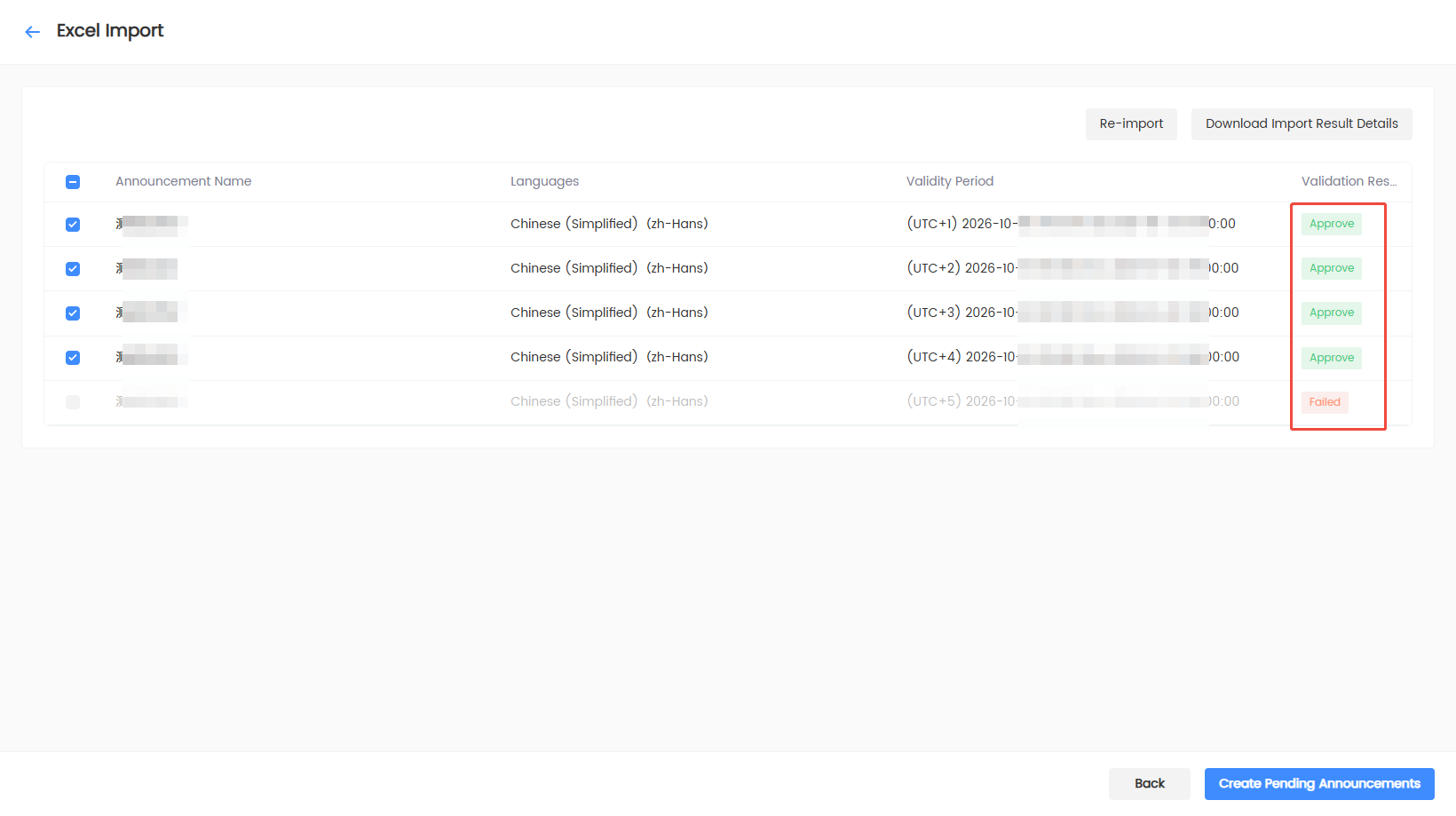
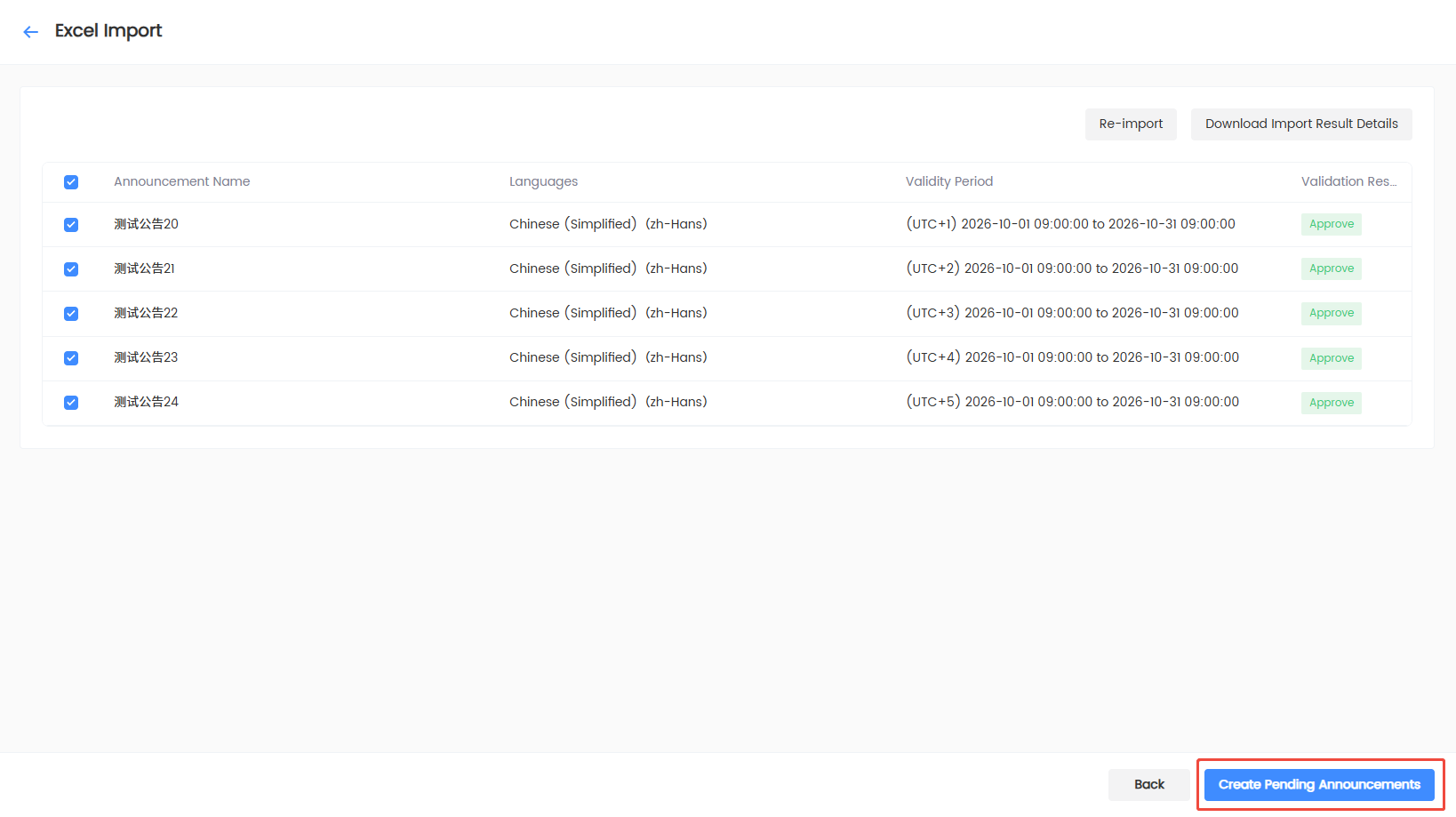
After upload, the system parses and validates the file automatically, and then displays the import result list.
The list contains Announcement name, Language, Validity period, and Validation result. Rows that pass validation can be selected; rows marked Failed cannot be selected. Click Download Import Result Details in the top right corner to download the validation results of this import.
-
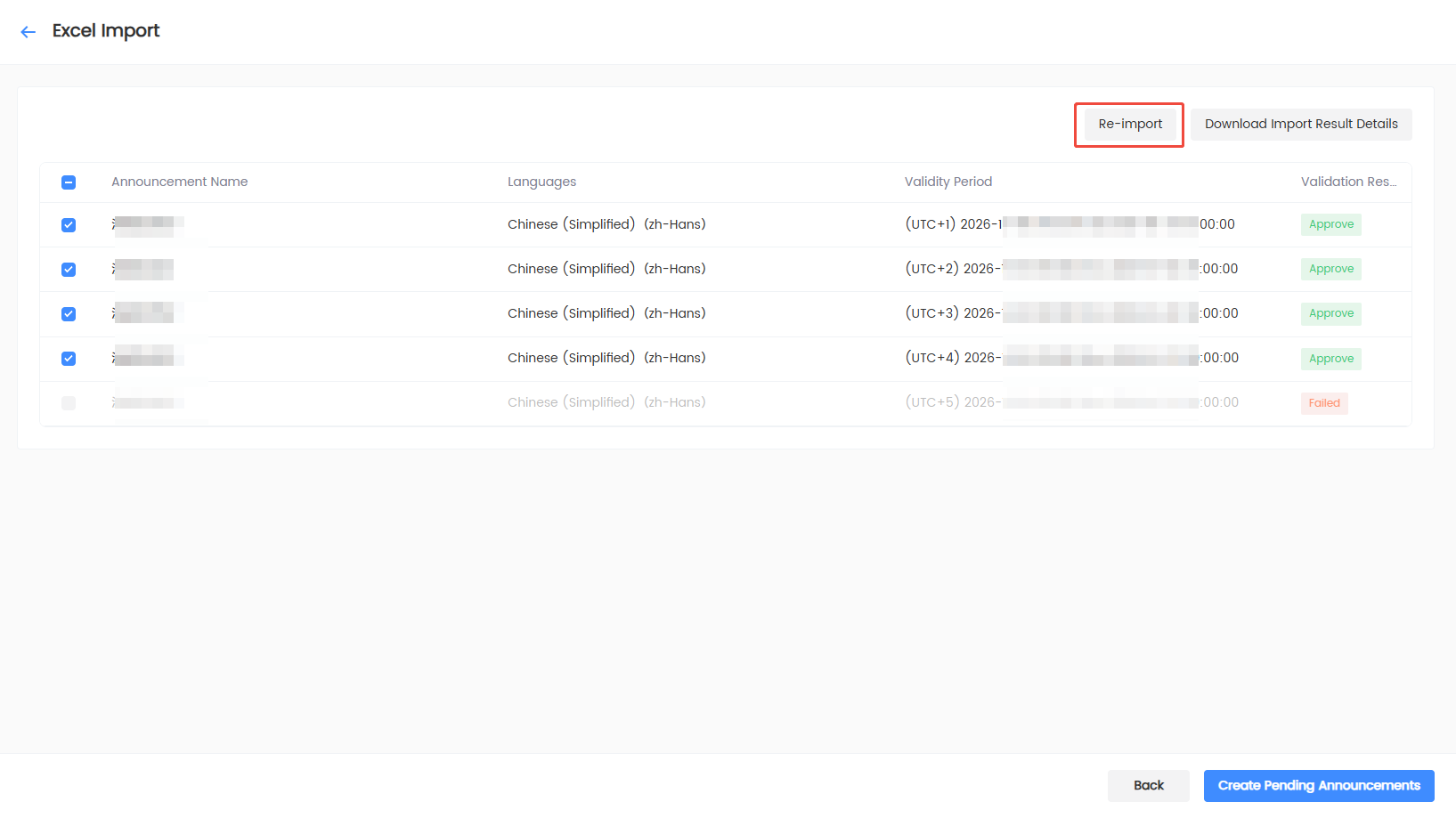
If validation fails, modify the file according to the error message, and then click Re-import in the top right corner to select the file again. The system re-parses the entire file. Importing the same file again generates duplicate announcements; review the preview list before submitting.
-
Select at least one row that passes validation, and click Generate Pending Publish Announcements.
-
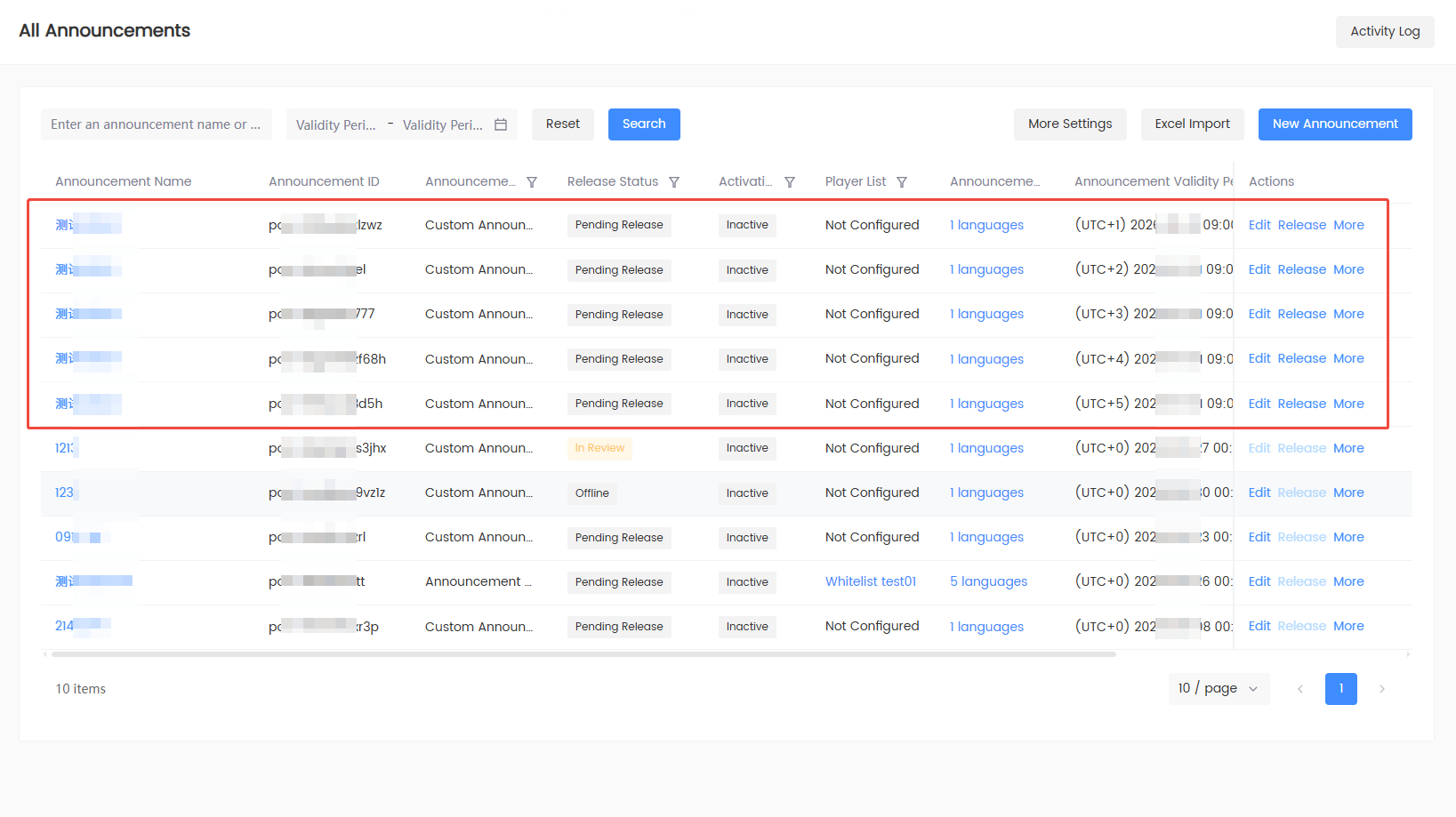
The system returns to Announcement List. The new announcements are in Pending Publish status.
Query and manage announcements
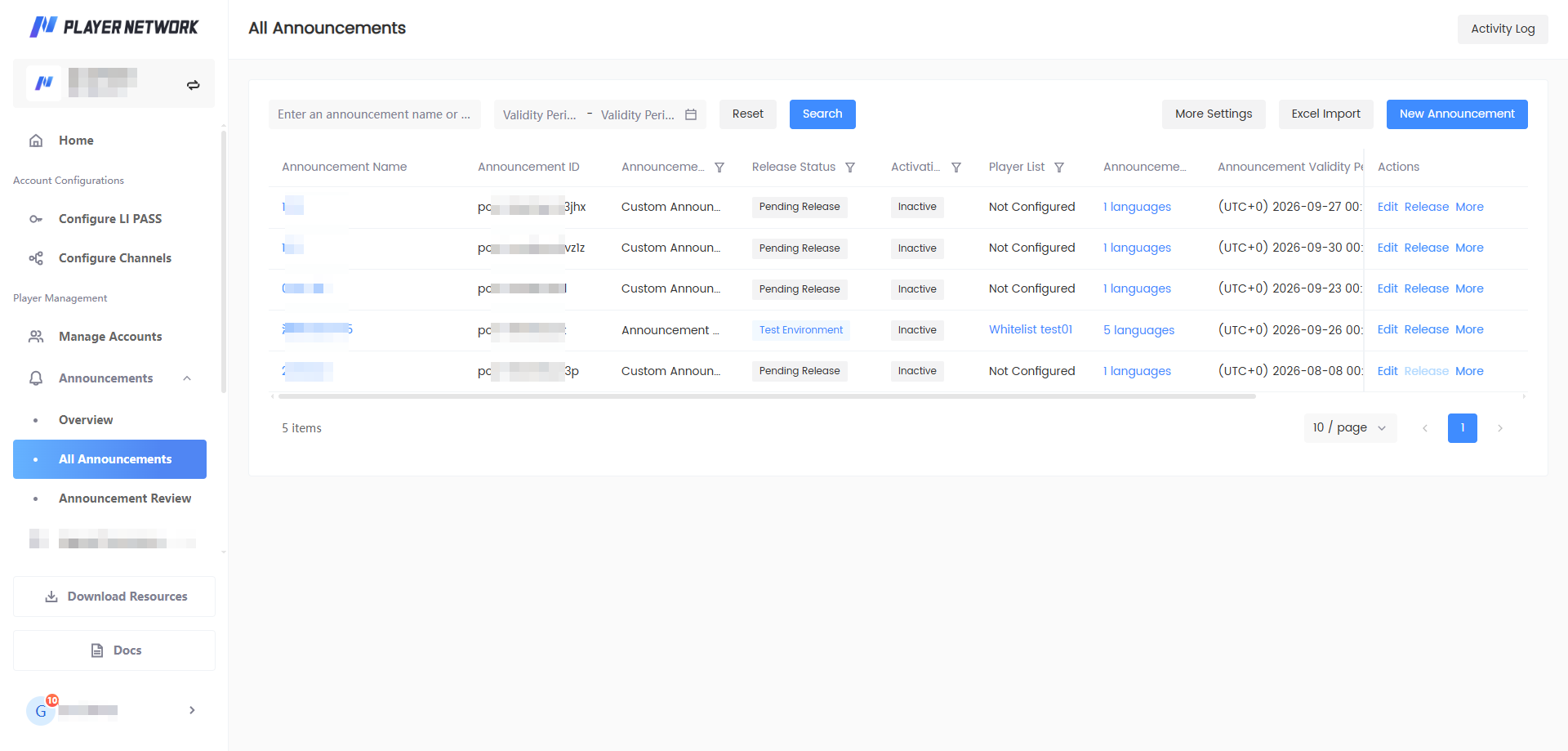
Search, filter, and sort
In Announcement List, you can:
-
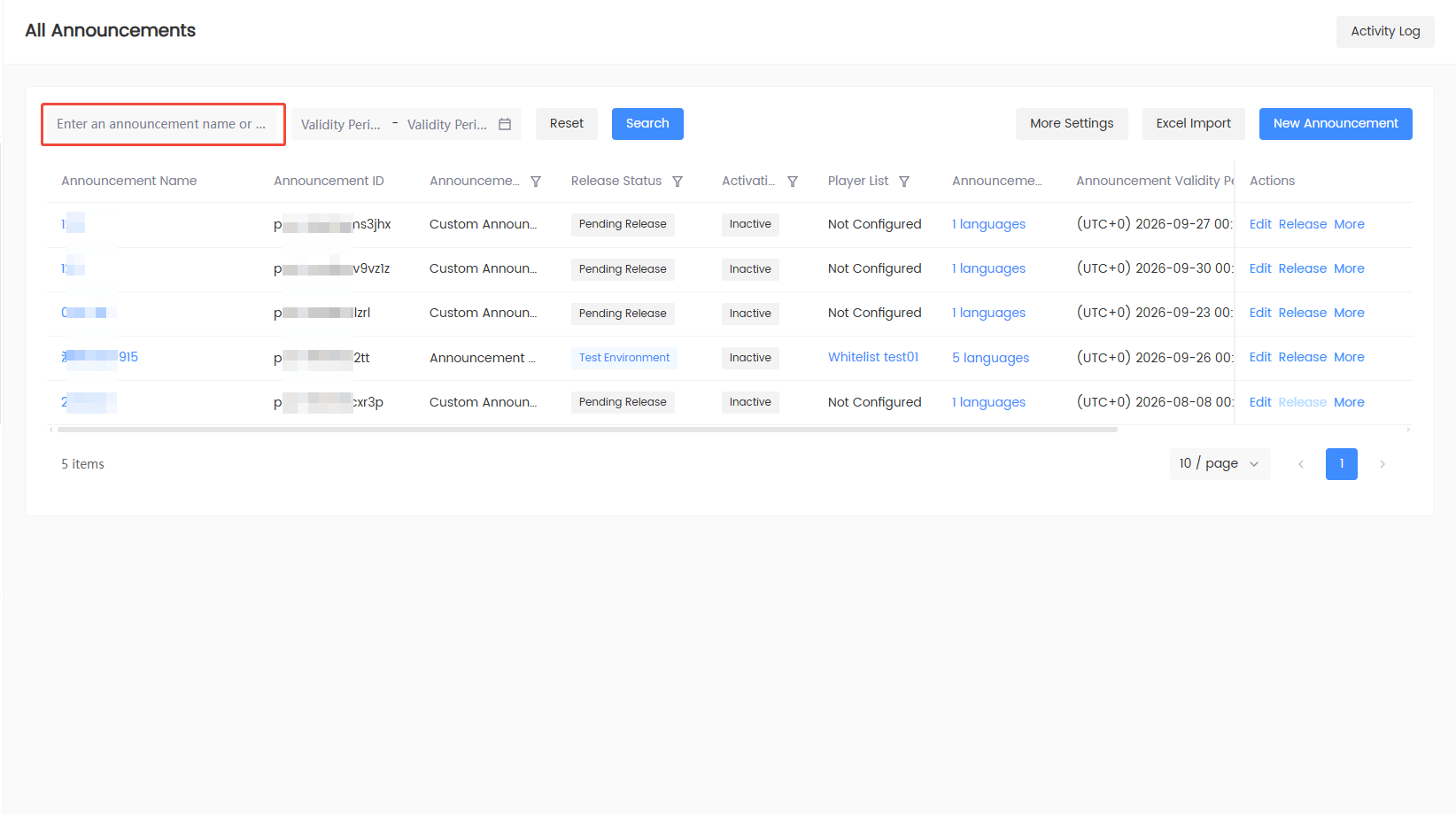
Query by announcement name or ID.
-
Query by validity period.
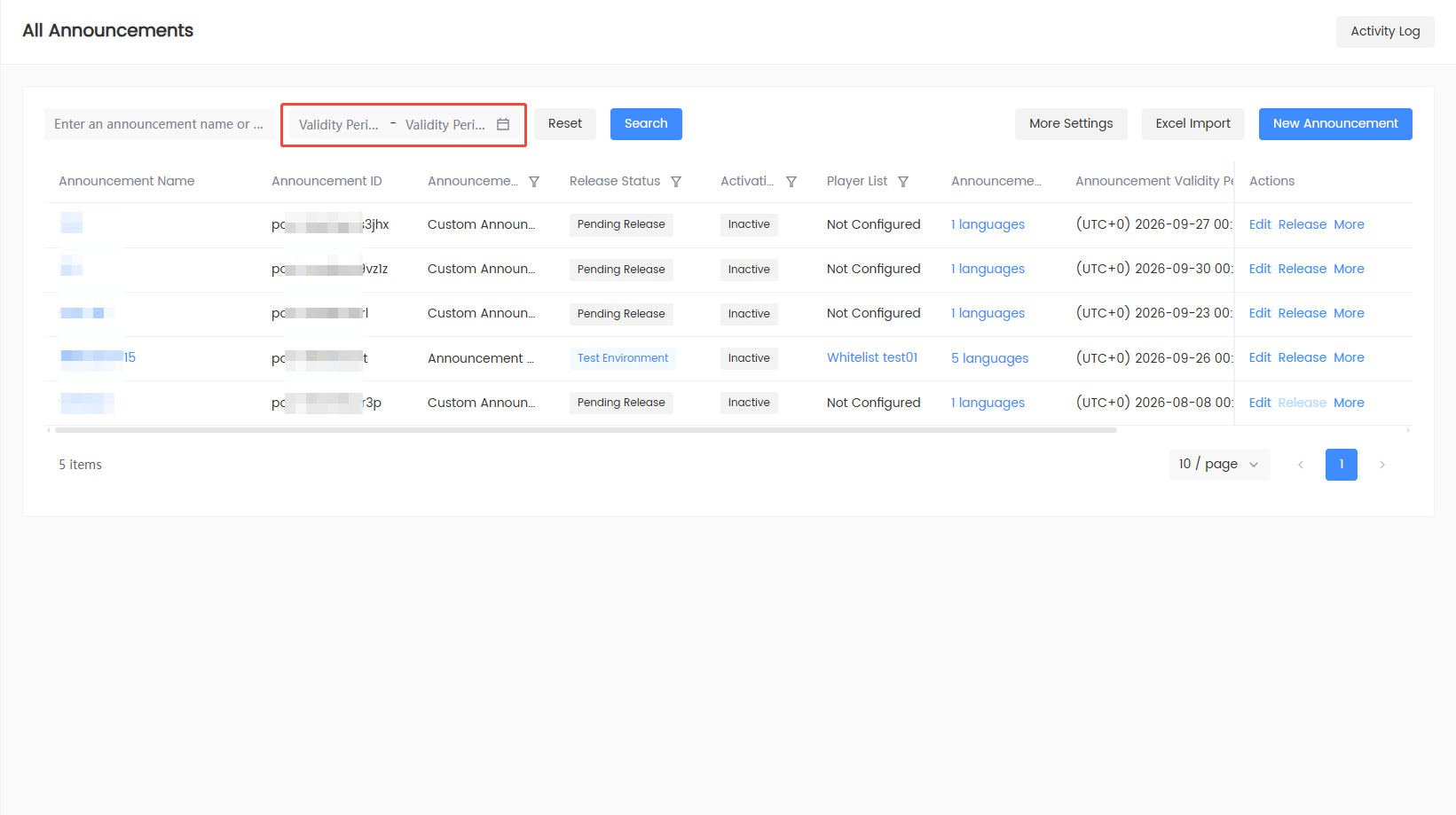
-
Filter by announcement type, publish status, effective status, and player list in the column headers.
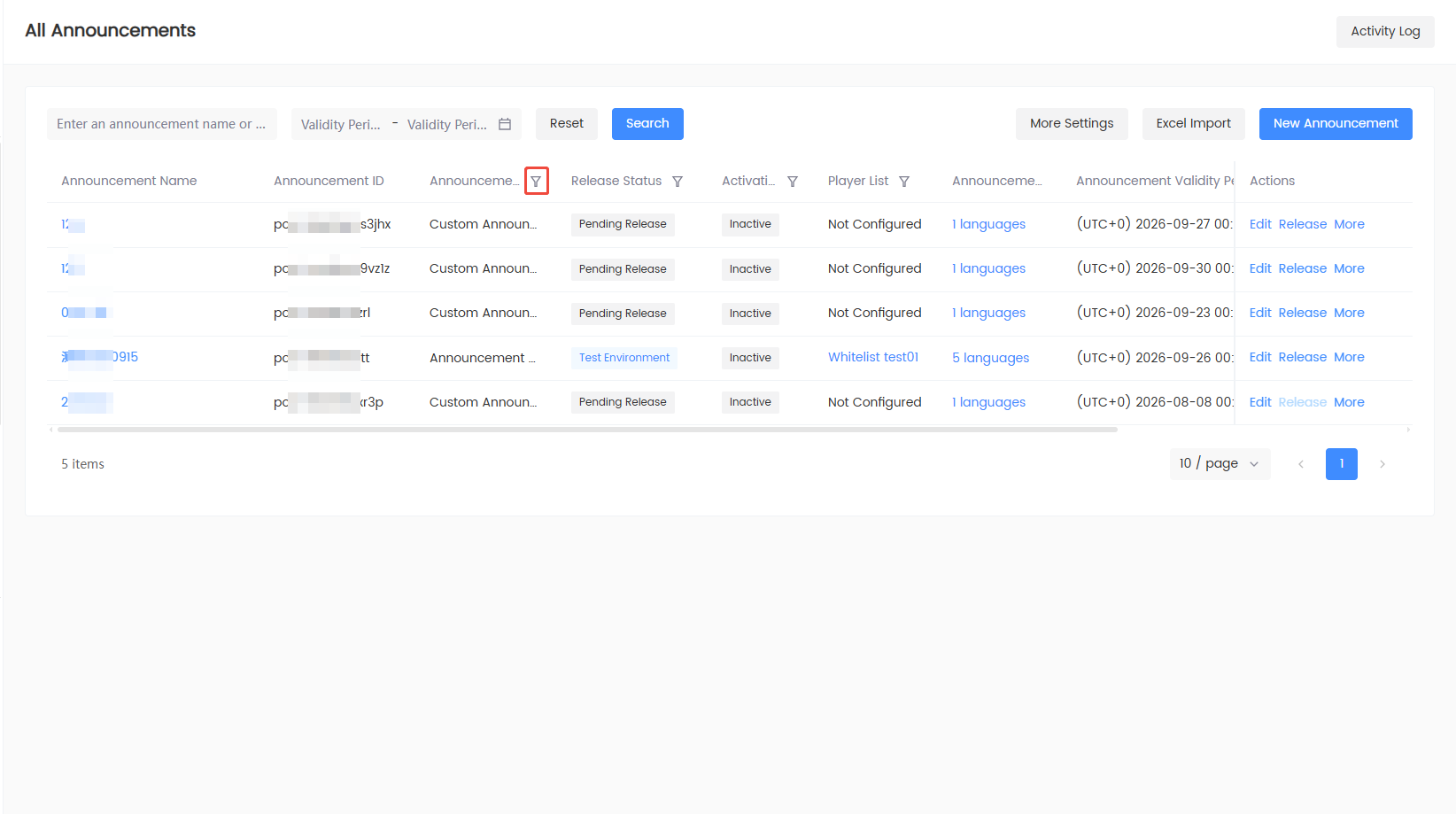
-
Toggle ascending or descending order by creation time.
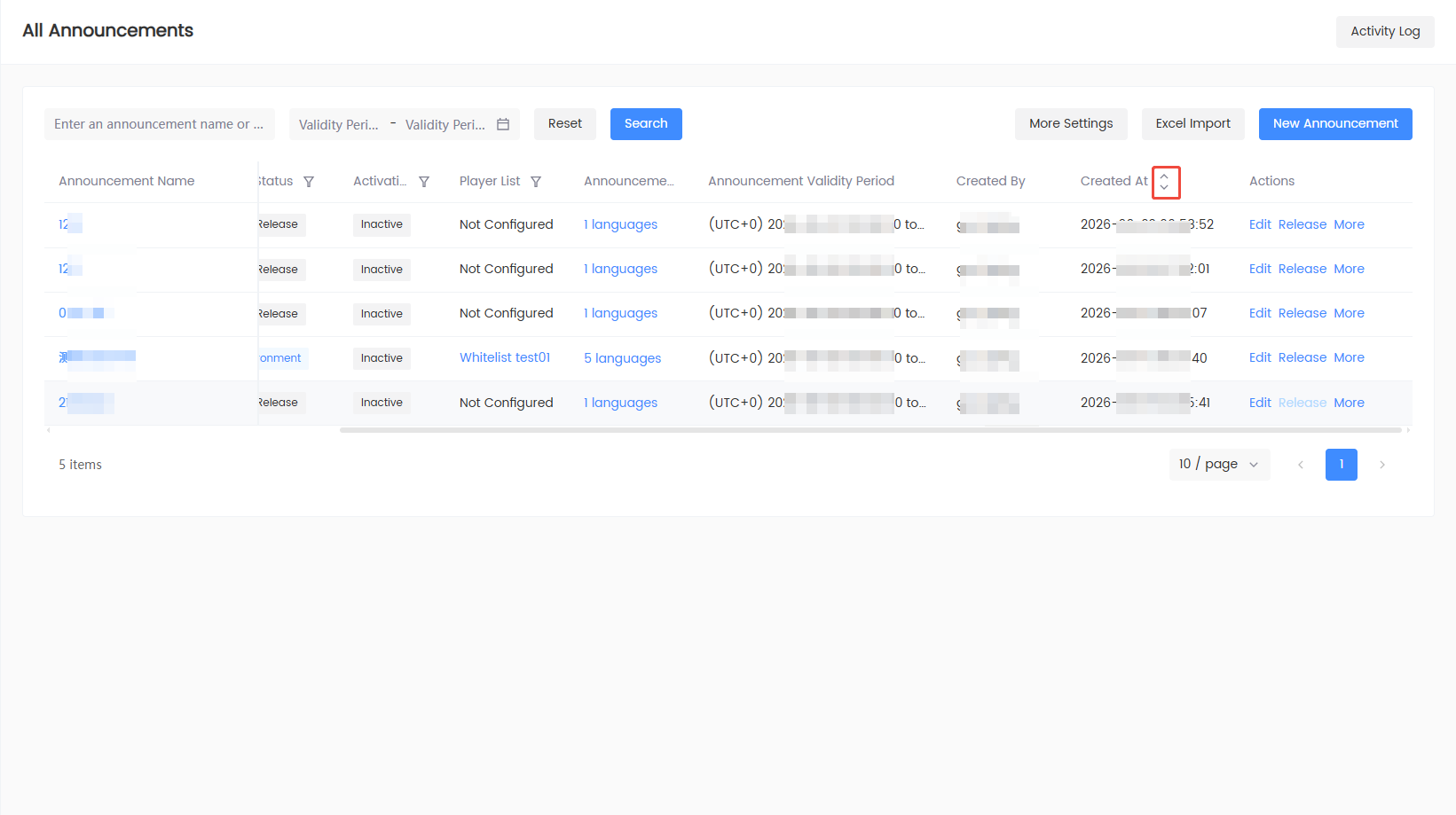
-
Click Reset to clear the filters and restore all announcements.
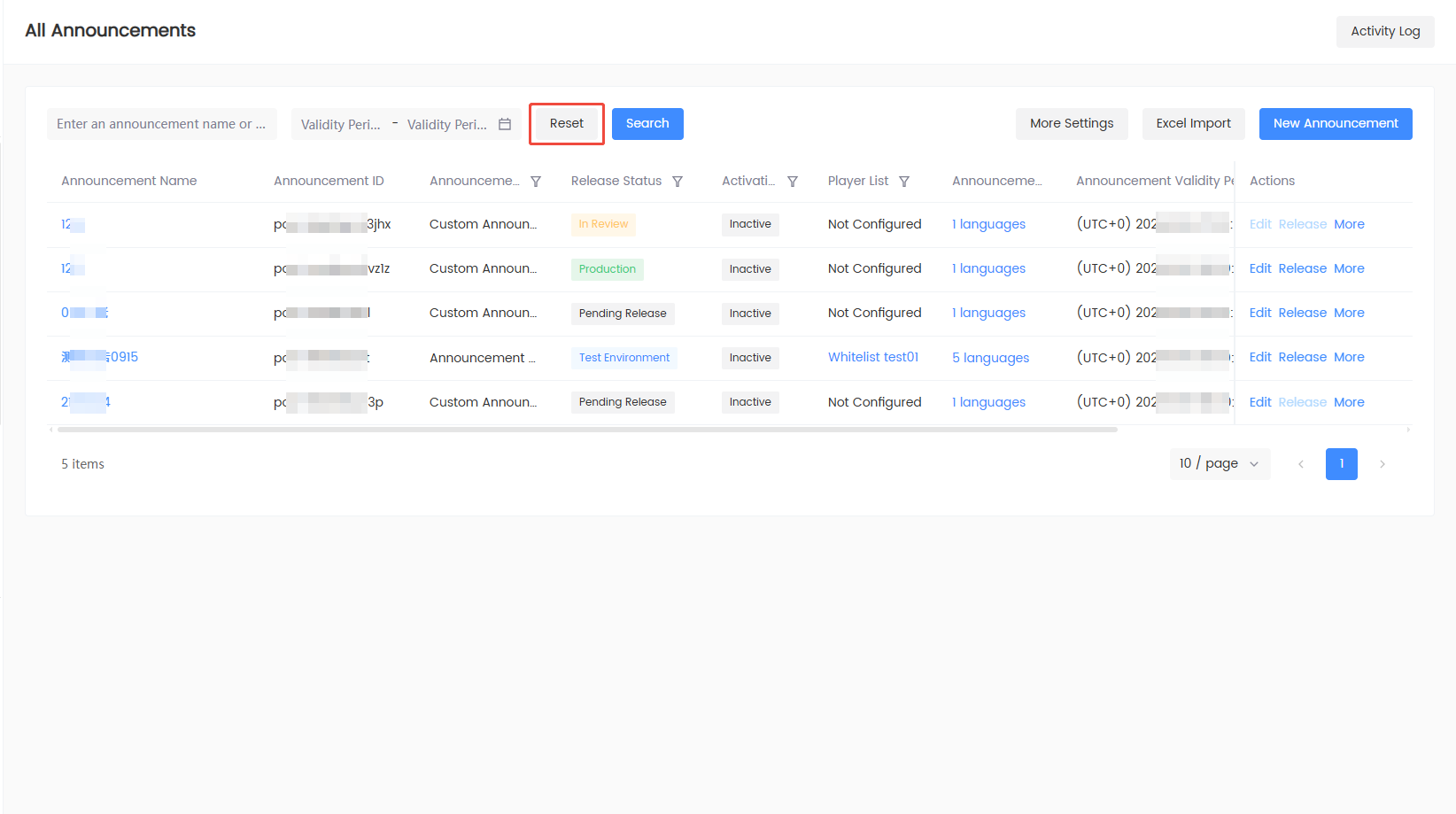
-
You can also click the pending publish, test environment, production environment, or effective data cards from Overview. The system enters Announcement List and automatically applies the corresponding filter.
Understand announcement status
| Status | Meaning | Next step |
|---|---|---|
| Pending publish | Content saved but not yet published | Edit or configure publish scope |
| Test environment | Published to test environment | Verify then publish to production environment |
| Under review | Production publish or offline is waiting for review | Wait for reviewer to approve or reject |
| Production environment | Published to production environment | Monitor effective status; take offline if needed |
| Offline | Publishing stopped | Decide whether to edit or recreate based on page status |
Publish status indicates the position in the publishing workflow; effective status indicates whether the announcement is currently within its validity period. Do not confuse the two.
Common row actions
| Action | Purpose | Notes |
|---|---|---|
| Click announcement name | View announcement details | Edit may not be available in view mode |
| Edit | Modify announcement content | Announcements under review cannot be edited currently |
| Publish | Enter publish scope settings | May be unclickable when under review or validity period has ended; refer to button hints |
| Duplicate | Create a copy based on an existing announcement | The copy needs to be re-checked and saved |
| Take offline | Stop test or production environment announcement | May require review depending on review settings |
| Delete | Delete non-effective announcements | Effective or restricted announcements cannot be deleted |
Unactionable buttons appear disabled. Hover over a button to view the reason.
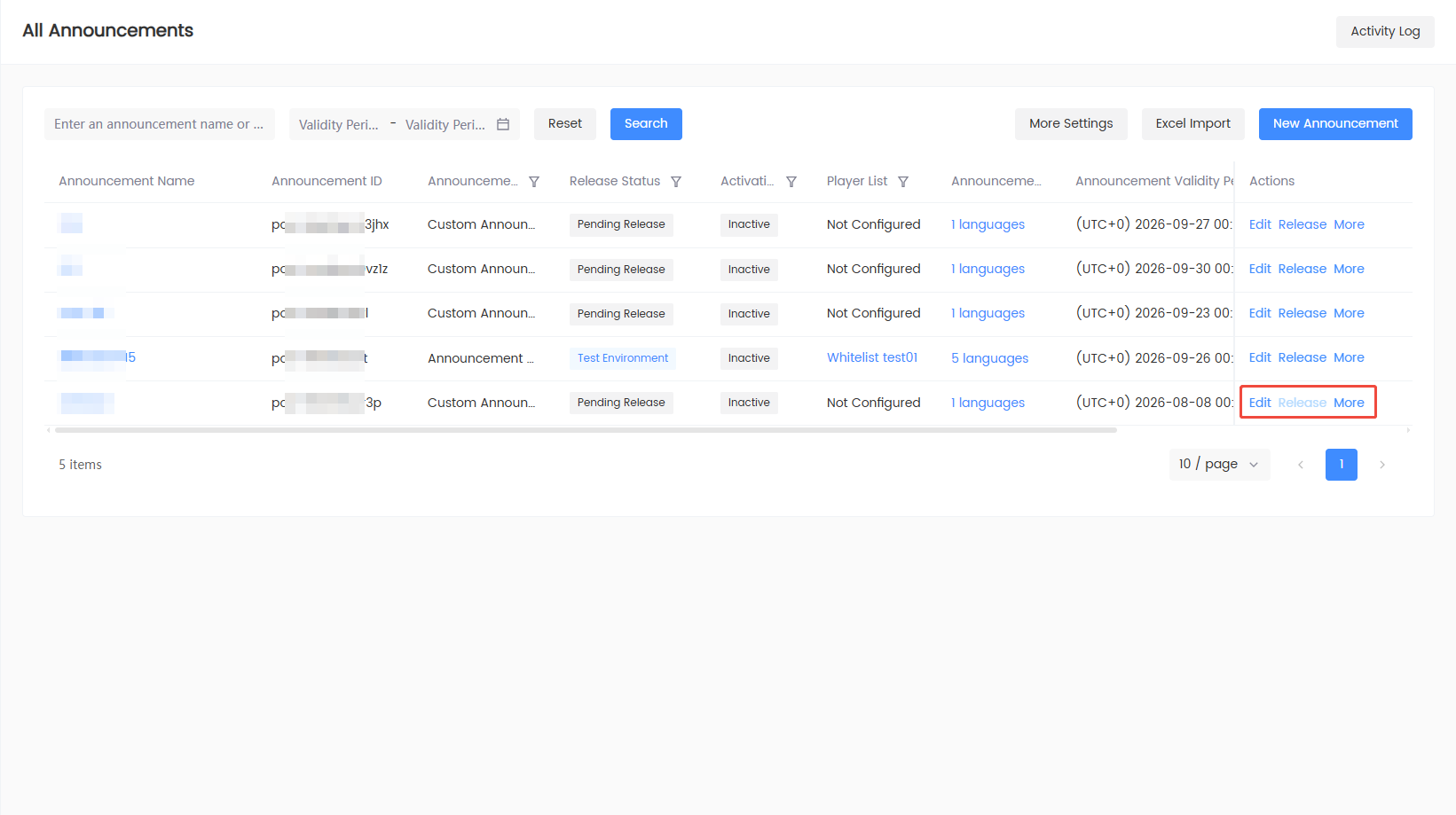
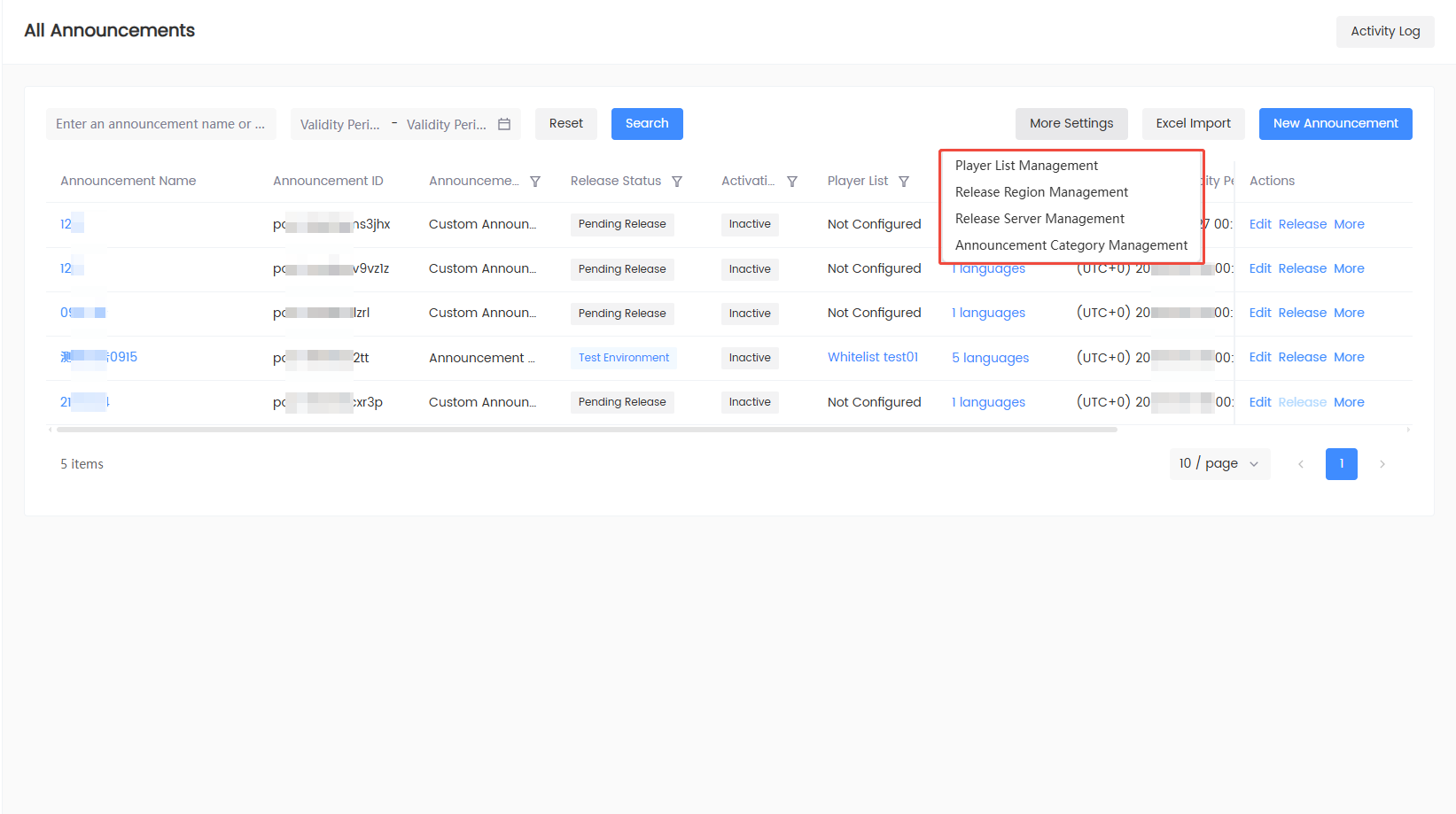
Manage common configurations
Enter Announcement List > More Settings to manage:
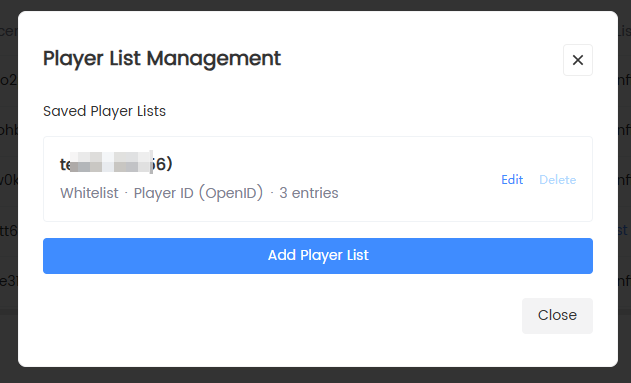
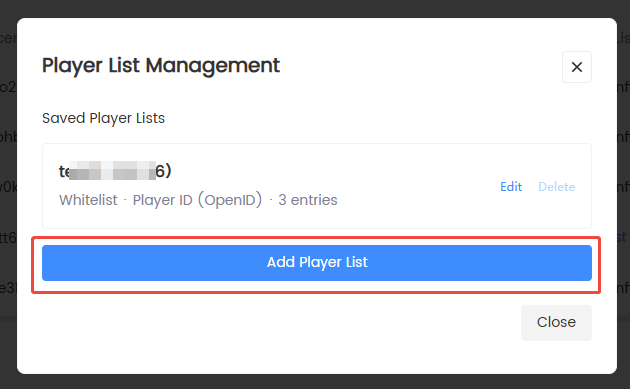
Player list management
-
View the name, ID, blocklist/allowlist nature, ID type, and quantity of saved lists.
-
Click Add Player List.
-
Complete the required fields for the player list and click Save.
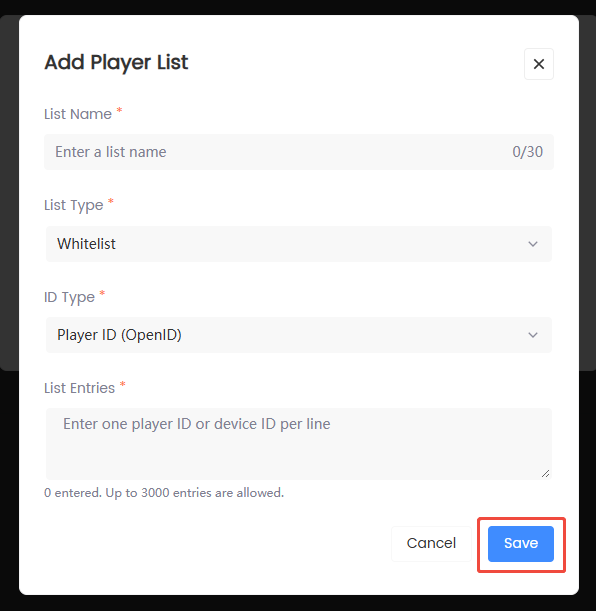
OpenID corresponds to player ID; DeviceID corresponds to device ID. Configurations used by announcements may not be deletable; the button displays the disabled reason.
-
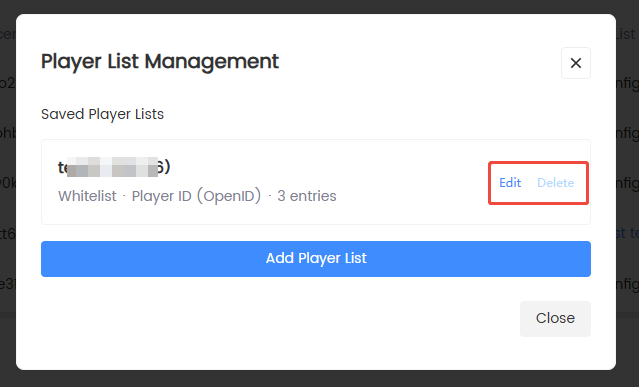
[Optional] Click Edit to modify the player list, or click Delete to delete the player list. If the list is in use by an announcement, it cannot be deleted.
Publish region management
-
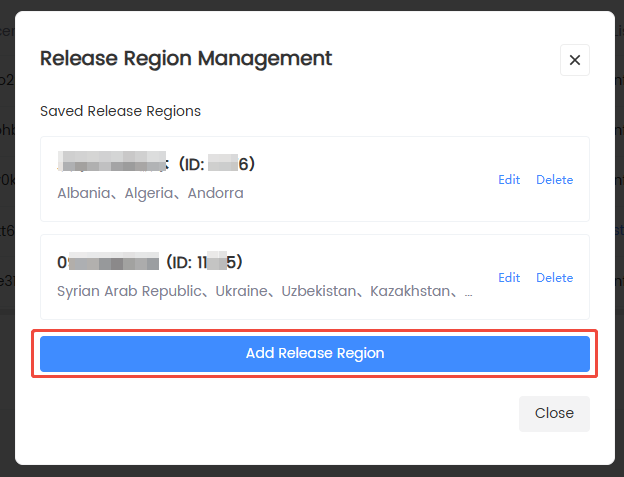
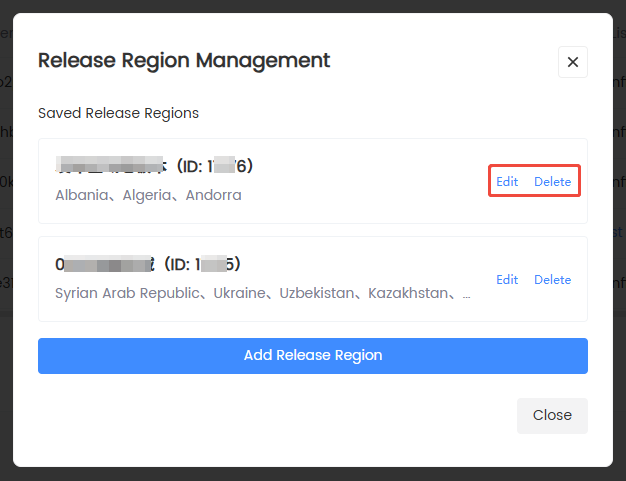
Go to the Publish Region Management page and view the names, IDs, and country/region counts of saved regions.
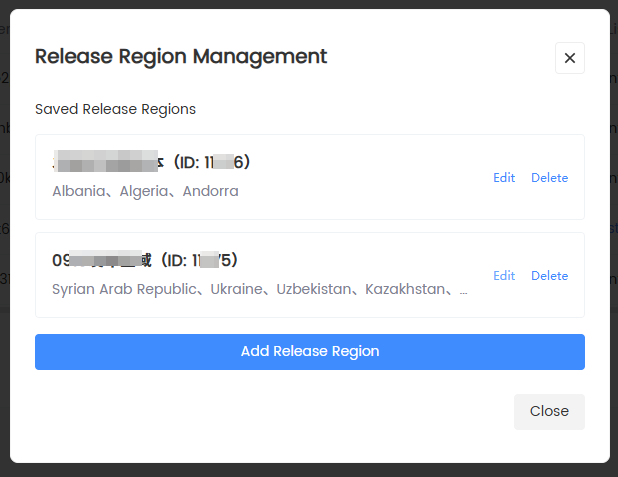
-
Click Create Publish Region.
-
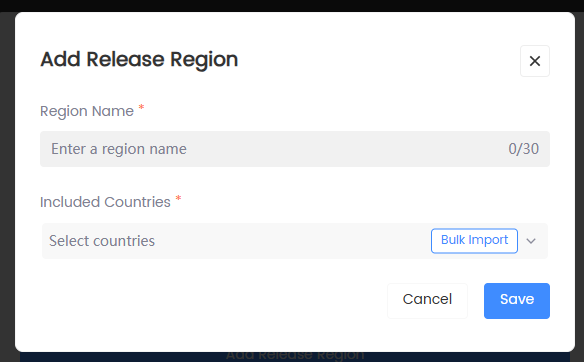
Fill in the region name and multi-select the countries and regions included in this publish region.
-
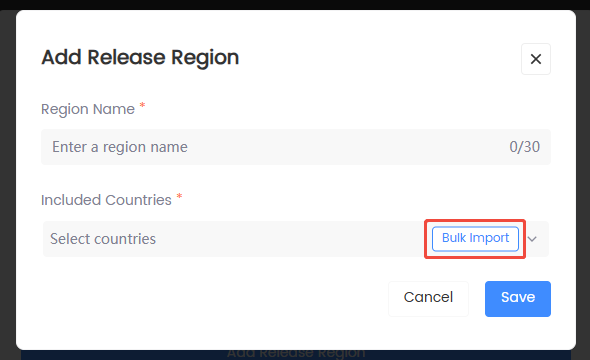
[Optional] Batch import regions for easier configuration.
-
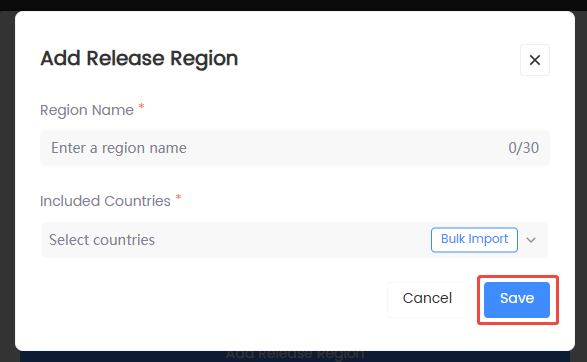
Click Save. After saving, it can be directly reused in publish configuration.
-
[Optional] Click Edit to modify a saved publish region, or click Delete to delete a publish region. If the region is in use by an announcement, it cannot be deleted.
Publish server management
-
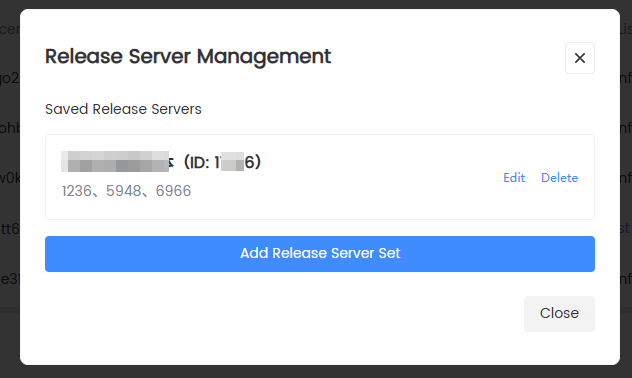
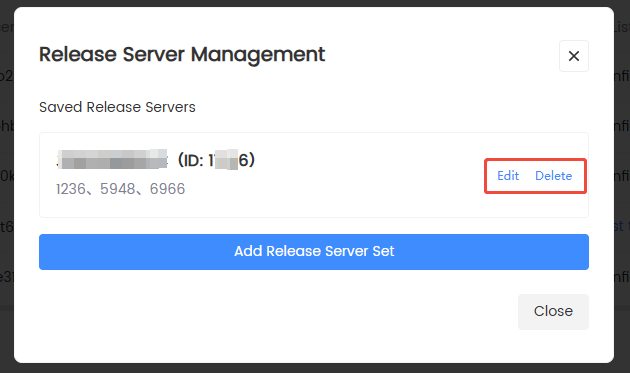
Go to the Server Configuration page and view the names, IDs, and server counts of saved server groups.
-
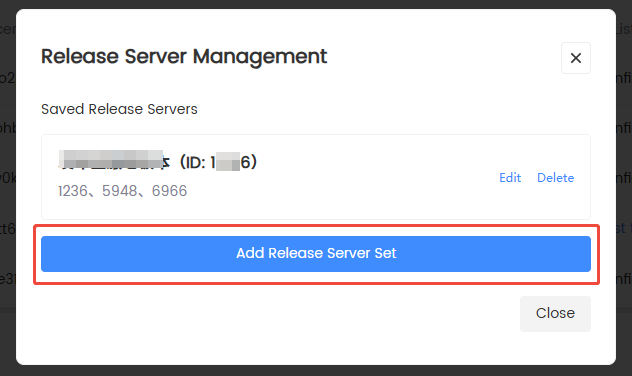
Click Add Server.
-
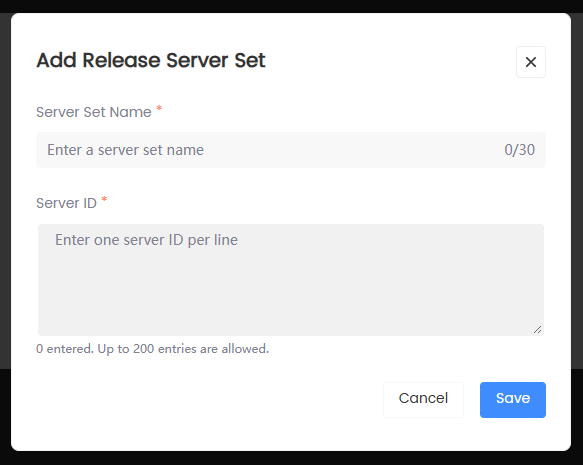
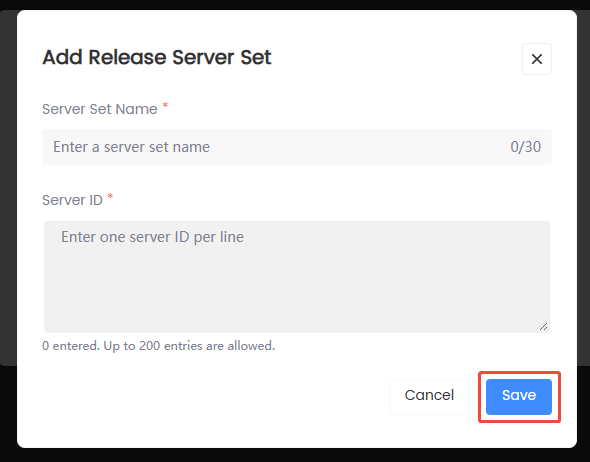
Fill in the server group name and one server ID per line.
-
Click Save. After saving, it can be directly reused in publish configuration.
-
[Optional] Click Edit to modify a saved server group, or click Delete to delete a server group. If the group is in use by an announcement, it cannot be deleted.
Announcement category management
-
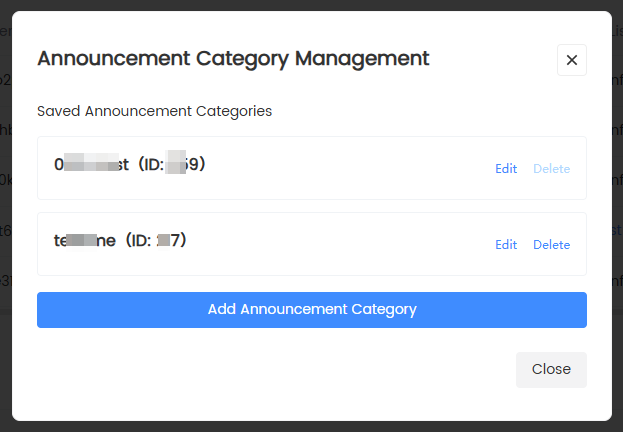
Go to the Announcement Category page and view the names, creators, and creation times of saved categories.
-
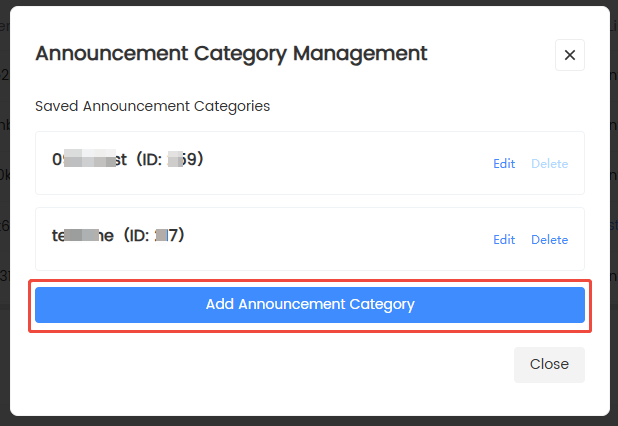
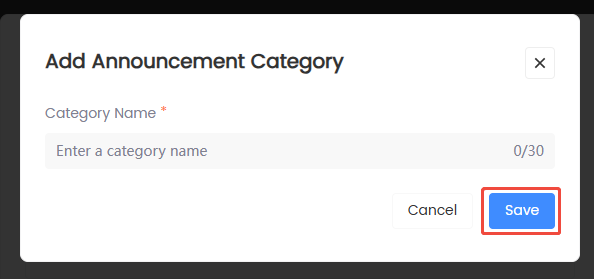
Click Add Category.
-
Fill in the category name and click Save. After saving, it is available for selection by announcement board announcements.
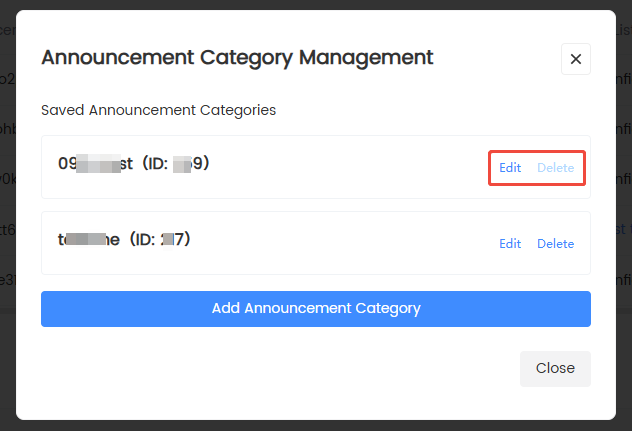
-
[Optional] Click Edit to modify a saved announcement category, or click Delete to delete an announcement category. If the category is in use by an announcement, it cannot be deleted.
Announcement review
Only users configured as reviewers need to handle this chapter.
Pending review announcements
-
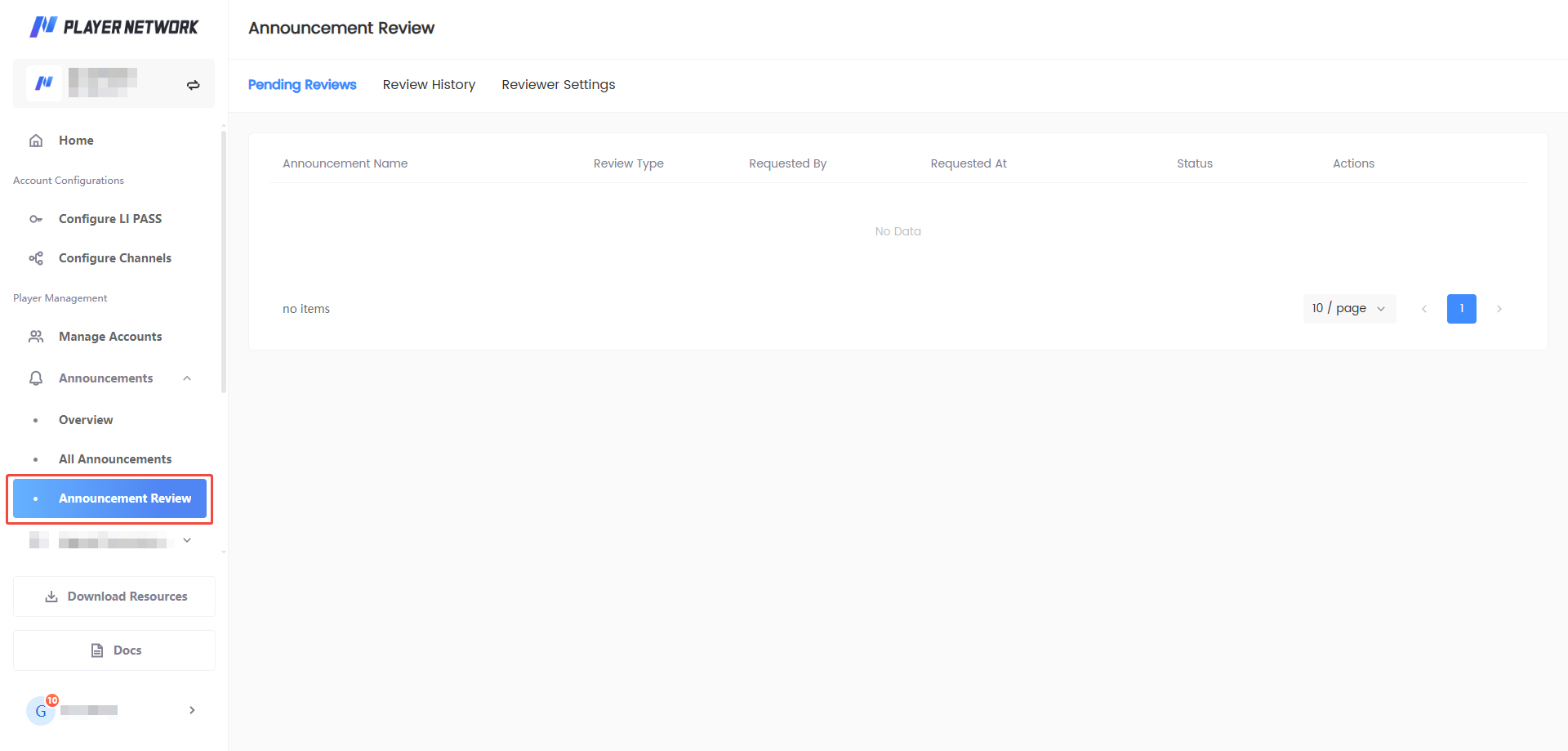
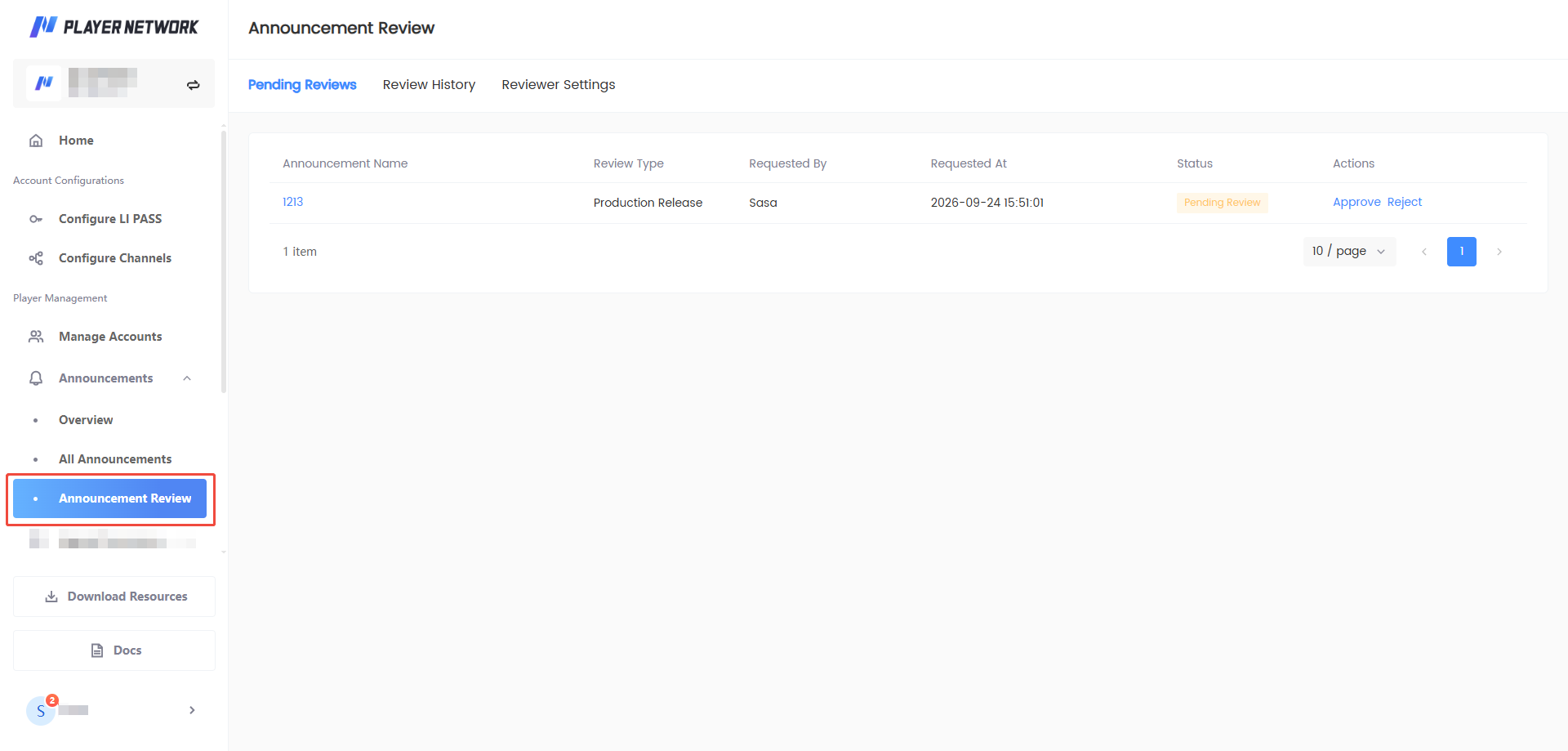
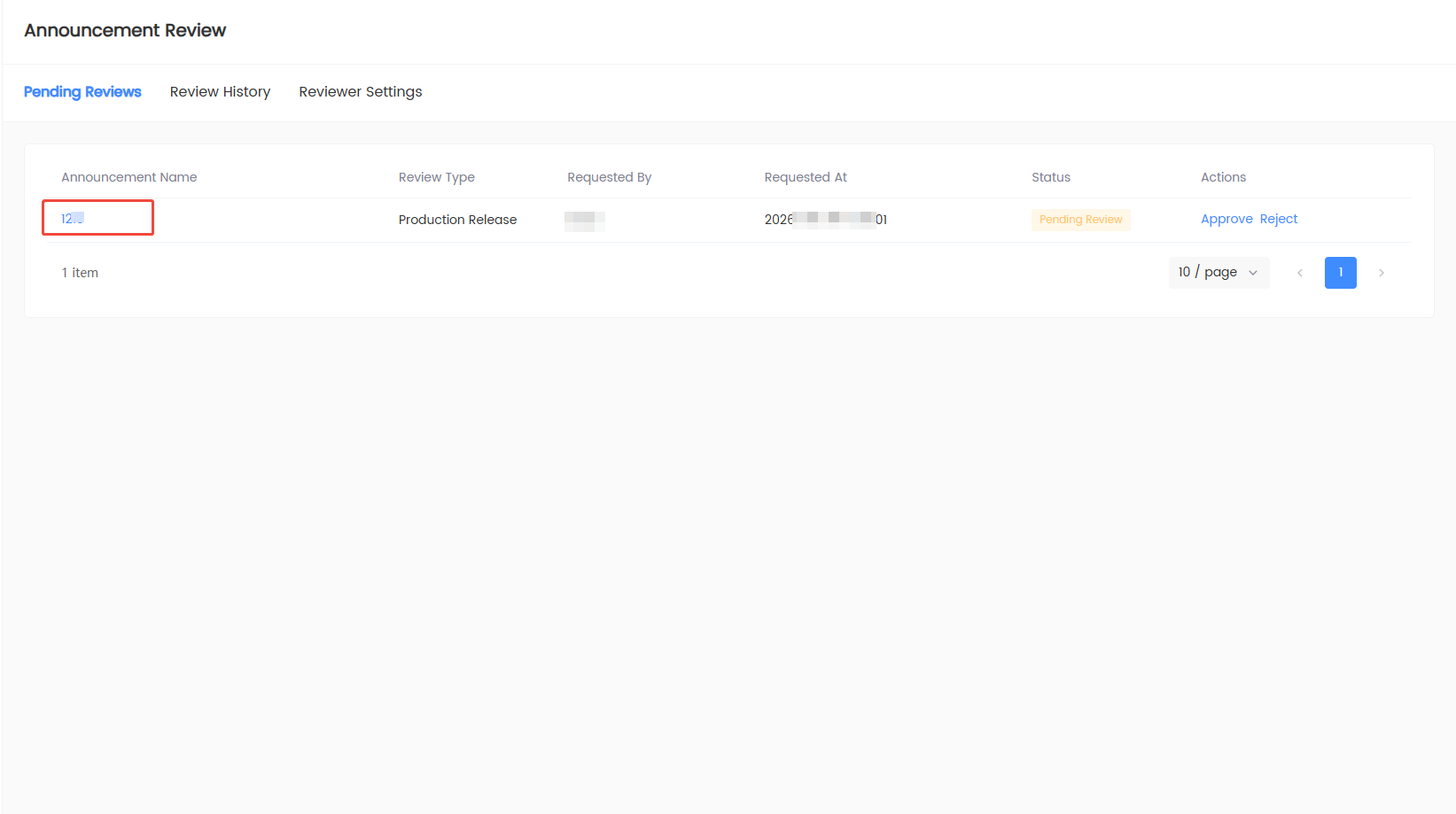
Go to Announcement Review > Pending Review Announcements in the left navigation.
-
Click the announcement name to view details.
-
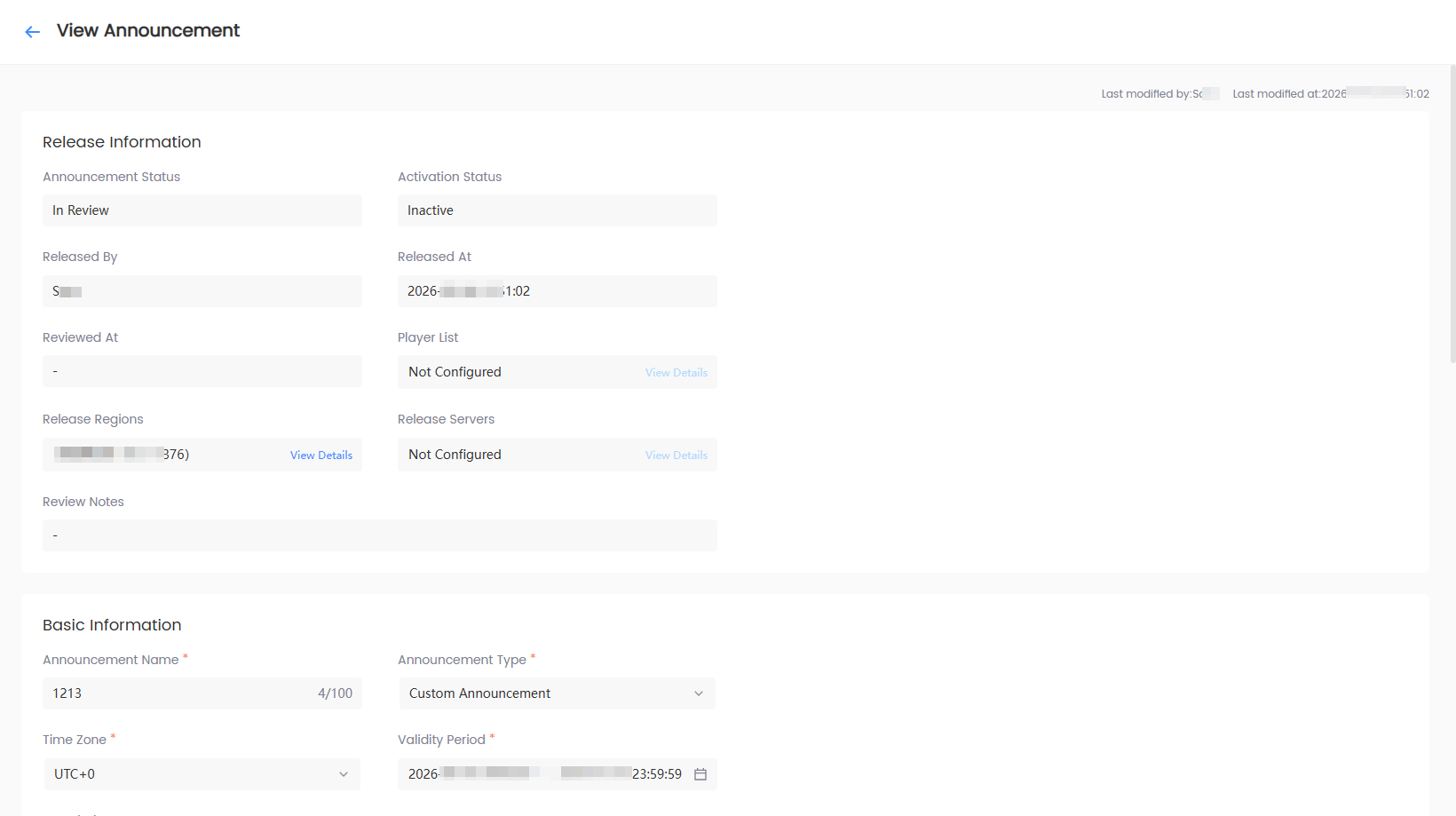
Review the announcement content and publish scope.
-
Select Approve or Reject.
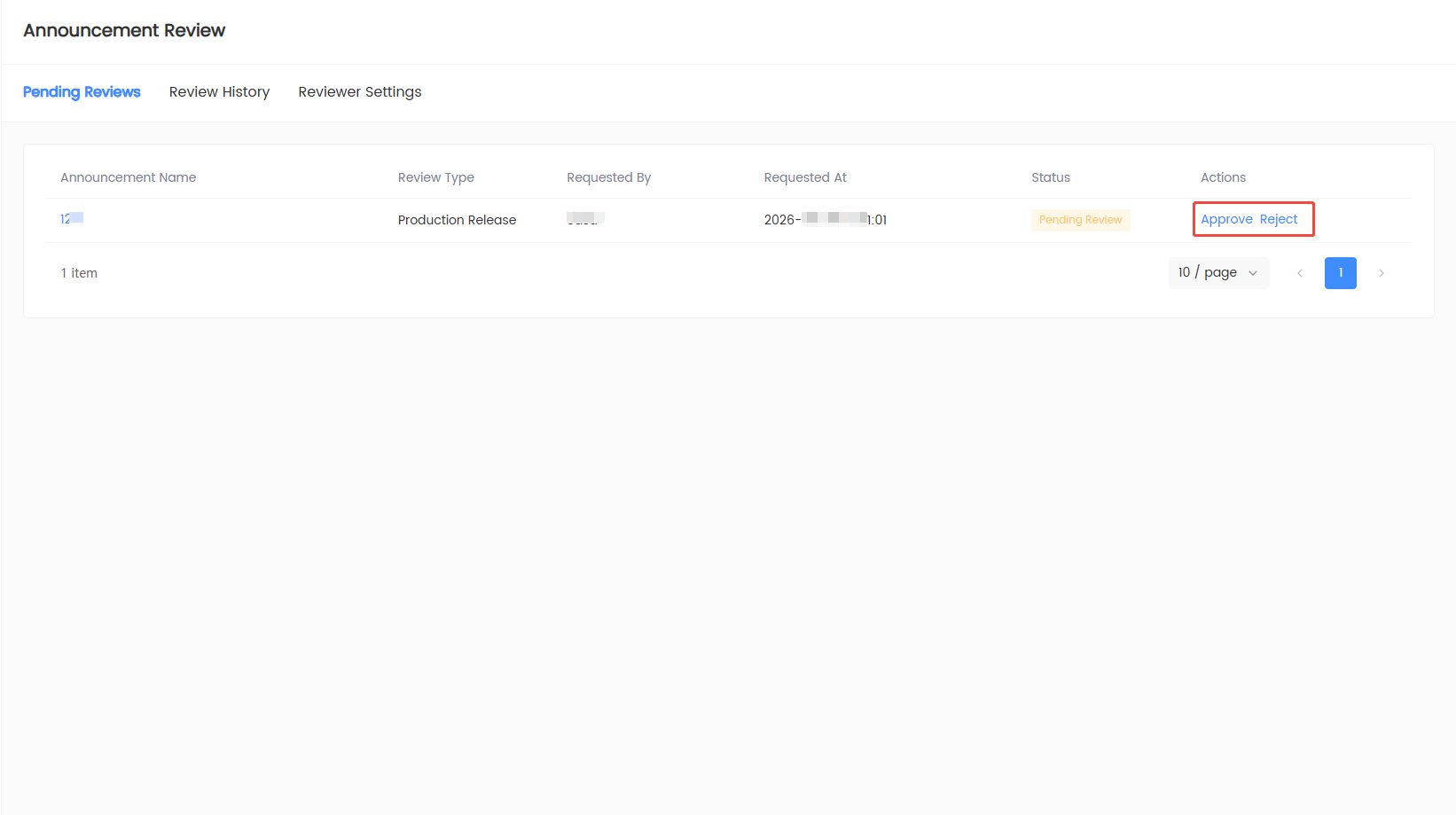
After approval, the announcement is published to the production environment; after rejection, the announcement returns to pending publish, and the applicant can modify and resubmit.
Review history
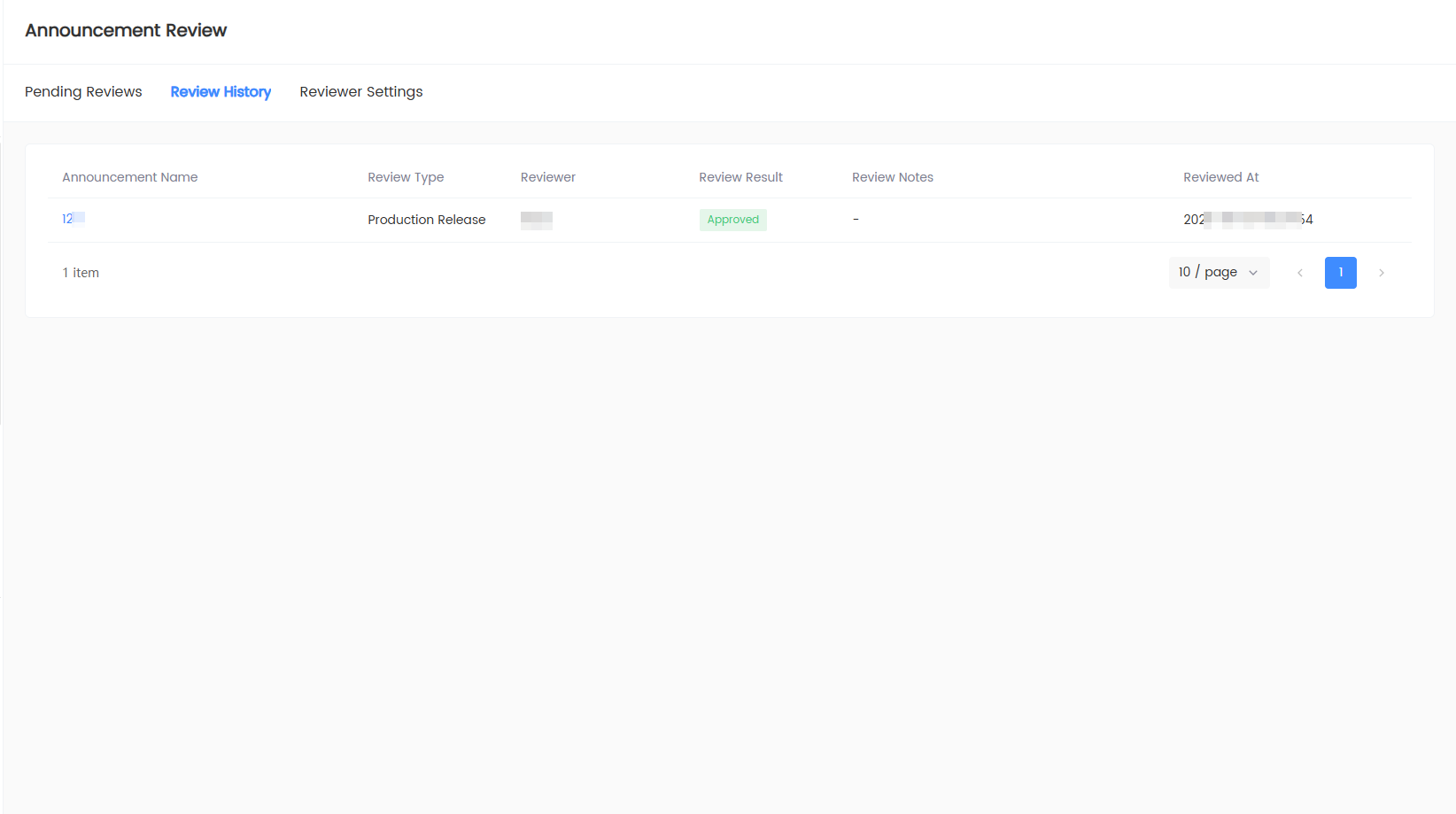
View processed publish or offline requests and their results in Review History.
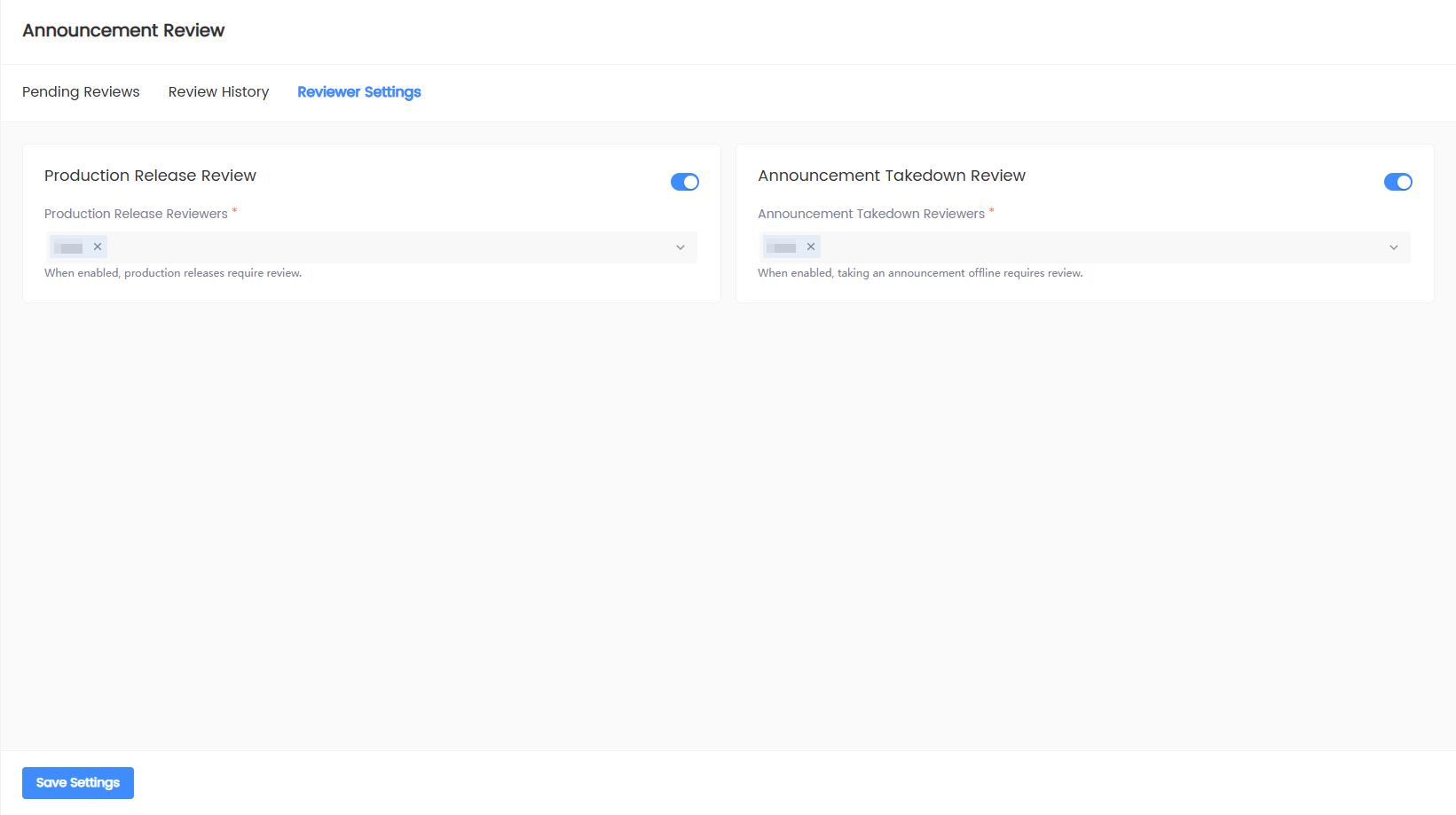
Reviewer settings
You can separately configure:
- Whether production publish requires review, and the corresponding reviewer.
- Whether announcement offline requires review, and the corresponding reviewer.
After turning off the review switch, the corresponding reviewer selection is disabled. Click Save Settings after modifications.
View operation logs
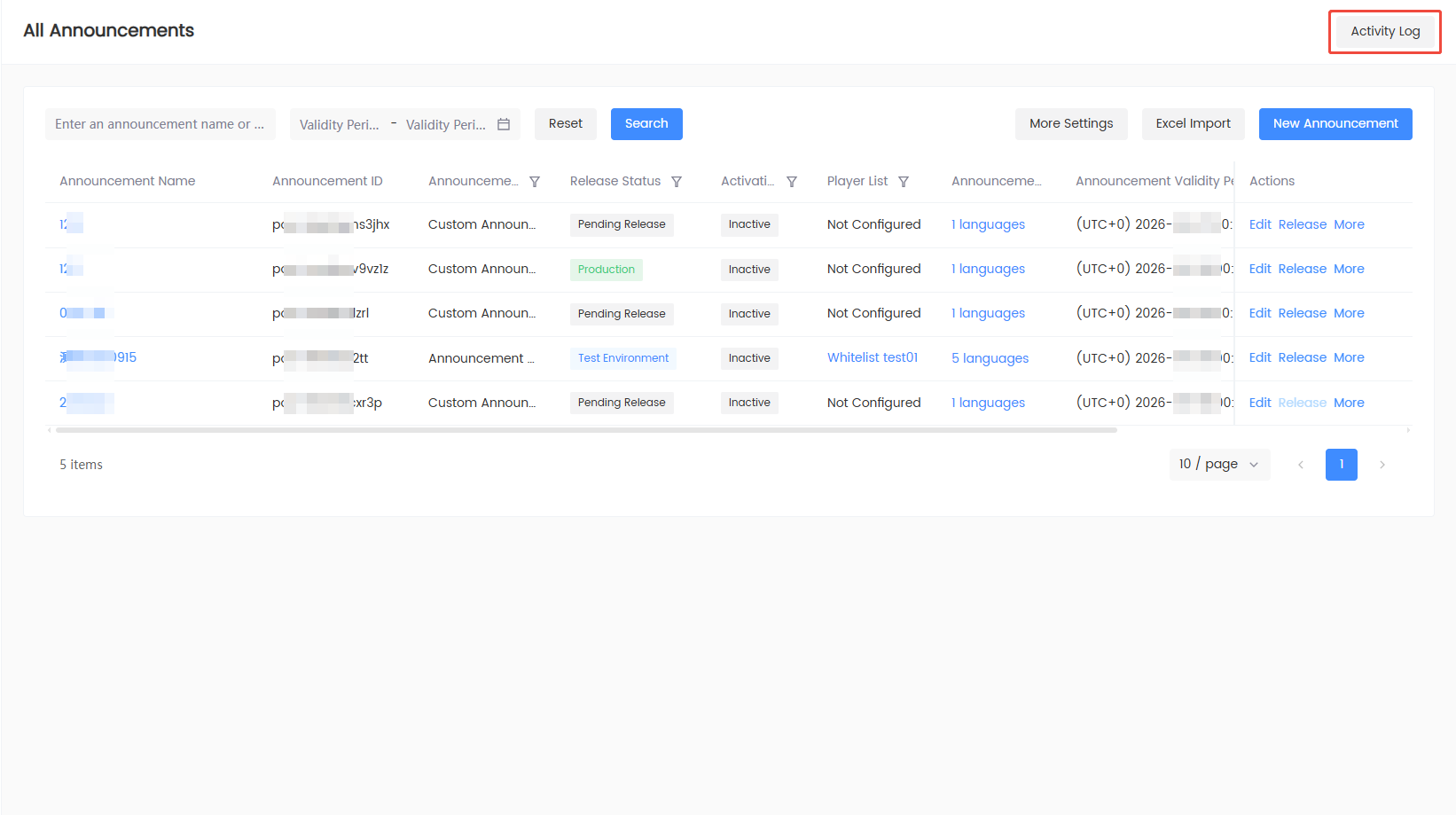
- Entry: Go to Announcement List and click Operation Logs at the top of the page.
- You can query by the following conditions:
- Announcement name or ID
- Operation type
- Operation time
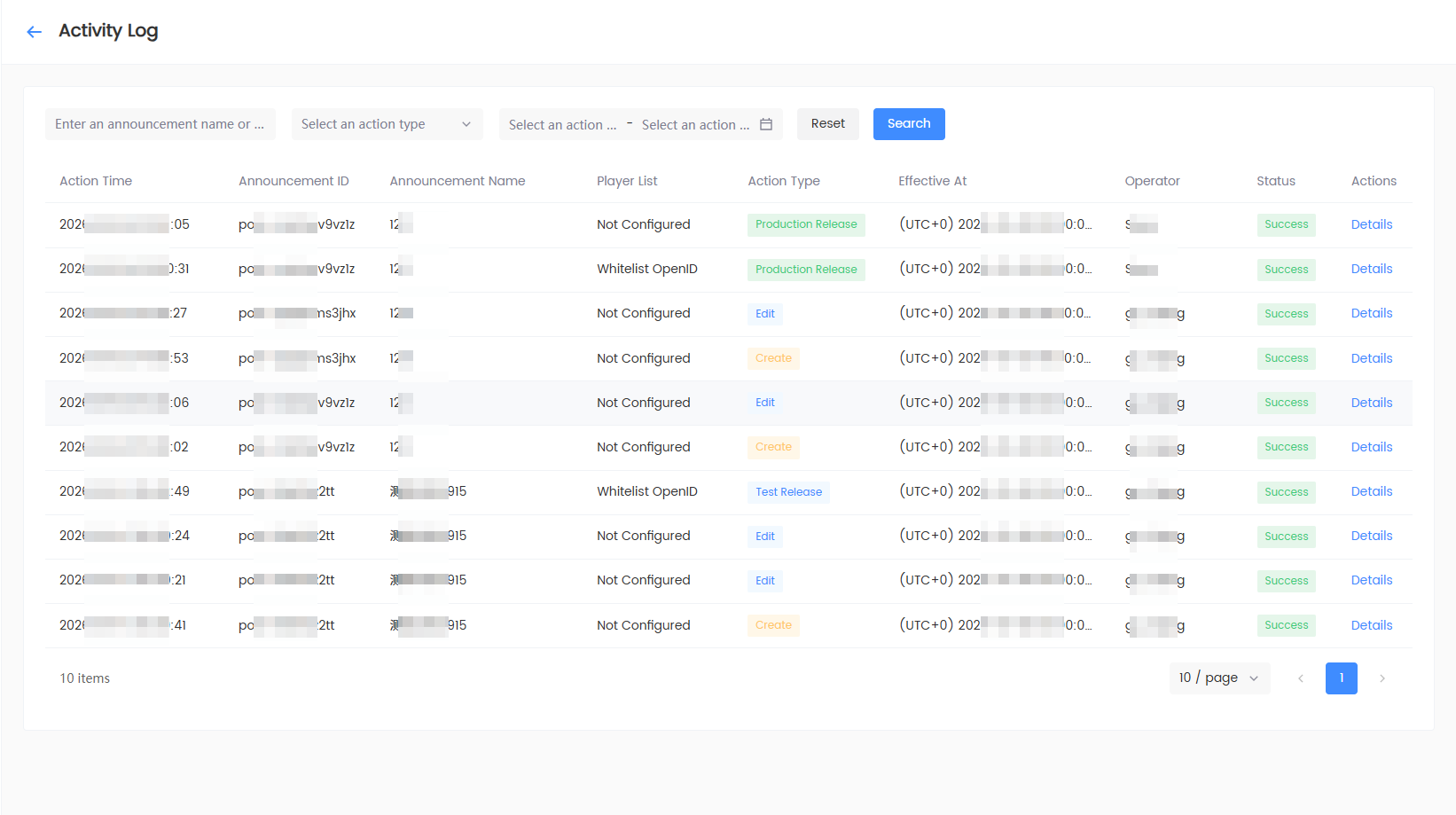
Logs cover add, edit, duplicate, delete, test environment publish, production environment publish, and offline operations. Click Details to view the announcement ID, operator, time, summary, and field differences before and after the operation.
FAQ
Q1: What is the difference between announcement name and announcement title?
The announcement name is for admin query and identification; the announcement title is the content players actually see. Different languages can have different announcement titles.
Q2: Why can't the announcement type be modified?
The announcement type affects the field structure and client display. The type is locked after saving; to change the type, create a new announcement.
Q3: Why does a red prompt appear next to the title or body?
It indicates that the content exceeds the current page limit. Shorten the content according to the prompt to avoid real system validation failure.
Q4: Why is it necessary to confirm "No allowlist configured" during production publish?
When the production environment has no player list configured, the announcement may cover a large number of players in the selected region and server, so the system requires additional risk confirmation.
Q5: Why are the edit, publish, delete, or offline buttons unclickable?
Operation permissions are determined by the announcement status, validity period, and review status. Hover over a disabled button to view the specific reason.
Q6: How many announcements can be imported at once with Excel bulk import?
Up to 30 announcements per import.

